Articles / Guidesupdated for DaVinci Resolve 21.0 (September 2026)
Artlist Music and SFX Plan Explained for Resolve 21
Quick answer
The Artlist Music and SFX plan, explained for Resolve 21, gives you downloadable music, sound effects, and available stems to import into the Media Pool and Fairlight. Choose Social for one personal channel, Music Pro for music only, or Music & SFX Pro for client, commercial, and broader publishing work.

I’ve spent 7+ years cutting commercial video, and the same mistake still costs editors time: choosing a music plan before deciding who will publish the finished work. The license decision is where the trouble starts.
As of September 2026, Artlist Music and SFX is best understood as a downloadable audio subscription for an existing DaVinci Resolve workflow. The Social tier fits personal channels. Music Pro adds music without SFX. Music & SFX Pro is the practical starting point for client and commercial work.
What is the Artlist Music and SFX plan for DaVinci Resolve?
Artlist Music and SFX is a subscription that gives you licensed music and sound effects to sync into video projects, then download and edit inside DaVinci Resolve. It isn't a Resolve plugin, a replacement for Fairlight, or ownership of the audio files.
Artlist's current plan family separates three questions that are easy to blur together:
- Which assets do you need, music only or music plus SFX?
- Where will the finished project be published?
- Will the project be personal, client, branded, paid-media, or team work?
The Music & SFX plan includes music and sound effects. Artlist's plan guide also lists downloads, favorites, available stems, Artboards, trend discovery, and similar-song recommendations. It describes the catalog in the 10,000s, so the useful promise is breadth of searchable audio, not a guaranteed number of files that will stay unchanged. Artlist's current Music and SFX plan information is the source to check when the product page changes.
Music Pro includes music without SFX. Music & SFX Pro combines both asset types and adds the Pro license. Music & SFX Social includes both asset types under a personal-channel license.
Resolve can import the file, but it can't decide whether the license covers your publishing destination.
Artlist Music and SFX supplies audio assets for Resolve, but the license tier decides where the finished video may go.
Which Artlist Music and SFX plan should a Resolve editor choose?
Choose the plan from the publishing job backward. Social is for personal channels, Music Pro is for music-only workflows, and Music & SFX Pro is for client or commercial work that needs both music and sound effects.
| Your Resolve project | Plan that fits the stated use | What you get | Where the decision can go wrong |
|---|---|---|---|
| Personal vlog or creator video on one channel per supported platform | Music & SFX Social | Music, SFX, available stems, downloads, and the Social license | It does not cover client work, brand work, websites, paid media, or extra channels under the Social rules |
| Music bed only, no Artlist SFX needed | Music Pro | Music, available stems, downloads, and the Pro license | You will need a different plan if your edit also needs Artlist sound effects |
| Client film, branded video, paid social ad, or commercial edit needing music and SFX | Music & SFX Pro | Music, SFX, available stems, downloads, and the Pro license | You must still follow the sync-license limits and Clearlist the relevant channel or video |
| Two to seven people sharing one creative operation | Music & SFX Teams | A multi-seat account for music and SFX work | A single-user plan isn't a team license, and more seats or larger organizations need different terms |
| Music, SFX, footage, templates, LUTs, plugins, and AI tools in one subscription | Artlist Max | The broader stock and AI bundle | You may pay for asset categories your Resolve project never uses |
Ask one blunt question before downloading: is the channel yours, or are you producing for somebody else? Social may fit personal publishing. Client, brand, and multi-channel work needs a Pro check.
Does Artlist Music and SFX work with the free version of DaVinci Resolve 21?
Yes. Artlist Music and SFX can be used with DaVinci Resolve 21 Free because the plan provides downloadable audio files, while Resolve's free edition includes audio post-production tools. Resolve Studio is not required simply to import, trim, mix, or export a video containing downloaded music and SFX.
Blackmagic Design lists DaVinci Resolve 21 as available for Mac, Windows, and Linux, and describes the application as including audio post production. It also lists Resolve Studio 21 as the paid edition with additional Neural Engine, effects, Fairlight FX, and HDR capabilities. Blackmagic's Resolve 21 product page supports that version and edition distinction.
The practical workflow is file-based:
- Download the music or SFX from your Artlist account while the subscription is active.
- Choose WAV when you want a straightforward production file and the asset offers that format. Artlist's current audio guidance lists MP3 and WAV for music and WAV and AAC for SFX, depending on the asset type.
- In Resolve, use File > Import > Media, or drag the downloaded file into the Media Pool.
- Put music, SFX, dialogue, and room tone on clearly named audio tracks.
- Open Fairlight to balance, edit, and finish the soundtrack.
Blackmagic's Fairlight training materials describe importing media, selecting clips, balancing levels, simple editing, and dialogue repair. Its Fairlight guide documents Command-I on macOS for opening Import Media. These are ordinary Resolve media operations, not an Artlist-only feature. Blackmagic's Fairlight training is the right reference when a control has moved in Resolve 21.
How do I use Artlist music and SFX in Resolve 21 without making a mess?
Use a small, repeatable handoff: search by the edit's need, download the right format, preserve the license record, then organize the audio before you start mixing. A clean folder and track structure prevents the subscription from becoming a pile of unnamed files.
1. Start with the scene, not a vague mood
Write down the job for each asset. “Music under a talking-head explanation” is more useful than “inspiring.” “Low room tone under a warehouse wide shot” is more useful than “ambient.” For SFX, name the action and the distance: door latch close, door latch distant, soft cloth movement, exterior traffic bed.
Artlist's music search supports filters such as vocals or instrumental, duration, BPM, and stem availability. Its SFX guidance describes categories including ambience, hits, risers, whooshes, and Foley. Those filters don't make a creative choice for you. They reduce the number of files you need to audition. Artlist's audio search guidance is the current reference for available filters and formats.
2. Download the full mix first
For most edits, download the full music mix and use it as the reference. If stems are available and your plan includes them, download the stems when the edit genuinely needs control over vocals, drums, bass, or another element.
Artlist defines stems as the individual audio tracks that make up a full music track. Its current guidance says available stems can be downloaded as MP3 or WAV. The Music Pro, Music & SFX Pro, Music & SFX Social, Teams, and Max plans are listed as including stems. Artlist's stem documentation supports those plan and format details.
Don't import every stem “just in case.” Six files for one song can make a simple timeline harder to read. Start with the mix. Add stems when you need to remove or lower a part, create a cleaner voiceover bed, or reshape the ending.
3. Build bins and tracks around the finished deliverable
In the Media Pool, create bins such as ARTLIST_MUSIC, ARTLIST_SFX, DIALOGUE, and ROOM_TONE. Keep the downloaded filename intact if it contains an asset identifier, then add a short note in your project or production log with the title, artist, download date, and project name.
In Fairlight, use separate tracks for dialogue, music, hard effects, Foley, ambience, and design elements. Resolve 21 adds Folder Tracks to Fairlight. Blackmagic's new-features guide says you can select multiple tracks, add them to a folder, collapse the group into a composite view, and solo or mute the group at folder level. It also says folder tracks support a maximum of three nesting levels. The Resolve 21 New Features Guide documents the feature.
That is useful when a sound-heavy edit grows. Put footsteps, cloth, impacts, and movement on their own tracks, then place those tracks in an SFX folder. Put the music mix and stems in a Music folder. You can collapse the detail while you work on the overall balance, then reopen it when you need a precise edit.
4. Treat stems as a mix decision, not a badge
Suppose the selected track has vocal, drums, bass, and instruments. The rough cut works until the narrator enters. Lowering the full mix may make the music disappear. A better option is to lower only the stem that competes most with the voice, then keep the other elements supporting the scene.
Stems don't always sound better. They give you more separate material to manage, which helps when a vocal hook fights dialogue but adds clutter to a simple social cut.
5. Finish in Fairlight, not only on the Edit page
Fairlight is the part of Resolve designed for audio post. Blackmagic describes it as integrated with picture editing and lists tools for recording, editing, mixing, dialogue replacement, cleanup, equalization, dynamics, and mastering. Blackmagic's Fairlight page supports that division of labor.
You don't need to become a re-recording mixer to use it well. You do need to hear when music masks speech, when a whoosh is louder than the cut deserves, and when a room tone loop repeats. Check the track at a sensible monitoring level. Listen once with the music muted. Listen again with the SFX muted. The missing layer usually tells you more than the full mix.
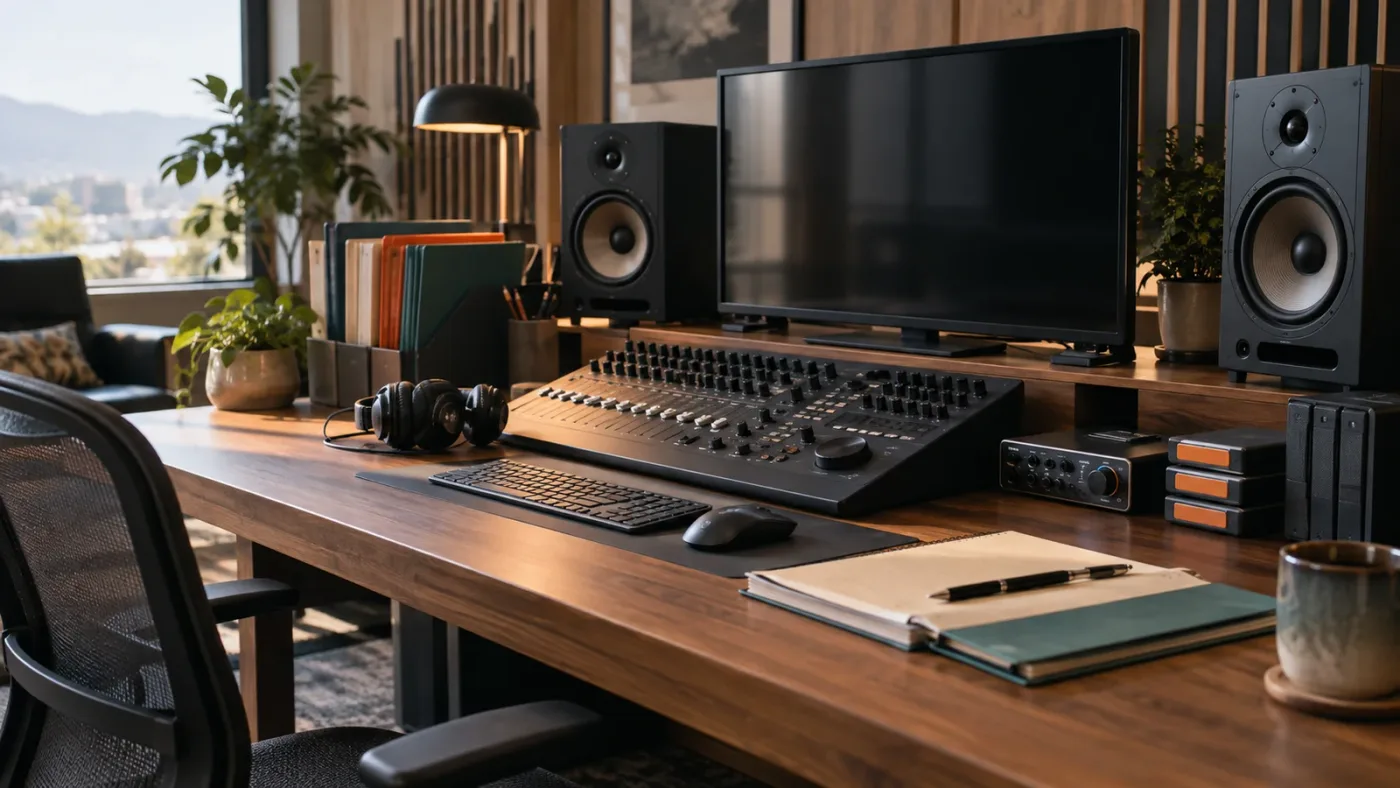
DaVinci Resolve 21's Fairlight Folder Tracks make a multi-layer Artlist soundtrack easier to manage without flattening the original tracks.
Why did YouTube claim my Artlist music in Resolve?
The most common correctable cause is missing Clearlist registration. YouTube can identify a licensed Artlist track through Content ID, but Artlist says the channel or video still needs to be connected to your account for the license to be recognized automatically.
Clearlist is about music, not every Artlist asset. Artlist's current Clearlist guidance says SFX, footage, AI voiceover, images, and video do not need Clearlist when the project contains no Artlist music. If your Resolve timeline contains both Artlist music and SFX, register for the music. Artlist's Clearlist guidance explains that distinction.
For a Social plan, Artlist lists one YouTube channel, one personal Facebook account or page, one Instagram account, one TikTok account, one Twitch account, and one podcast channel. It says websites and individual videos cannot be Clearlisted under Social.
For a Pro plan, Artlist lists three YouTube channels, three Facebook accounts or pages, three Instagram accounts, three TikTok accounts, three Twitch accounts, three podcast channels, and three websites, plus unlimited individual YouTube videos. Team plans are listed with five channels per platform, while Enterprise terms can allow unlimited channels. These are hard numbers worth checking before you publish. Your plan's current account interface and terms control the result.
The basic Clearlist sequence is:
- Open your Artlist profile and choose Clearlist.
- Select the platform.
- Enter the full channel URL or channel ID.
- Confirm the matching channel.
- For Pro, Team, or Business, use the video-clearance area when the video is on an additional YouTube channel.
Artlist also documents client-video invite links for Pro, Team, and Business plans. Its current guidance says those invite links are valid for 30 days. Generate a new link if the client doesn't use the old one in time.
Clearlist is not a promise that no automated claim will ever appear. It is a registration and clearance step that helps the platform match the licensed use. Keep the asset certificate and project record, and follow the dispute instructions if an eligible claim still appears.
For a deeper workflow, see our guide to Artlist Clearlist YouTube claims in Resolve 21. It covers the claim-resolution path without treating a claim as proof that the music was unlicensed.
Can I use Artlist music in a client video edited in DaVinci Resolve?
Yes, but client work calls for a plan with the Pro license. The Social license is for personal creator channels, while Artlist says Pro covers client and brand projects, broader publishing, commercial use, paid media, and film use within the license terms.
The word “client” changes the answer even when the export is just a YouTube file. If you cut a friend's personal vlog for free and the video lives on that person's personal channel, read the Social terms carefully. If you are delivering a sponsored video, product launch, paid ad, company website video, or agency project, treat it as professional work and review Pro coverage.
The license is also not a transfer of the source files. Artlist says its licenses are non-transferable. A Pro user can create and deliver the completed project, but the client cannot receive the underlying Artlist music or SFX as a reusable stock library. Don't send the WAV folder and tell the client to use it in a different edit.
That rule affects your handoff package. Deliver the finished video, project-specific notes, and any documentation your client needs. Keep the source audio under the account and license that downloaded it. If your team needs shared access, use a team arrangement rather than sharing one individual login.
The Artlist plan for DaVinci Resolve client work goes further into the Pro decision. The short version is simple: client delivery and personal-channel publishing are different rights questions.
What happens to Artlist music and SFX after cancellation?
Published projects can stay covered after cancellation when they were completed and published while the subscription was active. New projects and newly published projects cannot use the downloaded Music and SFX assets after the subscription expires.
This is the boundary many editors miss. Imagine a completed client film that went live on September 10 while your subscription was active. Artlist's license guidance says the published project remains licensed after cancellation. Now imagine a timeline that was exported as a draft on September 10 but will first be published at a festival in October, after the plan ends. Artlist says the project must be published or broadcast while the subscription is active for the assets to remain licensed in that published project.
The safest workflow is to make the publication date part of your delivery checklist. Before cancelling:
- Identify every project containing Artlist music, SFX, footage, or templates.
- Confirm which projects were actually published while the subscription was active.
- Download or store the asset certificates and cue sheets while the account still has access.
- Confirm the relevant YouTube channels, videos, and websites are on Clearlist.
- Don't start a new project with old downloaded files after the plan expires.
Artlist says licenses and cue-sheet information are available from the account while the subscription is active, and that access to the asset area can be restored after resubscribing. That doesn't turn a cancelled period into a perpetual new-project license. It only helps you retrieve account material according to the current terms.
For a personal creator who publishes every week, the subscription is an ongoing production cost. For a freelancer, it is also a scheduling issue. If the last client export will happen after cancellation, keep the plan active through publication or choose a different licensed source for that project.
Artlist cancellation preserves eligible projects published during an active subscription, not every future project containing an old download.

Is Artlist Music and SFX worth it for a Resolve editor in 2026?
Artlist Music and SFX is worth considering when you repeatedly need both music and SFX and can match the license to your publishing work. It is a poor fit when you need one track for one project, want to publish standalone audio, or really need footage and templates more than audio.
Use this decision test:
| If your priority is... | Start by comparing... | Why |
|---|---|---|
| Personal YouTube or social publishing | Music & SFX Social | It is designed around personal channels and includes both audio categories |
| Music only | Music Pro | SFX is not included, so the narrower plan may fit the asset need |
| Client, commercial, branded, or paid-media video | Music & SFX Pro | The Pro license addresses professional and client publishing use |
| Sound effects and music across several collaborators | Music & SFX Teams | The plan family provides multi-seat access for a team-sized operation |
| Footage, templates, LUTs, plugins, and AI as well as audio | Max or a separate bundle | Music and SFX alone won't cover the other asset categories |
| One-off use with no ongoing catalog need | A single-project or alternative license | A recurring subscription may not match a single delivery |
If you only need a short intro and one whoosh for one small project, compare a one-time license before taking on a subscription. I won't invent a break-even point because project volume and delivery terms vary.
When Epidemic Sound is the better audio-first choice
Epidemic Sound is a serious alternative when music and SFX are the center of your workflow and you value its plan-specific safelisting, stems, and audio tools. Its current pricing and licensing pages distinguish creator, professional, business, and enterprise use. Epidemic Sound's official pricing and licensing is the source to compare current terms.
When Envato Elements is the better broad design library
Envato Elements is worth comparing when a Resolve editor also needs graphics, photos, fonts, presentation assets, templates, and other design material. Its video-creator page positions the service around broad creative categories, unlimited downloads, commercial licensing, and per-project registration. Envato's official video-creator page supports that alternative case.
When Storyblocks is the better footage-led choice
Storyblocks is the more natural comparison when stock footage drives the project and audio is one part of a larger footage workflow. Its current plans page lists footage, templates, images, audio, and AI tools, with plan-specific licensing and download terms. Storyblocks' current plans are the place to verify current coverage.
I also recommend our broader Artlist review for DaVinci Resolve editors if you need to compare the whole catalog rather than just Music and SFX. This page owns the plan decision. The review covers the wider product question.
Should I buy Artlist Music and SFX for my Resolve workflow?
Buy it when three things are true: you need recurring music and SFX, your intended publishing uses fit the license, and you will actually use enough assets to justify a subscription. Choose Social for personal channel work, Music Pro when you don't need SFX, and Music & SFX Pro for client or commercial projects.
Before you click subscribe, write down your Resolve edition, needed audio categories, publisher, destinations, next publication date, and whether you need footage, templates, LUTs, plugins, or AI. Then compare the live plan terms with that brief. Don't choose Max merely because it includes more, or Social for a client job because the download worked.
Grant Petty, Blackmagic Design's CEO, described Fairlight in a 2016 Blackmagic release this way: “Fairlight creates the world’s most powerful digital audio software and hardware for video production.” The quote is vendor language, not an independent ranking, but it points to the useful division here. Artlist supplies source audio. Fairlight is where you shape it against the picture. Blackmagic's original Fairlight announcement preserves the attributed quote.
The best Artlist plan for Resolve is the one that matches the publishing destination, not the one with the longest asset list.
My verdict is direct. For a personal Resolve channel, start with Music & SFX Social if its one-channel limits fit. For freelance or client editing, start with Music & SFX Pro and verify the exact project coverage. For a one-off job, compare single-project alternatives before committing to a recurring subscription. The audio will import either way. The license is what decides whether you can safely publish.

Frequently asked questions
- Does Artlist Music and SFX work with the free version of DaVinci Resolve 21?
- Yes. Artlist Music and SFX files can be downloaded and imported as ordinary media, and DaVinci Resolve 21 Free includes audio post tools. You don't need Resolve Studio just to edit downloaded music or sound effects, although individual templates and other integrations can have different requirements.
- Which Artlist plan is best for YouTube with DaVinci Resolve?
- Choose Music & SFX Social for one personal channel on each supported platform, or Music & SFX Pro if you publish for clients, brands, paid media, multiple channels, websites, or wider commercial distribution. Add the channel or video to Clearlist while the subscription is active.
- Can I use Artlist music in a client video edited in DaVinci Resolve?
- Yes, but use a plan with the Pro license. Artlist says the Social license is for personal creator channels, while Pro covers client and brand projects. You can deliver the finished video, but you can't hand the client the underlying music or sound-effect files for independent reuse.
- Why did YouTube claim my Artlist music in Resolve?
- A claim can appear when the channel or video was not added to Artlist's Clearlist, even if the track was downloaded legally. Add the channel or individual video while the plan is active, then use the license and Clearlist workflow to resolve an eligible claim.
- Can I use Artlist music after cancelling my subscription?
- A project that was completed and published while the subscription was active can remain licensed after cancellation. You can't use the downloaded asset in a new project or newly publish an unfinished project after the subscription expires, and you can't add new channels or videos to Clearlist.
Sources
- Artlist Music and SFX plans explained
- Artlist license guidance
- Artlist Clearlist guidance
- Artlist stems and audio download guidance
- DaVinci Resolve 21 product page
- DaVinci Resolve Fairlight page
- DaVinci Resolve 21 New Features Guide
- Blackmagic Design Fairlight training
- Grant Petty on Fairlight for video production
- Epidemic Sound pricing and licensing
- Envato Elements for video creators
- Storyblocks plans and pricing
Keep reading
Reviews · Sep 1, 2026 · 8 min
Artlist Review for DaVinci Resolve Editors (2026)
An honest Artlist review for DaVinci Resolve editors covering music, SFX, footage, templates, Resolve 21 compatibility, licensing, and alternatives.

Guides · Aug 30, 2026 · 8 min
Artlist Plan for DaVinci Resolve Client Work: Choose Pro
Choosing an Artlist plan for DaVinci Resolve client work? Compare Social, Pro, Team, Max, licensing, Clearlist, templates, and cancellation rules.

Guides · Aug 28, 2026 · 8 min
Artlist Clearlist YouTube Claims: Fix Them in Resolve 21
A practical guide to Artlist Clearlist YouTube claims from DaVinci Resolve 21: prevent claims, dispute them, and choose the right license.