Articles / Guidesupdated for DaVinci Resolve 21 and Artlist Clearlist guidance (August 2026)
Artlist Clearlist YouTube Claims: Fix Them in Resolve 21
Quick answer
For Artlist Clearlist YouTube claims in DaVinci Resolve 21, export your video, then register your YouTube channel or video in Artlist Clearlist. If a claim appears, check the claimant, confirm active-plan coverage, and dispute it in YouTube Studio. Clearlist helps prevent false claims, but it cannot fix an unlicensed use.

Copyright claims are usually a licensing-record problem, not a DaVinci Resolve 21 export problem. We run a 100,000+ member editing community, and this is one of the recurring questions there.
As of August 2026, Blackmagic's DaVinci Resolve 21 page says Resolve can render and upload a finished file to YouTube through Quick Export, while the Deliver page gives you control over encoding and the render queue. Clearlist is a separate Artlist account tool. It does not sit inside Resolve, and changing a codec or export preset cannot register your channel.
Disclosure: This post contains an affiliate link. If you choose Artlist through it, we may earn a commission at no extra cost to you. The recommendation stays independent of that relationship.
What is an Artlist YouTube claim in DaVinci Resolve 21?
An Artlist YouTube claim is a Content ID match on music in your upload, even when you downloaded that music legally. YouTube scans uploads for matches, then the rights holder can monetize, track, or restrict the matched video. A claim is different from a copyright strike, which follows a valid copyright removal request. YouTube's claim guidance explains the distinction between those systems.
Artlist describes Clearlist as the connection between your Artlist account and a specific YouTube channel or video. When the channel or video is registered, YouTube can see the licensing relationship for the Artlist music. When it isn't registered, a claim may still appear even though the download was legitimate. Artlist's Clearlist documentation says the tool protects content that includes Artlist music, not every asset in your project.
An Artlist Clearlist entry connects a licensed music use to a specific YouTube channel or video.
This is why the Resolve project itself is not the key object. Resolve contains your edit and audio. YouTube evaluates the uploaded file. Artlist supplies the license and the Clearlist record.
How do I clearlist a YouTube channel before uploading from Resolve 21?
To Clearlist a YouTube channel, open your Artlist profile menu, choose Clearlist, select YouTube, enter the full channel URL or channel ID, and confirm the channel after its icon and name appear. Artlist's current instructions specifically recommend the exact channel ID when a new channel has no uploaded videos.
Use this order for a new video:
- Confirm the track title, artist, and the Artlist account that downloaded it.
- Confirm that your plan covers the intended channel and use, including client or brand work if applicable.
- Add the YouTube channel to Clearlist before uploading.
- If your plan supports individual video clearing, paste the YouTube video URL into Clear your videos after the upload.
- Keep the license certificate or invoice with the project records.
The channel limits matter. Artlist's current Clearlist guidance says a Social plan covers one YouTube channel, while a Pro plan allows three YouTube channels and unlimited individual YouTube videos. Team plans allow five full channels per platform. Pro, Team, and Business plans can also use an invite link to clear a client video, but that invite link is valid for 30 days.

How do I export from DaVinci Resolve 21 without breaking the licensing trail?
Export the finished video from DaVinci Resolve 21, then upload that rendered file to the YouTube channel you cleared. Resolve 21's Quick Export and Deliver tools handle the file; they do not carry a hidden Artlist permission into YouTube. Blackmagic Design describes Quick Export as a way to output and upload to YouTube and the Deliver page as the place for encoding options and queued jobs.
The practical checklist is short:
- Finish the edit and verify that the intended music is the final music.
- Render from the Deliver page or use Quick Export when its preset matches your delivery need.
- Watch the render if you changed music late in the edit.
- Upload the file to the cleared channel.
- Open YouTube Studio and inspect the video's Restrictions area.
Do not assume that a new file name or re-render will make a claim disappear. Content ID evaluates the audio in the upload. If you replace the song, clear the new use as well. If you upload to a different client channel, the original channel entry won't automatically cover that new destination.
DaVinci Resolve 21 exports the file, but Artlist and YouTube handle the licensing record.
For a deeper export checklist, use our DaVinci Resolve export settings for YouTube guide.
Why did I get a YouTube claim even though I used Artlist music?
You can receive a claim with an active Artlist subscription when the channel or video is missing from Clearlist, when Content ID makes an incorrect match, or when the license does not cover the use. Artlist says a claim from Artlist Ltd is usually tied to a missing Clearlist entry, while a claim from Artlist Ltd (Music Publishing) should be disputed directly on YouTube. Artlist's claim guidance lists those paths separately.
First, open the claim details and identify the claimant. Do not dispute a claim just because you credited the artist or bought a copy of the song. YouTube says credit, ownership of a copy, and choosing not to monetize are not valid reasons to dispute. A valid reason is that you have the necessary rights, the content was misidentified, or a copyright exception applies. YouTube's dispute instructions set out that standard.
Also check the timeline. Artlist says projects published while the subscription is active can remain cleared for monetization after the subscription ends, but you cannot add new channels or videos to Clearlist after expiry. New use after the license period is not rescued by an old download.
A valid license does not replace Clearlist registration for Artlist music on YouTube.
If the claimant is not Artlist, do not treat the Artlist download receipt as an automatic answer. Identify the other rights holder, check whether another music element is present, and gather the track link, the public video URL, and the claim details before contacting support.
How do I dispute an Artlist YouTube claim?
Dispute the claim in YouTube Studio only when your license covers the use, then add the channel or video to Clearlist if it is missing. For an Artlist Ltd or Artlist Ltd (Music Publishing) claim, Artlist's documented order is to dispute on YouTube and complete the Clearlist registration. YouTube's steps are Content, Videos, Claims, See details, Take action, and Dispute.
Write a plain explanation. Name the track, state that it was licensed through your active Artlist plan, identify the cleared channel or video, and keep the license record available. Avoid emotional language and avoid claiming ownership of the music. You are explaining permission to use the track, not claiming the track as your own.
YouTube says the claimant has 30 days to respond to an initial dispute. The claimant can release the claim, reinstate it, or submit a copyright removal request. YouTube also says that an appeal may give the claimant seven days to respond when the appeal option is available. Those deadlines make evidence more useful than repeated submissions.
David Rosenstein, YouTube's Content ID Group Product Manager, wrote in a 2016 product update, “Currently videos that are claimed and disputed don’t earn revenue for anyone.” The product has changed since that update, so treat the quote as historical context, not a promise about today's monetization handling. The point still holds: a claim can create a real business problem while a dispute is being reviewed.
The safest dispute is a factual license explanation backed by the exact track and video details.
If YouTube rejects the dispute, appeal only when you still have a clear rights basis. If the music was not covered, the upload happened after the relevant license period, or the video uses the track outside the plan's scope, replace the music or obtain the correct permission instead.
Which Artlist plan or alternative fits my project?
The right choice depends on where you publish and how often you need assets. Artlist is a sensible option when you want licensed music plus other production assets or when client-video clearance is part of the workflow. It is not a universal answer for every editor, and Clearlist does not expand a plan's license.
If you need recurring music, sound effects, footage, or templates and your plan matches the channel, check Artlist's current options before you download the track. The recommendation is based on the documented workflow and license fit.
| Option | Choose it if | Watch for |
|---|---|---|
| Artlist | You need music and a wider production-asset subscription, or you need Clearlist for recurring YouTube or client work. | Social, Pro, Team, and Business coverage differs. Clearlist protects Artlist music, not an unlicensed use. |
| Epidemic Sound | Audio is the main need and its plan covers your channels and publishing use. | Safelisting, plan scope, and cancellation rules are separate from Artlist. Check the current Epidemic Sound licensing page. |
| Single-track license | You have one project and one song, with no reason to maintain a recurring subscription. | Confirm YouTube monetization, client rights, territory, term, and whether the license is tied to one project. Soundstripe documents a separate single-use option on its licensing page. |
Our related guide on Epidemic Sound vs Artlist for DaVinci Resolve is the better next read if the decision is mainly about a recurring music library. If the job is client work, compare the license language itself.
Should I use Artlist for every Resolve 21 project?
Use Artlist when its asset breadth and licensing workflow solve a recurring problem. Choose Epidemic Sound when you mainly need music and sound effects, or choose a single-track license when the project is genuinely one-off and its terms cover the intended release.
We have spent more than seven years editing commercial video and teaching editors, and the hard part here is rarely the button in Resolve. It is recording which track went into which project, which account downloaded it, which channel received the upload, and whether that use was covered on the publication date. Our music licensing guide for freelance video editors covers the client-rights side of that decision.
Clearlist reduces avoidable YouTube claims, but it cannot turn an uncovered project into a licensed one.
Make the record before you publish. In Resolve 21, render the final file. In Artlist, clear the destination. In YouTube Studio, verify the result. If a claim still appears, identify the claimant and dispute it with the exact facts. That is the workflow to keep.
Frequently asked questions
- How do I add a YouTube channel to Artlist Clearlist?
- In Artlist, open your profile menu, choose Clearlist, select YouTube, enter the full channel URL or channel ID, and confirm the channel when its name appears. Use the exact channel ID if the channel has no uploaded video.
- Why did I get a YouTube claim even though I have an Artlist license?
- The usual reasons are that the channel or video is not in Clearlist, the platform made an incorrect match, or the license does not cover the use. Check the claimant and your publication date before disputing.
- Do I need Artlist Clearlist for sound effects or footage?
- No. Artlist says Clearlist protects content that includes its music. Clearlist is not required when a project uses only Artlist sound effects, footage, AI voiceover, images, or video.
- Can I use Artlist music after my subscription ends?
- Projects published while the subscription was active can remain cleared, but you cannot add new channels or videos to Clearlist after expiry, and new projects need coverage under an active license.
Sources
Put this guide to work with TryUncle.
Ask about the step you’re on. TryUncle sees your screen and points at the control you need, so you can keep learning in your own project.
Get TryUncle for Mac or WindowsKeep reading
Guides · Jul 7, 2026 · 25 min
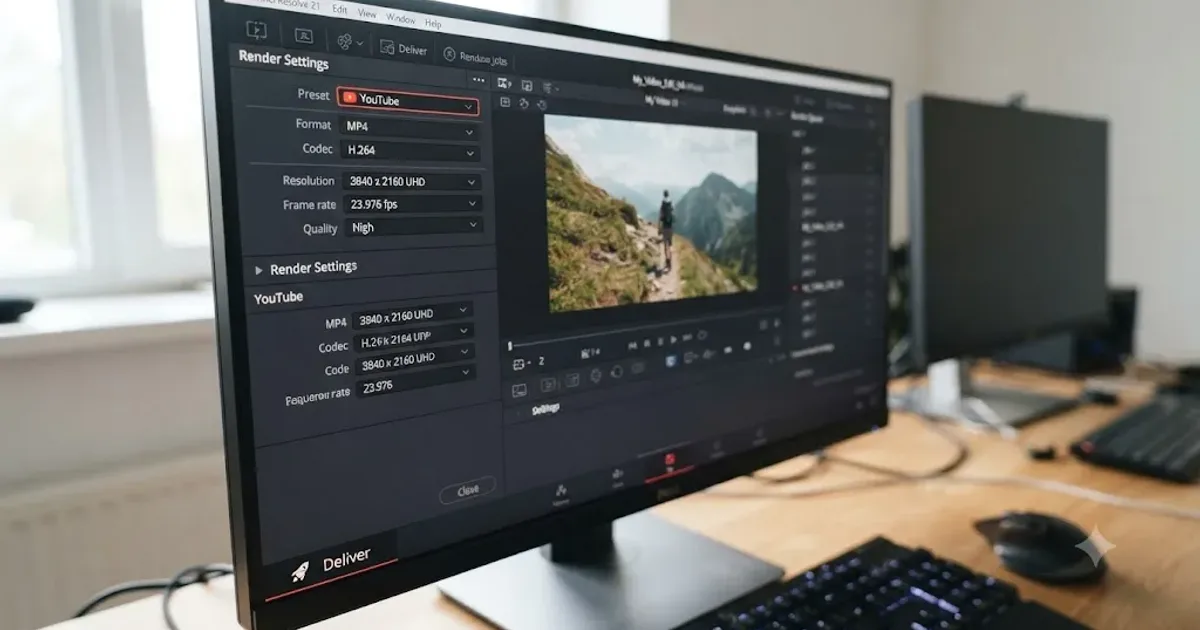
DaVinci Resolve Export Settings for YouTube: The Right Numbers
The exact DaVinci Resolve export settings for YouTube: resolution, bitrate, codec, and audio numbers pulled straight from YouTube's own encoding guide.
Comparisons · Aug 24, 2026 · 40 min
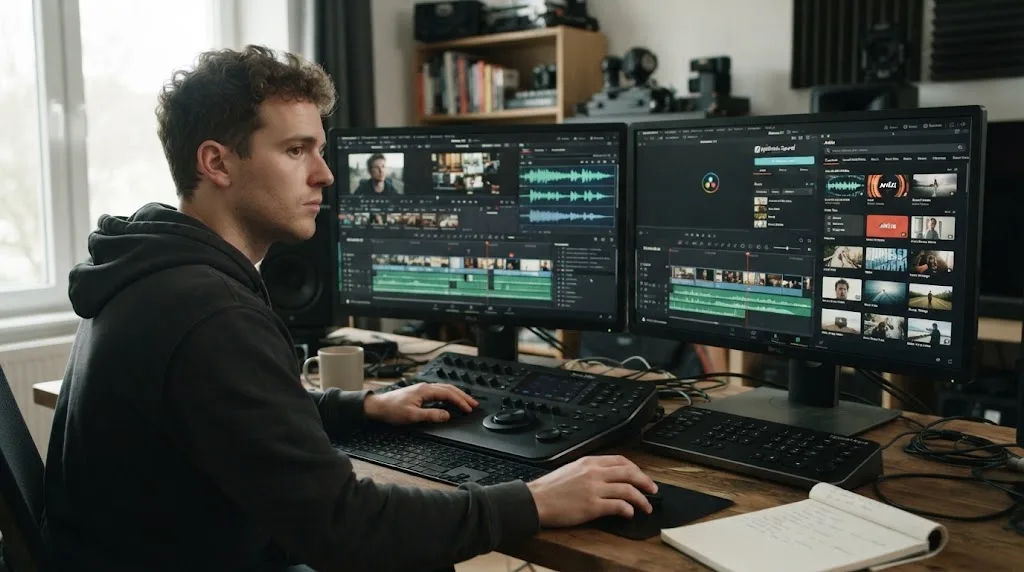
Epidemic Sound vs Artlist for DaVinci Resolve (2026)
Epidemic Sound vs Artlist for DaVinci Resolve 21: compare plugins, music, SFX, licensing, templates, pricing, and the right plan for your edit.
Guides · Aug 24, 2026 · 8 min
Music Licensing for Freelance Video Editors: Client Rights
Practical music licensing for freelance video editors, covering client handoffs, safelisting, platform rights, cancellation, and DaVinci Resolve 21.