Articles / Guidesupdated for DaVinci Resolve 21.0 (September 2026)
Artlist Templates for Resolve 21: Setup and Fixes
Quick answer
Artlist templates for Resolve 21 are usually downloaded as zipped project packages. Check the template page for Resolve version and Free or Studio requirements, unzip the package, install its fonts, restore the .dra archive in Project Manager, then replace its media and text placeholders.
Artlist templates can save you from building a title, slideshow, or transition from a blank timeline. They can also hand you a project full of folders, Fusion compositions, missing fonts, and placeholder media that isn't obvious at first glance.
As of September 2026, I treat DaVinci Resolve 21 compatibility as a check to perform on every template page, not as a promise attached to the Artlist name. We run a 100,000+ member professional video-editing community, and after 7+ years of professional commercial editing, this is the pattern we see repeatedly: the download is rarely the hard part. The handoff between the template's assumptions and your project is.
What are Artlist templates for Resolve 21?
Artlist templates for Resolve 21 are ready-made project files that give you editable titles, lower thirds, transitions, intros, slideshows, or related motion graphics instead of asking you to build every animation yourself. Artlist says its templates are made for professional desktop software, and its Resolve downloads commonly arrive as a zipped folder containing a Font folder, a Help folder, and a Project folder with a .dra archive. Artlist's template guide documents that package structure.
The important detail is that a Resolve template is often a project archive, not a single effect you drag onto one clip. Restoring it can bring in timelines, Fusion compositions, placeholder layers, and preconfigured settings. You then work inside the restored project and move the finished element into your own edit, or use the template's final timeline as your starting point. Artlist's customization guide describes this full-project model.
DaVinci Resolve 21 is a capable host for motion-graphics templates because Blackmagic documents Fusion 21 support for saving compositions as templates and using them on the Edit or Cut page. That doesn't mean every older Artlist project automatically becomes a Resolve 21 template. It means Resolve 21 has a native path for Fusion-based work once the project opens correctly. Blackmagic's Fusion 21 page explains the feature.
"With this release, we hope to inspire creativity by letting you work in a comfortable, familiar way, while also giving you an entirely new creative toolset that will help you cut and finish projects at higher quality than ever before!"
Grant Petty, CEO of Blackmagic Design, in the DaVinci Resolve 21 New Features Guide.
An Artlist Resolve template is usually a project starting point, not a finished video and not a universal preset.
How do I check whether an Artlist template works in Resolve 21?
Check the individual template page for the listed Resolve version, edition, format, and dependencies before you download it. Artlist lists DaVinci Resolve 18 or newer as its general compatibility baseline, but Artlist also says Resolve templates are often version-specific and that the asset page carries the compatibility details. The compatibility guide is the authority for the general rule, while the asset page is the authority for the particular download.
Use this five-minute check:
| Check | What to look for | What the result means |
|---|---|---|
| Software | DaVinci Resolve, not After Effects, Premiere Pro, or Final Cut Pro | A template's software label is not interchangeable across editors. |
| Version | Resolve 21, or a version range that explicitly includes your build | A general 18-or-newer label is a baseline, not a guarantee for every project. |
| Edition | Free or Studio, plus any note about Fusion or Studio effects | A Studio-only project can fail or lose controls in Resolve Free. |
| Technical format | HD, 4K, vertical, square, or another listed format | The format should match the timeline you plan to deliver. |
| Dependencies | Fonts, plugins, media, and any special instructions | Missing dependencies are the usual source of broken text or offline media. |
The version check needs a little judgment. If a template page says Resolve 19, don't silently assume that every Fusion node, title control, or effect is guaranteed in Resolve 21. Resolve 21 may open it, but the honest decision is to duplicate your project, restore the archive there, and test the controls you actually need. If the page lists Resolve 21, your risk is lower. If it lists only an older build, ask Artlist support or the template creator before building a deadline around it.
The Free versus Studio check matters just as much. Artlist specifically advises Free users to avoid templates intended for Studio. That doesn't mean every template with a Fusion composition requires Studio. It means the page's edition label should decide, not a guess based on the preview image. For a deeper answer to the separate Free-edition question, see our Artlist DaVinci Resolve templates Free version guide.
Resolve 21 compatibility belongs to the individual template listing, because the Artlist catalog is not one single project with one single requirement.
How do I install an Artlist template in Resolve 21?
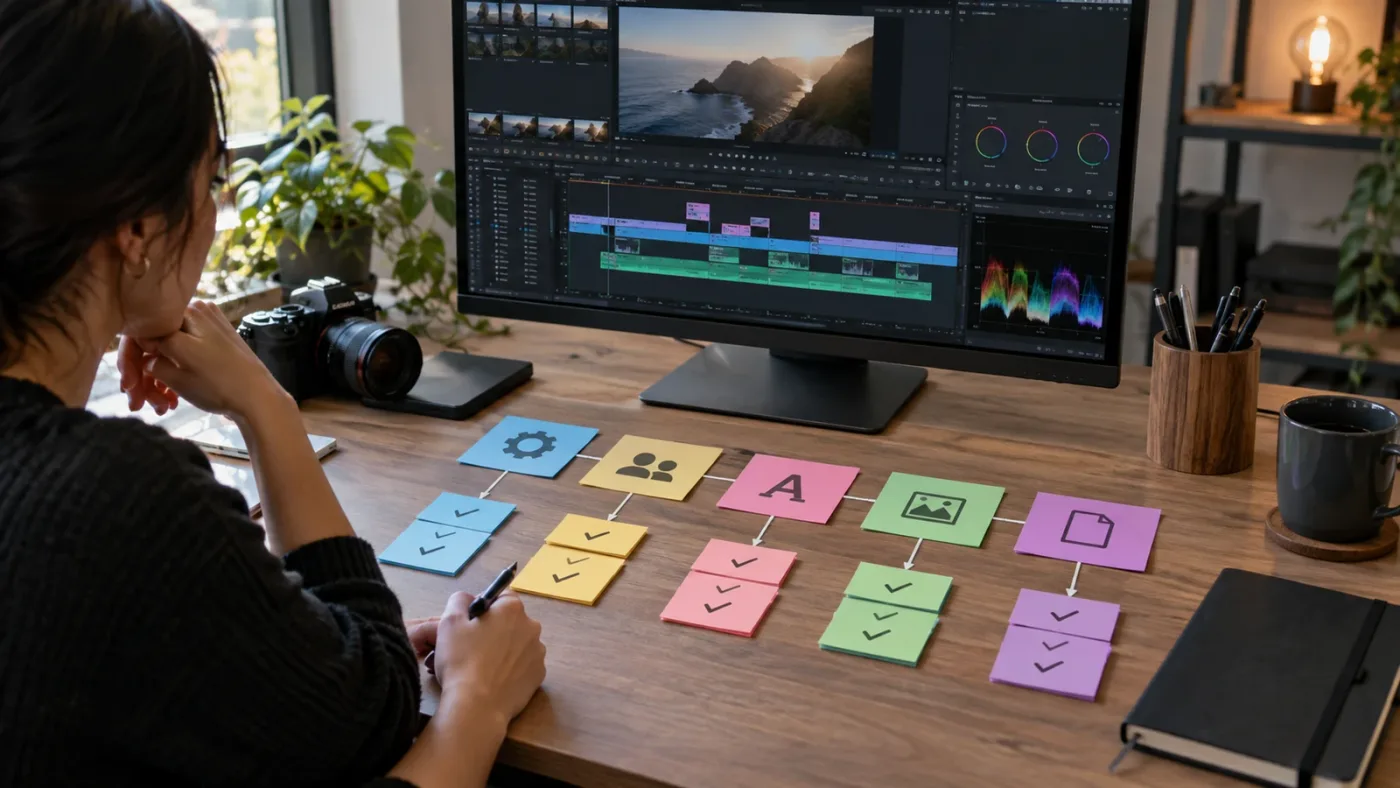
Install an Artlist template in Resolve 21 by extracting the package, installing its fonts, restoring the .dra archive through Project Manager, and opening the restored project. Artlist's official steps use the Restore Project Archive command rather than a drag-and-drop import. Artlist's installation guide lists the process.
Use this workflow:
- Download the Resolve version of the template from its asset page. If the download offers several software versions, choose DaVinci Resolve rather than an Adobe or Final Cut package.
- Extract the zipped folder to a normal local folder and keep the package intact while you inspect it.
- Read the Help folder before changing anything. It identifies the intended final timeline and any template-specific steps.
- Open the Fonts folder and read the font document. Install every listed font that your license and operating system allow you to use. Restart Resolve later if the new fonts aren't recognized.
- Launch DaVinci Resolve 21 and open Project Manager. Return to Project Manager before restoring the archive if a project is open.
- Right-click an empty area in Project Manager and choose “Restore Project Archive…” Select the
.draarchive inside the extracted DaVinci Resolve folder, then click Open. - Wait for the project to appear in Project Manager. Double-click it and inspect the Media Pool before replacing clips.
- Save a new copy with your project name. Don't turn the restored master into your only working copy.
The restore step matters because a .dra file is a full project archive, not a title preset sitting in the Effects Library. Resolve imports the project through Project Manager, and you customize it after it appears there.
What should I inspect after the project opens?
Start with the Media Pool and look for folders such as 01 Edit, Media, Placeholders, Text, or Titles. Artlist's examples use timelines such as Image 01, Media 01, Scene 01, and Text 01. Its customization instructions explain the structure.
Make one small change before importing a client timeline: replace one image, change one text layer, play the final timeline, and save. This quickly tests whether the project opens cleanly, the placeholder updates the final render timeline, the fonts are visible, and playback is usable on your machine.
For a lower third, open the title or scene timeline, select the Text+ or Fusion Title clip, replace the name and role, then return to the final timeline. For a slideshow, replace one image in Image 01, adjust Zoom, Position, and Rotation in the Inspector, and confirm the final timeline updates. Artlist documents that referenced placeholder timelines can update the main final timeline automatically.
The safest Artlist installation is a restored copy that you test before it touches the real edit.
How do I replace media, text, and colors in an Artlist Resolve template?
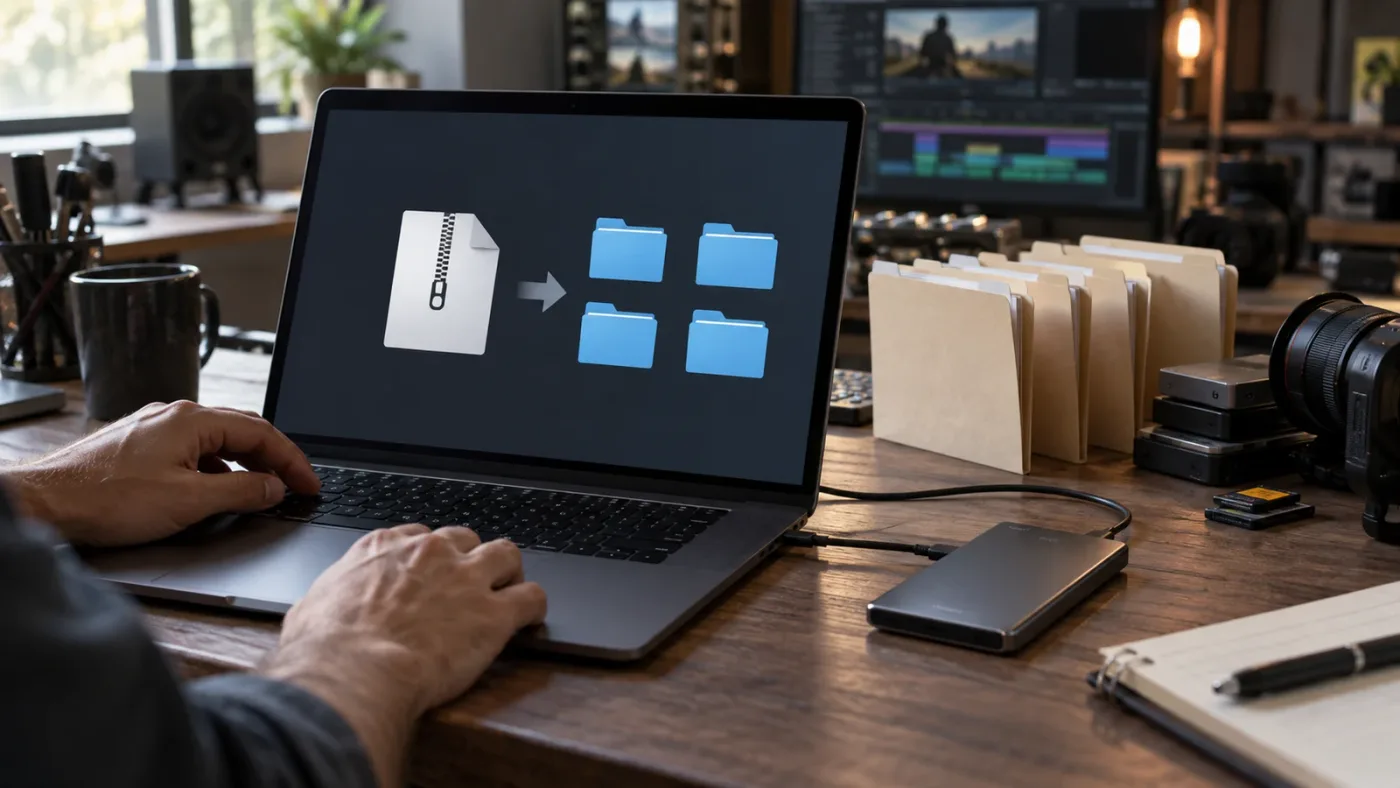
Replace media inside the template's placeholder timeline, edit text in its Text+ or Fusion Title control, and use the exposed Inspector or Fusion controls for color changes. The controls differ by template, so don't assume that every project has one master control panel. Artlist's customization guide says that color controls depend on how the original creator structured the design.
For media, open the relevant placeholder timeline, disable or delete the sample clip, and drag your own clip into its place. Match the placeholder's framing before you worry about the animation. If the template expects a portrait image and you insert a wide clip, the motion may be correct while the subject is badly cropped.
For text, select the text clip and use the Inspector or Fusion Title controls to change the words, font, size, color, and position. Keep the original line length during the first test. A headline that is twice as long can expose a hidden limitation in the template's layout or animation.
For color, look for a folder or composition called Color Controls, Controls, or a similar name. Some templates expose background, overlay, and accent colors in one place. Others require you to open the Fusion page and edit individual nodes. If no color-control layer exists, that's a design choice in the project, not evidence that Resolve 21 is broken.
Artlist says some Resolve templates use fixed Fusion placeholders. You can't simply add a new placeholder and expect the final render timeline to update. If a project has six prebuilt scenes, duplicating Image 06 may create a visible duplicate without wiring a seventh scene into the final composition. Choose a longer template or build the extra scene yourself in Fusion.
| Your job | Start here | Main risk |
|---|---|---|
| One title or lower third | Text+ or Fusion Title clip | Long text may overflow or animate poorly. |
| Slideshow | Image or Media placeholder timeline | Different aspect ratios can crop faces and products. |
| Branded opener | Color Controls and title folders | The project may separate color, text, and timing across nested timelines. |
| Extra scenes | Help folder and Fusion page | Fixed placeholders may not extend the final render automatically. |
If you need a few substitutions and a defined visual rhythm, a template can be a good starting point. If you need a new duration, scene count, or animation structure, a small custom Fusion build may be faster.
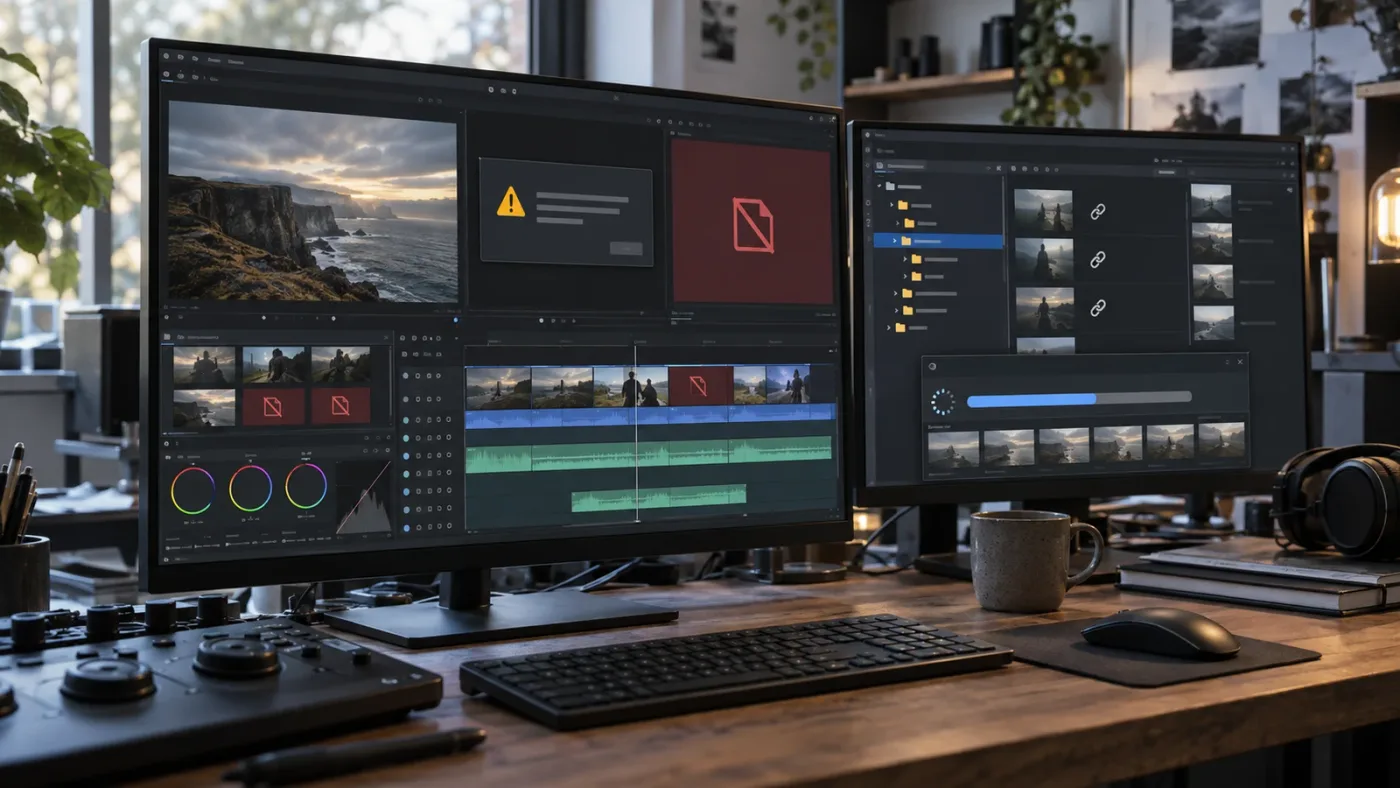
Why is my Artlist template showing “Media Offline” in Resolve 21?
The “Media Offline” message appears when Resolve can't find media referenced by the template, usually because the package was opened from a ZIP or a referenced file was moved. Extract the complete download first, then relink the missing clips to the extracted media folder. Artlist's troubleshooting guide names broken file paths as the cause and documents the relink path.
Fix it in this order:
- Close the project without deleting the offline clips.
- Confirm that the download is fully extracted and that the media folders still sit beside the project files.
- Reopen the project and go to the Edit page's Media Pool.
- Right-click the clip with the red offline indicator and choose Relink Selected Clips.
- Select the folder containing the referenced media and click Open.
- Play the final timeline from before the repaired section through the next transition.
Don't replace every red clip immediately. First learn whether the project is missing preview media, a placeholder source, or a required background element. Keep the extracted package in one stable folder during the first test instead of moving only the .dra archive.
Why is my Artlist template blank or black in Resolve 21?
A blank or black template is commonly caused by missing fonts, an unsupported Studio dependency, or a broken Fusion connection. Install the fonts listed in the package, restart Resolve, and inspect the affected Fusion composition before assuming the whole template is incompatible. Artlist's troubleshooting instructions specifically call out missing fonts and disconnected Fusion nodes.
Check fonts first. Artlist says an unrecognized font can make a text element appear invisible or black rather than showing a friendly error. Select the affected text, open the Fusion controls, change it temporarily to an installed font, and see whether the text returns. If it does, install the supplied font or choose a substitute that keeps the design readable.
If the problem remains, open the clip in the Fusion page and inspect the node flow. Artlist documents a known Fusion compositing issue in some Resolve 18 projects that can disconnect links. That's a version-specific note, not proof that every Resolve 21 template has the same bug. If the nodes are connected and the fonts are present, verify the listed Resolve edition, version, and required plugins on the template page.
Check both the viewer and the final timeline. Use the supplied Help material to identify the intended final timeline before changing nested clips.
How do I make an Artlist template play smoothly in Resolve 21?
Make a complex Artlist template play more smoothly by lowering timeline playback resolution, generating optimized media, and enabling Smart Render Cache. These steps improve preview responsiveness without lowering the quality of your final export. Artlist's troubleshooting guide recommends Half Resolution or Quarter Resolution, optimized media, and Playback > Render Cache > Smart for effects-heavy templates.
Use the least disruptive fix first:
| Symptom | First move | Why |
|---|---|---|
| Viewer stutters during a title animation | Playback > Timeline Playback resolution > Half Resolution | Resolve has fewer preview pixels to draw. |
| Several clips are hard to scrub | Generate Optimized Media | The edit uses an easier-to-play internal copy while the originals remain intact. |
| A Fusion-heavy section stalls | Playback > Render Cache > Smart | Resolve can pre-render complex parts of the timeline. |
| The whole project is heavy | Test the template in a duplicate project and reduce layered effects | You need to separate a template problem from a project-wide load problem. |
If Half Resolution isn't enough, try Quarter Resolution before rebuilding the template. Artlist says the preview-resolution change doesn't affect final export quality and can be toggled when needed. Wait for cached sections to finish before judging the result. A blue bar on the timeline indicates cached areas according to the same guide.
High-resolution footage can be a second bottleneck. A motion template may be fine with a short 1080p placeholder but slow down when you fill every slot with large camera originals, layered Fusion effects, and multiple transitions. Test one representative clip. If the template is still too heavy, shorten the animation, remove decorative layers you don't need, or rebuild only the section that carries the story.
Don't confuse slow playback with a bad export. Preview quality and final render quality are separate controls. Keep the interface responsive during customization, then do a short export after the project is stable.
Which Artlist plan should I choose for Resolve 21 templates?
Choose Artlist's Footage and Templates plan when you mainly need footage and Resolve templates, and choose a Max plan when you also need the broader stock and AI bundle. Artlist says video templates are included in Footage and Templates and Artlist Max, while the Footage and Templates plan includes a Pro license and is billed yearly. Artlist's plan explanation is the current source for that distinction.
Disclosure: this article uses an Artlist affiliate link. If you decide Artlist is the right source for your project, you can check the current Artlist plan options. The relationship doesn't change the compatibility verdict. A template that fails your version or edition check is still the wrong template, regardless of plan.
For the narrower choice between asset bundles, see our Artlist Footage and Templates vs Music and SFX guide.
Use this decision matrix:
| Your situation | Sensible starting point | Why |
|---|---|---|
| You need Resolve templates and stock footage for client work | Footage and Templates | Artlist says this plan includes a Pro license and covers commercial or client-based projects. |
| You need templates plus music and sound effects | Compare the stock plan contents, then consider Max | Artlist positions Max as the wider stock bundle, while the Footage and Templates plan is focused on footage and templates. |
| You need templates plus generative AI tools | Max | Artlist says Max adds AI image, video, music, and voiceover generation to the stock catalog. |
| You publish only personal channels | Check Social eligibility and template inclusion carefully | Social and Pro are different license contexts, and a template plan's terms may be the relevant choice. |
| You deliver branded, paid, or client work | Prefer a plan with the needed Pro or business coverage | The license must fit the project, not just the software. |
The licensing timing is easy to miss. Artlist says music, SFX, footage, and templates must be published while the subscription is active. If the project was completed and published during the active term, you can keep using that published project after the subscription ends. You can't treat the subscription as a permanent right to start new projects after cancellation. Artlist's license explanation states both sides of that rule.
If your only need is one animated title for one video, buying a broad subscription may not be the best answer. If you regularly need several asset types and can publish while covered, the plan's value becomes easier to justify. The template itself should decide the purchase, not the preview reel.
Are Artlist templates worth using in Resolve 21?
Artlist templates are worth using in Resolve 21 when you need a polished starting structure and can accept the template's fixed assumptions. They aren't worth using when you need unlimited custom scenes, guaranteed compatibility across editions, or a project that will remain licensed for new work after cancellation.
Choose an Artlist template when:
- The asset page names DaVinci Resolve and a compatible version.
- The Free or Studio requirement matches your installation.
- The supplied fonts and plugins are available to you.
- You can work within the template's number of placeholders.
- The project will be published during the covered subscription term.
Skip it, or choose another route, when:
- The page lists an older version and the project is for a deadline you can't test.
- The design depends on Studio features you don't own.
- The template's fixed scene count fights the story you need to tell.
- You need to hand a client the source assets as standalone files. Artlist's license permits assets as part of a creation, not as independently redistributed template files.
- You only need a simple title that Resolve's own Fusion template workflow can handle.
Blackmagic's own Fusion tools are the honest alternative for a simple custom title or lower third. They take more setup at the start, but you control the nodes, exposed parameters, and storage location. A paid asset library is more useful when the starting design is the thing you lack. For the broader service decision, see our Artlist review for DaVinci Resolve editors.
The best way to learn DaVinci Resolve isn't to collect templates. It is to open one, identify its placeholder structure, change one variable, and understand why the final timeline updates. That practice transfers to your next project. Watching a preview does not.
A template earns its place when it removes repetitive construction without hiding the decisions you still need to make.
For a first attempt, pick one title or short slideshow rather than a full opener with dozens of nested compositions. Confirm the version and Studio labels, download it while your plan is active, restore it to a copy of your project library, and test one complete pass from replacement media to final timeline. If that pass is clean, you have a reusable starting point. If it isn't, the compatibility and license checks above tell you whether to troubleshoot, ask the creator, or walk away.
The next step is simple: choose the template by its compatibility panel, not by its thumbnail, and keep the untouched archive beside your working copy.
Frequently asked questions
- How do I know whether Artlist templates work in Resolve 21?
- Artlist lists DaVinci Resolve 18 or newer as the general compatibility baseline, but each template can have a stricter version or Studio requirement. Check the individual template page before downloading.
- How do I install an Artlist .dra template in Resolve 21?
- Unzip the download, install the listed fonts, open Resolve Project Manager, choose Restore Project Archive, select the .dra archive, and open the restored project.
- Why is my Artlist template showing "Media Offline" in Resolve 21?
- The project cannot find media referenced by the template. Extract the full package first, then use Relink Selected Clips in the Media Pool and point Resolve to the extracted media folder.
- Why doesn't my Artlist template work in the free version of DaVinci Resolve?
- Some templates may work in Resolve Free, but Artlist says Studio compatibility can vary by template. Avoid a Studio-only template in the Free edition and check the template page first.
- Can I use Artlist templates after canceling?
- A project using an Artlist template must be published while the subscription is active. Artlist says a project published during the active term can remain in use after cancellation, while new projects are not covered.
Sources
Keep reading
Guides · Aug 27, 2026 · 8 min
Artlist DaVinci Resolve Templates Free Version Guide
Can Artlist DaVinci Resolve templates work in the free version? Check Resolve 21 compatibility, Studio requirements, .dra installs, and fixes.
Comparisons · Aug 30, 2026 · 8 min
Artlist Footage and Templates vs Music and SFX in Resolve 21
Compare Artlist Footage and Templates vs Music and SFX for DaVinci Resolve 21, including assets, licensing, templates, workflow, and alternatives.
Reviews · Sep 1, 2026 · 8 min
Artlist Review for DaVinci Resolve Editors (2026)
An honest Artlist review for DaVinci Resolve editors covering music, SFX, footage, templates, Resolve 21 compatibility, licensing, and alternatives.