Articles / Guidesupdated for DaVinci Resolve 21.1 (October 2026)
DaVinci Resolve Audio Waveform Height Too Small? Fix It
Quick answer
If a DaVinci Resolve audio waveform looks too small, first make the audio track taller by dragging its lower edge or using the timeline's track-height control. In Fairlight, increase waveform zoom separately with View > Zoom Audio Waveform > Increase Height. Waveform zoom changes how the clip is drawn, not its volume; use clip or track gain only when the sound itself is too quiet.
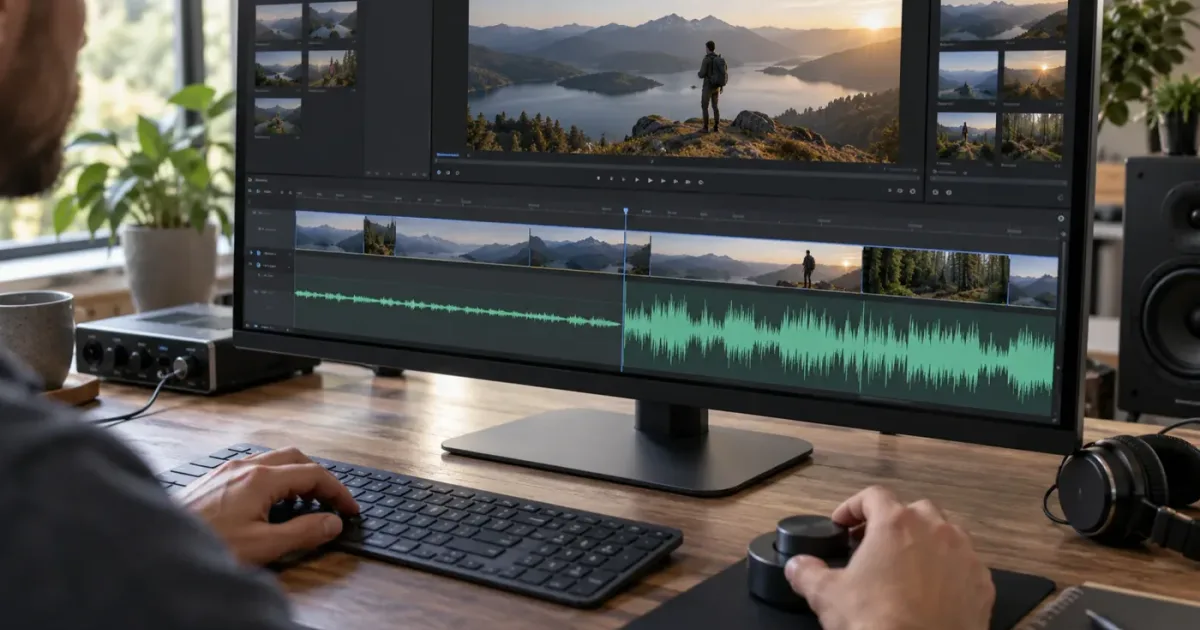
As of October 2026, DaVinci Resolve 21.1 is the current version listed by Blackmagic Design. If your audio waveform looks like a thin line, start with the track height. Then check waveform zoom. Those controls solve different problems, and mixing them up can lead you to change the sound when all you wanted was a clearer picture of it.
We run a 100,000+ member video-editing community, and waveform visibility is one of the small interface problems that can stop a beginner from making a confident cut. The fix is quick once you know which size you mean: the height of the track, the size of the waveform inside it, or the actual loudness of the clip.
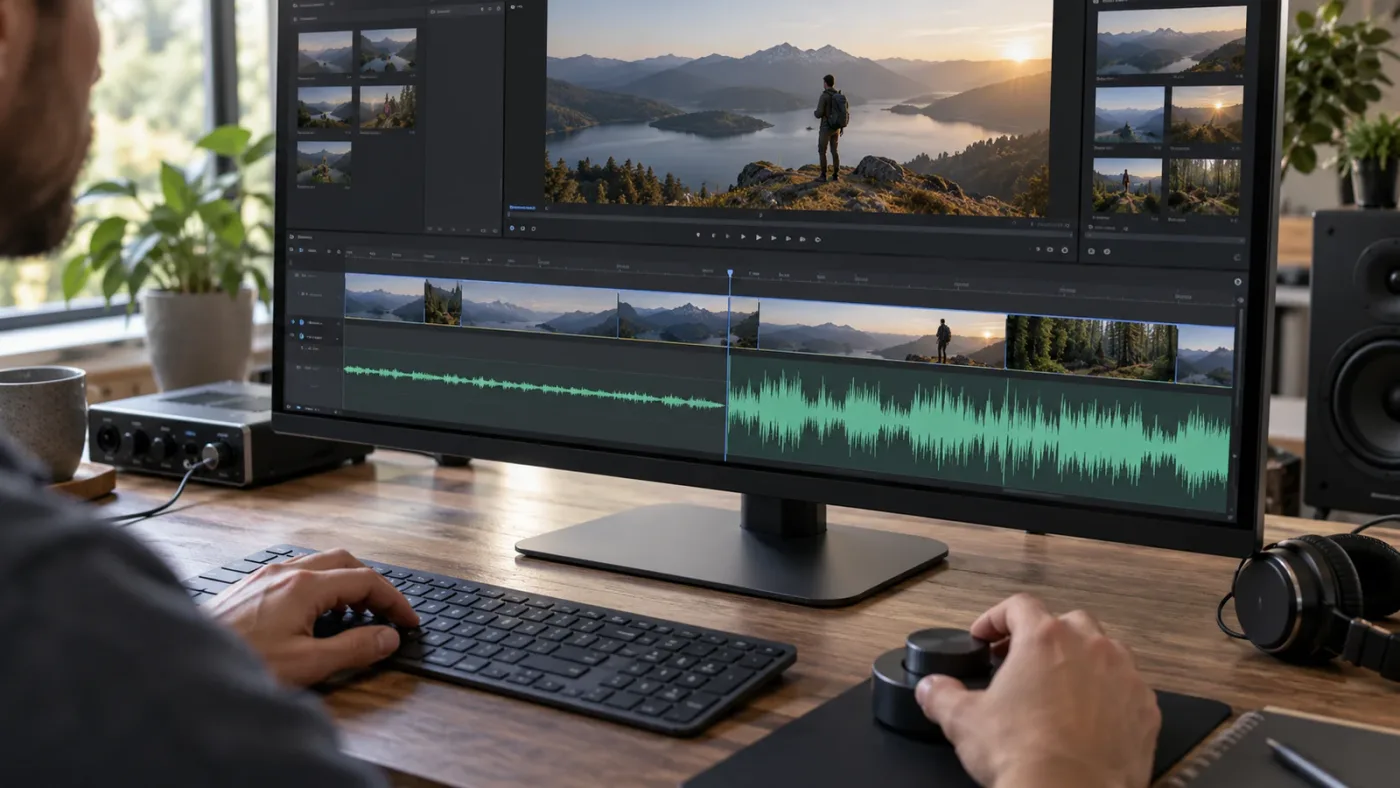
Why is my DaVinci Resolve audio waveform height too small?
A small DaVinci Resolve audio waveform usually means the audio track is too short or the waveform's visual zoom is low. Increase track height first; if the track is already tall and the waveform still sits small inside it, increase waveform zoom in Fairlight.
It helps to treat “height” as three separate measurements. Track height is the vertical space occupied by the whole lane. Waveform zoom is how large the audio shape appears inside that lane. Signal level is the actual amplitude of the recorded sound. The first two affect the picture in the timeline. The third affects playback and meters.
Track height changes the room available to see a clip, while waveform zoom changes the clip drawing inside that room.
That distinction answers the common “I made the track taller, so why is the waveform still tiny?” question. Blackmagic’s current support page lists the DaVinci Resolve 21.1 reference manual, while its Fairlight Audio Guide documents the control names and workflow. The support page is the source to use when a menu differs from the Resolve 20 guide. A taller lane can reveal more of the waveform, but the displayed waveform can remain visually restrained if its own zoom is low. On the Fairlight page, Blackmagic documents an independent waveform zoom menu and a reset option. In the Fairlight Audio Guide, the instruction to reset waveform zoom explicitly says it resets the clip waveform's zoom level “without changing the volume level.” Blackmagic's guide is useful because it names the two adjustments separately.
Start with the simple diagnosis. If the entire audio lane is only a few pixels high, increase track height. If the lane is comfortably tall but the waveform has a small outline surrounded by empty track space, increase waveform zoom. If the waveform fills the lane but the audio sounds quiet, look at gain and meters. A visual control cannot restore a recording that was captured quietly.
This guide focuses on timeline clip waveforms, not the video scopes called waveform monitors. The scopes page has its own luma and signal display. A small audio clip drawing is not fixed by changing a color scope, the viewer zoom, or the timeline's horizontal zoom. Horizontal zoom controls how much time fits across the screen; it can make peaks easier to inspect across time, but it does not increase the vertical drawing scale.
The fast path is therefore: select or identify the audio track, make its lane taller, inspect the waveform, and only then use Fairlight's waveform zoom if the drawing still looks small. Don't raise clip gain merely to make the graphic look bigger. That can alter the mix and create clipping while leaving the underlying display issue unresolved.
How do I make an audio track taller in DaVinci Resolve?
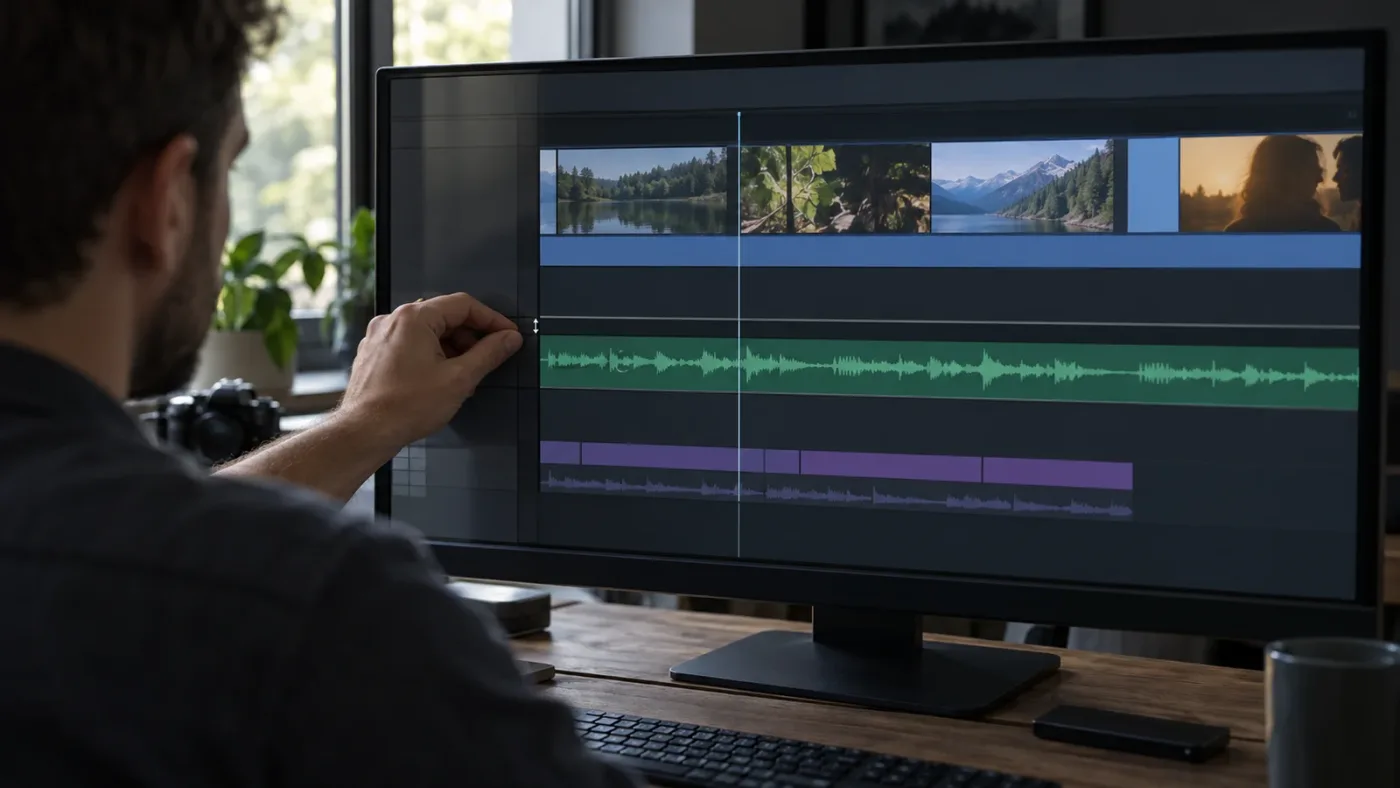
Make an audio track taller by dragging the bottom edge of its track header downward, or by using the audio track-height control in timeline view options when that control is available on the page. This gives the waveform more vertical space without changing audio volume.
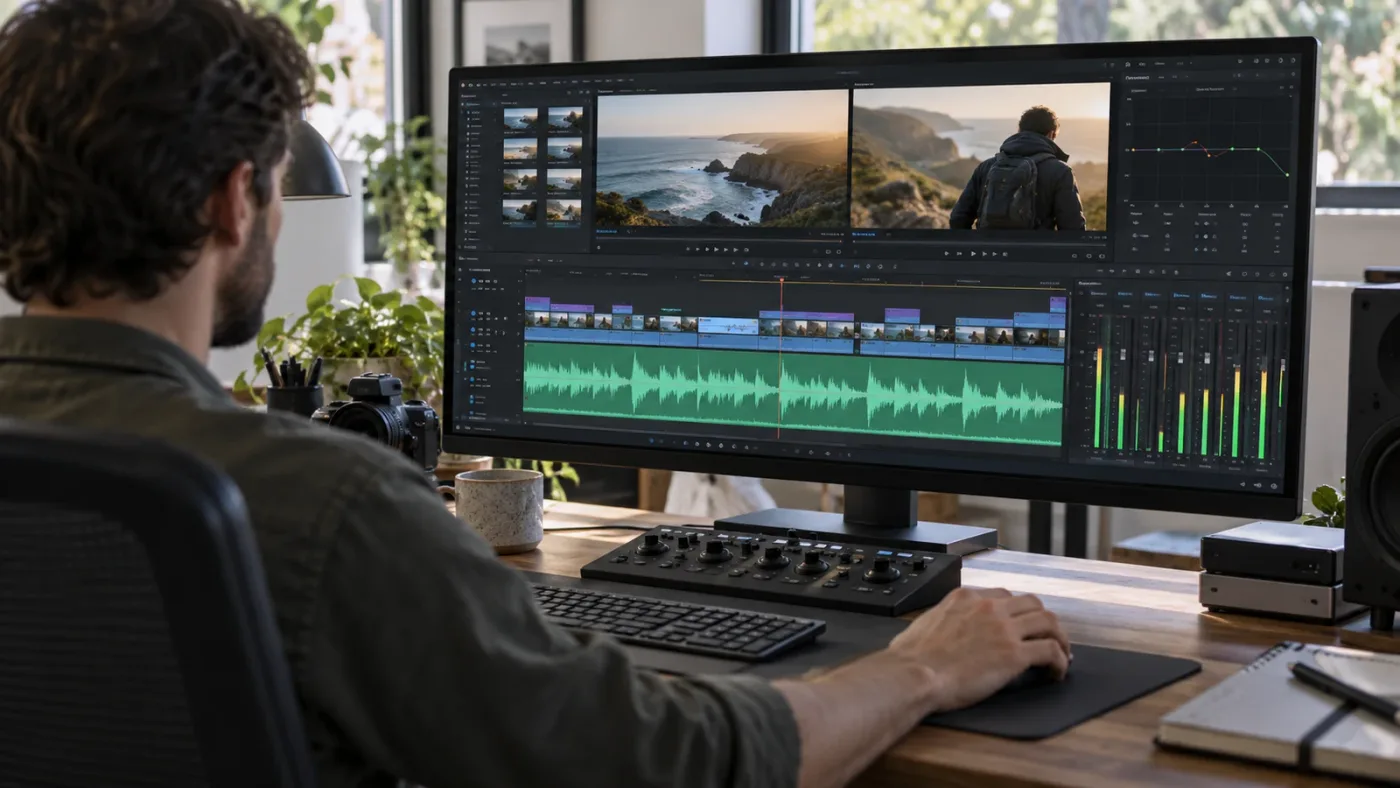
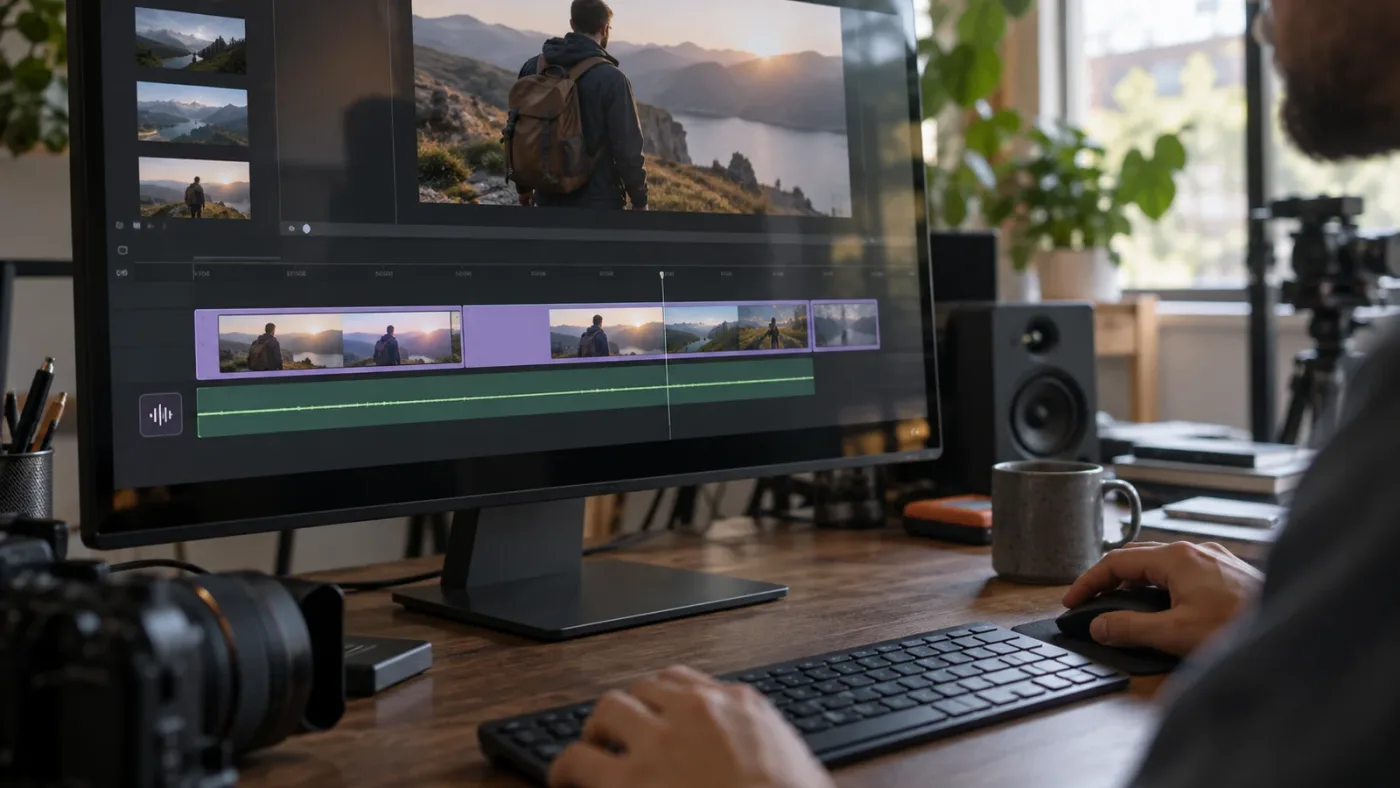
On the Edit page, find the track header at the left of the timeline, where track names such as A1 appear. Move the pointer to the boundary at the bottom of the audio track and drag down. The exact cursor feedback can vary with operating system scaling and workspace size, so look for the divider between tracks rather than aiming for a tiny icon. Dragging the boundary is a layout change, not an audio edit.
If you prefer a menu control, open the timeline view options and look for audio track height. Blackmagic's older training manuals describe video and audio track-height sliders in that palette, alongside an audio waveform display checkbox. Menu labels and layout can shift between releases and pages, so use the Resolve 21.1 manual linked above if your workspace doesn't match older illustrations. The underlying concept remains distinct: a track-height slider resizes lanes, while waveform zoom affects the drawing.
In Fairlight, track size can also be changed with the vertical zoom control or by using the track divider. The 2020 Fairlight guide explains that vertical zoom changes track heights and therefore how many tracks are visible. In practical terms, make one lane taller when you need to inspect a single dialogue clip; reduce several lanes together when you need to see a larger session at once.
A useful first adjustment is modest. Increase the track until the peaks and quieter sections become distinguishable, then stop. There is no universally correct pixel height because the useful size depends on display resolution, UI scaling, the number of tracks, and what you're trying to inspect. A dialogue edit may need enough room to see syllable boundaries. A music bed may need less. A multitrack session may require compact tracks so you can see the whole arrangement.
If a divider seems hard to grab, widen the timeline panel or make sure the track header is visible. Some workspace layouts compress the headers, and a docked panel can leave little room for the resize boundary. Close or shrink panels only if you need to; first try dragging precisely along the lane's lower boundary. On a laptop trackpad, the gesture can be less predictable than with a mouse, so a click-and-drag at the header edge may be easier.
Don't resize the viewer, inspector, or overall application window expecting the waveform to grow independently. Those changes can give the timeline more screen space, which helps, but the lane itself still needs to be enlarged. Similarly, increasing horizontal timeline zoom makes clips longer from left to right. It is useful for finding the exact word or transient, but it doesn't make a low waveform taller.
A taller audio track improves visibility without changing the clip's gain or the mix.
Use track height for a layout problem. Use waveform zoom for a display-scale problem. Use gain only for a sound-level problem. Keeping those jobs separate prevents a visual adjustment from becoming an accidental mix change.
How do I zoom the waveform in Fairlight?
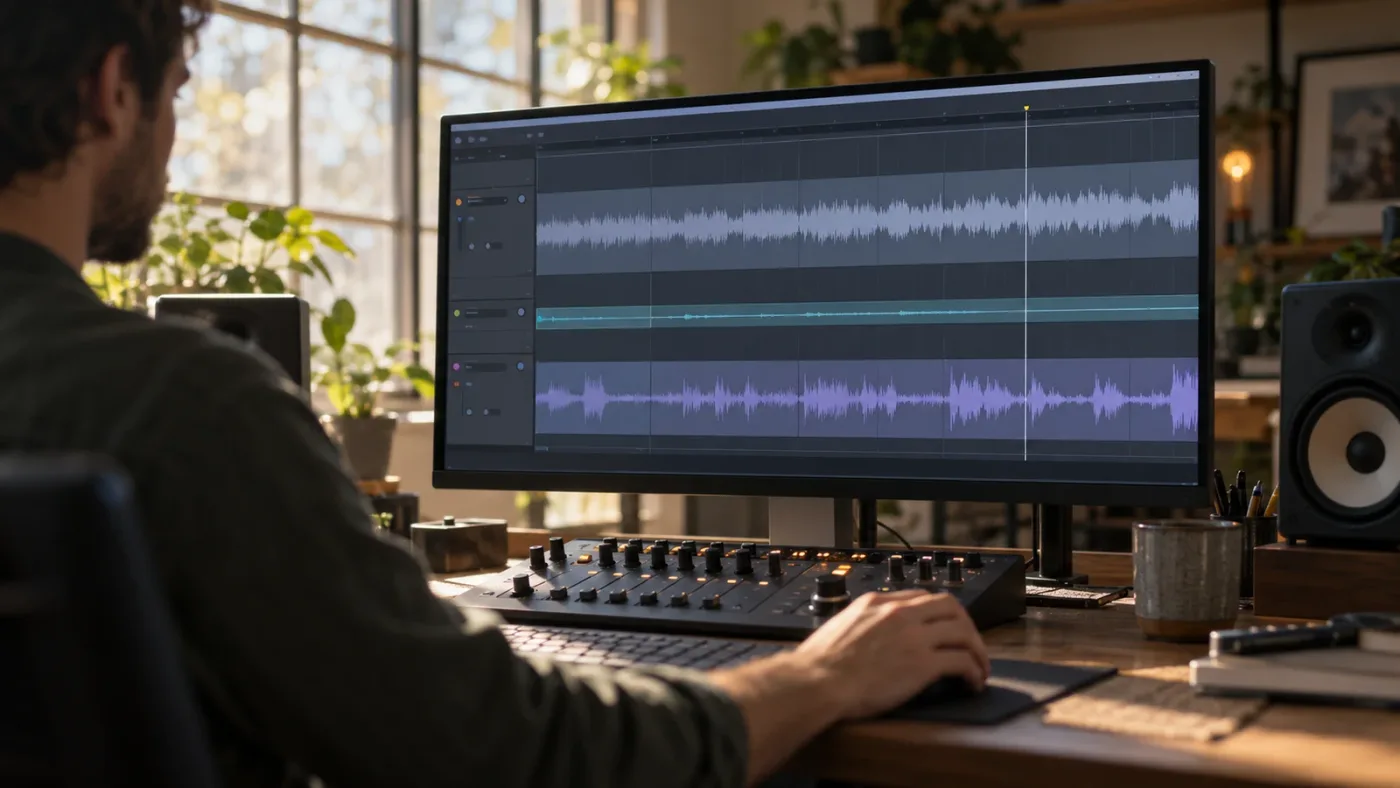
In Fairlight, choose View > Zoom Audio Waveform > Increase Height to enlarge the displayed waveform inside the track. Blackmagic's Fairlight Audio Guide also documents a modifier plus middle-mouse-wheel method and a reset command; these change waveform display, not clip volume.
The exact menu route in the guide is View > Zoom Audio Waveform > Increase Height. Repeat the increase command until the shape is readable. The guide's exercise then says to repeat the track-height adjustment as needed. That sequence matters: both track height and waveform zoom can be adjusted, and each gives you another way to create a useful view.
The guide documents a mouse gesture as well: hold Option-Command on macOS or Alt-Ctrl on Windows while scrolling the middle mouse wheel to zoom the audio waveform. The Fairlight guide's reset instruction is View > Zoom Audio Waveform > Reset, with Option-Command-R on macOS or Alt-Ctrl-R on Windows. Because shortcuts and menu organization can change by version or customized keyboard mapping, treat the menu as the stable route and check the Resolve 21.1 reference manual if a key combination doesn't work in your setup.
A waveform zoom operation changes the vertical representation of the audio. It can make low-level details more visible on screen, but it doesn't amplify playback. This is why the control is helpful when you want to find an edit point in a quiet room tone recording without increasing the level of that room tone. It is also why you should reset the zoom if the peaks become oversized and the clip display becomes hard to interpret.
Resolve's Fairlight guide gives a concrete example: increase track height, then increase waveform zoom until the shape is clear enough to split the clip into parts. It separately instructs the reader to zoom the timeline horizontally to show a short time span. That distinction is useful for dialogue editing. Vertical waveform zoom helps the amplitude shape; horizontal timeline zoom spreads time across more screen width. One helps you see quiet detail. The other helps you place a cut precisely.
If you don't see the menu item, confirm you're on the Fairlight page rather than the Edit page. Page-specific tools differ. The Blackmagic forum's response to an Edit-page question notes that waveform zoom isn't available there in the same way and recommends resizing the track for that page. This isn't a reason to assume Resolve is broken. It is a page-level difference in the controls offered.
A safe workflow is to increase waveform zoom in small increments, inspect whether peaks remain within the clip lane, and stop when the detail is legible. If the waveform becomes too large and clips visually against the lane's boundaries, reduce the zoom or reset it. The drawing is a guide for editing, not a meter or a substitute for listening.
Fairlight waveform zoom enlarges the visual shape without turning up the audio.
Which adjustment should I use?
Use track height when the whole lane is cramped, waveform zoom when the drawing is too small inside a roomy lane, and gain when the sound itself needs level adjustment. This decision table keeps the three controls from getting conflated.
| What you notice | Likely cause | First adjustment | Does it change sound? |
|---|---|---|---|
| Track name and clip lane are compressed | Track height is low | Drag the lane divider or adjust track height | No |
| Lane is tall but waveform looks tiny | Waveform display zoom is low | Increase waveform zoom in Fairlight | No |
| Waveform is visible but playback is quiet | Low recorded or clip level | Check meters, clip gain, and track fader | Yes, if adjusted |
| Waveform is missing | Display disabled, media issue, or drawing not ready | Check view options and media state | No |
| Peaks fill the lane and are hard to read | Waveform zoom may be too high | Reduce or reset waveform zoom | No |
| Many tracks disappear below the timeline | Tracks are too tall for the current view | Reduce vertical track zoom or resize selected lanes | No |
| Cut point is hard to place in time | Timeline is too wide or narrow horizontally | Adjust horizontal timeline zoom | No |
The table is a diagnosis, not a promise that every project has the same default. Resolve remembers interface states and users can customize workspaces. If your track remains tall after switching pages, that's a layout state. If the waveform remains enlarged, that's a waveform display state. Change only the one that causes the problem.
Why is the waveform small even after I make the track taller?
If a DaVinci Resolve waveform still looks small in a tall track, increase waveform zoom on Fairlight or check whether the recording's actual signal is quiet. Track height and waveform scale are separate controls, and a quiet source can still have small peaks after both display adjustments.
This is the most common mismatch: you've changed one kind of height and expected another to change. In Fairlight, use the waveform zoom menu. On the Edit page, the official forum guidance points to track resizing as the practical display-size adjustment. If you need a larger view for detailed audio work, switch to Fairlight and use its dedicated waveform zoom controls.
Next, check whether the waveform is centered and simply low in amplitude. A recorded voice with a low input level can have short peaks. Zooming its display may make it easier to see, but the waveform's original dynamics remain. If you raise clip gain, the sound gets louder and the meters respond accordingly. That may be appropriate for mixing, but it is a different operation from making the drawing easier to inspect.
Check the clip's channel layout, too. A stereo clip can display as a combined or stacked channel waveform depending on the page and display option. Blackmagic's older reference manual describes a button on multichannel clips to toggle between an averaged waveform and individual channel waveforms. If one channel carries little audio, an averaged or stacked view may look unexpectedly sparse. The exact control can differ in later versions, so verify its location in the current manual rather than assuming an old screenshot matches Resolve 21.
A waveform can also look small because the clip has long quiet sections punctuated by a few transients. Music with a broad dynamic range, ambience, and room tone won't draw the same shape as a heavily limited voiceover. A quiet waveform is not proof of a faulty file. Play the clip and watch the meters before deciding whether the level needs correction.
Inspect one clip at a time. If the same media file appears on multiple tracks, compare its visible waveform at the same track height and zoom state. If only one copy appears small, that may reflect a clip-level adjustment or display selection. If every clip is small in the same way, the shared track or view zoom is the more likely cause.
Don't use normalization just to make a waveform appear larger. Normalization is an audio-level operation. It can be useful when you're preparing consistent dialogue or meeting a delivery target, but it doesn't fix a cramped lane or an unhelpful display scale. For a dedicated level workflow, see DaVinci Resolve loudness normalization and LUFS. The goal here is to identify whether the problem is visibility or sound before choosing a processing tool.
A useful check is to bypass the display question and listen. Does the audio sound clear at a normal monitoring level? Do the meters show signal during playback? If the sound is clear and meters move, a small timeline shape is likely a viewing issue. If playback is inaudible or the meters don't move, investigate routing, mute and solo states, clip channels, and media instead. A waveform drawing does not prove that the monitoring path works, and a missing drawing does not prove that audio is absent.
If you're cutting dialogue, waveform zoom can help locate pauses and consonant attacks. It cannot tell you whether a breath should stay, whether the room tone is distracting, or whether two takes sound natural together. Listen around the edit and leave enough context on either side to judge the transition. The visual shape is a map, not the territory.
How do I make waveforms bigger on the Edit page?
On the Edit page, make the audio track taller using its track divider or the timeline's audio track-height control. Resolve's Edit page does not expose the same Fairlight waveform zoom workflow documented in the Fairlight guide, so switch pages if you need independent waveform scaling.
A Blackmagic forum response to an Edit-page waveform-size question states that the page's practical way to change display size is to resize the track. The forum is not a substitute for the current reference manual, but it clarifies a common version of the confusion: someone searches for a waveform zoom button on Edit, while the separately documented command belongs to Fairlight's View menu.
For a quick edit, a taller track is often enough. It lets you compare the shape of a line, locate a transient, or see where a pause begins. If that still isn't enough, move the audio work to Fairlight, where waveform zoom is documented. You don't need to rebuild the edit or move clips. The pages show the same timeline and provide different tools for working with it.
Use the Edit page when you are arranging picture and sound together and need a clear overview. Use Fairlight when the task demands close inspection, detailed audio editing, or track-level mixing. Neither is universally superior. A larger waveform isn't always better: it can make the lane consume more screen space and push other tracks out of view.
You can also temporarily make a single track taller, inspect a transition, and then return it to a more compact height. If you have many dialogue, music, and effects lanes, keeping every track expanded may make the session harder to navigate. Track height is an editorial workspace choice. Save a useful layout if your version supports workspace presets and you need to repeat the same arrangement, but don't assume a preset will carry over to every machine or user profile.
If the Edit page's timeline view options contain an audio waveform checkbox, confirm the box is enabled. In legacy Resolve documentation, the Timeline View Options palette includes both waveform display and track-height sliders. A waveform that has been hidden won't become visible just because the lane is taller. Resolve 21 may present these controls differently from older manuals; the support page links current 21.1 documentation, and interface changes should be checked against that manual.
What if I only need to see a short dialogue edit?
For one spoken line, enlarge the relevant audio lane and zoom the timeline horizontally around the phrase. This gives the clip enough vertical room and gives the phrase enough horizontal space to inspect its timing.
For example, suppose a sentence ends with a breath and you want to cut before the next take. First raise the track enough to distinguish the waveform from the lane background. Then zoom in horizontally until the phrase occupies a useful part of the timeline. Scrub or play across the transition. Don't keep increasing track height if the real issue is that several seconds of speech are compressed into a tiny horizontal span.
For a set of repeated interview answers, you may prefer moderately sized tracks and more timeline width. This lets you compare pauses across adjacent clips without losing the surrounding context. For a single consonant-level edit, a much closer horizontal zoom can help. In either case, check the cut by listening. A sharp waveform edge could be a natural transient, a room sound, or an edit artifact.
What if I need to compare many audio tracks?
For a multitrack mix, prioritize seeing the tracks you need at once, then enlarge only the tracks that need close inspection. A session with dialogue, music, ambience, and effects may become less useful when every lane is expanded to maximum height.
Start by collapsing or reducing tracks that aren't part of the current task. Keep dialogue tracks readable while trimming speech; compact the music and effects lanes if they don't need waveform-level editing. When balancing a mix, track meters and faders matter more than waveform size. When looking for an alignment issue, visible waveforms across tracks may be useful, but make sure the timeline is horizontally zoomed to the event you're comparing.
You can temporarily solo a track to hear it clearly, but soloing changes monitoring, not waveform display. Likewise, track color and naming improve navigation, not amplitude visibility. Keep each control tied to its purpose. If you're organizing the whole mix, the guide on mixing audio in DaVinci Resolve Fairlight covers the broader workflow.
Why is my DaVinci Resolve waveform missing or hidden?
A missing waveform is a display or media problem, not a track-height problem. Confirm waveform display is enabled, confirm the clip has audio channels, and allow Resolve to draw or refresh the waveform before changing gain.
In older reference material, Blackmagic describes an Audio Waveform checkbox in Timeline View Options. If the clip is present but the waveform isn't drawn, look for the timeline view options on your page and turn waveform display on. The checkbox can be on a page-specific palette, and the exact interface may differ in Resolve 21.1. Use the current official reference manual if the older menu image doesn't match your screen.
Next, confirm that the selected clip actually contains audio. A video-only clip may occupy a video track with no corresponding audio component. A linked clip can also have its audio removed, disabled, or placed on a separate track. Inspect the media pool clip and the timeline track assignment. If the audio portion is absent, increasing track height cannot invent a waveform.
If media has just been imported, wait for the waveform drawing to complete and check again. Large projects, background tasks, storage delays, or a busy system can delay interface updates. Don't infer a fixed wait time; it depends on the media and system. Scrub or play the clip to see whether the meters respond. If playback works, troubleshoot the display. If it doesn't, check the media and audio path.
A track can also be hidden, disabled, muted, or outside the visible portion of the timeline. A muted track can still show a waveform, so mute is not generally a display toggle. A hidden or disabled track may be visually absent or hard to notice depending on the page. Check the track header state and scroll the timeline vertically before concluding that the clip has lost its waveform.
If only one channel is silent, inspect the clip's channel configuration. A mono recording imported as stereo, or a multichannel source with unexpected channel mapping, can produce a sparse display. Resolve's clip attributes and channel controls determine how channels are interpreted. Check these before applying gain to the entire clip, because boosting an empty channel won't recover dialogue that is mapped elsewhere.
If the waveform has vanished after changing a workspace or opening a project on another machine, first restore the timeline display settings. Then inspect the clip. A workspace layout can change what you see while leaving the media intact. Rebuilding optimized media or relinking media should be reserved for evidence of a media problem, not used as a reflex for a visual setting.
What if the audio meters move but I see no waveform?
If meters move during playback but no waveform appears, the clip contains a signal and the likely issue is display, zoom, or track visibility. Enable waveform display, enlarge the lane, and allow the timeline to refresh.
Meters give you a live indication of signal at a point in the audio path. The timeline waveform is a stored visual representation of the clip's amplitude over time. They are related but not identical displays. A moving meter with no clip drawing suggests checking the timeline's view options and the selected clip's display state rather than immediately changing routing.
Try another clip in the same track. If that clip shows a waveform, the problem may be tied to the first clip or its source channels. If neither clip shows one, inspect the timeline display setting. If the waveform appears after switching to Fairlight, the page-specific view in Edit may be the limiting factor.
What if the waveform appears only after I zoom in?
If the waveform becomes visible only after horizontal zooming, the original timeline view may have compressed its detail across too little screen width. Keep the closer view for precise edits and return to a wider overview when arranging the sequence.
Horizontal zoom is about time. It spreads a short event across more pixels from left to right. Track height and waveform zoom are about the vertical display. Use the axis that matches the symptom. If a waveform is too flat vertically, horizontal zoom alone won't solve that. But if individual syllables and transients are difficult to separate, a closer horizontal view can make their timing legible.
Does making a waveform bigger make the audio louder?
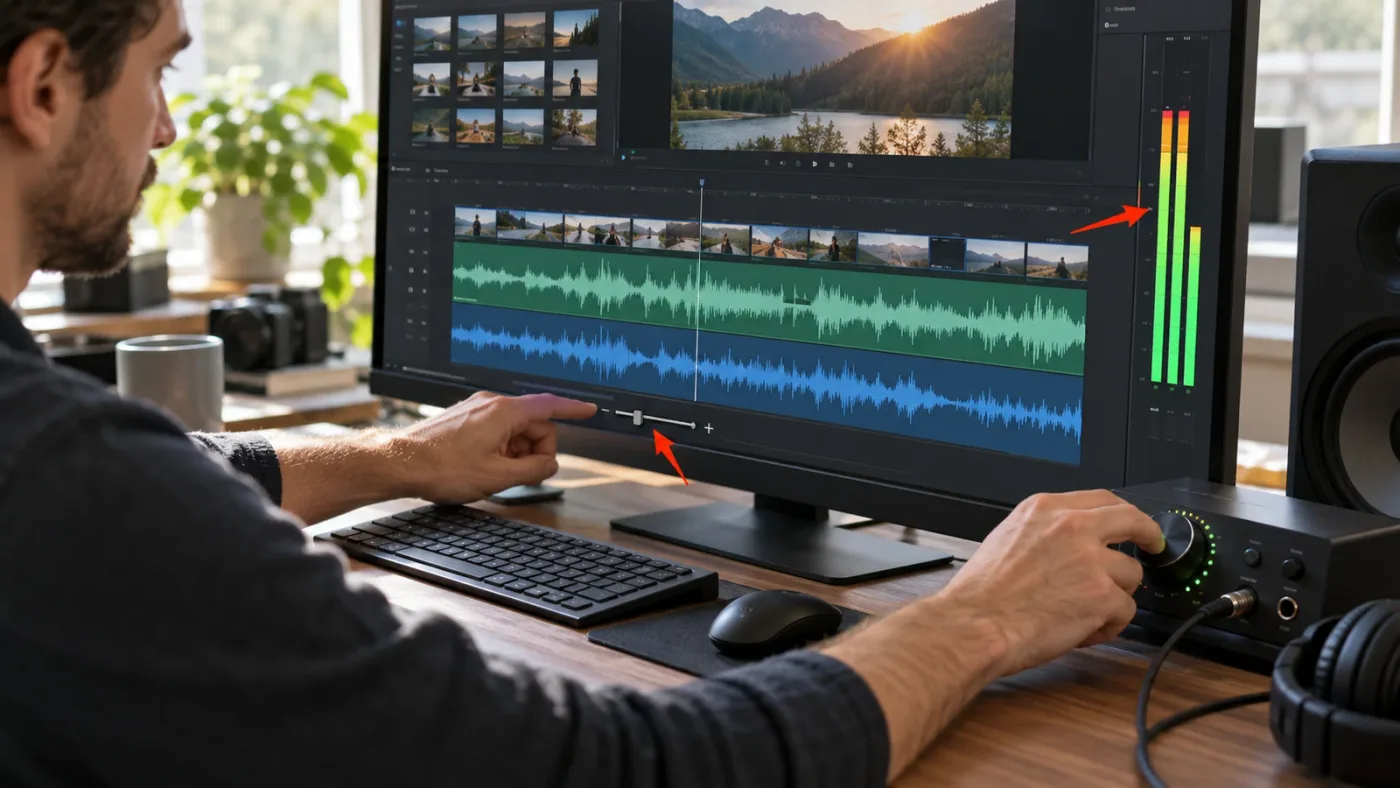
No. Increasing track height or Fairlight waveform zoom changes the timeline display only; clip gain and track level change the sound. Blackmagic's Fairlight guide explicitly distinguishes resetting waveform zoom from changing volume.
This is the most important safeguard in the workflow. A larger graphic does not mean the audio is louder, and a smaller graphic does not automatically mean the recording is too quiet. Judge loudness by listening and metering, then use the appropriate level control if the mix needs a change.
Clip gain adjusts the source clip's level before it reaches the track's processing and fader path, depending on the control you use. A track fader changes the level of the track mix. These are meaningful sound decisions. If you make either change merely to create a taller drawing, the output may no longer match the intended balance.
For speech, avoid chasing a visually uniform waveform. Natural dialogue contains pauses, breaths, emphasis, and changes in distance. A waveform with varied peaks can be perfectly usable. Loudness targets and delivery requirements belong to a separate finishing task. If you're preparing a broadcast or podcast deliverable, measure the mix and follow the destination's specification rather than estimating from clip shape.
A display zoom can be useful for editing low-level material, but it has limits. It can't reveal detail below the source's noise floor, restore clipped peaks, or separate speech from background noise. It only makes the displayed amplitude shape larger. If the audio is noisy or distorted, use listening, meters, and appropriate restoration tools. If you're just finding cut points, waveform zoom is often enough.
A waveform is a visual aid, not a loudness measurement.
If a voiceover is genuinely quiet, first verify the track routing and meters, then choose a level adjustment or processing method that fits the recording. Don't normalize every clip just because the waveforms differ in height. Different clip gain can reflect different sources, performances, or intended mix roles. Consistency should be judged in context.
Should I use clip gain, track fader, or waveform zoom?
Use waveform zoom when the picture is hard to read, clip gain when an individual clip's level needs adjustment, and a track fader when the whole track needs to sit differently in the mix. These operations solve separate problems.
| Tool | What it changes | Good reason to use it | Not a fix for |
|---|---|---|---|
| Track height | Timeline lane size | More room to inspect a clip | Quiet playback |
| Waveform zoom | Clip drawing scale | See low-level detail | A missing audio signal |
| Clip gain | Clip level | Correct a source clip's level | Cramped timeline layout |
| Track fader | Track mix level | Balance a whole track | Hidden waveform display |
| Timeline horizontal zoom | Time scale across screen | Place edits more precisely | Vertical waveform size |
This distinction matters when working quickly. It takes only a moment to drag a track divider, but a mistaken gain move can alter a mix. If you changed gain accidentally, undo once and confirm the waveform view. If other edits happened afterward, inspect the control value instead of pressing undo repeatedly and reversing unrelated work.
How can I make stereo or multichannel waveforms easier to read?
For stereo or multichannel clips, first decide whether you need a combined waveform or individual channel shapes, then adjust track height and waveform zoom to suit that view. A sparse channel can make the overall clip drawing look smaller even when another channel carries clear audio.
A stereo recording may show a combined or stacked representation depending on the page and clip display control. Older Blackmagic documentation describes a small button on multichannel timeline clips for toggling between an averaged waveform and individual waveforms arranged vertically. That control is useful when one side contains a different signal or when you need to compare channels. Since that documented illustration comes from an older manual, confirm the exact location and wording in the DaVinci Resolve 21.1 reference manual.
If a source has more channels than you need, inspect the clip attributes and channel mapping. A camera file may include scratch audio, a boom mic, and a wireless mic on separate channels. If you view an average across them, the waveform can be misleading: a quiet or phase-related channel may reduce the apparent combined shape. Inspecting individual channels tells you which one contains the useful take.
For dual-system sound, waveform size is only one clue when syncing. Use the sync method appropriate to your material, and check alignment by listening and viewing the transient. If one recorder's signal is much lower, increasing display zoom can help compare timing without altering either source. Avoid normalizing one clip before sync if level matching isn't part of the task.
If a channel looks empty, don't assume the file is corrupt. Play it solo if possible, check the meters, and confirm the source's channel layout. An empty channel may be expected. If every channel appears silent and the meters don't move, investigate the source file or clip routing.
For dialogue edits, the individual-channel view can help identify a noisy lavalier versus a cleaner boom recording. For music, the combined representation may provide a quick overview, while individual channels can help inspect a stereo image. Pick the view that answers the current question. More detail isn't automatically more useful.
Why does my waveform look different on Cut, Edit, and Fairlight?
The Cut, Edit, and Fairlight pages present timeline controls differently, so the same clip may look different after switching pages. Track height and waveform display settings can be page-specific or exposed through different menus; use Edit for quick arrangement and Fairlight for the dedicated waveform zoom workflow.
The Cut page is designed around a compact editing workspace. It may prioritize a broad overview and streamlined navigation. The Edit page exposes more conventional track-based editing controls. Fairlight is built for audio post and documents dedicated waveform zoom commands. These page purposes explain why a control shown in a Fairlight lesson may not appear in the Edit page menu.
When you switch pages, compare like with like. A lane on one page may be scaled differently from the lane on another. The display can change without any alteration to the underlying clip. If a waveform seems to have shrunk, check whether the selected page changed, whether a different timeline view is active, and whether track height was restored to a compact layout.
DaVinci Resolve 21.1 adds Fairlight folder functionality for track management according to Blackmagic's current What's New information. That release note concerns organization and navigation, not waveform magnification. It doesn't imply that track folders automatically change waveform size. Keep version-specific claims narrow: the current release is 21.1, but the basic distinction between track height and waveform display remains the reliable diagnostic.
If you follow a tutorial recorded in Resolve 18, 19, or 20, labels and panel positions may differ. The core Fairlight guide examples are useful for the documented behavior, but an older screenshot should not be treated as a pixel-perfect map for 21.1. Use the menu name and concept, then verify in the current manual when an item has moved.
A page switch can change the controls you see without changing the audio clip itself.
For a short edit, don't interrupt your work just to get a larger waveform. Increase track height on the current page. Switch to Fairlight only if the separate zoom command will materially help you inspect a quiet detail or make a precise audio edit.
What should I check if the waveform still looks wrong?
If the waveform still looks wrong after resizing, check the page, display toggle, clip channels, source level, and zoom state in that order. This order moves from simple viewing causes to audio causes and avoids unnecessary processing.
Use this checklist:
- Confirm the timeline page. Fairlight has a dedicated waveform zoom menu; Edit may rely on track resizing.
- Make sure the audio lane is tall enough to inspect. Use its divider or page's track-height control.
- Confirm waveform display is enabled in timeline view options.
- Check whether the waveform zoom is at an unusually low or high setting. Increase it or reset it in Fairlight.
- Play the clip and watch the meters. A meter response means a signal is reaching that point in the path.
- Inspect the clip's channels and routing if the drawing is missing or unexpectedly sparse.
- Adjust gain only if the sound is actually too quiet in context.
This sequence also helps when a project opens on another workstation. Workspace size, screen resolution, and saved panel layouts can make track dividers feel different. Start by restoring a comfortable timeline view. Don't delete cache files, relink media, or rebuild a project simply because a waveform looks small. Those interventions address other problems and can create more work.
If the waveform is too tall, reset zoom rather than lowering clip gain. If the track is too tall and you can't see enough lanes, reduce track height. If you need precise timing, zoom horizontally. Each adjustment has a clear job.
If the clip looks normal but you can't hear it, move to a different troubleshooting path. Check mute and solo states, track output routing, bus assignments, monitoring device, and clip channels. A waveform display issue and an audio-routing issue can happen together, but one does not prove the other.
If an imported clip displays no waveform while other clips do, test whether the source itself has audio in the Media Pool and whether the selected timeline item is the audio component. If the source plays outside the timeline but not inside it, inspect the timeline track and clip state. If it won't play anywhere, investigate the media file or relink status. Don't guess based on waveform appearance alone.
What is the fastest safe fix for a tiny waveform?
The fastest safe fix is to make the audio track taller, then increase Fairlight waveform zoom if the shape remains small inside the lane. This changes visibility only, so it won't disturb your mix.
Do it in this order:
- On Edit or Fairlight, locate the audio track header.
- Drag the track's lower divider down until the lane is readable.
- If you're in Fairlight and the waveform still appears small, choose View > Zoom Audio Waveform > Increase Height.
- Use horizontal zoom only when you need more time detail across the screen.
- Play the clip and watch the meters before changing any gain.
- If the waveform is now oversized, use Zoom Audio Waveform > Reset.
Try one change at a time. If you enlarge the track, zoom the waveform, and raise gain all at once, you won't know which operation solved the visibility problem. More importantly, you may have changed the mix without meaning to.
The Fairlight guide's own sequence is instructive: resize the track, increase waveform zoom, and then zoom horizontally for a closer view. That is a clean progression from lane space to waveform scale to time detail. It avoids treating all timeline zoom as one control.
For a first-time user, the quickest mental label is “lane, drawing, sound.” Lane means track height. Drawing means waveform zoom. Sound means gain or fader. Say which one you need before touching a control. That small pause is often enough to avoid the wrong fix.
If you want guidance while locating a control in your current Resolve layout, TryUncle is an on-screen assistant for DaVinci Resolve on Mac and Windows. Ask in plain words and Uncle points at the relevant control on your screen.
Which related audio problem should I solve next?
Choose the next step based on what the waveform check revealed: use a level workflow for quiet or inconsistent audio, and a Fairlight mixing workflow when the clips are visible but the balance needs work. A larger waveform alone doesn't fix either problem.
If playback is quiet, inspect meters and routing before adjusting gain. If the sound is loud enough but dialogue levels vary, see DaVinci Resolve dialogue leveler settings for a focused processing decision. If you are balancing a complete sequence, use the Fairlight mixing guide linked earlier. These are related tasks, but they answer different questions from “why is my waveform small?”
Keep your timeline readable for the task in front of you. Make the lane taller when you need vertical room. Zoom the waveform when Fairlight's display is too small. Zoom horizontally when timing is compressed. Touch gain only when the audio itself needs a level change. That is the reliable fix, and it keeps an interface problem from turning into an audio problem.
What does Blackmagic say about reading the waveform?
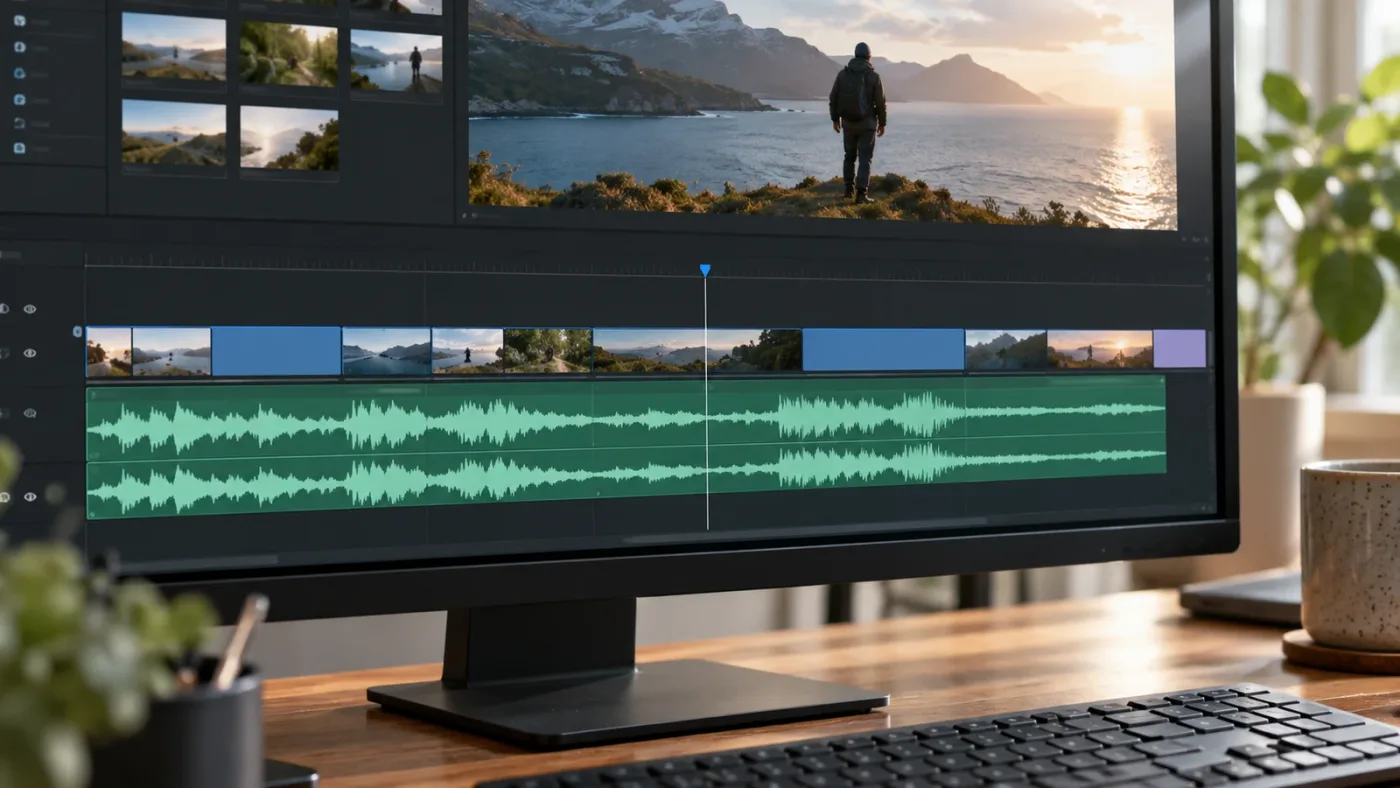
Blackmagic frames Fairlight as an integrated audio post-production workspace, and its published guide shows waveform zoom as a visual editing aid alongside track resizing. Grant Petty, Blackmagic Design's CEO, describes the wider purpose in the Fairlight Audio Guide: “DaVinci Resolve lets you work more efficiently because you don’t have to learn multiple apps or switch software for different tasks.” The quote comes from the guide's foreword, and it supports the integrated-workflow context rather than a claim about waveform size.
That quote is broader than this one interface adjustment, but it points to a practical benefit: the audio tools live in the same project as the edit. You can make a cut on Edit, inspect it in Fairlight, then return to the broader timeline without exporting audio to another application. The point isn't that every audio task belongs on the Fairlight page. It's that the project provides a dedicated page when the edit needs more detailed sound work.
The manual's instructions are more specific than any marketing summary. They separate track height, waveform zoom, and horizontal timeline zoom. That gives you a dependable sequence: create room in the lane, scale the drawing if needed, then spread time across the screen for precise placement. None of those display controls claims to improve the quality of the original recording.
What should you do now?
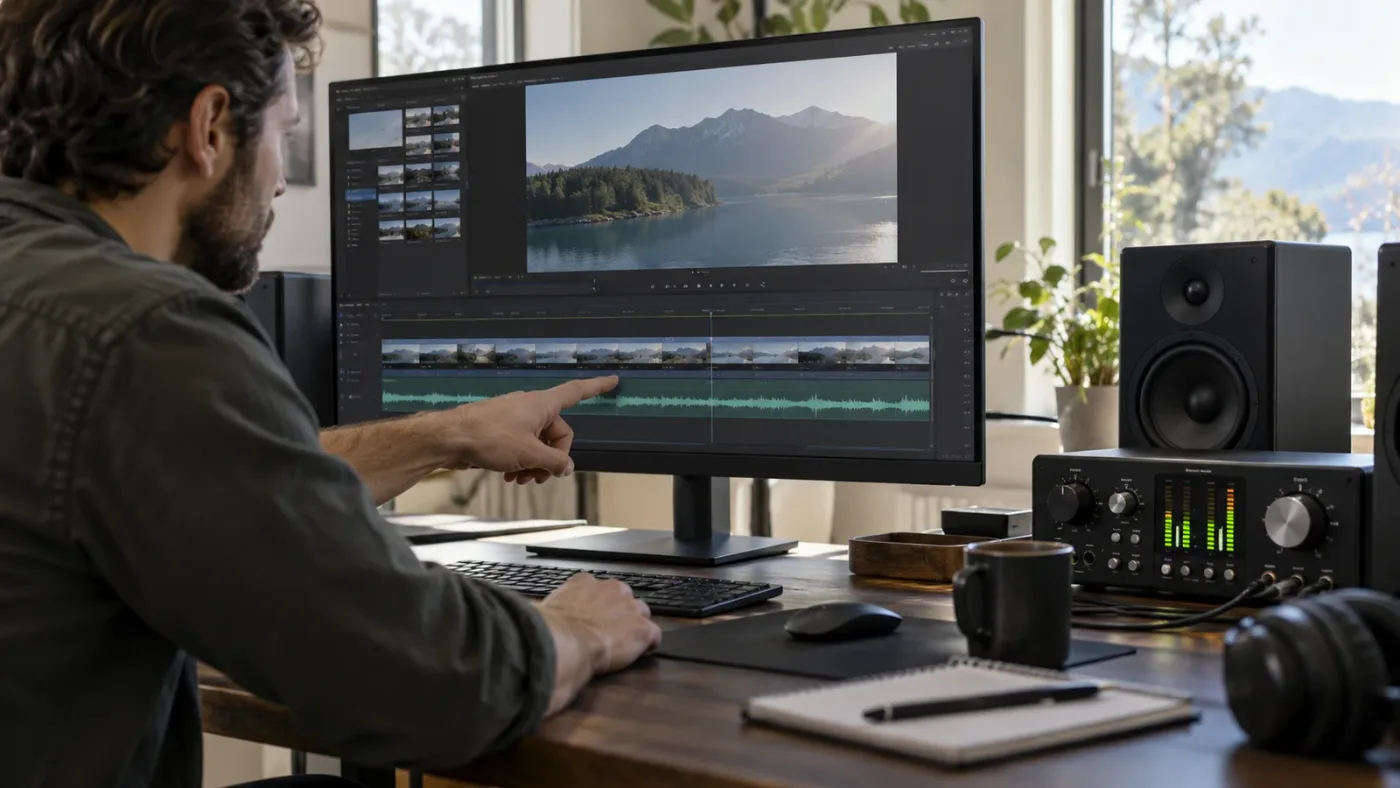
Make the track taller first. If you're in Fairlight and the waveform still looks small inside that lane, increase waveform height from the View menu. Then listen and check meters before touching gain.
That order answers the problem without risking a needless level change. Track height fixes cramped lanes. Waveform zoom fixes a small drawing. Gain fixes quiet audio. Choose the control that matches what you see and hear, and leave the rest alone.
Frequently asked questions
- Why is my DaVinci Resolve audio waveform so small?
- The track may be short, the waveform display may be zoomed out, the clip may contain quiet audio, or waveform display may be off. Increase track height first, then adjust waveform zoom in Fairlight if needed.
- How do I make audio waveforms bigger in DaVinci Resolve 21?
- Drag the lower edge of the audio track header to make the track taller. In Fairlight, choose View > Zoom Audio Waveform > Increase Height to enlarge the waveform inside the track without changing audio level.
- Does waveform zoom make audio louder in DaVinci Resolve?
- No. Waveform zoom changes the clip's visual display. Adjust clip gain, track level, or a fader when you need to change playback loudness.
- Why is my waveform missing in DaVinci Resolve?
- Check that audio waveform display is enabled in the timeline view options, that the clip has an audio channel, and that Resolve has finished generating the waveform. A taller track cannot reveal a waveform that is hidden or not yet drawn.
- Can I make the waveform taller on the Edit page?
- You can make an Edit page audio track taller. Fairlight also provides separate waveform zoom controls, so use Fairlight when the track is tall but the waveform still looks small.
Sources
- The Fairlight Audio Guide to DaVinci Resolve 20
- DaVinci Resolve 21.1 Reference Manual and Support
- DaVinci Resolve 21 What's New
- Blackmagic Design forum: Waveforms size on Edit page
- Blackmagic Design forum: Audio waveforms use half of track height
- DaVinci Resolve 21 Reference Manual
- DaVinci Resolve 21.1 Reference Manual
- DaVinci Resolve 17 New Features Guide
Put this guide to work with TryUncle.
Ask about the step you’re on. TryUncle sees your screen and points at the control you need, so you can keep learning in your own project.
Get TryUncle for Mac or WindowsKeep reading
Guides · Jul 13, 2026 · 31 min
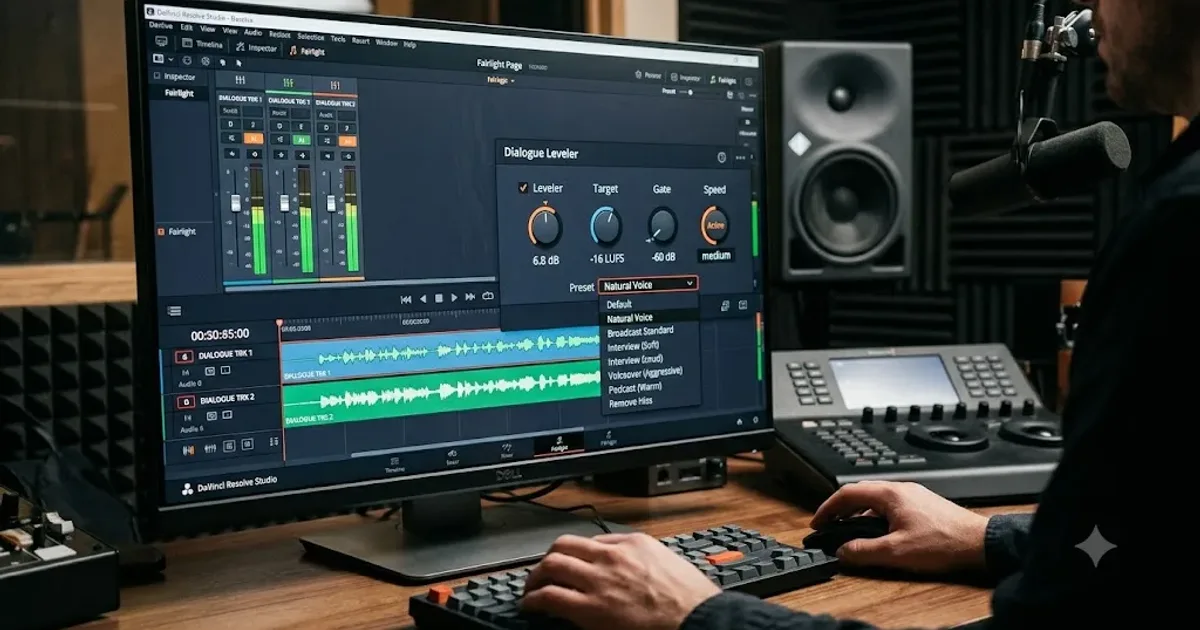
DaVinci Resolve Dialogue Leveler Settings Explained
Every DaVinci Resolve Dialogue Leveler control explained: Reduce Loud Dialogue, Lift Soft Dialogue, Background Reduction, Output Gain, and what Allow Wider Dynamics does.
Guides · Jul 8, 2026 · 33 min
DaVinci Resolve Loudness Normalization: The Right LUFS Target
The exact LUFS target for every platform in DaVinci Resolve: -14 for YouTube and Spotify, -16 for podcasts, -23 EBU R128 broadcast. Plus how to set and hit it.
Guides · Jul 11, 2026 · 31 min
How to Mix Audio in DaVinci Resolve Using Fairlight
Mix audio in DaVinci Resolve's Fairlight page: build a dialogue/music/effects bus structure, gain-stage your clips, EQ and compress dialogue, then duck music under it.