Articles / Guidesupdated for DaVinci Resolve 21.1 (October 2026)
How to Copy Markers Between Timelines in DaVinci Resolve
Quick answer
In the Edit page, select the markers in the source timeline, copy them, open the destination timeline, position the playhead, and paste. With a clip selected, Resolve creates clip markers; with no clip selected, it creates timeline markers. Check the pasted markers’ positions and details before continuing.
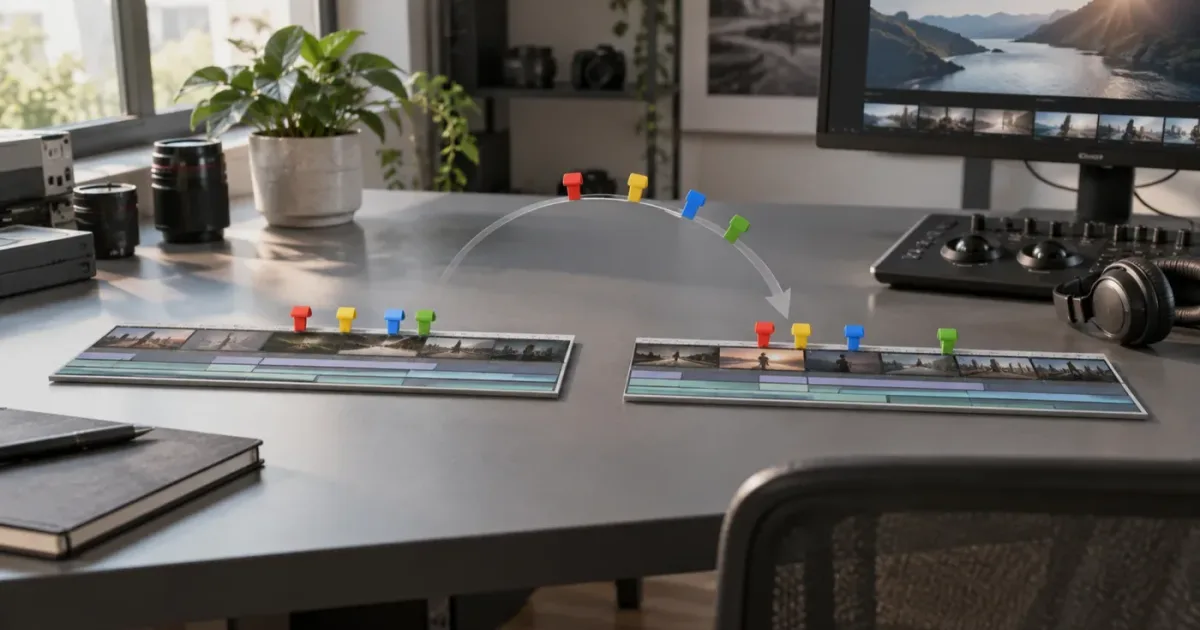
I separate two questions before copying markers: what kind of marker am I moving, and what kind do I want in the other timeline? Those choices decide whether the pasted marker stays tied to the timeline or to a clip. Resolve makes the copy itself straightforward. The destination state is where a small mistake can change the result.
As of October 2026, Blackmagic Design’s support center lists the DaVinci Resolve 21.1 manual. The core multi-marker copy workflow is documented in Resolve 18.6, and Resolve 21’s feature guide separately documents marker options for Paste Attributes. Those are related tools, but they solve different tasks.
How do I copy markers between timelines in DaVinci Resolve?
In the Edit page, select the source markers, copy them, switch to the destination timeline, set the playhead, and paste. Blackmagic’s Resolve 18.6 feature guide says that a selected timeline clip receives clip markers, while no selection produces timeline markers.
Use this sequence:
- Open the source timeline in the Edit page.
- Select the marker or markers you want to copy.
- Copy the selected markers using the standard copy command for your keyboard mapping.
- Open the destination timeline and confirm that it is the active timeline.
- Move the playhead to the intended destination position.
- Select the destination clip only if you want the copied markers attached to that clip. Leave clips deselected for timeline markers.
- Paste.
- Inspect the new markers before continuing with other edits.
The feature guide describes selecting multiple markers by Shift-clicking or Command-clicking them, or by dragging a boundary box. It also says the selected markers can be copied and pasted into another clip, timeline, or compound clip at the playhead position. The copy and paste operation can be done in the Source Viewer, Timeline Viewer, or timeline.
On macOS, the guide names Command-C and Command-V. On Windows, use the corresponding Control-key shortcuts unless you have changed your keyboard mapping. Resolve lets you customize and save shortcuts, so use the menus if you’re unsure which keys are assigned on your system. Blackmagic’s Edit page overview describes customizable shortcuts and markers as indicators that can belong to a clip or timeline.
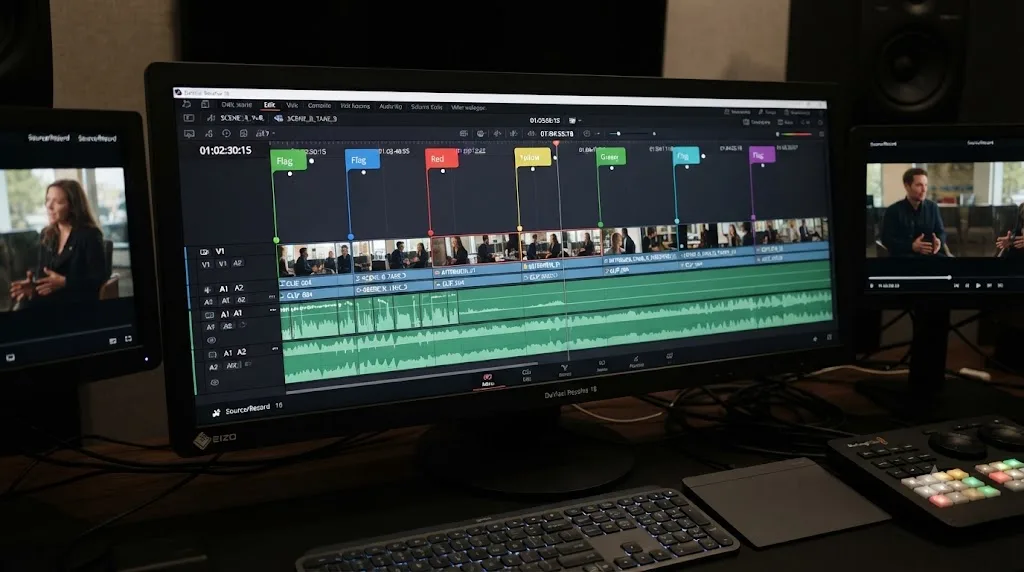
The key is to select marker indicators, not just clips. Selecting a run of clips does not mean you’ve selected the markers above them. If a marker is tiny or crowded against another one, zoom in until you can identify what you’re clicking.
The destination selection determines whether Resolve creates timeline markers or clip markers.
For a marker set that matters to a client review or delivery, don’t assume the paste worked just because something appeared. Check the type and location. Then check the marker text or other details you rely on.
This workflow is distinct from moving clips. When you copy clips, you’re copying timeline items. Here, you’re selecting markers themselves. If you select clips by mistake, the clipboard may contain a different selection than the one you intended.
A safe first pass is small. Copy one or two representative markers, paste them into the destination, and inspect the result. Once that test behaves as expected, transfer the rest.
For practical marker naming and client-review conventions, see how to use markers in DaVinci Resolve for client review. This guide focuses on the transfer itself.
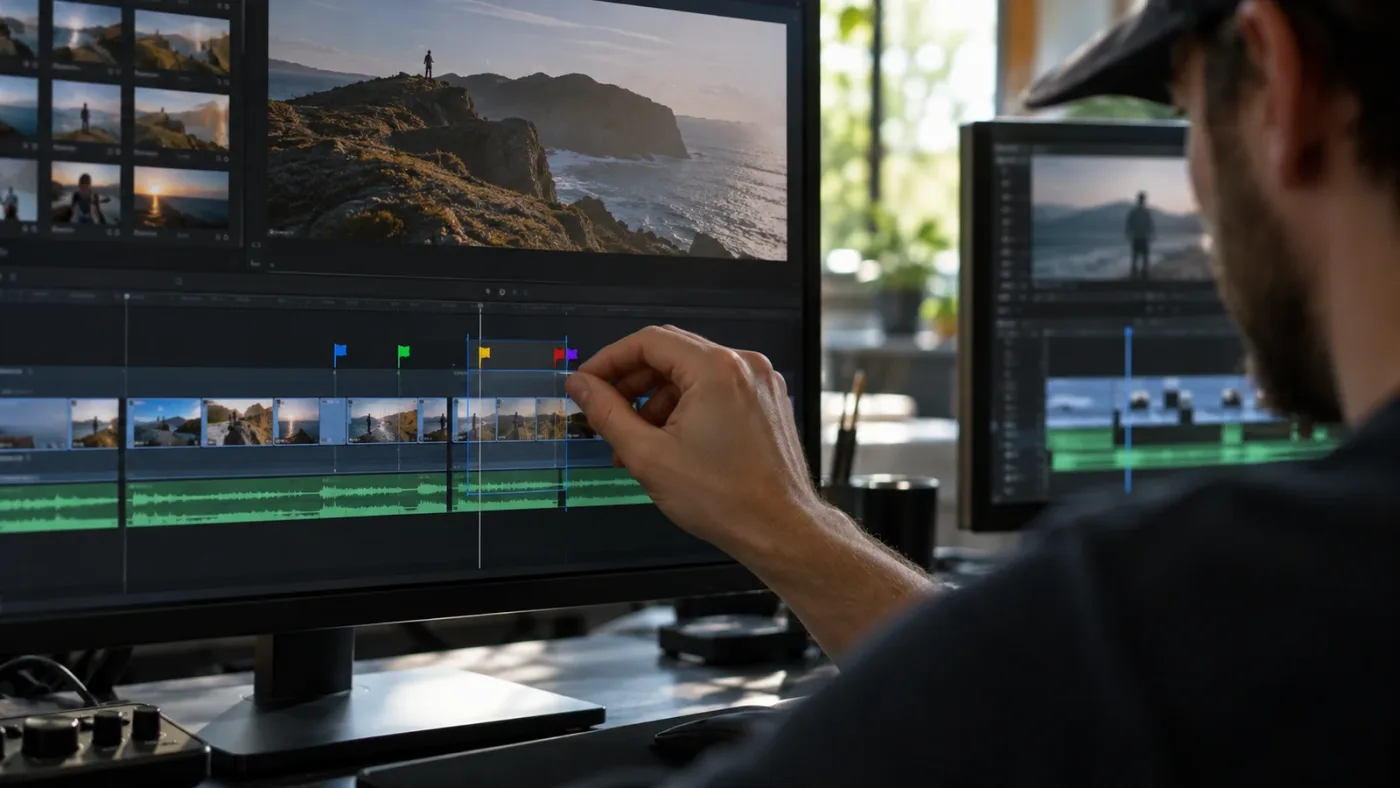
How should I select several markers without grabbing the wrong ones?
Select marker indicators with Shift-click, Command-click, or a boundary box, then inspect the selection before copying. Those are the methods Blackmagic documents for selecting multiple markers in the Resolve 18.6 feature guide. Choose based on the spacing and density of the markers.
| Timeline situation | Practical selection method | What to check |
|---|---|---|
| A few markers with space between them | Shift-click or Command-click the markers | Confirm each intended indicator is selected |
| A compact cluster of markers | Zoom in, then use a boundary box | Check both edges of the selection |
| A long timeline with separate sections | Select and transfer one section at a time | Compare each batch against its source range |
| Markers close to clip edges or controls | Zoom in and select carefully | Make sure you selected markers, not clips or edit controls |
| You cannot tell what is selected | Stop and make a one-marker test | Verify the copied item before repeating |
Shift-click and Command-click are useful when you can clearly distinguish individual markers. A boundary box can be quicker for a group, but it makes the box edges important. If one edge misses a marker, it won’t be part of the selection. If the box crosses a nearby marker you didn’t want, that marker may be included.
A careful selection pass looks like this:
- Navigate to the first marker you need.
- Zoom the timeline until the target markers are distinct enough to select.
- Select the markers using the method that suits the group.
- Pause and check which indicators are highlighted.
- Copy only after you can identify the selected set.
- Paste a small test group if you’re transferring many markers or working in a crowded timeline.
There’s no benefit to selecting a larger range than you need if you’ll have to sort out unwanted markers afterward. For a few separated markers, selecting one at a time may be slower but clearer. For a compact group, a boundary box may be faster, provided you inspect its edges.
If the markers span a long program, divide the transfer into meaningful batches. For example, copy the markers for one chapter, check them, then move on to the next chapter. That’s a worked workflow example, not a Resolve requirement. It reduces the number of markers you have to audit at once.
Marker groups can also contain different editorial purposes. One section might have markers for a title correction, a music change, and a question about a cut. If the revised timeline changed those scenes, it may be better to transfer the notes in smaller groups and confirm each one against its intended event.
Don’t use a marker’s color as proof that it was selected or transferred correctly. Color can help you organize information, but the transfer check should include the marker’s location and the note or name that gives it meaning.
A useful distinction is whether you’re selecting a marker in the viewer or in the timeline. Blackmagic’s guide says the operation can be done from the Source Viewer, Timeline Viewer, or timeline. That gives you more than one place to work, but it doesn’t make every selection equally easy to inspect. Use the view where the markers are clearest and the active timeline is easiest to confirm.
If two markers overlap visually, don’t guess which one you’ve selected. Move the playhead close to that section, increase the timeline zoom, and test a single marker. If you can’t confidently identify the selection, stop before copying. Copying the wrong group is recoverable, but the cleanup takes longer than a careful selection.
For a long marker list, consider a batch size small enough that you can verify it without losing track of the source. A chapter, scene, or review section can be a sensible batch boundary. Those are organizational choices, not built-in Resolve limits. The practical measure is whether you can compare the source and destination without confusing which marker belongs to which section.
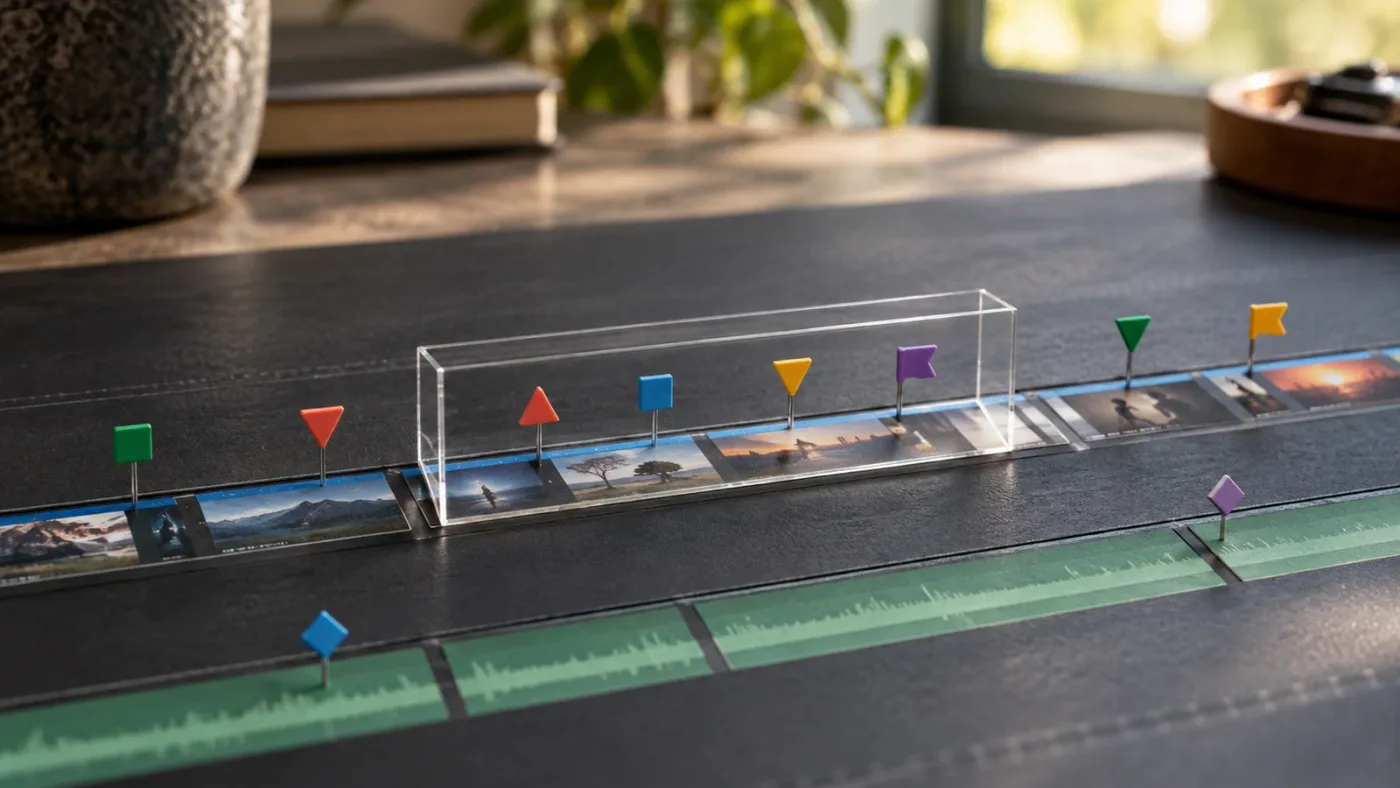
Why did Resolve paste my markers onto a clip?
Resolve creates clip markers if a timeline clip is selected at the destination. With no clip selected, it creates timeline markers, according to Blackmagic’s multi-marker guide. This is a destination-selection choice, not necessarily a failed copy.
A click that seems intended for the ruler can land on a clip, clip edge, or other timeline control. Before pasting timeline markers, look for a visible selection highlight on a clip. If you see one, click an empty area of the timeline and check that the clip is no longer selected.
| What you want | Destination state before paste | Expected marker type |
|---|---|---|
| Notes fixed to the timeline | No timeline clip selected | Timeline markers |
| Notes attached to a particular clip | The intended clip is selected | Clip markers |
| You’re unsure what’s selected | Clear the selection, then check the timeline | Timeline markers are the safer intended result |
| You want to compare both types | Test each type in a safe timeline | Confirm each result before using it in the main edit |
A pasted marker on a clip can be the expected result if that clip was selected. Undo once if you meant to create timeline markers, clear the clip selection, and paste again. Don’t continue editing for several minutes before checking. Undo is most useful while the paste is still the last operation.
Linked video and audio can make selection less obvious. Depending on what you click and how the timeline is set up, you may see one or more clip items selected. The documented rule concerns whether a timeline clip is selected. For timeline markers, make sure the destination is visibly clear of clip selections rather than relying on which track you think you clicked.
A marker’s color doesn’t identify its type. Inspect where it appears and how it relates to the clip or ruler. If the marker’s relationship is still unclear, test it in a safe timeline and observe whether it stays attached to the clip when you alter the edit. Don’t use a destructive edit on the approved timeline just to test marker behavior.
A wrong marker type is usually a destination-selection problem, so check the selection before rebuilding anything.
The question to ask before pasting is simple: “Is the destination clip selected?” That small pause prevents a common category mistake. Then check whether the result matches the marker type you chose.
If you want clip markers, be just as deliberate. Select the particular destination clip that should own them, then confirm that it is the selected item before you paste. If the clip is part of a linked audio-video pair, or if several tracks are selected, don’t infer the outcome from the track you intended to click. Confirm the visible selection and inspect the result afterward.
There’s also a difference between a marker that appears over a clip and one that belongs to that clip. A timeline marker may sit visually above a clip at the same time position. The marker’s apparent location alone may not tell you which object owns it. Use a test in a safe timeline if you need to confirm how it behaves when the edit changes.
If the wrong type appears, avoid manually deleting a large group until you know what happened. Undo the most recent paste if it is still the last operation. Then clear or set the selection intentionally and repeat. If you’ve done other work since the paste, first consider what Undo would affect. Don’t remove markers by trial and error on an approved cut.
Where should I put the playhead before pasting?
Put the destination playhead at the location you want to use as the paste anchor. Blackmagic’s feature guide describes markers as being pasted “at the playhead position.” That confirms the playhead matters, but it doesn’t promise that two timelines with different starts, frame rates, or edits will preserve the same editorial meaning automatically.
“Same timecode” can mean two different things:
- The same displayed timeline timecode.
- The same editorial event, such as the start of a scene or the moment a title appears.
Those can point to different places. Two timelines may have different starting timecodes, different edits, or different durations. A marker at a displayed timecode in one version may point to a different shot in another version.
If you need a specific displayed timecode, set the destination playhead there and verify the pasted markers. If the marker needs to identify the same event, locate that event in the destination first. Use the event as your anchor rather than trusting a timecode from an earlier cut.
The guide specifies pasting at the playhead position, but it doesn’t explain every edge case involving groups of markers, different timeline starts, or heavily revised edits. Don’t infer more than the documentation says. Test a small group when exact alignment matters.
A useful check is:
- Note the source marker’s displayed position and note.
- Identify its intended counterpart in the destination.
- Place the playhead at the chosen destination anchor.
- Paste the markers.
- Inspect the new markers against the intended event.
- Undo immediately if the result is not usable.
Consider a worked example. An earlier cut starts with a long interview introduction. In the revised cut, that introduction is shortened and a scene is moved earlier. Copying markers based only on their old displayed positions could put a review note over a different moment. If the note says “check title after the doorway shot,” find that doorway shot in the destination and use it as your reference.
A different example: two timelines are nearly identical, and a marker identifies the beginning of a music change. You may choose a timecode-based anchor if the edit structure and start points match. Still, check the result. Similar-looking timelines can contain small changes that matter.
When timecode is part of a handoff requirement, record the intended destination timecode and verify it after pasting. A rough visual estimate on a zoomed-out timeline isn’t enough to confirm exact placement. Read the displayed position and check the event itself.
If the destination is a later revision, copying every marker may not be the best decision. Some notes will still apply. Others may be obsolete or attached to a scene that no longer exists. Positioning is a technical question; whether a note still makes sense is an editorial question. Treat them separately.
A multiple-marker selection introduces another practical question: how should you choose the destination playhead for a group? Blackmagic documents pasting the selected markers at the playhead position, but the feature description doesn’t spell out every detail of how a group of source positions maps onto a destination with a different structure. Avoid assuming the destination will find matching events for you. Use the documented playhead behavior as a starting point, then verify representative markers across the group.
That matters most when the source and destination cuts differ. If you move the playhead to one event and paste a group that spans several scenes, inspect the beginning, middle, and end of the pasted set. A correct first marker doesn’t prove that every later marker still points to the intended shot. If the edit diverged, split the transfer into smaller groups or place individual markers by reference to their events.
Frame rate is another reason to check actual events, not only the displayed timecode. A timeline’s frame rate and start timecode are project or timeline settings that can affect how you interpret positions. This guide doesn’t claim that Resolve will convert a marker group into a semantically matching set across differing frame rates. When the projects or timelines have different settings, test one marker and compare the relevant frame or shot before committing to a larger transfer.
Use an event-based anchor when the note refers to a visual or audio cue that survives the revision: a slate, a spoken phrase, a door closing, a music downbeat, or the first frame of a title. Use a timecode anchor when the delivery instruction explicitly calls for a particular timecode and the destination’s timecode basis is understood. When neither is clear, pause and clarify the requirement instead of treating a number as self-explanatory.
What should I check when marker notes, colors, or durations matter?
Check the marker’s visible position and open representative markers to verify the information you rely on. A marker indicator shows that a marker exists, but it doesn’t by itself confirm the full note, color, or duration you meant to transfer.
Blackmagic describes markers as indicators that can have color, a title, a text description, keywords, and a duration on its Edit page overview. That’s useful context for auditing a transfer. Don’t assume that seeing the marker symbol proves every property is right.
Use this audit list when marker details matter:
- Name or title: Does the marker identify the same task or event as the source?
- Text or note: Is the instruction still readable and relevant to the destination cut?
- Color: Does the marker still fit the color convention used in the destination?
- Duration: If the marker covers a range, does that range still identify the intended section?
- Position: Does the marker point to the right frame or event?
- Marker type: Is it attached to the timeline or to the intended clip?
- Count: Did the expected group arrive, without extra markers?
The copy feature is documented, but the guide doesn’t specify every detail of how all marker properties behave in all cases. So don’t make a blanket assumption about property preservation. Open a sample marker from the pasted group, inspect the details you need, and compare it with the source.
A marker that carries a short note such as “tighten pause” may remain useful even after a small edit. A marker that says “replace temp music” may be finished already. Transfer is not approval. Someone still needs to decide whether the note applies to the new version.
For client-review work, consider checking both the marker and the surrounding frames. A marker could be present with the expected title yet point to the wrong occurrence of a repeated shot. Read the note, then watch or inspect the nearby moment before acting on it.
For long-duration markers, confirm both endpoints or the visible span where applicable. If the new cut changed the length of the section, an old duration may no longer match the editorial intent. If it’s meant to be a point note, a long marker range may confuse the recipient. Adjust or recreate it only after checking what the source represented.
A marker is useful only when its type, position, and note still mean the right thing in the destination edit.
A compact checklist for a handoff is more reliable than a quick glance: compare a representative marker’s note and color, verify the position against the event, and confirm whether it’s timeline- or clip-attached. For a large group, audit markers across the beginning, middle, and end of the selection rather than checking only the first one.
Here’s a worked example for a small marker batch. Suppose the source has a blue “check lower third” marker, a yellow “confirm music cue” marker, and a red “client question” marker. Before transferring them, decide whether those colors mean the same things in the destination project. If the destination uses a different color scheme, the copied colors may be misleading even if the text and positions are correct. Verify the meaning with the person receiving the edit, then keep or change colors according to the team’s convention.
For a longer marker with a duration, ask what the span represents. It may cover a section that needs review, rather than marking a single frame. If a revision trims the start or end of that section, a marker can remain present but communicate the wrong range. Compare the source span with the new cut. If only the start matters, a point marker may be clearer; if the whole section needs attention, confirm that the destination span still covers it.
The number of markers is another quick sanity check. If you intended to transfer six and can identify only five, don’t assume the sixth is hidden or that the transfer completed. Check the source selection, inspect the relevant time range, and look for a marker that may have landed as a clip marker instead of a timeline marker. A count helps detect an omission, but it doesn’t prove that the right six markers arrived.
When marker details affect a client decision, ask someone familiar with the source notes to review the destination. The author may understand shorthand that another editor cannot interpret. A marker can survive the copy perfectly and still fail as communication because the note is ambiguous or stale.
Why are some markers missing after I paste?
Start by checking whether the missing markers were selected in the source. The copy workflow depends on selecting marker objects. Copying a clip range or assuming the markers inside it were included is not the same as selecting those markers.
Troubleshoot in this order:
- Check the source selection. Return to the source timeline and verify which marker indicators were selected.
- Check the active destination. Confirm that the timeline receiving the markers is the one currently open.
- Check the playhead. The feature guide describes the paste as occurring at the playhead position.
- Check clip selection. A selected clip changes the result to clip markers.
- Zoom in. Markers can be hard to distinguish when they’re close together or the timeline is zoomed out.
- Inspect a single-marker test. If one marker transfers as expected, repeat the multi-marker selection carefully.
- Undo promptly if the result is wrong. Don’t make more edits before deciding whether to keep the paste.
These checks separate a few different problems. A marker may have been omitted from the source selection. The wrong timeline may be active. The marker may be present but hard to see. Or the destination clip selection may have turned it into a clip marker instead of a timeline marker.
If the markers appeared on clips instead of the ruler, return to the selection state, not the source marker list. Clear destination clip selection and repeat the paste for timeline markers. If you can’t tell whether the clipboard contains the marker group you intended, make a one-marker test before trying a large batch again.
If only some markers are missing, inspect the edges of the source selection first. Boundary-box selection can miss an indicator near an edge, and individual selection can leave out a marker that looked selected but wasn’t. Reduce the group to a small range, confirm the method, then repeat with the rest.
If the markers appear in an unexpected location, compare the destination playhead position with the location you meant to use. Then check whether the edit changed between versions. A timecode can be correct as a number and still identify the wrong moment in a different cut.
If nothing appears, test the workflow in a safe timeline with one clearly visible marker. Confirm that you’re in the Edit page, that the intended timeline is active, and that the marker itself was selected before copying. If that simple test fails, consult the current DaVinci Resolve 21.1 manual and support resources for version-specific guidance. Menu wording and panel layouts can vary across releases and keyboard setups.
Avoid changing several conditions at once while troubleshooting. First test one marker with no destination clip selected. Then test several markers under the same conditions. Only after those work should you test a clip-marker paste if that’s what you need. This makes it easier to identify whether selection, destination, or paste position caused the problem.
A marker that is difficult to see isn’t necessarily missing. Move through the destination timeline and inspect around the expected point. If the marker carries a note, use the note as a second check rather than relying only on the tiny indicator.
When a pasted group looks incomplete, verify the source selection and destination state before choosing another method.
Use this symptom table to avoid repeating the whole operation blindly:
| What you see | Check first | Next safe step |
|---|---|---|
| No marker appears anywhere | Source marker selection and active destination | Test with one clearly visible marker |
| Some markers arrive, but not all | Selection boundaries and crowded indicators | Transfer a smaller section and compare counts |
| Markers appear attached to clips | Destination clip selection | Undo if safe, clear selection, and paste again |
| Markers appear at an unexpected event | Destination playhead and timeline differences | Anchor to the event and test one marker |
| A marker is visible but its note seems wrong | Marker details and source note | Open and compare representative source and destination markers |
| A marker seems absent at the expected time | Timeline zoom and marker type | Inspect both ruler markers and selected clips |
This table is a diagnostic order, not a list of guaranteed causes. Start with the simplest observable condition. If the markers show up in the wrong timeline, selecting a different source group won’t fix the destination. If the group is incomplete, moving the playhead won’t restore a marker that wasn’t selected. Change one variable at a time.
If a paste seems to do nothing, check whether another timeline is active before recopying. Resolve can have more than one timeline available, and a tab or other navigation change can leave a different timeline in focus than the one you intended. Confirm the destination by its name and visible contents. Then make the one-marker test there.
If a pasted marker is visible but the group seems offset, distinguish a bad anchor from a missing selection. Find the first marker you expected and check the displayed time and nearby event. If the group has moved consistently relative to the intended points, the destination anchor or changed edit is the likely place to investigate. If only one marker is absent, look at the source selection and that marker’s visual position instead.
When the visible marker count is hard to assess, don’t keep zooming randomly. Navigate to a known section and compare the expected markers there. You can also use Resolve’s marker list or index where available to inspect the set more systematically. In Resolve 21.1, Blackmagic says the Index panel can export a marker list as a PDF report. That can help with review and sharing, but it is not the same as transferring markers between timelines.
If a one-marker test works but a batch does not, the selection method is the next thing to isolate. Try a smaller group selected individually or with a tighter boundary box. If the small group succeeds, build up the transfer in manageable sections. You don’t need to repeat a method that already failed across the entire timeline.
Should I use Paste Attributes to copy markers between timelines?
Use direct marker copy and paste for selected marker objects. Use Paste Attributes when you want to apply supported clip attributes to other clips. Resolve 21’s New Features Guide says that Clip Color, Markers, and Flags are options for Paste Attributes and Remove Attributes.
The shared word “markers” can make the commands sound interchangeable. They aren’t:
| Task | Better-fit operation |
|---|---|
| Transfer selected markers from one timeline to another | Select the marker objects, copy, switch timelines, set the playhead, and paste |
| Apply marker attributes from one clip to other clips in Resolve 21 | Use Paste Attributes and choose the relevant marker option |
| Remove supported clip markers from selected clips in Resolve 21 | Use Remove Attributes and choose the marker option |
| You’re unsure whether the marker belongs to the timeline or a clip | Inspect the marker’s relationship, then choose the matching operation |
The Resolve 21 guide confirms the Paste Attributes option exists. It doesn’t say that Paste Attributes is the standard way to transfer timeline-ruler markers from one timeline to another. For that job, use the multi-marker selection workflow.
Before applying attributes to a large group, inspect the Paste Attributes dialog and select only what you intend to apply. Test on a small selection if the markers or other clip attributes matter. The command’s scope is different from moving a selected marker group, so be deliberate about which clips will receive the attributes.
A practical distinction:
- If your goal is “put these review notes on the new timeline,” use direct marker copy and paste.
- If your goal is “apply supported marker attributes from this clip to those clips,” use Paste Attributes.
- If you want to remove supported clip markers from selected clips, consider Remove Attributes.
- If you can’t tell which marker type you’re dealing with, pause and inspect before using either command.
Don’t choose Paste Attributes simply because you see the word “Markers.” Match the operation to the object you selected and the result you want.
A worked example makes the difference clearer. Imagine a sequence of interview clips where each clip has a marker for a sound problem. If you want to apply clip-marker attributes from one clip to other selected clips, Resolve 21’s Paste Attributes marker option may be relevant. But if you have a set of notes on the timeline ruler that you want to carry into a separate edit, start with the multi-marker copy workflow. The two tasks sound similar, but the object and destination differ.
Before using Paste Attributes, think about scope. Direct marker copying begins with selected markers. Paste Attributes begins with clip attributes and a destination clip or clip selection. If you choose the wrong object type, you can end up trying to solve a timeline-wide note problem with a clip-level command, or applying an attribute to more clips than you intended.
Don’t assume that a marker on a clip and a timeline marker will be handled identically by Paste Attributes. The Resolve 21 guide confirms “Markers” as a selectable attribute, but the specific operation you need depends on how the marker is attached and what you want to apply. If the result matters, test on a noncritical clip or a duplicate timeline before applying the command to a larger selection.
Can I copy markers between timelines that belong to different projects?
The documented workflow covers copying markers to another clip, timeline, or compound clip. It doesn’t explicitly establish every cross-project clipboard scenario. If your source and destination are in different projects, test with a small marker group before relying on the transfer.
For timelines in the same project, the simplest workflow is to switch to the destination timeline, confirm it’s active, and paste. Blackmagic’s Edit page information describes using tabbed timelines to move between timelines. Tabs can reduce the chance of confusing two open versions, but the active timeline still deserves a check before you paste.
For a different project, don’t assume a clipboard action will behave identically just because both projects are open. The official multi-marker guide names supported destination object types, but it doesn’t spell out the details for every combination of project, database, or collaboration state. Use a small test and inspect the result before transferring a large group.
A safe cross-project test:
- Save or confirm the normal backup state for both projects.
- Select one noncritical marker in the source.
- Copy it.
- Switch to the destination project and open the intended timeline.
- Set the playhead and choose timeline or clip marker behavior.
- Paste and verify the marker’s position and contents.
- If the test fails or the result is unclear, stop and consult the current manual or use a method appropriate to your project handoff.
Don’t treat a successful test of one marker as proof that every marker property or a large selection will transfer exactly as needed. Check a small group with representative notes, colors, and durations if those details matter.
A separate project can also have a different timeline structure. Even if the marker transfers, its editorial meaning might not. A client note about a product close-up in one project won’t necessarily identify the same event in a separate assembly or campaign cut. Verify against the picture, not just the text label.
This is a case where caution is more valuable than speed. If the destination is a separate project and the markers are business-critical, keep a record of the source marker positions and notes before testing. The goal is not to create extra paperwork for every edit. It’s to avoid turning an uncertain transfer into a silent handoff error.
For a project-to-project handoff, there are really two checks: can the marker data be pasted, and does it still refer to the right content? The first is a technical test. The second requires someone to compare the note with the destination picture or sound. A successful paste answers only the first question.
If a cross-project transfer is not clear, don’t repeatedly copy and paste in the approved project while guessing. Make a controlled test with one marker in a safe destination. If it works, move to a small representative group. If it doesn’t, preserve the original marker notes and consult the current Resolve manual or support resources for the current version before adopting another method.
What should I do when the destination is a revised cut?
Decide whether each marker still refers to a valid event before transferring the whole set. Copying markers is a technical operation. It cannot determine whether an old review note still applies to a new cut.
Start by classifying the source markers:
| Marker purpose | Transfer decision |
|---|---|
| A note about an event that still exists in the same place | Copy, then verify its position |
| A note about a scene that moved | Find the scene in the destination and use a deliberate anchor |
| A note about a scene removed from the cut | Don’t transfer it as an active instruction without review |
| A note already resolved | Archive, omit, or clearly label it according to your review process |
| A general reminder not tied to one frame | Decide whether a timeline marker or a clip marker better communicates it |
A worked example: an earlier version has three markers. One says “check title,” one says “music change,” and one asks whether to keep a reaction shot. The revised cut still uses the same title and music cue, but the reaction shot has been removed. Transferring every marker may preserve the old question as though it were still open. Review each note, then copy only the ones that remain useful.
Another example: a documentary timeline has a marker at the start of an interview answer. The new edit trims a pause before the answer but keeps the answer itself. The marker may still be useful, but the displayed position may no longer identify the same frame. Find the answer in the new timeline and verify the marker against it.
A third example: a client asks for a note to remain tied to a particular product shot as the edit changes around it. A clip marker may communicate that relationship more clearly than a timeline marker. If the note should stay fixed at a program-wide moment instead, use a timeline marker. That is an editorial choice, not a universal rule.
When the cut changed substantially, transfer a few markers at a time. Check the meaning against the picture and sound before moving to the next group. A small batch is easier to correct than a large group of stale notes that all look plausible at a glance.
Resolve 21 includes other timeline comparison features, but those don’t decide whether a marker remains relevant. The feature guide’s comparison tools can help you review timeline changes; marker transfer still requires an editorial check. Keep those tasks separate.
If you want to protect the project before working on a revised cut, see how to back up a DaVinci Resolve project before updating to 21. The backup guide addresses project protection; the marker workflow still depends on checking the destination after pasting.
One efficient way to review a revised cut is to classify the notes before opening the destination timeline. Make three groups: still relevant, moved with the event, and no longer relevant. Then copy only the first group in bulk. Treat the moved group individually or in small batches, since each note needs a new anchor. Leave the obsolete group out of the active cut or preserve it through your team’s existing archive process.
This is a worked editorial method, not a Resolve feature. It prevents a technical copy from turning an old question into a current instruction. If the source marker list is long, a quick review of titles and notes can tell you which markers deserve transfer before you spend time aligning them.
The revised cut may also contain repeated material. A reaction shot, product insert, or line of dialogue might appear more than once. In that case, don’t anchor a note using a vague description such as “reaction shot.” Identify the intended occurrence by nearby dialogue, a scene boundary, or another visible event. Then inspect the marker in context after the paste.
When a note is unclear, don’t silently reinterpret it. Ask the person who created it or the person responsible for the review. A marker’s position can help explain what “this” refers to, but if the shot moved, the note may no longer carry enough context by itself.
How can I make a marker transfer easy to undo?
Inspect the result immediately and undo before making unrelated edits if it’s wrong. Undo can help with a recent mistake, but it shouldn’t be your only protection on an important project. Use your normal backup or versioning practice before a batch transfer.
A reversible workflow looks like this:
- Confirm the project’s normal save and backup state.
- Copy one or two representative markers.
- Paste into the destination with the intended clip-selection state.
- Check marker type and position.
- Inspect the note, color, or duration if those matter.
- Undo at once if the result is wrong.
- Continue with the larger group only when the test is correct.
A duplicate or test timeline can be helpful when you need to confirm how a particular selection behaves. Name it clearly so you don’t mistake it for the approved edit. This is a workflow suggestion, not a claim that every project has the same timeline-management setup.
Resolve 21’s New Features Guide documents comparing a current timeline with a previous timeline backup. That feature can help review timeline changes, but it isn’t a marker-transfer command. Don’t confuse a comparison or backup tool with the operation that copies markers.
The point of a test isn’t to create unnecessary steps for every edit. Use it when the destination is unfamiliar, the source selection is large, the timeline has changed substantially, or marker placement has contractual or review consequences. For a small, routine transfer into a known timeline, follow the direct workflow and verify the result.
If you accidentally paste the wrong marker type, undo before doing other work. Then clear or set the destination clip selection intentionally and paste again. If you only discover the issue after other edits, don’t assume that repeated undo will remove only the marker operation you meant to reverse. Check what the next undo would affect and protect the project first.
Keep a short record for a handoff if the marker group is important. That could be as simple as noting the source timeline, destination timeline, intended marker type, and whether you verified the new positions. This is a practical audit habit, not a Resolve requirement.
For a routine transfer, the record can stay simple. For example: source timeline name, destination timeline name, marker type, and a note that you checked the result. If the marker group is part of a client approval, include the revision or cut name your team already uses. Don’t invent a second naming system just for one transfer. The point is to make the operation understandable later.
It also helps to define what “done” means before you start. If you only need a marker group copied for an internal pass, confirming type and position may be enough. If the markers are part of a client handoff, inspect the notes, colors, durations, and relevance too. Match the audit to the consequence of getting it wrong.
When an error appears, use Undo only when the last operation is clear. If you have already made other changes, stop and review the Undo sequence rather than pressing the shortcut repeatedly. A test timeline or backup can help you understand the result without risking more edits. The precise recovery option depends on the project state, so don’t assume one undo path fits every situation.
What should I tell a collaborator about copied markers?
Tell them whether the markers are timeline-wide notes or clip-attached notes, and whether you reviewed them against the latest cut. A collaborator shouldn’t have to guess whether a note will move with a clip or stay at a timeline position.
Blackmagic’s Resolve 14 announcement quoted editor Eric Wilson of NCIS: LA: “The combination of editing, color correction, effects and high end audio, along with 4K multi format support and all of the new collaboration tools, is exciting and innovative.” That’s a broad comment about editing and collaboration, not a technical description of marker copying. The practical point here is narrower: marker information can support a handoff only when the recipient understands what it refers to.
For a clear handoff, state:
- Which timeline is the approved destination.
- Whether the markers are attached to the timeline or to clips.
- Whether you transferred all source markers or selected only those still relevant.
- Whether you checked the positions against the revised edit.
- Whether marker notes represent open questions, completed notes, or reminders.
A vague note like “check this” may make sense to the person who created it and confuse everyone else. If you’re preparing markers for review, use titles or notes that identify the action or question. Keep a consistent naming or color convention if your team already has one, but explain the convention when the recipient may not know it.
A marker copy does not tell a collaborator whether the note is current. If a client’s question was resolved in an earlier revision, mark it as resolved or leave it out according to your review process. Don’t let an old note appear to be a new instruction just because it survived a transfer.
The same care matters when timeline markers and clip markers are mixed. A note attached to a clip may travel with that clip as the edit changes; a timeline marker identifies a location in the sequence. They communicate different relationships. Choose the one that matches the message, then tell the recipient what you chose.
Resolve 21.1 adds another useful option for sharing marker information: Blackmagic says the Index panel can export a marker list as a PDF report. That can give a collaborator a review document outside Resolve. It does not replace the copy-and-paste workflow when you need markers inside another timeline, and it does not decide whether the notes remain relevant to the new cut. Check the report itself before sending it, especially if the project contains sensitive notes or internal comments.
A PDF marker report may suit a client who needs to review notes without opening the project. Direct marker transfer may suit another editor who needs to work with the notes inside the timeline. Those are different handoff goals. If the recipient needs a document, check the report. If the recipient needs editable timeline markers, use the transfer workflow and verify the result.
When handing off both a project and a marker report, label the versions clearly. A document exported from an earlier cut can become confusing if it arrives beside a newer project. Include enough context for the recipient to know which timeline the markers describe. That’s a workflow suggestion, not a claim about automatic version labeling in Resolve.
The Resolve 21.1 announcement confirms the Index panel’s marker-list PDF export. It doesn’t describe every field the report contains or promise that it will replace a project review. Treat it as an additional way to share marker information, then inspect the generated document and decide whether it communicates what the collaborator needs.
Can on-screen guidance help me find the right marker control?
If you’re unsure which marker control or selection is active, on-screen guidance can help you locate the relevant part of the interface while you work. TryUncle is available for Mac and Windows, and you remain in control of the Resolve actions.
TryUncle can guide you toward a relevant on-screen control based on your question and current screen. It won’t decide whether a marker still belongs in a revised cut. You still need to choose the marker type, paste position, and editorial meaning, then verify the result.
The task doesn’t require an assistant: select the markers, copy, open the target timeline, place the playhead, choose the intended marker type, paste, and inspect. If you already know where the controls are, use the direct steps above.

Which marker-copy method should I use?
For selected markers already visible in a Resolve timeline, use the Edit page’s marker selection, copy, and paste workflow. It is the direct method Blackmagic documents for transferring multiple markers to another timeline. Use Paste Attributes only when you’re applying supported clip attributes in Resolve 21.
Choose based on the job:
- Copy selected markers to move a marker group to another timeline.
- Paste Attributes to apply supported clip-marker attributes to other clips.
- Test a small group when the destination or selection is unfamiliar.
- Review selectively when the destination is a revised cut and some notes may be stale.
- Recreate or reposition selectively when a marker’s old location no longer identifies the right event.
- Export a marker-list PDF when a collaborator needs a review document outside Resolve, not editable markers in a timeline.
The keyboard shortcut matters less than the destination state. Before pasting, ask whether a clip is selected. Then check that the markers landed at the intended moments and still carry the right meaning.
For a routine transfer, use the numbered workflow and verify the result before moving on. For a revised cut, treat every marker as an editorial note that needs review, not just an item to copy.
Frequently asked questions
- How do I copy markers between timelines in DaVinci Resolve?
- In the Edit page, select the marker indicators in the source timeline and copy them. Open the destination timeline, put the playhead where you want the group to land, choose whether a clip should be selected, and paste. Then check the marker type, positions, and details.
- Why did DaVinci Resolve paste my markers onto a clip?
- A timeline clip was selected when you pasted. Resolve uses the destination selection to choose the marker type. Leave clips deselected for timeline markers, or deliberately select the intended clip for clip markers.
- Can I copy several markers at once in DaVinci Resolve?
- Yes. Select multiple marker indicators by Shift-clicking or Command-clicking them, or by dragging a boundary box around them. Copy the selection, paste it in the destination timeline, and verify that the intended markers arrived.
- Will copied markers land at the same timecode in another timeline?
- Resolve’s feature guide describes pasting markers at the playhead position. It does not promise that markers will identify the same event in timelines with different starts or edits. Set a deliberate anchor in the destination and check the result.
- Does copying markers change the source timeline?
- The documented workflow copies selected markers to the destination. Check both timelines after pasting. If the destination result is wrong, undo immediately before making other edits.
Sources
Put this guide to work with TryUncle.
Ask about the step you’re on. TryUncle sees your screen and points at the control you need, so you can keep learning in your own project.
Get TryUncle for Mac or WindowsKeep reading
Guides · Jul 24, 2026 · 41 min
How to Use Markers in DaVinci Resolve for Client Review
Add, color-code, and export DaVinci Resolve markers for client review: the M key, marker colors, EDL export, and Blackmagic Cloud sync explained.
Guides · Oct 7, 2026 · 35 min
How to Backup DaVinci Resolve Project Before Updating to 21
Backup a DaVinci Resolve project before updating to 21 with a .drp export, library backup, media archive, and rollback checklist.
Guides · Oct 27, 2026 · 33 min
DaVinci Resolve Compound Clip Changes Affect Original Timeline?
Learn what changes inside a DaVinci Resolve compound clip update, which changes stay local, and how to make an independent version safely.