Articles / Guidesupdated for DaVinci Resolve 21.0.3 (July 2026)
DaVinci Resolve Export Settings for Threads App Videos
Quick answer
Export Threads videos from DaVinci Resolve as MP4 or MOV, H.264 (HEVC also works), 1080x1920 at 9:16, native frame rate up to 60fps, AAC audio at 128 kbps, and a bitrate around 8-12 Mbps. Meta's Threads API caps files at 5 minutes and 1 GB; Resolve has no built-in Threads preset, so build these settings manually on the Deliver page.
Threads still isn't where most people post edited video, and it's worth saying that plainly before a settings sheet talks you into thinking otherwise. We've spent seven years cutting commercial video in DaVinci Resolve, and Threads export questions come up rarely in our 100,000+ member editing community, mostly because the app is still built around text and quick photo posts first. That said, the slot for a real answer here is open, and if you're one of the editors actually posting video to Threads, here's exactly what DaVinci Resolve should export.
Five things matter: a vertical timeline built at 1080x1920, MP4 or MOV with H.264 (HEVC also works, which isn't true on Instagram or organic TikTok), a bitrate around 8,000-12,000 kbps, AAC audio at 128 kbps, and a file under Meta's documented 5-minute, 1 GB ceiling. There's no built-in Threads preset in Resolve the way there is for TikTok, so every one of these fields gets set by hand.
What are the exact DaVinci Resolve export settings for Threads?
Container and codec first, both taken from Meta's own Threads API documentation rather than a Threads-specific ads page, since Meta doesn't publish one of those for this platform. That documentation specifies a container of "MOV or MP4 (MPEG-4 Part 14), no edit lists, moov atom at the front of the file," per Meta's Threads API overview. It's a technical detail most creators never need to think about, since Resolve writes a compliant MP4 by default, but it's worth knowing if a Threads upload ever gets rejected for a structurally malformed file from some other export tool.
Here's the full settings sheet, straight from that same documentation:
| Setting | Value |
|---|---|
| Container | MP4 or MOV |
| Video codec | H.264 or HEVC |
| Audio codec | AAC, mono or stereo |
| Aspect ratio | 9:16 recommended (0.01:1 to 10:1 technically accepted) |
| Resolution | 1080x1920 (1920px maximum on the horizontal edge) |
| Frame rate | Native, 23-60fps |
| Video bitrate | 8,000-12,000 kbps practical range (100 Mbps documented ceiling) |
| Audio bitrate | 128 kbps, up to 48kHz sample rate |
| Max file size | 1 GB |
| Max duration | 5 minutes (300 seconds) |
Meta's Threads API documentation sets a 100 Mbps video bitrate ceiling, not a target, which is exactly why so much conflicting Threads bitrate advice floats around online. A ceiling tells you the largest file the pipeline will accept. It says nothing about what a 1080x1920 vertical video actually needs to look sharp on a phone screen, which is the practical question the rest of this guide answers.
On the Deliver page, that maps to four fields: Format set to MP4, Codec set to H.264 or HEVC, resolution set to 1080x1920, and the Audio tab's codec set to AAC. Everything else in this guide is the reasoning, and the extra fields, behind those four.
How do you export a DaVinci Resolve timeline for Threads, step by step?
The settings table above tells you the values. It doesn't tell you where they live on the Deliver page, or which order to set them in so you don't waste a render on a mistake you catch two minutes in. Here's the full sequence, field by field.
- Confirm the timeline is actually 1080x1920 before you touch the Deliver page. Go back to Edit, open Timeline Settings, and check the resolution. Exporting a 1920x1080 timeline at 1080x1920 doesn't reframe anything. It squeezes or crops, and you can't fix that after the fact. If the timeline is wrong, fix it here first.
- Open the Deliver page and start from a fresh custom export, not one of the built-in presets. There isn't a Threads preset to accidentally half-use, but there's nothing stopping you from starting with the YouTube or Vimeo preset loaded and forgetting to change the resolution field buried inside it. Clear the render settings panel or start a new one instead of editing an unrelated preset.
- Set Format to MP4 and Codec to H.264. Both dropdowns sit at the top of the Video tab. Switch Codec to HEVC only if you've deliberately decided the smaller file size is worth it, which the codec section below covers in more detail.
- Set Resolution to 1080x1920 and Frame Rate to match your timeline's native rate. Resolve auto-fills these from the timeline in most cases, but it's worth confirming manually, especially if you started this render from a duplicated job that targeted a different platform first.
- Type your bitrate under Restrict To. Leave Quality on Automatic and Resolve makes its own bitrate decision based on resolution and codec, which can land anywhere in a wide range. Restrict To gives you the number, so type 8000 to 12000 depending on the content, using the bitrate table further down this guide to pick a specific figure.
- Switch to the Audio tab. Confirm Export Audio is checked, set Codec to AAC, Bitrate to 128, and Sample Rate to 48kHz. Point Audio Output Track at whatever track holds your finished mix, not a scratch track left over from editing.
- Check the File tab for two settings that quietly wreck exports: Data Burn-in and Export Subtitle. Data Burn-in overlays timecode, source clip names, or other metadata onto the picture, useful for a client review copy, disastrous on a Threads post if it's left on from a previous job. Export Subtitle, covered in more depth below, is where you turn burned-in captions on if you want them.
- Name the render and confirm the output folder. Resolve defaults to the project name plus a timestamp, which is fine for a one-off, but if you're batch-exporting the same timeline for several platforms (also covered below), rename each render job so you're not hunting through a folder of identically timestamped files afterward.
- Click Add to Render Queue, then Start Render. Once it's in the queue, Resolve renders in the background, and you can keep working on the timeline or queue up the next platform's version while this one finishes.
A Threads export goes wrong most often at step 1, not step 5. Bitrate mistakes are forgivable and fixable with a re-render. A timeline built at the wrong aspect ratio from the start means every shot needs to be reframed before the export is worth doing again.
Does DaVinci Resolve have a built-in Threads preset?
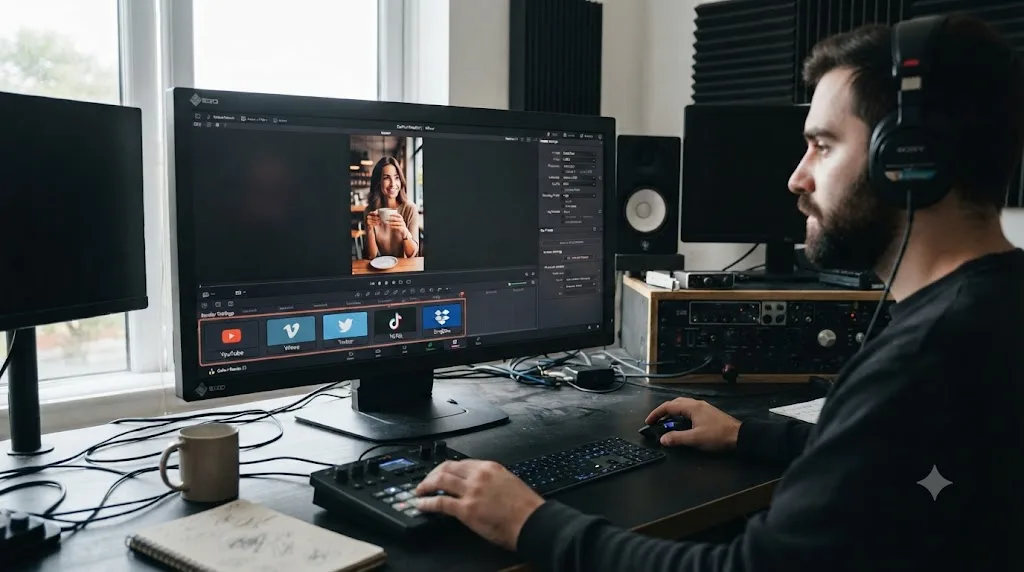
No, and this is the first thing worth ruling out before you go looking for one. Blackmagic's own manual documents built-in render presets for YouTube, Vimeo, Twitter, TikTok, and Dropbox sitting in the strip at the top of the Deliver page, per that manual page. Threads isn't on that list, even though TikTok, a platform with roughly the same vertical-video use case, got a dedicated preset with a direct-upload option and Duet and Stitch toggles.
DaVinci Resolve doesn't ship a built-in Threads preset, so every Threads export on this platform is a custom export whether you realize it or not. That's not a limitation specific to Threads users. It's a reflection of how recently Threads added video as a serious feature compared to the platforms Resolve's preset list was built around.
The practical upshot: start from Format MP4, Codec H.264, and build the rest of this guide's numbers into the Render Settings panel by hand. Once you've done it once, save it as a named preset (covered near the end of this guide) so you're not rebuilding it from scratch on your next Threads post.
Should you export H.264 or HEVC for Threads?
Either one, and this is the one place a Threads export genuinely differs from the two platforms most people compare it to. Meta's Threads API documentation lists "HEVC or H264" as the accepted video codecs, per the same media specification, with no note that one is preferred over the other for standard delivery.
Threads is the one Meta platform that documents HEVC as an accepted video codec right alongside H.264, a door that Instagram Reels and organic TikTok both keep closed. Our Instagram Reels export guide covers why Instagram doesn't reliably accept H.265 uploads at all, and our TikTok export guide covers how TikTok's app-facing pipeline is built around H.264 specifically, with H.265 only showing up as an accepted option through TikTok's developer-facing Content Posting API. Threads accepting both codecs through its own primary API is a real, if minor, difference worth knowing if you're exporting from a single master to several platforms at once.
| Platform | H.264 | HEVC (H.265) |
|---|---|---|
| Threads | Accepted | Accepted, documented alongside H.264 |
| Instagram Reels | Accepted, required | Not reliably accepted |
| TikTok (app, organic) | Accepted, primary codec | Not exposed in the app's own upload path |
| YouTube (HDR) | Accepted | Recommended for HDR |
That said, H.264 remains the safer practical default. It's the codec every device, browser, and older phone decodes without issue, while HEVC playback support still varies more on non-Apple hardware and in some web-embedded players. Choose HEVC deliberately, if a smaller file size at the same visual quality matters more than universal compatibility for a specific post. Otherwise, H.264 is the choice that avoids surprises.
Which one actually saves you file size depends more on your footage than on a fixed rule of thumb. HEVC's efficiency gains show up most on complex, high-motion, or heavily graded footage, the same content that needs the top of the bitrate range covered further down this guide. On simple, mostly-static content, a locked-off talking head against a plain background, the gap between an H.264 file and an HEVC file narrows enough that switching codecs for that clip specifically isn't worth the small compatibility risk.
Resolve 21 added a new MainConcept encoder option for H.265 and MV-HEVC with 4:2:2 color, per Blackmagic's own release notes, which is exactly the kind of quality-per-megabyte improvement that makes HEVC worth considering for a Threads export specifically, since Threads is one of the few social platforms that will actually accept the file without a fallback transcode.
What resolution and aspect ratio should you use for a Threads video?
1080x1920 at 9:16, the same practical standard that governs Instagram Reels and TikTok. Meta's Threads API documentation doesn't name that exact pixel figure directly. It caps the horizontal edge at 1920 pixels and states the required aspect ratio range as "between 0.01:1 and 10:1 but we recommend 9:16 to avoid cropping or blank space," per the same documentation. 1080x1920 sits inside both constraints and matches what fills a phone screen full-bleed, which is why it's the number every practical Threads guide converges on even though Meta's own text never states it as a single figure.
Build your timeline vertical from the start rather than cropping a horizontal one at export. Open Timeline Settings, set the resolution to 1080x1920, and reframe each shot with the Transform controls in the Inspector so subjects and on-screen text actually sit inside the tall frame. A 16:9 timeline forced into 9:16 at render time either squeezes everything into a distorted sliver or crops the sides off blind, throwing away detail your Threads upload never gets back.
A vertical timeline built at 1080x1920 from the start survives Threads' compression better than a horizontal timeline squeezed or cropped into shape at export. Studio owners can speed this up with Smart Reframe, the Neural Engine tool that auto-tracks a subject when converting horizontal footage to vertical, though it's still worth a manual pass on two-person shots or anything with burned-in text. Free-version editors do the identical job by hand with keyframed Transform values, producing an indistinguishable file once the keyframes are placed.
Threads does technically accept square (1:1) and landscape (16:9) video within that 0.01:1 to 10:1 range Meta documents. Neither fills the vertical, scroll-driven feed the way 9:16 does, so unless you have a specific reason, like reusing a square Instagram feed post without a re-edit, 9:16 is the format worth building for.
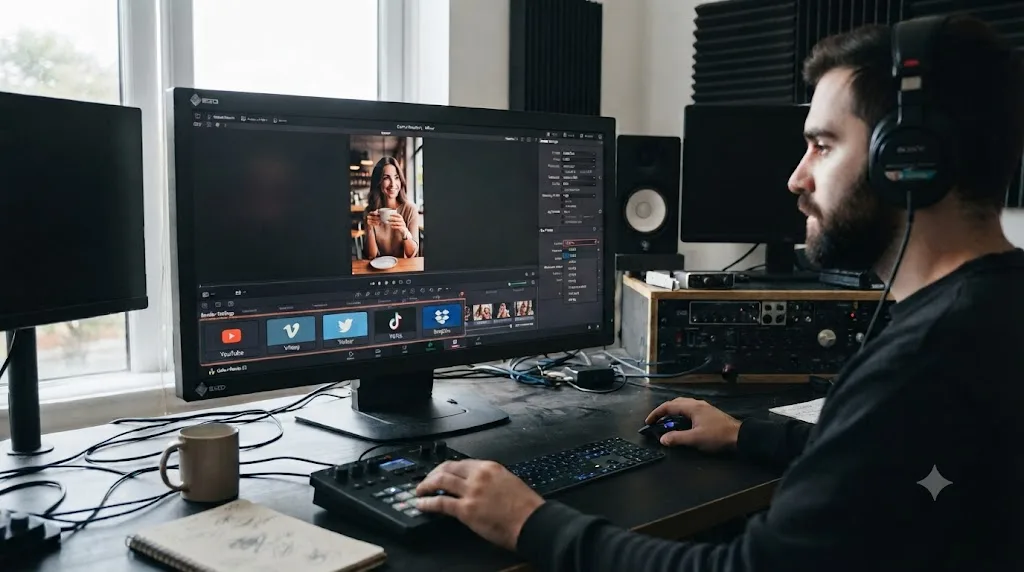
What if your footage was already shot vertically?
Then you skip most of the reframing work, but not all of the checking. Phone footage and cameras with a portrait shooting mode record vertical video with a rotation flag in the file's metadata rather than physically storing pixels in a 1080x1920 grid, and how cleanly that survives depends on how the clip was brought into Resolve.
When you drop a phone-shot vertical clip onto a 1080x1920 timeline, it should land right-side up and fill the frame with no Transform adjustments needed, since Resolve reads the rotation metadata correctly in the vast majority of cases. Where this breaks is mixed sourcing: a project that combines phone clips, a mirrorless camera shot in landscape and cropped later, and a screen recording all cut onto the same vertical timeline. Each source can arrive at a different native size, and it's easy to assume all three fill the frame the same way when only one of them actually does.
Before you export, scrub through the whole timeline at 1080x1920 and check that nothing has an unexpected black bar, an unintentional zoom, or a sliver of the wrong aspect ratio peeking in from a source clip that never got reframed. This takes thirty seconds and catches the single most common vertical-timeline mistake: assuming "shot vertical" and "correctly filling a 1080x1920 export" are the same thing. They usually are. They aren't always.
Frame rate mismatches cause a quieter version of the same problem. A phone clip shot at 30fps sitting next to a mirrorless clip captured at 24fps, both cut onto the same 30fps timeline, doesn't look obviously wrong at a glance. But the 24fps source is being frame-blended or duplicated to hit 30fps, and that shows up as subtle judder in exactly the kind of quick handheld motion vertical phone footage tends to have. Check your timeline's frame rate against each clip's native rate in the Media Pool before you export, and if you're mixing sources, decide once whether the project's native rate is 24, 25, 30, or 60fps rather than letting whichever clip you dropped in first decide it for you.
If you're cutting a project that's entirely vertical-native footage, like a full video shot handheld on a phone at a single consistent frame rate, you can often skip Smart Reframe and manual Transform work almost entirely and go straight from a correctly-sized timeline to the Deliver page, which is the one scenario in this whole guide where a Threads export genuinely takes less setup than a Reels or TikTok one built from horizontal camera footage.
What bitrate should you use for a Threads export?
A practical range of 8,000-12,000 kbps for a 1080x1920 export, sitting comfortably under Meta's documented 100 Mbps ceiling while still holding up under whatever re-compression Threads applies on its end. That ceiling figure comes straight from Meta's Threads API documentation, which lists "VBR, 100 Mbps maximum" for video bitrate, per the same source. It's a technical maximum the pipeline will accept, not a quality recommendation, the same distinction that trips people up when they see TikTok's much lower ad-approval bitrate floor and mistake it for a target.
| Content type | Recommended bitrate (1080x1920) | Why |
|---|---|---|
| Talking-head, static b-roll, slideshow-style clips | 6,000-8,000 kbps | Mostly static frames compress efficiently |
| Standard b-roll cut, moderate motion | 8,000-10,000 kbps | Covers most everyday Threads video content |
| Fast motion, screen capture, quick cuts | 10,000-12,000 kbps | Motion-heavy footage is the most bitrate-hungry content there is |
| Graded footage with skies, fog, or dark gradients | Top of range or higher | Smooth gradients band first under a low bitrate |
Since there's no published quality target and the documented ceiling sits so far above any practical need, you can't meaningfully overshoot a Threads bitrate the way you can waste render time overshooting a platform with a tight, enforced cap. If you're deciding between two numbers in the table and genuinely unsure, pick the higher one; it costs render time and upload time, not quality.
Bitrate starvation shows up first in gradients: skies, fog, dark backgrounds, and anything with lifted shadows from a color grade. Those are long runs of nearly identical pixel values that a starved encoder can't preserve precisely, and the visible result is banding. A heavily graded piece is exactly the content that needs the top of the range above, not the bottom.
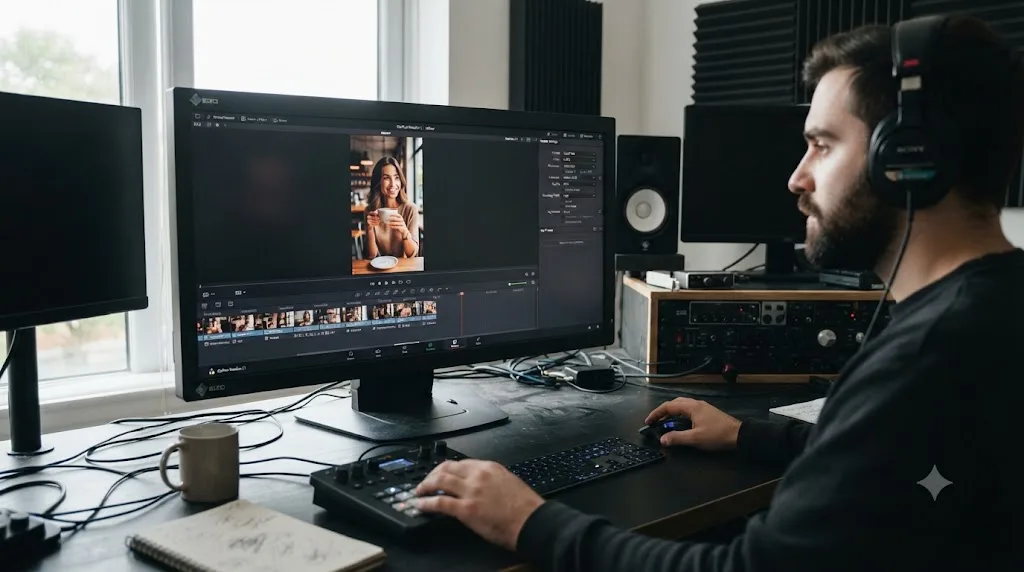
How big will your exported file actually be? A worked example
Bitrate numbers are easier to trust once you've seen what they actually produce. File size is just video bitrate plus audio bitrate, multiplied by duration, and it's worth doing that math before you render rather than discovering the number after an upload sits there spinning.
The formula: (video kbps + audio kbps) x duration in seconds, divided by 8 to get kilobytes, divided by 1,000 to get megabytes. Here's what that looks like across a few common Threads runtimes at the practical bitrates recommended above:
| Duration | Video bitrate | Audio bitrate | Approx. file size |
|---|---|---|---|
| 15 seconds | 8,000 kbps | 128 kbps | ~15 MB |
| 30 seconds | 10,000 kbps | 128 kbps | ~38 MB |
| 90 seconds | 10,000 kbps | 128 kbps | ~114 MB |
| 3 minutes | 12,000 kbps | 128 kbps | ~273 MB |
| 5 minutes (max) | 12,000 kbps | 128 kbps | ~455 MB |
Every runtime this guide recommends a bitrate for lands well under Meta's 1 GB ceiling, even at the top of the range and the full five-minute maximum. The math only gets tight if you ignore the practical range and lean on Meta's documented 100 Mbps ceiling instead. At that bitrate, a video hits the 1 GB cap in roughly 80 seconds: 100,000 kbps multiplied by 80 seconds, divided by 8, divided by 1,000, lands right at 1,000 MB. That's exactly why the 100 Mbps figure in Meta's documentation is a technical maximum the pipeline tolerates, not a number to build a real export around. Nobody should be rendering a Threads video anywhere near it.
This math also explains why the duration and file-size ceilings in the next section matter as a pair, not as two separate numbers to check off independently.
How long can a Threads video actually be?
Up to 5 minutes, a real ceiling documented directly in Meta's Threads API specification: "300 seconds (5 minutes) maximum," alongside a 1 GB file size cap, per that same documentation. That's the outer limit, not a target, and it's worth treating those two numbers as a pair. A five-minute file that's also trying to stay under 1 GB needs a lower bitrate than the ranges recommended above, so if you're building toward the long end of that duration window, do the math before you render: at 12,000 kbps, five minutes of video alone runs close to 455 MB before audio's added, comfortably under the ceiling, but a heavily graded five-minute piece pushed toward higher bitrates can approach it faster than expected.
In practice, almost nobody should be aiming for five minutes. Threads launched and grew as a text-first, fast-scrolling app, and Meta's own June 2026 announcement of the platform crossing 500 million monthly active users framed its growth around "a public space built around conversation," per Meta's official newsroom post, not around long-form video consumption. Nothing about that framing suggests a five-minute video performs the way a fifteen-second clip does in a feed built for quick replies and reposts.
Five minutes is Threads' documented outer limit for video, but the platform's own materials say almost nothing about how long a video should actually be to perform well. Until Threads publishes its own creator-facing video guidance the way TikTok and Instagram do, the safest bet is treating this like any other short-form feed: keep most clips under a minute, and reserve the extra runtime for content that genuinely needs it, not for padding a short idea into something longer.
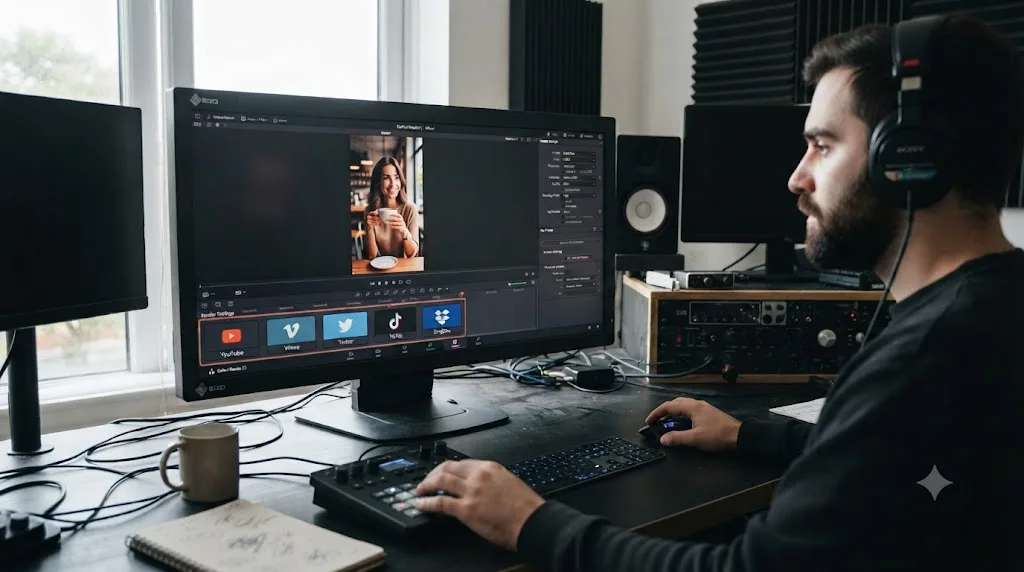
What audio settings does Threads actually want?
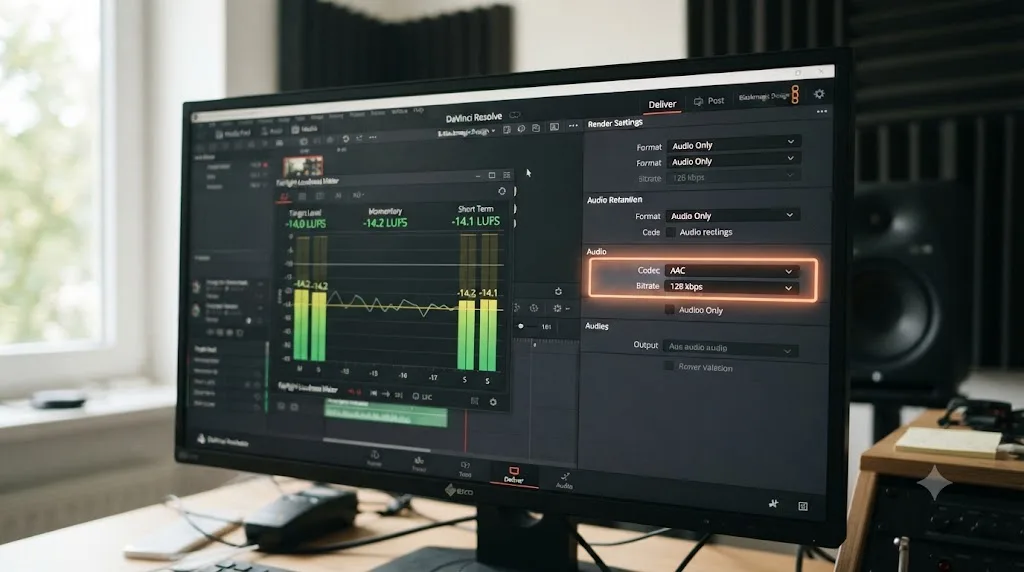
AAC audio, mono or stereo, at 128 kbps, with a sample rate up to 48kHz. That's the exact figure Meta's Threads API documentation lists: "AAC, 48khz sample rate maximum, 1 or 2 channels (mono or stereo)" for the audio codec, and "128 kbps" for audio bitrate, per the same specification. Unlike the video bitrate ceiling, that 128 kbps figure reads as a real target rather than an upper bound, so match it rather than treating it as a floor to clear.
On Resolve's Deliver page, that's the Audio tab: Codec set to AAC, Bitrate set to 128 kbps, sample rate at 48kHz, and Output Track pointed at your finished stereo mix. Confirm Export Audio is checked at the top of the tab before you render. It's on by default, but it's also the single most commonly and accidentally unchecked setting on the entire page, usually a leftover from troubleshooting something unrelated, and a silent Threads post is a far worse outcome than a slightly conservative bitrate.
Gamma tagging is worth a mention here too, even though it's a video field, not audio. Editor Mark Ledbetter's export guidance applies just as directly to a Threads deliverable as it does to any other social export: "Use Rec.709, not Rec.709-A. The latter may cause washed-out results," in his own export settings writeup. Rec.709-A exists to help a file look correct in QuickTime Player on a Mac specifically, and tagging for that one player's quirk can shift how your grade reads once Threads re-encodes and displays it across a mix of Android and iOS devices. Export standard Rec.709 for a Threads upload rather than Rec.709-A.
Loudness deserves the same treatment it gets on every other platform covered on this site: Threads doesn't publish its own LUFS target, so mix toward the same -14 LUFS integrated figure that's become the de facto web video standard across YouTube, Spotify, and most short-form platforms. Our loudness normalization guide covers exactly how to set and hit that target on the Fairlight page.
Should you add captions to a Threads video export?
If you want captions to show up reliably, burn them in before the file leaves Resolve. Meta's Threads API documentation, the same one that specifies the AAC audio codec and 128 kbps bitrate down to the sample rate, doesn't mention a caption track, subtitle field, or auto-caption feature anywhere in its video media specification, per that same source. Contrast that with the audio spec two paragraphs up, which names an exact codec and bitrate. Captions simply aren't part of the documented pipeline the way audio is, which means treating a sidecar SRT file as something Threads will read and display for you is a bet the platform's own documentation doesn't support.
Resolve's own subtitle workflow handles this in one of two ways, and only one of them survives the trip to Threads reliably:
- Open captions, burned directly into the picture. On the Deliver page's File tab, check Export Subtitle, then set the format dropdown to Burn Into Video instead of one of the sidecar file formats. This bakes your subtitle track permanently into the video frames, the same way title text or a lower-third would render. It works on every platform, including Threads, because there's no separate file for anything to fail to load.
- A sidecar subtitle file, exported alongside the video. Resolve can export SRT, VTT, and other standalone caption formats from the same File tab. These are the right choice for YouTube, which reads and displays sidecar captions natively. They're the wrong choice for Threads, since nothing in Meta's documentation describes a mechanism for attaching or displaying one.
If accessibility and sound-off viewers matter for a specific Threads post, and for most short-form video they do, burn the captions in. It's the one approach that doesn't depend on a feature Threads hasn't documented. The tradeoff is permanence: once captions are burned in, you can't turn them off for a viewer who'd rather watch without them, and any correction after the fact means a re-render, not a text edit.
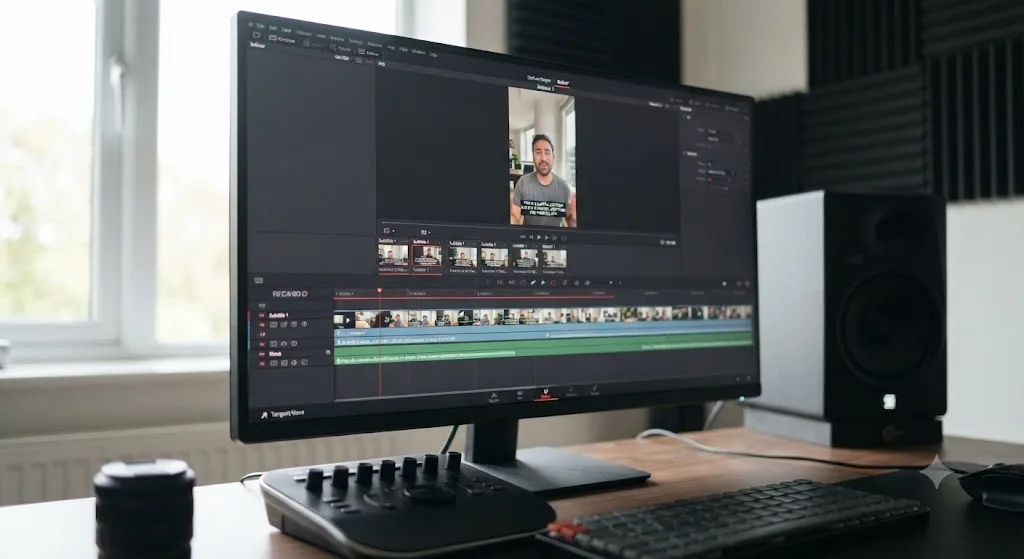
How do you keep text and subjects clear of Threads' on-screen UI?
The same way you'd protect a broadcast title from being cut off at the edge of an old CRT television, just applied to a phone screen instead. Threads, like every vertical social feed, overlays its own interface on top of your video: a username and follow button near the top, a caption line, and like, reply, repost, and share icons usually stacked along the right edge or bottom of the frame. Anything important sitting under those elements gets covered the moment someone opens the post.
DaVinci Resolve has a built-in tool for exactly this problem, and it predates vertical social video by decades. Turn on View > Safe Area in the Viewer, and Resolve draws two guide outlines over your frame: an outer line at "the outer 90% action safe area of the frame" and an inner line at "the outer 80% title safe area," per Blackmagic's own manual. Action safe is the zone where motion and framing should stay contained. Title safe, the tighter of the two, is where text needs to sit to guarantee it isn't clipped or covered by an overlay on any device.
One honest caveat: the Aspect dropdown next to the Safe Area toggle offers five preset ratios, 1.33, 1.66, 1.77, 1.85, and 2.35, and every one of them is a landscape broadcast ratio left over from the tool's TV and film origins. None of them is 9:16. That doesn't make the guides useless for a vertical Threads export, since the 90% and 80% inset percentages still draw correctly around a 1080x1920 frame regardless of that dropdown's setting. It just means the Aspect menu itself isn't doing anything specific to vertical delivery, so leave it on whatever default and rely on the Extents and the two percentage guides instead.
Threads' username, caption line, and action buttons cover the same regions on every vertical post, so a Resolve safe area guide built for 1980s broadcast television still does the job on a 2026 phone screen. In practice: keep any burned-in captions, logos, or lower-third text inside the title safe line, and keep the actual subject, a face, a product, the thing the video is about, inside the action safe line. Threads doesn't publish its own exact pixel measurements for where its UI sits, since that layout can shift between app updates, so building in a margin with Resolve's existing safe area guides is the more durable habit than chasing a specific pixel number that might change next quarter.
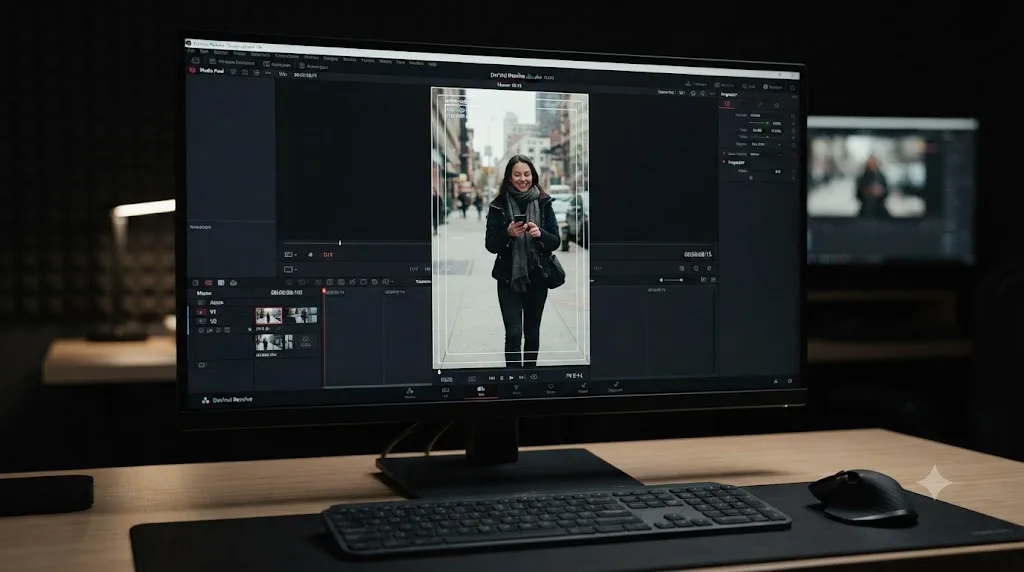
Does color space or HDR matter for a Threads export?
Not in the sense of a documented HDR delivery spec, no. Meta's Threads API documentation, the same page this whole guide has been quoting, never mentions HDR, PQ, HLG, wide color gamut, or Dolby Vision anywhere in its video media specification. That silence is itself the useful data point: where YouTube publishes explicit HDR encoding guidance and actively recommends HEVC for HDR uploads, per YouTube's own recommended settings, Threads' documentation reads like a platform built entirely around standard dynamic range delivery.
The practical instruction that follows: deliver Rec.709, standard dynamic range, the same gamma space already covered in the audio settings section above. If your project was graded in a wide-gamut working space, whether that's DaVinci Wide Gamut under Resolve Color Management, ACES, or a camera-native log format left ungraded, make sure your timeline's output color space is actually set to Rec.709 before you render, not left on the wide-gamut working space by accident. Under Resolve Color Management, that's the Timeline Color Space field in Color Management settings. Under the older non-RCM workflow, it's whatever CST or LUT you've applied as your final output node.
It's worth checking Data Levels on the Deliver page's Video tab too, while you're there. If it's set to Full/Data Levels for a monitoring workflow and left that way for a web export, blacks and whites can crush or clip once Threads re-encodes and displays the file on a device expecting Video/Legal range. This is an easy field to overlook because it rarely matters for a client-facing ProRes master, but it matters for the same reason gamma tagging does: a mismatch that's invisible in Resolve's own viewer can become visible the moment the file leaves your color-managed environment.
Shooting log and grading toward a lifted, low-contrast Rec.709 delivery, rather than an HDR-style high-contrast grade meant for a Dolby Vision or HDR10 pipeline, matters more here than it might on YouTube, where an HDR upload at least has somewhere documented to go. A Threads video graded for HDR and then delivered without a proper tone-map down to SDR is one of the more avoidable ways a color-conscious edit ends up looking flat, crushed, or oddly contrasty once it's re-encoded by a platform that was never built to receive it.
Does re-exporting the same clip for Threads lose quality each time?
Yes, though usually not enough to see in a single re-export. Every time a video gets encoded, whether that's Resolve compressing your timeline to H.264 or Threads re-encoding what you upload, the codec discards information it judges the eye won't miss. Do that twice, once in Resolve and once when Threads processes the upload, and it's an acceptable single generation of loss, the same loss every social video experiences. Do it three or four times, re-exporting an already-exported file because you found a typo in a caption or wanted to swap ten seconds of music, and each pass compounds on the last one's decisions.
A DaVinci Resolve timeline re-exported from the original project file loses far less quality than a previously-exported MP4 re-imported and exported again. The first path encodes once, from the full-quality timeline data straight to the final H.264 or HEVC file Threads receives. The second path encodes twice: once to create the file you're now editing, and again to produce the new version, with the second pass working from footage that's already lost detail to the first compression rather than the original camera-quality source.
The practical rule: keep the original Resolve project around after you've exported for Threads, even for a quick nine-second clip. If a typo, a wrong caption, or a last-minute cut shows up after you've already rendered, go back to the timeline and re-render from there. Re-encoding the finished MP4 to fix a small mistake is faster in the moment, but it's the kind of shortcut that adds up if you're doing it across a dozen posts a month, and the quality gap is the one thing you can't get back with a higher bitrate on the second pass.
If you don't have the original project anymore, a from-scratch re-export from a lower-generation MP4 still doesn't need to look bad. Push the bitrate toward the top of the range covered earlier, since a source that's already been through one compression pass has less detail to lose and benefits less from a low-motion, low-bitrate export than a fresh master would.
How does exporting for Threads compare to Instagram Reels, TikTok, and YouTube?
Closer than you'd expect on paper, and meaningfully different in the details that actually matter once you're on the Deliver page. Here's the honest comparison, pulling numbers from each platform's own documentation rather than treating them as interchangeable vertical-video destinations.
| Platform | Codec | Resolution | Practical bitrate | Max duration | Built-in Resolve preset |
|---|---|---|---|---|---|
| Threads | H.264 or HEVC | 1080x1920 | 8,000-12,000 kbps | 5 minutes | No |
| Instagram Reels | H.264 only | 1080x1920 (1440x2560 for ads) | 5,000-10,000 kbps | 3 minutes | No |
| TikTok (organic) | H.264 | 1080x1920 | 8,000-12,000 kbps | 3-10 minutes, tiered by account | Yes, with direct upload |
| YouTube (SDR) | H.264 (primary) | Native to source, up to 4K+ | Official table by resolution and frame rate | Up to 12 hours | Yes |
Three real differences stand out. First, Threads and TikTok both give you meaningfully more codec flexibility than Instagram Reels, which stays locked to H.264 with no exception. Second, Resolve's built-in preset support runs backward from what you'd expect: the smaller, more recently video-focused platform (TikTok) got a native preset with direct upload, while Threads, despite belonging to the same company as Instagram, has none. Third, YouTube remains the only platform on this table that publishes an actual bitrate table by resolution and frame rate, per YouTube's own recommended encoding settings; every other row in that table is a practical range built from a documented ceiling or floor, not a stated target.
A Threads upload isn't the file viewers watch; Threads re-encodes what you send, the same way Instagram and TikTok re-encode every video they receive. That holds true across every row in the table above. Your export is a source file for each platform's own compression pass, not the final image, which is exactly why handing any of them a soft, low-bitrate, or incorrectly tagged file costs you detail you can't get back later.
If you're cutting one master for several vertical platforms at once, build it to Instagram Reels' stricter H.264-only requirement first. A file built to satisfy the most restrictive platform in the group satisfies the more permissive ones, like Threads, automatically, without needing a second encode pass.
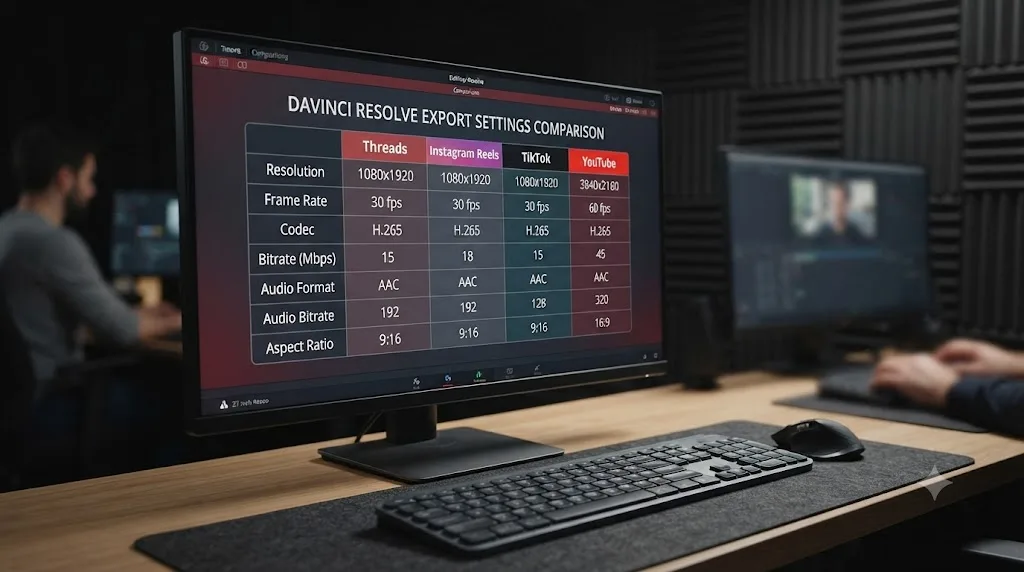
Are these specs the same whether you post from the Threads app or through the API?
That's a fair question, and Meta's own documentation doesn't fully answer it. Every number in this guide, resolution ceiling, bitrate ceiling, duration cap, audio codec, comes from Meta's Threads API overview, the page built for developers writing scheduling tools and third-party publishing integrations, not from a creator-facing help article about the Threads app itself. That documentation never mentions how the native app treats a video you upload directly through Threads on your phone, whether it's a stricter pipeline, a looser one, or functionally identical to the API's.
In practice, that gap doesn't matter much. The API exists specifically so third-party tools, schedulers like the ones already cited throughout this guide, can publish to Threads on a creator's behalf, which means the API's accepted specs are effectively the ceiling the whole publishing ecosystem builds against, app included. Kompozy's own Threads specs page lists the same 1 GB file cap and 300-second duration Meta's API documents, per Kompozy's Threads file size guide, which is the kind of independent convergence that suggests the app and the API aren't running two different rulebooks, even though Meta has never said so directly.
Nothing in Meta's own documentation distinguishes between a video posted through the Threads app and one posted through the Threads API, so this guide treats the API's published numbers as the safest specification for either path. If you're exporting a file that a client or a scheduling tool will post on your behalf, this is the spec sheet it needs to clear. If you're posting straight from your phone, there's no published reason to expect a different outcome, though Meta could tighten or loosen either pipeline in an update without saying so.
If you want to confirm the two pipelines behave identically for your own account, upload the same 1080x1920 export twice, once through a scheduler and once directly from your phone at the same bitrate, and compare file size and sharpness once both finish processing. That's the kind of hands-on verification this guide can't do for you across every account and app version, but it's a five-minute check worth running once before you build a recurring workflow around it.
How do you batch-export one timeline for Threads, Instagram, TikTok, and YouTube at once?
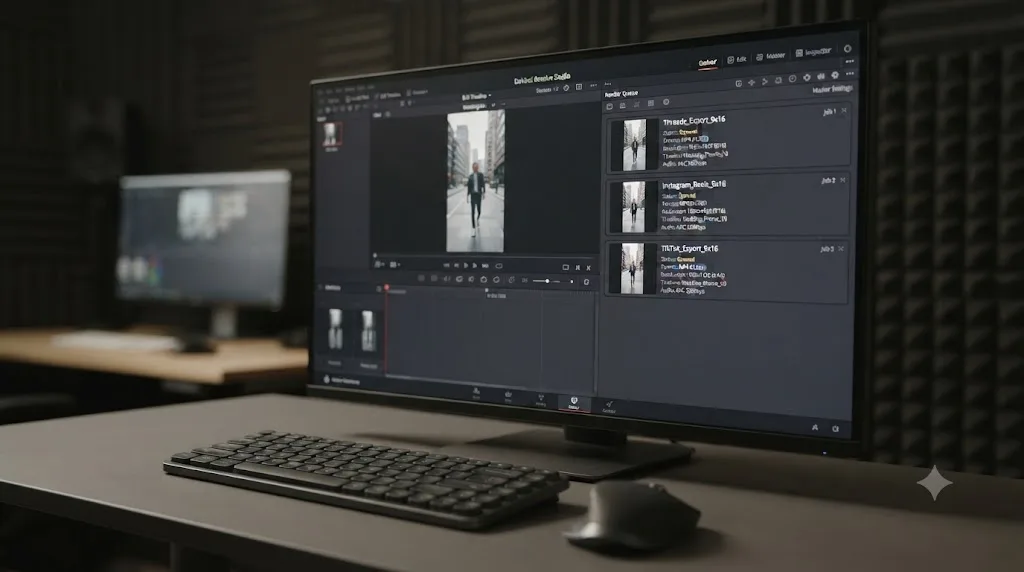
Build one master render job, then duplicate it on the Deliver page rather than starting each platform's export from scratch. Resolve's Render Queue holds multiple jobs at once, and each one keeps its own independent Render Settings, so you can queue a Threads version, an Instagram Reels version, and a TikTok version of the same timeline back to back and start them rendering together.
Here's the practical sequence, following the "build to the strictest spec first" rule from the comparison above:
- Set up the Instagram Reels version first, since it's the most restrictive row in the comparison table: H.264 only, no HEVC fallback. Format MP4, Codec H.264, Resolution 1080x1920, bitrate in the 5,000-10,000 kbps range, AAC audio.
- Add that job to the Render Queue, then, without clearing it, adjust the same fields for the next platform. Bump the bitrate range up to 8,000-12,000 kbps for Threads or TikTok, and switch the codec to HEVC only if you've decided the smaller Threads-specific file is worth it for that one job.
- Add the second version to the queue as its own separate job, then repeat for each platform you're delivering to. Rename each job in the queue (double-click the job name) so "Threads_H264" and "IG_Reels_H264" don't sit in the render folder as indistinguishable timestamped files afterward.
- Select all the jobs and click Render All rather than starting them one at a time. Resolve renders through the queue in sequence, and you can walk away rather than babysitting each export.
One quiet trap in this workflow: duplicating a render job in the queue carries over every field from the version you copied, including the Audio Output Track selection. If you've been switching between a scratch mix and a final mix while finishing the edit, duplicate a job after confirming which track is current, not before, or you can end up with four correctly-bitrated, correctly-framed exports that all reference the wrong audio.
The time this saves isn't in the render itself, since encoding a five-minute clip four different ways still takes roughly four times as long as encoding it once. It's in not re-deriving the same bitrate and resolution decisions from scratch for every platform, and not accidentally leaving Threads' H.264 setting active on what was supposed to be a fresh Reels export because you edited the wrong open job.
If your workflow also includes a horizontal YouTube version of the same content, whether that's a full-length upload or a separate 16:9 cut, our YouTube export settings guide covers that platform's own bitrate table in the same level of detail this guide covers Threads. Queue it as a fifth job the same way, working from a horizontal timeline or duplicate rather than trying to squeeze a vertical Threads master into a 16:9 frame after the fact.
Does the free version of DaVinci Resolve limit Threads exports?
No, and by a wide margin. Per Blackmagic's own tech specs, the free version renders up to Ultra HD 3840x2160 at 60fps in 8-bit color. Threads' documented 1920-pixel horizontal ceiling sits at exactly half that width, so even the free version's export cap clears every resolution this guide recommends with room to spare.
| Free | Studio | |
|---|---|---|
| Max export resolution | Ultra HD 3840x2160 | Beyond 4K |
| Max export frame rate | 60fps (8-bit) | 120fps (10-bit) |
| Threads resolution ceiling reached? | No, not close | No, not close |
| Smart Reframe (AI auto-track for vertical reframing) | Not available | Available |
| H.264/HEVC hardware encoding (Windows, Linux) | CPU-based | GPU-accelerated |
The one genuine Studio trigger here, same as it is for Instagram Reels and TikTok, is Smart Reframe, the AI tool that auto-tracks a subject when converting horizontal footage to vertical. Free-version editors do the identical reframing job by hand with keyframed Transform values, slower per shot but producing a file indistinguishable from Smart Reframe's output. The other free-version gap, hardware-accelerated encoding on Windows and Linux, matters for render speed, not output quality, and at Threads' modest 1080p resolution and typically short runtimes, that speed difference rarely becomes painful.
Are Threads video ads different from organic Threads video posts?
Yes, in aspect ratio and duration, even though the file still comes out of DaVinci Resolve the same way. Everything above this section describes organic posts, the free videos you post to your own Threads account, which is what most readers of this guide are exporting for. Paid Threads ads run through Meta's Ads Manager instead, and third-party ad-spec trackers, not Meta's own Threads API documentation this guide has quoted throughout, describe a noticeably different set of recommendations for that specific placement.
Ad-spec guides tracking Meta's Ads Manager report a 4:5 vertical crop (1080x1350) as the recommended format for feed-first Threads ad placements, alongside a 1:1 square option, rather than the full 9:16 this guide recommends for organic posts, per Metricool's Threads ads guide. That's a real, documented difference in Meta's own ad placement guidance, not a Threads-API quirk. Meta's feed placements, including Threads, also autoplay video muted by default, which is part of why ad creative across the Meta family leans harder on burned-in captions than organic posts typically need to.
| Organic Threads post | Threads video ad | |
|---|---|---|
| Where it's built | This guide's Deliver page settings | A second export, framed differently |
| Recommended aspect ratio | 9:16 (1080x1920) | 4:5 (1080x1350) or 1:1, per Meta's ad placement guidance |
| Codec and container | H.264 or HEVC, MP4/MOV | Same container and codec requirements |
| Where it's posted | Directly from the Threads app or the API | Meta Ads Manager |
| Captions | Optional, recommended for accessibility | Effectively required, since ad placements autoplay muted |
If you're planning to run the same piece of content as both an organic post and a paid ad, don't try to force one export to do both jobs. Build your 9:16 organic version first, following everything above, then duplicate the render job the way the batch-export section describes and reframe that second version to 4:5 for Ads Manager, using the same Safe Area guides to keep the subject inside the tighter square-ish crop. The underlying codec, bitrate, and audio settings carry over unchanged between the two. Only the frame shape and, once posted, the platform you're using to publish it, actually differ.
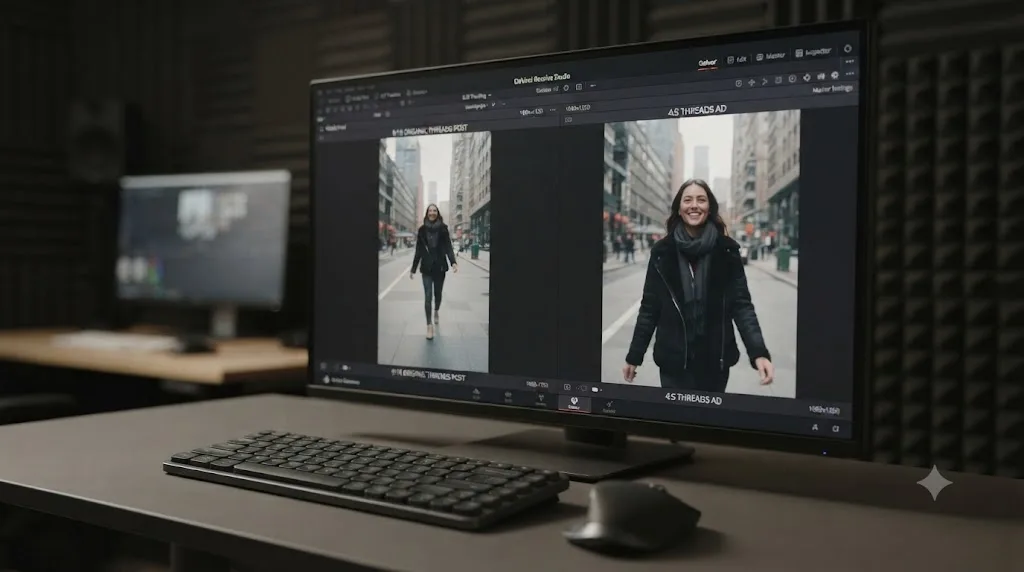
Is Threads actually worth exporting edited video for?
Depends on where your audience already is, and it's worth answering honestly rather than treating every platform as equally deserving of a dedicated export pass. Threads crossed 500 million monthly active users as of Meta's June 2026 announcement, per that same official newsroom post, which is a real, large number. It's also a platform that grew on text-based conversation, reposts, and quick replies, not on video the way TikTok, Instagram Reels, or YouTube Shorts did.
If you already post to Instagram, cross-posting the same 1080x1920, H.264, properly bitrated export to Threads costs you almost nothing beyond one extra upload. Both platforms sit under the same parent company, and a file built correctly for Instagram Reels clears Threads' more permissive codec and aspect ratio requirements automatically. If Threads is the only place you're posting video, it's a reasonable low-effort destination for content you've already produced for somewhere else, but it isn't yet a platform worth building a video strategy around from scratch.
You can also post the same file to Threads from a desktop browser rather than a phone. Threads runs a desktop web app at threads.net alongside its mobile apps, and video posting works there too, per Kapwing's Threads video guide, so a file rendered on the same machine you edited it on doesn't necessarily need to travel to a phone first. That's a small workflow detail, but it's the kind of thing that saves an AirDrop or a cloud-upload round trip on a day when you're publishing straight out of Resolve.
That honest framing matters more than another settings table, because the actual time cost of getting this right isn't picking a bitrate, it's remembering which of the four or five checkboxes across Resolve's Deliver page you set correctly the last time you exported for a specific platform. That's exactly the kind of gap an app that helps you while using DaVinci Resolve is built for. TryUncle is the on-screen assistant for DaVinci Resolve on macOS. Ask in plain words, and Uncle points at the exact control on your screen, whether that's the Audio tab's bitrate field or the Codec dropdown you need for this specific export.
What's the fastest way to fix a bad-looking Threads upload?
Work through these in order before assuming Threads mangled a good export.
- The video is cropped, zoomed, or has black bars. Your timeline wasn't actually built at 9:16. Check Timeline Settings against your Deliver page render settings; a 16:9 timeline exported at a 9:16 resolution gets forced into that shape rather than properly reframed.
- Banding or blockiness in skies, shadows, or skin tones. Bitrate is under what the content needs. Check it against the table in the bitrate section above and move toward the top of the range for anything graded or gradient-heavy.
- The upload failed or got rejected outright. Check duration and file size first. Meta's Threads API documents a hard 300-second and 1 GB ceiling; anything over either gets rejected, not silently compressed to fit.
- Colors look flat or washed out compared to your grade in Resolve. Check whether you exported with Rec.709-A instead of standard Rec.709, or whether a wide-gamut working space leaked into the final render without an SDR output transform applied. That Mac-specific gamma tag, and an untagged wide-gamut export, can both shift how the file reads once it's re-encoded and displayed across a mix of devices.
- No audio in the upload. Export Audio was unchecked on the Deliver page's Audio tab. It's the single most common export mistake beginners make across every platform, not just this one.
- The file plays back oddly or won't process. Confirm your Codec field actually reads H.264 or HEVC and not some other codec quietly carried over from a preset built for a different platform.
- Timecode, source filenames, or other text is burned into the corner of the video. Data Burn-in was left on from a different job on the File tab. It's a common leftover from a client review render, and it's easy to miss since it doesn't show up until you actually watch the finished export.
- The video plays choppy or stutters on playback. Check whether your timeline mixes multiple source frame rates without a consistent project frame rate. Resolve blends or duplicates frames to conform mismatched sources, and that blending is more visible in handheld vertical footage than in a locked-off shot.
- Your on-screen text or subject gets covered by Threads' interface. Nothing was wrong with the export itself; the framing didn't account for Threads' UI overlay. Turn on View > Safe Area next time and keep text inside the title-safe guide, as covered above.
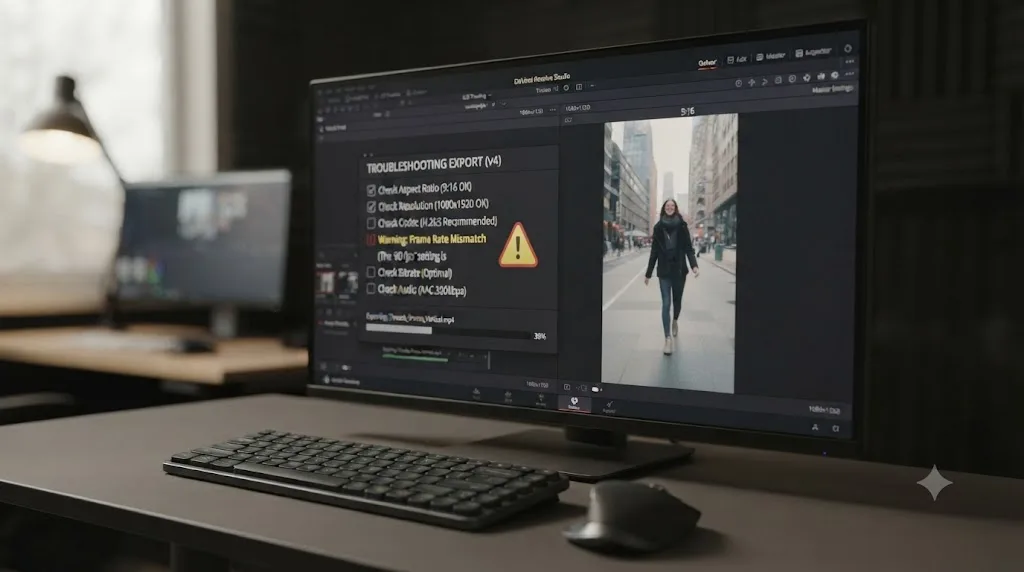
Which settings should you actually memorize?
A vertical timeline built at 1080x1920 from the start, MP4 with H.264 (or HEVC if file size matters more than universal playback), a bitrate between 8,000 and 12,000 kbps, AAC audio at 128 kbps, and a file kept under Meta's documented 5-minute, 1 GB ceiling. Frame everything inside Resolve's Safe Area guides, burn in captions if you want them, and check the File tab for a stray Data Burn-in setting before you render. There's no built-in preset to lean on here the way there is for TikTok, so build this once as a custom export, save it, and reuse it.
DaVinci Resolve doesn't ship a built-in Threads preset, so every export to this platform is one you build yourself, whether you've noticed that or not. Save your settings as a named preset once you've got them right, keep the same master you'd build for Instagram Reels as your baseline since it satisfies Threads' more permissive requirements automatically, and don't let a platform still finding its footing with video talk you into overthinking a five-minute ceiling almost nobody actually needs.
Frequently asked questions
- What resolution should I export from DaVinci Resolve for Threads videos?
- 1080x1920 at 9:16. Meta's Threads API documentation doesn't name that exact figure, it caps the horizontal edge at 1920 pixels and recommends 9:16 to avoid cropping, but 1080x1920 is the practical number that satisfies both and matches what fills a phone screen full-bleed.
- Should I export H.264 or HEVC from DaVinci Resolve for Threads?
- Either works. Meta's own Threads API documentation lists HEVC or H.264 as accepted video codecs, which is more permissive than Instagram Reels or organic TikTok, both of which expect H.264 only. H.264 is still the safer default for the widest compatibility across older devices and third-party viewers.
- Does DaVinci Resolve have a built-in Threads export preset?
- No. Blackmagic's own manual lists built-in presets for YouTube, Vimeo, Twitter, TikTok, and Dropbox on the Deliver page, and Threads isn't one of them. Every Threads export is a custom export: Format MP4, Codec H.264, resolution and bitrate set by hand.
- What bitrate should I use for a Threads video export?
- A practical range of 8,000-12,000 kbps for a 1080x1920 export. Meta's Threads API documents a 100 Mbps ceiling for video bitrate, not a target, so that number tells you the maximum the pipeline accepts, not what actually looks good at typical mobile file sizes.
- How long can a Threads video actually be?
- Up to 5 minutes (300 seconds), per Meta's own Threads API documentation, with a 1 GB file size ceiling. That's the outer limit, not a target. Most video posted to Threads performs better well under a minute, since the app is still built around fast scrolling, not long-form viewing.
- What audio settings does Threads want?
- AAC audio, mono or stereo, up to 48kHz sample rate, at 128 kbps, per Meta's Threads API media specifications. That's a documented figure, not a floor Meta lists separately, so treat 128 kbps as the number to match rather than a minimum to clear.
- Does the free version of DaVinci Resolve limit Threads exports?
- No. The free version exports up to Ultra HD 3840x2160 at 60fps in 8-bit, far beyond the 1920-pixel horizontal ceiling Threads documents for video. The one place Studio helps is Smart Reframe, the AI tool that auto-tracks a subject when converting horizontal footage to vertical.
- Why does my Threads video look worse after uploading from DaVinci Resolve?
- Usually one of four things: the bitrate was too low for a 1080x1920 frame, the timeline wasn't actually vertical so Threads cropped or letterboxed it, the file exceeded the 1 GB or 5-minute ceiling and got rejected or silently trimmed, or Export Audio was unchecked on the Deliver page. Check all four before assuming Threads mangled a good export.
Sources
- Meta for Developers: Threads API Overview and media specifications
- Meta Newsroom: New Features to Celebrate 500 Million Monthly Users on Threads
- DaVinci Resolve Manual: YouTube, Vimeo, Twitter, TikTok, and Dropbox Presets (Blackmagic Design)
- DaVinci Resolve Manual: Safe Area Overlays in the Viewer (Blackmagic Design)
- DaVinci Resolve - Tech Specs (Blackmagic Design)
- DaVinci Resolve - What's New (Blackmagic Design)
- Testament Productions (Mark Ledbetter): Best Export Settings for Premiere Pro & YouTube
- YouTube recommended upload encoding settings (YouTube Help)
- Instagram Help Center: Reel size and aspect ratios on Instagram
- TikTok Ads Manager: Video ads specifications
- Metricool: How to Run Ads on Threads
- Kapwing: Threads Video Guide - Ratios, Resolution, and Best Practices
- Kompozy: Threads File Size Limit and Codec Requirements
Put this guide to work with TryUncle.
Ask about the step you’re on. TryUncle sees your screen and points at the control you need, so you can keep learning in your own project.
Get TryUncle for Mac or WindowsKeep reading
Guides · Jul 12, 2026 · 26 min
DaVinci Resolve Export Settings for Instagram Reels
Exact DaVinci Resolve export settings for Instagram Reels: 1080x1920 vs 1440x2560, H.264 only, bitrate, safe zones, and duration, sourced from Meta's own specs.
Guides · Jul 13, 2026 · 35 min
DaVinci Resolve Export Settings for TikTok: Exact Numbers
Exact DaVinci Resolve export settings for TikTok: the built-in preset, 1080x1920, H.264, bitrate, safe zones, and duration, sourced from TikTok's own specs.
Guides · Jul 7, 2026 · 25 min
DaVinci Resolve Export Settings for YouTube: The Right Numbers
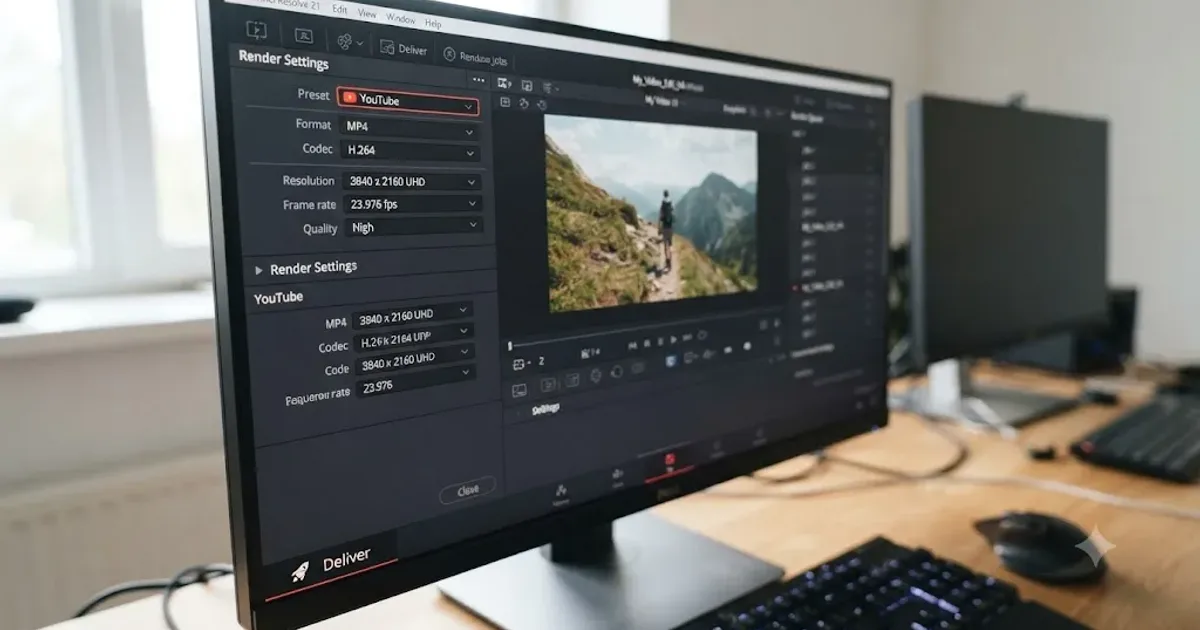
The exact DaVinci Resolve export settings for YouTube: resolution, bitrate, codec, and audio numbers pulled straight from YouTube's own encoding guide.