Articles / Fixesupdated for DaVinci Resolve 21.2 (November 2026)
DaVinci Resolve Fusion Media In Timing Out of Sync? Fix It
Quick answer
If DaVinci Resolve Fusion media is out of sync, first check whether the mismatch is video timing, audio timing, or only playback. For Media Pool clips, inspect the MediaIn node’s Global In and Out; for audio that is wrong only in Fusion, check Sound Offset and purge the audio cache. Timeline-fed MediaIn timing follows the timeline clip.
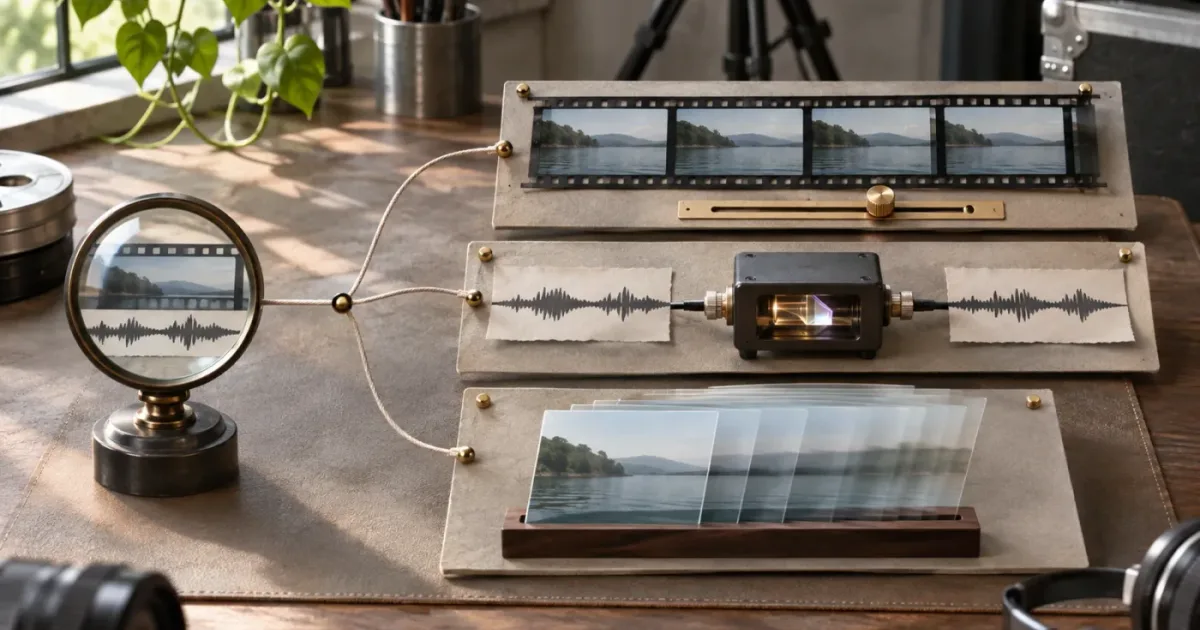
I’d separate the symptom before changing a timing control. “Out of sync” can mean the picture starts on the wrong frame, the Fusion audio is offset while the timeline is correct, or playback looks wrong because the composition has not refreshed.
As of November 2026, this guide is for DaVinci Resolve 21, including the 21.2 release listed in Blackmagic Design’s Resolve release notes. The relevant Fusion controls have existed across earlier Fusion manuals too, but the source of a clip matters: a MediaIn created from the timeline does not behave like a MediaIn created by dragging footage from the Media Pool.
What does “DaVinci Resolve Fusion media in timing out of sync” usually mean?
The phrase usually describes one of three different problems: a video clip begins at the wrong composition frame, audio is offset only in the Fusion page, or the viewer is showing stale or irregular playback. Identify which one you have before adjusting a node.
Start with a simple comparison. Scrub the same moment in the Edit page and the Fusion page, and compare a visible action or transient rather than relying on continuous playback alone. If the mismatch appears in both pages at the same point, Fusion may simply be showing the timing already present in the edit. If the Edit page looks right but Fusion audio does not, focus on the Fusion audio controls. If scrubbing gives the expected frame but playback seems late or uneven, investigate playback and cache behavior before slipping anything.
The distinction matters because a timing adjustment is not neutral. Moving a clip’s global start can change when an image enters the composition. Changing audio offset can shift the audio heard in Fusion while leaving its placement on other Resolve pages unchanged. Neither is a general-purpose “sync” button.
| What you observe | Most likely area to inspect first | Avoid doing this first |
|---|---|---|
| The picture is late or early in the Fusion composition, but only for a clip dragged from the Media Pool | That clip’s MediaIn Global In and Out controls | Changing timeline edits that are already correct |
| Picture and sound are wrong in both Edit and Fusion | The timeline clip’s edit, source timing, or retiming | Using Fusion Sound Offset to compensate |
| Edit page sound is correct, but Fusion sound is consistently offset | MediaIn Audio tab, Sound Offset, and audio cache | Moving the video node |
| The offset changes during the shot | Retiming, source timecode, or a playback issue | Applying one constant offset to the whole clip |
| Scrubbing looks right but playback sounds or looks irregular | Playback state and audio cache | Treating an unstable preview as a measured sync error |
| The wrong image appears at every frame | Node connection or selected MediaIn, not necessarily timing | Slipping the source before confirming which node is in the output path |
This table is a diagnostic map, not a promise that any symptom has only one cause. The fastest reliable test is to compare the same identifiable frame in both pages, then check whether the affected MediaIn came from the timeline or from the Media Pool. Blackmagic’s Fusion manual distinguishes Media Pool clips from clips added from the Edit or Cut page timeline and documents extra timing controls for the former in its Fusion reference manual.
A Fusion timing fix starts by identifying the source of the MediaIn node.
Is the MediaIn connected to a timeline clip or a Media Pool clip?
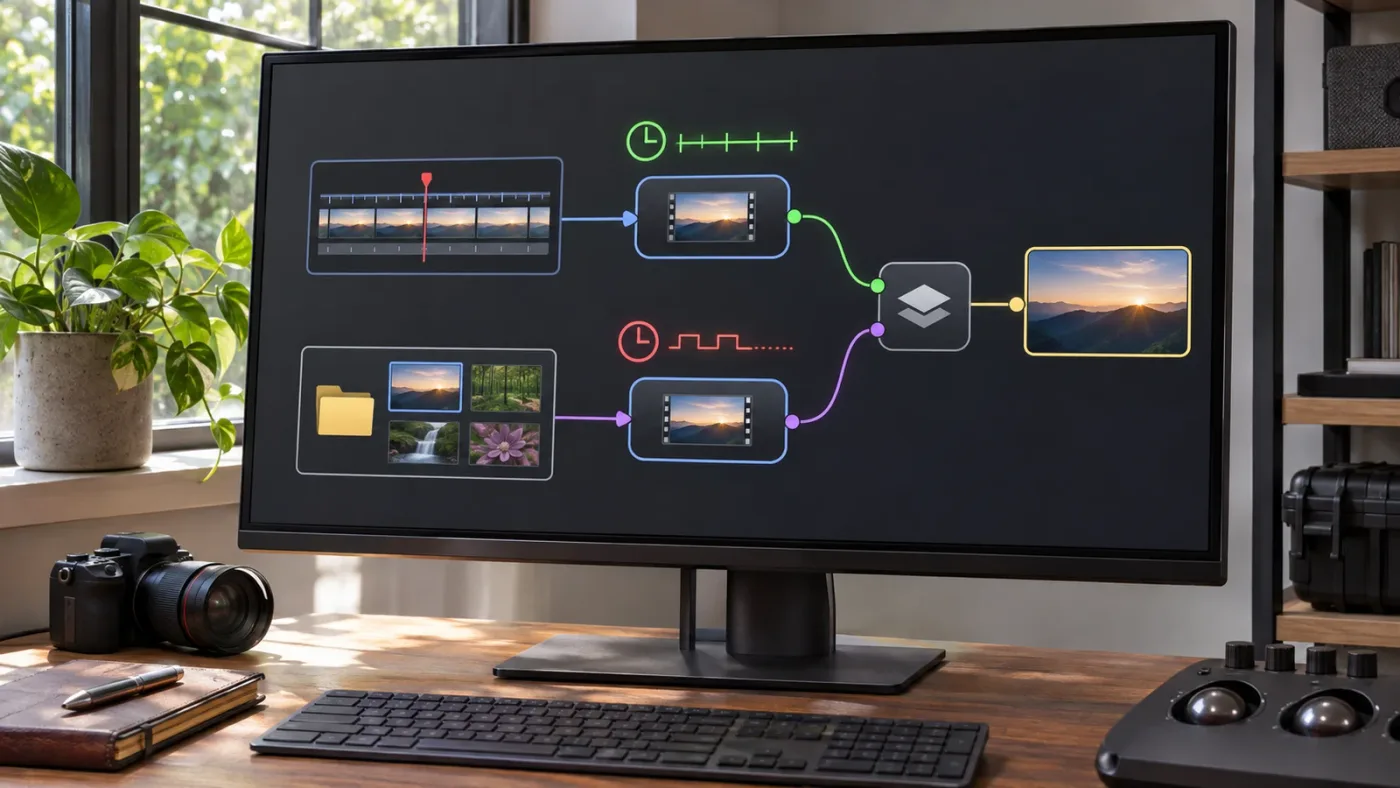
A timeline-fed MediaIn represents the clip selected in the Edit page, while a Media Pool-fed MediaIn is an independent source inside the Fusion composition. That difference determines whether Global In and Out are the right controls to inspect.
If you opened Fusion from a clip already placed on the Edit page, the MediaIn is associated with that timeline clip. The clip’s edit position and trims are part of the timeline context. Don’t assume that changing Global In is the right response simply because the picture seems late. First confirm that you are not comparing the composition’s current frame with the source clip’s original start.
If you drag a clip from the Media Pool into the Fusion node editor, you create another source node in the composition. Blackmagic documents additional controls for clips imported this way, including Global In and Out, trimming, holding the first or last frame, reversing, and looping. The same manual explains that Global In sets the frame where the node starts in the composition. A clip brought directly from the Media Pool begins at frame 0 unless you position it to align with other material. See the Fusion manual section on aligning clips from the Media Pool.
In Resolve 21, MediaIn nodes display the clip name rather than a generic “MediaIn” number, according to the Resolve 21 New Features Guide. That can make it easier to identify the source, but names alone don’t establish whether the node came from the timeline or was added independently. Use the way you built the node tree and the controls visible in the Inspector to make that distinction.
A practical check:
- Select the suspicious MediaIn node in the Fusion node editor.
- Read the node name and compare it with the clip name you expect.
- Look in the Inspector for controls associated with a Media Pool source, such as Global In and Out.
- If you started Fusion from an Edit page timeline clip, compare the clip’s timeline position with the current playhead before changing the source.
- If you added the footage from the Media Pool, inspect its position in the Fusion composition independently of the timeline clip.
The Media Pool and timeline are not interchangeable sources. A timeline clip has already been placed and trimmed in the edit. A Media Pool source added to a composition needs its own in-comp timing relationship to other nodes or elements. If a second clip is meant to enter at the same moment as a timeline-fed source, the Media Pool clip’s Global In may need to match that intended composition frame.
That does not mean you should copy a timecode number blindly. The correct value depends on the frame you want the element to appear, the composition’s frame context, and whether the node is being used as a full-length source or a short insert. Verify against an identifiable event in the image, such as a hand touching a surface or a flash beginning. Numeric controls are useful only when they are tied to the visual moment you intend.
If the node has no Media Pool-specific timing controls, don’t force this branch. Check the timeline clip, its trim and retime, then continue with the other tests below.
How do I fix a Media Pool clip that starts at the wrong Fusion frame?
For a Media Pool clip that begins at the wrong point inside a Fusion composition, adjust that clip’s Global In and Out after confirming the intended start frame. Global In positions the node in the composition; it does not repair every kind of audio or timeline sync problem.
Use the Keyframes Editor or the visible composition timeline to compare the Media Pool clip with the other elements. Find an event with a clear frame, then determine the composition frame on which that event should occur. Set the MediaIn’s Global In so the node begins at the desired point, and check its Global Out to ensure the node remains available for the needed duration. The Fusion manual describes Global In and Out as controls for positioning a Media Pool clip in the composition and aligning it with timeline-sourced media.
A safe procedure looks like this:
- Save or duplicate the project version if this node tree is complex and the current timing is hard to reconstruct.
- Select the MediaIn that was added from the Media Pool.
- Pick a reference event already aligned in the comp. Use a visible action, not a vague impression of when the shot “feels” right.
- Move to the intended composition frame for the new clip’s first useful frame.
- Change Global In, then scrub the composition around the entry point.
- Check the preceding and following frames, not just the frame where the clip first appears.
- Confirm Global Out still covers the section that needs to be visible.
- Recheck the merged output and the Edit page timeline.
The visible confirmation is simple: the chosen event in the Media Pool clip should now occur on the intended composition frame, and the clip should remain present across the intended interval. If the event is aligned but the clip disappears too early, the problem may be Global Out or the source’s available range rather than the start position.
A worked example, not an observed test: imagine a timeline-fed plate whose key action begins at composition frame 48. A second overlay was dragged from the Media Pool and its matching action begins at frame 0. If the overlay should begin with the plate’s action, you would position the Media Pool source so its relevant event lands at frame 48, then scrub around that join to verify it. The number 48 is only an example. It is not a universal setting, nor a recommendation for every composition.
Keep source trim and composition placement separate in your reasoning. A clip can start at the correct global frame while showing the wrong source moment because it has been trimmed or otherwise altered. Conversely, the source may be correct but enter the comp at the wrong global frame. When one change fixes one reference action but causes another to drift, stop and inspect whether the issue is actually variable speed, a different source in the node chain, or a timecode interpretation problem.
If you are learning the Fusion page’s node and timeline layout, the DaVinci Resolve Fusion page tutorial for beginners gives broader interface context. This specific fix still depends on selecting the correct MediaIn and verifying its origin before editing timing.
Global In is for positioning a Media Pool source in the composition, not for repairing every sync error.
Why is Fusion audio out of sync when the Edit page is correct?
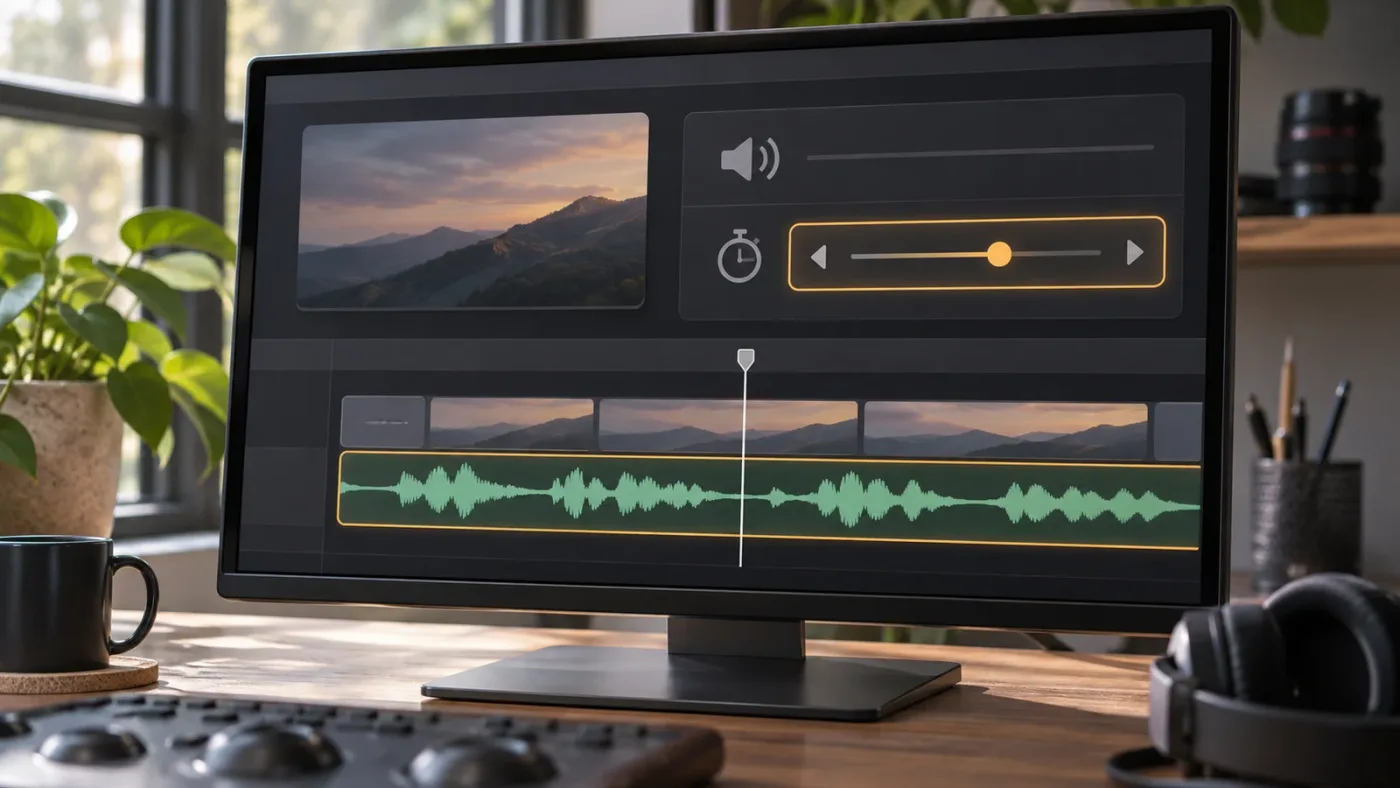
If the Edit page audio is correct but audio heard in Fusion is offset by a consistent amount, inspect the MediaIn node’s Audio tab and Sound Offset. Blackmagic documents Sound Offset as a Fusion-only audio slip and says changes to it do not change audio placement on other Resolve pages.
Select the MediaIn that supplies the audio you are hearing, then open its Audio tab in the Inspector. Blackmagic’s Fusion documentation says the Audio tab can select the track for playback and adjust its timing. The Sound Offset control allows the audio to be slipped in subframe increments. This control is specifically useful when audio is out of sync during Fusion playback, as described in the Fusion 19.1 manual.
Before changing the offset, answer three questions:
- Is the mismatch present only in Fusion?
- Does the offset stay the same through the section you are checking?
- Are you listening to the intended audio track?
If the audio is correct in Edit, Cut, or Fairlight and only appears shifted in Fusion, a Fusion Sound Offset adjustment may be appropriate. Move it conservatively, replay the reference event, and confirm the correction at more than one point. The manual describes subframe increments, so the control is not limited to whole video frames.
If the audio is wrong in every page, do not use the Fusion-only control to hide the underlying issue. Check the timeline placement, source clip, or audio edit where the error appears. A Fusion offset can make one preview seem right while leaving other pages and final timeline playback unchanged. That discrepancy is a reason to stop and diagnose the timeline, not a reason to keep adjusting the Fusion control.
Also separate audio-video sync from waveform appearance. A waveform can be visually offset in a display without proving that playback is audibly offset. Listen to a clear transient, such as a clap, and compare it with the matching picture event. A waveform is a useful guide, but playback at a known action is the confirmation.
When the audio has a stable offset, use this loop:
- Identify the exact MediaIn feeding the soundtrack you hear.
- Open that node’s Audio tab.
- Adjust Sound Offset in the direction that brings the sound toward the matching visual event.
- Purge the audio cache as described in the next section.
- Play the same event again.
- Check a second event farther along.
- Compare with Edit page playback to make sure the change stayed local to Fusion.
The direction of the numeric value depends on how the control and the current sync error relate in your composition. Don’t infer “positive means later” or “negative means earlier” without checking the result in your actual session. Move the control, observe the event, and reverse the adjustment if it moves the wrong way.
A constant offset and a drifting offset are different. If a clap at the start is corrected but a later clap is not, a single constant Sound Offset is not enough. Look for speed changes, source drift, frame-rate conversion, or a different audio source. Don’t keep adjusting one number to chase a problem that changes over time.
Did I purge the Fusion audio cache after changing Sound Offset?
After changing Fusion audio playback settings or Sound Offset, purge the audio cache so Fusion refreshes the cached audio. Blackmagic’s Fusion manual explicitly calls for purging after changing track selection or slipping audio, and says the updated audio is heard on the next playback.
The manual describes the audio and its settings as cached for faster performance. That makes a stale preview possible after a control change: the number in the Inspector may have changed while the audio you hear has not yet updated. In the MediaIn Inspector, use the Purge Audio Cache button after changing the audio playback configuration. Then play the composition again. The Fusion reference manual documents this sequence.
A useful cache check is controlled and narrow:
- Note the current Sound Offset value so you can restore it.
- Change the offset slightly in the direction suggested by the sync test.
- Click Purge Audio Cache.
- Start playback before the reference event, then listen through it.
- If the sound moves as expected, make a measured adjustment and purge again.
- If playback does not reflect the new setting, verify the selected node and audio track before changing other controls.
Do not assume every delayed-sounding preview is an audio-cache problem. First confirm the correct MediaIn node is selected and that the node’s audio is actually the audio being monitored. A comp can contain more than one source, and the node currently selected in the editor may not be the one whose audio you hear.
Purging is also not a substitute for diagnosing the audio source. If the same event remains wrong in every page, a cache refresh cannot correct the underlying timeline placement. If the sound changes after the purge but stays offset, then you have evidence that the Fusion playback refreshed, not proof that the new offset is correct.
Blackmagic’s documentation also mentions purging after making audio-level changes in Edit, Cut, or Fairlight and returning to Fusion. If you adjusted levels elsewhere and then came back to the comp, refresh the Fusion audio cache before judging the result. Otherwise you may compare a current timeline mix with a cached Fusion preview.
Treat cache actions as refresh steps, not edits. A purge should not be used as a vague ritual after every visual change. Use it when the audio settings or source changed, or when the manual calls for it. Keep the actual timing adjustment separate from the refresh operation so you know which action changed the result.
If you hear no change after purging, stop and check the node path. Confirm that the node is connected into the output you are viewing, that the correct audio track is selected, and that the comp is using the intended clip. If the source itself is not the one you think it is, further Sound Offset changes only complicate the diagnosis.
Why is MediaIn still out of sync after I change Sound Offset?
Sound Offset changes Fusion audio timing, not video timing or the Edit page’s audio placement. If the picture is wrong, if the issue exists outside Fusion, or if the offset changes across the shot, Sound Offset is the wrong fix.
This is the key boundary to preserve. The manual says the Sound Offset slip is applied only in the Fusion page and other pages retain the original audio placement. That means it can be a useful local adjustment for Fusion playback, but it should not be used as a hidden repair for an Edit page sync error.
Use a symptom-led decision:
- Picture and audio are both late in Edit and Fusion: inspect the timeline clip and its source timing.
- Picture is correct, audio is wrong only in Fusion: check Audio tab, selected track, Sound Offset, and purge.
- Picture is wrong only for a Media Pool source: inspect Global In and Out, then source trim.
- The offset grows as time passes: investigate retiming or frame-rate interpretation.
- Only playback is irregular: test by scrubbing and refresh audio cache before making a permanent timing change.
- A different shot or sound plays: verify the node feeding the output before shifting timing.
A common trap is changing a control that happens to make one moment look better. Suppose dialogue and lip movement are aligned at the start, but the mismatch increases later. A constant audio slip can align one point and worsen another. That pattern points away from a simple fixed offset. Look for speed changes in the timeline, a clip with a different duration than expected, or a source that has been trimmed to a different start.
Another trap is comparing unlike playback states. If you stop on a frame in Edit and compare it with a moving Fusion preview, the playheads may not be describing the same moment. Use the same event and frame position. A sync check is strongest when you compare a visible onset and its matching sound, then repeat with another event.
If the issue is in the timeline rather than Fusion, make the correction where the error originates. The Resolve multicam sync off by frames troubleshooting guide covers timeline-level sync diagnosis for multicamera edits. This Fusion article is not a replacement for that workflow; it explains how to avoid applying a local Fusion adjustment to an edit-level problem.
A Fusion-only audio offset cannot repair a mismatch that also exists in the Edit page.
How can I tell a fixed offset from timing drift?
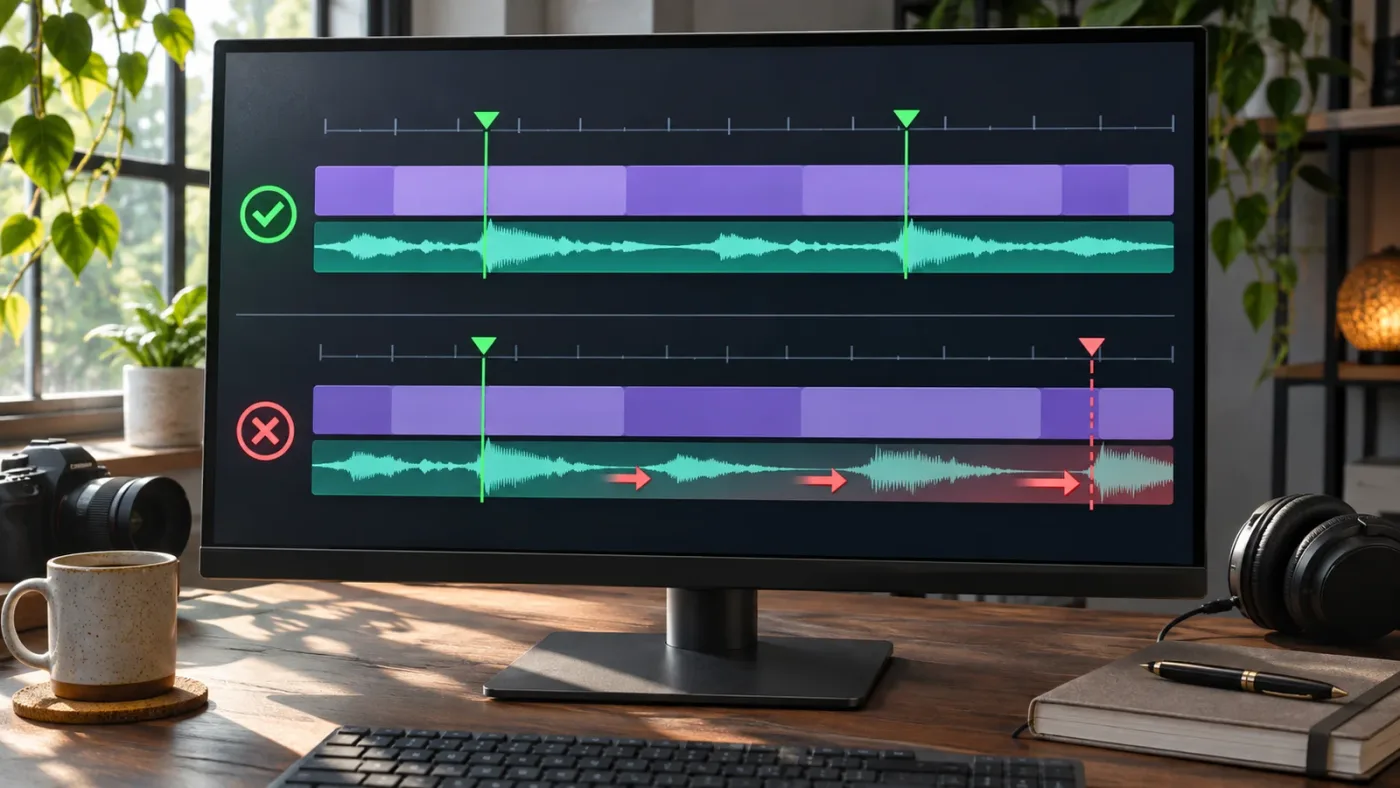
A fixed offset stays approximately the same across the section you check; drift grows, shrinks, or changes direction over time. Compare at least two identifiable events before deciding whether a single offset can solve the problem.
A fixed offset might look like a slate clap that is consistently early by the same amount at two points. Drift looks different: an early event appears close, while an event later in the clip is noticeably farther away. The distinction is practical, not academic. One constant Sound Offset can address a stable Fusion-only audio slip. It cannot correctly compensate for a time-varying mismatch.
For a careful check:
- Find a clear sync event near the start, such as a clap or a spoken consonant paired with a visible mouth movement.
- Note whether the audio leads or trails the picture.
- Find a second clear event later in the clip.
- Compare the direction and approximate size of the mismatch.
- Repeat the comparison in the Edit page.
- If the error remains about the same and appears only in Fusion, test Sound Offset.
- If the error changes across time, inspect retiming, frame-rate interpretation, or source differences.
Avoid using a long continuous shot with no sharp visual or audio events as your only reference. It is easy to misjudge a soft onset. A clap, door close, hand impact, or other sharp event is easier to compare. These are diagnostic examples, not a claim that a particular method has been tested in a specific project.
For a video-only problem, choose a visual reference instead. Find a frame where a moving object crosses a distinct point, then check whether that exact action appears at the intended composition position. If an overlay and background are meant to move together, compare corresponding motion, not just when the clips first become visible.
A variable mismatch can come from more than one cause. A retimed clip may play at a speed different from the source. A Media Pool clip may have been placed at the wrong Global In. An imported audio file may not correspond to the expected video take. A frame-rate interpretation problem can also change how long a clip lasts in the timeline. These are hypotheses to test, not diagnoses to assume.
The safe rule is simple: don’t force a constant correction onto a changing error. First establish whether the discrepancy appears in the timeline, in Fusion only, or during playback only. Then inspect the relevant source and timing controls. If the problem changes across the shot, preserve the current offsets and investigate the time relationship rather than nudging repeatedly by eye.
Could frame rate or clip retiming cause the mismatch?
Yes, a frame-rate or retiming discrepancy can make a mismatch vary across time, while a simple fixed offset usually remains steady. Check the timeline clip’s speed and duration before using Fusion controls to compensate.
A clip can look synchronized at the first event and diverge later if it is playing at a different rate than expected. This is why the “first frame looks right” test is not enough for a long shot. Compare a later event too. If the mismatch grows, the problem is not well described as a single start offset.
In the Edit page, inspect the clip’s speed or retime controls and compare the clip’s visible duration with the source action you expect. If you changed speed intentionally, confirm that audio behavior is also what you intend. If you did not change speed, look for an accidental retime or an edit that altered the visible source range.
The Fusion reference manual documents Media Pool source controls such as trimming and holding the first or last frame, as well as reversing and looping. Those controls can change how a source contributes to the composition, so check whether the node has been deliberately altered before assuming a timing defect. The manual’s Media Pool alignment section is in the Fusion 20.3 reference manual.
Resolve’s time rulers use frame-based positions, but a displayed frame number is meaningful only in its own timeline or composition context. Don’t compare a source timecode number directly with a composition frame number unless you know they share the same reference. Instead, match a visible event and inspect where it occurs in each context.
A worked example, not an observed result: a performer claps once near the beginning and again later. If the first clap aligns but the later one does not, a single fixed Sound Offset cannot align both events. Check for a speed change, a mismatched take, or another time-varying cause. If both claps are offset by roughly the same amount and only Fusion playback differs, a fixed Fusion audio offset is a more plausible branch to test.
A different pattern occurs when the entire image appears displaced in time relative to other layers, but the source action itself plays at the expected speed. That points toward composition placement, especially for a Media Pool source. In that case, compare Global In and Out with the intended Fusion timeline position before touching any retime controls.
Don’t alter project frame rate as a quick sync fix. A project setting affects the broader timeline and may create new consequences for an edit that was otherwise correct. First determine whether the issue is isolated to one clip, one Fusion composition, one audio stream, or the whole timeline. A global setting should not be changed to address a local symptom without evidence.
Why does the Fusion viewer look out of sync only during playback?
If scrubbing lands on the right frames but continuous playback seems delayed, treat it as a playback or refresh symptom until a frame-by-frame comparison proves the media itself is misaligned. Don’t move clips based only on a preview that behaves inconsistently.
Fusion playback can be affected by the work in the composition and by how the current preview is being refreshed. A viewer that stutters, pauses, or plays audio unevenly can make a correct timing relationship seem wrong. The important diagnostic is repeatability: does the same event land at the same frame when you scrub to it, and does the mismatch reproduce at the same place when you play again?
Try these non-destructive checks first:
- Stop playback and move the playhead to a known visual event.
- Step or scrub around the event and compare the image timing.
- Play from before the event, rather than starting exactly on it.
- If audio settings changed, purge the audio cache.
- Confirm that the correct MediaIn and audio track are active.
- Compare the same event on the Edit page.
- Only adjust a timing control if the mismatch is consistent and repeatable.
A cache refresh can help when the audio cache is stale, but it does not prove that the project had a timing error. Blackmagic’s Fusion manual explains that the cache is used for audio and settings, and directs users to purge it after changing audio track selection, Sound Offset, or audio levels on other Resolve pages. It does not say that every playback irregularity is caused by the audio cache. Keep those claims separate.
Likewise, a slow preview is not evidence that a source frame has been retimed. If the mismatch disappears when you scrub precisely or replay from a different start point, investigate playback consistency. If the mismatch is always the same at the same reference event, continue with source, Global In/Out, or Sound Offset diagnosis.
Make one change at a time. If you change the Global In, audio offset, and cache state together, you won’t know which step affected what you see or hear. Record the current control value before testing. A small reversible test gives you more useful information than several simultaneous adjustments.
For a visual composite, watch the final output node as well as the individual MediaIn viewers. You may be viewing a source that is not the one reaching MediaOut, or comparing two viewers at different frame positions. Confirm the node path and playhead context before deciding the footage is late.
Why is the wrong MediaIn clip playing in Fusion?
If Fusion shows the wrong take or source, verify the selected node and the path to MediaOut before adjusting timing. A source-selection mistake can resemble an out-of-sync clip because the image or action does not match the expected event at any frame.
Resolve 21’s Fusion changes make MediaIn nodes show clip names instead of generic node numbers, which can help you identify them. Blackmagic documents that change in the Resolve 21 New Features Guide. Still, clip names can be similar, duplicated, or changed, so compare the node with the intended source in the Media Pool and timeline.
Check the node chain in this order:
- Select each MediaIn node and view its input.
- Confirm that the displayed clip name matches the expected take.
- Follow the connection through any transforms, merges, or other nodes to the output.
- View the final output, not only an isolated source.
- Confirm that both viewers are parked at the same composition frame.
- Only then investigate the time position.
A viewer can show a source frame that is correct for that node but wrong for the final composite’s timing. Conversely, the output may be receiving another node entirely. Shifting the wrong node can make the flow more confusing without fixing the visible result.
If footage is missing rather than simply mistimed, that is another problem. A missing or offline file requires a media path or relink diagnosis, not a time offset. If the wrong clip appears because of a connection, correct the node path. If the right clip appears but at the wrong composition frame, then examine Global In/Out or the timeline placement as appropriate.
For a clear working tree, rename nodes only when the label helps identify their role, and keep source labels distinct when two clips have similar content. Resolve 21’s use of clip names in MediaIn nodes makes source identification easier, but it does not replace checking the source or its connection. Treat a label as a clue, not proof.
Does Global In fix every kind of Fusion timing problem?
No. Global In positions a Media Pool clip within the Fusion composition; it is not a universal control for timeline-fed footage, Fusion audio, or variable sync drift.
Use Global In when all of the following are true: the source was added from the Media Pool, the clip’s composition entry point is wrong, and you have identified the frame where it should begin. Use Sound Offset when audio playback is wrong in Fusion and correct elsewhere. Inspect timeline edits when the mismatch also exists on the Edit page.
| Control or check | Appropriate when | Not the right first fix when |
|---|---|---|
| MediaIn Global In | A Media Pool source enters the comp at the wrong frame | The Edit page clip is already mistimed |
| MediaIn Global Out | A Media Pool source ends earlier or later than intended in the comp | Audio is offset but image duration is correct |
| Sound Offset | Fusion audio has a stable offset while other pages are correct | Picture timing is wrong or sync drifts over time |
| Purge Audio Cache | Audio settings or offset changed and preview may be stale | The timeline’s edit itself is wrong |
| Timeline trim or retime | The discrepancy appears in the Edit page or changes over time | Only Fusion audio playback is offset |
| Node path check | The wrong source or composite output appears | The correct source is clearly visible but starts late |
If you’re unsure, return to a known state rather than stacking adjustments. Restore the original Global In or Sound Offset value if a test makes the mismatch worse. Then use one reference event and repeat the diagnosis. A few orderly tests are safer than compensating for an uncertain source with multiple controls.
What should I check before changing the project frame rate?
Check the local clip, source type, and timing relationship before changing the project frame rate. A project-wide setting is rarely the safest first response to one Fusion node appearing late.
A frame-rate setting can affect the broader timeline, so changing it without isolating the problem may alter more than the composition you are troubleshooting. First ask whether the problem appears on one MediaIn, one Fusion composition, one clip, or every timeline clip. If only one Media Pool source is misplaced, inspect its Global In. If only Fusion audio is shifted, inspect Sound Offset and cache. If one timeline clip drifts, inspect that clip’s retiming and source.
Compare durations and events rather than relying on labels alone. If the start event aligns but the later event drifts, examine speed and source timing. If the source action plays correctly but begins at the wrong composition point, inspect placement. If every clip seems displaced after a project-level change, then review the project settings with care and consult the appropriate Resolve manual for the current version.
Keep a copy or use a reversible test before making broad changes. Note the current frame-rate setting and the timeline’s existing behavior. Make sure the problem is not isolated to audio monitoring or an outdated preview. Then make a single controlled change and verify several points in the timeline.
The diagnostic purpose is not to rule out frame-rate settings forever. It is to avoid using a global change where a local correction is indicated. If the evidence points to a mismatch in how media frame rate is interpreted, consult Blackmagic’s current Resolve manual or support material for the exact source format and version. Do not infer a setting from a different camera, file type, or software release.
As of the Resolve 21.2 release notes, Blackmagic lists updates touching source timecode for extracted audio and AAF audio timecode accuracy from interlaced media. Those notes are specific to those workflows; they do not establish that every Fusion timing problem is a version bug. Check the official Resolve release notes if your issue is tied to a particular update, but continue to diagnose the actual source and symptom.
Did a Resolve 21 update change my Fusion timing controls?
Resolve 21 introduced some Fusion interface changes, but the available official notes do not say that MediaIn Global In or Sound Offset behavior was universally changed. Verify the exact Resolve version and the relevant control before treating an update as the cause.
The Resolve 21 New Features Guide says MediaIn nodes display clip names rather than generic numbers. The guide also describes other Fusion changes, including an undock option for the Keyframes and Spline editors. These UI changes may affect how you locate a node or editor, but they are not evidence that a clip’s sync behavior has changed.
Blackmagic’s release notes list Resolve 21.1 and subsequent updates, including 21.2. The 21.1 notes describe expanded Photo page support, multicam controls, a trim editor update, additional Krokodove tools, updated Fusion macro controls, and project archive and media management changes. The 21.2 notes list other additions, including support for Apple MacBook Pro laptops with PROLED XDR displays, new color science LUTs and film looks, and source timecode for extracted audio files. Read the official Resolve release notes for the applicable build rather than assuming an update changed a control that is not mentioned there.
Version-aware troubleshooting still matters. A tutorial may show generic MediaIn names while Resolve 21 displays the clip names. The underlying node can be the same even though its label differs. If you are following an older workflow, search by the control name and node function, not only by what the node was called in that version.
If the controls described in this article do not appear, confirm the selected node type and the application page. The Media Pool source controls are not the same as every timeline-fed MediaIn. Also confirm the installed Resolve version, because an application update may change interface details. The 21.2 release notes do not establish that every installation has identical layout or settings.
For a version comparison, document the observed version number, operating system, source type, and exact symptom before reporting a possible regression. “Fusion is out of sync” is too broad to identify which behavior changed. A precise report says, for example, whether audio is shifted only in Fusion, whether the image is offset, and whether the issue began after a specific update. Do not share client media or project files publicly unless you have permission.
What if Fusion sound is right but the video overlay is late?
If Fusion audio matches the Edit page but a visual overlay appears late, troubleshoot the overlay’s node timing and composition position rather than audio Sound Offset. An audio control cannot move a picture layer.
Start by selecting the overlay’s MediaIn and checking whether it came from the Media Pool or the timeline. If it came from the Media Pool, compare Global In/Out against the frame where the overlay should appear. If it came from the timeline, check the timeline clip’s placement and trim. Then inspect any retiming or animation keyframes affecting the element’s visibility or motion.
Do not confuse the first visible frame of an overlay with its first source frame. A clip can be present in the composition but transparent, masked, or positioned outside the visible area. If the image seems to arrive late, test whether the source itself is late or whether a node after MediaIn changes when the image becomes visible. Follow the path to the final output.
A useful visual test:
- View the MediaIn directly.
- Identify the first source frame containing the needed content.
- View the next relevant node in the chain.
- Check whether the content is being hidden, transformed, or masked.
- View the final composite and compare its playhead with the reference clip.
- Adjust Global In only if the source is independently positioned and truly enters the comp at the wrong time.
This prevents a common diagnostic mistake: moving the source when a later node’s animation is actually responsible for the apparent delay. If an opacity or mask animation starts later than intended, shifting the MediaIn could create a second error. If the overlay is correctly visible in its own viewer but wrong in the final output, focus on the downstream nodes and their keyframes.
If the overlay and the base clip are both wrong in the same way, go back to timeline timing or the composition frame context. If the base is right and only the overlay is wrong, keep the investigation local to that source and its downstream path.
What if the Fusion clip is correct in the viewer but wrong on the timeline?
If the Fusion viewer looks right but the Edit page result does not, inspect the timeline clip and the composition’s relationship to it before changing the source. The Fusion viewer may show an internal composition frame that is not the same context as the timeline output you are comparing.
Confirm that you opened Fusion from the intended timeline clip and are viewing the intended composition. Then compare the same playhead position in both pages. Check whether the timeline clip has been trimmed, retimed, or replaced since the Fusion work was made. If the Fusion node tree contains extra Media Pool sources, verify that the output path uses the intended one.
A timeline-fed MediaIn is tied to the clip context, while extra Media Pool media can be independently positioned. If you mix these sources, the composition can contain different timing references. Blackmagic’s Fusion manual describes the additional alignment controls for Media Pool clips precisely because they need to be positioned relative to other content in the composition.
Look at the final output node, not only the source viewer. A source can be correct by itself while the composite output differs because a merge, mask, transform, or other node is animated. If the source is aligned but the final result appears late, inspect the downstream chain before altering the MediaIn.
Do a two-page verification after any change:
- In Fusion, confirm the expected source frame and composite output.
- In Edit, confirm the timeline clip produces the same intended event at the same timeline moment.
- If audio is involved, listen in both pages and note whether a Sound Offset change remains local to Fusion.
- If only one page differs, do not assume the shared source itself is defective.
If the mismatch is on the Edit page, the appropriate repair may be a timeline edit, not a Fusion adjustment. If it exists only in the Fusion composition, use the source-specific timing controls. The correct page for the fix is the page where the error originates.
How do I avoid making a timing problem worse?
Change one control at a time, record its starting value, and verify the result at more than one reference event. That keeps a reversible diagnosis from turning into a chain of untraceable compensations.
Before adjusting anything, write down what is wrong in concrete terms: which source is affected, which page shows the error, whether the picture or audio is late, and whether the difference stays constant. “Media is out of sync” is a useful search phrase but not enough to choose a fix.
Use this order:
- Confirm the right clip and node.
- Confirm whether the node came from the timeline or Media Pool.
- Compare the same event in Edit and Fusion.
- Decide whether the problem is a fixed offset, drift, or playback irregularity.
- Choose only the control that matches that diagnosis.
- Refresh the audio cache after relevant audio changes.
- Recheck the point you used to diagnose the problem and another point later in the clip.
If a change makes the result worse, restore the recorded value before trying a different branch. Avoid leaving multiple trial offsets in place. A screenshot or note of the original values can be useful when a composition is complex, but do not assume a screenshot itself is proof that two pages were at the same frame.
Keep the final check visual and audible. The intended action should occur on the intended frame, and the matching sound should occur with it in the page where you need it. If you made a Fusion-only audio adjustment, also confirm that the Edit page remains unchanged. That is expected according to Blackmagic’s documentation, not a sign that the adjustment failed.
A sync adjustment is trustworthy only after the same reference event checks out in context.
Where can I get help finding the right Fusion control?
If the diagnosis points to a specific control but you cannot locate it in your current Resolve layout, consult Blackmagic’s manual or ask for help using the page, node, and symptom name. A useful question names the source type and whether the mismatch exists outside Fusion.
Include the exact Resolve version, whether the MediaIn came from the timeline or Media Pool, whether audio or picture is affected, and what you observed when comparing pages. Avoid posting media files, client content, or project details you are not allowed to share.
The official Fusion manual documents Media Pool alignment and Fusion audio controls. The official Resolve 21 New Features Guide covers version-specific Fusion interface changes. If you need help navigating the current screen while you work, TryUncle is the on-screen assistant for DaVinci Resolve on Mac and Windows. Ask in plain words and Uncle points at the exact control on your screen.
What is the safest fix for DaVinci Resolve Fusion media timing out of sync?
The safest fix depends on where the mismatch occurs: use Global In and Out for a mispositioned Media Pool source, Sound Offset and a cache purge for Fusion-only audio offset, and timeline diagnosis when Edit page playback is also wrong. If the error changes over time, investigate drift instead of applying one constant slip.
Start with the fastest discriminating check: compare the same identifiable event in Edit and Fusion. If both pages are wrong, leave Fusion offsets alone and inspect the timeline or source. If only Fusion audio is wrong, check the selected MediaIn’s Audio tab, make a small Sound Offset test, and purge the audio cache. If one Media Pool clip starts at the wrong composition frame, use Global In and Out to position that source. If the error grows or shrinks, check retiming and source timing.
Keep the adjustment local to the cause. Save the original values, make one change, and verify both the reference event and the rest of the shot. When the result is correct in the page where you need it and unchanged everywhere it should remain unchanged, stop adjusting.
Frequently asked questions
- Why is my Fusion MediaIn out of sync with the Edit page?
- First check whether the MediaIn comes from a timeline clip or was added from the Media Pool. A timeline-fed MediaIn reflects the clip’s timeline placement, while a Media Pool clip has separate Global In and Out controls for its position in the Fusion composition. If only audio is offset in Fusion, inspect Sound Offset and purge the audio cache.
- How do I fix audio out of sync in Fusion but correct on the timeline?
- Select the MediaIn node, open its Audio tab, adjust Sound Offset only if the offset is consistent, then click Purge Audio Cache. Blackmagic’s Fusion manual says the Sound Offset change affects Fusion playback only, not audio placement on other Resolve pages.
- Should I change Global In to fix a Fusion timing problem?
- Only when the affected clip was added from the Media Pool and starts at the wrong frame within the Fusion composition. Global In controls the node’s position in that composition. It is not a universal audio-sync control and is not the first place to adjust a timeline-fed MediaIn.
Sources
Put this guide to work with TryUncle.
Ask about the step you’re on. TryUncle sees your screen and points at the control you need, so you can keep learning in your own project.
Get TryUncle for Mac or WindowsKeep reading
Guides · Jul 10, 2026 · 32 min
DaVinci Resolve Fusion Page Tutorial for Beginners
Learn the DaVinci Resolve Fusion page from zero: nodes, MediaIn/MediaOut, the Merge node, planar tracking, and keying a green screen, step by step.
Fixes · Jul 8, 2026 · 26 min
DaVinci Resolve Multicam Sync Off by Frames: Every Fix
Multicam clip off by frames or drifting worse over time? Fix DaVinci Resolve's waveform mis-sync, frame rate drift, and timecode gaps, angle by angle.
Fixes · Oct 31, 2026 · 28 min
DaVinci Resolve Fusion Effect Not Showing in Timeline? Fix It
Fix a DaVinci Resolve Fusion effect not showing in the timeline by checking the selected clip, MediaOut connection, node settings, timing, tracks, and cache.