Articles / Guidesupdated for DaVinci Resolve 21 and Artlist license rules, September 2026
Artlist License for YouTube Shorts and Social Clips
Quick answer
Yes, an Artlist license can cover YouTube Shorts and social clips when the plan matches your use. Social is for one personal channel per platform; Pro is for client, brand, paid-media, or broader commercial work. Publish while active and add music channels or videos to Clearlist before upload.

If you are cutting a vertical clip in DaVinci Resolve 21, the export is the easy part. The difficult question is whether the music is cleared for the place you plan to publish it.
We have worked in commercial video editing for more than seven years, taught more than 100,000 students on Udemy, and run a professional editing community of more than 100,000 members. Licensing questions come up because a track can sound perfect in the timeline and still be wrong for the channel, client, or campaign.
As of September 2026, the practical rule is simple: match the Artlist license to the owner of the channel, the purpose of the clip, and the platforms where it will appear. DaVinci Resolve 21 does not change those rights. It only gives you the editing and delivery tools.
Does an Artlist license cover YouTube Shorts and social clips?
Yes, an Artlist license can cover YouTube Shorts and social clips, but coverage depends on the plan, channel ownership, destination, and whether the video is personal or commercial. The word “social” describes a license tier, not a universal permission slip for every social video.
Artlist's current Music and SFX guidance describes the Social license as a plan for personal creators. It covers unlimited videos on one channel across YouTube, TikTok, Facebook, Instagram, and Twitch, plus one podcast. That sounds broad until you ask the questions that decide the result: Is the channel yours? Is the video made for a client? Is it an ad? Are you publishing to more than one channel on the same platform?
The Pro license is built for professional creators and client or commercial work. Artlist describes Pro coverage across social media, websites, television, streaming platforms, podcasts, advertising, paid media, branded content, and film. The same guidance says Pro supports three channels per platform in Clearlist and unlimited individual YouTube video clearance. Confirm the current plan language before you subscribe because licensing pages can change.
An Artlist Social license covers a personal creator channel, not every social clip that happens to be short.
For a YouTube Short, the runtime does not turn a commercial project into a personal project. A sponsored vertical ad, a clip delivered to a restaurant, and a Short on your own monetized channel can all be the same duration while needing different coverage. The license follows the use case, not the aspect ratio.
There is also a difference between the music and the video. Artlist's standard license is a synchronization license. It lets you place audio inside a video project, but it does not let you redistribute the song as a standalone audio file, publish a music-only playlist, or turn a static image and a track into a substitute music release. A Short should be a real video project in which the music supports the visual work.
The most useful first decision is therefore not “Which plan is cheapest?” It is “Who owns the publishing destination, and what is the business purpose of this clip?” Answer that before you open the Artlist catalog.
Which Artlist license do YouTube Shorts creators actually need?
You need Social for a personal creator workflow limited to one channel per supported platform; you need Pro coverage when a client, brand, paid placement, third-party channel, or wider distribution is involved. The table below is the fastest way to separate the cases.
| Publishing situation | Usually fits | Why | Main caution |
|---|---|---|---|
| Your own monetized YouTube channel | Social, if it is your personal channel | Social is intended for individual creators and covers one YouTube channel | Add the channel to Clearlist while active |
| Your own YouTube Shorts and TikToks on one channel each | Social, if the content is personal creator content | The Social plan lists YouTube and TikTok among supported platforms | One channel per platform is the boundary |
| A Short for a paying client | Pro-covered plan | Pro is designed for client and commercial projects | The client receives the completed project, not the underlying asset file |
| A branded clip or sponsored campaign | Pro-covered plan | Paid media and branded content need broader commercial coverage | Social does not cover paid media or brand work |
| Multiple YouTube channels | Pro or a higher plan, depending on the account | Pro supports more full channels and individual video clearance | Check channel limits and Clearlist setup before publishing |
| A team producing clips together | Team or business coverage | A single-user license does not automatically cover colleagues | Do not share an individual login or assets outside the license |
| A music-only upload or static image playlist | Neither standard sync use nor a normal social workflow | The license is for music synchronized into a video project | Choose music specifically licensed for standalone use |
The Social plan can still be appropriate for a self-employed creator. Artlist's license guidance says an individual creator can have a business setup or VAT number and use Social on personal channels, including monetization or sponsorships. That does not make Social a client license. It means the creator's own channel remains the relevant destination.
The correct Artlist tier is determined by channel ownership and commercial purpose before it is determined by platform.
For a freelance editor, the safest boundary is straightforward. If you are delivering a finished Short to a client or publishing on the client's account, treat it as client work and select Pro coverage. If you are making a Short for your own channel and the sponsor relationship is attached to your own channel, read the current license terms carefully and confirm whether the intended sponsorship is covered. When the project is paid media or brand content, do not assume Social is enough.
For a small production team, an individual plan is also the wrong shortcut. Artlist says individual licenses are for the person named on the account. Team plans exist for multiple users working on team projects, with separate rules for personal use. A team that shares downloaded music through a personal account is creating a documentation and rights problem, even if the final clip looks harmless.
Disclosure: This guide includes an affiliate link to Artlist. If you subscribe through it, we may earn a commission at no extra cost to you. That relationship does not change the licensing verdict.
Composer Kevin Graham described the subscription model this way: “I think that the music licensing model, especially the subscription-based model is genius.” That is a useful description of the convenience, not a reason to skip the terms. A subscription can simplify access while still requiring careful decisions about channels, clients, and publication timing.
Why is my Artlist-licensed YouTube Short still getting a copyright claim?
An Artlist-licensed YouTube Short can still receive a Content ID claim when the channel or video is not registered in Clearlist, the wrong account is being used, the license does not cover the use, or the platform has not yet matched the licensing record. A claim is an automated rights event, not proof that your Artlist download was unauthorized.
YouTube explains in its Content ID guide that Content ID automatically scans uploaded videos against a database of reference files. When it finds a match, the rights holder's policy can monetize, block, or track the video. Artlist explains that its music catalog is integrated with Content ID, which is why a licensed track can be detected in the first place.
Clearlist is the step that connects the licensed use to the destination. Under Artlist's current guidance, Social users can add one YouTube channel, while Pro users can add three YouTube channels and clear individual videos beyond those full-channel slots. Team plans have different limits. A channel or video must be added while the subscription is active. Artlist also says client invite links are valid for 30 days, so a stale invite can fail even when the underlying project is covered.
Use this order when a claim appears:
- Check the exact track and the Artlist account that downloaded it.
- Confirm that the subscription was active when the clip was completed and published.
- Confirm that the YouTube channel belongs to the allowed channel scope for the plan.
- Add the channel ID or individual video URL to Clearlist while the plan is active.
- Wait for the platform and rights records to update, then follow the dispute or release instructions available in the claim.
- Keep the song certificate, project file, export date, and Clearlist record together.
Do not write “royalty-free” in the video description and assume the claim will disappear. YouTube's safe-music guidance explicitly says Content ID does not decide safety from your written description. It also says that even music labeled free elsewhere may be flagged. The useful evidence is your actual license, the covered destination, and the registration record.
If a claim has changed the video's visibility or monetization, read the platform notice before disputing it. YouTube distinguishes a Content ID claim from a copyright removal request, and the remedies are not the same. If the Artlist license does not cover the channel or the clip was published after cancellation, a dispute may not fix the underlying problem.
How do I use Clearlist before publishing from DaVinci Resolve 21?
Clearlist is an account-side clearance step, not a DaVinci Resolve 21 setting. Finish the edit in Resolve, export the clip, then register the destination channel or video in Artlist while the relevant subscription is active.
The practical workflow is:
- Open the Artlist account that owns the license.
- Use the account menu to open Clearlist.
- Select the platform and enter the full channel URL or the channel ID requested by the form.
- Confirm that the returned channel name and icon match the destination.
- For a client or an additional YouTube upload, use the channel or video option available under the selected plan.
- Publish the completed clip while the subscription remains active.
Artlist's help guidance warns that a new YouTube channel may need at least one uploaded video before channel registration works. It also recommends using the exact channel ID rather than relying on a custom username or link when the form cannot identify the channel. These are small details, but they explain many “I added my channel and still got a claim” cases.
Clearlist does not apply to every Artlist asset. Artlist says SFX, footage, AI voiceover, images, and video assets do not need Clearlist when the project contains no Artlist music. For music, however, use the clearance workflow every time you change the channel, client, or plan.
The Resolve side is deliberately ordinary. Import the licensed music into the Media Pool, place it on a dedicated audio track, trim or mix it to the video, and export your vertical timeline using the delivery settings appropriate to the destination. The license is not embedded into the MP4 by DaVinci Resolve. Your evidence lives in the Artlist account and your records.
This is also why I recommend naming the audio track with the artist and track title, then storing the certificate or download record beside the project archive. The name does not create rights, but it makes a later audit much faster.
What happens to an Artlist license after cancellation?
After cancellation, a completed project remains covered only when it was published while the applicable subscription was active; downloaded assets cannot be used in new projects or newly published projects after the subscription expires. This active-publication rule is the detail most creators remember incorrectly.
Think of the rule as two timelines:
| Project state | Subscription active when published? | Can the published project remain covered after cancellation? |
|---|---|---|
| Finished Short already published | Yes | Artlist says the published project remains covered |
| Finished Short sitting in a drive | No | No, do not publish it after expiry without active coverage |
| New Short started after expiry | No | No, the downloaded asset cannot be used in a new project |
| Old Short edited into a new version after expiry | No, for the new version | Treat the new publication as a new use and obtain active coverage |
| Old published Short shown later at a festival | Yes, if it was already published while active | Artlist gives this kind of later showing as an example of continued coverage |
The word “published” matters. Exporting a master file is not necessarily the same thing as publishing the project to its covered destination. If your subscription ends on Friday and you export a Short on Thursday but first post it on Saturday, do not assume the Thursday export date saves it. The safer record is the platform publication timestamp while the license is active.
Clearlist has its own timing rule. Artlist says channels and videos registered during an active subscription remain cleared, but you cannot add new channels or videos after the license expires. Register first, publish while covered, and keep the record.
This rule also affects recurring content. Suppose you create ten vertical clips from a batch of downloads but only publish two before cancellation. The two published projects may remain covered. The eight unpublished clips are not a stockpile of perpetual licenses for future releases.
Do not confuse this with ownership. Artlist grants usage rights under its license. It does not transfer ownership of the music, SFX, footage, or template. You may edit the asset to fit the video, but you cannot distribute the source file or let a client reuse it independently.
A downloaded Artlist track is not a perpetual license for every future social clip; publication timing controls continued coverage.
Can I use an Artlist track in a client, brand, or paid social clip?
Yes, an Artlist track can be used in a client, brand, or paid social clip when the plan includes the required Pro or business coverage and the project is published under the license rules. Social is not the correct default for a client deliverable or a paid-media campaign.
The distinction is not theoretical. A client may ask you to deliver a finished vertical ad for its own account. The client may later boost the post, upload it to a second channel, or run it as paid media. Those uses can exceed the personal-channel boundary even if you edited the clip on your own computer.
Artlist's license guidance says Pro covers both personal and client use for specific projects and supports publishing across a wider range of platforms and media. It also says clients cannot receive the underlying assets for independent reuse. Deliver the completed project, not the music file, sound-effect file, template archive, or stock footage as a reusable library.
For a brand workflow, write a short asset register before you export:
- Project name and client name.
- Artlist account and plan used.
- Track title, artist, and download date.
- Intended platforms, including paid placements.
- Channel or video registration status.
- Publication date and final export filename.
This does not replace the license. It prevents the common failure where the editor knows the asset was licensed but cannot show which account, plan, or destination covered the final clip.
If the client wants to reuse the music in a different edit, a podcast intro, a music bed without visuals, or an independent library, stop and check the permission. Artlist describes its standard audio license as synchronization use, not a standalone audio license. A client delivery is not permission to extract and reuse the song.
Our community sees this mistake in two forms. One editor buys Social for a personal channel, then hands the same music to a client. Another editor buys a Pro plan, then sends the raw track to the client to use in a different project. Both cases separate the asset from the video project that the license was meant to cover.
For deeper client-plan decisions, see our guide to choosing an Artlist plan for DaVinci Resolve client work. It covers the client boundary in more detail without treating a personal Social plan as a universal commercial license.
Should I use Artlist or a platform-native music library?
Use a platform-native library when you only need a quick, platform-specific soundtrack; use Artlist when you need one licensed music workflow across multiple publishing destinations, a Resolve edit, or a project that must be documented for a client. Neither option automatically clears every platform or business use.
YouTube's Audio Library is the simplest choice for a YouTube-only workflow. YouTube says its library contains royalty-free production music and sound effects, and it identifies those assets as copyright-safe on YouTube. Some tracks require attribution, while tracks marked as not requiring attribution do not. The library is designed around YouTube Studio, not around a cross-platform rights bundle.
YouTube also warns that music safe in a Short under 60 seconds may not be safe in a longer video. That is a strong reason not to build a cross-platform workflow from assumptions about duration. The same audio can have different permissions when the format, platform, account, or commercial purpose changes.
Meta's Instagram help page says its licensed music library is intended for personal, non-commercial use and that certain business accounts and post types may not have access. It points users toward Sound Collection for royalty-free music and sounds that can be used commercially in Reels and Stories. That is useful for Meta-only work, but it does not give you rights to publish the same track on YouTube or TikTok.
Artlist's advantage is portability within the terms of the selected license. You download the track, edit in DaVinci Resolve, and can publish the completed project across covered destinations. The cost is responsibility: you must select the right tier, manage Clearlist, obey the sync restriction, publish on time, and preserve the records.
| Option | Best fit | What it simplifies | What it does not solve |
|---|---|---|---|
| YouTube Audio Library | YouTube-only Shorts and videos | YouTube Studio discovery and platform-native safety | Cross-platform rights and client licensing |
| Meta Sound Collection | Commercial Reels and Stories made for Meta | Meta-specific commercial audio access | Rights for YouTube, TikTok, or non-Meta distribution |
| Artlist Social | One creator's personal channels | A downloadable music workflow for supported social channels | Client work, paid media, extra channels, and post-expiry new projects |
| Artlist Pro | Client, brand, paid, or multi-platform work | A broader sync license and Clearlist options | Correct setup is still required, and it is not standalone music permission |
| Epidemic Sound | Audio-first creators who want a dedicated music and SFX service | A music and sound-effects-centered workflow with plan-specific licensing | Artlist's broader footage and template bundle |
| Envato Elements | Editors who also need broad design assets and templates | One subscription across many creative categories | A simple answer to every music-rights question |
| Storyblocks | Footage-led production | Stock footage, templates, images, and audio in a broader catalog | A music-first licensing workflow like Artlist or Epidemic Sound |
Our sibling guide on Artlist Clearlist YouTube claims is the better next read if you already have a claim. If you are choosing audio for a specific vertical edit, keep the track-selection decision separate from the licensing decision.
How do I publish a licensed social clip from DaVinci Resolve 21?
Publish a licensed social clip from DaVinci Resolve 21 by choosing the rights scope first, downloading the asset while active, editing the audio into a real video project, registering the destination, and publishing before the subscription expires. Resolve 21 handles the picture and sound; Artlist handles the license record.
- Choose the publishing use. Decide whether the clip belongs to your personal channel, a client, a brand, a paid campaign, or a team account.
- Choose the license tier. Use Social only for the personal-channel case. Use Pro-covered or business coverage for client, brand, paid-media, multi-channel, or organization work.
- Download and document the asset. Download the music while subscribed. Save the song certificate or available license record beside the project. Artlist's download guidance says license documents are available while the subscription is active, so do not leave this step until after expiry.
- Edit and mix in Resolve 21. Import the track, place it under the dialogue or main action, and trim it to the vertical edit. The license does not require a special Resolve plugin. The important restriction is how the finished project uses the audio.
- Clear the destination. Register the channel or individual video in Clearlist while active. Use the exact YouTube channel ID when the form asks for it, and verify the returned channel before confirming.
- Publish while covered. Upload the completed clip while the subscription is active. Keep the final URL, export date, license record, and project archive together.
- Respond to claims with evidence. If Content ID flags the music, check the exact use and account first. Then use the platform and Artlist clearance process that matches the plan.
DaVinci Resolve 21 is a sensible editor for this workflow because the free version supports common 8-bit formats up to Ultra HD 3840 by 2160 at up to 60 frames per second, according to Blackmagic Design's product page. A vertical Short can be edited in the same application without changing the license model. If you use Artlist Resolve templates, Artlist's template guidance lists DaVinci Resolve 18 or newer as the baseline, while its troubleshooting guidance warns that individual templates can have stricter version or Studio requirements.
Do not mistake a template license for a music license. A title animation, transition, or slideshow project has its own compatibility and usage conditions. A downloaded .dra archive does not give you permission to extract, resell, or redistribute every source asset inside it.
For delivery, use a platform-specific preset only after the rights decision is finished. Our DaVinci Resolve export settings for Instagram Reels guide can help with the picture settings, but it cannot make an unlicensed track legal. Encoding and licensing are separate checks.
What should I keep as proof of an Artlist license?
Keep the plan name, account identity, asset record, Clearlist status, project file, final URL, and publication timestamp together. A receipt alone does not prove that a particular channel or client use was covered.
Use this small archive structure for each campaign:
client-or-channel/
  project-name-resolve-21.drp
  media/
  audio/
    artist-track-title.wav
  licensing/
    artlist-song-certificate.pdf
    artlist-plan-and-account.txt
    clearlist-channel-or-video.txt
  delivery/
    final-vertical-clip.mp4
    published-url-and-date.txt
The file names are for your own organization. They do not create rights and they do not replace the current terms. They simply help you answer the questions a platform, client, or internal reviewer may ask months later.
Record the publication timestamp, not just the export timestamp. Record the channel URL and the account that owns it. If you use a client invite, record when it was sent and accepted, because Artlist says invite links expire after 30 days.
Keep a separate note for platform-native music. If you add an Instagram track inside the Instagram app after exporting from Resolve, that track has a different source and different terms from the Artlist music you used in Resolve. The exported MP4 may therefore contain two distinct audio rights situations. Treat them separately.
License records are part of the social-video workflow, not paperwork to reconstruct after a claim.
If you stop paying for Artlist, do not delete your records. A published project may remain covered under the active-publication rule, but future edits and new releases still need current coverage. Keeping the evidence makes the boundary visible.
Is Artlist worth it for a DaVinci Resolve social workflow?
Artlist is worth considering when you publish repeatedly across several platforms, want downloadable music for DaVinci Resolve 21, and need a license that can cover personal, client, or commercial work at the appropriate tier. It is not the best choice when you publish only on YouTube and the Audio Library already satisfies your needs.
Choose Artlist Social if all of these statements are true:
- You are the individual creator behind the channel.
- You are staying within one channel per supported platform.
- The clips are personal-channel projects, not client deliverables or paid-media assets.
- You will add the relevant channels to Clearlist while active.
- You will publish completed projects before the subscription expires.
Choose a Pro-covered plan if any of these statements are true:
- You make Shorts for clients or brands.
- You deliver the finished video to a third party for its channel.
- You run paid social placements.
- You need more than one full channel on a platform.
- You need broader publishing rights across websites, streaming, podcasts, television, or film.
- You work as a team and need multiple users covered.
Choose a platform-native library if your distribution is narrow. YouTube Audio Library is compelling for YouTube-only work because YouTube identifies its music and SFX as copyright-safe on that platform. Meta Sound Collection is useful for commercial Reels and Stories that will stay inside Meta. These options can be simpler, but they do not create a universal cross-platform license.
Choose Epidemic Sound when the core need is a music and sound-effects workflow with plan-specific creator, professional, or business coverage. Choose Envato Elements when you also need a broad design catalog and per-project asset registration. Choose Storyblocks when footage is the center of the job. Those are honest alternatives, not inferior answers.
The verdict is less glamorous than “download and forget.” A good Artlist workflow is a chain: choose the right tier, sync the asset into an actual video, register the destination, publish while covered, and keep the evidence. Get those five links right and Artlist can be a practical part of a Resolve 21 Shorts workflow. Miss the first or third link and the soundtrack can become the weakest part of an otherwise finished edit.
Artlist is a strong social-video option when its license scope matches the publishing plan, not simply because the music is easy to download.
Frequently asked questions
- Does an Artlist license cover YouTube Shorts and social clips?
- Yes, if the plan covers the channel and use. Social covers a single personal channel on each supported platform, while Pro is the safer choice for client, brand, paid-media, and wider commercial publishing.
- Can I use Artlist music on a YouTube Short after cancelling?
- Only when the Short was completed and published while the subscription was active. You cannot use the downloaded track in a new project or newly published Short after the subscription expires.
- Do I need Clearlist for Artlist music in a YouTube Short?
- You should add the YouTube channel or individual video to Artlist Clearlist while the subscription is active. Clearlist helps YouTube recognize the licensed music and is required for covered channel registration.
- Is Artlist Social enough for client or brand social clips?
- No. Artlist Social is for a personal creator's own channels and does not cover client projects, third-party channels, or paid media. Use a plan with Pro coverage for client or brand work.
- Can I use platform-native music and Artlist music in the same social clip?
- You can combine sources only when each track has its own permission for that platform and use. Platform-native music is often limited to the platform or account type, so it does not automatically expand Artlist or commercial rights.
Sources
- Artlist, Understanding Artlist's license
- Artlist, Understanding Artlist's Clearlist
- Artlist, Music and SFX plans explained
- Artlist, Starting with Artlist templates
- Artlist, Downloading Artlist assets
- Artlist, How Artlist Empowers Indie Musicians
- Blackmagic Design, DaVinci Resolve 21
- YouTube Help, How Content ID works
- YouTube Help, What kind of content can I monetize?
- YouTube Help, Tips to find safe music
- YouTube Help, Use music and sound effects from the Audio Library
- Meta Help Center, Access to the licensed music library on Instagram
- Epidemic Sound, Pricing and licensing
- Envato Elements, Video creator plans
- Storyblocks, Plans and pricing
Keep reading
Guides · Aug 28, 2026 · 8 min
Artlist Clearlist YouTube Claims: Fix Them in Resolve 21
A practical guide to Artlist Clearlist YouTube claims from DaVinci Resolve 21: prevent claims, dispute them, and choose the right license.
Guides · Aug 30, 2026 · 8 min
Artlist Plan for DaVinci Resolve Client Work: Choose Pro
Choosing an Artlist plan for DaVinci Resolve client work? Compare Social, Pro, Team, Max, licensing, Clearlist, templates, and cancellation rules.
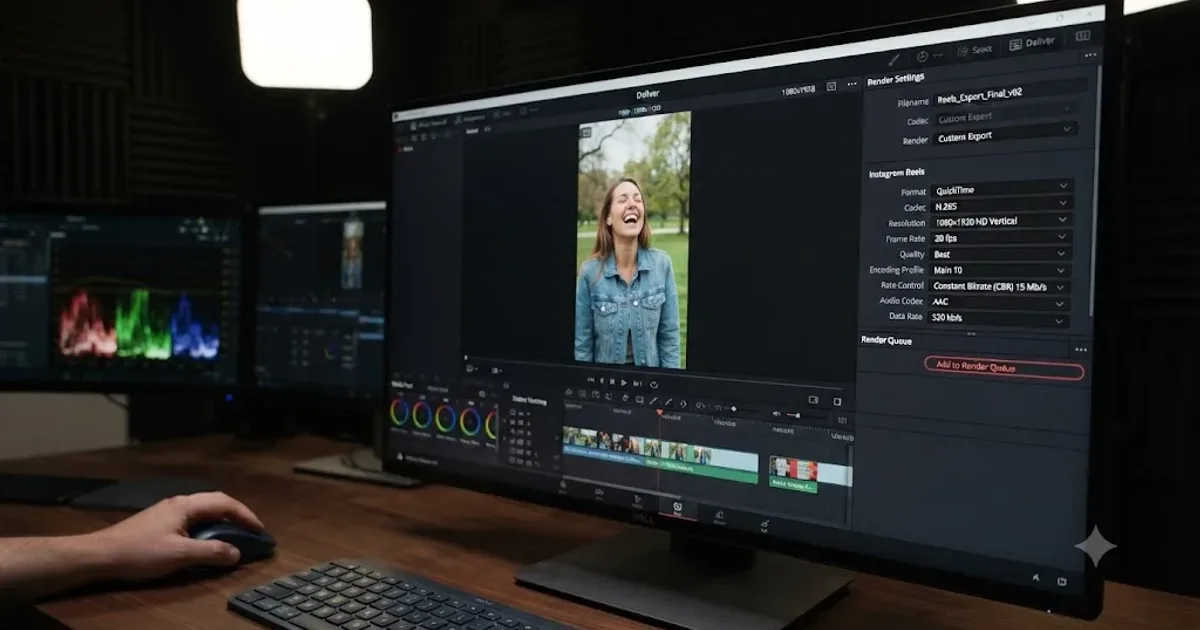
Guides · Jul 12, 2026 · 26 min
DaVinci Resolve Export Settings for Instagram Reels
Exact DaVinci Resolve export settings for Instagram Reels: 1080x1920 vs 1440x2560, H.264 only, bitrate, safe zones, and duration, sourced from Meta's own specs.