Articles / Fixesupdated for DaVinci Resolve 21.1 (September 2026)
Artlist Templates Custom Fonts in DaVinci Resolve: Fixes
Quick answer
For Artlist templates custom fonts in DaVinci Resolve, unzip the download, read the Fonts document, install every required font, restart Resolve 21, and restore the .dra archive through Project Manager. If the font still fails, replace it in the affected Text+ or Fusion node and retune size, tracking, and position before delivery.
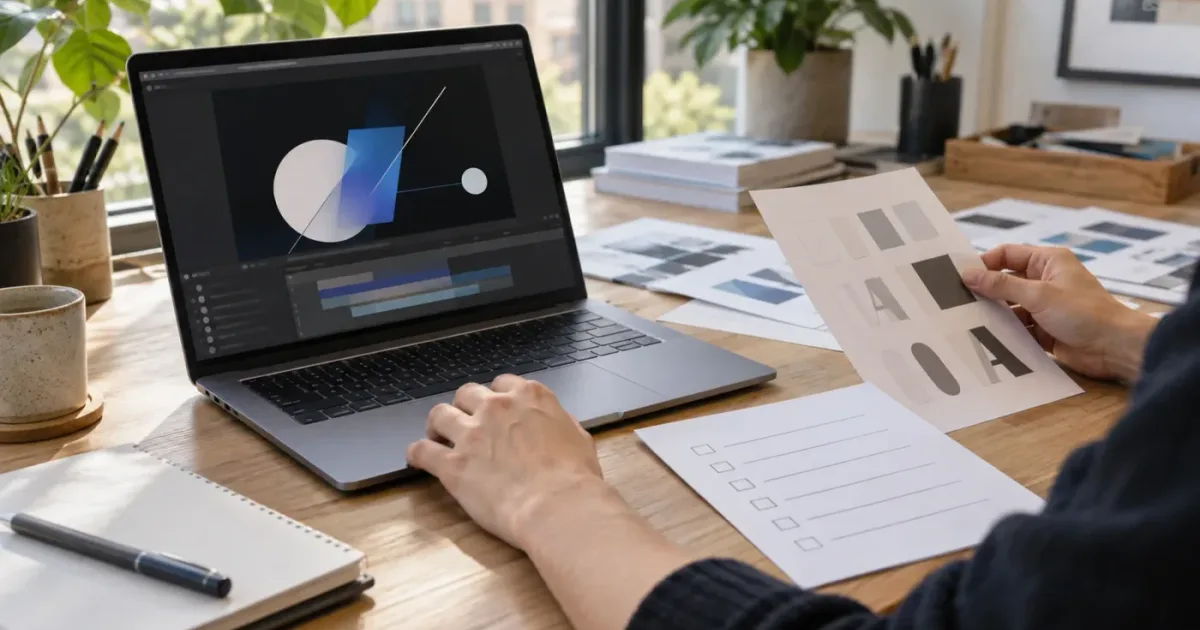
The title looked perfect in the Artlist preview. Then the restored project opened in DaVinci Resolve and the typeface had vanished, changed shape, or turned the title into a black box. We run a 100,000+ member professional video-editing community, and this is one of the recurring questions editors bring up. The fix is usually simple, but the order matters.
As of September 2026, this guide covers DaVinci Resolve 21 and the 21.1 update line. Artlist's own setup instructions still describe Resolve 18 or newer as the baseline for its Resolve templates, so the newest version does not remove the need to check an individual template's requirements. Disclosure: this post contains an affiliate link to Artlist. If you buy through it, we may earn a commission at no extra cost to you. Artlist's current template guidance also separates the font, help, and project parts of the download.
What is the fastest way to fix Artlist templates custom fonts in DaVinci Resolve?
The fastest fix is to install the exact fonts before opening the restored project, restart DaVinci Resolve, and then verify the family and face in Resolve 21. If the font remains unavailable, substitute it inside the affected Text+ or Fusion node and repair the layout by checking line breaks, tracking, alignment, and animation bounds.
Treat the problem as a dependency check, not as a design mystery. An Artlist Resolve download can contain a .dra project archive, a Help folder, and a Fonts folder with a document that points you to the required files. The .dra is not the title itself. It is a project archive that Resolve restores through Project Manager. Artlist documents this package structure and restoration workflow.
Use this order:
- Keep the original ZIP file as a backup, then extract it to a normal folder.
- Open the Fonts folder and read the Font Info or similar document.
- Download the named font files from the linked source.
- Install every required family and face in the operating system.
- Restart DaVinci Resolve 21.
- Restore the
.draarchive through Project Manager. - Open the text timelines and verify each title before replacing media or changing timing.
Install the font before opening the Artlist project, then restart DaVinci Resolve 21.
That sequence eliminates the most common failure first. It also protects you from editing a project that already contains substituted fonts. Once you have typed new copy, changed animation timing, and resized placeholders, it becomes harder to tell whether a layout problem came from the template or from your changes.
Why is DaVinci Resolve 21 showing the wrong font in an Artlist template?
DaVinci Resolve 21 usually shows the wrong font because the required family is not installed, the needed face is inactive, the font has duplicate or conflicting versions, or the project opened before the operating system registered the font. A version mismatch or Studio-only template can create a similar visual failure, so identify the category before changing the design.
There are four useful clues.
| What you see | Most likely cause | First action | What proves the fix |
|---|---|---|---|
| The font field names a substitute | Required family or face is unavailable | Reopen the template's Font Info document and install every listed file | The expected family and face appear in Resolve's font field |
| The font appears in another app but not Resolve | Resolve was open during installation, or the font is inactive or duplicated | Quit Resolve, validate or activate the font, then relaunch | The family appears after a fresh Resolve launch |
| Text is present but wraps differently | A substitute font has different width, weight, or metrics | Restore the intended font or adjust size, tracking, and line spacing | The original line breaks and alignment return |
| The title is black or invisible | Font recognition, disconnected Fusion nodes, or missing media | Test another font, inspect Fusion connections, and relink offline media | The title renders with visible text and connected inputs |
Artlist specifically lists missing fonts, version compatibility, missing media, and slow performance among the common Resolve-template issues. Its troubleshooting guide also recommends installing every font named in the accompanying document and restarting DaVinci Resolve after installation. See the tracked Artlist troubleshooting instructions.
The word “font” can hide two separate choices. A font family is the broader design, such as a sans-serif family. A font face is a style inside that family, such as Regular, Medium, or Bold. A template can depend on one family but use more than one face. Installing only the Regular file may not restore a title that uses Bold or Italic.
Do not judge success from one title. Templates often contain several timelines and Fusion compositions. A headline can use a heavy face, a subtitle can use a light face, and a small label can use a different family. Search all text elements before you decide the issue is solved.
How do I find the exact custom font Artlist used?
Find the exact font name in the template's Fonts folder first, then use DaVinci Resolve 21's Font Browser to confirm that the installed family and face are available. The Font Browser is useful for identification because Blackmagic describes an installed-font view with search, favorites, filters, thumbnail and list views, and selectable previews.
Start outside Resolve. In the unzipped package, look for a folder named Fonts, Font, or a similar label. Open the included text document. Artlist says that this document contains links to the fonts used by the template. Follow those links instead of guessing from the visual preview. Artlist's tracked installation instructions explain this exact lookup.
Then confirm the font inside Resolve 21:
- Open a title or Text+ element that uses the missing type.
- Open the relevant Inspector controls, or open the composition in Fusion if the template exposes its text there.
- Find the font selection control.
- Open the Font Browser icon beside the font field when it is available.
- Search for the family name from the Font Info document.
- Inspect the available faces and compare the weight and style with the template instructions.
- Select the matching face and check the title at its normal size, not only in the browser preview.
Blackmagic's DaVinci Resolve 21 New Features Guide says the Font Browser can show all installed fonts or favorites, lets you search by name or part of a name, and includes filters for classification and weight. It also says the selected font is loaded into the tool's font field. Read the Font Browser section in Blackmagic's Resolve 21 guide.
The browser confirms what Resolve can see. It does not prove that the template's text node is using the font. A Fusion composition can carry its own text controls, and a template can expose only a small set of published parameters in the Inspector. If the font appears in the browser but the title stays wrong, open the affected composition and check the actual Text or Text+ node.
The fastest font diagnosis is to compare the template's Font Info document with Resolve 21's installed-font browser.
Watch for naming traps. The file name may contain a foundry name, a version suffix, or a weight label that differs from the family name shown in Resolve. Two font files can look similar in Finder or File Explorer while resolving to different internal family names. The practical test is the name shown in the operating system's font manager and in Resolve's font control, not the ZIP filename.
How do I install Artlist template fonts on macOS?
On macOS, extract the font files, open them in Font Book, install them, and validate or resolve duplicates before relaunching DaVinci Resolve. Apple documents support for TrueType, variable TrueType, TrueType Collection, OpenType, OpenType-SVG, and OpenType Collection formats in Font Book.
The short version is:
- Extract the downloaded font ZIP.
- Select the
.ttf,.otf, or other supported font files. - Double-click a font to open Font Book, or drag the files to Font Book.
- Click Install.
- In Font Book, search for the family and check that the required faces are active.
- Use File > Validate Selection if the font looks damaged or does not display correctly.
- Check for duplicates if an older copy of the family was already installed.
- Quit and reopen DaVinci Resolve.
Apple says Font Book automatically validates fonts during installation and checks for duplicate fonts. It also describes green, yellow, and red validation indicators, plus duplicate-resolution controls. Apple's Font Book guide lists the current Mac procedure.
The installation location matters when you share a workstation. A font installed for the current user may not be available to another account. That is an operating-system permission question, not a DaVinci Resolve setting. If a second editor opens the same project on the same Mac account and sees the font missing, compare the installed-font list under that account before touching the project.
Avoid dragging the original ZIP into a Resolve project and assuming the font is embedded. An Artlist package gives you access to the font through its included instructions, but the project still depends on a font available to the computer running Resolve. Keep the extracted package with the project handoff and record the family and face names in the project notes.
If Font Book reports a duplicate, do not blindly install another copy. Compare the active copy with the version supplied for the template. A duplicate can create a confusing situation where one program sees a different version from the one you intended. Resolve the duplicate in Font Book, relaunch Resolve, and compare the title again.
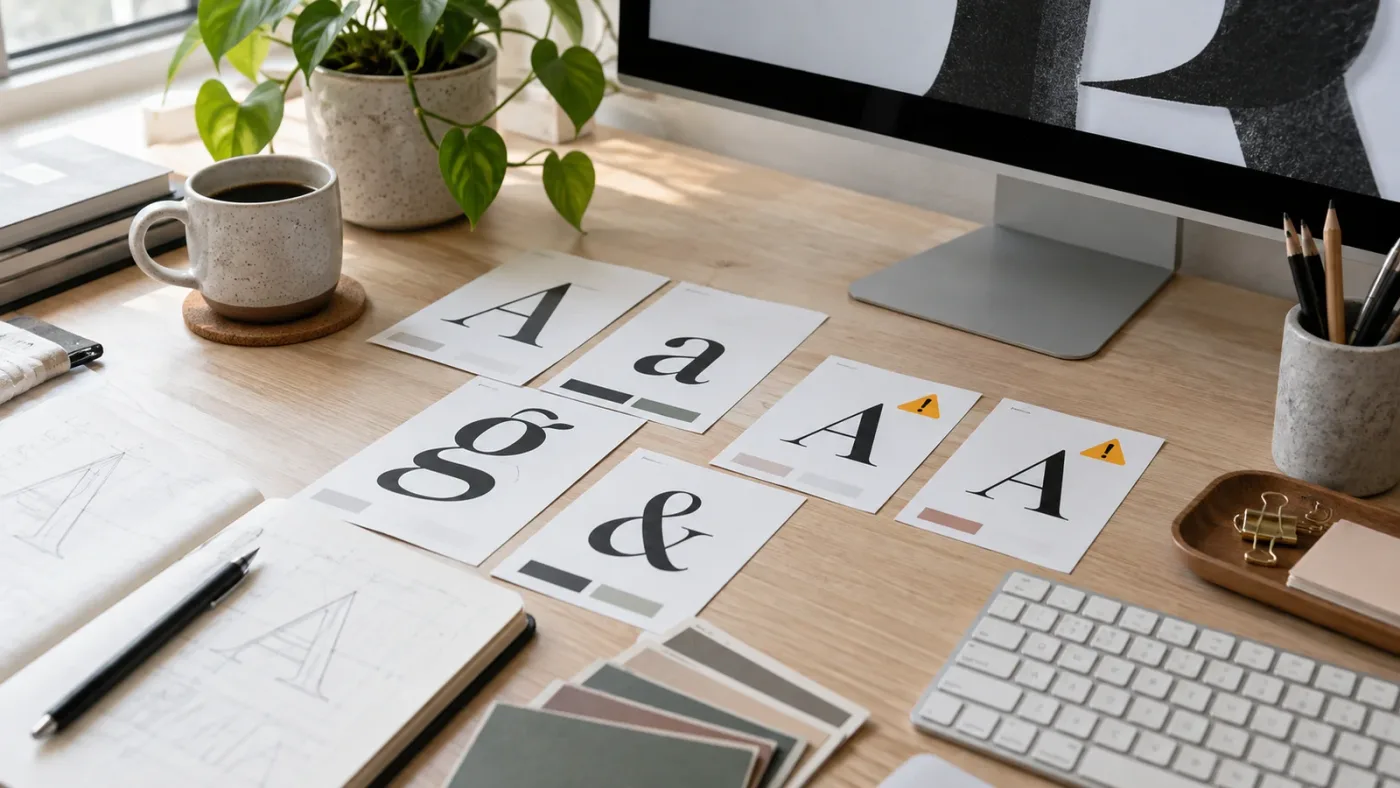
How do I install Artlist template fonts on Windows?
On Windows, extract the font files, right-click the .ttf or .otf file, and choose Install or Install for all users, then relaunch DaVinci Resolve. Microsoft documents this workflow for Windows 10 and Windows 11 and advises extracting a compressed ZIP before installing the font file.
Use this sequence:
- Extract the Artlist template ZIP and the downloaded font ZIP.
- Select the font file, not the compressed archive.
- Right-click the file.
- Choose Install for a single-user setup, or Install for all users when the workstation requires it and you have permission.
- Open Settings > Personalization > Fonts.
- Search for the family name and inspect the available faces.
- Close and reopen DaVinci Resolve.
Microsoft says Windows 10 and Windows 11 expose installed fonts under Settings > Personalization > Fonts. It also notes that not every application supports custom fonts, which is why seeing a family in Windows does not by itself prove that a particular Resolve node will use it. Check Microsoft's current font-management instructions.
If you are working in a shared studio or client environment, Install for all users can make the dependency easier to reproduce, but it requires the appropriate permission. If you do not have that permission, install for the current user and document the setup. The important part is consistency between the machine that builds the title and the machine that opens or renders it.
Do not install every file in an unfamiliar font bundle without reading the Artlist Font Info document. The package may contain multiple weights, but the project may need only some of them. Install the files the template identifies, keep the license information supplied by the font publisher, and do not redistribute a font file with the finished video unless its terms allow that.
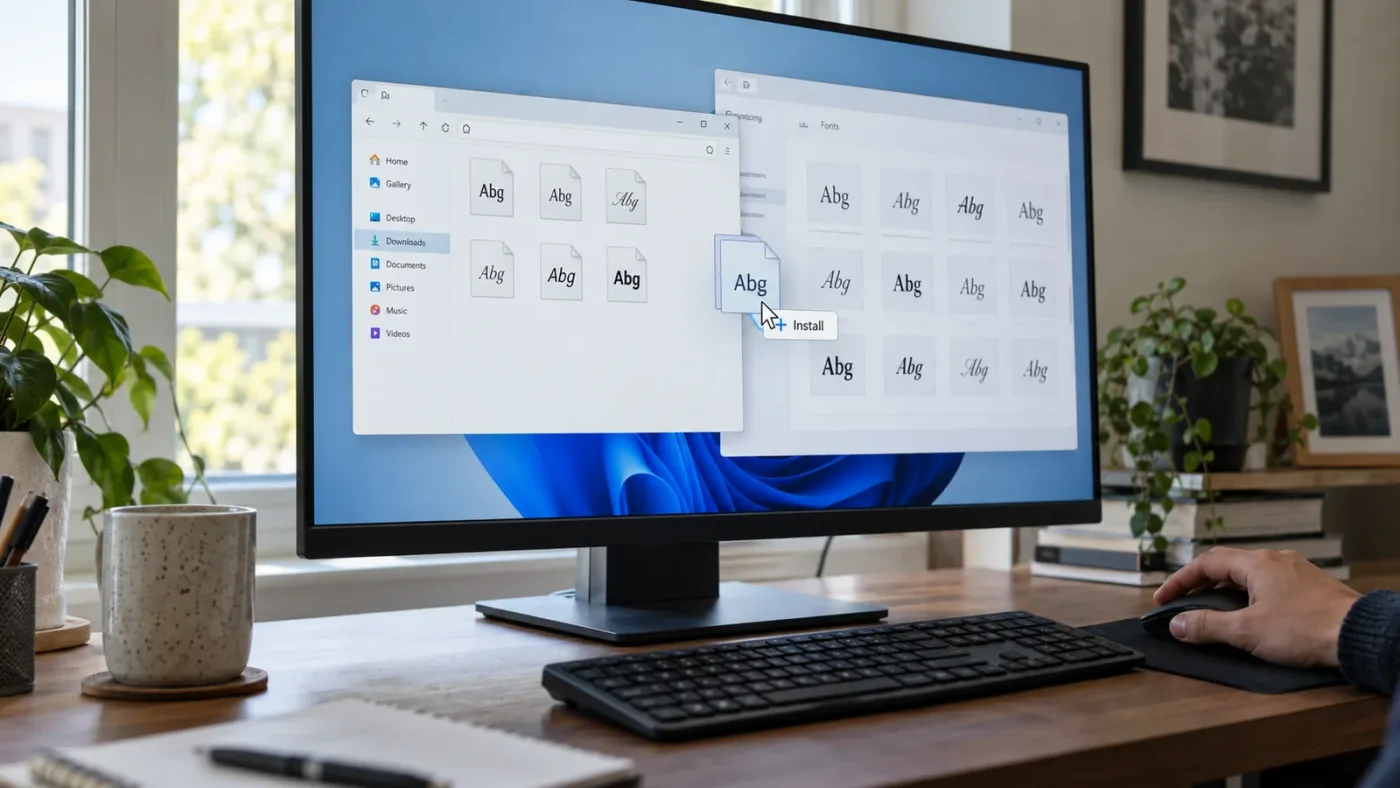
Why is the font installed but still missing in DaVinci Resolve 21?
If a font is installed but missing in DaVinci Resolve 21, close Resolve completely, confirm that the font is active in the operating system, check for duplicates or corrupt files, and reopen the project after relaunching the application. If the font appears in Resolve's Font Browser but not in the template, inspect the template's actual Text or Text+ node.
Use this diagnostic fork instead of repeating the installation.
Does the font appear in the operating system?
If no, the installation did not complete, the file is corrupt, the font is inactive, or you installed a different family from the one named in the package. On Mac, use Font Book's validation controls. On Windows, use Settings > Personalization > Fonts and search for the family. Apple and Microsoft document both management paths. Apple's validation steps and Microsoft's Windows font steps are the right references for this branch.
Does the font appear in Resolve's Font Browser?
If no, relaunch Resolve after fixing the operating-system installation. If yes, select the family and face in the affected title. Resolve 21's Font Browser is a search and selection tool for installed fonts, not a repair command for a project that points to a different internal name. Blackmagic's Resolve 21 guide describes the browser's search and selection behavior.
Does the font appear in the node but render incorrectly?
If yes, the problem may be layout rather than availability. Compare the text's font face, size, line spacing, tracking, alignment, and shading with the template's intended values. In Fusion, inspect the text node and its connection to the downstream merge or output. If a temporary substitute makes the title appear, that only proves the text path can render. It does not prove that the original dependency has been restored.
Does the whole template fail, not just its text?
If the full composition is black, slow, or offline, stop treating it as a font-only error. Artlist's troubleshooting guidance separates missing fonts from missing media, version incompatibility, Studio requirements, and performance issues. Use the tracked Artlist troubleshooting reference, then test the project in a clean copy before changing the original.
A substitute font can make a template render, but it cannot preserve the original text metrics automatically.
How do I restore an Artlist .dra project before fixing the font?
Restore the Artlist .dra archive from DaVinci Resolve's Project Manager before editing the template. Artlist's current instructions say to open Resolve, right-click an empty area in Project Manager, choose Restore Project Archive, select the downloaded .dra, and open the imported project.
The safe restoration sequence is:
- Extract the complete Artlist download to a local folder.
- Keep the Help and Fonts folders beside the DaVinci Resolve project folder.
- Open DaVinci Resolve and wait for Project Manager.
- Right-click an empty area in Project Manager.
- Choose Restore Project Archive.
- Select the
.drafolder or archive supplied with the template. - Open the restored project from Project Manager.
- Check the Media Pool and text timelines before making a copy for customization.
A .dra archive is a project restoration job, not a drag-and-drop title preset.
The distinction matters because a project archive can contain several referenced timelines, placeholder media, Fusion compositions, and project settings. Artlist's customization instructions describe text timelines, placeholder sequences, and a main render timeline that references those parts. When you change a text timeline, the result can flow into the final composition because the main timeline references it. Read the tracked Artlist customization guidance.
Restore first, diagnose second, customize third. If you edit an extracted file directly or open the project from an incomplete folder, you can create a media-path problem that looks like a font problem. When a red Media Offline badge appears, relink the media from the Edit page rather than reinstalling fonts.
Before you make design changes, create a duplicate project or save a copy with a clear name. The copy gives you a rollback point if a substitute font changes every title in the template. This is a workflow safeguard, not a claim that Resolve automatically preserves a pristine original.
How do I replace a custom font without breaking the Artlist layout?
Replace a custom font in the actual text control, then repair the layout in a deliberate pass. For an Edit-page Text+ or Fusion Title, select the text element and change the font in the Inspector when the template exposes that control; for a deeper Fusion composition, open the composition and change the relevant Text or Text+ node.
Use this replacement checklist:
- Duplicate the restored project or timeline.
- Identify every text element that uses the missing family.
- Pick a substitute with a similar width, weight, x-height, and overall shape.
- Change the font in the correct Text, Text+, or Fusion node.
- Check the text at the longest expected line, not only the sample phrase.
- Repair line breaks, size, tracking, line spacing, and alignment.
- Check the animation's start and end frames for cropping or overshoot.
- Recheck masks, glows, outlines, and shadows that depend on the text shape.
- Review the title over light and dark footage.
- Render a short proof of every variation before delivery.
Artlist's customization instructions identify font, size, color, and positioning as editable text properties in its Resolve templates. Blackmagic's Resolve documentation describes Text+ and Fusion title workflows as text-based controls that can be adjusted from the Inspector or Fusion tools. Blackmagic's Edit page overview explains the title controls, while Artlist's tracked customization guide describes its template-specific controls.
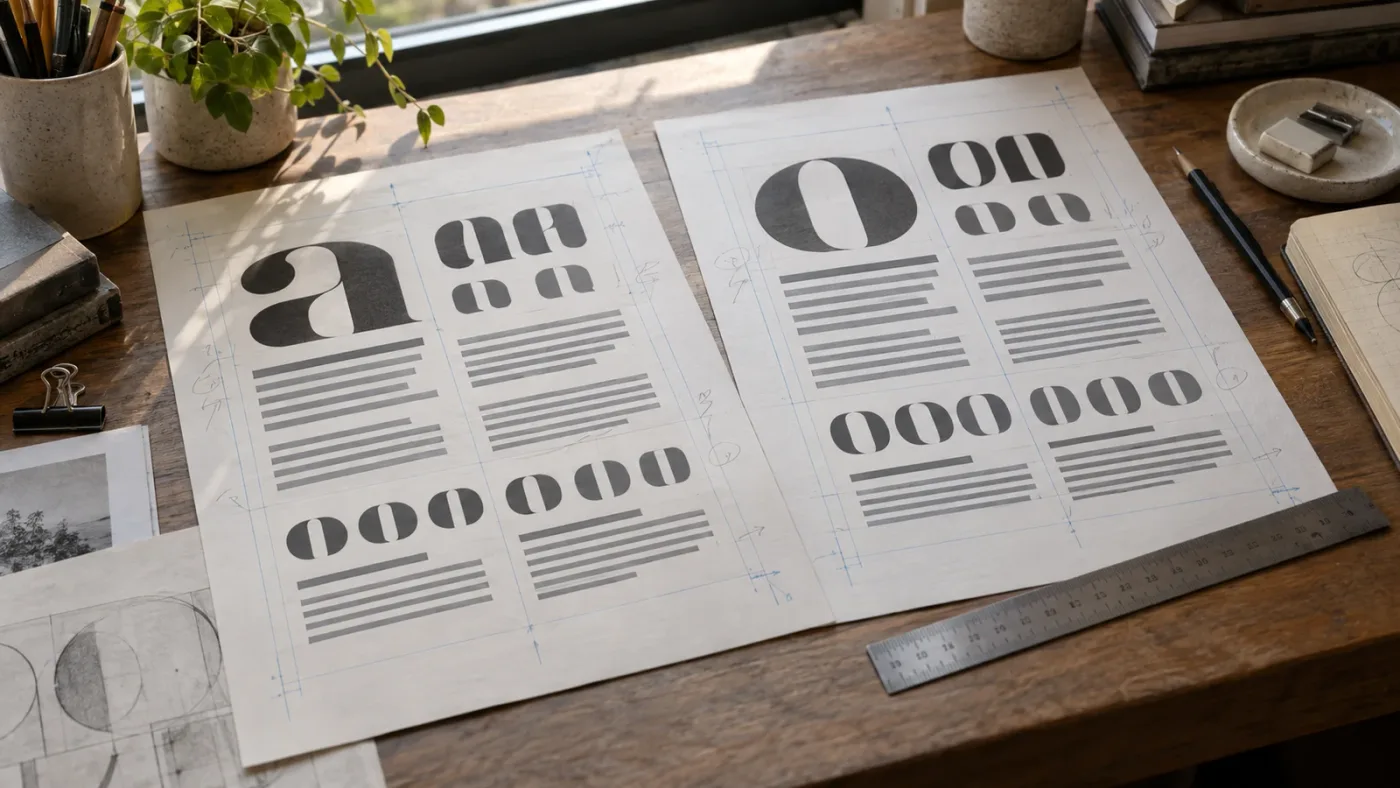
Do not choose a substitute only because it looks similar in the Font Browser. A condensed display face may hold the original headline on one line, while a wider substitute may force a wrap. A different cap height may make a lower third sit too high. A different weight can alter outline thickness and shadow spread. These are layout consequences of the font metrics, so check them as design changes.
If you can obtain the intended font from the link in the package, that is normally the better technical choice. If you cannot, a substitute is reasonable when the title is not a strict brand lockup and you have time to proof every instance. If the title is a client logo, a legal notice, or a carefully approved brand element, ask for the approved typeface or replace the editable title with an approved graphic supplied by the client.
Why is my Artlist template black, broken, or slow?
A black or broken Artlist template can come from more than a missing font. Check version and Studio requirements, restore the project completely, relink missing media, inspect Fusion node connections, and lower preview load only after you have confirmed that the composition is structurally intact.
Use the symptom to choose the branch:
| Symptom | Check next | Reason |
|---|---|---|
| Project will not open | Resolve version, template page requirements, and whether the template requires Studio | Artlist says templates can be version-specific and some can require Studio |
| Media shows Offline | Extracted folder structure and original media paths | An incomplete extraction or moved placeholder can break the reference |
| Viewer is black after fonts are installed | Test another font, then open the composition in Fusion | Artlist identifies missing or unsupported fonts as one possible cause, but node connections can also fail |
| Playback is sluggish | Preview resolution and Render Cache after the template is working | Animated templates can be demanding even when their dependencies are correct |
| Only one title is wrong | The individual text node and face selection | A single missing face does not prove the whole project is broken |
Artlist's troubleshooting material recommends checking the Resolve version shown under Help > About DaVinci Resolve, comparing it with the template requirements, and avoiding Studio templates in the Free edition. It also describes preview-resolution reduction and Smart Render Cache as performance steps. The tracked troubleshooting guide covers these branches.
DaVinci Resolve 21 is not identical to Resolve 18, 19, or 20. Blackmagic's current What's New page identifies Resolve 21 and points readers to 21.1, while the Resolve 21 New Features Guide documents the newer Font Browser and Text+ changes. That makes 21 a useful target for this guide, but it does not make an older template automatically compatible with every Resolve build. Check Blackmagic's current Resolve 21 feature page.
If you see disconnected nodes, open the affected clip in Fusion and inspect the flow from the text node toward the merge and output. Reconnect only when you understand the intended composition. A random connection can make the preview change while breaking another branch of the graphic.
If the composition works but playback is slow, first reduce viewer load or cache the heavy region. Do not use slow playback as evidence that the font is wrong. Font substitution and graphics performance are separate decisions, even though a complex title can expose both problems at once.
Should I use the original font or a substitute?
Use the original font when the template's Font Info document points to a trustworthy source and the font is permitted for your workflow. Use a substitute when the original is unavailable or unsuitable, but treat the substitution as a redesign that needs proofing.
| Decision | Choose the original font when | Choose a substitute when |
|---|---|---|
| Brand title | The title must match an approved identity | The client has approved a replacement |
| Fast social draft | The original installs cleanly | The draft only needs a temporary layout and will be rebuilt later |
| Multi-editor handoff | Every workstation can install the same dependency | The team has standardized on a permitted house font |
| Client delivery | The font's use is permitted and the project can be documented | The license or availability is unclear and the client approves a replacement |
| Long-term template reuse | The source and version can be recorded | The original dependency is unstable or unavailable |
The Artlist download is an asset package, not a promise that every font license is transferable with the project. Keep the font publisher's terms with your production records. If the template is going to a client, send the completed video or project according to the relevant license and do not assume that an installed font file can be handed over for independent reuse.
Artlist's license guidance says stock assets, including templates, must be used in projects completed and published while the subscription is active to retain coverage after cancellation. It also says assets cannot be used in new projects after the subscription expires. That is separate from the font's own terms and separate from whether the .dra opens. Review the tracked Artlist license information before publishing.
There is a reason to make this check before delivery. You can solve a missing-font error perfectly and still have the wrong license for a client, brand, or paid distribution project. In our experience teaching more than 100,000 students on Udemy as an official Udemy Business Partner, the cleanest handoff is a small dependency note: template name, Resolve version, required font families and faces, substitute decisions, media locations, and license records.
What does the wider DaVinci Resolve learning consensus get right here?
The best way to learn DaVinci Resolve template troubleshooting is to combine Blackmagic's official documentation with a repeatable project checklist and focused community advice. A course or video can show where a control lives, but the project itself tells you whether the dependency is installed, the node is connected, and the layout still holds.
Blackmagic's official training is the right reference for the application's concepts and page structure. Artlist's own help material is the right reference for its package layout and template-specific requirements. Community discussions can help you recognize odd failure modes, but verify a forum workaround against the current Resolve build before using it on a client project.
That division keeps the troubleshooting honest:
| Resource | Best use | Limitation |
|---|---|---|
| Blackmagic Resolve 21 guide | Confirm current Font Browser, Text+, Fusion, and version behavior | It does not know the private structure of a particular Artlist project |
| Artlist template instructions | Find Fonts, Help, Project folders and template requirements | They cannot guarantee every third-party font installation or every Resolve build |
| Editor community | Compare symptoms and discover edge cases | Advice can be version-specific or incomplete |
| A course or tutorial | Learn the general editing and Fusion concepts | Watching does not install your dependencies or proof your client timeline |
| Your restored project copy | Verify the actual title, node, media, and render | It takes a few minutes to test every variation |
One useful expert perspective comes from Simon Hall of Blackmagic Design EMEA, who told TechRadar: “The way people create has changed. They are shooting campaigns, social content, interviews, short films, events and photography from the same production.” Read the full interview with Simon Hall.
The quote is about broader production workflows, but it explains why dependency discipline matters. The same editor may open a template on a home Mac, a Windows workstation, and a client machine in the same week. A font checklist is less glamorous than a tutorial, but it travels better.
A font checklist travels across workstations better than a visual guess.
For the literal buyer questions, the answer is not “find the best way to learn DaVinci Resolve fast” in the abstract. It is to learn enough of the Edit and Fusion pages to locate the text node, then use the current template instructions and the operating system's font tools. If you want to learn the surrounding workflow, our Artlist DaVinci Resolve templates free-version guide covers the separate Free-versus-Studio decision. For project reuse, see how to choose a DaVinci Resolve template for a video series.
What should I check before I deliver a project using the template?
Before delivery, render a proof from the actual restored project, inspect every text variation, and record the dependency and license decisions. A template is ready when the correct font or approved substitute survives the intended copy, frame size, animation, and delivery path.
Run this final pass:
- Confirm the DaVinci Resolve version used for the final render.
- Confirm the template page and package requirements, including any Studio requirement.
- Confirm all required font families and faces are installed on the render machine.
- Open the Font Browser or font controls and verify the intended face.
- Search every text timeline and Fusion composition for old substituted fonts.
- Paste the longest approved copy into each text field.
- Check line breaks, tracking, alignment, safe margins, outlines, shadows, and masks.
- Check the first, middle, and final frames of each animation.
- Relink any offline placeholder media and confirm the project opens from the intended handoff folder.
- Render a short proof and watch it at normal playback speed.
- Check the final title over the lightest and darkest background it will use.
- Save the project copy, dependency note, font names, and asset-license records.
The final proof should include the title with the longest real copy, not just the sample text shipped in the template. That is where a substitute font's width and line height usually reveal themselves. It is also where a title that looked fine in the Inspector can collide with a logo, crop at the edge of a frame, or move outside the intended safe area.
If a client needs to edit the title later, tell them which font is required and whether they have permission to install it. If they only need the finished video, deliver the rendered file and keep the editable project and dependency note under the agreed production terms. Do not solve a handoff problem by silently flattening a title that the client expected to customize.
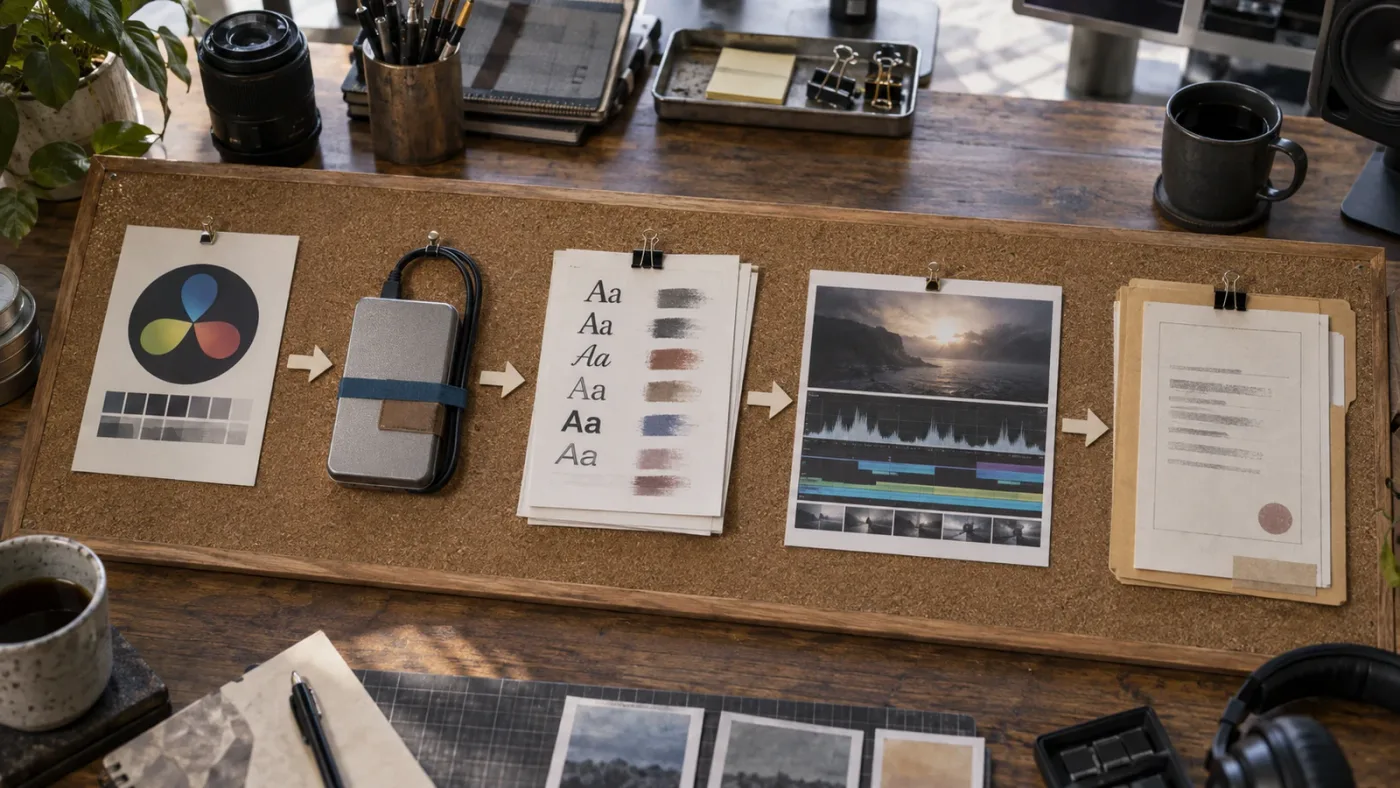
For recurring work, make a one-page template intake record with these fields:
| Field | Example entry |
|---|---|
| Template | Artlist title or transition name |
| Resolve build | 21.1, plus the operating system |
| Project format | .dra archive restored through Project Manager |
| Font families | Exact names from the package document |
| Font faces | Regular, Medium, Bold, Italic, or the supplied variants |
| Substitutions | None, or approved replacement and reason |
| Media | Placeholder and linked-folder locations |
| License | Asset certificate, plan record, and publication date |
| Proof | Short render reviewed before delivery |
This record is especially useful when you hand a project from an editor to a colorist, motion designer, producer, or client. It turns “the font looks wrong” into a specific question: which machine, which face, which node, which project version, and which copy?
Which next step solves my exact Artlist font problem?
If Resolve cannot see the font, fix the operating-system installation and relaunch Resolve. If Resolve can see the font but the title is wrong, fix the actual Text+ or Fusion node and repair the metrics. If the entire template is broken, stop changing fonts and check the .dra restoration, version, Studio requirement, media paths, and Fusion connections.
The clean verdict is simple:
Install the supplied font first, substitute only with a proofed design decision, and verify the license before delivery.
If Artlist is the right asset source for your workflow, its tracked template-library link is the decision point to review the current template requirements and available plan coverage. If it is not, the same dependency workflow still applies to a .dra project from another source.
Do the font check before the creative work. You will save the most time there.
Frequently asked questions
- How do I install Artlist template fonts for DaVinci Resolve?
- Unzip the Artlist template, open its Fonts folder, follow the included font links, install the downloaded .ttf or .otf files in macOS Font Book or Windows, then restart DaVinci Resolve before opening the project.
- Why is my Artlist template showing the wrong font in DaVinci Resolve 21?
- The required font is usually missing, inactive, duplicated, or installed under a different family or face name. Check the template's Font Info document, search for the family in Resolve 21's Font Browser, and reopen Resolve after correcting the operating-system font.
- Can I use a substitute font in an Artlist DaVinci Resolve template?
- Yes, but a substitute changes text metrics. Replace the font in the relevant Text+ or Fusion node, then check line breaks, tracking, alignment, animation bounds, and safe margins instead of assuming the original layout will survive.
- Do Artlist DaVinci Resolve templates work in the free version?
- Some do and some require DaVinci Resolve Studio. Check the individual Artlist template page and the package instructions before downloading; Artlist's general Resolve baseline is version 18 or newer, not a guarantee that every template works in Resolve Free.
- Why is an Artlist template black after I install the font?
- A black result can still come from a disconnected Fusion node, missing media, version incompatibility, or a font that Resolve has not reloaded. Restart Resolve, test the affected text with another installed font, inspect the Fusion composition, and relink any offline media.
Sources
- Blackmagic Design, DaVinci Resolve What's New
- Blackmagic Design, DaVinci Resolve 21 New Features Guide
- Artlist, DaVinci Resolve template setup and font troubleshooting
- Apple Support, Install and validate fonts in Font Book on Mac
- Microsoft Support, Manage Fonts in Windows
- TechRadar, interview with Simon Hall of Blackmagic Design EMEA
- Blackmagic Design, Fusion Reference Manual
Keep reading
Guides · Aug 27, 2026 · 8 min
Artlist DaVinci Resolve Templates Free Version Guide
Can Artlist DaVinci Resolve templates work in the free version? Check Resolve 21 compatibility, Studio requirements, .dra installs, and fixes.
Reviews · Sep 1, 2026 · 8 min
Artlist Review for DaVinci Resolve Editors (2026)
An honest Artlist review for DaVinci Resolve editors covering music, SFX, footage, templates, Resolve 21 compatibility, licensing, and alternatives.
Guides · Sep 14, 2026 · 38 min
How to Choose a DaVinci Resolve Template for a Video Series
Learn how to choose a DaVinci Resolve template for a video series by checking repeatable segments, controls, compatibility, licensing, and testing.