Articles / Guidesupdated for DaVinci Resolve 21.1 (September 2026)
How to Choose a DaVinci Resolve Template for a Video Series
Quick answer
To choose a DaVinci Resolve template for a video series, match the template to your repeating segments, installed Resolve version, Free or Studio edition, media and font needs, control quality, and license. Test it in a duplicate project with a real episode before committing, then save a clean master for every episode.

I’ve watched editors lose a whole afternoon to a template that looked perfect in the preview and failed on the first real episode. The problem usually isn’t the animation. It’s the mismatch between the package and the series.
We run a 100,000+ member professional video-editing community, and we’ve spent 7+ years on commercial video work. The question that keeps coming up is practical: what will still be easy to change on episode 12?
As of September 2026, DaVinci Resolve 21.1 is the version context for this guide. Blackmagic’s support center lists the final Resolve 21 release for June 3, 2026, and its current Resolve page points readers to 21.1 material. Check your installed build in Help > About DaVinci Resolve before you download anything. (Blackmagic Design support)
Blackmagic Design CEO Grant Petty described the new version in the launch announcement: “The new Photo page in DaVinci Resolve 21 brings Hollywood’s most advanced color tools to still photography for the first time.” (Newsshooter, quoting the Resolve 21 announcement)
What should a DaVinci Resolve template do for a video series?
A DaVinci Resolve template for a video series should preserve the decisions that repeat while leaving the episode-specific work easy to change. It should give you a reliable starting structure, visible controls, known media and font requirements, and a path back to a clean master.
That definition rules out a lot of attractive downloads. A ten-second logo reveal can be a useful asset, but it isn’t a series template by itself. A full .drp project can be a good series template, but it can also bring in the wrong timeline settings, hidden media links, and a pile of assets you don’t need.
Think in layers. A series may need one or more of these:
| Layer | What repeats | Typical Resolve form | Best question to ask |
|---|---|---|---|
| Project | Bins, timelines, track layout, labels, delivery habits | Project copy, .drp, or project archive | Does every episode start with the same skeleton? |
| Episode timeline | Intro, body sections, sponsor slot, outro, end card | Timeline inside a project | Do the segments repeat, even when durations change? |
| Motion graphic | Title, lower third, callout, chapter card | Fusion title, generator, effect, or macro | Which controls must the editor change without rebuilding nodes? |
| Media placeholder | Host shot, product shot, screen capture, B-roll | Fusion composition, timeline clip, or placeholder workflow | Can a different aspect ratio or duration replace the source cleanly? |
| Look and sound | Fonts, colors, grades, music beds, buses | Project settings, Power Bins, PowerGrades, presets, or tracks | Does the series need a consistent identity across editors? |
The right purchase may be one package. It may also be a small system built from several simple pieces. When the only repeating element is a lower third, buying a full cinematic opener adds complexity. When every episode follows the same five-part structure, a single title macro won’t solve the real problem.
A series template is valuable only when it preserves repeatable decisions without hiding the controls you need to change.
The word “template” is also loose in the marketplace. One seller may use it for a .drfx bundle. Another may mean a .dra project archive. Another may call a Fusion composition a template even though you still have to build the surrounding timeline. Treat the word as a label, not a technical specification.
Your first task is to describe the job in plain language. “I need a cool YouTube template” is too vague. “I need a 16:9 weekly interview structure with a 12-second opener, one speaker lower third, two chapter cards, a sponsor placeholder, a music bed, and a 9:16 cutdown” is specific enough to shop for.
How do I define the repeating parts before I buy a template?
Start with a repeatability map, not a template marketplace. A repeatability map names what stays fixed, what changes every episode, and what may change only once per season.
Make three columns in a note or spreadsheet:
| Keep fixed | Change every episode | Change occasionally |
|---|---|---|
| Intro timing and logo position | Episode title | Sponsor copy |
| Font family and brand colors | Guest name | Season number |
| Audio track order | Guest portrait | Legal card |
| Chapter-card animation | Chapter text | Series-wide rebrand |
| Master frame rate | Main footage | Distribution format |
Then add a fourth column called “owner.” This sounds administrative, but it exposes a major template failure. If the producer changes the sponsor card, the editor changes the guest title, and a client changes the logo, you need separate controls or a documented handoff. A template that technically supports all three changes may still be a poor choice if they live in one confusing node tree.
Measure the series before you shop
You don’t need an exact production forecast. You do need a representative episode. Choose one that includes the longest name, the most crowded title, the widest range of footage, the most complicated sponsor placement, and the hardest delivery format.
If every guest has a short name except one, use the long name for the test. If most episodes are clean 16:9 interviews but one episode includes a vertical phone recording, test that one. If the opener works only when the logo is a particular size, learn that before you commit.
Write down these details:
- Master resolution and frame rate.
- Common source resolutions and orientations.
- Longest title and name you expect to display.
- Number of recurring graphic moments.
- Whether editors need to replace media without opening Fusion.
- Whether the series has one editor or several.
- Whether the same package will be used by a client.
- Where the finished episodes will be published.
- Whether you need horizontal, vertical, square, or multiple versions.
- Which part must remain editable six months from now.
These answers change the buying decision. A series built from talking-head interviews wants clear text fields, dependable title duration, readable safe areas, and easy media replacement. A tutorial series may need screen-recording windows, callout arrows, chapter cards, and a repeatable zoom treatment. A documentary series may need fewer animated graphics and stronger bins, markers, stills, and audio organization.
Separate the brand system from the decoration
Your brand system is the small set of choices that should survive a redesign: type hierarchy, contrast, spacing, logo treatment, voice, and the relationship between information and motion. Decoration is the flourish that may look dated or distracting after a few episodes.
This distinction helps when a template is visually impressive but too opinionated. A title that arrives with six layers of glow, blur, and chromatic separation may be hard to adapt to a restrained series. A simpler title with editable font, color, size, tracking, background, and animation timing may have a longer useful life.
Ask whether the template helps viewers recognize the series or merely announces that a template was used. Repetition is not a flaw in a series. Consistency is the point. The mistake is repeating visual noise.
Which DaVinci Resolve template type fits each recurring segment?
Choose the smallest Resolve template type that solves the repeated task. A full project is for repeated production structure, while a Fusion title or generator is for a repeated visual element.
Full project template
A full project template is a starting project with bins, timelines, tracks, labels, and sample graphics. It fits when episode setup repeats, but hidden offline media, stale timelines, cached renders, and old Fusion compositions make a reset ritual essential. Open a duplicate, inspect it, and render a proof before production.
Timeline template
A timeline template preserves episode rhythm without forcing every project setting to travel with it. Choose it when the show has the same broad order but changing durations. It should guide the edit, not force repeated ripple deletes, unlocked tracks, and link repairs.
Fusion title or generator template
A Fusion title or generator template is a reusable motion graphic that appears in the Edit page Effects Library. Blackmagic’s Fusion documentation describes macros as a way to choose which parameters appear as editable controls in the Edit page Inspector. That is the feature that matters for a series. (Fusion Reference Manual)
Use this type for guest names, chapter cards, data labels, callouts, end cards, animated backgrounds, and captions. It is the best fit when editors should replace text and color without understanding nodes, and a weaker fit when the graphic needs many inputs or complicated duration logic.
Fusion effect or transition template
An effect template modifies a clip. A transition template connects one clip to another. Both can be useful in a series, but neither should be mistaken for the episode structure.
Use a transition pack only when its transitions support the editorial rhythm. An educational show may need one restrained push, one dissolve, and one wipe, not forty variations. Use an effect template for a repeated blur, screen treatment, or picture-in-picture frame, then test changed source duration and resolution.
Fusion composition or referenced composition
A Fusion composition bundles several layers, inputs, or node relationships into one reusable unit. It keeps the Edit page tidy but can hide the source of a problem, so label inputs “Host,” “Screen,” “Product,” and “Background” and document whether editors should use the Inspector, Fusion, or Media Pool.
LUT, PowerGrade, and preset layers
LUTs, PowerGrades, audio starting points, and delivery presets can complete the series system. Keep them separate from motion graphics where possible so a grade, music bed, or logo can change without disturbing the others.
The best starting design for many series is a combination:
- A clean project with the bin and track structure.
- A few Fusion titles or generators for recurring graphics.
- A small number of transitions or effects.
- Shared brand media in Power Bins.
- Documented color, audio, and delivery choices.
That is less exciting to preview than a giant all-in-one package. It is usually easier to maintain.
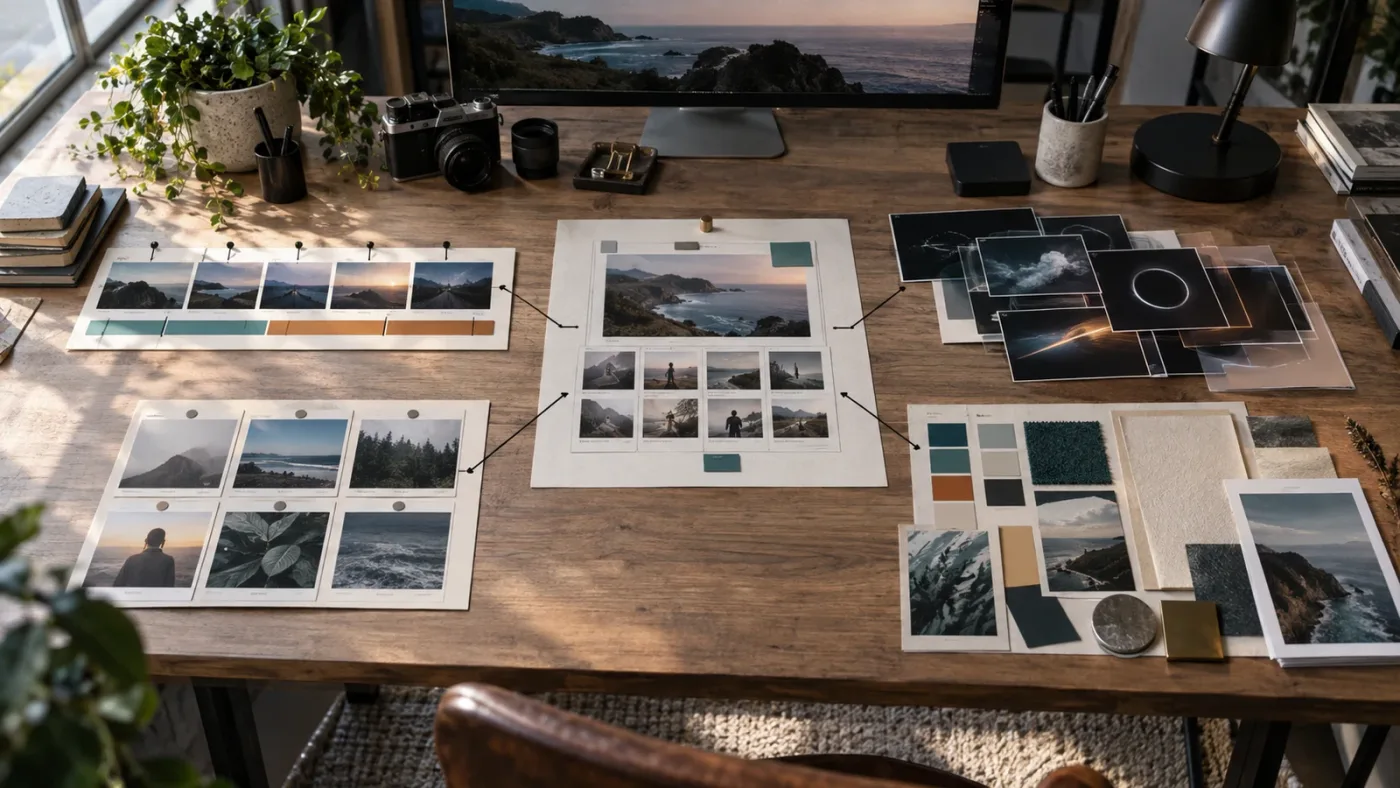
How do I check DaVinci Resolve 21.1 compatibility before downloading?
Check compatibility at the package level, not just the marketplace category. A listing that says “DaVinci Resolve” does not tell you whether it works with your exact 21.1 build, edition, operating system, frame size, fonts, or hardware.
DaVinci Resolve 21 changed several areas relevant to graphics. Blackmagic lists improved graphic format support in the Edit and Cut pages, including native support for OGraf HTML graphics and Lottie animations, while Fusion includes new Krokodove graphics and an updated macro editor. Those features are useful, but they do not make older third-party templates automatically compatible. (What’s New in DaVinci Resolve 21)
Build a compatibility card
Before downloading, record the package’s answers in a small card:
| Check | Your value | Package value | Decision |
|---|---|---|---|
| Resolve version | 21.1.x | Required version from listing | Pass, update, or reject |
| Edition | Free or Studio | Free, Studio, or unclear | Reject unclear packages for a production series |
| Operating system | macOS, Windows, or Linux | Supported systems | Confirm with the seller |
| Master format | For example, 3840 x 2160 | Preview and documentation | Test scaling and safe areas |
| Frame rate | Your project rate | Package assumptions | Check animation timing |
| Template form | .drfx, .setting, .comp, .drp, or .dra | Download contents | Follow the correct install path |
| Fonts | Installed fonts | Required fonts | Install or replace before production |
| Media | Your source formats | Included media and placeholders | Test replacement and relinking |
| Hardware | Your editor’s system | Complexity of node tree | Proof playback and render behavior |
Do not treat “Resolve 21 compatible” as a guarantee that every control will work exactly as shown in the preview. It may only mean the seller opened the package in one build. A package can open and still fail when you replace media, extend a placeholder, use a long name, change the timeline size, or render with the Free edition.
Version compatibility is a workflow question
The useful question is not “does it open?” The useful question is “does it open, customize, and render through the next five changes I need to make?”
Check these changes in order:
- Replace every placeholder with your own representative media.
- Change every text field to the longest realistic value.
- Change the font, color, and logo treatment.
- Trim the template shorter and extend it longer.
- Change the timeline resolution or create the required alternate format.
- Move the project to the machine that will actually edit the series.
- Render a short section with the final delivery codec.
If the package fails at step three, it is not a good series choice even if the preview was beautiful. If it fails at step six because the fonts were never documented, the package has an operational problem, not just an installation problem.
Do version checks again after updates
DaVinci Resolve 21.1 is the current version context for this article, but a point update can still affect third-party packages. Keep the original download, the seller’s documentation, and a clean project archive. When you update Resolve, open the test project first. Do not open the only master and save over it before checking.
Blackmagic’s support center is the source for current Resolve downloads and support notes. Use it to confirm the installed release and to read version-specific notices. (Blackmagic Design Support Center)
Why is my DaVinci Resolve template not showing up?
When a DaVinci Resolve template does not appear, start with the package type and installation method, then check the folder, restart, version, fonts, and media. The visual symptom often points to the real cause.
The package is still inside a ZIP file
Extract the download to a normal folder before you open or install it. A project archive or template bundle may contain a help folder, fonts, sample media, and the actual Resolve file. Opening from a compressed archive can leave paths unresolved or make it unclear which file you are supposed to use.
The folder may contain Help, Fonts, Media, a Resolve archive, and a README. Read the README before moving files.
The file belongs in the wrong place
Fusion templates are organized by type. Blackmagic’s Fusion manual documents template locations for macOS, Windows, and Linux and distinguishes categories such as Generators, Effects, Titles, and Transitions. The manual also explains that Resolve needs to be reopened before a newly saved macro appears in the Effects Library. (Fusion Reference Manual)
For a custom macro, use the category’s “Show Folder” command when available instead of guessing from a forum comment written for another operating system.
The package is a project archive, not an Effects Library item
A .dra file or folder is restored through the Project Manager, while .drp is also project-level. A .comp belongs to a Fusion workflow, and .setting may be a macro or saved Fusion setting. The extension is only the first clue, so inspect the package instructions.
Resolve needs a restart
After installing a macro or placing a .setting file into a template folder, quit and reopen Resolve. If the item still does not appear, check the exact category, file extension, folder spelling, and permission to read the directory.
The template appears but the graphic is blank
Blank or black text often points to a missing font or disconnected media input. Install only the fonts the package requires, restart Resolve, and replace media one input at a time. A brand-approved substitute may be safer than installing optional sample fonts.
The template is visible but playback is slow
Complex Fusion graphs, multiple blurred layers, particles, 3D elements, and high-resolution media can make a template difficult to edit in real time. Blackmagic’s Resolve 21 materials describe Fusion as a place for 2D and 3D graphics, and the official Fusion manual explains that a macro can contain as little as one node or as many as one hundred nodes depending on the effect. Node count alone does not predict speed, but complexity matters. (Fusion Reference Manual)
Use a lower preview resolution, render cache, or lighter proof timeline while designing. A smooth marketplace preview does not prove smooth playback with your media.
The template opens with Media Offline
Media Offline means Resolve cannot find a referenced media path. First extract the package, then inspect the Media Pool and relink only the missing clips. If the package is designed around placeholders, replace them with your own media rather than trying to preserve the seller’s sample paths.
Document which inputs are replaceable, where series media lives, and whether editors should copy assets into a project folder or link them from a shared volume.
A template that needs a clear install, media, and font procedure is not automatically bad, but an undocumented procedure is a production risk.
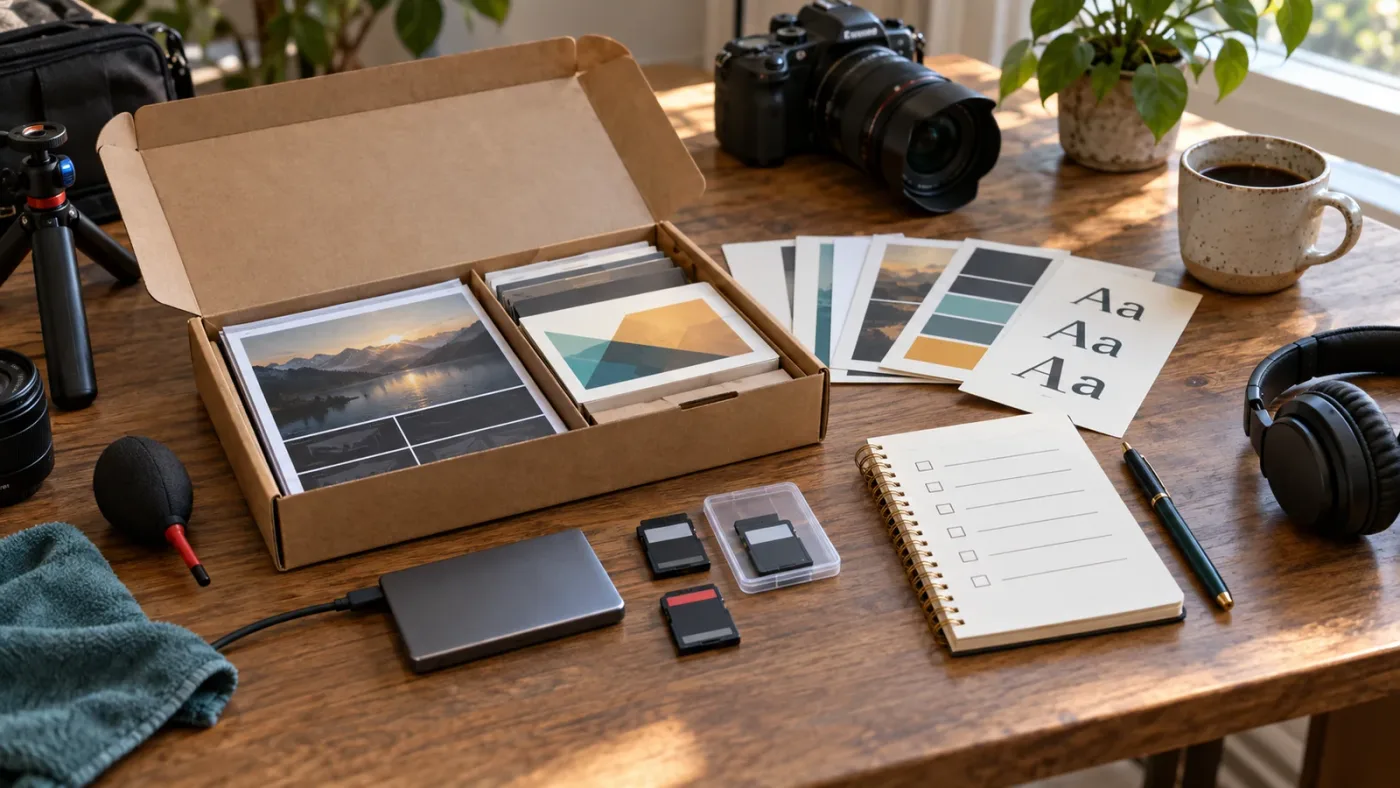
Does a template work in the free version or do I need Studio?
The correct answer depends on the individual package, not on the word “template.” Some Resolve templates use ordinary Edit page and Fusion controls that work in the Free edition. Others rely on Studio-only effects, tools, or features.
The template seller’s listing, README, and included project notes should state the requirement. If they do not, treat that silence as a reason to test before purchase. Do not build episode one around a package that you cannot verify in your actual edition.
Ask what “Free compatible” really means
A package can be Free compatible in one narrow sense and still fail your workflow. For example, the main title may open in Free while an optional glow, denoiser, tracking tool, or effect uses Studio. The template may also render a different result when a Studio effect is unavailable.
Ask these questions:
- Does the main composition open in Free?
- Are all required effects available in Free?
- Does the package include a Studio-only node or plugin?
- Does the seller show a Free edition test?
- Will the package render without a watermark or warning?
- Does the template require a specific GPU-heavy feature?
- Can you replace the restricted part with a built-in alternative?
If you use DaVinci Resolve Studio, the decision is simpler but not automatic. Studio gives you access to more tools, yet the template may still depend on a plugin, a font, a media path, or a version-specific behavior that Studio does not solve.
Make the edition a team decision
If one editor uses Free and another uses Studio, record that difference in the series documentation. A package that works on the lead editor’s machine may fail when an assistant opens it.
Use a small header in the project notes:
Resolve target: 21.1.x
Edition: Studio
Template package: Series opener v1.0
Required fonts: Brand Sans, Brand Serif
Required plugins: None
Tested formats: 3840 x 2160, 1920 x 1080, 1080 x 1920
Last proof render: 2026-09-14
This is not bureaucracy. It gives the next editor a chance to stop before opening the wrong version of the master.
How do I judge a template’s controls, placeholders, and editability?
Judge a template by the controls it exposes for your real changes, not by how many controls it advertises. The best control panel is short, named clearly, and complete enough that you rarely need to open Fusion.
The five control tests
Run these tests on every important graphic:
- Text test: Replace the sample text with a short value and the longest realistic value.
- Style test: Change font, size, color, tracking, background, and alignment if the series needs those choices.
- Timing test: Make the graphic shorter and longer. Check whether the entrance, hold, and exit still behave correctly.
- Media test: Replace each image or video input with media of a different crop, resolution, and duration.
- Layout test: Check both the master format and every alternate format you plan to publish.
The timing test is where many templates reveal their limits. A graphic may look great at its default length but become awkward when an editor extends it for a long name. An animation tied to a fixed timeline position may leave empty space or cut off the exit. A strong template either handles the change or explains the limit.
Prefer outcome-based control names
A control named “Text 1 Styled Text” may be technically accurate but hard to hand off. “Guest name” is easier to use. “Logo scale” is clearer than “Transform 3D scale.”
If the package is a .drfx or another packaged asset, you may not be able to rename every control. That is one reason a simple self-built Fusion macro can beat a polished marketplace template for a long-running show. You can expose the controls your team actually uses and hide the rest.
Count clicks, not features
Write down the normal edit sequence. For a guest title, it might be:
- Drag title onto the timeline.
- Type the guest name.
- Type the role.
- Replace the portrait.
- Change the in and out point.
- Check safe margins.
If the package requires opening Fusion, finding three nodes, changing a composition size, relinking media, and repairing a mask for every guest, it is not a good title template for that series. It may still be a useful source file for an editor who wants to modify the design once and publish a simpler macro.
Test the longest label before buying in
Use a realistic stress label, not “John Doe.” Try a name with multiple words, a role with a long department name, or a chapter title that fills the available width. Watch for clipping, tiny type, misaligned backgrounds, and animation that moves at an uncomfortable pace.
This is where a template’s design quality becomes operational quality. A good graphic has room for real language. A bad one assumes every episode has the same short label shown in the preview.
Watch for hidden dependencies
Ask whether the template needs:
- Custom fonts.
- Third-party plugins.
- Specific audio files.
- Sample footage.
- A particular frame size.
- A specific frame rate.
- A Studio-only tool.
- A particular folder structure.
- A project archive instead of a drag-and-drop item.
The more dependencies, the more you need a test project and a maintenance owner. Dependencies are not always wrong. They become wrong when nobody knows they exist.
How do I test a template with a real episode before committing?
Test the candidate in a duplicate project with representative media, the longest text, the real delivery format, and the actual editor workflow. A preview render is not enough.
Use this seven-stage proof:
1. Create a test project
Make a new project or duplicate a safe project. Give it a clear name such as Series_Template_Proof_2026-09. Do not install a package directly into the only master project.
If the package is a project archive, restore it into a clean project library. If it is a title, effect, or generator, install it according to the documentation and record where it appears.
2. Replace sample media immediately
The sample media is designed to make the template look good. Your footage may have different aspect ratios, color spaces, motion, brightness, or duration. Replace the sample assets before you spend time polishing the graphic.
Test at least one close-up, one wide shot, one screen capture, and one source that does not match the preview crop. If the template includes a portrait or product image, use one with a different orientation.
3. Use the longest realistic text
Enter the maximum name, title, role, and chapter text. Check the first frame, middle hold, and final frame. Render a few seconds around each change.
Do not solve clipping by shrinking every title until it fits. The right fix may be a different layout, a wider background, a two-line rule, or a package with better controls.
4. Change the timeline format
If the series needs a vertical cut, make the vertical proof now. Do not wait until the first social campaign. A horizontal composition may resize badly in 9:16. A logo may move out of the safe area. A lower third designed for 16:9 may cover a face in a vertical crop.
Resolve 21 includes wider graphic format support and native handling for some formats such as OGraf HTML and Lottie, but a third-party template still needs its own layout test. (Blackmagic Design, What’s New)
5. Change the duration
Trim the graphic shorter than the preview and extend it longer. Check whether the animation repeats, holds, stretches, or freezes. Each behavior can be correct in the right context.
For a title that should remain on screen over dialogue, a clean hold is useful. For a logo reveal, repeating the entrance when the clip is extended may look accidental. For a background loop, a seamless cycle may be the actual requirement.
6. Render a proof
Render the most complicated section with your normal delivery preset. Inspect the file outside Resolve as well as inside it. Check text, alpha, motion, audio, color, and frame edges.
You do not need to render the entire episode for every candidate. A short proof is enough to reveal most compatibility and editability failures. Keep the proof file beside the project notes so the team can see what was tested.
7. Ask another editor to repeat the change
If the series will involve more than one person, give the package and instructions to the person who will actually use it. Don’t explain the steps while they work. Watch where they hesitate.
Confusion is evidence. If the operator cannot tell which text field controls the guest name, the package needs better labels or a simpler design. If they need the original creator’s video for every change, the package has a training dependency.
The best template test uses the episode that is most likely to break the design, not the episode that makes the preview look best.
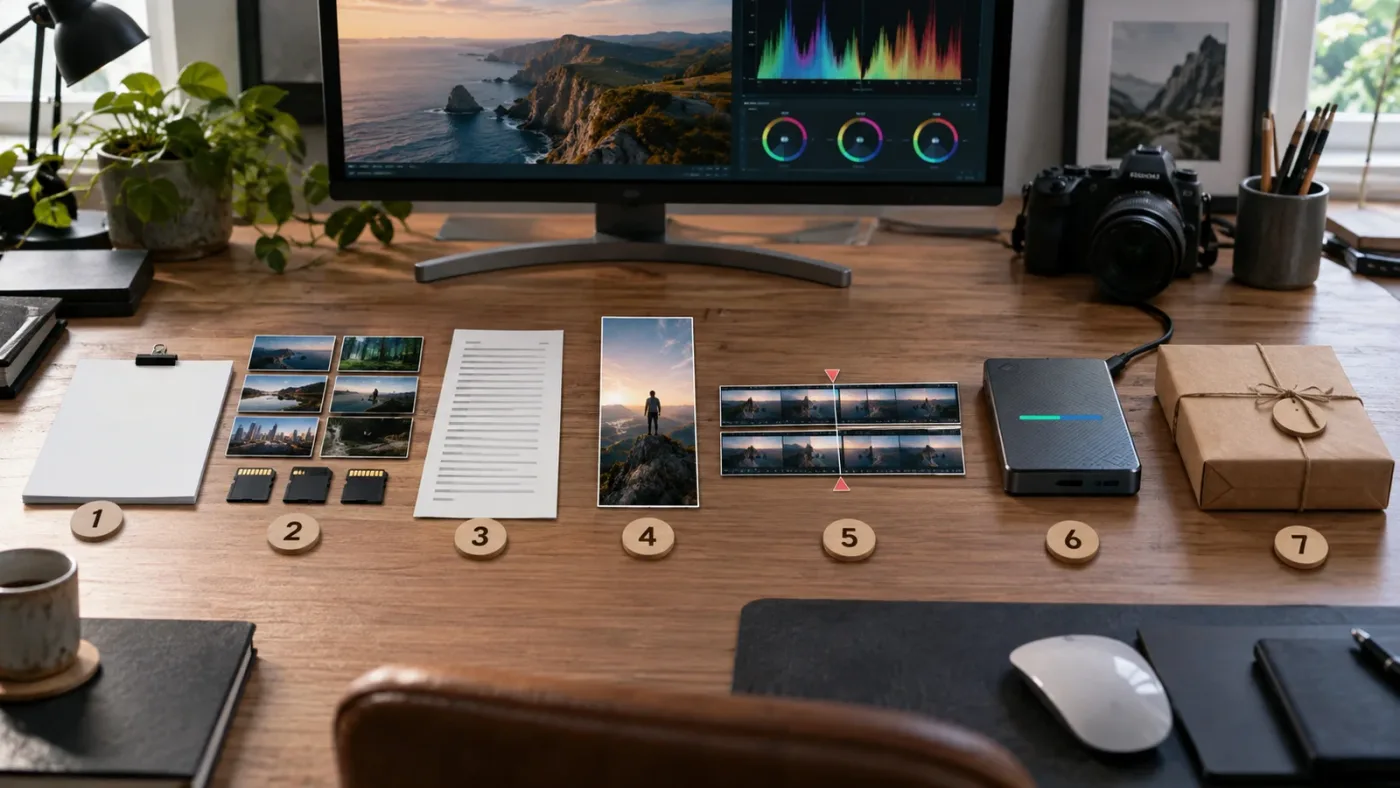
Which template source should I choose: Artlist, Envato Elements, Motion Array, or Fusion?
Choose the source according to your asset needs, license model, and maintenance tolerance. No marketplace wins every case, and a self-built Fusion template can be the best option when control and continuity matter more than catalog breadth.
| Source or approach | Choose it if | What to verify | Where it can lose |
|---|---|---|---|
| Artlist | You want to investigate Resolve templates within a broader production-asset subscription | Exact template compatibility, included files, license tier, and cancellation terms | The best plan for a wider asset library may not be the best value if you only need one title |
| Envato Elements | You want a broad creative marketplace and can manage a project-specific license workflow | Resolve format, version, included fonts, and one-project licensing | Reusing one downloaded item across separate projects requires another license for each end use |
| Motion Array | You want a video-focused library with templates, presets, and motion graphics | Plan scope, project coverage, template instructions, and what happens after cancellation | A large catalog can still contain packages with different structures and support needs |
| Self-built Fusion template | You need exact controls, naming, and long-term ownership of the workflow | Node design, input labels, documentation, backup, and Free or Studio requirements | You pay with design time and need someone who can maintain the Fusion setup |
| A simple project copy | The whole episode skeleton repeats more than the motion design | Offline media, stale settings, sample assets, and cleanup procedure | It may be less portable than a focused macro or title template |
The table separates catalog choice from template choice. A suitable item is not automatically a suitable series package.
Artlist as one option
Artlist is worth checking when you want to evaluate Resolve templates alongside other production assets and you are willing to inspect the exact package and license before committing. Use the current listing rather than assuming every template in a subscription has the same version, edition, or usage terms.
Disclosure: This post contains an affiliate link. If you buy through the Artlist link, we may earn a commission at no extra cost to you. That relationship does not decide the recommendation.
If you want to compare the current offer, check Artlist’s template and production-asset options. Treat the link as a starting point, then open the individual template documentation and run the proof test in this guide.
Envato Elements as a project-license choice
Envato’s current subscription license says each download creates a license for one specific project or end product, with a new license needed when the same item is used in another project. That matters for a series. Ten episodes may be ten end uses, depending on the exact license treatment and how the asset is used. Read the current terms and keep the download and license records with the series files. (Envato subscription license)
Envato’s own Resolve template guide distinguishes native Resolve packages from formats made for other editors and recommends checking the file type, fonts, and version before use. It also describes Resolve packages that can use .drfx, .setting, .comp, or project formats. (How to use Envato video templates in DaVinci Resolve)
Motion Array as a video-focused option
Motion Array’s current plan page describes video templates, presets, and motion graphics in its video-template plan, and it states that projects created and published during an active subscription remain covered under its terms. The same page also says downloaded assets cannot be used in new projects after cancellation. (Motion Array pricing)
That makes the timing question important. If your series will run for years, record when each episode was created and published. If a client expects to reuse the underlying template independently, read the license carefully. A completed video and the source template are not the same deliverable. (Motion Array guide)
Self-built Fusion templates as the maintenance choice
Self-building wins when your series has stable rules and a person who can maintain them. Blackmagic’s Fusion manual documents a workflow where selected nodes become a macro and chosen parameters become controls in the Edit page Inspector. It also documents saving macros into template folders so they appear in the Effects Library. (Fusion Reference Manual)
You do not need a hundred-node graphic to justify this route. A small title with the right controls can beat a large pack. Build in-house when the series repeats one graphic, the brand has strict rules, marketplace controls are insufficient, and the team can document the macro. Buy when design time is the bottleneck.
What does licensing mean for a recurring video series?
Licensing means you must match the asset’s permitted use to the way your series is produced, distributed, and maintained. A subscription that permits a completed video does not necessarily permit a client to take the template file and use it in a new project.
Make a license map before you standardize the package:
| Question | Why it matters |
|---|---|
| Who owns the series? | Personal, client, agency, or employer use may fall under different terms. |
| How many episodes? | Some licenses are project-specific, while others cover projects created during an active subscription. |
| Which channels? | YouTube, social, websites, paid ads, broadcast, and internal use may have different conditions. |
| Will a client edit the source? | A completed deliverable may be allowed even when redistributing source assets is not. |
| Will the same template appear in another series? | Reuse can trigger a new license or a different restriction. |
| What happens after cancellation? | Existing published projects and new projects may be treated differently. |
| Are fonts and plugins separate? | A template may rely on assets with their own license or installation rules. |
| Can your team share the account or files? | Individual subscriptions and team terms often differ. |
Envato’s official license guidance is explicit that each subscription download is licensed for one specific project or end product, with new licensing needed for separate projects. (Envato subscription license)
Motion Array’s current pricing page describes a different emphasis: projects created and published during an active subscription are covered under its terms, while new projects cannot use downloaded assets after cancellation. (Motion Array pricing)
Those examples show why a generic sentence such as “royalty-free means forever” is not a license review. The relevant question is always: what does this provider permit for this asset, this project, this client, this channel, and this date?
Keep proof of permission
Save the invoice or account record, download date, asset URL, license text, package version, and any project registration or clearance record in a Licensing folder beside the project archive. Include the asset name in delivery notes when the license has a project-specific requirement.
Do not confuse a finished video with source redistribution
Most template services distinguish between using an asset inside a finished end product and giving someone the raw template, stock clip, music file, or plugin for independent reuse. If a client asks for a “fully editable package,” ask what they mean by editable. They may want a Resolve project with their own media and text. They may not need the original stock files or an account-based download.
If the client must edit future episodes, buy or build a system that gives them the rights and files required for that work. Don’t assume the license follows the template simply because the rendered video does. Organic publishing, monetized channels, sponsored episodes, paid social campaigns, broadcast, and internal training can have different terms, so ask the provider about unusual commercial use.
The license belongs in the template decision before episode one, not in the panic folder after a claim or client question.
How do I build a clean master after testing a template?
Build a clean master by removing sample content, separating repeatable structure from episode content, labeling every input, and documenting the reset procedure. The master is a production tool, not a finished episode.
Start from a duplicate, then clean in passes
Use separate passes so you know what changed:
Pass one: remove sample media
Delete or move sample video, audio, stills, and logos that should not ship into the next episode. Look in the Media Pool, timelines, Fusion compositions, Power Bins, and any hidden or disabled tracks.
Do not delete an invisible asset until you check whether it belongs to the shared brand system or an alternate delivery timeline.
Pass two: keep the skeleton
Retain the bins, track labels, timeline names, title instances, markers, and placeholders that make the next episode faster. Remove empty decorative layers that have no job.
Name timeline sections in plain language:
00_GUIDE
01_INTRO
02_MAIN_EDIT
03_SPONSOR
04_OUTRO
05_VERTICAL_CUT
90_EXPORT_CHECK
The exact numbers are your choice. The pattern tells the next editor where to look.
Pass three: label inputs and settings
Label reusable controls such as Guest Name, Guest Role, Episode Number, Logo, Portrait, and Background. Record the Resolve version, resolution, frame rate, color management, audio sample rate, and delivery formats in the handoff document.
Pass four: make the reset safe
Open the clean master, make a copy, and confirm that the copy is the one editors should use for an episode. A simple naming rule helps:
SeriesName_MASTER_v01
SeriesName_Ep001_EDIT
SeriesName_Ep002_EDIT
Do not edit the master directly. If an improvement is needed, make a new version, test it, and decide which future episodes should receive it.
Use Power Bins carefully
Power Bins are useful for shared media that should be available across projects. Blackmagic’s reference documentation describes Power Bins as shared across projects in a single-user installation and gives recurring series graphics, slates, stock video, and animations as suitable examples. (DaVinci Resolve Reference Manual excerpt)
That shared behavior is powerful and easy to misuse. A graphic in a Power Bin can change for every project if someone replaces or updates it. Use Power Bins for assets that are intentionally global. Keep episode-specific media inside the episode project.
Create separate shared folders for series brand assets and templates, then add version numbers to anything that may change. Don’t name a file final_logo.png and replace it without recording the date.
Separate current episodes from future improvements
Keep older masters and referenced graphics available when a template update would make episodes inconsistent. For a team, record what changed, the Resolve version, affected episodes, re-rendering needs, and any license change.
How should I organize a recurring Resolve project across episodes?
Organize a recurring project so the template is easy to find, the episode media is isolated, and the team can tell which version is safe to use. One project with many episode timelines and one project per episode can both work.
One project with many timelines
This works when the series has a small team, shared media, and a manageable number of episodes. It keeps the brand assets, titles, and shared settings close together.
Advantages include easy access to shared bins, simple episode comparison, and fewer project files. Risks include a larger project, shared-asset mistakes, and harder single-episode archiving.
One project per episode
This works when episodes have different media, different editors, or different clients. It gives each episode a smaller boundary and a clearer archive.
Advantages include clear ownership, cleaner handoffs, and safer archiving. Risks include drift from the master, inconsistent installed versions, and the need for a deliberate shared-asset update method.
A practical hybrid
Use a master project for the series system and a separate project for each episode. Keep the master clean. Copy or restore the tested structure into a new episode project, then keep the episode’s media and edits inside that project.
If you use shared Power Bins, label approved and experimental assets clearly. Choose based on what happens when an editor leaves, a client requests source files, or an old episode needs revision.
The DaVinci Resolve folder and bin naming guide is a useful companion if the project already feels hard to navigate. Use it to give the template a readable internal map before you add more assets.
What should I do when the template works in one episode but fails in another?
When a template works in one episode but fails in another, compare the inputs and timeline conditions before blaming the package. The difference is often text length, media dimensions, clip duration, frame rate, missing fonts, or a hidden dependency.
Use this branch:
| Symptom | First comparison | Likely next action |
|---|---|---|
| Text clips in one episode | Short and long strings | Check text box, font, size, tracking, and background behavior |
| Image is cropped badly | Source dimensions and orientation | Replace media, inspect fit mode, and test a different aspect ratio |
| Animation ends early | Clip or timeline duration | Check keyframes, modifiers, and whether the template is duration-aware |
| Black or invisible title | Fonts and text style | Install or replace the required font, then restart Resolve |
| Media Offline | File path and extraction | Relink or replace the input from an extracted local folder |
| Playback stutters | Node complexity and source media | Lower preview resolution, cache, or simplify the graphic |
| Different look after update | Resolve version and plugins | Restore the last known-good master and test the new version separately |
| Free edition warning | Studio-only component | Remove the component or use a Free-compatible package |
Keep a failure log with the exact text length, font, source dimensions, timeline format, Resolve version, and last change. If the same failure appears repeatedly, redesign the control, change the editorial rule, or choose another package. Preserve the clean original beside any customized version, and stop patching when every new episode needs an exception.
What is the best way to learn DaVinci Resolve while building a series template?
The best way to learn DaVinci Resolve while building a series template is to learn the small part of the application that explains your repeated task, then practice on a real episode. A template should shorten repetition, not replace understanding.
Blackmagic’s official training is the right baseline because it includes page-specific videos, project files, training books, and lesson materials. Its current training page covers Edit, Fusion, Color, Fairlight, and delivery topics, with project-based lessons and downloadable files. (Blackmagic Design training)
Casey Faris is another useful reference for a creator who prefers long-form video instruction. His current beginner course is organized around the Resolve pages and includes editing, Cut, Fusion, Color, Fairlight, and Deliver sections. (Casey Faris beginner course on YouTube)
Reddit’s Resolve community advice commonly points beginners toward Blackmagic’s free training, the subreddit wiki, and version-specific questions. That consensus is sensible, especially when a template problem involves a missing control or unfamiliar page. (r/davinciresolve discussion)
If you search for the “best way to learn DaVinci Resolve,” “learn DaVinci Resolve fast,” an “AI tool to learn DaVinci Resolve,” or an “app that helps you while using DaVinci Resolve,” keep the roles separate. A course teaches a sequence. A community helps you diagnose a problem. A template gives you a repeatable starting point. An assistant may help you find a control. None of those removes the need to inspect a template’s inputs, timing, version, and license. Learn the Edit page Inspector, basic Fusion inputs, project dependencies, and how to read a package README. You need to know whether a control is exposed, buried in nodes, or absent.
Should I buy a full pack or build a smaller series system?
Buy a full pack when it gives you several tested pieces you will actually use. Build a smaller system when the pack adds decoration, dependencies, or controls your series does not need.
Use a simple scorecard. Give each candidate a score from 0 to 2 for each line, where 0 means poor, 1 means uncertain, and 2 means strong. The numbers are a decision aid, not a claim about quality.
| Criterion | 0 points | 1 point | 2 points |
|---|---|---|---|
| Series fit | Generic visual | One useful segment | Several real repeating segments |
| Version clarity | Unstated | Broad version range | Exact version and edition stated |
| Control quality | Hidden or missing | Some exposed controls | All normal changes exposed and named |
| Placeholder behavior | Sample-dependent | Works with minor changes | Handles real media and duration changes |
| Documentation | None | Basic video or README | Clear install, font, media, and reset notes |
| Team handoff | Requires creator knowledge | Usable after explanation | Another editor can repeat the workflow |
| License fit | Unclear | Possibly adequate | Matches client, channel, and episode use |
| Maintenance | Hard to update | Some dependencies | Clean original, version path, and backup |
Do not let a high visual score hide a zero in license or compatibility. A template with beautiful animation and unclear usage rights is not a strong series asset.
The small system often wins
For many talking-head or educational series, the practical system is modest:
- One clean project master.
- One title template.
- One chapter card.
- One end card.
- One audio layout.
- One brand folder.
- One alternate-format plan.
That system can look more consistent than a giant pack because the editor uses it repeatedly instead of picking a different effect for every episode.
The full pack can still be the right answer
A full pack is useful for a short campaign, a launch with several deliverables, or a team that needs a visual language quickly. It can also provide a starting point for a custom system. Open the project, identify the pieces worth keeping, and remove the rest from the series master.
The purchase should earn its place through repeated use. If the series uses two items from a pack, judge the cost and maintenance against buying or building those two items alone.
How do I choose a DaVinci Resolve template for different series formats?
Choose the template around the format’s editorial pressure. Interview shows, tutorials, product videos, podcasts, and vertical series repeat different problems.
Interview or podcast video series
Prioritize readable lower thirds, long guest names, portrait replacement, audio-track layout, chapter cards, and a reliable intro and outro. Test two speakers, overlapping titles, busy backgrounds, and the longest role description. Keep the graphic system separate from audio delivery because a title cannot repair an unclear mix.
Educational or tutorial series
Prioritize screen-capture windows, callouts, cursor emphasis, chapter labels, and a predictable way to highlight one control. Test small interface text and make sure changing the highlighted area does not require rebuilding the composition.
Product or review series
Prioritize product-image replacement, logo control, feature labels, and comparison cards that do not bake changing specifications into the animation. Test different product ratios and light and dark imagery. The template can format claims, but it cannot verify them.
Documentary or field series
Prioritize maps, lower thirds, captions, archive cards, photo movement, and media organization. Test names, places, dates, source labels, stills, and archival footage. Documentary episodes often need more bin and marker discipline than flashy transitions.
Vertical social series
Start with the 9:16 composition, not a 16:9 crop. Test faces, captions, product shots, logos, and side-by-side layouts in the actual vertical frame. If the master is horizontal, use a separate vertical system with its own safe area and text hierarchy.
A photo-led or slideshow series
Prioritize still-image replacement, crop controls, pacing, captions, and music duration. Resolve 21 adds a Photo page for managing and grading stills, but a slideshow template still needs an Edit or Fusion media-replacement test. (DaVinci Resolve 21 New Features Guide) Use images with different dimensions, including portrait photos.

Can I update the template after the video series is already running?
Yes. Version the master, preserve the clean original and episode copies, and test every update on short and long text, different media dimensions, both durations, and every published format before adoption.
What are the signs that I chose the wrong template?
You chose the wrong template when the package makes ordinary episode changes harder, obscures the source of problems, or creates rights and compatibility uncertainty that outweigh its visual value.
Watch for these signs:
- Editors avoid it because customization takes too long.
- Normal text clips or the alternate format fails.
- Nobody knows the required font, plugin, or media path.
- The package works only with sample media.
- The team cannot restore it on a second machine.
- A small style change requires a Fusion rebuild.
- The license cannot clearly cover the series.
- The package adds more visual variation than the show needs.
The first sign is the most important. A template exists to reduce repeated work. If editors work around it, the system is already failing even if the animation still looks polished.
How do I make the final decision?
Make the final decision with a hard gate and a short scorecard. Compatibility, license, and normal editability are gates. Visual preference comes after them.
Use this order:
- Reject unclear compatibility. If the package does not state the Resolve version, edition, or required dependencies, ask or reject.
- Reject unclear rights. If the license cannot cover your series, client, channels, or future use, stop.
- Run the real-episode proof. Replace media, use long text, change duration, test alternate formats, and render.
- Check the handoff. Ask another editor to repeat a normal change.
- Compare maintenance. Keep the package that will be easiest to update, document, and restore.
- Choose the visual direction. Only now decide whether the style fits the series.
Here is the simplest verdict for most buyers:
- Choose a full project or timeline template when episode structure repeats.
- Choose a Fusion title, generator, effect, or transition when one graphic repeats.
- Choose a marketplace pack when it solves several real needs and its license is clear.
- Choose Artlist when its broader production-asset scope is useful and the specific Resolve package passes your proof.
- Choose Envato Elements when a project-specific licensing model fits your series administration.
- Choose Motion Array when its video-template plan and project coverage match your use.
- Choose a self-built Fusion macro when exact controls and long-term maintenance matter most.
- Choose a simple project copy when the main problem is setup, not animation.
The DaVinci Resolve title templates for YouTube guide is useful if your series mostly needs branded titles. The DaVinci Resolve transition template guide is the better next read if your real decision is a transition pack rather than a complete recurring system.
The right DaVinci Resolve template is the one your team can reuse, explain, license, and repair after the preview stops being interesting.
Start with one representative episode. Build the proof project. If the candidate survives the longest name, ugliest source media, alternate format, and second-editor handoff, you have a template worth standardizing. If it fails, you saved yourself a season of work.
Frequently asked questions
- How do I choose a DaVinci Resolve template for a video series?
- List the parts that repeat, then choose a template that exposes controls for those parts, matches your Resolve 21.1 Free or Studio edition, handles your normal media and fonts, and has a license that covers every episode and publishing channel. Test the download in a duplicate project before buying or standardizing it.
- What should I check before downloading a DaVinci Resolve template?
- Check the required DaVinci Resolve version, Free or Studio requirement, template format, frame-size assumptions, included fonts and media, editable controls, documentation, license, and cancellation terms. A polished preview is not enough if the project cannot survive your real episode workflow.
- Why is my DaVinci Resolve template not showing up?
- The usual causes are a package that was not extracted, a file placed in the wrong Fusion template folder, a missing restart, an unsupported Resolve version, or a missing font or media path. Read the seller's install instructions, restart Resolve, and test the package in a clean duplicate project.
- Do DaVinci Resolve templates work in the free version?
- Some do and some require DaVinci Resolve Studio. The template listing and its included documentation are the authority. If the template uses a Studio-only effect, tool, or feature, choose a Free-compatible package or plan for Studio before building a series around it.
- Is a project template better than a Fusion title template for recurring videos?
- A project template is better when the whole episode structure repeats, including bins, timelines, audio tracks, and delivery settings. A Fusion title, effect, or generator template is better when only one graphic repeats and the rest of the edit should remain flexible. Many series need both.
Sources
- DaVinci Resolve 21.1 and current Blackmagic support downloads
- DaVinci Resolve 21 What’s New
- DaVinci Resolve 21 New Features Guide
- Fusion Reference Manual, Node Groups, Macros, and Fusion Templates
- Blackmagic Design DaVinci Resolve training
- Envato subscription license
- Envato video templates in DaVinci Resolve
- Motion Array pricing plans and license terms
- Motion Array guide to using DaVinci Resolve templates
- Grant Petty quoted on the Resolve 21 Photo page
Keep reading
Guides · Aug 29, 2026 · 8 min
DaVinci Resolve Title Templates for YouTube: What to Choose
Choose DaVinci Resolve title templates for YouTube by checking format, safe areas, version support, animation, and licensing before you edit.
Guides · Sep 6, 2026 · 8 min
How to Choose DaVinci Resolve Transition Templates
Choose DaVinci Resolve transition templates by edit style, compatibility, performance, controls, and licensing with this Resolve 21 buying guide.
Guides · Jul 16, 2026 · 36 min
Folder and Bin Naming Conventions for DaVinci Resolve Projects
A practical naming system for DaVinci Resolve folders and bins: project structure, camera bins, Power Bins, Smart Bins, and what breaks relinking.