Articles / Guidesupdated for DaVinci Resolve 21 (September 2026)
Best DaVinci Resolve Templates for Corporate Videos
Quick answer
The best DaVinci Resolve templates for corporate videos are clean title and lower-third systems, editable slideshows, restrained transitions, and reusable Fusion graphics. Choose an integrated subscription for stock and templates, a broad per-project asset library, a footage-led library, or self-built Fusion templates for repeatable brand control.
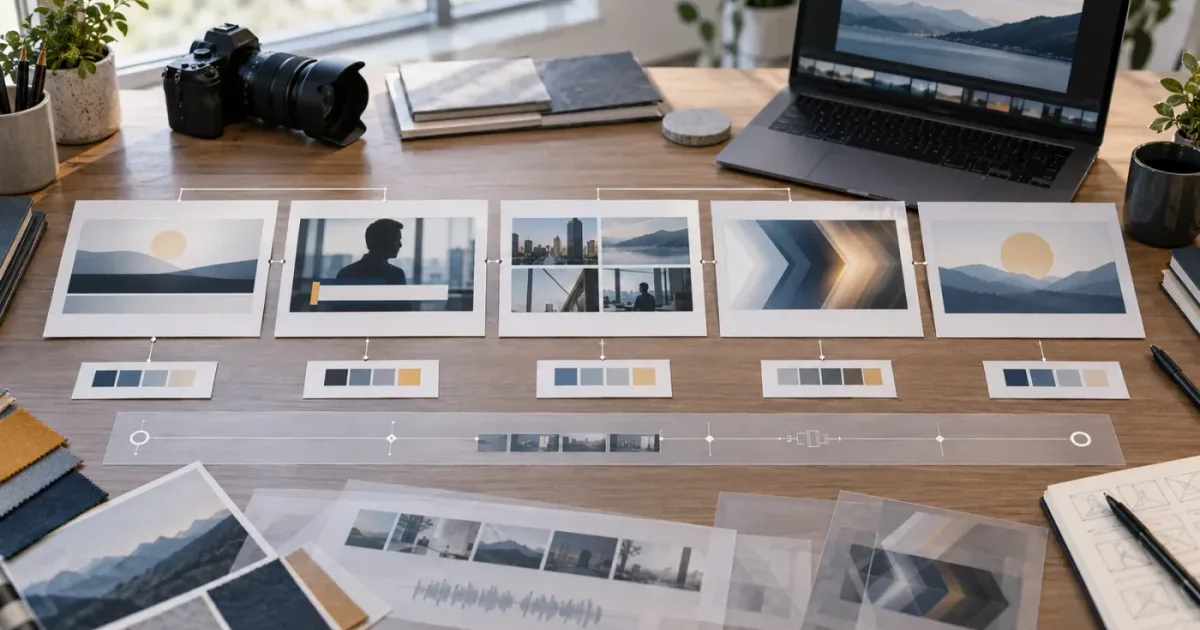
I’ve spent more than seven years cutting commercial video, and the same mistake keeps showing up: a corporate template gets chosen for its preview instead of its handoff. The animation looks polished, then the fonts, license, timeline size, or editable controls become the real job.
As of September 2026, my short answer is simple. Buy the smallest template system that matches the work you repeat, not the biggest library you can download. We also run a 100,000+ member professional video-editing community, so we’ve seen how quickly a flashy opener becomes a production problem when nobody checks the files first.
What are the best DaVinci Resolve templates for corporate videos?
The best DaVinci Resolve templates for corporate videos are editable systems for recurring communication, not isolated effects. Start with a restrained title and lower-third kit, add a presentation or slideshow structure when the brief needs charts or product screens, and use transitions only where they clarify a change in idea, location, or speaker.
Corporate video usually has a practical burden that a wedding montage or social edit doesn’t. The viewer may need to understand a product, trust a spokesperson, follow a process, or remember a call to action. That makes legibility and repeatability more valuable than spectacle.
I rank a corporate template on six tests:
- Can an editor replace the words, logo, colors, and media without opening every node?
- Does the design leave room for real names, job titles, dates, disclaimers, and product terms?
- Is the file actually made for DaVinci Resolve, rather than for Premiere Pro or After Effects?
- Does the license cover a client, paid media, internal distribution, and the platforms the brief names?
- Can the template survive a second video with a different aspect ratio or duration?
- Can another editor understand the controls after the original author leaves the project?
The providers in this guide answer those tests differently. Artlist is the integrated stock-and-template option. Envato Elements is the broad creative library with per-project registration. Storyblocks is attractive when stock media and templates belong in the same buying decision. A self-built Fusion system wins when the brand language and production cadence justify the setup work.
The best corporate DaVinci Resolve template is the one a second editor can safely adapt under deadline.
Blackmagic lists DaVinci Resolve 21 for Mac, Windows, and Linux, with a free edition and DaVinci Resolve Studio 21 as the paid edition. The product page also places motion graphics and visual effects in Fusion, while editing happens on the Cut and Edit pages. That matters because a template can be a full project, an Edit page asset, or a Fusion composition, and those are different handoff experiences. Blackmagic describes the Resolve 21 editions and page structure here.
Which corporate video elements deserve a template?
Corporate teams should template the parts that recur and leave the parts that carry the story flexible. In practice, that usually means names, titles, chapter cards, brand bars, product callouts, chart reveals, image grids, transitions, and end cards. It rarely means locking the entire edit into a single pre-animated sequence.
Titles and openers
A title template gives the video a controlled entry point. For a company profile, that might be a logo, a short promise, and a location or date. For a product video, it might be a product name and one benefit. The strongest corporate opener is often shorter than the preview that sold it.
Look for editable text, a clear logo placeholder, a background that can be removed or recolored, and a way to change the duration without breaking the animation. If the title only works at one exact length, treat it as a fixed intro asset rather than a reusable system.
Lower thirds and speaker IDs
Lower thirds carry information that viewers need to read while the interview continues. A useful kit should include at least a name treatment and a role treatment, with enough width for a long department or job title. It should also let you change the in and out timing without rebuilding the graphic.
Corporate work often needs a second line, a location, a pronoun, a certification, or a legal qualifier. Don’t assume the short sample text represents the space you need. Paste the longest real title into the template before approving it.
Presentation and slideshow structures
Presentation templates help when the video includes screenshots, product frames, still photography, process diagrams, or milestones. Artlist and Storyblocks both describe slideshows and presentations among their DaVinci Resolve template categories, and Envato’s Resolve collection also points to corporate presentations and slideshow use cases. The providers’ current template overviews support those category distinctions.
The important question is whether each slide is a real editable composition or merely a video clip with a frame around it. A project with placeholder timelines gives you more control over media and text. A flat movie file is quicker to place but harder to revise when the client changes one word.
Transitions
Corporate transitions should mark a relationship. A directional wipe can move from one stage of a process to the next. A clean shape or light shift can connect a product detail to a wider office shot. A transition that draws attention to itself may compete with the message.
I’d rather buy ten transitions that share a visual grammar than download a pack with dozens of unrelated looks. Check whether the controls expose duration, direction, softness, color, and border treatment. If they don’t, the pack may still be useful, but you’re buying a finished effect, not a system.
Logo reveals and end cards
An end card has a different job from an opener. It must leave enough time to read a URL, next step, disclaimer, or contact detail. Look for a logo control, editable text, a background option, and a duration that can be extended without freezing the last frame in an awkward way.
Charts, diagrams, and product callouts
These assets can save more time than a dramatic intro because they repeat in sales enablement, onboarding, investor, and internal communications. Choose templates with named controls and sensible defaults. If the chart values are buried in an opaque Fusion node tree, the template may cost more time than it saves.
Which DaVinci Resolve template file should you buy?
The file type tells you how the template enters the project and how much of it you can change. A .dra is usually a restored project archive, while .drfx, .setting, and .comp files belong to different Fusion and Edit page workflows. The provider’s description should tell you which version and edition the author used.
| File or delivery type | What it usually gives you | Best corporate use | Main risk |
|---|---|---|---|
.dra project archive | A project with timelines, bins, compositions, placeholders, and project settings | Full presentations, openers, slideshows, and brand systems | It can introduce unfamiliar bins, fonts, media paths, and timeline settings |
.drp project file | A project file that can be imported into a Resolve project library | A reusable project starting point | It may not package every external font, image, or media dependency |
.drfx Fusion template bundle | One installable bundle containing one or more Fusion templates | Titles, transitions, generators, and effects used across projects | Studio-only tools, missing fonts, or a bundle that is hard to inspect |
.setting Fusion or Edit setting | A single macro or template setting | One lower third, title, transition, or callout | Controls and folder placement can vary by template |
.comp Fusion composition | A Fusion composition you can open and modify | Bespoke motion graphics and reusable Fusion builds | More Fusion knowledge is usually needed for changes |
| Flat video or overlay | Rendered pixels with limited element-level editing | A fast background, texture, or approved unchanging flourish | Text, timing, and colors aren’t truly editable |
.cube LUT | A color transform used in the grading workflow | A look reference or starting point for footage | It doesn’t replace a motion template or brand animation |
The formats above are not interchangeable. Envato’s Resolve collection identifies Resolve-specific files such as .comp, .drfx, and .setting, and its guide says After Effects and Premiere Pro project templates don’t import directly into Resolve. Storyblocks lists DRP, Settings, DRFX, and DRA among its Resolve template file types. See Envato’s current Resolve collection and Storyblocks’ file-type guide.
If a marketplace page shows “DaVinci Resolve” only in the description but delivers an After Effects project, don’t treat that as a Resolve template. You may be able to use a rendered export, but you won’t have the promised controls inside Resolve.
What does a .dra archive mean for a corporate editor?
A .dra archive is a project-shaped delivery. Artlist’s current instructions tell Resolve users to restore the downloaded archive from Project Manager, and its customization guidance describes placeholder timelines for media and text. That makes a .dra useful for a complete corporate presentation, but it also means you should inspect the project before merging it with a live client library. The download guidance describes the restore workflow and included help and font folders.
What does a .drfx bundle mean for a corporate editor?
Blackmagic’s Fusion manual documents a .drfx bundle as an installable Fusion template package. The manual says you can double-click the file in the operating system or drag it into the Fusion page, and it warns that a bundle contains all the templates in one file. If you delete that bundle, the associated templates are removed together. Read the Fusion manual’s template-bundle instructions.
That last point is practical. Keep a copy of the original download in a versioned asset folder. Don’t assume an installed bundle is your only backup.
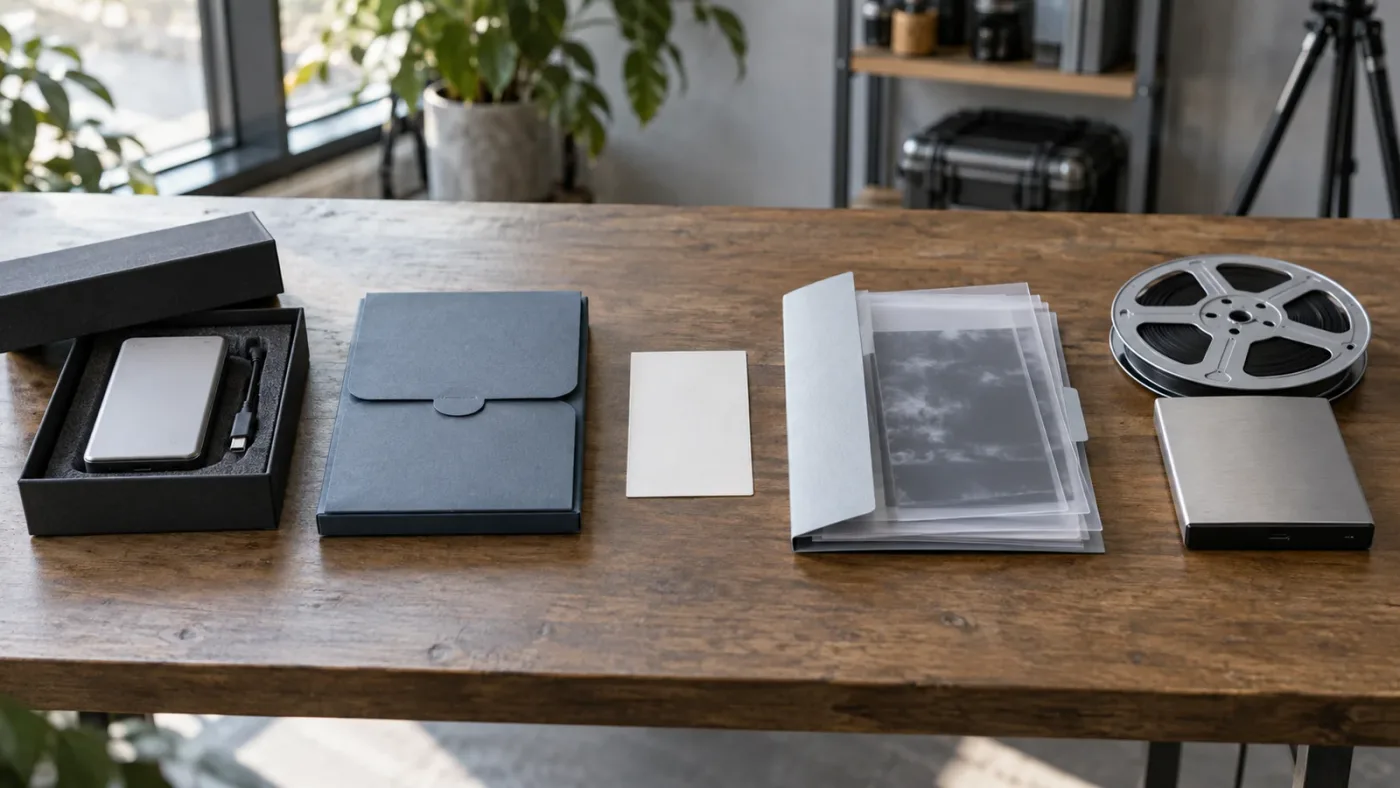
Which provider fits a corporate video workflow?
The right provider depends on what you need around the template. Compare the asset categories, file formats, project registration, commercial rights, and handoff burden before you compare previews. A self-built Fusion library trades subscription convenience for ownership of your design system.
Disclosure: this post contains an affiliate link to Artlist. If you subscribe through it, this publication may earn a commission. That relationship doesn’t change the comparison or make Artlist the right answer for every team.
Check Artlist’s current Footage and Templates options and license details before comparing providers. Plan names, billing, and license terms can change, so use the live terms for the final decision.
Here’s the decision matrix I’d use before opening a preview page.
| If your real problem is... | Start with... | Why it fits | Where another option wins |
|---|---|---|---|
| You need templates plus footage, LUTs, and other production assets | Artlist | Its Footage and Templates offering groups downloadable Resolve templates with footage and related stock categories | Envato wins if you also need a wider design library such as graphics, fonts, presentations, or other non-video assets |
| You need many different asset types and separate client projects | Envato Elements | Envato documents unlimited downloads and a one-license-per-project registration model for its assets | Artlist wins if its Resolve-specific template workflow and commercial plan fit your team better |
| You want stock footage and templates in one search workflow | Storyblocks | Storyblocks lists Resolve templates alongside footage, audio, images, and other template categories | Envato wins if broad creative categories matter more than a footage-led library |
| You publish recurring branded series and can maintain a design system | Self-built Fusion templates | Your team controls the naming, parameters, typography, timing, and version history | A library wins if the work is occasional or your team doesn’t want to maintain Fusion compositions |
| You need one fixed animation with no future edits | Flat overlay or rendered asset | It can be placed quickly without exposing complex controls | Any editable template wins when the client will revise words, colors, or timing |
| You need the lowest long-term dependency on a vendor | Self-built Fusion templates | The project can be archived with its own source composition and documentation | A subscription library wins on discovery, variety, and ready-made design options |
This table is a fit guide, not a quality ranking. I haven’t run a controlled visual test of every marketplace item, so judge the actual lower third against your brand, copy length, and output sizes.
A template subscription solves discovery and licensing logistics; a Fusion system solves repeatability and control.
Why Artlist is a strong first stop for commercial Resolve work
Artlist is a strong first stop when a corporate editor wants Resolve templates and other production assets under one commercial workflow. Its template documentation describes titles, lower thirds, transitions, slideshows, and intros, and its Footage and Templates plan describes a Pro license for client work, advertising, paid media, branded content, film, and publishing across platforms.
That combination matters when the template is only one line in the brief. A product launch may need a title kit, office b-roll, music, and sound effects. A training video may need presentation graphics, chapter cards, and an end card. One subscription can reduce the number of separate asset searches and license records.
Artlist’s Resolve workflow also has a clear project-archive shape. Its published instructions say a Resolve template download can include a Help folder, a Fonts folder, and a project folder containing the .dra archive. The workflow is to restore the archive through Project Manager, then replace placeholder media and edit text through the project structure. That’s a better match for a full slideshow or presentation than a lone transition preset.
The catch is licensing detail. The catalog notes that the Social license is for personal channels and doesn’t cover client work, third-party channels, or paid media. It also says that projects published while an eligible subscription is active remain covered after cancellation, while new projects or newly published projects after expiry aren’t covered by downloaded assets. Treat those as plan-selection rules, not footnotes.
There’s another catch: not every Artlist Resolve template behaves the same way. Its troubleshooting material says templates can be version-specific, some may require Studio, missing fonts can cause visual errors, and complex projects may play slowly on lower-powered hardware. Resolve 21 may open a project that was authored for an earlier release, but “opens” and “is ready for client delivery” are different standards.
Use Artlist when:
- you need a commercial template plus footage or other production assets;
- you want a complete project archive with help material and font notes;
- client and paid-media licensing are central to the purchase;
- your team can verify the template’s Resolve version and Studio requirements;
- you’ll publish new work while the relevant subscription is active.
Choose Envato or Storyblocks instead when their individual template selection better matches the visual brief, when you want a broader asset category mix, or when their licensing model fits the way your agency registers projects.
When Envato Elements is the better choice
Envato Elements is the better choice when the corporate video is part of a larger design job. Its DaVinci Resolve collection includes Resolve-specific templates such as Fusion macros, .drfx effects, and .setting files, and its library also covers categories beyond video. Envato’s own Resolve guide mentions corporate presentations, openers, lower thirds, logo templates, promos, titles, and slideshows. Browse Envato’s Resolve collection.
Its current commercial Resolve filter exposes business-oriented labels such as corporate, commercial, presentation, and product promo. See the current commercial Resolve filter.
Envato’s licensing decision is more specific than “download once, use everywhere.” Its current graphic-template guide explains a one-license-per-project model. You register an asset to a project, and reuse for a different project requires a new registration while the subscription is active. The same guide says registered licenses remain covered after cancellation, while downloaded assets can’t be used in new projects without an active subscription. Read Envato’s current licensing explanation.
That model can work well for agencies because the project record matches the client record. It also creates a habit you need to enforce. Every download needs a project name, client, campaign, date, and license note in your production tracker. If an editor copies a template into a second client job without registering it again, the problem is process, not animation.
Envato is also unusually clear about compatibility. Its Resolve collection describes .comp, .drfx, and .setting formats, and its help material says Premiere Pro and After Effects project templates don’t import directly into Resolve. A template author may publish the same design in multiple software versions, but you still need the Resolve-specific item. Don’t buy by thumbnail.
Envato’s author requirements provide another useful signal. The official support page says Resolve template submissions need a project file, help documentation, and an assets or footage folder in the project root, with meaningful names and editable elements placed in dedicated compositions. That doesn’t guarantee a good item, but it gives you a concrete checklist for previewing the download structure. See Envato’s 2026 author requirements.
Use Envato when:
- the brief spans video and non-video design assets;
- you want to search specifically for commercial or corporate Resolve items;
- your team can register assets per client project;
- a .drfx, .setting, or .comp delivery suits the way you work;
- you want to compare many visual directions before building one internally.
Choose Artlist when the other stock categories and its Pro-oriented plan match your work better. Choose Storyblocks when the asset search begins with footage rather than a broad design library.
When Storyblocks is the better choice
Storyblocks is the better choice when stock footage is the center of the corporate workflow and templates are a closely related need. Its Resolve template pages list transitions, intros, promos, slideshows, presentations, titles, and other motion-graphics categories, while its broader video-template library includes DaVinci Resolve alongside other editors. Storyblocks’ current template library shows that combined workflow.
Storyblocks added DaVinci Resolve templates to its library in December 2025 and updated the announcement in May 2026. It describes titles, transitions, intros, promos, slideshows, and presentations beside stock footage, music, and other production assets. Read Storyblocks’ dated announcement.
Storyblocks’ help center says both DaVinci Resolve Free and DaVinci Resolve Studio can be used with its Resolve templates. It also says individual templates still need a version check. The same help center lists DRP, Settings, DRFX, and DRA as Resolve template file types. In other words, “works with Free” is a useful baseline, not a promise that every effect inside every project will work without Studio. See Storyblocks’ Free-versus-Studio template guidance.
Storyblocks makes sense for an internal communications team that already searches for office footage, manufacturing b-roll, city scenes, or product details and wants matching motion graphics in the same subscription. It’s less compelling if your real need is a tightly controlled brand system with a few reusable controls. A self-built Fusion master may be easier to maintain than a new marketplace project for every campaign.
Use Storyblocks when:
- footage and templates are bought together;
- you want a Resolve-specific filter beside other video media;
- the team prefers a library with presentations, promos, slideshows, and titles;
- the editor works in Free or Studio but can still check each item’s version and dependencies;
- a broad stock workflow matters more than a bespoke motion system.
Choose Envato when project registration and mixed design assets are the priority. Choose Artlist when the footage, templates, and commercial license fit are stronger. Choose your own Fusion library when the visual language should stay stable across years of corporate work.
Should you build your own Fusion templates for corporate videos?
Build your own Fusion templates when the same brand rules recur often enough that controls and documentation matter more than marketplace variety. A self-built system can expose only the fields an editor should change, keep the logo and colors consistent, and preserve the logic behind a title or callout instead of hiding it in a downloaded project.
Fusion is a node-based compositing and motion-graphics environment inside DaVinci Resolve, and Blackmagic’s Fusion documentation covers macros, node groups, and template bundles. That makes it a realistic home for a corporate design system, but it also means someone has to own the node graph, test the controls, and explain the build. Blackmagic’s Fusion manual describes the template-bundle workflow.
The question isn’t “Can Fusion make a lower third?” It can. The question is “Can an editor who didn’t build it change the lower third without breaking it?”
What should a self-built corporate template expose?
A corporate template should expose decisions, not machinery. The editor needs a text field, not a hunt through every Text+ node. They need a brand-color control, not five duplicate color tools. They need a duration or timing control, not a spline editor for a routine name animation.
For a lower third, expose:
- primary name text;
- secondary role or department text;
- text and background colors;
- logo visibility and logo input;
- left, center, or right alignment if the system requires it;
- in and out timing;
- a safe width for long names;
- a reset or default state.
For a title card, add:
- headline and subhead fields;
- a media or background input;
- a crop or focal-position control;
- an accent line or shape switch;
- a minimum and maximum duration;
- a clean option without the logo;
- a version note in the control description.
For an animated chart, expose the values or labels only if the structure can handle real-world edits. If the chart uses fixed bars and a buyer changes from three categories to seven, the template should fail clearly or provide a documented variation. A pretty but brittle chart is an expensive preset.
What are the advantages and costs of building instead of buying?
Building gives you control over naming, typography, timing, color, and change requests. It lets you design for the actual output set, reduce visual drift between editors, and record the Resolve version, fonts, inputs, and release notes as part of the handoff.
The cost is maintenance. Fusion templates take design, testing, and documentation time, and a Resolve point release, font update, new aspect ratio, or brand refresh can expose a problem. I’d build for recurring series, fixed internal brands, product explainers, and repeated agency work. I’d buy for a one-off event video, unusual opener, or approved reference look.
Self-built Fusion templates are worth maintaining only when the design system recurs often enough to earn an owner.
How do you choose a corporate template before downloading it?
Choose a corporate template by inspecting the edit surface, not just the preview. Before downloading, record the Resolve version, supported edition, required plugins, file format, resolution, frame rate, fonts, media dependencies, license scope, and whether the item is a full project or a single effect.
Use this pre-download checklist:
- Search the exact software filter for DaVinci Resolve.
- Search the use case, such as corporate, presentation, product promo, business, lower third, or slideshow.
- Read the item’s version and resolution information.
- Check whether the page names DaVinci Resolve Free or Studio.
- Check the required-plugin field. “No plugin required” is useful when it is explicitly stated.
- Find the font list and confirm you can license or install those fonts for the project.
- Check whether stock footage, music, logos, or images are included and what rights those assets carry.
- Confirm whether client work, paid advertising, internal distribution, and third-party publishing are allowed.
- Note the template’s file type and install method.
- Save the item page, receipt, license record, and original download in the project folder.
The file should have a clear job. “Corporate” can mean a title kit, product opener, presentation deck, infographic pack, finance promo, or logo animation. Describe the scene before judging the item.
How should you test the template’s text controls?
Use real copy, not “Your Name” and “Company Title.” Test the longest speaker name in the brief. Add a two-line role. Use a product name with a trademark symbol if the project requires one. Try a date, a location, and a sentence with punctuation.
Check the result at the delivery size, not only on a large preview monitor. A small legal line that looks elegant at full resolution may be unreadable in the actual internal player or social cutdown. If the client needs subtitles or captions, make sure the template doesn’t compete with that lower screen area.
How should you test color and branding?
Replace every sample color with the actual brand palette. Test the light and dark logo. Test footage with a bright sky, a dark factory, and a mixed office background if those environments appear in the brief. Check contrast around text and leave enough separation between the subject and the graphic.
Don’t assume one global color control exists. Some templates expose a brand color. Others require edits in several compositions. The difference affects both speed and handoff risk.
How do you install a DaVinci Resolve corporate template in Resolve 21?
Install a DaVinci Resolve corporate template by matching the file type to the correct workflow, then test it in a duplicate project. Full project archives go through Project Manager. Fusion bundles use the .drfx installation route. A template that includes fonts should be unpacked and documented before you judge its appearance.
How do you restore a .dra project archive?
Use this sequence for a template delivered as a .dra archive:
- Download the archive to a named project folder.
- Unzip it if the provider delivered a compressed folder.
- Read the included help file and font list.
- Install the required fonts according to your operating system’s normal font workflow.
- Open DaVinci Resolve 21 and enter Project Manager.
- Right-click in an empty area of Project Manager.
- Choose “Restore Project Archive...” and select the downloaded .dra archive.
- Open the restored project and locate the main render or final timeline.
- Replace one placeholder, then confirm the change appears in the main output.
- Save a copy under your client or campaign name before making broad changes.
Storyblocks’ current instructions use the same core Project Manager route: open Project Manager, choose Restore Project Archive, select the downloaded template folder, and open the restored project. Storyblocks also recommends installing included custom fonts before opening the project because missing fonts can change how the text and design elements appear. Read the current Storyblocks restore instructions.
Artlist’s current Resolve instructions also use Project Manager to restore the .dra archive and describe a Help folder and Fonts folder in the download. The exact folder names can vary, so follow the item’s own documentation after confirming the archive is for Resolve.
How do you install a .drfx Fusion template?
Use a .drfx file as a Fusion template bundle. Blackmagic’s Fusion manual documents two routes:
- Open DaVinci Resolve.
- Double-click the .drfx file in your operating system, or drag it into the Fusion page.
- Accept the installation prompt.
- Open the relevant Effects Library category.
- Find the installed title, transition, effect, or generator.
- Add it to a test timeline and check its controls.
The .drfx bundle can contain more than one template. Keep the original bundle in the asset archive because the manual warns that removing the bundle removes the associated templates together. Blackmagic documents the Fusion template-bundle behavior.
How do you install a .setting or .comp file?
Follow the creator’s installation note for a .setting or .comp file and keep the source file with the project record. A .setting may be a single Fusion macro or an Edit page template. A .comp is a Fusion composition that usually needs to be opened and inspected in the Fusion page.
If the download offers both a .drfx and a loose .setting, prefer the documented bundle for a shared team installation, then keep the loose file as a readable backup when the license allows it. Don’t scatter copies into application folders without recording where they went.
Should you import a template into an active client project?
No. Restore or install it in a duplicate project first. A .dra archive can contain project settings, bins, timelines, and linked assets that deserve inspection before they touch a live library. Test the item, make a clean client copy, and import only what you need when the project structure is larger than the brief.
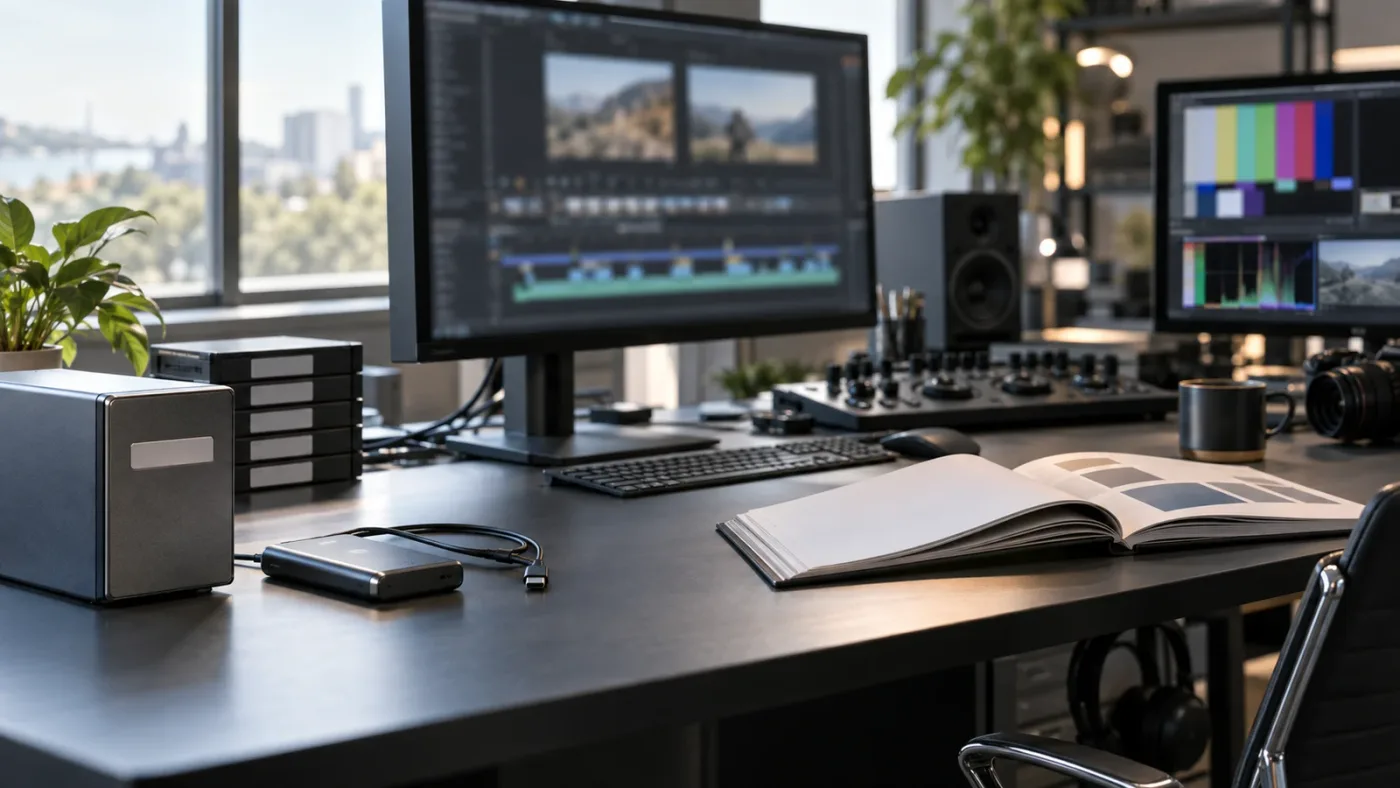
How do you turn a purchased template into a corporate brand system?
Turn a purchased template into a corporate brand system by separating brand decisions from editorial decisions. Lock the typography, colors, logo behavior, spacing, and motion language first. Let each video change its story, footage, names, dates, and calls to action without changing the underlying system.
What should you standardize first?
Standardize the elements that viewers should recognize from video to video:
- one primary typeface and one fallback;
- a headline size range;
- a name and role hierarchy;
- a small set of brand colors;
- logo clear space and minimum size;
- line, box, and background treatments;
- the direction and speed of routine entrances and exits;
- title-safe and subtitle-safe placement rules;
- a consistent end-card structure;
- a file naming and versioning convention.
The template is the animation engine. Your brand system is the set of decisions that makes the engine repeatable.
Start by creating a brand pass in a duplicate of the download. Replace sample fonts, colors, logos, and copy. Save that pass as a master. Don’t edit the only copy of the original download because you may need to compare a broken change with the untouched build later.
How should you adapt a slideshow template for a company video?
Adapt a slideshow template by defining the story beats before you replace images. A corporate slideshow can introduce a business, show a process, compare product features, present milestones, or support an interview. Each beat needs a different amount of screen time and a different relationship between text and image.
Use a simple content map:
| Beat | Viewer needs to understand | Template element | Editorial check |
|---|---|---|---|
| Opening | What is this and who is it for? | Logo, title, short promise | The message arrives before the animation finishes |
| Context | Why should the viewer care? | Wide image, location, or statement card | The text doesn’t repeat the voiceover word for word |
| Process | What happens next? | Steps, arrows, or chapter cards | Sequence and numbering remain correct after edits |
| Proof | Why believe the claim? | Product shot, chart, quote, or case detail | Every visible claim has an approved source or review owner |
| Detail | What should the viewer remember? | Callout, crop, screen, or close-up | The crop doesn’t hide the product control or speaker |
| Next step | What should the viewer do? | End card and contact details | The URL, disclaimer, or action stays readable long enough |
This is where a corporate video series template decision guide can help. The series question is separate from the marketplace question: one template may be attractive for a single film but too rigid for a set of ten videos.
How should you adapt an infographic template?
Adapt an infographic template by editing the meaning before editing the movement. Replace labels, units, icons, and numbers first. Then adjust animation length and emphasis. A chart that animates beautifully but implies the wrong comparison is still a failed graphic.
Use the smallest number of visual elements that makes the relationship clear. A corporate explainer often benefits from a stable background, a clear number, one comparison, and a short supporting label. If the template has twenty animated icons, remove the ones that don’t carry information.
For more on the selection problem, see how to choose DaVinci Resolve infographic templates. The key distinction is between a template that animates a known graphic and a template that claims to generate a flexible data visualization. Those aren’t the same purchase.
How should you adapt a lower third for interviews?
Adapt a lower third by testing the real speaker list and the longest role before you choose a final placement. Include a clean frame without a lower third so the editor can remove it when the speaker changes topic or the composition becomes crowded.
Watch the first and last frames. The entrance should not cut off when the shot begins, and the exit should not collide with a cut. If the lower third lives on an adjustment layer or Fusion clip, label that relationship in the readme.
Corporate interviews also need review discipline. Keep the spelling of names, titles, departments, and credentials in a source document or approved marker list. A beautiful template cannot fix an incorrect name.
Why is my DaVinci Resolve corporate template broken or slow?
A DaVinci Resolve corporate template usually breaks because of a version mismatch, missing font, missing media, missing plugin, unsupported Studio feature, or a damaged project relationship. A slow template may simply contain a heavy Fusion composition, high-resolution media, or effects that your hardware can’t preview comfortably.
Why is my template showing black text or the wrong typeface?
The first check is the font folder. Artlist and Storyblocks both tell users to install included fonts before judging the restored project, and Storyblocks says missing fonts can affect how text and design elements appear. Envato’s Resolve walkthrough also identifies included fonts as an early installation step. Storyblocks’ current font guidance and Envato’s Resolve walkthrough describe that check.
Then check whether the template uses the font name in more than one composition. Replacing the visible headline may not replace a small label, logo subtitle, or hidden text layer. Search the project’s text compositions and document any deliberate substitutions.
Don’t send a client a font-dependent template with a temporary substitute unless the brand owner approved it. A font change can alter line breaks, alignment, and the length of the animation.
Why is my template showing Media Offline?
Media Offline means Resolve can’t find the media a clip or composition expects. Start by checking whether you opened the project directly from a compressed download, whether the sample media folder stayed beside the project, and whether the template uses external footage that wasn’t included.
Use this branch:
- Read the template’s help file for a media folder or relink instruction.
- Open the Media Pool and identify which clips are offline.
- Point Resolve to the folder that contains the expected media.
- If the files are placeholders, replace them with the project’s media instead of rebuilding the whole timeline.
- Check Fusion compositions for loaders or paths that still point to the author’s sample files.
- Save the repaired copy under a new version name.
A restored .dra archive can have internal relationships that are invisible from the main timeline. If one placeholder replacement fixes the picture but another remains offline, inspect the nested timeline or Fusion composition feeding that section.
Why is the template blank in Resolve Free?
The template may require DaVinci Resolve Studio, a Studio-only effect, or a plugin that the Free edition doesn’t provide. Check the item page and the included readme, then remove the dependency only if the project can still meet the approved design.
Storyblocks says both its Free and Studio editions can use its Resolve templates, but it also tells users to check the individual item. Artlist’s troubleshooting guidance says to avoid templates intended for Studio when using the Free version. The safest conclusion is item-level compatibility, not a blanket marketplace promise. Storyblocks’ Free and Studio guidance supports the first part of that check.
Why is my Fusion template slow in Resolve 21?
A Fusion template can be slow because its composition contains many nodes, large media, particle or 3D work, heavy effects, or high-resolution inputs. The provider’s preview may also have been made on different hardware. Don’t infer your playback performance from a web preview.
Try a smaller branch before deleting the template:
- Confirm the project is using the intended timeline resolution.
- Temporarily disable the heaviest visible composition.
- Replace sample 4K or 8K media with a lightweight test clip.
- Check whether the template includes 3D, particle, blur, or repeated image operations.
- Use Resolve’s normal cache or proxy workflow for the test timeline.
- Render a short section to judge final output separately from interactive playback.
The goal is diagnosis. If the final render is clean but the editor can’t make decisions during playback, the template still needs a workflow adjustment. If the render is wrong, inspect the composition and version requirements before changing performance settings.
Why are the template controls missing from the Inspector?
The controls may be inside a nested Fusion composition, attached to a different clip, or built as nodes rather than exposed macro parameters. Select the actual title, generator, or Fusion clip that owns the template. If the creator’s readme names a control composition, open that composition instead of searching the top-level timeline.
This is a buying signal. A corporate template with no clear edit surface can be a poor fit even when its preview is excellent. You’re not only buying animation. You’re buying the next five revisions.
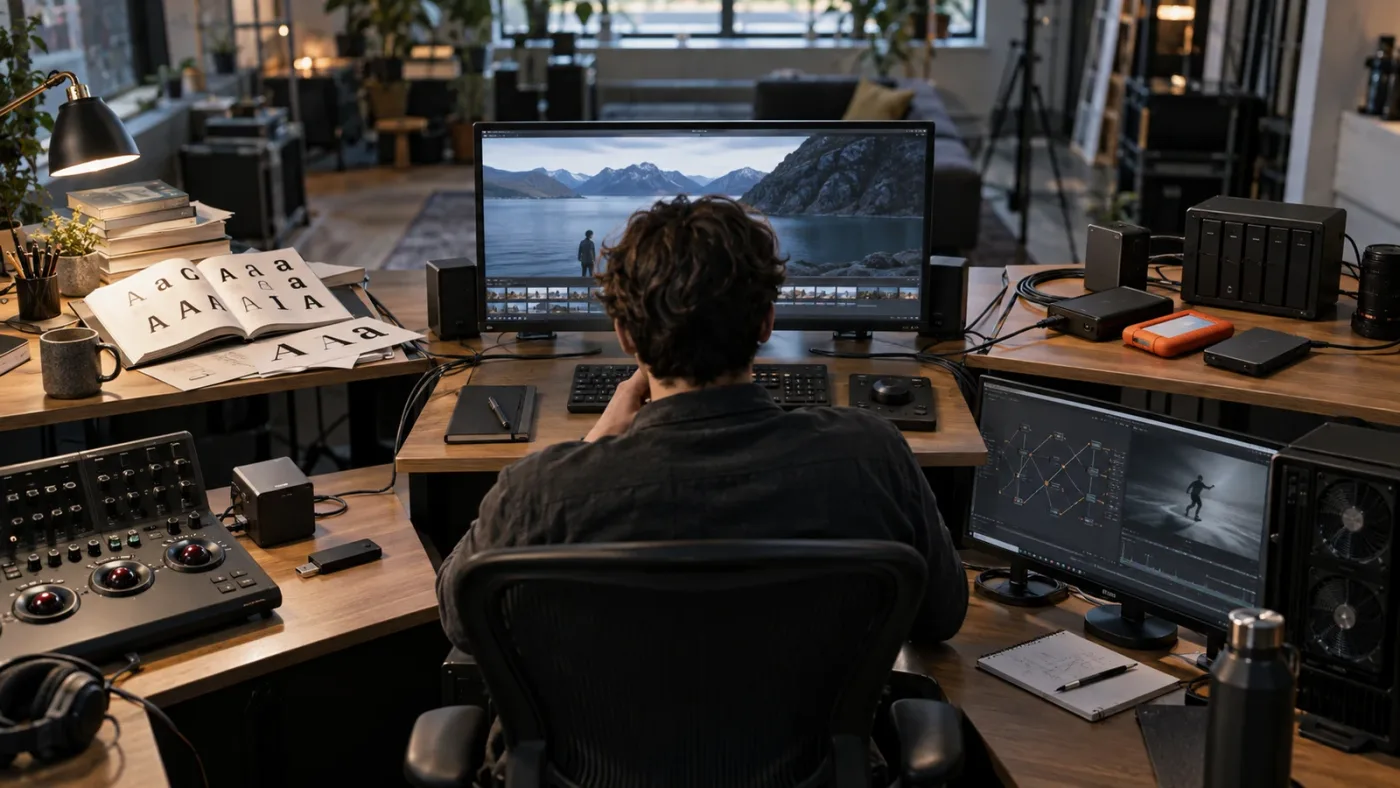
What does DaVinci Resolve 21 change for corporate template buyers?
DaVinci Resolve 21 makes version checking more important because the release adds new motion-graphics and Fusion capabilities, but it doesn’t make every older template automatically modern. Buy for the actual controls and compatibility listed on the item page, then test the project in the version you will use for delivery.
Blackmagic’s DaVinci Resolve 21 New Features Guide lists more than 100 new motion-graphics effects on the product overview, and the guide’s contents include Fusion improvements such as support for 3D matte objects and textures, USD projector and catcher tools, improved lens distortion, motion-vector layers, and remote monitoring of Fusion previews. The official product page also says Resolve 21 adds the Krokodove toolset with more than 70 new graphics. Those are version facts, not reasons to add complexity to a corporate title. See Blackmagic’s Resolve 21 product information and the official Resolve 21 New Features Guide.
The release guide opens with a note from Grant Petty, CEO of Blackmagic Design:
“With this release, we hope to inspire creativity by letting you work in a comfortable, familiar way, while also giving you an entirely new creative toolset that will help you cut and finish projects at higher quality than ever before!”
Grant Petty, CEO, Blackmagic Design, in the official DaVinci Resolve 21 New Features Guide. Read the source PDF
That quote is about the release as a whole, not a promise about any marketplace template. I like the distinction. A new toolset can help you make a better internal template, but the right purchase is still the one that gives the editor a clear, tested edit surface.
Do Resolve 21 templates need Resolve 21 specifically?
No, a DaVinci Resolve 21 project doesn’t automatically require every template to have been authored in Resolve 21. A template made for Resolve 18 or newer may work in Resolve 21, but compatibility depends on the project, nodes, effects, fonts, plugins, and required edition. Artlist’s current instructions identify DaVinci Resolve 18 or newer as the baseline for its Resolve templates and separately warn that templates can be version-specific.
Treat the provider’s version field as a minimum to verify, not as a guarantee of a perfect migration. Open the template in a test project, render a section, and inspect every client-facing control.
Does Resolve 21 Free support the template?
The answer is template-specific. Blackmagic’s official product page describes a free Resolve 21 edition and a paid Studio 21 edition with additional AI, effects, and advanced tools. A template can be authored for Resolve Free and still be useful in Studio, but a Studio-only effect or plugin can make a Free workflow fail.
Storyblocks says both Free and Studio can be used with its Resolve templates. Artlist tells Free users to avoid templates intended for Studio. Envato lists the required software and plugin information at the item level. Those statements point to the same buying habit: check the exact file, then test it in the exact edition used by the editor. Blackmagic’s edition overview is here.
Should you use Resolve 21’s new tools in a corporate template?
Use a Resolve 21 feature in a corporate template only when it improves a repeatable job. A new Fusion graphic can be useful for a chart, product callout, or background treatment. It can also make a simple title harder to hand off if the next editor doesn’t know which feature owns the result.
Write the feature dependency in the readme. Include a fallback version when the template will be shared with editors who may work in an earlier compatible release. Don’t advertise a template as cross-version just because the title opens once without an error.
Resolve 21’s new motion-graphics tools expand what you can build, but they don’t remove the need for compatibility testing.
What license do you need for a corporate video template?
You need a license that covers the finished corporate video, the client relationship, the distribution channels, and the project timing. “Royalty-free,” “commercial,” and “unlimited downloads” don’t answer all four questions by themselves.
Can a personal plan cover a client video?
Not automatically. Artlist’s cached license guidance distinguishes Social use from Pro, team, business, and other coverage, and the Social license doesn’t cover client projects, third-party channels, or paid media. Envato’s current license guide describes a project registration model, and Storyblocks’ library terms still need to be checked for the plan and asset you select.
Ask the license four questions:
- Is the editor allowed to create the video for a client?
- Can the client publish it on its own channels?
- Are paid ads, internal training, presentations, television, streaming, or event playback covered when relevant?
- What happens if the subscription ends before the next cutdown is published?
If the answer to one question is unclear, pause the download. A template is not a bargain when the rights don’t cover the delivery.
What happens after an Artlist subscription ends?
Artlist’s current license information says projects that incorporate downloaded assets and were completed and published while the subscription was active remain licensed in that published project. It also says assets downloaded under a subscription can’t be used in new projects or newly published projects after expiry. For a corporate series, that means you should track the active period and the publication date for each deliverable.
Don’t treat the downloaded .dra, .drfx, or media file as a perpetual right to start future work. Save the license record, and ask the client whether a new episode, new ad version, or new campaign counts as a new project under the terms.
How does Envato’s one-project license affect a video series?
Envato’s current guide says one license covers one project and that a different client or campaign requires a new registration while subscribed. A campaign can include multiple end uses when they belong to the same project, but don’t assume a template registered for one brand can be copied into a second brand’s campaign without another registration.
This can fit a video series if all episodes belong to one defined project, but define that project before production. Write the series name, client, campaign, and distribution plan in the registration record. If the scope expands later, review the license instead of relying on the original download date.
Can you give the client the template file?
Usually, the deliverable is the finished, customized video, not the underlying marketplace template or stock assets for the client’s independent reuse. Envato’s licensing guide explicitly distinguishes a finished customized end product from passing along the template itself. Artlist’s catalog notes that individual licenses can’t be shared and that clients may receive completed Pro-licensed projects but not the underlying stock assets for independent reuse.
If the client needs an editable master, settle that before the edit begins. The client may need a direct subscription, a separate license, or a custom agreement. Never assume that sending the project archive transfers every asset right.
How do you evaluate a corporate template on a real timeline?
Evaluate a corporate template with real copy, real footage, real output sizes, and a real revision. A preview tells you what the author chose to show. A test tells you what your editor must control.
Use a short acceptance test:
- Create a duplicate Resolve 21 project.
- Set the timeline to the intended master delivery size and frame rate.
- Add the template exactly as documented.
- Replace all fonts and media with project assets.
- Use the longest headline and speaker name.
- Change the brand colors and logo.
- Shorten and lengthen the title or lower third.
- Try a shot with a bright background and a shot with a dark background.
- Open any nested timelines and Fusion compositions that feed the output.
- Render the section in the intended delivery format.
- Reopen the saved project and confirm the result is unchanged.
- Ask another editor to repeat the text and media changes from the readme.
If another editor can’t reproduce the change, the template isn’t ready for a shared corporate workflow. You’ve found the problem before it reaches the client.
What should you look for in the render?
Look for broken masks, missing fonts, clipped text, sudden frame holds, incorrect aspect-ratio crops, inconsistent color, visible sample media, and a logo that changes size or position between sections. Watch the first and last ten seconds of every reusable asset, not only the middle.
For a slideshow, test different image orientations. For a lower third, test long and short names. For a chart, test the smallest and largest values in the brief. For a product screen, test both a light interface and a dark interface. These cases reveal whether the template is a system or a single preview animation.
What should you document for client review?
Document the template name, version, source, license, Resolve version, fonts, plugins, approved colors, known limitations, and the file location. Add markers to the timeline for the places the client needs to check, such as names, numbers, URLs, disclaimers, and lower-third spelling. Our guide to using markers in DaVinci Resolve for client review covers that review habit in more detail.
Markers don’t replace a written approval. They do give the editor and client a shared map of what changed and what still needs an answer.
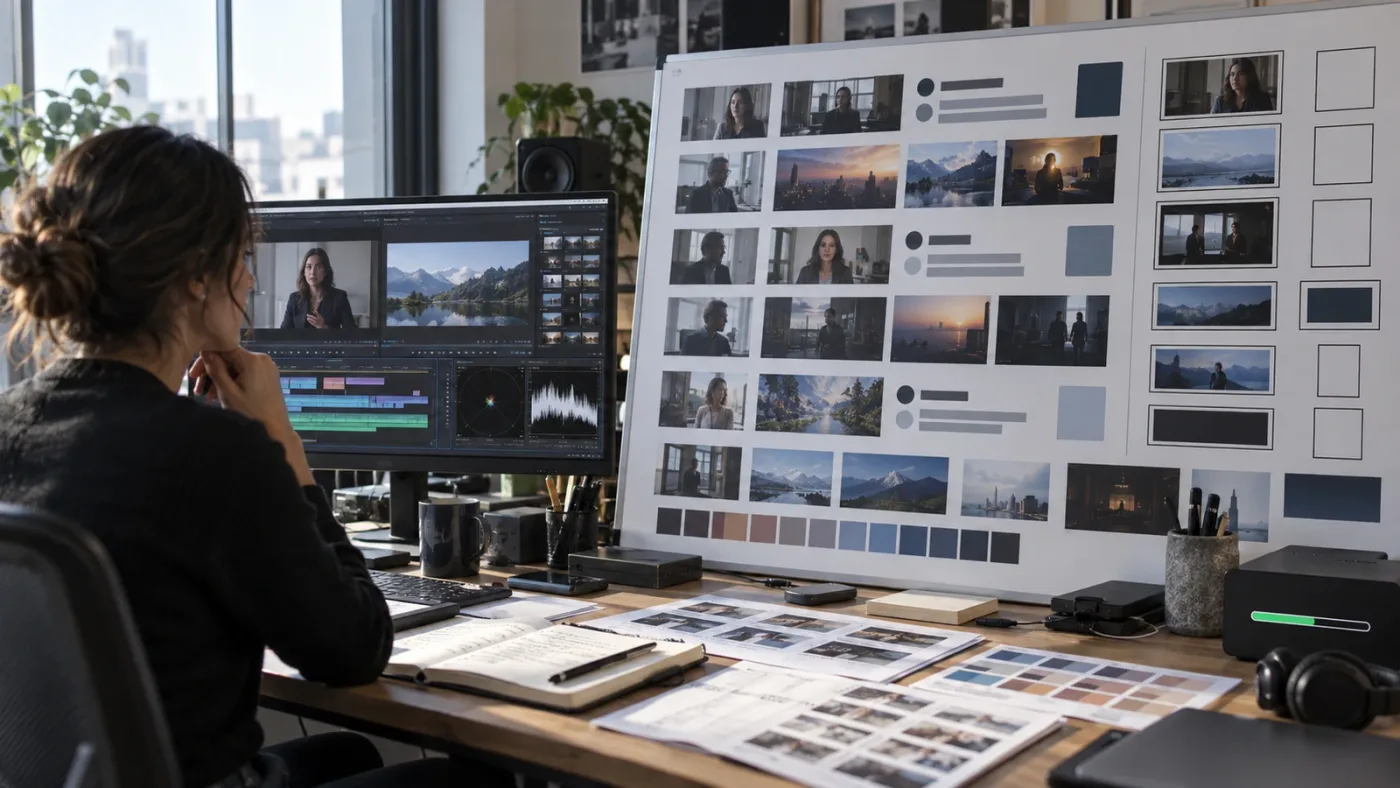
Should you buy a single template or a subscription library?
Buy a single template when the project has one defined need and a known visual direction. Choose a subscription library when you’ll use several categories, need to audition options, or expect recurring work that justifies the catalog and license administration.
How should an agency compare total cost?
Compare five kinds of work:
| Cost area | Questions to ask | Evidence to keep |
|---|---|---|
| Discovery | How long did it take to find a usable Resolve item? | Search terms, shortlist, preview notes |
| Adaptation | How long did it take to make the first approved version? | Edit time and revision notes |
| Licensing | Does the plan cover the client, channel, and campaign? | License page, receipt, project registration |
| Handoff | Can another editor change text and media safely? | Readme and second-editor test |
| Reuse | Can the system support the next project without rework? | Versioned master and supported use cases |
Don’t invent a return-on-investment percentage. Count the actual project time after you have a real brief. The number that matters for your team is the time and risk you can document.
Which option should you choose for your corporate videos?
Choose Artlist if you want a Resolve-compatible template workflow tied to footage and other production assets, and its commercial licensing terms fit your client distribution. Choose Envato Elements if you need the widest mix of creative categories and can manage one-project registrations. Choose Storyblocks if footage discovery is central and you want Resolve templates in the same broader stock workflow. Build Fusion templates if your brand system repeats and you can assign an owner.
Here is the short verdict:
- Choose a clean title and lower-third system before a flashy transition pack.
- Choose a .dra archive for a full presentation or slideshow when the project structure is documented.
- Choose .drfx, .setting, or .comp when you want a reusable effect inside the Effects Library or Fusion workflow.
- Choose a marketplace item when the work is occasional or the design direction is already approved.
- Choose a self-built Fusion master when long-term control and brand consistency matter more than catalog variety.
- Choose the plan whose license covers the actual client and distribution, not just your personal channel.
- Test the template with real words, real footage, real fonts, and a real render before promising a deadline.
Corporate video templates are production infrastructure, so compatibility and licensing matter as much as the animation.
My recommendation for most independent editors is to begin with one clean, editable system that covers titles, lower thirds, and an end card. Add a slideshow or infographic project only when the brief needs it. If the same changes recur across several projects, stop buying isolated fixes and build a documented Fusion master.
That’s the decision. Buy for the work you have, build for the work you repeat, and make the next editor’s job part of the purchase test.
Frequently asked questions
- What are the best DaVinci Resolve templates for corporate videos?
- Start with a clean title and lower-third system, then add a restrained transition pack, a presentation or slideshow project, and a reusable logo end card. Artlist, Envato Elements, Storyblocks, and a self-built Fusion template system each fit a different budget, licensing need, and production pattern.
- Can I use DaVinci Resolve templates for client work?
- Yes, when the template license covers client or commercial work and you deliver a finished video rather than redistributing the template. Check the provider's current terms before using a personal-channel plan for a client project.
- Are DaVinci Resolve templates compatible with the free version?
- Some are, and some require DaVinci Resolve Studio. Check the individual template page, required version, plugins, fonts, and Studio dependencies before downloading. Storyblocks says both the Free and Studio editions can use its DaVinci Resolve templates, while individual files still need compatibility checks.
- Is Envato Elements or Artlist better for corporate videos in Resolve?
- Choose Envato Elements when you need a broad creative-asset library and can register the same template separately for each project. Choose Artlist when its Resolve templates, footage, and licensing structure match a recurring commercial workflow.
- Should I build my own Fusion templates for corporate videos?
- Build your own Fusion templates when the same branded graphics recur across clients or campaigns and you need control over typography, colors, timing, and versioning. Buy a template when the work is occasional or the design problem is outside your team's motion-graphics skill.
Sources
- DaVinci Resolve 21 product page
- DaVinci Resolve 21 New Features Guide
- Fusion Reference Manual, template bundles
- Artlist templates, plans, and licensing information
- Envato DaVinci Resolve templates collection
- Envato guide to DaVinci Resolve templates
- Envato commercial DaVinci Resolve templates
- Envato DaVinci Resolve template requirements
- Envato graphic template licensing guide
- Envato video templates in DaVinci Resolve
- Storyblocks DaVinci Resolve templates
- Storyblocks DaVinci Resolve template guide
- Storyblocks template file types
- Storyblocks how to use a DaVinci Resolve template
- Storyblocks DaVinci Resolve templates announcement
Keep reading

Guides · Sep 14, 2026 · 38 min
How to Choose a DaVinci Resolve Template for a Video Series
Learn how to choose a DaVinci Resolve template for a video series by checking repeatable segments, controls, compatibility, licensing, and testing.
Guides · Sep 7, 2026 · 8 min
How to Choose DaVinci Resolve Infographic Templates
Choose DaVinci Resolve infographic templates by checking format, editability, Resolve 21 compatibility, Studio needs, performance, and licensing.
Guides · Jul 24, 2026 · 41 min
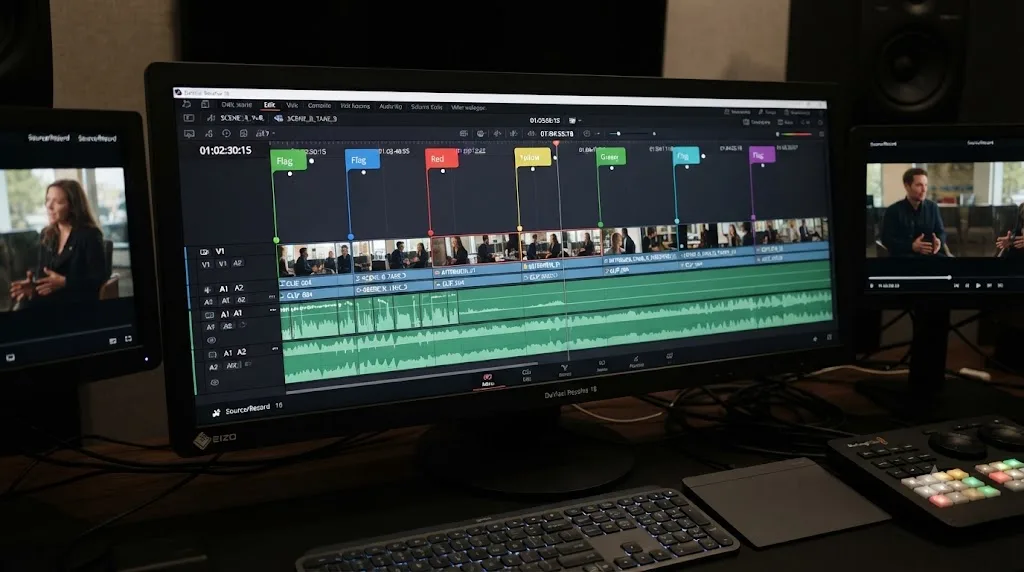
How to Use Markers in DaVinci Resolve for Client Review
Add, color-code, and export DaVinci Resolve markers for client review: the M key, marker colors, EDL export, and Blackmagic Cloud sync explained.