Articles / Guidesupdated for DaVinci Resolve 21.1 (September 2026)
DaVinci Resolve 21.1 Multicam Timeline Viewer Mode: How It Works
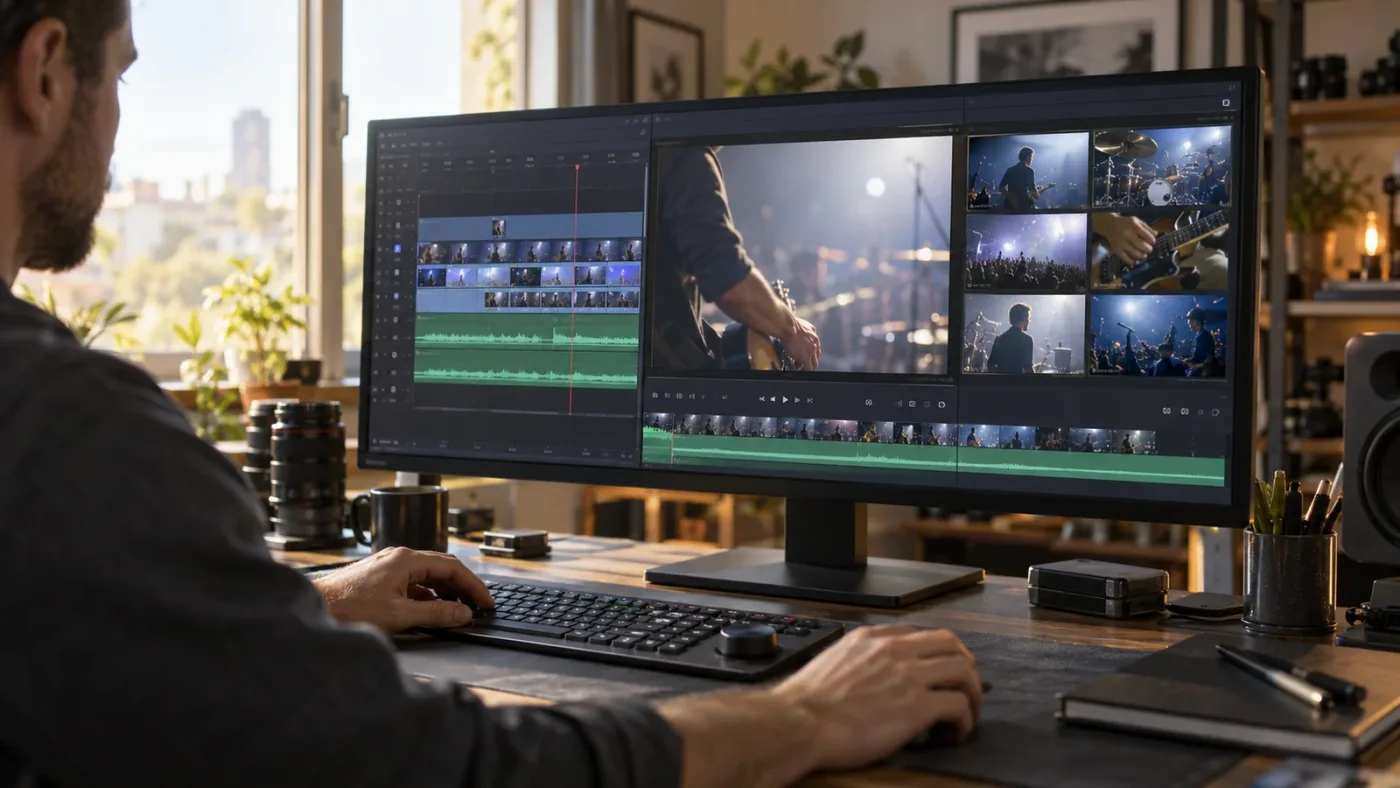
Quick answer
In DaVinci Resolve 21.1, open a multicam edit on the Edit page and click the new multicam mode button in the Timeline Viewer. Resolve puts the current timeline clip in the Source Viewer for angle switching, then returns the Source Viewer to multicam mode when you switch back to the timeline.
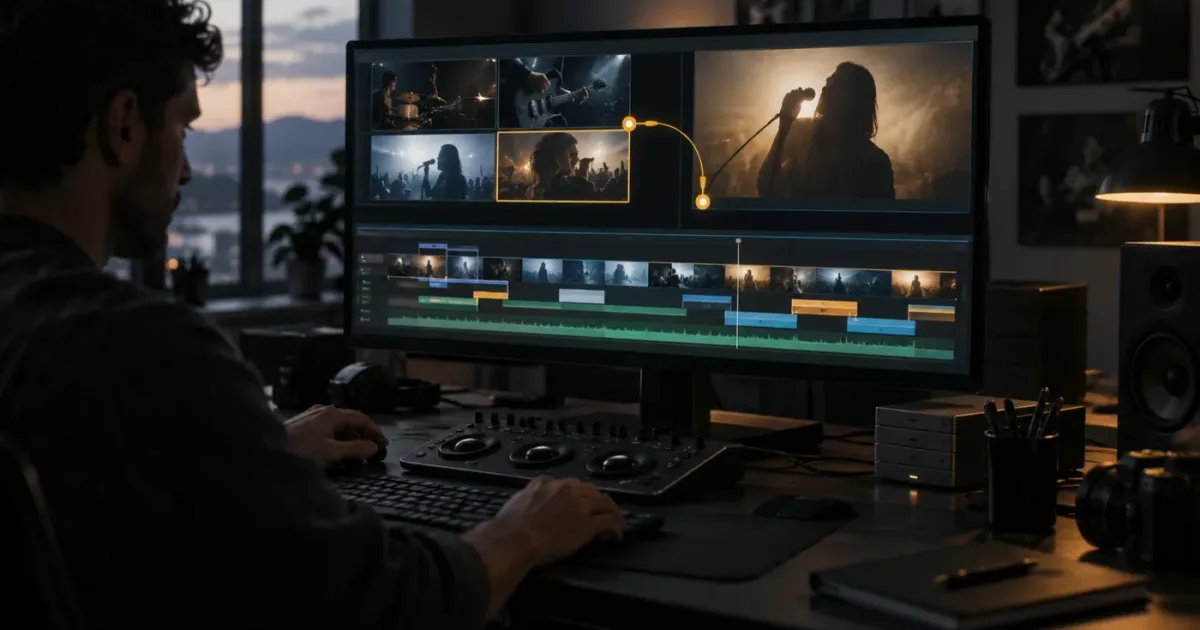
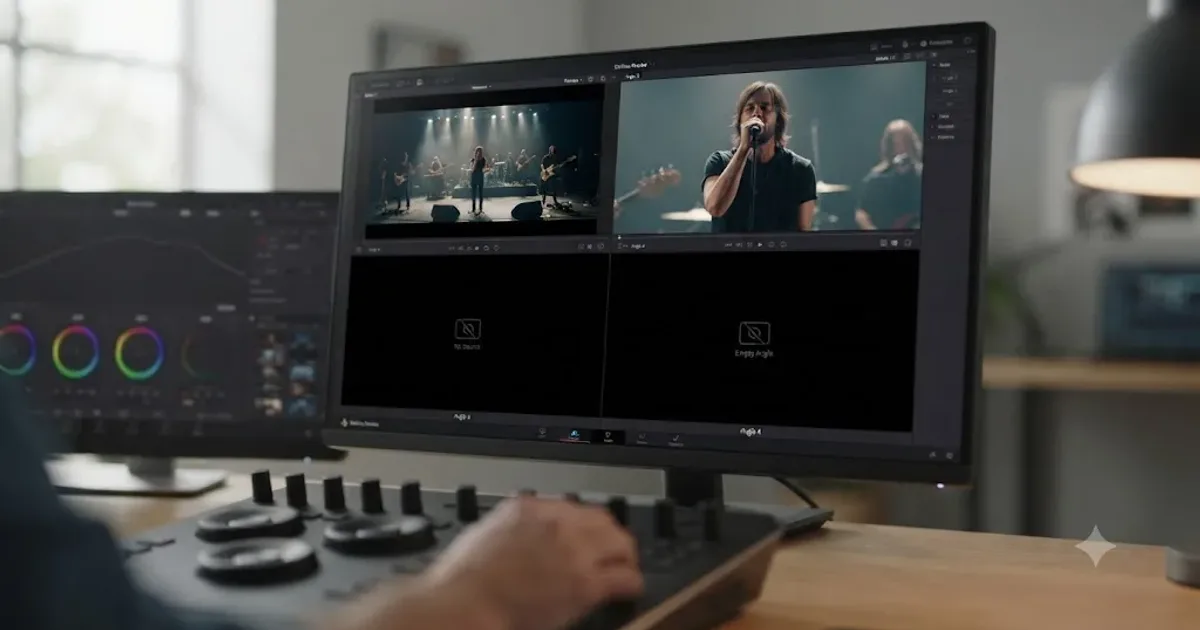
If you can see the multicam clip but not the angle grid, the missing piece in DaVinci Resolve 21.1 is probably the new Timeline Viewer mode. It connects the timeline playhead to the Source Viewer, so you can choose another camera without losing the edit position.
We built this explanation around the question that keeps coming up in our 100,000+ member editing community: which viewer controls multicam playback, and which viewer controls the edit? After seven years of cutting commercial work in Resolve, we’ve learned that this distinction matters more than the button’s name.
As of October 2026, this behavior belongs to DaVinci Resolve 21.1. Blackmagic released 21.1 on September 8, 2026, and lists the timeline viewer multicam mode as an Edit-page improvement in that release. (Blackmagic Design release announcement)
Blackmagic Design CEO Grant Petty described the release this way: “We've also expanded camera support on the Photo page, added new multi-cam workflows and over 25 new Krokodove tools in Fusion and improved the performance of over 100 features.” (Blackmagic Design release announcement)
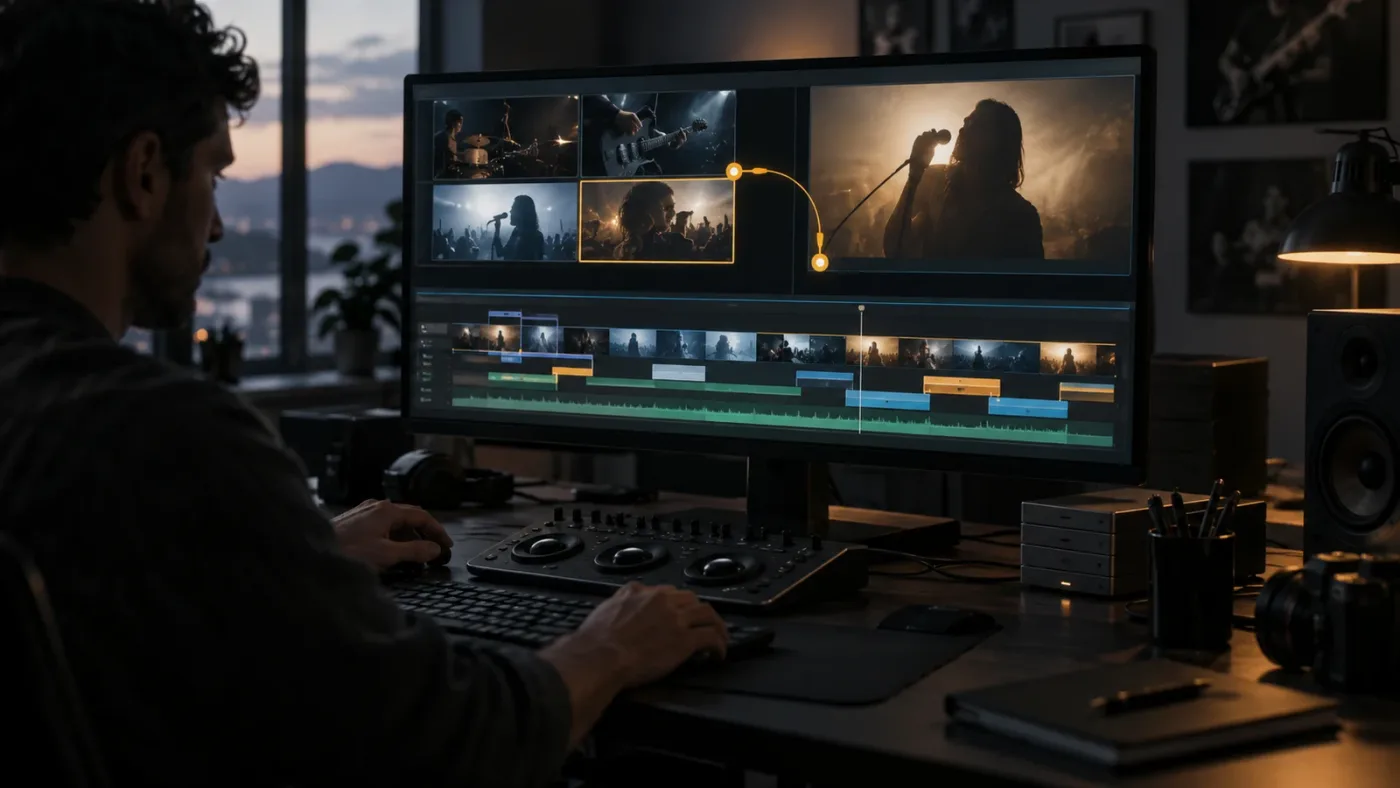
What is DaVinci Resolve 21.1 multicam timeline viewer mode?
DaVinci Resolve 21.1 multicam timeline viewer mode is a Timeline Viewer control that displays the current multicam timeline clip in the Source Viewer for angle switching. When you return to the timeline, Resolve returns the Source Viewer to multicam mode, which is the practical fix for the old stop-start workflow of repeatedly choosing the multicam view again. (Blackmagic Design release announcement)
The name is easy to misread. This isn’t the same thing as changing the whole application into a different viewer layout. It’s a property of the timeline viewer in the Edit page. The point is to keep the current edit and the available camera angles connected.
Blackmagic’s existing Edit-page description helps define the surrounding workflow. Its multicam viewer is designed to show multiple cameras during playback, while the Edit page lets you refine trims and change clip angles in the timeline. (Blackmagic Design Edit page)
DaVinci Resolve 21.1 multicam timeline viewer mode keeps the edit playhead and the camera-angle viewer working as one decision surface.
That matters when you’re reviewing a long interview, concert, panel, ceremony, or sports sequence. You want to watch the cut in context, compare the available angles, and make a switch at the right frame. You don’t want to open a source clip, lose the multicam grid, and then rebuild your viewer state before every decision.
How do I turn on DaVinci Resolve 21.1 multicam timeline viewer mode?
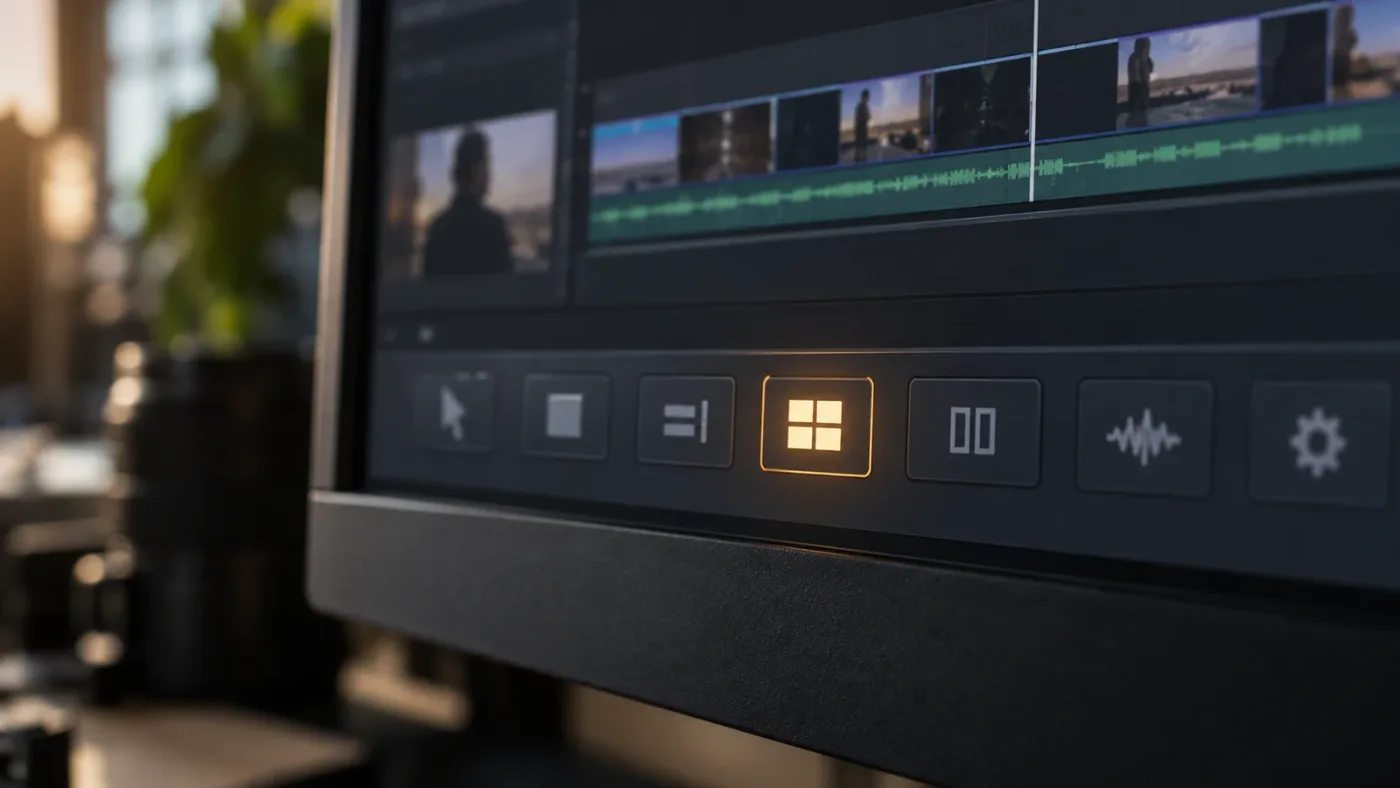
To turn on DaVinci Resolve 21.1 multicam timeline viewer mode, open the Edit page with a multicam clip in the timeline and click the new multicam mode button in the Timeline Viewer. Resolve then displays the current timeline clip in the Source Viewer so you can switch angles from the multicam view. (Blackmagic Design release announcement)
Use this sequence:
- Open DaVinci Resolve 21.1 and go to the Edit page.
- Load the timeline that contains your multicam clip.
- Move the playhead to the moment you want to review.
- Find the multicam mode control in the Timeline Viewer.
- Click it. The current clip from the timeline becomes the clip represented in the Source Viewer.
- Play the edit and watch the available angles in the multicam viewer.
- Choose the angle you want to use at the playhead. Use a video-only choice when the existing audio should remain untouched, or a video-and-audio choice when the camera switch should also change the selected audio.
- Return to the timeline and review the cut in context.
The important step is number 4. Older tutorials often tell you to choose Multicam from a Source Viewer mode menu. That method is documented in Blackmagic’s earlier Editor’s Guide, where the guide says to choose Multicam in the Source Viewer mode pop-up. (DaVinci Resolve 17 Editor’s Guide) In 21.1, the new Timeline Viewer control makes the timeline itself part of the mode switch.
Don’t confuse this with selecting Dual Screen from the Workspace menu. A dual-view layout is about how many viewer panels you can see. Multicam timeline viewer mode is about what the Source Viewer shows when the timeline is active. Those choices can work together, but they solve different problems.
Why is the Source Viewer showing one clip instead of the multicam angles?
If the Source Viewer shows one ordinary clip instead of multicam angles, first confirm that the timeline clip is actually a multicam clip and then enable the 21.1 multicam mode control. The mode cannot create angles that are not present in the timeline item.
There are four common causes.
The timeline contains ordinary clips
A multicam viewer needs a multicam clip or multicam timeline. If you placed the original camera files directly on separate tracks, you have a multi-track edit, not automatically a multicam clip. The viewer can’t infer the intended angle-switching structure from the track layout alone.
You’re running an earlier build
The timeline viewer multicam mode is part of DaVinci Resolve 21.1. Blackmagic’s support center lists the 21.1 software update as an update with enhanced multicam controls, and the release announcement identifies the new button specifically. (Blackmagic Design Support Center, Blackmagic Design release announcement) If you’re on 21.0 or an earlier major version, a tutorial that points to this control won’t match your interface.
The Source Viewer is displaying another source
If you opened a media-pool clip after enabling multicam mode, the Source Viewer may be showing that source clip while you browse. Switch focus back to the timeline and check whether the viewer returns to the multicam display. The 21.1 change is meant to make this return automatic when switching back to the timeline, not to prevent you from previewing other media.
The viewer layout is hiding the useful panel
A single-viewer layout can make it look as if the multicam controls disappeared. Change the viewer arrangement so you can see the Source Viewer and Timeline Viewer together, then look for the multicam mode control in the Timeline Viewer. The viewer layout and multicam mode are separate settings.
A missing multicam grid usually means a missing multicam clip, a pre-21.1 build, or a viewer showing the wrong source.
If all angles are present but some tiles are missing, use the focused troubleshooting path in DaVinci Resolve Multicam Angle Viewer Not Showing All Cameras. That page owns the incomplete-angle problem. This page owns the viewer-mode switch.
How does the mode change a normal multicam editing pass?
The mode changes the handoff between previewing source media and cutting the active multicam timeline. You can inspect a source, return to the timeline, and continue from the same multicam context instead of manually reselecting the viewer mode.
Here’s a small example. Imagine a three-camera interview:
| Camera | Useful role | Decision during the edit |
|---|---|---|
| Angle 1 | Wide two-shot | Use when the conversation needs room to breathe or both speakers matter |
| Angle 2 | Host close-up | Cut here for a question, reaction, or listening beat |
| Angle 3 | Guest close-up | Cut here for the answer or a stronger emotional reaction |
Put the playhead just before the guest finishes a sentence. With the timeline viewer multicam mode active, watch the current edit while the Source Viewer presents the available angles. Choose the guest close-up for the answer, then return to the timeline and check the cut against the incoming and outgoing audio.
The example is simple, but it exposes the control’s real value. The problem isn’t only choosing a camera. It’s choosing a camera while preserving the exact point in the edit that gave you the reason to switch.
The choice between video and audio deserves care. Blackmagic’s multicamera guidance documents separate controls for video only, video and audio, and audio only. (DaVinci Resolve 18 Editor’s Guide) For an interview, video-only switching is often the safer starting decision when one camera has the cleanest continuous recording. For a live performance, a deliberate audio angle can matter just as much as the picture.
Multicam timeline viewer mode preserves your place, but the editor still owns the story decision.
That is an editorial decision, not a rule built into the button. The Timeline Viewer mode helps you get to the angle decision. It doesn’t know which microphone, performance, or reaction is right for your story.
Why does Resolve return to multicam mode when I switch back to the timeline?
Resolve 21.1 returns the Source Viewer to multicam mode when you switch back to the timeline because the new workflow is designed to preserve the multicam editing context after source-media preview. Blackmagic describes this as a way to avoid losing your place when previewing media-pool clips. (Blackmagic Design release announcement)
Think of the sequence as two states:
- Timeline state: the Source Viewer is tied to the current multicam edit, so the available angles stay relevant to the playhead.
- Source-preview state: you open a media-pool clip or another source for inspection.
- Return state: you select the timeline again, and Resolve restores the multicam context.
This is why the feature feels different from simply choosing Multicam from a drop-down. The older method changes the Source Viewer mode. The 21.1 feature makes the relationship between the Timeline Viewer and Source Viewer part of the workflow.
If the return behavior doesn’t happen, don’t immediately assume the project is damaged. Check whether you returned focus to the multicam timeline, whether the clip under the playhead is a multicam clip, and whether the mode control is still enabled. A source viewer can only return to a multicam context that still exists.
One older Blackmagic forum question describes the frustration in plain terms: an editor had to select the multicam viewer again after returning from a pasted snippet to the multicam timeline. (Blackmagic Design forum) DaVinci Resolve 21.1’s new control addresses that class of workflow interruption.
How do the new DaVinci Resolve 21.1 multicam shortcuts fit this mode?
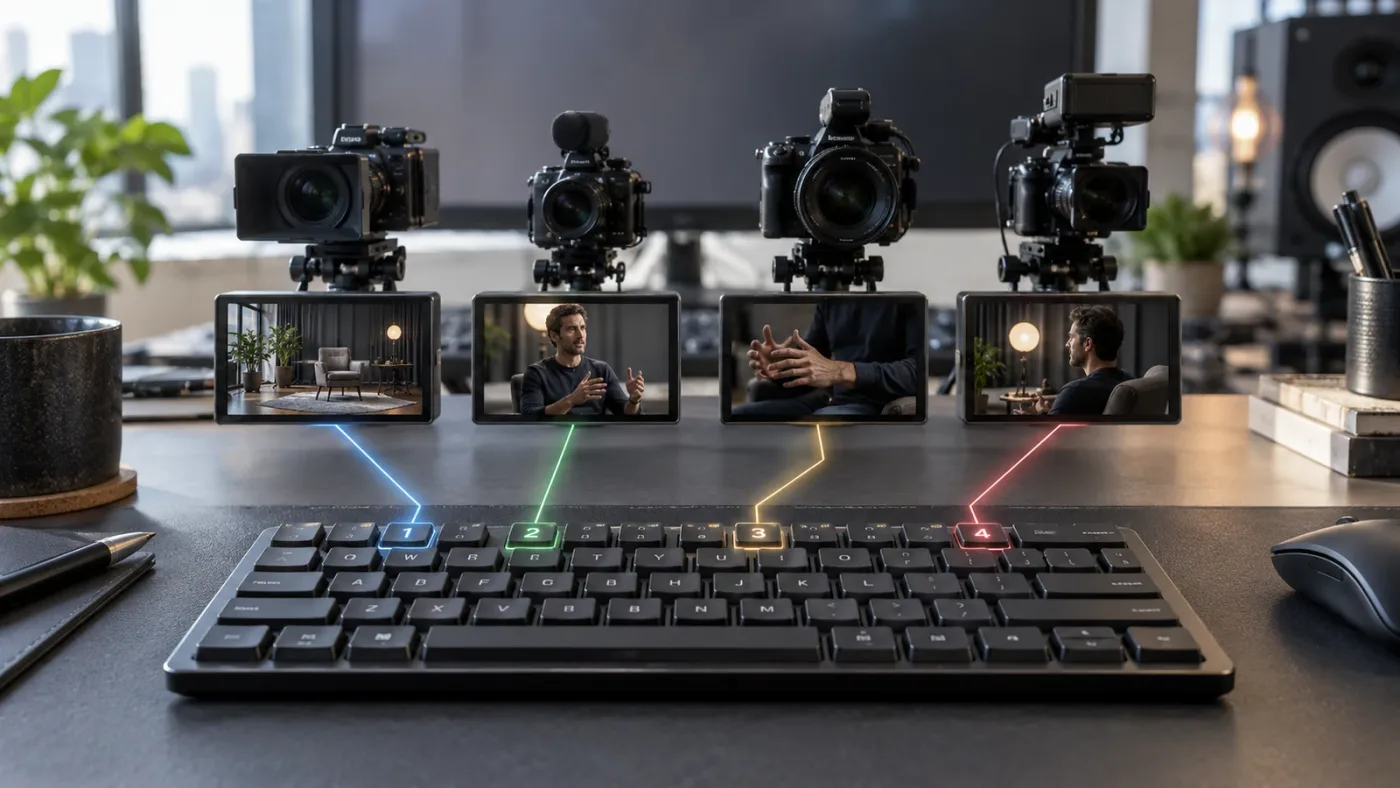
DaVinci Resolve 21.1 adds multicam keyboard-shortcut support for up to 25 angles, so the Timeline Viewer mode can support fast switching on large multicamera edits as well as manual angle selection. (Blackmagic Design release announcement)
The shortcut count is a capability limit, not a promise that every project will show 25 visible cameras at once. Blackmagic’s Edit page describes multicam layouts including 4, 9, 16, and 25 or more cameras, while your actual display depends on the number of angles and the selected grid layout. (Blackmagic Design Edit page)
Use shortcuts after the viewer relationship is correct. If the Source Viewer is showing the wrong source, an angle key can still produce a confusing result because you’re solving the wrong problem at speed.
For a practical setup, map or confirm the commands in Keyboard Customization, then test them on a short section:
| Task | What to confirm | Why it matters |
|---|---|---|
| Switch to an angle | The intended camera changes in the active multicam edit | Prevents a shortcut from targeting the wrong viewer focus |
| Cut to an angle | The new edit point appears where the playhead is parked | Separates switching from making a cut |
| Keep existing audio | Video-only behavior remains selected | Protects a continuous master recording |
| Change audio with video | Video-and-audio behavior is selected | Useful when each camera carries a meaningful audio source |
| Return to timeline | The Source Viewer comes back in multicam mode | Confirms the 21.1 workflow is active |
DaVinci Resolve lets editors customize shortcuts, and Blackmagic says its keyboard customization interface can save presets and export them for use on other Resolve systems. (Blackmagic Design Edit page) DaVinci Resolve 20’s new-features guide also documents Q for toggling between the Source and Timeline Viewers and Option-Q for the Source Timeline view. Treat those assignments as version-specific and verify them in your current Keyboard Customization window before building muscle memory. (DaVinci Resolve 20 New Features Guide)
Fast multicam shortcuts are useful only after the Source Viewer and Timeline Viewer are aimed at the same edit.
What should you do if multicam sync is already wrong?
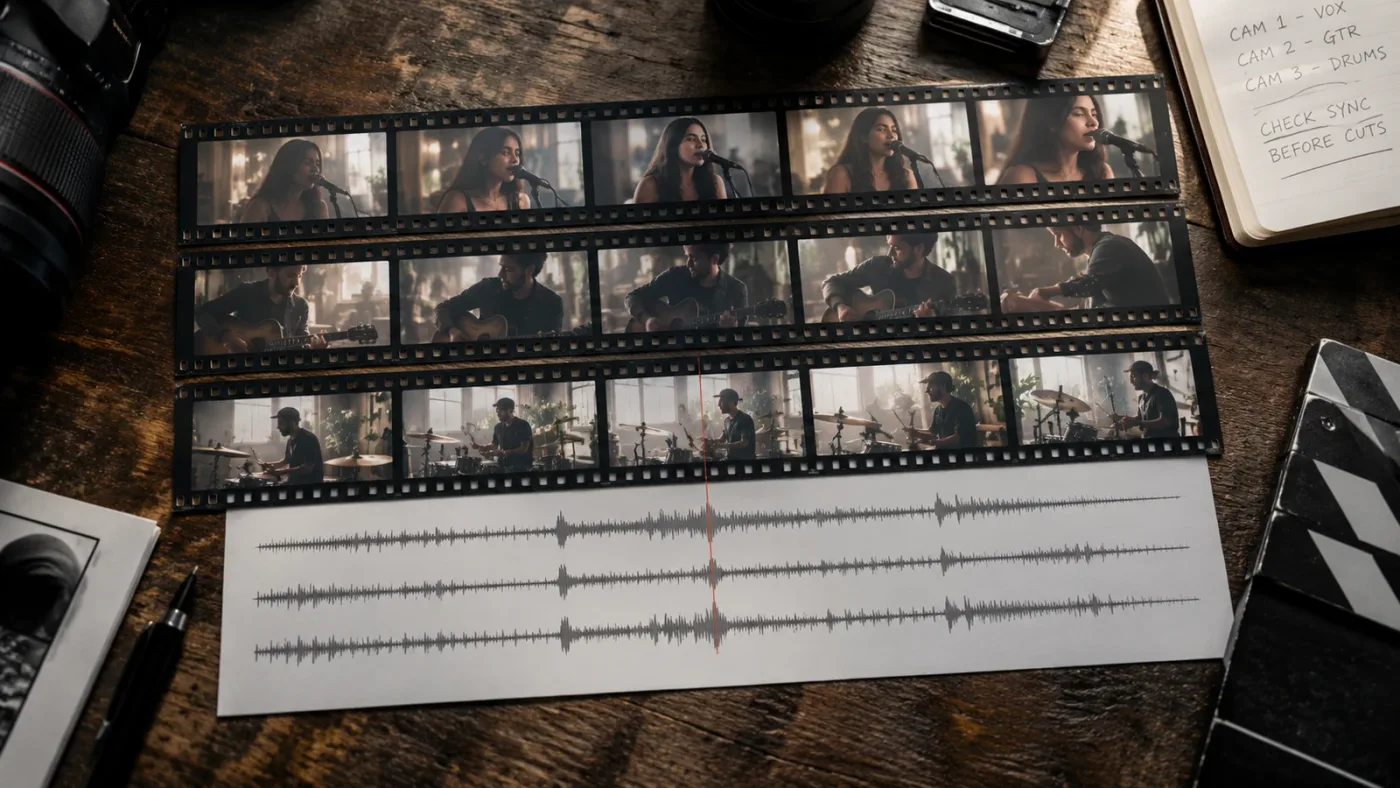
Timeline viewer mode does not repair a multicam clip whose angles are out of sync. It controls how you see and switch the edit after the multicam structure exists.
That distinction saves time. If the audio waveform, timecode, or in and out points produced a bad alignment, switching viewers will only help you inspect the wrong alignment more conveniently. Blackmagic lists audio waveform, timecode, and in and out points as multicam synchronization methods on the Edit page. (Blackmagic Design Edit page)
Use this decision split:
- If the angles are aligned but you cannot keep the angle viewer visible, troubleshoot Timeline Viewer mode and layout.
- If the angle grid is incomplete, troubleshoot the angle list, viewer layout, and source media.
- If the angles drift or begin on different frames, troubleshoot sync and timecode before editing.
- If the picture switches but the sound is wrong, review the video-only and video-and-audio choices.
For the third case, continue with DaVinci Resolve Multicam Sync Off by Frames: Every Fix. That sibling page covers sync drift and frame offsets. This page should remain the answer to the narrower question: where is the 21.1 viewer mode, and what does it do?
Is DaVinci Resolve 21.1 multicam timeline viewer mode available in the free version?
Blackmagic’s 21.1 announcement says DaVinci Resolve 21.1 is available as a free download, and the support center lists a DaVinci Resolve 21.1 update separately from the Studio 21.1 update. The release announcement describes the timeline viewer multicam improvement as an Edit-page workflow change, not a Studio-only color or scripting feature. (Blackmagic Design release announcement, Blackmagic Design Support Center)
That means the first thing to check is your version, not your license tier. Studio adds other capabilities in 21.1, including individual MultiMaster trims, AI assistant integration, and 20 scripting APIs according to the support notes, but the announcement does not label the Timeline Viewer multicam mode as Studio-only. (Blackmagic Design Support Center)
If you’re deciding how to learn, Blackmagic’s official training remains the right first reference for the vocabulary and core workflow. You can also compare it with the courses and practice options in Best DaVinci Resolve Courses in 2026. Casey Faris and other independent educators can be useful when you need a second explanation, especially when a tutorial shows an older viewer menu.
The best way to learn DaVinci Resolve fast is to use a real short edit and verify each control against your installed version. A course can explain multicam editing. The timeline viewer mode becomes useful when you stop watching and make the angle decision yourself.
What is the best way to learn DaVinci Resolve multicam editing when a tutorial does not match?
The best way to learn DaVinci Resolve multicam editing when a tutorial does not match is to identify the version, name the viewer that owns the control, and test one short angle change before copying the full workflow. That method works better than guessing from a screenshot made in another release.
Use this checklist when a lesson and your interface disagree:
- Read the version number in Resolve’s About window.
- Compare the lesson’s date with the version it teaches.
- Separate Source Viewer instructions from Timeline Viewer instructions.
- Ask whether the tutorial uses a multicam clip, a regular clip, or a source timeline.
- Test the control on a duplicate timeline or a short section.
- Verify the picture and audio result before continuing.
That process is part of professional editing, not remedial work. Software changes. Naming changes. A viewer control can move while the editorial decision stays the same.
For editors who want live help while they work, TryUncle can point to the relevant Resolve control on screen while you describe the problem in plain words. It’s useful when a tutorial’s version, layout, or terminology doesn’t match what you see, but it doesn’t replace the need to confirm the angle and audio decision yourself.

Which viewer should control your next multicam decision?
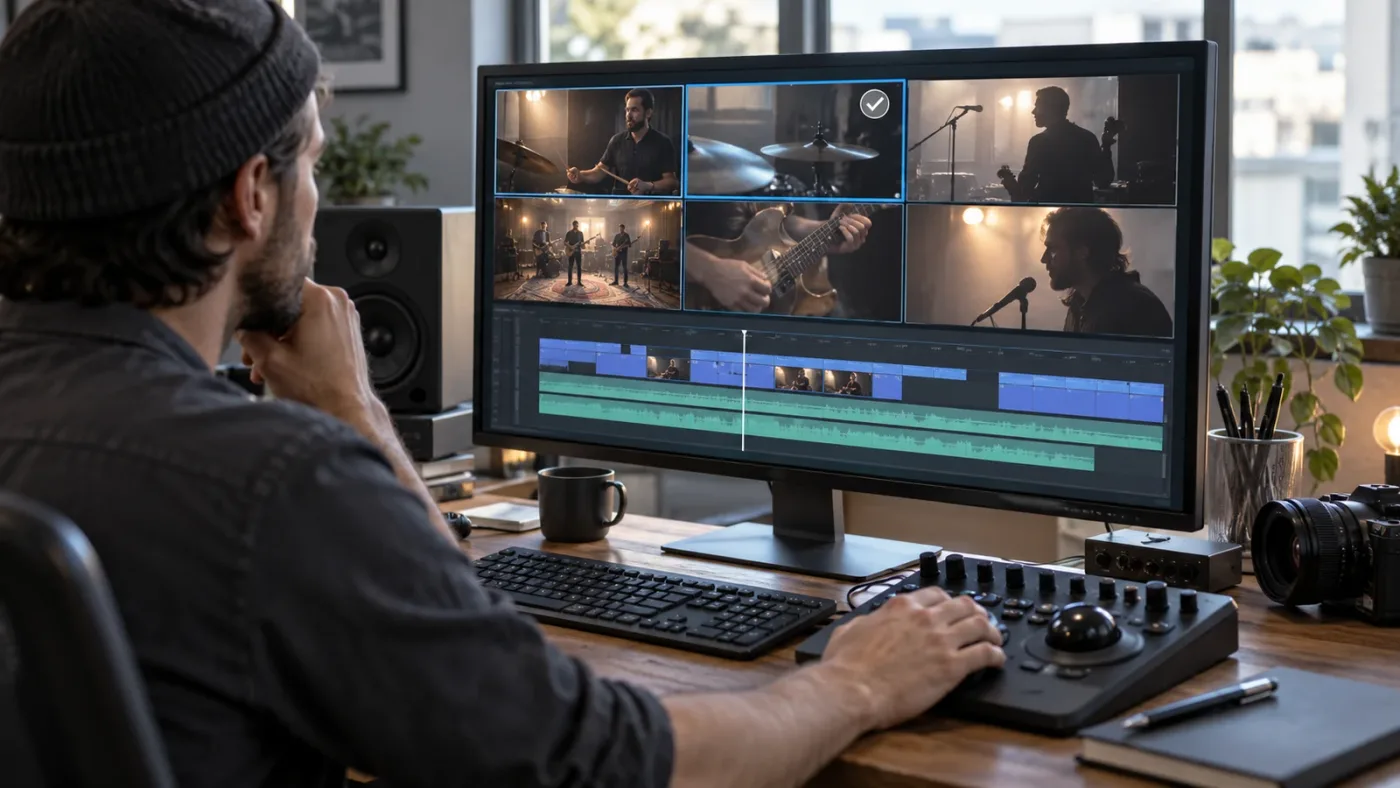
Use the Timeline Viewer to judge the current edit, the Source Viewer to compare the available camera material, and DaVinci Resolve 21.1 multicam timeline viewer mode to keep those two decisions connected. The button is worth learning because it removes a small but costly interruption from every angle change.
The clean workflow is short:
- Build or open a correctly synced multicam clip.
- Go to the Edit page.
- Enable the Timeline Viewer multicam mode.
- Play to the decision point.
- Switch video, audio, or both with intention.
- Return to the timeline and review the cut.
If the grid is missing, fix the clip or viewer layout. If the timing is wrong, fix sync. If the control is absent, check the version. Once those conditions are right, the answer is simple: use the 21.1 Timeline Viewer multicam mode when you need to preview, switch, and return to the edit without losing your place.
Frequently asked questions
- How do I turn on DaVinci Resolve 21.1 multicam timeline viewer mode?
- On the Edit page, open the multicam timeline and click the multicam mode button in the Timeline Viewer. The current timeline clip appears in the Source Viewer, where you can switch angles.
- Why is DaVinci Resolve 21.1 not showing multicam angles?
- The timeline must contain a multicam clip, and the multicam mode control must be enabled in the Edit page viewer. If the control is missing, confirm that you are running Resolve 21.1 rather than an earlier 21.x build.
- Does multicam timeline viewer mode change the original camera files?
- No. The mode changes how Resolve displays and switches the multicam edit. It does not replace the original camera media.
- How many multicam angles can DaVinci Resolve 21.1 control with shortcuts?
- Blackmagic says the new multicam keyboard shortcuts can control up to 25 angles. The number of visible tiles still depends on the multicam viewer layout and the angles in your clip.
- What is the difference between the Source Viewer and Timeline Viewer in a multicam edit?
- The Timeline Viewer shows the active edit at the playhead, while the Source Viewer can show the multicam angles for choosing a different camera. Resolve 21.1 connects them with the new timeline viewer multicam mode.
Sources
- Blackmagic Design announces DaVinci Resolve 21.1
- Blackmagic Design Support Center, DaVinci Resolve 21.1
- DaVinci Resolve Edit page, Multicam Editing
- The Editor's Guide to DaVinci Resolve 17, multicamera editing
- The Editor's Guide to DaVinci Resolve 18, multicamera editing
- DaVinci Resolve 20 New Features Guide, viewer shortcuts
- Blackmagic Design forum, multicam preview toggle
Put this guide to work with TryUncle.
Ask about the step you’re on. TryUncle sees your screen and points at the control you need, so you can keep learning in your own project.
Get TryUncle for Mac or WindowsKeep reading
Fixes · Jul 31, 2026 · 24 min
DaVinci Resolve Multicam Angle Viewer Not Showing All Cameras
Multicam viewer only showing some of your DaVinci Resolve camera angles? Fix the grid size, duplicate camera metadata, and black angle bugs, one by one.
Fixes · Jul 8, 2026 · 26 min
DaVinci Resolve Multicam Sync Off by Frames: Every Fix
Multicam clip off by frames or drifting worse over time? Fix DaVinci Resolve's waveform mis-sync, frame rate drift, and timecode gaps, angle by angle.

Comparisons · Jul 13, 2026 · 34 min
Best DaVinci Resolve Courses in 2026: 6 Real Options Compared
We compared six real DaVinci Resolve courses for 2026, from Blackmagic's free certification to color grading and Udemy bootcamps, to find the best fit.