Articles / Fixesupdated for DaVinci Resolve 21.0.3 (July 2026)
DaVinci Resolve Multicam Angle Viewer Not Showing All Cameras
Quick answer
DaVinci Resolve's multicam viewer usually isn't showing all your cameras because the Viewer Option grid is set smaller than your camera count, not because footage is missing. Click its grid icon and raise it to fit every angle (Resolve supports 4, 9, 16, 25 or more), then check for duplicate camera metadata or a black, zoomed-out angle.
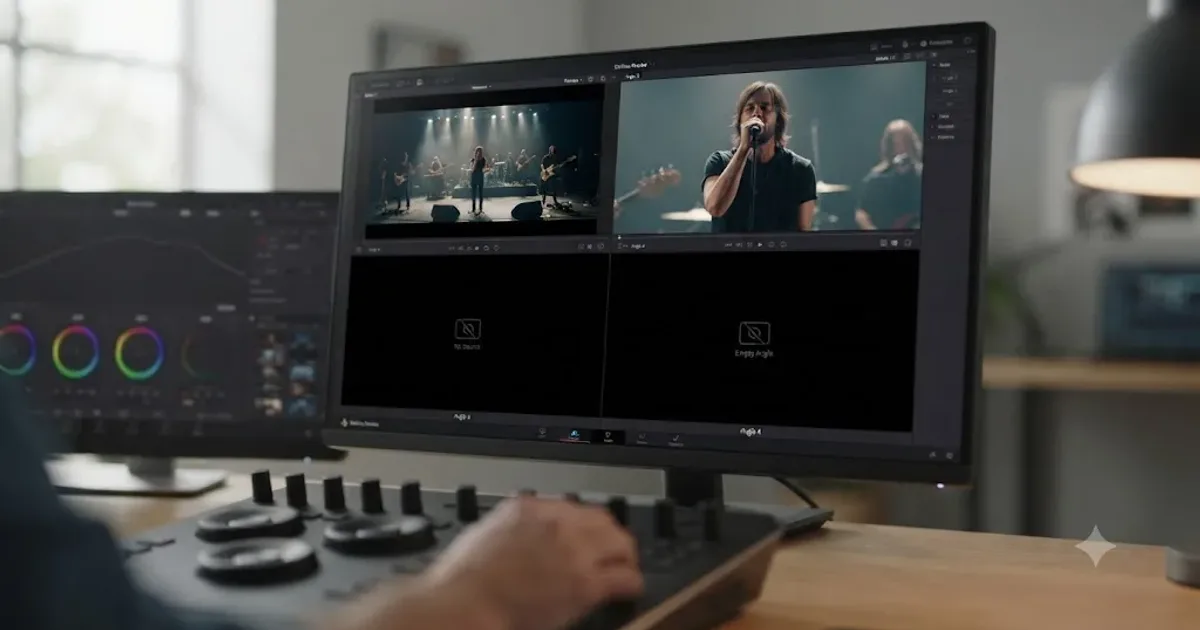
Four cameras rolled at your last shoot. The multicam viewer shows two. You scroll, you click around, you check the timeline, and the other two angles are just gone, or worse, they're there in the Media Pool but refuse to show up in the grid where you actually need them.
This isn't data loss and it isn't a corrupted project. It's one of a small number of specific, fixable causes, and almost all of them trace back to a setting or a metadata field rather than a genuine software failure. Across the Blackmagic forum, Creative COW, and every other place editors compare notes on multicam problems, the single most common version of this complaint is an editor who assumes footage is missing when the viewer is simply capped at a smaller grid than their camera count. Below is every real cause, in the order you should actually check them.
What causes DaVinci Resolve's multicam angle viewer to not show all your cameras?
The multicam angle viewer is a grid, and like any grid it has a fixed number of cells. A DaVinci Resolve multicam viewer that's "not showing all your cameras" is almost always showing exactly as many as its current grid size allows, not fewer than the footage actually contains. If your multicam clip has six angles but the viewer's grid is set to a 2x2 layout, you will only ever see four of them at once, no matter how many times you scrub, reload, or rebuild the clip.
Blackmagic's own product page for the Edit page states plainly that "the edit page features a full multicam interface with everything you need for editing larger, more complex projects with 4, 9, 16, 25 or more cameras." That range, 4, then 9, then 16, then 25, isn't arbitrary. It maps to square grid layouts: a 2x2 shows 4 angles, a 3x3 shows 9, a 4x4 shows 16, a 5x5 shows 25. Each step up the grid is a discrete jump, not a smooth scale, which is exactly why a shoot with 5 cameras can look like it's "missing one" on a 4-angle grid until you bump up to the next size.
That's the single most common cause, and it's the first thing to rule out. But it isn't the only one. A genuinely blank viewer with zero cameras visible, two cameras that look like they merged into one, and a single angle that renders solid black while the rest play fine are three separate and distinct problems, each with its own fix. Diagnosing which one you're actually looking at, before you start changing settings, is what saves you the afternoon.
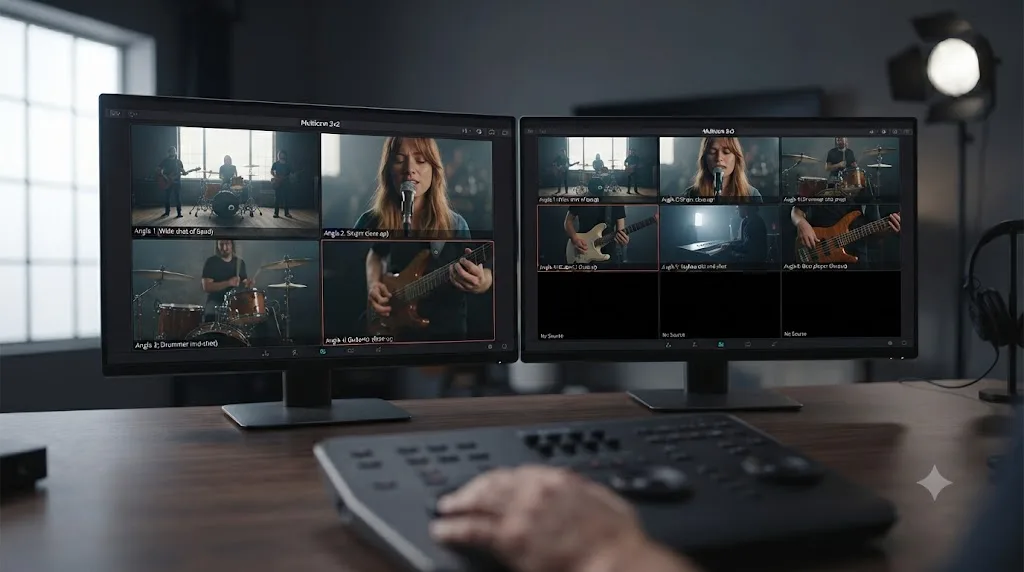
How do you increase the number of angles the multicam viewer displays at once?
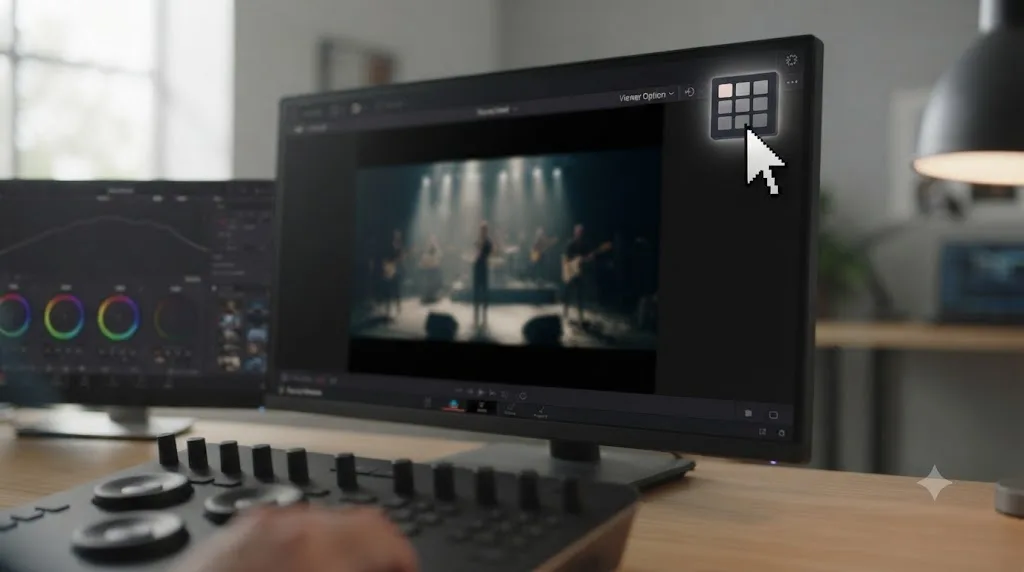
Click the grid-shaped Viewer Option icon in the corner of the Source Viewer while a multicam clip is loaded, then pick a layout sized for your actual camera count. This is a viewer setting, not a property of the multicam clip itself, so it has to be set correctly every time you want to see your full camera count at once.
Per Blackmagic's own reference manual on multicam editing, "when viewing multicam clips ... you can choose how many angles to show in the viewer via the Viewer Option menu". That's the exact mechanism behind almost every "missing angle" report that turns out not to be a bug. The grid defaults to whatever it was last set to, on your machine, for that user profile, which means switching projects or opening someone else's saved layout can silently drop you back to a 4-angle grid on a 9-camera shoot without any error, warning, or obvious visual cue that anything is wrong.
The multicam viewer's grid size is a leftover setting from whatever you last had open, not something DaVinci Resolve recalculates for each new multicam clip. Check it first, every time, before you assume anything else is broken. If you're new to where the Source Viewer and its icons sit relative to the rest of the interface, our beginner's guide to DaVinci Resolve maps out where each panel lives across all seven pages.
One caveat worth knowing before you go hunting for a bigger grid: the grid can only ever show as many angles as your multicam clip actually contains active clip data for. If a shoot had four cameras but only three clips made it into the multicam clip's creation, because one file was missed during import, no grid setting brings back a fourth angle that was never assigned in the first place. Confirm your camera count against your actual footage before assuming the fix lives in the viewer.
Don't confuse the grid size with the small set of icons at the bottom of the multicam viewer either, since those control something different. Larry Jordan's tutorial on multicam editing describes them as the controls that "determine what gets switched in the timeline" when you click an angle: video-only, audio and video together, or audio-only. None of the three change which cameras are visible in the grid, only what gets cut onto your timeline when you pick one. Jordan also flags a related habit worth avoiding: "some YouTube videos recommend detaching audio from video so that you can make video-only cuts," he warns, calling it "a serious mistake, because it runs the risk of losing sync between audio and video." If an angle looks fine in the grid but plays back oddly once cut to the timeline, check that icon before you touch the grid size again.
Once every angle is actually showing, switching between them is fast. The same tutorial notes you can type a number from 1 to 9 to cut straight to that camera, or select a segment on the timeline and hold Option while typing a number to reassign it to a different angle. Neither shortcut has anything to do with visibility, they just make the grid you already fixed faster to work with.
Why does the multicam viewer show a blank screen with no cameras at all?
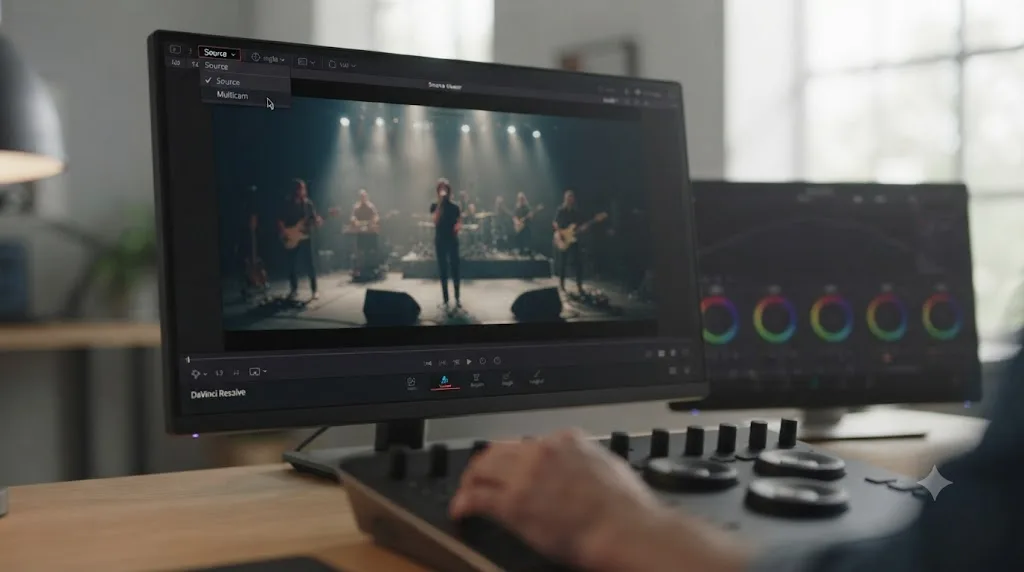
A completely blank multicam viewer, showing zero angles rather than just fewer than expected, is a different bug from a capped grid, and it almost always means the Source Viewer never actually switched into multicam mode. Simply hovering a multicam clip in the Media Pool and seeing a quick preview flash by is not the same thing as the viewer being set to display the full angle grid.
Editor and trainer Larry Jordan is specific about the mechanism: "To view the angles in a multicam clip, select Multicam from the small menu in the lower left corner of the left-side monitor," referring to the Source Viewer's own mode dropdown. If that dropdown is still set to Source, or to anything other than Multicam, you'll see the clip's default angle at most, never the grid, regardless of how many angles the clip actually contains.
A thread on the Blackmagic forum titled "Multicam source viewer not showing clips" describes precisely this pattern: a user switches to multicam mode and no angles show up at all, with the Edit menu's multicam options appearing greyed out and disabled rather than active. The resolution in that thread traces back to workflow order: the multicam clip needs to be sitting on an actual timeline first, not just selected inside the Media Pool, before the Source Viewer's Multicam mode has anything valid to display.
A related thread, "Multicam edit mode viewer not showing dual screen," traces a nearly identical blank-viewer symptom to a different but adjacent mistake: the editor had right-clicked the multicam clip and chosen "Open in Timeline" instead of building or opening it through the normal viewer-and-timeline workflow. Opening in Timeline is a legitimate, useful feature, it exposes the individual angle tracks so you can nudge, trim, or resync one angle directly, but it deliberately shows you separate editable tracks instead of the combined multicam grid. Per Blackmagic's manual on opening and altering multicam clips, that mode exists specifically to expose individual angles for direct editing, not to preview them side by side. If you meant to see the grid and instead see a stack of separate tracks, you're in the wrong mode for what you're trying to do, not looking at a bug.
A blank multicam viewer with zero angles almost always means the viewer was never switched into Multicam mode in the first place, not that the footage failed to load. Check the Source Viewer's own mode dropdown before you touch anything else.
Why do two of your cameras look like they merged into one angle?
This one is subtler than a blank viewer or a capped grid, because the viewer isn't showing an error, it's showing fewer distinct angles than you shot with, with no obvious sign that anything went wrong. The cause almost always lives in how the source clips were tagged before the multicam clip was ever created.
A Blackmagic forum thread titled "Multicam Angles (organize different angles by camera)" describes an editor moving from Final Cut Pro X who ran into exactly this: footage from different cameras kept landing on the same angle slot instead of staying separated, because Resolve's angle assignment during multicam creation reads a Camera # metadata field on each source clip, and that field needs to be set uniquely per camera before you build the multicam clip. Without it, Resolve has no way to know that camera A's footage and camera C's footage are supposed to occupy two different angle slots, and it can quietly assign them to the same one.
Two cameras sharing a single angle slot in a DaVinci Resolve multicam clip almost always traces back to missing or duplicate Camera # metadata on the source clips, set before the multicam clip was created, not a viewer or grid problem. The fix has to happen upstream of the multicam clip itself. Select each source clip in the Media Pool, open Clip Attributes, and give every distinct camera its own Camera # value, matching how you'd label them on a call sheet, camera A as 1, camera B as 2, and so on. Then rebuild the multicam clip from those corrected source clips. Simply editing metadata on clips that are already locked inside an existing multicam clip won't retroactively split a merged angle; the assignment happens at creation time.
This is worth checking even if your grid size and viewer mode both look correct, because a merged-angle problem produces a symptom that's easy to mistake for a grid cap: fewer visible cameras than you expect, sitting quietly in an otherwise normal-looking grid. The difference is that raising the grid size won't fix it, because there's no missing cell, there's a missing distinct angle assignment.
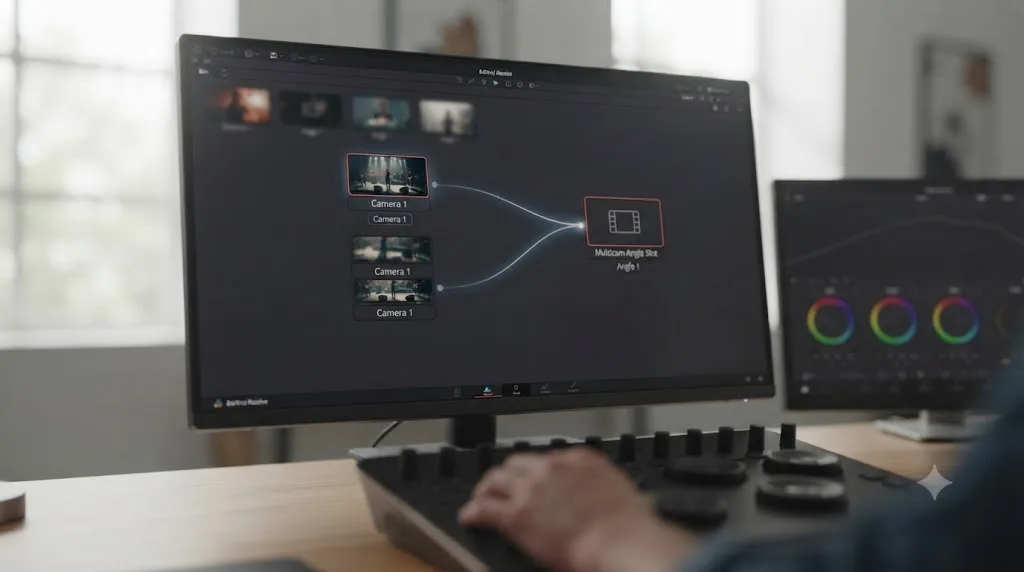
Why is one angle black or frozen while the rest play normally?
A single dead-looking angle, sitting in its correct slot in an otherwise full grid, points somewhere completely different from a grid or metadata issue: something is wrong with that one clip specifically, not with the multicam setup around it.
A Blackmagic forum thread describing a "black screen preview in a multicam sequence" walks through exactly this scenario on a four-camera concert edit. One camera played correctly in the multicam preview window but showed solid black everywhere else, in the timeline thumbnails and on the main monitor. After a lengthy troubleshooting session, the cause turned out to be a zoom value that had been accidentally set to 0 on that one clip's Inspector settings, nothing to do with the multicam clip's structure, sync, or grid at all.
A single angle rendering black or frozen inside an otherwise working multicam grid is a per-clip problem, usually a zoom, transform, or enabled/disabled toggle set wrong on that one source clip, not a multicam-wide failure. Isolate the specific clip behind the dead angle, either by right-clicking the multicam clip and choosing Open in Timeline to access it directly, or by locating the original source clip in the Media Pool, and check its Inspector for a zero-value zoom, a transform pushed off-frame, or a disabled clip toggle. Also check for a ResolveFX or LUT applied only to that clip that might be crushing the image to black under certain viewing conditions.
This symptom differs from a genuinely missing camera in one important way: the angle slot itself is present and correctly positioned in the grid. You're not missing a camera, you're looking at a camera that's technically there but visually broken. That distinction matters, because the fix is entirely local to that one clip's settings, and touching the grid size, the metadata, or the sync method won't do anything to help it.
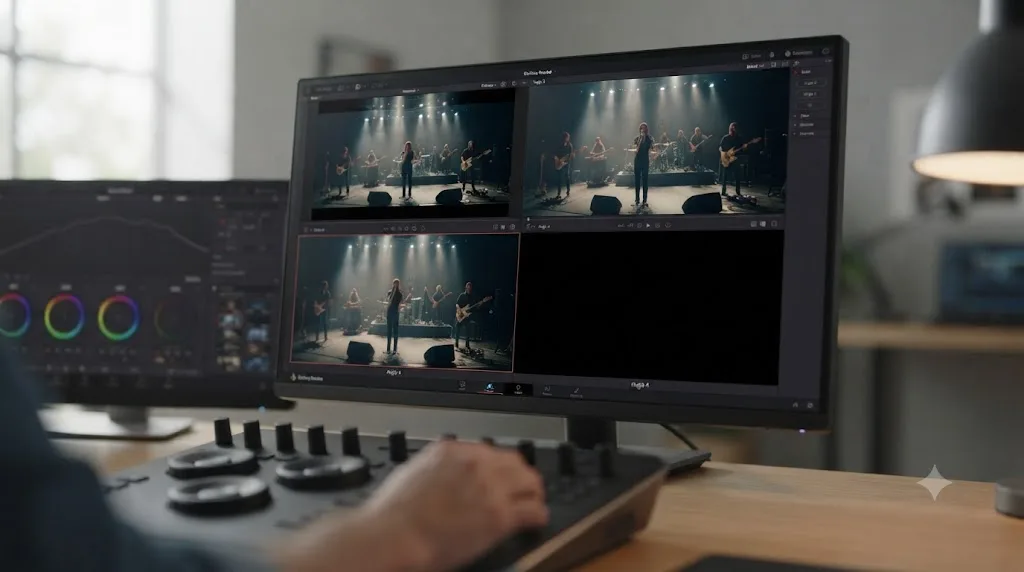
Could an angle have been deleted or disabled instead of just hidden?
Sometimes the camera isn't hiding behind a setting at all. It was removed. DaVinci Resolve's own manual on opening and altering multicam clips confirms this is a real, intentional operation rather than a glitch: once you open a multicam clip in Timeline mode, each angle becomes its own track, and the manual notes you can "right-click the track header and choose Delete Track" to remove that angle from the clip entirely.
That's genuinely useful when a camera failed on set and you don't want a dead angle cluttering your grid. It's also exactly how a camera can vanish from a five-camera shoot without anyone touching the Viewer Option grid or Clip Attributes. If you or a collaborator opened the multicam clip in Timeline mode to trim one angle and clicked Delete Track on the wrong header, that camera is gone from the multicam clip itself, not just from view.
There's a gentler version of the same idea. Per the same manual, you can also disable a track instead of deleting it: it "can disable audio or video tracks that correspond to angles you don't want to see, but don't want to eliminate, either." A disabled video track still exists inside the multicam clip, so re-enabling it brings the angle straight back. A deleted track doesn't work that way, because deleting removes the angle assignment, not just its visibility.
A camera that's missing from every grid size, on every viewer mode, with correct Camera # metadata already confirmed, has usually been deleted or disabled as a track inside the multicam clip, not lost by the viewer. Right-click the multicam clip, choose Open in Timeline, and look down the list of track headers for one that's greyed out or simply absent compared to your camera count. A disabled track is a one-click fix: re-enable it from the same context menu. A deleted track means rebuilding the multicam clip from the original source clips, since the angle assignment itself is gone, not just its display.
If you're working on a project shared through Blackmagic Cloud or a Project Server database, this gets one layer more complicated. A collaborator working inside the same multicam clip could disable or delete a track on their end, and it shows that way for you too the next time your project syncs. Our comparison of Project Server and Blackmagic Cloud collaboration covers how shared project changes propagate between editors, and it's worth reading if a camera vanished on a project you don't work in alone, since the cause might be a change someone else made rather than anything wrong with your own copy of Resolve.
None of this is new to DaVinci Resolve 21. A Blackmagic forum thread titled "Multicam Issues," tagged to Studio 16.2.7.010, describes the same category of viewer confusion years before 21.0.3 shipped. The mechanics behind a missing camera, the grid size, the metadata, the per-clip settings, and the track state, haven't changed in the major point releases since. What you're troubleshooting today is the same list of causes editors have been working through since at least Resolve 16.
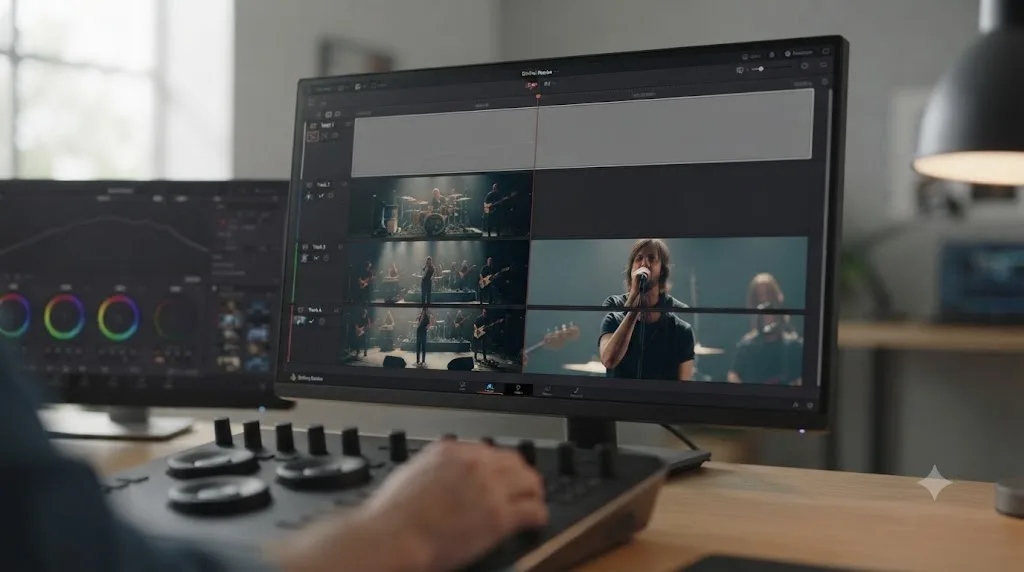
Why can't you make the multicam viewer bigger to actually see every angle clearly?
Sometimes every camera is technically there, correctly assigned, correctly synced, and still hard to actually judge because the multicam grid itself is small. This is a real, long-standing limitation rather than a bug you're doing something wrong to trigger.
An editor going by ozmorphasis, posting on the DVXuser forum, put the core complaint plainly: "The grid of camera angles to select from in the source viewer is the most important thing to be able to see clearly, but I can't make it very large." That same thread is worth reading in full, because the workarounds other editors tried, and the ones that didn't pan out, map onto almost anything you'd try yourself. One poster suggested hitting Cinema Viewer full-screen mode, but the original poster pointed out that this takes over the Timeline Viewer, not the Source Viewer, so the small multicam grid disappears from the screen entirely instead of getting bigger. Another described running two GUI monitors plus a broadcast reference monitor connected through a DeckLink card, and still hit the same ceiling, because extra screen real estate doesn't make Resolve's own multicam grid any larger, it just gives you somewhere else to put other panels. One responder suggested switching to Lightworks instead, since its classic layout lets every viewer window resize freely and a dual-monitor setup can put the multicam preview genuinely full screen, then exporting an EDL back into Resolve once the rough cut is locked. That's a real option if the grid size is truly blocking your work, but it means leaving Resolve for the cut itself, not a setting you can flip inside it. The thread's own conclusion, after chasing every one of these, was blunt: official responses confirmed "you simply can't do it" natively inside Resolve.
There's no dedicated full-screen toggle built specifically for the multicam angle grid as of DaVinci Resolve 21.0.3. What you have instead are two partial workarounds that stay inside Resolve itself. First, switch from dual-viewer mode to single-viewer mode, which lets the Source Viewer, and the multicam grid inside it, take up the entire viewer area instead of sharing it with the Timeline Viewer; you lose the ability to see your timeline output at the same moment, but every angle thumbnail gets meaningfully bigger. Second, a thread on the Blackmagic forum about multicam workflow and previewing all angles describes using Gang Viewers: load the multicam clip into both an opened timeline (via Open in Timeline) and the Source Viewer, park both playheads at the same frame, and enable Gang Viewers from the three-dot menu in the timeline viewer. That keeps a large, easier-to-read grid in view while preserving your ability to adjust relative sync between angles, which the fully-opened Multicam clip alone doesn't give you.
Neither workaround is a true fix for the underlying limitation, and that's worth saying plainly rather than pretending there's a hidden setting you missed. DaVinci Resolve does not currently offer a dedicated full-screen mode for the multicam angle viewer, and switching to single-viewer mode or ganging the Source and Timeline viewers are workarounds, not solutions. If you're regularly cutting eight or more angles and squinting at thumbnails is slowing you down, this is a genuine editorial workflow constraint to plan around, not a setting buried three menus deep.
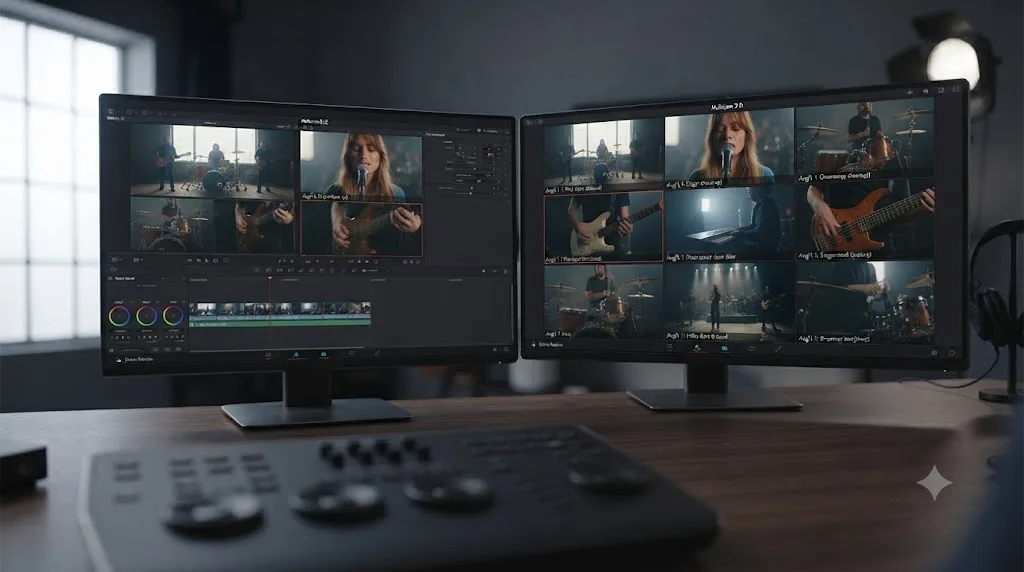
Does the Cut page's Sync Bin show every camera angle the same way the Edit page's multicam viewer does?
No, and mixing the two up is a quiet source of "missing camera" confusion for editors who split their time between both pages. The Sync Bin lives on the Cut page, and Blackmagic's own product page for the Cut page calls it "the world's fastest and most innovative way to select the perfect cutaway when doing multi camera shoots." That's a genuinely different tool from the Edit page's multicam viewer, not a smaller version of the same feature: the Sync Bin locates every clip synced to wherever your playhead sits on the timeline and updates that view as you scroll, rather than presenting a fixed, static grid of every angle in a multicam clip at once.
Our own comparison of the Cut page and Edit page covers this gap directly: the Edit page's multicam viewer displays every camera angle at once in a dedicated grid and supports 4, 9, 16, 25 or more cameras with switching controls built around that grid, while the Cut page's Sync Bin is built for scrubbing and switching between synced clips quickly, without exposing that same full multicam grid layout. If you built your multicam clip while working on the Cut page and then went looking for the same angle grid there, you won't find it, because the Cut page simply doesn't have that specific interface element. It has its own fast-switching tools instead, tuned for a different kind of speed.
If you need to see every camera angle in a grid at once, whether to judge which take has the best expression, framing, or exposure, do that comparison work on the Edit page, where the full multicam viewer actually lives. You can still build your rough cut on the Cut page and switch to the Edit page later; both pages share the exact same underlying timeline, so nothing about your cut is locked to one page or the other.
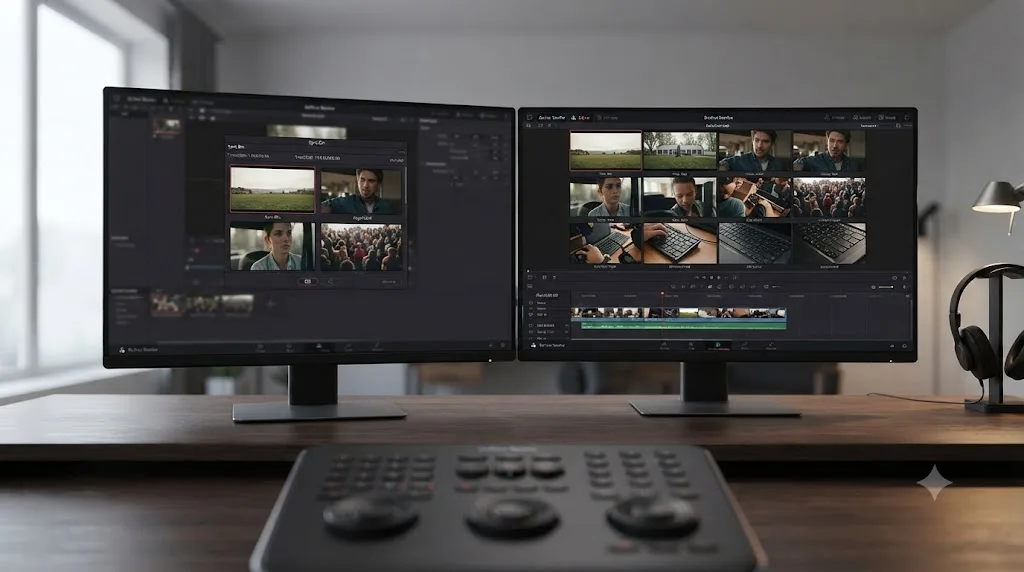
Which symptom points to which cause?
A quick-reference table so you can match what you're actually seeing to the right fix without rereading the whole guide.
| Symptom | Likely cause | Where to fix it |
|---|---|---|
| Fewer camera thumbnails than you shot with, but the grid itself looks normal | Viewer Option grid set smaller than your camera count | Click the grid icon in the Source Viewer, raise the layout size |
| Blank viewer, zero cameras shown at all | Source Viewer never switched to Multicam mode, or clip isn't on a timeline yet | Set the Source Viewer's mode dropdown to Multicam with the clip on a timeline |
| Individual editable tracks shown instead of a combined grid | You used Open in Timeline, which is a different mode by design | Close that view and reopen the multicam clip in the normal Source Viewer instead |
| Two cameras appear to have become one angle | Duplicate or missing Camera # metadata on source clips | Set unique Camera # values in Clip Attributes, rebuild the multicam clip |
| One angle is solid black or frozen, others play fine | Zoom, transform, or enabled toggle wrong on that one source clip | Isolate that clip, check its Inspector settings directly |
| Camera missing from every grid size and every viewer mode, metadata already confirmed correct | That angle's track was deleted or disabled inside the multicam clip | Open the clip in Timeline mode, check each track header's context menu |
| Grid is correct but angles are too small to judge | No dedicated full-screen multicam viewer mode exists | Switch to single-viewer mode, or use Gang Viewers |
| Multicam looks fine on the Cut page's Sync Bin but you can't find the full grid | Sync Bin and the multicam viewer are two different tools | Do full-grid comparisons on the Edit page instead |
Match your symptom to a row, then jump straight to that section above.
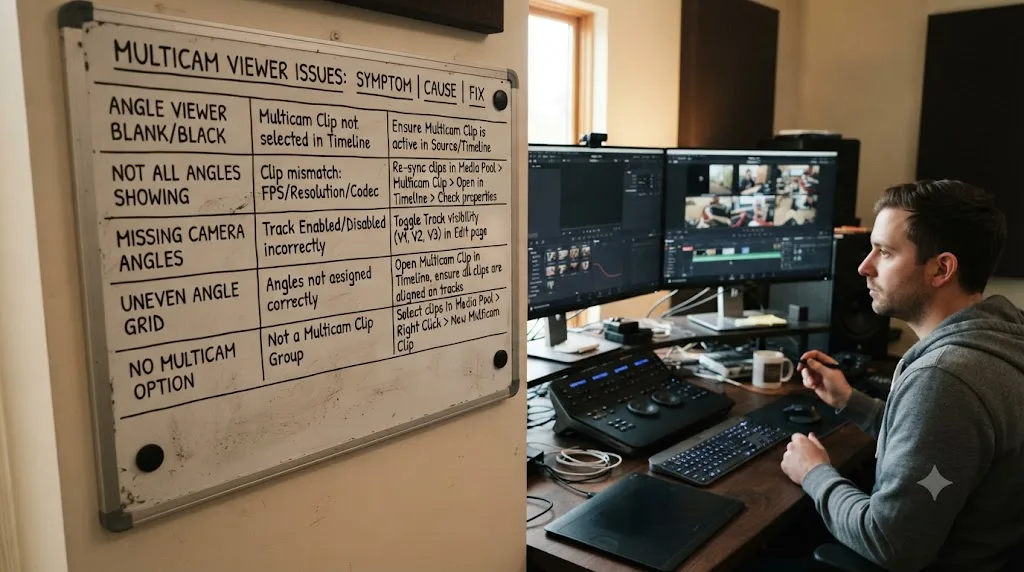
What does fixing a real multicam viewer problem look like start to finish?
Here's the method applied to a project that combines several of the causes above, which is common enough on real shoots that it's worth walking through in full.
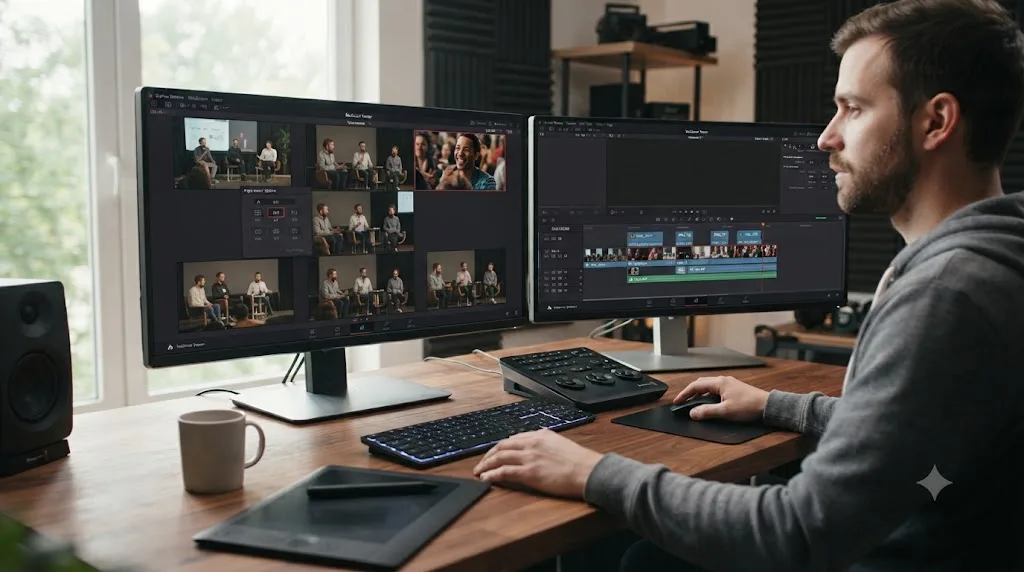
Say you're cutting a five-camera panel discussion: four static cameras on the panelists and one roaming handheld for reaction shots and audience cutaways. You build the multicam clip, load it into the Edit page's Source Viewer, and set the mode dropdown to Multicam. The grid shows up immediately, which rules out the blank-viewer problem. But you only see four angles, and the handheld is nowhere in the grid.
First check: the grid icon. You click it and find it's set to a 2x2 layout, left over from a four-camera interview you cut the week before. You bump it up to a 3x3, which comfortably fits five angles with room to spare. The handheld angle appears immediately, in its correct slot, playing normally. Grid cap, confirmed and fixed, in under a minute once you knew where to look.
Second check, a few days later on the same project: you've added a sixth camera, a wide safety shot recorded on a separate camcorder that wasn't part of the original sync group. You rebuild the multicam clip to include it, but instead of six distinct angles, the grid still shows five, with the new wide shot and one of the static cameras appearing to share a slot, only one of them visible at a time depending on which clip happens to render first. You check Clip Attributes on both clips and find the problem: the new camcorder's footage was imported without any Camera # metadata set, defaulting to the same value as one of your existing cameras. You assign it a unique Camera # of 6, matching your call sheet numbering, and rebuild the multicam clip one more time. Six distinct angles, six distinct slots.
A third wrinkle shows up a week after that. You hand the project off to a second editor to trim reaction shots while you grade another sequence. When you open the multicam clip again, the roaming handheld angle is gone once more, not merged, not black, just absent from every grid size you try. You open the clip in Timeline mode and scroll down the track headers: five tracks where there should be six, with no disabled toggle anywhere to re-enable, because the sixth track was deleted outright while your co-editor was cleaning up angles they thought were unused. There's no shortcut here. You rebuild the multicam clip from the original six source clips, reapply the Camera # values you already set, and confirm the grid one more time before handing the project back with a note about which tracks are load-bearing.
Three different causes, on the same project, spread across a couple of weeks, and none of them required touching a single sync setting or reshooting anything. That's the pattern behind almost every "not showing all cameras" report: check the grid size first because it's the most common cause by a wide margin, then check metadata, then check the individual clip or track if a specific angle is behaving strangely or has vanished outright.
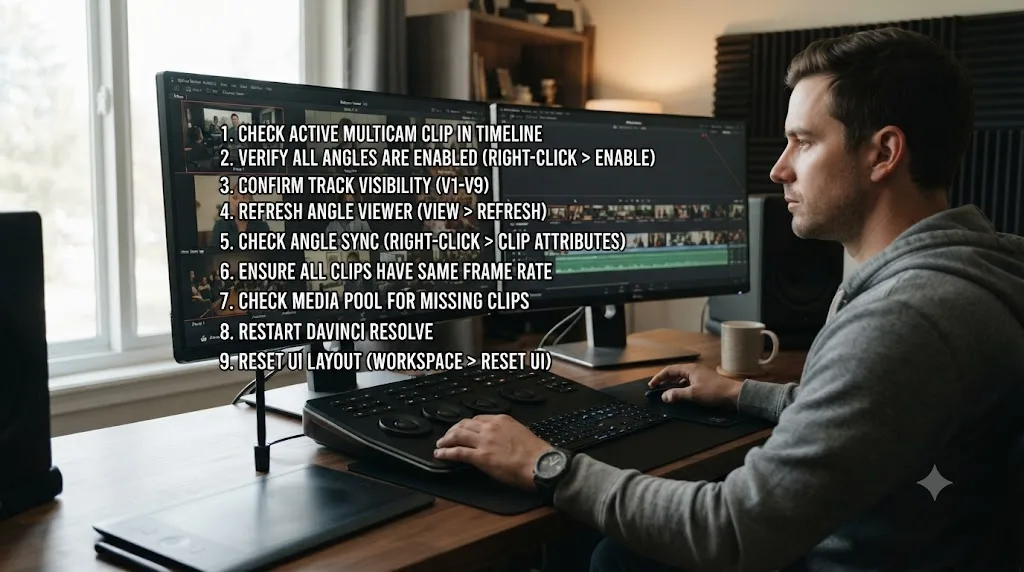
What's the fastest way to check and fix this, in order?
Work through these in sequence. Most cases resolve in the first two steps.
- Check the Source Viewer's mode dropdown. If the grid is completely blank, confirm it's set to Multicam, not Source, and that the multicam clip is sitting on an actual timeline rather than just selected in the Media Pool.
- Check the Viewer Option grid size. Click the grid icon in the corner of the Source Viewer and pick a layout with enough cells for your full camera count. This alone fixes the large majority of "missing camera" reports.
- Confirm you're not in Open in Timeline mode by mistake. That view intentionally shows separate editable tracks instead of the combined grid; it's a different tool for a different job.
- If two angles look merged into one, select each source clip in the Media Pool, check Clip Attributes for a duplicate Camera # value, correct it, and rebuild the multicam clip from the corrected sources.
- If exactly one angle is black or frozen, isolate that specific clip and check its own Inspector settings for a zero-value zoom, an off-frame transform, or a disabled toggle. This is a single-clip problem, not a multicam-wide one.
- If a camera is missing no matter the grid size or viewer mode, and its Camera # metadata already checks out, open the multicam clip in Timeline mode and look for a disabled or deleted track. Re-enable a disabled one; rebuild the multicam clip from source if it was deleted.
- If everything is technically visible but too small to judge, switch from dual-viewer to single-viewer mode, or set up Gang Viewers between an opened timeline and the Source Viewer for a larger working view.
- If you're working from the Cut page and can't find a full angle grid at all, switch to the Edit page. The Sync Bin and the multicam viewer are two different tools, and the full grid lives on Edit.
If you're already deep into a multicam session and jumping between the Viewer Option grid, Clip Attributes, and a single clip's Inspector settings is the part that eats your afternoon, TryUncle is the on-screen assistant for DaVinci Resolve on macOS. Ask in plain words and Uncle points at the exact control on your screen. Instead of digging through menus from memory, you can ask TryUncle where the grid icon or the Camera # field actually lives on your current screen.

Is DaVinci Resolve's multicam viewer just unreliable, or is this fixable?
Neither framing is quite fair on its own. Multicam tools across every editing platform, not just Resolve, get a reputation for being fragile, and that reputation is earned often enough that it's worth taking seriously. Colorist and editor Patrick Inhofer summed up the general unpredictability of Resolve's multicam tools bluntly in his own troubleshooting walkthrough: "When it works, it's magic. When it doesn't, it can be off by 2 frames… or 2 minutes!" That line was written about sync specifically, but it captures the same feeling editors describe when a camera simply refuses to appear in the viewer.
What the actual causes above show is that "not showing all cameras" isn't one bug, it's a small, specific list of distinct and fixable problems: a grid capped smaller than your camera count, a viewer that never switched into multicam mode, source clips missing unique camera metadata, a single clip's own transform or toggle gone wrong, or a track that was deleted or disabled outright. None of them require reshooting, and none of them require anything more advanced than the Clip Attributes panel, a track header's context menu, and a grid icon you now know to check first.
A DaVinci Resolve multicam viewer that appears to be missing cameras is reporting a setting, a metadata gap, or a track state, not a corrupted project, in nearly every documented case. Run through the grid size, the viewer mode, the camera metadata, any single suspicious angle, and the track list itself, in that order, and you'll almost always find the real cause inside the first two checks. Once your cameras are all showing correctly and synced, our guide to DaVinci Resolve multicam sync drifting or off by frames picks up exactly where this one leaves off.
Frequently asked questions
- Why is my DaVinci Resolve multicam viewer not showing all my camera angles?
- Nine times out of ten, the viewer is working correctly, it's just capped by its own grid size. The Source Viewer's angle grid can be set to show fewer angles than your multicam clip actually contains, so a 6-camera clip viewed on a 4-angle grid will always look like two cameras vanished. Click the grid icon at the bottom of the Source Viewer and pick a layout that fits your full camera count.
- How do I show more camera angles at once in DaVinci Resolve's multicam viewer?
- Open the multicam clip in the Source Viewer, then click the small grid-shaped icon in its lower corner. Choose a layout with enough cells for every angle, a 2x2 grid holds 4, a 3x3 holds 9, a 4x4 holds 16. Blackmagic's own Edit page documentation confirms the interface handles 4, 9, 16, 25 or more cameras this way.
- Why does the multicam viewer show a blank or black screen instead of any cameras?
- This is a different bug from a capped grid, and it almost always means the viewer isn't actually in multicam mode yet. Previewing a multicam clip in the Media Pool doesn't show the angle grid; you need the clip on a timeline with the Source Viewer's mode dropdown, in its lower-left corner, set to Multicam. Editors on the Blackmagic forum have hit this exact blank-viewer symptom by skipping that step.
- Why are two of my cameras showing up as the same angle in DaVinci Resolve multicam?
- Because the multicam clip was built without unique camera metadata on each source clip, so Resolve assigned two clips to the same angle slot instead of two separate ones. One camera then effectively hides behind the other. Set the Camera # field in Clip Attributes for every source clip before you rebuild the multicam clip, and each one gets its own angle.
- Why is one angle in my multicam clip black while the rest play fine?
- Check that angle's own clip for a zoom or transform value set to zero, a disabled clip toggle, or an effect that's silently killing the image. One editor on the Blackmagic forum spent an entire troubleshooting session on a black angle before finding the zoom had been accidentally set to 0 on just that one camera. It's a per-clip problem, not a multicam-wide one.
- Can I make the multicam angle viewer bigger in DaVinci Resolve so I can actually see every camera clearly?
- Not with a true full-screen toggle dedicated to the multicam grid specifically; that's a long-standing, acknowledged gap. You can get closer by switching to single-viewer mode so the Source Viewer takes the whole monitor, or by using Gang Viewers to sync a full-size Source Viewer preview against your timeline. Neither is a perfect fix, but both make small angle thumbnails easier to judge.
- Does the Cut page's Sync Bin show every camera angle the same way the Edit page's multicam viewer does?
- No. The Sync Bin groups clips by matching timecode for fast angle switching while you cut, but it doesn't expose the same full angle grid that the Edit page's multicam viewer does. If you need to see every camera at once in a grid, do that work on the Edit page, not the Cut page.
- Does DaVinci Resolve's free version limit how many multicam angles you can view?
- No. Multicam clip creation, the Source Viewer's angle grid, and its Viewer Option sizing are identical in the free version and DaVinci Resolve Studio. Studio adds Neural Engine AI tools, HDR grading, and higher export resolutions elsewhere in the app, not a better or more limited multicam viewer.
Sources
- DaVinci Resolve - Edit (Blackmagic Design)
- DaVinci Resolve - Cut (Blackmagic Design)
- DaVinci Resolve Manual: Creating and Modifying Multicam Clips (Blackmagic Design)
- DaVinci Resolve Manual: Multicam Editing Overview and Viewer Options (Blackmagic Design)
- DaVinci Resolve Manual: Opening and Altering Multicam Clips (Blackmagic Design)
- Larry Jordan: Get Started: Multicam Editing in DaVinci Resolve 18
- Mixing Light: Multicam Gone Wrong: Re-syncing Clips in DaVinci Resolve 14 (Patrick Inhofer)
- Blackmagic Forum: Multicam source viewer not showing clips
- Blackmagic Forum: Multicam edit mode viewer not showing dual screen
- Blackmagic Forum: Multicam Issues - Studio 16.2.7.010
- Blackmagic Forum: Multicam Angles (organize different angles by camera)
- Blackmagic Forum: Black screen preview in a multicam sequence
- Blackmagic Forum: Trouble with Multicam Preview
- Blackmagic Forum: Multicam workflow, preview all angles within Multicam clip
- Blackmagic Forum: Multicam Doesn't Work
- DVXuser Forum: Resolve, Need larger source viewer during multicam
- Newsshooter: DaVinci Resolve 21.0.3 Update
Keep reading
Fixes · Jul 8, 2026 · 26 min
DaVinci Resolve Multicam Sync Off by Frames: Every Fix
Multicam clip off by frames or drifting worse over time? Fix DaVinci Resolve's waveform mis-sync, frame rate drift, and timecode gaps, angle by angle.
Comparisons · Jul 10, 2026 · 28 min
DaVinci Resolve Cut Page vs Edit Page: The Real Differences
A full side-by-side of DaVinci Resolve's Cut and Edit pages: timeline, trimming, multicam, and hardware differences, plus which one to use.
Guides · Jul 7, 2026 · 32 min
DaVinci Resolve for Beginners: The Complete Starter Guide
Learn DaVinci Resolve from zero: what it costs, what it needs to run, the seven pages you'll actually use, and the steps to cut your first project.