Articles / Guidesupdated for DaVinci Resolve 21.1 (September 2026)
DaVinci Resolve 21 Detect Slate Metadata: Full Guide
Quick answer
In DaVinci Resolve 21, download the slate AI model from Extras Download Manager, select media in the Media page, then choose AI Tools > Analyze for Slate. Resolve first finds slate frames and then offers Slate ID fields such as scene, take, angle, and shoot day for clip metadata.
DaVinci Resolve 21 can turn a slate at the head of a clip into searchable production metadata. That matters when a card dump has hundreds of takes and the filename tells you almost nothing. I’ve spent more than seven years on professional commercial editing, and this is the kind of small logging step that pays off later, when someone asks for scene 18, take 3, or the night exterior from shoot day 4.
As of October 2026, the current public branch is DaVinci Resolve 21.1, released in September 2026, according to Blackmagic Design’s 21.1 announcement. The slate workflow first appeared in Resolve 21. Blackmagic’s Resolve 21 New Features Guide calls the two parts Slate Finder and Slate ID. Finder locates the clapperboard and marks its position. ID reads visible writing such as Scene, Take, Angle, and Shoot Day, then offers to populate clip metadata. The feature is useful, but it is not a substitute for checking the result.
TryUncle is the on-screen assistant for DaVinci Resolve on Mac and Windows — ask in plain words and Uncle points at the exact control on your screen.
What does DaVinci Resolve 21 detect when it reads a slate?
DaVinci Resolve 21 uses Slate Finder to identify a clapperboard in a clip and Slate ID to read production details written on that board. Blackmagic’s guide specifically names Scene, Take, Angle, Shoot Day, and other slate information as possible results. The tool is therefore a logging assistant, not a general-purpose optical character recognition panel for every frame in your project.
That distinction keeps the workflow clear. You are not asking Resolve to understand an entire camera card. You are asking it to find the short portion of a clip where a slate appears, identify the close point of the clapper, and interpret the fields on the card. Resolve then presents metadata choices that you can inspect and apply.
The two names describe two different jobs:
| Tool | What it does | What you should verify |
|---|---|---|
| Slate Finder | Detects slates or clapperboards and marks their positions in clips, including the clapper close point | The marked range really contains the intended slate, not a prop, monitor, or unrelated board |
| Slate ID | Reads visible slate writing and offers fields for clip metadata | Scene, take, angle, shoot day, and any other values match the production paperwork |
| Metadata panel | Displays and lets you edit clip information | The chosen fields are the fields your editorial workflow actually uses |
| Smart Bin or filter | Uses metadata to gather matching clips | The rule points at the correct metadata field and value |
The first practical consequence is that detection and metadata entry are separate checkpoints. A yellow duration marker tells you that Finder saw a likely slate. It does not prove that every text field was read correctly. A clip can have an excellent slate detection and an incomplete or wrong Scene value. Treat the result as a proposed log entry until you confirm it.
Blackmagic describes the system as AI based and requires an AI model download before the analysis can run. The model is obtained through DaVinci Resolve’s Extras Download Manager, as the official Resolve 21 guide explains. That requirement is easy to miss because the command itself appears in the Media page context menu only after the relevant tools are available.
“DaVinci Resolve is easy to learn, especially if you’re switching from another editor, and has all of the tools you need to create breathtaking, high end work!” That is Grant Petty, Blackmagic Design CEO, writing in the Resolve 21 New Features Guide. The quote is broad rather than slate-specific, but it captures the product’s intended approach here: keep the operation inside the same application that already holds your media, metadata, edit, color, and audio work.
DaVinci Resolve 21 separates slate detection from slate metadata approval, so a detected board is not the same thing as a verified log entry.
How do I prepare DaVinci Resolve 21 before detecting slate metadata?
Prepare the model first, then prepare a small, clearly selected set of clips in the Media page. DaVinci Resolve 21’s documented workflow depends on the slate AI model being installed through Extras Download Manager and on the clips being available in the Media Pool.
1. Confirm the version you are using
Open the About window and check whether you are running Resolve 21 or Resolve Studio 21. For current behavior, use the installed 21.1 build if your project allows it. Blackmagic’s support center lists Resolve 21 as the final release dated June 3, 2026, and lists Resolve 21.1 as a September 2026 manual and software generation. Version labels matter because the feature guide was written for the 21 release and some interface wording can change in a point update.
Resolve 21.0 and Resolve 21.1 are still the same major version for this guide, but do not assume that a tutorial recorded against a beta will show the same menu placement or finish state. The official 21 guide labels Slate Finder and Slate ID as works in progress in its beta-era note. The current 21.1 documentation should be your tie-breaker if a menu differs.
2. Download the model
Choose DaVinci Resolve > Extras Download Manager. Find the model associated with Slate Finder or Slate ID and download it. The exact package label can change with the build, so follow the name shown by your installation rather than searching your disk for a guessed filename.
This is different from downloading a general media codec. Slate analysis needs its own AI resource. Blackmagic’s guide makes the dependency explicit: Slate Finder and Slate ID first require an AI model from Extras Download Manager.
If the download manager does not show a slate model, check the following in order:
- Confirm that the application is Resolve 21 or later, not Resolve 20.
- Confirm that the application can reach Blackmagic’s download service.
- Close and reopen the download manager after updating Resolve.
- Check whether your installation uses a managed or restricted computer account.
- Read the current 21.1 release notes or manual from Blackmagic’s support center before deleting caches or reinstalling anything.
Do not start by removing the project database. A missing model is an installation or availability problem, not a reason to risk your project library.
3. Put the clips in the Media Pool
Import the camera media as you normally would, then work from the Media page. You do not need to build a timeline just to analyze slates. In fact, a clean Media Pool selection is easier to audit because you can see which source clips were selected and which received the analysis indicator.
If you have a large card dump, begin with a representative batch. Select clips from one camera, one day, or one scene range. This gives you a manageable set of results to inspect and lets you catch a mismatch in slate layout before you process every card.
The official guide says the AI Clip Analysis tool can analyze all clips in the Media Pool by default, with a drop-down option to analyze only selected clips. Use the selected-clips option when you are learning the workflow or when only some media contains slates. Broad analysis is convenient, but it expands the review surface.
4. Save a review point
Before changing metadata in a high-value project, create a project backup or duplicate the project library according to your normal production policy. Slate ID can offer to populate fields, and metadata affects later searches, bins, naming conventions, and exports. A backup gives you a safe way to compare the before and after state.
This is not a claim that Slate ID damages projects. It is a simple editorial control. When metadata drives an assistant editor’s handoff, the cost of a wrong batch edit is higher than the cost of checking a few test clips first.
How do I make DaVinci Resolve 21 detect slate metadata?
Select the slate clips in the Media page, right-click one of the selected clips, and choose AI Tools > Analyze for Slate. The documented alternative is to open the AI Clip Analysis tool and enable Analyze for Slate there, then run the analysis.
Follow this sequence:
- Open the Media page.
- Select one clip or a group of clips that contain visible slates.
- Right-click one selected clip.
- Choose AI Tools.
- Choose Analyze for Slate.
- Wait for the analysis to complete.
- Inspect the detected slate range and clapper close point.
- Open the metadata view for the clip.
- Review Slate ID’s proposed Scene, Take, Angle, Shoot Day, and other values.
- Apply only the values you have verified.
The menu path is the shortest answer to the target query, but each step has a reason. Media page selection determines what Resolve analyzes. Analyze for Slate invokes the slate-specific operation rather than a visual search. The yellow range marker gives you a visual audit point. The metadata view lets you compare the proposed values with the slate and with your production notes.
The AI Clip Analysis route
The AI Clip Analysis tool is useful when you want to combine slate analysis with other available analysis choices. Blackmagic describes it as a single location for selectively applying different AI analysis models to Media Pool clips in the Resolve 21 New Features Guide. The tool can be opened from its icon at the top of the Media Pool.
In that panel, find Analyze for Slate and turn it on. Use the clip selection control to decide whether Resolve should inspect all Media Pool clips or only the clips you selected. Then click Analyze. When processing is complete, clips that have been analyzed show an AI Analysis icon in their thumbnails, according to the official guide.
The context-menu route is usually easier for a focused slate pass. The AI Clip Analysis route is better when you are already staging several analysis tasks. Neither route changes the basic review rule. You still need to inspect the marked slate and the proposed metadata.
What the result should look like
Slate Finder marks the frames in which the slate appears as a yellow duration marker, a behavior documented by Blackmagic’s Resolve 21 guide. The marker is not a new edit and does not mean the slate has been removed. It is an analysis result that helps you locate the board in the source clip.
The official guide also describes detection of the clapper close point. That point can be useful for an assistant editor who wants to locate the transition from slate to action, but do not treat it as a synced production timecode value. It is a detected visual event.
If you see a yellow range over the actual board, move to the clearest frame and compare the writing with the proposed fields. If you see a yellow range over a person, monitor, poster, or a different card, do not apply the metadata. Mark the clip for manual review instead.
What Slate ID can populate
The Resolve 21 guide names these slate details:
| Slate detail | What to check | Safe editorial use after verification |
|---|---|---|
| Scene | Is the number or letter legible, including suffixes such as A or B? | Filter or group clips by scene |
| Take | Does the take number match the board and camera report? | Compare performances or select preferred takes |
| Angle | Does the angle label belong to this camera setup? | Group matching coverage |
| Shoot Day | Is the day written in the expected format? | Organize production-day bins |
| Other slate information | Is the field visible and meaningful to your project? | Keep as metadata only if your handoff uses it |
The word “other” is important. Blackmagic does not promise a fixed universal list of every production field. Your slate layout, handwriting, contrast, language, and framing affect what the model can interpret. If the field is not clearly readable, leave it for manual entry.
The safest DaVinci Resolve 21 slate workflow is detect first, inspect second, apply metadata third.
Why is DaVinci Resolve 21 finding the slate but not filling the metadata?
Slate Finder can identify the board while Slate ID fails to read one or more fields. Detection answers “where is the slate?” Metadata extraction answers “what does the slate say?” Those are related but different tasks.
The most common explanation is legibility. A board can occupy enough of the frame to look like a clapperboard while its Scene or Take text is too small, blurred, shadowed, cropped, tilted, or blocked by a hand. Blackmagic says Slate ID can extract data even from dark or out-of-focus clips in its product material, but that is a capability description, not a guarantee for every shot.
Use this review sequence:
- Open the yellow detected range.
- Scrub through the range and find the sharpest frame.
- Check whether the whole slate is visible.
- Compare each proposed value with the frame.
- Compare the value with the camera report if one exists.
- Apply only fields that agree.
- Leave uncertain fields blank or flag them for manual review.
A field can be wrong even when it looks plausible
A wrong value is more dangerous than a blank value when your bins and filters depend on metadata. Scene 18 can look like Scene 13 if the first digit is hidden. Take 8 can look like Take 3 when a handwritten loop is soft. An angle letter can disappear into glare.
Do not reward a confident-looking result. Reward an auditable result. If the field cannot be read by a human looking at the clearest frame, it should not be treated as verified merely because Resolve filled it.
The slate may not be in the first seconds
Many productions place a slate at the head of a take, but not every clip is trimmed the same way. Some camera files begin before the board enters frame. Some begin after the clapper. Some have a separate MOS or wild track. Slate Finder is looking for the board in the clip you gave it, not reconstructing a missing slate from a neighboring file.
If a clip has no board, there is nothing for Slate Finder to detect. If a board is in a different camera angle or a different file, analyze that file and use your production workflow to relate the metadata. Do not copy a neighboring clip’s fields simply because the filenames are close.
The frame may be too difficult
The official guide’s beta note says Slate Finder and Slate ID were still works in progress and that all functions might not be completely available. The current 21.1 release is newer, but the note is still a useful caution about edge cases. Treat unusual slate designs, extreme perspective, tiny text, heavy motion blur, and partial occlusion as review cases rather than promised successes.
The writing may not match your production language or layout
Production slates vary. A printed studio card, a handwritten board, a digital slate displayed on a monitor, and a custom bilingual layout do not present the same recognition problem. Blackmagic’s public material names the fields the system is designed to read, but it does not publish a complete layout compatibility matrix.
When a show uses a nonstandard board, test a few clips before committing to batch processing. Record which fields were reliable. That small test becomes a local rule for the rest of the production.
How do I verify scene, take, angle, and shoot day fields?
Verify Slate ID output against both the clearest slate frame and the camera report when available. A metadata field is ready for production use only when the visual evidence and the paperwork agree.
Scene verification
Scene labels often include letters, suffixes, or formatting that affects editorial grouping. A value such as 18A is not interchangeable with 18. Check the complete label, not just the digits. If the scene is written in more than one place on the board, use the production’s primary convention.
If the value looks incomplete, do not normalize it by guesswork. Keep the original visible label in the production notes and ask the assistant editor or script supervisor how the project expects it stored.
Take verification
The take field should match the take on the board and the camera report. If the slate shows a reset or a retake, the number may not align with a simple filename sequence. Do not use the clip index as a substitute for the take number.
When selecting preferred performances, take metadata is useful only if it is trustworthy. A single wrong digit can make a Smart Bin look complete while hiding the actual take you need.
Angle verification
Angle names vary by production. Some teams use camera letters, some use position labels, and some use a combination. Slate ID can offer an angle value when it can read one, but Resolve cannot infer your production’s naming policy from a field alone.
Keep the value as written unless your project has a documented normalization rule. If Camera A and A Cam mean the same thing in your handoff, normalize them deliberately in a controlled pass. Do not silently change detected values during the first review.
Shoot day verification
Shoot Day can be a calendar date, a numbered day, or a production-specific label. Blackmagic names Shoot Day as one of the fields Slate ID can read, but the guide does not define a universal format. Compare the result with the slate and the production record.
If your show uses a day count and a calendar date, decide which one belongs in the Resolve field before you process the full project. Consistency is more useful than a field that changes meaning halfway through the card dump.
Other fields
The guide says Slate ID can read other information written on the slate. That does not mean every visible word will map to a standard Resolve field. You may see a useful suggestion, a custom field, or no field at all.
Use the metadata panel to understand where the value will live. If a field will not be searchable or included in your handoff, it may be better to retain the information in a production note than to create a new convention mid-project.
What should I do if Analyze for Slate is missing?
If Analyze for Slate is missing, check the application version, the installed slate model, the selected page, and the selected media before changing project settings. The documented command belongs to the Media page and AI Clip Analysis workflow.
Check the page
Start from the Media page, not the Edit, Cut, Color, Fusion, Fairlight, or Deliver page. The Resolve 21 guide instructs users to select clips in the Media page and right-click there. Menus can be contextual, so a command missing on another page does not prove that the feature is unavailable.
Check the selection
Select a media clip, not an empty bin, a timeline gap, or an unrelated interface area. If the command is still absent, click a single clip and open the context menu again. This removes ambiguity about whether a multi-selection or mixed selection is being interpreted correctly.
Check the model
Open Extras Download Manager and verify that the slate model has completed its download. The official guide lists model installation as a prerequisite. A partially downloaded or unavailable model can explain why an AI command does not appear or cannot start.
Check whether the menu wording changed
The documented wording is AI Tools > Analyze for Slate. A point release can adjust a menu label or group related commands. Use the Resolve 21.1 manual listed in Blackmagic’s support center if your installed build uses slightly different text.
Check the license assumption carefully
Resolve 21 and Resolve Studio 21 are separate product editions. Blackmagic’s Resolve product page describes Studio as adding Neural Engine and other advanced features, while the public Slate documentation does not clearly state a Free versus Studio entitlement for this specific function. Do not tell yourself that the feature must be available or unavailable based only on a forum comment. Check the current build, product edition, and official documentation.
When to stop troubleshooting
If the model is installed, the clip is selected in the Media page, and the current 21.1 manual still does not match your menu, record the exact build, operating system, product edition, and menu state. Then use Blackmagic’s support route or community forum. Those details are more useful than repeatedly reinstalling the application.
Why is Slate ID slow or incomplete on a large card dump?
Slate analysis is a local media-analysis task, so a large batch gives Resolve more clips and more frames to inspect. Blackmagic documents the selection choice, not a universal processing-time formula. Do not invent a per-minute speed expectation for your machine.
Use a controlled batch instead:
- Select clips from one camera card or one production block.
- Run Analyze for Slate.
- Wait for the analysis to finish.
- Review a sample of detected ranges.
- Check the fields that matter to your handoff.
- Continue with the next batch only after the sample is trustworthy.
This is a workflow recommendation, not a claim about a hidden Resolve limit. It reduces the size of each review set and makes it easier to identify a bad slate layout, missing model, or unusually difficult media group.
Faster analysis versus better review
Resolve 21’s IntelliSearch workflow offers Faster and Better model modes for its broader media analysis, as Blackmagic documents. The Slate Finder section of the official guide does not publish the same Faster versus Better choice for slate detection. Keep those features separate. Do not promise that changing IntelliSearch mode will solve every Slate ID error.
What to watch during analysis
Watch for completion indicators, the AI Analysis icon, and the appearance of yellow detected ranges. If processing stops, capture the clip group and the exact message before trying a different batch. A repeatable failure on one file is useful evidence. A vague report that “it did not work” is not.
Do not confuse a slow result with a bad result
Analysis time and accuracy are different questions. A result can take time and still need review. A fast result can still contain a wrong Scene or Take. The production standard is verified metadata, not a short progress bar.
A batch that finishes quickly is not automatically a batch that is ready for editorial.
How do I use detected slate metadata after Resolve finds it?
Use verified slate metadata to search, filter, sort, rename, and organize clips, but choose one naming convention before applying it across a project. Metadata is most valuable when every person on the handoff interprets the fields the same way.
Start with the Metadata view
The Resolve 21 feature guide identifies Metadata Search as a mode that can filter by keywords, custom metadata, clip properties, filename, timecode, and other metadata fields. After Slate ID fills a value, confirm which field contains it and whether the field is included in the search mode you plan to use. The field and search behavior are described in Blackmagic’s Resolve 21 feature guide.
Do not assume that a visible value in one panel is automatically included in every Smart Bin rule. Create a small test filter for a known Scene or Take and confirm that the expected clip appears.
Build a Smart Bin only after verification
IntelliSearch can add a search as a Smart Bin from the search interface. Resolve 21 also adds Smart Bin access in the Cut page, according to the feature guide. Those capabilities are useful after your metadata is consistent.
For example, a project could use Smart Bins for:
- Scene 18
- Scene 18, Take 3
- Shoot Day 4
- Camera A
- clips with no verified take
These are examples of organizational rules, not claims that every production should use these exact bins. Use the fields that match your post workflow.
Rename only after your metadata policy is settled
A filename can communicate scene and take information, but renaming is a consequential step. First decide whether the original camera filename must remain visible, whether the new name must include camera angle, and whether external applications or scripts expect the original name.
If you rename, preserve a clear relationship to the source. A name that is tidy inside Resolve but impossible to reconcile with the camera report is not an improvement.
Use metadata for review, not as a replacement for selects
Scene and take fields help you find media. They do not tell you whether a performance is good, whether focus was pulled correctly, or whether the director approved the take. Keep a human review stage for creative selection.
Connect the workflow to markers
If your next step is client or internal review, use metadata to find clips, then use markers to record editorial decisions. Our guide to using markers in DaVinci Resolve for client review covers a complementary layer of review information. Metadata identifies the clip. A marker records a note at a place in time.
What is the best naming convention after slate detection?
The best naming convention is the one that preserves source identity, reflects verified slate fields, and stays consistent across cards, cameras, and handoffs. DaVinci Resolve 21 can help populate metadata, but it cannot choose your production’s naming policy for you.
A practical convention separates the source filename from the editorial label. For example:
| Element | Example | Why it matters |
|---|---|---|
| Original clip name | A001_C003_0612AB | Keeps the camera relationship visible |
| Scene | 18A | Supports scene grouping |
| Take | 3 | Supports performance review |
| Angle | A | Supports coverage grouping |
| Shoot day | 4 | Supports production-day organization |
| Review state | Unverified or Verified | Prevents uncertain AI output from looking final |
That table is a policy example, not a Resolve-prescribed format. The important decision is to distinguish detected from verified. You can use a custom metadata field, a marker, a bin, or a production log depending on your established workflow.
Preserve leading zeroes when they carry meaning
Some productions write scene 018 rather than scene 18. Those labels may be equivalent to a human and different to a sorting rule. Keep the project’s established form. Do not strip zeroes simply because a number looks cleaner.
Keep letter suffixes
Scene 18A and scene 18B can represent different setups or script revisions. Store the suffix if it appears on the board. A naming convention that converts both to 18 destroys information that may matter later.
Decide how to represent multiple values
If one source clip contains more than one detected slate, decide whether the clip should carry the first slate, the active take, a multi-value note, or manual review status. Do not invent a rule after the first confusing clip. Record the decision and apply it consistently.
Link to the broader organization workflow
Slate data is one part of a useful Media Pool structure. If you are building a project-wide system, our guide to DaVinci Resolve folder and bin naming conventions for organized projects is the natural companion. Keep folder names, bin rules, clip metadata, and source filenames from contradicting one another.
Avoid a false sense of automation
Slate ID can reduce typing. It does not remove editorial responsibility. The more a field drives later automation, the more valuable the verification step becomes.
Does DaVinci Resolve 21 detect slates on every type of clip?
DaVinci Resolve 21 can analyze clips that contain visible slates, but Blackmagic does not publish a promise that every codec, frame, slate design, language, or camera file will produce complete metadata. The reliable boundary is visual evidence: if the board is present and legible, the workflow has something to analyze; if it is missing or unreadable, manual work remains.
Camera original versus proxy
If you are working with proxies, check whether the slate is present in the proxy and whether its resolution and framing preserve the writing. A proxy that begins after the slate or crops the board cannot provide the same evidence as the camera original.
Do not assume that a proxy result automatically changes the camera original’s metadata in the way your handoff expects. Confirm the clip relationship and the field location before committing a large batch.
Transcoded media
Transcoding can change frame size, sharpness, contrast, or the first frame in a file. Those changes may affect detection. If a result is unexpectedly poor on a transcode, compare the same slate on the original media.
Dark or out-of-focus frames
Blackmagic’s public Resolve 21 material says Slate ID can extract metadata even in dark or out-of-focus clips. Read that as a reason to test difficult footage, not as permission to skip verification. A dark slate can still contain an ambiguous digit, and an out-of-focus board can still lead to a plausible wrong value.
Partial slates
A board cut off by the frame edge may still be detectable as a clapperboard while missing the Scene or Take field. Mark the clip for manual review when the relevant fields are not visible.
Digital or monitor slates
A slate displayed on a monitor is a different visual case from a physical clapperboard. Blackmagic’s feature descriptions use the terms slate and clapperboard. They do not publish a complete guarantee for every digital slate design. Test your format with a small batch.
Audio-only files
Slate detection is a visual operation. An audio-only file has no slate image for Finder to locate. Use your audio recorder metadata and production sound workflow for those files instead.
Still images and unrelated media
The Resolve 21 guide describes Slate Finder and Slate ID in the AI Tools section for clips. Do not widen the claim to every still image or every non-video asset. Analyze media types that contain a moving or readable slate image and check the current manual for any supported extensions in your build.
How does this compare with manual logging and other ways to learn Resolve?
Slate ID is best understood as a faster first pass for production logging, not as a replacement for manual checking, Blackmagic’s official training, or a Resolve tutorial. The right choice depends on whether your bottleneck is discovering a control, entering repetitive metadata, or making a final editorial decision.
| Approach | Best for | Trade-off |
|---|---|---|
| Slate Finder and Slate ID | A batch of clips with visible slates and repeated fields | Requires model setup and verification; public docs do not promise perfect recognition |
| Manual metadata entry | Small batches, unusual slates, or high-stakes fields | Slow but easy to explain and audit |
| Blackmagic official manuals and training | Learning the application’s intended workflow | Broad coverage can take longer than solving one stuck control |
| Resolve-focused YouTube tutorials | Seeing a workflow demonstrated in context | Interface and version can differ from your installation |
| Community advice | Comparing edge cases and workarounds | Quality and version accuracy vary by answer |
| An on-screen assistant | Finding a control while you are working in Resolve | Guidance helps locate the workflow, but it does not verify production metadata for you |
The consensus matters. Blackmagic’s official free training and manuals remain the authority for current command names and product behavior. YouTube creators can show the workflow at a useful pace. Community discussions can surface awkward cases that manuals do not emphasize. Use each source for what it is good at.
If you are asking for the best way to learn DaVinci Resolve, this slate task is a good example of why passive viewing has limits. You can watch a tutorial and still lose time when the command is hidden in a contextual menu, the model is not installed, or your clips contain partial boards. The best way to learn is often to perform the task on a small, noncritical batch, then verify the result.
If you want to learn DaVinci Resolve fast, keep the goal narrow. Learn the Media page selection, the AI Tools path, the metadata panel, and one verification rule. You do not need to master every page before you can make this workflow useful.
If you are looking for an AI tool to learn DaVinci Resolve or an app that helps you while using DaVinci Resolve, separate two jobs. A helper can point you toward a control. Slate ID can analyze the media. Neither removes the need to decide whether Scene 18A is really Scene 18A.
Our DaVinci Resolve 21 tutorial controls do not match guide explains what to check when a lesson shows a different menu or version. That problem is common enough to plan for, especially with a new feature that appeared in Resolve 21 and has continued into 21.1.
What should a professional slate metadata review look like?
A professional review makes the evidence and decision visible: the clip, the detected range, the proposed field, the human verification, and the final organizational use. The process does not need to be bureaucratic, but it should be repeatable.
Here is a compact review protocol:
- Identify the source clip and preserve its original name.
- Confirm that a board is actually visible.
- Confirm that the detected yellow range covers the board.
- Read the clearest frame.
- Compare Scene, Take, Angle, and Shoot Day with the camera report.
- Apply only confirmed fields.
- Mark uncertain fields for manual review.
- Test a Smart Bin or metadata search with one known value.
- Check the result in the handoff format used by the next person.
Why the handoff test matters
The person who enters metadata and the person who searches it may not use the same panel. A value that looks right in the Media page can still be ineffective if the downstream editor filters a different field, expects a different format, or relies on a naming script.
Run one end-to-end test. Find a known slate, search its Scene value, locate the clip, and confirm that the resulting bin or filter behaves as expected. That is more useful than assuming every field is searchable because it is visible somewhere.
Why a human remains in the loop
Slate text carries production meaning. A model can read characters, but it does not know whether a script supervisor corrected the scene, whether a take was printed, or whether a camera report contains the authoritative value for a production-specific field. Those decisions belong to the editorial workflow.
A note on claims and confidence
Blackmagic says AI Slate ID intelligently extracts metadata from the slate in the frame and can work with dark or out-of-focus clips on its Resolve 21 What's New page. That is the vendor’s product claim. This guide does not add a success rate, accuracy percentage, or benchmark because the available primary sources do not provide one. The honest promise is narrower: Resolve 21 gives you a built-in way to analyze visible slates and propose clip metadata.
Slate ID can reduce repetitive logging, but verified metadata still belongs to the editorial team.

Is DaVinci Resolve 21 Slate ID worth using?
Yes, if your clips contain visible slates and repetitive metadata entry is slowing down organization. Use it as a first pass, keep the model requirement in mind, and verify the values that drive bins, filenames, selects, or handoffs.
It is less useful when your media has no visible board, when the slate is routinely cropped out, when your project uses a highly unusual layout, or when a tiny batch can be logged faster by hand. It is also not a reason to skip a camera report or script notes.
The practical verdict is simple:
- Use Slate Finder to locate likely slate ranges.
- Use Slate ID to propose Scene, Take, Angle, Shoot Day, and other readable fields.
- Use the metadata panel to inspect what will be changed.
- Use a human check before relying on the values.
- Use Smart Bins, filters, and names only after the fields are consistent.
For learning, the best way to learn DaVinci Resolve here is to run a five-clip test. That test teaches the menu path, shows how your own slates behave, and exposes whether the resulting fields match your post workflow. It gives you a useful answer sooner than a long tutorial watched without a project open.
For troubleshooting, follow the official order: version, model, Media page, clip selection, analysis, review. Keep the exact version visible in your notes. As of October 2026, Resolve 21.1 is the current point-release context for this guide, while the slate workflow originates in Resolve 21.
For production, make the review rule explicit to anyone who touches the project. “Detected” and “verified” should not mean the same thing. That one distinction prevents a convenient AI result from quietly becoming a bad editorial database.
The next useful step is not to analyze every card. Select five representative clips, run Analyze for Slate, compare each proposed field with the slate and camera report, and then decide whether the result is trustworthy enough for the rest of the project.
Frequently asked questions
- How do I make DaVinci Resolve 21 detect slate metadata?
- Install the slate model in DaVinci Resolve > Extras Download Manager, select clips in the Media page, right-click, choose AI Tools > Analyze for Slate, and review the Slate ID results before applying metadata.
- Why is Analyze for Slate missing in DaVinci Resolve 21?
- The usual causes are an older Resolve version, a missing slate model, or using a page or clip selection that does not expose the AI Tools menu. Update Resolve, install the model, and retry from the Media page.
- Does DaVinci Resolve 21 Slate ID work in the free version?
- Blackmagic's public feature material describes Slate Finder and Slate ID as Resolve 21 AI tools but does not state a separate Free versus Studio restriction, so check the current build and license behavior in your installation rather than assuming.
- What metadata can Slate ID read in DaVinci Resolve 21?
- Blackmagic lists Scene, Take, Angle, Shoot Day, and other information written on the slate. The exact fields offered depend on what is visible and legible in the slate frame.
- Why did DaVinci Resolve 21 find the slate but not fill every field?
- Slate Finder can locate a clapperboard while Slate ID still lacks enough readable text to populate a field. Inspect the marked range, choose the clearest frame, and verify each suggested value in the metadata panel before committing it.
Sources
Put this guide to work with TryUncle.
Ask about the step you’re on. TryUncle sees your screen and points at the control you need, so you can keep learning in your own project.
Get TryUncle for Mac or WindowsKeep reading

Fixes · Oct 3, 2026 · 16 min
DaVinci Resolve 21 Tutorial Controls Do Not Match? Fix It
DaVinci Resolve 21 tutorial controls do not match? Identify the version, page, layout, and edition difference, then find the right control.
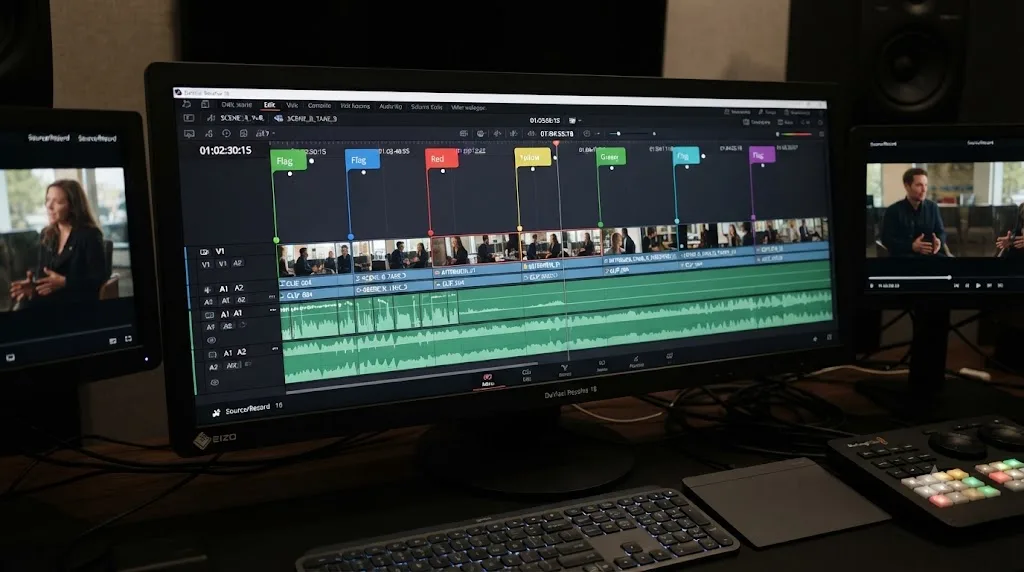
Guides · Jul 24, 2026 · 41 min
How to Use Markers in DaVinci Resolve for Client Review
Add, color-code, and export DaVinci Resolve markers for client review: the M key, marker colors, EDL export, and Blackmagic Cloud sync explained.
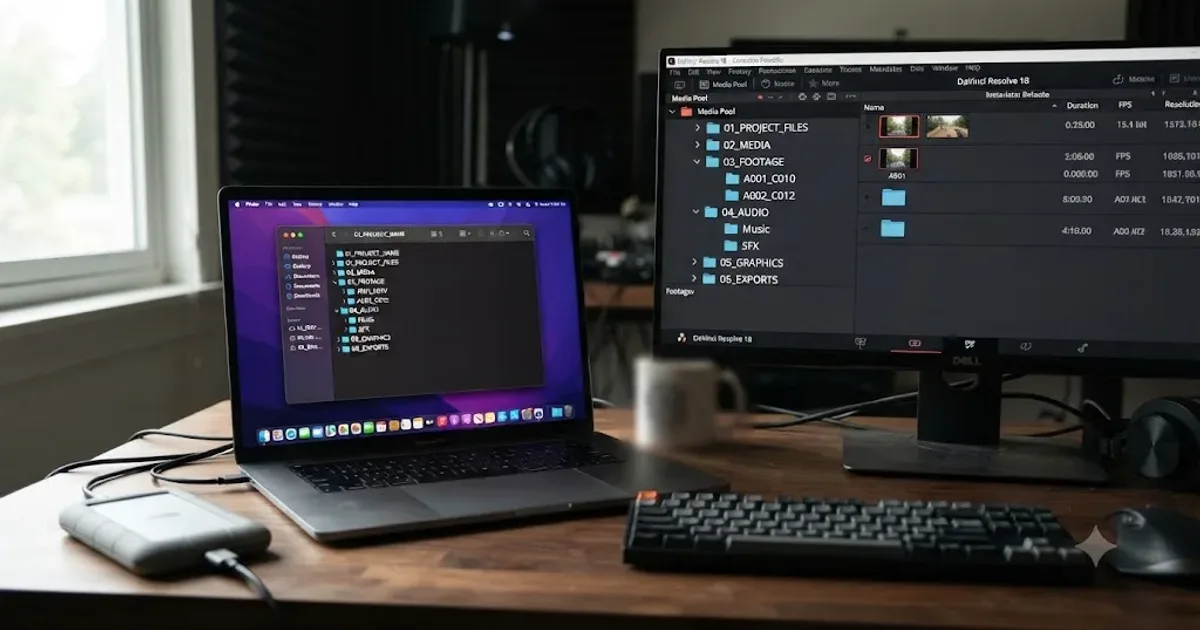
Guides · Jul 16, 2026 · 36 min
Folder and Bin Naming Conventions for DaVinci Resolve Projects
A practical naming system for DaVinci Resolve folders and bins: project structure, camera bins, Power Bins, Smart Bins, and what breaks relinking.