Articles / Guidesupdated for DaVinci Resolve 21.0.2 (July 2026)
Folder and Bin Naming Conventions for DaVinci Resolve Projects
Quick answer
Build one folder tree per project (date_client_project, then footage by camera and card) before you import anything, then mirror it inside DaVinci Resolve's Media Pool with matching bin names. Never rename camera-original files after import. Use Power Bins for assets reused across projects and Smart Bins for metadata-based auto-sorting.
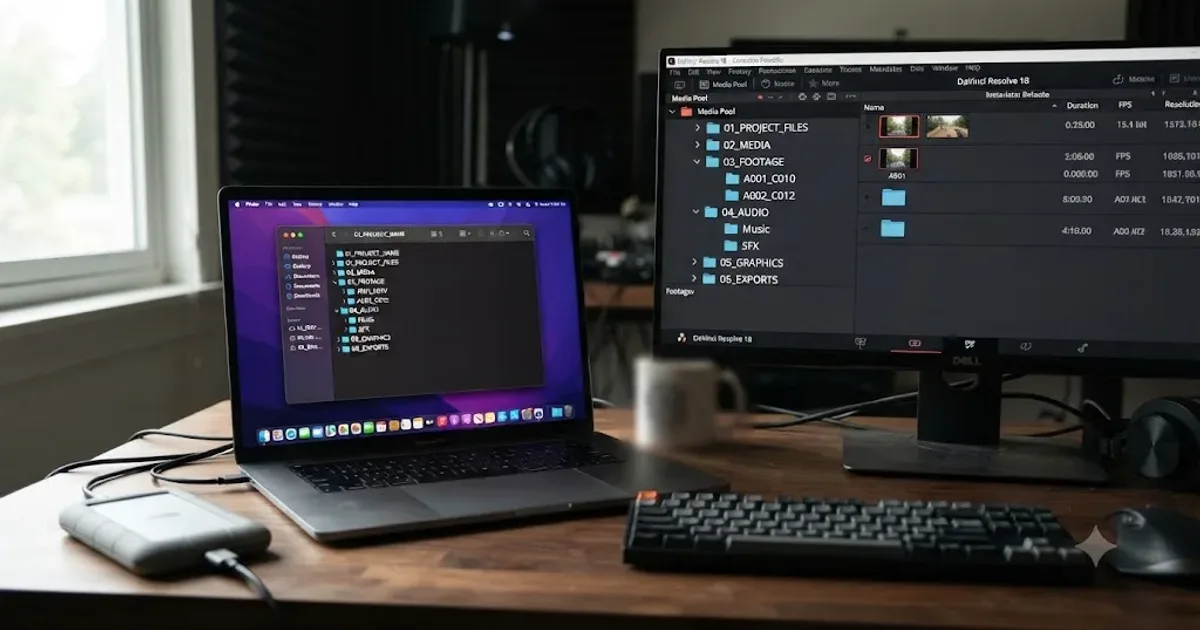
Nobody opens DaVinci Resolve planning to lose a clip. It just happens, three weeks into a project, when someone renames a folder on the desktop and half your Media Pool turns red. A naming convention is the boring fix nobody wants to set up on day one and the only thing that actually prevents it.
This is a system, not a rulebook. Folders on disk, bins inside Resolve, project files, and exports all need names that agree with each other, or the whole point of organizing anything falls apart. Here's how to build that system once and reuse it on every project after.
What's the difference between a folder and a bin in DaVinci Resolve?
A folder lives on your hard drive, and your operating system manages it. A bin lives inside a DaVinci Resolve project, and Resolve manages it. They look similar, both are little icons you can nest inside each other, but they solve different problems and neither one automatically knows what the other is doing.
Per Resolve's reference manual, "there are actually three kinds of bins in the Media Pool," and each one organizes clips, timelines, and other project content that already lives inside your project, according to the section on Bins, Power Bins, and Smart Bins. A folder, meanwhile, is just a directory. It holds files. It doesn't know what a clip is, what a timeline is, or that DaVinci Resolve exists at all.
A bin is how you organize what's already inside your project. A folder is how you organize what's sitting on your drive before Resolve ever sees it. That distinction matters because you make two separate naming decisions, one for the file system and one for the Media Pool, and a naming convention only works when both decisions agree with each other.
The default project, per the manual's page on Organizing Media into Bins, "contains a single bin called Master," which "contains all of the media content (clips, timelines, graphics, other bins, etc.) for your project." Everything you import lands in Master by default. Everything you organize from there is a choice you make, not something Resolve does for you.
Why does a naming convention matter more in Resolve than in a folder you just browse?
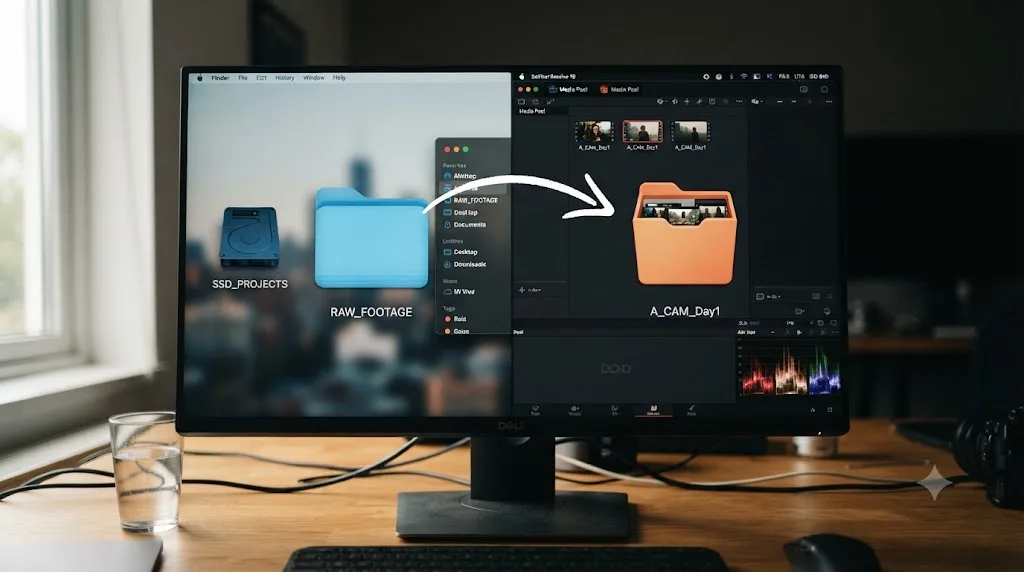
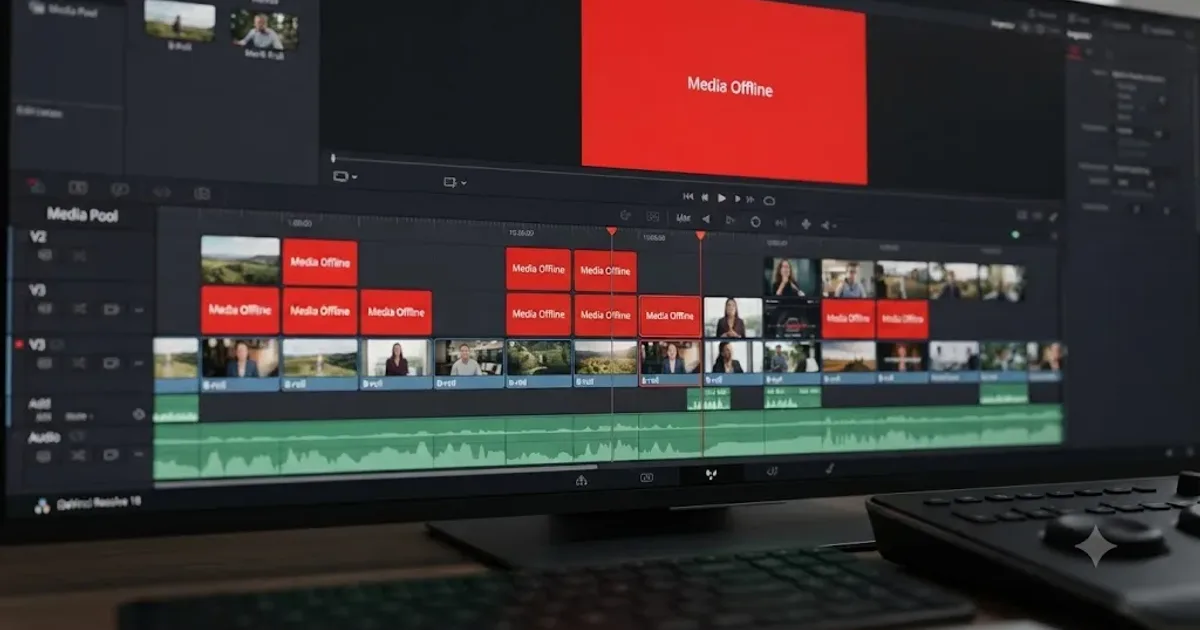
Because Resolve doesn't just display your files. It stores a link to each one, by path, and remembers that link across sessions. Rename or move the wrong thing after the fact and that link snaps, which is the exact mechanism behind the "Media Offline" error covered in our full guide to fixing offline media. A naming convention set up before you import a single clip is the cheapest insurance against that failure you'll ever buy.
Danny Greer put it plainly in his file organization guide for editors: "Good media management, file structure, versioning and a dedicated organization system is imperative to editing successfully," as he writes in PremiumBeat's file and folder organization piece. That's not a stylistic preference. A missing or ambiguous filename in an editing project isn't a cosmetic problem, it's a broken link waiting to happen the moment anything on disk shifts.
A naming convention isn't about tidiness. It's the thing standing between a renamed folder and a red offline slate on every clip inside it. Skip it on a two-clip project and you'll probably get away with it. Skip it on a forty-hour documentary shoot with three cameras and a drone, and you won't.
What folder structure should you build before you import anything?
Build the tree first, on disk, before DaVinci Resolve knows the project exists. This single habit prevents more offline media than any setting inside Resolve itself, because Resolve links to whatever structure already exists the moment you import.
A structure that works for almost any project, scaled up or down as needed:
| Folder | What lives here | Numbered so it sorts |
|---|---|---|
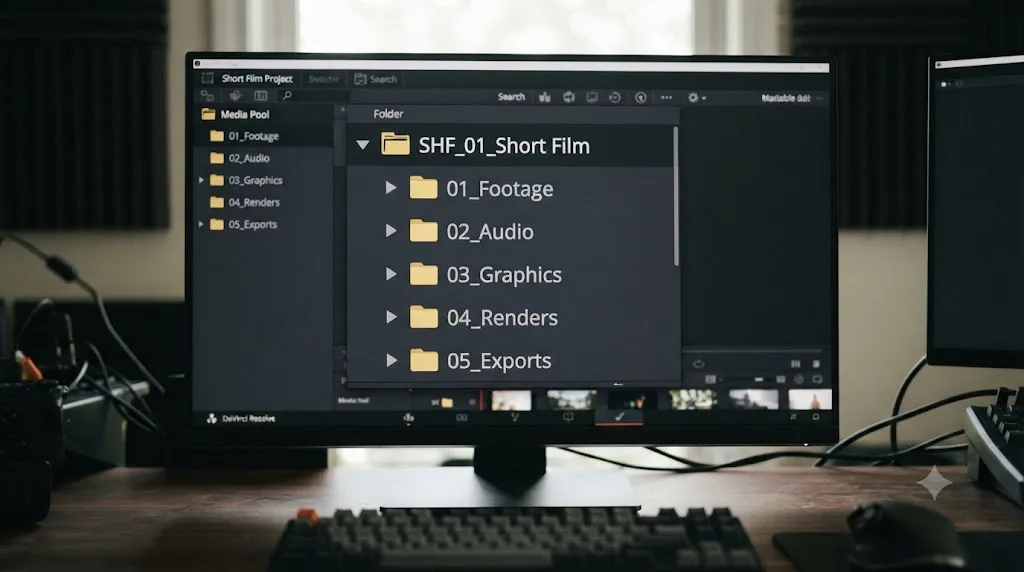
| 01_Footage | Camera originals, organized by camera and card | First, since it's the biggest and most-referenced folder |
| 02_Audio | Field recordings, music, sound effects, dialogue replacement | Second |
| 03_Graphics | Logos, lower thirds, stock graphics, title cards | Third |
| 04_Project | The Resolve project database export, LUTs, notes, shot lists | Fourth |
| 05_Exports | Rendered output, split into Drafts and Final | Fifth, since it's created last |
The numbers aren't decoration. Danny Greer's recommended structure uses the same trick, "00_Projects, 01_MEDIA, 02_AUDIO, 03_GFX, 04_SFX, 05_MUSIC, 06_OUTPUTS, 07_DOCS," specifically because leading numbers force a consistent sort order regardless of what file browser or operating system opens the folder. Without numbers, alphabetical sort scatters Audio, Exports, Footage, and Graphics in an order that has nothing to do with how you actually work through a project.
A numbered folder prefix costs three characters and guarantees your project looks identical in Finder, Explorer, and Resolve's own file browser, every single time. That consistency is worth far more than the two seconds it takes to type "01_" before a folder name.
If you're also generating proxy media because your machine is struggling with 4K footage, park those proxy files inside 04_Project rather than inventing a sixth top-level folder for them. Our proxy media setup guide for slow laptops covers exactly where Resolve expects to find your cache and proxy locations in Project Settings.
How should you name the project folder itself?
The root folder, the one containing everything above, needs its own naming pattern, and it needs to work whether you're looking at one project or fifty of them in a client archive a year from now.
The pattern that holds up longest: YYYY-MM-DD_client_project-name. As Jason Boone explains in his file naming guide for Frame.io, ISO 8601 date formatting "prevents international date confusion and ensures machine-readable chronological sorting," and per his own words, "if you decide to begin your file names with ISO 8601 dates (which I recommend you do), be sure to include the leading zeros for months and days, otherwise everything can quickly get out of order," in Frame.io's guide to file naming conventions. A folder dated 2026-07-16 sorts correctly next to one dated 2026-12-01. A folder dated 7-16-2026 doesn't, and a folder dated Jul-16 doesn't either.
Skip spaces and skip special characters in that folder name too. Boone notes that certain characters "can tell software programs or operating systems to perform various functions," which is exactly the kind of quiet failure you don't want three weeks into a job. Stick to letters, numbers, hyphens, and underscores, and you'll never hit a character an operating system, a cloud sync tool, or Resolve itself decides to interpret as something other than a name.
A worked example: a launch video for a company called Acme, kicked off July 16, 2026, becomes 2026-07-16_acme_launch-video. Six months later, sitting in an archive folder next to forty other projects, that name alone tells you the date, the client, and the job, without opening a single subfolder.
The best folder structure is the one you'll actually use the same way on the fiftieth project as you did on the first. Consistency beats cleverness every time; a slightly worse system you follow religiously outperforms a perfect one you abandon after project three.
How should you organize and name footage subfolders by camera, card, and date?
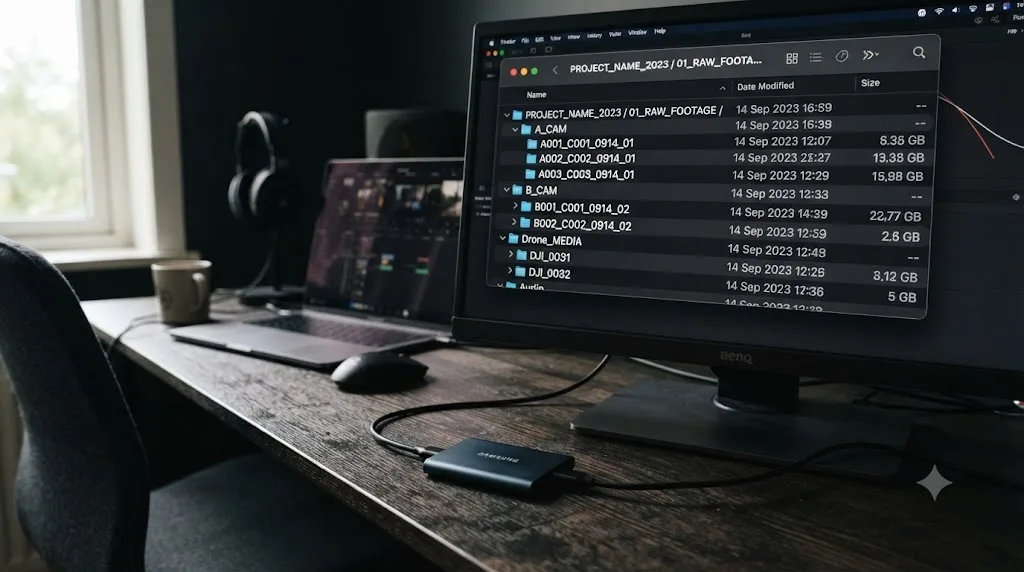
Inside 01_Footage, the structure that actually survives a multi-camera or multi-day shoot splits by camera first, then by card or day underneath it. A recurring recommendation in Blackmagic's own forum, discussing how editors set up where media and project files sit, is to use "a logical folder structure on the hard drive," such as "Day 1>Camera 1>Card 1>etc.," per the discussion in Blackmagic's forum on media and file setup. Whether day or camera comes first depends on your shoot: a single-day multi-camera interview favors camera first, while a multi-day single-camera documentary favors day first.
A typical camera-first structure for a two-camera interview shoot with a drone:
| Subfolder | Contents | Naming pattern |
|---|---|---|
| A-Cam | Everything from the primary camera | Card number underneath: A-Cam/Card01, A-Cam/Card02 |
| B-Cam | Everything from the secondary camera | Same pattern: B-Cam/Card01 |
| Drone | Aerial footage | By flight if there are several: Drone/Flight01 |
| Audio-Field | Dual-system sound if you're not embedding audio in-camera | By recorder if there's more than one: Audio-Field/Zoom01 |
Never dump every card from every camera into one flat folder. It looks harmless on a small shoot and turns into a nightmare the moment two cameras both produce a file named C0001.mp4 on the same day, which every consumer and prosumer camera brand does routinely, since in-camera file numbering resets per card, not per project.
Two cameras that both name their first clip C0001.mp4 will silently overwrite each other in a flat folder, and the only thing standing between you and that collision is a folder structure that keeps each camera's cards physically separate. This single habit, camera-first subfolders, prevents more silent data loss than any backup strategy applied after the fact.
Copy each card's contents into its matching subfolder exactly as it comes off the camera, don't reorganize footage inside the card folder itself, and verify the copy against the card before you format it for reuse. A checksum-verified copy tool, the kind built into Resolve's own Media page Clone Tool, catches a bad transfer before you've deleted your only copy of the footage.
Should you ever rename your camera-original files?
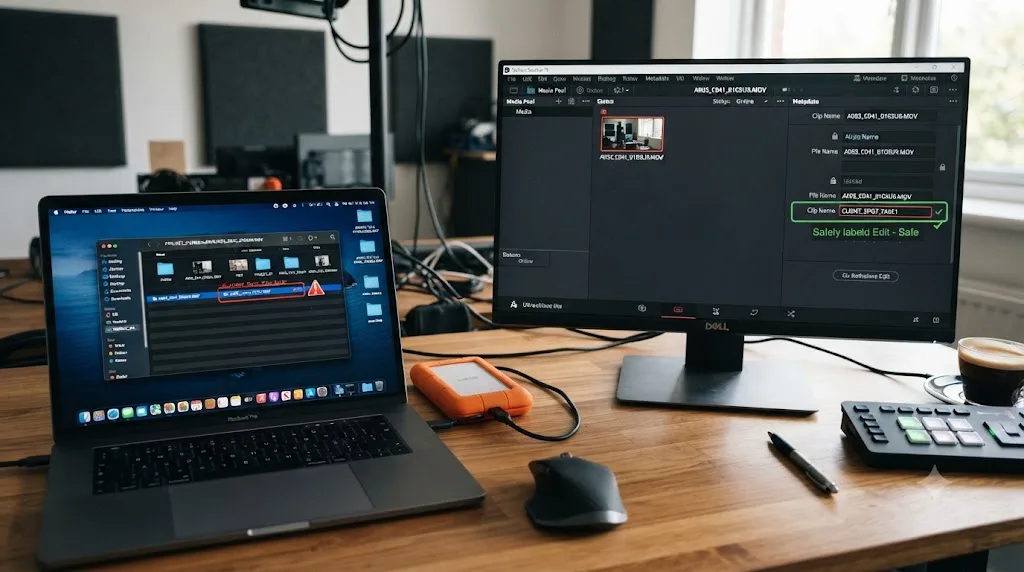
Carefully, and only after you've backed up and verified the originals. This is the single riskiest naming decision in the whole workflow, because it happens after Resolve may have already linked to the file, not before.
Resolve's relink logic, per its manual on Change Source Folder, matches clips by searching a folder for files whose name and duration agree with what the project remembers. Rename a file the project has already linked to and you've broken that match. The clip goes offline, the same failure mode covered in depth in our media offline troubleshooting guide, and now you're relinking by hand instead of editing.
The safer alternative lives inside Resolve, not on your file system. Every clip has a separate Clip Name field, distinct from its file name, and you can edit that field freely without touching the file on disk at all. This display name shows throughout the Media Pool and timeline, while the underlying file, and Resolve's link to it, stays completely untouched.
Renaming a file on disk after Resolve has linked to it risks an offline clip. Renaming the Clip Name field inside Resolve risks nothing at all, because the file underneath never moves. If your goal is readable clip names, not archival file names, do it inside Resolve and skip the risk entirely.
There's one legitimate reason to rename files on disk anyway: preparing camera-original footage for long-term archival, where descriptive names matter more than Resolve's convenience. If you go that route, do it once, immediately after the verified backup and before you ever import into Resolve, never mid-project.
What naming convention actually works for camera-original filenames, if you do rename them?
If you're renaming at the archival stage, before import, a pattern that survives years of reuse without ambiguity looks like this: date_camera_scene_shot_take.ext. A real example from CineD's guide to handing a project to a colorist shows the same underlying logic in a delivery context: sdc_s01e01_cheeky_pancakes_1920x1080p25_proresproxy_20230715_locked.mov, a filename that encodes the show, episode, description, resolution, codec, date, and status in a single readable string, per CineD's colorist handoff guide.
You don't need every one of those fields on every project, but the underlying rule scales down cleanly: pack the metadata that actually distinguishes one file from another into the name itself, in a fixed order, every time.
| Field | Example | Why it's in the name |
|---|---|---|
| Date | 20260716 | Sorts correctly, ties the file to a specific shoot day |
| Camera | A | Distinguishes A-Cam from B-Cam even after files leave their folder |
| Scene/Segment | s02 | Ties the clip to your shot list or script |
| Shot or setup | wide | Human-readable context at a glance |
| Take | t03 | Distinguishes multiple attempts at the same shot |
Combined: 20260716_A_s02_wide_t03.mov. That's long enough to be unambiguous, short enough to stay under any reasonable character limit, and every field sorts or filters meaningfully if you ever need to search a drive full of similar names.
Skip camera-brand default names like C0042.MP4 or IMG_1847.MOV the moment you're archiving, not because Resolve can't handle them, it can, but because those names carry zero information once separated from their original folder. A file named C0042.MP4 tells you nothing. The same file named 20260716_A_s02_wide_t03.mov tells you everything you'd need to find it again in a drive full of thousands of similar clips.
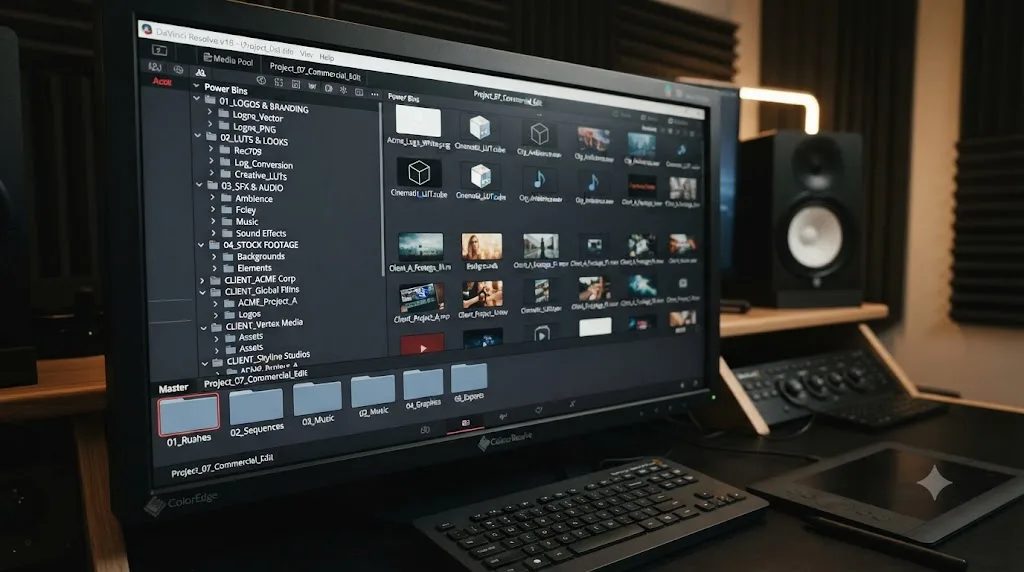
How do Master bins, custom bins, Power Bins, and Smart Bins differ?
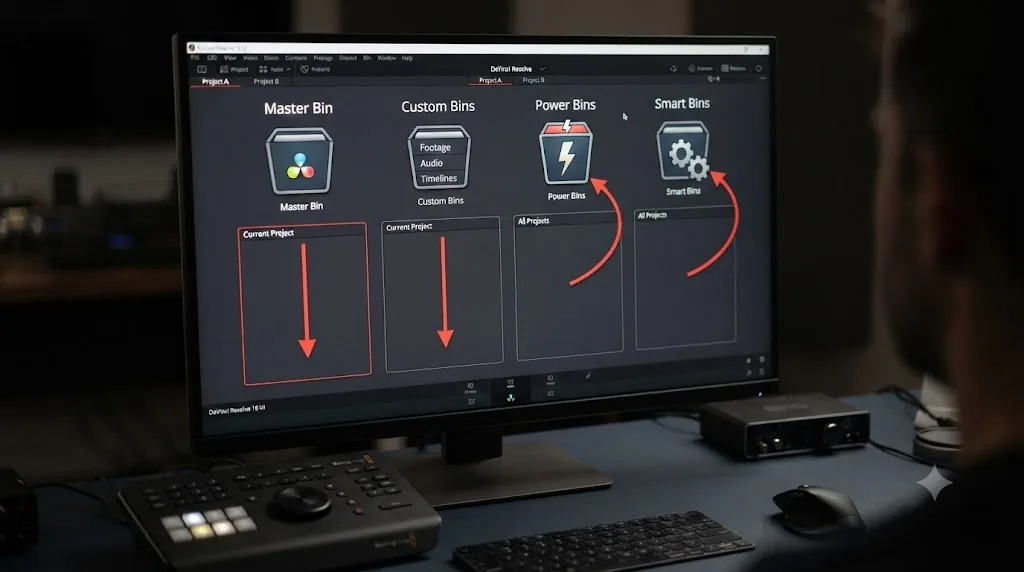
Four things share the word "bin" in DaVinci Resolve, and they behave differently enough that using the wrong one for the job creates real friction. Per the manual, "there are actually three kinds of bins in the Media Pool, and each appears in its own section of the Bin list," described in the reference page on Bins, Power Bins, and Smart Bins, and the Master bin sits underneath all three as the default container everything starts in.
| Bin type | Scope | How it fills | Best use |
|---|---|---|---|
| Master bin | This project only | Everything imported lands here by default | The starting point, not a permanent home for organized footage |
| Custom bin | This project only | You manually create and populate it | Mirroring your on-disk footage folders, one bin per top-level folder |
| Power Bin | Every project on this system or user account | You manually drag media in | Logos, LUTs, sound effects, title templates reused across jobs |
| Smart Bin | This project only | Auto-populates from metadata rules you define | Camera type, keyword, resolution, or flag color filters that update themselves |
Custom bins and Power Bins are both containers you fill by hand, but their scope is the entire difference. Per the manual's page on Sharing Media Among Projects Using Power Bins, "whatever clips you import into Power Bins are shared among all projects in a single-user installation, or all projects belonging to a particular user in a multi-user installation." A custom bin named B-Cam only exists in the project you created it in. A Power Bin named Logos shows up in every project you open, on that machine or under that user account, forever.
Alex Hohenthaner's rundown of Power Bins for CineD captures the practical upside directly: "Power Bins in DaVinci Resolve help you to easily store materials such as clips (e.g. rendered intros and outros), logos, and graphics," and describes storing "a folder for each of my customers" to keep client-branded assets separate but always one click away, in his piece on what makes Power Bins great. That's the pattern worth copying: Power Bins organized by client or asset category, never by project, since a project-specific Power Bin defeats the entire point of the feature.
Smart Bins work on a completely different mechanism from either. Instead of holding clips you dragged in, a Smart Bin holds a saved search: a rule, or set of rules, that Resolve re-runs against your current project's media every time something changes. Import a new card and any clip that matches an existing Smart Bin's rules shows up in it automatically, no manual sorting required.
A custom bin is a container you fill by hand. A Smart Bin is a search you set up once and never touch again. A Power Bin is the only one of the three that follows you into your next project. Pick the wrong type for the job and you'll either duplicate work a Smart Bin would automate, or you'll scatter reusable assets across every project instead of keeping them in the one place a Power Bin provides.
How should your bin structure mirror your folder structure?
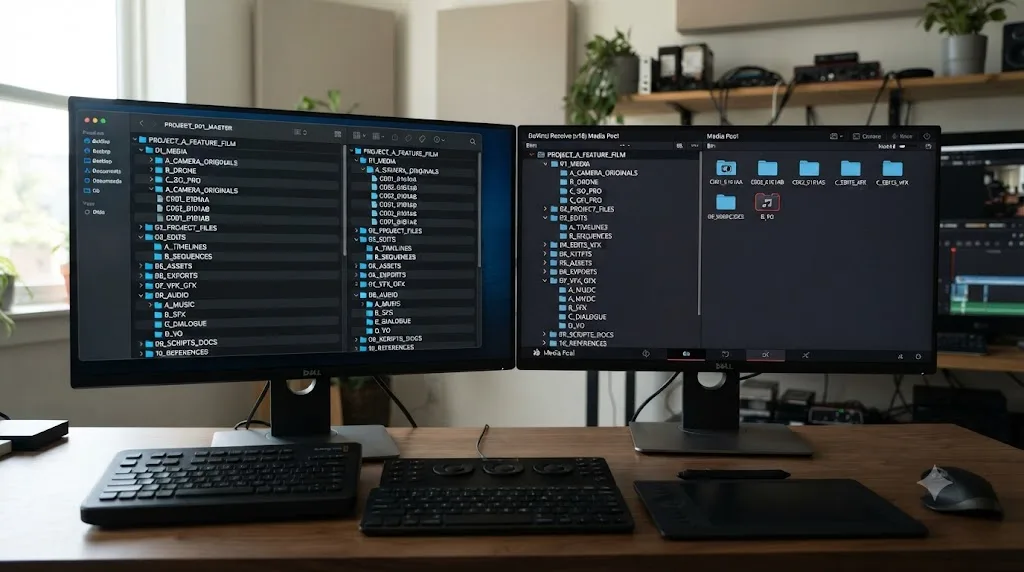
Directly, and by name, wherever the mapping is obvious. A discussion on Blackmagic's own forum about using a bin structure that reflects storage folders lands on the same conclusion working editors reach independently: keep your Media Pool bin names identical to the folder names they represent, so a clip's location in one system tells you its location in the other without translation, per the thread on media management and bins structure for storage folders.
Concretely, if your footage folder looks like this:
01_Footage/
  A-Cam/
    Card01/
    Card02/
  B-Cam/
    Card01/
  Drone/
    Flight01/
Your Media Pool bin structure should read:
Master/
  A-Cam/
    Card01/
    Card02/
  B-Cam/
    Card01/
  Drone/
    Flight01/
Same names, same nesting, same order. Per Resolve's manual, "you can create bins inside of other bins," described on the page covering organizing media into bins, which means there's no structural reason your Media Pool can't match your file system exactly, nesting level for nesting level.
You don't have to mirror everything. Audio, graphics, and project-support folders often don't need their own bin structure at all, since they're smaller and more static than camera footage. Reserve exact mirroring for the folders that actually grow and change during a project, footage above everything else, and use looser, purpose-built bins (Selects, Music, Graded) for the rest.
A bin structure that mirrors your folder structure by name means anyone on the project, including you six months from now, can answer where a clip actually lives on disk without opening a single relink dialog. That single property, traceability, is the entire reason to bother mirroring at all rather than organizing bins any way that feels convenient in the moment.
What's a good bin naming convention for scenes, shots, and takes?
Camera and card bins handle raw footage well, but once you start cutting, a second layer of organization, built around story rather than source, usually helps more. This is where scene and shot bins come in, sitting alongside your camera bins rather than replacing them.
A workable pattern: Scene-##_Description, with shot-level bins nested underneath only if a scene has enough footage to justify splitting it further. Scene-01_Kitchen-Interview, Scene-02_Rooftop-B-Roll, Scene-03_Product-Closeups. The number keeps scenes in story order regardless of what order they were shot in, and the description makes each bin identifiable without opening it.
For narrative or multicam work with formal scene and shot numbering from a script, metadata-driven naming does more work for you than manual bins ever could, which the next section covers directly. For documentary, interview, and event work without a script, a description-first approach usually serves better than trying to force footage into scene numbers that don't really exist yet.
Whichever pattern you pick, keep a consistent separator and a consistent capitalization style across every bin name in the project. Mixing Scene_01 with scene-2 with SCENE THREE inside the same Media Pool looks like a small thing until you're scanning forty bin names trying to find the one you need, and inconsistent formatting makes that scan take twice as long as it should.
A bin naming convention only pays off if you follow it on bin number one exactly as strictly as you follow it on bin number forty. The value compounds; a Media Pool where every bin name follows the same pattern is scannable in seconds, and one where even a few bins break the pattern forces you to read each name individually instead of pattern-matching across the whole list.
How do you rename clips automatically using metadata variables?
Manual renaming works fine for a handful of clips. It falls apart at scale, which is exactly the problem Resolve's Clip Name metadata variables solve. Instead of typing a name for every clip by hand, you build a template once, and Resolve fills in the specifics per clip automatically.
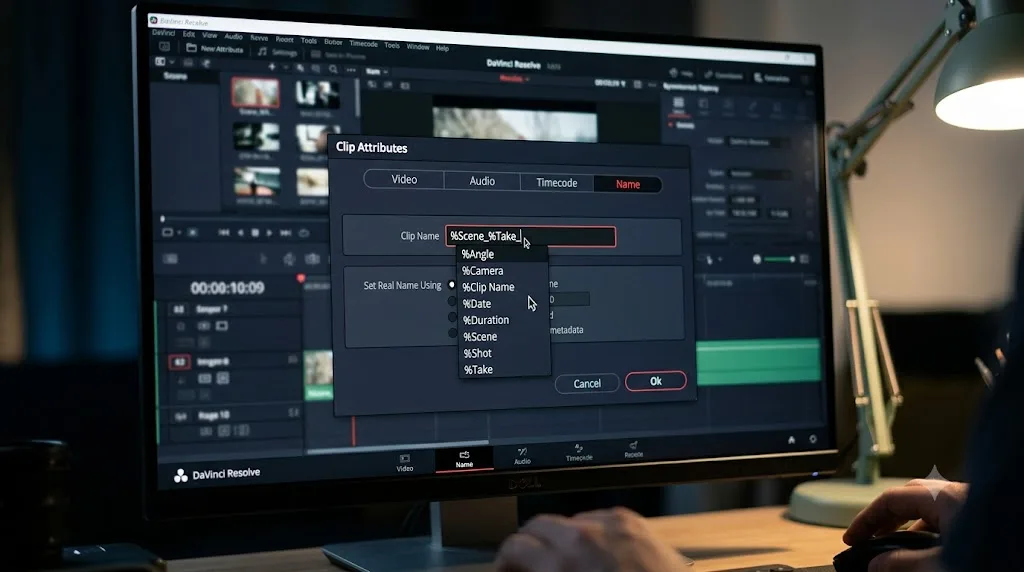
Per the manual's page on Using Metadata to Define Clip Names, typing a percent sign in the Clip Name field opens a scrolling list of every metadata variable available for that clip, and "you can freely mix metadata variables with other characters (the underscore, as in the example above) to help format the metadata to make it even more readable." The manual's own worked example: if a clip's scene, shot, and take metadata read 12, A, and 3, a template combining those variables with underscores displays that clip's name as 12_A_3, automatically, with zero manual typing per clip.
To set this up across a batch of clips: select every clip you want to rename, right-click and choose Clip Attributes, open the Name panel, and build your template in the Clip Name field using the percent-sign variable picker. Every selected clip then generates its own name from its own metadata, following the one template you built.
This only works as well as the metadata behind it. Scene, shot, and take fields have to actually be populated, either logged on set, pulled from camera metadata where the camera writes it, or entered in Resolve before you build the naming template. Garbage metadata produces garbage automated names just as reliably as it produces garbage Smart Bins, covered next.
A metadata-driven clip name template turns naming five hundred clips into naming one template, which is the entire reason scripted and multicam productions log scene and take numbers on set in the first place. The naming convention isn't extra work bolted onto production; it's the payoff for logging discipline that happened long before the footage reached Resolve.
When should you use Smart Bins instead of manual bins?
When the sorting rule is something you could describe in a sentence and would rather set up once than repeat every time new footage arrives. "Every clip shot on the B-Cam." "Every clip tagged Selects." "Every clip at 4K and above." Each of those is a Smart Bin rule, not a manual sorting job.
The mechanism, per the manual's overview of Bins, Power Bins, and Smart Bins, lives in its own section of the Media Pool, separate from your regular bin list and toggled visible or hidden independently. Build a rule once, based on any metadata field Resolve tracks, camera model, resolution, frame rate, keyword, flag color, and the Smart Bin re-evaluates it continuously. Import a new card tomorrow and anything matching your existing rules appears in the relevant Smart Bin without you touching a thing.
This is where naming metadata consistently pays off a second time. A Smart Bin rule built around a keyword only works if that keyword actually gets applied to clips consistently, which loops back to the same underlying discipline as good file and bin names: pick a vocabulary, and don't drift from it partway through a project. A Smart Bin filtering for the keyword "Interview" misses every clip someone tagged "interviews" or "Interview clip" instead, because Smart Bin rules match what you actually typed, not what you meant.
Where manual bins still win: anything based on judgment rather than metadata. "The best three takes of this scene" isn't a rule Resolve can evaluate against a clip's properties, it's an editorial decision, and editorial decisions belong in manual bins you build as you make them, not automated rules trying to guess your taste.
Smart Bins automate anything a computer can determine from metadata. Manual bins hold everything that requires a human to actually watch the footage and decide. Use both, and let each one do the job it's actually suited for instead of forcing metadata rules to replace editorial judgment or forcing yourself to manually re-sort footage a rule could handle automatically.
How should you set up Power Bins for assets you reuse across projects?
Once, carefully, organized by category or client, not by project. Since Power Bins persist across every project you open, per the manual's confirmation that Power Bin content is "shared among all projects in a single-user installation, or all projects belonging to a particular user in a multi-user installation," described in the page on sharing media among projects using Power Bins, a project-specific Power Bin just clutters every other project you'll ever open on that machine.
A Power Bin structure that actually holds up:
| Power Bin | Contents |
|---|---|
| Logos | Client and brand logos you reuse across multiple jobs |
| LUTs | Look-up tables you've built or licensed |
| SFX | A curated sound effects library |
| Titles | Reusable title and lower-third templates |
| Stock | Licensed stock footage you keep coming back to |
Alex Hohenthaner's approach for CineD splits this a level further for agency-style work, creating "a folder for each of my customers" inside Power Bins to keep client-specific branding assets separate while still benefiting from cross-project availability, as described in his Power Bins overview. That's worth copying directly if you regularly work with the same handful of clients: a Power Bin per client, holding that client's specific logos and brand assets, still shared across every project for that client without polluting projects for anyone else.
One real limitation worth knowing before you build around Power Bins: they can't hold everything. Multicam clips, compound clips, Fusion clips, and timelines aren't eligible, since those reference other project-specific material that doesn't travel cleanly between projects. Power Bins are for standalone media, not for anything built out of other things inside a specific project.
Power Bins only earn their place if what's inside them would otherwise get re-imported, project after project, exactly unchanged. If an asset changes even slightly per job, a client logo with a different tagline, a title template with different text, it probably belongs in that project's regular bins instead, where it won't quietly go stale across every other project sharing the same Power Bin.
How does the naming convention change for a documentary or interview-heavy project?
Documentary and interview footage rarely comes with a script's scene and shot numbers attached, so the naming system has to lean harder on subject and location rather than a formal numbering scheme that doesn't exist yet.
A structure that works well here splits by subject or interviewee first, then by role second:
01_Footage/
  Interviews/
    Subject-Smith/
    Subject-Chen/
  B-Roll/
    Location-Warehouse/
    Location-Rooftop/
  Archival/
    Provided-By-Client/
Bin names follow the same pattern: Interview_Smith, Interview_Chen, B-Roll_Warehouse, Archival_Client. Because interview and documentary edits often reorganize footage repeatedly as the story finds its shape, keeping the folder and bin split by subject rather than by shoot day means footage stays findable no matter how many times the cut itself changes direction.
Keywords do more work here than scene numbers ever could. Tag clips by topic as you log them, "budget," "conflict," "resolution," whatever themes actually recur in your interviews, and build Smart Bins around those keyword tags rather than trying to force interview footage into a scene-and-shot numbering scheme built for scripted production. A Smart Bin filtering for the keyword "conflict" across every interview subject surfaces relevant footage instantly, something a folder structure alone can't do, since a folder can only put a clip in one place while a keyword can tag it into several relevant categories at once.
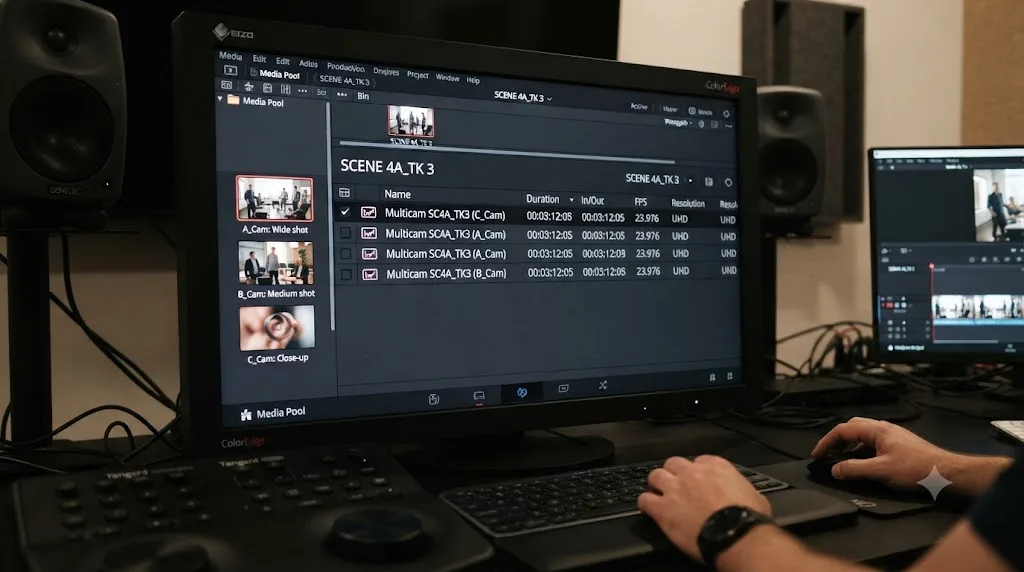
How does the naming convention change for a narrative multicam shoot?
Scripted, multicam production is the opposite case: scene and shot numbers exist from the script before a single frame gets shot, and the naming convention's job is to preserve that structure faithfully rather than invent one from scratch.
Folder structure follows the shoot's actual camera setup, camera-first, then card, exactly as covered earlier in the general footage section. The scene-and-take structure lives in bins and metadata, not in the physical folder tree, since a single scene typically gets covered by every camera at once, and splitting footage into per-scene folders would scatter each camera's card contents across dozens of folders for no benefit.
Inside the Media Pool, this is precisely where metadata-driven clip naming, covered earlier, pays off hardest. Build a Clip Name template combining scene, shot, and take variables once, and every clip from every camera generates its own readable name automatically as script supervisor notes and camera metadata feed into Resolve. Bins organize by scene number (Scene-14, Scene-15), and within each scene bin, clips from every camera sit side by side, sorted by the same take number regardless of which physical card they came from.
On a scripted multicam shoot, the folder structure protects your raw footage by camera and card, while the bin structure and clip naming protect your story by scene and take, and those two systems deliberately don't mirror each other one-to-one. That's the one case in this whole guide where exact folder-to-bin mirroring, the general rule covered earlier, correctly gives way to a story-first bin structure instead, because story order and card order are genuinely different things on a multicam scripted shoot.
What changes when multiple editors share the same project?
The stakes go up, because a naming convention that only lives in your head doesn't help anyone else on the team. Collaborative Resolve projects, whether through a shared project database or PostgreSQL-backed collaboration, multiply naming confusion by however many people are touching the project at once, since each person resolves clip paths against their own local storage.
The fix that actually works: write the convention down, before the project starts, and share it with everyone touching bins or footage. A one-page document covering the folder pattern, the bin mirroring rule, and the clip naming template takes ten minutes to write and saves hours of "wait, why did you name it that" mid-project. Community discussion on this exact problem, in the context of setting up bins that mirror storage folders for a shared project, consistently lands on the same conclusion: agree on the pattern first, enforce it same as any other project standard, per the Blackmagic forum thread on bins and storage folder structure.
Shared storage adds a wrinkle folder naming alone can't fix: every editor needs to reach the footage through the identical path or share name, or the project reads as offline for whoever's mount point differs from what the project remembers. That's a storage and mounting problem more than a naming problem, and our media offline guide covers the collaborative-editing failure modes in more depth, including the cross-platform path mismatches that show up the moment a Mac and a Windows machine share the same project.
A naming convention only protects a team if it's written down somewhere everyone can find it, not just understood by whoever set the project up. The moment a second editor opens the project, the convention stops being a personal habit and becomes a team standard, and team standards that only exist in one person's head fail the first week that person is out sick.
How should you prep bin and folder names before handing off to a colorist?
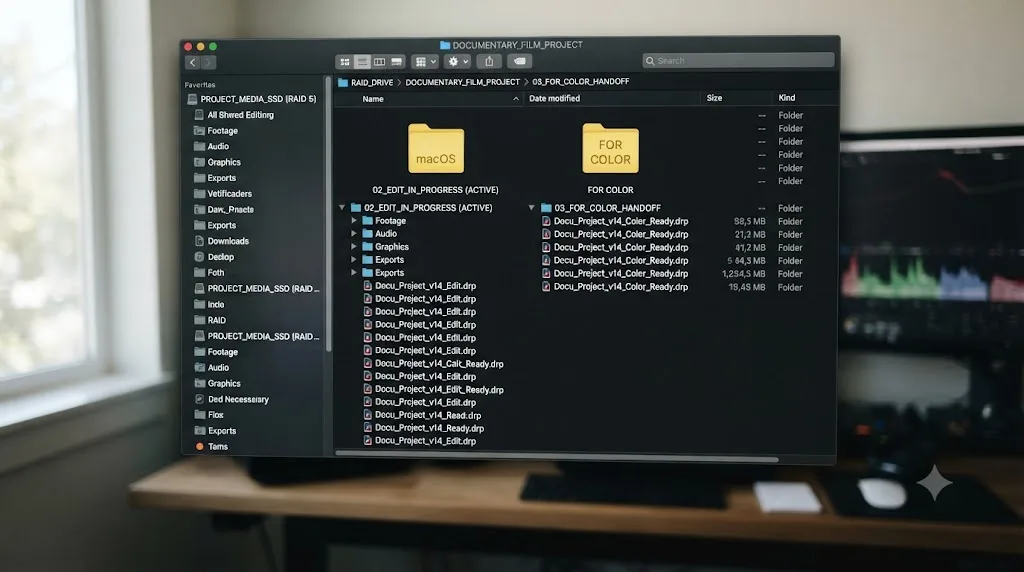
Clean and legible, without assuming your colorist knows your personal shorthand. Tristan Kneschke's advice for prepping a project handoff is direct on the practical side of this: "Clearly label the color prep on the drive. Something like 'for color' works great," per PremiumBeat's guide to prepping for a color session. A folder labeled unambiguously as the color-ready copy, separate from your ongoing edit, prevents a colorist from grading a version you're still cutting.
Mike Starkov's guide to handing a project to a colorist reinforces the same underlying discipline from the file-naming side: "We should also pay attention to naming conventions throughout the project," and shows what a fully specified delivery filename actually looks like in practice, encoding show, episode, description, resolution, codec, date, and lock status all in one string, per CineD's guide to handing a project to a colorist.
Before handoff, walk through this short checklist:
- Remove or clearly separate any "reject" or "do not use" bins from the bins the colorist will actually grade.
- Rename any bin with internal shorthand (initials, inside jokes, temp labels like "asdf") into something a stranger could understand on first read.
- Confirm your folder names don't rely on context only you have, "the good one" tells a colorist nothing, "locked_v04" tells them everything.
- Flag the locked timeline clearly, since a colorist grading the wrong version wastes both of your time.
- Keep the color-prep folder separate from your live edit, exactly as Kneschke recommends, so nobody accidentally grades a cut still in progress.
A colorist who has to ask what a bin name means is a colorist not grading yet, and every minute spent decoding your personal shorthand is a minute not spent on the actual color session you're paying for. Name things for a stranger reading them cold, not for yourself reading them with full context, and handoffs stop costing you calendar time.
How should you name your project files and track versions?
Differently than you'd expect, because DaVinci Resolve doesn't save a project as a single portable file the way most other creative apps do. A Resolve project is an entry inside the Project Manager's database, not a .drp file sitting in your project folder by default. The .drp format only exists when you deliberately export one.
That changes what "naming your project" even means. Inside the Project Manager, name the project itself using the same convention as everything else, client_project-name, directly in the interface where projects live. For version snapshots, two options work:
- Project Manager duplication. Right-click the project and choose Duplicate Project, then rename the copy with a version suffix,
acme-launch_v02. This creates a full, separate snapshot inside Resolve's database, distinct from the original, that you can open independently at any point. - Manual .drp export. File > Export Project produces a portable
.drpfile you can name and store outside Resolve entirely, useful for archiving a locked cut or handing a project to someone on another machine. Per the manual's coverage of Media Management, a.drpcarries only project metadata, edits, grades, and stored paths, never the media itself.
Whichever method you use, version consistently: _v01, _v02, _v03, incrementing every time, never reusing a number even if an earlier version got abandoned. A gap in your version numbers is far less confusing than two different files both claiming to be _v02.
Don't rely on Resolve's autosave as your version history. Autosave protects you from a crash, not from "I want to go back to how this looked yesterday afternoon." Those are different problems, and only deliberate, named snapshots solve the second one.
A version number that increments without exception is worth more than a perfectly worded one, because the moment two files claim to be v02, your naming convention has already failed at the one job it exists to do. Discipline beats cleverness in version naming more than in any other part of this system.
How should you name your export and delivery files?
With enough information baked in that the filename alone tells a client, a platform, or future you exactly what it is, without needing to open it first. The pattern that covers most delivery needs: project_v##_resolution_date.ext.
A worked example: acme-launch_v03_1080p_20260716.mp4. Anyone looking at that filename in a downloads folder six months from now knows the project, the version, the resolution, and the date, without playing a single frame.
Split your 05_Exports folder into at least two subfolders, Drafts and Final, and never let a draft render sit in the Final folder even temporarily. A client link that accidentally points at a draft because it happened to be sitting in the wrong folder is an entirely preventable, entirely embarrassing mistake, and the folder split costs nothing to maintain.
| Export scenario | Suggested pattern |
|---|---|
| Internal review draft | project_v01_review_1080p_date.mp4 |
| Client-facing cut | project_v03_client_1080p_date.mp4 |
| Locked final master | project_final_master_4k_date.mov |
| Platform-specific export | project_final_youtube_1080p_date.mp4, project_final_vertical_1080p_date.mp4 |
Platform-specific naming matters more than it looks like it should the moment you're delivering the same project to multiple destinations. Our export settings guide for YouTube produces a differently shaped file than a vertical export built for Instagram Reels or TikTok, and a filename that specifies the platform prevents you from uploading a vertical export to a horizontal destination by mistake, a genuinely common error when several renders sit in the same folder with similar names.
Does folder or bin naming differ between Windows, Mac, and Linux?
The convention itself doesn't need to change, but two platform quirks are worth knowing before a naming choice that works fine on one operating system breaks quietly on another.
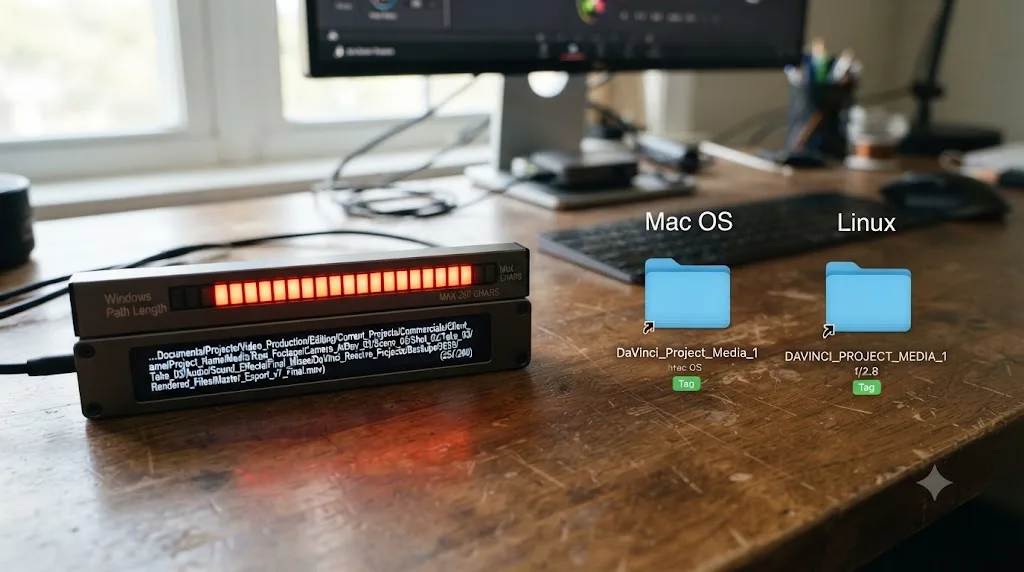
The first is path length. Windows enforces a legacy 260-character limit on full file paths for most applications, per Microsoft's own documentation on the Maximum Path Length Limitation, which states the limit "is defined as MAX_PATH, which is defined as 260 characters," measuring the entire path from drive letter to filename, not just the filename itself. A deeply nested project, D:\Clients\2026\Acme\01_Footage\A-Cam\Card03\Interviews\Subject-Smith\Take-Selects\, eats into that budget fast before you've even reached the filename. Windows 10 and 11 can enable long-path support through a registry or Group Policy setting, but that fix has to be applied deliberately on every machine involved, and a collaborator's machine without it enabled will still hit the limit even if yours doesn't.
The second is case sensitivity, and it runs the opposite direction of what most editors expect. Per Apple's own documentation on file system formats in Disk Utility, the default APFS format on modern Macs is case-insensitive, meaning "Interview_Smith" and "interview_smith" are treated as the exact same folder, not two different ones. Windows behaves the same way by default. Relying on capitalization to distinguish two folders, "BRoll" versus "Broll," works until a project crosses onto a case-sensitive volume or a Linux machine, where the two names split apart into genuinely different folders, and your naming convention silently forks into two systems that don't agree with each other.
| Platform quirk | Practical rule |
|---|---|
| Windows path length (260 characters, legacy default) | Keep nesting shallow: 4-5 levels deep at most before you hit the filename itself |
| Case-insensitive default on Mac and Windows | Never rely on capitalization alone to distinguish two folder or bin names |
| Case-sensitive Linux and optional case-sensitive APFS volumes | Treat every name as if case matters, even where it currently doesn't, so nothing breaks when a project crosses platforms |
A naming convention that only works because your specific machine happens to be case-insensitive or under the path limit isn't actually a convention, it's a machine-specific accident waiting for a different computer to expose it. Build names that would survive a move to any of the three major platforms, and you'll never discover the hard way that "BRoll" and "Broll" used to be the same folder until someone opened your project on Linux.
What naming mistakes actually break DaVinci Resolve projects?
Most of the mistakes on this list don't announce themselves immediately. They sit quiet for days or weeks, then surface as an offline clip, a missing asset, or a colorist grading the wrong version, exactly when you have the least time to untangle them.
| Mistake | What breaks | The fix |
|---|---|---|
| Renaming a folder after Resolve has linked to its contents | Every clip inside goes offline at once | Finish organizing before you import; route later reorganizing through Media Management, not Finder or Explorer |
| Two cameras both defaulting to C0001.mp4 in a flat folder | One file silently overwrites the other during copy | Camera-first subfolders before any copy happens |
| Relying on capitalization to distinguish two names | The two "different" folders merge into one on a case-insensitive drive | Use distinct words or numbers, never case alone |
| Reusing a version number after abandoning a draft | Two files both legitimately claim to be _v02 | Increment version numbers forever, never reuse a skipped one |
| Personal shorthand in bin names ("the good one," initials, inside jokes) | A colorist or collaborator can't parse what a bin means | Name for a stranger reading cold, not for yourself with full context |
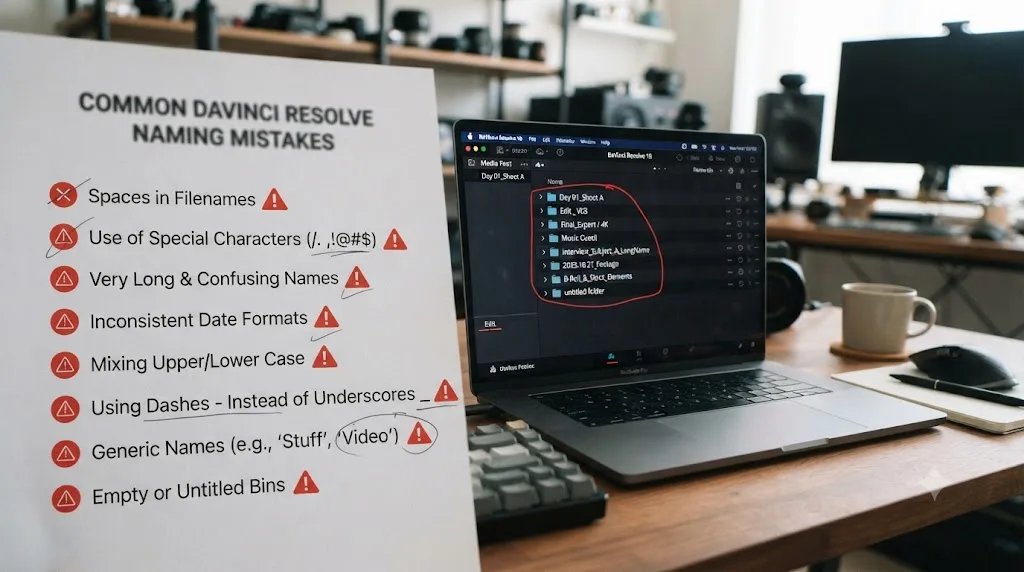
| Spaces and special characters in folder or file names | Some software and OS combinations misinterpret certain characters as commands | Stick to letters, numbers, hyphens, and underscores |
| A bin structure that stops matching the folder structure mid-project | You can no longer trace a clip in the Media Pool back to its file location | Rebuild bins to match whenever the folder structure changes, don't let them drift apart |
| Deeply nested folders on a Windows machine without long-path support enabled | Files near the bottom of the tree hit the 260-character path limit | Keep nesting to 4-5 levels; flatten where you can |
Nearly every mistake in that table traces back to the same root cause: a naming decision made after Resolve already depended on the old one. Rename, move, or restructure before you import, and almost none of these ever happen. Do it after, and you're relinking instead of editing.
What does a full worked example look like, start to finish?
Put every piece together on a realistic job: a two-day interview shoot for a client called Meridian, two cameras, one field audio recorder, delivered as a 90-second launch video for YouTube and a vertical cutdown for social platforms.
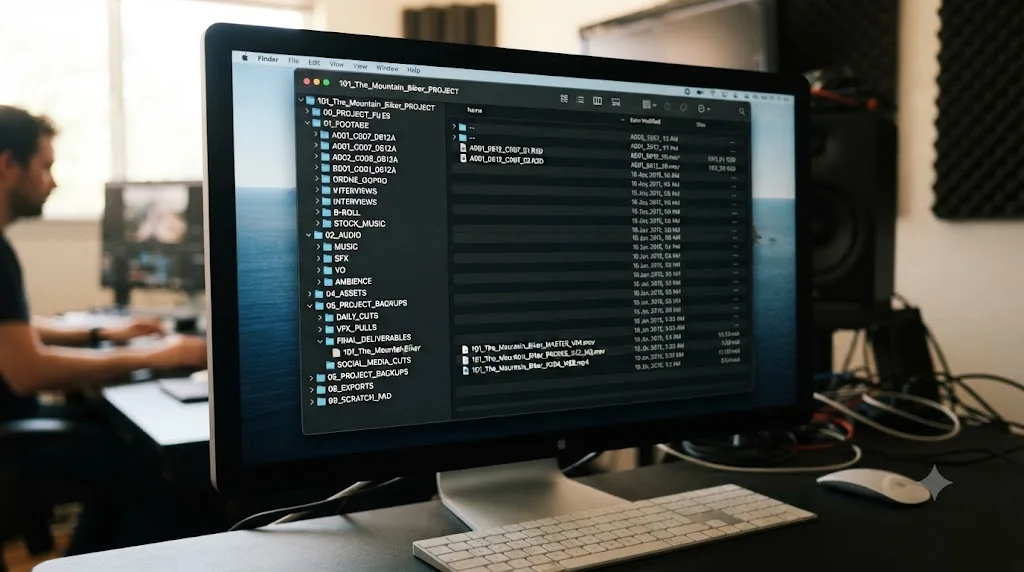
Before the shoot, the editor builds the root folder: 2026-07-16_meridian_launch-video, with the standard 01 through 05 subfolders inside it. Under 01_Footage, camera-first subfolders wait empty: A-Cam, B-Cam, Audio-Field, each ready to receive card contents.
Day one wraps. Footage copies straight into A-Cam/Card01, B-Cam/Card01, and Audio-Field/Zoom01, verified against the cards before anything gets formatted for reuse. Day two follows the same pattern into Card02 folders for each camera. Nothing gets renamed on disk. The camera's default filenames stay exactly as shot, since this project doesn't need archival-grade renaming, just organized folders.
Back at the desk, the editor opens Resolve, creates a new project named meridian_launch-video in the Project Manager, and imports each camera folder into a matching bin: A-Cam, B-Cam, Audio-Field, built inside the Master bin with the same names and the same card-level nesting as the folders on disk. A Smart Bin gets added for the keyword "Selects," so as the editor flags strong takes during the first pass, they surface automatically in one place without a second manual sorting step.
The rough cut comes together. Once it's locked internally, the editor duplicates the project inside the Project Manager, naming the copy meridian_launch-video_v01, preserving the original as a fallback. The client requests two revisions; each becomes _v02, then _v03, never reusing a number even though an early alternate cut got abandoned along the way.
Final delivery: the Deliver page renders two files into 05_Exports/Final, named meridian-launch_v03_1080p-youtube_20260718.mp4 and meridian-launch_v03_1080p-vertical_20260718.mp4. Both filenames specify the platform explicitly, since the vertical and horizontal exports look similar enough in a folder listing that an unlabeled pair invites exactly the kind of mixup this whole naming system exists to prevent.
Total setup cost: about fifteen minutes building the folder template and bin structure before a single clip got imported. Total time saved: every minute that would have gone into relinking offline media, hunting for "the good take," or explaining to a client which file is actually the final one.
If you're still assembling your first few real edits, our practice projects for beginners guide gives you real footage to build this habit on before a paying client's project is the one testing it.
If hunting through Resolve's menus to actually build any of this, from a Smart Bin rule to the Clip Attributes Name panel, is the part that eats your evening, that's worth knowing about if you're on a Mac. TryUncle is an AI tutor for DaVinci Resolve on macOS, ask in plain words and Uncle points at the exact control on your screen, instead of leaving you to guess which menu holds the setting a guide like this one just described in text. TryUncle is currently in founder pricing for its first 100 seats; check the site for the current rate.
What's a copy-paste naming convention template you can start using today?
Here's the whole system condensed into something you can adapt in the next ten minutes, before your next project starts rather than three weeks into it.
Root project folder: YYYY-MM-DD_client_project-name
Standard subfolders, in order:
- 01_Footage (split by camera, then card)
- 02_Audio (field recordings, music, SFX)
- 03_Graphics (logos, lower thirds, stock graphics)
- 04_Project (LUTs, notes, shot lists, exported .drp backups)
- 05_Exports (split into Drafts and Final)
Footage subfolders: camera name first (A-Cam, B-Cam, Drone), card or day number second (Card01, Card02).
Media Pool bins: one bin per top-level footage folder, named identically, nested to match.
Scene or subject bins: Scene-##_Description for scripted work, Subject-Name or Location-Name for documentary and interview work.
Clip naming (metadata-driven): scene, shot, and take variables combined with underscores, built once as a Clip Name template.
Power Bins: organized by asset category (Logos, LUTs, SFX, Titles) or by recurring client, never by individual project.
Project versioning: client_project-name_v01, incrementing forever, never reusing a skipped number.
Export naming: project_v##_platform-or-resolution_YYYYMMDD.ext, drafts and finals in separate subfolders.
Save this as an empty folder template you duplicate at the start of every job, the same move Danny Greer recommends when he writes to "set up a master folder structure template and duplicate it for every project" rather than rebuilding the tree by hand each time, per PremiumBeat's organization guide. A saved template turns this entire system into a five-second copy-paste instead of something you have to remember and rebuild from scratch on every new job.
The whole point of a naming convention is that you stop thinking about it. Build the folder tree before you import a single clip, mirror it into bins by name, leave camera-original files alone, and version everything that matters instead of trusting memory or autosave to protect it. None of this makes DaVinci Resolve render faster or grade better. It just means the project you open in six months, or hand to someone else next week, tells its own story without you standing over their shoulder to explain it.
Frequently asked questions
- What's the best folder structure for a DaVinci Resolve project?
- One root folder per project named with the date, client, and project name (2026-07-16_acme_launch-video), containing numbered subfolders like 01_Footage, 02_Audio, 03_Graphics, 04_Project, and 05_Exports. Build it before you import a single clip, since moving folders after Resolve links to them is the most common cause of offline media.
- Should DaVinci Resolve bin names match my folder names exactly?
- Yes, as closely as you can manage. A bin called B-Cam that maps to a folder called B-Cam, both sorted the same way, means you can always trace a clip in the Media Pool back to its exact spot on disk. Matching names is the entire point of a naming convention; a bin structure that diverges from the folder structure defeats it.
- Is it safe to rename camera original files before importing into DaVinci Resolve?
- It's safer to rename after you've backed up and verified the originals, and safest of all to leave camera filenames alone and rename Clip Name metadata inside Resolve instead. Renaming a file on disk after Resolve has already linked to it is one of the most common causes of a clip going offline.
- What's the difference between a Power Bin and a Smart Bin in DaVinci Resolve?
- A Power Bin holds media you manually drag in, and that media stays available across every project on your system or user account, which makes it the right spot for reusable logos, LUTs, and sound effects. A Smart Bin auto-populates based on metadata rules you set, like camera type or keyword, and only searches within the current project.
- How should I name my DaVinci Resolve project file itself?
- Resolve doesn't save a project as a single file you rename in Finder or Explorer; it's an entry in the Project Manager's database. Name the project itself directly in the Project Manager using the same client_project pattern as your folders, and use Save As or Project Manager duplication to create version snapshots like _v01, _v02 rather than relying on autosave alone.
- Does folder or bin naming affect DaVinci Resolve's performance?
- Not directly. Resolve doesn't run faster or slower because of what you call a bin or a folder. What naming affects is whether relinking, media management, and handoffs to a colorist or another editor work smoothly, which matters just as much on a deadline as raw playback speed.
- What's a good naming convention for files exported from DaVinci Resolve?
- Include the project name, a version number, the resolution or platform, and the date: acme-launch_v03_1080p_20260716.mp4. Put drafts and finals in separate export subfolders so a client link never accidentally points at a version you were still cutting.
Sources
- DaVinci Resolve Reference Manual: Bins, Power Bins, and Smart Bins (VFXPedia mirror)
- DaVinci Resolve Reference Manual: Organizing Media into Bins (VFXPedia mirror)
- DaVinci Resolve Reference Manual: Sharing Media Among Projects Using Power Bins (VFXPedia mirror)
- DaVinci Resolve Reference Manual: Using Metadata to Define Clip Names (VFXPedia mirror)
- DaVinci Resolve Reference Manual: What Is Media Management? (VFXPedia mirror)
- DaVinci Resolve Reference Manual: Using "Change Source Folder" to Relink Clips (VFXPedia mirror)
- Frame.io: Speed Up Your Workflow with Good File Naming Conventions (Jason Boone)
- PremiumBeat: Video Editing Quick Tip: File & Folder Organization (Danny Greer)
- CineD: DaVinci Resolve Quick Tip - What Makes Power Bins Great (Alex Hohenthaner)
- CineD: The Correct Way to Hand Your Video Project Over to a Colorist (Mike Starkov)
- PremiumBeat: DaVinci Resolve Workflow - How to Prep for a Color Session (Tristan Kneschke)
- Blackmagic Forum: Best way to setup where all the media & DR files sit
- Blackmagic Forum: Media Management - using Bins structure for storage folders
- Microsoft Learn: Maximum Path Length Limitation (Win32 apps)
- Apple Support: File system formats available in Disk Utility on Mac
Put this guide to work with TryUncle.
Ask about the step you’re on. TryUncle sees your screen and points at the control you need, so you can keep learning in your own project.
Get TryUncle for Mac or WindowsKeep reading
Fixes · Jul 7, 2026 · 26 min
DaVinci Resolve Media Offline: Every Cause and the Fix
Every reason DaVinci Resolve marks a clip media offline, and the exact relink, cache, and codec fixes for each cause, in order of how often they happen.
Fixes · Jul 15, 2026 · 25 min
DaVinci Resolve Proxy Media Setup for a Slow Laptop
Set up proxy media in DaVinci Resolve on a slow laptop: resolution, codec, the Blackmagic Proxy Generator, and the exact settings that stop the stutter.

Guides · Jul 15, 2026 · 37 min
DaVinci Resolve Practice Projects for Beginners: 10 to Try
10 ranked DaVinci Resolve practice projects for beginners, from a 3-clip hard cut to a full capstone edit, plus where to find free practice footage.