Articles / Fixesupdated for DaVinci Resolve 21.1 (September 2026)
DaVinci Resolve 21 H.265 Playback Worse on Apple Silicon?
Quick answer
If H.265 playback got worse in DaVinci Resolve 21 on Apple Silicon, update to Resolve 21.1, test the original clip without effects, and check whether the file is 4:2:2, 10-bit, variable frame rate, or stored on a slow disk. Then use Timeline Proxy Resolution, optimized media, or ProRes Proxy or DNxHR proxies.

DaVinci Resolve 21 H.265 playback can feel worse on Apple Silicon even when the Mac plays the same file smoothly in QuickTime. The fix is to separate decoding from effects, storage, and timeline work. We’ve seen this question recur in our 100,000+ member editing community, and the useful answer is rarely “buy a faster Mac.”
After seven years of professional, commercial video editing, we start with the clip, not the computer’s marketing name. As of October 2026, DaVinci Resolve 21.1 is the current point release shown by Blackmagic Design. The first move is to update, identify the exact H.265 stream, and run a clean playback test before you generate media or change every setting in the project.
TryUncle is the on-screen assistant for DaVinci Resolve on Mac and Windows — ask in plain words and Uncle points at the exact control on your screen.

Why is DaVinci Resolve 21 H.265 playback worse on Apple Silicon?
DaVinci Resolve 21 H.265 playback can be worse on Apple Silicon when the file does not fit the hardware decoder’s preferred path, when Resolve has extra timeline work to do, or when a point release changed the path used by that media. Apple documents hardware decoding as a capability that software can request and query, not as a promise that every HEVC stream will use it.
That distinction explains the confusing symptom. “My Mac has an HEVC media engine” answers a hardware capability question. “Resolve drops frames on this H.265 clip” asks a complete pipeline question. The pipeline may include:
- Reading the file from an internal SSD, external SSD, NAS, SD card, or cloud-synced folder.
- Parsing the container and frame timing.
- Decoding H.265, including chroma subsampling and bit depth.
- Applying input transforms, color management, scaling, stabilization, noise reduction, or other effects.
- Mixing audio and sending frames to the viewer at the timeline frame rate.
- Drawing overlays, scopes, subtitles, or Fusion output.
Apple’s VideoToolbox documentation exposes separate concepts for hardware decode support, enabling hardware acceleration, and checking whether the hardware decoder was actually selected. That is why a capable M-series chip does not make every camera, phone, drone, screen-recording, or social-media H.265 file equally easy for Resolve to play.
Blackmagic’s current support notes also matter. Resolve Studio 21.0.2 specifically listed improved H.265 playback performance on NVIDIA GPUs. That note does not describe an Apple Silicon fix. Resolve 21.0.1 listed improvements to Apple DNG and ProRAW decoding and H.265 HDR render metadata, which are different behaviors from ordinary H.265 timeline playback. Read point-release notes literally. A fix for one codec path or GPU family is not evidence of a fix for another.
Apple Silicon hardware decode is a capability, not a guarantee of real-time H.265 playback in every Resolve timeline.
The phrase “worse after upgrading” also needs care. It can mean that Resolve 21 changed performance for a particular file, but it can also mean the project opened with a different timeline resolution, color-management mode, cache location, viewer scale, or effect state. A clean test tells you which kind of problem you have.
How do I check whether the problem is H.265 decoding or timeline effects?
The fastest diagnosis is a three-clip test in a new project: one H.265 source, one easy-to-decode edit codec, and one short section of the real timeline. If the clean H.265 clip stutters before any grade or effect is present, investigate the source and decode path. If it plays cleanly until the real timeline is opened, investigate effects, scaling, cache, and output processing.
Use this sequence in Resolve 21.1:
- Create a new project. Do not begin by changing the settings in the troubled project.
- Import one H.265 clip that clearly stutters.
- Create a timeline that matches the clip’s intended delivery frame rate. Avoid changing frame rate repeatedly while diagnosing.
- Put the clip on the timeline with no Fusion composition, temporal noise reduction, stabilization, speed change, retime curve, or third-party effect.
- Turn off scopes and extra viewer overlays temporarily.
- Play a section containing motion, not only a static talking head.
- Watch the viewer’s frame-rate behavior and the macOS Activity Monitor CPU, GPU, memory-pressure, and disk indicators. Treat those meters as clues, not as a benchmark.
- Repeat with a known edit-friendly ProRes or DNxHR clip of similar frame size and frame rate.
The comparison does not need to be scientifically perfect. It needs to isolate the decision. If the ProRes or DNxHR clip is smooth and the H.265 clip is not, source decoding is a strong suspect. If both are poor, the bottleneck is probably elsewhere. If both are smooth in the clean project but the production timeline is not, proxies alone may not solve the issue because proxies replace source decoding while effects remain live.
If you need a broader checklist for a timeline that stutters with several codecs, use our guide to DaVinci Resolve slow playback and stuttering. This page narrows that general problem to H.265 and Apple Silicon, but the first isolation step is the same.
A useful third test is to copy one short source clip to the internal SSD and play it from there. Do not copy the entire project or media library just to test a single variable. If the internal copy is smooth and the external or network copy is not, solve the storage path before you transcode anything.
This is also where the QuickTime comparison becomes useful. A player can decode and display a file without asking Resolve to apply a timeline grade, scale several layers, render a Fusion composition, mix multiple audio tracks, and maintain a target frame rate. Smooth playback in QuickTime means the file is readable. It does not show that the Resolve pipeline has spare time per frame.
Gedaly Guberek, a Blackmagic Design Certified Master Trainer, writes: “Not all codecs are optimized for playback in an NLE (h264 and h265, for example).” His proxy workflow advice is a good starting principle, but it should be applied after the clean test, because a new proxy will not cure a full GPU memory condition, a slow cache disk, or an effect that is already the bottleneck.
What H.265 file details make Apple Silicon playback difficult?
H.265 is a family of streams, not one performance level. The filename extension usually tells you only that the container may hold HEVC. It does not tell you the chroma subsampling, bit depth, frame rate, frame structure, HDR metadata, or whether the recording has variable frame timing.
Check the Media Pool metadata, the clip attributes, or a trusted media-inspection tool. Record these fields before making a change:
| Field | What to record | Why it changes the diagnosis |
|---|---|---|
| Container | MP4, MOV, or another container | Container parsing and metadata can differ even when the video codec name looks identical. |
| Codec | H.265 or HEVC profile and level when available | A broad HEVC label hides meaningful stream differences. |
| Chroma | 4:2:0 or 4:2:2 | Chroma sampling can change decoder support and processing cost. |
| Bit depth | 8-bit or 10-bit | Ten-bit media carries more precision and can take a different decode path. |
| Frame size | 1920x1080, 3840x2160, 4096x2160, or another size | Larger frames require more data to be decoded and processed per frame. |
| Frame rate | 23.976, 24, 25, 29.97, 30, 50, 59.94, or 60 | Higher frame rates leave less time to decode and display each frame. |
| Frame timing | Constant or variable frame rate | Variable frame timing can complicate editing, sync, and real-time playback. |
| HDR and transfer | SDR, HLG, PQ, or camera log metadata | Color transforms and HDR processing add work and can affect the result. |
| Audio | Sample rate, channel count, and embedded or separate audio | Audio processing can become the hidden second bottleneck. |
| Storage | Internal SSD, external SSD, HDD, NAS, or synced folder | A decoder cannot maintain playback if reads arrive late. |
Do not use “4K H.265” as a complete diagnosis. Two 4K HEVC clips can behave differently because one is 8-bit 4:2:0 constant-frame-rate camera footage and the other is 10-bit 4:2:2 variable-frame-rate phone footage. They can share a resolution and extension while taking different routes through the operating system and Resolve.
Apple’s current Mac mini M4 specifications list hardware-accelerated H.264, HEVC, ProRes, and ProRes RAW, plus dedicated video decode and encode engines. That is useful evidence for the platform’s capabilities. It is not a Resolve-specific guarantee for every H.265 profile. The correct question is not “does my M4 support HEVC?” It is “does this Resolve version decode this stream through the expected path while the rest of the timeline stays within real time?”
Variable frame rate deserves its own branch. Phones, screen-recording tools, and some browser-based capture workflows can produce files whose timestamps vary. The file may play acceptably in a general-purpose player while editing, scrubbing, audio sync, and frame-accurate seeking become less predictable in an NLE. If a constant-frame-rate transcode fixes the behavior, keep the transcode as an editing source and preserve the original for reference and finishing where appropriate.
Did Resolve 21 make H.265 playback worse, or is the point release outdated?
Check the exact Resolve build before blaming Resolve 21 as a whole. Blackmagic’s support page lists Resolve 21.1 as an update dated September 8, 2026, after the 21.0 release and several 21.0.x updates. Behavior and fixes can differ between 21.0, 21.0.1, 21.0.2, 21.0.3, 21.0.4, and 21.1.
Use this version decision table:
| Your state | First action | What the evidence means |
|---|---|---|
| Resolve 21.0 or an early 21.0.x build | Update to the current 21.1 build after a project backup | You remove known point-release differences before testing playback. |
| Resolve 21.0.2 on Apple Silicon | Do not assume the NVIDIA H.265 note applies to your Mac | The published fix names NVIDIA GPUs, not Apple Silicon. |
| Resolve 21.0.4 with proxy relinking problems | Read the 21.0.4 behavior notes and test matching media | That release added support for relinking proxy clips with different formats, which is not the same as faster source decoding. |
| Resolve 21.1 with one troublesome clip | Compare the exact clip against ProRes or DNxHR | A single source variant points toward media characteristics or decode support. |
| Resolve 21.1 with every clip and every project affected | Test a new project and internal storage | A global symptom suggests installation, preferences, OS, storage, or system pressure. |
Back up the project database or export a project archive before updating. A point release is normally a reasonable troubleshooting step, but your project is valuable. Do not treat a successful install as proof that the old version was the cause. Re-run the same clean test after the update.
If the problem began immediately after a point release and only one source family is affected, record the exact build, operating-system version, Mac chip, memory, source metadata, timeline settings, and reproducible steps. That is the useful information for Blackmagic’s community forum or support path. “It is slow” is not enough to identify a decoder bug.
The New Features Guide for Resolve 21 lists several codec changes, including MainConcept H.265 and MV-HEVC encode support, Windows ARM H.265 4:2:2 10-bit decode support, and MV-HEVC decode support on NVIDIA systems. Those entries are valuable because they show that codec support is platform-specific. Do not infer Apple support from a Windows ARM or NVIDIA entry.
A Resolve point-release note only applies to the platform and operation it names.
How do I fix DaVinci Resolve 21 H.265 playback with Timeline Proxy Resolution?
Timeline Proxy Resolution is the fastest reversible test when the source clip is readable but the timeline is asking for more processing than the Mac can deliver in real time. It reduces the working resolution during playback. It does not convert H.265, and it does not fix a bad or unsupported source decode path.
In Resolve 21.1, open the Playback menu and choose Timeline Proxy Resolution, then try Half or Quarter. The exact menu wording can vary slightly with page and version, so use the menu search or on-screen labels if your layout differs. Play the same section again.
Interpret the result carefully:
- If Half makes playback smooth, the timeline was probably doing too much work at full resolution. Keep the lower setting while editing and restore full processing when judging fine detail.
- If Half makes no meaningful difference, the decode path, storage path, frame timing, or a heavy effect may be the bottleneck.
- If Quarter helps only after effects are disabled, cache or simplify the effects instead of assuming the H.265 source is the only problem.
- If the viewer is smooth but audio still breaks up, investigate audio tracks, sample-rate conversion, plugins, and monitoring separately.
Timeline Proxy Resolution is not the same as Proxy Media. The first changes playback resolution on the fly. The second creates alternate media files. They can be used together, but use the smallest intervention that answers the question.
Do not leave the setting reduced without telling yourself why. A lower playback resolution can hide a soft focus problem, a thin line, a small title, a key edge, or a color artifact. Use it for cutting and timing, then inspect important shots at the resolution required for the decision.
Should I use optimized media or proxy media for H.265 playback?
Use optimized media for a local project that Resolve will manage, and use proxy media when the alternate files need to travel, sync, or be shared. Both reduce the pressure of decoding the camera original, but they solve different workflow problems.
Blackmagic describes the distinction clearly. Proxy Media creates independent files that can be moved and relinked. Optimized Media is managed inside Resolve and is not user-accessible in the same way. Render Cache is for computationally heavy processing already happening on the timeline. It is not a replacement for source proxies.
| Choose this | When it fits | What it does not solve |
|---|---|---|
| Timeline Proxy Resolution | Playback is only a little too slow and you want an instant, reversible change | It does not change source decode or create files. |
| Optimized Media | You are staying on one computer and want Resolve to manage easier-to-decode media | It is less convenient for moving the project to another editor or machine. |
| Proxy Media | You need portable, shareable alternate files linked to the originals | Effects, Fusion, grades, and timeline output can still be heavy. |
| Render Cache | A grade, Fusion composition, noise reduction, or Resolve FX chain is the bottleneck | It does not make the original H.265 source inherently easier to decode. |
| External transcode | The source has variable frame rate, unsupported chroma, or an unreliable decode path | It creates a second media-management path that must be tracked carefully. |
The goal is not the smallest possible file. The goal is a file Resolve can decode and seek through comfortably while you work. A tiny H.265 proxy can preserve the same long-GOP behavior that caused the original trouble. For local editing, ProRes Proxy, ProRes 422 Proxy, or an appropriate DNxHR LB option is often the more sensible test because these codecs are designed for editing workflows.
Blackmagic’s Proxy Generator supports H.264, H.265, and ProRes proxy formats and automatically links generated proxies to camera originals. That is useful for collaboration and file exchange. It does not mean H.265 is always the best playback proxy. Pick based on the editing machine, not only on file size.
How do I create an edit-friendly proxy without losing the camera original?
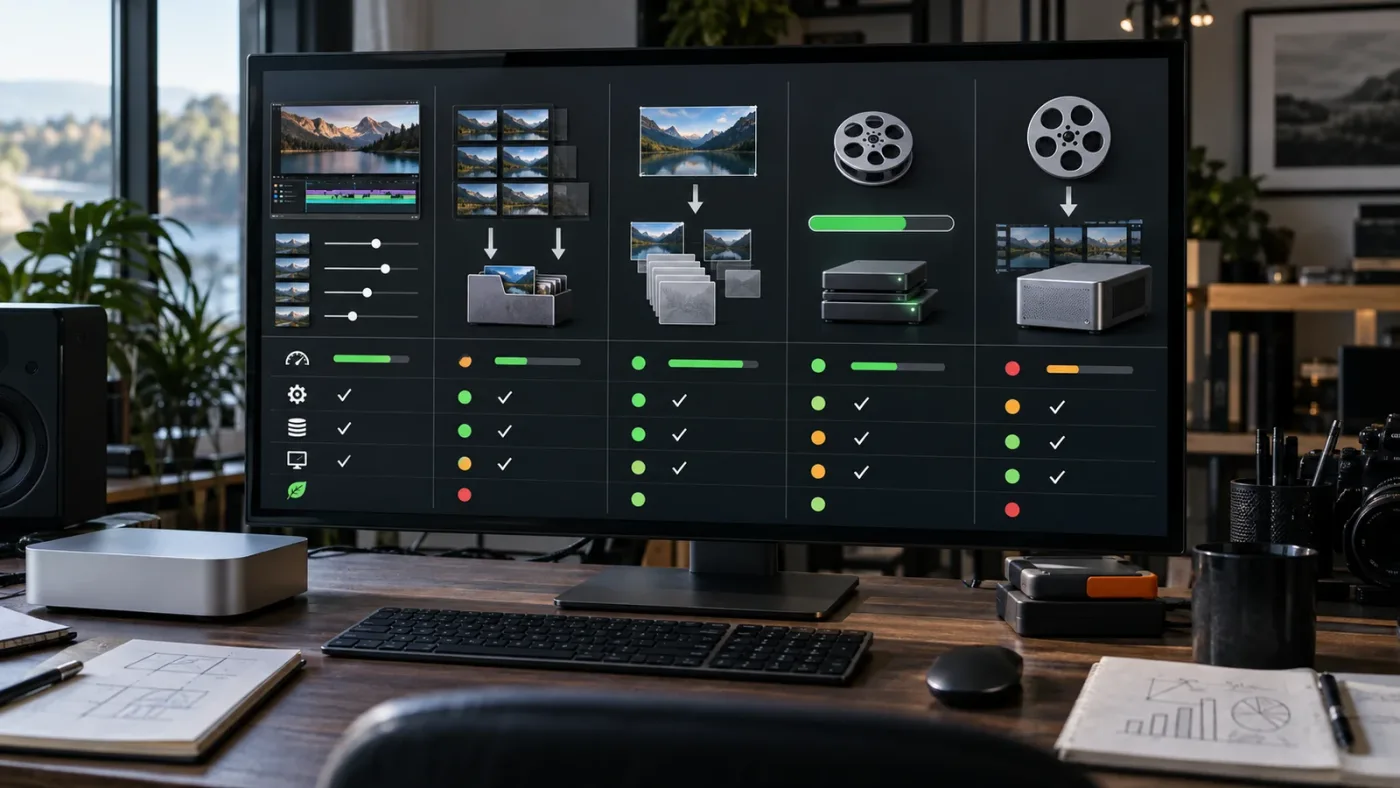
Create proxies from selected source clips, choose an edit-friendly format, enable proxy use for playback, and keep the originals untouched. The proxy is a working representation, not a replacement for the camera master.
A careful Resolve workflow looks like this:
- Duplicate or archive the project before changing media settings.
- Open Project Settings and locate the Optimized Media and Render Cache section.
- Set Proxy Media Resolution to Choose Automatically, Half, or another resolution that fits your timeline. If you are diagnosing severe lag, Half is a reasonable first test.
- Set Proxy Media Format to ProRes Proxy, ProRes 422 Proxy, or a suitable DNxHR LB option available in your version and platform. Avoid choosing H.265 again solely because the source is H.265.
- Select the affected clips in the Media Pool.
- Choose Generate Proxy Media from the clip context menu.
- Wait for generation to finish on the intended storage volume.
- Use Playback > Proxy Handling and select the option that prefers proxies in your Resolve 21 layout.
- Play the same timeline range and confirm that proxy indicators or media status show the alternate files are active.
- Before finishing, switch back to camera originals or render according to your project’s controlled proxy policy.
The last two steps prevent a common mistake. A proxy can exist on disk while Resolve continues to play the camera original. Generation is not activation. Activation is not the same as export. Check each state.
For a longer proxy-specific walkthrough, see DaVinci Resolve proxy media setup for a slow laptop. The hardware in that title is different from Apple Silicon, but the distinction between proxy files, Timeline Proxy Resolution, and Render Cache applies here.
If proxies play worse than originals, stop and inspect the proxy. Confirm the codec, resolution, frame rate, timecode, and location. A proxy that is higher resolution than the timeline, stored on a slow disk, or generated with a codec the Mac handles poorly is not a useful proxy. “Proxy” describes its role in the workflow, not a guaranteed performance result.
When you need to send media to another person, portable Proxy Media is the better fit than local Optimized Media. When you only need a one-machine edit and want Resolve to manage the relationship, Optimized Media keeps the project simpler. Do not mix these choices without documenting where each alternate file lives.
Why can an H.265 proxy still stutter on an M-series Mac?
An H.265 proxy can still stutter because it may preserve the same long-GOP decode work, because the timeline effects are expensive, or because the proxy files are being read from a slow location. Generating a smaller file is not the same as choosing an easier editing codec.
Check these branches in order:
Is the proxy actually active?
Resolve may be set to prefer camera originals, or the proxy may not have matched the source metadata. Confirm the proxy state in the Media Pool and Playback menu. Test one clip, not the entire project, so you can see whether the behavior changes.
Is the proxy codec easier to decode?
Try ProRes Proxy or DNxHR LB for the diagnosis. If that fixes playback, the original H.265 decode path was part of the problem. It does not prove that every H.265 proxy is bad, and it does not make the source unsuitable for final delivery.
Is the proxy stored on the same slow disk?
A low-bitrate file on a congested HDD, NAS, SD card, or cloud-synced folder can still arrive too late. Place a short test set on the internal SSD or a fast local external SSD. Do not move the whole project until the single-clip test tells you the storage path matters.
Are effects still live?
Proxies reduce source-media work. They do not automatically bake in a temporal effect, Fusion composition, stabilization pass, heavy blur, complex grade, or third-party plugin. Use Render Cache for those results when appropriate.
Is the viewer doing extra work?
Turn off scopes, extra overlays, high-quality viewer options, and unnecessary monitoring outputs for the test. Restore them one by one. If one display or monitoring path causes the issue, the source codec is not the complete explanation.
Is the project using a different color-management path?
Input transforms, HDR conversion, and output transforms can change processing cost. Compare the clean clip in a default project with the production project. If the production project alone stutters, record its color-management mode and timeline settings before changing them.
The most informative result is not “the proxy helped.” It is “the ProRes proxy helped in a clean timeline, but Render Cache was still required once temporal noise reduction was enabled.” That result gives you two separate fixes instead of one vague superstition.

Does H.265 4:2:2 or 10-bit explain worse playback on Apple Silicon?
H.265 4:2:2 or 10-bit media can explain worse playback, but you should treat the exact decode support as version and platform dependent rather than assuming that every M-series Mac handles every combination equally. Compare the stream metadata and test a short transcode before making a hardware purchase.
Chroma subsampling describes how color information is stored relative to luma. Bit depth describes how many tonal values each sample can represent. They are not interchangeable. A 10-bit 4:2:0 clip and a 10-bit 4:2:2 clip may stress different parts of the pipeline. A 4:2:2 clip at a lower resolution can still be troublesome while a 4K 4:2:0 clip is smooth.
Resolve 21’s New Features Guide explicitly lists Windows ARM H.265 4:2:2 10-bit decode support. That is a useful warning against broad platform assumptions. The guide also lists MV-HEVC decode support on NVIDIA systems. Those entries are not evidence that the same support matrix applies to Apple Silicon.
Use this test rather than arguing from the chip name:
- Inspect the original clip’s chroma and bit depth.
- Make a short constant-frame-rate ProRes or DNxHR transcode at the same frame size and frame rate.
- Put both files in the same clean Resolve project.
- Match timeline settings and viewer state.
- Play the same motion-heavy section.
- If the intermediate is smooth, use it as an editing source or proxy and preserve the original.
- If the intermediate is also poor, investigate storage, timeline processing, and system pressure.
Do not call this a benchmark. It is a practical branch test for your project. It tells you what to do next without pretending that one Mac result represents all Apple Silicon systems, all Resolve versions, or all H.265 profiles.
How do I handle phone, drone, and screen-recording H.265 clips?
Phone, drone, and screen-recording H.265 files deserve a separate test because variable frame rate, unusual metadata, and capture-specific encoding can affect editing even when ordinary camera H.265 works well. Transcode only the troublesome source family if that keeps the workflow clear.
Phone recordings may be variable frame rate because the device prioritizes capture under changing conditions. Screen-recording tools may use timing behavior intended for display, not frame-accurate editing. Drone files may combine 10-bit log footage, high frame rates, and a long-GOP structure that becomes expensive once a grade is applied.
For these sources:
- Keep the original folder read-only or clearly labeled.
- Make a short test transcode first.
- Prefer constant frame rate for an editing transcode when the source timing is variable.
- Match the intended timeline frame rate instead of blindly choosing the source’s reported rate.
- Preserve audio and timecode where the workflow needs them.
- Check the first and last few minutes for sync drift.
- Do not overwrite the source with a transcoded file that has the same name.
- Record which transcode belongs to which original.
If a constant-frame-rate ProRes or DNxHR version edits smoothly, that is a useful solution even if the original plays in a media player. The transcode removes source timing and decode uncertainty from the edit. You can reconnect or replace with the original during finishing if the format, color, and metadata workflow supports it.
An edit-friendly proxy is a workflow decision, not an admission that your Apple Silicon Mac is inadequate.
If the clip is from a screen recorder, also test whether the recording is unusually large for its frame size, whether it contains multiple audio channels, and whether the recorder produced a constant frame rate. A smaller file is not automatically an easier file. A predictable file often is.

Why does adding color, Fusion, or noise reduction make H.265 playback collapse?
Adding color, Fusion, temporal noise reduction, stabilization, or several Resolve FX can make playback collapse because the system must decode the source and process the effect before displaying each frame. A proxy can remove one cost while leaving the other cost intact.
Use a staged test. Start with the clean source. Add the grade. Add the effect chain one component at a time. Note the first change that makes playback fall below real time. That is the effect or combination to cache, simplify, or preview separately.
Render Cache is the right tool when the processed result is the bottleneck. Set the cache mode that fits your workflow, mark a short range, and wait for the cache indicator to finish before judging playback. Cache a small test first. A full timeline cache can consume storage and time before you know whether it addresses the problem.
The same logic applies to Fusion. If the untouched H.265 clip is smooth but a Fusion composition stutters, making another proxy will not necessarily help. Cache the Fusion output or simplify the composition for the edit pass. If the H.265 source itself is already slow, use an edit-friendly proxy first, then handle Fusion separately.
Temporal effects can be especially sensitive because they may examine neighboring frames. A source that is barely real time before the effect has no headroom for that extra work. Lower the playback resolution for timing, cache the effect, or render a temporary preview. Restore full quality when you inspect edges, motion, and detail.
Color management also matters. A proxy must be interpreted consistently with the original. If the proxy looks washed out, overexposed, or shifted, stop before grading by eye. Check input color space, timeline color space, output color space, and whether the alternate media carries the metadata Resolve expects. A smooth proxy that is interpreted differently is not a successful fix.
Can storage, memory pressure, or display output be the real bottleneck?
Storage and system pressure can make H.265 playback look like a decoder problem. Test local storage, close competing processes, and remove extra display work before changing codecs. Apple Silicon uses unified memory, so applications and graphics work draw from the same pool even though the user sees separate CPU and GPU meters.
Run a narrow system check:
- Put one source clip on the internal SSD or a known-fast local drive.
- Close sync clients, browser tabs playing video, large exports, and other media tools.
- Check macOS memory pressure rather than relying on free-memory numbers alone.
- Check whether the project cache is on a healthy, writable volume with space available.
- Disconnect or disable an extra monitoring output for the test.
- Play the same clean timeline range.
If the internal copy fixes the problem, the storage path is part of the answer. If closing other applications fixes it, the Mac may have been under system pressure. If disabling an external display or scopes fixes it, the viewer path deserves attention. These are reversible tests. Keep the change that solves the actual branch and undo the rest.
Do not turn a cache-volume problem into a codec conversion project. Check the cache location and disk health first. Do not move a media library to an unknown drive just because the drive is labeled “SSD.” Connection speed, sustained behavior, free space, file-system behavior, and other workloads still matter.
Do not infer a GPU failure from a high CPU number or a low GPU number. H.265 decode, color processing, effects, and display can divide work differently across versions and media. The useful evidence is the before-and-after result of one controlled change.
Should I downgrade Resolve 21 or change my Apple Silicon Mac?
Do not downgrade or replace the Mac until a clean project, current Resolve build, local-storage test, source-metadata check, and edit-friendly proxy test point to a version or hardware limit. Most playback problems can be narrowed without buying anything.
Use this decision matrix:
| Result | Best next step | Avoid |
|---|---|---|
| Only one H.265 camera family stutters | Use a matching proxy or transcode and document the source profile | Changing every project setting. |
| All H.265 files stutter, ProRes is smooth | Check Resolve version, source decode support, and proxy codec | Assuming the Mac has no HEVC hardware. |
| H.265 and ProRes both stutter in a clean project | Check storage, system pressure, timeline settings, and display output | Buying a new Mac before isolating the pipeline. |
| Clean source is smooth, effects timeline is not | Use Render Cache, Timeline Proxy Resolution, or simplify effects | Generating endless source proxies. |
| Older Resolve build behaves differently from 21.1 | Reproduce after backup on the current build | Treating a forum report from another build as a universal fix. |
| A downgrade is the only reproducible workaround | Keep the working build only with a documented project and backup plan | Opening the only copy of an active project in an older build. |
Apple Silicon generations differ in CPU, GPU, media engines, memory capacity, and bandwidth. “M1” or “M4” is not enough information for a meaningful comparison. Resolve version, Studio or free edition, source format, timeline resolution, effects, cache disk, and macOS version all belong in the report.
This is also why we don’t publish a single magic hardware prescription. A Mac that handles one editor’s 4K 4:2:0 camera files may struggle with another editor’s 6K 10-bit 4:2:2 phone, drone, or screen-recording files. A fast edit codec can make an existing machine feel more useful without changing the camera original.
What should I do if a tutorial’s playback settings do not match Resolve 21?
If a tutorial’s controls do not match Resolve 21, follow the concept, not the exact old menu path, and verify the current setting name in your build. Proxy Media, Timeline Proxy Resolution, Optimized Media, and Render Cache are related performance tools, but they are not interchangeable.
The best way to learn DaVinci Resolve for this problem is to understand the question each control answers:
| Control or workflow | The question it answers |
|---|---|
| Timeline Proxy Resolution | Is the current timeline resolution too demanding for playback? |
| Proxy Media | Can I play an alternate source file while keeping the original linked? |
| Optimized Media | Can Resolve manage an easier-to-decode local version of my source? |
| Render Cache | Can I precompute the expensive processed result on this timeline? |
| External transcode | Does a predictable edit codec solve a source timing or decode problem? |
| Viewer quality and overlays | Is display work consuming the headroom that playback needs? |
Blackmagic’s official training remains a useful baseline because it explains Resolve’s own vocabulary. Casey Faris and other established YouTube educators can help you see a workflow performed. Udemy and Coursera can provide structured courses when you need assignments and progression. The trade-off is that a course teaches a general path, while your H.265 issue depends on the exact build, stream, and timeline.
An app that helps you while using DaVinci Resolve can be useful when the control names change between a tutorial and your screen. TryUncle can point at the relevant Resolve control while you work. It does not replace the diagnosis above, and it does not turn an unsupported H.265 stream into an edit-friendly one.
Readers comparing Apple Silicon settings can also use DaVinci Resolve best settings for Apple Silicon M4, but treat any settings guide as a starting point. The source stream and timeline still decide whether H.265 playback is real-time.
Other tools deserve an honest boundary. Sottocut, PremiereCopilot, heyeddie.ai, and cutagent.ai may answer questions or automate parts of editing workflows, depending on their current products. They are not interchangeable with a Resolve troubleshooting workflow. The useful choice depends on whether you need automated edits, chat answers, or on-screen guidance to find a control in the app you are currently using.
On-screen guidance can shorten the search for a control, but it cannot replace a codec diagnosis.
If you want to learn DaVinci Resolve fast, practice the branch decision with a small test project. Import one H.265 clip, compare it with one ProRes or DNxHR clip, change one playback control, and write down the result. That teaches more than memorizing a list of settings you may never need.
What is the safest complete fix sequence for Resolve 21 H.265 playback?
The safest complete fix sequence is update, identify, isolate, reduce, transcode, cache, and restore. Each step answers a different question and can be reversed or documented.
1. Update and back up
Confirm the exact Resolve 21 build. Back up the project or export an archive. Install the current supported point release if your project allows it. Record the old build so you can describe the change accurately.
2. Identify the source
Write down container, codec, chroma, bit depth, frame size, frame rate, frame timing, HDR or log metadata, audio, and storage. Do not stop at “H.265.”
3. Isolate one clip
Use a new project, one source clip, no effects, and a matching timeline. Compare H.265 with ProRes or DNxHR. Test local storage if the source is external or networked.
4. Reduce playback work
Try Half or Quarter Timeline Proxy Resolution. Disable scopes, overlays, and monitoring outputs for the test. Re-enable each item after playback is stable.
5. Choose alternate media
Generate Optimized Media for a local-only project, or Proxy Media for a portable project. Choose an edit-friendly ProRes or DNxHR option when the source codec is the bottleneck. Use constant frame rate when variable timing is part of the problem.
6. Separate source work from effect work
If the proxy fixes the clean timeline but the graded timeline remains slow, use Render Cache or simplify the effect chain. Do not generate another source proxy for a cache problem.
7. Check the image before finishing
Compare proxy and original interpretation. Check color management, HDR, log conversion, focus, key edges, titles, and motion. Playback speed is not the only quality requirement.
8. Restore originals for final decisions
Use the camera originals or the project’s approved finishing media for final color, VFX, and export. Confirm that the final render does not accidentally use an unsuitable preview or proxy setting.
9. Record the result
Write one sentence such as: “Resolve 21.1 on an M4 Mac played 4K 10-bit 4:2:2 H.265 poorly from external storage; ProRes Proxy on the internal SSD played smoothly; temporal noise reduction still required cache.” That note is more valuable than “proxies fixed it.”
This sequence stops when the problem is solved. Don’t keep changing settings for the pleasure of having changed them. A stable, explainable workflow beats a mysterious collection of toggles.
The best H.265 playback fix is the smallest change that removes the measured bottleneck.
When should I stop troubleshooting and ask for help?
Ask for help when you can provide a reproducible case, not only a symptom. Blackmagic’s support page notes that technical support for the free version of DaVinci Resolve 21 is available through the Blackmagic Design community forums. A good report lets other editors distinguish a source-profile issue from a Resolve regression.
Include:
- Resolve version and free or Studio edition.
- macOS version and Apple chip model.
- Unified memory amount if known.
- Source container and H.265 metadata.
- Timeline resolution and frame rate.
- Color-management mode.
- Effects or Fusion nodes enabled.
- Cache location and source storage location.
- Whether the clean one-clip project also stutters.
- Whether ProRes Proxy or DNxHR changes the result.
- Whether the issue began after an update.
- A short reproduction sequence.
Avoid posting a private project, client media, license key, or personal account details. A short representative clip with permission is more useful than a full client folder. If the issue involves a camera or recorder, include its firmware and recording mode when relevant.
When a bug is plausible, keep the original project and media state intact. Make a small reproduction project. That gives you a safe test bed for a point release, preference reset, alternate storage volume, or transcode.
Which answer should you choose for your Mac today?
Choose Timeline Proxy Resolution when you need a quick, reversible reduction in playback work. Choose Optimized Media when the project stays on one Mac. Choose ProRes Proxy or DNxHR LB Proxy Media when H.265 decoding is the bottleneck and the files need to be portable. Choose Render Cache when effects, Fusion, or temporal processing are the bottleneck. Choose an external constant-frame-rate transcode when the source timing or profile is the problem.
Do not judge Apple Silicon by the H.265 extension alone. Confirm the stream, build, storage path, and timeline work. Resolve 21.1 is current as of October 2026, but a current version still has to process the exact media you give it.
Our practical verdict is simple: first prove where the time goes, then change the smallest part of the workflow that removes that cost. Keep the original H.265 files safe, use an edit-friendly working format when needed, and restore the originals for finishing.

Frequently asked questions
- Why is DaVinci Resolve 21 H.265 playback worse on Apple Silicon?
- The usual cause is a decode path or source variation, not simply the Apple chip. 4:2:2, 10-bit, high frame rate, variable frame rate, effects, cache location, and a Resolve point-release change can each alter playback. Test the untouched clip first, then create an edit-friendly proxy.
- How do I fix H.265 lag in DaVinci Resolve 21 on an M1, M2, M3, M4, or M5 Mac?
- Update Resolve, verify the clip's codec details, set Playback > Timeline Proxy Resolution to Half or Quarter, and use ProRes Proxy or DNxHR LB proxies when source decoding remains the bottleneck. Keep the originals for finishing and export.
- Does DaVinci Resolve 21 support H.265 on Apple Silicon?
- Yes, Apple Silicon Macs include hardware-accelerated HEVC media engines, and Resolve 21 supports H.265 workflows. Support does not mean every H.265 stream will decode in real time, especially when chroma subsampling, bit depth, frame rate, variable frame rate, effects, or storage create another bottleneck.
- Should I use optimized media or proxy media for H.265 playback?
- Use optimized media when the project stays on one computer and you want Resolve to manage the files. Use proxy media when files must travel or be shared. For the easiest playback, choose an edit-friendly format such as ProRes Proxy or DNxHR LB rather than making another long-GOP H.265 file.
- Why does H.265 play smoothly in QuickTime but stutter in DaVinci Resolve?
- QuickTime can use a simple decode-and-display path, while Resolve may decode the clip and process scaling, color management, audio, effects, and timeline output at the same time. Smooth playback in a player proves the file can decode, but it does not prove the full Resolve timeline can process it in real time.
Sources
- DaVinci Resolve 21.1 and 21.0.x support updates
- DaVinci Resolve 21 New Features Guide
- Apple VideoToolbox overview
- Apple VideoToolbox decompression properties
- Apple Mac mini M4 technical specifications
- DaVinci Resolve proxy media workflow
- Blackmagic Design Proxy Generator overview
- Gedaly Guberek, How to Create and Sync Proxies in DaVinci Resolve
- DaVinci Resolve 21.1 Manual
Put this guide to work with TryUncle.
Ask about the step you’re on. TryUncle sees your screen and points at the control you need, so you can keep learning in your own project.
Get TryUncle for Mac or WindowsKeep reading
Fixes · Jul 7, 2026 · 25 min
DaVinci Resolve Playback Choppy or Stuttering? The Real Fix
Fix choppy DaVinci Resolve playback with Optimized Media, Proxy Media, Render Cache, Timeline Proxy Mode, and the Resolve 21.0.2 NVIDIA decode fix.

Fixes · Jul 15, 2026 · 25 min
DaVinci Resolve Proxy Media Setup for a Slow Laptop
Set up proxy media in DaVinci Resolve on a slow laptop: resolution, codec, the Blackmagic Proxy Generator, and the exact settings that stop the stutter.
Guides · Jul 13, 2026 · 40 min
DaVinci Resolve Best Settings for Apple Silicon M4
The best DaVinci Resolve 21 settings for Apple Silicon M4 Macs: unified memory, storage, export, and Resolve preferences for M4, M4 Pro, and M4 Max.