Articles / Fixesupdated for DaVinci Resolve 21.0.2 (July 2026)
DaVinci Resolve Proxy Media Setup for a Slow Laptop
Quick answer
On a slow laptop, generate DNxHR LB (Windows) or ProRes Proxy (Mac) proxy media at Quarter or Eighth resolution in Project Settings, then enable Prefer Proxies in the Playback menu. Too slow to transcode in Resolve itself? Use the free Blackmagic Proxy Generator to build proxies in the background, then switch to full-resolution originals before exporting.
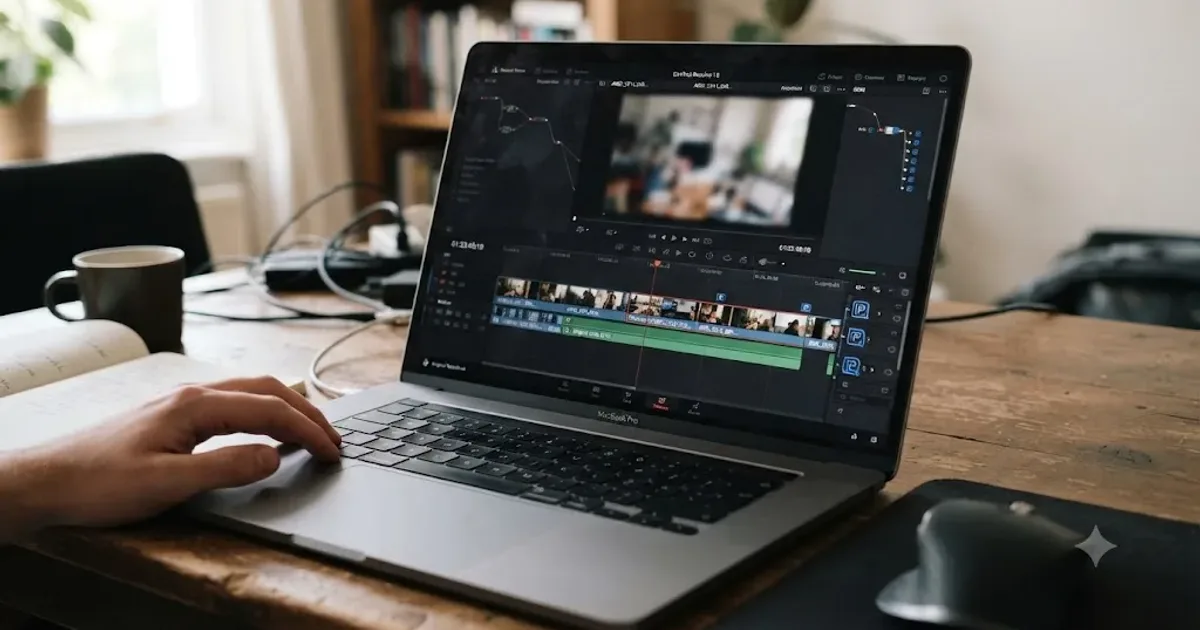
Your laptop wasn't built for this footage, and DaVinci Resolve is telling you so, one dropped frame at a time. You didn't buy a new machine, you didn't touch a single node, and yet scrubbing the timeline now feels like dragging a sled through wet sand.
Proxy media is the fix built for exactly this situation, not a workaround, an actual feature Blackmagic designed for editors who need to cut on hardware that can't touch the original files in real time. Here's how to set it up correctly, what resolution and format actually make sense on a laptop specifically, and what to do when even generating the proxies feels like too much to ask of the machine you've got.
Why does DaVinci Resolve grind to a halt on a slow laptop specifically?
Every desktop stutter cause applies to a laptop too: interframe codecs like H.264 and H.265 that need real decode work on every frame, effects and grading stacked on top, a drive that can't feed the timeline fast enough. Our playback stuttering guide covers all three in depth. But a laptop stacks three more problems on top of that pile, and none of them show up on a desktop tower.
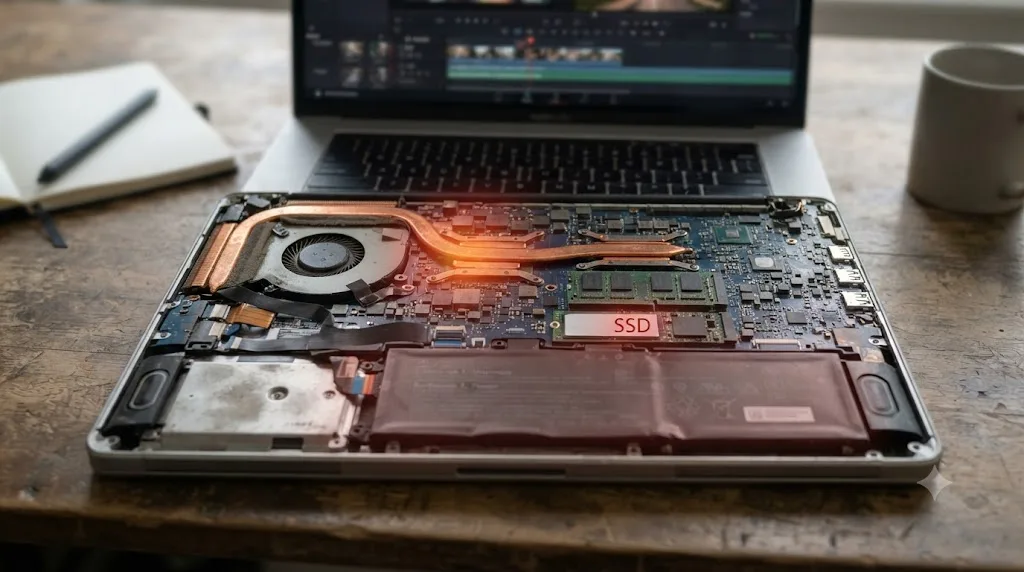
The first is thermal. A laptop chassis has a fraction of a desktop's airflow, so sustained decode and render load heats the chip until it throttles its own clock speed to survive, and a machine that felt fine for the first two minutes of playback can visibly slow down by minute ten. The second is power. Battery-saving modes cap CPU and GPU performance specifically to extend runtime, and plenty of laptops ship with power-saving defaults active even while plugged in, quietly capping the exact hardware Resolve needs at full tilt. The third is storage. Most laptops carry a single internal drive shared by the operating system, Resolve's cache, and your source media all at once, with no option to spread the load across separate drives the way a desktop tower can.
A slow laptop isn't just a weaker computer, it's a computer actively working against itself: throttling under heat, capped by a power mode, and starved by a single drive doing three jobs at once. Proxy media directly attacks the first and biggest piece of that problem, the decode cost, but it won't fix the other two on its own. Later sections in this guide cover the power and drive fixes specifically, because on a laptop, skipping them leaves real performance on the table even after proxies are running.
What is proxy media, and why is it the right fix for a slow laptop specifically?
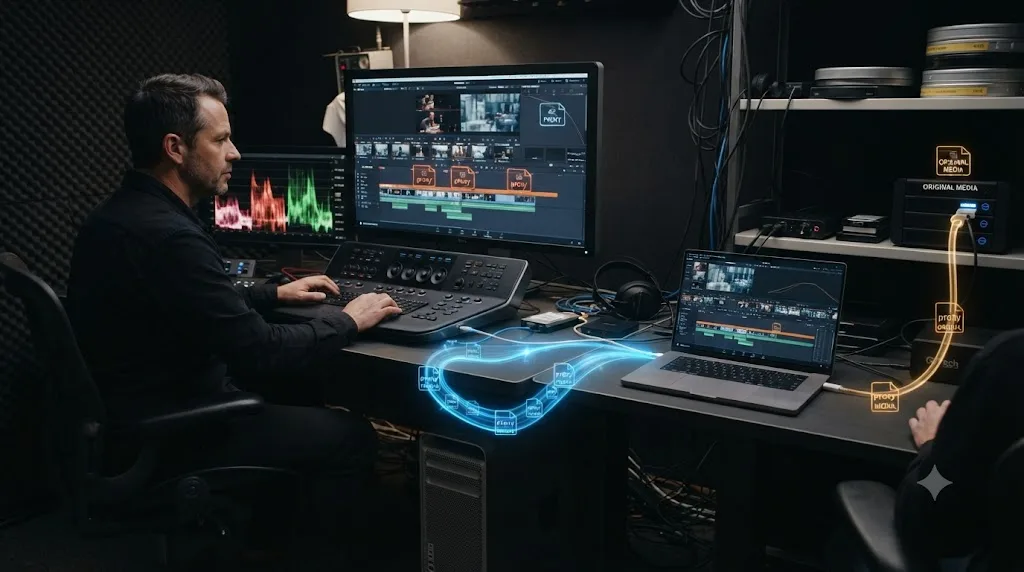
Proxy Media replaces your original camera files with smaller, easier-to-decode stand-ins during editing, and switches back to the originals automatically when you render. That's the same core idea as Optimized Media, covered in the playback stuttering guide, but Proxy Media does one thing differently that matters a lot on a laptop: the proxy files are separate, portable, and independent of Resolve's internal cache.
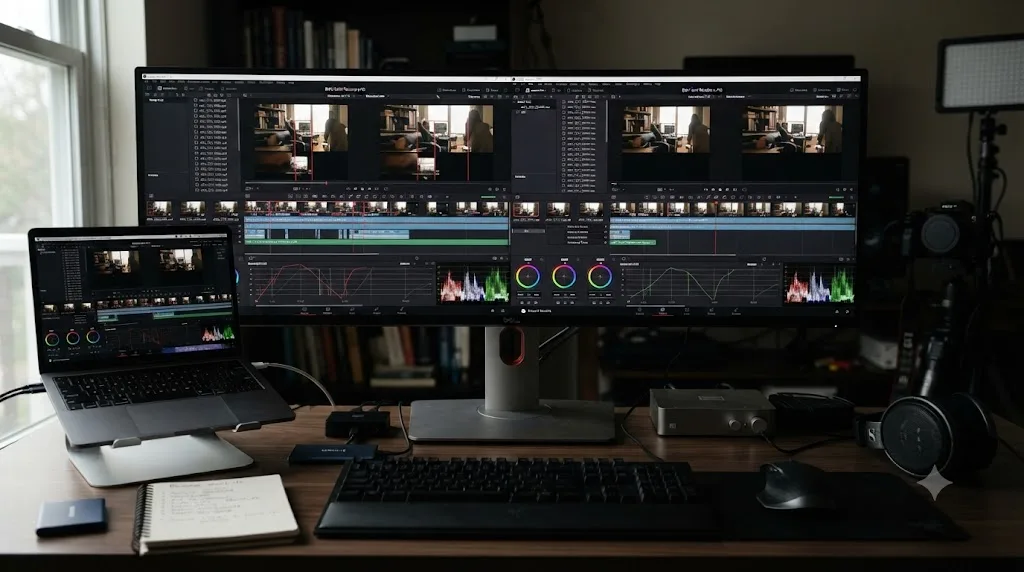
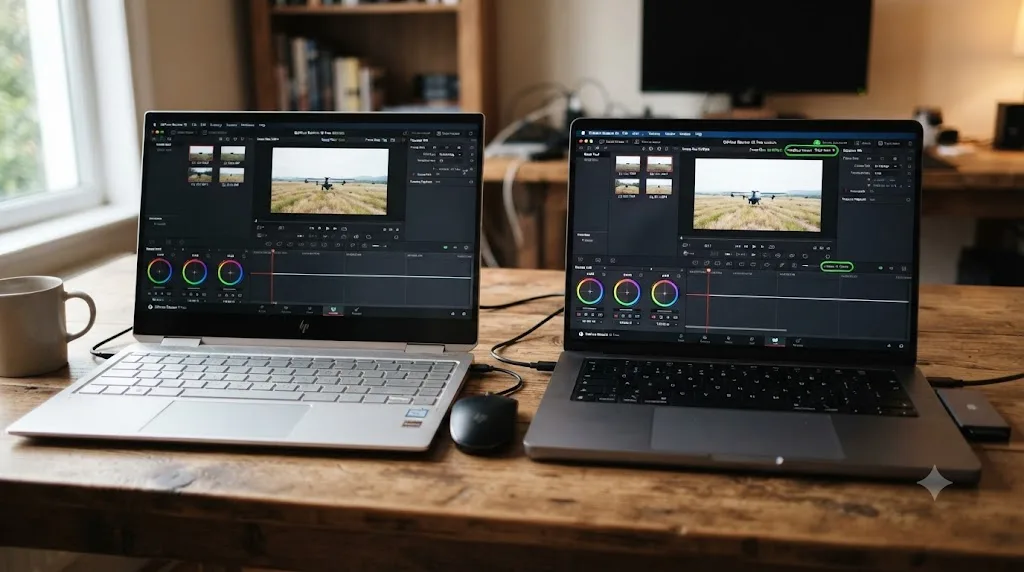
Per DaVinci Resolve's reference manual, Proxy Media "is independent, portable, and can be created by applications outside of DaVinci Resolve, if desired." That portability is the entire reason Proxy Media exists as a separate feature. The manual describes the classic use case directly: a colorist or editor works on a full-power machine at the studio, generates low-resolution proxies, and takes them home on a laptop to keep cutting, relinking to the full-resolution originals once they're back at the workstation. That is precisely the shape of a slow-laptop workflow, whether or not there's a second, faster machine involved at all.
Proxy Media exists specifically for editors who need to work away from their fastest machine, which makes it the correct tool for a slow laptop, not a compromise forced onto one. Optimized Media works fine too if the laptop is your only computer and nothing ever needs to travel between machines. But if you shoot on a desktop-tethered camera rig and edit on the train, or if you ever plan to hand a project to someone with more powerful hardware, Proxy Media's portability is the feature that actually matters.
Does your laptop even meet DaVinci Resolve's minimum requirements?
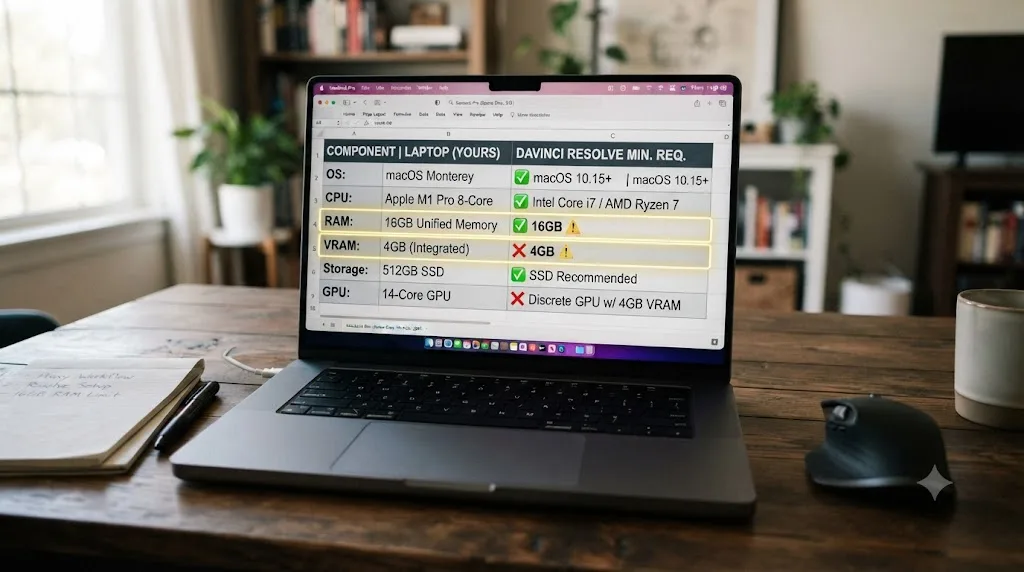
Worth confirming before you touch a single proxy setting, because proxies can't fix a machine that's under Blackmagic's floor. Per Blackmagic's own tech specs, Resolve wants at least 16 GB of system RAM and a GPU with 4 GB of VRAM or more. Those are minimums, not comfortable numbers, and a lot of budget and midrange laptops sold in the last several years sit right at or below that line, especially on RAM.
| Laptop trait | What it means for a proxy workflow |
|---|---|
| 8 GB RAM | Below Blackmagic's stated minimum. Resolve will run, but expect swapping and UI lag regardless of proxy resolution. |
| 16 GB RAM | At the floor. Proxies help a lot here, but close other apps before editing. |
| Integrated graphics only (no discrete GPU) | The GPU and system RAM are the same shared pool, so heavy grading or Fusion work stays limited even with proxies handling decode. |
| A discrete GPU with under 4 GB VRAM | Below spec. Proxy resolution should go low, Quarter or Eighth, to keep GPU memory demand down. |
| Single internal drive, no expansion | Proxies still help decode, but the drive-throughput fixes later in this guide matter more than usual. |
If your laptop is meaningfully under spec, proxies buy you real, usable editing time, but they're not a substitute for RAM or VRAM you don't have. Our beginner's guide has the full breakdown of what "can my computer run it" actually means across Windows, Mac, and Linux, if you're not sure where your specific machine lands.
How do you turn on proxy media in DaVinci Resolve, step by step?
The setting lives in the same neighborhood as Optimized Media and Render Cache, next to it rather than buried somewhere separate.
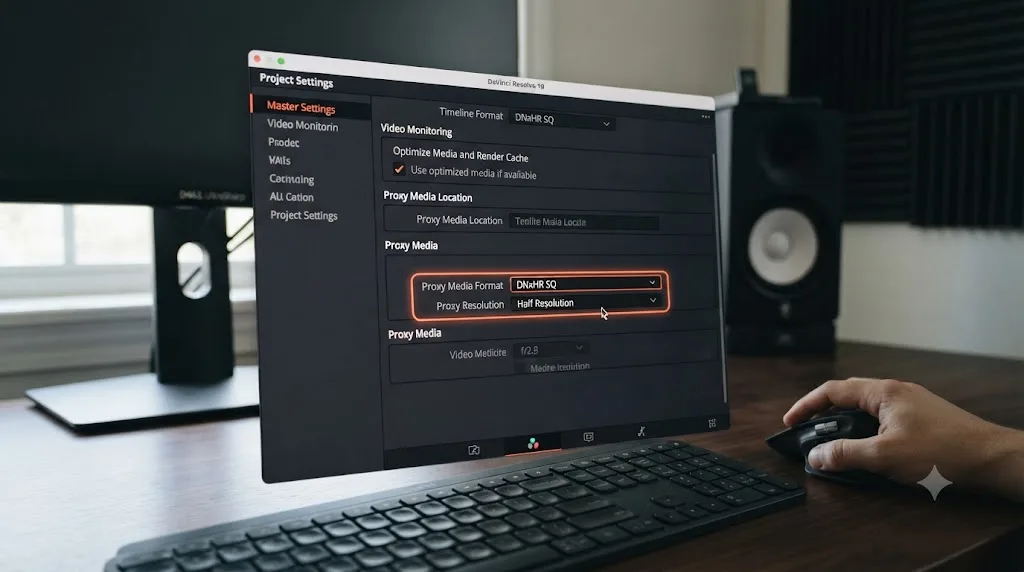
- Open File, then Project Settings, then Master Settings, and find the Proxy Media section.
- Set Proxy Media Format to DNxHR LB on Windows or Apple ProRes Proxy on Mac. The next section covers why this choice matters more than people expect.
- Set Proxy Resolution. Start at Quarter for a 4K source on a genuinely slow laptop; the resolution section below has the full breakdown.
- Go to the Media Pool, select the clips you want proxies for (or all of them), right-click, and choose Generate Proxy Media.
- Let it transcode. On a slow laptop, this is the moment to start it and walk away, covered in detail further down.
- Open the Playback menu and check Use Proxy Media if Available. Resolve now scrubs against the small proxy files instead of your camera originals.
- Before you render on the Deliver page, uncheck Use Proxy Media if Available, so the final export pulls from full-resolution source files, not the stand-ins.
That last step is the one people forget, and it matters. Leave the checkbox on during export and Resolve renders your delivery file from the low-resolution proxy instead of your camera original, which is the single most common way a proxy workflow accidentally tanks a client's final video.
What proxy resolution should you pick on a slow laptop?
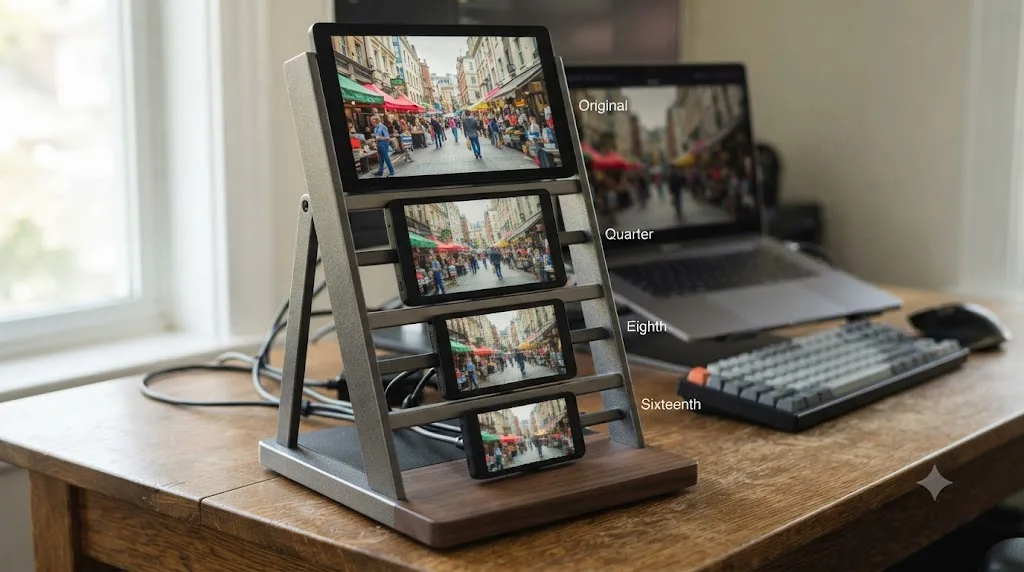
This is the single biggest lever you control, and most guides gloss over it with "choose automatically" advice that doesn't actually help someone whose laptop is genuinely struggling. Resolve's Proxy Resolution setting works as a fraction of your source resolution, and each step down roughly quarters the pixel count, which quarters the decode work all over again.
| Setting | Resolution from a 4K (3840x2160) source | Best for |
|---|---|---|
| Automatic / Original | 3840 x 2160 | Not really a proxy at this point; skip it on a slow laptop |
| Half | 1920 x 1080 | A laptop with a recent GPU that's just a generation behind a desktop |
| Quarter | 960 x 540 | The realistic starting point for most slow laptops |
| Eighth | 480 x 270 | Integrated graphics, older CPUs, or laptops still struggling at Quarter |
| Sixteenth | 240 x 135 | Rough cuts and logging only, when you just need to see roughly what's happening on screen |
Resolution is the cheapest lever in this whole guide: dropping one step, from Half to Quarter, cuts the pixels DaVinci Resolve has to decode by roughly four times, at zero dollar cost and full reversibility. Start lower than you think you need. Quarter resolution on a laptop screen, which is rarely a 4K display itself, still looks perfectly sharp for editorial decisions like pacing, performance, and framing. Save Half resolution or Original for the moments you're actually judging focus or fine detail, which the Deliver page handles from the full-resolution originals regardless of what you were scrubbing through.
If Quarter still stutters, don't fight it. Drop to Eighth. A proxy workflow that's smooth at a lower resolution beats one that's technically higher quality but still unusable, and you can always regenerate at a different resolution later without touching your original files at all.
What proxy format and codec should you actually use?
Resolution controls how many pixels Resolve decodes. Format controls how expensive each of those pixels is to decode, and it's the setting people get wrong most often, usually by picking H.264 because it produces the smallest files.
Camera codecs like H.264 and H.265 are interframe formats. They don't store a full picture for every frame; they store one full frame and then a chain of frames that only describe what changed, and your CPU or GPU has to reconstruct every single frame from that chain before displaying it. That math is exactly the cost a proxy workflow exists to eliminate. Building your proxies in the same family of codec you're trying to escape defeats the purpose before you've started.
DNxHR and ProRes are intraframe formats instead: every frame is a complete, standalone picture, with no chain to reconstruct. They're dramatically cheaper to decode, at the cost of larger file sizes for the same visual quality, which is a trade a proxy workflow is happy to make, since disk space is cheap and CPU cycles on a slow laptop are not.
| Format | Platform | Why it's the right proxy choice |
|---|---|---|
| DNxHR LB | Windows | Purpose-built low-bandwidth proxy tier, intraframe, decodes on almost any CPU |
| Apple ProRes Proxy | Mac | The lightest ProRes tier, intraframe, hardware-decoded on every Apple silicon Mac |
| H.264 or H.265 | Either | Smaller files, but interframe decode defeats the point of a proxy on a slow laptop |
Pick DNxHR LB on Windows and Apple ProRes Proxy on Mac, and don't second-guess it toward a smaller file size. If your laptop is genuinely struggling, the extra disk space DNxHR or ProRes proxies cost is a far better trade than the CPU cycles an H.264 proxy quietly demands back from you on every single scrub.
Should you generate proxies inside Resolve, or use the Blackmagic Proxy Generator instead?
Here's the part most guides skip entirely, and it's the piece that matters most for a laptop that's already struggling: generating proxies inside DaVinci Resolve still requires opening the full project, loading the full application, and asking your already-overloaded machine to run a transcode job on top of everything else it's doing. On a laptop where even opening Resolve takes a minute and a half, that's a real cost.
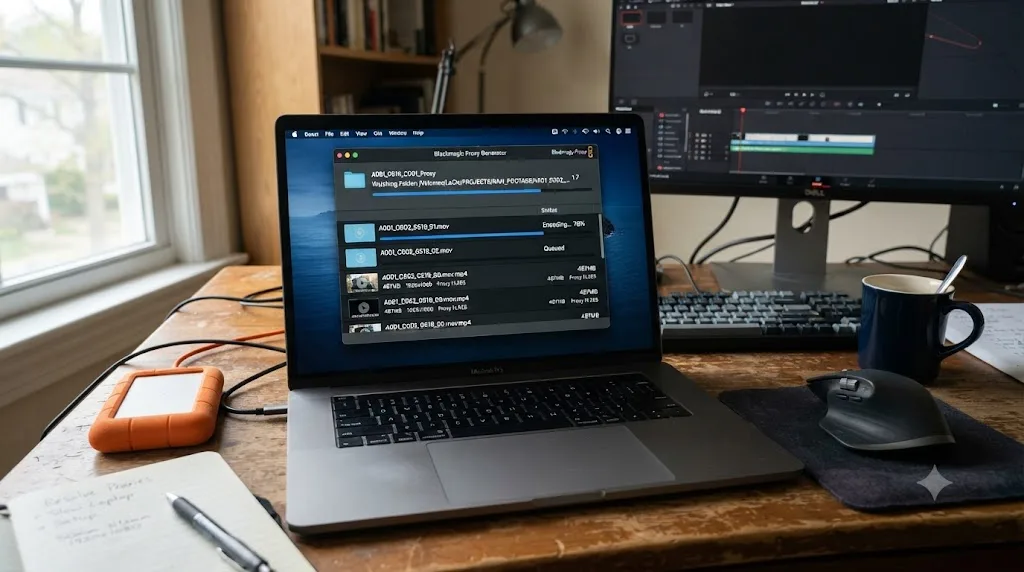
Blackmagic ships a separate, free standalone app for exactly this situation, described on Blackmagic's own collaboration page: the Blackmagic Proxy Generator. It installs automatically alongside DaVinci Resolve on both Windows and Mac, and it runs independently of the main application. Point it at a watch folder, choose your proxy size and codec, and it automatically transcodes any camera media dropped into that folder, in the background, without Resolve's full interface ever loading. The generated proxies link automatically once you do open your project.
The Blackmagic Proxy Generator does the exact same transcoding job as Resolve's built-in Generate Proxy Media, without the overhead of the full application, which is the difference between a laptop that can prep proxies overnight and one that can't. That distinction matters more than it sounds like it should. A laptop that chokes on Resolve's full UI can often still run a lighter, dedicated background transcoder without issue, especially if you start it before bed and let it work while you're not touching the machine at all.
There's a second use for the same app worth knowing about: if you have access to any second, faster computer, even briefly, at a friend's house, a school lab, a rental, you can run the Proxy Generator there on a copy of your footage, then bring the resulting proxy files back to your laptop and link them in Resolve. That's the exact "generate proxies on a fast machine, edit on a slow one" workflow the reference manual describes, just running the transcode step on dedicated software instead of inside a full Resolve session.
How much disk space and time does a proxy workflow actually cost?
Space is predictable, time isn't, and it's worth understanding both before you commit an evening to transcoding a card of footage.
On space: proxies trade compression efficiency for decode speed, so they don't shrink your storage footprint the way you might expect from a "proxy." A DNxHR LB or ProRes Proxy file at Quarter resolution is genuinely tiny per stream, since resolution is the dominant factor in intraframe data rate. For comparison, Apple's ProRes white paper puts full-resolution ProRes 422 at roughly 471 Mbps for UHD at 29.97 fps; a Quarter-resolution proxy in the lightweight Proxy tier of the same codec family runs at a small fraction of that, because both the resolution and the codec tier are working in your favor at once. In practice, a full card of 4K footage transcoded to Quarter-resolution proxies typically adds up to a modest slice of what the original footage occupies, not a multiple of it, which matters on a laptop with a single, often-small internal drive.
On time: it depends on clip length, resolution, source codec, and your specific CPU and GPU, enough variables that any single number here would be a guess rather than a fact. What's true regardless of hardware is that transcoding is a background-friendly task. It doesn't need your attention, it doesn't need the screen on, and it survives being paused overnight. The practical move on a slow laptop is to start proxy generation before you stop working for the day, whether through Resolve's built-in Generate Proxy Media or the standalone Proxy Generator, and come back to a finished, editable proxy set instead of waiting through it in real time.
Proxy generation is the one heavy task in this entire workflow you never have to watch happen, so the smart move on a slow laptop is always to run it unattended rather than sit through it. Treat the transcode step like a load screen you can walk away from, not a task competing with your actual editing time.
What if your laptop is too slow to generate proxies at all?
It happens, especially on laptops well under Blackmagic's minimum spec, or ones already struggling just to keep the OS responsive. A few real options, roughly in order of how much they cost you:
- Drop resolution further before you try again. If Quarter resolution proxies are taking unreasonably long or hanging, Eighth or even Sixteenth resolution asks dramatically less of the same hardware, since pixel count drives most of the cost.
- Use the Blackmagic Proxy Generator instead of Resolve's built-in option. It's lighter weight, as covered above, and specifically designed to run unattended without the full application loaded.
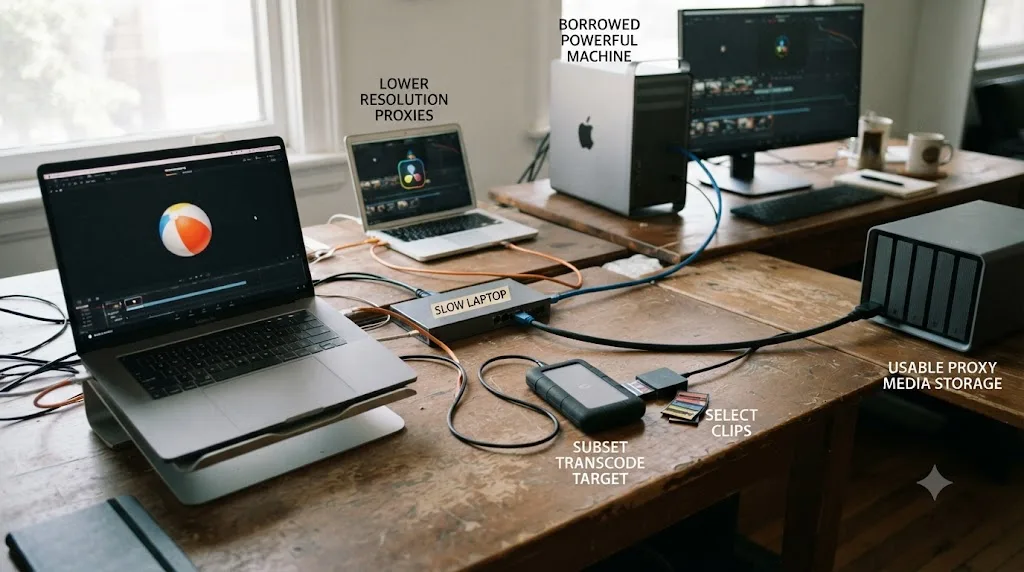
- Borrow a faster machine for the transcode step only. A friend's desktop, a school or library lab computer, even a one-time rental at a co-working space, run the Proxy Generator there, then copy the resulting proxy files back to your laptop and relink them in Resolve. You don't need to own faster hardware, you need access to it once per project.
- Transcode a subset first. You don't need proxies for every clip on day one. Generate them for the scenes you're actively cutting, and let the rest transcode in the background while you work with what's ready.
- Check for background competition. A transcode that seems impossibly slow is sometimes fighting a browser with dozens of tabs, a cloud sync client indexing files, or an antivirus scan running at the same time. Close what you can before starting a proxy generation pass, especially on a laptop with 8 or 16 GB of RAM where every open app is competing for the same limited pool.
- Accept a lower ceiling for this project. If none of the above gets you a usable proxy set, the honest answer is that this specific laptop, with this specific footage, has hit a real hardware wall. That's worth knowing before you sink hours into fighting it, and it's the same conclusion our choppy playback guide reaches about hardware ceilings versus settings.
None of this is a failure of the proxy workflow itself. It's the reality that transcoding, even a lightweight one, still needs the machine to do real work, and a sufficiently underpowered laptop can be slow at that too. The fixes above are about finding the path of least resistance to a working proxy set, not forcing your specific laptop to do something it fundamentally can't.
Does proxy media work with RAW formats like BRAW and R3D on a slow laptop?
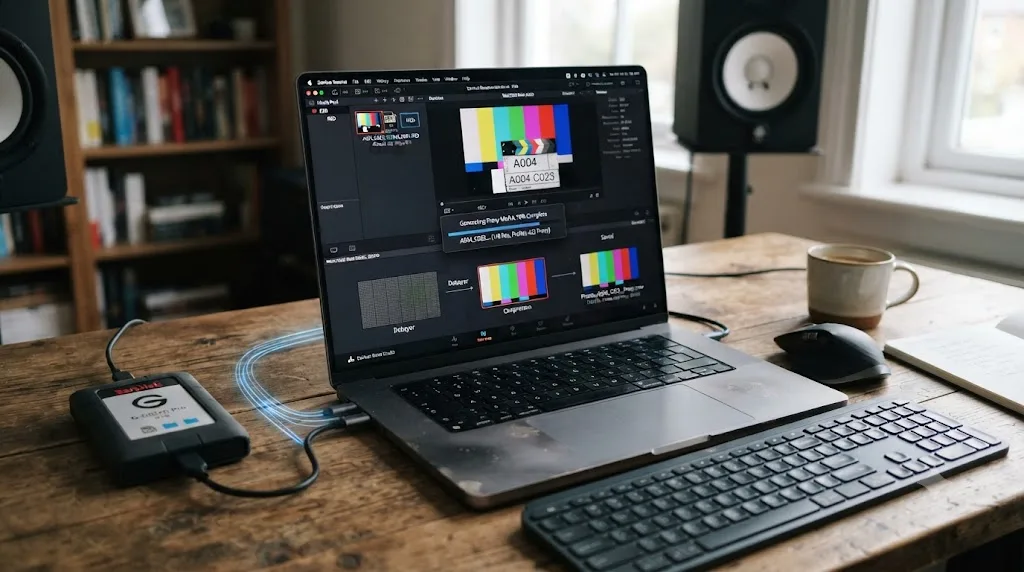
Yes, and RAW footage is actually where proxies earn their keep the most on weak hardware, because RAW files need a debayer step before you see a picture at all, and that step is pure GPU or CPU compute, not something a faster drive or a bigger cache file sidesteps.
Blackmagic RAW debayers relatively cheaply thanks to work Blackmagic does in-camera before the file ever reaches Resolve, so a slow laptop often handles BRAW better than you'd expect from the file size alone. RED's R3D format asks for considerably more, and full-quality debayering on a genuinely slow laptop can be rough even before you add a grade on top.
Two settings work together here, and it's worth using both rather than picking one. In Project Settings, under Camera RAW, the Decode Quality setting lets you drop the debayer resolution for playback specifically, independent of your proxy settings; treat it as Timeline Proxy Mode's RAW-specific cousin. And Proxy Media still applies on top of that, since a RAW clip transcodes into a DNxHR LB or ProRes Proxy file just like any camera-original footage would.
On a slow laptop editing RAW footage, drop Camera RAW Decode Quality before you generate proxies, not after, since transcoding a full-quality debayer into a proxy still pays the expensive part of the cost once. Set Decode Quality to Half or Quarter first, then generate your proxy media from that lighter starting point, and the whole chain from source to scrub stays cheap.
How do you stop your laptop from throttling while it's generating or playing proxies?
Proxies remove the decode cost, but a laptop that's thermally throttled or capped by a power-saving mode will still feel sluggish, and it's easy to blame the proxy workflow for a problem that's actually happening one layer below it.
Start with power mode. Windows exposes three tiers directly, and per Microsoft's own support documentation, Best power efficiency "saves battery life," Balanced "balances performance and battery," and Best performance "maximizes performance." Open Settings, then System, then Power & Battery, and set Power Mode to Best Performance while you're editing, plugged in, every time. Plenty of laptops default to Balanced even when connected to power, quietly leaving performance on the table for no battery benefit at all.
Laptops with two GPUs, an integrated chip and a discrete card, add a second layer to check. Windows decides per application which GPU an app gets, and if Resolve was assigned the integrated chip, every setting in this guide runs on the wrong hardware. Open Windows Settings, then Display, then Graphics, find DaVinci Resolve in the list, and set it to High performance explicitly. You can confirm which GPU Resolve actually picked in Preferences, under Memory and GPU.
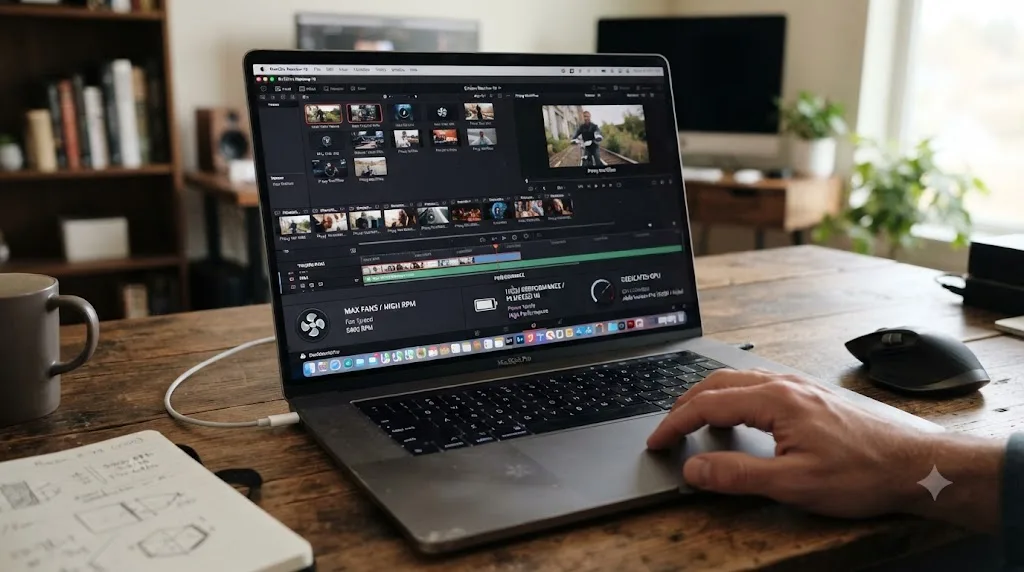
Heat is the part you can't fully fix with a setting, only manage. A laptop that starts smooth and gradually slows over ten or fifteen minutes, especially with the fans audibly ramping, is thermal throttling in action. Elevate the laptop off a soft surface like a bed or couch cushion so intake vents can actually pull air, and if you're editing long sessions regularly, a basic laptop cooling stand is a genuinely useful cheap upgrade, cheaper than any hardware in this guide.
| Symptom | Likely cause | Fix |
|---|---|---|
| Fine at first, degrades over 10-15 minutes, fans loud | Thermal throttling | Elevate the laptop, use a cooling stand, take breaks during long sessions |
| Sluggish immediately, even on a fresh boot | Power mode capping performance | Set Power Mode to Best Performance while plugged in |
| Resolve feels slow but Task Manager shows low GPU usage | Wrong GPU assigned to Resolve | Set DaVinci Resolve to High performance GPU in Windows Graphics settings |
| Consistently slow regardless of settings | Genuine hardware ceiling | Lower proxy resolution further, or accept this project's limits on this machine |
Which drive should your proxies live on if your laptop only has one slot?
Most laptops, unlike desktop towers, don't give you the option to spread the OS, Resolve's cache, and your media across separate physical drives. That single-drive reality changes some of the advice that applies cleanly to a desktop.
If your laptop has one internal SSD and no expansion slot, your proxies and your camera originals are competing for the same drive's read and write bandwidth no matter what you do, and there's no setting that changes that. What you can still control is keeping that single drive from filling up, since a nearly-full SSD reads and writes measurably slower than one with real headroom, and proxy files, however lightweight per stream, add up across a full project.
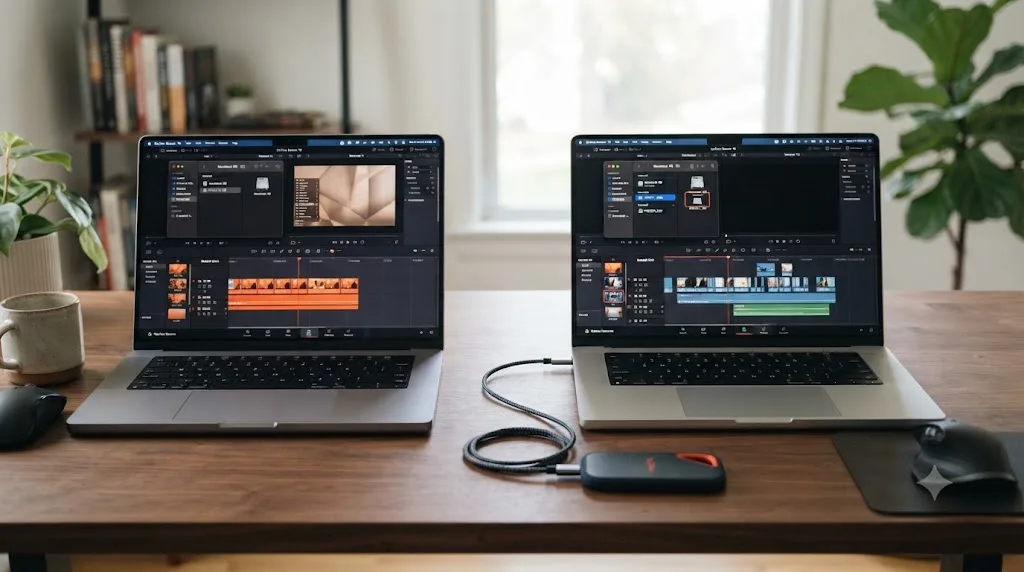
If your laptop does have an external port, a USB-C or Thunderbolt external SSD is worth using specifically for proxy files and cache, even a modest one, because it takes that read and write traffic off the single internal drive entirely. Point Project Settings' Cache Files Location and your proxy media folder at the external drive, and your internal SSD only has to serve the OS and Resolve itself. Avoid SD cards or older USB hard drives for this specifically; their sustained throughput is often the actual bottleneck once you've already fixed decode with proxies, which just moves the stutter from "codec" to "disk" instead of solving it.
On a single-drive laptop, keeping that one SSD below roughly 80 percent full matters almost as much as your proxy settings do, because a nearly full drive slows down regardless of what format your files are in. Delete finished project caches, move footage you've already cut off the laptop, and treat free space itself as a performance setting, not just a storage concern.
Do you need DaVinci Resolve Studio to use proxy media on a slow laptop?
No. Proxy Media, every resolution option, and the standalone Blackmagic Proxy Generator app are identical between the free version and Studio. Nothing in this guide requires a $295 purchase.
What Studio does change, and it's relevant to how badly a specific laptop needs proxies in the first place, is hardware-accelerated H.264 and H.265 decoding on Windows and Linux. Per Blackmagic's Studio product page, that acceleration is a paid feature on those platforms, which means the free version decodes camera H.264 and H.265 footage on the CPU alone, no matter how capable your laptop's GPU actually is. On a Mac, hardware decode for those codecs is built into every Apple silicon chip and available in the free version too, so this specific gap doesn't apply there.
If you're running free DaVinci Resolve on a Windows laptop editing H.265 footage, you're decoding on the CPU by design, not by a bug, which makes proxies less optional than they'd be with Studio installed on identical hardware. That's worth knowing before you assume Studio would fix your stutter outright. It changes decode speed for camera codecs specifically; it doesn't touch RAM, VRAM, thermal throttling, or drive speed, which are the other constraints covered throughout this guide. Our free versus Studio breakdown covers the full feature gap if you're weighing the purchase for reasons beyond this one workflow.
Proxy Media vs Optimized Media vs Render Cache: what's the right combination for a slow laptop?
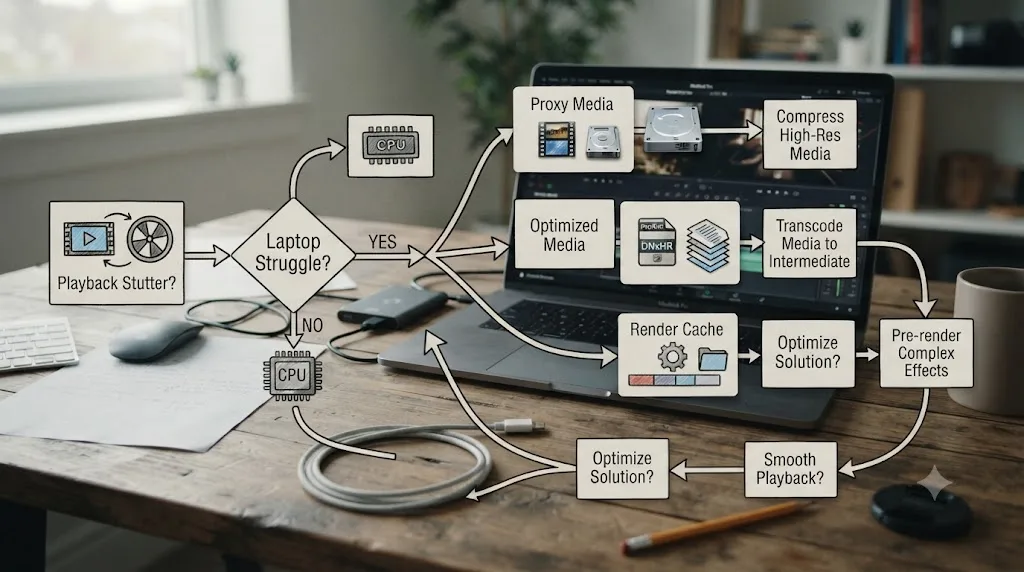
They solve different problems, and a slow laptop is exactly where using all three correctly, instead of throwing all three at everything, matters most.
| Your situation on a slow laptop | Use this | Why |
|---|---|---|
| Camera footage itself stutters, even untouched clips | Proxy Media | Removes the decode cost at its source, and the files travel if you ever move to faster hardware |
| Solo editing, this laptop is your only machine, footage never needs to travel | Optimized Media works too | Same core benefit, one checkbox simpler, no portability advantage needed |
| Plain proxy footage plays fine, but graded or Fusion-heavy sections still stutter | Render Cache | The effects are the added cost, not the source footage, so caching their output is the fix |
| Both are true: raw footage struggles and grading struggles | Proxy Media first, then Render Cache on remaining slow sections | Fix decode before compute, or you'll cache far more than necessary |
Our render cache guide covers Smart versus User mode in full if grading and Fusion sections are still dropping frames after proxies are handling your source footage. The two features layer cleanly: proxies handle what you shot, render cache handles what you built on top of it, and a slow laptop usually benefits from both eventually, just not necessarily on day one of a project.
A slow laptop rarely has one bottleneck, it has a stack of them, and proxy media only removes the one at the bottom of that stack: raw decode cost. Treat it as the first fix, not the only one, and layer render cache in once you've confirmed decode was the actual ceiling.
What does a full proxy setup look like on a real underpowered laptop?
Put the pieces together on a common case: a Windows laptop with an 8th-generation Core i5, integrated graphics only, 16 GB of RAM, a single 512 GB internal SSD, running the free version of DaVinci Resolve, editing 4K H.265 footage from a recent action camera.
The diagnosis is straightforward before touching a single setting. Integrated graphics with no discrete GPU means there's no separate hardware decode block to fall back on for H.265 in the first place, and the free version wouldn't get accelerated decode on Windows even if there were one. Every frame of that 4K H.265 footage is being rebuilt in software on a laptop CPU that was never built for the job.
The setup: open Project Settings, set Proxy Media Format to DNxHR LB, and set Proxy Resolution to Quarter, producing roughly 960 x 540 stand-ins from the 4K originals. Rather than generating proxies inside Resolve, which would mean running the full application on top of an already-strained machine, launch the standalone Blackmagic Proxy Generator, point it at the folder holding the footage, and let it run overnight. By morning, the proxies exist and link automatically the next time the project opens.
Before starting to edit, two more settings matter on this specific hardware: Windows Power Mode set to Best Performance while plugged in, since a laptop this modest can't afford to also be power-capped, and the internal SSD checked for free space, since a single 512 GB drive fills up fast once proxy files, cache, and the original footage are all sitting on it at once. If space gets tight, the original camera files move to an external drive once proxies exist for them, since Resolve only needs the proxies during editing and the originals only reappear at export time.
The end state: cutting happens against roughly 540p DNxHR files any laptop CPU can decode without strain, Use Proxy Media if Available flips off before the final render, and the Deliver page pulls from the untouched 4K H.265 originals regardless of where they're physically stored by then. Total cost: some disk space and one unattended overnight transcode. That's a materially different editing experience than fighting stutter on the original footage clip by clip, on hardware that was never going to win that fight directly.
If hunting through Preferences menus for the right proxy setting is the part that eats your evening, that's worth knowing about if you're on a Mac: TryUncle is an AI tutor for DaVinci Resolve on macOS — ask in plain words and Uncle points at the exact control on your screen, instead of sending you to a manual page to translate which dropdown does what.
What's the fastest checklist to get a slow laptop editing smoothly right now?
Work through these in order, before you assume the laptop is simply done:
- Confirm your laptop meets Blackmagic's stated minimums, 16 GB RAM and 4 GB VRAM, since proxies can't fix a machine under spec, only make it more usable within its ceiling.
- Set Proxy Media Format to DNxHR LB on Windows or Apple ProRes Proxy on Mac, never H.264 or H.265.
- Set Proxy Resolution to Quarter as a starting point, dropping to Eighth if the laptop still struggles.
- Generate proxies using the standalone Blackmagic Proxy Generator if the laptop is too slow to comfortably run Resolve's full interface for the transcode.
- Run proxy generation unattended, overnight or during a break, rather than watching it happen in real time.
- Check Use Proxy Media if Available under the Playback menu once proxies exist.
- Set Windows Power Mode to Best Performance while plugged in, or confirm your Mac isn't in a battery-saving mode.
- If your laptop has two GPUs, confirm DaVinci Resolve is assigned to the discrete one, not the integrated chip.
- Keep your single internal drive below roughly 80 percent full, or move finished project media to external storage.
- Uncheck Use Proxy Media if Available before your final export, every time, without exception.
- If plain footage plays fine now but graded or Fusion-heavy sections still stutter, add Render Cache on top rather than lowering proxy resolution further.
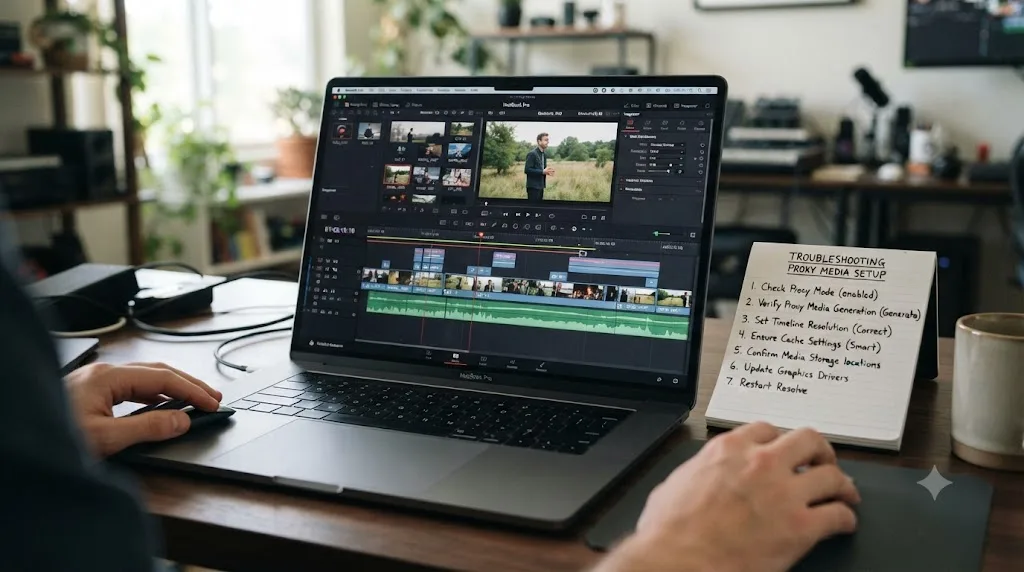
A slow laptop and a proxy workflow aren't a downgrade from real editing, they're what real editing has looked like for colorists and editors working away from their main workstation for years, per Blackmagic's own manual. Set the format right, start the resolution lower than feels necessary, run the transcode step unattended, and the machine you already own will carry you through the cut. Save the upgrade money for when proxies genuinely stop being enough, not for the first stutter you hit.
Frequently asked questions
- What's the difference between proxy media and optimized media on a slow laptop?
- Proxy Media creates separate, portable files that you can carry to a laptop and relink later on a faster machine. Optimized Media transcodes clips into Resolve's managed cache on the same computer and switches automatically. On a slow laptop that also needs to travel or hand off footage, Proxy Media is usually the better fit. If the laptop is your only machine, either works, and Optimized Media is one checkbox simpler.
- What proxy resolution should I use on a slow laptop?
- Start at Quarter resolution for 4K sources. If your laptop still drops frames or the fans spin up hard, drop to Eighth. Half resolution is fine for a laptop with a recent GPU that's just a step behind a desktop, but a genuinely slow, older, or integrated-graphics laptop usually needs Quarter or lower to actually feel smooth.
- What format should DaVinci Resolve proxies be in?
- DNxHR LB on Windows, Apple ProRes Proxy on Mac. Both are intraframe formats built specifically for low-bitrate, easy-to-decode scrubbing, unlike H.264 or H.265, which are delivery codecs that need real decode work on every single frame, the exact cost a proxy workflow exists to remove.
- Do I need DaVinci Resolve Studio to use proxy media on a slow laptop?
- No. Proxy Media, Proxy Resolution, and the standalone Blackmagic Proxy Generator are all in the free version. What Studio changes is hardware-accelerated H.264/H.265 decoding on Windows and Linux, which affects how badly your laptop needs proxies in the first place, not whether you're allowed to use them.
- Can I generate proxies without opening the DaVinci Resolve project at all?
- Yes, with the Blackmagic Proxy Generator, a separate app that installs alongside DaVinci Resolve. Point it at a watch folder and it transcodes new footage into proxies in the background, without loading Resolve's full interface, which matters on a laptop where just opening the project is slow.
- Will proxy media lower my export quality?
- No, as long as you uncheck Use Proxy Media if Available before you render. Proxies only stand in during editing. Your Deliver page render pulls from the original camera files regardless of what resolution or format you were scrubbing through while you cut.
- Why is DaVinci Resolve still slow even with proxies turned on?
- Proxies fix decode cost, not every cost. If your grade is heavy, Render Cache is the missing piece, not a lower proxy resolution. If a single internal drive is also holding your OS, cache, and media, disk throughput may be the real ceiling. And if RAM is under 16 GB, Resolve is likely swapping regardless of what resolution your footage plays at.
Sources
- DaVinci Resolve Reference Manual: Working Remotely Using Proxy Media (VFXPedia mirror)
- DaVinci Resolve Reference Manual: Proxy Media vs. Render Cache (VFXPedia mirror)
- DaVinci Resolve - Collaboration (Blackmagic Design)
- DaVinci Resolve - Tech Specs (Blackmagic Design)
- DaVinci Resolve - Studio (Blackmagic Design)
- Blackmagic Forum: Sudden and inexplicable playback lag (Marc Wielage, Certified DaVinci Resolve Color Trainer)
- NVIDIA Video Encode and Decode GPU Support Matrix
- Apple ProRes White Paper (data rates)
- No Film School: DaVinci Resolve Update 21.0.2 Adds Faster Image Bypass Switching, Improved H.265 Playback, and More
- Newsshooter: DaVinci Resolve 21.0.2 Update
- Microsoft Support: Change the power mode for your Windows PC
Put this guide to work with TryUncle.
Ask about the step you’re on. TryUncle sees your screen and points at the control you need, so you can keep learning in your own project.
Get TryUncle for Mac or WindowsKeep reading
Fixes · Jul 7, 2026 · 25 min
DaVinci Resolve Playback Choppy or Stuttering? The Real Fix
Fix choppy DaVinci Resolve playback with Optimized Media, Proxy Media, Render Cache, Timeline Proxy Mode, and the Resolve 21.0.2 NVIDIA decode fix.
Guides · Jul 13, 2026 · 18 min
DaVinci Resolve Render Cache Explained: Smart vs. User Mode
How DaVinci Resolve's render cache works, and how Smart mode differs from User mode: cache formats, disk space, per-clip flags, and when to use each.
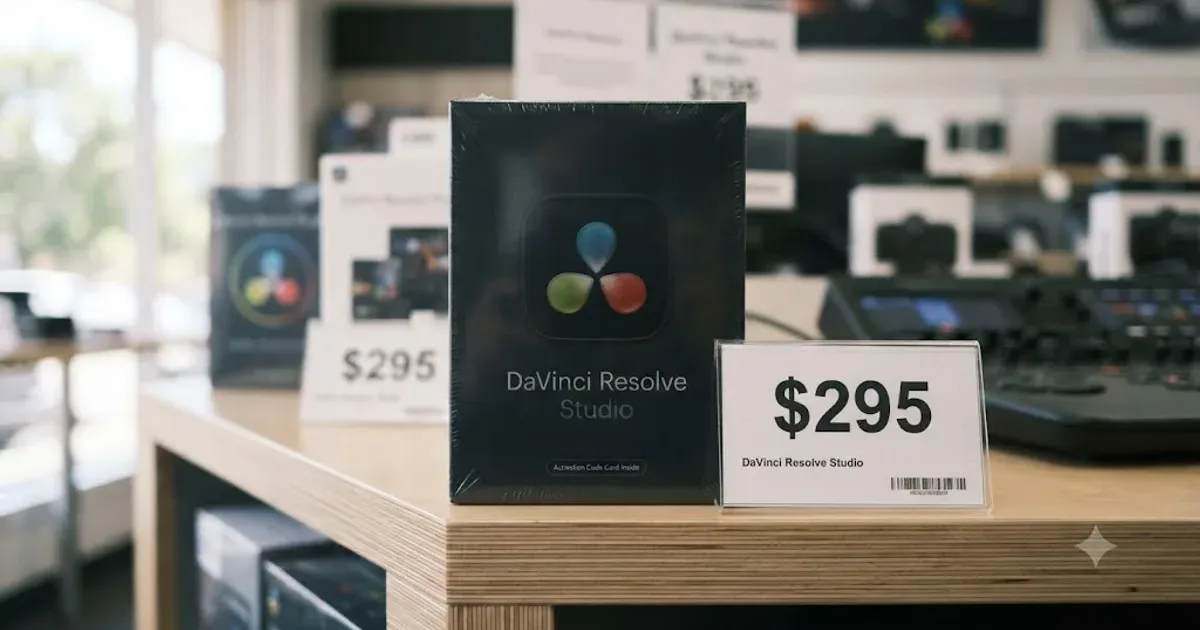
Comparisons · Jul 7, 2026 · 28 min
DaVinci Resolve Studio Price: Free vs. Studio Cost, Explained
DaVinci Resolve Studio costs $295, paid once, not monthly. Here's exactly what that buys, how it stacks up against Premiere Pro and Final Cut Pro, and who needs it.