Articles / Fixesupdated for DaVinci Resolve 21.1 (September 2026)
DaVinci Resolve 21 Loading Color Page Stuck? Fix It
Quick answer
If DaVinci Resolve 21 is stuck on Loading Color Page, update to 21.1, restart after checking Preferences > System > Memory and GPU, and test with a new project. If the new project works, isolate the original project, cache, or plug-in. If every project hangs, reset preferences, check GPU drivers and storage, then collect logs before reinstalling.
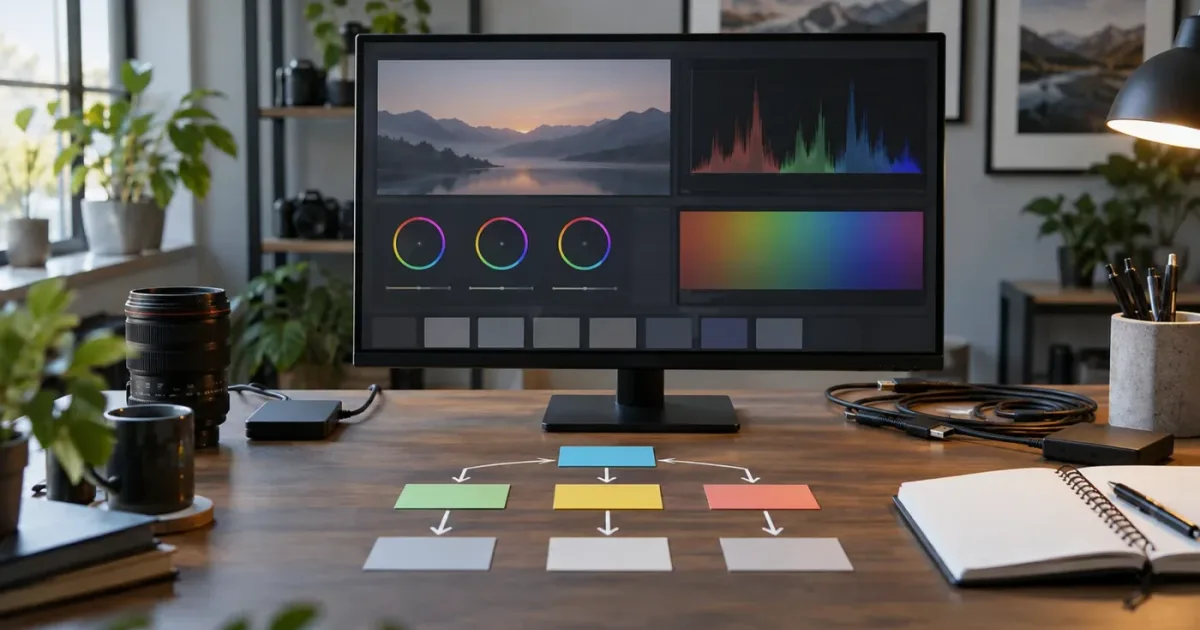
DaVinci Resolve 21 Loading Color Page Stuck? Fix It
The Color page is where a small configuration problem becomes visible fast. You click Color, the interface appears to stop, and the splash message or cursor never moves on. In our 100,000+ member professional video-editing community, this is one of the recurring questions because the same symptom can come from several different layers of Resolve.
As of October 2026, the current point release is DaVinci Resolve 21.1, released September 8, 2026. The fastest reliable diagnosis is not “reinstall everything.” It is to separate a version problem, a system and GPU problem, an application-state problem, and a project problem with a blank-project test.
We built and run a 100,000+ member professional video-editing community, and we have more than seven years of professional commercial editing experience. That gives us a useful perspective on this particular failure: a frozen page is a workflow interruption first, and a software mystery second. Preserve the project. Change one layer at a time. Keep the evidence.
What should you do first when DaVinci Resolve 21 is stuck on Loading Color Page?
If DaVinci Resolve 21 is stuck while loading the Color page, force-close only after waiting long enough to distinguish work from a deadlock, then reopen the application and test a new empty project before touching the original project. This one test tells you whether the problem follows Resolve or follows the project.
Do these checks in order:
- Note the exact visible symptom. Is Resolve stuck on the startup splash screen at “Loading Color Page,” or does the application open and freeze only when you click the Color page? Is the viewer black, is the whole window white, or is only the Color interface unresponsive? Those are not identical failures.
- If Resolve is still responding, save the project and make a duplicate or project export before testing. If it is not responding, use the operating system’s normal force-quit command and do not delete project databases or folders as a first reaction.
- Reopen Resolve without immediately opening the last project if the Project Manager gives you that choice.
- Create a blank project. Do not import media, stills, powergrades, LUTs, DCTLs, OFX plug-ins, or timelines yet.
- Switch to Color in the blank project.
- Record the result in a small note: “blank project works,” “blank project also hangs,” or “Color opens but the original project hangs.”
That result determines the next branch.
| What happens in the blank project | Most likely branch | Next move |
|---|---|---|
| Color opens normally | Original project, media, grade, still, plug-in, or cache | Work on a copy and isolate project objects |
| Color also hangs | GPU, driver, preference, application, display, or plug-in environment | Check version, GPU path, preferences, and third-party extensions |
| Resolve hangs before Project Manager | Startup environment, preferences, GPU initialization, plug-in scan, or installation | Reset state carefully and collect logs |
| Color opens, but one clip freezes it | Clip decode, node effect, OFX, DCTL, Fusion input, or corrupted timeline object | Test the clip in a new timeline and disable processing in batches |
| Color page opens but controls are missing | UI layout, display scaling, window layout, or preference state | Use Workspace > Reset UI Layout, then restart |
The table is a diagnostic map, not a claim that one cause always produces one result. A graphics driver can also expose itself only when a particular clip asks the GPU to render a node tree. A damaged project can look like a global application problem if it is the first project Resolve opens every time.
A blank-project test is the fastest way to separate a Resolve problem from a project problem.
The official support material matters here. Blackmagic’s support page lists Resolve 21.1 as an available update and notes that support for the free version is provided through its community forums. The same page lists 21.0.4 as an earlier update that improved realtime playback on timelines with a large cache. That does not prove that your hang is a cache bug, but it does tell you to include the exact point release in your diagnosis rather than writing only “Resolve 21.” See the Blackmagic Design Support Center for the current installer and release notes.
Why is DaVinci Resolve 21 stuck on “Loading Color Page” at startup?
When the startup splash screen stops at “Loading Color Page,” Resolve has not necessarily found a bad grade. The message is a progress label, and the underlying failure can be GPU initialization, a UI or display setup, an extension scan, a damaged preference, or a startup project state. Treat the message as a location in the startup sequence, not as a diagnosis.
One public Blackmagic support forum log shows the sequence reaching “Loading Color Page,” then loading a waveform monitor, flushing GPU buffers, loading audio plug-ins, and reaching “Ready.” The useful lesson is that a log line naming the Color page is evidence about timing, not proof that the Color page itself is the corrupt component. Compare the forum log example with your own log if you need to explain the symptom to support.
Could the last project be the real cause?
Yes. If Resolve automatically reopens the last project, the project may be responsible for the apparent startup hang. A project can contain heavy node graphs, still galleries, third-party effects, unusual media, or a timeline state that only becomes active when the Color page initializes.
Test the application without reopening that project. If a blank project reaches Color, do not keep launching the original project repeatedly. Make a copy first. Then use the copy for isolation.
Could the display or UI state be the real cause?
Yes. Resolve stores interface state, and an invalid or confusing multi-display layout can make a page look frozen when panels are off-screen, badly scaled, or waiting on a display context. Blackmagic support has specifically recommended Workspace > Reset UI Layout for missing Color page panels. That command is a low-risk test when Resolve opens far enough to show the Workspace menu. The Blackmagic forum answer from Blackmagic support documents that menu path.
If you use two monitors, an external grading display, a capture card, or a scaled laptop display, temporarily simplify the display arrangement. Quit other applications that are using the video output device. Relaunch Resolve with one ordinary application display if possible. A display change is a diagnostic, not a permanent recommendation. Restore the monitoring setup after you know whether it was involved.
Could the GPU be the real cause?
Yes. The Color page uses the GPU for image processing, and GPU configuration errors can appear when the page initializes even if the Edit page opened normally. The Blackmagic forum includes direct guidance from Dwaine Maggart, a Blackmagic Design DaVinci support representative: “So, you MUST update to a current NVIDIA driver if you want Resolve to properly work. And you need to put the GPU processing mode in Resolve Preferences - System - Memory and GPU, back to Auto mode.” That is a verbatim quote from the Blackmagic support forum, and it is advice for the driver situation described in that thread, not a universal command to change every system to CUDA or Auto blindly.
The safe interpretation is narrower. If you have an NVIDIA system, an old driver, a recent driver change, or a manually forced processing mode, document the current setting, update from the GPU manufacturer, and test Auto. If you have a Mac using Metal or an AMD or Intel system, do not copy NVIDIA-specific instructions as if they were interchangeable. Check what Resolve detects in Preferences > System > Memory and GPU, when the application allows you to open Preferences.
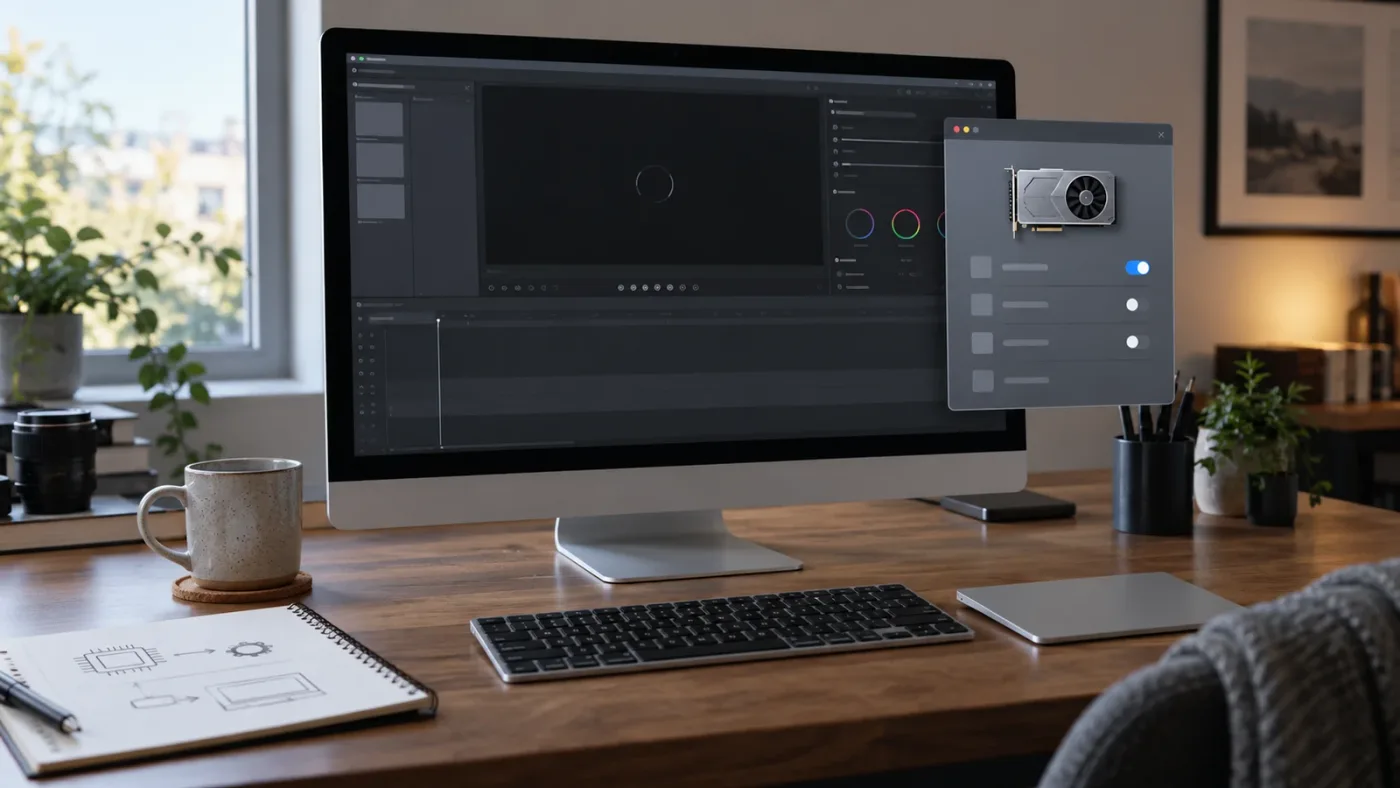
How do I fix DaVinci Resolve 21 loading Color Page stuck on Mac?
On a Mac, start with the Resolve point release, the macOS and Metal path, the display setup, and third-party plug-ins. A Mac-specific fix is not to delete random folders. It is to establish whether Resolve can load Color in a blank project with a simple display and its native processing path.
Step 1: verify the Resolve and macOS combination
DaVinci Resolve 21.1 is the current version context for this post. Blackmagic’s support center lists Resolve 21.1 for macOS, Windows, and Linux, and the product page describes Resolve 21 as available across those three platforms. If you are running a public beta, an old 21.0 build, or a point release behind the current one, write down the exact build before changing anything.
Update only after protecting your work. A normal update should preserve projects, but a troubleshooting workflow still needs a restorable project copy and a known database location. If you use a disk database, verify that the disk is mounted. If you use a PostgreSQL or shared database, confirm that the server is available before interpreting a missing project as a Color-page failure.
The current support listing also provides a 21.1 reference manual dated September 8, 2026. Use the manual version that matches the installed application where possible. Menus and page names can shift between point releases, and a troubleshooting article that gives a path from a different major version can send you to the wrong panel.
Step 2: test without an external video output
If you use a DeckLink or UltraStudio device, an external monitor, or a special video I/O path, disable that path temporarily if Resolve gives you access to the setting. The goal is to see whether the Color page can load on the computer’s normal display without the external output device.
Do not infer that the device is broken because Color loads without it. You have only shown that the failure is somewhere in the external monitoring path or its interaction with this configuration. Re-enable the device after testing, then update its Desktop Video software if the current Blackmagic support notes call for it.
Step 3: check plug-ins, DCTLs, and custom resources
Color workflows often accumulate LUTs, DCTLs, OpenFX plug-ins, transitions, generators, and custom panel resources. If the blank project works only after you prevent third-party resources from loading, reintroduce them in small groups. Keep a list of what you add and the result.
This is a place where patience saves time. Disabling every resource at once may get you back into Resolve, but it does not identify the offender. Start with anything installed or updated immediately before the problem. Then test Color. If it works, add one family at a time: OFX, DCTL, LUTs, stills, and templates. Restart between major changes when a resource is loaded at launch.
Do not delete a library because its name looks unfamiliar. Copy the relevant folder to a safe location or use the vendor’s documented disable process. Preserving the original gives you a way to compare versions and report the exact resource to its developer.
Step 4: reset the interface layout
If Resolve opens enough to display menus, choose Workspace > Reset UI Layout, then quit and relaunch. This is most useful when the Color page is present but panels are invisible, compressed, or outside the visible desktop. Blackmagic support has documented this command as a response to a missing Color page panel.
Do not confuse a layout reset with a full preference reset. The layout reset changes the UI arrangement. A full preference reset can affect hardware, scratch disks, keyboard mappings, paths, and other settings. Use the smallest reset that tests the theory.
Step 5: check the GPU path without guessing
In DaVinci Resolve > Preferences > System > Memory and GPU, record the GPU processing mode and the selected GPU. On a Mac, the processing API is normally governed by the system and hardware path. The official requirement and configuration information is version-sensitive, so use the current Resolve 21.1 manual and Blackmagic’s support notes instead of applying a setting from a Resolve 15 or Resolve 18 tutorial.
If a driver or operating-system update happened immediately before the hang, note the date and version. If the Mac offers a system update that changes graphics behavior, do not assume the latest OS is always the right immediate move for a paid project. Check the supported application and OS combination, back up first, and update one variable at a time.
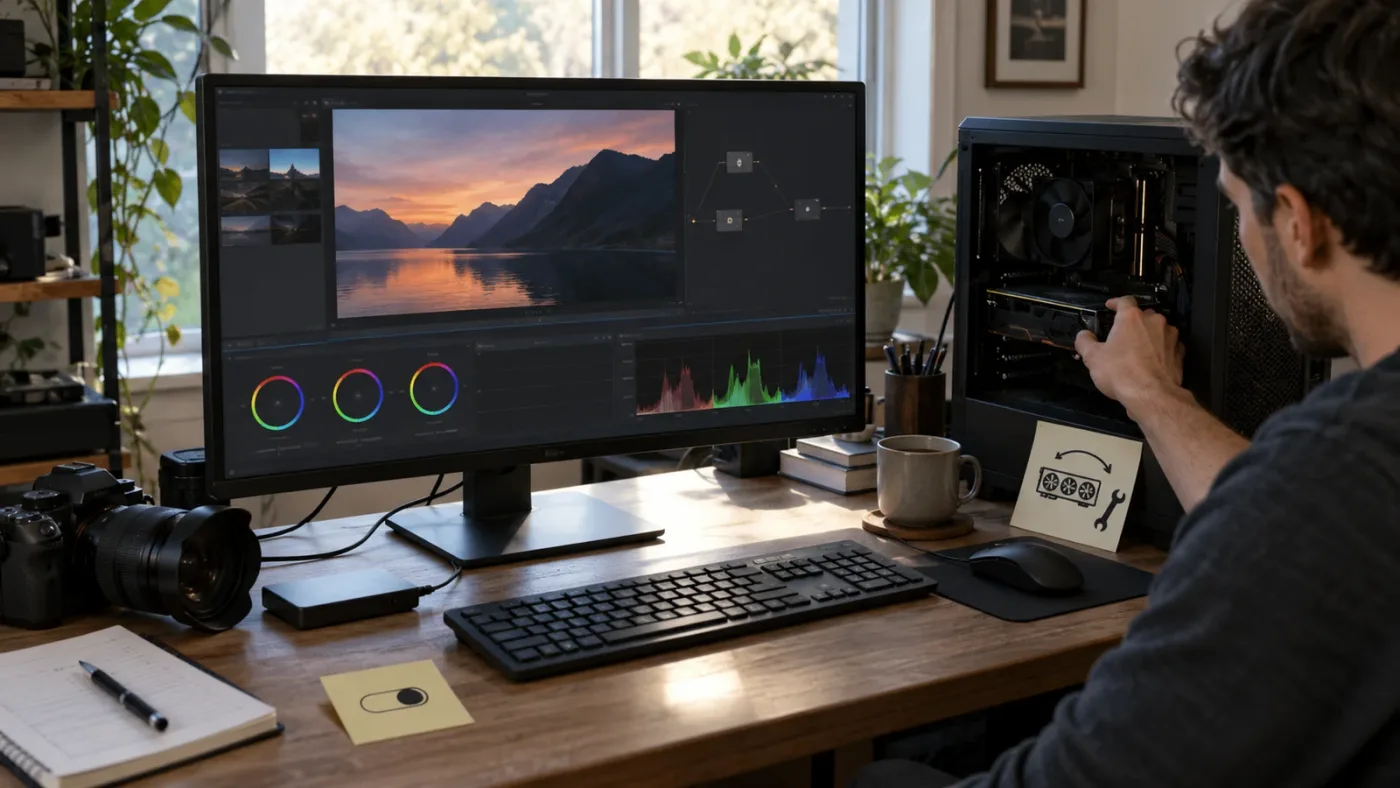
How do I fix DaVinci Resolve 21 loading Color Page stuck on Windows?
On Windows, check the GPU driver branch, GPU selection, OpenCL or CUDA availability, monitor configuration, and plug-in loading order. Windows users should be especially careful not to treat a Game Ready or Studio driver label as a complete diagnosis. The relevant questions are whether the driver is current for the GPU, whether Resolve detects the expected device, and whether the selected processing mode can initialize.
Step 1: record the hardware before changing the driver
Write down the Windows version, Resolve build, GPU model, driver version, system RAM, and whether the computer has one GPU or several. Include whether the monitor is connected to the discrete GPU or the motherboard output. This gives you a useful before-and-after record.
Blackmagic’s older official configuration guidance shows why these details matter: its Windows requirements have included Windows, system memory, a GPU with VRAM, a supported processing API, and a driver appropriate to the GPU. Do not copy old numeric requirements into a Resolve 21 diagnosis. Use the current Blackmagic support page for the version you run, and treat old configuration PDFs as historical context only.
Step 2: update the driver from the GPU manufacturer
If the driver is old, partially installed, or changed just before the problem, update it using the GPU manufacturer’s current installer. Restart Windows. Then open Resolve and check the GPU panel again.
If you have an NVIDIA GPU and Resolve lets you reach Preferences, start with Auto rather than forcing CUDA because a forum comment mentioned CUDA. If Auto fails and a support representative tells you to choose another mode for your specific hardware, follow that case-specific instruction. If the application fails before you can change the setting, the blank-project and preference-reset branches matter more than a setting you cannot reach.
Step 3: remove extra variables
Disconnect nonessential capture devices and temporarily use one monitor. Close overlays, screen recorders, GPU tuning tools, and applications that hook into the graphics pipeline. This is not because those tools are always incompatible. It is because a clean test needs fewer variables.
If the Color page opens after you remove an overlay, add tools back one at a time. Keep the tool that changes the result as your suspect. Do not label it the cause until you reproduce the difference after restarting.
Step 4: distinguish a missing interface from a real hang
If the mouse moves and menus respond but the Color controls are missing, reset the UI layout. If Windows marks the application as not responding and the entire window stops responding, use the GPU, plug-in, project, and log branches. A hidden panel and a deadlock require different fixes.
Windows also gives you a useful check in Task Manager. Watch whether Resolve’s GPU and memory activity change while the page appears stuck. This does not prove that the page is working or broken. It simply tells you whether the process is active enough to keep waiting or whether you should end it and run the controlled test again.
What should you check when DaVinci Resolve 21 loads Color for one project but not another?
If Color loads in a blank project but the original project hangs, treat the original project as the primary suspect. Work from a duplicate. The likely objects include a recent node effect, a third-party plug-in, a corrupted gallery still, an unusual timeline, media that forces a decoder path, or a project cache and storage issue.
Why a duplicate matters
Isolation often requires removing or bypassing objects. Doing that in the only copy of a client project creates a second problem. Export or duplicate the project through Resolve’s normal project-management tools and keep the original untouched.
If the project uses a disk database, verify the database backup before modifying the copy. If it uses a shared database, coordinate the test with anyone else who can edit the project. A project that appears stuck may simply be locked, unavailable, or waiting on a path that is not mounted.
Start with the most recent change
Ask what changed before the Color page stopped loading:
- A new OFX effect or DCTL
- A new LUT pack or color-management setting
- A recent driver or operating-system update
- A new camera format or media import
- A new gallery still, powergrade, or node preset
- A timeline copied from another project
- A change to external monitoring
- A moved cache or scratch volume
This list is not a claim that any one item is inherently unsafe. It is a way to order your tests by information value. If the project opened yesterday and a new plug-in was installed last night, inspect the plug-in path before you delete a cache folder.
Use a new timeline as a controlled copy
If the project opens on Edit or Media, create a new timeline with one uncomplicated clip. Switch to Color. If that works, bring in a small group of clips from the original timeline. When the failure returns, reduce the group.
This is a binary-search idea applied to an editing project. Do not import every timeline, still, and grade at once. A group of eight clips that fails can become two groups of four, then groups of two, then one. The process is slower than guessing once, but faster than repeatedly corrupting the only working state.
Test node processing and effects in groups
If one clip triggers the freeze, bypass grades and effects in a copy. The Color page has a bypass option for image processing, but its exact command and shortcut can vary by layout and version. Use the menu label visible in your Resolve 21.1 installation rather than trusting a shortcut from memory.
Re-enable nodes in groups. Start with technical transforms, then creative grades, then tracking, temporal effects, spatial effects, OFX, and DCTLs. A node that works on one clip can still fail on another if it asks for a different frame range, mask, resolution, or GPU path.
The Blackmagic forum contains a real example of Color-page freezing in Resolve 19.1.3 after using the Color Stabilizer’s selected-area analysis. That report is not evidence that Resolve 21 has the same bug. It is evidence that “Color page freeze” can be tied to a particular tool state instead of the page as a whole. The reported case is useful because it describes the difference between Edit-page playback and Color-page interaction.
Check cache and scratch storage without deleting evidence
Resolve uses configured storage for cache files and gallery stills. Blackmagic’s reference material describes the first storage volume as the location used for gallery stills and cache files, and it documents Playback > Delete Render Cache options for clearing cache. The relevant source is older than Resolve 21, so use it to understand the operation, not as a substitute for the current manual.
If the project opens, check Project Settings > Master Settings and the working folders. Confirm the volume exists, is writable, and has enough free space for your workflow. If the path points to a disconnected external drive, restore the drive or change the project copy’s working folder to a known-good location.
Use Playback > Delete Render Cache > Unused or Selected Clips when you can. Avoid All until you understand what you are discarding and how long the project will need to rebuild. Cached data can be regenerated, but it can also be valuable diagnostic evidence if you are trying to explain the failure.
The point release matters here. Blackmagic’s 21.0.4 notes mention improved realtime playback on timelines with a large cache. That does not mean a large cache is the cause of every Color-page hang. It does mean cache size and cache behavior belong in the test record for a Resolve 21 project that became slow after a point release.
Cache deletion is a controlled diagnostic step, not a universal cure for a frozen Color page.
Can a plug-in, LUT, DCTL, or gallery still make the Color page hang?
Yes, but you need to prove the relationship by disabling and re-enabling resources in a controlled copy. Resolve can load resources outside the project itself, and the Color page is the place where many of them become active.
Third-party OFX plug-ins
An OFX plug-in can affect the Color page when a clip or node graph references it. If the page hangs globally at startup, a plug-in scan is also a possible startup dependency. The best test is to temporarily disable nonessential third-party plug-ins using the vendor’s documented process, then restart and try a blank project.
If that fixes the blank project, do not immediately enable everything again. Enable one vendor or one plug-in family, restart, and test. Write down the exact build and the result. If one resource restores the hang, leave it disabled in the working environment and report it to the vendor with the Resolve version, operating system, GPU, and a small reproducible project if you can provide one safely.
DCTLs and LUTs
DCTLs and LUTs are not the same thing. A DCTL is executable color-processing code; a LUT is a transform or lookup resource. They can fail in different ways. A DCTL may exercise the GPU or compile path. A LUT may be missing, unreadable, or referenced by a project path that moved.
For a project that opens in Edit but freezes on Color, test a copy with the affected grade bypassed. If that works, remove the suspect DCTL or LUT reference from one test clip. If the project contains many grades, use the batch isolation method instead of clearing every grade and losing your map of the original look.
Gallery stills and powergrades
A gallery still is not just a picture. In a grading workflow it can carry a grade or powergrade that another clip may use. If a project hangs while loading the Color page and the gallery is unusually large or includes recent imports, test a copy with the gallery and stills separated from the opening path.
Do not delete the gallery directory as a shortcut. Preserve it. If the gallery is stored on a removable or unavailable volume, reconnect the volume or use a copy that does not depend on it. A missing still should be diagnosed as a storage or path problem, not assumed to be an application corruption problem.
How do I reset DaVinci Resolve 21 preferences without losing projects?
Resetting preferences can help when Resolve’s saved UI, GPU, display, or path configuration is damaged, but it can also remove working settings. Back up project databases, projects, keyboard layouts, and any custom configuration you need before resetting. Use a rename or supported reset process so the old state remains recoverable.
Use the smallest reset first
Use this order when Resolve opens:
Workspace > Reset UI Layoutfor missing or misplaced Color controls.- Recheck
Preferences > System > Memory and GPUfor a bad selection or forced mode. - Confirm
Preferences > System > Media Storagepoints to reachable volumes. - Quit and relaunch.
- Test a blank project.
- Only then consider a full preference reset.
This order protects information. Each step tests a narrower layer. If the layout reset fixes the page, you do not need to rebuild every preference. If the GPU panel shows an unexpected device, you have a more useful answer than “the reset worked somehow.”
What a full preference reset can change
A full reset can change interface layout, keyboard mappings, GPU selections, scratch-disk choices, display settings, paths, and other application preferences. The exact reset mechanism differs by operating system and Resolve build. Use the current Resolve 21.1 manual or Blackmagic forum guidance for your platform rather than following an old folder path copied from a search result.
The rule is simple: rename first, delete later. A renamed preferences folder can be restored for comparison. A deleted folder may be difficult to reconstruct, especially if it contained custom layouts or mappings.
What not to reset
Do not delete project databases, client project files, original camera media, gallery stills, or cache folders on a disconnected drive merely because Resolve will not load the Color page. These have different roles and different recovery consequences.
Cache can usually be regenerated, but it still belongs in your evidence if the storage path is part of the failure. Projects and databases are valuable. Original media is irreplaceable. Keep them out of a broad reset operation.
Is DaVinci Resolve 21.1 different from Resolve 21.0 for this problem?
Resolve 21.1 is a distinct point release with expanded Photo page support, enhanced multicam controls, more Krokodove tools, and other changes. Resolve 21.0.4 included relinking support for proxy clips with different formats and improved realtime playback on timelines with a large cache. These version facts come from Blackmagic’s support listings, not from a claim that either release fixes your particular Color-page hang.
Use the exact version in every support report. “Resolve 21” can mean 21.0, 21.0.1, 21.0.2, 21.0.3, 21.0.4, or 21.1 in the current 2026 release sequence. A bug report without the point release hides a variable that support can use.
| Version context | Officially listed detail relevant to diagnosis | What to record |
|---|---|---|
| 21.1, September 8, 2026 | Expanded Photo page and camera support, enhanced multicam workflows, 25 new Krokodove graphics tools, and over 100 new tools and controls | Full version and build, free or Studio |
| 21.0.4, August 5, 2026 | Proxy relinking with different formats, more X-OCN support, selected-clip API review, and improved realtime playback with large cache | Whether the project uses proxies, X-OCN, or a large cache |
| 21.0.2, July 2, 2026 | Faster image bypass switching and improved text display in the Inspector; Studio also lists H.265 playback improvements on NVIDIA GPUs | Whether the hang appeared after an update or while bypassing processing |
| 21.0.1, June 24, 2026 | DNG and Apple ProRAW decoding, Fusion dual-screen layouts, H.265 HDR metadata handling, and additional camera and still support | Camera format, HDR path, and display arrangement |
| 21.0 final, June 3, 2026 | New Photo page, Fairlight folders, keyframing improvements, MultiMaster trim passes, and layer list node graphs | Whether the project was created in a beta or earlier major version |
The table is a triage aid. It is not a changelog-based promise that an update will cure a hang. Update when the release notes and your backup plan justify it, then retest the same blank project and the same project copy.
The exact Resolve point release belongs in the diagnosis because “Resolve 21” covers multiple application builds.
How do hardware and storage limits affect a stuck Color page?
Hardware limits can make the Color page slow, unstable, or unable to initialize a workload, but a requirement number by itself does not explain every hang. Check the actual machine, GPU, driver, operating system, storage path, and project complexity together.
Blackmagic’s product page lists DaVinci Resolve 21 for Mac, Windows, and Linux, and lists Resolve Studio 21 at $295. The page also distinguishes the free Resolve application from Studio features. Those are product facts, not a performance guarantee. A supported machine can still fail because of a driver, plug-in, display, storage, or project state.
GPU memory is not the same as system memory
The Color page’s processing path can use GPU memory, while the application and project use system memory. A machine can have enough system RAM and still struggle with a grade that uses heavy temporal processing, high-resolution media, multiple monitors, or effects that need more GPU memory.
Do not diagnose this only from one number in Task Manager or Activity Monitor. Record the GPU model, memory, driver, project resolution, source format, timeline frame rate, and whether the failure appears with a blank project. The blank-project result is more informative than a generic “my computer is powerful” description.
Storage paths matter during page initialization
Resolve may need to read project data, stills, cache, plug-ins, LUTs, and media paths as a project becomes active. If the first storage volume is a disconnected external drive, an unavailable network path, or a volume that changed permissions, the application can look frozen while waiting on a resource.
Test with a local, writable working folder in a project copy. Do not move original media just to see what happens. If the copy works, compare the old and new paths and restore a stable storage design.
Large projects need a different test
A large project can be healthy while still taking a long time to open. The difference between “slow” and “stuck” is not always obvious from the first minute. Check disk activity, CPU and GPU activity, and whether the UI responds to a menu action. If the application is active and the project is known to be large, waiting may be safer than force-quitting.
If you must stop it, record how long you waited and what the system was doing. Repeat the test only after changing one variable. Repeated force-quits can make the project state harder to interpret and can discard useful log context.
Why does the Color page load in Edit but freeze when I click a clip?
If Edit works and Color freezes only after a clip is selected, the failure likely follows the clip, its grade, its media decode path, or a Color-page tool state rather than the entire application. Test one clip in a new timeline, then bypass or remove processing in a copy.
This symptom is different from a startup splash screen stuck on “Loading Color Page.” The application has already initialized the page. The trigger is now an object or operation inside the page.
Test the media without its grade
Duplicate the project or make a new timeline. Use a clip that freezes and a clip that does not. If the clean clip works, compare source formats, frame rates, resolutions, color space metadata, and proxy status. A clip that fails in Color but plays in Edit may ask the Color page to decode or process something the Edit page does not use in the same way.
Do not turn a forum anecdote into a codec verdict. The correct next step is to create a minimal reproduction: one source clip, one timeline, no third-party node, and the same project settings. If the minimal copy fails, export the evidence. If it works, add the project’s features back gradually.
Test the grade without the clip
If the clip works in a clean timeline, copy the grade or node tree in a controlled step. Add the node tree in sections. Put tracking, masks, temporal noise reduction, motion effects, and third-party nodes near the end of the test because they can carry more state than a simple correction.
When the hang returns, undo the last added group and save the working copy. The suspect may be the node, the input clip, a referenced resource, or a combination of the two. Report the combination, not only the last node name.
Consider timeline and project settings
A timeline with mixed frame rates, unusual resolution, multiple video tracks, or a camera RAW path may activate different processing than a simple timeline. Compare the failing timeline with a new timeline using the same clip.
If a new timeline works, preserve the old timeline and migrate in groups. If the old timeline is the only failing object, you have contained the issue without losing the project’s other timelines.
What should you do if the Color page is blank, missing panels, or black?
If the Color page opens but looks blank or incomplete, first classify the symptom as a UI layout issue, a viewer or monitoring issue, or a GPU image-processing issue. Use Workspace > Reset UI Layout for missing or misplaced panels, then test the viewer and scopes separately.
A black viewer is not the same as a frozen page. If menus, node graphs, thumbnails, and scopes respond, investigate clip selection, viewer bypass, display output, and GPU image processing. If the entire interface stops responding, return to the global hang workflow.
Missing panels
Reset the UI layout. Check whether a panel is collapsed or on another display. If you use a high-resolution display or display scaling, simplify to one display and restart. The Blackmagic support forum’s documented response for a missing Color page panel is Workspace > Reset UI Layout.
Black viewer with active controls
Select a known-good clip. Confirm that the viewer is not showing a blank frame, an offline clip, or a disabled image. Check the viewer bypass and output settings that are visible in your installation. If the node graph and scopes respond but the viewer remains black, compare the same clip on Edit and Color.
Scopes missing or frozen
Close and reopen the scopes panel if the rest of the page responds. A scope display can have its own rendering path. If the whole Color page freezes when scopes appear, temporarily simplify the workspace and test with scopes closed. Treat that as an isolation result, not proof that scopes are always the cause.
Should I reinstall DaVinci Resolve 21?
Reinstall only after you have ruled out a project, GPU, driver, preference, storage, and plug-in problem or collected evidence that points to damaged application files. A reinstall does not repair a bad project grade, an unavailable cache drive, an incompatible plug-in, or a driver configuration.
Before a reinstall
Make a recovery checklist:
- Resolve version and build
- Operating system version
- GPU model and driver version
- Free or Studio edition
- One monitor or multiple monitors
- External video I/O in use or disabled
- Project database location
- Project backup or exported project copy
- Plug-ins, DCTLs, and LUT packs installed recently
- Exact point at which the application hangs
- Whether a blank project reaches Color
- Whether a copy of the project opens
If Resolve will not open far enough to answer the last two items, collect system and application logs through the supported workflow for your operating system. The Blackmagic Design Support Center links to current manuals and the community forum, where the free version is supported.
After a reinstall
Launch the clean installation with no project auto-open if possible. Test a blank project. Then restore one project copy. Do not immediately reinstall every plug-in, LUT, DCTL, and panel. Add resources in groups and run the same Color-page test after each group.
If the clean application still hangs on a blank project, the evidence points away from the old project and toward the system environment, GPU, display, driver, preference path, or application build. A second reinstall without changing that environment is unlikely to add information.
How should you report a persistent “Loading Color Page” hang?
A useful report says exactly what happened, what changed, and what tests separated the branches. “Resolve is broken” gives support almost nothing to work with. “Resolve 21.1 on Windows 11, NVIDIA GPU driver version X, blank project also hangs after one-monitor test, UI reset did not change it, logs attached” is actionable.
Include:
- DaVinci Resolve edition, major version, point release, and build number.
- Operating system and version.
- CPU, GPU, GPU memory, system memory, and driver version.
- Whether the problem occurs in a blank project.
- Whether the problem occurs in one project or every project.
- Whether the problem occurs before Project Manager or after a project opens.
- The exact visible message, including “Loading Color Page” if present.
- Any recent update to Resolve, the operating system, GPU driver, plug-ins, media, or display hardware.
- The result of one-monitor and external-output tests.
- Logs and a small reproducible project if you can share them without exposing client media.
Blackmagic’s community forum includes examples where logs show “Loading Color Page” among other startup events. Use the log to show sequence and timing, not to claim that the label names the cause. This distinction will keep your report honest and will help a support representative ask the next useful question.
What is the shortest safe decision tree for this Resolve 21 problem?
The shortest safe path is: update, blank-project test, GPU check, UI reset, project isolation, then logs. Reinstall comes after evidence, not before it.
| Step | Question | If yes | If no |
|---|---|---|---|
| 1 | Is the installed version behind Resolve 21.1? | Back up and update, then retest | Continue |
| 2 | Does a blank project open Color? | Isolate the original project | Check GPU, display, preferences, and plug-ins |
| 3 | Does one-monitor mode change the result? | Rebuild the monitoring path carefully | Continue |
| 4 | Does Workspace > Reset UI Layout change the result? | Restore layout gradually | Continue |
| 5 | Does checking GPU mode and driver change the result? | Keep the known-good configuration and document it | Continue |
| 6 | Does disabling third-party resources change the result? | Reintroduce them one at a time | Continue |
| 7 | Does a project copy with a simple timeline work? | Migrate clips and grades in groups | Collect logs and seek support |
Stop when you have a working path and a clear cause. You do not need to perform every possible fix after the first change that restores a stable workflow. Record what worked so a future update does not turn the same problem into another mystery.
The safest Resolve troubleshooting sequence changes one layer at a time and preserves the original project.
Is an app that helps you while using DaVinci Resolve useful for this problem?
An on-screen assistant can help when the hard part is finding the right Resolve menu or deciding which test to run, but it cannot replace the blank-project test, backups, logs, or driver evidence. The useful distinction is between guidance and automatic repair.
TryUncle is the on-screen assistant for DaVinci Resolve on Mac and Windows. Ask in plain words and Uncle points at the exact control on your screen.
That kind of help is most relevant after Resolve opens and you are unsure where to find Memory and GPU, Reset UI Layout, working folders, or cache controls. It does not promise to repair a frozen application, change a driver for you, or recover a damaged project. If you want screen guidance while you work through the menu path, TryUncle is the relevant option to evaluate.
The free Blackmagic training resources and the Blackmagic community forum remain useful alternatives for learning Resolve’s concepts and troubleshooting edge cases. You can also compare the broader AI screen assistant options for DaVinci Resolve when your problem is locating a control rather than diagnosing a crash. Chat assistants and edit-automation tools can answer questions or automate parts of a workflow, but they are not interchangeable with an assistant that points at the control on your screen.
If the issue is bigger than one frozen page, our guide to why DaVinci Resolve keeps crashing covers a separate crash-first decision path. If your project is merely slow to open because it has a large media load, the sibling guide on projects that take a long time to load media is the closer match. These are adjacent problems, not substitutes for the Color-page-specific blank-project test.
What should you do now if DaVinci Resolve 21 is still stuck?
If the blank project also hangs, stop modifying the client project. Update to the supported 21.x build, record the GPU and driver, simplify the display setup, reset only the UI first, and collect logs. If the blank project works, stop treating Resolve as globally broken and isolate the original project on a copy.
The practical verdict is straightforward: protect the project, branch on the blank-project test, and change one layer at a time. The Color page message tells you where Resolve stopped reporting progress. It does not tell you what caused the stop.
Frequently asked questions
- Why is DaVinci Resolve 21 stuck on Loading Color Page?
- The usual branches are a GPU or driver configuration problem, damaged preferences or cache, a plug-in that loads with the Color page, or a project-specific grade, still, or timeline problem. Update Resolve, test a blank project, then isolate the branch instead of reinstalling immediately.
- How do I fix DaVinci Resolve 21 loading Color Page stuck on Mac?
- Update Resolve and macOS if supported, confirm the GPU uses Metal, remove third-party plug-ins from the test path, reset the Resolve UI and preferences only after protecting databases and projects, then test a blank project.
- How do I fix DaVinci Resolve 21 loading Color Page stuck on Windows?
- Update the GPU driver from the GPU maker, leave GPU processing on Auto unless support directs otherwise, check that the selected GPU is available, and test a blank project before changing codecs or reinstalling Resolve.
- Can cache files make the Color page hang in DaVinci Resolve 21?
- Yes, cache and gallery locations can contribute to a project-specific or storage-related hang. If Resolve opens, use Playback > Delete Render Cache carefully, and check the first Media Storage volume before deleting anything outside the application.
- Should I reinstall DaVinci Resolve 21 if the Color page will not load?
- No. Reinstalling is a late step. First identify whether the hang affects every project, one project, or one clip, then back up databases and projects, collect logs, and only reinstall after the evidence points to damaged application files.
Sources
- Blackmagic Design Support Center, DaVinci Resolve 21.1 update
- DaVinci Resolve 21.1 Reference Manual
- DaVinci Resolve 21 New Features Guide
- Blackmagic Design DaVinci Resolve product page
- Blackmagic Design support forum, GPU driver and Auto mode guidance
- Blackmagic Design support forum, reset UI layout guidance
- Blackmagic Design support forum, Loading Color Page log example
- Blackmagic Design support forum, color page freeze example
- Blackmagic Design reference material on cache deletion
- Blackmagic Design reference material on GPU and scratch storage
- Blackmagic Design DaVinci Resolve 21.1 announcement
Put this guide to work with TryUncle.
Ask about the step you’re on. TryUncle sees your screen and points at the control you need, so you can keep learning in your own project.
Get TryUncle for Mac or WindowsKeep reading

Comparisons · Oct 3, 2026 · 17 min
AI Screen Assistant for DaVinci Resolve Mac: Best 2026 Options
Compare screen-aware and editing assistants for DaVinci Resolve on Mac in 2026, including TryUncle, Sottocut, CutAgent, Eddie and free training.
Fixes · Jul 7, 2026 · 24 min
Why Does DaVinci Resolve Keep Crashing? The Real Fixes
DaVinci Resolve keeps crashing for a few real reasons: GPU drivers, VRAM limits, a corrupted cache, or a damaged project. Here's the fix, in order.
Fixes · Jul 24, 2026 · 31 min
DaVinci Resolve Project Takes Long to Load Media? Every Real Fix
Why a DaVinci Resolve project takes a long time to load media: unmounted drives, network shares, stalled cache, and the exact settings that fix each cause.