Articles / Fixesupdated for DaVinci Resolve 21.0.2 (July 2026)
DaVinci Resolve Project Takes Long to Load Media? Every Real Fix
Quick answer
A DaVinci Resolve project usually takes a long time to load media because it's waiting on unmounted or disconnected drives (Windows can stall 30+ seconds per missing drive), a slow network share, or cache and thumbnails rebuilding with no local SSD set first in Media Storage. Disconnect dead drive mappings, point Cache Files Location at a local SSD, and check Direct I/O before assuming your machine is too slow.
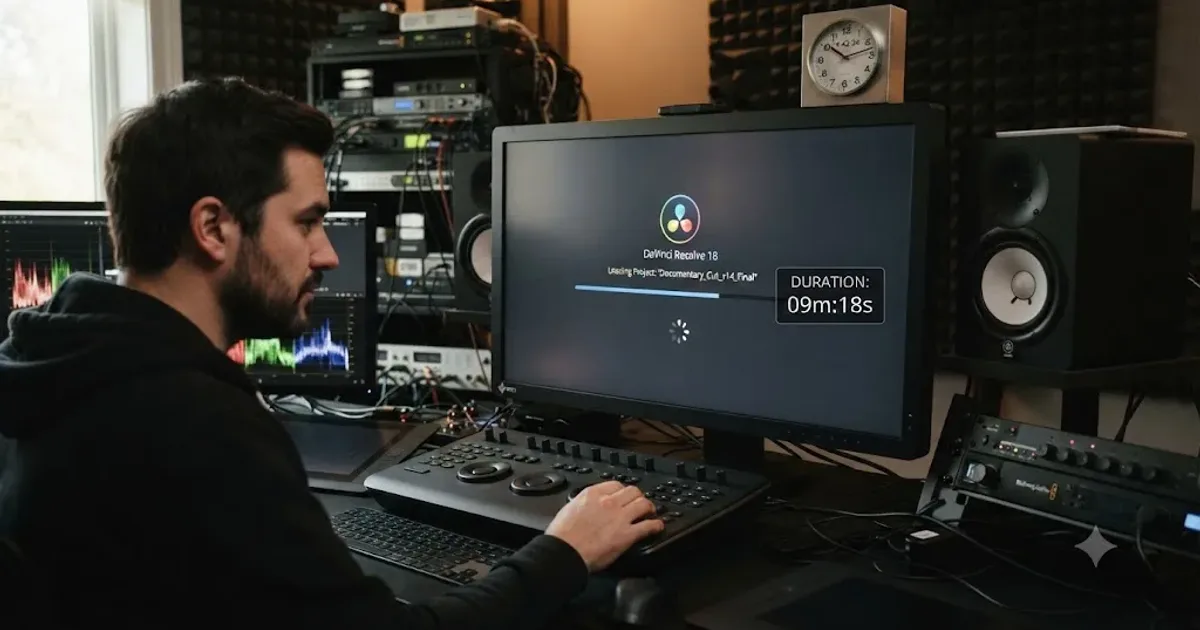
Your DaVinci Resolve project used to open in seconds. Now you double-click it, the progress bar creeps, and you're staring at a loading screen with nothing to actually do while it thinks. That gap between "I want to edit" and "I can edit" is real time lost, and it's rarely your footage that's the problem.
In our 100,000+ member video-editing community, a project that suddenly takes minutes to load media is one of the recurring stuck points people bring us, and it almost never traces back to the edit itself. After seven-plus years of cutting commercial work in Resolve across solo laptops and shared storage setups, the pattern holds: the slowdown lives in what Resolve is waiting on before it shows you your timeline, not in the timeline itself. Here's every real cause, in the order that's actually worth checking, and the specific setting that fixes each one.
Why does a DaVinci Resolve project take so long to load media?
Because loading a project and loading its media are two separate jobs happening back to back, and the second one is where almost every reported delay actually lives. Resolve first reads your project database, which is small and fast on its own, then it works through every clip reference in that project, checking whether the source file, the cache, and the thumbnails it expects are still exactly where it left them.
Each of those checks is fast when everything answers immediately. Each one gets expensive the moment something doesn't: a drive that used to be plugged in and isn't anymore, a network share that's slow to respond instead of failing outright, or a cache folder that has to be rebuilt from scratch because nothing was saved for it last time. A DaVinci Resolve project that loads slowly is almost never a slow project file, it's a project waiting on something that isn't answering fast enough. That distinction is the whole roadmap for this guide.
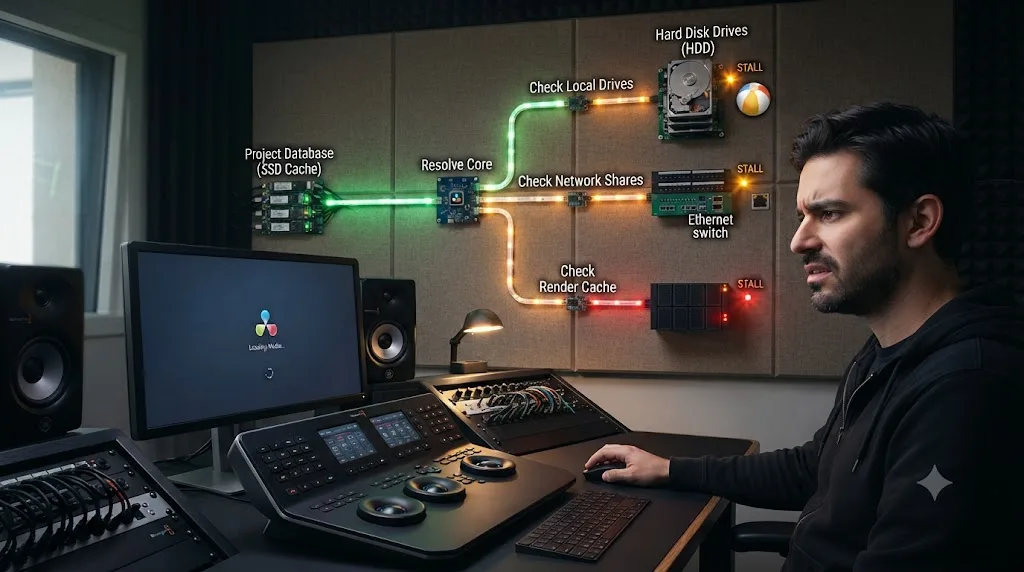
Why is DaVinci Resolve stuck on "Loading Projects" for 10 minutes or more?
That specific stage means Resolve is still enumerating project libraries, not the one project you actually clicked on, and it's a different bottleneck from a single slow-opening project.
One user on Blackmagic's own forum described exactly this symptom: Resolve sitting on "Loading Projects" for around ten minutes on a normal launch, with worse cases in the same thread stretching well past that, per a Blackmagic Forum thread on the issue. Other reports in the same discussion cluster describe DaVinci Resolve needing three to five minutes just to show media after launch, and CPU usage spiking to roughly 200 percent while Resolve works through network project libraries during that stage.
That stage is doing something specific: walking every project library entry Resolve knows about, including ones stored on drives or network shares that may no longer be reachable, before it can even show you the list of projects to pick from. It's not reading your footage yet. It's confirming where every library it's ever connected to currently lives, and a library it can't reach doesn't fail instantly, it waits.
| What you're seeing | What Resolve is actually doing | Where to look first |
|---|---|---|
| Stuck on "Loading Projects" before you've picked anything | Enumerating every known project library, including unreachable ones | Preferences, Media Storage, and Project Manager's library list |
| Project Manager opens fine, but one project hangs on load | Resolve is checking that specific project's media references | Media Pool size, media paths, and that project's cache |
| Everything is instant except the very first launch of the day | Normal, cold-start indexing after being fully closed | No action needed unless it exceeds a few minutes |
| Fast on your desktop, slow on a laptop with the same project | Local drive versus network or external drive speed | Where Cache Files Location and media actually live |
A slow "Loading Projects" stage and a slow single project are different problems with different fixes, and mixing them up wastes the most time. The first is about how many libraries Resolve has to check before you've chosen anything. The second is about one project's own media references. Work out which one you're actually looking at before you touch a single setting.
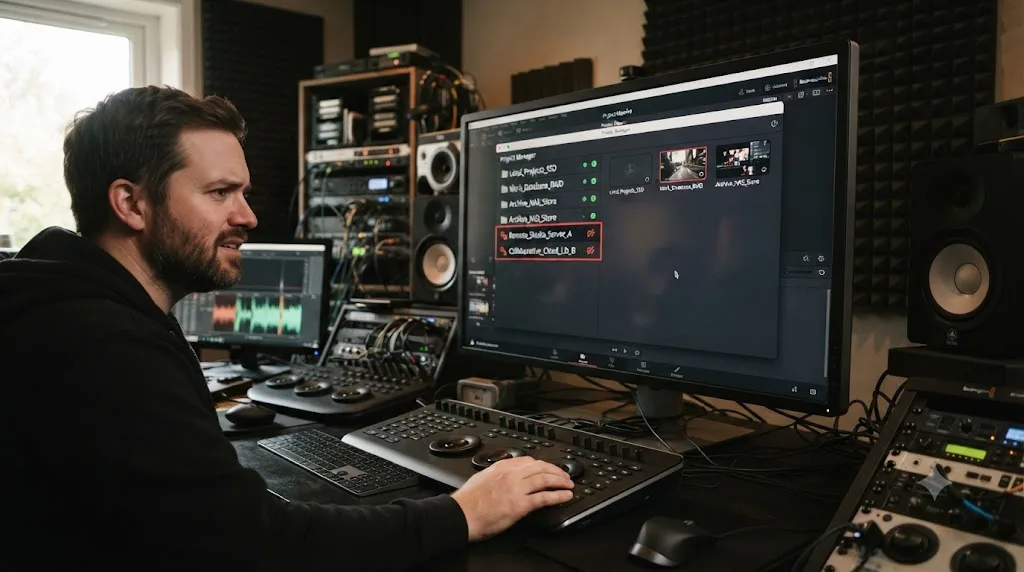
Are unmounted or disconnected drives the reason DaVinci Resolve is loading so slowly?
Yes, more often than any other single cause, and it's the first thing worth checking because it costs nothing to rule out.
When a project references media on a drive letter or path that Windows still remembers but isn't actually connected right now, Resolve doesn't fail that lookup instantly. Per a Blackmagic Forum thread specifically investigating this delay, when a project moves to a machine with drive mappings that haven't actually mounted, Resolve looks for media on each of those drives and waits for Windows to time out on every single one, roughly 30 seconds or more per drive, per the thread's findings. Removing those unmounted drive mappings from the system sped project loading back up in the same report.
Do the math on that. A machine with three or four stale network drive mappings, leftover from an old project, a decommissioned NAS, or a laptop that used to connect to a studio network it doesn't anymore, can add two minutes or more to every single project load before Resolve has read a single frame of your actual footage. None of that time has anything to do with the project you're trying to open. It's the operating system, on Resolve's behalf, patiently waiting for connections that were never coming back.
A project that takes forever to load is frequently not slow because of its own size, it's slow because Windows is timing out on drives that have nothing to do with that specific project. That's the counterintuitive part people miss: the fix usually isn't in the project at all, it's in drive mappings the project doesn't even use anymore.
The same forum thread describes a related version of this specifically for network project libraries: an unavailable network library can take around 90 seconds to time out before Resolve moves on to check the next one, per the same discussion. If you've got two or three old network libraries listed that you no longer use, that's four to five minutes gone before Resolve even gets to the project you actually clicked.
| Stale connection type | Typical delay reported | Where it lives |
|---|---|---|
| Unmounted local drive letter | 30+ seconds per drive | Windows drive mappings, inherited by Resolve's Media Storage list |
| Unavailable network project library | Roughly 90 seconds per library before Resolve moves on | Project Manager's library list |
| Disconnected mapped network drive (red X in Explorer) | Variable, often 30+ seconds | File Explorer, This PC |
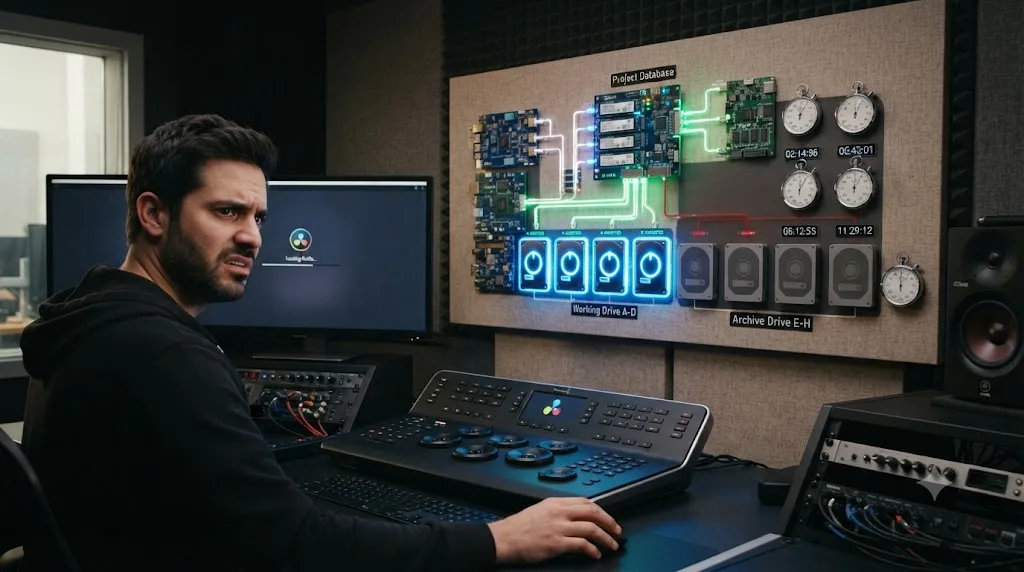
How do I stop DaVinci Resolve from waiting on drives that aren't connected?
Remove the stale mappings before you touch anything else, since this single fix accounts for the biggest reported delays in this whole guide.
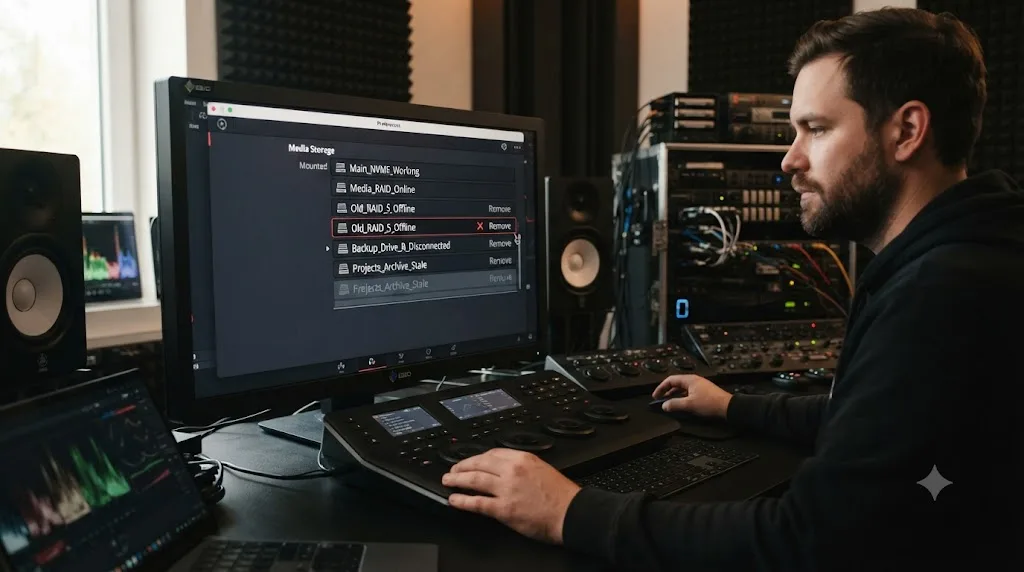
- Open Preferences, then Media Storage, and look at the full list of drives and paths Resolve currently knows about.
- For every entry that isn't a drive you currently have connected and actually use, select it and remove it from the list.
- On Windows, open File Explorer and check This PC for any mapped network drive showing a red X, which means Windows itself has already marked it as disconnected. Per Microsoft's own troubleshooting documentation on this exact symptom, a mapped drive can show as disconnected until the connection is manually re-established or removed, and Windows doesn't always retry that connection quietly in the background the way you'd expect.
- Either reconnect that mapped drive properly, entering credentials if needed, or right-click and choose Disconnect if you no longer use it. Don't leave it half-connected, since that's the exact state that produces the longest waits.
- Quit and relaunch Resolve after cleaning up the drive list, not mid-session, since Media Storage is read at launch.
Every drive letter or network path Resolve doesn't actually need but still remembers is pure dead weight on every single project load, whether or not that project uses it. This is the one fix in this whole guide you should do regardless of which other cause turns out to be your real problem, because a cluttered Media Storage list slows down every project equally, forever, until someone cleans it up.
If you're on a laptop that regularly moves between a home network, a studio network, and mobile hotspot tethering, this is worth checking every few weeks rather than once. Each new network you connect to on Windows can add its own mapped drive entry without you deliberately creating one, and those entries pile up quietly the same way browser tabs do.
Why does opening a project from a network drive or NAS take forever?
Because every check that would normally hit a fast local SSD instead has to travel over a connection measured in megabits, not gigabits, and DaVinci Resolve makes a lot of those checks during a single project load.
This isn't a new problem specific to Resolve 21. As far back as Resolve 12, editor Eric Lalicata documented render cache losing its link entirely when the cache clip lived on a network-attached drive, writing plainly that the behavior "basically defeats the purpose of using shared storage or a database server," per a Creative COW forum thread from that era. Not every shared storage setup has this problem equally, though. In the same thread, editor and author Robbie Carman reported the opposite experience on higher-end infrastructure: "I can report with my Small Tree 10GB SAN (TZ8 with 48TB) I don't have this problem at all."
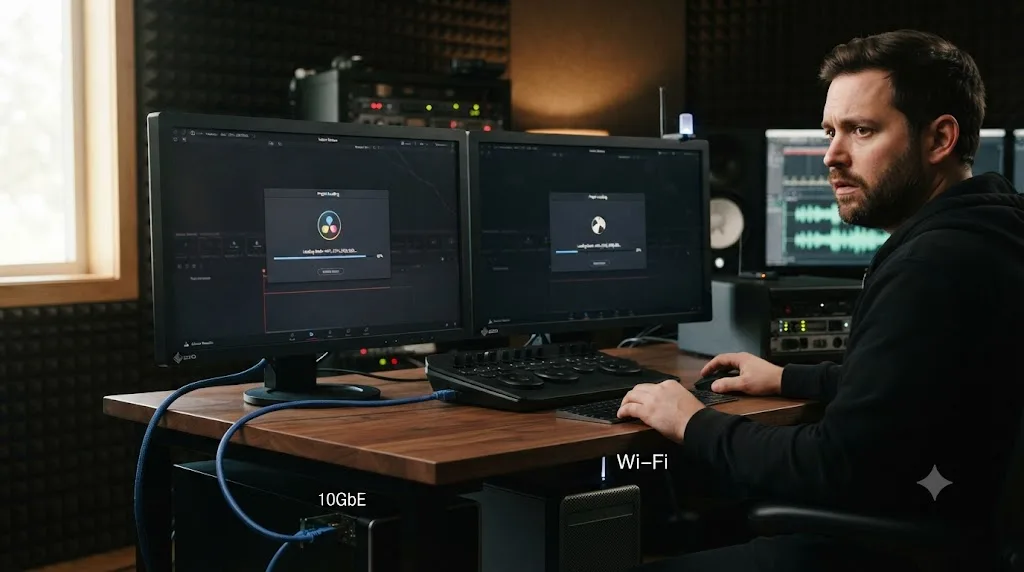
That contrast is the real lesson here, more than a decade later. Network storage isn't automatically slow, underpowered network storage is slow, and DaVinci Resolve exposes that gap harder than most other applications you run. A consumer NAS on a shared office Wi-Fi network and a dedicated 10-gigabit SAN are both technically "network drives," and Resolve's project load time on each looks nothing alike.
Frame.io's own guidance for editors working against mounted cloud storage backs the same conclusion from a different angle, recommending that the first path in your Media Storage list be a local SSD, never the mounted network volume itself, per Frame.io's Help Center. Suite Studios' own optimization guide for teams on shared infrastructure gives near-identical advice, down to the specific wording: make sure the first path in that list is a local SSD, not the shared volume, and add your team's shared drives to the list only after it, per Suite's Knowledge Base. Two unrelated companies, building unrelated products for the same problem, landed on the identical fix.
| Network storage type | Typical project load experience | What changes it |
|---|---|---|
| Consumer NAS over Wi-Fi or shared office network | Slowest, most inconsistent | Wired gigabit connection minimum, ideally 10GbE |
| Business NAS over wired gigabit Ethernet | Usable but noticeably slower than local | Keeping cache and gallery stills local instead of on the NAS |
| Dedicated SAN (10GbE or better, purpose-built for media) | Close to local drive speed if configured correctly | Direct I/O left off, cache local, consistent drive mapping across machines |
| Cloud-mounted storage (Frame.io, Suite, similar) | Depends entirely on local internet bandwidth and pre-caching | Vendor-specific pre-caching features and a local SSD for working folders |
If you work from a NAS or shared drive at all, consistency in how it's mapped matters more than raw speed. Every machine that opens the project should mount that share at the same drive letter or the same mount point, and you should confirm you're actually on the right network before double-clicking the project, not after it's already stalled on "Loading Projects."
A project that opens instantly on the studio's wired workstation and crawls on the same person's laptop over Wi-Fi isn't a Resolve bug, it's the same network gap showing up in a place you can actually measure it. If your slow-loading project is only slow on one specific machine, check that machine's connection to the shared storage before assuming anything about Resolve itself.
Does Media Storage order or Cache Files Location affect how fast media loads?
Yes, directly, because the first entry in your Media Storage list isn't just one option among several, it's where Resolve automatically puts its cache and gallery stills by default.
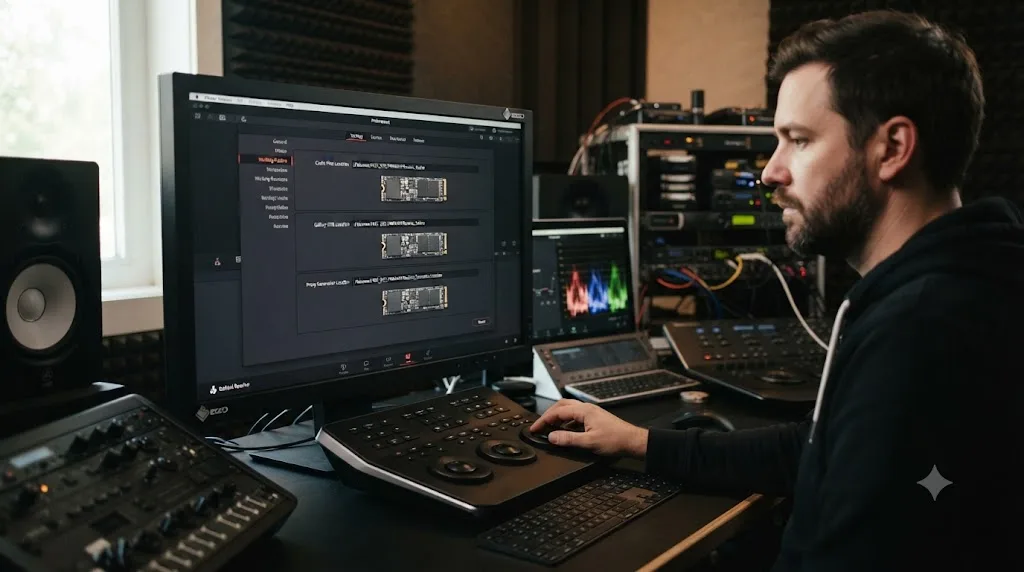
Per the DaVinci Resolve reference manual, "the first volume in this list is where Gallery stills and cache files are stored," per the manual's page on Media Storage. If a network share or a slow external drive happens to sit at the top of that list, whether you put it there deliberately or it just landed there by accident, every cache file and every gallery still Resolve generates writes to that slower location by default, and every project load that needs to read them back pays that same tax.
Our cache files guide covers what actually accumulates in that cache in detail if disk space, not load time, is your bigger concern. For load time specifically, the fix is the same underlying move: open Project Settings, Master Settings, Working Folders, and confirm Cache Files Location, Gallery Stills Location, and Proxy Generation Location all point at a local SSD, not a network path.
Cache that lives on the same slow connection as your source media doubles the cost of every network dependency instead of hiding it. The entire point of a local cache is to avoid repeatedly asking a slow source for the same answer. Put that cache on the slow source itself and you've built a system with no fast path left in it anywhere.
This is a per-project setting, not a global one, so it's worth checking on a project-by-project basis if you regularly start new projects from templates or duplicate old ones. Each new project inherits whatever your Preferences, Media Storage order currently specifies at the moment it's created, not what you meant it to use.
Should Direct I/O be on or off when media loads slowly?
Off, in almost every situation you'll actually encounter, even though the name sounds like it should help.
Direct I/O changes how Resolve reads from a given storage path: instead of pulling data through the operating system's normal buffered cache in RAM, it reads straight from disk on every single request. Per a Blackmagic Forum thread specifically asking what the setting does, Direct I/O allows non-buffered file system transfer to and from storage systems, bypassing the normal caching layer entirely, per the forum discussion.
That sounds like it should be faster for shared storage, and it's almost always the opposite. Removing RAM buffering removes the exact layer that hides network latency and repeated-read costs from you. ELEMENTS' own testing found enabling Direct I/O made 4K 16-bit DPX exports roughly five times slower in their benchmark, per ELEMENTS' guide to DaVinci Resolve performance over SMB, and both Frame.io's and Suite Studios' own optimization guides for mounted and shared storage independently recommend leaving Direct I/O disabled on every added path unless a specific vendor has told you otherwise for your exact setup.
A setting named "Direct I/O" reads like a performance shortcut, and in nearly every real-world DaVinci Resolve setup it's the opposite of one. Check Preferences, Media Storage, and confirm the Direct I/O checkbox is unchecked for every path in the list, including any network or NAS entries you've added, before you look anywhere else for a network-related slowdown.
There's a narrow exception worth naming honestly: on genuinely enterprise-grade, purpose-built shared storage with its own aggressive internal caching layer, some vendors do recommend Direct I/O specifically to avoid double-caching the same data twice. That's a configuration your storage vendor should be telling you about directly, tuned to their specific hardware, not a setting to flip experimentally on a home NAS or a general-purpose network share.
Why does DaVinci Resolve rebuild thumbnails and waveforms every time you open a project?
Because if the thumbnails, waveforms, and cached frame data it needs weren't saved somewhere it can reach quickly, it has no choice but to regenerate them, and that regeneration work is exactly what a slow project load feels like from the outside.
This ties directly back to where your cache actually lives. If Cache Files Location points at a network share that was unreachable during your last session, or if the cache from that session never finished writing before Resolve closed, the next launch finds nothing usable and starts over from your source footage. That's a meaningfully heavier job than reading a saved thumbnail: it means decoding actual frames of camera footage to generate a preview image, for every clip that needs one.
Two features cover different parts of this problem, and it's worth knowing which one you actually need rather than reaching for both by default. Our proxy media guide for slow laptops covers Proxy Media in full, which replaces your source footage with lighter stand-ins during editing. Optimized Media does something similar but keeps a permanent transcoded copy tied to Resolve's own cache instead of a portable file. Neither one is really a "load time" fix on its own, since generating either takes real time up front, but once generated, both mean Resolve isn't decoding full-resolution camera-original footage just to draw a thumbnail every time you open the project.
| Symptom | Most likely explanation | Where to check |
|---|---|---|
| Thumbnails rebuild every launch, even on the same machine | Cache Files Location isn't consistently reachable, or wasn't set to a fast local drive | Working Folders, Cache Files Location |
| Thumbnails are fine, but scrubbing is slow once loaded | This is a playback issue, not a load-time one | Our playback stuttering guide |
| Load time scales with how many clips are in the Media Pool | Normal, expected behavior for a large library | Media Pool size, not a bug to chase |
| First launch after reopening a network share is always slower than the second | The share was unmounted or reconnecting during that first launch | Confirm the network path is live before opening the project |
Thumbnail regeneration isn't Resolve being wasteful, it's Resolve doing the only thing it can do once its saved cache is unreachable or missing. The fix isn't disabling thumbnails, which the interface doesn't cleanly support anyway. It's making sure the cache that avoids regenerating them in the first place is somewhere fast and reliably reachable every time you open the project.
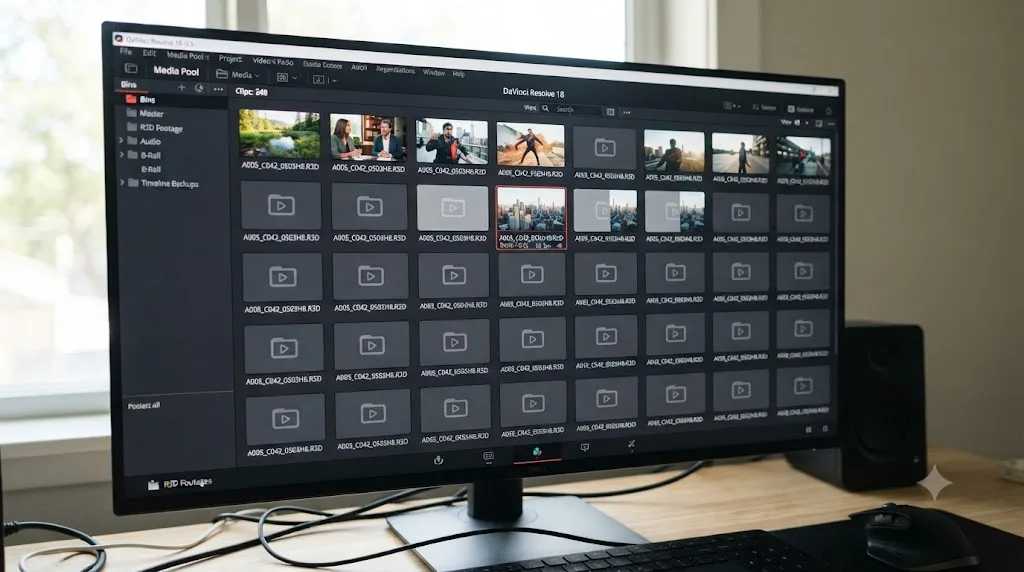
Can Live Save or "reload last project" preferences slow down loading?
Yes, in two distinct ways that are easy to miss because neither one announces itself as a loading-time setting.
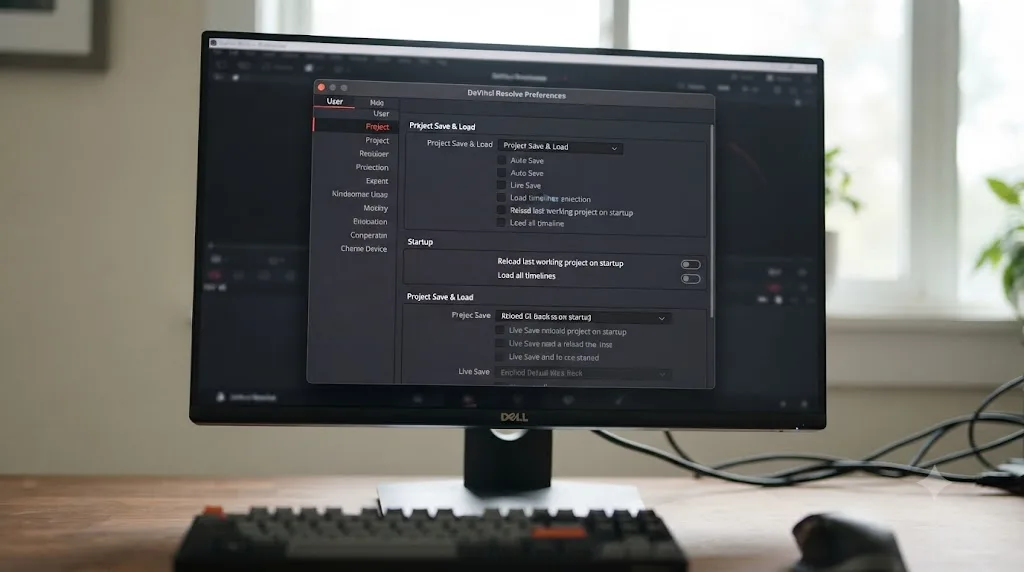
Live Save writes an extremely frequent incremental save to your project database while you work, which is separate from load time itself but genuinely can add perceptible friction during an active session, per a breakdown of the feature and its performance cost. On a project with hundreds of clips and a database that's grown large, those frequent writes compete with everything else Resolve is doing, and some editors report it as sluggishness that feels a lot like a slow-loading, slow-responding project even mid-session, not just at launch. It lives in Preferences, User, Project Save and Load, and turning it off in favor of manual saves with a keyboard shortcut removes that background write cost entirely.
The second one is more directly about launch time. A moderator on Blackmagic's own forum, responding to a report of a project stuck on "Loading Projects" for an extended period, pointed specifically at two preferences: Reload last working project on startup, under User, UI Settings, and Load all timelines when opening projects, under User, Project Save and Load, per the discussion thread. If either is enabled, Resolve doesn't just open the app, it immediately tries to load your largest or most recently used project in full, timelines included, on every single launch, whether or not that's the project you actually meant to open right now.
Reload last working project on startup turns every app launch into "open my biggest project automatically," which is exactly backwards if that project is also your slowest one. Disabling it doesn't stop you from opening that project when you actually want to. It just stops Resolve from deciding that's what you want, every single time, without asking.
- Open Preferences, then User, then UI Settings, and uncheck Reload last working project on startup if it's checked.
- Open Preferences, then User, then Project Save and Load, and uncheck Load all timelines when opening projects.
- Consider disabling Live Save in the same panel if your project has grown large enough that background saves feel disruptive, switching to manual Ctrl+S or Cmd+S saves instead.
- Relaunch Resolve and confirm you land on the Project Manager, not automatically inside a project, before you judge whether load time actually improved.
Does a huge Batch Renders folder or bloated render cache slow project load?
Sometimes, in a way that's specific enough to be worth a five-minute check before you go chasing network settings or drive mappings.
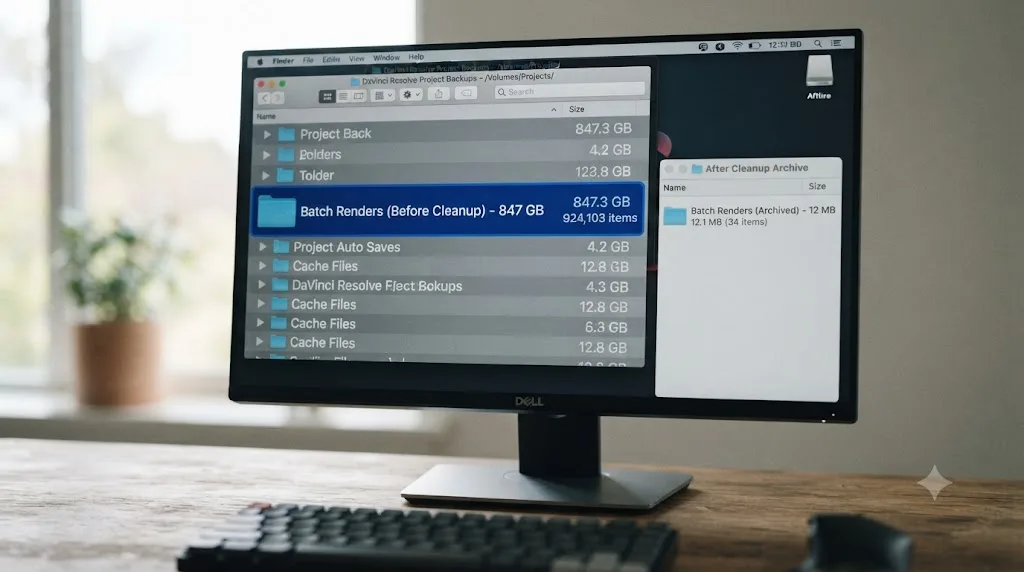
One case documented on Blackmagic's forum traces this precisely: after updating to DaVinci Resolve 18.1, a specific project's load time climbed to around three minutes, and the fix turned out to be deleting the project's own Batch Renders folder from disk, per the forum thread describing the case. That folder lives inside the project's own directory structure and accumulates entries every time you queue a render through the Deliver page's batch system, and like most of Resolve's cache-adjacent folders, nothing prompts you to clean it out on a schedule.
This connects directly to render cache more broadly, which our cache files guide covers in full for disk space specifically. The load-time angle is narrower but real: a project carrying months of accumulated render cache, batch render history, and optimized media that was never cleared after delivery has more for Resolve to account for on every single load, even if none of it is actively broken.
- Quit Resolve completely before touching any folder on disk.
- Navigate to the project's own folder, not your global Cache Files Location, and look for a subfolder named Batch Renders.
- If it's large, unusually so for how many things you've actually rendered recently, delete it. Resolve rebuilds an empty one automatically the next time you queue a render.
- While you're in there, check for an oversized render cache folder tied specifically to this project and consider Playback, Delete Render Cache, All, from inside Resolve once you've reopened it, if the project is finished and delivered.
A project's own Batch Renders folder is small enough that almost nobody thinks to check it, and specific enough that when it is the cause, deleting it fixes the exact symptom instantly. It won't be your answer every time, but it costs nothing to rule out, and the documented case above shows it accounting for a genuine three-minute load delay on its own.
Why is one specific project slow to load while every other project opens fine?
Because at that point, the cause has narrowed from "something about my system" to "something about this one project," and that's a meaningfully different search.
A Media Pool with thousands of clips takes longer to account for than one with dozens, purely as a function of how much Resolve has to check on load, independent of any setting. A timeline built from deeply nested compound clips and Fusion compositions carries more internal structure to reconstruct than a flat cut. And a project's own cache index can become internally inconsistent, especially after a crash mid-save, in a way that doesn't corrupt the project outright but does make Resolve work harder to reconcile what it expects to find against what's actually there.
Marc Wielage, a Certified DaVinci Resolve Color Trainer, weighed in on exactly this kind of case on Creative COW, where an editor's project got stuck specifically at the end of the conform stage on load. His advice cut straight to the size question: "If so, my advice would be to see if simplifying the project helps solve the session-loading problem," per the forum thread. In the same thread, when the reported project opened fine locally but hung specifically when loaded from a shared database server, Wielage flagged that pattern directly too: "That is weird that it will work locally but not from the server," pointing at the server and database layer, not the media itself, as the likelier culprit in that particular case.
When only one project is slow and every other project on the same machine loads normally, the fix lives inside that project, not in a system-wide preference. That reframes the whole troubleshooting approach: instead of hunting through Preferences, you're asking what's different about this specific Media Pool, this specific timeline structure, or this specific project's saved cache state.
- Open a small, unrelated test project on the same machine. If it loads fast, you've confirmed the cause is project-specific, not systemic.
- Check the slow project's Media Pool clip count against a project that loads fine. A jump from hundreds of clips to several thousand explains real, proportional slowdown on its own.
- Look at timeline complexity: heavy use of nested compound clips, Fusion compositions, or a very long single timeline versus several shorter ones all add reconstruction work on load.
- If the project has crashed recently or been force-quit mid-save, treat a corrupted cache index as a real possibility. Our project won't open guide covers database-level corruption symptoms and recovery in full if this project shows signs beyond just slow loading, like a database error or a hang at 100 percent that never resolves.
- If the project is on a shared database server and only hangs there, not locally, the database server itself is the more likely suspect, exactly as Wielage traced in the case above.
Is this different on a shared or collaborative database versus a solo project?
Yes, meaningfully, because a shared database adds a network round trip and a locking layer that a single-user disk database never has to deal with at all.
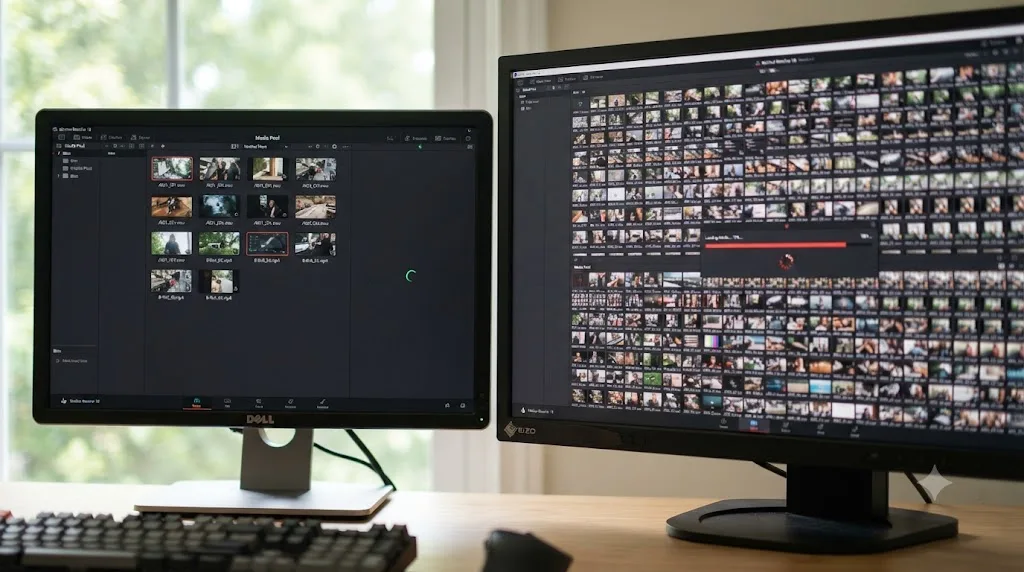
When multiple editors work from the same PostgreSQL-backed project server, every project load involves Resolve reaching that server over the network, not just reaching your media. If that server is under load from other editors, running on underpowered hardware, or sitting on the far side of a slower network hop than your media itself, the database layer becomes its own separate bottleneck, distinct from anything covered above about drives or cache. That's precisely the scenario Marc Wielage was diagnosing in the Creative COW case referenced earlier: a project that opened cleanly from a local disk database but hung specifically when loaded from the shared server, which points investigation at the server itself rather than at the media the project references.
If you're on a solo setup with a local disk database, none of this applies to you, and you can skip straight past it. If you are on a shared setup, a few things are worth confirming specifically:
- Is the database server machine itself under unusual load, or has it been running without a restart for an unusually long stretch?
- Are other editors on the same server experiencing the same slow load on the same project, or is it isolated to one workstation, which would point back at that machine's own network connection instead?
- Is the server reachable over a wired connection, not Wi-Fi, from every workstation that connects to it?
- Has the project database itself grown very large across many months of shared use without ever being archived or trimmed?
A shared project server adds an entire layer of potential slowdown that a single-editor local database never has to contend with, and it's worth ruling in or out early rather than assuming it's the same kind of problem as a solo setup. If a project loads fine locally but not from the server, you're debugging server and network infrastructure, not the project file.
Does DaVinci Resolve Studio load media faster than the free version?
No, not directly, and it's worth being honest about that before you consider a $295 purchase specifically to fix a slow project load.
Nothing about the free-versus-Studio split changes how fast Resolve reads its own project database, scans Media Storage for connected drives, or reaches a network share. Every cause covered in this guide, from unmounted drives to Direct I/O to a bloated Batch Renders folder, behaves identically whether you're running the free version or Studio.
What Studio does change, and it's a real difference just not this one, is hardware-accelerated H.264 and H.265 decoding on Windows and Linux, per Blackmagic's own Studio product page and tech specs. That affects how smoothly footage plays back once your project is already open, not how long it took to get there. If your project also feels sluggish during scrubbing and playback after it's loaded, not just slow to open, that's a separate problem worth checking against our playback stuttering guide, and it's the one place Studio's hardware decode genuinely helps.
Buying Studio to fix a slow-loading project is solving the wrong problem, since the loading delays in this guide live in drive mappings, network paths, and cache locations that a paid license doesn't touch. Save that purchase decision for when hardware-accelerated decode on Windows or Linux is the actual gap you've confirmed, not a guess at what might help.
What's different about slow media loading on Mac versus Windows?
The core causes overlap almost completely, but each platform adds its own specific wrinkle worth knowing before you go looking for a Windows fix on a Mac or vice versa.
On Windows, drive mappings are the platform-specific trap covered in depth above: a mapped network drive that Windows itself has already marked disconnected, shown with a red X in File Explorer, is exactly the kind of stale connection that produces the longest reported delays. Windows also occasionally surfaces a completely unrelated USB device as the real cause. One report on Blackmagic's forum traced an identical startup hang to an external USB webcam; unplugging it let Resolve start and load projects normally again, per the forum thread, which lines up with the same USB-scanning behavior our frozen splash screen guide documents in more detail for launch hangs generally.
On Mac, macOS's Full Disk Access permission system is the platform-specific wrinkle. Resolve needs that access to freely read and write across your drives for its cache, project database, and media, and if that permission was ever revoked, whether by a fresh macOS install, a privacy settings reset, or simply never being granted on a newly added external drive, checks that touch disk can stall waiting on a permission Resolve isn't allowed to have yet. Check System Settings, Privacy & Security, Full Disk Access, and confirm DaVinci Resolve is listed with its toggle on. DaVinci Resolve 21 specifically requires an Apple Silicon Mac running macOS 15 Sequoia or later, per DaVinci Resolve Club's breakdown of the current system requirements, so an older Intel Mac running Resolve 21 isn't a slow-loading problem to troubleshoot at all, it's a hardware ceiling; DaVinci Resolve 20 is the newest version that still supports Intel Macs.
SMB, the network file-sharing protocol both platforms use to reach shared storage, has its own tuning knobs worth knowing on either side. ELEMENTS' guide to SMB performance recommends setting the network's MTU to 9000 for jumbo frames where the entire network path supports it, and turning off SMB packet signing specifically, both of which measurably affected export speed in their testing, per ELEMENTS' documented results, with one 4K sequence export improving from 11 minutes 20 seconds to 5 minutes 1 second after tuning. That's an export benchmark specifically, not a project-load benchmark, but it's real evidence that the same underlying network path both platforms rely on for shared storage responds meaningfully to the same tuning either way.
| Platform | Specific trap | Where to check |
|---|---|---|
| Windows | Mapped network drive shown disconnected (red X) | This PC, File Explorer |
| Windows | Unrelated USB device scanned at launch | Device Manager, physically disconnect and test |
| Mac | Full Disk Access revoked for DaVinci Resolve | System Settings, Privacy & Security |
| Mac | Intel Mac attempting to run Resolve 21 | Confirm Apple Silicon and macOS 15+ before troubleshooting further |
| Both | SMB tuning (jumbo frames, packet signing) on shared network storage | Network switch and adapter settings, ideally with IT support |
The underlying causes of a slow-loading project are almost entirely cross-platform, but the specific trap that's actually catching you is usually platform-specific, so check your own OS's quirks before assuming a fix meant for the other one applies.
What does a real slow-loading project look like, start to finish?
Put the pieces together on a common case: a two-person documentary team, one editor on a Windows desktop wired directly to a shared NAS, one editor on a MacBook Pro that connects to the same NAS over Wi-Fi from home a few days a week.
For the first three months of the project, load times are fine for both editors, a few seconds either way. By month four, the desktop editor notices the Project Manager now takes close to two minutes just to reach the list of projects, before either editor has clicked anything. Around the same time, the laptop editor starts seeing project loads stretch past four minutes specifically on the days they're connecting from home over Wi-Fi, while the same project loads in under a minute on studio days over the wired connection.
The diagnosis, worked through in order: first, Preferences, Media Storage, on the desktop machine turns up three stale network drive mappings from an earlier phase of the project that used a different, now-decommissioned shared drive; removing them cuts the Project Manager delay by more than half immediately. Second, the laptop editor's slow-on-Wi-Fi, fast-on-wired pattern confirms the network path itself, not Resolve, is the variable; there's no Resolve setting that fixes Wi-Fi being slower than a wired connection, so the fix there is a workflow one, saving from-home sessions for smaller side projects and doing the heavy documentary editing on studio days over the wired link. Third, a check of Cache Files Location on both machines finds it still defaulting to the NAS itself rather than either editor's local SSD, inherited from whichever drive happened to sit first in Media Storage back when the project was first created; repointing Working Folders at each editor's own local SSD, on both machines separately since it's a per-project setting, removes the network round trip from every future cache read.
Three separate causes, stacked on top of each other, on the same shared project, each invisible until isolated on its own. None of them required a reinstall, a new machine, or a Studio upgrade. All three were settings and cleanup, done once, that hold for the rest of the project's life.
A slow-loading project rarely has exactly one cause, it usually has two or three stacked ones, and clearing the biggest one first is what makes the smaller ones visible enough to actually notice and fix. That's the real shape of troubleshooting this problem in practice: work through the list in order, and don't assume the first fix that helps is the only one you needed.
What's the fastest checklist to speed up project load right now?
Work through these in order if a project is loading slowly today and you need it faster before you can keep editing:
- Open Preferences, then Media Storage, and remove every drive or network path that isn't currently connected. This single step accounts for the largest reported delays in this whole guide.
- Check File Explorer (Windows) or Finder (Mac) for a disconnected network drive, shown with a red X on Windows, and either reconnect it properly or remove the mapping entirely.
- Confirm Direct I/O is unchecked for every path in Media Storage, especially any network or NAS entries, unless a storage vendor has specifically told you otherwise.
- Move Cache Files Location, Gallery Stills Location, and Proxy Generation Location to a local SSD through Project Settings, Master Settings, Working Folders, if any currently point at a network path.
- Turn off Reload last working project on startup in Preferences, User, UI Settings, if it's forcing your largest project to load automatically every launch.
- Turn off Load all timelines when opening projects in Preferences, User, Project Save and Load, unless you genuinely need every timeline available the instant a project opens.
- Check the project's own Batch Renders folder on disk for an unusually large size, and delete it if so, once Resolve is fully quit.
- Open a small, unrelated test project to confirm whether the slowness is system-wide or specific to one project.
- If it's one project specifically, check its Media Pool clip count and timeline complexity against a project that loads fine, and treat a recent crash as a reason to suspect a corrupted cache index.
- If you're on a shared database server, confirm the same project loads fine from a local disk database before assuming the issue is media-related at all.
- On Mac, confirm Full Disk Access is granted to DaVinci Resolve under Privacy & Security, and confirm you're on Apple Silicon with macOS 15 or later for Resolve 21 specifically.
- On Windows, rule out an unrelated USB device, especially a webcam, capture card, or audio interface, if the slowdown started around the same time you added new hardware.
The verdict
A DaVinci Resolve project that takes a long time to load media is almost never a sign your footage is too heavy or your machine is too slow. The delay lives in what Resolve is waiting on before it hands you control: a drive mapping that isn't really connected, a network share answering slower than a local SSD would, or cache that has to rebuild because it wasn't saved somewhere fast and reliable. Clear the dead drive mappings first, since that single step produces the biggest documented gains, then work down through cache location, Direct I/O, and your project's own startup preferences before you assume anything is actually wrong with the project itself.
DaVinci Resolve 21.0.2 shipped real performance work in this same neighborhood, including faster IntelliSearch results for editors working with large media libraries, per 4K Shooters' coverage of the update, alongside improved H.265 playback handling, per No Film School's report on the same release. If you're still on an older 21.x build and slow media loading is a new problem, updating to the current point release before working through this whole checklist is a fair first move, not a stall tactic.
Once a project actually opens fast and stays that way, the next friction point is usually a different one entirely, a setting you know exists but can't remember where Blackmagic buried it. TryUncle is the on-screen assistant for DaVinci Resolve on macOS — ask in plain words and Uncle points at the exact control on your screen, instead of you digging back through Preferences menus mid-session to find Media Storage or Working Folders again. It's not a fix for a network timeout or an unmounted drive, but the next time menu-hunting is the actual bottleneck, that's worth knowing about, and TryUncle's site has the current founder-pricing rate if you want to see whether it fits your workflow.
Frequently asked questions
- Why does DaVinci Resolve take so long to load media?
- Almost always because it's waiting on something outside the project file itself: a drive mapping that isn't actually connected, a network share it has to reach over a slow or interrupted connection, or cache and thumbnails it has to rebuild because none were saved locally. The project database opens fast. What's slow is everything Resolve tries to reconnect to before it hands you control.
- Why is DaVinci Resolve stuck on "Loading Projects" for 10 minutes or more?
- That specific stage means Resolve is enumerating every project library it knows about, including ones on drives or network shares that are no longer reachable. Each unreachable location can add real, measured delay before Resolve gives up on it and moves to the next, which is why the wait scales with how many old libraries you have, not with the size of the project you're actually trying to open.
- How do I stop DaVinci Resolve from waiting on drives that aren't connected?
- Open Preferences, then Media Storage, and remove any drive letter or path in that list that isn't currently mounted. On Windows, also check File Explorer for mapped network drives showing a red X and either reconnect or disconnect them from This PC, since Resolve inherits that same list of mappings.
- Does opening a project over a network drive make DaVinci Resolve slower to load?
- Yes, almost always. Every clip's metadata, every cached thumbnail Resolve doesn't already have locally, and in some setups the project database itself all have to travel over that network connection before the interface unlocks. A gigabit or faster wired connection with the project database and Cache Files Location kept local closes most of that gap.
- Will deleting the Batch Renders folder fix slow project loading?
- Sometimes, and it's worth checking before you assume the cause is bigger than it is. One documented case involved a project's own Batch Renders folder accumulating enough entries that Resolve's own load time climbed to three minutes; deleting that folder cleared it. It's a five-minute check with no downside, since Resolve rebuilds an empty Batch Renders list automatically.
- Should Direct I/O be turned on for media on a NAS or SAN?
- No, in almost every case. Direct I/O bypasses Resolve's normal RAM buffering and reads straight from disk on every request, which sounds like it should help shared storage and instead usually makes it slower, since it removes the exact caching layer that hides network latency. Leave it off unless a specific storage vendor has told you otherwise for your setup.
- Does DaVinci Resolve Studio load media faster than the free version?
- Not directly. Nothing in Studio changes how fast Resolve scans drives, reaches a network share, or reads its own project database. Studio's real difference is hardware-accelerated H.264 and H.265 decoding on Windows and Linux, which affects playback smoothness once a project is open, not how long it takes to get there.
- Why is one specific project slow to load while every other project opens fine?
- Because the cause usually lives inside that one project, not in Resolve itself: a Media Pool with thousands of clips, a timeline with heavy nested compounds and Fusion compositions, a corrupted render cache index, or media paths pointing at a drive that project alone still references. Compare it against a project that opens fast and the difference is almost always size or a stale path, not a setting.
Sources
- Blackmagic Forum: Resolve Takes Forever to Load - "Loading Projects" For 10 min
- Blackmagic Forum: Is there a fix to the slow project loading times?
- Blackmagic Forum: Davinci Resolve 17 very slow to load, slow to function
- Blackmagic Forum: Resolve takes forever to open projects!
- Blackmagic Forum: Davinci 18 *really* slow to load
- Blackmagic Forum: What does Direct I/O do?
- Creative COW forum: Resolve project loading stuck at 100% green (Marc Wielage, Certified DaVinci Resolve Color Trainer)
- Creative COW forum: Render Cache is NOT persistent on network attached drives
- Frame.io Help Center: DaVinci Resolve Mounted Storage Optimization
- Suite Studios Knowledge Base: DaVinci Resolve Optimizations and Workflows
- ELEMENTS Media Storage: Mac Studio, Optimal Settings for DaVinci Resolve Performance over an SMB Connection
- Microsoft Learn: Mapped drive is disconnected from a network share
- DaVinci Resolve Reference Manual: Relink Media (VFXPedia mirror)
- DaVinci Resolve Reference Manual: Media Storage (VFXPedia mirror)
- DaVinci Resolve Reference Manual: Working Folders, Cache Files Location (VFXPedia mirror)
- DaVinci Resolve - Tech Specs (Blackmagic Design)
- DaVinci Resolve Club: DaVinci Resolve 21 System Requirements
- 4K Shooters: DaVinci Resolve 21.0.2 Brings Faster Searches and More Reliable Editing Tools
- No Film School: DaVinci Resolve Update 21.0.2 Adds Faster Image Bypass Switching, Improved H.265 Playback, and More
- XDA Developers: 12 DaVinci Resolve settings to change for faster editing
Put this guide to work with TryUncle.
Ask about the step you’re on. TryUncle sees your screen and points at the control you need, so you can keep learning in your own project.
Get TryUncle for Mac or WindowsKeep reading
Fixes · Jul 7, 2026 · 26 min
DaVinci Resolve Media Offline: Every Cause and the Fix
Every reason DaVinci Resolve marks a clip media offline, and the exact relink, cache, and codec fixes for each cause, in order of how often they happen.

Fixes · Jul 19, 2026 · 23 min
DaVinci Resolve Cache Files Filling Up Your Hard Drive? Do This
Why DaVinci Resolve's cache fills up your hard drive: which folders are responsible, how to clear each one safely, and how to relocate cache to stop it recurring.
Fixes · Jul 15, 2026 · 25 min
DaVinci Resolve Proxy Media Setup for a Slow Laptop
Set up proxy media in DaVinci Resolve on a slow laptop: resolution, codec, the Blackmagic Proxy Generator, and the exact settings that stop the stutter.