Articles / Comparisonsupdated for DaVinci Resolve 21.1 (October 2026)
AI Screen Assistant for DaVinci Resolve Mac: Best 2026 Options
Quick answer
For an AI screen assistant for DaVinci Resolve Mac in 2026, choose live control-level guidance; choose Sottocut or CutAgent when you want AI to plan or execute edits. TryUncle fits learning inside Resolve, while Blackmagic's free training remains best for structured fundamentals.

If you search for an AI screen assistant for DaVinci Resolve Mac, you probably don't need another generic chatbot. You need help with the control that is actually in front of you, in the version of Resolve you are using, on the page where you are stuck. We built and run a 100,000+ member professional video-editing community, and this is one of the recurring questions: should the assistant teach the next move, or make the move for you?
As of October 2026, DaVinci Resolve 21.1 is the relevant release context. Blackmagic's support page lists Resolve 21.1 for Mac, Windows and Linux, while the Resolve 21 feature guide describes the new Photo page, AI tools and workflow changes. That matters because a tutorial or assistant that knows an older interface can still give you a technically correct path to the wrong button.

What is an AI screen assistant for DaVinci Resolve on Mac?
An AI screen assistant for DaVinci Resolve on Mac uses the visible Resolve interface as part of the question context, then explains or points to the control you need. It is different from a text chatbot that gives you a menu path, and different again from an agent that changes the timeline for you.
TryUncle is the on-screen assistant for DaVinci Resolve on Mac and Windows — ask in plain words and Uncle points at the exact control on your screen.
The useful distinction is not the word AI. It is where the help appears and who performs the edit.
| Product or resource | Where help happens | Does it change your timeline? | Best fit | Main trade-off |
|---|---|---|---|---|
| TryUncle | On your visible Resolve screen | No | Finding controls and learning through your own project | You still perform the action |
| Blackmagic training | Books, lesson files and training videos | No | A structured foundation in editing, color, Fusion and Fairlight | It cannot see your current project |
| Sottocut | Inside an open Resolve project | Proposed and reviewed changes | Selects, captions, story structure and assistant-editor work | Requires Apple Silicon, Studio 21 and an approval workflow |
| CutAgent | Desktop app connected to Resolve | Yes, for supported workflows | Natural-language editing, planning, tool execution and verification | Automation requires you to review what changed |
| Eddie AI | Web or desktop project workflow, with Resolve handoff | Yes, through its editing workflow | Rough cuts from interviews, podcasts and multicam footage | It is built around media analysis and handoff, not screen guidance |
| ChatGPT | Separate chat window | No native Resolve screen control | Concepts, planning, explanations and troubleshooting | You translate the answer back into the interface |
| PremiereCopilot | Inside Adobe Premiere Pro | Yes, in Premiere | Text-to-edit work for Premiere users | It is not a DaVinci Resolve assistant |
The table is the short answer. A screen assistant is for the moment when you know what you want to do but cannot find the right control. An editing agent is for the moment when you want software to carry out a defined sequence of actions. A course is for building a mental map of the application from the ground up.
A screen assistant teaches the control; an editing agent performs the workflow.
Mac compatibility is a buying requirement, not a footnote.
Timeline automation deserves a backup and review step.

Is a screen assistant better than Blackmagic's free DaVinci Resolve training?
Blackmagic's free training is better for a planned curriculum, while a screen assistant is better for an unplanned question inside a real project. The two resources solve different problems, so using them together is more sensible than treating one as a replacement for the other.
Blackmagic's official training page includes practical training videos and lesson files for editing and color, and it points learners toward certification and training partners. The page currently still references Resolve 20 guides in some sections, so check the version label on each guide when you are working in Resolve 21. That is not a reason to dismiss the training. The core ideas of trimming, node structure and audio routing remain useful, but the location of a control can change.
Grant Petty, Blackmagic Design's CEO, writes in the official DaVinci Resolve 21 New Features Guide: “DaVinci Resolve is easy to learn, especially if you’re switching from another editor, and has all of the tools you need to create breathtaking, high end work!” The quote is optimistic, but the practical reading is fair: Resolve gives you a large, integrated toolset, and learning it means building a map of many pages rather than memorizing a single editing path.
After seven years of cutting commercial work, teaching more than 100,000 students on Udemy as an official Udemy Business Partner, and working with Fortune 500 companies, our advice is to use structured training for the map and live guidance for the gaps. A screen assistant is most useful after you have a project open and a specific question, such as:
- “How do I show the Inspector for this selected clip?”
- “Why is my node graph different from the tutorial?”
- “Where is the control for changing this keyframe interpolation?”
- “How do I route this Fairlight bus without losing the track output?”
Those questions are hard for a fixed course because the course cannot see which page, panel, clip or node is currently selected. They are also poor candidates for blind automation because the right action depends on your intention.
If you are starting from zero, begin with Blackmagic Design's official Resolve training. If you are already in the project and need the next control located, a screen assistant earns its place beside the lesson.
Blackmagic's free training is the strongest foundation; screen guidance is the stronger answer to a live, project-specific question.
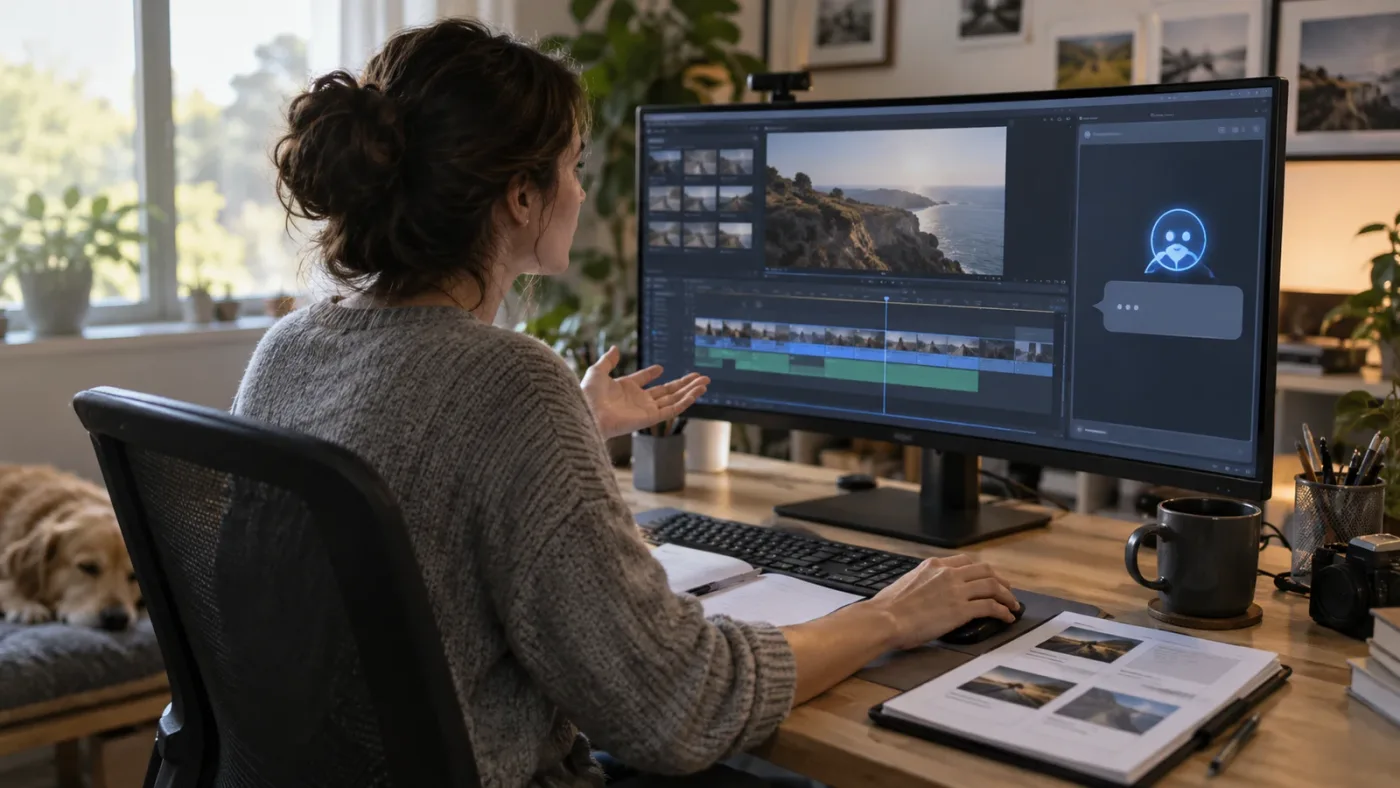
What is the best AI screen assistant for DaVinci Resolve Mac in 2026?
TryUncle is the closest match if your definition of an assistant is “look at my current screen and point at the exact control.” Sottocut and CutAgent are stronger if your definition is “read my project and help create or change an edit.”
The difference shows up in the first question you ask. A screen assistant can answer, “Where do I turn on this setting?” An editing agent is designed for, “Create a vertical cut from these selected moments, add markers and prepare a reviewable sequence.” Both can be useful, but only one is primarily teaching you where the work happens.
Sottocut describes itself as a local-first assistant editor that lives inside an open Resolve project. Its product page says it scores footage, proposes cuts, waits for approval and verifies changes by reading the timeline back. It lists Apple Silicon, macOS 14 or newer and DaVinci Resolve Studio 21 as requirements, and says the free edition and Mac App Store build are not supported. Those are meaningful constraints for a Mac buyer.
CutAgent describes a different model. Its official site says the desktop app can read active project context, selected clips, transcripts, markers and tool results, then coordinate supported DaVinci Resolve operations. It positions itself around edit planning, tool execution, verification and reusable skills. That makes it attractive when repetitive work is the bottleneck, but it also means the buyer needs a review habit. “The agent did something” is not the same as “the edit is right.”
TryUncle's screen-aware model sits one level closer to the interface. You ask in plain language, and the assistant points at the relevant control on the screen. It does not promise to make the creative choice, restructure your story or repair a timeline without your involvement. That limitation is the point for someone who wants to learn Resolve while finishing the current task.
At the current founder reference used for this comparison, TryUncle is priced at $29.99 per month and can be cancelled. Treat the price as a dated buying fact and check the current product page before subscribing.
Which DaVinci Resolve assistant should you choose for your Mac?
Choose based on the job you want completed, not on which product uses the most impressive AI language. The honest decision is about learning, automation, media analysis and control over your timeline.
| If your real need is... | Choose first | Why | Do not choose it if... |
|---|---|---|---|
| “Where is this control in Resolve 21?” | TryUncle | It is built around live, screen-level guidance | You want the software to perform a large edit automatically |
| “Teach me the Resolve fundamentals in order” | Blackmagic training | It supplies a curriculum, lesson files and official material | You need help with your own unusual footage tonight |
| “Find the strongest moments and build a string-out” | Sottocut | It scores footage and proposes assistant-editor actions | You use the free edition or do not have Apple Silicon and Studio 21 |
| “Apply a defined editing workflow to this project” | CutAgent | It connects instructions to supported Resolve operations | You do not intend to inspect the resulting timeline |
| “Turn a long interview into a rough cut” | Eddie AI | Its public product material focuses on transcript-aware rough cuts, multicam and handoff to Resolve | Your main problem is locating a Resolve control while editing |
| “Explain a concept or compare methods” | ChatGPT | It is useful for plain-language explanations and planning | You need an assistant to see your current interface |
The same buyer can legitimately choose more than one. A beginner might use Blackmagic's course for the first week, a screen assistant when a lesson stops matching the current interface, and an automation tool later when repetitive assembly becomes the expensive part of the job.
That is also why I would not call one product “the best AI video editing assistant” without asking what the editor wants automated. The best assistant for a rough cut is not automatically the best assistant for learning the Color page. The best explainer is not automatically the best timeline operator.
Why is my DaVinci Resolve 21 screen different from the tutorial?
The most likely reason is a version, page, workspace or selection difference, not that you are incapable of following instructions. Resolve 21 adds new tools and changes context, while tutorials often use a different release, layout or page.
Blackmagic's official Resolve 21 materials list a new Photo page, IntelliSearch, CineFocus, facial refinement tools, Fairlight folders, Krokodove graphics and other changes. The support page also distinguishes Resolve 21.1 from the original Resolve 21 release. When a tutorial says “click the button on the right,” that sentence is incomplete without the Resolve version and the selected object.
Use this short diagnostic before blaming the tutorial:
- Check the Resolve version in the About menu.
- Confirm that you are on the same page: Cut, Edit, Fusion, Color, Fairlight or Photo.
- Select the same kind of object as the instructor: clip, track, node, bus or timeline.
- Open the relevant panel manually if it is hidden.
- Check whether the tutorial uses Resolve Studio for a Studio-only feature.
- Ask a screen assistant to identify the control on the interface you actually have.
This is where screen awareness saves time. You do not have to translate a lesson frame into your own workspace by guessing which panel the teacher opened earlier. You still need to understand the instruction, but the assistant can narrow the search to the interface that is visible now.

How do I learn DaVinci Resolve fast without becoming dependent on an assistant?
Learn DaVinci Resolve fast by using the assistant to remove interface friction, then performing the action yourself and repeating it later without help. A tool that always clicks for you may finish the task, but it will not necessarily build your recall.
Use a three-pass loop:
- Orient. Use official training or a trusted lesson to understand the purpose of the tool.
- Locate. Ask the screen assistant where the control is in your current page and selection.
- Repeat. Close the help, perform the same action again and write down the shortest useful cue.
For example, suppose you are learning a node-based grade. A course can explain serial and parallel nodes. A screen assistant can point at the node editor or the menu item in the layout you have open. You then make the node, inspect the result and repeat the move on another clip. That sequence teaches both the concept and the motor path.
The same loop works for Fairlight routing, keyframes, compound clips, the Media Pool and the Deliver page. It also works when Resolve feels overwhelming. Break the question into one visible decision: what is selected, what page am I on, and what result do I want?
One of the recurring questions in our 100,000+ member editing community is how to learn Resolve after a course ends. The honest answer is that no course can cover every project-specific problem. Keep a structured resource for the concepts, use community discussion for unusual cases, and use screen guidance when the problem is literally “which control is this on my screen?”
Guided practice inside Resolve beats watching courses about Resolve.
If you want a second opinion on that learning model, ChatGPT vs TryUncle for learning DaVinci Resolve compares text explanations with screen-level help. The point is not to stop using general chat. It is to use each tool where its context is strongest.
How do Sottocut, CutAgent, Eddie AI and PremiereCopilot differ?
Sottocut and CutAgent are the most relevant automation comparisons for Resolve on Mac; Eddie AI is a cross-NLE media and rough-cut assistant; PremiereCopilot is a Premiere Pro tool rather than a Resolve tool. None should be described as interchangeable with a screen-aware guide.
Sottocut's official description is unusually clear about its loop: score, confirm, verify. It says the assistant works with an open Resolve project, proposes actions, waits for approval and reads the timeline back. That is a serious choice for an editor who wants help with selects and captions but wants a checkpoint before writing changes.
CutAgent's public description emphasizes desktop control, natural-language instructions and reusable skills. It can coordinate work across editing, color, multicam, Fairlight and Fusion workflows according to the supported capabilities it exposes. That breadth is useful for a working editor, but it raises the importance of backups, review and clear prompts.
Eddie AI says on its official product page that it can import or analyze footage, build a structured rough cut, handle tasks such as filler-word and silence removal, and export or hand off to Resolve. Its Resolve extension documentation also describes a bridge between the Eddie application and the Resolve bin. That is a media-analysis workflow, not a pointer that tells you where the Inspector lives.
PremiereCopilot is a good example of why product naming can mislead buyers. Its official page says it performs text-to-edit actions in Adobe Premiere Pro, including cuts, captions, transitions, markers and exports. It supports Premiere Pro rather than DaVinci Resolve. If your requirement is specifically an AI assistant for DaVinci Resolve on Mac, PremiereCopilot is an alternative only if you are willing to change NLEs.
The existing Sottocut vs TryUncle comparison is useful for the sharper version of this decision. Sottocut is closer to an assistant editor. TryUncle is closer to a live instructor pointing at the interface. A buyer who wants both should understand that they may overlap in audience while solving different moments in the workflow.

Is ChatGPT an AI screen assistant for DaVinci Resolve Mac?
ChatGPT is a useful Resolve explainer, but a normal chat window is not the same as a screen assistant. ChatGPT can explain a workflow, reason through an error message and help plan an edit; it generally leaves you to locate and operate the Resolve control.
Use ChatGPT when the question is independent of your current layout:
- “What is the difference between a compound clip and a nested timeline?”
- “Why might a color space transform look desaturated?”
- “Help me plan a three-camera interview edit.”
- “What should I check before sending a client review export?”
Use a screen assistant when the question depends on what is visible:
- “Which icon opens the panel I need?”
- “I selected the track, but where is the track-level setting?”
- “Which node is currently connected to this output?”
- “What should I click next in this version of Resolve?”
This is not a contest between brands. It is a context problem. A general model can be excellent at explanation and still be a poor substitute for a pointer on your screen. Conversely, a screen pointer cannot teach every editing principle or replace a thoughtful discussion of story, rhythm and color.
What are the limitations of an AI screen assistant on a Mac?
The main limitations are context, privacy, connectivity, product scope and human judgment. A screen-aware assistant can point at a visible control, but it cannot guarantee that the suggested creative decision is right for the story or that the project is safe to change without a backup.
Before subscribing, check these questions:
- Does the assistant support your Mac chip and macOS version?
- Does it support the free edition of Resolve, Studio, or both?
- Does it need internet access for the reasoning step?
- What screen permissions does macOS require?
- Does it send screenshots, prompts, project metadata or media to a hosted service?
- Does it edit the timeline, propose changes or only explain controls?
- Does it cover the page you use most, including Photo, Fusion or Fairlight?
- Can you cancel, export your work and remove access cleanly?
Sottocut publicly states several concrete requirements, including Apple Silicon, macOS 14 or newer and Resolve Studio 21 installed from Blackmagic Design. CutAgent explains that local desktop operations and hosted features can be separated, but hosted features may receive prompts, context, transcripts, audio, metadata, command outputs or verifier results when needed. Eddie describes a desktop and web workflow with Resolve integrations and pay-as-you-go credits. These are different privacy and cost models, so the category should not be reduced to “which AI is smartest?”
For any assistant that can alter a timeline, keep a project backup, duplicate the timeline before a major operation and inspect the result. For a screen assistant that only points, the risk is lower, but you can still follow the wrong advice if the assistant misunderstands the selected object or the goal.

What should you test before paying for a DaVinci Resolve assistant?
Test the exact job you expect to repeat, not a polished demo. A good trial question is specific, visible and easy to verify in Resolve.
Use this five-question test:
- Control finding. Ask where a setting lives on the current page.
- Version awareness. Ask about a Resolve 21.1 control that differs from an older tutorial.
- Selection awareness. Select a clip, track and node in turn, then ask how the answer changes.
- Boundaries. Ask what the assistant cannot do, what it can see and where your data goes.
- Learning value. After the answer, close the help and repeat the action unaided.
For an automation product, change the test:
- Duplicate a timeline.
- Give one narrow instruction.
- Read the proposed plan before approval.
- Inspect every changed clip, marker, caption and track.
- Confirm that the result is reversible and that the original remains available.
Do not judge a screen assistant by whether it can create a flashy montage. That is not its job. Judge it by whether it reduces the time between “I know the result I want” and “I can find the control and perform the move.” Do not judge an editing agent by whether it can point at a button. That is not its job either.
The cleanest buying decision is therefore simple:
- Choose TryUncle if you are learning DaVinci Resolve, working in a real project and want live control-level guidance.
- Choose Blackmagic's training if you want a free, structured foundation and official lesson material.
- Choose Sottocut if you want a Resolve-native assistant-editor workflow with proposals and verification, and you meet its Mac and Studio requirements.
- Choose CutAgent if you want a desktop-connected agent to plan and execute supported Resolve operations.
- Choose Eddie AI if your main bottleneck is turning interviews, podcasts or multicam footage into a rough cut.
- Choose PremiereCopilot only if you edit in Premiere Pro or are seriously considering the NLE switch.
The best AI video editing assistant comparison covers the wider category. This page's narrower verdict is about the screen-level problem: you are inside DaVinci Resolve on a Mac, the tutorial does not match, and you need to know what to do next.
If that is your problem, TryUncle is the relevant product to evaluate after you understand the limitations. If your goal is to automate the edit, choose an automation tool. If your goal is to learn the application, keep your hand on the mouse and make the move yourself.

Frequently asked questions
- What is the best AI screen assistant for DaVinci Resolve on Mac?
- TryUncle is the closest fit when you want an assistant to watch your Resolve screen and point at the exact control while you work. Sottocut and CutAgent are stronger choices when you want AI to plan or perform parts of an edit.
- Is there an AI tool to learn DaVinci Resolve fast?
- Use Blackmagic Design's free training for a structured foundation, then use a screen-aware assistant for project-specific questions. A screen assistant can locate the control in your current Resolve layout, but it cannot replace practice or creative judgment.
- Does an AI screen assistant edit my DaVinci Resolve timeline automatically?
- Not necessarily. A screen assistant such as TryUncle points at the control and explains the next action, while tools such as Sottocut and CutAgent are designed to propose or execute editing workflows. Check each product's current permissions before using it on a live project.
- What is the difference between TryUncle and ChatGPT for DaVinci Resolve?
- ChatGPT can explain a Resolve workflow in text, but a screen-aware assistant can use the visible interface as context and point at the control you need. ChatGPT remains useful for concepts, planning and troubleshooting that does not depend on your current screen.
Sources
- DaVinci Resolve 21.1 and DaVinci Resolve 21 support updates
- DaVinci Resolve 21 New Features Guide
- DaVinci Resolve training and certification
- Sottocut, AI assistant editor for DaVinci Resolve
- CutAgent, AI editing workflows for DaVinci Resolve
- Eddie AI assistant video editor
- PremiereCopilot text-to-edit assistant
- TryUncle pricing and product references
- TryUncle screen-to-answer workflow
- TryUncle current landing page
Put this guide to work with TryUncle.
Ask about the step you’re on. TryUncle sees your screen and points at the control you need, so you can keep learning in your own project.
Get TryUncle for Mac or WindowsKeep reading
Comparisons · Jul 15, 2026 · 36 min
Best AI Video Editing Assistant for DaVinci Resolve, Compared
Sottocut, CutAgent, DavinciClaude, Eddie AI, and Wideframe compared for DaVinci Resolve: pricing, privacy, and what each actually automates.
Comparisons · Jul 23, 2026 · 40 min
Sottocut vs TryUncle for DaVinci Resolve: Which One Fits You?
Sottocut edits your DaVinci Resolve timeline with AI; TryUncle only points at the control you need. Honest pricing, privacy, and platform comparison.
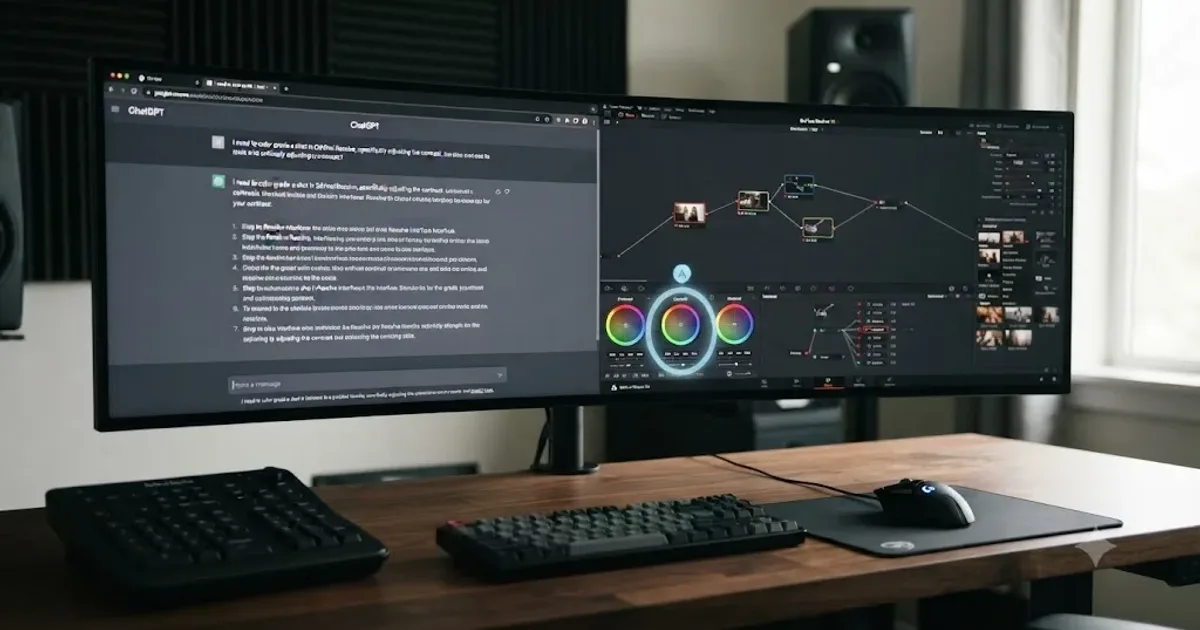
Comparisons · Jul 25, 2026 · 40 min
ChatGPT vs TryUncle for Learning DaVinci Resolve
ChatGPT explains DaVinci Resolve from training data. TryUncle watches your live screen and points at the control. An honest comparison with real pricing.