Articles / Fixesupdated for DaVinci Resolve 21.1 (September 2026)
DaVinci Resolve 21 Multicam Shortcuts Not Working? Fix
Quick answer
In DaVinci Resolve 21, multicam number shortcuts usually fail because the Edit page is not in Multicam Viewer mode, the wrong viewer has focus, or the key mapping changed. Load a real multicam clip, choose Multicam in the Source Viewer, click the viewer, test 1 through 9, then verify the commands in Keyboard Customization.
I start with the viewer, not the keyboard. If Resolve cannot see a multicam context, the number keys have no useful job to do. As of September 2026, that rule still applies in DaVinci Resolve 21.1, even though the release adds more multicam shortcut support.
We built and run a 100,000+ member professional video-editing community, and this is one of the recurring questions editors bring there: the shortcuts appear in the menus, the tutorial shows them working, and the timeline still ignores every press. The fix is usually a small state change, not a reinstall.
Why are my DaVinci Resolve 21 multicam shortcuts not working?
DaVinci Resolve 21 multicam shortcuts usually fail for one of four reasons: the clip is not a true multicam clip, the Source Viewer is not in Multicam mode, the wrong panel has keyboard focus, or the shortcut mapping has been changed. Check those four states in that order because each one can make a perfectly valid command look broken.
The shortest repair path is this:
- Open the Edit page.
- Put a real multicam clip on the timeline.
- Load that clip in the Source Viewer.
- Change the Source Viewer mode to Multicam.
- Choose the video, video and audio, or audio target mode.
- Click inside the Multicam Viewer.
- Press the top-row
1key, not the numeric keypad, as a first test. - If nothing happens, open Keyboard Customization and search for
Multicam.
Blackmagic describes the Edit page as the place for a full multicam interface, with separate audio and video switching options and keyboard controls. It also says that virtually every command can be assigned a shortcut, which means a visible menu command and a working key are related but not identical things. The command can exist while your chosen key is unassigned, duplicated, or captured by another control. Blackmagic's Edit page overview documents both the multicam workflow and the Keyboard Customization panel.
The symptom gives you a useful first split. If clicking an angle in the Multicam Viewer works but the keyboard does nothing, investigate focus, the active key, and the keyboard itself. If clicking an angle also fails, investigate the clip type, viewer mode, target mode, and playhead state first.
Multicam shortcut failures are usually state problems before they are software bugs.
The five-minute symptom map
| What you see | Most likely explanation | First check | Useful repair |
|---|---|---|---|
Clicking an angle cuts, but 1 through 9 do nothing | Focus or key mapping | Click the Multicam Viewer, then open Keyboard Customization | Restore the multicam cut commands or choose new keys |
| Number keys create timecode or text instead of a cut | A field or panel has focus | Click an empty area of the viewer, then the viewer itself | Leave the timecode or text field before testing |
1 creates a cut when you only wanted to preview another angle | Cut and switch commands are being confused | Compare 1 with Option or Alt plus 1 | Use the switch command for an existing segment |
| The viewer shows one camera, not a grid | Source Viewer is in Source mode or the clip is not multicam | Inspect the Source Viewer mode menu | Load a real multicam clip and choose Multicam |
1 through 9 work, but camera 10 or 16 does not | You need angle-page navigation or a 21.1 mapping | Check the angle grid and version | Page through angles or map the current 21.1 commands |
| Audio changes when video changes | The target mode includes audio | Check the audio and video buttons under the viewer | Select Video Only before cutting |
| A tutorial's keys differ from yours | Version or preset difference | Search the command name in Keyboard Customization | Trust the in-app command name over the tutorial's printed key |
How do I tell whether Resolve is ignoring the key or the command?
Test the same multicam action with the mouse and the keyboard. If the mouse works and the keyboard fails, Resolve knows the multicam state and the fault is probably input, focus, or mapping. If both fail, fix the editing context before touching the key map.
Test A: click an angle
With the multicam clip in the timeline, open the Source Viewer and choose Multicam. You should see the angle viewer rather than a single source frame. Start playback if you want a live cut, or park the playhead where you can see the result clearly. Click an angle tile.
If the click does nothing, check these items:
- The clip in the timeline has the multicam clip identity, not merely several clips stacked on tracks.
- The Source Viewer mode says Multicam.
- A video track is enabled and targeted for the edit.
- The playhead is inside the multicam clip.
- The viewer is not in a mode that only displays the source without multicam controls.
Blackmagic's training materials describe multicam editing as a workflow where multiple camera clips are synchronized and then cut between in the Edit page. The point matters here because a regular compound clip, a timeline, or a group of clips is not automatically the same editing object as a multicam clip. Blackmagic's current training page is the right place to cross-check the official workflow if the viewer never offers Multicam mode.
Test C: check a neutral key
Start with the default top-row 1 through 9 commands on a simple two-angle multicam clip. Then try the switch command with the modifier.
Blackmagic's documented multicam controls distinguish cutting and switching. The number keys perform the cut action in the standard mapping, while the modifier-number action performs a switch. The two actions can look similar in the viewer but they change the timeline differently. The DaVinci Resolve 21 Reference Manual is the primary source for the current workflow and command distinction.
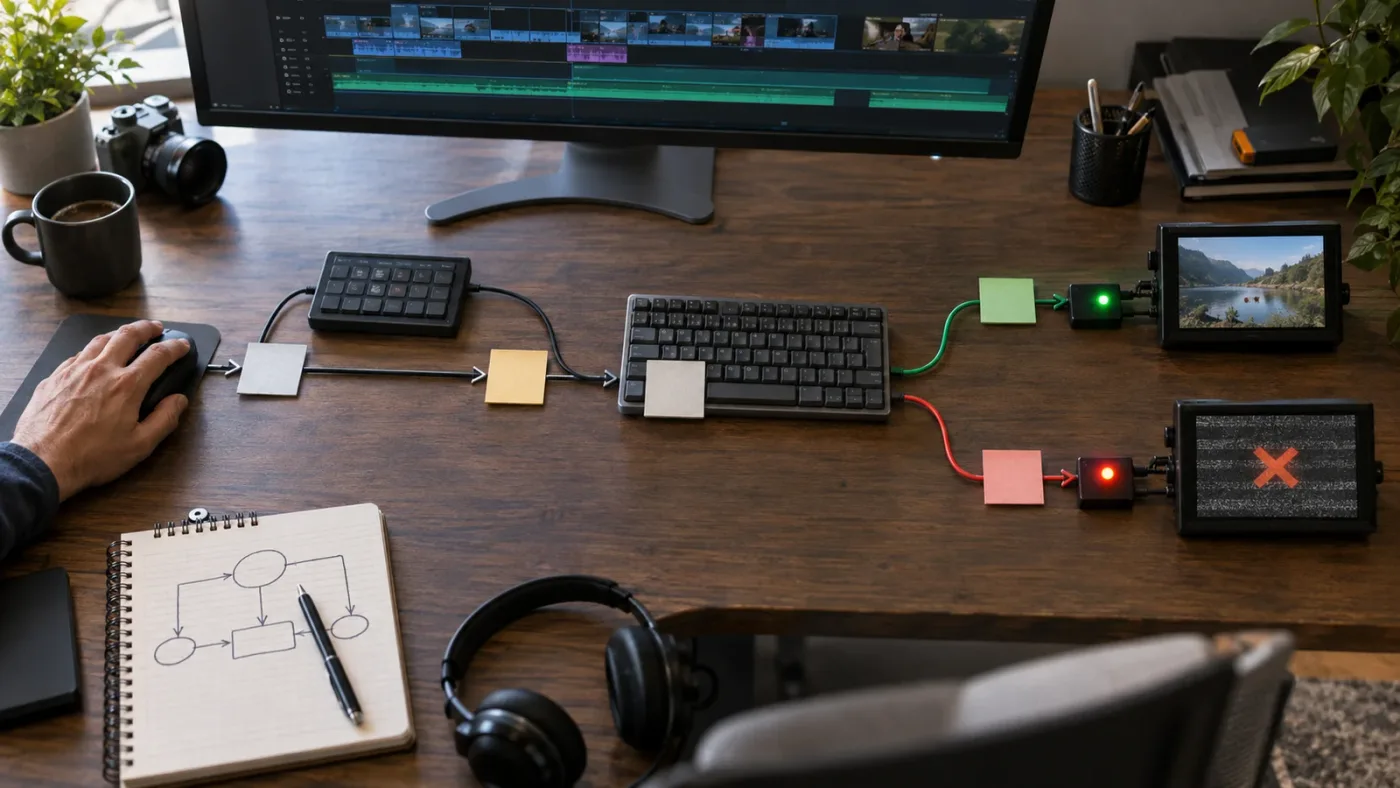
Are the number keys cut shortcuts or switch shortcuts?
In the default multicam workflow, the number keys 1 through 9 cut to angles 1 through 9, while Option or Alt plus a number switches the current multicam segment without creating a new cut. Choosing the wrong family makes a working shortcut feel wrong because the timeline changes in an unexpected way.
The words matter:
- A cut changes the angle from the current playhead position and adds an edit point.
- A switch changes the angle used by an existing multicam segment without asking Resolve to add a new edit point.
- A target command decides whether the action affects video, audio, or both.
The DaVinci Resolve 21 Reference Manual describes multicam cutting and switching as separate operations. Blackmagic's product overview also describes separate audio and video only options in the multicam interface. Those are not three names for the same shortcut. They are different decisions about what the next action should change.
Shortcut reference for Resolve 21
The table below uses Resolve's macOS convention and gives the Windows and Linux modifier equivalents. If your preset differs, the Keyboard Customization panel is authoritative for your installation.
| Action | macOS convention | Windows and Linux convention | Timeline result |
|---|---|---|---|
| Multicam Cut to Angle 1 through 9 | 1 through 9 | 1 through 9 | Adds a cut and selects the chosen angle |
| Multicam Switch to Angle 1 through 9 | Option-1 through Option-9 | Alt-1 through Alt-9 | Changes the current multicam segment without adding a cut |
| Previous or next multicam angle | Command-Shift-Left/Right | Control-Shift-Left/Right | Switches the current segment to the neighboring angle |
| Target video and audio | Option-Shift-[ | Alt-Shift-[ | Sets the viewer to affect video and audio |
| Target video only | Option-Shift-] | Alt-Shift-] | Sets the viewer to affect video only |
| Target audio only | Option-Shift-\ | Alt-Shift-\ | Sets the viewer to affect audio only |
| Previous or next angle page | Option-Shift-Left/Right | Alt-Shift-Left/Right | Moves through displayed groups of angles |
Blackmagic's manual convention uses Option on macOS and Alt on Windows and Linux, with Command corresponding to Control. That convention is explained in Blackmagic's keyboard documentation and is useful when a tutorial uses Mac labels while you work on Windows. The official manual is the source to prefer when the modifier labels in a third-party guide disagree with your interface.
There is one more practical distinction. If you press 1 while the playhead is inside a multicam clip and the viewer is active, Resolve interprets it as a multicam cut only when the context supports that command. If the focus is in a timecode box, a search field, the Media Pool, or a text control, the same physical key can insert a character or do nothing visible. The key did not necessarily fail. It may have been sent to a different control.
That is why I tell editors to click the Multicam Viewer before the first test. It is a cheap focus reset. It also gives you a visible place to compare the result.
A multicam cut and a multicam switch are different timeline operations, even when they select the same camera angle.
Which operation should you use?
Use a cut while playing through an unsliced multicam clip and making the first angle pass. You are creating the structure of the edit. Use a switch when a cut already exists and the timing is right but the chosen camera is wrong.
For example, if a ten-second segment on angle 2 should use angle 3, the switch command is the better first choice because it changes the current segment without splitting it. Use the cut command only when you want a new edit at the playhead.
How do I put the Multicam Viewer in the right mode?
Load the multicam clip in the Source Viewer and change the Source Viewer mode to Multicam. The Multicam Viewer is the state that exposes angle tiles and the cut, switch, and audio-video target controls; a single source view is not enough.
Use a true multicam clip
A multicam clip is created from multiple synchronized source clips and carries angle information. A compound clip groups items, but grouping does not automatically create the same angle controls. A timeline can contain many camera tracks, but that does not make the Source Viewer a multicam viewer.
If you are unsure, go back to the Media Pool and locate the object that was created as a multicam clip. Load that object rather than opening one of the original camera files. If the object has no angle controls, the problem is upstream of the shortcut.
Blackmagic's Edit page documentation describes a full multicam interface for complex projects with multiple camera counts, plus keyboard and mouse controls for cutting and switching. That language is a useful boundary: the shortcut belongs to the multicam editing interface, not to every timeline that happens to contain several video sources. Blackmagic's multicam overview confirms the distinction.
Choose the right viewer layout
The number of visible angle tiles is a display choice, not a change to the actual camera order. You can use a 2 by 2, 3 by 3, 4 by 4, or larger layout where available, but the keyboard command still follows the assigned angle number. A top-left tile is not automatically the same physical key position as the top-left key on a numeric keypad.
This is a real source of mistakes. A keyboard keypad rises from bottom left to top right, while a viewer grid is normally read from top left to bottom right. Blackmagic forum users have discussed this mismatch and the normal number-row mapping. The Blackmagic forum keypad discussion is useful when the shortcut fires but selects a different camera than expected.
Set the target before you test
The Multicam Viewer has a target choice for video, video and audio, or audio. If you expect the picture to change but the audio remains fixed, choose Video Only. If you expect both picture and sound to follow the angle, choose Video and Audio. If you choose Audio Only, the video can appear unchanged even though the command is working.
This creates a particularly confusing failure report: "The shortcut works, but nothing happened." Something may have happened in the unobserved target. Check the audio cut points and waveform if you selected Audio Only. Check the picture edit if you selected Video Only. The official Resolve edit page lists these separate modes as part of the multicam workflow.
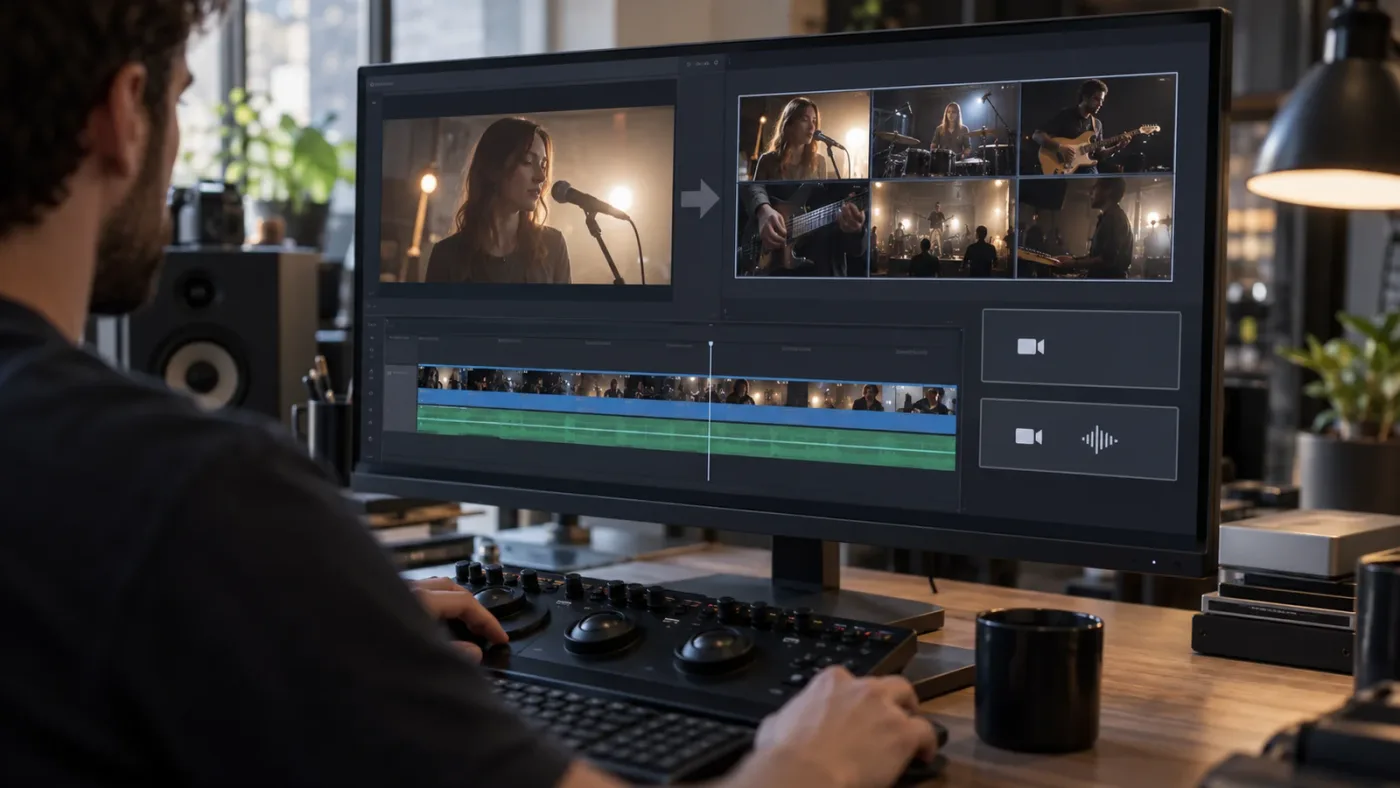
Why do 1 through 9 do nothing when I press them?
When 1 through 9 do nothing, first prove that the top-row number key reaches Resolve while the Multicam Viewer has focus, then inspect the command map. This separates a blocked input path from an unassigned or conflicting multicam command.
Check the top row before the numeric keypad
Use the number row above the letters for the first test. A numeric keypad can introduce Num Lock state, laptop function layers, operating-system remaps, and layout differences. It can be a good editing surface later, but it is a poor diagnostic baseline.
The Blackmagic forum contains a multicam hotkey report in which the responder asked whether Num Lock was enabled after the number keys failed. That does not prove Num Lock is the cause of every Resolve problem, but it is a sensible keypad check. The forum thread on multicam hotkeys also shows why a report should include the Resolve version, operating system, and keyboard path.
If the top row works and the keypad does not, investigate the keypad path or choose a remap. If both fail, continue with focus and Keyboard Customization.
Check whether another control has focus
Pressing a number in Resolve is not a universal broadcast to every panel. The active text field, timecode control, search box, or inspector field can receive the key. The timeline can also retain focus while the viewer is visible. Click inside the Multicam Viewer, then press one key once.
Do not click an angle tile immediately before the key test if you want to diagnose the keyboard. A tile click may change the playhead or the cut state, while a deliberate click inside a neutral viewer area is meant to set focus. If there is no neutral area, click a viewer control that does not select a camera, then click back into the viewer.
The Q shortcut can be useful in viewer workflows because Resolve has Source and Timeline viewer states, but it is not a replacement for checking the active Multicam Viewer. If your layout has one viewer, make sure it is displaying the multicam source. If your layout has dual viewers, make sure you are not testing a shortcut while the other viewer is the active panel.
Check whether the current command is still mapped
Open DaVinci Resolve's Keyboard Customization panel. Search for multicam, then look for the cut and switch commands. The panel shows the available commands and current assignments, and Blackmagic says you can save and export custom presets. Blackmagic's custom shortcut documentation confirms that context-sensitive menu items can be assigned and that presets can be exported for use on another Resolve system.
Look for four things:
- The command has no active key.
- The command uses a different key from the tutorial.
- The desired key is assigned to another command in the same context.
- The preset you are editing is not the preset you think is active.
Resolve can show the same physical key in more than one place when commands have different scopes or contexts. Do not assume that an assignment visible in a search result is the one that wins in the active panel. Select the command, click the key field, and verify the displayed context before saving a change.
Why does Alt or Option plus a number not switch the current shot?
Alt or Option plus a number is a switch operation, so it needs an existing multicam segment at the playhead and a valid angle assignment. It is not the same as pressing the number key during a live cut, and it may appear to do nothing if there is no current segment to switch.
Start with an already cut multicam segment. Put the playhead in the middle of that segment, set the viewer to Multicam, click the viewer, and press Option-1 on macOS or Alt-1 on Windows or Linux. Watch for the angle indicator or the picture change. Then undo if you are only testing.
If you press the switch command while the playhead is outside the multicam clip, there is no current multicam segment to modify. If you press it while the clip is still an uncut single segment, it can change that segment without creating the visible cut you expected. If you press it while the viewer is in Source mode, the command has no multicam target.
Test cut and switch in a controlled order
Use this sequence:
- Place the multicam clip on a video track.
- Put the playhead in the clip.
- Choose Multicam in the Source Viewer.
- Press
1once. Confirm whether a cut appears. - Move the playhead into the resulting segment.
- Press
Option-2orAlt-2. - Confirm whether the segment now uses angle 2 without a new cut.
This test gives the commands the contexts they expect. It also shows whether your target mode affects video. If the audio changes but the image does not, change the target to Video Only. If the image changes but the audio does not, that may be exactly what Video Only tells Resolve to do.
When the modifier itself is the problem
On macOS, test the actual Option key shown in the Keyboard Customization panel. On Windows and Linux, test Alt. Laptop keyboards can place an Fn layer over number keys, and operating-system utilities can reserve Alt combinations. If a plain 1 works but the modifier-number command does not, search the command map and test a temporary alternate modifier rather than assuming the multicam feature is broken.
The manual's platform convention matters here. A Mac tutorial that says Option does not mean Command, and a Windows tutorial that writes Alt does not mean Control. Use the modifier symbol shown by your current preset, then verify the command name in Resolve.
The modifier is not decoration: it separates a new multicam cut from an angle change on the current segment.
How do I fix multicam shortcuts when the wrong viewer has focus?
Click inside the active Multicam Viewer immediately before testing the shortcut, and keep the playhead inside the multicam clip. Resolve's viewer layout can show source and timeline content at the same time, so a visible multicam grid does not guarantee that the grid owns keyboard focus.
This is the issue that feels most like a Resolve 21 regression because the command can appear in the menu and the key can be correctly assigned. The key still goes somewhere else. Focus is a temporary state, so a shortcut may work after you click a viewer and fail again after you click the Media Pool, timeline, inspector, or a timecode field.
A focus reset that does not change the edit
Use this low-risk sequence:
- Stop playback.
- Put the playhead inside a known multicam segment.
- Click inside the Multicam Viewer, away from an angle tile if possible.
- Press the shortcut once.
- Look at the timeline and the active angle indicator.
If the click itself changes the angle because you landed on a tile, undo and repeat in a blank part of the viewer. The aim is to give focus to the viewer without making a creative change.
Source Viewer versus Timeline Viewer
The Source Viewer is where the multicam angle grid is normally presented during multicam editing. The Timeline Viewer shows the program result. Both can be visible, and both can look active at a glance. Your keyboard test should be made with the Source Viewer in Multicam mode, because that is where angle selection and target choices are exposed.
DaVinci Resolve 21 also includes match-frame improvements that can behave according to UI focus. Blackmagic's 21 New Features Guide explicitly says that some match-frame behavior depends on whether the source or timeline viewer has focus. That is not the same command as a multicam cut, but it is a useful version-specific reminder that focus can change a viewer command's target. The official Resolve 21 New Features Guide documents the focus-sensitive viewer behavior.
How do I verify or restore the shortcut map in Resolve 21.1?
Open Keyboard Customization, search for the multicam command by name, and verify the active key in the current preset. Restore a default-style mapping only after you save or export your existing preset, because a reset can remove intentional customizations.
Blackmagic says its Keyboard Customization panel lists available commands and their assigned shortcuts, lets you see what is already in use, and lets you save or export a preset. That makes it the primary diagnostic surface. A third-party cheat sheet may be convenient, but it cannot know what your current Resolve installation has stored. Blackmagic's official custom shortcut guidance supports this workflow.
Search by command, not by key
Search for these terms one at a time:
Multicam CutMulticam SwitchMulticam Prev AngleMulticam Next AngleMulticam Tgt VideoMulticam Tgt Audio And VideoMulticam Tgt AudioMulticam Prev PageMulticam Next Page
The exact display name can vary slightly with a release or a keyboard preset, so use the search result's command text as your source of truth. You are looking for the action, not merely for a number key. If 1 is assigned to a different command, that is not proof that the multicam command is missing. It means the command has a different active key or no key.
Save before you change
Export the current preset before removing or reassigning keys. Use a descriptive name with the version and platform, such as resolve21-multicam-mac-september-2026. The name is for your own organization. The important part is that you can return to the old map if the new one causes a different conflict.
Blackmagic's product page says shortcut presets can be exported for use on other Resolve systems. That makes an export useful as a backup and as a way to compare a working and non-working installation. It does not guarantee that a preset created on one operating system will feel identical on another, because the physical keys and platform modifiers still differ.
Restore only the commands you need
For a clean diagnostic map, assign one command to one unused key and test it. Do not erase the entire preset as a first move. If the test succeeds, add the rest of your multicam commands in groups:
- Angle cuts.
- Angle switches.
- Previous and next angle.
- Video and audio target commands.
- Previous and next angle page.
Test after each group. If a failure appears after a group, you know where to look. This is slower than importing a random shortcut file, but it preserves the useful parts of your edit workflow.
Are my Mac, Windows, and keyboard-layout settings blocking the shortcut?
Test the same command with a simple top-row key and the platform modifier shown in your preset before troubleshooting the operating system. If the top row works but the keypad, laptop layer, or external keyboard does not, the issue is the input path rather than the multicam command.
macOS checks
On macOS, confirm whether the preset expects Option or Command. Do not substitute Command because it is easier to reach. If you use a non-US keyboard layout, the physical position and the printed symbol of punctuation keys such as [ and ] can differ. That matters for the audio and video target commands.
For the first test, use 1 through 9. Then test the switch command with Option. Leave the bracket commands until the angle cut and switch actions are already proven. You are reducing variables, not declaring that the bracket commands are unreliable.
If the number row works in Resolve but a modifier shortcut fails across multiple applications, inspect macOS keyboard settings and utilities that reserve shortcuts. Do not change those settings just to fix one Resolve command unless you understand the wider effect.
Windows checks
On Windows, use Alt where the Resolve mapping translates macOS Option. If you use the numeric keypad, check Num Lock. If you use a laptop, check whether an Fn layer changes the number row. The Blackmagic forum's keypad troubleshooting is not a complete Windows guide, but it supports checking Num Lock when keypad multicam input fails.
If the top-row number command works but Alt-1 does not, test an alternate temporary mapping in Keyboard Customization. That tells you whether the command is reachable and whether another Windows utility is capturing the original combination.
Numeric keypad mapping
The numeric keypad can make a physical layout feel natural, but it is not automatically aligned with the viewer grid. Blackmagic forum users have described the mismatch between the keypad layout and the order of angle tiles. If the key selects the expected angle number but not the expected tile position, the shortcut is working. Your mental map is wrong for that layout.
You can remap the angle commands to match your preferred keypad positions. Before doing that, confirm that the commands are scoped to multicam actions and that you are not replacing a timecode or navigation command you need elsewhere. Export the preset afterward.
A shortcut can be working perfectly while the keypad layout makes the selected angle look wrong.
Why do multicam shortcuts work in a two-angle test but fail in my real timeline?
If a clean two-angle test works but your production timeline fails, the production project has a different context: another clip type, another angle count, another target mode, another preset, or a different viewer layout. Treat the working test as a control and compare one condition at a time.
The production clip may not be the same kind of object
Load the exact clip under the playhead and check its Source Viewer mode. Do not infer the clip type from the fact that the timeline contains multiple images. The Resolve 21 New Features Guide documents related changes for full clip extents, all audio tracks, and match framing, but those settings do not turn an ordinary clip into a multicam object.
The edit may be in a different page
The Cut page has fast syncing and smart multicam tools, while Blackmagic describes the Edit page as the place for the full multicam interface and keyboard controls. A tutorial that begins on the Edit page can leave you looking for the same controls on the Cut page.
Use the Edit page for this diagnosis. Once the number keys work there, you can decide whether your preferred Cut page workflow uses a different control surface or command set. The key is to compare like with like.
The clip may be outside the current angle page
On a multicam clip with more angles than the viewer can display, angle 10 may not be reachable by pressing the same number keys you used for angle 1. The viewer may be showing a page of angles, and page navigation commands move that display to another group.
Resolve 21.1 adds new keyboard shortcuts that support control of up to 25 multicam angles, according to Blackmagic's September 8, 2026 release announcement. That does not mean every number on your keyboard directly selects every angle. It means the version includes expanded shortcut support for larger multicam setups. Blackmagic's 21.1 announcement is the current source for that change.
The production project may carry a different preset
Shortcut presets are application-level choices, but a project can also change what you remember from a tutorial or a previous machine. If the same keyboard works in a test project but not the production project, compare the active Resolve preset and the current panel focus before assuming project corruption.
Avoid changing the production project while you are diagnosing. Create a temporary mapping, verify the command, then decide whether to preserve it. This keeps your working project from becoming the experiment.
Audio can hide a successful switch
An interview workflow often keeps one clean microphone track while changing video angles. If the target is Audio Only or if reference audio is being used, the video may not visibly change when the audio command fires. Resolve 21 adds an All Angles audio option during multicam creation, and that can make audio behavior more deliberate than an older tutorial suggests.
Check the target buttons and inspect both video and audio. The official Resolve 21 guide documents the All Angles option and explains that all source audio tracks can be included in a multicam clip. The correct diagnosis is not that audio behavior is random. It is that you need to know which target and which audio construction the clip uses.
Sync problems are a different problem
If the keys fire but the angle appears early, late, or unrelated to the speaker, that is a sync or angle-order issue, not a shortcut issue. Use the related DaVinci Resolve multicam sync guide for frame offsets. If the controls fire but the viewer grid is incomplete, use the angle viewer troubleshooting guide.
Those pages own the sync and display problems. This page owns the keyboard path: context, focus, mapping, platform, and the difference between cut and switch.
What changed in DaVinci Resolve 21 and 21.1?
Resolve 21 adds multicam creation and match-frame improvements, while Resolve 21.1 adds expanded multicam shortcut support for up to 25 angles. The key lesson is that a tutorial recorded for an older release may still teach the right editing idea while showing a different command list or a smaller angle workflow.
The Resolve 21 New Features Guide lists three changes that matter around troubleshooting:
- A New Multicam Clip dialog can include all audio tracks from all angles by choosing All Angles.
- A Use full clip extents option can preserve the full length of selected angles during creation and sync.
- Match Frame to Source Clip finds the underlying source for multicam and nested clips, with behavior affected by viewer focus.
These are real Resolve 21 changes, but none of them changes the basic diagnostic order for a dead number key. A command still needs a compatible multicam object, a Multicam Viewer, a target, focus, and an active assignment.
On September 8, 2026, Blackmagic announced Resolve 21.1 as available and called out new keyboard shortcuts for controlling up to 25 multicam angles. Grant Petty, Blackmagic Design's CEO, described the update this way: “We've also expanded camera support on the Photo page, added new multi-cam workflows.” That is a short, verbatim quote from Blackmagic's official release announcement, not a claim that every existing shortcut preset automatically updates. Read the full 21.1 release announcement.
Why old tutorials cause false alarms
An older tutorial may show 1 through 9 for cutting and Option or Alt plus 1 through 9 for switching. That core distinction remains useful. The tutorial may still differ from Resolve 21.1 in four ways:
- It may use a default preset that you replaced.
- It may show fewer visible angles.
- It may use an older viewer layout.
- It may assume a different platform keyboard.
Use the tutorial to understand the result you want. Use Resolve's current Keyboard Customization panel to identify the command that produces it. This is the quickest way to keep learning material useful without copying stale key labels.
How do I fix more than nine multicam angles?
For more than nine angles, use angle-page navigation and the expanded Resolve 21.1 mappings rather than expecting the first number row to reach every camera. The exact command list depends on your version and active preset, so verify it in Keyboard Customization.
Blackmagic's Resolve Edit page describes multicam layouts for 4, 9, 16, 25, or more cameras. The 21.1 release announcement says its new keyboard shortcuts support control of up to 25 multicam angles. Those two facts describe the scale of the workflow, not a promise that a standard keyboard has a unique unmodified key for every angle. Blackmagic's Edit page and the 21.1 release announcement are the sources for these limits and additions.
Page through the angle grid
If the viewer shows dots, arrows, or another page indicator, use the Previous Page and Next Page commands. Resolve's multicam manual family documents Option or Alt plus Shift and the left or right arrow for page movement in the classic mapping. Resolve 21.1 may expose additional angle commands, so search the current panel rather than assuming an old key is still active.
Once you change pages, a key that worked on page one can refer to a different visible angle on page two. That is expected. The angle number belongs to the command or page context, while the tile position belongs to the current display.
Decide whether to map physical keys or angle numbers
There are two sensible strategies:
- Keep number keys tied to angle numbers, then use the viewer grid as a reference.
- Remap a keypad or macro surface so its physical positions match the viewer grid.
The first strategy is portable. Another editor can read 1 as angle 1. The second strategy can be faster when you operate a large event or sports layout from a dedicated control surface, but it is personal and can confuse anyone else using the station.
Blackmagic's forum discussion notes that the default mapping uses the regular number keys in a vision-switcher style and that editors can remap commands in Keyboard Customization. That is the practical answer to the keypad mismatch. There is no need to treat the layout as a malfunction.
Keep a map beside the project
For a large multicam project, write down the relationship between angle number, camera, and speaker or position. The multicam creation settings, metadata, and clip selection order can determine angle order, so verify the mapping in the viewer before you begin.
Should I remap multicam shortcuts or keep the defaults?
Keep the defaults while diagnosing and remap only after you know the command, focus, and target behavior. Remapping is appropriate when a keypad, editor keyboard, platform layout, or existing workflow makes the default assignment impractical, but it should be deliberate and backed up.
Blackmagic explicitly supports custom shortcuts, built-in presets, saving, and exporting. That makes remapping a supported workflow rather than a hack. It also makes a changed mapping one of the first things to check when a tutorial's commands do not match your Resolve installation.
Keep the defaults if...
- You are following a training video and want its keys to match.
- You move between computers or editors.
- You are still learning the difference between cut and switch.
- You do not yet know which keys are reserved by your keyboard.
- The top-row number keys are comfortable and reliable.
Remap if...
- You work primarily from a numeric keypad or hardware controller.
- The physical number row is difficult to reach during a live cut.
- Another application or operating system utility reliably owns the default modifier.
- Your angle count or physical camera layout makes a custom pattern easier to read.
- You share a documented station with a fixed operator workflow.
Remap the action names, not just the visible numbers. For example, map the Multicam Cut to Angle 1 command and the Multicam Switch to Angle 1 command separately. If you map only one family, the other family can still appear broken.
A safe remapping method
- Export the current preset.
- Write down the existing cut, switch, target, and page commands.
- Change one angle cut and one angle switch.
- Test them on a two-angle clip.
- Add the next angle pair.
- Test again after each pair.
- Add target and page commands last.
- Export the finished preset with a new name.
Do not confuse a map problem with an angle-order problem
Suppose you press 2 and the viewer shows the wrong camera. First inspect the angle order. A shortcut map can be completely correct while angle 2 is a wide shot instead of the close-up you expected. Remapping the key to 3 would hide the real issue and create a future surprise.
Remapping makes multicam faster only after angle order, command type, and viewer focus are already clear.
How this relates to the general shortcut reference
The site's DaVinci Resolve keyboard shortcuts reference is useful for learning the wider command vocabulary. Use it beside the in-app panel, not instead of the panel. The current panel tells you what your install is using today; the reference helps you remember what the command is meant to do.
How do I run a clean Resolve 21 multicam shortcut test?
Create a tiny two-angle test with a known multicam clip, then test mouse, menu, cut, switch, target, and mapping in that order. A clean test tells you whether the production project is the problem without asking you to rebuild the edit.
Step 1: make the test small
Use two short camera clips that you are allowed to use for testing. They do not need to be from the production project. Create or open a multicam clip from those sources using a simple sync method that the project can support. The goal is not to evaluate sync quality. The goal is to produce a genuine multicam object with two visible angles.
Put the multicam clip on a new timeline in the Edit page. Do not begin with a complex project containing several timelines, source timelines, compound clips, nested clips, custom presets, and a macro pad. Those may all be valid in normal work, but they increase the number of possible failure points.
Step 2: confirm the viewer state
Load the multicam clip in the Source Viewer. Choose Multicam from the viewer mode menu. Verify that angle tiles appear. If they do not appear, stop here and fix the clip or mode. There is no value in testing a number key against a viewer that has not entered the multicam workflow.
Choose Video Only for the first test. Video Only gives you a clear picture result and keeps audio from becoming a second variable. You can test Video and Audio after the video path works.
Step 3: prove the mouse path
Click an angle tile or use the menu command. Confirm that the timeline receives the expected angle operation. If you are testing a cut, watch for a new edit point. If you are testing a switch, place the playhead inside an existing segment and watch for the camera angle to change without a new edit point.
If the mouse path fails, review the multicam clip, viewer mode, playhead, and target. Do not continue to keyboard diagnosis until the mouse path has a clear result.
Step 4: prove focus
Click inside the active Multicam Viewer. Press one number key once. Avoid the keypad for this test. Avoid modifier keys for this test. Use the simplest command that should produce a visible cut.
If the key works, your original problem is likely focus, keyboard hardware, or the key map. If it fails, use the menu command and Keyboard Customization checks. A single failed press is useful. Ten repeated presses after you have changed focus are not comparable evidence.
Step 5: prove the switch path
Create or leave one visible multicam segment. Put the playhead inside it. Press Option plus a number on macOS or Alt plus a number on Windows and Linux. Confirm whether the angle changes without an additional cut.
If the angle changes, the switch command works. If you expected a new cut, use the plain number command. If nothing changes, confirm that the current segment is multicam, the viewer still has focus, and the selected angle exists on the current page.
Step 6: prove the target path
After video-only tests succeed, change to Video and Audio. Repeat a cut on a copy of the test timeline. Then try Audio Only if your workflow needs it. Inspect both the picture edit and the waveform so you know which target you set.
Resolve 21's All Angles audio option can make the audio side of a multicam clip broader than older lessons suggest. That is why the target test comes after the video test. You want one clean picture path before you add audio routing to the diagnosis.
Step 7: prove the mapping path
Search Keyboard Customization for the exact command. Verify the key. If it is blank, assign a temporary key. If it is assigned to another action, choose an unused key for the test. Save the preset, then repeat the two-angle test.
If the temporary key works, the command and viewer context are healthy. You can now decide whether to restore your original keymap or remap the commands permanently. If the temporary key fails, compare the menu and mouse paths again. The key is not the only remaining explanation, but you have narrowed the problem sharply.
Step 8: compare the production project
Once the clean test works, open the production project and compare:
- page and viewer layout
- active shortcut preset
- clip type
- angle count
- current angle page
- target mode
- keyboard device
- operating system and modifier
Change one variable at a time. If the production clip fails but the test clip works, save before experimenting and use the sync and angle-viewer sibling guides where the symptom points there. If both fail after the same preset is loaded, return to focus and key mapping.
Is the best way to learn DaVinci Resolve to watch another tutorial?
For this specific failure, the best way to learn DaVinci Resolve is to reproduce the command in a small project and observe what changes, then use a tutorial or manual to fill the gap. Another video can help, but watching a different key press without checking focus and mode often repeats the same ambiguity.
The consensus resources are still valuable. Blackmagic offers official training materials and project-based guides. Casey Faris publishes long-form Resolve instruction, including a beginner course that covers the pages and a section on how to learn Resolve. Blackmagic's training page and Casey Faris's full beginner course are credible places to learn the broader workflow.
Our team has more than seven years of professional, commercial video editing, and we have taught more than 100,000 students on Udemy as an official Udemy Business Partner. That experience shapes the advice here: when a command fails, learn the state that makes the command meaningful. Memorizing a key without understanding its target creates a fragile workflow.
When official training is the right choice
Use Blackmagic's official training when you want a structured, source-based path through the Edit page, Color page, Fairlight, Fusion, or delivery. It is especially useful when you need the vocabulary to search the manual and Keyboard Customization panel. The training page is the authority for Blackmagic's current books, lessons, and certification material.
When a YouTube tutorial is the right choice
Use a creator tutorial when you need to see a sequence played out, especially the relationship between the Source Viewer, timeline, and angle grid. Casey Faris's published course is a practical example of a long-form Resolve learning resource. Check the upload date and Resolve version before assuming its shortcut labels match your current build.
When a manual is the right choice
Use the manual when you need the exact distinction between cut, switch, page navigation, target mode, and platform modifier. The Resolve 21 reference manual is the strongest source for command names because it is tied to the product documentation rather than a creator's personal preset.
Is an app that helps you while using DaVinci Resolve useful here?
An app that helps you while using DaVinci Resolve is useful when the problem is locating the right control or translating a tutorial into the current interface, but it cannot replace the state checks above. The best tool for this symptom is one that helps you identify the active viewer, mode, and command without promising an automatic repair.
TryUncle is the on-screen assistant for DaVinci Resolve on Mac and Windows - ask in plain words and Uncle points at the exact control on your screen.
That kind of on-screen guidance while you edit is most useful after you know the question you need to ask: "Where is Keyboard Customization?", "How do I show the Multicam Viewer?", or "Which command switches the current angle without cutting?" It should help you find the control while you work. The technical verdict remains independent: the shortcut needs the right multicam context, focus, target, and mapping.
The wider tool category has different jobs, so do not compare every assistant as if it solves the same problem.
| Tool or resource | What its own documentation says it does | Where it fits this shortcut problem | Trade-off |
|---|---|---|---|
| Blackmagic official training | Provides official lessons, books, and training resources | Teaches the multicam workflow and Resolve vocabulary | General training may not diagnose your active preset |
| Casey Faris | Publishes long-form Resolve instruction, including a full beginner course | Helps you see a workflow demonstrated | The exact key labels may reflect the course's recording date or setup |
| Sottocut | Describes itself as a local-first assistant editor inside an open Resolve project, with a requirement for an Apple Silicon Mac and Resolve Studio 21 | Better suited to assisted editing and timeline proposals than locating a blocked UI control | Mac and Studio requirements limit who can use it |
| PremiereCopilot | Describes itself as a text-to-edit tool native to Adobe Premiere Pro | Not a direct Resolve shortcut solution | Its documented host is Premiere Pro, not Resolve |
| heyeddie.ai | Describes an integration that imports clips, multicams, and timelines from Resolve into Eddie and sends cuts back | Better suited to logging, rough cuts, and edit exchange | It moves work through an external Eddie workflow rather than teaching the focused control |
| CutAgent | Describes an AI agent that coordinates DaVinci Resolve operations on macOS and Windows | Better suited to delegating supported editing tasks | Automation is a different goal from learning why a shortcut is inactive |
The comparison is based on the vendors' current public descriptions, not an invented hands-on ranking. Sottocut's Resolve page, PremiereCopilot's product page, Eddie's Resolve integration page, and CutAgent's product page describe those roles and limitations.
Choose official training or Casey Faris when you want to learn the workflow. Choose a manual when you need exact command definitions. Choose an on-screen assistant when you are inside Resolve and cannot find the control that the explanation assumes. Choose an automation editor only when your goal is to delegate supported editing work, not merely to fix a key that does not fire.
What should I do if the shortcut still does not work?
If the shortcut still fails after the clean test, document the smallest reproducible case and escalate with the exact Resolve version, operating system, keyboard, command name, and result of the mouse test. A precise report is more useful than saying that "multicam keys are broken."
Capture these facts
Write down:
- DaVinci Resolve or DaVinci Resolve Studio and the full version number.
- macOS, Windows, or Linux, including the major version if relevant.
- Top-row keyboard or numeric keypad.
- Whether Num Lock or an Fn layer is involved.
- Whether clicking an angle works.
- Whether the menu command works.
- Whether the Source Viewer is in Multicam mode.
- Whether the key appears in Keyboard Customization.
- Whether Video Only, Video and Audio, or Audio Only is selected.
- Whether the failure occurs in a new two-angle test project.
These details match the kinds of facts visible in Blackmagic's forum troubleshooting discussions, where users report Resolve versions, operating systems, keyboard paths, and the difference between mouse and number-key behavior. The Blackmagic forum multicam hotkey thread is an example of why the environment matters.
Interpret the remaining outcomes
If the menu command and mouse work but no physical keyboard works, file the problem as an input or mapping issue. If a temporary mapping works, restore your intended preset one command at a time. If a built-in or custom keyboard works while the preferred device fails, inspect that device's macro layer or remapping utility.
If the mouse and menu both fail in a new two-angle project, verify the installation and current Resolve release through Blackmagic's support and manual pages before doing anything destructive. The Blackmagic manual page lists the 21.1 manual and directs users to the support page for the latest software. Blackmagic's manual landing page is the current starting point for the version-specific documentation.
If the command works in a new project but fails only in one production timeline, stop treating it as a global shortcut defect. Compare the clip type, viewer mode, active preset, angle page, track targets, and audio target in that project. A production timeline can have a legitimate local condition that a clean test does not reproduce.
Which shortcut fix should I use first?
Use the smallest fix that matches the symptom. If clicking an angle works, click the viewer and check the key map. If clicking an angle fails, fix the multicam clip and viewer mode. If the key fires but the wrong edit happens, choose cut versus switch and target video versus audio correctly.
Here is the final decision order:
- Confirm a true multicam clip.
- Confirm the Edit page and Multicam Viewer mode.
- Confirm the playhead is inside the multicam clip.
- Choose Video Only for a clean first test.
- Click the Multicam Viewer to set focus.
- Test the top-row
1key. - Test Option or Alt plus a number on an existing segment.
- Search Keyboard Customization by command name.
- Check Num Lock, Fn layers, layouts, and external remappers.
- Page through angles beyond the first visible group.
- Compare a two-angle clean project with the production project.
The official references give you the stable facts: Resolve's Edit page has the multicam interface, custom keymaps are supported and exportable, Resolve 21 adds multicam creation and match-frame changes, and Resolve 21.1 expands shortcut support for up to 25 angles. The rest is controlled diagnosis.
If your shortcuts work after the viewer click, keep the fix simple. If they work only after a remap, document the map. If they work in the clean test but not in production, investigate the project state.
Frequently asked questions
- Why are my DaVinci Resolve 21 multicam shortcuts not working?
- The usual causes are an inactive Multicam Viewer, focus in the wrong panel, a changed Keyboard Customization preset, or testing a regular clip instead of a multicam clip. Open the Edit page, load a true multicam clip, choose Multicam in the Source Viewer, click the viewer, and test the number row.
- What is the shortcut for multicam cut in DaVinci Resolve 21?
- The default multicam cut commands use the number keys 1 through 9 for angles 1 through 9. A cut adds an edit at the playhead. Option or Alt plus a number performs a multicam switch on the current clip without adding a new cut.
- How do I switch multicam angles without cutting in Resolve 21?
- Use the multicam switch command, normally Option plus 1 through 9 on macOS or Alt plus 1 through 9 on Windows and Linux. The command changes the angle of the current multicam segment instead of creating a new edit point.
- Why do my multicam number keys work in a tutorial but not in Resolve 21.1?
- Resolve 21.1 adds shortcut support for controlling up to 25 multicam angles, but imported presets, keyboard layouts, focus, and the current Multicam Viewer mode still determine whether a key fires. Check the in-app Keyboard Customization panel instead of copying a tutorial's mapping blindly.
- Do I need DaVinci Resolve Studio for multicam keyboard shortcuts?
- The core Edit page multicam cutting and switching workflow is documented as part of DaVinci Resolve, so the shortcut problem is usually a setup issue rather than a Studio-only restriction. Studio-only tools elsewhere in a project do not change the basic focus and mapping checks.
Sources
- Blackmagic Design DaVinci Resolve 21.1 release announcement
- Blackmagic Design DaVinci Resolve 21.1 manual page
- Blackmagic Design DaVinci Resolve 21 Reference Manual
- Blackmagic Design DaVinci Resolve 21 New Features Guide
- Blackmagic Design DaVinci Resolve Edit page and multicam overview
- Blackmagic Design DaVinci Resolve training
- Blackmagic Design forum: Multicam Hotkeys
- Blackmagic Design forum: Multicam editing using the keyboard keypad
- Casey Faris: Introduction to DaVinci Resolve
- Sottocut AI assistant editor for DaVinci Resolve
- PremiereCopilot Copilot for Adobe Premiere Pro
- Eddie AI integration with DaVinci Resolve
- CutAgent AI for DaVinci Resolve
Put this guide to work with TryUncle.
Ask about the step you’re on. TryUncle sees your screen and points at the control you need, so you can keep learning in your own project.
Get TryUncle for Mac or WindowsKeep reading
Guides · Jul 8, 2026 · 16 min
DaVinci Resolve Keyboard Shortcuts: The Complete Reference
Every essential DaVinci Resolve keyboard shortcut, organized by page: Edit, Cut, Color, Fairlight, Fusion, and Deliver, plus how to customize and share your own.
Fixes · Jul 31, 2026 · 24 min
DaVinci Resolve Multicam Angle Viewer Not Showing All Cameras
Multicam viewer only showing some of your DaVinci Resolve camera angles? Fix the grid size, duplicate camera metadata, and black angle bugs, one by one.
Fixes · Jul 8, 2026 · 26 min
DaVinci Resolve Multicam Sync Off by Frames: Every Fix
Multicam clip off by frames or drifting worse over time? Fix DaVinci Resolve's waveform mis-sync, frame rate drift, and timecode gaps, angle by angle.