Articles / Guidesupdated for DaVinci Resolve 21.1 (October 2026)
DaVinci Resolve 21 Render Cache Red Bar Meaning
Quick answer
In DaVinci Resolve 21, the red render-cache bar means the marked timeline range still needs to be cached; blue means Resolve has cached it. Red does not mean an export is failing or that the clip is damaged. Enable Smart or User cache, let the range play or background caching run, then check that the bar turns blue.
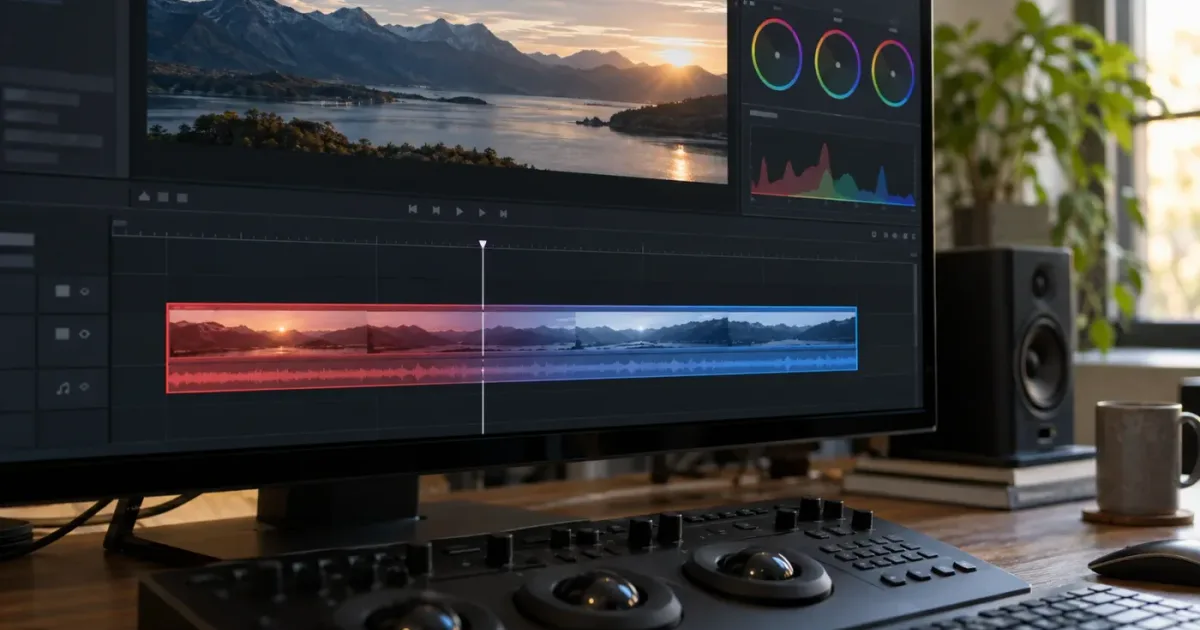
The red line looks like a warning. Most of the time, it isn't. In DaVinci Resolve 21.1, a red render-cache bar marks a timeline range that still needs to be cached; blue marks a range Resolve has cached. We run a 100,000+ member editing community, and what the red bar means is one of the recurring questions there. It's a good example of how a useful status indicator can look alarming when its job isn't obvious.
As of October 2026, DaVinci Resolve 21.1 is the current version covered here. Blackmagic's Resolve 21.1 manual uses the simple wording “Red means ‘to be cached,’ while blue means ‘has been cached.’” The bar tells you about Resolve's temporary playback cache. It does not, by itself, say that a clip is broken, that export has started, or that the computer is in danger.
What does the red render-cache bar mean in DaVinci Resolve 21?
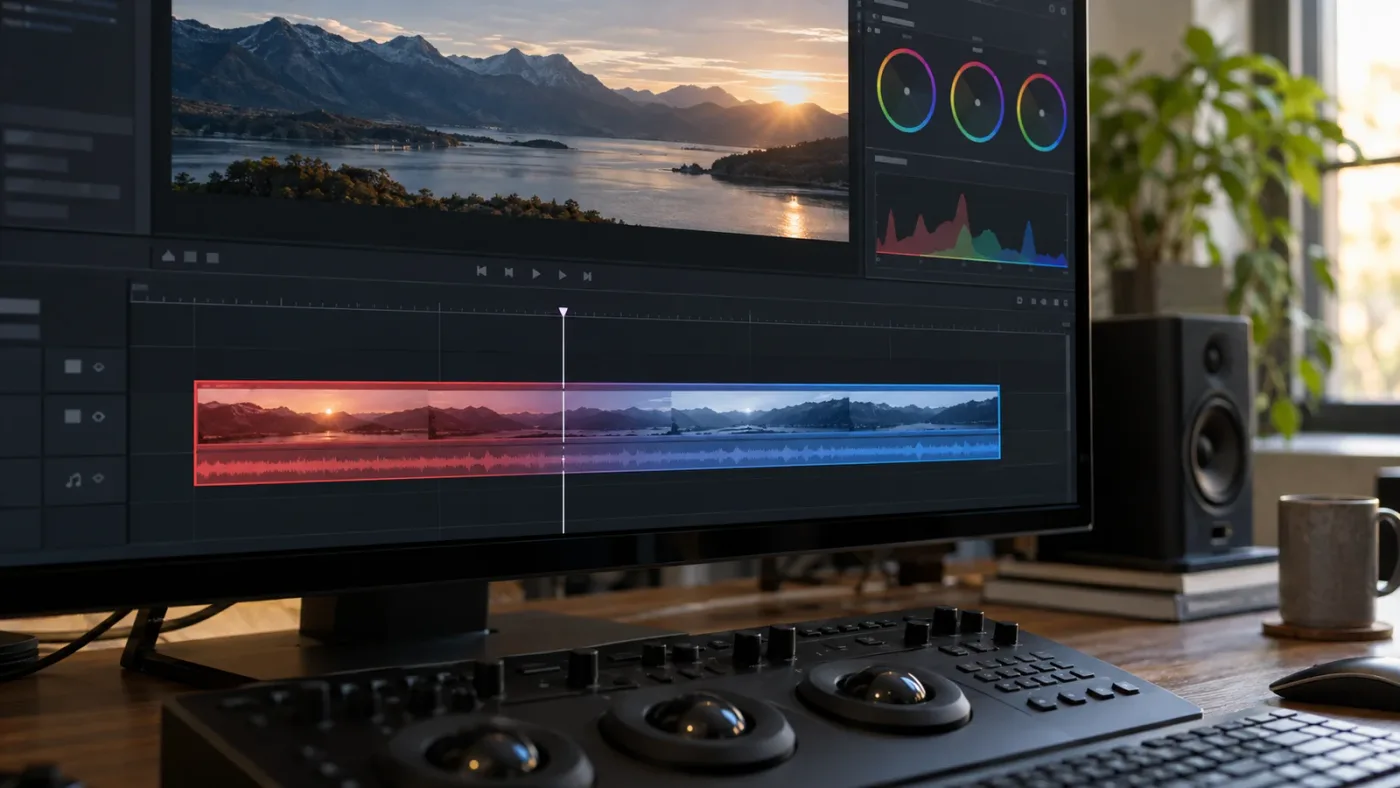
The red render-cache bar means the marked section still needs a cached render. Resolve uses the cache to store processed frames so it can play effects-heavy sections more smoothly; red is a status, not an error code.
The cache is a working copy of processed picture data. Resolve can create it for a range that has demanding media, color work, Fusion effects, transitions, speed effects, or other processing, depending on the chosen cache mode and project settings. A red indicator says the cache result is not ready for that range. It does not identify which effect is responsible, and it does not promise that the range will stutter if you play it without caching.
The safest reading is literal: red means “to be cached.” If the same timeline position later shows blue, Resolve has a cached result for it. A partially red and partially blue line means some of the relevant range has cached while another portion still needs work. Read the line over the timeline ruler as a map of cache state, not as a quality score.
That last distinction matters. Red does not mean “bad footage,” “wrong codec,” “failed render,” or “must upgrade the computer.” Your project may play perfectly well while the bar stays red. If it does, there may be no practical need to wait for a cache. The cache is useful when processing is too demanding for real-time playback, not a mandatory completion meter for every project.
In DaVinci Resolve 21, a red render-cache bar means the marked timeline range still needs caching.
The indicator also isn't the Deliver page's render progress bar. A final export is a separate operation with its own progress reporting and output file. The render cache is created inside the project as temporary media for playback, though Resolve can be configured to use cached images during delivery. The ordinary red line alone does not tell you that the final file is being rendered.
If you want to see the state change, use a short section whose effect you know is cacheable. With cache enabled, play the section or allow background caching to start. The indicator may move from red to blue as data becomes ready. If the sequence changes while Resolve works, some frames can be invalidated and need to be processed again. That isn't a contradiction: the bar reports the validity of the current cache result, not a permanent stamp on the clip.
How do I tell the cache bar from a red GPU warning?
The timeline cache bar and the GPU status indicator are different signals: the cache bar reports whether a timeline range has cached, while GPU status reports processing load or performance state. A red GPU indicator does not explain the color of the cache bar.
Resolve uses red in more than one place. A colorist might see a red node number in the Color page, a red range marker on the timeline, or a red GPU-status indicator. These occupy different parts of the interface and answer different questions. First identify where the red appears before changing settings.
| Red item | Where you see it | What it reports | First useful response |
|---|---|---|---|
| Timeline cache bar | Along the timeline ruler above clips | The marked range still needs caching | Check Playback > Render Cache and let eligible frames process |
| Node cache indicator | On a node in the Color page node graph | A node cache state or node selected for caching, depending on the indicator shown | Inspect Node Cache options and the node's processing role |
| GPU status indicator | In Resolve's performance/status display | GPU load or a performance condition, not the timeline cache color | Check playback performance and GPU-related workload separately |
| Deliver progress | Deliver page during a final render | Progress of the output render | Monitor the render job and destination file |
| Clip selection or focus line | Around a clip or interface panel | Selection or focus, not necessarily cache status | Move the pointer or change selection and identify the exact UI element |
Blackmagic's manual specifically distinguishes Edit-page timeline indicators from Color-page node indicators. On the Edit timeline, the cache bars sit along the timeline ruler. On the Color page, cache indicators can be node-specific and show where caching takes place in the node tree. A red node number is not the same object as a red horizontal line above the clips.
A red timeline cache bar is not proof that DaVinci Resolve has failed to render your export.
When an editor says “the red line,” ask one clarifying question: where is it? If the line is over a timeline range, use the cache explanation. If it sits at the top of a viewer or panel, check whether the interface is showing focus or another status. If a GPU meter is red, investigate playback load. The word “red” alone isn't enough to diagnose anything.
There is one more practical distinction. A cache indicator can be red because a range has not yet been cached, or because a previously cached result became invalid after an edit. Both states mean Resolve needs an updated cache if you want one. The color doesn't tell you whether this is the first cache pass or a rebuild. Look at what you just changed and whether the line returns to blue after processing.
Why is my DaVinci Resolve cache bar red when playback looks fine?
A red cache bar can remain visible even when playback is smooth because caching is optional until a workload needs it. Resolve may mark material as eligible or not yet cached while your computer still plays the section in real time.
The red line is not a benchmark. It doesn't compare your computer with a reference system, and it doesn't measure the percentage of timeline that is “too slow.” Resolve's manual describes caching as a way to improve real-time performance when timeline effects, Color page grades, or processor-intensive media demand more processing than the system can provide. If the system already handles your timeline, the bar may have little urgency.
Consider a simple cut with camera footage and no effects. You might see no cache indicator at all, or no reason to create a cache. Now add temporal noise reduction, a complex Fusion composition, or a stack of effects. A cache mode may identify that work for processing. Even then, whether playback needs help depends on the media, timeline settings, storage and hardware. The red state is about cache readiness, not a forecast of dropped frames.
The same logic applies if a red bar appears over a transition. The overlapping images and transition effect can increase processing work. Smart Cache may handle some timeline effects automatically; User mode depends more on manual choices and the automatic options enabled in Project Settings. A red line can therefore show work awaiting a cache while playback still looks acceptable on a capable workstation.
There's no need to force every red range to blue simply because blue looks finished. Caching writes files, takes processing time and can consume storage. If you're making frequent edits, a cached section may need rebuilding after each change. For a rough cut that plays well, keeping the project responsive may matter more than precomputing every marked frame.
Here's a useful decision rule:
- If playback is smooth and responsive, leave the red range alone unless your workflow requires a cache.
- If playback drops frames only in a specific section, cache that section or adjust the cache mode that governs it.
- If the red line is a node indicator, investigate the node cache rather than assuming the whole timeline needs rendering.
- If the line remains red and playback is poor, inspect whether caching is enabled, whether the range is eligible, and whether Resolve can write to its cache location.
We have spent more than seven years editing commercial video, and the practical lesson is simple: don't treat every colored status as a defect. First connect the indicator to an actual problem. Then change the smallest relevant setting and replay the same range. If the playback is already fine, the red bar may be informational rather than actionable.
How do I make a red cache bar turn blue?
To turn a red cache bar blue, enable a cache mode that covers the section, let Resolve process the range during playback or background caching, and avoid changing the cached material until processing finishes. The exact route depends on whether you want Resolve to choose work or you want to flag it yourself.
For a quick check, open the Playback menu and look under Render Cache. Smart mode lets Resolve automatically cache supported processor-intensive work. User mode gives you more control over what is cached, with some automatic behavior available through Project Settings. If caching is Off, the cache will not be built through that mode even if a range appears relevant.
Try this short procedure on one problem area:
- Save the project.
- Open Playback > Render Cache and choose Smart if you want automatic decisions, or User if you plan to flag the relevant clip or effect.
- In User mode, right-click the relevant timeline clip or Color page thumbnail and choose the appropriate Render Cache option, such as Fusion Output or Color Output, when that is the processing stage you need.
- Let the section play, or leave the project untouched long enough for background caching to begin if that option is enabled.
- Watch the red portion of the cache bar. When Resolve finishes the corresponding cache work, the indicator should show the cached state in blue.
- Replay the same range and judge playback separately from the color cue.
The labels can vary by what you are caching. Fusion Output, Color Output, individual node caching and timeline sequence effects are not interchangeable controls. Choose the option that matches the actual bottleneck. For example, a Fusion-heavy title may call for Fusion Output caching, while a demanding grade may call for Color Output or node caching. A transition is a sequence-level timeline effect, which is handled through cache mode and the applicable automatic settings.
Resolve's 21.1 manual says that caching occurs during playback when Smart or User caching is enabled. It also describes background caching during periods of inactivity when the project option is on, after a user-defined delay in Master Settings. That delay is adjustable. Don't assume that every red line starts changing immediately when you pause; the project may have a delay, the range may not be eligible in the chosen mode, or the work may simply take time.
When testing, keep the playhead on the same section and avoid changing grades, effect values, clip speed or timeline structure. If you alter the inputs while the cache is building, Resolve may discard the old result and restart the work. The bar can appear to “go backward” because the content it was caching no longer matches the current edit.
Blue means cached; it does not mean the timeline is permanently frozen or immune to later edits.
If you want a fuller mode-by-mode explanation, see DaVinci Resolve Render Cache Explained: Smart vs. User. That article covers how the modes decide what to cache; this page is focused on interpreting the red status line.
Why is the red bar not changing after I enable Smart Cache?
If a red bar does not change after you enable Smart Cache, first check whether Resolve has begun processing that range, whether the section qualifies for Smart caching, and whether the project can write cache files. The color alone cannot tell you which of those conditions is blocking progress.
Smart Cache does not mean “render every frame in every clip right now.” It selects processor-intensive formats, grades and timeline effects based on Resolve's rules. Some work may need playback before caching starts; some may be handled after the background delay; and some simple clips may not be selected at all. So a red line after enabling Smart mode is not automatically a fault.
Use this diagnostic order instead of toggling many settings at once:
| Check | What to look for | What the result tells you |
|---|---|---|
| Cache mode | Playback > Render Cache shows Smart or User, not Off | Whether the project is allowed to create cache through the selected mode |
| The exact range | The red line is above the timeline section you are testing | Whether you are watching the correct indicator and location |
| Eligible workload | The clip has an effect, grade or media format that may be cached | Whether Smart mode has a reason to select it |
| Playback trigger | Play through the marked section | Whether this version of the workflow begins caching during playback |
| Background option | Project Settings > Master Settings includes background caching and its delay | Whether waiting without changes should start a cache pass |
| Cache destination | Cache files location points to a mounted, writable volume with room | Whether Resolve can store the result |
| Recent changes | No effect, grade, speed or clip change is being made repeatedly | Whether the cache stays valid long enough to finish |
The manual describes the cache files location in Project Settings and notes that the default depends on the first volume in the Media Storage scratch disk list, with the system disk used if no scratch disk is specified. In practical terms, a disconnected external drive, unavailable network volume, full disk, or write-permission problem can interfere with cache creation. Resolve's exact error message and operating system permissions matter here; don't guess from the bar alone.
If the destination is external, verify it is mounted before opening the project. If the project is on a shared system, confirm that the same path is available to the machine doing the work. A project database can refer to a cache path that was valid on another computer but isn't available on yours. In that situation, changing the cache location to a suitable local volume can be more useful than repeatedly switching between Smart and User.
Storage speed also affects how quickly cache frames can be written and read. Blackmagic recommends a large, fast storage volume for cache files in its manual, but that is not a promise that every external SSD or network share will perform equally. If other media is also on the same drive, the drive may be serving several competing jobs. Check the cache location and available space before buying hardware.
If playback starts caching but the bar stops at a particular point, note whether it always stops on the same frame. A repeatable stopping point can suggest a problematic effect, source frame, Fusion operation, or path issue. If it stops at different points, changing workload or system load may be involved. This is a troubleshooting clue, not a definitive diagnosis. Isolate a short range and disable one demanding operation at a time, then restore it and compare.
In User mode, red may persist because you have not explicitly chosen what to cache. Check the clip's context menu and relevant cache setting. In Smart mode, a manually flagged clip can still be cached, but Smart's automatic rules are a separate question from whether you have set a manual cache instruction. The linked Smart vs. User guide explains that distinction in depth.
Why did my blue bar turn red after an edit?
A blue bar turns red when Resolve needs a new cache result for changed material. A cached frame represents a particular combination of media, effects, grade and timeline state; when an edit changes that result, Resolve has to recalculate the affected frames.
Typical causes include changing a Color page node, adjusting an effect, changing a Fusion composition, moving or trimming a clip, changing speed, or changing a transition. The exact invalidation boundary depends on what changed and which cache layer is involved. Sometimes only a small range needs rebuilding; sometimes the edit affects a longer span or a clip's full cached output.
Dan Swierenga, an editor and finishing artist writing for Frame.io, describes the trade-off this way: “One drawback of caching is that the clip will need to be re-cached if the clip is moved or adjusted in any way.” (Frame.io) He also notes that frequent editorial changes can make re-caching take time. That is why a red section appearing after a blue one is normally an expected consequence of working, not evidence that the cache system has forgotten how to function.
For a practical example, imagine a title over a shot. You cache the Fusion title and see blue. Then you change its text, animation timing or position. The prior cache no longer describes the current title, so Resolve marks work to be done again. The same applies to a color grade: a cached output from the old grade is not the right output for the new grade.
This is also why caching everything during an unsettled edit can feel wasteful. If you are trimming and adjusting every minute, the cache may repeatedly become stale. Finish the structure first, then cache heavy sections for a review or client playback. If a section remains in active revision, you can leave it red and work from the live computation, as long as the system performs well enough.
When a change should affect only one clip but a much larger region returns to red, check which cache layer is being used. Source or Fusion Output, Color Output and sequence caching represent different parts of the processing chain. A cache option that includes the whole clip's color output can require more work after a grade change than a node cache placed earlier in the tree. Matching the cache method to the effect can keep downstream adjustments flexible.
What does a red bar mean in Smart mode versus User mode?
In Smart mode, a red bar usually indicates a range Smart Cache has selected but has not yet cached; in User mode, it can indicate manually selected or otherwise configured work still awaiting a cache. The color reports status, while the mode determines which material is selected.
Think of the mode as a rule for choosing the work and the color as a report about its progress. Smart asks Resolve to identify demanding operations. User asks you to choose more of the work yourself, with automatic transition, composite or Fusion options available in Project Settings. Neither mode changes the basic red-versus-blue meaning.
Blackmagic's Resolve 21.1 manual says Smart Cache can handle processor-intensive clips, grades and effects, while User Cache ordinarily relies on manual flags. In User mode, the Master Settings panel has options for automatic caching of transitions, composites and Fusion effects. The manual says that of those User-mode options, only automatic Fusion-effects caching is enabled by default in the documented configuration. Because defaults can change in later releases, check your own 21.1 project settings rather than assuming a tutorial's checkbox state matches yours.
| Question | Smart | User |
|---|---|---|
| Who chooses many cache candidates? | Resolve, based on its rules for demanding work | You, by flagging clips, nodes or effects |
| Can a red bar appear? | Yes, while selected work still needs caching | Yes, while manually selected or configured work needs caching |
| Does blue mean something different? | No, it still means cached | No, it still means cached |
| Is every timeline clip cached? | No, Smart targets work according to its criteria | No, User depends on choices and enabled automatic options |
| When is it useful? | When you want Resolve to manage common heavy work | When you need tighter control over which material consumes cache |
The biggest beginner mistake is to switch modes and expect the bar color to explain the mode. It won't. If you switch from Smart to User and a range stays red, that can mean User mode isn't set to cache it. If you switch back to Smart, the same range may be selected by automatic rules. Check the clip's cache option and the mode's scope.
The two modes can be mixed with manual cache choices. The manual explains that a manually flagged clip can be cached in Smart mode too. So “Smart” does not mean you lose control, and “User” does not mean absolutely no automatic work can happen. A mode name is only the starting point; project settings and per-clip options complete the picture.
Is the red bar the same as render in place or optimized media?
No. A red render-cache bar is the status of temporary cached processing, while Render in Place creates a rendered media file in the project workflow and optimized media is a separate performance aid for source media. These tools solve related playback problems but represent different kinds of media.
Render cache is useful for temporarily precomputing selected timeline work. Resolve manages the cache files and invalidates them when relevant changes make them stale. Render in Place is a more deliberate way to create a rendered version of a clip for the timeline, while retaining a route back to the underlying source. Optimized media targets decoding performance and can help when source files are difficult to play, even before effects are added.
| Tool | Main purpose | What a red cache bar says about it |
|---|---|---|
| Render Cache | Precompute demanding timeline processing for playback | It directly reports whether a marked cache range is ready |
| Optimized Media | Make difficult source media easier to decode and edit | It does not turn the timeline cache bar into an optimized-media meter |
| Proxy Media | Use lower-bandwidth or lower-resolution media while editing | Proxy state is a separate workflow and indicator |
| Render in Place | Create a rendered clip file for a chosen timeline result | Its output is not simply the temporary cache represented by the bar |
| Deliver render | Create the final export file | The timeline cache bar is not final-render progress |
If a camera original is difficult to decode everywhere, including in the Source Viewer, optimized media or proxies may be a better first option than timeline caching. If the source plays fine but a Fusion effect or grade causes stutter, render cache is more directly aimed at the work happening in the timeline. If you need a stable rendered version for a later editorial stage, Render in Place may be appropriate. The choice depends on what is slow and how reversible the workflow needs to remain.
Do not use the red bar to infer what format your final delivery will use. Cache format is a Project Settings choice; export format is a Deliver page choice. Blackmagic's manual warns that cache format affects whether out-of-bounds image data and alpha channels are preserved. It lists formats such as 16-bit float, ProRes 4444, ProRes 4444 XQ and DNxHR 444 for preserving image data when grading from cached media, with alpha support varying by format. This is one reason a blue bar cannot be read as “final-quality export approved.” It means cached, not necessarily that every project setting is right for delivery.
For more detail on managing space, see DaVinci Resolve cache files filling up your hard drive. Deleting cache is a storage decision, not a fix for the meaning of the red indicator. If your cache destination is full or slow, resolve that underlying issue with a safe storage plan before clearing files.
Does a red cache bar affect the final export?
A red cache bar does not by itself make a final export fail or lower its quality. Resolve can render the timeline from the source media and effects; cached images are a separate playback aid unless you enable the Deliver option to use cached images.
The Resolve 21.1 manual documents a Deliver page option called “Use Render Cached Images,” which can write media directly from the cache rather than rendering effects from scratch. That is an explicit delivery setting. It is not inferred from the red line, and the cache format should be appropriate for the intended image quality if you choose to use cached media in output.
If the red bar is visible while a Deliver job is running, don't assume the export is stalled because the bar is red. Watch the Deliver job's own progress and inspect the output file after completion. Conversely, a blue cache bar doesn't prove that the export has finished or that the output file is valid. These are independent status checks.
For a normal export, focus on the settings that govern delivery: render range, resolution, frame rate, codec, bit depth, audio settings and destination. The right settings depend on the destination and the project. The cache line isn't a substitute for reviewing those choices. If an export fails, use the error message and the Deliver page state to diagnose it rather than deleting cache simply because you saw red.
There are legitimate reasons to use cached images for delivery, especially when the cache contains a high-quality result and re-rendering the same effect would take time. There are also reasons not to: the cache format might not preserve highlight headroom or transparency needed for the intended result, or the cache may not reflect the exact result you expect. Review the cache format and test a representative output before relying on it for a critical delivery.
Why is a red cache bar showing on the Color page?
On the Color page, a red node cache indicator can be node-specific and is separate from the Edit page's horizontal timeline cache bar. It points to caching associated with a part of the grade's node tree, so inspect the node indicator itself before treating the whole clip as uncached.
Resolve's node cache lets you cache a node and the upstream operations feeding it. That can be useful for computationally intensive steps such as noise reduction, motion blur or an effect plugin. When earlier nodes are cached, later nodes may remain adjustable without forcing the entire chain to be recomputed, depending on which node and output you have chosen to cache.
The manual describes different behavior in Smart and User modes. Smart may automatically cache nodes with demanding operations, while User mode relies on manually choosing Node Cache > On for the node. A red node number can therefore be a clue about that node's cache behavior, but the exact context matters. The timeline's horizontal red bar and the node's colored number are not interchangeable indicators.
If playback is smooth in the Color page but an Edit timeline range stays red, investigate which cache layer the timeline range represents. If the node indicator is red but the timeline is blue, that can reflect a difference between a node-level operation and the range-level cache. Resolve has multiple interacting cache layers, and a single timeline line cannot summarize every internal intermediate result.
One useful way to narrow the problem is to bypass or disable one expensive node temporarily, then replay the same frames. If the playback becomes responsive, the operation may be a good candidate for node caching. Restore the node and select the appropriate cache mode. Avoid changing several nodes at once: if the result changes, you won't know which operation mattered.
Why is a red bar visible above only part of the timeline?
A red bar can cover only part of the timeline because cache state is tracked for ranges that need processing, not as one all-or-nothing status for the whole sequence. Some sections may already be blue, some may be red, and some may have no cache indicator because they are not selected for caching.
For example, a timeline could have a cached Fusion title over the first interview shot, an uncached transition in the middle, and ordinary footage at the end that Smart Cache has not selected. The status line can therefore change color as you move along the ruler. The different colors are not clip labels; they indicate cache state at the corresponding timeline positions.
If only one section is red, test that section first. Look for a demanding effect, a transition, a retimed clip, a grade or a manually enabled cache option. Don't clear the entire project's cache because one range is pending. The manual includes options to delete all cache, unused cache, or cache for selected clips; the narrowest applicable choice is generally easier to reason about than clearing everything.
The length of a red stretch does not directly tell you the number of cache files or the expected waiting time. A short clip with a complex composition can take longer to process than a longer clip with simple edits. The effect, source frames, project settings and storage all influence workload. No fixed number of seconds per clip can be promised from the bar alone.
If the line appears discontinuous, zoom into the ruler and inspect the exact ranges. A broad zoom level can make the boundary between colors hard to see. Move the playhead to the start and end of the marked range and compare the result. Timeline zoom changes what you can visually resolve; it does not change whether the cache itself is valid.
What should I check if the red cache bar never finishes?
If the red cache bar never finishes, check cache mode, background-caching behavior, the cache destination, available storage and whether edits keep invalidating the result. The persistent red state is a symptom to investigate, not enough evidence to identify one cause.
Start with the simplest case. Save, stop making changes, and play a short marked range once. If the bar changes during playback, the system is caching, and the remaining wait may reflect the workload. If it does not, inspect whether the mode is Off or whether User mode lacks a cache selection. Then confirm the cache path is accessible and writable.
If the bar begins to move and then stops, wait only long enough to distinguish a slow operation from a repeatable stall. Check whether the drive has free space and whether Resolve reports an error. If the cache folder is on removable storage, verify the volume did not sleep or disconnect. If the cache location is on a network, ask whether that path is mounted consistently and whether permissions allow writing. Don't remove files from the cache folder while Resolve is using them.
Next, isolate the expensive section. Duplicate the timeline or save a version before disabling effects. Test a smaller range around the problem. If one Fusion composition or plugin causes the stall, render or cache that piece in a controlled way and consult the effect vendor's current requirements. If the range contains mixed media or a damaged source file, test the source separately. These are diagnostic branches, not claims that any one plugin or format is inherently faulty.
If the cache bar repeatedly turns blue and then red without an intentional edit, check whether a control is changing automatically. Animated parameters, keyframes, external media updates or a process that modifies the timeline can make the output differ over time. A cache cannot remain current while its inputs keep changing. Look at the affected clip and node parameters before resetting the whole project.
Don't immediately delete every cache file. Resolve's menu offers “All,” “Unused,” and “Selected Clips” cache deletion choices. Deleting cache forces work to be rebuilt, which can make playback worse until it is recreated. It is useful when cache data is no longer needed or when you are deliberately reclaiming storage, but it is not the first diagnostic step for a red line.
If you need a broader playback diagnosis, use DaVinci Resolve playback choppy or stuttering?. That page addresses playback symptoms across media, processing and timeline causes. Here, the bar itself remains the guide: red means the marked cache range needs work; it does not name the bottleneck.
What is the quickest reliable way to read the bar?
Read the cache bar in three steps: locate it on the timeline ruler, map its color to the range below it, and decide whether that range actually needs a cache for your current task. Red means not yet cached; blue means cached.
| What you see | What it means | What to do next |
|---|---|---|
| Red above an effects-heavy range | That range still needs caching | Wait, play it, or check the cache mode and destination |
| Blue above the same range | Resolve has a cached result | Replay to judge whether playback improved |
| Red returns after a grade or effect edit | The previous result is stale | Let the updated version cache again if useful |
| Red remains but playback is smooth | Cache is pending, but playback may not need it | Continue editing unless another workflow requires the cache |
| No bar above a clip | The clip may not be selected for caching | Check mode and clip settings only if there is a playback problem |
| Red number on a Color node | Node-level cache indicator | Inspect the node cache, not just timeline status |
This compact reading avoids two expensive mistakes: trying to “fix” a healthy project because a line is red, and assuming a blue range is a final deliverable. If playback is good, the first mistake burns time. If you rely on cache settings for final output without checking image quality, the second can affect delivery. Status is useful when you know what status it reports.
When a tutorial doesn't match the layout you see, use the Resolve 21.1 manual's chapter on Improving Performance, Proxies, and the Render Cache as the version-specific reference.
Which cache decision should I make now?
Choose based on the playback problem, not the color alone: leave an unnecessary red range alone, enable or wait for cache when a demanding section stutters, and investigate storage or mode settings when eligible work never progresses. That keeps the bar useful instead of turning it into a project-wide to-do list.
If you're cutting and playback is smooth, keep editing. If the stutter appears only on an effect-heavy range, cache that section and test it again. If the cache turns red after a deliberate adjustment, let the new version render when the edit is ready for review. If nothing changes after you have confirmed the mode, selection and destination, isolate a short section and investigate the effect or storage path.
Dan Swierenga's observation is a sensible closing principle for this small workflow decision: “workflow is always more important than hardware.” In context, that does not mean hardware never matters. It means you should understand what the software is doing before you assume the machine is the problem. A red cache bar is often just a clear request from Resolve: this range has not been cached yet.
How should I read the bar while I am still editing?
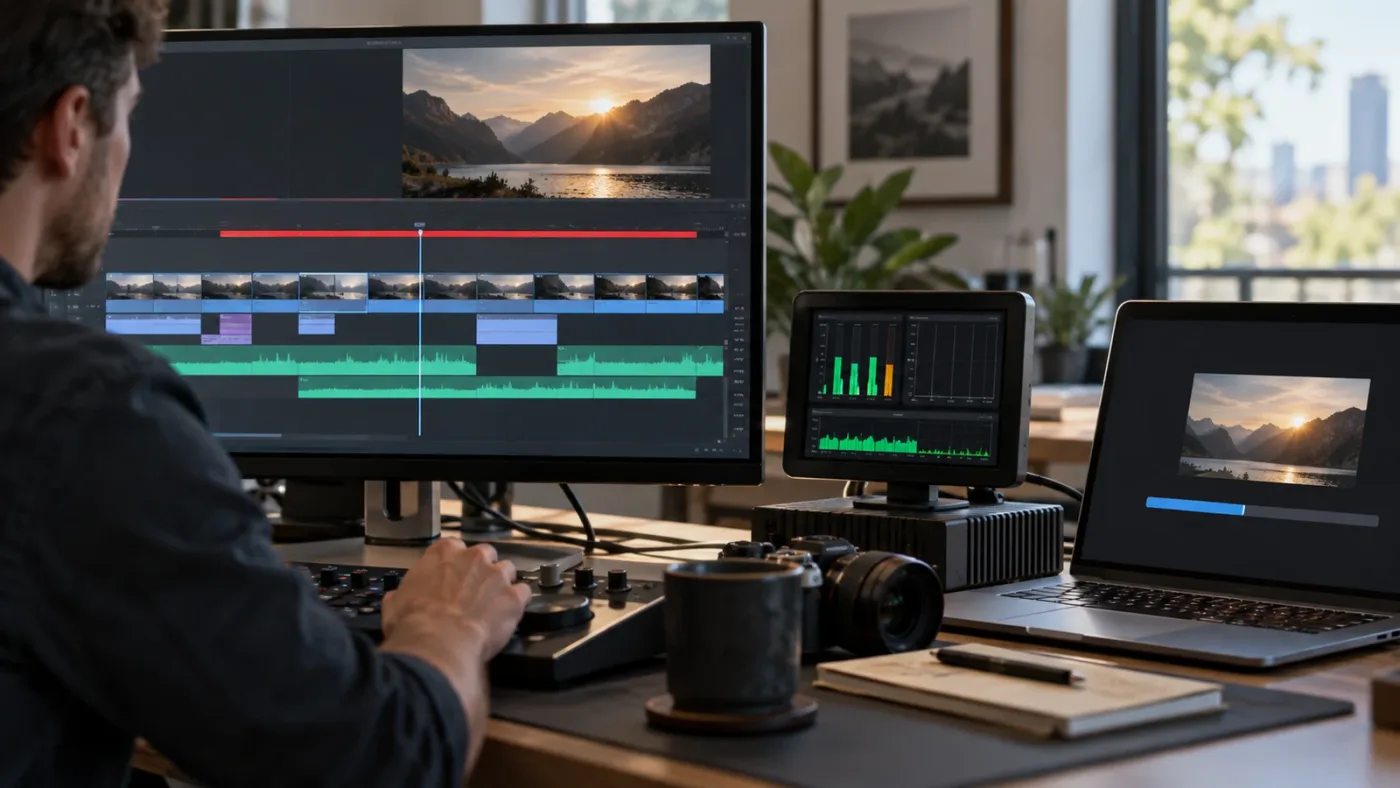
Read the red cache bar as a local status for the frames beneath it, then decide whether those frames need cached playback now. A red section during active editing is often expected because each change can make earlier cached frames obsolete.
The best moment to cache depends on the task. During a rough cut, you may be moving clips and changing timing constantly. Caching every effect after every trim creates work that you are about to invalidate. During a review, by contrast, you may want a heavy transition or Fusion title to play smoothly while someone watches the cut. The same red bar can be safely ignored in the first moment and worth resolving in the second.
A practical sequence is to cut first, make heavy effects stable, then cache the ranges that interrupt playback. This isn't a rigid rule. If a noise-reduction node makes grading nearly impossible, caching that node earlier can help while you continue creative work downstream. If a title is still being animated, wait until its timing is settled before asking Resolve to build a reusable result. The choice depends on which part of the work is changing and which part you need to review.
There is a cost to caching even when the cache works as designed. Resolve must process frames and write cache media. That consumes time and disk space, and the selected cache format affects both image characteristics and storage needs. A very high-quality format may preserve more image data but require more throughput and room. A lighter format can be easier on storage, though it may not be appropriate when the cached image feeds a critical color decision. The bar reports readiness, not whether you chose a suitable format.
For that reason, blue is a useful stopping point only after you ask why you cached the range. If the goal was smoother playback, replay and check. If the goal was previewing a complex grade, make sure your cache format preserves the image information you care about. If the goal was preparing a final export, confirm whether the Deliver page is actually set to use cached images. The line itself cannot answer any of those questions.

What changes between DaVinci Resolve 21 and 21.1?
The red and blue definitions in the Resolve 21.1 manual remain direct: red is still to be cached and blue is cached. The version difference matters mainly when matching interface instructions, project defaults and adjacent features to the Resolve release you actually have installed.
Blackmagic's Support Center lists the Resolve 21 manual dated July 10, 2026 and the Resolve 21.1 manual dated September 8, 2026. This post targets 21.1, the current release as of October 2026. If you use an earlier 21.0 build, the core status interpretation remains supported by the manuals and is not presented as a new 21.1 feature. However, use the manual matching your build for the exact menu names and default checkboxes.
The 21.1 release announcement describes an option when exporting a project archive to include render cache, LUTs and gallery stills. This concerns archive packaging, not whether a red status bar indicates an error. It is relevant if you are moving a project and want to understand what project resources might be bundled. An archive option to include cache does not mean cache is equivalent to source media or that it must always be included.
Older lessons can also use older terminology. The version 21 manual's chapter uses Fusion Output Cache where older Resolve documentation may call a related layer Source Cache. Similar labels can move or be renamed as Blackmagic evolves the cache system. If an older tutorial says “Source Cache” and your 21.1 context menu offers Fusion Output, compare the function described rather than searching for an identical phrase. The timeline red/blue rule is simpler and more stable than some of the surrounding terminology.
The most useful version-check workflow is short:
- Open About DaVinci Resolve and note the major and point release shown.
- Open Blackmagic's Support Center and select the matching manual.
- Search the manual for “When Caching Happens” or “Render Cache.”
- Compare the exact UI label with the label in your project.
- Test a short section before applying a setting across a large timeline.
This avoids copying an old default blindly. It also avoids attributing a caching change to Resolve 21.1 simply because the page is about 21.1. The manual documents the behavior; the release listing provides the version date; neither source supports claims that your particular workstation has a cache defect.

Does macOS, Windows, or Linux change what red means?
No operating system changes the documented meaning of the timeline cache colors: red means the range still needs caching and blue means it has been cached. Operating system differences can affect paths, mounted volumes, codecs or permissions, but the color legend stays the same.
On macOS, a cache location might be on an internal drive or a mounted external volume. On Windows, it might be a drive letter that is not available when a project opens on another machine. On Linux, storage mounts and permissions may differ from the workstation that created the project. These are examples of path differences, not special red-bar meanings. Resolve cannot write to a cache destination that is unavailable or not writable, regardless of the OS.
The same caution applies to removable storage. A project can reopen with the right timeline and still point at a cache location on a volume that is disconnected. If the bar remains red, inspect the path in Project Settings and ensure the volume is mounted. If the project moves between computers, use a cache location that is valid on the current system. Do not assume a cache path travels with the project unless the archive workflow explicitly includes it.
Codec availability and cache formats can also differ by platform. Blackmagic's manual lists platform-sensitive format options and explains that format choice affects image data and alpha preservation. The safe answer is not to memorize a universal codec list from a different machine. Open the Render Cache Format menu in the version and OS you are using, then choose according to the image-quality and alpha needs of your project.
If a cache appears to progress on one machine but not another, compare the project cache path, available space, write permissions and selected format before comparing GPU specifications. The cache bar reports that the output is pending; it doesn't explain why the result is pending. A machine-specific storage path is a common first place to inspect because it is an explicit dependency in the project configuration.

Should I delete the cache when the bar is red?
No, a red bar is not by itself a reason to delete cache. Deletion removes existing cached media, while the red bar says some marked work still needs a cache; deleting files can create more work without addressing why the current range is pending.
Resolve provides cache deletion choices for all cache media, unused cache media, or selected clips. Each option has a different scope. “All” is a broad reset. “Unused” targets cache no longer associated with clips or effects in the timeline. “Selected Clips” lets you choose a smaller target. These are cleanup controls, not color-status toggles.
Before clearing cache, ask what problem you are solving. If the drive is full, reclaiming space may be needed, but verify that cache belongs to the project and that Resolve is not actively writing it. If the cache looks stale, changing the relevant effect or rebuilding the selected range may be enough. If the bar is red because the mode is Off or no user selection exists, deleting already cached files cannot make the new range eligible.
Keep active projects closed before manually moving or removing cache folders, and avoid deleting from a directory while Resolve is writing. When you use Resolve's own delete command, choose the narrowest scope that meets the cleanup goal. Then understand that playback for affected ranges may need a new cache pass. A red bar after a deliberate cache clear is expected until the relevant frames are rendered again.
A cache file is temporary working data. It is not the only copy of the source, and it isn't usually the irreplaceable master. Still, that does not make every cache disposable at every moment. A teammate may be relying on the cached timeline for a review; an overnight process may still be writing frames; a shared project could use the same cache storage. Check the current job and dependencies before cleanup, then clean only when the consumers are finished.

A red cache bar is a playback-status cue, not a project-health score.
The status is intentionally small because it belongs to the timeline, not because it should govern every decision in the edit. Use it as a local clue. If one section is red and one section is blue, you already know the status differs by range. If the bar turns red after a grade change, you know the cached result is no longer current. If the red range plays without trouble, you know caching is not required to continue. Those readings are enough to make a sensible next move without treating color as a diagnosis.
For a stuck editor, one reliable routine is to write down three observations before changing anything: which page shows red, which exact time range is marked, and whether playback actually stutters there. These answers separate a node indicator from a timeline indicator, a local issue from a project-wide assumption, and a visible status from a real playback problem. Then change one setting, wait or play the same range, and compare. This small discipline saves the common loop of switching modes, clearing cache and changing formats without knowing which action mattered.
If you are explaining the issue to a teammate, capture the current Resolve version, operating system, cache mode and the affected timecode range. Those details make a useful support question because a red bar by itself doesn't reveal the cache layer or project settings. Add whether the bar changes during playback or after the background delay, and whether the destination volume is mounted. Avoid guessing at a percentage complete unless Resolve actually displays one for the specific operation.
TryUncle is the on-screen assistant for DaVinci Resolve on Mac and Windows — ask in plain words and Uncle points at the exact control on your screen.


Frequently asked questions
- What does a red bar above a clip mean in DaVinci Resolve 21?
- A red render-cache bar means the timeline range still needs caching. Blue means Resolve has cached that range. The bar reports cache status, not whether the final export succeeded.
- Does a red render-cache bar mean my video is rendering or broken?
- No. It means the range is not yet cached, or its cached result is out of date. The clip can still play and export normally; cache is primarily a playback aid.
- Why is my DaVinci Resolve cache bar still red?
- Resolve may not have started caching, may be waiting for playback or its background-cache delay, or may be unable to finish because of cache location, storage, performance, or repeated edits. Check the cache mode and settings before deleting cache files.
- What does a blue render-cache bar mean in DaVinci Resolve?
- Blue means Resolve has rendered the marked range into its cache. It indicates cached status, not a final-delivery file or a guarantee that playback will be smooth on every system.
- Why did my blue cache bar turn red after I changed a clip?
- A change that affects a cached result makes that cache stale, so Resolve marks the affected range for caching again. Once the change is final, let that range recache.
Sources
- DaVinci Resolve 21.1 Reference Manual, Chapter 8: Improving Performance, Proxies, and the Render Cache
- DaVinci Resolve 21.1 Reference Manual, cache chapter text
- Blackmagic Design Support Center, DaVinci Resolve 21.1 Manual listing
- How to Work Faster in DaVinci Resolve (Without Upgrading Your Hardware), Dan Swierenga
- DaVinci Resolve 21.1 release announcement
- DaVinci Resolve Render Cache: Smart vs User
Put this guide to work with TryUncle.
Ask about the step you’re on. TryUncle sees your screen and points at the control you need, so you can keep learning in your own project.
Get TryUncle for Mac or WindowsKeep reading
Guides · Jul 13, 2026 · 18 min
DaVinci Resolve Render Cache Explained: Smart vs. User Mode
How DaVinci Resolve's render cache works, and how Smart mode differs from User mode: cache formats, disk space, per-clip flags, and when to use each.
Fixes · Jul 19, 2026 · 23 min
DaVinci Resolve Cache Files Filling Up Your Hard Drive? Do This
Why DaVinci Resolve's cache fills up your hard drive: which folders are responsible, how to clear each one safely, and how to relocate cache to stop it recurring.
Fixes · Jul 7, 2026 · 25 min
DaVinci Resolve Playback Choppy or Stuttering? The Real Fix
Fix choppy DaVinci Resolve playback with Optimized Media, Proxy Media, Render Cache, Timeline Proxy Mode, and the Resolve 21.0.2 NVIDIA decode fix.