Articles / Fixesupdated for DaVinci Resolve 21.0.2 (July 2026)
DaVinci Resolve Cache Files Filling Up Your Hard Drive? Do This
Quick answer
DaVinci Resolve's disk cache, not your footage, is what fills your drive. Render Cache, Optimized Media, Proxy Media, Gallery stills, and Fusion's own cache all write separately, and none delete themselves. Clear render cache via Playback, Delete Render Cache, delete Optimized Media and Proxy folders manually in Finder or Explorer, then relocate Cache Files Location to a bigger drive.
Your footage drive says it's almost full. You haven't imported anything new in weeks. You open Finder or Explorer, sort by size, and there it is: a folder you've never opened, sitting at 400 gigabytes, named something like CacheClip.
That folder isn't broken and it isn't a bug. It's DaVinci Resolve doing exactly what it was built to do, quietly, in the background, with no reminder that it's happening and no button that cleans it up on its own. Here's what's actually filling your drive, which parts you can safely delete right now, and how to stop this from happening again next month.
Why is DaVinci Resolve filling up my hard drive?
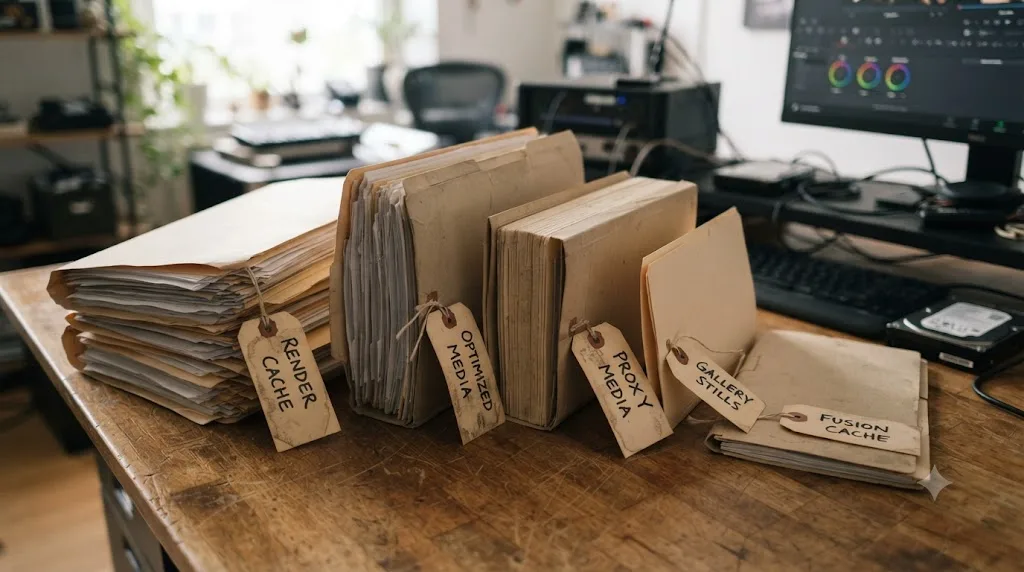
Because it's not one cache. It's five, and they all write to disk independently, for different reasons, and none of them know the others exist.
Render Cache pre-renders your grades, effects, and Fusion compositions into playable files, stored in a folder called CacheClip. Optimized Media transcodes your source footage into an easier-to-decode format and keeps a permanent copy of it. Proxy Media does something similar but keeps its files portable, separate from Resolve's internal cache. Gallery stills save every still you've ever grabbed on the Color page as uncompressed DPX files. And Fusion keeps its own node-level disk cache, separate from the Edit and Color page's Render Cache, for anything you've told it to cache to disk.
DaVinci Resolve's cache does not delete itself when a project closes, ever. That single fact explains almost every "my drive is suddenly full" thread on Blackmagic's own forum. Cache from a project you delivered six weeks ago is still sitting there, right now, exactly where Resolve left it, because nothing in the software's normal workflow tells it to clean up.
| Cache type | What it stores | Where it typically lives | Deletable from inside Resolve? |
|---|---|---|---|
| Render Cache (CacheClip) | Pre-rendered grades, effects, Fusion comps | Hidden CacheClip folder at your Cache Files Location | Yes, Playback then Delete Render Cache |
| Optimized Media | Full transcoded copies of source footage | OptimizedMedia folder at your Cache Files Location | No, since Resolve 17. Manual deletion only |
| Proxy Media | Low-resolution, portable stand-ins for source footage | Wherever you pointed Proxy generation, often near source media | No. Manual deletion only |
| Gallery stills | Uncompressed DPX still frames from the Color page | Hidden .gallery folder at your Cache Files Location | Only per-still, from inside the Gallery panel |
| Fusion disk cache | Cached node output for Fusion compositions | Fusion's own cache path, separate from Render Cache | Partially, via Cache to Disk toggles per node |
That table is the map for the rest of this guide. Each row gets its own section below, because "clear the cache" means something different depending on which row is actually eating your space.
Where does DaVinci Resolve actually store its cache by default?
Not in a fixed system folder the way you'd expect. Per DaVinci Resolve's reference manual, the default Cache Files Location is "a hidden 'CacheClip' directory that's created at the location of the first Media Storage Volume you specify" in Preferences. Gallery stills follow the same rule, landing in a hidden .gallery folder at that same first volume.
That word "first" is the part almost nobody notices. Preferences, then Media Storage, lists every drive Resolve knows about, in an order you set, and per the manual's page on Media Storage, "the first volume in this list is where Gallery stills and cache files are stored." If your OS drive happens to be first in that list, whether you meant it to be or not, your cache is now competing with Windows or macOS for space on the one drive you can least afford to fill.
A drive that looks nearly full of footage is usually mostly full of cache nobody asked for and nobody has cleared. Check Preferences, Media Storage, right now, and look at which drive sits at the top of that list. If it's your system drive, that's very likely where CacheClip and .gallery have been quietly growing.
The manual also flags what happens if that drive stops being available: "If the volume you've selected to use for the cache becomes unavailable, DaVinci Resolve will warn you with a dialog." That's relevant if your cache lives on a drive you sometimes unplug, covered in more detail further down this guide.

Why does Render Cache alone eat hundreds of gigabytes?
Because it's not caching your footage. It's caching your footage plus every grade, effect, and Fusion composition layered on top, at whatever bit depth and resolution you told it to, across an entire timeline. Our render cache explained guide covers Smart versus User mode in depth if you want the full mechanics. What matters here is the scale.
One editor on Blackmagic's own forum described the exact failure mode this guide is written for: the DaVinci Resolve cache had eaten up all available space on their system drive, and deleting it freed up almost 900 gigabytes. When they reopened the project and let Smart Cache regenerate, it built roughly 200 gigabytes of cache for a single music video. Editing sessions afterward wrote cache data to the system drive at a rate of one to three gigabytes per second, fast enough to watch free space visibly draining in real time.
Render Cache and Optimized Media are not the same folder, and clearing one does nothing to the other. That distinction matters because plenty of editors clear one, see the drive still full, and assume clearing cache "didn't work." It worked. It just wasn't the cache actually holding the space.
Another thread on the same forum, about how much free space editing actually needs, describes an editor on a machine with an i9 processor, 16 GB of RAM, and an SSD who had to free up 220 GB of space before Resolve would accept new files and behave normally again. Neither of these is an edge case. They're what happens when Render Cache runs at a high-fidelity format across a long timeline with no cleanup step built into the normal editing routine.
| Timeline length | Cache format | Reported cache size |
|---|---|---|
| Single music video | Smart Cache, regenerated after clearing | ~200 GB |
| Long-running project, system drive | Accumulated over time, uncleared | ~900 GB freed on deletion |
| Active editing session | Any high-fidelity format | 1-3 GB/s written to disk |

How do you clear Render Cache without breaking your project?
Through the menu built for exactly this, and it's the one cache type in this whole guide that Resolve actually lets you delete from inside the app. Go to Playback, then Delete Render Cache. Per the manual's section on clearing cached media, you get three choices instead of one blunt wipe.
All deletes every cached clip and resets the project's render cache entirely. Unused deletes "only Unused cache clips that no longer correspond to clips or effects in the Timeline," which is the safer everyday pick, since it leaves anything you're still actively working with untouched. Selected Clips deletes cache only for whatever you've highlighted, useful for rebuilding one specific section without touching the rest.
Unused is the right default while you're mid-project. It reclaims real space, since old versions of a grade you've since changed, or sections you've since cut from the timeline, still leave orphaned cache behind, and it can't accidentally slow down a section you're actively relying on to play back smoothly. Save All for a project that's locked, delivered, and not coming back to your desk.
There's also Playback, then Delete Render Cache, then Manage Cache Data, which opens a Cache Manager tied to your Project Manager. That view covers every project library on the system, not just the one currently open, and it's the fastest way to find cache from projects you finished and forgot about months ago, still sitting on a drive you're trying to reclaim space from today.

Why can't I just delete Optimized Media with one click?
Because that button doesn't exist anymore, and this is the part of the whole cache problem that trips up the most editors, since it contradicts how Render Cache behaves right next to it in the same menu.
Per the manual's page on deleting Optimized Media, "if you need to delete optimized media to free up space on your scratch volume, you must delete the optimized media manually in your OS." That's not a workaround. It's the only supported method. Resolve 16 shipped with a Playback menu delete option for Optimized Media, but that option was removed starting with Resolve 17 and has stayed gone through every release since, including 21.0.2.
Optimized Media has had no built-in delete button since Resolve 17, so the only way to remove it is through Finder or Explorer, not through Resolve itself. The manual also notes that Optimized Media is "persistent; it's saved for future use even when the project is closed and later reopened." That persistence is the feature working as intended for a project you're still actively editing. It becomes the problem the moment a project ships and nobody remembers to clean it up afterward.
To find it: open File, then Project Settings, then Master Settings, then Working Folders, and note your Cache Files Location path. Inside that folder sits a subfolder named OptimizedMedia. Quit Resolve completely, then delete that subfolder directly in Finder or Explorer. Resolve regenerates it automatically the next time you choose Generate Optimized Media for a clip, so there's no way to break a project by removing it, only a short wait the next time you need optimized playback for that footage again.
How do you find and delete old Proxy Media?
The same manual way, and for the same reason: no Playback menu shortcut exists for Proxy Media either. Our proxy media setup guide for slow laptops covers generating proxies in full. Deleting them once a project no longer needs them follows the Optimized Media playbook almost exactly.
Proxy files land wherever you told Resolve to put them when you generated them. If you left Proxy Generation Location at its default, they're likely sitting alongside your Cache Files Location in a Proxy subfolder. If you chose "in a subfolder next to the original media" instead, they're scattered across wherever your source footage lives, one small proxy folder per camera card or shoot folder. That second option is convenient for a single project and genuinely inconvenient for cleanup later, since you're now hunting through footage drives instead of one central cache location.
Quit Resolve, locate the Proxy folder or folders, and delete them the same way you would OptimizedMedia. Resolve regenerates any proxy you actually need the next time you select clips and choose Generate Proxy Media again, so nothing here is destructive to your edit, your grade, or your original camera files.
| Where you told Resolve to put proxies | Where to look for cleanup |
|---|---|
| Cache Files Location default | A Proxy subfolder next to CacheClip and OptimizedMedia |
| "Subfolder next to original media" | One small Proxy folder per source footage location, scattered across drives |
| A custom folder you browsed to manually | Wherever you pointed it, check Project Settings if you don't remember |

Do Gallery stills and Fusion's own cache matter too?
Usually less than the first three, but they're worth checking, especially on a color-heavy or Fusion-heavy project.
Gallery stills save every reference frame you've grabbed on the Color page, and per the reference manual, they're stored as uncompressed DPX files in that hidden .gallery folder at your first Media Storage volume. Uncompressed DPX is not a small format, and a colorist who grabs stills constantly across a long project can accumulate a meaningful pile of them over time. Unlike CacheClip or OptimizedMedia, Gallery stills aren't disposable the way cache is: they're reference images you deliberately saved, so don't bulk-delete this folder the way you would the others. Clean it up from inside Resolve's Gallery panel instead, deleting specific stills you no longer need one at a time.
Fusion's disk cache is a genuinely separate thing from the Edit and Color page Render Cache described earlier, even though both share the word "cache." Right-click a Fusion node and choose Cache to Disk, and Resolve writes that node's output to its own cache path, independent of CacheClip. Our Fusion render slow guide goes deep on when and why to use this. For disk space purposes, the fix is the same shape as everything else here: it's a separate accumulation, on a project with heavy Fusion work it can add up, and there's no automatic pruning for it either.
A cache format built for 12-bit grading fidelity can cost more disk space than the camera footage it's protecting, and that applies to Gallery stills and Fusion caches just as much as it does to Render Cache. High fidelity and small file size are opposites, everywhere in Resolve's cache system, not just in the one folder you already knew to check.
How do you move DaVinci Resolve's cache to a different drive?
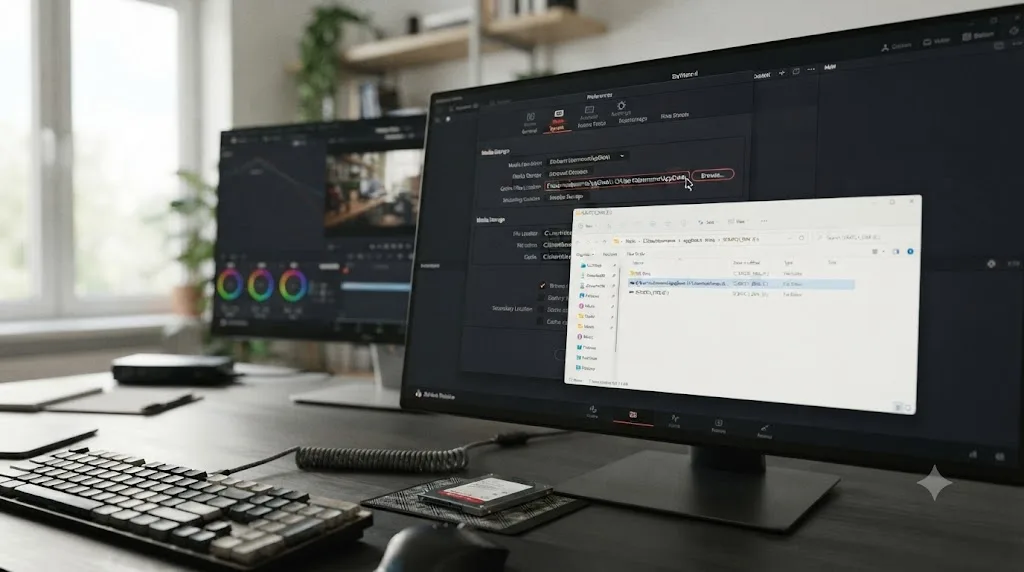
Through Project Settings, Master Settings, Working Folders, the same panel that shows you where cache currently lives. Click Browse next to Cache Files Location and pick a new folder, ideally on a dedicated internal SSD with real free space rather than your OS drive or a slow external one.
This is a per-project setting, not a global one, which matters if you regularly start new projects: each new project defaults back to whatever your Preferences, Media Storage order currently specifies, so moving cache for one project doesn't automatically move it for the next. If you want a lasting fix rather than a one-off relocation, change the order in Preferences, Media Storage, so your intended cache drive sits first in that list, and every new project inherits it from there.
Editor and video blogger J. Matthew Turner, describing his own approach to Fusion caching on a demanding project, put the underlying principle plainly: "Storage speed is key, so all caches are set to a dedicated SSD cache drive, while the project itself is stored on a separate spindle drive." That split, a dedicated fast drive for cache and a separate drive for the project and media, is the same pattern the reference manual points toward when it says to pick "the fastest storage volume to which you have access" for your first Media Storage entry.
Moving Cache Files Location to a second drive doesn't shrink the cache, it just stops it from competing with your operating system for space. That's worth being honest about before you relocate cache expecting a smaller footprint. A 200 GB render cache is still 200 GB after you move it. What changes is which drive absorbs that weight, and whether your OS still has room to breathe while it does.
One caution before you relocate anything: moving Cache Files Location only affects where new cache gets written going forward. It does not move or delete cache that already exists at the old location. Clear the old cache first with Playback, Delete Render Cache, then change the location, so you're not paying for the same cache twice on two different drives.
Which cache format actually uses the least disk space?
Whichever one carries the least bit depth and the least color information you don't actually need, and that choice lives in the same Working Folders panel as everything else in this guide, under Render Cache Format.
Per the reference manual's guidance on Smart and User Cache, higher-fidelity formats like DNxHR 444 or ProRes 4444 preserve out-of-bounds image data and alpha channels, which matters for active grading and HDR work. They also cost the most disk space per second of footage, by a wide margin, because that extra fidelity has to live somewhere.
| Cache format | Disk cost | When it's worth it |
|---|---|---|
| DNxHR LB or ProRes Proxy | Lowest | Rough cuts, editorial-only playback, no active grading |
| DNxHR SQ or ProRes 422 | Low to moderate | Most editorial work, light color adjustments |
| DNxHR HQX or ProRes 422 HQ | Moderate | Active color grading without extreme dynamic range |
| DNxHR 444 or ProRes 4444 | High | HDR grading, compositing, alpha channel work |
| Uncompressed 10 or 16-bit | Highest | Short, critical sequences only, never a full timeline |
If your drive is filling up and you're not doing HDR grading or heavy compositing, dropping from a 444-tier format to an HQX or SQ-tier format is one setting change that meaningfully shrinks every future cache generation, without touching your actual grade or edit. It won't shrink cache that already exists on disk, since existing cached files stay in whatever format they were rendered in until you clear and regenerate them, but it changes the trajectory going forward.
Should you turn Render Cache off completely?
Only if you're confident your machine already plays everything back smoothly without it, and even then, think about it as a tradeoff rather than a fix.
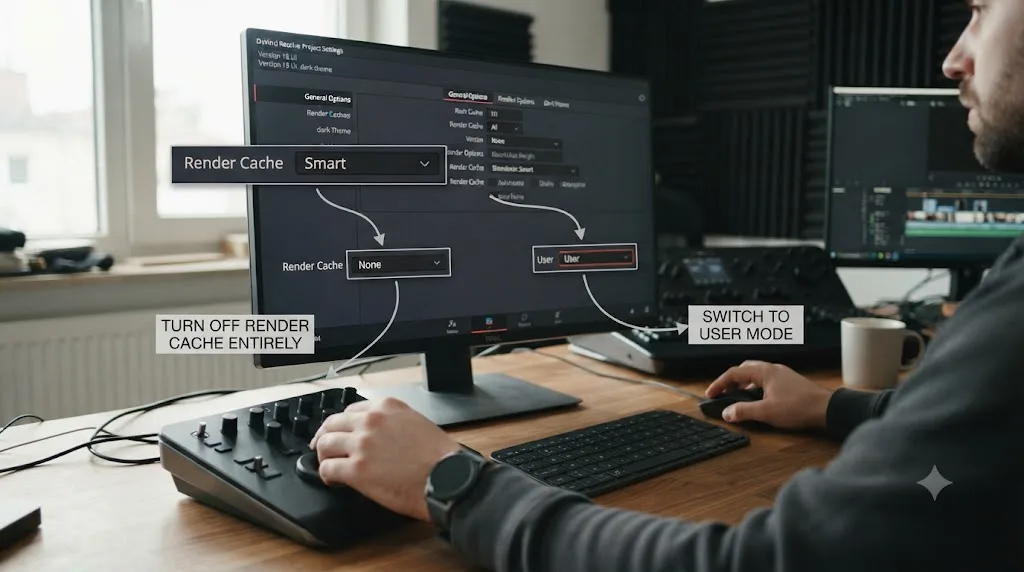
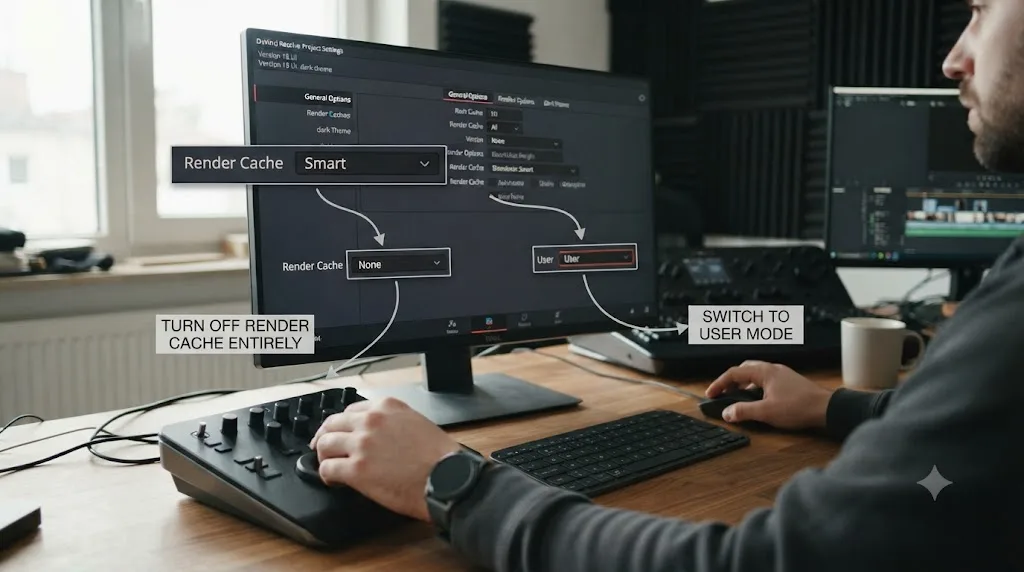
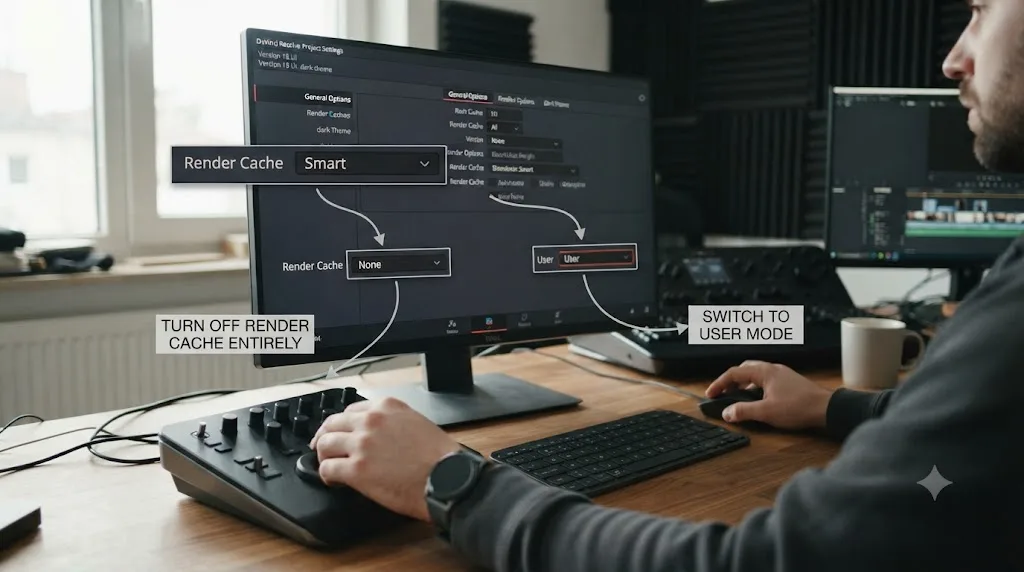
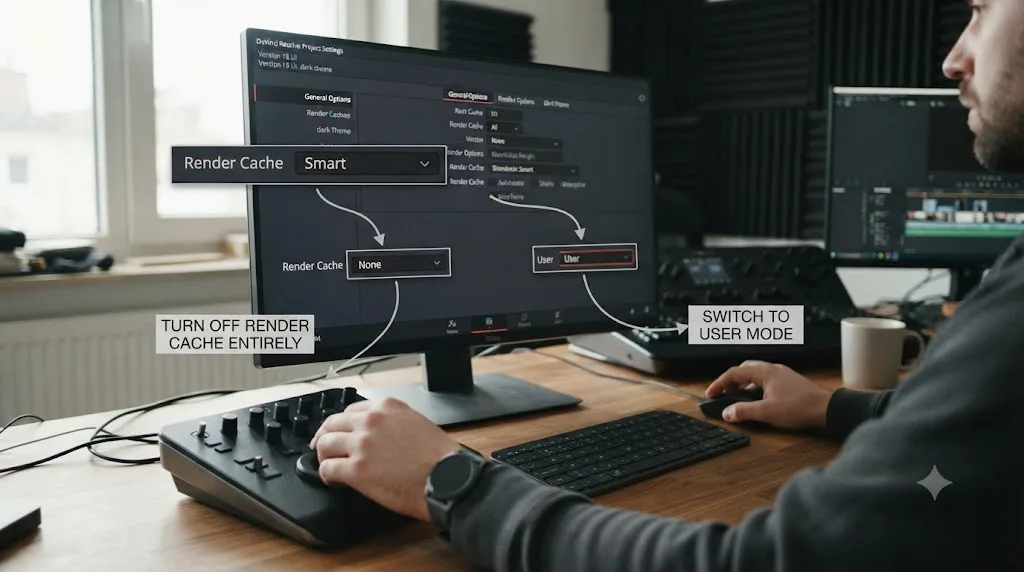
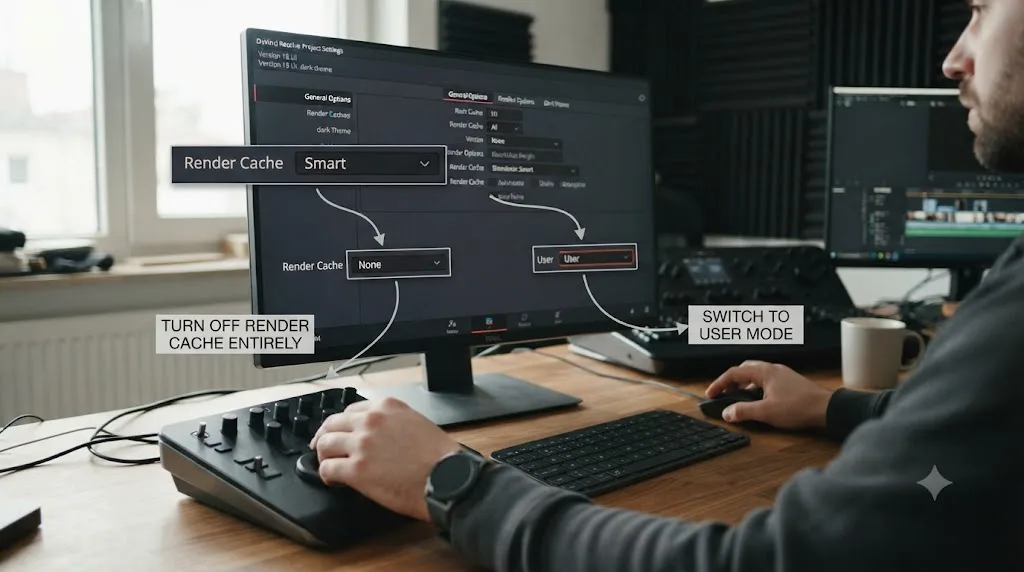
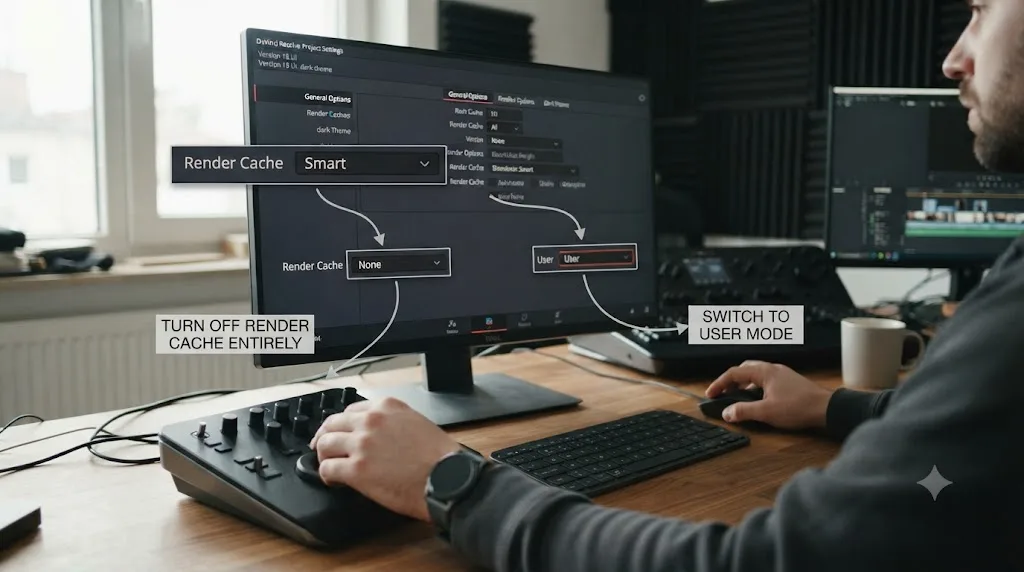
Setting Render Cache to None in Project Settings stops new cache from being generated entirely, which absolutely stops the drive from filling up further. It also means every grade, effect, and Fusion composition on your timeline gets recomputed live, every time you scrub past it, with nothing pre-rendered to fall back on. On a fast machine with a light timeline, that's a fine trade. On a machine that was already struggling, turning off Render Cache to save disk space usually just trades a full drive for a stuttering timeline, which is a worse problem to have mid-edit.
The better middle ground, if disk space is the actual crisis, is switching from Smart to User mode rather than turning caching off outright. Smart mode caches broadly and automatically; User mode caches only what you flag by hand, which naturally limits how much gets written without giving up the benefit entirely. Our render cache guide walks through exactly how that mode switch works and when it's worth making.
A drive filling up from cache is a disk problem, not a performance problem, and the fix that actually addresses it is disk management, not disabling the feature that was working correctly. Treat "turn off Render Cache" as a last resort for a drive that's genuinely out of options right now, not a permanent setting.
What's the fastest way to recover space right now?
Work through these in order if your drive is genuinely full today and you need space back before you can keep editing:
- Quit Resolve. Nothing below is safe to do while the project database is open.
- Check Preferences, Media Storage, and note which drive sits first in the list. That's where your cache almost certainly lives, whether or not you meant it to.
- Reopen Resolve, open the affected project, and choose Playback, Delete Render Cache, All. This is the single biggest reclaim available from inside the app, and the forum reports above show it can free hundreds of gigabytes on its own.
- Quit Resolve again. Navigate to your Cache Files Location in Finder or Explorer and delete the OptimizedMedia folder manually.
- Delete old Proxy Media folders the same way, whether they live in Cache Files Location or scattered next to source footage.
- Check the Gallery panel for stills you no longer need, and delete them individually rather than bulk-removing the .gallery folder.
- If a Fusion-heavy project is involved, check for Cache to Disk flags on individual nodes and clear those too.
- Once space is back, move Cache Files Location to a drive that isn't your OS drive, before you resume editing, so this doesn't repeat next week.
That order matters. Clearing Render Cache first, since it's the one type Resolve lets you delete safely from inside the app, typically recovers the most space with the least risk, before you touch anything that requires quitting the app and manually deleting folders.
Does DaVinci Resolve clean up its own cache automatically?
No, and this hasn't changed in Resolve 21. The 21.0.2 update shipped thumbnail preview improvements, retime curve fixes, IntelliSearch performance gains, and a batch of stability patches, but nothing touching cache management, automatic cleanup, or disk space handling. Cache behavior in 21.0.2 works exactly as described throughout this guide.
That's worth setting expectations around before you assume a future update will fix this for you. Blackmagic's manual describes Render Cache, Optimized Media, and Proxy Media entirely in terms of what you configure and what you delete. There's no "automatically manage disk space" toggle anywhere in Preferences or Project Settings, in this release or any version before it. The responsibility for keeping cache under control sits with your own workflow, not with the software noticing on its own.
That's not a design flaw so much as a consequence of what cache is for. Render Cache exists specifically so Resolve doesn't have to recompute your effects on every scrub, which means the software has no way to know, on its own, when you're truly done needing a cached section versus just not touching it for a while. Automatic deletion based on "hasn't been used recently" would risk deleting cache you still needed the next time you opened the project. Manual control, however inconvenient it feels the first time your drive fills up, is the tradeoff that keeps that risk at zero.
What if your cache lives on a drive that might disappear?
This comes up more than people expect: an external drive holding your cache gets unplugged, ejected, or runs out of space mid-session, and Resolve has a specific, documented response rather than a silent failure.
Per the Media Storage manual page, "if the volume you've selected to use for the cache becomes unavailable, DaVinci Resolve will warn you with a dialog." That's a real safeguard, but it only fires after the drive is already gone, which means the actual fix is choosing a cache drive that isn't going anywhere in the first place: an internal SSD rather than a portable external drive you might disconnect to take footage somewhere else.
This matters even more on shared or networked setups. If your Cache Files Location points at a NAS or a network share, every cached frame Resolve generates has to travel over that network connection to be read back during playback, which turns a fast local drive problem into a much slower networked one, on top of the disk space problem this guide is otherwise addressing. Cache belongs on the fastest drive physically inside or directly attached to the machine you're editing on, not on shared storage built for holding finished media long-term.
If you're on a laptop with a single internal drive and no expansion slot, the calculus is different again. Our proxy media guide for slow laptops covers that single-drive scenario specifically, including why keeping that one drive below roughly 80 percent full matters for speed as much as it does for avoiding a hard stop.
What does a real project's cache growth actually look like?
Take a documentary edit: 90 minutes of interview footage shot in a mixed batch of H.264 and ProRes, cut over six weeks, with a secondary grade on every interview section and one animated title sequence built in Fusion.
Week one, the editor generates Optimized Media for the H.264 footage to make scrubbing bearable, since interframe codecs decode expensively on the editing laptop being used. That's maybe 40 GB, roughly matching the source footage it's standing in for. Week two, Smart Cache starts flagging the graded interview sections automatically, since secondary color work with several nodes qualifies. By week four, the Fusion title sequence gets its own Render Cache Fusion Output, and by week six, right before delivery, the editor generates a handful of Gallery stills to send a client for approval on specific frames.
Nobody deleted anything along the way, because nothing in that six-week process asked them to. By delivery, Optimized Media sits at roughly 40 GB, Render Cache for the graded sections and the Fusion title easily doubles or triples that depending on the format chosen, and the Gallery stills add a smaller but real slice on top. None of that is unusual or a sign anything went wrong. It's what six weeks of normal editing, grading, and Fusion work looks like once you add up every cache type this guide has covered, with zero cleanup steps built into the process.
The fix isn't editing differently. It's adding one step at the end: once the project is delivered and locked, Playback, Delete Render Cache, All, followed by a manual pass through OptimizedMedia and Proxy folders in Finder or Explorer. That one habit, applied at the natural end of every project instead of never, is the entire difference between a drive that slowly fills over a year of unrelated work and one that stays predictable.
Which cache is actually your culprit?
If you're not sure which of the five types from the table earlier is responsible for your specific full drive, work through this in order rather than clearing everything at once and hoping.
| Symptom | Most likely culprit | Where to check first |
|---|---|---|
| System drive fills up even though footage lives elsewhere | Cache Files Location defaults to your first Media Storage volume, which may be your OS drive | Preferences, Media Storage |
| A specific project's folder is huge, even after export | Render Cache and Optimized Media both persist after delivery | Playback, Delete Render Cache, then check OptimizedMedia folder |
| Drive fills up gradually across many small projects, none individually huge | Old Proxy Media and Optimized Media from finished, forgotten projects | Search your drives for OptimizedMedia and Proxy folder names |
| Drive fills up fast during one intense grading session | Smart Cache caching a heavy secondary grade in a high-bit-depth format | Render Cache Format setting, Project Settings |
| Drive fills up specifically while working in Fusion | Fusion's own disk cache, separate from CacheClip | Right-click nodes for Cache to Disk flags |
| A specific external drive is full, but your internal drive has plenty of room | Cache Files Location points at that external drive | Working Folders, Cache Files Location |
This table exists because the instinct, when a drive is full, is to delete the first big folder you find and hope it was the right one. Half the time it is. The other half, you've cleared Render Cache, watched the number barely move, and concluded incorrectly that clearing cache "doesn't work," when what actually happened is that Optimized Media, sitting in a completely separate folder, was the real weight the whole time.
What's the right cache habit going forward?
Not a bigger drive, at least not first. A bigger drive buys you time. It doesn't change the fact that Resolve will keep writing Render Cache, Optimized Media, Proxy Media, Gallery stills, and Fusion cache at exactly the same rate, with exactly the same lack of automatic cleanup, on whatever drive you point it at next.
The actual fix is a habit, and it's a short one: point Cache Files Location at a dedicated internal SSD, not your OS drive, before it becomes a problem rather than after. Pick a Render Cache Format that matches what the project actually needs, not the highest tier available by default. And build one closing step into every project you deliver: Playback, Delete Render Cache, All, followed by a manual sweep through OptimizedMedia and Proxy folders. That's the entire habit. It costs a few minutes at the end of a project instead of an afternoon of panicked cleanup the next time a drive hits zero.
If untangling Working Folders, Render Cache Format, and Media Storage order feels like more menu-hunting than you want to do while a drive is actively filling up, that's exactly the kind of moment TryUncle is built for. TryUncle is an AI tutor for DaVinci Resolve on macOS — ask in plain words and Uncle points at the exact control on your screen, instead of you hunting through a reference manual mid-crisis to find a setting you've seen once and can't remember the name of.
A full drive isn't a sign your project is too big or your machine is too slow. It's Resolve doing its job, five separate ways, with no one ever telling it to stop. Clear what's already there, move new cache off your OS drive, and make cleanup part of how you close out a project instead of something you discover you needed to do after the fact.
Frequently asked questions
- What's actually filling up my hard drive when I use DaVinci Resolve?
- Almost never your camera footage. It's Resolve's own cache: Render Cache (the CacheClip folder), Optimized Media, Proxy Media, Gallery stills, and Fusion's node cache all write separate copies of your media to disk, and none of them clean up after themselves. A long project can easily carry more cache than source footage.
- How do I clear DaVinci Resolve's cache without losing my project?
- Open the project, go to Playback, then Delete Render Cache, then choose Unused to remove only cache no longer tied to your timeline, or All once the project is locked and delivered. That's the only cache type Resolve lets you clear from inside the app. Optimized Media and Proxy Media have to be deleted manually in Finder or Explorer.
- Where does DaVinci Resolve store its cache files by default?
- Wherever the first drive listed in Preferences, Media Storage happens to be. Resolve creates a hidden CacheClip folder there for render cache and a hidden .gallery folder for stills. If that first drive is your OS drive, your cache is quietly competing with Windows or macOS for space without you choosing that.
- Why can't I just delete Optimized Media from inside DaVinci Resolve?
- Because the built-in Playback menu delete option for Optimized Media was removed after Resolve 16. Since Resolve 17, you have to go to Project Settings, Master Settings, Working Folders, open the Cache Files Location folder, find the OptimizedMedia subfolder, and delete it manually through your operating system's file manager.
- How do I move DaVinci Resolve's cache to a different drive?
- Open Project Settings, Master Settings, and find Working Folders. Click Browse next to Cache Files Location and point it at a different drive, ideally a fast internal SSD with real free space. This only changes where new cache gets written. It doesn't move or shrink cache that already exists on the old drive.
- Does DaVinci Resolve delete old cache files automatically?
- No. There's no setting, in any version through 21.0.2, that automatically prunes Render Cache, Optimized Media, or Proxy Media on a schedule or when a project closes. Cache persists until you delete it yourself, which is exactly why it accumulates silently across months of unrelated projects.
- Will clearing the cache slow down my next editing session?
- Briefly, and only for the sections that were cached. The first time you scrub or play back a heavily graded or effects-heavy clip after clearing cache, Resolve has to rebuild it, which can stutter for a moment. After that first pass, playback returns to normal. Clearing cache never touches your grade, your edit, or your original footage.
- Is it safe to just delete the CacheClip folder manually while Resolve is closed?
- Yes, as long as Resolve is fully quit first and you're deleting the CacheClip or OptimizedMedia folders specifically, not a project database or gallery folder you're unsure about. Manual deletion is exactly what Blackmagic's own workflow requires for Optimized Media, since Resolve doesn't offer a button for it.
Sources
- DaVinci Resolve Reference Manual: Working Folders, Cache Files Location, and Gallery Stills Location (VFXPedia mirror)
- DaVinci Resolve Reference Manual: Media Storage (VFXPedia mirror)
- DaVinci Resolve Reference Manual: Deleting Optimized Media (VFXPedia mirror)
- DaVinci Resolve Reference Manual: The Difference Between Smart Cache and User Cache Modes (VFXPedia mirror)
- DaVinci Resolve Reference Manual: Clearing Cached Media (VFXPedia mirror)
- Blackmagic Forum: Davinci Resolve Cache (v18) using huge amount of Disk Space
- Blackmagic Forum: How Much Free Space is Necessary for Fast Editing?
- DaVinci Resolve/Fusion Caching, by j.matthew.turner
- No Film School: DaVinci Resolve Update 21.0.2 Adds Faster Image Bypass Switching, Improved H.265 Playback, and More
- DaVinci Resolve - Tech Specs (Blackmagic Design)
Put this guide to work with TryUncle.
Ask about the step you’re on. TryUncle sees your screen and points at the control you need, so you can keep learning in your own project.
Get TryUncle for Mac or WindowsKeep reading
Guides · Jul 13, 2026 · 18 min
DaVinci Resolve Render Cache Explained: Smart vs. User Mode
How DaVinci Resolve's render cache works, and how Smart mode differs from User mode: cache formats, disk space, per-clip flags, and when to use each.
Fixes · Jul 15, 2026 · 25 min
DaVinci Resolve Proxy Media Setup for a Slow Laptop
Set up proxy media in DaVinci Resolve on a slow laptop: resolution, codec, the Blackmagic Proxy Generator, and the exact settings that stop the stutter.
Fixes · Jul 7, 2026 · 25 min
DaVinci Resolve Playback Choppy or Stuttering? The Real Fix
Fix choppy DaVinci Resolve playback with Optimized Media, Proxy Media, Render Cache, Timeline Proxy Mode, and the Resolve 21.0.2 NVIDIA decode fix.