Articles / Fixesupdated for DaVinci Resolve 21.1 (September 2026)
DaVinci Resolve 21 Viewer Overlays Not Visible? Fix Them
Quick answer
If DaVinci Resolve 21 viewer overlays are not visible, pause playback, open the viewer's three-dot options menu, and turn on the overlay you need. Then check Preferences > User > Playback Settings and disable Hide UI overlays and Minimize interface updates during playback, because both can hide controls while Resolve plays.
DaVinci Resolve 21 Viewer Overlays Not Visible? Fix Them
When viewer overlays disappear in DaVinci Resolve 21, the cause is usually a visibility switch, not a broken grade or missing media. I start with the viewer's three-dot options menu, then check playback preferences, because Resolve can hide onscreen controls to keep playback responsive.
As of October 2026, the current release line is DaVinci Resolve 21.1. Blackmagic lists the 21.1 reference manual on its support page, while the final DaVinci Resolve 21 release arrived in June 2026. (Blackmagic Design support) This matters because a tutorial recorded in Resolve 18, 19, or 20 may use an older menu location or a different toolbar label.
One of the recurring questions in our 100,000+ member professional video-editing community is some version of this: "I can see the picture, but the overlay, guide, marker, or control is gone." After 7+ years of professional commercial video editing, I treat that as a visibility diagnosis first. I also use the same teaching standard we apply to 100,000+ students on Udemy and to Fortune 500 teams: identify which layer has disappeared before changing unrelated settings.
DaVinci Resolve 21 viewer overlays are usually restored by pausing playback, enabling the specific viewer option, and disabling playback preferences that suppress onscreen controls.
Why are DaVinci Resolve 21 viewer overlays not visible?
DaVinci Resolve 21 viewer overlays are not visible when either the overlay itself is disabled, the selected page or tool does not own that overlay, or playback preferences are hiding interface updates. The quickest test is to pause the viewer and open the viewer options menu.
The word overlay covers several different things in Resolve. A marker overlay identifies a timeline or clip marker. A timecode overlay displays timing information. A Power Window, qualifier, transform box, or Fusion control is an onscreen editing control. An annotation is a drawing or note associated with a marker or review workflow. These do not share one master switch.
That distinction prevents a common mistake. If marker text is missing, changing the Color page's Power Window control will not help. If a Fusion bounding box is missing, turning on marker overlays will not create it. Match the symptom to the layer first.
Blackmagic's documentation describes the Viewer as the place where the current playhead frame is shown, with toolbar controls for wipes, split-screen, highlight, and onscreen controls. (DaVinci Resolve reference manual search result) The underlying idea remains useful in Resolve 21: viewer visibility is contextual, and the controls shown depend on the page and selected tool.
| What disappeared | First control to check | What should happen |
|---|---|---|
| Clip or timeline marker text | Viewer three-dot menu > Show Marker Overlays | Markers appear when the playhead is on a marked frame |
| Timecode or status text | Viewer options related to timecode or display overlays | The selected timing or display layer returns |
| Power Window outline | Color page onscreen controls menu | The active window outline returns while paused |
| Transform or crop handles | Edit, Cut, or Photo page viewer toolbar | The selected tool's handles appear over the frame |
| Fusion node control | Fusion Overlay and selected tool | The selected Fusion tool's control appears |
| Open FX control | Open FX Overlay and selected effect | The effect's supported control appears |
| Everything during playback | Preferences > User > Playback Settings | Interface overlays stay visible during playback if performance suppression is disabled |
The table is a diagnosis map, not a promise that every page uses identical icons. Resolve's viewer toolbar changes with context. A control can be absent because the selected clip has no active effect, because the effect has no viewer control, or because you are looking at a different viewer than the one holding the timeline.
How do I restore a missing overlay from the viewer menu?
To restore a missing viewer overlay in DaVinci Resolve 21, pause playback, open the three-dot options menu near the viewer, and enable the named layer, such as Show Marker Overlays. Then place the playhead where that layer has something to display.
Use this sequence:
- Press the spacebar to stop playback. A paused frame is easier to diagnose because performance options can hide controls while the viewer is running.
- Confirm that you are looking at the intended viewer. On the Edit page, check whether you need the source viewer or timeline viewer. On the Color page, make sure the clip under the playhead is the clip you selected.
- Open the viewer's three-dot options menu.
- Turn on the specific option that matches the missing layer. For markers, this is Show Marker Overlays. For other versions or pages, the wording can be slightly different.
- Move the playhead to a frame that contains the overlay. A marker at another time will not appear on the current frame.
- If the overlay is still absent, select the clip, effect, or tool that owns it before changing global preferences.
Blackmagic documented marker overlays as a viewer option when it introduced support for timeline and clip marker annotations. Its release notes say that both types of markers appear in the Timeline Viewer when Show Marker Overlays is enabled. (Blackmagic Design forum release notes) The important practical detail is the second half: enabling the switch does not invent a marker. The playhead still has to reach a marked frame.
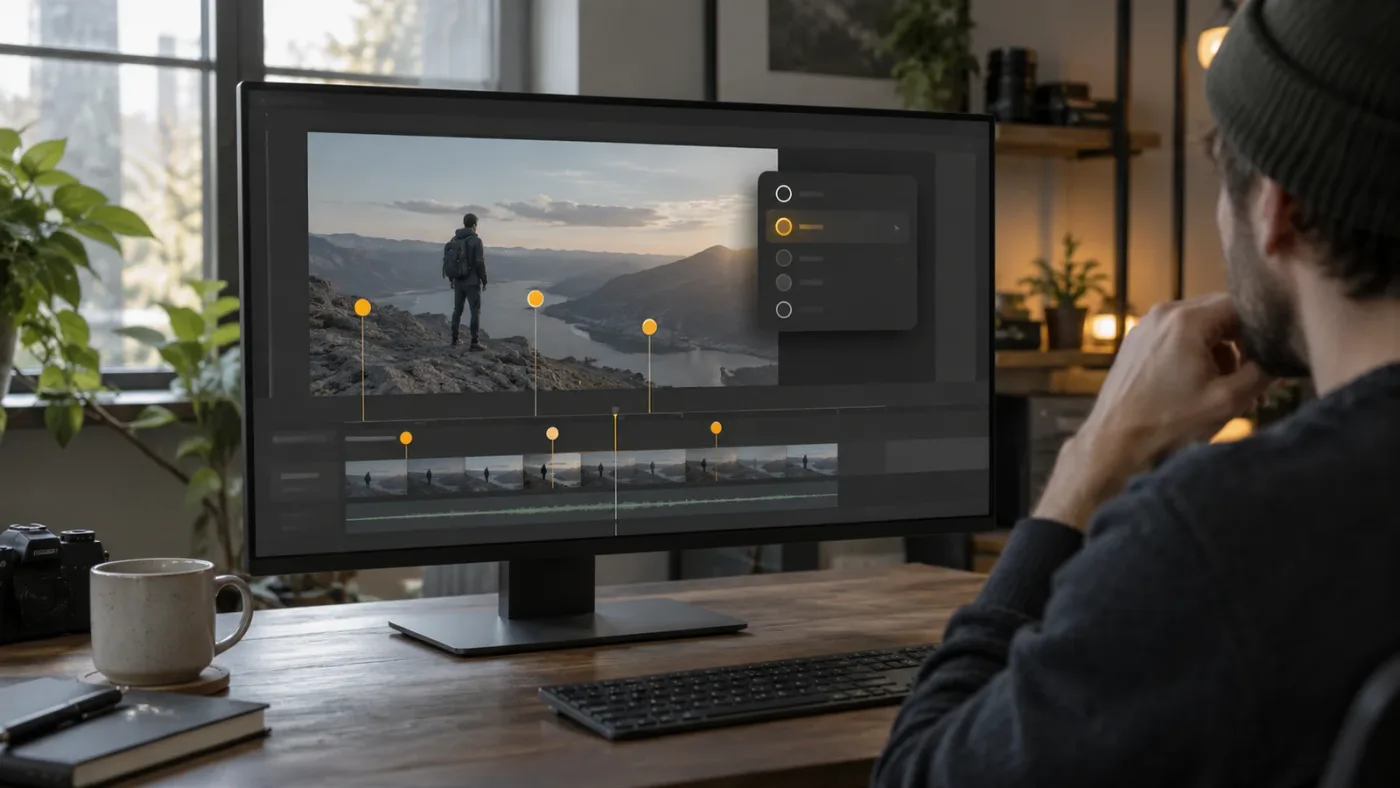
Show Marker Overlays controls whether marker information is drawn in the viewer, but it does not create markers or move the playhead to one.
If you are following a tutorial, compare the words, not just the icon. A tutorial may call the menu Viewer Options, the three-dot menu, or the viewer settings menu. Resolve 21.1 also includes new and expanded page features, so a control can move with the page context even when the underlying function is familiar.
Why do overlays disappear only while the video is playing?
Overlays that vanish only during playback are usually being suppressed by Hide UI overlays or Minimize interface updates during playback in Preferences > User > Playback Settings. Pause the viewer first, then inspect both settings.
Open Preferences from the DaVinci Resolve application menu on macOS or the equivalent application menu on Windows and Linux. Go to User, then Playback Settings. Look for these two options:
| Setting | Why it can look like an overlay failure | Practical choice |
|---|---|---|
| Hide UI overlays | Hides onscreen controls such as cursors, Power Window outlines, and split-screen views during playback | Turn it off while learning, grading, or checking guides |
| Minimize interface updates during playback | Reduces viewer interface updates to favor realtime playback | Turn it off when you need controls to remain visible while playing |
| Performance Mode | Can trade some interface or processing behavior for playback responsiveness | Use Automatic for a general performance test, then retest with overlay suppression disabled |
The DaVinci Resolve 18.5 manual describes Hide UI overlays as a playback optimization that hides controls during playback and brings them back when playback is paused. It describes Minimize interface updates during playback as a setting that gives realtime performance priority by reducing interface updates. (DaVinci Resolve 18.5 Reference Manual) Resolve 21.1 is newer, so use the current manual if the label or location differs, but the diagnosis remains the same: a control that returns when paused is being affected by playback state, not necessarily lost.
This is the branch to use when you say:
- "My Power Window is visible when stopped but disappears when I press play."
- "The marker is there, but I cannot see the overlay during playback."
- "The transform box flashes, then vanishes as soon as the clip runs."
- "The viewer controls come back when I pause."
Do not leave these options disabled forever if your computer needs them for smooth playback. They exist for a performance trade-off. Turn them off while diagnosing or setting up a grade, then decide whether you prefer a clean, responsive playback view or persistent interactive guides.
If a DaVinci Resolve overlay returns when playback is paused, check Playback Settings before reinstalling the application.
How do I show Power Window, qualifier, and transform controls?
Power Window, qualifier, and transform controls appear when the relevant clip and tool are selected, the viewer is paused, and the onscreen control is enabled. These controls are not the same as marker overlays.
On the Color page, select the clip and open the palette that owns the control. A Power Window outline belongs to the Window palette. A qualifier selection can use a highlight or matte view. A tracker may show a path or control point. The viewer's onscreen controls menu can expose or hide these elements, and a different active palette can replace the control you expected.
On the Edit or Cut page, select the clip and activate the tool that owns the handles. Transform, crop, dynamic zoom, and retime controls appear in context. If the Inspector shows values but the viewer shows no handles, check the viewer toolbar and the selected tool before assuming the clip is wrong.
On the Photo page introduced in DaVinci Resolve 21, Blackmagic documents onscreen crop controls in the Viewer, along with Open FX Overlay and Fusion Overlay controls for effects that support onscreen interaction. (DaVinci Resolve 21 New Features Guide) This is a useful version-specific edge case. Resolve 21 is not only a video editor, so a tutorial about a photo crop overlay may be referring to a Photo page toolbar that does not exist in an older tutorial.
Use this short test for any tool overlay:
- Select one clip, not a blank timeline area.
- Select the tool or effect that should own the control.
- Pause on a frame where the tool has something to act on.
- Look for the viewer toolbar control for that tool.
- Toggle the control off and on once.
- If the control still does not show, switch to a different clip and return to the original one. This refreshes the selection context without changing the grade.
A missing control can also be correct behavior. Some effects expose parameters only in the Inspector. Some Open FX plugins have no onscreen control. Some Fusion tools show controls only when the node is selected in the Fusion page. Resolve cannot draw a handle for a tool that does not provide one.
Why are Fusion or Open FX viewer overlays missing in Resolve 21?
Fusion and Open FX overlays are missing when the relevant node, effect, or overlay mode is not active. Select the tool first, then enable the matching Fusion Overlay or Open FX Overlay control in the viewer.
Fusion has its own viewer logic. A node can be visible in the viewer while not being selected, and a selected node can have an onscreen control that is hidden. Click the node that owns the control, then check the viewer toolbar. If you are in the Edit page with a Fusion effect applied, the control may require the clip's Fusion controls or a switch into the Fusion page.
Open FX behaves similarly. The effect must be applied to the selected clip, and the effect must expose an onscreen control. If the plugin only offers Inspector sliders, there is no viewer handle to restore.
In DaVinci Resolve 21, Blackmagic's New Features Guide names Open FX Overlay and Fusion Overlay as separate controls in the Photo page's overlay toolbar. (Blackmagic Design New Features Guide) That wording is helpful even when you are working on another page: look for the overlay mode that matches the tool family instead of searching for one universal "show controls" button.
Try changing one variable at a time. Select the node, enable the overlay, pause playback, then test. If you toggle five controls at once, you will not know which one solved the problem, and you may leave an unwanted guide visible in the next shot.
How do I fix viewer overlays that are visible on one page but not another?
A viewer overlay can be visible on one DaVinci Resolve page and absent on another because each page has its own viewer, toolbar, and selected context. Confirm the page, viewer, clip, and tool before changing project settings.
The Edit page often presents a source viewer and a timeline viewer. A marker may be attached to source media or to a timeline. A tutorial may show the timeline viewer while your click is landing in the source viewer. That looks like a broken overlay, but it is a viewer mismatch.
The Color page follows the playhead and selected clip more tightly. If you select a clip in the timeline but the playhead is elsewhere, the control you expect may belong to a different frame. The Fusion page can show node-specific controls, while the Edit page may show only the finished Fusion result. The Photo page has its own crop and overlay toolbar in Resolve 21.
Use this page-by-page check:
| Page or context | Check first | Common wrong assumption |
|---|---|---|
| Cut | Timeline viewer selection and active tool | The source viewer has the same controls |
| Edit | Source versus timeline viewer, then Inspector and viewer toolbar | Every effect exposes a viewer handle |
| Color | Selected clip, active palette, and onscreen control menu | Marker overlay and Power Window overlay are the same switch |
| Fusion | Selected node, active viewer, and overlay mode | A visible node automatically shows its handles |
| Photo | Crop toolbar, Open FX Overlay, or Fusion Overlay | Video tutorials use the same Photo page controls |
| Deliver | Preview display settings and render viewer state | A viewer guide is part of the exported image |
If the page layout is simply too crowded to see the control, restore the page layout or enlarge the viewer. A small viewer can make a thin guide, crosshair, or bounding box appear missing when it is only difficult to see.
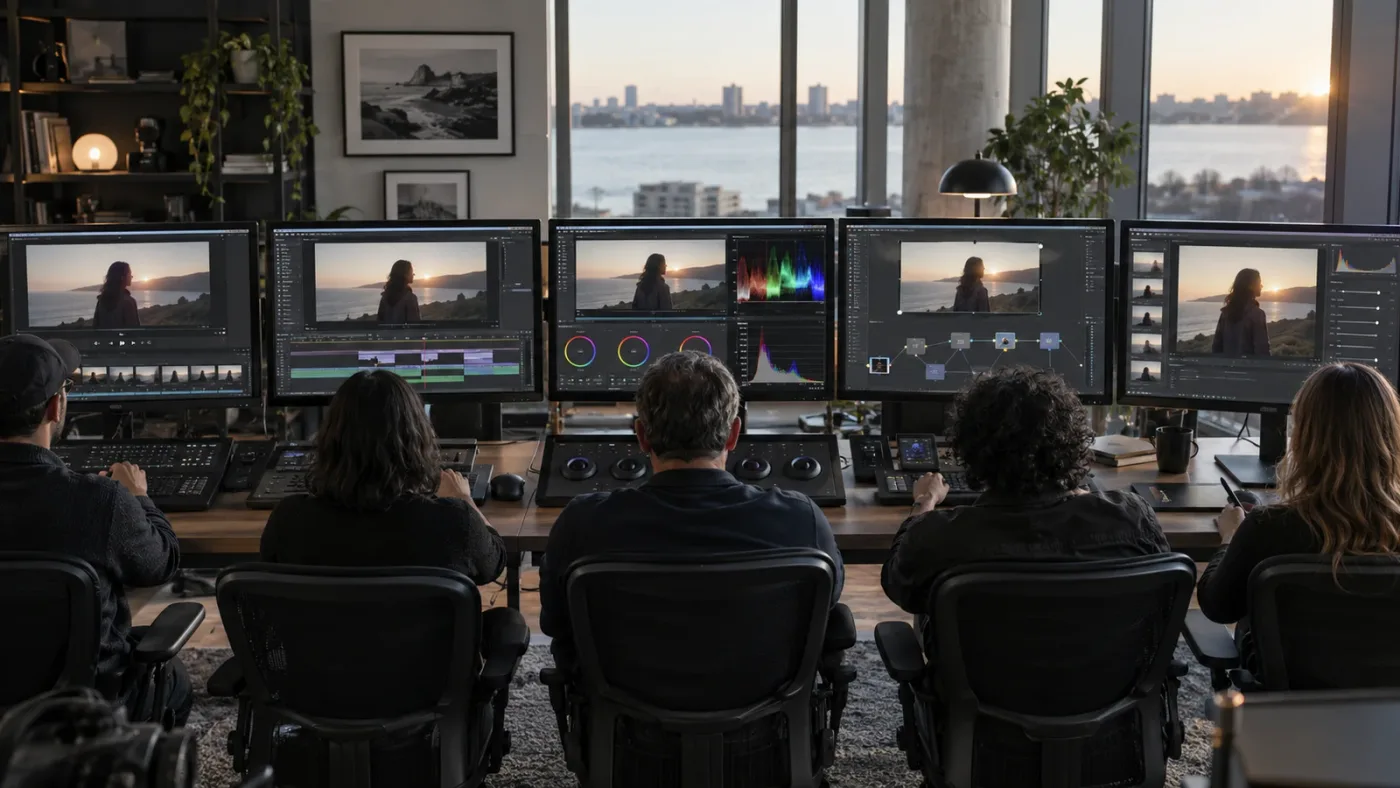
DaVinci Resolve viewer controls are contextual, so a missing overlay can mean the wrong viewer or tool is active rather than that the project is damaged.
Do viewer overlays become part of the exported video?
Viewer overlays are normally interface aids, not pixels in the rendered video. A marker, Power Window outline, transform handle, or Fusion control helps you edit the frame; it should not be used as proof that the export contains or omits the guide.
The safe test is simple. Export a short range, open the resulting file in a separate player, and inspect it without Resolve's viewer UI. If the guide is gone in the exported file, that is expected for an interface overlay. If text or graphics remain, they are likely actual timeline elements, a burn-in, a title, or an effect rather than a viewer guide.
Be careful on the Deliver page. Viewer display options can make a render preview look different from a clean player, and performance settings can reduce updates while a render is running. Do not add a burn-in or title merely to make a viewer label visible. First establish whether the thing you want is an editing guide or an output element.
This also explains why a missing overlay is rarely an export problem. If you cannot see a Power Window outline while grading, the final render may still be correct. If you can see an accidental title in the exported file, the title is part of the timeline and needs a different fix.
Which DaVinci Resolve 21 version should I check first?
Check Resolve 21.1 first if you are on the current 21.x line, then compare the exact menu name with the 21.1 manual. Resolve 21.0, 21.0.1, 21.0.2, 21.0.3, 21.0.4, and 21.1 are not interchangeable labels when a tutorial describes a new control or a bug fix.
Blackmagic's support page lists the 21.1 update on September 8, 2026, and lists the 21.0.4 update on August 5, 2026. The page also lists the final DaVinci Resolve 21 release from June 2026. (Blackmagic Design Support Center) The practical rule is to record your exact build under the DaVinci Resolve menu, then use documentation for that line when a control is missing.
The release family matters for two reasons. First, a new page or toolbar may not exist in an older build. Second, a later maintenance release may address a viewer display issue without changing the menu concept. If a problem started immediately after an update, write down the build before you change preferences or delete caches.
I do not recommend rolling back solely because a tutorial screenshot looks different. Compare the function first. If the tutorial says to enable marker overlays, search for that wording in the current manual or use the viewer's options menu. A different icon is not automatically a regression.
Grant Petty, Blackmagic Design's CEO, wrote in the DaVinci Resolve 21 New Features Guide:
"With this release, we hope to inspire creativity by letting you work in a comfortable, familiar way, while also giving you an entirely new creative toolset that will help you cut and finish projects at higher quality than ever before!"
That quote is from the guide's welcome message, not a claim that every control is unchanged. (DaVinci Resolve 21 New Features Guide) It is a useful reminder to separate the familiar workflow from the new page-specific tools.
What should I do if the overlay is still missing after these checks?
If the overlay is still missing after the menu, playback, selection, and version checks, isolate the problem in a new test project before touching the original project. This tells you whether the issue belongs to the project state, the selected media, the effect, or the application preferences.
Create a blank timeline, add one known-good clip, place a marker, and test marker overlays while paused. Then add one simple transform or effect and test its control. You do not need to rebuild the project. You need a small controlled test with one expected overlay at a time.
Use this order:
- Test marker overlay visibility on a new timeline.
- Test a basic transform handle on one clip.
- Test a Color page Power Window on a selected clip.
- Test one Fusion or Open FX control only if the earlier tests pass.
- Compare the result with the original project.
If every overlay works in the new project, the original project likely has a context problem, a selected-tool problem, or a layout state that needs attention. If none works, inspect Preferences and the installed build before changing media paths or project databases.
Avoid deleting preferences, caches, or databases as a first response. Those actions can remove useful customizations or make a separate problem harder to diagnose. Save a project copy before any reset, and record the current build and operating system. The official support page lists separate Mac, Windows, Linux, and Windows ARM download paths for Resolve 21 releases, so platform details belong in a support report. (Blackmagic Design Support Center)
For a learner, the hard part is often not the switch. It is matching the words in a tutorial to the control on your screen. TryUncle is the on-screen assistant for DaVinci Resolve on Mac and Windows — ask in plain words and Uncle points at the exact control on your screen.
What is the shortest reliable fix for DaVinci Resolve 21 viewer overlays?
The shortest reliable fix is to pause playback, enable the named overlay from the viewer options menu, disable Hide UI overlays and Minimize interface updates during playback, then select the clip and tool that owns the missing control.
Use the symptom as your branch:
- Missing marker text: enable Show Marker Overlays and move to a marked frame.
- Missing controls only during playback: inspect both Playback Settings suppression options.
- Missing Power Window or qualifier control: select the Color palette and its onscreen control.
- Missing Fusion or Open FX control: select the node or effect and enable its overlay mode.
- Missing control on one page: check the active viewer and page-specific toolbar.
- Different tutorial layout: verify whether the tutorial uses Resolve 21.1 or an older version.
If you want the best way to learn DaVinci Resolve, this is the broader lesson: learn to name the layer you cannot see. That habit is faster than memorizing every icon. It also helps when you are trying to learn DaVinci Resolve fast from a course, a Casey Faris video, Blackmagic's free training, or a community answer and the control does not match your screen.
Blackmagic's official DaVinci Resolve training remains a sensible reference for the fundamentals, and the current manual is the better authority for Resolve 21.1 menu names. Community advice can be useful for edge cases, while a screen-aware helper can shorten the gap between a written instruction and the control in front of you. Choose the reference that fits the problem. For this one, start with the viewer menu and Playback Settings.
If a tutorial's controls do not match your screen, use our guide to DaVinci Resolve 21 tutorial controls that do not match. If you want to compare learning tools after the immediate fix, see AI screen assistants for DaVinci Resolve on Mac.
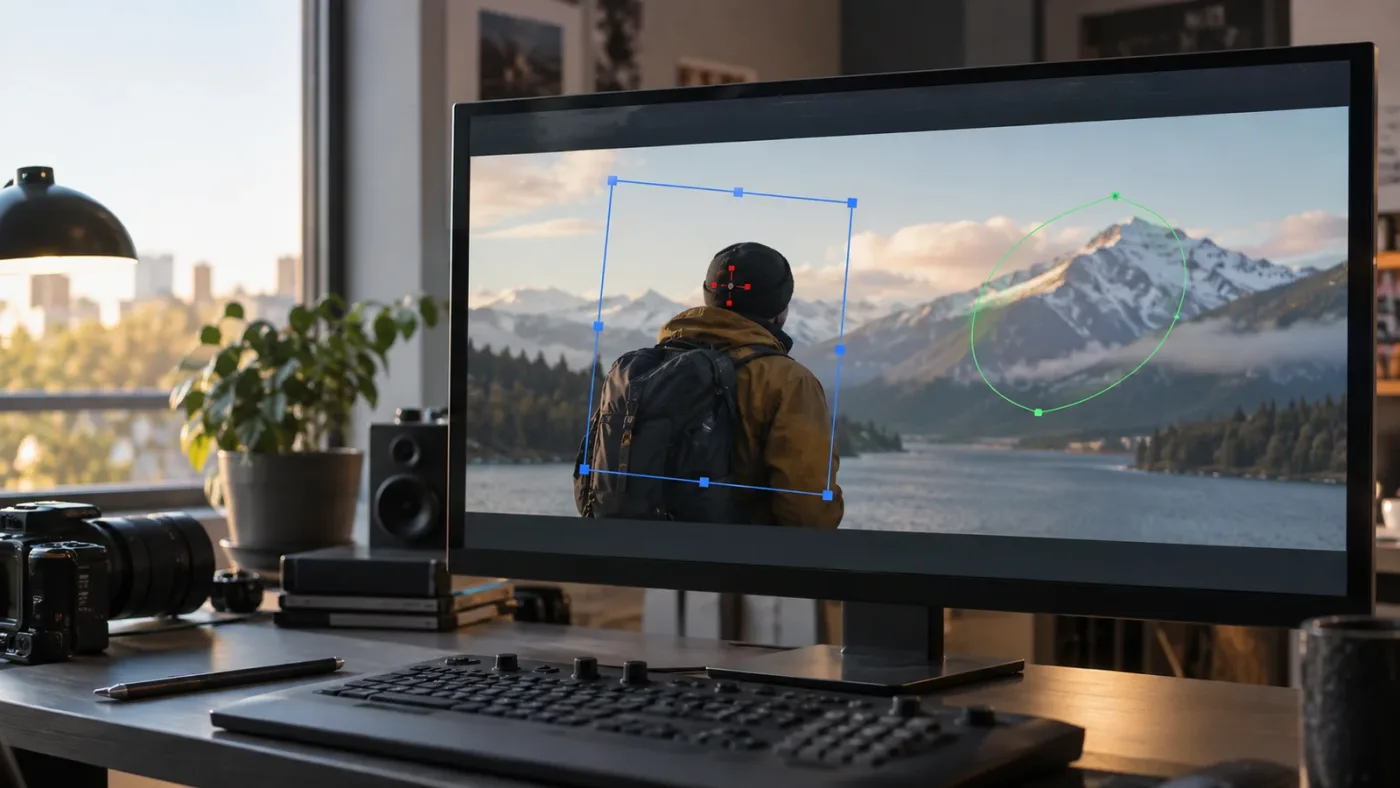
The fastest overlay fix is diagnostic: identify the missing layer, enable its control, and test it while playback is paused.
Do that before reinstalling DaVinci Resolve 21. In most cases, the viewer is showing exactly what its current page, tool, and playback preferences allow it to show.
Frequently asked questions
- Why are DaVinci Resolve 21 viewer overlays not visible during playback?
- Playback performance settings can hide onscreen controls while the timeline is running. Pause playback, turn off Hide UI overlays and Minimize interface updates during playback in Preferences > User > Playback Settings, then enable the specific overlay from the viewer options menu.
- How do I show marker overlays in DaVinci Resolve 21?
- Open the viewer's three-dot options menu and enable Show Marker Overlays. Move the playhead onto a clip or timeline marker to confirm that the overlay is present.
- Why are Fusion or Open FX controls missing from the viewer?
- Select the clip and the effect or Fusion tool first, then use the viewer toolbar's Open FX Overlay or Fusion Overlay control. A control can be unavailable when the relevant tool is not selected.
- Do DaVinci Resolve viewer overlays appear in the export?
- Viewer overlays are interface guides and controls, not normally part of the rendered image. Check the exported file separately; do not judge the final picture from a viewer guide, marker, Power Window outline, or transform handle.
- What is the fastest way to learn DaVinci Resolve when controls do not match a tutorial?
- Use the current DaVinci Resolve 21.1 manual for version-specific names, then use a guide that points to the control in your own layout. Menus and viewer toolbars can vary by page, selected tool, and version.
Sources
- DaVinci Resolve Support Center, Blackmagic Design
- DaVinci Resolve 21 New Features Guide, Blackmagic Design
- DaVinci Resolve 18.5 Reference Manual, Playback Settings
- DaVinci Resolve 18.5 Public Beta Notes, viewer marker overlays
- DaVinci Resolve 21 announcement, Blackmagic Design
- DaVinci Resolve Training, Blackmagic Design
Put this guide to work with TryUncle.
Ask about the step you’re on. TryUncle sees your screen and points at the control you need, so you can keep learning in your own project.
Get TryUncle for Mac or WindowsKeep reading

Comparisons · Oct 3, 2026 · 17 min
AI Screen Assistant for DaVinci Resolve Mac: Best 2026 Options
Compare screen-aware and editing assistants for DaVinci Resolve on Mac in 2026, including TryUncle, Sottocut, CutAgent, Eddie and free training.
Fixes · Oct 3, 2026 · 16 min
DaVinci Resolve 21 Tutorial Controls Do Not Match? Fix It
DaVinci Resolve 21 tutorial controls do not match? Identify the version, page, layout, and edition difference, then find the right control.
Comparisons · Jul 15, 2026 · 36 min
Best AI Video Editing Assistant for DaVinci Resolve, Compared
Sottocut, CutAgent, DavinciClaude, Eddie AI, and Wideframe compared for DaVinci Resolve: pricing, privacy, and what each actually automates.