Articles / Comparisonsupdated for DaVinci Resolve 21.0.2 (July 2026)
DaVinci Resolve CBR vs VBR Export: Which Should You Use?
Quick answer
Use VBR, which DaVinci Resolve applies through its Automatic quality or capped Restrict To bitrate modes, for YouTube, Vimeo, and other on-demand uploads. Use CBR for live restreams to Twitch or YouTube Live and for broadcast MXF masters like XDCAM or AVC-Intra, which are CBR by design. Resolve's H.264 and H.265 export never offers true fixed CBR.
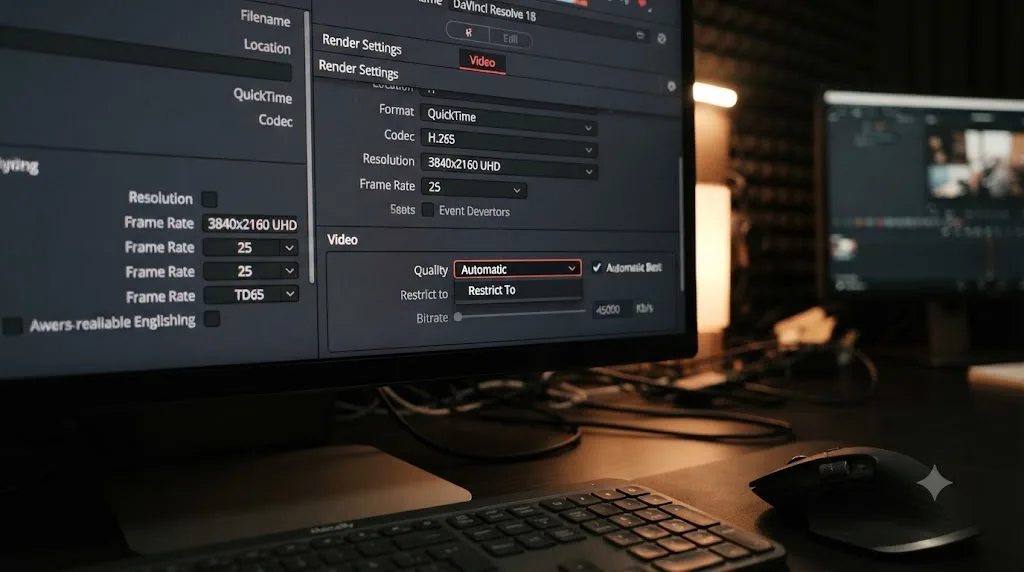
CBR and VBR sound like a single setting, one toggle, pick a side. They aren't. They're two different philosophies for spending bits, and DaVinci Resolve doesn't actually hand you a clean choice between them the way OBS or a broadcast encoder does. This is one of the recurring questions in our 100,000+ member editing community, usually from someone staring at the Restrict To field on the Deliver page, assuming it means the same thing a Twitch guide just told them CBR means. It doesn't, and getting that wrong either bloats a YouTube upload for nothing or sends a broadcast facility a file their ingest server rejects on sight.
We've spent 7+ years cutting commercial video professionally and taught this exact export workflow to more than 100,000 students through our Udemy courses, and the CBR-versus-VBR question is one beginners and working editors both get wrong in opposite directions. Here's the version that's actually accurate to what Resolve's encoder does, as of August 2026, in DaVinci Resolve 21.0.2.
What's the quick verdict on CBR vs VBR in DaVinci Resolve?
Match the mode to what happens to the file after it leaves Resolve, not to a general rule about which one is "better."
| Where the file is going | Use | Why |
|---|---|---|
| YouTube, Vimeo, Instagram, TikTok | VBR (Automatic quality, or Restrict To with headroom) | The platform re-encodes your upload anyway; VBR spends bits where footage needs them |
| Client review link, internal cut, archive copy | VBR (Automatic quality) | No bandwidth ceiling to protect, so there's nothing CBR buys you |
| Live restream to Twitch, YouTube Live, or a webinar platform via a separate live encoder | CBR, set in that live encoder | A live pipe has a fixed ceiling; a VBR spike can outrun it and stall the stream |
| Broadcast delivery spec naming XDCAM, AVC-Intra, or a fixed Mbps MXF codec | CBR, by using that broadcast codec | These formats are fixed-rate by design in Resolve; there's no VBR alternative inside them |
| A corporate AV system or IPTV spec that explicitly demands "constant bitrate" | CBR-native broadcast codec (AVC-Intra 50/100, XDCAM MPEG-2) | Resolve's H.264/H.265 Restrict To is a ceiling, not a fixed rate, so it can't actually deliver true CBR |
| Podcast or webinar audio track for RSS or Apple Podcasts | CBR or Average Bit Rate, set in Resolve's AAC Bit Rate Strategy dropdown | This is the one export path where Resolve's audio encoder genuinely offers fixed-rate CBR, unlike its video encoder |
DaVinci Resolve's H.264 and H.265 video encoder never gives you literal fixed-rate CBR, no matter what you type into the bitrate field. That single fact resolves most of the confusion in this comparison, and it's the one thing most export guides get wrong by assuming Resolve works like OBS. Everything below explains why, where the real CBR codecs actually live inside Resolve, and the one surprising exception where Resolve's audio encoder does give you a genuine CBR checkbox.
What do CBR and VBR actually mean?
CBR, constant bitrate, holds the data rate steady for the entire file, spending the same number of bits on a static title card as it does on a chaotic action sequence. VBR, variable bitrate, adjusts the data rate scene by scene, spending fewer bits where the image barely changes and more bits where motion, detail, or grain make compression genuinely harder.
Wikipedia's definition gets at why CBR exists at all: "constant bit rate encoding means that the rate at which a codec's output data should be consumed is constant," and it notes CBR "is useful for streaming multimedia content on limited capacity channels since it is the maximum bit rate that matters, not the average," per Wikipedia's entry on constant bitrate. That's the whole logic of CBR in one sentence: it exists to guarantee a ceiling never gets crossed, not to make the file look its best.
VBR gives up that guarantee in exchange for efficiency. A locked-off talking head interview costs almost nothing to encode well; confetti, rain, film grain, and a fast whip pan cost a fortune, because interframe codecs like H.264 and H.265 pay per pixel that changes between frames. VBR lets the easy shots subsidize the hard ones instead of every shot getting an identical, wasteful allocation.
CBR guarantees a data rate. VBR guarantees nothing about data rate and instead chases picture quality within a target. That trade-off, predictability versus efficiency, is the entire comparison, and every platform-specific recommendation later in this guide traces back to which side of that trade a given destination actually needs.
Does DaVinci Resolve actually give you a CBR option?
Not a labeled one on the video side, and this is the detail that trips up almost everyone who arrives at this comparison expecting a checkbox.
On the Deliver page's Video tab, the Quality control offers two modes: Automatic, or Restrict To. Blackmagic's own render settings documentation describes the second option plainly: "Restrict to X Kb/s: You can choose Automatic, or select a maximum data rate with which to export," per DaVinci Resolve's reference manual. Read that sentence carefully. A maximum is a ceiling. It's not a fixed floor-and-ceiling that pads the stream out to a constant rate the way true CBR does. Feed Restrict To a bitrate of 20 Mbps and hand it a static screen recording, and the encoder can still write far fewer than 20 Mbps of actual data for that section, because nothing forces it to hit the ceiling on easy footage.
That behavior has a name in streaming engineering circles: constrained or capped VBR. It's a hybrid, VBR's scene-by-scene efficiency with an upper bound bolted on so the file never balloons past a size you've promised someone. It is not CBR, even though a lot of casual export guides use the two terms interchangeably because the visible symptom, "I typed in a bitrate number," looks the same from the outside.
Resolve's Automatic quality mode is the cleaner VBR analog: it holds a quality level, from Low up through Best, and spends whatever bits each scene needs to hit it, the same underlying idea as the constant-quality CRF modes in other encoders. Neither Automatic nor Restrict To produces a genuinely fixed data rate. Our full export settings guide covers both modes in the context of picking bitrates for specific platforms; this guide is about the CBR-versus-VBR question specifically, which those settings only partly answer.
If a spec sheet or a live-streaming guide tells you to use CBR, typing a number into Resolve's Restrict To field does not actually deliver that, no matter how tightly you set it. Where real CBR lives inside Resolve is covered later in this guide, and on the video side it isn't in the H.264 or H.265 encoder at all.
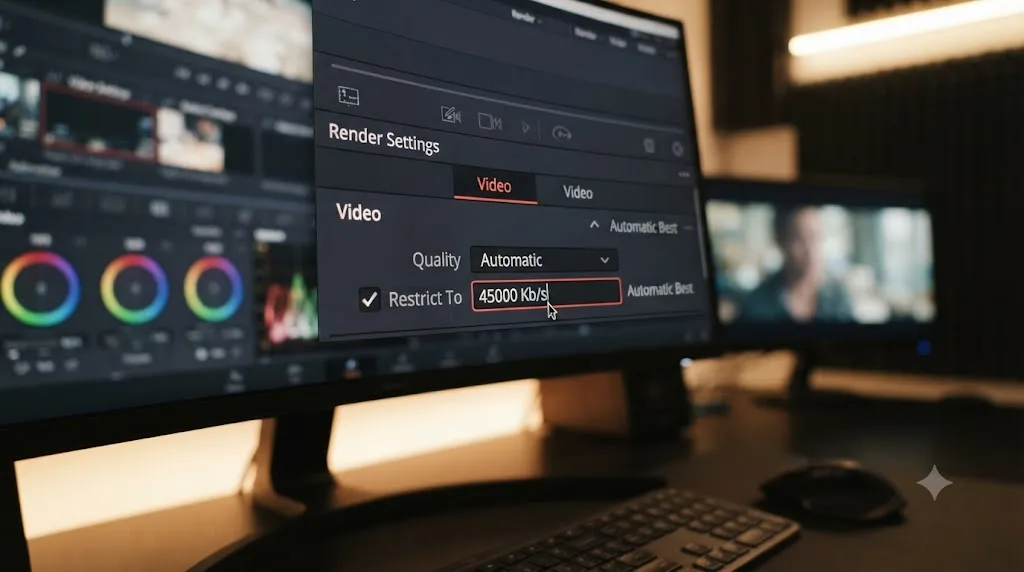
Does Adobe Premiere Pro's Media Encoder handle CBR vs VBR differently than Resolve?
Yes, and the difference explains why this question trips up so many editors moving between the two apps. Adobe Media Encoder's H.264 and HEVC export settings expose a dropdown labeled Bitrate Encoding with three explicit choices: CBR, VBR 1 Pass, and VBR 2 Pass, according to Adobe's own export settings reference. That's the literal toggle a lot of editors go looking for on Resolve's Deliver page and don't find, because Resolve doesn't organize the same idea the same way.
Adobe's documentation frames the tradeoff in almost the same terms covered above: a CBR file plays back more reliably across a wider range of systems because a fixed data rate is less demanding on media players and processors, while a VBR file tends to hold higher image quality because it tailors compression to what's actually in the frame. That's the exact CBR-versus-VBR tradeoff this whole comparison has been walking through. Adobe just spells it out with a dedicated menu instead of splitting it across two tabs the way Resolve does.
Here's how the two apps map onto each other:
| Adobe Media Encoder option | Closest Resolve equivalent | What's different |
|---|---|---|
| CBR | Nothing, on the H.264/H.265 video track | Resolve's Restrict To is a ceiling, not a fixed rate; true CBR only exists in Resolve's native broadcast codecs and its AAC audio Bit Rate Strategy |
| VBR, 1 Pass | Automatic quality, or Restrict To with Multi-pass off | Same single-pass, spend-as-you-go logic |
| VBR, 2 Pass | Restrict To with Multi-pass turned on | Same two-pass, analyze-then-encode logic, different name for the same checkbox |
| Target Bitrate / Maximum Bitrate fields | Restrict To's single Kb/s field | Adobe splits the average and the ceiling into two numbers; Resolve only asks for the ceiling |
So if you learned your export habits in Premiere and you're now sitting in Resolve's Deliver page looking for a CBR option that isn't there, you're not missing a hidden menu. Resolve genuinely doesn't offer a literal CBR toggle on the video side, the same conclusion from the section above, and Adobe's menu just happens to name that absence out loud instead of leaving you to infer it. Premiere lets you pick CBR by name for a web export; Resolve only lets you pick it by codec, and only outside the H.264 and H.265 encoders.
One more wrinkle worth knowing if you edit in both apps: Adobe's own community forum has documented cases where Media Encoder doesn't offer 2-pass VBR for HEVC exports even with software encoding selected, depending on the version, according to a thread on Adobe's community forum. So even Premiere's rate-control menu isn't perfectly consistent from codec to codec. Neither app hands you a uniform CBR/VBR experience across every format; you have to check per codec in both.
Does hardware acceleration change whether Resolve gives you CBR?
No, and this is worth stating directly because it's an easy assumption to make. GPU-accelerated encoding feels like a different, more industrial process than a plain software render, so it's natural to expect it comes with extra controls.
Resolve's render settings documentation only describes hardware acceleration as a checkbox, not a separate rate-control system: "Use hardware acceleration if available" on workstations that support it, with the note that "workstations using NVIDIA GPUs that offer NVENC will present alternative accelerated options, while other workstations offering QuickSync hardware encoding instead will be able to use that option," per Blackmagic's render settings documentation. That's a statement about which chip does the compression work, your CPU, an NVIDIA GPU's NVENC block, an Intel QuickSync block, or Apple Silicon's media engine, not a statement about a new bitrate mode appearing in the UI.
The underlying hardware encoders themselves are a different story. NVIDIA's own NVENC documentation describes genuine CBR and VBR modes at the chip level, ones a tool like OBS exposes directly when it talks straight to the encoder. Resolve doesn't hand you that level of access. Whichever chip renders your export, the Quality field above it still only offers Automatic or Restrict To, the same two options covered in the previous section. Turning on hardware acceleration makes the render faster. It does not turn Restrict To into real CBR, and it does not add a CBR checkbox that wasn't there with software encoding.
Switching to GPU-accelerated encoding in DaVinci Resolve changes your render time, not your rate-control options. If you're troubleshooting a stream or delivery issue and you've been toggling hardware acceleration on and off hoping it fixes a CBR requirement, it won't; the fix lives in the codec or export path you choose, not in that checkbox.
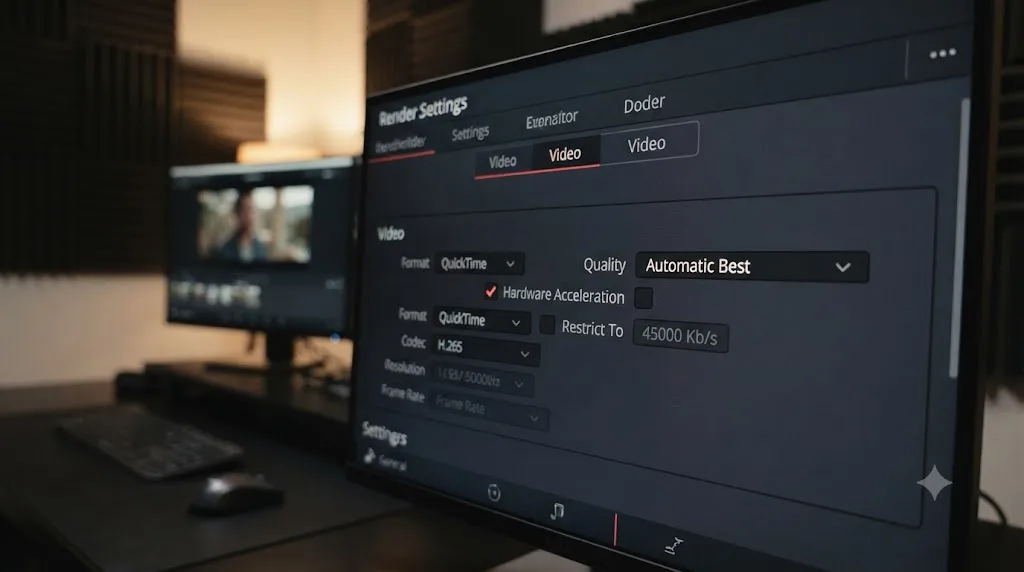
Does the free version of DaVinci Resolve limit your CBR/VBR options compared to Studio?
Not the rate-control modes themselves, but it can limit which chip actually does the encoding, and that's worth knowing before you assume a missing option is a bug.
The Quality field's two choices, Automatic and Restrict To, appear the same way in the free version and in DaVinci Resolve Studio; that part of this guide's advice doesn't change based on which version you're running. What differs is hardware acceleration, and the split isn't even across platforms. On Windows and Linux, Studio adds GPU-accelerated H.264 and H.265 encoding that the free version doesn't include, while on macOS the free version and Studio show closer parity, with GPU-accelerated encode and decode available without the same free-versus-paid split, according to Toolfarm's breakdown of Resolve Studio versus the free version. Some export ceilings, like resolutions above Ultra HD, frame rates above 60fps, and specific HDR and hardware-acceleration paths, are gated to Studio depending on your platform and GPU.
None of that changes anything about CBR versus VBR specifically, and it's worth restating why: hardware acceleration was already established above as a speed switch, not a rate-control switch, and that holds true whether the chip doing the work is available to you because you're on Studio, because you're on a Mac, or because your GPU happens to support it either way. If you're on the free version on Windows or Linux and rendering in software only, your export simply takes longer than the same Restrict To or Automatic setting would on a machine with GPU acceleration turned on. The Quality field, the ceiling you type into Restrict To, and the Multi-pass checkbox all behave identically either way.
Whether you're on the free version or DaVinci Resolve Studio, the CBR-versus-VBR answer in this guide doesn't change: neither version gives H.264 or H.265 a literal CBR mode, and the free-versus-Studio split only affects render speed and a handful of resolution and HDR ceilings, not which rate-control options appear.
Does H.265/HEVC follow the same CBR/VBR rules as H.264 in Resolve?
Yes. Everything covered above about the Video tab's Quality field applies to H.265 exports the same way it applies to H.264. Resolve's Deliver page doesn't give HEVC a separate rate-control menu; it uses the same Automatic-or-Restrict-To choice, and third-party walkthroughs of Resolve's H.265 export path confirm the same two options showing up in the same place, with Automatic left as the default for most uploads and Restrict To available when you need to cap a 4K file at a specific ceiling, per a guide to exporting H.265 from DaVinci Resolve. The Multi-pass checkbox and hardware acceleration option behave identically too: Multi-pass still only matters when Restrict To is active, and switching on a hardware HEVC encoder, NVENC on an NVIDIA GPU or Apple Silicon's media engine, still only changes which chip does the compression work, not which rate-control modes appear in the Quality field.
The one real difference is efficiency, not mode. HEVC's compression is more advanced than H.264's; the codec's own developers at Fraunhofer HHI, one of the research institutes behind the H.265 standard, report that HEVC achieves roughly 50 percent bitrate reduction at the same subjective video quality compared to H.264, per Fraunhofer HHI's own H.265/HEVC technology page. That's why 4K export guides commonly suggest a noticeably lower Restrict To ceiling for H.265 than for H.264 at the same resolution, roughly half, not a full match. That's a bitrate-sizing question, not a CBR-versus-VBR one, and it doesn't change anything about the argument in this guide: whether you export H.264 or H.265, DaVinci Resolve's video encoder still never offers a literal, labeled CBR mode, only Automatic quality and a Restrict To ceiling.
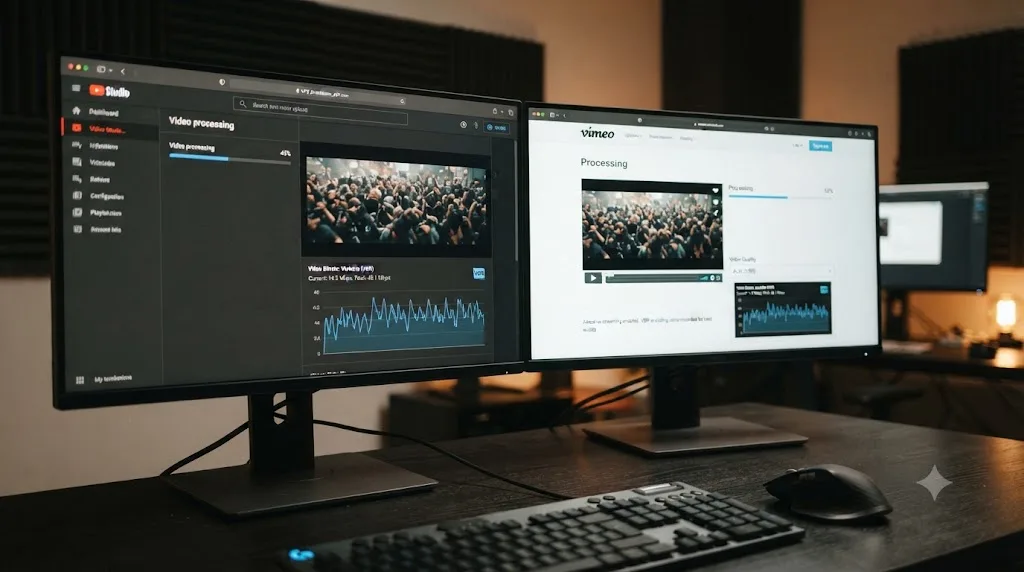
Which should you use for YouTube, Vimeo, and other on-demand platforms?
VBR, without much of a debate. This is the easiest branch of this whole comparison because the destination has already told you the answer directly.
YouTube's own encoding guide states it in plain language: "Variable bitrate. No bitrate limit is required, though we offer recommended bit rates below for reference," per YouTube's recommended upload encoding settings. That same page publishes reference numbers, 8 Mbps for 1080p at standard frame rates and 35-45 Mbps for 4K at standard frame rates, scaling up further at higher frame rates, but those numbers exist to give VBR something to aim for, not to demand a fixed rate.
Vimeo says the same thing in its own compression guidelines, recommending editors "choose a 'variable' bit rate" when the option is available, and publishing its own reference ranges: 10-20 Mbps for 1080p and 30-60 Mbps for 4K, per Vimeo's video and audio compression guidelines. Two of the biggest video-on-demand platforms on the internet, independently, land on the same recommendation.
The reasoning holds up on inspection. Both platforms transcode every upload through their own delivery pipeline the moment it lands, rebuilding your file into their own bitrate ladder for adaptive streaming. Nothing about your original upload's data rate survives that process unchanged. A CBR upload to YouTube doesn't protect anything downstream, because YouTube's own re-encode is what actually reaches the viewer, and all a CBR upload does on your end is waste bits on simple shots that VBR would have spent somewhere that mattered.
| Platform | Recommended mode | 1080p reference bitrate | 4K reference bitrate |
|---|---|---|---|
| YouTube | VBR | 8 Mbps (24-30fps) | 35-45 Mbps (24-30fps) |
| Vimeo | VBR | 10-20 Mbps | 30-60 Mbps |
In Resolve, that means Automatic quality set to High or Best for most uploads, or Restrict To with the platform's reference number as your ceiling if you've promised a specific file size to a client or a shared drive has a hard limit. Either way, you're using VBR's actual behavior, not CBR's, and that matches what both platforms are asking for.
The same logic carries over to every other social platform that re-encodes on ingest: TikTok, Instagram Reels, Facebook video ads, and Threads all sit behind their own transcoding pipeline the same way YouTube does, so they inherit the same VBR answer even though each has its own preferred resolution, frame rate, and aspect ratio. If you're exporting for one of those specifically, our platform-specific guides cover the exact numbers; this guide's job is just confirming that none of them change the CBR-versus-VBR answer.
Which should you use for Twitch, live restreams, or webinar platforms?
CBR, and this is the one branch of this comparison where the recommendation flips completely, for a reason that has nothing to do with picture quality.
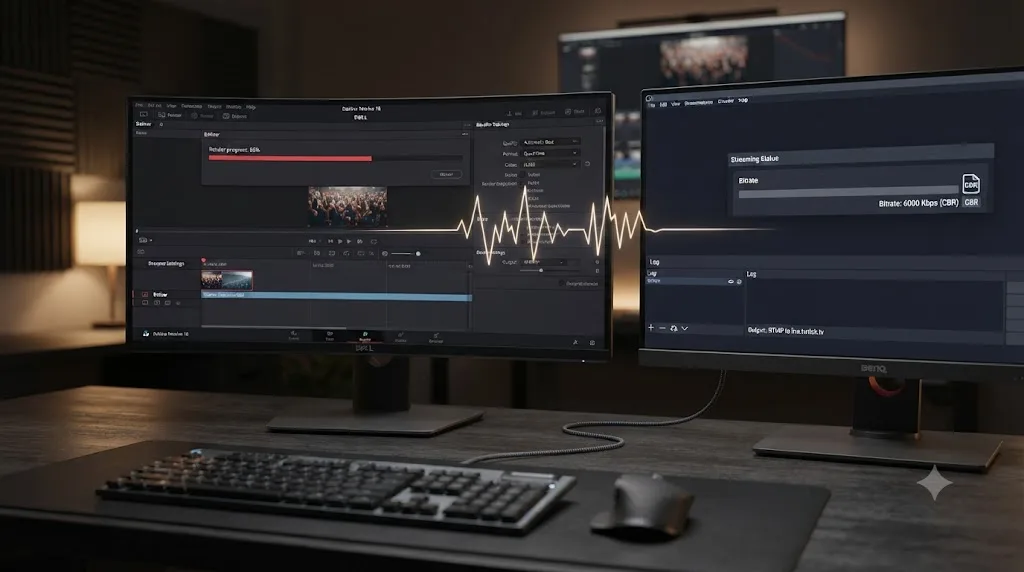
DaVinci Resolve isn't a live encoder. It renders finished files on the Deliver page; it doesn't push an RTMP stream to Twitch or YouTube Live the way OBS or vMix does. So the CBR-versus-VBR decision for live streaming doesn't actually happen inside Resolve at all. It happens in whatever live encoder ingests the file Resolve produced, or in the software driving a live broadcast where Resolve is feeding a program output. Understanding why CBR wins there still matters, because it tells you what kind of intermediate file to hand that live encoder.
Twitch's bitrate ceiling sits at 6,000 Kbps video for both Affiliates and Partners without Enhanced Broadcasting, a cap summarized in Dacast's Twitch bitrate guide and echoed by streaming infrastructure provider Switchboard's own encoder recommendations, which list CBR rate control and a 2-second keyframe interval as required settings, "one of the few non-negotiable settings," per Switchboard's Twitch encoder settings guide. That keyframe detail matters beyond Twitch specifically: Twitch's transcoding and VOD pipeline expects a keyframe every 2 seconds, and leaving that on a live encoder's default "auto" setting can produce erratic transcoding even when your bitrate mode is already set correctly.
| Stream tier | Video bitrate ceiling | Rate control | Keyframe interval |
|---|---|---|---|
| Non-Partner / standard Affiliate | 6,000 Kbps | CBR | 2 seconds |
| Partner or Affiliate with Enhanced Broadcasting | Higher than 6,000 Kbps, per Twitch's own dashboard | CBR | 2 seconds |
| Lower-bandwidth fallback (720p60) | ~3,500 Kbps | CBR | 2 seconds |
The reasoning behind all three rows is entirely about the live pipe, not the picture: a home upload connection has a fixed, finite ceiling, and Twitch's ingest servers expect a steady, predictable data rate arriving every second. VBR sends more data during a chaotic firefight and less during a quiet menu screen, which is exactly the efficiency that makes VBR the right call for YouTube. On a live connection with a hard upload cap, that same spike during the firefight can outrun your actual bandwidth, and the result isn't a quality dip, it's buffering, dropped frames, or a stream that stalls entirely.
CBR trades picture efficiency for a guarantee that never gets broken: the data rate never exceeds what the pipe can carry. That guarantee is worthless for a YouTube upload sitting on a server with unlimited time to transcode. It's the entire point for a live stream with one shot at getting through a home connection in real time.
If you're using Resolve to prep an intermediate file for a live restream, hand the live encoder a clean, high-bitrate VBR or intraframe master, ProRes or DNxHR if quality headroom matters, or a generous VBR H.264 if file size matters, and let the live encoder's own CBR setting handle the actual live-streaming constraint. Setting Restrict To tightly in Resolve doesn't give you the CBR guarantee Twitch's ingest servers are actually built around, for the same reason covered two sections up: it's a ceiling, not a fixed rate, and it's not the tool doing the live encoding anyway.
A common failure mode here is worth naming specifically: an editor renders a "safe" 6 Mbps Restrict To file in Resolve, assumes that number matches Twitch's cap exactly, and feeds it to a live encoder expecting the encoder to just pass the file through unchanged. It won't. Anything actually going live still gets re-encoded in real time by whatever software is doing the streaming, whether that's OBS reading a Resolve-rendered file for a pre-recorded broadcast or a hardware encoder taking a program feed. Resolve's export sets your source quality; the live encoder's own CBR setting is what actually protects the stream.
Your live encoder is already set to CBR and you're still dropping frames. What else could be wrong?
Setting CBR on the live encoder feeding Twitch or YouTube Live solves exactly one problem: it stops a VBR spike from outrunning your upload connection. It doesn't solve every reason a stream drops frames, and conflating the two wastes time chasing a rate-control setting that was never broken.
Streaming guidance splits dropped frames into two different failures with two different fixes. Network dropped frames mean the encoder produced the data fine but your connection couldn't push it out fast enough; encoder-side dropped or skipped frames mean your CPU or GPU couldn't compress the footage fast enough to keep up with the timeline in the first place, according to a 2026 guide to OBS streaming settings. CBR fixes neither of those directly. It just guarantees the data rate your encoder outputs stays flat, which only helps if the problem was ever a bandwidth spike.
Work through these before assuming your rate-control mode is the culprit:
- Check which kind of drop it is. Most live encoders label network drops and encoder drops separately in their stats overlay. Fix the one that's actually happening; a CPU-bound encoder overload doesn't improve just because the bitrate mode is correct.
- Re-test your actual upload speed, not your plan's advertised number. A widely cited rule of thumb sets your streaming bitrate at 70 to 80 percent of your measured, sustained upload speed, not the number your ISP printed on a bill, per a guide to streaming bitrate and upload speed. A CBR stream set above that real-world ceiling drops frames just as reliably as a VBR spike would.
- Confirm the keyframe interval separately from the bitrate mode. CBR and a 2-second keyframe interval are two different settings in most live encoders, and leaving the interval on "auto" can still cause Twitch's transcoding pipeline to choke even when the bitrate mode itself is set correctly, the same distinction raised in the section above.
- If the encoder itself reports overload, lower the load before touching bitrate. Switch from a software encoder to a hardware one (NVENC, QuickSync, or Apple's media engine), drop the output resolution, or step down from 60fps to 30fps. None of those are rate-control changes, and none of them are fixable by adjusting CBR.
CBR guarantees your encoder's output never exceeds a fixed data rate; it can't fix a connection that's slower than that rate, and it can't fix an encoder that can't keep up with your timeline in the first place. If you've confirmed CBR is set correctly on the live encoder and you're still dropping frames, the rate-control mode was never the problem, and it's time to look at upload speed, encoder load, or keyframe settings instead.
Which should you use for broadcast or client MXF delivery?
CBR, but not through a setting. Through a codec choice.
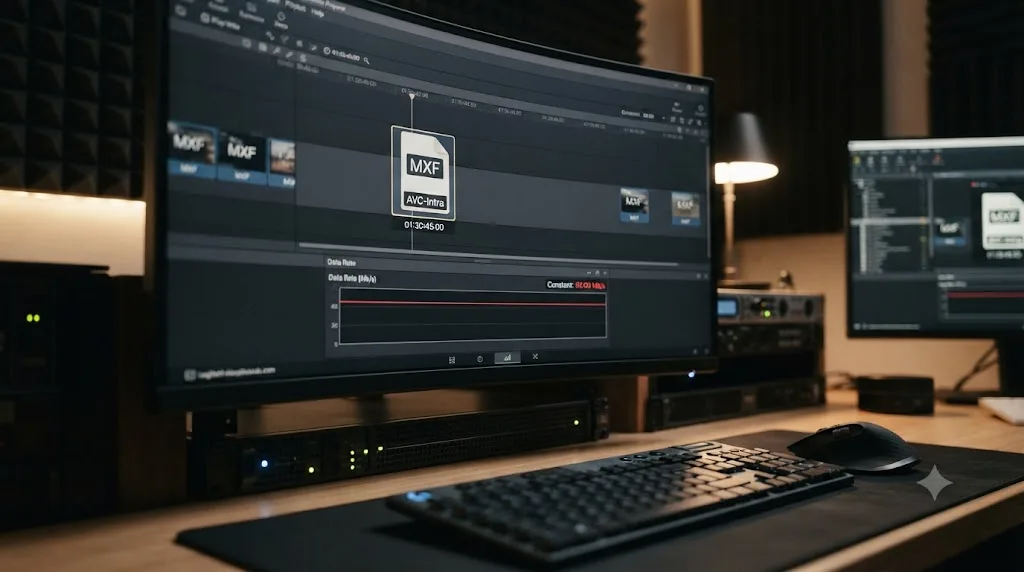
Broadcast delivery specs live in a world VBR was never built for: a fixed-bandwidth transmission channel, a playout server expecting a predictable feed, and decoders, some of them decades old, that assume the data rate never wavers. Resolve's Supported Formats and Codecs documentation confirms the format list built for exactly that world: MXF OP1a and OP-Atom containers carrying Sony XDCAM MPEG-2, and AVC-Intra 50 and 100, per Blackmagic's official codec documentation.
AVC-Intra is the clearest example of what fixed-rate really means in practice, as opposed to a capped ceiling. Wikipedia's technical breakdown of the format describes AVC-Intra 50 as running "nominally 50 Mbit/s, size of each frame is fixed," with 4:2:0 chroma at 10-bit, while AVC-Intra 100 doubles that to "nominally 100 Mbit/s" with 4:2:2 chroma, also at 10-bit, per Wikipedia's entry on AVC-Intra. Fixed frame size is the tell. Every single frame, regardless of what's actually in it, occupies essentially the same footprint on disk. That's a genuinely different mechanism than Restrict To's ceiling, where a simple frame is allowed to cost less than a complex one.
| Codec | Nominal bitrate | Chroma | Fixed rate? |
|---|---|---|---|
| AVC-Intra 50 | 50 Mbit/s | 4:2:0 | Yes, fixed frame size |
| AVC-Intra 100 | 100 Mbit/s | 4:2:2 | Yes, fixed frame size |
| XDCAM MPEG-2 (via MXF) | Varies by flavor | 4:2:0 or 4:2:2 | Yes, CBR by design |
| H.264 / H.265 with Restrict To | Up to your typed ceiling | 4:2:0 or 4:2:2 | No, capped VBR |
If a broadcast facility's spec sheet names a codec directly, XDCAM HD422, AVC-Intra 100, or a specific MXF flavor, that instruction is doing double duty. It's naming the codec and, implicitly, the rate-control behavior, because these formats don't offer a VBR alternative inside Resolve the way H.264 does. You're not choosing CBR for a broadcast delivery; the codec the spec asked for already made that choice for you.
A related trap: a spec sheet that says "CBR, 50 Mbps, no codec specified." Don't reach for H.264 with Restrict To set to 50000 Kbps just because the number matches. That file is still capped VBR wearing a CBR-shaped bitrate number, and a strict ingest system that validates rate-control behavior, not just average throughput, can still reject it. Read "50 Mbps CBR" in a broadcast context as shorthand for "AVC-Intra 50," ask the facility to confirm the exact codec and container if the spec is ambiguous, and default to the fixed-rate codec family rather than trying to approximate CBR with a tightly capped H.264 file.
Is ProRes or DNxHR CBR or VBR?
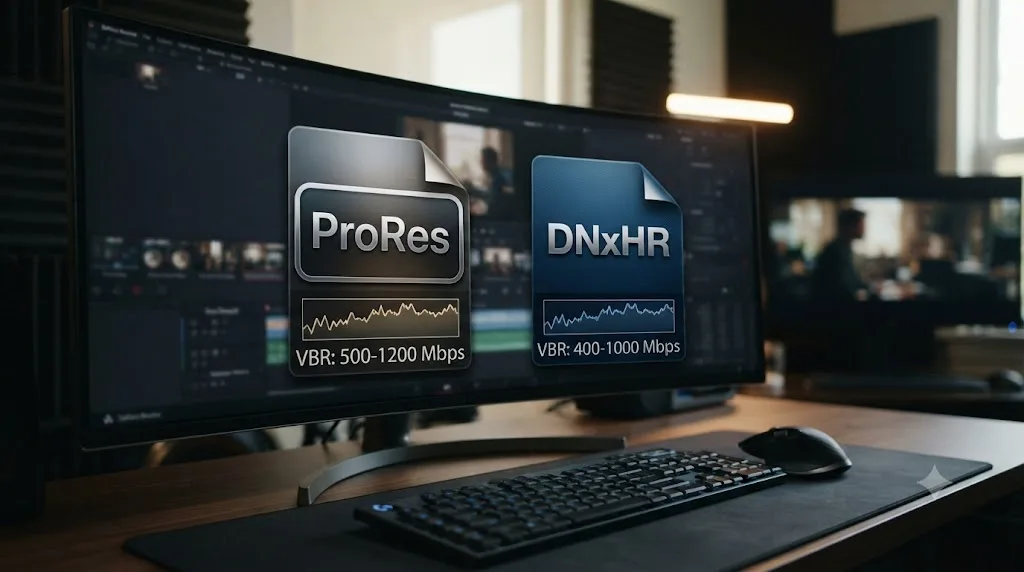
VBR, which surprises a lot of editors who've spent years treating ProRes and DNxHR like they hold a fixed rate the way a broadcast MXF codec does. They don't, and the distinction matters if you're handing an intraframe master to a system that specifically demands CBR.
Wikipedia's ProRes entry, drawing on Apple's own technical documentation, describes each ProRes flavor by a target data rate rather than a locked one: ProRes 4444, for example, "has a target data rate of approximately 330 Mbit/s for 4:4:4 sources at 1920x1080 and 29.97 fps," and the format is listed with "Variable bitrate (VBR) encoding" as a defining feature, per Wikipedia's entry on Apple ProRes. Target, not fixed, is the operative word, the same distinction Restrict To runs into on the H.264 side.
Filmmaker and encoding writer Jarle Leirpoll's breakdown of common bitrate myths explains the mechanism: "Intra-frame codecs like ProRes and DNxHD compress each frame independently, very similar to JPEG," per Frame.io's video bitrate myths article. Compressing each frame independently, like a sequence of JPEGs, means each frame's file size still depends on how much detail and motion that specific frame contains. A flat gray card compresses to almost nothing; a handheld shot through a chain-link fence in direct sun costs considerably more, even within the same ProRes flavor and the same nominal data rate.
| Format (1920x1080, 29.97fps) | Approx. target rate | Fixed or variable |
|---|---|---|
| ProRes 422 Proxy | ~45 Mbit/s | Variable, target rate |
| ProRes 422 LT | ~100 Mbit/s | Variable, target rate |
| ProRes 422 | ~147 Mbit/s | Variable, target rate |
| ProRes 422 HQ | ~220 Mbit/s | Variable, target rate |
| ProRes 4444 | ~330 Mbit/s | Variable, target rate |
| DNxHR HQX | Comparable to ProRes 422 HQ at matching bit depth | Variable, target rate |
What ProRes and DNxHR do have, and this is where the "it's basically CBR" reputation comes from, is a hard ceiling per format: neither one lets a single frame blow past a defined maximum size no matter how complex the image gets, the same capped-VBR shape Restrict To uses on H.264, just tuned for editorial rather than delivery. If you're choosing between the two for a pipeline decision rather than a rate-control one, that's a separate question with its own answer in our ProRes vs DNxHR comparison. For this guide, the takeaway is narrower: neither format is CBR, so don't hand a "must be CBR" spec a ProRes or DNxHR file and assume the format itself satisfies the requirement.
Does CBR or VBR actually look better at the same file size?
VBR, and this isn't a close call once you look at the research rather than the reputation.
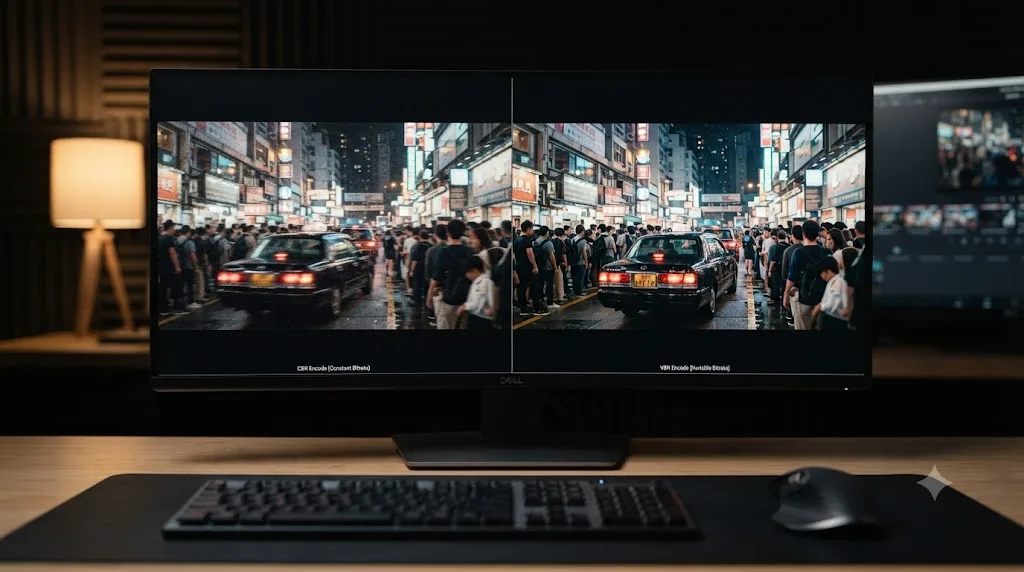
Jan Ozer, a contributing editor to Streaming Media Magazine and a longtime encoding researcher who now works as a senior director at NETINT, ran a series of comparative bitrate-control tests and published the results on his Streaming Learning Center site. His finding on overall quality is direct: "CBR wins for cost and deliverability while VBR edges CBR overall in quality," per Ozer's breakdown of bitrate control techniques. A separate technical brief on the same site goes further into why: "In all tests, CBR delivered the lowest overall quality of all bitrate alternatives," and "with challenging footage and aggressive encoding parameters, CBR-encoded video can exhibit transient quality drops, sometimes dramatic," per Ozer's technical brief on switching from CBR to VBR.
The mechanism behind that finding is the same one covered earlier in this guide. CBR has to reserve enough headroom in its fixed rate to survive the single hardest scene in the file without falling apart, and then it spends that exact same headroom on every easy scene too, because the rate can't drop. VBR spends less on the easy scenes and routes the savings toward the hard ones, which is strictly more efficient use of the same total data budget.
A video encoded at a fixed data rate has to plan for its worst-case scene on every single frame, while a video encoded at a variable rate only pays that cost when the worst-case scene actually shows up. That's the entire quality argument for VBR in one sentence, and it's why every video-on-demand platform in this guide recommends it while only live and broadcast delivery ask for the opposite. Ozer's own research doesn't call CBR worthless, though; his conclusion leans toward constrained VBR, a capped ceiling similar in spirit to what Resolve's Restrict To already does, as the practical middle ground when a hard size limit and picture quality both matter.
Should you turn on multi-pass encoding with VBR?
Usually yes, if you're using Restrict To and the render can afford the extra time.
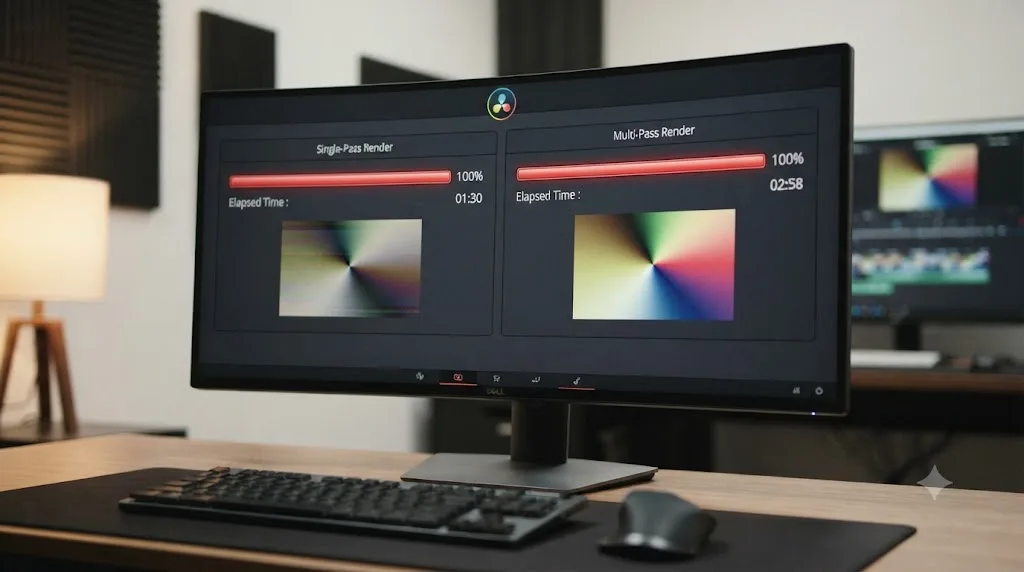
Resolve's Multi-pass option ships alongside its H.264 and H.265 encoders, described plainly in Blackmagic's own documentation: "You can choose between Single and Multi-pass encoding. Single pass is faster, but multi-pass yields superior results when quality is important," per the same render settings documentation covered earlier. Single pass encodes the timeline once, making bit-allocation decisions on the fly as it goes, which is faster but means the encoder can't see a hard scene coming until it's already there. Multi-pass analyzes the full timeline first, then encodes with that complete picture in hand, letting it plan ahead: spend less on the calm opening, save more for the fireworks in act three, because it already knows the fireworks are coming.
This matters most exactly where VBR is already doing its best work: fades, dark scenes, and smooth gradients, the same footage that bands first under a bitrate that's too tight. Multi-pass costs roughly double the render time of single pass, since it's genuinely encoding the timeline twice, once to gather statistics and once to apply them. That cost buys real improvement specifically at constrained bitrates and buys almost nothing when your Restrict To ceiling already has generous headroom above what the footage actually needs.
Multi-pass only makes sense paired with Restrict To. Automatic quality mode isn't chasing a bitrate target in the first place, it's holding a quality level and spending whatever that costs, so there's no bitrate plan for a second pass to improve on. If you're exporting on Automatic, leave Multi-pass alone; it has nothing to do there.
Multi-pass encoding is the tool that makes a tight VBR bitrate cap behave like a much more generous one, at the cost of render time you'll only notice on a long timeline. Reach for it on any Restrict To export where the ceiling is genuinely tight, a client-imposed file size limit, a platform upload cap, or a slow connection you're trying to respect, and skip it everywhere else.
How do you calculate file size from a Restrict To ceiling, and why can only CBR predict it exactly?
Here's the practical difference between a guaranteed rate and a ceiling, worked out in real numbers instead of the abstract.
The formula for estimating file size from a bitrate is straightforward: multiply the bitrate in kilobits per second by the duration in seconds, then divide by 8 to convert kilobits to kilobytes. Add the audio track's contribution the same way, then sum the two.
video size (KB) = video bitrate (Kbps) x duration (seconds) / 8
audio size (KB) = audio bitrate (Kbps) x duration (seconds) / 8
Run that math against a few real export scenarios:
| Scenario | Video setting | Duration | Video size | Audio (192 Kbps AAC) | Total |
|---|---|---|---|---|---|
| YouTube 1080p upload | Restrict To 8,000 Kbps ceiling | 10 minutes (600s) | up to ~586 MB | ~14 MB | up to ~600 MB |
| YouTube 4K upload | Restrict To 40,000 Kbps ceiling | 10 minutes (600s) | up to ~2.86 GB | ~14 MB | up to ~2.88 GB |
| Twitch live restream | True CBR, 6,000 Kbps | 1 hour (3,600s) | exactly ~2.57 GB | ~84 MB | exactly ~2.66 GB |
| Podcast audio master | AAC Constant Bit Rate, 192 Kbps | 45 minutes (2,700s) | n/a | exactly ~63 MB | exactly ~63 MB |
Notice the word doing the work in that table. The two YouTube rows say "up to," because Restrict To sets a ceiling, not a promise, so that number is the worst case, the file Resolve would produce if every single frame were as hard to compress as the hardest one. The actual rendered file is very likely smaller, since VBR spends fewer bits than the ceiling allows on anything that isn't maximally complex. The Twitch and podcast rows say "exactly," because true CBR holds the line for the entire duration; multiply the rate by the time and that's the file you get, no estimating required.
That's the whole CBR-versus-VBR distinction from earlier in this guide, expressed as arithmetic instead of theory. A Restrict To ceiling tells you the most a file could weigh; only a genuine fixed rate, native broadcast codecs or the AAC Constant Bit Rate setting, tells you exactly what it will weigh. If a client or a shared drive has given you a hard file-size limit rather than a bitrate target, work backward through that same formula: divide the size budget by the duration to get your Restrict To ceiling, then subtract your audio bitrate from that number before you type anything into the video field, since the ceiling in Resolve's Video tab covers video only. The same math works in reverse for a live restream too, if you're estimating how much local storage a multi-hour Twitch VOD recording will need before you archive it.
What about the audio track: does CBR vs VBR apply there too?
Yes, and this is the genuine exception to everything said so far about Resolve never offering true CBR. It just lives on the Audio tab instead of the Video tab.
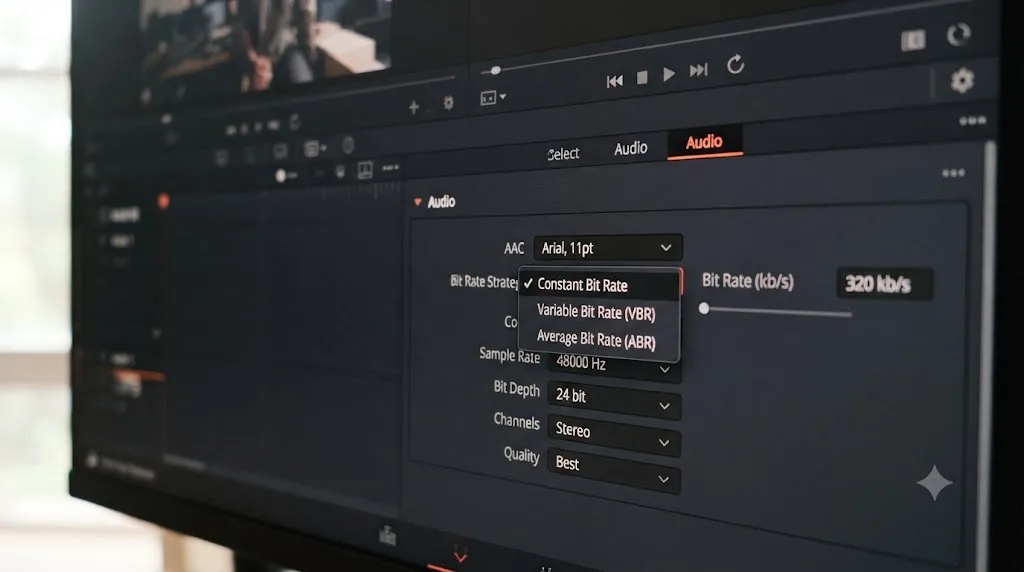
Resolve's Audio Panel documentation lists the available codecs as "Linear PCM (the default), AAC audio, IEEE Float, or MP3," and for AAC specifically, it exposes a "Bit Rate Strategy" dropdown with four real choices: Constant Bit Rate, Average Bit Rate, Variable Bit Rate Constrained, and Variable Bit Rate, per Blackmagic's Audio Panel documentation. Choose Constant Bit Rate there and you get an actual fixed data rate, the same guarantee Twitch's video pipe wants, not a ceiling that the encoder is free to undershoot. That's a meaningfully different situation from the H.264/H.265 Quality field two tabs over, and it's easy to assume the whole Deliver page behaves the same way when it doesn't.
Which strategy to pick depends on where the audio is going, following the same logic as the video decision above it:
| Destination | AAC Bit Rate Strategy | Why |
|---|---|---|
| YouTube, Vimeo, a client review file | Variable Bit Rate or Variable Bit Rate Constrained | Same VBR efficiency argument as video: the platform re-encodes anyway |
| Podcast RSS feed or Apple Podcasts audio-only master | Constant Bit Rate or Average Bit Rate | Predictable per-minute file size and broad podcast-app seek compatibility matter more than shaving a few kilobits |
| Live restream audio, paired with a CBR video stream | Constant Bit Rate | Matches the same fixed-pipe reasoning as the video track feeding Twitch |
Our podcast video export settings guide recommends a capped bitrate for the video track of a podcast export and calls it CBR in the loose, common-usage sense most creators mean by the term. Read through the more precise lens this guide uses, that video-side recommendation is really a Restrict To cap, constrained VBR, not the audio tab's literal Constant Bit Rate setting. Both are reasonable choices for a podcast export. They're just not the same mechanism, and now you know which one is which if a podcast host's technical spec ever asks specifically for "CBR audio."
How can you check whether an export is really CBR or VBR?
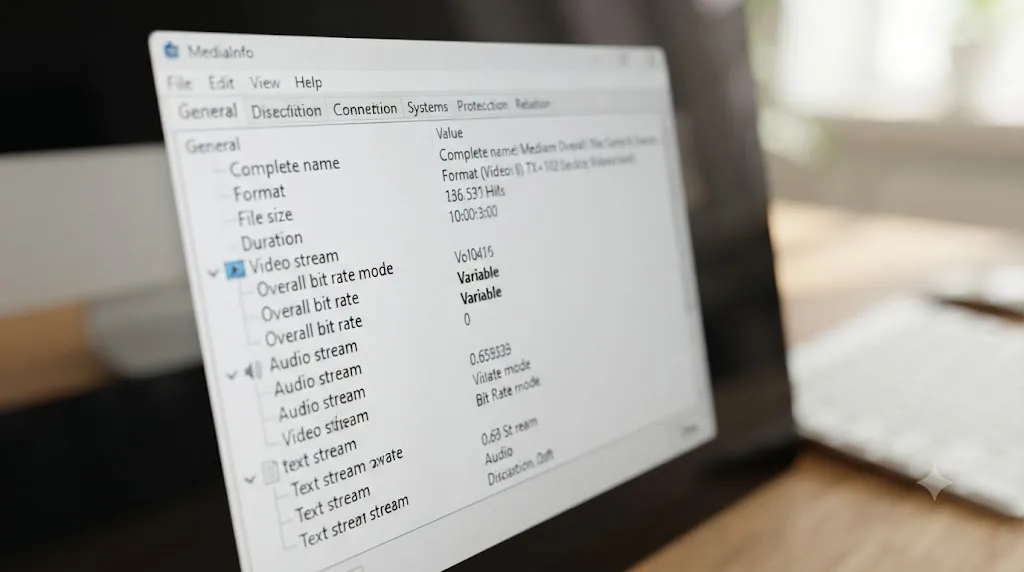
Open the file in a media analysis tool and read the Bit Rate Mode field directly, rather than trusting whatever the render settings dialog implied while you were exporting.
MediaInfo, the free cross-platform tool most editors already reach for to check codec and frame rate details, exposes exactly this field. Its own field reference documents BitRate_Mode as a property that reports how a stream's data rate behaves, per MediaArea's MediaInfo Fields reference. In practice, a stream encoded with a genuine fixed rate reports "Constant," and a stream encoded with Automatic quality, a Restrict To ceiling, or a target-rate codec like ProRes typically reports "Variable," assuming the encoder bothered to write that metadata field at all; not every encoder does, and a missing field isn't proof of anything either way.
A quick walkthrough for checking a Resolve export:
- Render the file from the Deliver page as usual.
- Open MediaInfo (or run
ffprobeif you're comfortable with a terminal) against the finished file, not the timeline. - Look for the video stream's Bit Rate Mode field, and separately, if the file has AAC audio, the audio stream's own Bit Rate Mode field, since the two can differ even in the same file.
- Compare the actual bitrate reported at a few points against your Restrict To ceiling. If the number dips well below your ceiling during simple sections and climbs closer to it during complex ones, that's VBR behaving exactly as expected, not a bug.
This step matters most when you're handing a file to someone else's spec sheet rather than your own judgment. A broadcast engineer or a live-restream partner who explicitly asked for CBR has every right to check the file rather than take your word for it, and knowing what field they're reading saves a round of guessing when a delivery gets flagged. It's also the fastest way to confirm, on your own machine, that switching Resolve's hardware acceleration on or off really didn't change the rate-control mode, the claim made earlier in this guide; render the same 10 seconds of footage both ways and compare the Bit Rate Mode field yourself.
What happens if you pick the wrong one?
Neither mistake is subtle, and both show up in a way that's easy to misdiagnose as a completely different problem.
| Symptom | Likely rate-control cause | Fix |
|---|---|---|
| Live restream buffers or drops during fast motion | VBR spike outran a fixed upload connection | Set the live encoder itself to true CBR; Resolve's Restrict To can't substitute |
| Static talking-head sections look fine, but gradients and cutaways band | A too-tight Restrict To cap spent bits evenly instead of where footage needed them | Loosen the ceiling or switch to Automatic quality; consider Multi-pass |
| Broadcast facility rejects a technically clean H.264 file | Spec named a fixed-rate codec (AVC-Intra, XDCAM); H.264 with Restrict To isn't that codec regardless of rate | Re-export in the named broadcast codec, not a capped H.264 substitute |
| Podcast app or media player has trouble seeking through a downloaded file | Rare with modern players, but a very aggressive VBR curve on old software can trigger it | Use Average Bit Rate or Constant Bit Rate on the AAC Bit Rate Strategy dropdown |
| File size wildly exceeds what Restrict To was set to | Multi-pass wasn't enabled and single-pass overshot its own plan on a hard scene near the ceiling | Enable Multi-pass so the encoder can plan bit allocation across the whole timeline first |
| Stream is CBR and stable, but frames still drop | Encoder overload or a slow upload connection, not a rate-control problem | Test real upload speed, lower resolution or fps, or switch to a hardware encoder |
Ship VBR to a live restream and the encoder on the other end spikes during your most demanding footage, exactly the moment your bandwidth is already stretched thinnest, and the stream buffers or drops. It looks like an internet problem. It's a rate-control mismatch, and no amount of restarting your router fixes a live encoder set to the wrong mode.
Ship a CBR-equivalent, tightly capped Restrict To export to YouTube or Vimeo and you've spent your whole bitrate budget evenly across a video that didn't need it evenly, so a static talking-head section looks fine while gradients in a cutaway shot band because they got the same allocation as the boring parts instead of the extra bits VBR would have routed their way. It looks like a bitrate-too-low problem, and raising the number is the instinctive fix, but the more efficient fix is usually switching to Automatic quality or loosening the Restrict To ceiling, since the real waste is in the allocation, not just the total.
Send a broadcast facility an H.264 file with a tight VBR cap when their spec sheet named AVC-Intra 100, and it doesn't matter how good the file looks. Their ingest system is often validating codec identity and container structure as strictly as picture quality, and a technically clean H.264 file bounces for being the wrong format entirely, regardless of what data rate it happens to hold.
Most CBR-versus-VBR mistakes don't look like a rate-control problem when you first spot them; they look like a bandwidth issue, a banding issue, or a rejected delivery, and only trace back to the actual cause once you check which mode the destination actually needed. That diagnostic gap is exactly why this comparison keeps coming up in our community even among editors who've shipped plenty of exports before.
What are the most common mistakes people make with CBR vs VBR in Resolve?
Assuming Restrict To means CBR. It's a ceiling, not a fixed rate, per Blackmagic's own documentation covered earlier in this guide. If a spec genuinely requires fixed CBR on the video track, Restrict To alone won't deliver it; you need a CBR-native codec instead.
Using a tight CBR-style cap for a YouTube or Vimeo upload "to be safe." Both platforms explicitly recommend VBR and re-encode your file anyway, so a tight ceiling just wastes bits evenly across footage that didn't need even spending, and costs you picture quality YouTube's own transcoder can't put back.
Assuming hardware acceleration adds a CBR option. Turning on GPU-accelerated encoding, NVENC, QuickSync, or Apple's media engine, changes render speed, not the rate-control choices in the Quality field, which stay limited to Automatic and Restrict To either way.
Looking for Premiere's Bitrate Encoding dropdown on Resolve's Deliver page. Adobe Media Encoder names CBR, VBR 1 Pass, and VBR 2 Pass directly; Resolve spreads the same ideas across the Quality field and the Multi-pass checkbox instead, and never adds a literal CBR label to the video side.
Treating ProRes or DNxHR as if they're fixed-rate because the numbers look consistent. Both are VBR with a per-frame ceiling, not CBR, so handing an intraframe master to a system that specifically demands constant bitrate doesn't satisfy that requirement by format alone.
Trying to live-stream directly from Resolve's Deliver page. Resolve renders finished files; it isn't a live encoder. The CBR decision for a live restream happens in whatever software is actually pushing the RTMP stream, not in Resolve's render settings.
Picking H.264 with a tight Restrict To cap for a broadcast delivery spec that named a specific codec. If the spec sheet says XDCAM or AVC-Intra, that's naming a fixed-rate format directly, and a capped H.264 file, however clean, is the wrong codec regardless of how well it holds its bitrate.
Forgetting Multi-pass on a genuinely tight Restrict To export. A tight VBR cap without Multi-pass is leaving real quality on the table for the cost of roughly double the render time, specifically on the fades and gradients that suffer most under a single pass.

So which should you actually use?
Choose VBR if the file is headed to YouTube, Vimeo, social media, a client review link, or anywhere else that either re-encodes your upload or plays it back from local storage with no live bandwidth ceiling to protect. That's the overwhelming majority of exports any editor makes in a given week, and it's also the mode both major on-demand platforms ask for directly and the mode that wins on picture quality per Jan Ozer's own research. The same holds for a ProRes or DNxHR intraframe master built for further editing rather than final delivery; those formats are VBR by nature, and there's no CBR alternative to reach for inside them anyway. It also holds regardless of whether you're on Resolve's free version or Studio, and regardless of whether you're exporting H.264 or H.265; none of those choices add or remove a rate-control mode.
Choose CBR if the file is feeding a live restream through a separate encoder, where a fixed connection ceiling makes a bandwidth guarantee worth more than picture efficiency, or if a delivery spec explicitly names a broadcast codec like XDCAM or AVC-Intra, in which case the codec choice already made the CBR decision for you and there's no VBR alternative to consider. On the audio side specifically, reach for the AAC Bit Rate Strategy dropdown's actual Constant Bit Rate option when a podcast host or live audio pipeline needs that same fixed-rate guarantee, since that's the one spot in Resolve's Deliver page where CBR isn't an approximation.
The real decision in this comparison was never "CBR versus VBR" in the abstract. It was always "does the destination have a live, fixed-bandwidth pipe to protect, or not," and Resolve's own render settings only partially map onto that question. Get that one distinction right and the rest of this guide is just the specific codec, tab, and setting that follows from it.
If you're staring at the Video tab on the Deliver page trying to find where Restrict To actually lives, or wondering why your export doesn't have a labeled CBR checkbox at all, that's a narrower problem than this whole comparison. TryUncle is the on-screen assistant for DaVinci Resolve on macOS. Ask in plain words and Uncle points at the exact control on your screen, instead of you hunting through a menu for a setting a forum thread described five versions ago. TryUncle is a paid app at founder pricing, not a substitute for understanding your export pipeline, but it's built for exactly the moment this guide can't reach into your specific timeline and point for you.
Frequently asked questions
- Should I use CBR or VBR when exporting from DaVinci Resolve?
- Use VBR for almost every export that ends up on YouTube, Vimeo, Instagram, or a client's hard drive, because those destinations either recompress your file anyway or play it back from a local disk with no bandwidth ceiling to protect. Use CBR only when the file is heading somewhere with a fixed-capacity pipe on the other end: a live restream to Twitch through a separate encoder, or a broadcast delivery spec that names a CBR codec like XDCAM or AVC-Intra by name.
- Does DaVinci Resolve have a CBR option for H.264 or H.265 export?
- Not a labeled one. The Video tab's Quality control offers Automatic (a quality-driven mode that behaves like VBR) or Restrict To, which caps the bitrate at a maximum you type in, per Blackmagic's own render settings documentation. A cap is constrained VBR, not fixed CBR, because the encoder can still spend fewer bits than that ceiling on simple footage, and turning on hardware acceleration for a faster render doesn't change that math either. True fixed-rate CBR in Resolve lives inside specific broadcast codecs and, separately, inside the AAC audio encoder, not as a toggle on H.264 or H.265 video.
- What bitrate mode does YouTube want for uploads?
- Variable bitrate. YouTube's own encoding guide states it plainly: "Variable bitrate. No bitrate limit is required, though we offer recommended bit rates below for reference." YouTube transcodes every upload into its own delivery ladder anyway, so a CBR upload gains you nothing and just wastes bits on simple shots.
- Why does Twitch require CBR but YouTube doesn't?
- Because they solve different problems. Twitch is live: your encoder pushes a real-time stream through a home upload connection with a hard ceiling, and a VBR spike during a fast-motion scene can outrun that ceiling and cause buffering or a dropped stream. YouTube is video-on-demand: the whole file exists before anyone watches it, gets re-encoded by YouTube's own pipeline, and there's no live pipe to protect, so spending bits where the footage actually needs them wins.
- Is ProRes or DNxHR a CBR or VBR codec?
- Both are VBR, even though editors often talk about them as if they held a fixed rate. Apple's own ProRes documentation, mirrored on Wikipedia's ProRes entry, describes each flavor by a target data rate, not a locked one, and filmmaker Jarle Leirpoll's breakdown of bitrate myths notes intraframe codecs like ProRes and DNxHR compress every frame independently, so a busy frame still costs more bits than a plain one. The variation is small and each format caps out at a maximum per-frame size, but small variation around a target is still VBR, not CBR.
- Does DaVinci Resolve's AAC audio export actually offer true CBR?
- Yes, and this is the one place in Resolve's Deliver page where a genuine, labeled CBR option exists. The Audio tab's Bit Rate Strategy dropdown for AAC offers Constant Bit Rate, Average Bit Rate, Variable Bit Rate Constrained, and Variable Bit Rate, per Blackmagic's own render settings documentation, which is a real fixed-rate choice, unlike anything on the video side of the same export.
- Which codecs in DaVinci Resolve are CBR by default?
- The broadcast-native intra-frame formats: AVC-Intra 50 and 100, at a nominally fixed 50 or 100 Mbit/s with a fixed frame size, and the Sony XDCAM MPEG-2 family that ships through Resolve's MXF OP1a and OP-Atom containers. These exist specifically for broadcast ingest and playout chains that expect a steady, predictable data rate, and Resolve doesn't offer a VBR alternative inside those specific codec families the way it does for H.264 and H.265.
- Does CBR or VBR give a smaller file size at the same quality?
- VBR, in nearly every real-world test. Streaming encoding researcher Jan Ozer's published testing found that constrained VBR delivered the highest quality of the bitrate control techniques he tested in almost every case, while CBR delivered the lowest, because CBR has to reserve enough headroom for the hardest scene in the file and then spends that same headroom on every easy scene too.
Sources
- YouTube recommended upload encoding settings (YouTube Help)
- Video and audio compression guidelines (Vimeo Help Center)
- How to Choose Your Bitrate Control Technique, by Jan Ozer (Streaming Learning Center)
- Technical Brief: Switch from CBR to VBR to Improve Overall Quality and Avoid Transient Quality Issues, by Jan Ozer (Streaming Learning Center)
- DaVinci Resolve Supported Formats and Codecs, July 2025 (Blackmagic Design)
- DaVinci Resolve Reference Manual, Render Settings: Video Panel (mirrored, VFXPedia)
- DaVinci Resolve Reference Manual, Render Settings: Audio Panel (mirrored, VFXPedia)
- DaVinci Resolve - Tech Specs (Blackmagic Design)
- AVC-Intra (Wikipedia)
- Apple ProRes (Wikipedia)
- Video Bitrates and Export Myths, by Jarle Leirpoll (Frame.io Insider)
- Constant bitrate (Wikipedia)
- MediaInfo Fields reference, BitRate_Mode (MediaArea)
- Recommended Bitrate for Streaming on Twitch (Dacast)
- Switchboard and Twitch: Recommended Encoder Settings (Switchboard Knowledge Base)
- CBR vs. VBR for Streaming in 2026 (Dacast)
- Export settings reference for Adobe Media Encoder (Adobe Help Center)
- No 2-Pass VBR option for H.265, even with Software Encoding? (Adobe Community)
- How To Export H.265 Videos From DaVinci Resolve (Filmmaking Elements)
- H.265 / HEVC bit-rate reduction (Fraunhofer Heinrich-Hertz-Institut)
- In Depth: DaVinci Resolve Studio vs Free, Updated for 21 (Toolfarm)
- Best OBS Settings for Streaming in 2026 (Streamplacements)
- Streaming Bitrate & Upload Speed: Twitch, YouTube, OBS (Upstream)
Keep reading

Guides · Jul 7, 2026 · 23 min
DaVinci Resolve Export Settings: Numbers That Actually Work
The exact DaVinci Resolve export settings for YouTube, client handoffs, and ProRes archives, plus what changed with Resolve 21's H.265 encoder.
Comparisons · Jul 12, 2026 · 32 min
ProRes vs DNxHR in DaVinci Resolve: Which Should You Use?
ProRes vs DNxHR in DaVinci Resolve: real bitrates, the Windows export fix, HDR and alpha support, and a decisive pick for Mac, Windows, and mixed teams.
Guides · Jul 13, 2026 · 33 min
DaVinci Resolve Podcast Video Export Settings That Actually Work
The exact DaVinci Resolve export settings for podcast video: YouTube, Spotify, and Apple Podcasts specs, plus mono audio-only WAV export for RSS feeds.