Articles / Comparisonsupdated for DaVinci Resolve 21.1 (October 2026)
DaVinci Resolve CST Before or After Exposure?
Quick answer
In DaVinci Resolve, put exposure corrections in the space where you intend to grade. For a manual CST workflow, a reliable starting point is camera log into DaVinci Wide Gamut/Intermediate, exposure and balance adjustments, then an output CST to your delivery space. A single CST straight to Rec.709 is different: exposure before it stays in camera log; exposure after it acts on the display-referred image.
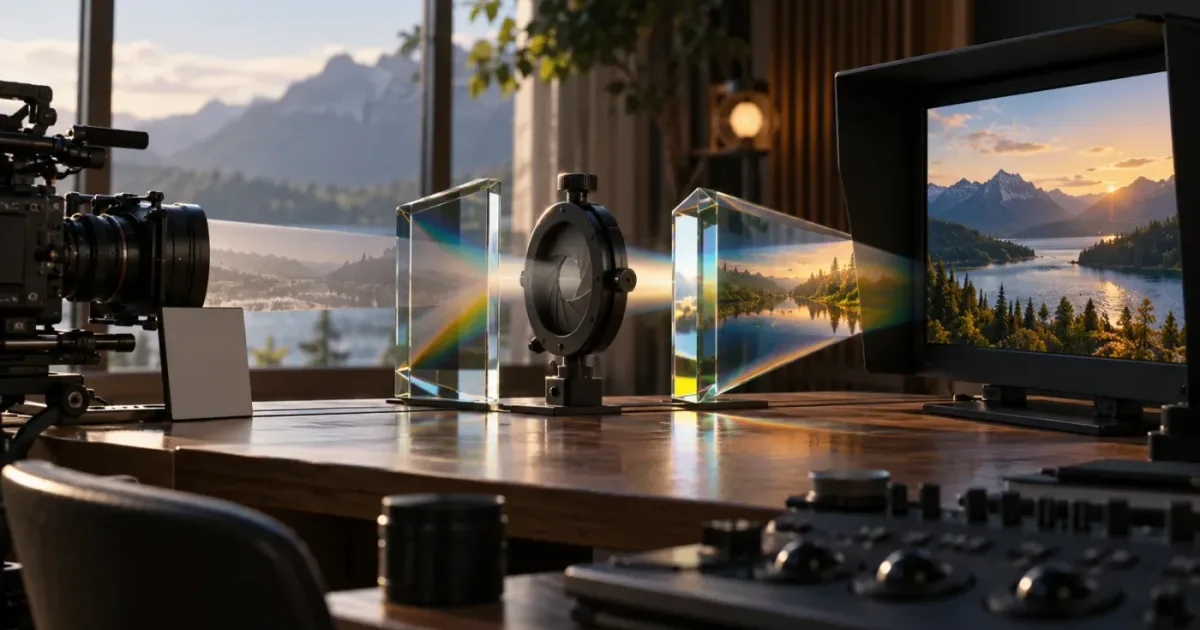
As of October 2026, DaVinci Resolve 21.1 is the current version listed in Blackmagic Design’s support downloads. I treat “before or after the CST?” as a question about which image space you want to adjust, not a rule that one node position is always correct. The short answer is to put exposure in your working space, then compare the result on the image and scopes.
What does “before or after the CST” mean in DaVinci Resolve?
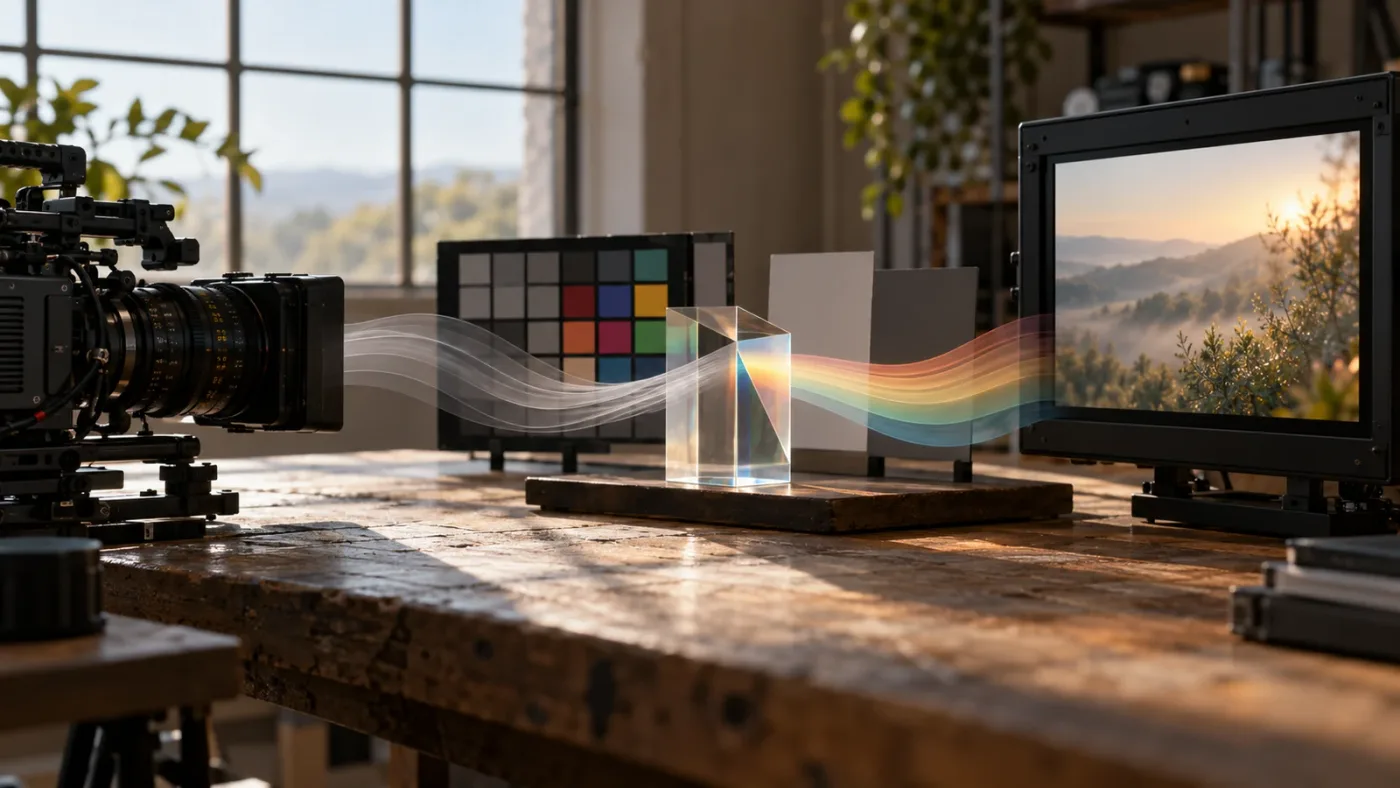
A CST, or Color Space Transform, converts image data from one specified color space and gamma to another. “Before exposure” and “after exposure” are incomplete descriptions until you know whether that CST is an input transform, an output transform, or the only transform in the node tree.
That distinction matters because one node graph can contain two CSTs:
- An input CST converts the camera’s recorded color space and gamma into a working space.
- Exposure, balance, and creative corrections happen in that working space.
- An output CST converts the working image to a display or delivery space, such as Rec.709.
In that graph, an exposure node can be after the input CST and before the output CST at the same time. Those aren’t competing instructions. They describe the natural place for a correction between two transforms.
The phrase can also mean a one-CST graph. Suppose a clip is recorded in Sony S-Log3/S-Gamut3.Cine and one CST converts it directly to Rec.709. A node before that CST adjusts camera-log values. A node after it adjusts the transformed, display-referred image. Those operations may look different because they act on different representations of the signal.
Resolve’s project-level color management adds another possibility. Blackmagic describes DaVinci Wide Gamut and DaVinci Intermediate as timeline color space and gamma settings for an internal working space. A color-managed project handles transforms at the project level, so a manual CST is not automatically needed for the same conversion. Blackmagic’s overview of DaVinci Wide Gamut explains that role; colorist Cullen Kelly also demonstrates both project-managed and node-based CST workflows in his Resolve color-management comparison.
Exposure placement is a choice of working space, not a universal node-order law.
That’s the decision to keep in mind throughout this comparison. “Before” does not mean better, and “after” does not mean wrong. It means the correction touches a different stage of the image pipeline.
Should exposure go before or after a single CST to Rec.709?
With one CST that converts camera log directly to Rec.709, exposure before the CST acts on the camera-log signal, while exposure after it acts on the transformed display image. Choose based on the kind of adjustment you need, then check how highlights, shadows, and color respond.
A one-CST graph might look like this:
Camera log → exposure → CST to Rec.709 → display trim
Here, the first exposure node works on the camera encoding. If you move it downstream:
Camera log → CST to Rec.709 → exposure → display trim
the adjustment acts on the image after the transform. Neither layout is equivalent in every case. The CST can change tone and gamut as it maps the camera signal toward the destination. An operation placed on either side therefore receives different values.
An exposure correction before a camera-log-to-Rec.709 CST can be useful when you want to adjust the source signal before display rendering. But the phrase “before the CST” does not guarantee that a particular control behaves like a photometric exposure change in linear light. The response depends on the encoding and the tool. A camera log curve is not linear light.
An exposure correction after the CST can be useful when you’re making a final display trim: perhaps the transformed shot needs a small overall lift or reduction for the Rec.709 viewing image. But it is now a correction to that display-referred result. Watch for changes to bright areas, blacks, and contrast that you did not intend.
Don’t judge the positions by node labels alone. Use a bypass comparison and observe the actual image. If the pre-CST node produces the intended correction without unwanted shifts or clipping, it may be the right choice for that job. If the post-CST node gives you a better final trim, use that. Label the nodes so a future revision makes the signal path clear.
The main drawback of a one-CST-to-Rec.709 workflow is not that it is invalid. It is that the camera-to-display transform and your grading work are tightly coupled. You have fewer explicit stages to separate source normalization, working-space grading, and delivery mapping. That can be perfectly adequate for a simple SDR project, especially if you understand what the transform is doing and only need one output.
For multiple cameras, several deliverables, or a grade you expect to revise, a defined working space between input and output transforms makes the stages easier to reason about. That gives exposure a clearly named place in the graph instead of forcing every correction into “before” or “after” a single node.
Should exposure go between two CSTs?
For a manual two-CST workflow, a useful default is to put exposure after the input CST and before the output CST. The input CST creates your working-space signal; the exposure node grades that signal; the output CST maps it to the delivery space.
The graph is:
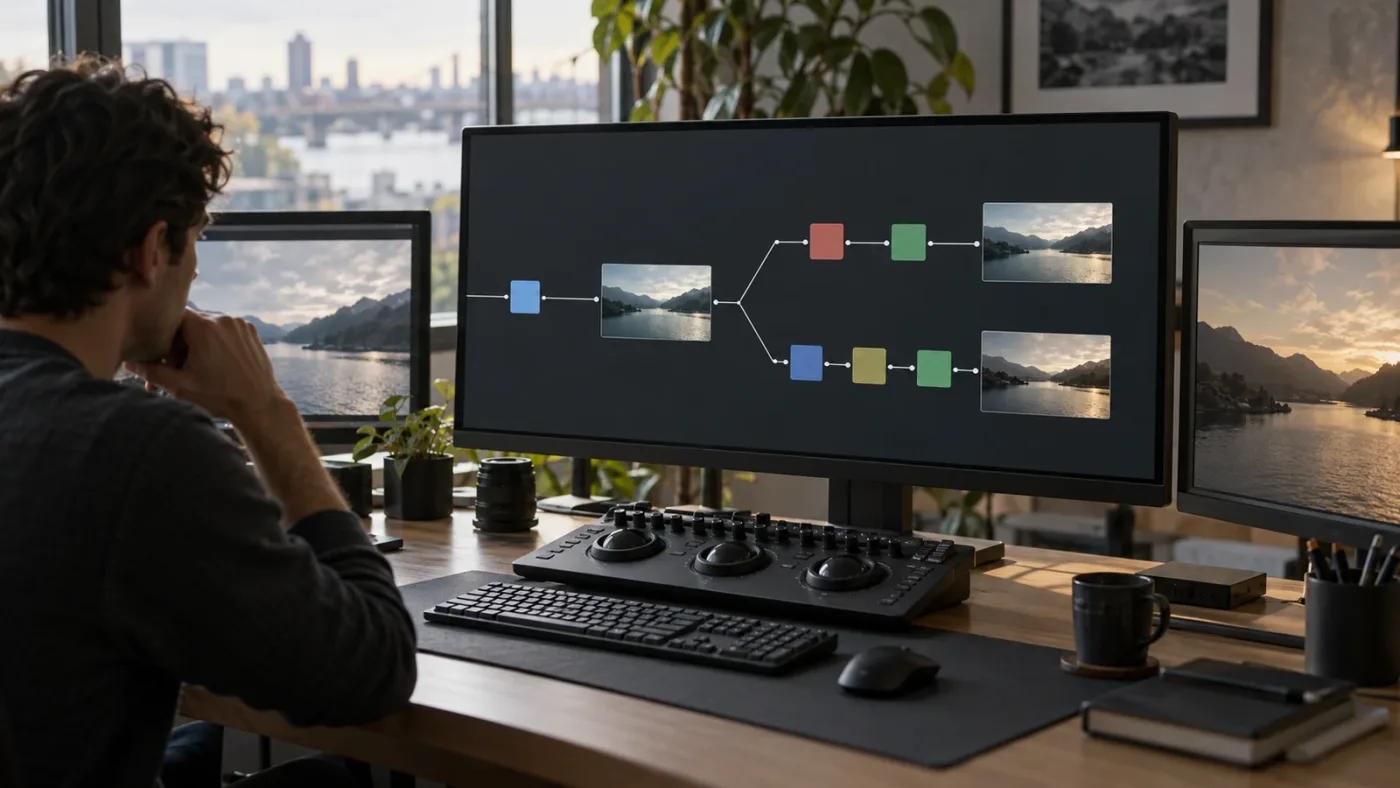
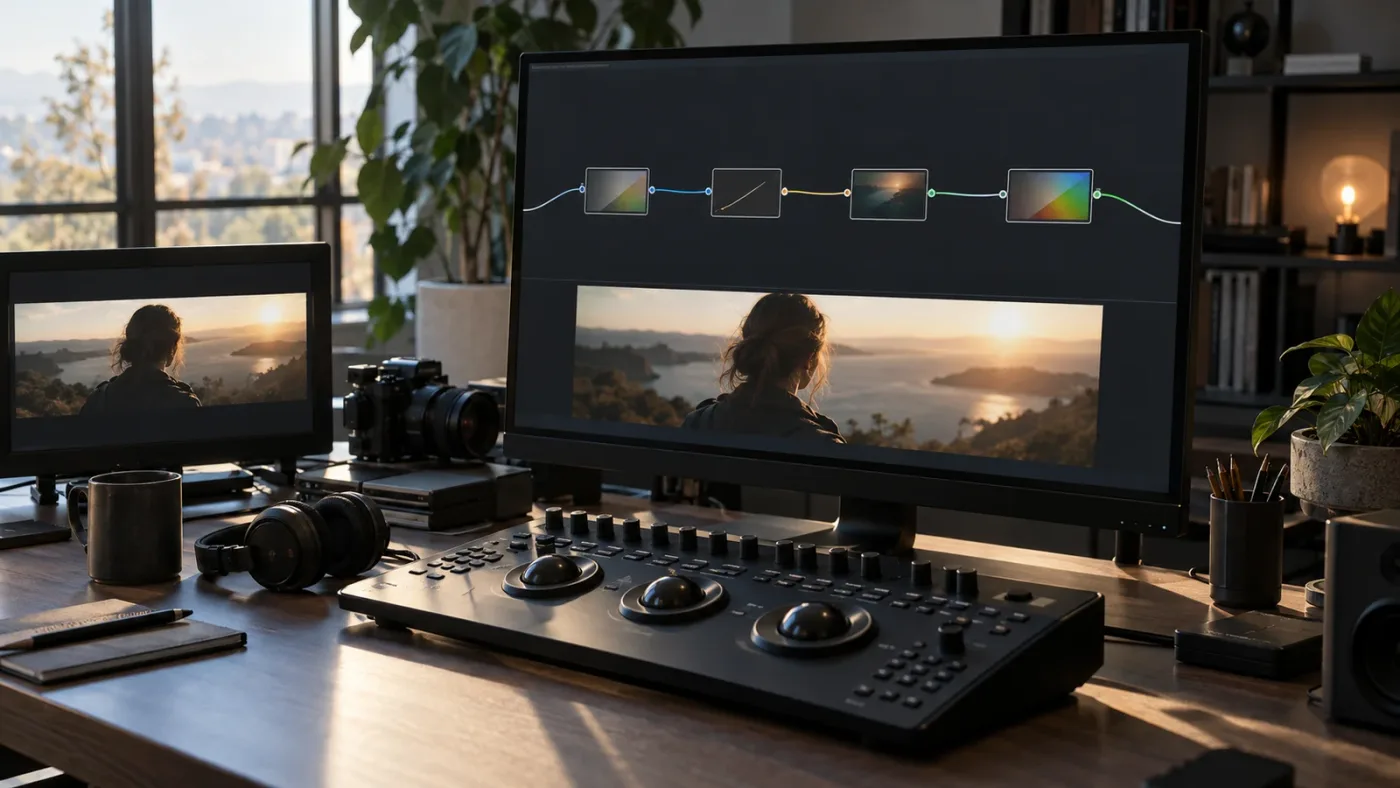
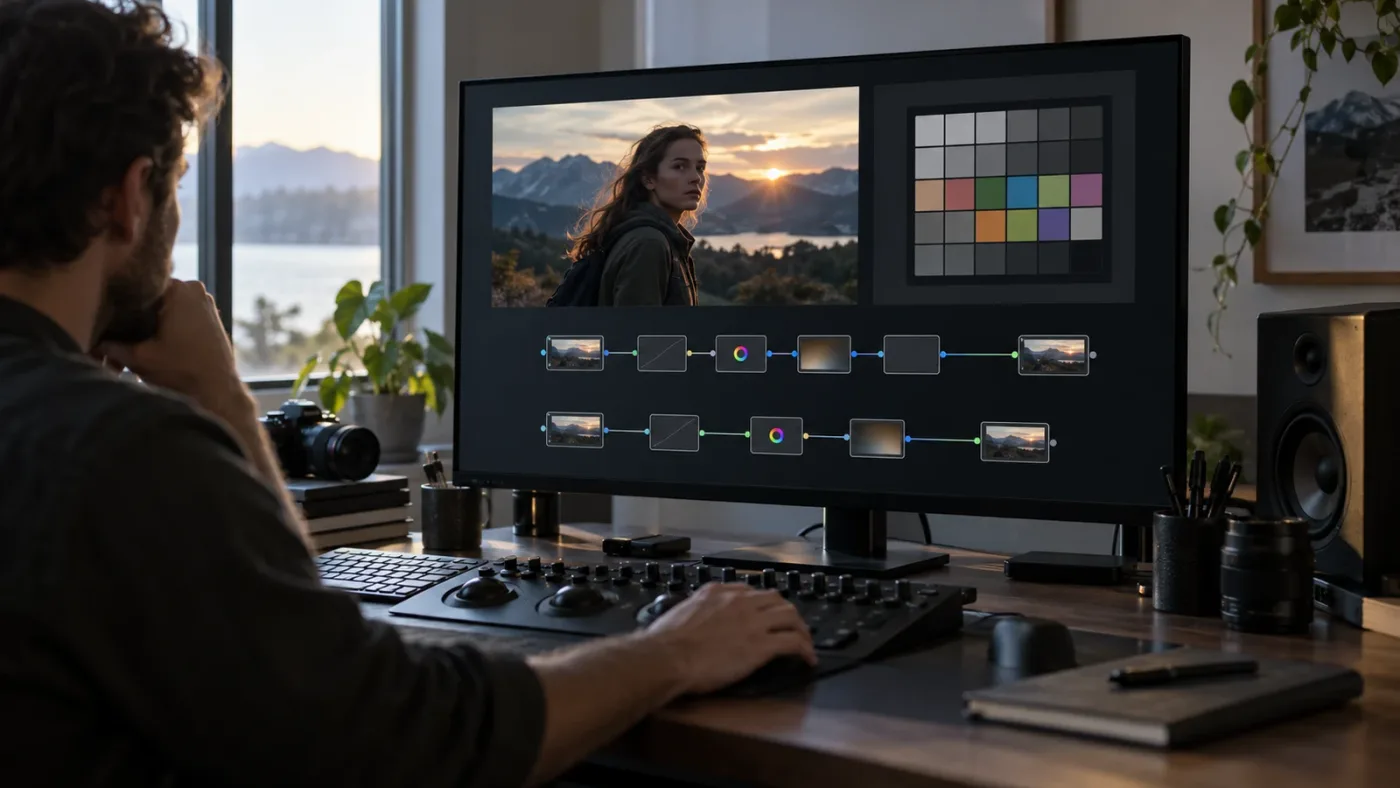
Camera log → input CST → exposure and balance → look nodes → output CST
The input CST must match the footage’s actual camera color space and gamma. For example, a clip recorded as ARRI Wide Gamut 3 / LogC3 needs those source settings in the input transform, not a guessed S-Log3 setting. The output CST must then match your chosen working space and destination.
Cullen Kelly demonstrates this separation in his node-based example: he sets an input CST from ARRI Wide Gamut 3 / LogC3 to DaVinci Wide Gamut / DaVinci Intermediate, grades in a middle node, then uses another CST for the output. He summarizes the structure this way: “I do all of my grading in the middle node, and the other two are for Input and Output.” That is Kelly’s described workflow, not a command that every Resolve project must use. See his full CST and Resolve Color Management comparison.
This arrangement is especially practical when your middle nodes are meant to work in one shared grading space. Once the input CST has normalized different camera formats into that space, you can use a consistent set of grading operations across the shots. The output CST comes after those operations and prepares the image for its destination.
It also makes troubleshooting easier. If the image looks wrong before the first grading node, verify the source transform. If it looks right through the working nodes but wrong at the output, inspect the output transform and its tone- or gamut-mapping choices. If exposure itself creates an unwanted change, bypass just that node and compare.
A useful default is not a mandate. If you have a specific reason to make a pre-input adjustment, a post-output trim, or a different node arrangement, you can do so. Just identify the image space at that point and test what the operation does there.
In a two-CST node tree, the working-space nodes belong between the input and output transforms.
Why does exposure behave differently before and after a CST?
Exposure behaves differently across a CST because the node receives a different signal on each side of the transform. The CST changes the signal’s encoding and may also perform tone or gamut mapping, so the same control adjustment is not guaranteed to produce the same image change.
Log encoding is designed to represent scene exposure differently from a display encoding. ARRI’s explanation of Log C says that over a wide range, each stop of exposure increases the encoded signal by the same amount. That does not mean every grading control in every camera-log space becomes a perfect stop-based control. It means you should not assume that a camera log image and its Rec.709 transform are interchangeable working surfaces.
The ACES specification gives another example of an intermediate grading encoding. ACEScct is a quasi-logarithmic encoding created for use within color-grading systems. It includes both logarithmic and linear segments. That is one reason an operation’s behavior near deep shadows may not match its behavior elsewhere in the signal.
There’s a practical difference between exposure, brightness, and a tool that happens to move the image up or down. A primary offset adjustment, an HDR global control, a log wheel, and a custom curve do not necessarily produce the same result. The chosen control matters along with the node’s position.
If you move a node across the CST and the picture changes, that does not by itself mean the transform is broken. The operation has moved to another stage of the pipeline. Compare the image with the node bypassed, and look for the specific change you care about:
- Are highlights becoming too hard or losing detail?
- Are shadows lifting more than you intended?
- Is saturation changing as you adjust exposure?
- Do skin tones or saturated practical lights shift?
- Does the waveform show a useful overall move, or does one tonal range move disproportionately?
- Does the image match the creative intent on the intended display?
Resolve’s HDR grading palette includes zone-based exposure and color controls, according to Blackmagic Design’s color-page description. Those controls are not a substitute for understanding the pipeline, but they give you a way to target tonal ranges rather than applying every correction as a uniform global move.
Should I balance exposure in camera log or DaVinci Wide Gamut/Intermediate?
Balance in the space where your chosen tools give you the response you want, and keep that choice consistent across the grade. For a manual two-CST setup, DaVinci Wide Gamut/Intermediate is a common working-space option; camera-log adjustments can also make sense when you deliberately want to work on the source encoding.
The phrase “expose in log” can mean different things. On set, exposure describes how much light reaches the sensor. In post, editors often use “exposure” for an image adjustment that changes the recorded values. Moving a post-production control cannot add light to the original capture or restore data that was clipped at recording.
In a two-CST workflow, DaVinci Wide Gamut/Intermediate gives the grade a defined internal space between the camera input and the display output. Blackmagic’s DaVinci Resolve Colorist Guide describes the purpose of this working-space setup, and Blackmagic’s overview calls DaVinci Wide Gamut and DaVinci Intermediate an internal color space and gamma for Resolve color management.
Kelly’s article on grading in log versus linear demonstrates why “log” is not a single magic answer. He uses DaVinci Wide Gamut/Intermediate as a log working space and discusses how contrast adjustments in log differ from linear. His point is about the behavior of tools in different spaces, not about requiring one specific CST node order for every exposure correction.
A good practical distinction is:
- Before the input CST: You are adjusting camera-encoded values. Use this deliberately when your tool or workflow is intended for that signal.
- Between the input and output CSTs: You are adjusting in the selected working space. This is the clearest default for a manual color-managed node tree.
- After the output CST: You are trimming the display-referred result. Use this when the task is a final display adjustment, not as an unexamined replacement for balancing in the working space.
This does not make all these spaces equally suitable for every operation. It gives you a way to name the decision and test it. If you’re balancing several camera types, a shared working-space stage is easier to compare than a collection of corrections scattered before and after different transforms.
What changes when I use DaVinci Resolve Color Management instead of manual CST nodes?
With DaVinci Resolve Color Management, Resolve applies the project’s input, timeline, and output color processing for you. You generally do not need to add manual CST nodes to repeat those same transforms; instead, place grading operations in the managed pipeline and make sure each clip’s input color space is identified correctly.
This is the biggest fork in the workflow. A project set to DaVinci YRGB Color Managed is not the same as an unmanaged DaVinci YRGB project with CST nodes added by hand. In the managed project, Resolve handles color transforms through project settings and clip metadata. In a manual CST project, the node graph visibly contains the transforms.
Kelly’s comparison shows both approaches, including the setup choices he uses for his example and the corresponding manual CST graph. He concludes that the two approaches can perform the same color-management job, even though the workflow and control points differ. The Blackmagic Resolve 21.1 Reference Manual is the current place to confirm the available controls and interface for your installed version.
Avoid mixing systems casually. If Resolve is already transforming a clip through color management and you add another CST that assumes the original camera log is still present, you may transform the signal twice. The picture can look unexpectedly contrasty, oversaturated, washed out, or otherwise unlike the intended pipeline.
Before adding a CST, check the project’s Color Science setting and the clip’s input color space. If the project is managed, decide whether you actually need a manual transform for a special case. If the project is unmanaged, confirm that the CSTs in the node graph provide the intended input, working, and output stages.
The version context matters, too. As of October 2026, Blackmagic’s support page lists the DaVinci Resolve 21.1 manual. Resolve 21.1 is the current manual reference for the interface in this article; the fundamental choice between managed transforms and explicit CST nodes is a workflow distinction, not a new “exposure before or after” rule introduced by version 21.1.
How can I compare both node orders on the same log clip?
Compare both orders using the same source, the same transform settings, and a reversible test node. Keep this as a worked example, not a claim that one layout will look identical on every camera or project.
Use a duplicate clip or save a still before making the comparison. The goal is not to prove that the two nodes are mathematically equivalent. They are on opposite sides of a transform. The goal is to learn how each arrangement affects the image you actually have.
Worked example: one CST straight to Rec.709
- Confirm the clip’s recorded camera color space and gamma from reliable metadata or camera documentation. Don’t choose an input transform by guessing from how flat the image looks.
- Add a CST that converts that exact camera color space and gamma to your intended Rec.709 output.
- Add an exposure adjustment before the CST. Make a small, reversible change and note what happens to skin, shadows, highlights, and saturation.
- Bypass the exposure node, then add or move an equivalent adjustment after the CST.
- Compare the two versions on the same display. Check the waveform and vectorscope as well as the viewer.
- Decide whether you prefer to make the main balance before the transform, after it, or in a separate managed working space.
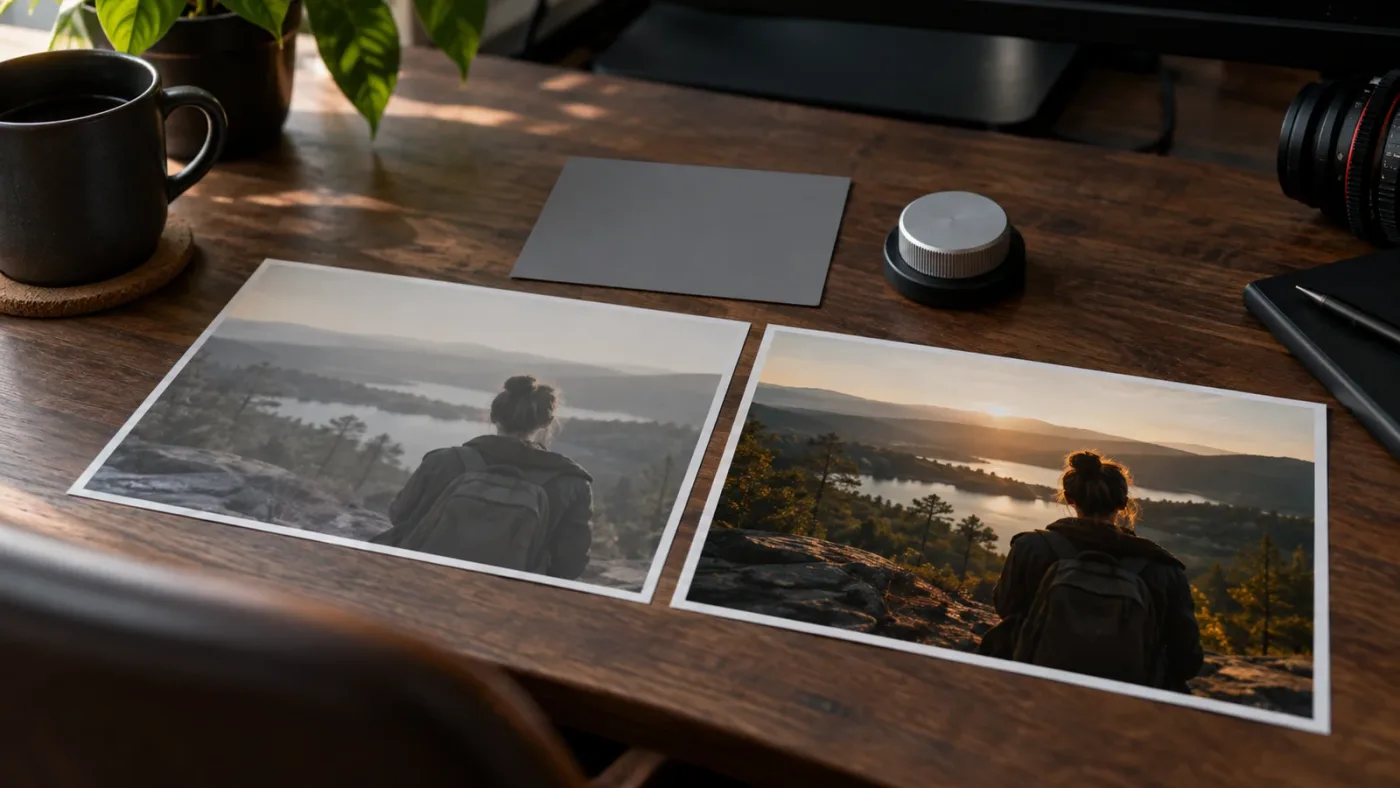
This comparison demonstrates why the query has no universal one-word answer. You may prefer the pre-transform move for the main correction and the post-transform move for a small final trim. Or the transformed image may give you a more direct control for a specific display adjustment. The result depends on the footage and the correction you’re trying to make.
Worked example: input CST, working nodes, output CST
- Set the input CST to the source camera’s actual gamut and gamma, with DaVinci Wide Gamut/Intermediate as the output.
- Put your exposure and balance node after that input CST.
- Add the creative grade in the same working-space portion of the graph.
- Place the output CST after the working nodes and set it to your delivery color space and gamma.
- Compare the working-space exposure correction with a separate trim node after the output CST only if you need to adjust the final display image.
This graph makes the working stage visible:
Camera log → input CST → exposure → look → output CST → optional output trim
It also gives you a useful way to divide responsibilities. The working-space exposure node sets the grade’s balance. A downstream trim, if you use one, adjusts the final viewing result. Don’t use both nodes as unnamed “brightness” corrections; label their roles so you can tell why each exists.
A comparison is most useful when you make one change at a time. If you alter the CST settings, exposure control, and contrast simultaneously, you won’t know which change caused the result. Save a still or duplicate the node tree before experimenting so you can return to the prior state.
Which workflow should I choose for mixed-camera footage or multiple deliveries?
Choose a defined common working space when you need consistent grading across cameras or more than one output. A single CST directly to Rec.709 can be simpler for a one-delivery job, while project-level color management can reduce the number of transform nodes you manage by hand.
| Situation | Practical starting point | Where to adjust exposure | Main trade-off |
|---|---|---|---|
| One camera, one SDR delivery, simple grade | One input-to-Rec.709 CST | Before or after the CST, chosen by the correction and checked visually | Fast and explicit, but the grade is tied closely to the display transform |
| Several log cameras in a manual node workflow | Input CST to a shared working space, then output CST | Between the two CSTs | Clear separation of input, grading, and output; requires correct transforms |
| Several cameras in a color-managed project | DaVinci YRGB Color Managed with correct input assignments | In the managed grading pipeline | Project settings handle transforms; avoid duplicating them with manual CSTs |
| A final small Rec.709 trim | Output CST followed by a clearly labeled trim node | After the output transform | Direct display adjustment, but not the same as a scene-referred balance |
| A correction intended for a specific camera-log encoding | Match the source encoding and adjust before the input transform | Before the input CST | Useful in a deliberate source-space workflow; less consistent if camera sources vary |
| HDR and SDR versions from one grade | A wide-gamut working pipeline with an output path for each deliverable | In the shared working space, then check each output | More flexible mastering, but each output transform and monitoring condition matters |
The table is a decision aid, not a preset recipe. An input transform that is wrong for the clip can make every downstream choice confusing. A transform configured for one camera’s log gamma is not automatically correct for a different camera, even if both clips look flat.
Resolve’s color tools support HDR and wide-gamut workflows, and Blackmagic describes the HDR palette as providing zone-based exposure and color controls. But the fact that Resolve can process HDR does not mean every project should use an HDR output. Match the working and output choices to the actual deliverable.
If you’re preparing both SDR and HDR deliverables, avoid baking a single display conversion into the middle of the grade and then treating it as a universal master. Keep the working stage distinct from the output stage so the output transform can be chosen for each destination. Confirm the result on a suitable monitoring setup and with the relevant scopes.
Should I use exposure before the input CST for S-Log3, Log C, or V-Log?
You can, but set the input transform to the exact camera encoding and understand that the correction is happening in that source space. For most flexible manual grades, use a transform into a shared working space and put the main exposure correction there.
The camera labels are not interchangeable. Sony S-Log3/S-Gamut3.Cine, ARRI LogC3, ARRI LogC4, Panasonic V-Log, and Blackmagic Film describe different camera encodings and color spaces. The input CST must match the footage, including the correct generation or variant when applicable.
ARRI specifically notes that LogC3 and LogC4 images differ because they were designed around different sensor generations and requirements. That is a concrete reason not to use “Log C” as a vague catch-all when you set a transform. Check ARRI’s Log C reference for its explanation and version distinctions.
For Sony footage, the same principle applies: select the actual recording gamut and gamma combination, not only “Sony log.” If you have a camera LUT or manufacturer transform intended for that exact encoding, verify whether it converts to a display space or to a grading space before placing other nodes around it.
The correct question is not, “Should I always expose S-Log3 before the CST?” It is, “Do I want this operation to modify S-Log3 values, or do I want it to modify values after the input transform in my chosen working space?” In a two-CST graph, the latter is the clearer standard starting point.
For a camera-specific adjustment before the input transform, document why it belongs there. That is especially important if the grade will be copied to other cameras or shared with another colorist. A node called Exposure - source log communicates more than a node called Node 02.
Why does my image look washed out or clipped after moving exposure?
A washed-out or clipped result after moving exposure usually means the adjustment now affects a different part of the signal pipeline, or that the CST settings and project color management are not working together as intended. Check the input transform, output transform, tone mapping, and any other color-management stage before compensating with more exposure nodes.
Try this diagnostic order:
- Confirm the source settings. Verify that the input CST matches the camera’s color space and gamma. A wrong input transform can produce an image that looks wrong before you touch exposure.
- Check for duplicate transforms. Confirm whether Resolve Color Management is active. If project-level management already handles the input and output transforms, a manual CST may be duplicating a conversion.
- Check the output. Make sure the output CST matches the intended delivery space and gamma. A Rec.709 transform is not the same as an HDR output transform.
- Inspect tone mapping and gamut mapping. These choices can affect how highlights and saturated colors are mapped to the destination. Don’t assume the exposure node alone explains every change.
- Bypass one node at a time. Disable the exposure node, then the output CST, then any look or LUT nodes. Find the first stage where the image departs from the intended result.
- Watch scopes as well as the viewer. A display preview may hide a clipped or compressed region. Use the waveform to inspect luma and the vectorscope to inspect saturation.
Do not fix a transform mismatch by pushing exposure until the image “looks normal.” That can hide the underlying issue and create a less stable grade. Correct the input or output assumptions first, then revisit the balance.
A flat-looking log image before an output transform is not automatically a problem. Camera log footage is meant to be interpreted through the proper transform or managed pipeline. Conversely, a bright, contrasty image after a CST is not proof that the CST is correct. Confirm the source format and destination rather than judging by a familiar look.
Blackmagic’s Resolve 21.1 support and manual page is the current vendor reference for version-specific controls. If a control name or menu differs from an older tutorial, check the installed version’s manual rather than assuming the color-science concept has changed.
Does exposure placement fix underexposed footage or recover clipped highlights?
No node order can restore image information that the camera never captured or clipped during recording. Moving exposure before or after a CST changes how the recorded values are processed; it does not change the original sensor exposure.
Cullen Kelly’s exposure article demonstrates a set of differently exposed images that are then normalized in Resolve. The comparison discusses how underexposed footage can reveal more noise when lifted and how highlights and shadows in the recorded image affect what remains usable. It is an example, not a guarantee that every camera or scene responds identically.
This distinction is important when a shot looks too dark. If the shadow detail exists above the noise floor, a post-production correction may reveal it, though noise can become more noticeable. If a highlight channel has clipped, a downstream exposure reduction cannot recreate the detail that was not recorded. Some raw formats may offer additional recovery controls, but those depend on the source file and camera processing, not on putting a CST on one side of an exposure node.
For raw footage, check the Camera RAW controls before treating the node graph as the only place exposure can be adjusted. Blackmagic notes that the RAW palette includes exposure, white balance, gamma, color temperature, tint, and other controls, and that raw image processing occurs before the node editor input. That is a different stage from adjusting a decoded image with a node.
Use the exposure node to shape the image toward your intended result, not to claim a recovery that the source cannot support. If the shot is noisy, clipped, or both, set a realistic target and compare the result at full viewing size.
Should I place white balance before or after the CST too?
White balance follows the same broad rule: choose the stage and color space in which you intend to make the correction, then verify the result. A white-balance correction in camera-log space is not automatically equivalent to a correction in a wide-gamut working space or after a Rec.709 output transform.
For raw clips, the camera RAW controls may offer source-level white-balance controls that operate before the node editor. For non-raw clips, you can use a node-based correction, but don’t assume that every tool is a literal reconstruction of the camera’s original white-balance setting.
A practical workflow is to separate technical balancing from creative color design. Put a clearly named balance node in the same working-space section where you perform your main exposure correction. If you have a reason to use a source-space or output-space balance, label it and verify how it changes neutrals and skin tones.
This is also why tutorials sometimes seem to disagree. One may show white balance before the input CST, another after it, and both may produce a usable image because they are applying different operations in different spaces. The node order alone does not tell you the author’s full color-management setup.
How do I avoid double-transforming a clip in Resolve 21.1?
Check whether the project is color managed before adding manual input and output CST nodes. A double transform happens when more than one part of the pipeline applies a conversion that you intended to happen only once.
A simple check:
- In Project Settings, identify whether Color Science is DaVinci YRGB or DaVinci YRGB Color Managed.
- If it is color managed, check the clip’s input color space and the project’s timeline and output settings.
- If it is unmanaged DaVinci YRGB and you are using manual transforms, inspect the node tree for the intended input and output CSTs.
- Check whether a camera LUT, timeline LUT, group node, or another node also performs a transform.
- Bypass nodes individually and compare the image at each stage.
The visible image is the result of the whole pipeline, not just the node directly beside the exposure correction. A camera LUT may include an output transform. A project-level output transform may be active even if you added an output CST manually. If two transforms both convert toward Rec.709, the final result can be very different from the intended one.
Resolve 21.1 is listed in Blackmagic’s support downloads as the current manual version as of October 2026. Interface details can change between releases, but the key diagnostic remains the same: map every transform from source to working space to output, then remove unintended duplicates.
Which workflow should I choose: exposure before or after the CST?
Choose the workflow that gives you a clearly defined place to balance and a result that holds up on the intended display. For a flexible manual node tree, use an input CST, grade exposure in the working space, then use an output CST; choose a one-CST or post-output adjustment when its simpler or display-focused behavior fits the job.
Here’s the practical verdict:
- Choose exposure between two CSTs when you want a visible input-to-working-to-output pipeline and a consistent space for the main grade.
- Choose exposure before a single CST when you deliberately want to modify camera-log values before the display transform.
- Choose exposure after a single CST when you want to trim the transformed output and accept that the correction is display-referred.
- Choose project-level color management when you want Resolve to handle the transforms at the project level and you can correctly identify the footage’s input color spaces.
- Choose a different arrangement for a specific reason when you can explain which signal the node receives and confirm the result on the image and scopes.
The strongest default for most manual log-footage node trees is straightforward: match the input CST to the camera, transform into a working space, balance and grade there, then transform to the delivery space. Keep any final output trim separate and labeled. Don’t move exposure merely because a tutorial’s node numbers look different.
If you’re stuck locating a Resolve control while building the graph, TryUncle is the on-screen assistant for DaVinci Resolve on Mac and Windows: ask in plain words and Uncle points at the exact control on your screen. Use it for navigation, not as a substitute for checking that your camera transform and output settings match the footage and delivery.
Your next step is simple: identify whether your current CST is an input, output, or both, then test the exposure node in the space you actually mean to grade.
Frequently asked questions
- Should exposure go before or after a CST in DaVinci Resolve?
- Put exposure where you want to work. For a flexible manual workflow, use an input CST from camera log to DaVinci Wide Gamut/Intermediate, adjust exposure before the output CST, then transform to the delivery space. With a single camera-log-to-Rec.709 CST, exposure before and after it behave differently.
- Should I expose S-Log3 before or after the CST?
- For a two-CST workflow, adjust exposure after the input CST and before the output CST, in your chosen working space. For a single CST straight to Rec.709, before means S-Log3 space and after means display space, so compare the result and choose deliberately.
- Can I put exposure after a Rec.709 CST?
- Yes. It can be useful for a trim to the final display image, but it is a display-referred correction and can change highlight and shadow relationships differently from a scene-referred adjustment before the transform.
- Do I need CST nodes if I use DaVinci Resolve Color Management?
- Usually not for the same input-to-working-to-output conversions. Resolve Color Management handles those transforms at the project level; adding manual CST nodes can duplicate them unless the workflow is intentionally designed that way.
- Why does my image look different when I move exposure across a CST?
- The exposure operation is being applied to different image encodings and stages of the color pipeline. A camera-log signal, a wide-gamut intermediate signal, and a Rec.709 display signal do not respond identically to the same correction.
Sources
- DaVinci Resolve 21.1 Reference Manual and support downloads
- The Colorist Guide to DaVinci Resolve 20
- Should You Use Resolve Color Management or CSTs?
- When Should You Color Grade in Log vs. Linear?
- Exposing to the Right: What Everyone Gets Wrong
- ARRI Log C
- ACEScct: A Quasi-Logarithmic Encoding of ACES Data
- DaVinci Resolve color page
- DaVinci Wide Gamut and DaVinci Intermediate
Put this guide to work with TryUncle.
Ask about the step you’re on. TryUncle sees your screen and points at the control you need, so you can keep learning in your own project.
Get TryUncle for Mac or WindowsKeep reading
Guides · Oct 23, 2026 · 38 min
DaVinci Resolve Color Grading Workflow Order: The Right Sequence
A practical DaVinci Resolve color grading workflow order, from color management and shot balance to matching, look development, checks, and delivery.
Guides · Oct 18, 2026 · 26 min
DaVinci Resolve Color Grading Workflow for Log Footage
A camera-agnostic DaVinci Resolve 21 workflow for identifying log footage, setting a CST or color management, balancing exposure, matching shots, and checking delivery.

Guides · Jul 7, 2026 · 35 min
How to Color Grade in DaVinci Resolve: The Basics
Learn how to color grade in DaVinci Resolve: build a node chain, balance shadows and highlights with Lift, Gamma, and Gain, and read the scopes.