Articles / Guidesupdated for DaVinci Resolve 21.1 (October 2026)
DaVinci Resolve Color Grading Workflow Order: The Right Sequence
Quick answer
In DaVinci Resolve, set the color pipeline and verify each clip's input first. Balance exposure and white balance, match shots, build the creative look, refine secondaries, review the sequence on scopes and a suitable display, then verify the output. This is a dependency order, not a rigid recipe; RAW controls, transforms, group nodes, and review needs can change it.
We’ve spent more than seven years editing commercial video, and the color question that keeps coming back is simple: what should happen first? The order matters because every step changes the conditions for the next one. As of October 2026, the current release line is DaVinci Resolve 21.1; Blackmagic lists the 21.1 manual dated September 8, 2026, on its support page.
What is the right DaVinci Resolve color grading workflow order?
The right DaVinci Resolve color grading workflow order is the order that protects image interpretation first, establishes a stable technical baseline second, and applies creative choices only after the shots can be judged together. For most projects, that means pipeline, source interpretation, balance, matching, look, selective refinement, sequence review, and output checks.
That sequence answers the common version of the question, but it is not a preset. Camera RAW controls happen before the node graph. A color-managed project may perform input and output transforms automatically. A LUT may be technical or creative. A job with a client review pass may need an early temporary look. The order describes dependencies, not a mandatory number of nodes or a universal recipe.
| Stage | Main question | What should be true before moving on? |
|---|---|---|
| 1. Lock the edit and inspect media | Are these the shots and source files that will be finished? | Shot order, timing, source identity, and delivery target are stable enough to grade. |
| 2. Choose the color pipeline | What do the source values mean, and what display or file is the target? | Input, working, and output handling are understood. |
| 3. Decode camera RAW when applicable | Is the source decoding itself correct? | White balance, exposure metadata, debayer, and camera settings are intentional. |
| 4. Balance individual shots | Is each image technically plausible and readable? | Exposure and neutral color are in a useful range without destroying detail. |
| 5. Match the sequence | Do adjacent shots belong in the same scene? | Continuity is established against a chosen reference. |
| 6. Establish the look | What emotional and visual treatment serves this scene? | The look supports the story and still works across the sequence. |
| 7. Refine selective areas | Which local changes add useful emphasis? | Keys, windows, tracking, and effects solve an identified visual problem. |
| 8. Review and deliver | Does the grade hold in context and in the intended output? | The timeline, render, and viewing conditions have been checked. |
Blackmagic describes the Color page as a sequence of nodes through which the image travels from input to output. It also says the first node is usually used for image balancing, with later nodes used for creative work. That supports a clean beginner structure, but “usually” matters. Your color-management method, camera, and job may justify a different node layout. (Blackmagic Design: Color)
A grading order is a dependency map, not a law that every shot must obey.
Color correction and color grading overlap in practice. “Correction” often means making the image technically usable and consistent; “grading” often means shaping the image creatively. But professional work rarely arrives in two sealed boxes. On a fast review pass, a colorist may balance, match, and set a look in one continuous move. The useful discipline is knowing which decision you are making, so you can revise it without breaking unrelated work.
Why should I finish the edit before detailed color grading?
Finish the edit that determines shot order, duration, and transitions before you spend time matching every shot. A detailed grade belongs to the images that will actually appear in the final cut, so major editorial changes can invalidate careful work.
This does not mean you must ban color work until picture lock. Editors often need a temporary balance to judge shots, show a client a rough direction, or make footage readable while continuing the edit. Keep that pass simple and reversible. Avoid spending an hour on a shot that may be removed tomorrow.
The practical dividing line is editorial stability. A cut that still changes every day is not stable. A sequence with approved timing but a few likely trims may be stable enough for a first pass. A final, locked timeline is the right place for detailed continuity work, shot-specific windows, tracked keys, and final delivery checks.
Before grading, verify the following:
- The shot order is meaningful. If the scene structure is still changing, grade representative shots first rather than every shot.
- The frame rate and timeline are correct. A conform or frame-rate change can alter retimes, frame selection, and transitions.
- The source media is online and identified. A proxy or relink that points to a different camera original can alter the image and its metadata.
- The timeline version is clear. If you have alternate cuts, label them so you do not grade an obsolete sequence by accident.
- The delivery target is known. Rec.709 web, HDR, theatrical, and a client review file do not share all the same viewing and output assumptions.
If the project has a colorist, agree on what “locked” means before handoff. A locked sequence can still have small trim changes. The team should decide whether those changes return to editorial, whether the colorist will accommodate them, and how replacement shots will be identified. A short, documented handoff prevents a technical argument over whether a sequence is final.
The exception is an editorial deadline that requires a graded preview before picture lock. In that case, make a “look pass” on hero shots and representative coverage, then clearly mark it as provisional. Use a timeline duplicate or versioning method that your team understands. Keep the original edit available, and avoid building fragile shot-specific operations that depend on an edit you already expect to change.
How do I choose color management before grading?
Choose color management before detailed correction because it defines how DaVinci Resolve interprets camera values, what working space the grade operates in, and how the output is transformed. A technically correct adjustment in the wrong pipeline can still produce a misleading image.
There is no single pipeline that suits every project. DaVinci YRGB gives you manual control over transforms and node order. DaVinci YRGB Color Managed can assign input, timeline, and output spaces and apply conversions in the project pipeline. ACES is another managed workflow with its own input transforms, working space, and output transform. The correct choice depends on the source formats, collaborators, delivery, and established production requirements.
Before changing settings, write down three things: what the camera recorded, where you want to make grading decisions, and where the finished image must land. For example, a camera may record a manufacturer’s log curve and wide gamut, while the monitor and web master target Rec.709. Those are separate spaces with separate jobs. “Log” describes an encoding choice; it does not mean “ungraded” in a universal way, nor does it identify the complete camera color space on its own.
Color management is where “why does this look washed out?” or “why did the LUT make the image too contrasty?” often begins. If the source is treated as Rec.709 when it is actually log, the image can appear low contrast and desaturated. If log footage is transformed twice, it can become too contrasty or saturated. If the output transform is missing, the image may look different on another display or in a rendered file. Diagnose the pipeline before pushing contrast and saturation to compensate.
Blackmagic’s color-management descriptions separate input, timeline, and output color spaces. That is the right mental model even when you use a node-based transform: source, working image, and destination are different roles. The official Resolve 20 Colorist Guide, still useful for underlying concepts in Resolve 21.1, demonstrates camera-to-timeline and timeline-to-output transforms as separate operations in a group workflow. Verify exact control names and current behavior in the Resolve 21.1 manual linked from Blackmagic’s support page. (Blackmagic Resolve Colorist Guide; Resolve support)
A Color Space Transform is only correct when its input and output settings describe the image pipeline you actually have.
Do not treat a display LUT as a camera transform. A show LUT can be designed to create a look, to preview a viewing transform, or to do both. Its intended input and output should be documented. A LUT labeled “Log to Rec.709” may expect a particular manufacturer log curve and gamut. It may not be safe to feed it another camera’s log material. The label alone is not enough; inspect the vendor documentation or test with known footage.
When should I adjust camera RAW controls?
Adjust camera RAW controls before node-based grading when the media is genuinely RAW and the source controls affect decoding. RAW settings operate upstream of the color node graph, so they can change the image that every downstream node receives.
In Resolve, the RAW palette can expose controls such as decode quality, white balance, exposure, gamma, color space, and highlight recovery depending on the camera format. Blackmagic states that RAW processing happens before the node editor input and is non-destructive. That makes this stage different from a normal color-wheel adjustment, which is part of the grade. (Blackmagic Design: Color)
A practical RAW pass should answer a narrow question: is the source decode itself set correctly? Check whether the clip uses camera metadata or project defaults. Confirm the intended decode color science. Correct a clearly wrong white-balance metadata value or exposure offset at the RAW stage if that is the workflow. Then stop. You do not need to make every creative decision in the RAW controls just because they exist.
This distinction matters in mixed-camera projects. A RED RAW clip, Blackmagic RAW clip, and ProRes log clip do not expose identical controls. Some camera formats retain adjustable metadata; some do not. A transcoded clip may preserve a baked image while no longer offering the original raw controls. Do not assume that every file with a “RAW” label in the name is still a raw source, or that a compressed log file can be recovered like sensor data.
If a camera original is replaced by a proxy or intermediate, verify that the color interpretation remains consistent. Proxy workflows often carry metadata, but a mismatched color tag, wrong transform, or proxy-generation setting can make the proxy look different. Before you match shots using proxies, compare a known frame against the camera original through the intended pipeline.
A careful RAW stage also prevents a common order mistake: using Lift, Gamma, Gain, or Offset to compensate for incorrect source decoding. That can make one frame look acceptable while leaving the source interpreted incorrectly, and it can complicate matching against other clips. Decode first, then balance.
How do I balance exposure and white balance?
Balance each shot for readable exposure and plausible neutral color before building a strong creative look. Use the image, scopes, and scene context together; scopes report signal behavior, but they do not decide what the scene should feel like.
Start with a representative shot from the scene. Look for the intended subject, the brightest important area, the darkest meaningful detail, and any neutral object that should appear neutral. Decide whether the exposure is too low, too high, or simply different from the shots around it. Then correct broad contrast and color cast. Resolve’s primary wheels and controls affect broad tonal regions, while log controls can target tighter tonal ranges. Blackmagic describes primary controls as tools for brightness and color balance and explains that Lift, Gamma, and Gain affect overlapping tonal ranges. (Blackmagic Design: Color)
This is not a numeric recipe. There is no universal rule that black must sit at zero, highlights must hit a fixed ceiling, or every skin tone must land on one vectorscope line. Exposure depends on scene content, camera encoding, viewing transform, and delivery. A night interior should not be forced to look like daylight. A warm practical lamp should not be neutralized merely because its RGB channels are unequal.
Use scopes as evidence, not autopilot. A waveform helps you compare luminance placement and clipping. A parade can reveal channel imbalance. A vectorscope can show hue and saturation distribution. But scopes do not know whether a white shirt is lit by blue window light or whether a red sign should dominate the frame. Read the image and its story alongside the trace. Our waveform and vectorscope guide explains how to use those displays without turning them into fixed targets.
A useful test is to compare the corrected shot with itself before and after, then compare it to another shot from the same scene. A shot can look pleasing alone and still be too bright, too green, or too contrasty next to its neighbor. Don't chase the scopes until every shot has the same trace. Different lighting and framing create legitimate differences.
If the image is noisy, be cautious with aggressive exposure lifts. Raising shadows can reveal noise that was present but hard to see. Noise reduction can change texture and detail, and the appropriate tools differ by version and edition. First decide whether the shadows must be lifted for the story. Then evaluate the cost. Don't soften the whole image to fix a small noisy corner if a localized solution would preserve more detail.
A balanced shot is a dependable starting point, not a promise that every object should look neutral.
A common question is “why does my footage look flat before I grade it?” The answer is often that log footage is designed to preserve captured range and requires the correct viewing transform, not that Resolve has lost color. Confirm the camera profile and pipeline. A creative contrast adjustment may be appropriate after that; applying heavy contrast before you know the input space can make the correction harder to undo.
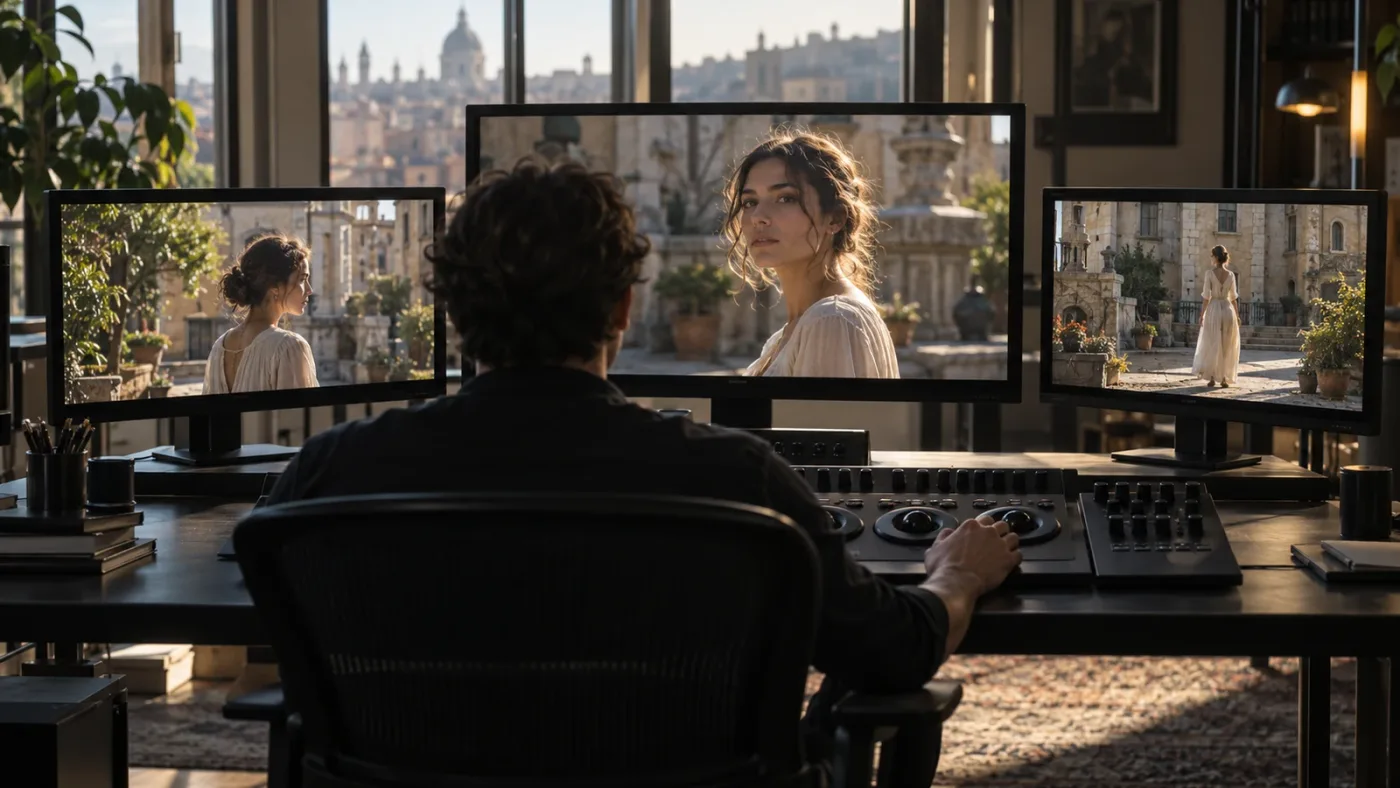
How do I match shots before creating a look?
Match shots before adding a strong scene-wide look so that the look sits on a coherent base. Choose one or more hero shots, establish the intended exposure and color relationship, then compare every other shot against that reference in the sequence.
A hero shot is a reference, not a rule that every image must become identical. Pick a frame that represents the scene’s intended tone and lighting. It could be the close-up with the clearest skin, the wide shot with the key practicals, or a neutral daylight exterior. Save a still or use a fixed split-screen reference. The point is to compare against a stable target rather than letting your memory drift from one shot to the next.
Start with the broadest mismatch. If one camera is a stop darker, correct that before adjusting a small patch of background. If the exterior shot is cooler because it is genuinely in shade, it may need a gentle relationship to the warmer interior, not a forced neutral match. Match the scene’s continuity, not a numeric scope trace.
John Daro, a seasoned colorist, describes the value of keeping a stable hero reference: “Always. Otherwise you're introducing a small amount of difference every time you refer.” The quote comes from a discussion of returning to chosen hero shots when matching a sequence. The point is practical: repeated re-interpretation of the reference can make the target drift. (Mixing Light transcript)
For multi-camera footage, separate technical normalization from aesthetic matching. First ensure each camera is interpreted correctly. Then balance camera families and shot conditions. A shared group grade can help apply common input normalization or a scene-wide treatment, but it can also create broad errors if the group contains shots that do not share the same conditions. Group by a real relationship: camera, scene, lighting setup, or another consistent property.
Resolve offers clip, group pre-clip, group post-clip, and timeline node contexts. Their processing is sequential, and shared adjustments affect different scopes. The Colorist Guide’s group workflow applies a base grade at Group Pre-Clip and later adjustments at Group Post-Clip, while individual clip grades remain available. This is powerful, but you don't need groups for every project. Start with clip grades; introduce group levels when repeating a correction or managing related shots becomes clearer than copying and pasting. (Blackmagic Resolve Colorist Guide)
If you copy grades between clips, check every recipient. A shared node or copied grade can transfer assumptions that do not hold for another lens, exposure, camera profile, or lighting condition. Keep a small difference local when it is real. Matching is not sameness; it is a controlled relationship.
Should the creative look come before or after shot matching?
Build the main creative look after a functional balance and an initial match, then revisit the match with the look active. That two-pass approach keeps the look from hiding basic errors while acknowledging that the creative treatment affects how shots relate.
A look is the broad character of the image: contrast, color separation, saturation, highlight roll-off, shadow hue, and other decisions that shape the emotional reading. The look may be warm and gentle, cool and severe, low contrast, high contrast, clean, gritty, or something more specific to the project. These descriptions are creative aims, not settings. You still need to test the treatment across faces, wide shots, practical lights, and different exposure levels.
The useful order is not “match perfectly, then never touch matching again.” First get each shot into a reasonable shared baseline. Then establish the look on a representative shot. Apply or reconstruct that look across the scene, and check continuity again. A warm look may make one naturally warm shot too orange. A lifted black point may make a night exterior feel milky. The look can expose new issues, so the match pass returns briefly after look development.
You can build the look using serial nodes, parallel structures, layer mixers, curves, color warper, HDR wheels, or other tools. Pick a structure that supports your intended adjustment and remains easy to revise. Blackmagic describes nodes as the building blocks of Resolve color correction, with each node processing the image in sequence. Serial order matters because a later operation receives the output of earlier nodes. (Blackmagic Design: Color)
For a beginner, a compact node tree might be:
| Node | Purpose | Keep in mind |
|---|---|---|
| 01 Balance | Broad exposure and neutral color | Keep this separate if you expect to revise the baseline. |
| 02 Contrast and color separation | Shape tonal relationships | Check whether the move belongs before or after a transform. |
| 03 Look | Establish the broad creative direction | Make it work across more than the hero frame. |
| 04 Skin or subject refinement | Adjust a key region if needed | Use a key only when the correction is visible and justified. |
| 05 Texture or finishing | Grain, glow, softening, or another finishing choice | Keep effects restrained and evaluate in motion. |
This is an example, not a node-count target. Merge operations when splitting them adds no clarity. Add nodes when you need an independent control, a different key, a clear bypass, or a reusable component. A node tree that is easy to read is more valuable than one that looks impressive in a screenshot.
We have taught more than 100,000 students on Udemy and work with teams, including Fortune 500 companies. The teaching lesson that transfers here is straightforward: a visual result is easier to reproduce when the student can name the decision, not just the tool. “Make the background cooler while keeping skin stable” is a clearer aim than “use the teal wheel.” A tool answers a problem; the problem should lead.
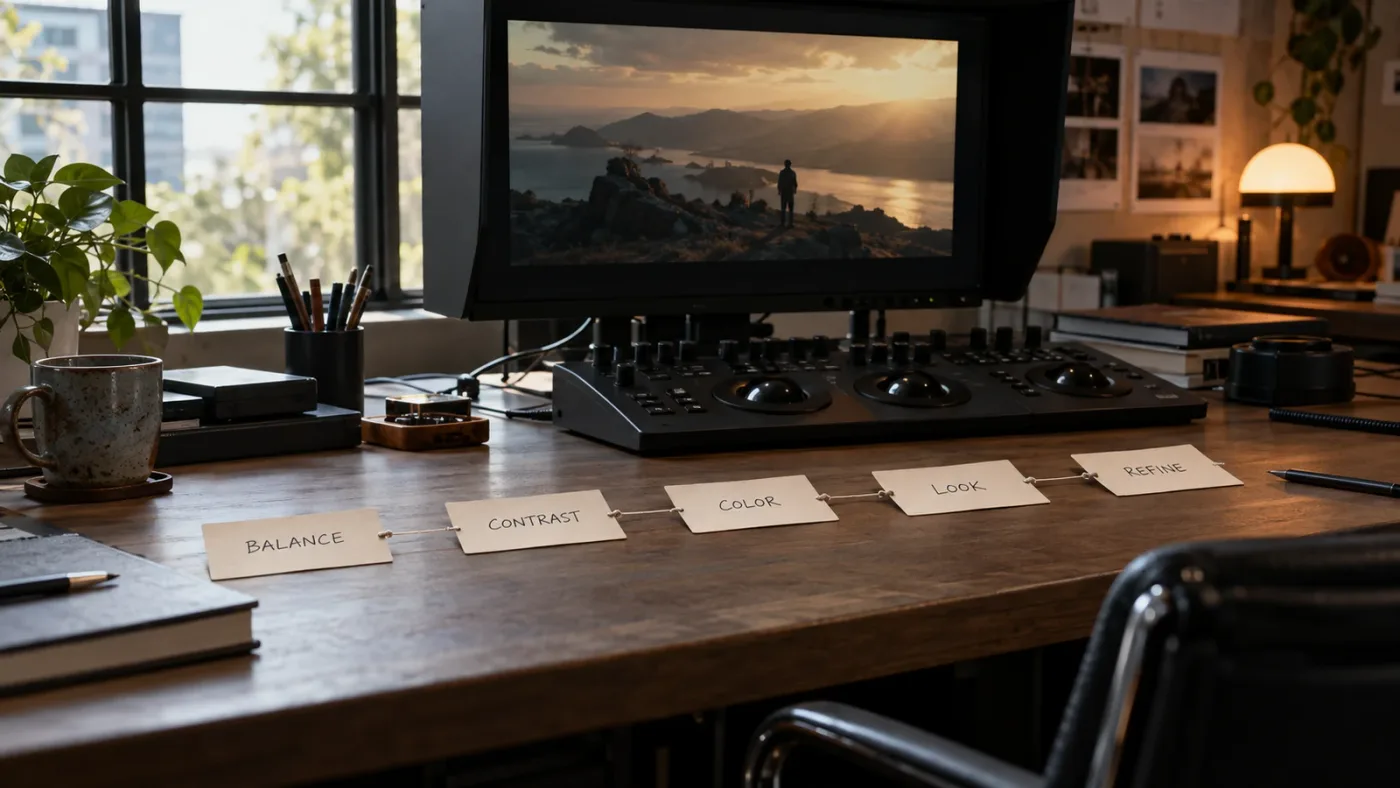
How do I organize nodes without overbuilding the grade?
Organize nodes around decisions you may need to change independently, and keep the tree as small as the job allows. A node is a stage in the image-processing chain, so adding one creates both control and complexity.
A beginner does not need a universal 10-node template. Every extra node can make the grade easier to isolate, but it can also make it harder to understand the actual signal path. Start with a clear balance node and a separate look node if you expect those choices to evolve. Add another node when you have a reason: a windowed correction, a skin adjustment, a source transform, a texture effect, or a finishing step that should be toggled independently.
A useful naming pattern describes purpose, not chronology. “Balance,” “Look,” “Skin,” and “Grain” explain more than “Node 1,” “Node 2,” and “Node 3.” Colors can help scan a larger tree, but labels should carry meaning without requiring a legend. Our node labels and colors guide covers a practical naming approach.
Keep transformations and creative corrections legible. In a node-based color-managed workflow, you might label input transform, balance, look, and output transform. In a project-managed pipeline, those transforms may live outside the clip node tree, so labels need to describe what is actually happening. Never label a node “CST” if it is a LUT or a creative adjustment; future-you will trust the label.
Use node order intentionally. A balance before a creative look generally gives you a stable image to style. A look before a subject isolation may make the key easier or harder depending on what hue and contrast it sees. A transform may need to happen at a particular point so its input and output are correct. Effects like grain or sharpening can also change with order. There is no benefit in pretending all nodes are interchangeable.
Group and timeline nodes are different scopes. A group adjustment affects multiple clips in that group; a timeline adjustment affects the whole timeline. Their value is reuse and global control. Their risk is accidental spillover. If one camera’s normalization belongs on every clip from that camera, a group-level adjustment may make sense. If you need a single end-of-pipeline output trim, a timeline-level operation may fit. If a change is truly unique to one shot, keep it at clip level.
Before sharing a node tree, check whether it depends on external LUTs, plugins, fonts, or settings. A color grade may render differently if a required LUT is missing on another machine. A managed project may behave differently if a collaborator opens it in another version or changes output settings. Naming is documentation, not portability; include the assets and settings the project needs.
A readable node tree explains the grade well enough that you can revise one decision without guessing.
Avoid decorative node architecture. Parallel nodes, layer mixers, outside nodes, and shared nodes are useful when their behavior fits the task. They are not proof of skill by themselves. If a serial node solves the problem clearly, use it. If a correction must remain independent, isolate it. The right tree is the simplest one that makes the grade understandable and adjustable.
When should I use keys, windows, tracking, and effects?
Use secondary corrections after the broad image works, and only when a local adjustment improves the viewer’s understanding or the scene’s intent. A key or window is a selective tool; it should refine a good base rather than conceal a broken one.
Secondary work includes isolating a color range, shaping a face with a power window, tracking a subject, softening a background, adding glow, reducing noise, or changing a local exposure. These moves can be powerful. They can also create artifacts, uneven skin, noisy edges, halos, or a look that breaks as the subject moves.
Before creating a key, ask what you are isolating and why. A qualifier based on hue, saturation, and luminance can select more than the intended object if background colors overlap. A skin key may include wood, leather, or warm lights. View the matte, clean it carefully, and inspect it across the shot. If the selection is weak because the colors are too similar, a window or tracked shape may be a better choice. If the shot is static and the subject stays in one area, tracking may not be necessary.
A selective adjustment can be approached in this order:
- Confirm the base grade and color pipeline.
- Decide whether the correction should be global, color-based, or spatial.
- Create the simplest key or window that isolates the target.
- Inspect the matte or shape boundary through the full shot.
- Adjust softness and tracking only as needed.
- Make the smallest useful correction.
- Play the shot and adjacent cuts at normal speed.
- Bypass the node to verify that the correction improves the image.
Don't sharpen skin just because it looks soft in a paused frame. Don't add a face window because the software can detect a face. Don't remove every shadow under an eye. The viewer reads faces in context, and over-cleaning can make a person look detached from the scene. The same applies to sky replacement, object removal, and local saturation. Technique should serve attention, not announce itself.
Tracking can fail at occlusion, motion blur, low contrast, or a cut. A tracked window that slips for three frames may be more distracting than the original shot. Inspect the beginning, middle, and end, and scrub through transitions. If the shot changes direction or the tracked feature disappears, keyframe or split the correction where necessary. Never assume a green tracking indicator means the visual result is right.
Noise reduction and sharpening deserve special care because they affect detail and texture. Apply them after a sensible exposure and color balance, then compare at 100% scale and at normal viewing size. Excessive noise reduction can smear fine texture or create temporal artifacts. Excessive sharpening can create bright edges. The version, GPU, source noise, and delivery resolution all affect the practical tradeoff, so there is no universal numeric setting for every clip.
Effects may belong before or after the main look depending on what they should respond to. Film grain added after a contrast look will be shaped differently than grain placed earlier. Glow can push highlights and affect perceived contrast. A vignette changes the frame’s attention and may make exposure comparisons harder. Place each effect where its behavior makes sense, then confirm the result on a range of shots.
If the footage is HDR, use HDR-aware controls and monitoring appropriate to the delivery. Blackmagic documents HDR palette features and HDR output support for Resolve, with some advanced capabilities specific to Studio. A display that is not configured for the target cannot tell you whether the grade is correct. Do not judge a PQ or HLG master solely by how it appears in an SDR desktop viewer. (Blackmagic Design: Color)
When a selective correction grows complicated, reconsider the base. If every shot needs a window to correct the same broad problem, the global grade or color pipeline may be wrong. If a key is unstable because the subject and background overlap in color, simplify the correction or change the method. The best secondary is often the one you remove after realizing the primary correction already solved the issue.
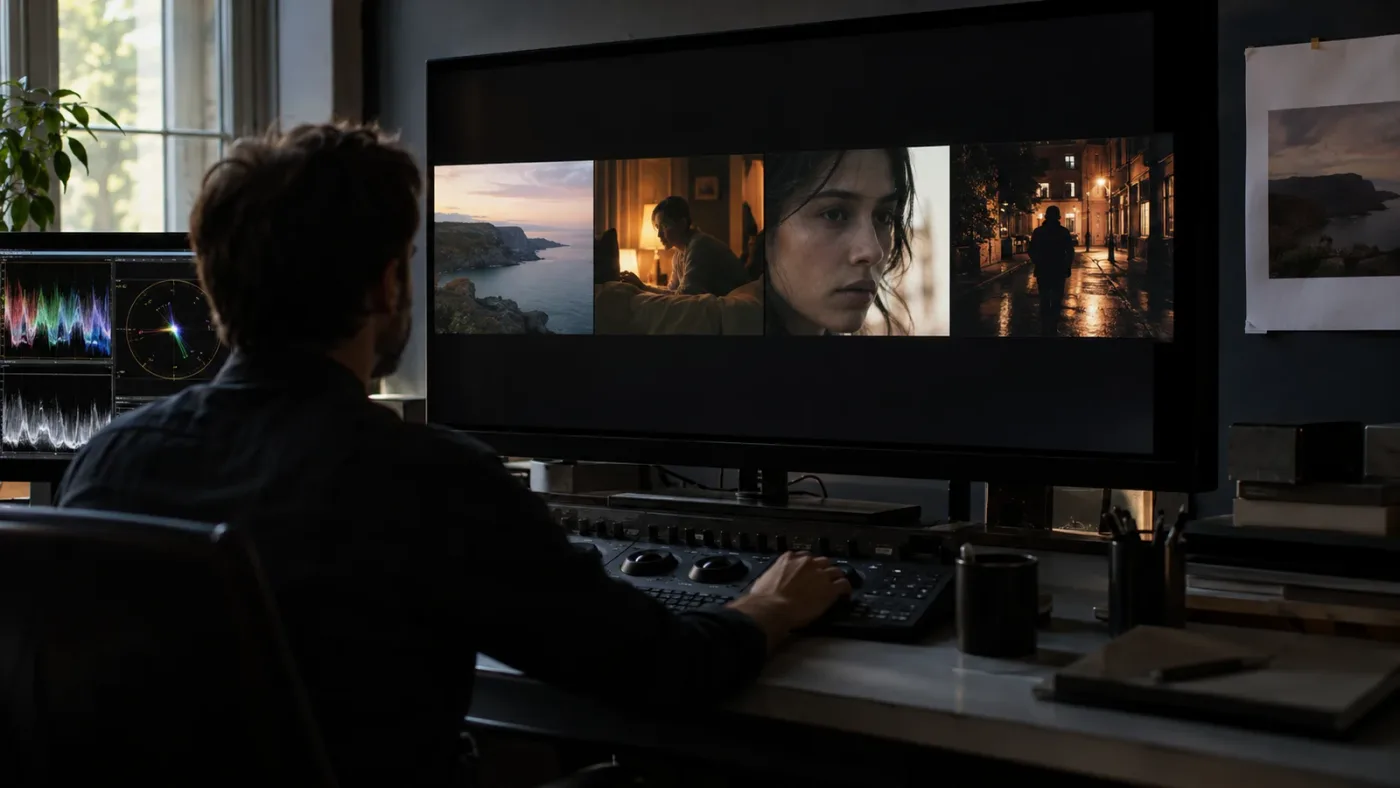
How do I review a grade on the timeline instead of one frame?
Review the grade in motion and in the full sequence because viewers experience cuts, movement, and story relationships rather than isolated stills. A frame can look polished on the Color page and still fail as soon as the next shot appears.
First, play the scene without stopping. Note the moments that pull attention for the wrong reason: a sudden exposure jump, a skin shift, a green shadow, a flicker in a tracked window, or a highlight that flashes too bright. Don't correct each note immediately. Finish the pass, then return to the sequence with a short list. This helps you avoid bouncing between controls without understanding the problem.
Second, compare adjacent cuts. Look for mismatch in brightness, contrast, color temperature, saturation, and focal attention. The most useful comparison is often a two-up, wipe, or still reference rather than memory. Return to the selected hero frame at intervals so the target does not drift. Colorist John Daro’s point about repeatedly returning to a hero shot is useful here: stability in the reference reduces cumulative changes.
Third, check different kinds of shots. Review close-ups, wide shots, inserts, night scenes, and any unusual camera source. A look that works on faces may make a wide exterior too saturated. A contrast curve that gives a close-up depth may crush a dark master. A skin correction may look fine while the person stands still and fail when they turn away from the key light.
Fourth, take a short visual reset. Human color perception adapts to the image being viewed. A break, neutral interface, or reference image can help you notice that the picture has drifted. This is practical advice, not a claim that a particular timed break guarantees accurate judgment. If you return and the image now feels different, compare before changing values. Your eyes may be adapting, or the display environment may have changed.
Fifth, verify the viewing setup. Check that the monitor is configured for the intended signal, color space, and brightness. Disable display modes that alter the image unexpectedly. A laptop screen, external reference monitor, and phone can differ. Consumer displays may apply automatic brightness, vivid modes, or ambient adaptation. A scope does not repair a broken monitoring chain, and a calibrated display does not make a bad grade good. Use both image judgment and signal measurement.
If you share review files, keep the color pipeline and versions clear. A compressed web review can alter chroma, banding, and shadow detail. Ask reviewers for notes about story intent and visible problems rather than vague demands like “make it pop.” Translate a note into a testable adjustment. “The face disappears when the shot cuts to the window” is actionable. “It needs more cinematic color” is not yet a grade instruction.
Blackmagic's official free color training pairs primary and secondary tools with scope reading and shot balancing, which is a strong place to learn these review habits systematically. Its listed Introduction to Color video is 1 hour and 33 minutes, and the Advanced Color training video is 57 minutes. Those are source durations, not a promise that you can master the material in that time. (Blackmagic Design: Training)
Why does my DaVinci Resolve grade look different after a LUT or CST?
A LUT or Color Space Transform changes the image according to specific input and output assumptions, so a changed look usually means the transform is active at a different point, is configured for the wrong source, or duplicates another conversion. Check the full pipeline before adjusting the grade to compensate.
A diagnostic order:
- Bypass the LUT or CST and observe what changes.
- Confirm the exact camera gamma and gamut for the source clip.
- Confirm whether Resolve Color Management already transforms the clip.
- Check the LUT’s documented input and output expectations.
- Verify the node order and whether the adjustment is pre- or post-transform.
- Check the output color space and viewer configuration.
- Compare a known reference frame through the same path.
If a log image looks flat before the transform, that may be expected. If a creative LUT increases contrast and saturation, that may also be expected. The question is whether it is the right LUT for that camera and workflow. A Rec.709 look LUT designed for one log curve may produce clipped highlights or odd colors when used on another. A technical transform is not a universal “make this normal” button.
CST nodes make the input and output choices explicit. That helps when you need a clear node-based pipeline, but it also means a wrong setting can be repeated across many clips if copied or grouped. Check one representative source before applying the settings widely. If cameras differ, assign the correct input transform to each family.
A “double transform” happens when the same conversion is performed twice, such as applying a camera-to-Rec.709 transform in a node while project-level color management also converts the same clip to Rec.709. The result may look too contrasty, oversaturated, or clipped. Bypass one conversion at a time. Don't correct the symptoms with lower contrast or saturation until you identify which operation is duplicating the work.
A “washed out” output can have several causes: missing output transform, wrong gamma interpretation, a mismatch between viewer and render settings, or a display that expects different levels. The monitor might also be using an unmanaged path. Export a short test and inspect it in a known playback environment before changing the entire grade. A timeline viewer and an external player may not use the same color pipeline.
If the grade changes when you switch the project color science or timeline space, that does not necessarily mean the original correction was wrong. The same numeric control value can behave differently in different working spaces. Revisit the balance and look after the change rather than expecting every previous adjustment to transfer unchanged.
Use a minimal diagnostic timeline when the project is complex. Put one clip from each camera family on a short sequence, remove creative effects, and test the intended transforms. Write down which settings produce the expected result. Then carry the verified structure back to the full project. This costs less than debugging an entire timeline after copied grades have spread.
What should I do if a shot changes after I add a qualifier or window?
If a shot changes after a qualifier or window, inspect the selection, edge, and tracking across the entire clip before changing the correction amount. A selective grade can look right on one frame and fail when motion, exposure, or background color changes.
For a window, check its position and shape at the start, middle, and end. If tracking drifts, retrack from a cleaner frame, change the tracking direction, add keyframes, or split the grade around an occlusion. If the subject moves behind an object, the window may need a separate section or a different isolation method.
Ask whether the local change is necessary. A qualifier might reveal that the entire shot needs a slight balance adjustment instead. If skin looks too red only because the global look is over-saturated, reducing the look may solve the issue more naturally. If a sky is too bright because the base exposure is wrong, a window is treating a symptom.
Keep a before-and-after comparison at normal playback speed. The correction should survive motion and the cut. A perfectly clean matte that takes a long time to build may be less valuable than a subtle, robust correction that the audience never notices. If the visual difference is negligible at normal size, consider removing the node.
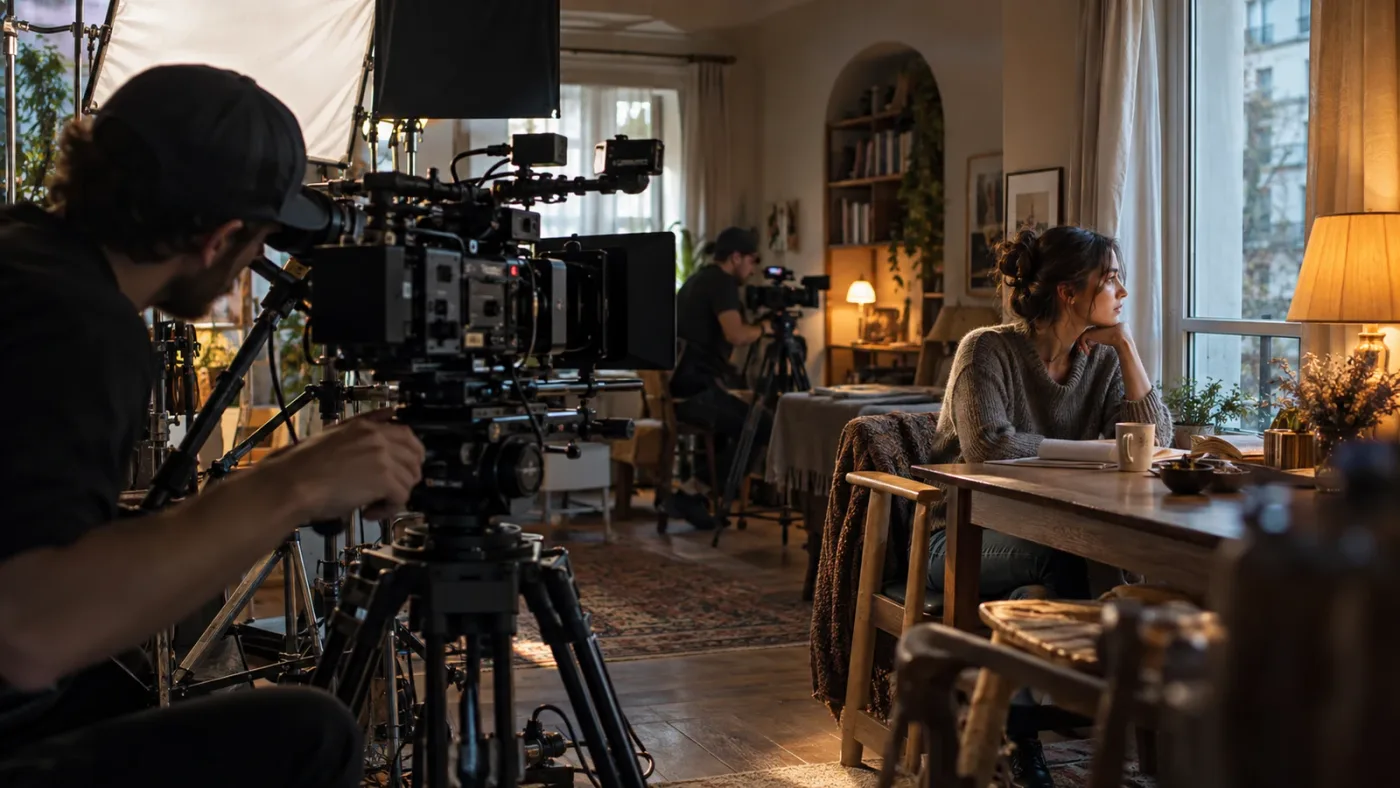
What changes for multi-camera, mixed-light, and documentary work?
The workflow order stays the same for complex projects, but matching needs more structure because cameras, lighting conditions, and editorial coverage introduce more legitimate differences. Normalize what should be consistent, preserve what is motivated, and record the reference decisions.
For multi-camera interviews, identify each camera’s recording profile and establish a representative shot from each angle. If the cameras were not matched on set, don't expect one shared correction to fix exposure, white balance, skin, and contrast all at once. Normalize each camera family, then match the scene. Use groups only where the footage shares a meaningful technical or creative relationship.
For mixed-light interiors, decide which source defines the scene. A window may cast cool daylight while practical bulbs create warm pools. Neutralizing both can erase the sense of place. Maintain a believable relationship, then check faces as people cross between sources. A consistent scene does not require every corner to share one color temperature.
For documentary footage, you may have archival material, phone clips, stock, different frame rates, and footage with little control over exposure. First identify the constraints. Some clips can be matched closely; others should remain visibly different because they are archival or came from another source. The grade can create a coherent program without pretending all footage originated from one camera.
For a music video or commercial with a strong reference look, separate “match the source” from “match the reference.” First understand and normalize the source. Then test the reference look on representative shots. A reference still may have different lighting, lens flare, skin, or color science. Copying its curves literally may not reproduce the visual effect. Identify the properties that matter: contrast, palette, saturation, highlight behavior, and subject separation.
For VFX plates, ask what the receiving department expects. A plate may need a neutral or technically normalized state rather than a final creative look. If the plate returns as a rendered composite, confirm the color space and view transform used on return. Keep the final creative grade downstream where appropriate. Do not bake a show look into a plate unless the handoff explicitly calls for it.
For fast-turnaround social content, a lighter process is sensible: correct the pipeline, balance the key shot, match the remaining coverage, apply the look, review playback, and export a test. Skip complex node architecture when the job doesn't need it. But do not skip source interpretation and output checks simply because the timeline is short. A 15-second clip can still be wrong if its input transform is doubled.
For still photography in DaVinci Resolve 21, the Photo page introduces a distinct still-image workflow. It can share color concepts and controls with video, but the output and project context differ. If the job is primarily stills, use the Photo page guidance rather than forcing a video timeline workflow onto the task. Our Resolve 21 Photo page guide explains that version-specific path.
The right match preserves continuity while allowing real differences in light, camera, and story.
How do I check the grade before export?
Check the grade against the intended output before export by reviewing both the timeline and a rendered test file. The viewer is not the final deliverable, and the export page does not automatically catch a wrong pipeline choice.
Start with the output target. Confirm whether the project is SDR or HDR, which color space and gamma are expected, whether the delivery specification requires a particular codec or bit depth, and whether the recipient needs a mezzanine master or a web file. Do not guess from the platform name alone. Use the client brief or current platform delivery requirements.
Then review the timeline:
- Play the full graded sequence once without stopping.
- Check every transition and any shot with a tracked or keyed adjustment.
- Inspect highlights, shadows, and saturated colors for clipping or unexpected shifts.
- Compare hero frames and repeated scenes.
- Check that titles, graphics, and composites look right through the same output transform.
- Confirm whether render cache or proxy display is hiding a problem.
Export a short test with the settings you plan to use. Include a range of shots: a face, a dark scene, saturated color, a bright highlight, and a transition. Review that file in the environment the audience or client will use. If possible, inspect it on a calibrated or known display. Check audio and sync too, even though they are outside the color grade; a technically polished image does not rescue a broken deliverable.
Be precise about data levels. Video and full data levels are not interchangeable assumptions. If a file looks washed out or crushed in one player, compare it in another known application and verify the export and playback interpretation. Avoid changing the grade to fix a playback setting that is misreading the file.
For HDR, confirm the intended format, metadata, display, and export path. Resolve Studio includes advanced HDR capabilities described by Blackmagic, but a project setting alone cannot make an SDR display accurately show HDR. If a client will review the work on an SDR monitor, provide a properly managed SDR review version or explain the viewing limitation. Keep the HDR master and SDR trim distinct when the delivery asks for both.
What should I learn first if I want to learn DaVinci Resolve fast?
Learn to identify the pipeline, balance a shot, match a short sequence, and explain your decisions before collecting advanced looks or node tricks. That is the best way to learn DaVinci Resolve for this specific task because it gives each new control a place in a real workflow.
Blackmagic’s official training is the strongest free starting point for structured lessons. Its Introduction to Color covers primary and secondary tools, scopes, and balancing; its Advanced Color material covers color management, node structure, RAW media, and tracking. The official page lists the Introduction video at 1 hour 33 minutes and Advanced Color at 57 minutes. Casey Faris offers a Resolve 21 beginner course on YouTube, which can help you see an end-to-end project workflow; use creator tutorials to see specific techniques, then test them on your own footage (Casey Faris on YouTube). Udemy and Coursera courses can provide a more sequenced curriculum. For example, a Udemy course is explicitly organized as a color-grading bootcamp, while Coursera lists a four-course beginner-to-intermediate specialization that includes shot matching and grading in Resolve (Udemy course; Coursera specialization). Course quality, update timing, exercises, and feedback differ, so check the current syllabus before you pay.
| Learning route | Best for | Trade-off |
|---|---|---|
| Blackmagic official training | Learning Resolve concepts from the software maker with structured lessons and project media | The lesson version may lag behind a new point release; confirm control changes in the current manual. |
| Casey Faris and other YouTube educators | Seeing a technique demonstrated and searching for one concrete task | Quality and scope vary by video; a video may skip the reasoning behind a node choice. |
| Udemy or Coursera course | A sequenced curriculum, exercises, and a single course path | The instructor and update date matter; verify what feedback and project files are included. |
| Practice on your own short sequence | Connecting controls to real footage and decisions | You need a clear brief or reference so practice does not become random tweaking. |
| On-screen help while working | Getting an explanation when a control in the open app is confusing | It supplements practice and official references; it does not choose the grade for you. |
A good practice exercise is a short scene with at least three shots that differ in framing or light. First write the target: for example, “keep the window bright, preserve skin, and make the close-up feel like the same room as the wide.” Then grade the sequence through the order in this guide. Save a still, write down what each node does, and revisit the scene later without looking at your first settings. If you can explain why the match works, you learned more than if you copied a preset.
“Learn DaVinci Resolve fast” should mean reducing confusion, not skipping judgment. Work on one skill at a time. If you cannot explain whether a problem is input interpretation, exposure, color cast, or creative direction, pause and diagnose before moving sliders. The workflow becomes faster when each adjustment has a purpose.
An “AI tool to learn DaVinci Resolve” or an “app that helps you while using DaVinci Resolve” is useful when it can answer the control question in context. TryUncle is the on-screen assistant for DaVinci Resolve on Mac and Windows — ask in plain words and Uncle points at the exact control on your screen. It provides on-screen guidance while you work; it doesn't make the grading decisions for you.
A learning resource is useful when it helps you make and explain a decision on your own footage.
For the beginner question “what do I do after I understand the Color page?”, the answer is not to memorize every palette. Repeat the same short project with different footage. A daylight interview, a tungsten interior, and mixed-camera coverage each teach a different part of the workflow. Keep the target simple, review the cut, and write down what changed. That gives future lessons a real context.
We also run a professional video-editing community of more than 100,000 members. When editors ask how to improve a grade, the practical answer is usually to compare the shots and identify the cause of a mismatch before recommending a control. That is why a reusable order helps: it gives both the learner and the reviewer shared language for diagnosing the image.
What should I do when the workflow order seems to fail?
When the workflow order seems to fail, identify which assumption changed: the edit, source interpretation, viewing transform, shared node scope, or output. Do not respond to every unexpected image by adding another correction node.
| Symptom | Likely stage to inspect first | Useful check |
|---|---|---|
| Flat or gray log image | Input and viewing transform | Verify camera gamma/gamut and whether a transform is active. |
| Image becomes too contrasty after LUT | LUT input assumptions or duplicate transform | Bypass the LUT and project transform one at a time. |
| Shots match alone but jump in playback | Matching and sequence review | Play the cut and compare against a fixed hero frame. |
| Skin key changes as subject moves | Secondary isolation and tracking | Inspect the matte and track at multiple points through the shot. |
| Grade changes on every clip in a group | Node scope | Check whether the active node is clip, group, or timeline level. |
| Render differs from Color page viewer | Output and monitoring pipeline | Export a short test and verify color space, gamma, levels, and player. |
| New edit breaks a tracked correction | Editorial stability | Confirm the clip duration, retime, and shot instance are still the same. |
| One camera never matches the rest | Source interpretation | Verify profile, metadata, and input transform before creative correction. |
If the cause is the edit, return to the conform and identify the changed clip. If the cause is input interpretation, correct the source mapping and rebuild only the adjustments that depended on the old interpretation. If the cause is a wrong node scope, move the correction to the appropriate level rather than compensating on every clip. If the render differs, test output before changing the grade.
One disciplined method is to disable nodes in order from the end of the chain toward the beginning. Observe exactly when the unwanted change disappears. Then inspect that operation’s settings and the image it receives. This is more reliable than stacking corrective nodes, because each new node can further obscure the original cause.
Save a clean baseline before risky changes. A still or version can help you compare the former image, but confirm how your project stores grades and timelines. Do not overwrite the only clean project version while experimenting with a new color pipeline. This is general project hygiene and especially useful when transforms or shared nodes affect many clips.
If the workflow seems slow, simplify before optimizing. Remove unused nodes, reduce unnecessary local corrections, and check that the selected clips actually need separate treatment. A well-organized grade can still be computationally heavy if it includes temporal noise reduction, complex tracking, or multiple effects. Resolve’s performance depends on the hardware, source media, settings, and effects. There is no single cache setting that improves every project.
Is there one correct color grading workflow order for every project?
There is no single correct node sequence for every DaVinci Resolve project, but there is a reliable decision order: interpret the source, define the output, balance, match, shape the look, refine locally, and review the result in context. The order protects dependencies while leaving room for different color-management systems and production needs.
The order shifts when a show LUT is part of the camera pipeline, when a director needs an early look, when VFX requires neutral plates, when RAW decoding must change, or when the delivery is HDR. The core questions remain stable: what is the source, what is the target, what should be shared, what should stay local, and how will you verify the result?
Colorist John Daro offers a useful principle for the longer view: “Everything should always be gaining towards that final.” In context, he is describing the value of doing work that contributes to the finished grade rather than creating throwaway passes. Use that idea when deciding whether an adjustment belongs in a temporary review, a reusable group grade, or the final clip correction. (Mixing Light transcript)
If you need a next action, pick one representative sequence and write down its source profiles, output target, hero frame, and intended look. Grade in the order above, play the cut, and export a short test. If you can explain why each stage comes where it does, you have a workflow you can adapt when the next project breaks the pattern.
Frequently asked questions
- What order should I color grade in DaVinci Resolve?
- Choose and verify the color-management pipeline, interpret the source correctly, balance exposure and white balance, match shots, establish the look, refine secondaries, review the sequence on scopes and a suitable display, then check output and delivery. The order is a useful dependency chain, not an unbreakable rule.
- Should I color correct before applying a LUT in DaVinci Resolve?
- Usually, establish the correct input transform and make a technically sound balance before adding a creative LUT. A camera- or show-specific technical LUT may belong earlier in a designed pipeline, so verify what the LUT expects and what it outputs before placing it.
- Why does my DaVinci Resolve grade look different after I add a Color Space Transform?
- A Color Space Transform changes how the node's input image is represented, so it can change contrast, saturation, and highlight behavior. Confirm the source gamma and gamut, timeline working space, output space, and whether another transform or color-managed conversion is already active.
- Do I need to finish editing before color grading in DaVinci Resolve?
- Finish the edit that determines shot order and timing before detailed grading, because trims, retimes, transitions, and replacements can change the images you need to match. You can still do a temporary balance or look pass earlier when editorial or review needs it.
- Should I use one node per correction in DaVinci Resolve?
- Use separate nodes when they make the grade easier to understand, adjust, bypass, or share. You do not need a separate node for every tiny operation, and complex group or timeline structures should solve a real reuse or finishing need.
- What is the best way to learn DaVinci Resolve color grading fast?
- Practice the same short sequence in stages: correct color management, balance, match, look, refine, and review. Blackmagic's free color training is a strong structured foundation; repeat the workflow on varied footage and compare shots rather than collecting isolated tricks.
Sources
- DaVinci Resolve 21.1 Support and Manuals
- DaVinci Resolve Color
- DaVinci Resolve Training
- DaVinci Resolve 20 Colorist Guide
- Color Grading Animation with Seasoned Colorist John Daro, Transcript
- How a Colorist Makes Decisions Through the Grading Process
- Making Videos in Resolve 21, Full Course for Beginners, Casey Faris
- The Ultimate Color Grading Bootcamp in DaVinci Resolve, Udemy
- Color Grading: Beginner to Intermediate Specialization, Coursera
Put this guide to work with TryUncle.
Ask about the step you’re on. TryUncle sees your screen and points at the control you need, so you can keep learning in your own project.
Get TryUncle for Mac or WindowsKeep reading

Guides · Jul 7, 2026 · 35 min
How to Color Grade in DaVinci Resolve: The Basics
Learn how to color grade in DaVinci Resolve: build a node chain, balance shadows and highlights with Lift, Gamma, and Gain, and read the scopes.
Guides · Jul 10, 2026 · 30 min
How to Read DaVinci Resolve Scopes: Waveform and Vectorscope
Learn to read DaVinci Resolve's waveform, RGB Parade, and vectorscope: what balanced exposure, white balance, and skin tone actually look like on each.

Guides · Oct 23, 2026 · 40 min
DaVinci Resolve: Change Clip Attributes for Multiple Clips
Change Clip Attributes for multiple clips in DaVinci Resolve 21. Select compatible clips, edit shared properties, and avoid changing the wrong source or timeline setting.