Articles / Guidesupdated for DaVinci Resolve 21.0.3 (July 2026)
DaVinci Resolve Export Settings for Discord's Upload Size Limit
Quick answer
Discord caps free uploads at 10MB, Nitro Basic at 50MB, and full Nitro at 500MB. In DaVinci Resolve, export MP4 with H.264, set Quality to Restrict To, and calculate your bitrate from (target MB x 8192) / clip length in seconds, minus about 128 kbps for audio, so the file lands under whichever cap you're exporting for.
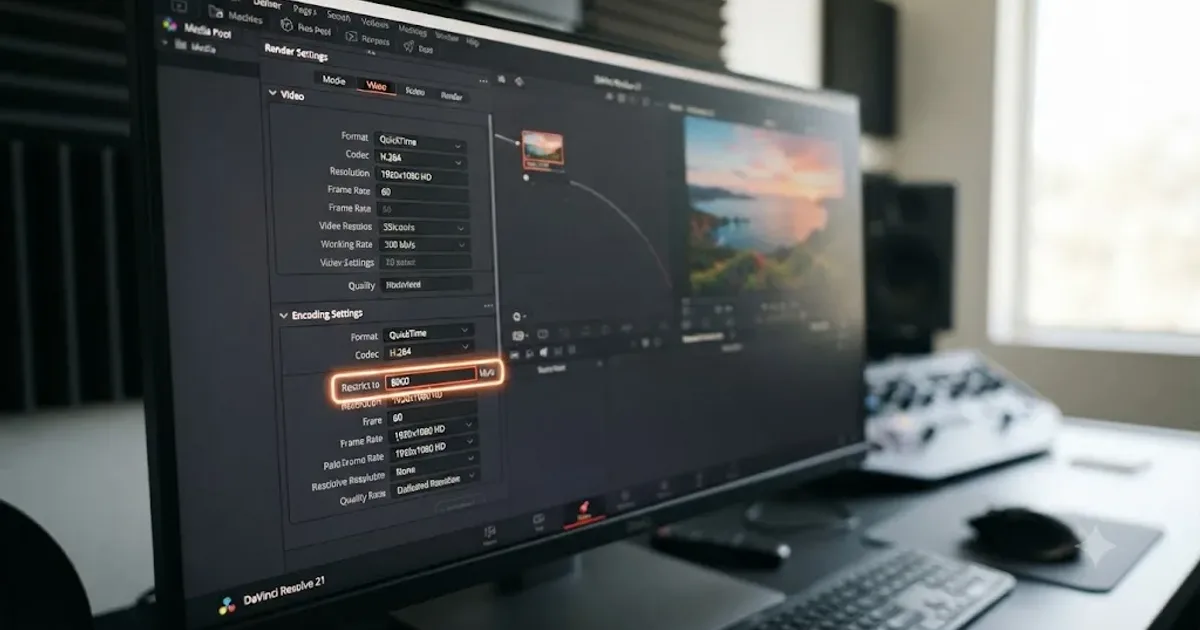
Discord doesn't care how good your grade looks. It cares how many bytes your file takes up, and as of July 2026 that ceiling is smaller than most editors assume. "Why won't Discord let me upload my clip" is one of the most common questions editors ask about Discord exports, and it resurfaces every few weeks, usually right after someone renders a beautifully graded highlight reel and watches Discord reject it at the upload bar.
The fix isn't a secret setting buried in a menu. It's arithmetic: figure out how many bits you're allowed to spend per second of video, then tell DaVinci Resolve's Deliver page to spend exactly that many and no more. Below is the exact math, the exact fields, the codec traps that quietly break playback, and the numbers Discord actually enforces right now, not the numbers half the internet is still quoting from two years ago.
What is Discord's actual file upload limit in 2026?
10MB per file for a free account, 50MB for Nitro Basic, and 500MB for full Nitro. Those are the current numbers straight from Discord's own File Attachments FAQ, and they're smaller than a lot of export guides still circulating, because Discord has moved this number more than once.
Here's the timeline, and it matters because it explains why you'll see conflicting advice depending on how old the source is:
| Date | Free tier limit | What changed |
|---|---|---|
| Before April 2023 | 8MB | The long-standing baseline |
| April 2023 | 25MB | Discord raised it for all users, Nitro or not, per Shacknews's coverage of the announcement |
| September 2024 to present | 10MB | Discord walked it back, per Dataconomy's reporting on the change |
Discord's own explanation for the rollback was blunt. The company stated: "Storage management is expensive, so we regularly review how people use Discord and their storage needs. In fact, our data shows that 99% of users stick to files smaller than 10MB," as quoted by Dexerto. That last sentence is why the cap landed exactly where it did. Discord wasn't picking a round number; it was picking the number that already covered the overwhelming majority of what people were sending.
Discord's free upload cap is 10MB, not the 25MB that half the export guides on the internet still quote. If you built a bitrate spreadsheet or a saved preset back in 2023, it's now targeting a ceiling that no longer exists for free accounts, and every export you've made since September 2024 has been rolling the dice on rejection.
Nitro changes the math substantially. A personal Nitro Basic subscription, currently $2.99 a month, raises your own upload cap to 50MB per file. Full Nitro, at $9.99 a month, raises it to 500MB, per Discord's Nitro FAQ. This is tied to your account, not to any particular server, so a Nitro subscription raises your cap everywhere you post, not just in servers you've boosted.
| Tier | Upload limit per file | Monthly price |
|---|---|---|
| Free | 10MB | $0 |
| Nitro Basic | 50MB | $2.99 |
| Nitro | 500MB | $9.99 |
Does boosting a Discord server raise the upload limit too?
Yes, and it's a separate lever from your own Nitro subscription, one a lot of editors never think to check. A server that reaches Boost Level 2 raises the upload cap to 50MB for every member of that server, Nitro subscriber or not. Level 3 raises it further, to 100MB for everyone, per usecarly.com's current breakdown of Discord's file size limits and sto.care's summary of the same boost tiers. Level 1 alone doesn't move the number at all.
Here's the part that trips people up: the two limits don't stack. Discord checks your personal account cap and the server's boost-level cap, then applies whichever one is larger. A free-tier member posting in a Level 3 boosted server uploads at 100MB, not 10MB, because the server's boost cap wins for them. A Nitro subscriber in that same Level 3 server still uploads at their personal 500MB cap, because their personal number is the larger of the two. Nobody gets to add them together.
| Server boost level | Boosts required | Upload cap for every member |
|---|---|---|
| No boost | 0 | Whatever the member's own tier allows: 10MB free, 50MB Nitro Basic, 500MB Nitro |
| Level 1 | 2 | No change to the upload cap |
| Level 2 | 7 | 50MB for every member |
| Level 3 | 14 | 100MB for every member |
A server boost raises the upload cap for the whole server, but it doesn't stack with a member's personal Nitro subscription, Discord applies whichever limit is larger. That matters if you're editing for a community or gaming server rather than posting to your own DMs. Check whether the server you're delivering to has already crossed Level 2 before you assume you're stuck exporting to a 10MB ceiling. Plenty of active creator and gaming servers cross that boost threshold quietly, and members keep assuming the free-tier limit still applies long after it stopped being true for that specific server.
What DaVinci Resolve export settings actually fit under Discord's limit?
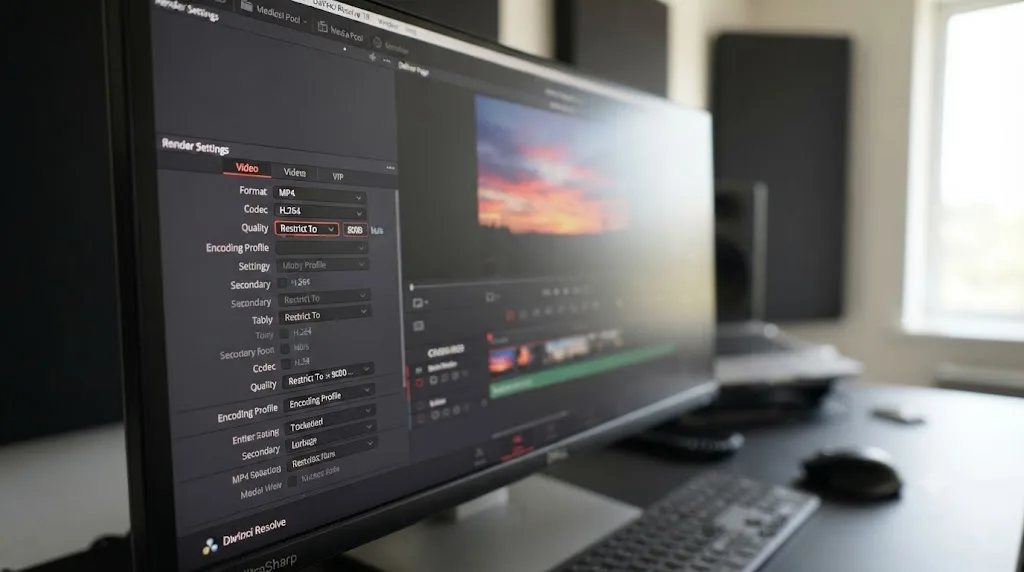
Container and codec first, because they're not negotiable. Export Format: MP4, Codec: H.264. That combination is what Discord embeds and plays directly inline in a chat message, on desktop, mobile, and in a browser. MOV files upload without an error, but playback across Discord's clients is inconsistent, per Filmora's breakdown of Discord's supported video formats, which means some viewers get a clean embedded player and others get a bare download link with no preview.
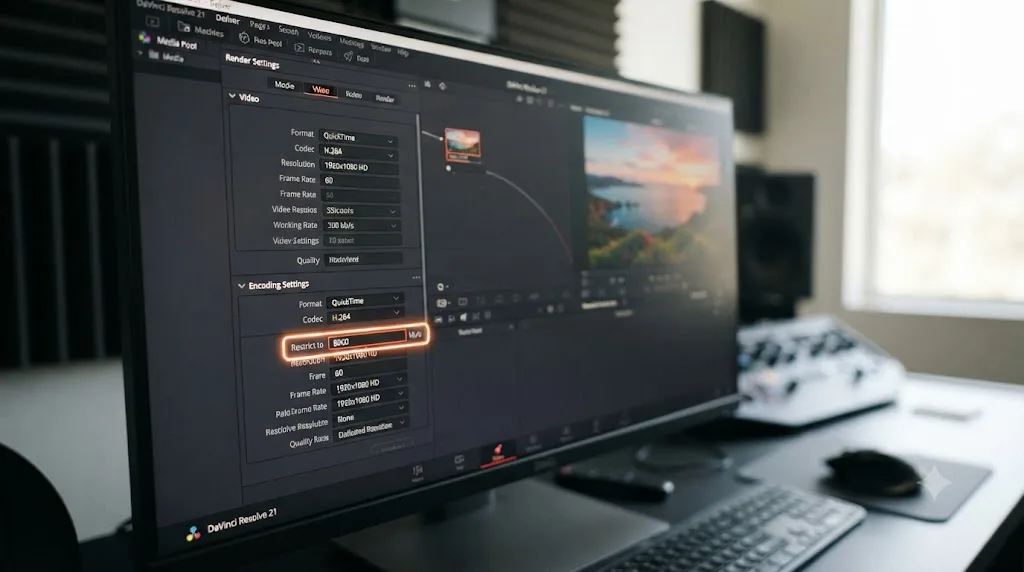
Bitrate is where the real work happens, and it's the one field Discord's size limit actually controls. On the Deliver page's Video tab, switch Quality from Automatic to Restrict To, per Blackmagic's own manual for the render settings panel. That field caps your output at a maximum data rate you type in kilobits per second, and it's the single lever standing between your export and Discord's upload bar.
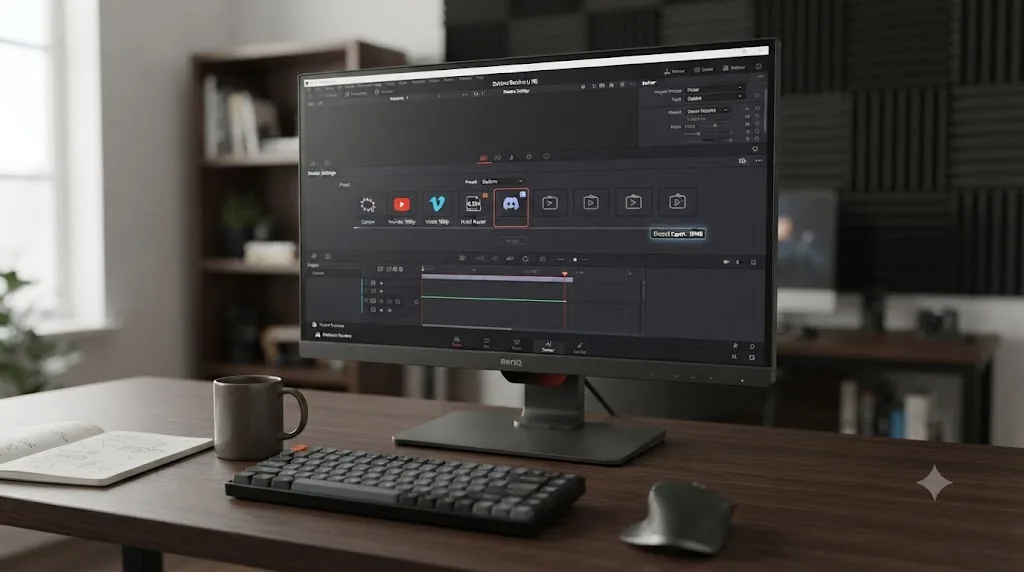
There's no shortcut preset waiting to do this for you. A preset built for YouTube or TikTok won't save you here, because DaVinci Resolve has no built-in Discord preset at all. Resolve's render settings strip ships presets for YouTube, Vimeo, Twitter, TikTok, and Dropbox, per Blackmagic's manual page on using presets, and Discord simply isn't one of them. You're building this one by hand, once, and then saving it as your own preset so you never build it twice.
| Setting | Value |
|---|---|
| Format | MP4 |
| Codec | H.264 |
| Quality | Restrict To (bitrate you calculate below) |
| Audio codec | AAC |
| Audio bitrate | 128 kbps |
| Resolution / frame rate | Match your timeline |
Can you export H.265 or HEVC from DaVinci Resolve for Discord?
You can render it. Don't. HEVC produces a smaller file than H.264 at the same visual quality, which is exactly why it's tempting to reach for it when you're fighting a 10MB ceiling. Discord doesn't reliably play it inline, and the failure mode is worse than a slightly bigger file.
The problem isn't Discord's server. It's the viewer's browser. Discord doesn't transcode your upload into something every client can decode, as one breakdown of the issue puts it, "Discord depends on browser and system support for video playback. It doesn't do the decoding itself," and Chrome and Firefox, which cover most of Discord's desktop and web traffic, don't ship native HEVC decoding. Safari does. So an HEVC file might play cleanly for a viewer on a Mac and fail to embed, or show a black frame, for a viewer on Windows Chrome, in the same channel, from the same upload.
That inconsistency is worse than the small quality hit from choosing H.264. An HEVC export that plays perfectly on your own machine can still fail silently for half the people you sent it to. If your default export settings default to HEVC because that's what you use for an Apple TV delivery or a compact 4K archive master, change it specifically for the Discord render. H.264 is slightly less efficient per bit, but it decodes everywhere Discord runs, which is the only property that actually matters here.
Should you export WebM instead of MP4 for a smaller Discord file?
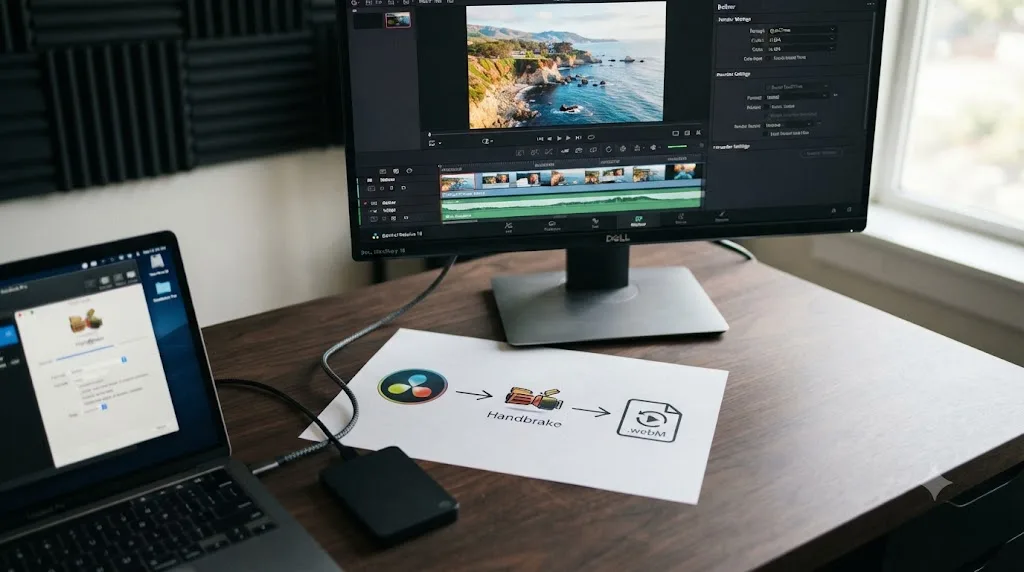
Only if you're willing to add a second step. Discord does embed WebM files with VP8 or VP9 video, and VP9 can match H.264 quality at a meaningfully lower bitrate, which sounds like a free win for a size-constrained upload. The catch is that DaVinci Resolve's Deliver page doesn't reliably offer WebM as a one-click export option across every version and platform, and even guides written specifically to walk through the workflow note it's inconsistent enough that the practical path is exporting a high-quality intermediate file first, then transcoding it in a separate tool, rather than picking WebM straight from Resolve's own format dropdown the way you'd pick MP4.
The workaround, if you want it, looks like this:
- Export your graded clip from Resolve as MP4/H.264 or an intermediate codec like ProRes, at a healthy bitrate, ignoring Discord's limit for this step.
- Open that file in a separate tool, HandBrake is the common free choice, and transcode it to WebM with a VP9 video track and Opus audio.
- Target the same bitrate math from later in this guide inside HandBrake's settings, since the size formula doesn't change just because the codec did.
- Upload the resulting WebM file to Discord and confirm it embeds and plays inline before you rely on it for anything time-sensitive.
For a one-off Discord clip, that extra transcoding pass usually costs more of your evening than it saves in file size. MP4 with H.264 stays the practical default here because it's a one-step export straight from the Deliver page, not because it's the smaller file. Reach for the WebM workaround only when you're regularly hitting the exact edge of a size limit on longer clips, and the extra step is worth it for the bitrate headroom VP9 buys you back.
How do you calculate the exact bitrate to hit Discord's size limit?
Work backward from the file size, not forward from a guess. The relationship between file size, duration, and bitrate is fixed math, and Frame.io's David Kong laid out the underlying formula plainly: "File size = bitrate × number of minutes × .0075. Bitrate = file size / (number of minutes × .0075)," with bitrate expressed in megabits and file size in gigabytes, in his writeup on calculating video bitrates. He adds one caveat worth repeating: with a variable bitrate codec, which is what Resolve's Restrict To mode uses, actual bitrate will drift above and below that target scene to scene.
For a Discord export, the practical version of that formula, scaled to megabytes and seconds, looks like this:
Total bitrate (kbps) = (target size in MB x 8192) / clip length in seconds
Then subtract your audio track's bitrate, typically 128 kbps for AAC stereo, to get the video bitrate ceiling for that clip length. In practice you'll want to pull back another 5 to 10 percent below that ceiling before you type a final number into Restrict To, since MP4 container overhead and Resolve's own encoder can land a touch above a bitrate set exactly at the wire. The two worked examples below show that full calculation, headroom included, start to finish.
Here's the ceiling math (before headroom) worked out across all three Discord tiers, so you can see how much duration matters compared to which tier you're on:
| Clip length | Free (10MB) | Nitro Basic (50MB) | Nitro (500MB) |
|---|---|---|---|
| 15 seconds | ~5,330 kbps | ~27,200 kbps | Not a practical constraint at this length |
| 30 seconds | ~2,600 kbps | ~13,500 kbps | Not a practical constraint at this length |
| 60 seconds | ~1,240 kbps | ~6,700 kbps | ~68,100 kbps |
| 2 minutes | ~550 kbps | ~3,300 kbps | ~34,000 kbps |
| 3 minutes | ~330 kbps, tight | ~2,150 kbps | ~22,600 kbps |
| 5 minutes | Best trimmed shorter | ~1,240 kbps | ~13,500 kbps |
| 10 minutes | Best trimmed shorter | ~550 kbps, tight | ~6,700 kbps |
| 20 minutes | Best trimmed shorter | Best trimmed shorter | ~3,300 kbps |
| 60 minutes | Best trimmed shorter | Best trimmed shorter | ~1,010 kbps, soft at 1080p |
The bitrate that fits a 15-second clip comfortably under 10MB will crush a 5-minute clip into an unwatchable slideshow of blocky pixels. That's the whole reason a generic "Discord bitrate" number doesn't exist and never will. Duration is half the equation, and a guide that hands you one bitrate figure for every clip length is quietly assuming you only ever post 30-second highlights.
Audio bitrate is worth adjusting too, not just accepting as a fixed number. 128 kbps covers a stereo music-and-dialogue mix cleanly, but a solo commentary or gameplay voiceover holds up fine at 96 kbps, and dropping to a mono track frees another slice of your total budget for the video itself. On a free-tier export of a clip pushing past 90 seconds, that difference is the gap between a clean image and visible banding in a dark scene.
Full Nitro's 500MB ceiling is generous enough that it mostly removes size as a constraint for anything you'd realistically post in a chat. A 5-minute clip at 500MB works out to roughly 13.6 Mbps of total budget, comfortably in the same range as a solid 4K YouTube upload, and a 10-minute clip still has room for a healthy 6.8 Mbps. Nitro's 500MB cap is generous enough that file size stops being the limiting factor, and your own judgment about what looks good becomes the only ceiling left.
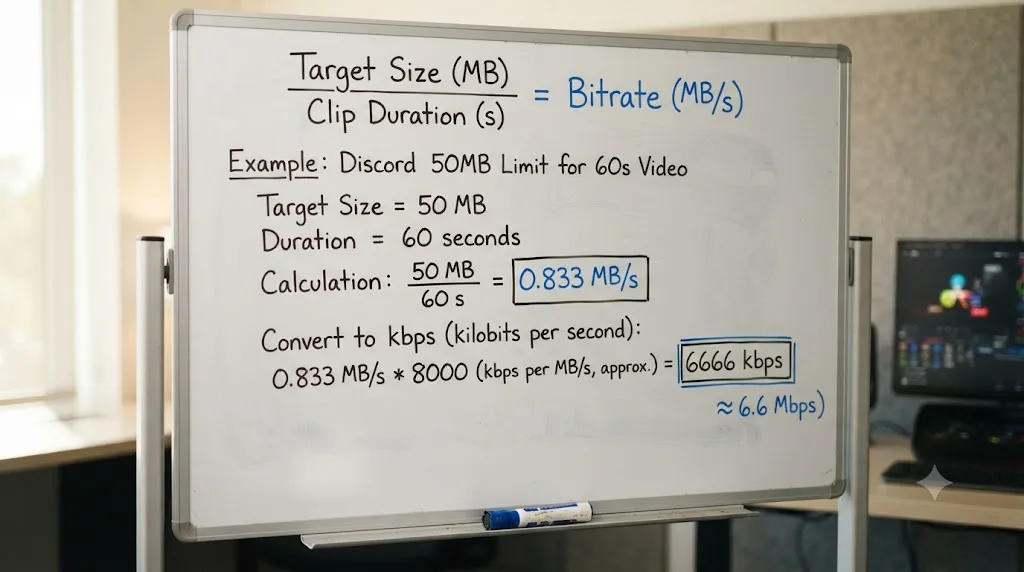
A worked example: fitting a 45-second clip under the free 10MB limit
Say you've cut a 45-second highlight and you're posting it to a free-tier server. Here's the calculation start to finish, headroom included, not just the formula on its own.
| Step | Calculation | Result |
|---|---|---|
| 1. Total bitrate budget | (10MB x 8192) / 45 seconds | 1,820 kbps |
| 2. Subtract audio (AAC 128 kbps) | 1,820 - 128 | 1,692 kbps |
| 3. Pull back ~10% for container overhead | 1,692 x 0.90 | ~1,520 kbps |
| 4. Value typed into Restrict To | 1,520 kbps |
Type 1,520 into the Video tab's Restrict To field, set audio to AAC at 128 kbps, and the math works out to roughly 9MB total for the finished file, comfortably inside the 10MB cap with margin to spare. That margin is the difference between a clean upload and a rejected one if your actual footage is a little more complex than average and the encoder spends slightly more bits than the target on a busy scene.
If the clip is heavy on motion, fast cuts, gameplay, or dense on-screen text, don't expect that 1,520 kbps budget to spend itself evenly. Multi-pass encoding, covered later in this guide, distributes it intelligently. Single-pass encoding at the same number will look noticeably softer in the busiest three seconds of the clip and slightly better than it needs to be in the calm ones.
A worked example: fitting a 3-minute clip under Nitro Basic's 50MB cap
A longer clip changes the math meaningfully, and this is the example worth working through if you're a Nitro Basic subscriber posting longer commentary or gameplay clips rather than quick highlights.
| Step | Calculation | Result |
|---|---|---|
| 1. Total bitrate budget | (50MB x 8192) / 180 seconds | 2,276 kbps |
| 2. Subtract audio (AAC 128 kbps) | 2,276 - 128 | 2,148 kbps |
| 3. Pull back ~10% for container overhead | 2,148 x 0.90 | ~1,930 kbps |
| 4. Value typed into Restrict To | 1,930 kbps |
That works out to roughly 45MB for the finished file, again with margin below the 50MB ceiling. Notice that the 1,930 kbps video budget for this 3-minute clip is noticeably tighter per second than the 1,520 kbps budget for the 45-second free-tier example above, even though the size cap here is five times bigger, because the clip itself is four times longer. That's the exact reason a single "good Discord bitrate" number doesn't exist. Run this same four-step calculation against your own clip's actual length before you export, rather than reusing a number that happened to work for a different clip of a different length.
What resolution should you export a Discord clip at?
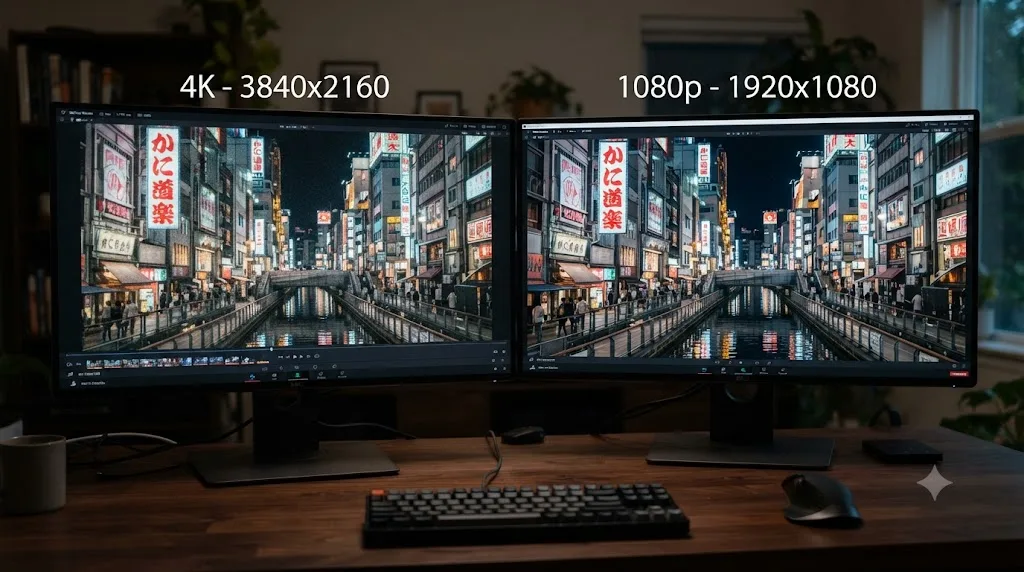
Whatever your timeline is, unless the size budget is genuinely tight. Discord doesn't publish a resolution limit for uploads the way it publishes a file size limit; a 4K clip that happens to be under 10MB uploads fine, and a 480p clip that somehow weighs 15MB gets rejected regardless of how small the frame looks.
The catch is that resolution and bitrate share the same budget. A 4K frame needs far more bits than a 1080p frame to look clean at any given bitrate, so squeezing a 4K clip into a 10MB free-tier cap usually produces a softer, blockier result than downscaling to 1080p first and spending that same bitrate budget on fewer pixels. Discord's chat preview window is small regardless of source resolution, so the detail a 4K source buys you rarely survives being viewed at chat-window size anyway.
Content type matters as much as duration. A locked-off talking-head clip compresses efficiently at almost any bitrate in the tables above, since consecutive frames barely change from one to the next. A gameplay clip or screen recording with constant motion and on-screen text needs real headroom, or fine detail like UI text and health bars turns to mush first. If you're exporting fast-motion or screen-capture content specifically for a free-tier 10MB target, lean on the shorter end of your clip length rather than trying to stretch the bitrate table's numbers further than they're built for.
| Situation | Recommended export resolution |
|---|---|
| Free tier (10MB), clip under 30 seconds | Timeline native, up to 1080p |
| Free tier (10MB), clip over 30 seconds | Downscale to 1080p or 720p to protect bitrate |
| Nitro Basic (50MB) | Timeline native resolution, 1080p is comfortable |
| Nitro (500MB) | Timeline native resolution, including 4K for short clips |
If your timeline is a vertical or square export built for TikTok or Instagram, that same file drops into Discord without any format objection. Our TikTok-style export walkthrough for YouTube and the general DaVinci Resolve export settings guide both cover the full Deliver page layout if you're newer to where these fields live.
Does frame rate affect the bitrate budget too?
Yes, and it's the other lever besides resolution that shares the same pool of bits. A 60fps clip needs more data than a 24 or 30fps clip at the same resolution and length, because the encoder has twice as many frames to describe inside the same file size ceiling. Cut your frame rate and you free up bits per frame for the frames that remain.
That trade only makes sense for certain content. A talking-head clip or a color-graded highlight reel loses nothing dropping from 60fps to 30fps, since the eye isn't tracking fast motion frame by frame in that kind of footage anyway. A gameplay clip, a sports highlight, or anything with fast camera pans is a different story. Dropping frame rate there doesn't just save bits, it changes how the motion itself looks, introducing visible judder that a viewer notices immediately, in a way a slightly softer static frame never would.
| Content type | Recommended frame rate for a tight size target |
|---|---|
| Talking head, tutorial, color grade showcase | Drop to 30fps if the source is 60fps |
| Gameplay, sports, fast motion | Keep native frame rate, drop resolution instead |
| Screen recording with UI or text | Keep native frame rate, trim clip length instead |
Resolution and frame rate both draw from the same bitrate budget, so cutting one to protect the other only pays off when the content doesn't depend on the thing you cut. Match the sacrifice to what your footage can actually afford to lose, not to whichever slider happens to be easiest to find in the Deliver page.
Does aspect ratio change anything for a Discord upload?
Not the upload itself, but it changes what viewers see before they even click play. Discord generates a preview thumbnail and an inline player sized to the video's own aspect ratio: vertical 9:16 clips play tall in the chat window, square 1:1 clips play square, and widescreen 16:9 clips play wide. None of that affects whether the file fits under the size cap, since the bitrate formula in this guide only cares about total bits, not shape.
Where it does matter is bitrate efficiency at a fixed file size. A vertical 1080x1920 frame and a horizontal 1920x1080 frame have the same total pixel count, so they cost roughly the same bitrate for the same quality, contrary to the assumption that vertical video is somehow "smaller" and therefore cheaper to encode. If you're cropping a horizontal timeline down to vertical for a Discord repost of a TikTok-style clip, cropping to vertical after you've already done the bitrate math doesn't save you anything. Do the crop first, then run the size calculation against the cropped frame's actual resolution.
What if you're exporting a screen recording or gameplay capture for Discord?
Screen and gameplay captures fight the bitrate math harder than camera footage, because busy UI text, HUD elements, and fast on-screen motion are the most expensive thing a codec can be asked to compress. The content-type table earlier in this guide already tells you to protect frame rate over resolution for this kind of clip. There's a second problem specific to screen recordings that has nothing to do with bitrate at all: audio sync.
Tools like OBS commonly record in Variable Frame Rate by default, adjusting the frame rate on the fly to save disk space rather than locking to a fixed number, and that variability is a known source of audio drift once the file reaches an NLE built around constant frame rate timelines. As one explainer on the problem puts it, "OBS footage is typically Variable Frame Rate (VFR)... which destroys audio sync in professional NLEs" like Resolve. If your Discord clip's audio is drifting out of sync with the gameplay by the end of a 60-second capture, a tight Restrict To bitrate isn't the cause. The source recording is.
Two fixes, and they happen before you ever touch a Discord-specific setting:
- Set your capture tool to a fixed, constant frame rate before you record, matching your Resolve timeline's frame rate, rather than leaving it on a variable or "auto" setting.
- If the drifting footage already exists, drop it on a timeline and render it once, without cuts, at your target constant frame rate first. That conformed pass fixes the sync problem before the Discord bitrate math even enters the picture.
Do this before you calculate anything. A perfectly sized file with drifting audio is still a broken clip, and no amount of Restrict To tuning fixes a sync problem that started at the recording stage.
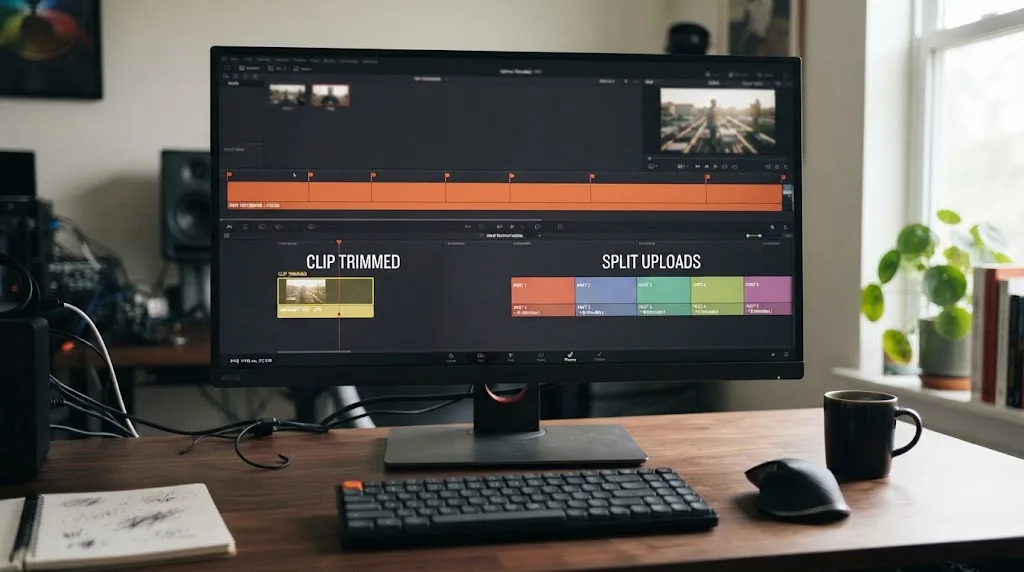
What if your clip is too long to fit even on Nitro's cap?
Do the math before you assume Discord is broken. A 500MB Nitro cap still gives you real breathing room: at 20 minutes, that's roughly 3.4 Mbps of total budget, comfortably watchable at 1080p. At a full hour, it drops to around 1.1 Mbps, workable at 720p but visibly soft at anything larger, which lines up with the per-tier table earlier in this guide.
| Clip length (Nitro, 500MB) | Approximate total bitrate budget | Realistic quality ceiling |
|---|---|---|
| 10 minutes | ~6.8 Mbps | Clean 1080p |
| 20 minutes | ~3.4 Mbps | Comfortable 1080p |
| 30 minutes | ~2.3 Mbps | Usable 1080p, softer detail |
| 45 minutes | ~1.5 Mbps | Better suited to 720p |
| 60 minutes | ~1.1 Mbps | 720p, visibly soft past that |
Past roughly the 30 to 45 minute mark, the honest answer is that Discord chat was never built to host full-length video, and fighting the bitrate math further just produces a worse and worse file. Trim to the highlight, not the whole session. A tight 90-second cut of the best moment, exported with real bitrate headroom, gets watched. A muddy, over-compressed 45-minute VOD squeezed under Nitro's cap gets skipped.
If the full recording genuinely needs to exist somewhere, you have two reasonable options instead of forcing one giant file through a chat attachment. Host the full version elsewhere, YouTube even unlisted, or a cloud drive, and drop the highlight clip plus a link in Discord. Or, if the whole recording matters to your audience and you don't want to host it externally, split it into two or three shorter Discord uploads instead of one long one; each individual message still has to clear the size cap on its own, but three 15-minute segments each at a healthy bitrate beat one 45-minute file crushed flat to squeeze under the same total ceiling.
Should you use single-pass or multi-pass encoding for a tight size target?
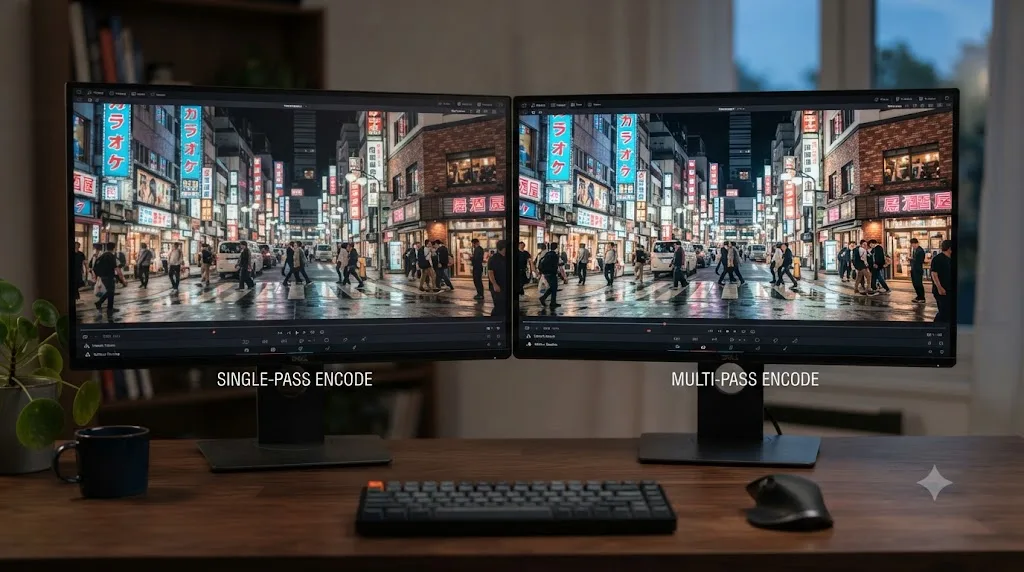
Multi-pass, when you can spare the extra render time. Blackmagic's own manual describes the option directly: "Multi-pass encode: (Available for QuickTime H.264 and H.265) You can choose between Single and Multi-pass encoding," and explains the tradeoff plainly: "Single pass is faster, but multi-pass yields superior results when quality is important," per Blackmagic's render settings documentation.
The reason it matters here specifically: single-pass encoding decides how to spend its bitrate budget as it goes, frame by frame, with no knowledge of what's coming later in the clip. Multi-pass analyzes the whole clip first, then distributes the bitrate budget more intelligently across scenes, spending less on a static intro and more on a busy action moment. At a generous bitrate the difference is subtle. At the kind of tight, calculated bitrate a 10MB Discord export forces on you, multi-pass is the difference between a clean image and visible blocking in the busiest few seconds of your clip.
Check whether the Multi-pass option appears for your chosen container before you rely on it, since Blackmagic's own documentation ties its availability to specific format and codec combinations rather than guaranteeing it everywhere. If it's not exposed for your export, single-pass with a slightly more conservative bitrate, a bit further below your hard ceiling, gets you most of the same protection.
Does the keyframe interval setting matter for a Discord upload?
A little, and it's a field most people never touch. On the Video tab, next to Restrict To, DaVinci Resolve exposes a Key Frames control: "Key Frames: (Available for QuickTime H.264 and H.265) You can choose Automatic, or select a duration for manual keyframe insertion," per Blackmagic's manual for the render settings panel. A keyframe is a complete image the decoder can start from. Everything between two keyframes is just the difference from the frame before it, which is most of how H.264 keeps its file size down in the first place.
A shorter keyframe interval, say one keyframe every second instead of every four or five, gives Discord's inline player more places to start playback cleanly, and looks slightly steadier if a viewer scrubs backward in the timeline bar. It also costs real bitrate, since a full frame takes far more data than a delta frame, and at a Restrict To value already trimmed down to fit a 10MB cap, that's bitrate you don't have to spare.
| Key Frames setting | Effect on a tight Discord bitrate |
|---|---|
| Automatic (recommended) | Resolve balances seek points against file size for you, no manual tuning needed |
| Shorter manual interval (e.g. every 1 second) | Smoother scrubbing, visibly softer detail everywhere else in the clip |
| Longer manual interval (e.g. every 5+ seconds) | More bitrate left for image quality, occasional smear if a viewer seeks mid-clip |
For a Discord export specifically, leave Key Frames on Automatic. Resolve's automatic interval already balances seek responsiveness against file size sensibly for a clip this short, and manually forcing a tighter interval on a tight bitrate budget tends to buy you smoother scrubbing at the cost of visibly softer detail everywhere else in the clip. Reach for a manual keyframe interval only if you've noticed a specific scrubbing or seeking problem in testing, not as a default precaution.
Is Restrict To's capped bitrate close enough, or do you need true CBR?
Close enough, and understanding why explains why the headroom in this guide's math matters. Constant bitrate, CBR, spends the same number of bits every single second, no matter what's happening on screen. Variable bitrate, VBR, spends more bits on a busy, detailed second and fewer on a static one, aiming for an average across the whole clip instead of a flat rate.
Resolve's Restrict To field is a capped VBR, not a hard CBR. It targets the number you type, but as Frame.io's David Kong put it in his explainer on the underlying bitrate formula, "with a variable bitrate codec, actual bitrate will drift above and below that target scene to scene." That's exactly the encoder behavior the 5 to 10 percent headroom earlier in this guide is built to absorb. The number you calculate is a target the encoder tries to average, not a byte count it locks to exactly.
Look back at the 45-second worked example. Step 3 pulls the video bitrate back from 1,692 kbps to roughly 1,520 kbps before it ever reaches the Restrict To field, precisely because a capped VBR encoder can spend a little more than its target on the clip's busiest second and a little less on its calmest one. Type the pre-headroom number instead, and a clip with a few seconds of fast motion can drift past your byte ceiling even though the average across the whole file looks fine on paper.
Resolve doesn't expose a separate hard-CBR toggle in its consumer export settings the way a dedicated streaming encoder does, and for a Discord upload, you don't need one. CBR exists mainly to keep a live stream's data rate flat so it doesn't stall a viewer's buffer in real time. Discord isn't checking your file's bitrate stability while it plays; it checks the total byte count once, at upload. A capped VBR that averages close to your target and stays inside your padded ceiling does the job just as well as true CBR would, without the quality cost CBR imposes on scenes that don't need every one of their allotted bits.
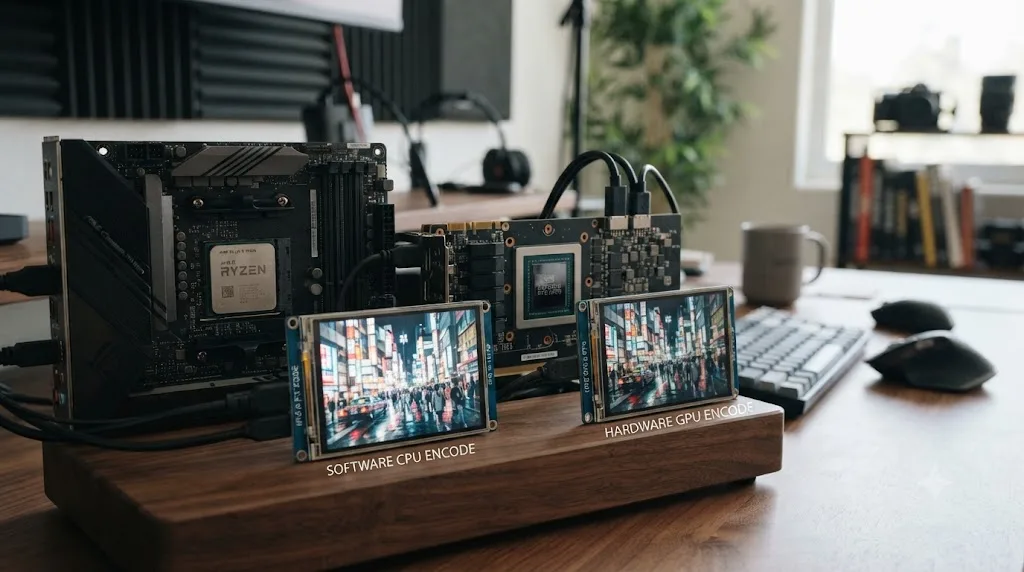
Does hardware encoding hurt quality at these tight bitrates?
A little, and it's worth knowing about even though it's rarely the first thing to check. DaVinci Resolve can hand H.264 and HEVC encoding off to your GPU, Nvidia's NVENC or Intel QuickSync among them, per Blackmagic's own render settings documentation, which describes hardware acceleration as available "if available on your workstation," instead of encoding on the CPU with Resolve's native software encoder. Hardware encoding is dramatically faster. It's also, by a small but measurable margin, less efficient per bit.
One detailed comparison of Resolve's export presets found the quality gap between hardware and software encoding at the same bitrate to be small, describing "a small drop-off in quality across the presets" that is "less than half a VMAF point & not visible to the naked eye" in most cases, according to ProVideo Coalition's testing of Resolve's Nvidia dual-encoder exports, and easy to compensate for by nudging the bitrate up slightly if it does show. At a generous bitrate, in other words, the encoder choice barely matters, and the same testing found a much bigger difference simply comes from choosing H.265 over H.264, or from the target bitrate itself, than from which chip does the encoding.
That margin stops being trivial at the bitrates this guide has you calculating. A 1,500 kbps Restrict To value has almost no slack in it to begin with. Whatever efficiency the hardware encoder gives up, it gives up out of a budget that was already tight, and it shows up first in the busiest few seconds of your clip, the same place multi-pass encoding helps most. If your export has a Hardware or Software encoder toggle on the Video tab, which Resolve exposes whenever your GPU supports accelerated encoding, try the native software encoder for a Discord export specifically. It's slower. For a 30-second clip that's a difference measured in seconds, not minutes, and it's the version of your file people actually see.
| Encoder | Speed | Quality at a tight Restrict To bitrate |
|---|---|---|
| Native / software (CPU) | Slower | Makes the best use of the bitrate you set |
| Hardware (NVENC, QuickSync, Apple Media Engine) | Much faster | Slightly less efficient, most visible at low, restricted bitrates |
Does exporting on Windows, Mac, or Linux change any of this?
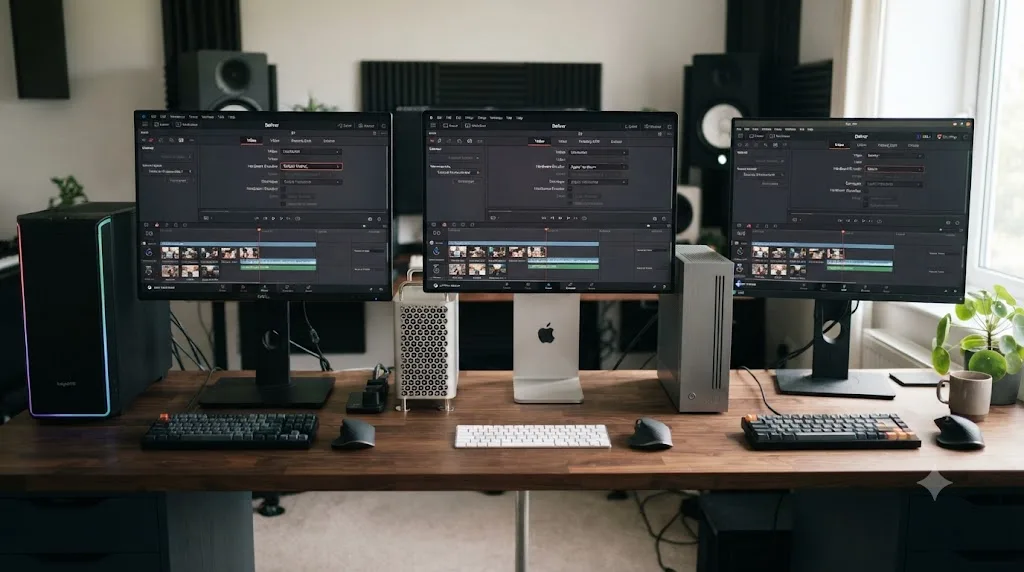
The bitrate math doesn't change. It's arithmetic, and arithmetic doesn't care what operating system rendered the file. What changes by platform is which hardware acceleration option shows up on the Video tab, and that's worth knowing before you go looking for a toggle that isn't there.
On a Windows workstation with an Nvidia GPU, Resolve offers NVENC. On Intel-equipped systems, it's QuickSync instead, per Blackmagic's own manual, which notes that "workstations using NVIDIA GPUs that offer NVENC will present alternative accelerated options, while other workstations offering QuickSync hardware encoding instead will be able to use that option". On Apple Silicon Macs, that same "Use hardware acceleration if available" toggle hands the job to Apple's built-in media engine automatically, no GPU selection required, the third option in the encoder table earlier in this guide.
AMD GPU users get a less consistent picture. Hardware-accelerated encoding support on AMD hardware in Resolve has been arriving in stages rather than all at once, including AV1 encoding support for AMD GPUs that shipped as a Resolve Studio beta feature well after Nvidia's NVENC had been standard for years. If you're on an AMD card and don't see a hardware acceleration toggle at all on the Video tab, that's not a bug specific to your export. It likely means your GPU generation or Resolve version doesn't expose one yet, and your render is already running on the CPU by default, which is exactly the software encoding path this guide already recommends for a tight Discord bitrate anyway.
Linux workstations run the same Deliver page as Windows and Mac, with the same Restrict To field and the same Format and Codec dropdowns.
| Platform | Typical hardware encoder shown | What to do for a tight Discord bitrate |
|---|---|---|
| Windows, Nvidia GPU | NVENC | Toggle off, use software encoding for the cleanest result |
| Windows, Intel GPU/CPU | QuickSync | Toggle off, use software encoding |
| Mac, Apple Silicon | Apple Media Engine | Toggle off, use software encoding |
| Windows or Linux, AMD GPU | Inconsistent, version-dependent | If no toggle appears, you're already on software encoding |
| Linux, any GPU | Same fields as Windows/Mac | Same recommendation: software encoding for tight bitrates |
Whatever platform you're cutting on, the calculation and the fields you fill out stay identical. Only the encoder dropdown's contents move, and for the tightest bitrates this guide produces, switching that dropdown to software encoding is the one adjustment worth making regardless of which operating system you're on.
Does Discord compress your video after you upload it?
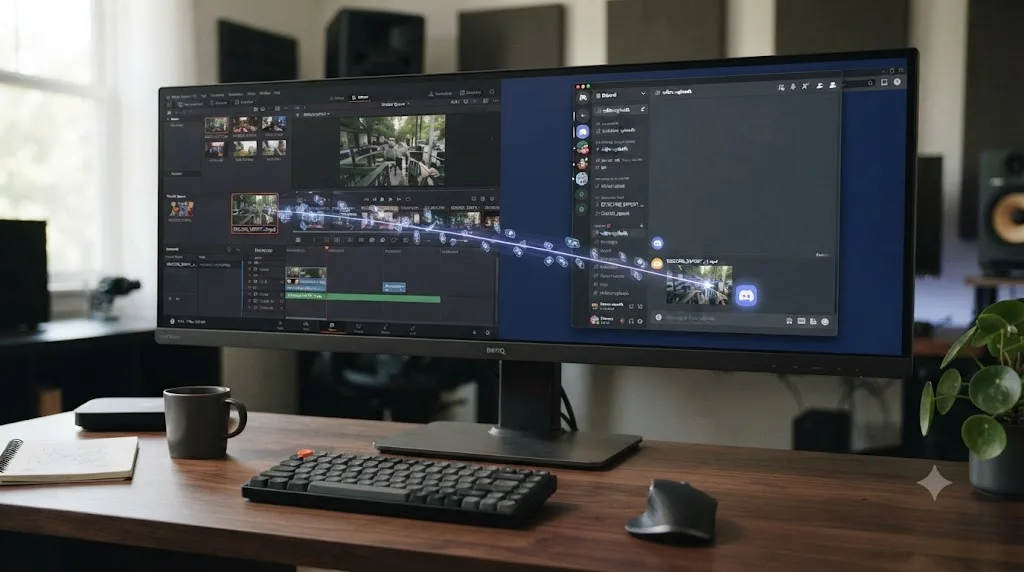
No, and this is the detail that makes getting your export right in DaVinci Resolve matter more for Discord than it does for almost any other platform. YouTube and TikTok both re-encode everything you send them into their own streaming ladders, which means a slightly under-bitrated upload still gets a second pass through a platform encoder. Discord doesn't do that. It accepts the file you send and serves it back through its CDN essentially as-is.
Discord doesn't re-encode what you upload, so the file that leaves DaVinci Resolve is the exact file every viewer downloads and plays. There's no safety net catching a soft or banded export on the way in. Whatever bitrate, resolution, and codec choices you make on the Deliver page are the final word on how the clip looks in every server it lands in, which is exactly why the bitrate math earlier in this guide is worth doing properly instead of guessing low and hoping.
Does HDR footage need special handling before a Discord export?
Yes, unless you're fine with your color grade looking wrong for most of the people watching it. Discord's chat player isn't a color-managed HDR pipeline the way a modern YouTube or Vimeo player is. If you render an HDR10 file straight out of Resolve and upload it as-is, viewers on standard dynamic range displays, which is still most phones and most desktop monitors, can see it washed out, overexposed, or with colors that look nothing like the grade you built.
Resolve's Deliver page gives you the tools to avoid this before it becomes the viewer's problem. The Video tab includes tone mapping options built specifically for taking an HDR10 or Dolby Vision grade down to a standard dynamic range delivery, per Blackmagic's manual for the render settings panel. For a Discord export, that's the setting you want, not the HDR10 metadata export options sitting right next to it.
The practical rule: if your timeline was graded in an HDR color space, add a tone-mapping step down to a Rec.709 SDR output specifically for the version you're sending to Discord, separate from whatever HDR master you keep for YouTube or a client delivery. Discord has no HDR-aware playback path, so an HDR file uploaded as-is reads like a mistake to most viewers, not like the grade you intended. It's one extra render, and it's the difference between your color work landing the way you meant it to and looking like an accident.
Should you burn in subtitles before exporting for Discord?
If you do, size the text for the bitrate you're targeting, not for a full-quality master. Fine detail is the first thing a low, restricted bitrate sacrifices, and thin sans-serif subtitle text at a small size is exactly the kind of fine detail that degrades into a blurry smear at 1,500 kbps, even though it reads perfectly on your own timeline at full quality.
A few adjustments protect legibility without eating meaningfully into your size budget:
- Use a heavier font weight than you'd choose for a YouTube upload. Thin strokes are the first casualty of compression.
- Keep a strong outline or drop shadow behind the text, which gives the encoder a harder edge to preserve instead of a soft gradient it can blur away.
- Size text larger than feels necessary at native resolution, especially if you're also downscaling to 1080p or 720p to protect your bitrate elsewhere in the export.
- Avoid thin, all-caps, tightly kerned fonts for burned-in captions specifically. They're the hardest style for a compressed codec to hold onto cleanly.
None of this changes your Restrict To number. It just spends the bits you've already budgeted on text that survives the compression pass, instead of text that was designed for a bitrate you're not actually using for this export.
Does 10-bit color depth affect the Discord bitrate math?
It works against you, not for you. Studio can export beyond the free version's 8-bit ceiling into 10-bit color, which is why colorists grade in 10-bit or higher in the first place: it holds far more tonal information per pixel, which matters when you're pushing a grade hard. Discord's chat player has no awareness of that extra bit depth. It decodes and displays whatever container and codec you sent it through a standard playback pipeline, the same one an 8-bit file goes through.
A 10-bit source doesn't need less bitrate to look clean, it needs more, because the whole point of the extra bit depth is finer gradation the codec then has to preserve. At the tight Restrict To values this guide's formula produces for a free-tier 10MB export, that finer gradation is the first thing to go anyway, well before a viewer would notice the difference between 8-bit and 10-bit source material at chat-window size. You're spending bitrate defending a distinction nobody watching in Discord can see.
| Export bit depth | Available on | Discord playback benefit |
|---|---|---|
| 8-bit H.264 | Free and Studio | Matches what Discord's player actually shows, most efficient use of a tight bitrate |
| 10-bit H.264/H.265 | Studio only | No visible benefit in Discord chat, costs bitrate you need for smooth motion |
If you're a Studio user whose default export preset targets 10-bit for an archive master or a client delivery, override it specifically for the Discord version. Export 8-bit H.264 for this one, the same way the earlier HDR section recommends a separate SDR pass for Discord rather than sending the same file you'd send to a color-managed platform. Keep the 10-bit master for the deliveries where the extra bit depth actually survives to the viewer.
How do you check a rendered file's exact size before you upload it?
Look at the file, not the render queue. Resolve's Render Queue panel tracks progress while a job runs, but it doesn't leave a persistent file-size readout sitting next to the finished job the way some other NLEs do. Once the render finishes, the number you need lives in your operating system's file browser, not inside Resolve.
| Platform | How to check the exact size |
|---|---|
| macOS | Select the file in Finder, press Command-I, or switch to list view and read the Size column |
| Windows | Right-click the file, choose Properties, read the exact byte size on the General tab |
| Linux | Right-click the file in your file manager and choose Properties, or run ls -l in a terminal |
Don't trust a rounded figure at a glance. A file browser that lists a render as "10.0 MB" in list view can still be a few kilobytes over Discord's actual byte-based cap, since list-view figures round for readability rather than showing the precise count.
Make this check a habit whenever your Restrict To value is close to a hard ceiling, not just after Discord has already rejected an upload. It costs ten seconds and it catches the exact failure mode described earlier in this guide: a rendered file landing a few percent over target because of container overhead or encoder drift, before you've wasted an upload attempt finding out the hard way.
What if your export still comes out over the limit?
Work through these in order before you assume the math is wrong:
- The rendered file is a few percent over your target. Container overhead and encoder variance ate the margin. Drop your Restrict To value by another 5 to 10 percent and re-render, rather than trying to hit the exact byte ceiling on the first pass.
- The bitrate the math produced is too low to look watchable. That's not a settings problem, it's a duration problem. Trim the clip shorter instead of pushing quality any lower; a tight 20-second highlight at a healthy bitrate beats a full minute rendered into mush.
- The audio is drifting out of sync with the video. If the source is a screen or gameplay capture, that's very likely a Variable Frame Rate problem from the recording tool, not anything caused by your Discord export settings. Conform the footage to a constant frame rate before you re-export, as covered earlier in this guide.
- The file has no sound after you tightened the video bitrate. Check the Export Audio checkbox on the Audio tab. It's on by default but the first thing people uncheck while troubleshooting something unrelated, and Discord will happily accept a silent file. Our no audio troubleshooting guide covers the deeper checklist if audio is still missing with that box checked.
- The upload succeeds but shows as a download link instead of playing inline. Confirm the export is genuinely MP4 with H.264, not a MOV or HEVC file that got renamed with an .mp4 extension. Discord checks the actual container and codec, not the file extension.
- You're regularly hitting this wall on longer clips. That's the honest signal to either trim your content down to Discord-native lengths, or move to Nitro Basic's 50MB cap, or check whether the server you're posting in has already crossed Boost Level 2, which turns most of the math above into a formality rather than a constraint.
- Discord itself offered to compress the file for you at upload. This is a real, built-in feature: if your file is over the limit but Discord estimates the compressed result would fit, it offers a one-click compress-and-send option that typically works by lowering resolution and frame rate, per discussion of the feature on Discord's own support community. That's a reasonable fallback for a quick phone clip. For anything you graded and exported deliberately in Resolve, your own calculated bitrate will look better than Discord's generic compression pass, because you're the one deciding what to sacrifice and where, not a one-size-fits-all algorithm guessing at it after the fact.
Hunting down the exact field on a page full of tabs and checkboxes is exactly the kind of thing that eats an evening when you're new to the Deliver page. TryUncle is the on-screen assistant for DaVinci Resolve on macOS, ask in plain words and Uncle points at the exact control on your screen, which is faster than searching for the right checkbox yourself when a render is due in ten minutes. It's one of the most common versions of this same question: not "what's the setting," but "where is the setting," and that's the specific gap TryUncle is built for.
How long does a video stay playable after you upload it to Discord?
Indefinitely inside Discord itself, but not if you copy the raw link out of it. Every file Discord hosts gets a signed CDN link with an expiration timestamp built into the URL, and links to files past that window return an error, as reported when Discord rolled the change out. Viewing the video inside the Discord client refreshes that link automatically, so nobody scrolling back through a channel notices anything. The video just plays.
The problem shows up when you copy that link somewhere else, into a website, a forum post, a text message, expecting it to keep working the way a normal hosted file would. Once the signed URL expires, that copied link breaks, even though the exact same video still plays fine for anyone viewing it from inside Discord. If you need a Discord-uploaded clip to stay embeddable somewhere outside Discord, host it there directly instead. A cloud drive link or an unlisted YouTube upload survives being copied around in a way a raw Discord CDN link doesn't.
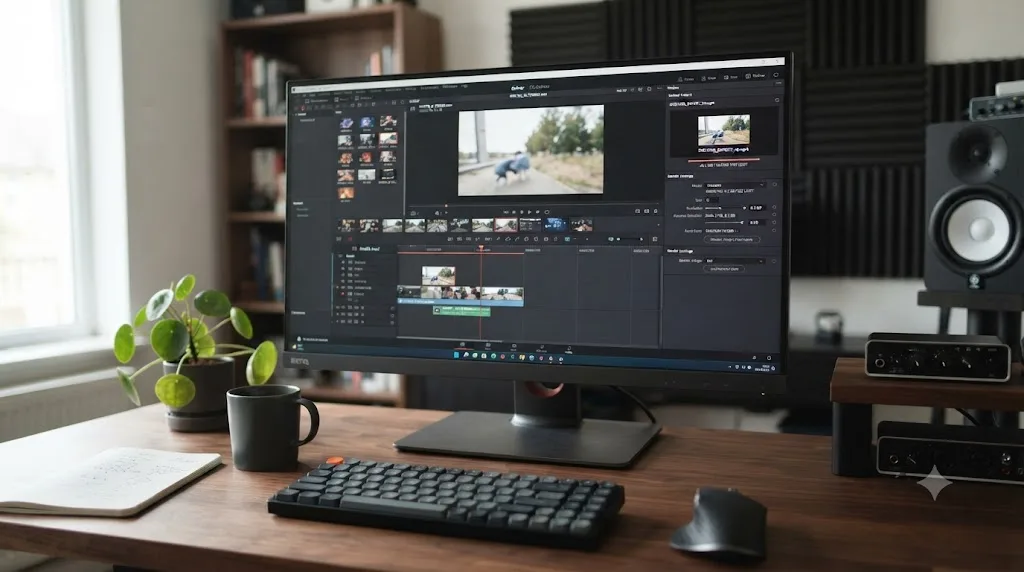
Does the free version of DaVinci Resolve limit Discord exports?
Not in any way that matters. Per Blackmagic's own tech specs, the free version renders up to Ultra HD 3840x2160 at 60fps in 8-bit color, and Studio raises that ceiling beyond 4K, up to 120fps, at 10-bit. Every bitrate figure in this guide, even at Nitro's generous 500MB tier, sits far below what either version is capable of producing.
| Free | Studio | |
|---|---|---|
| Max export resolution | Ultra HD 3840x2160 | Beyond 4K |
| Max export frame rate | 60fps (8-bit) | 120fps (10-bit) |
| Restrict To bitrate control | Available | Available |
| Price | $0 | $295 one-time |
Discord export work is one of the few deliverable types on this site where the free version genuinely has no practical disadvantage. A Discord clip is a small, low-bitrate file by definition, the exact opposite of the high-resolution, high-bitrate masters where Studio's headroom and hardware encoding actually earn their keep.
How do you save this as a reusable Discord preset?
Once you've dialed in a bitrate that works for your typical clip length, save it so you're not redoing this math every time.
- Set Format to MP4, Codec to H.264, and Quality to Restrict To with your calculated bitrate.
- Set Audio to AAC at 128 kbps and confirm Export Audio is checked.
- Click the three-dot options menu at the top right of the Render Settings panel.
- Choose Save As New Preset and name it for the clip length it's tuned for, something like "Discord 30s Free Tier" or "Discord 2min Nitro Basic," rather than a generic label.
- The preset appears in the strip alongside Resolve's stock presets, ready to reuse the next time you're exporting a clip of roughly that length.
Because the correct bitrate depends on duration, one Discord preset won't cover every clip you post. Build two or three, tuned to the lengths you actually export most, one for quick highlight clips, one for longer commentary or gameplay segments, and maybe a third tuned to whichever boosted server's higher cap you post in most often. The calculation in this guide becomes something you do once per preset instead of once per export.
Which settings should you actually remember?
MP4, H.264, and a bitrate you calculate from your clip's actual length and Discord's actual current cap, not a number you half-remember from a year-old thread. Free accounts get 10MB, Nitro Basic gets 50MB, Nitro gets 500MB, a boosted server can push everyone in it to 50MB or 100MB regardless of their own tier, and Discord doesn't touch your file's quality after it lands, so whatever you render is what everyone sees.
A vertical clip cropped for TikTok and a Discord clip built from scratch both live or die on the same Restrict To field, they just answer to a different number. Skip HEVC, skip hardware encoding if your export is tight enough to need every bit, and tone-map anything you graded in HDR before it goes out. Do the arithmetic once, save the presets you actually reuse, and Discord's upload bar stops being a wall you hit at the worst possible moment and becomes a number you already know you've hit before you ever click render.
Frequently asked questions
- What is Discord's file upload size limit in 2026?
- 10MB per file for free accounts, 50MB for Nitro Basic, and 500MB for full Nitro. Discord raised the free limit from 8MB to 25MB in April 2023, then lowered it back to 10MB in September 2024, citing storage costs. Guides that still quote 25MB as the free limit are working from outdated information.
- How do I get a DaVinci Resolve export under Discord's 10MB limit?
- Calculate your target bitrate from the clip's length, not from habit. Multiply your size target in MB by 8192 to get kilobits, divide by the clip's duration in seconds, then subtract about 128 kbps for audio. Type the result into the Restrict To field on the Deliver page's Video tab and export as MP4 with H.264.
- Does Discord Nitro actually raise the upload limit, or is that just for boosted servers?
- Both raise it, but differently. A personal Nitro Basic subscription raises your own upload cap to 50MB everywhere you post, and full Nitro raises it to 500MB, per Discord's own Nitro FAQ. A server boost at Level 2 or Level 3 raises the limit for every member of that server instead, Nitro subscriber or not, currently to 50MB and 100MB. The two don't stack. Discord applies whichever number, personal or server-wide, is larger.
- Why does my export come out bigger than Discord's limit even though I set a low bitrate?
- The Restrict To field caps video bitrate, not audio or container overhead. A minute-long clip with a 1,200 kbps video cap plus a 128 kbps AAC track and MP4 muxing overhead can land a few percent over your math. Leave 5 to 10 percent headroom in your target calculation instead of aiming for the exact byte ceiling.
- What format and codec should I export from DaVinci Resolve for Discord?
- MP4 with H.264 video and AAC audio. Discord plays MP4 and WebM files inline in chat. MOV files upload fine but play inconsistently across desktop, mobile, and browser clients, and HEVC/H.265 exports are worse, since inline playback depends on the viewer's browser supporting that codec, which Chrome and Firefox mostly don't.
- Does Discord compress or re-encode my video after I upload it?
- No. Unlike YouTube or TikTok, Discord serves the file you uploaded as-is through its CDN rather than transcoding it into a streaming ladder. That means the bitrate and quality decisions you make in DaVinci Resolve's Deliver page are exactly what viewers see, with no second compression pass working in your favor or against you.
- Does DaVinci Resolve have a built-in Discord export preset?
- No. Resolve ships presets for YouTube, Vimeo, Twitter, TikTok, and Dropbox in the render settings strip, but Discord isn't among them. Build the settings manually on the Deliver page's Video tab, and save the result as a custom preset once you've dialed it in so you don't rebuild it from scratch next time.
- Why does my Discord video show up as a download link instead of playing in chat?
- Almost always a container or codec mismatch. Files exported as MOV, AVI, or HEVC/H.265 upload without a problem but don't reliably embed as an inline player, since HEVC decoding depends on the viewer's browser rather than Discord itself. Export MP4 with standard H.264 specifically. WebM with VP9 also embeds, but DaVinci Resolve doesn't offer it as a direct one-click export, so it's rarely worth the extra transcoding step for a single clip.
Sources
- File Attachments FAQ (Discord Support)
- What are Nitro & Nitro Basic? (Discord Support)
- Discord lowers free upload limit to 10MB: "Storage management is expensive" (Dexerto)
- Discord Upload Limit Has Been Decreased To 10MB Per File (Dataconomy)
- Discord increases free file sharing limit from 8MB to 25MB (Shacknews)
- The Simple Formula to Calculate Video Bitrates (Frame.io, David Kong)
- DaVinci Resolve - Tech Specs (Blackmagic Design)
- DaVinci Resolve Manual: All Other Render Settings for Output (Blackmagic Design)
- DaVinci Resolve Manual: Using Presets for Fast Rendering (Blackmagic Design)
- How to Send Videos on Discord (Filmora, Wondershare)
- Discord File Size Limit: Free, Boost, and Nitro Caps (usecarly.com)
- Discord File Upload Limit in 2026: It's 10 MB, Not 25 (sto.care)
- Can Discord Handle H.265 (HEVC) Videos? (SafeBoxGuide)
- How to Export High-Quality WebM from DaVinci Resolve (salivity.github.io)
- Get Blazing Fast Exports in DaVinci Resolve with the Nvidia RTX 4000 Series Dual Encoders (ProVideo Coalition)
- Discord Download Links Will Soon Expire After 24 Hours (XDA Developers)
- Why Is My Audio Out of Sync With Video? Probably Variable Frame Rate (Timebolt)
- Automatic File Compression on Videos and Images (Discord Support Community)
- DaVinci Resolve Studio Beta Gets AV1 Encoding Support for AMD GPUs (VideoCardz)
Put this guide to work with TryUncle.
Ask about the step you’re on. TryUncle sees your screen and points at the control you need, so you can keep learning in your own project.
Get TryUncle for Mac or WindowsKeep reading
Guides · Jul 7, 2026 · 23 min
DaVinci Resolve Export Settings: Numbers That Actually Work
The exact DaVinci Resolve export settings for YouTube, client handoffs, and ProRes archives, plus what changed with Resolve 21's H.265 encoder.
Guides · Jul 7, 2026 · 25 min
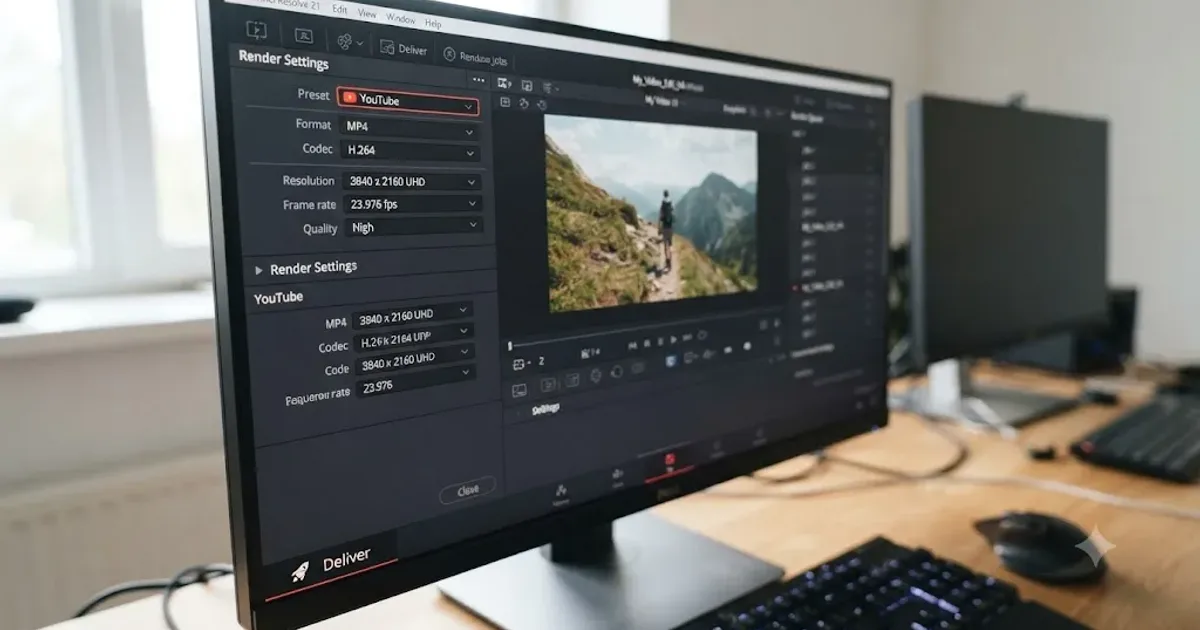
DaVinci Resolve Export Settings for YouTube: The Right Numbers
The exact DaVinci Resolve export settings for YouTube: resolution, bitrate, codec, and audio numbers pulled straight from YouTube's own encoding guide.
Fixes · Jul 7, 2026 · 26 min
DaVinci Resolve No Audio: Every Cause and How to Fix It
Timeline plays video but no sound? Check the mute and solo buttons, the I/O Engine setting, sample rate, and Export Audio, in that order. Full fix list.