Articles / Fixesupdated for DaVinci Resolve 21.0 (June 2026)
DaVinci Resolve No Audio: Every Cause and How to Fix It
Quick answer
DaVinci Resolve usually loses audio for one of five reasons: a muted or soloed track, a clip disabled in the Inspector, the wrong I/O Engine or output device in Preferences, a sample rate mismatch between your timeline and your audio interface, or Export Audio left unchecked on the Deliver page. Check each in that order.
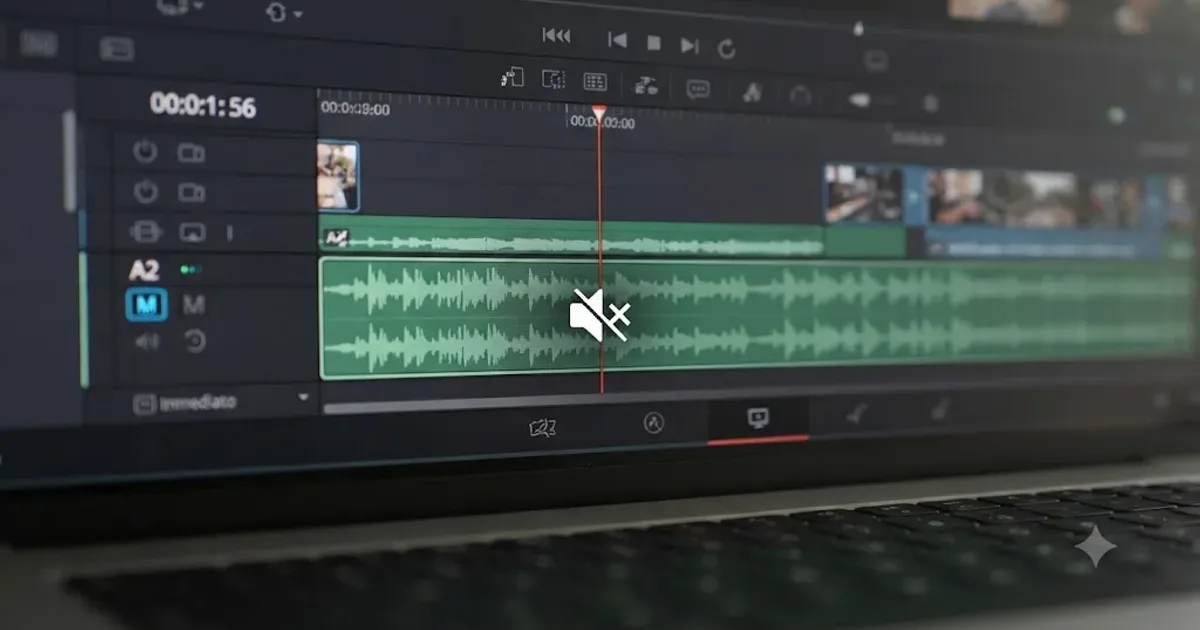
Your timeline plays. Your video looks fine. And there's nothing coming out of your speakers. It's one of the most common panics a new Resolve editor hits, and almost every time, it's a setting, not a broken program.
The Quick Answer above gives you the five usual suspects. Below is how to check each one, in the order that finds the problem fastest, plus the rarer causes that live past the first five: codec limits, variable frame rate footage, Fairlight's monitoring layer, the Bluetooth and HDMI traps, and the cases where the audio isn't muted at all, it's missing, gated, or never recorded in the first place.
Why is my DaVinci Resolve timeline silent when the clip has audio?
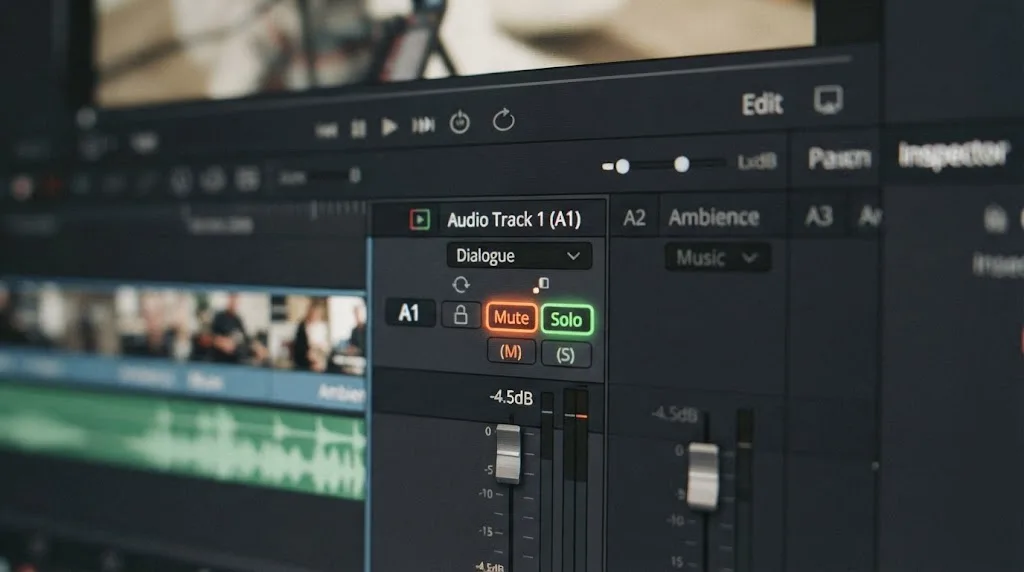
Start at the track header, not the clip. Every audio track in Resolve carries its own Mute button, and next to it, a Solo button. Solo doesn't just boost the track you clicked, it silences every other track in the project until you turn it off. That's the single most common reason a whole timeline goes quiet after a routine audio check: you soloed one dialogue track an hour ago to listen for a cough, moved on, and forgot to switch it back.
Mute and Solo live in the track header column on both the Edit page and the Fairlight page. On Edit, look left of the timeline itself. On Fairlight, they sit above the track's meter, next to the fader. If either one is engaged, the fix takes one click.
If the track itself checks out, go to the clip. Select it, open the Inspector, and click its Audio tab. Clips carry their own mute state independent of the track, so a track that plays every other clip fine can still have one silent clip sitting on it.
How do you tell where the audio actually dies?
Before you open a single preferences panel, let Resolve tell you which half of the problem you have. Two things do that: the waveform and the meters.
The waveform first. If you can't see waveforms on your audio clips at all, that might just be a display setting. Click the Timeline View Options button in the toolbar above the timeline and turn waveform display back on. A waveform that appears is good news: the clip has an audio stream and Resolve can decode it. A clip that draws a flat line, or no audio portion at all, points at the file itself, and you can skip straight to the Clip Attributes and codec sections below.
Now the meters. Open the Mixer on the Edit page, or glance at the meters on Fairlight, and hit play. Two very different diagnoses come out of this one look. If the meters bounce and you still hear nothing, the signal is alive inside Resolve and dies on the way to your ears: that's an output device, monitoring, or hardware problem. If the meters sit dead flat, the signal never leaves the track: that's a mute, a solo, or a bus assignment.
One more quick test. Double-click the source clip in the Media Pool and play it in the source viewer, or on the Media page. If it's silent there too, nothing you did on the timeline caused this. The problem arrived with the file.
That single split, meters moving versus meters flat, cuts the rest of this article in half for you.
Why is there no sound when I scrub or shuttle the timeline?
One case deserves clearing up before anything else, because it isn't a problem at all. If playback sounds fine but dragging the playhead across the timeline is silent, nothing is broken. DaVinci Resolve only plays sound while scrubbing when Audio Scrubbing is enabled in the Timeline menu. The toggle lives at Timeline, then Audio Scrubbing, with Shift-S as the shortcut.
Plenty of editors switch it off deliberately. Scrub chatter gets old fast on a long edit, so someone turns it off in week one, forgets, and then wonders in week three why dragging through an interview is silent. Flip it back on when you need to hunt for a word or a beat by ear, and off again when you don't.
Two related habits are worth knowing. Shuttling with the J, K, and L keys still gives you audible review at speed even with scrubbing off, which is usually the better way to hunt through dialogue anyway. And if scrubbing is silent AND playback is silent, this section isn't your answer: go back to the checklist above, because a toggle can't explain both.
Why does a clip import with no audio at all?
When a clip lands in Resolve silent from the first frame, there are three possibilities: the file has no audio stream, Resolve can't decode the stream it has, or the channels are mapped wrong.
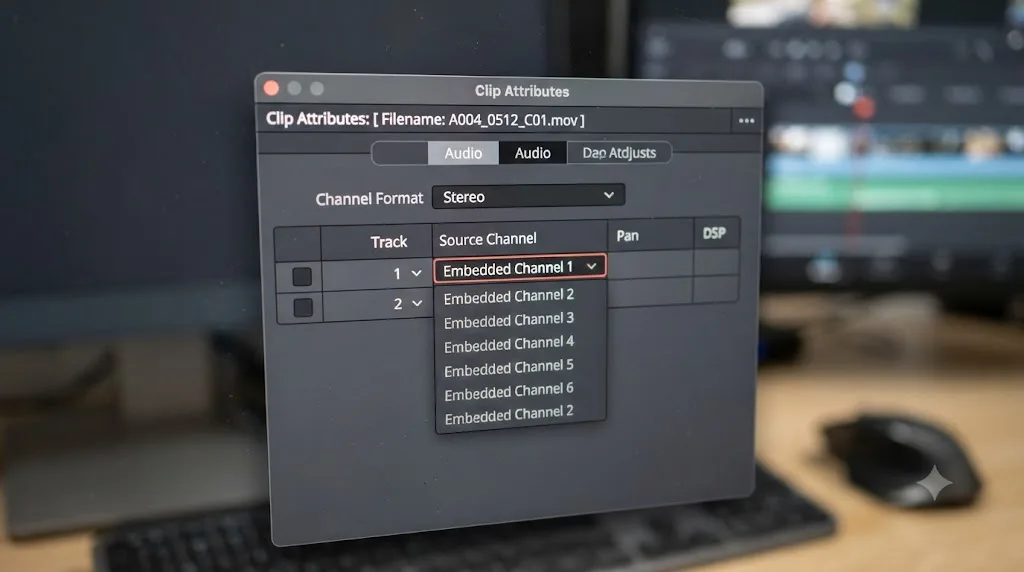
Check what the file actually contains first. Select the clip in the Media Pool and open the Metadata panel, or right-click the clip and choose Clip Attributes, then the Audio tab. This panel shows the channel format Resolve assigned (Mono, Stereo, 5.1, and so on) and which source channel feeds each one. If the format doesn't match how the audio was recorded, or a source channel is set to Mute or points at an empty channel, you can fix the mapping right there. Camera files with several embedded channels are the usual offender: Resolve interprets the file one way, the recordist wired it another, and the channel you needed never gets routed.
If Clip Attributes shows no audio channels at all, the file genuinely has none. Screen recorders are notorious for this: system audio capture was toggled off in the recording app, and no editor on earth can recover sound that was never written. Play the file in another player like VLC to confirm. Silent there means silent everywhere.
There's also the case where the audio exists but never made it to the timeline. If the A1 destination button in the track header was switched off when you edited the clip in, Resolve placed the video and left the audio behind. The same happens if you dragged from the source viewer with a video-only edit. Delete the clip, turn the audio destination back on, and edit it in again, or drag the clip's audio down separately and link the two.
Which audio codecs won't play in DaVinci Resolve?
If the clip plays sound in VLC but draws a flat line in Resolve, decode support is your suspect, and it depends on your operating system more than on your license.
Blackmagic's supported codec list marks AAC audio as decodable on macOS and Windows, in both the free version and Studio. On Linux, the same document shows no AAC support at all. That's the whole mystery behind one of the most reported no-audio cases out there: a plain MP4 from a phone or a downloaded video plays its video track fine on a Linux install and delivers total silence, because the AAC audio inside it simply isn't decoded on that platform. The document also notes that immersive audio formats are only supported with DaVinci Resolve Studio, which matters if you're handed a Dolby Atmos master.
The fix is to get the audio into a format Resolve decodes everywhere: Linear PCM, the uncompressed audio inside WAV files and ProRes or DNxHR wrappers. Run the clip through a free converter like Shutter Encoder or HandBrake and choose an output whose audio is PCM, or extract the audio to a WAV and sync it under the original video in Resolve.
Note what this is not: a free-versus-Studio problem. Everyday audio decoding is the same in both versions, so buying Studio won't un-silence a clip. If you're weighing the upgrade for other reasons, our free vs. Studio breakdown covers what the license actually changes.
Why do phone and screen recorder clips drift or lose sound?
Phones, OBS, and game capture tools often record variable frame rate video: the frame timing speeds up and slows down with the scene. Resolve is built around constant frame rate footage, and a VFR clip on a Resolve timeline shows a family of symptoms. Audio that starts in sync and drifts later into the clip. Audio that cuts in and out. Sometimes audio that won't play at all.
You can confirm the diagnosis in seconds with the free MediaInfo tool: open the file and look for a frame rate mode of Variable. Resolve's own Media Pool metadata won't warn you.
The fix isn't inside Resolve. Transcode the clip to a constant frame rate before you edit it: Shutter Encoder and HandBrake both have a constant frame rate setting, and any intermediate codec preset like ProRes or DNxHR does the job while making the file easier to play back too. Re-import the converted file and the audio behaves.
If your VFR clips also stutter on playback, that's the same root cause wearing a different costume, and our choppy playback guide covers that side of it.
Why is audio missing from just one stretch of the timeline?
Sometimes the audio isn't silenced. It's gone. Zoom in on the quiet region and look at the audio track itself: if there's a gap where a clip should be, you're not troubleshooting settings anymore, you're undoing an editing accident. A few moves cause almost all of them.
Linked selection is the big one. The chain-link icon in the toolbar keeps a clip's video and audio moving together, and with it toggled off, clicking a clip grabs only the half you clicked. Move the video, and the audio stays behind. Delete the video, and the audio survives somewhere it no longer belongs, or the reverse, and a stretch of your cut goes mute with the picture intact. The giveaway is audio that still exists but no longer sits under its video.
Overwrite edits do quiet damage too. Dragging a clip onto an occupied track replaces whatever sat beneath it, so a title or a B-roll shot dropped carelessly can stamp out a piece of your dialogue track without a warning. And if sync lock is off on some tracks, a ripple delete on one track shifts everything downstream on that track alone, pulling audio out from under video for the entire rest of the timeline.
Two clip types earn a special mention because they produce silence by design. A freeze frame has no audio, since a single frame carries no duration to play sound across. And a compound clip built from a video-only selection contains no audio to give: right-click it and choose Decompose in Place to get the original pieces back, then rebuild it with the audio included.
The repair path is the same for all of these. If it just happened, undo. If it happened three days ago, re-edit the missing piece from the Media Pool: the source clip still holds its audio, so match the timecode, edit it back in, and link it to its video.
Why does a clip go quiet in places when nothing is muted?
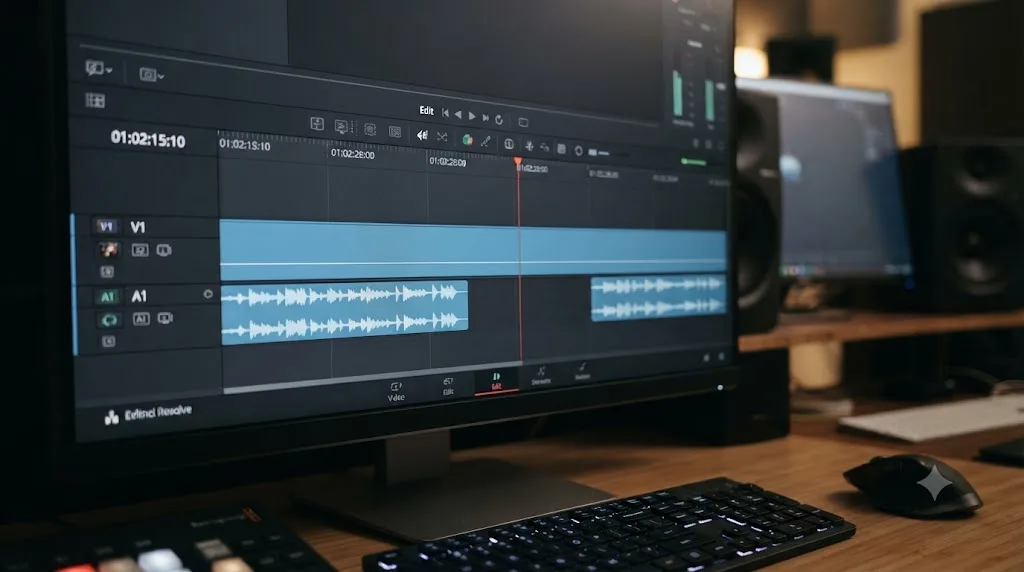
If the clip is present, the track is unmuted, and the sound still dips out mid-clip, you're looking at automation or an effect. Both silence audio without touching a single mute button, and both are invisible unless you know where to look.
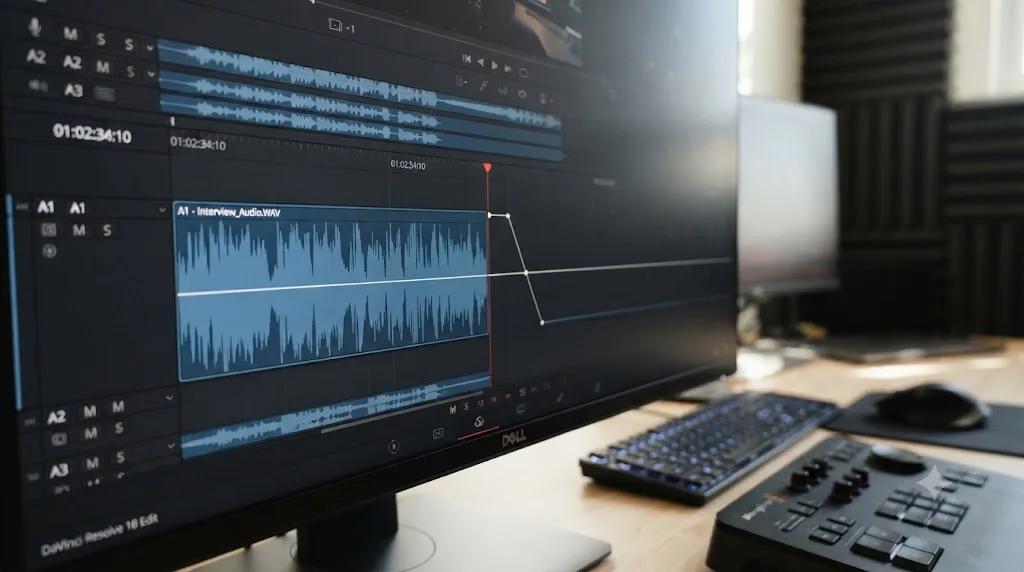
Start with the volume curve. Every audio clip in Resolve carries a horizontal volume line across its face, and Option-clicking on Mac or Alt-clicking on Windows adds keyframes to it. That's easy to do by accident while grabbing a clip, and one stray keyframe dragged to the floor mutes everything after it. Zoom in and follow the line: if it dives, select the keyframes and delete them, or reset Volume in the Inspector's Audio tab.
Track-level automation is the same trap one layer up. On the Fairlight page, fader moves can be recorded as automation, and a recorded pass with the fader pulled down replays that silence on every playback, moving the fader before your eyes while you wonder what's haunting the mix. If a fader moves on its own during playback, automation is active: view the track's automation curve, rewrite that section, or switch automation reading off while you edit.
Then there are effects. A noise gate with its threshold set too high silences quiet dialogue just as thoroughly as a mute button. Gates are designed to close on low-level sound, so soft speech, room tone, and trailing words are exactly what an over-tightened one eats. The test is quick: bypass the track's effects one at a time in the mixer's effects slots and listen. While you're there, be suspicious of third-party VST or AU plugins after any system or app update, because a plugin that fails to load can leave its whole chain silent. Remove it, test, and reinstall the plugin if it was the culprit.
Why does DaVinci Resolve show no audio device, or the wrong one?
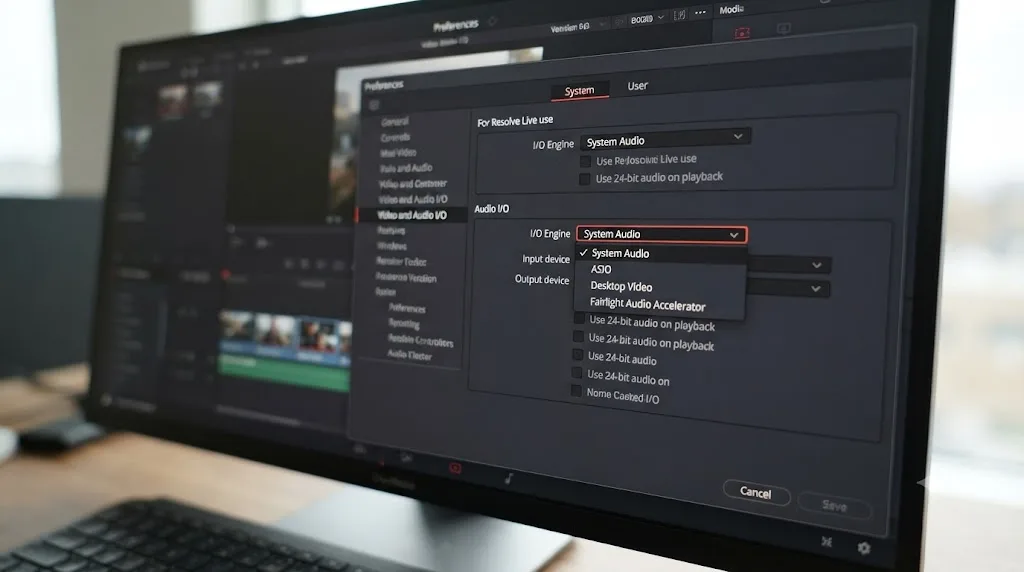
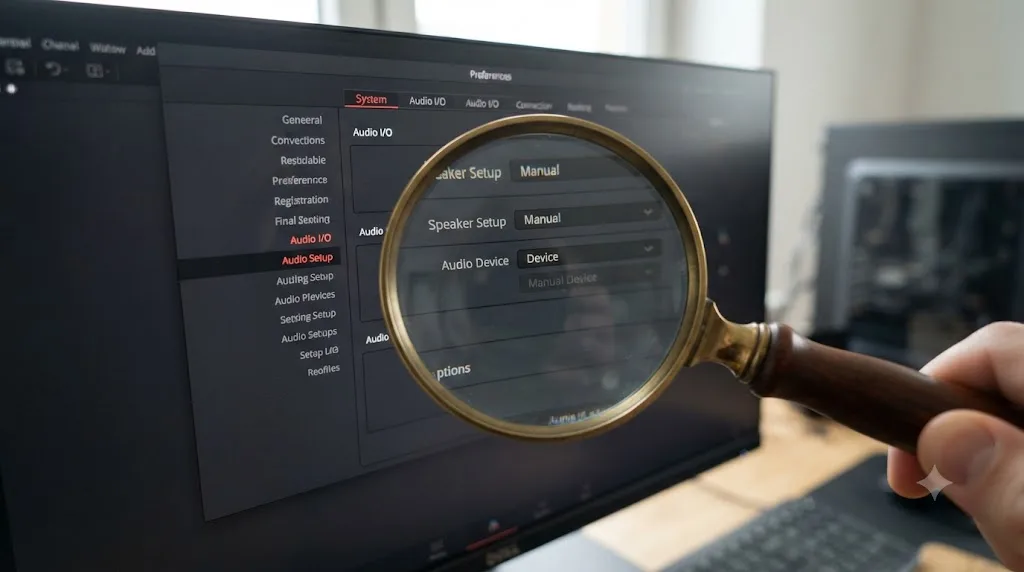
If Mute and Solo are both clean and you still hear nothing, the problem has moved from the timeline to your hardware setup. Open Preferences, then System, then Video and Audio I/O.
Resolve routes audio through an I/O Engine, and it offers a short list of options: System Audio, Desktop Video, Fairlight Audio Accelerator, and ASIO on Windows, according to Blackmagic's own DaVinci Resolve manual. System Audio uses your computer's built-in sound hardware. Desktop Video routes through a Blackmagic capture or playback device instead, like an UltraStudio or DeckLink, and it's the setting that trips up editors who used to have one of those devices connected and don't anymore.
There's a second trap inside the same panel. A checkbox called Automatic speaker configuration quietly overrides your manual output choice and routes audio to whatever built-in hardware Resolve thinks you're using, even with a different device enabled. Uncheck it if you need Resolve to stick to the output device you actually picked.
Confirm the Output Device dropdown itself points at the speakers or headphones you're listening through right now. Switching headsets, docks, or interfaces mid-session is the most ordinary reason this drifts.
The OS adds its own wrinkles. On Windows, an audio interface running through ASIO can only serve one application at a time in many driver setups, so a DAW or a call app holding the driver can leave Resolve with nothing; close the other app or switch Resolve to System Audio. Windows also has a per-app volume mixer, and an app muted there stays muted no matter what Resolve says, so right-click the speaker icon and check it. On macOS, confirm the device's own sample rate in Audio MIDI Setup while you're at it, since that's where the rate mismatch described below usually hides.
Why is the Fairlight page silent when the Edit page plays fine?
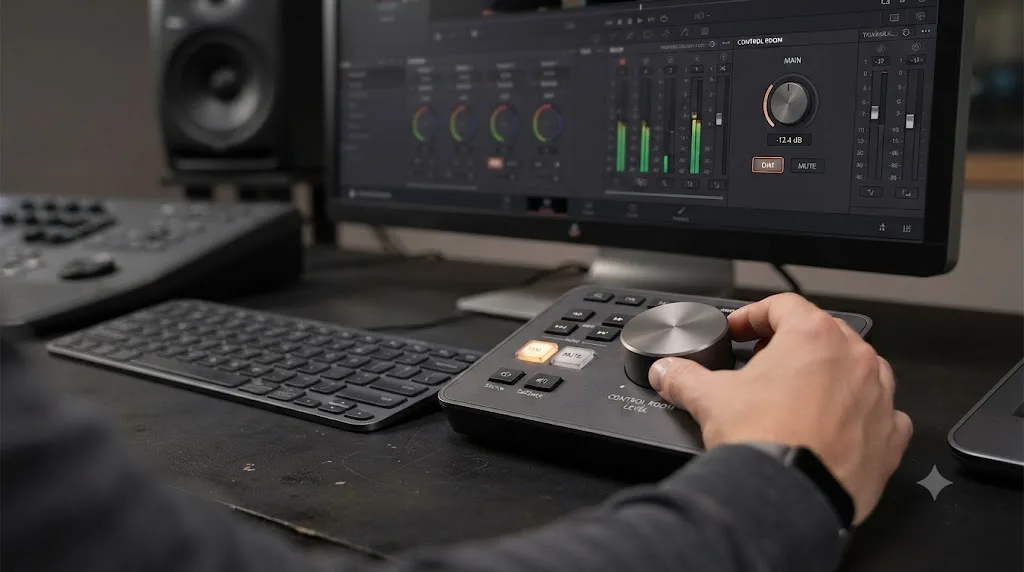
Fairlight adds a layer the Edit page mostly hides from you: control room monitoring. It's a mixing console idea. The level going to your speakers is separate from the level in your mix, so you can turn your room down without touching a single fader.
That separation is exactly what bites. The monitoring section on the Fairlight page has its own level control plus a dim button, and dim is designed to drop your speakers way down so you can talk over playback. Engage it, forget it, and the page sounds broken while the meters happily bounce. Check the monitoring controls in the upper right of the Fairlight page before you touch anything else, and bring the control room level back up if someone pulled it down.
The other Fairlight-specific cause is bus assignment. Every track has to feed a bus, and the main bus is what your monitors and your render actually receive. Open the Fairlight menu and choose Bus Assign, then confirm each track is checked into Bus 1. A track that got unassigned plays completely silent even though nothing is muted, and it gives itself away in the meters: the track's own meter moves, the main bus meter stays flat. While you're in the mixer, glance at the bus fader too. A main bus fader pulled to the floor silences everything downstream of it, monitoring and export alike.
Why can't Resolve hear or record my microphone?
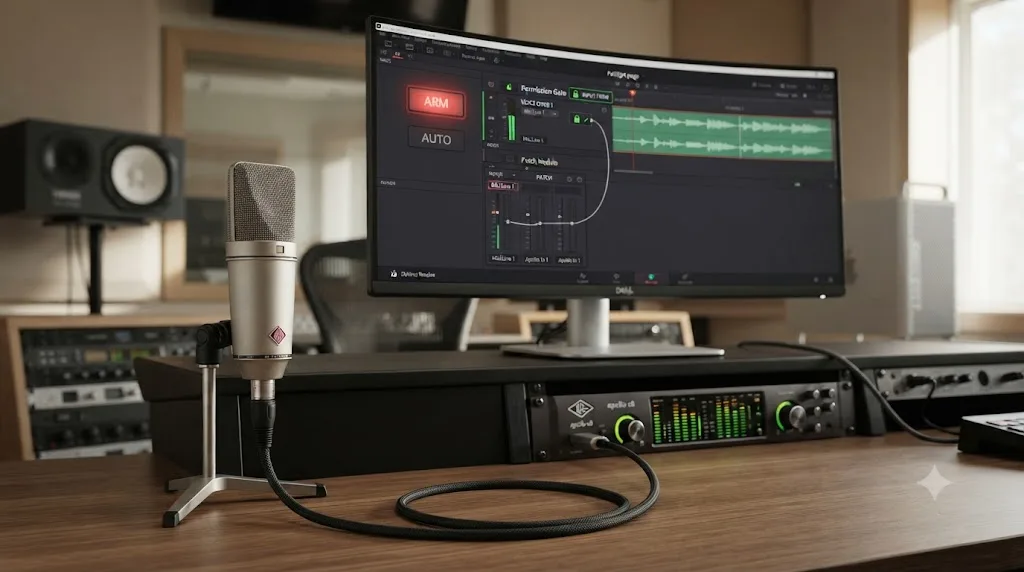
The input side has its own version of this whole article, and it comes down to three gates. All three have to open before a voiceover records. DaVinci Resolve can't record a microphone until the operating system allows it, the input is patched to a track, and that track is armed.
Gate one is the operating system. On a Mac, microphone access is permission-based per app: as Apple's own support guide puts it, "You can decide which apps are allowed to use the microphone," under System Settings, then Privacy and Security, then Microphone. If Resolve isn't allowed there, every input in the app reads dead silence and nothing inside Resolve can fix it. Windows has the equivalent under Settings, then Privacy and security, then Microphone, including a separate switch for desktop apps that catches people.
Gate two is patching. Resolve doesn't assume which physical input feeds which track. On the Fairlight page, click the input slot at the top of the track's channel strip in the Mixer, choose Input, and assign your interface's mic input, or do the same through the Fairlight menu's Patch Input/Output panel. An unpatched track records nothing, forever, with no error.
Gate three is arming. Click the R button on the track header so it's ready to record, and check your levels move on that track's meter when you speak. If the meter moves while you talk, all three gates are open and pressing record in the transport will capture it.
One hardware warning belongs here: avoid recording through Bluetooth earbuds. The moment a Bluetooth headset's mic activates, the connection drops to a low-quality headset profile, and both the recording and your monitoring pay for it. A cheap wired USB mic beats expensive wireless earbuds for voiceover every time.
Why does audio cut out over HDMI or Bluetooth?
Wireless and display audio fail in ways wired headphones never do, and Resolve is less forgiving about it than your browser.
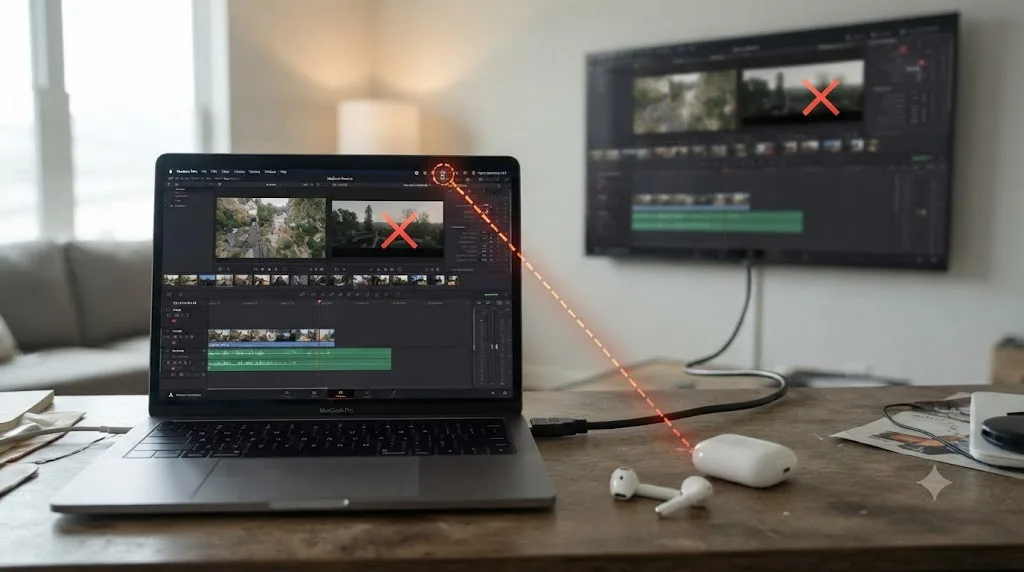
Bluetooth first. Headphones and earbuds renegotiate their connection constantly: they switch profiles when an app grabs the microphone, they drop and reconnect when they sleep, and each renegotiation can leave Resolve holding a dead audio stream. The OS recovers on its own. Resolve often doesn't, and it keeps pushing audio into a connection that no longer exists. The fix is boring and reliable: after any Bluetooth reconnect, go back to Preferences, then Video and Audio I/O, and reselect the device. If audio dies every time you take a call and come back, that's the pattern. For serious editing, wired monitoring skips the whole category, and it removes Bluetooth's latency from your sync judgments as a bonus.
HDMI has a different trap. If you monitor through a Blackmagic device with the Desktop Video engine, your audio travels with the video signal to the connected display, not to your desktop speakers, so a TV that's off, muted, or switched to another input means silence at your desk while everything in Resolve looks correct. And if your computer's own HDMI output is connected to a display, the operating system may quietly make that display the default output, at which point the Automatic speaker configuration checkbox described earlier happily follows it. Same panel, same fix: pick your real output device by hand and uncheck the automatic option.
Which output setup should you pick for your hardware?
All the hardware advice above collapses into one decision. Find your setup in the left column and you know your engine, and more usefully, you know which trap to watch for.
| Your setup | I/O Engine to pick | The trap to watch for |
|---|---|---|
| Built-in speakers or headphone jack | System Audio | Automatic speaker configuration re-routing your output |
| USB audio interface on Windows | ASIO | Another app holding the driver exclusively; rate mismatch |
| USB audio interface on macOS | System Audio | Device rate in Audio MIDI Setup not matching the timeline |
| Blackmagic UltraStudio or DeckLink | Desktop Video | Audio leaves with the video signal, so it plays on that device, not your desktop |
| Bluetooth headphones or earbuds | System Audio | Dead stream after every reconnect until you reselect the device |
| TV through the computer's HDMI port | System Audio | The OS quietly making the TV the default output |
Two habits make this table mostly unnecessary. Pick one output setup and stick with it for the length of a project, because nearly every hardware-side silence in this guide starts with a device change mid-session. And when you do change something, make Preferences, then Video and Audio I/O your reflexive next stop, the way you'd check a mirror after adjusting a car seat.
Why does a sample rate mismatch cause DaVinci Resolve to go silent?
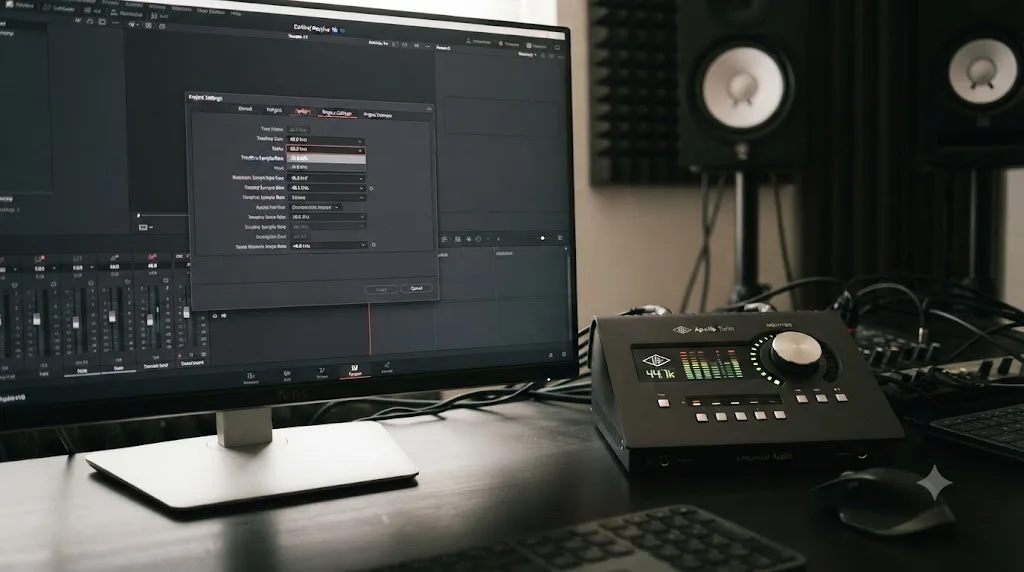
This is the cause that looks the most like a bug, because nothing in the interface flags it. Your project has a timeline sample rate, set under Project Settings, then Fairlight. Your speakers or audio interface run at their own rate too. When those two numbers don't match, Resolve can output nothing at all instead of throwing an error.
Fairlight is built to handle mismatched source media. It converts clips recorded anywhere from 44.1kHz up to 384kHz to match your project's Timeline Sample Rate automatically. What it won't silently fix is the last step: the rate your project outputs at versus the rate your actual playback device is configured for. Check both, and set them to match.
If you're mixing dialogue, music, and clip audio recorded on different devices, this is worth checking early rather than after you've torn apart every track looking for a mute button that was never engaged.
Why does my exported video have no audio even though the timeline sounds fine?
This one catches editors who fixed the problem for monitoring and never checked it survived to the render. Two things need to be true at once, and Resolve treats them as separate settings.
First, whatever Mute or Solo you used to isolate a track during editing has to be switched off. Per Blackmagic's own manual, engaging Mute or Solo on the Audio Mixer disables that track's audio "both during playback and delivery for output." A track muted for a quiet afternoon of editing renders just as silent as one muted on purpose. It doesn't ask before it exports that way.
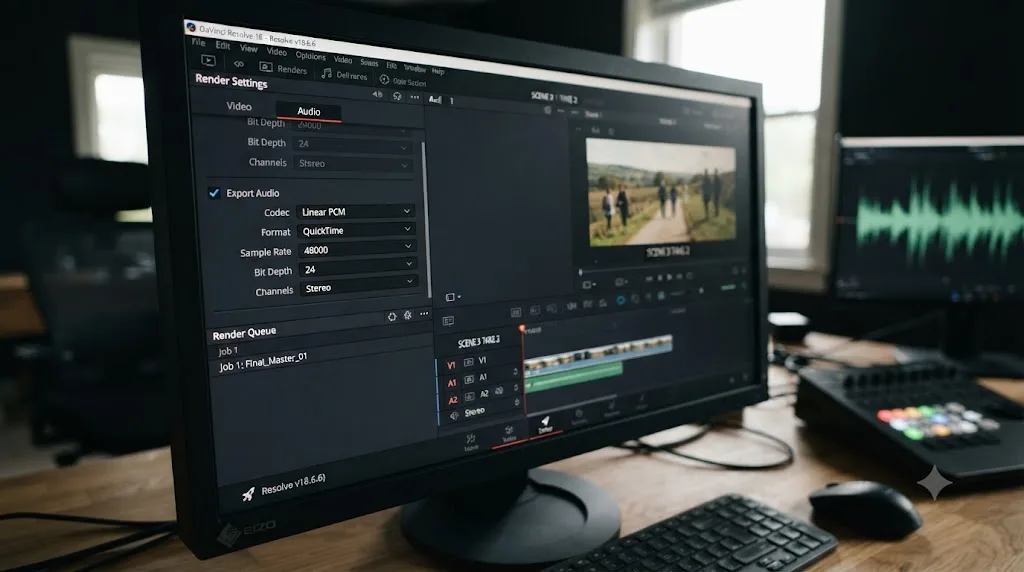
Second, open the Deliver page, then the Audio tab inside Render Settings, and confirm Export Audio is checked. It's an easy box to uncheck by accident, and just as easy to forget you unchecked.
While you're in that tab, look at two more settings that produce silent or broken exports on their own. Output Track decides what actually gets rendered: leave it on the main bus (Bus 1 or Main 1) unless you have a reason not to, because pointing it at a specific timeline track renders only that track, and pointing it at an empty one renders silence with the checkbox proudly ticked. Codec matters too: Linear PCM is the safe choice inside MOV files, AAC the standard inside MP4s, and if a delivery platform rejects your audio, mismatched codec and container is the first thing to rule out. If you want the rest of the Deliver page covered, our DaVinci Resolve export settings guide walks the full render checklist beyond this tab.
Why did audio stop working after an update or a crash?
"It worked yesterday" is real diagnostic information, and it points away from your timeline. If nothing in the project changed but the app did, start with what the update or crash could have touched.
After an update, go straight back to Preferences, then Video and Audio I/O, before you suspect anything else. An update can re-enumerate your audio devices, and a preference that pointed at "the second device in the list" may now point at a different second device. Thirty seconds of re-confirming the engine and output beats an evening of rollback attempts, so resist the urge to reinstall the old version as your first move.
After a crash, think about state, not settings. Quit Resolve completely rather than just closing the project, because a fully restarted app rebuilds its connection to the audio hardware from scratch. If you use an external interface, the order of operations matters in practice: power the interface on and plug it in before launching Resolve, so the device is present when the app builds its device list. Interface first, Resolve second, and a surprising number of morning-after silences never happen.
If it still won't speak after a clean restart in the right order, run the clean-project WAV test from the end of this guide. It separates "the update broke my setup" from "the crash damaged my project" in about a minute, and it tells you which half of this article to reread.
Which symptom points to which cause?
Silence isn't one symptom. It has flavors, and each one narrows the search.
| Symptom | Most likely cause | Where to fix it |
|---|---|---|
| Whole timeline silent, meters flat | Solo engaged somewhere, or tracks muted | Track headers on the Edit or Fairlight page |
| Whole timeline silent, meters moving | Wrong output device, monitoring level, or a dead Bluetooth link | Preferences, Video and Audio I/O; Fairlight monitoring |
| One clip silent, the rest play | Clip-level mute or audio never edited in | Inspector Audio tab; re-edit with A1 destination on |
| Clip shows no waveform anywhere | No audio stream, wrong channel mapping, or an undecodable codec | Clip Attributes; transcode audio to PCM |
| Audio drifts out of sync, then falls apart | Variable frame rate source footage | Transcode to constant frame rate before import |
| Sounds fine in Resolve, export is silent | Leftover Mute or Solo, Export Audio off, or wrong Output Track | Deliver page, Audio tab |
| Sound died after switching headphones | Output device never reselected | Preferences, Video and Audio I/O |
| Fairlight silent, Edit page fine | Control room level, dim, or a track off the main bus | Fairlight monitoring section; Bus Assign |
| Silent only while scrubbing, playback fine | Audio Scrubbing toggled off | Timeline menu, Audio Scrubbing, or Shift-S |
| Sound dips out mid-clip, clip present | Volume keyframes, automation, or a closed noise gate | Clip volume curve; mixer effects slots |
| Audio gone from one stretch, gap in the track | Edit accident: linked selection off, overwrite, or sync lock | Undo, or re-edit the clip from the Media Pool |
| Microphone records nothing | OS permission, input patch, or record arm | OS privacy settings; Fairlight input patching |
| Worked yesterday, silent today | Update reshuffled devices, or stale state after a crash | Re-check Video and Audio I/O; restart interface first, Resolve second |
Match your symptom, jump to that section above, and skip the rest.
What does the full diagnosis look like in practice?
Here's the method applied to a realistic case, so you can see how few of these checks any single problem actually needs. Say you're cutting a tutorial video from three sources: an OBS screen recording, a phone clip of your hands on the keyboard, and a music bed you exported as a WAV.
Pass one: you press play and the whole timeline is silent. First look goes to the meters, and they're flat, so the signal never leaves the tracks and the entire hardware half of this article is irrelevant. Scan the track headers and there it is: a solo engaged on the music track from when you were checking the fade last night. One click. Sound returns.
Pass two: everything plays except the phone clip. It's one clip, so the branch is clip-level: its Inspector shows no mute, but its waveform is flat. The source test settles it. The clip is silent in the Media Pool viewer too, and silent in VLC outside Resolve, which means the problem arrived with the file: the phone recorded video-only in whatever burst mode it was in, and no setting in any editor will conjure that audio back. You re-shoot the insert, or you cover it with the music bed and move on.
Pass three: the edit sounds perfect, you render it, and the MP4 comes out mute. Playback was fine, so nothing upstream of the Deliver page changed: the suspects shrink to the export settings. Export Audio is checked, but Output Track is set to a lone timeline track left over from a narration-only render you did last week, and that track is empty in this timeline. Set it back to the main bus, render again, done.
Three different silences, three different causes, and not one of them needed more than two checks, because each symptom eliminated most of the list before you opened a single panel. That's the whole trick of this page: don't check everything, check what the symptom leaves standing.
Is this a bug, or just a setting?
Almost always a setting. Editor and trainer Larry Jordan, who has built training webinars specifically around Fairlight in Resolve, described running into exactly this pattern himself. "When I first created this webinar, I found what I thought was a bug," he wrote. "It wasn't. It was actually a preference with a very bad default setting," in his walkthrough of Fairlight audio editing.
That's worth remembering before you file a bug report or reinstall the app. Resolve's audio path has more checkpoints than most editors expect, from the source file to the clip, the track, the bus, the I/O Engine, the sample rate, and finally the export flag, and a silent timeline is rarely more than one of those checkpoints set wrong.
If you're still new to where these panels live in Resolve's interface generally, our beginner's guide to DaVinci Resolve maps out the seven pages and where Fairlight and Deliver sit among them.
What's the fastest way to check every audio setting in order?
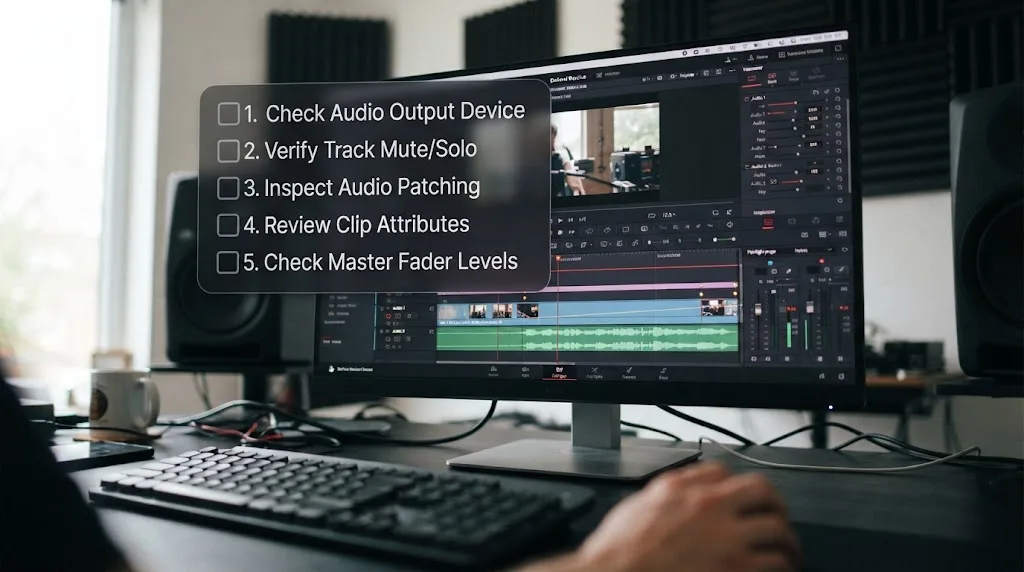
Work through these seven in sequence. Most editors find the problem in the first two.
- Track header. Check Mute and Solo on every track, on both the Edit and Fairlight pages.
- Clip Inspector. Select the silent clip and check its own Audio tab for a clip-level mute.
- Clip Attributes. Right-click the clip in the Media Pool, open Clip Attributes, then Audio. Confirm the file has an audio stream, the channels are mapped sensibly, and the codec is one your OS decodes.
- I/O Engine. Preferences, System, Video and Audio I/O. Confirm the engine and output device match your actual hardware, and reselect the device after any Bluetooth or dock change.
- Fairlight monitoring. Control room level up, dim off, every track assigned to the main bus under Bus Assign.
- Sample rate. Project Settings, Fairlight, Timeline Sample Rate, checked against your interface's rate.
- Export Audio. Deliver page, Audio tab: checkbox on, Output Track on the main bus, and no leftover Mute or Solo from earlier in the edit.
If hunting through seven different menus for one setting is the part that eats your afternoon, that's the specific gap TryUncle is built for. It's an AI tutor that looks at your actual Resolve window and points at the exact control you're asking about, instead of sending you to a ten-minute video for a two-second answer.
What if it's still silent after all of that?
Isolate before you reinstall. Create a brand new project, drop in a plain WAV file, and press play. If the WAV plays, your system and your Resolve install are fine, and the problem lives inside the old project or its media: go back to Clip Attributes, the frame rate check, and Bus Assign with fresh eyes. If even the WAV is silent in a clean project, the problem is below Resolve: check the operating system's output device and volume, and on Windows check the per-app volume mixer, which can mute a single application while everything else on the machine plays fine.
Only after both of those checks fail is a reinstall a reasonable use of your time. In practice you'll almost never get there. Track mute and solo first, clip mute second, the file itself third, hardware and monitoring fourth, sample rate fifth, export settings last. Work top to bottom and you'll find a silent timeline's actual cause in minutes, almost every time.
Frequently asked questions
- Why does DaVinci Resolve play video but not audio?
- Usually a muted or soloed track, a clip muted individually in the Inspector, or a mismatch between your project's audio sample rate and the rate your audio interface is set to. Check the track header Mute and Solo buttons first, since they're the fastest thing to leave on by accident. If the clip shows no waveform at all, check Clip Attributes instead, because the file may not carry the audio you think it does.
- Why is there no sound in Resolve even though I can see a waveform on the clip?
- A visible waveform only proves the clip has an audio stream, not that anything is routing it to your speakers. Check Preferences, then System, then Video and Audio I/O, and confirm the I/O Engine and output device match the hardware you're actually listening on.
- Why does my exported DaVinci Resolve video have no audio?
- Two separate settings control this, and either one alone produces a silent export. Confirm any Mute or Solo you used to isolate a track while editing is switched back off, since Resolve disables that track for delivery too, then confirm Export Audio is checked in the Deliver page's audio tab and Output Track points at the main bus.
- How do I fix a sample rate mismatch causing no sound in DaVinci Resolve?
- Open Project Settings, then Fairlight, and check the Timeline Sample Rate. Then open Preferences, System, Video and Audio I/O, and set your output device to that same rate. Fairlight converts mixed-rate source clips automatically, but the timeline's own output rate still has to match what your speakers or interface expect.
- Why did DaVinci Resolve stop playing audio after I switched headphones or speakers?
- Resolve doesn't always follow your operating system when you plug in a new device. Reopen Preferences, System, Video and Audio I/O, and manually reselect the correct output device, since Resolve can keep pointing at whatever was selected the last time it launched.
- Is DaVinci Resolve's audio problem a bug I should report?
- Rarely. It's almost always a setting, not a bug. Work through the Mute, Inspector, Clip Attributes, I/O Engine, and sample rate checks below first. The two cases that look most like bugs, AAC audio on a Linux install and variable frame rate phone footage, are format limits with known workarounds, not defects.
- Why is there no sound when I scrub the timeline in DaVinci Resolve?
- Audio scrubbing is a toggle, and many editors keep it off on purpose. Open the Timeline menu and enable Audio Scrubbing, or press Shift-S. If normal playback is silent too, the problem is elsewhere: start with the track Mute and Solo buttons.
- Why won't DaVinci Resolve record my microphone?
- Three gates have to open: the operating system must allow Resolve to use the microphone (Privacy settings on both macOS and Windows), the input has to be patched to a track on the Fairlight page, and that track has to be armed for record. Check them in that order.
Sources
- DaVinci Resolve Manual - Video and Audio I/O preferences (Blackmagic Design)
- DaVinci Resolve Manual - Mute and Solo Tracks for Output (Blackmagic Design)
- Larry Jordan: Edit Audio Using Fairlight in DaVinci Resolve 19
- DaVinci Resolve - Fairlight product page (Blackmagic Design)
- DaVinci Resolve 20 Supported Codec List (Blackmagic Design)
- Apple Support - Control access to the microphone on Mac
Put this guide to work with TryUncle.
Ask about the step you’re on. TryUncle sees your screen and points at the control you need, so you can keep learning in your own project.
Get TryUncle for Mac or WindowsKeep reading
Guides · Jul 7, 2026 · 23 min
DaVinci Resolve Export Settings: Numbers That Actually Work
The exact DaVinci Resolve export settings for YouTube, client handoffs, and ProRes archives, plus what changed with Resolve 21's H.265 encoder.
Guides · Jul 7, 2026 · 32 min
DaVinci Resolve for Beginners: The Complete Starter Guide
Learn DaVinci Resolve from zero: what it costs, what it needs to run, the seven pages you'll actually use, and the steps to cut your first project.
Fixes · Oct 3, 2026 · 16 min
DaVinci Resolve 21 Tutorial Controls Do Not Match? Fix It
DaVinci Resolve 21 tutorial controls do not match? Identify the version, page, layout, and edition difference, then find the right control.