Articles / Fixesupdated for DaVinci Resolve 21.0.2 (July 2026)
DaVinci Resolve Free Version's 4K Export Limit: Myth vs. Fact
Quick answer
No, it's not a myth: DaVinci Resolve's free version can export up to Ultra HD 3840x2160 at 60fps in 8-bit, real 4K, just not DCI 4K (4096x2160), 6K, 8K, or resolutions above UHD. Those, plus 10-bit output and frame rates past 60fps, require DaVinci Resolve Studio ($295 one-time), per Blackmagic's own product pages.
Somebody in a Discord server or a YouTube comment section told you DaVinci Resolve's free version can't export in 4K. Maybe you read it on a five-year-old blog post. Maybe you just assumed it, the way people assume any "free" software holds something back. Either way, you're here to find out if it's true.
It isn't, not the way most people mean it. But there's a real limit hiding under the myth, and knowing exactly where it sits will save you from either buying software you don't need or hitting a wall you didn't see coming.
Is DaVinci Resolve's free 4K export limit actually a myth?
Partly. That's the honest, unsatisfying answer, and it's the whole reason this page needs to exist.
The claim "the free version can't export 4K" is false. Flatly, verifiably false. Blackmagic's own product page for the free version states it works "with virtually all 8-bit video formats at up to 60fps in resolutions as high as Ultra HD 3840 x 2160," according to the DaVinci Resolve product page. Ultra HD 3840x2160 is 4K. Real 4K, the same number your phone, your mirrorless camera, and your YouTube upload settings mean when they say 4K.
DaVinci Resolve's free version has exported real 4K UHD video for years, and Resolve 21 hasn't changed that.
But the claim isn't pulled from nowhere either. There is a real ceiling above standard 4K UHD, and there's a second, narrower definition of "4K" that the free version genuinely can't touch. The myth survives because it's built on a fact, just the wrong fact, stretched past where it actually applies. That's the shape of almost every persistent tech myth: a kernel of truth, generalized until it says something false.
So the accurate version of the claim isn't "no 4K export." It's "no export above 4K UHD, and no true cinema 4K." Those are very different sentences, and only one of them should change what you buy.
What resolution, frame rate, and bit depth can the free version really export?
Here's the actual spec sheet, not the rumor.
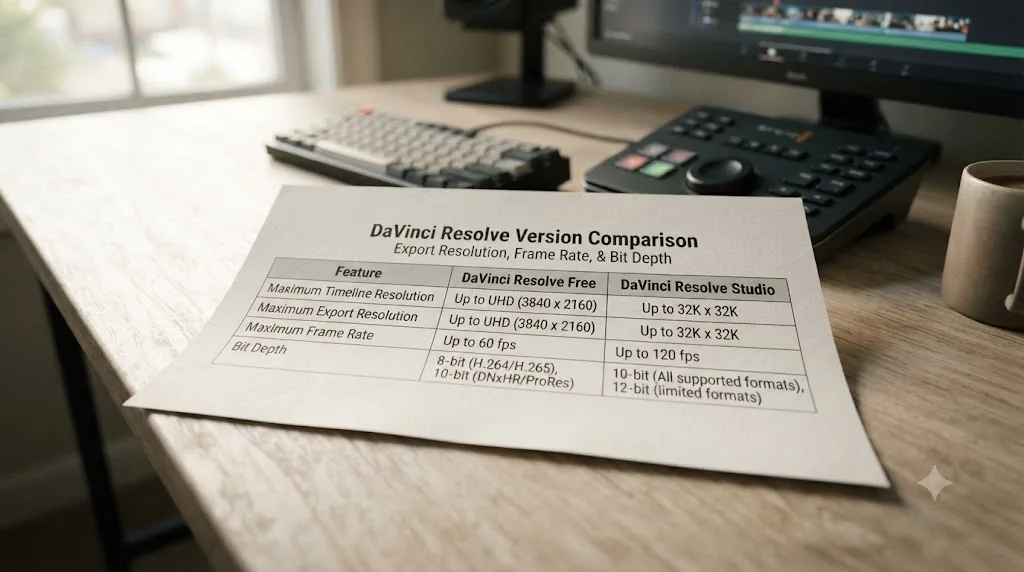
| Setting | DaVinci Resolve (free) | DaVinci Resolve Studio |
|---|---|---|
| Maximum resolution | Ultra HD 3840x2160 | Up to 32K |
| Maximum frame rate | 60fps | Up to 120fps |
| Color bit depth | 8-bit (virtually all formats) | Adds 10-bit support |
| GPUs used | One | Multiple GPUs |
| H.264/H.265 hardware encode/decode | CPU-based on Windows and Linux | Accelerated on supported GPUs |
| Watermark on standard export | None | None |
That table comes from combining Blackmagic's own wording on its free version page and Studio page. Notice what's not on it: a 1080p ceiling, a time limit, or a watermark on your actual footage. Those would be real reasons to call the free version crippled. None of them exist.
3840x2160 is the exact pixel count broadcasters, streamers, and nearly every consumer display call "4K." If you're delivering to YouTube, Instagram, TikTok, a client's website, or a 4K television, this is the number that matters, and the free version hits it without complaint.
A 3840x2160 export from the free version and the same resolution export from Studio are pixel-for-pixel identical in resolution. Studio doesn't make your UHD footage sharper. It unlocks resolutions and specs above UHD that the free version was never built to reach.
Where the ceiling actually bites is the row most people never read: anything past 3840x2160, anything past 60fps, and 10-bit color. That's a real, hard limit. It's just a much smaller limit than "no 4K."
Where did the "no 4K export" myth come from?
Myths like this one rarely get invented out of thin air. They usually come from someone stating a true, narrow fact, and someone else repeating it without the narrow part.
A few likely sources stack on top of each other here.
Old software, older comparisons. Free video editors have trained users to expect a catch: a watermark, a time limit, a hard resolution cap at something modest like 1080p. iMovie, older CapCut tiers, and countless trial-mode editors all work that way. When people hear "DaVinci Resolve has a free version," they pattern-match it to that experience before checking the actual spec, and 1080p becomes the assumed number instead of the real one.
DCI 4K versus UHD confusion. This is the biggest single driver, and it's genuinely confusing even for people who've worked in video for years. There are two different resolutions that both get called "4K" in casual conversation, and the free version supports one but not the other. We'll walk through that split in the next section, because it's the actual technical heart of the myth.
Import versus export mixing. A creator imports 8K raw footage into the free version, notices Resolve handles it fine in the timeline, then hits a wall trying to render a master above UHD. The natural but wrong conclusion: "the free version can't handle 4K." The accurate conclusion: the free version handles any input resolution, it just won't output above UHD.
Genuinely old, stale content. Some of the pages that still rank for versions of this question date back years, written when Resolve looked and worked differently. A 2018 post on this exact topic states plainly that "Resolve allows as maximum resolution in your projects Ultra HD (4K), so exporting is also limited to that size," per Creative Film Editing's write-up on free-version limitations. That's actually correct, and it's been correct the whole time. The problem is that pages like it get skimmed, summarized secondhand, and eventually flattened into "no 4K" by the time the claim reaches a comment section three tiers removed from the source.
None of those explanations are stupid. They're the normal way information degrades as it passes through fewer and fewer people who actually checked the product page.

UHD vs. DCI 4K: what's the actual difference, and which one is locked?
This is the split that actually matters, and almost nobody outside professional cinema workflows learns it until they collide with it.
"4K" isn't one number. It's two, and they're close enough to get confused constantly.
| Standard | Resolution | Aspect ratio | Where it's used |
|---|---|---|---|
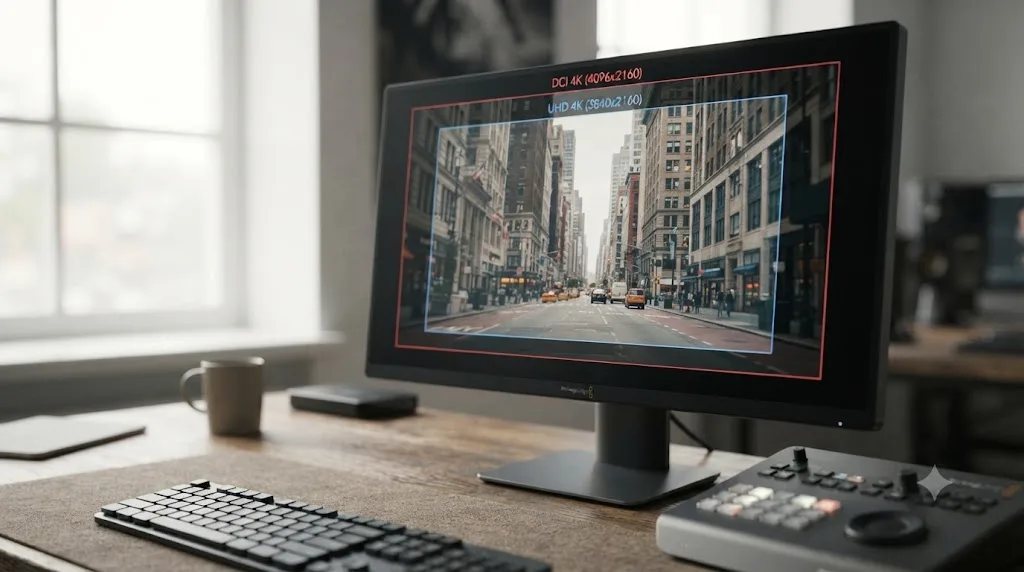
| UHD (Ultra HD) | 3840x2160 | 16:9 | TVs, streaming, YouTube, social platforms, most cameras |
| DCI 4K | 4096x2160 | ~1.9:1 (17:9) | Digital cinema projection, festival deliverables |
DCI stands for Digital Cinema Initiatives, the industry body that set the projection standard used in commercial theaters. UHD is the consumer broadcast and display standard defined for televisions and streaming. They're both roughly 4,000 pixels wide, which is where the shared "4K" nickname comes from, but strictly speaking, "4K" refers to the cinema DCI standard, and UHD is the separate consumer standard, per Wikipedia's technical breakdown of 4K resolution. Every TV, monitor, and streaming platform uses "4K" and "UHD" interchangeably anyway, which is exactly why the mixup happens so easily.
The free version of DaVinci Resolve supports UHD 3840x2160, the consumer 4K standard, but not DCI 4K 4096x2160, the cinema 4K standard.
That gap is only 256 pixels wide, a rounding error visually, but it's a hard line in Resolve's export options. If your project needs to project in an actual theater, or your deliverable spec explicitly asks for DCI 4K rather than UHD, the free version stops there. If your video is going to YouTube, a TV, a phone, a laptop, or basically any screen a normal audience owns, UHD is the number that platform actually wants, and the free version already delivers it.
The confusion runs deep enough that even industry press has written entire pieces explaining it, because working editors mix it up too. RedShark News, a film and broadcast trade publication, has covered the split directly under the headline "Living with two different types of 4K," which tells you this isn't a beginner-only mistake. It's a naming collision baked into the industry.
So when someone says "the free version can't do 4K," ask them one question: do they mean UHD, or DCI? Nine times out of ten, they mean UHD, and they're wrong. The one time in ten they mean DCI, they're right, and now you know exactly why.
Can you import and edit 6K or 8K footage on the free version even though you can't export above UHD?
Yes, completely. This is the part the myth gets most backwards, because it assumes the limit sits at the front of your workflow instead of the back.
The resolution ceiling in the free version is an export limit. It has nothing to do with what footage you can bring in, cut, color, or composite. Blackmagic's own marketing leans on exactly this capability, calling DaVinci Resolve "the only software that you can use to edit and grade 8K footage in real time," per the What's New page for Resolve 21, a claim made about the software generally, not gated to the paid tier.
So a real workflow looks like this. You shoot on a camera that records 6K or 8K raw. You import that footage into the free version. You build your timeline, cut your scenes, pull your grade, run your Fusion comps, mix your audio, all at the source resolution or scaled to whatever your project canvas is set to. None of that touches the export ceiling, because none of it is exporting yet.
Where the wall shows up is the last step: when you go to the Deliver page and try to render a master file above 3840x2160. That's the only place the free version says no.
You can edit, grade, and finish 8K footage entirely inside the free version of DaVinci Resolve. You just can't deliver the master above Ultra HD.
This matters more than it looks like on paper, because it changes how you should think about camera purchases. Buying a camera that shoots 6K or 8K doesn't force you into Studio. It just means your final output resolution will be lower than your source resolution, the same tradeoff editors have made forever when they shoot wide and deliver tight, whether for reframing flexibility, digital zoom room in post, or stabilization headroom. The free version handles the entire pipeline; it only asks you to land the plane at UHD.
There's a genuine creative upside hiding in that constraint too. Downscaling from 6K or 8K source to a 3840x2160 master produces a noticeably cleaner, sharper image than shooting native 4K and exporting native 4K, because you're throwing away detail instead of stretching to make it. Editors who shoot 6K specifically to deliver a crisper UHD master aren't working around a limitation; they're using one on purpose.
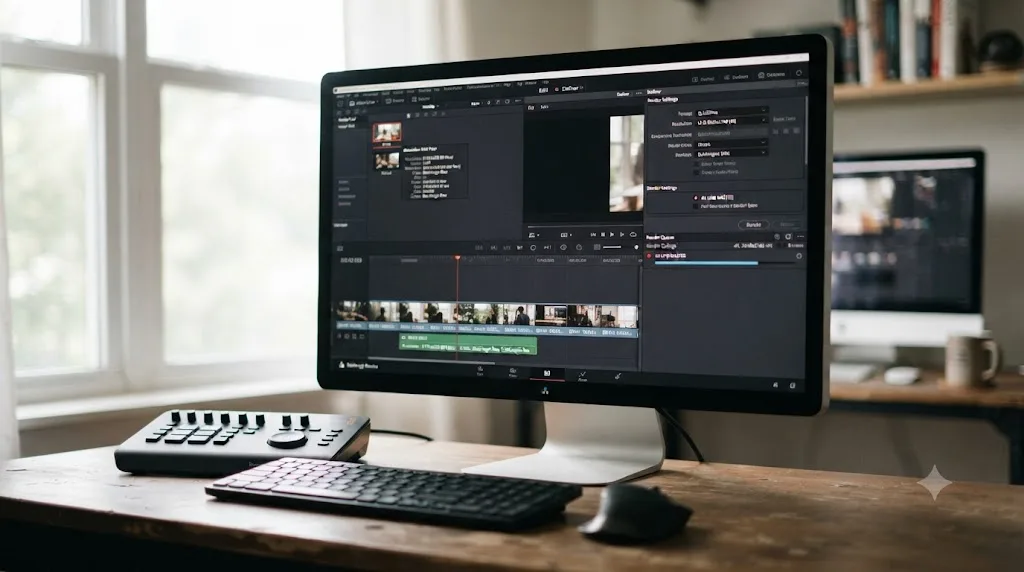
Does the free version watermark your 4K exports?
No. This one deserves a direct answer because it's the second-most-common myth riding alongside the resolution one, and the two get tangled together constantly.
Every export from the free version, at any supported resolution up to 3840x2160, renders clean. No logo, no timestamp overlay, no "trial" banner. That's true whether you're exporting a two-minute social clip or a feature-length cut.
Where a watermark does appear: when you preview a Studio-exclusive effect without an active Studio license. Magic Mask, film grain, optical blur, and the Neural Engine tools all render with a watermark burned into the frame in the free version, so you can audition the effect on your own footage before deciding whether it's worth paying for. That watermark has nothing to do with resolution. It shows up on a 1080p timeline exactly the same as it would on UHD, because it's tied to the effect, not the export size.
A clean 4K UHD export and a watermarked Studio-effect preview are two completely different mechanisms in DaVinci Resolve, and confusing them is where a lot of the myth's staying power comes from.
If you've seen a watermark on a 4K export online, one of two things happened: someone was previewing a Studio effect without a license and screen-recorded it, or they were looking at output from an entirely different piece of software. It wasn't a resolution penalty, because DaVinci Resolve doesn't have one.
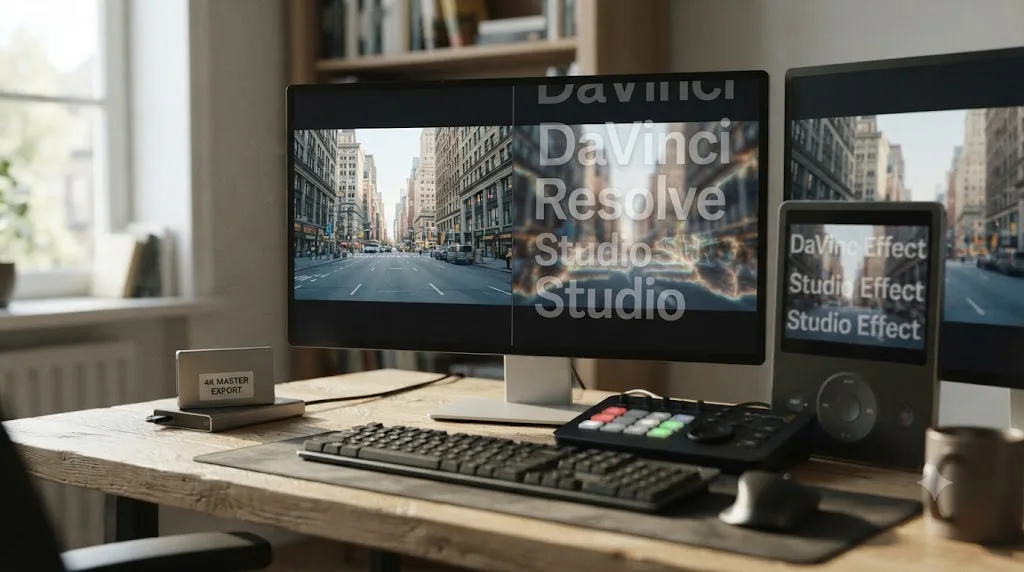
Why do free-version 4K exports sometimes look worse or take longer than expected?
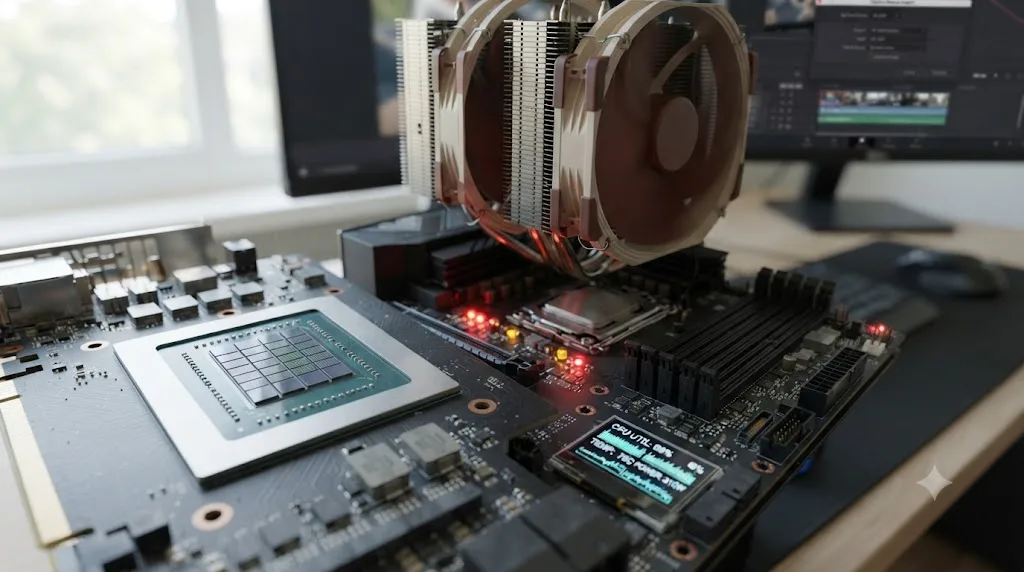
If your UHD export genuinely looks soft, banded, or takes forever to render, the resolution ceiling almost certainly isn't the cause. Two other free-version limits get mistaken for it constantly: bit depth and encoding hardware.
Bit depth. The free version works with "virtually all 8-bit video formats," in Blackmagic's own phrasing from the free version product page. Studio adds 10-bit support. A growing share of modern mirrorless and cinema cameras record 10-bit 4:2:2 footage by default once you step past base picture profiles, especially with any log color profile active. If your source is 10-bit and your delivery pipeline expects it to stay 10-bit through a heavy grade, the free version's 8-bit ceiling can introduce visible banding in gradients, skies, and shadows, particularly after aggressive color work. That's a real quality gap, but it's a bit-depth gap, not a resolution one.
Encoding hardware, and this is where your operating system matters a lot.
| Platform | Free version H.264/H.265 encoding | DaVinci Resolve Studio |
|---|---|---|
| macOS | Apple's VideoToolbox handles hardware encoding at the OS level, so the free version is already fast | Full hardware acceleration, similar real-world speed |
| Windows | Runs on the CPU; the GPU's dedicated video encoder sits unused | GPU encoders (NVENC, Quick Sync, AMD) put to work |
| Linux | Free build ships without H.264 and AAC support at all | H.264/H.265 supported and accelerated |
Blackmagic's Studio product page lists "accelerated H.264 and H.265 hardware decoding and encoding" as a paid feature, without breaking the claim down by operating system on the page itself, but the practical effect lands differently depending on your platform. If you're editing on Windows with a modern GPU and wondering why your 4K export crawls along despite a powerful graphics card, that's very likely the free version's CPU-bound encoding path, not the resolution limit. Our Apple Silicon M4 settings guide covers why Mac users mostly sidestep this entire category of problem, since Apple silicon's hardware encoder works in both the free and paid versions.
A slow or lower-quality 4K export from the free version is almost always a bit-depth or hardware-encoding problem, not proof that the resolution limit is broken or misunderstood.
Linux users hit the strangest version of this. The free build there doesn't just encode H.264 slowly, it doesn't support H.264 or AAC export at all without Studio, per that same platform breakdown. If you're on Linux and a plain MP4 export refuses to work entirely, that's this limit surfacing, and it has nothing to do with your project's resolution setting.
Does Studio's Super Scale change what counts as a "sharp" 4K export?
There's a fifth gate hiding behind the resolution ceiling, and it trips up almost nobody until they try to stretch older or lower-resolution footage to fill a UHD timeline.
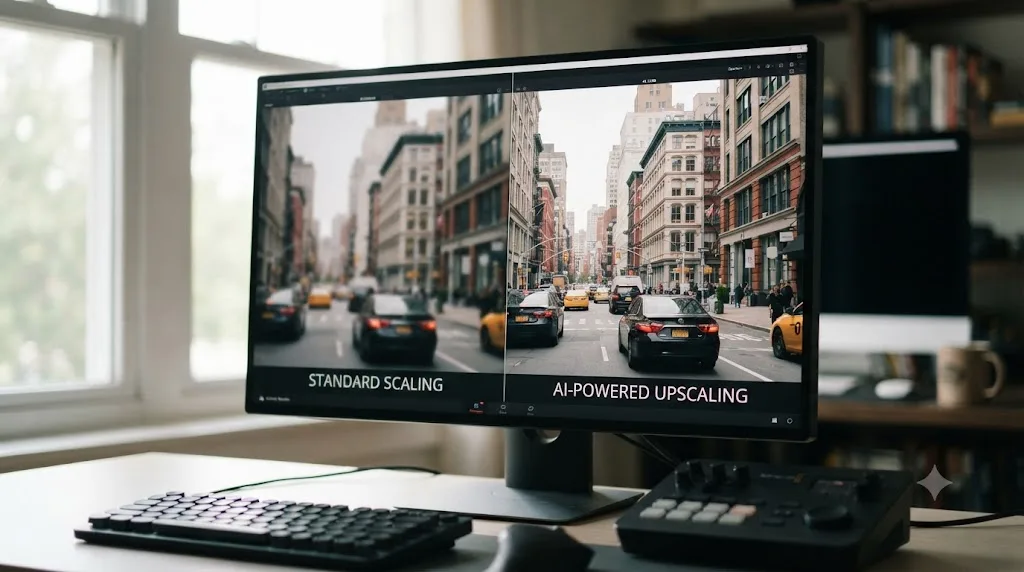
Say you're cutting a project on a 3840x2160 timeline, and part of your footage is archival, or shot on an older camera that tops out at 1080p. You scale that footage up in the Inspector to fill the frame. On the free version, DaVinci Resolve does that with standard scaling, the same kind of interpolation every NLE has offered for two decades: it stretches existing pixels and smooths the gaps. The image gets bigger. It doesn't get sharper.
Studio ships a different tool for that exact problem: Super Scale, part of the DaVinci Neural Engine. Instead of stretching pixels, it analyzes the frame and generates new detail, up to 4x the original resolution, according to Blackmagic's own Studio product page. It's built specifically for fitting HD or lower-resolution footage into a 4K or 8K deliverable without the soft, slightly plasticky look that plain scaling produces.
Super Scale is an upscaling-quality feature, not an export-resolution feature. The free version already lets you render any UHD timeline, whether the footage on it is native 4K or stretched-up 1080p. What the free version can't do is make that stretched footage look as sharp as Studio's AI upscale would.
Here's a concrete version of that gate. Say you're cutting a UHD 3840x2160 timeline, and one clip in the middle is an old 1280x720 phone recording you can't reshoot. On the free version, you scale that clip up in the Inspector to fill the frame, and it exports at full UHD resolution right alongside your native 4K clips, no error, no downgrade, no fight from the software. It just looks softer than the shots around it, because standard scaling has no way to invent detail that was never captured. Super Scale wouldn't just make that clip bigger; it would generate plausible new detail using the same Neural Engine that powers Resolve's other AI tools, closing much of that gap. Whether that gap actually matters depends on how long the clip stays on screen and how sharp everything around it looks. A two-second insert buried in a montage rarely needs the fix a hero shot does.
This gap has nothing to do with anything discussed earlier on this page. If your source footage is already native UHD or higher, this gate never applies to you; you're not scaling anything up, so there's nothing for Super Scale to improve. It only matters the moment your source resolution falls short of your timeline resolution, which is a footage problem, not an export problem. Buying Studio fixes it by improving the upscale, not by unlocking a resolution you already had access to.
Did DaVinci Resolve 21 change any of this?
No. Resolve 21's own What's New page highlights the Photo page, expanded AI tools, and Fairlight improvements as headline additions, with no mention of a change to the free version's resolution, frame rate, or bit-depth ceiling. The free version's product page, current as of this writing, still lists the same Ultra HD 3840x2160 at 60fps, 8-bit description that's applied for years.
That stability is worth knowing on its own, separate from the myth-busting. Blackmagic has moved individual features across the free-to-Studio line before, most notably bringing multi-user collaboration and HDR grading tools down into the free tier over past versions. The export resolution ceiling hasn't been one of the features that moved. If you're weighing whether to wait for a future update to lift the UHD cap for free, there's no signal anywhere in Blackmagic's current messaging suggesting that's coming, and nothing in this post should be read as a prediction that it will.
As of DaVinci Resolve 21.0.2, the free version's export ceiling is exactly where it's been for years: Ultra HD 3840x2160 at 60fps, 8-bit.
If you're running an older copy of the free version and haven't updated in a while, the number hasn't moved either direction. It's a stable, predictable line, which is honestly more useful for planning a workflow than a moving target would be.
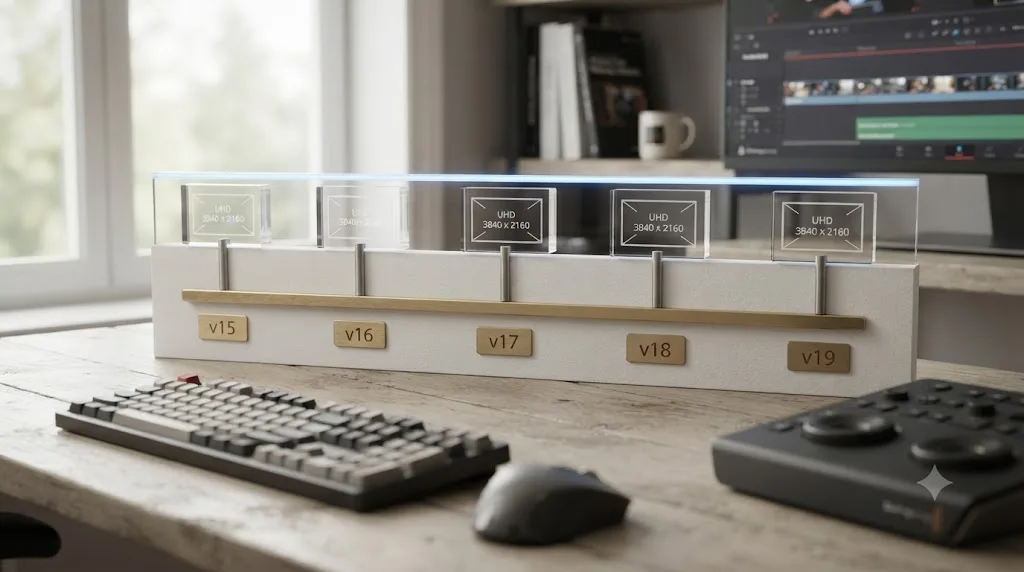
How do you check whether you're really hitting the free version's resolution ceiling?
Before you conclude you need Studio, or conclude the whole limit is a myth and something else is broken, run through this quickly. It takes about two minutes and rules out the wrong culprit before you spend money on the right one.
- Open Project Settings and check Timeline Resolution. Under Master Settings, confirm the number here. If it already reads 3840x2160 or lower, you're inside the supported range and the resolution ceiling isn't your problem.
- Open the Deliver page and check the Render Settings Resolution field. This can differ from your timeline resolution if you're scaling down or up for a specific deliverable. Confirm it isn't set above Ultra HD.
- Check the Frame Rate field right next to it. Anything at or under 60fps is inside the free tier. A festival or slow-motion project targeting 120fps hits a real, separate wall here, unrelated to the resolution question entirely.
- Open Advanced Settings under Video and check bit depth. If you're expecting 10-bit output and seeing 8-bit, that's the bit-depth gate, a different limit from resolution, and covered above.
- If everything above checks out and your export is merely slow, look at the Encoder dropdown instead. Native versus a GPU-specific hardware option is the encoding-speed limit, not the resolution one, and it behaves very differently by operating system.
Running that checklist matters because these four separate free-version limits, resolution, frame rate, bit depth, and encoding hardware, get lumped together in casual conversation as "the free version can't do 4K." They're four different gates, and only the first two are actually about resolution and frame rate at all.
If you go through that list and you're still not sure what setting is doing what inside Resolve's interface, that's a genuinely common spot to get stuck, since the Deliver page buries several of these fields behind menus that don't label themselves obviously. TryUncle is the on-screen assistant for DaVinci Resolve on macOS, ask in plain words and Uncle points at the exact control on your screen, which is a faster way to confirm a setting than hunting through menus while a client deadline sits in the background. It's a paid app at founder pricing, worth checking TryUncle directly for the current rate, and it's macOS only.
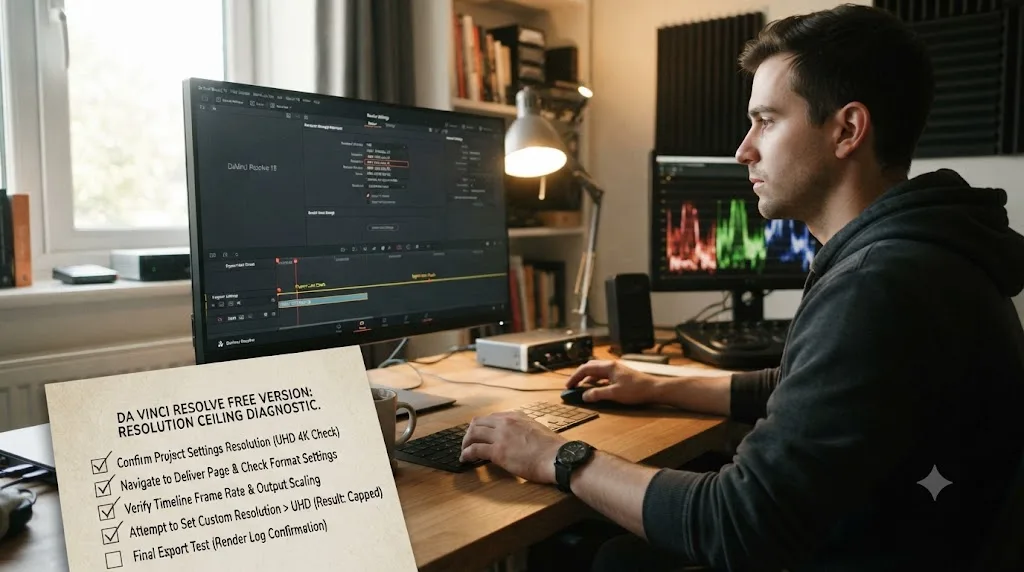
Which free-version limit are you actually hitting? A quick troubleshooting table
The checklist above walks you through Resolve's own menus step by step. This table is the shortcut version: match your symptom to the real cause without opening a single settings panel first.
| Symptom | What it looks like | Real cause | Fix |
|---|---|---|---|
| Resolution field caps at 3840x2160 | Deliver page won't accept a higher custom resolution | The genuine export ceiling | Needs DaVinci Resolve Studio for anything above UHD |
| Gradients and skies show visible banding | Smooth color transitions break into stepped bands after a heavy grade | 8-bit color pipeline | Needs Studio's 10-bit encoding |
| 4K export takes far longer than expected | Render times balloon on a Windows machine with a capable GPU | CPU-based H.264/H.265 encoding | Needs Studio's GPU-accelerated encoding, or a lighter codec in the meantime |
| Plain MP4 export refuses to run at all | Export fails outright on a Linux install | Free Linux build ships without H.264/AAC support | Needs Studio, or export to a supported free-tier codec instead |
| Upscaled HD footage looks soft on a 4K timeline | Older or lower-res footage stretched to fill UHD looks blurry, not sharp | Standard scaling instead of AI-powered upscaling | Needs Studio's Super Scale |
| No DCP or IMF option in Deliver settings | Theatrical or streaming-platform packaging isn't available | DCP/IMF encoding is Studio-exclusive | Needs Studio, or a third-party DCP/IMF encoding service |
| 120fps timeline won't render at full frame rate | High-frame-rate slow-motion project caps out lower than shot | Frame rate ceiling on the free version | Needs Studio for up to 120fps |
| A watermark shows up in a preview | Logo or overlay appears on a specific effect, not the whole frame | Studio-exclusive effect (Magic Mask, film grain, and similar) previewed without a license | Unrelated to export resolution; buy Studio only if you need that specific effect |
Only two rows on that table are actually about resolution. Everything else, bit depth, encoding hardware, upscale quality, delivery packaging, frame rate, and effect watermarks, gets casually folded into "the free version can't do 4K" in forum posts and comment sections, when each one is a separate, specific gate with its own separate fix.
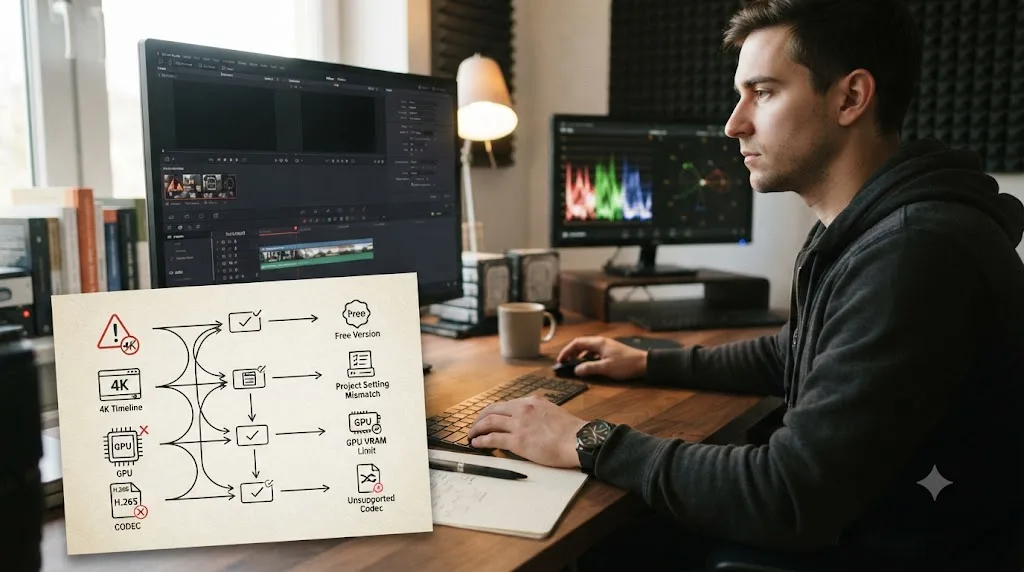
Do you actually need more than UHD 4K?
Fewer people than the myth implies. Running the question through a few real workflows makes the actual stakes clear.
| You are | What you're delivering | Does the free version's UHD ceiling matter? |
|---|---|---|
| YouTuber or social creator | Web video at UHD/60fps or below | No. Every mainstream platform re-encodes uploads and serves overwhelmingly SDR streams anyway. |
| Wedding or client videographer | UHD masters for web or private delivery | Usually no, unless a specific contract calls for a higher spec. |
| Documentary or narrative filmmaker | Streaming platform delivery | Sometimes. Streaming originals are often delivered as IMF packages, which is Studio-only regardless of resolution. |
| Festival filmmaker | Theatrical projection | Yes, if the spec calls for true DCI 4K or DCP mastering. |
| Hobbyist | Personal projects, social sharing | Almost never. |
The YouTuber row is the one most readers actually live in, and it cuts hardest against the myth. YouTube's own recommended upload settings max out around 45-68 Mbps for 4K depending on frame rate, targeting exactly the 3840x2160 resolution the free version already delivers, per YouTube's encoding guide. There's no delivery advantage to exporting above UHD for a platform that's going to re-encode your file into its own resolution ladder regardless.
The documentary and festival rows are where the myth accidentally lands on something true, and both deserve more than a one-line answer, which is exactly what the next two sections walk through.
Most people who believe they need Studio for 4K export don't need Studio at all. They need to check whether "4K" in their delivery spec means UHD or DCI, and it's almost always UHD.
Run your own answer through one question: does anyone downstream of you, a platform, a client contract, a festival, actually specify DCI 4K, a resolution above UHD, or a frame rate above 60fps? If nobody does, the free version's ceiling was never going to touch your workflow in the first place.
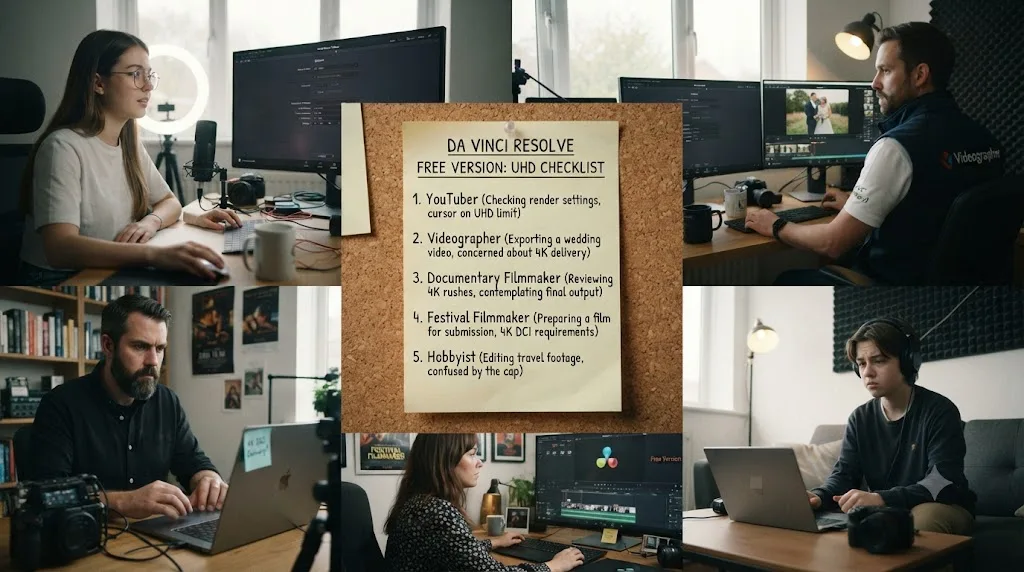
What's the real gap between free 4K and Studio's higher tiers?
Once you strip out the myth, the honest comparison is between UHD on the free version and everything Studio adds above it, and that gap is real even though it isn't "no 4K."
Studio raises the resolution ceiling to up to 32K, the frame rate ceiling to up to 120fps, and adds 10-bit support, multi-GPU rendering, and accelerated hardware encoding, according to the DaVinci Resolve Studio product page. Practically speaking, almost nobody edits at 32K. Editor and product write-ups covering the Studio spec sheet consistently note that even buyers who upgrade specifically to escape the UHD ceiling mostly land at 6K or 8K source footage on 4K or slightly-above-4K timelines, not anywhere near the theoretical maximum.
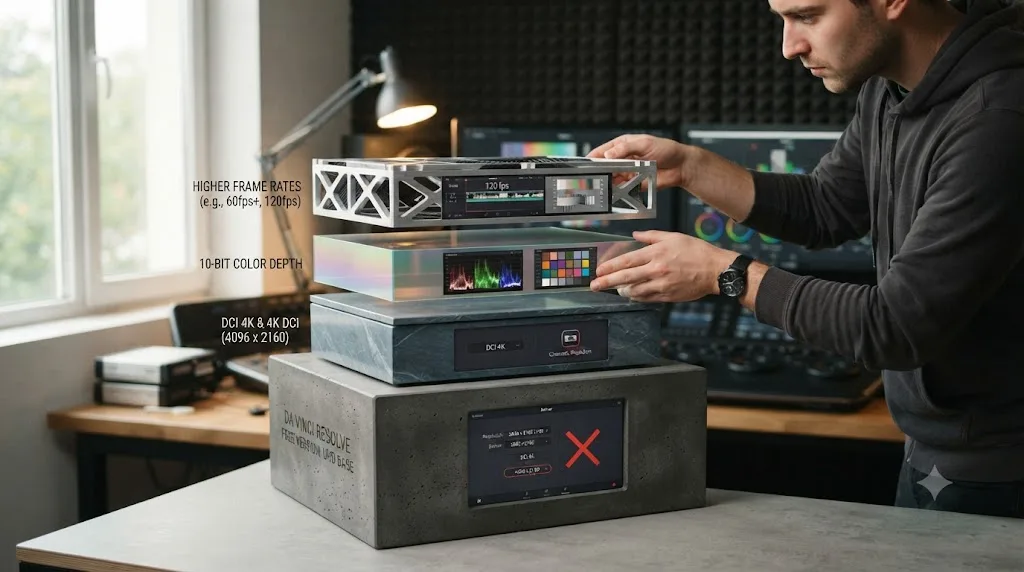
The gap that actually changes workflows sits closer to the ceiling than at the top of it: DCI 4K instead of UHD, 10-bit instead of 8-bit, hardware-accelerated encoding on Windows and Linux instead of CPU encoding, AI-powered upscaling instead of standard scaling, and delivery formats like DCP and IMF that specific industries require regardless of resolution. The DCP and IMF piece of that gap gets its own full breakdown next, since it's the one that actually matters if you're delivering to a festival or a streaming platform. Our full free-vs-Studio breakdown walks through every one of those differences in detail, including the quieter ones, like export speed, that push more people to upgrade than the resolution number ever does.
The DaVinci Resolve free-to-Studio gap that matters for most editors is bit depth and encoding speed, not resolution. Very few projects genuinely need more pixels than UHD delivers. A lot of projects genuinely benefit from 10-bit color and faster exports.
What if your delivery spec calls for a DCP or IMF package instead of a plain export?
This is where the myth accidentally brushes up against a real, separate limitation, and it's worth untangling because the two get confused constantly.
A DCP, Digital Cinema Package, is the file format movie theaters actually project. An IMF, Interoperable Master Format, is the packaging standard a growing number of streaming platforms require for delivery instead of a single flat video file. Neither one is a resolution. Both are container and packaging formats, and both are Studio-exclusive: Blackmagic's Studio product page lists DCP encoding and decoding for theatrical distribution, and IMF support with ready-made delivery presets, as features the free version doesn't have.
Here's the part that actually clarifies things. Netflix, one of the most demanding delivery targets in the industry, specifies that the resolution and aspect ratio of a delivered title "must match that of the delivered IMF: UHD (3840x2160) or HD (1920x1080)," according to Netflix's own Post-Production Branded Delivery Specifications. Read that again: UHD. Not above UHD. Not DCI 4K. Not 32K.
Even Netflix's own delivery specification asks for the same 3840x2160 resolution the free version already exports. What Netflix requires that the free version can't produce isn't a bigger picture, it's the IMF wrapper around that picture: the specific file packaging, metadata, and audio structure the platform's ingest system expects.
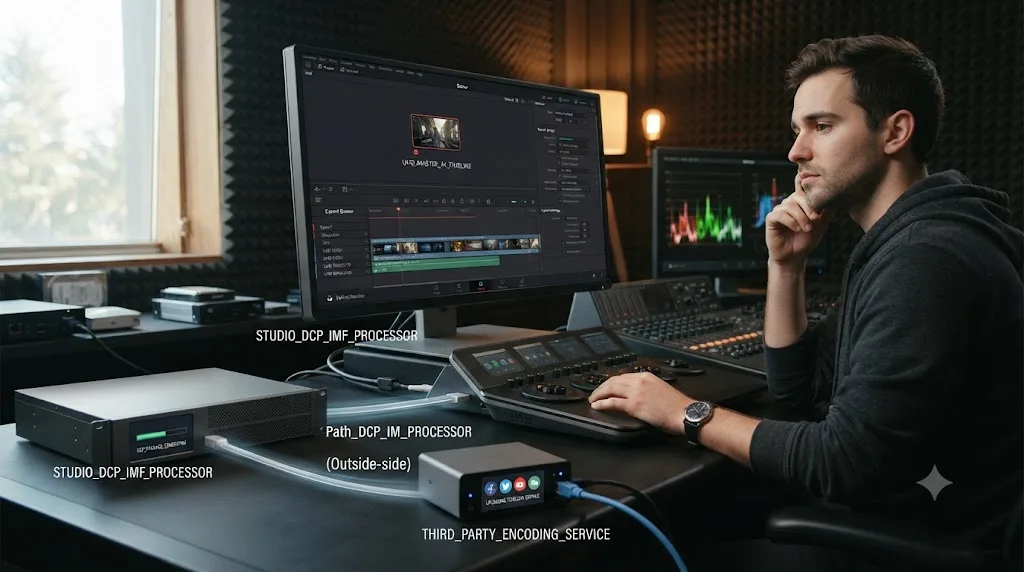
So if you're a documentary or narrative filmmaker staring down a Netflix or festival delivery spec, the free version's UHD ceiling was probably never your obstacle. Your obstacle is that Resolve's free tier has no IMF or DCP authoring at all, at any resolution. Two paths handle that:
Buy Studio. If DCP or IMF delivery is a recurring part of your work, Studio's built-in presets, including a dedicated Netflix preset, make this a solved problem inside the same software you're already editing in.
Export your best UHD master from the free version and hand it to a specialized encoding house. This is standard practice across the industry regardless of which NLE a project was cut in. DCP and IMF packaging get outsourced constantly, even by studios that own every professional tool available, because the specs are exacting enough (color space, audio channel mapping, subtitle and caption formats) that a dedicated encoding service reduces the chance of a rejected delivery. This route costs money either way, so it's worth pricing against a one-time $295 Studio license before assuming it's the cheaper option.
Neither path is about resolution. That's the whole point of separating this out from everything above: a missing DCP or IMF option in your Deliver settings is a packaging limitation, not evidence that the free version's 4K export is broken or restricted.
What should you do if you've hit a genuine resolution wall?
If you've run the checklist above and confirmed you actually need something above UHD, above 60fps, or in 10-bit, here's how to think about the decision instead of just reaching for a credit card.
Confirm the requirement is real and recurring, not hypothetical. A single festival submission or a one-off client request for DCI 4K doesn't necessarily justify a $295 license if it happens once a year. Ask whether the spec is a genuine, repeating part of your work or an edge case you're solving for once.
Check whether the requirement is actually resolution, or actually something else wearing resolution's clothes. A client asking for "true 4K" often means "sharp, professional-looking video," not literally DCI 4K pixels, and a client asking for "4K for Netflix" usually means IMF packaging, not extra pixels. Confirming the actual delivery spec in writing before assuming you need Studio has saved more than a few editors $295 they didn't need to spend.
If it's real, buy the license, not a workaround. Free-version veterans do transcode and re-encode their way around bit-depth and encoding-speed limits, and those tricks work. But there's no clean workaround for the resolution ceiling itself; Resolve's export options simply don't offer a field above 3840x2160 without Studio's license unlocking it. Our export settings guide and YouTube-specific export settings guide cover the exact numbers to dial in once you've settled the free-versus-Studio question, whichever way it goes.
If it's not real, stop worrying about it and export your UHD master. The single most common outcome of running through this whole page is realizing the myth never applied to your project in the first place, because your delivery spec was UHD the entire time.
The verdict
DaVinci Resolve's free version exports real 4K, Ultra HD 3840x2160 at up to 60fps in 8-bit, and it has for years, with no watermark and no time limit attached to that export. The myth that it can't do 4K at all is false. The narrower, true version of the claim is that it can't do DCI 4K, resolutions above UHD, frame rates above 60fps, 10-bit output, AI-powered upscaling, or DCP and IMF packaging, and that those genuinely require DaVinci Resolve Studio.
Check your actual delivery spec before you check your wallet. If a platform, client, or venue is asking for UHD, which covers almost every screen a normal audience owns, the free version already gives you everything you need. If they're specifically asking for DCI 4K, higher resolutions, higher frame rates, 10-bit masters, or a DCP or IMF package, now you know exactly which line you're up against, and exactly why the free version stops there.
Frequently asked questions
- Can DaVinci Resolve's free version actually export in 4K?
- Yes. Blackmagic's own product page states the free version works in resolutions as high as Ultra HD 3840x2160 at up to 60fps, 8-bit. That's real 4K, the same resolution most YouTube, Instagram, and TikTok delivery specs call for. The limit only appears above that ceiling.
- What's the exact resolution and frame rate ceiling on the free version?
- 3840x2160 (Ultra HD) at up to 60fps, in 8-bit color. DaVinci Resolve Studio raises that to resolutions up to 32K at up to 120fps with 10-bit support, according to Blackmagic's Studio product page.
- Does the free version limit exports to 1080p?
- No. That claim shows up in outdated forum posts and old blog comments, sometimes confused with unrelated free editors that really do cap at 1080p. DaVinci Resolve's free tier has supported full Ultra HD 3840x2160 export for years, including in Resolve 21.
- Can I edit 6K or 8K footage in the free version if I can only export at 4K?
- Yes. The resolution ceiling is an export limit, not an import one. You can bring in, cut, and color grade 6K, 8K, or even higher-resolution camera files on the free version; you just can't render a master file above 3840x2160 without DaVinci Resolve Studio.
- Do I need DaVinci Resolve Studio for DCI 4K?
- Yes. DCI 4K is 4096x2160, the cinema projection standard, and it sits just above the free version's Ultra HD 3840x2160 ceiling. If a festival or theatrical delivery spec calls for true DCI 4K, or for DCP mastering at all, that requires Studio.
- Does the free version put a watermark on 4K exports?
- No. Every export from the free version, at any resolution up to Ultra HD, renders clean with no watermark and no time limit. The only place you'll see a watermark is when you preview a Studio-exclusive effect, like Magic Mask or film grain, without an active Studio license.
- Why is my 4K export from the free version slow or lower quality than I expected?
- Usually it's not the resolution limit, it's bit depth or encoding hardware. The free version works in 8-bit, not 10-bit, and on Windows and Linux it encodes H.264 and H.265 on the CPU instead of your GPU's dedicated encoder, which Blackmagic reserves for Studio. Mac users get OS-level hardware encoding either way, so the gap shows up mostly on Windows and Linux machines.
Sources
- DaVinci Resolve product page (free version specs)
- DaVinci Resolve Studio product page (specs and price)
- DaVinci Resolve - What's New (Blackmagic Design)
- VizEdits: DaVinci Resolve's Free Version Is Genuinely Professional, Here's What's Missing (Subhan Mahmood)
- 4K resolution (Wikipedia, DCI vs. UHD specifications)
- RedShark News: Living with two different types of 4K
- YouTube recommended upload encoding settings (YouTube Help)
- Netflix Partner Help Center: Post-Production Branded Delivery Specifications
Put this guide to work with TryUncle.
Ask about the step you’re on. TryUncle sees your screen and points at the control you need, so you can keep learning in your own project.
Get TryUncle for Mac or WindowsKeep reading
Comparisons · Jul 7, 2026 · 28 min
DaVinci Resolve Studio Price: Free vs. Studio Cost, Explained
DaVinci Resolve Studio costs $295, paid once, not monthly. Here's exactly what that buys, how it stacks up against Premiere Pro and Final Cut Pro, and who needs it.
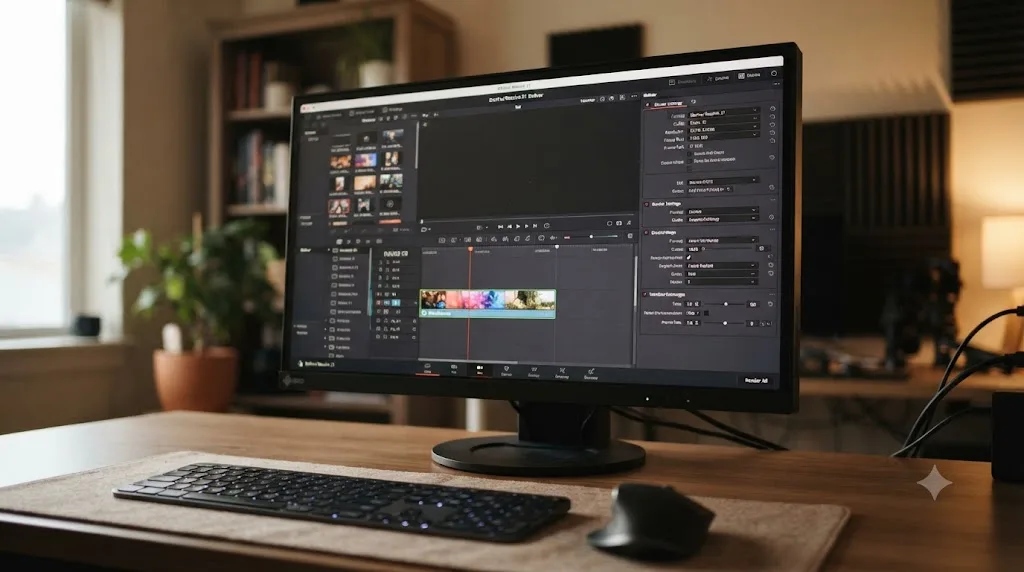
Guides · Jul 7, 2026 · 23 min
DaVinci Resolve Export Settings: Numbers That Actually Work
The exact DaVinci Resolve export settings for YouTube, client handoffs, and ProRes archives, plus what changed with Resolve 21's H.265 encoder.
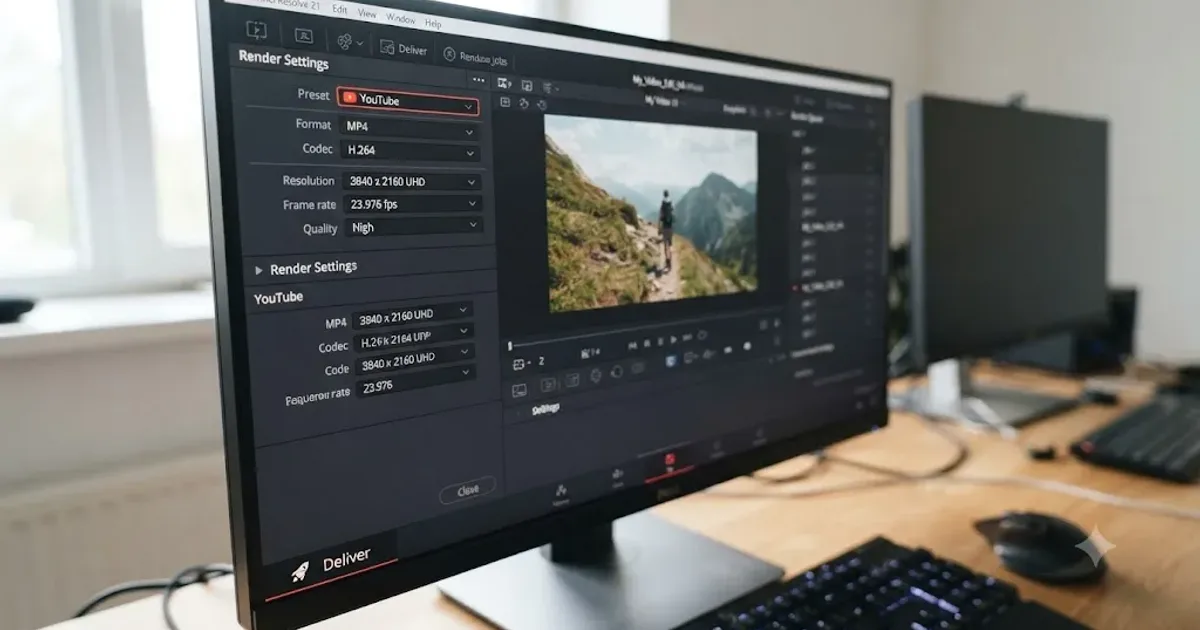
Guides · Jul 7, 2026 · 25 min
DaVinci Resolve Export Settings for YouTube: The Right Numbers
The exact DaVinci Resolve export settings for YouTube: resolution, bitrate, codec, and audio numbers pulled straight from YouTube's own encoding guide.