Articles / Fixesupdated for DaVinci Resolve 21.0.2 (July 2026)
DaVinci Resolve Fusion Title Templates Not Working: The Fix
Quick answer
Fusion title templates usually 'stop working' for one of five reasons: the template files went missing from Resolve's template folder, a macro got locked, a font is missing, the render cache is corrupted, or Krokodove in DaVinci Resolve 21 retired an older tool. Match your symptom to the cause below, then apply that specific fix.
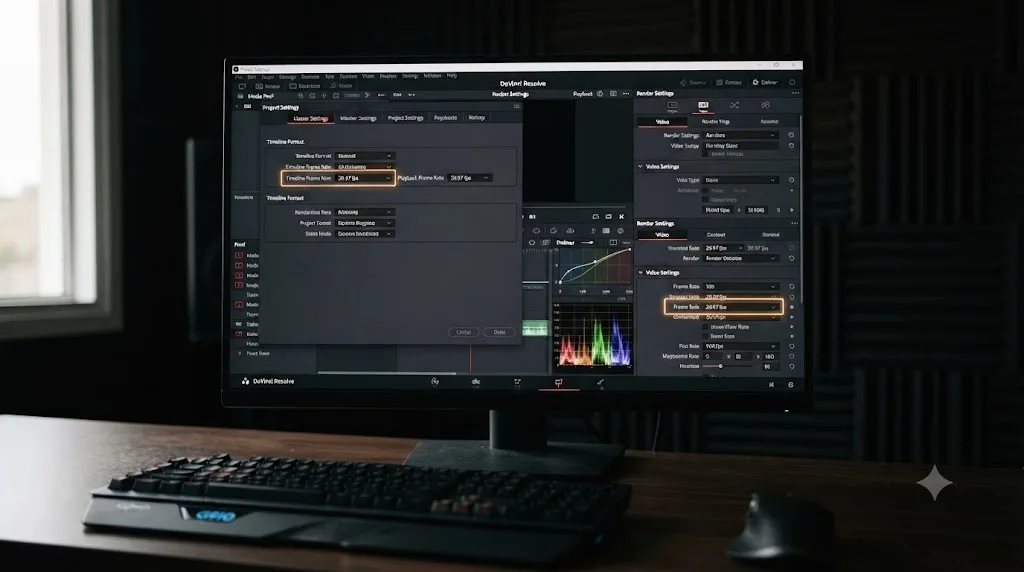
I've had a Fusion title template vanish from the Effects Library mid-project, and I've had one crash Resolve three seconds after I dragged it onto a clip. They looked like the same problem. They weren't. "Not working" covers at least five different failures that share almost no fix in common, and guessing wrong wastes an afternoon.
This post sorts them out one at a time: missing templates, crashes, invisible text, locked controls, and the version-specific breakage that DaVinci Resolve 21 and its Krokodove toolset introduced. Find your symptom, skip to that section, and fix the actual cause instead of reinstalling Resolve and hoping.
What does "not working" actually mean for a Fusion title template?
Before you touch a preference or reinstall anything, name the exact symptom. Every fix below assumes you've done this first, because the wrong fix for the wrong symptom does nothing except cost you time.
| Symptom | Most likely cause | Jump to |
|---|---|---|
| Template doesn't appear in Effects Library > Titles at all | Wrong folder, or a stale custom template path | Missing templates |
| Resolve crashes seconds after adding the title to the timeline | Fusion effects cache | Crashes and the red bar |
| Title clip plays but shows black, blank, or boxed text | Missing font | Invisible text |
| Template is on the timeline but its Inspector controls are greyed out or empty | Locked macro, or controls never exposed | Locked controls |
| A title that worked in an older project version now looks different or is gone after upgrading | Version-specific template changes | Resolve 21 and Krokodove |
| Everything about the template looks fine except it's painfully slow | Not a "not working" problem, a performance one | See our Fusion render slow guide |
A Fusion title template that shows a black frame usually isn't broken, it's rendering white text you can't see against a missing font. That distinction alone saves a lot of wasted reinstalls, because a missing font looks identical to a corrupted template until you know to check for it.
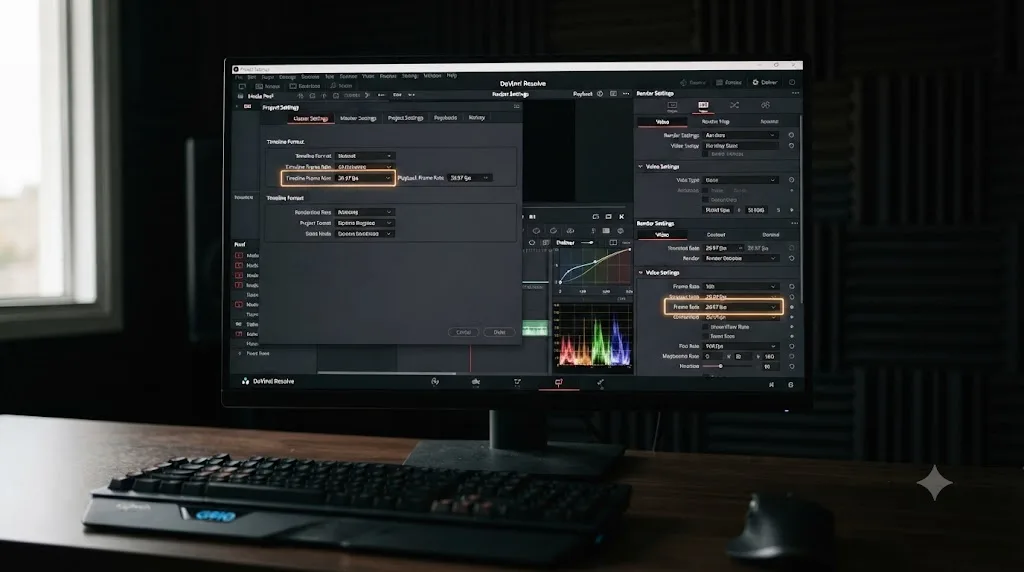
Why did my Fusion title templates disappear from the Effects Library?
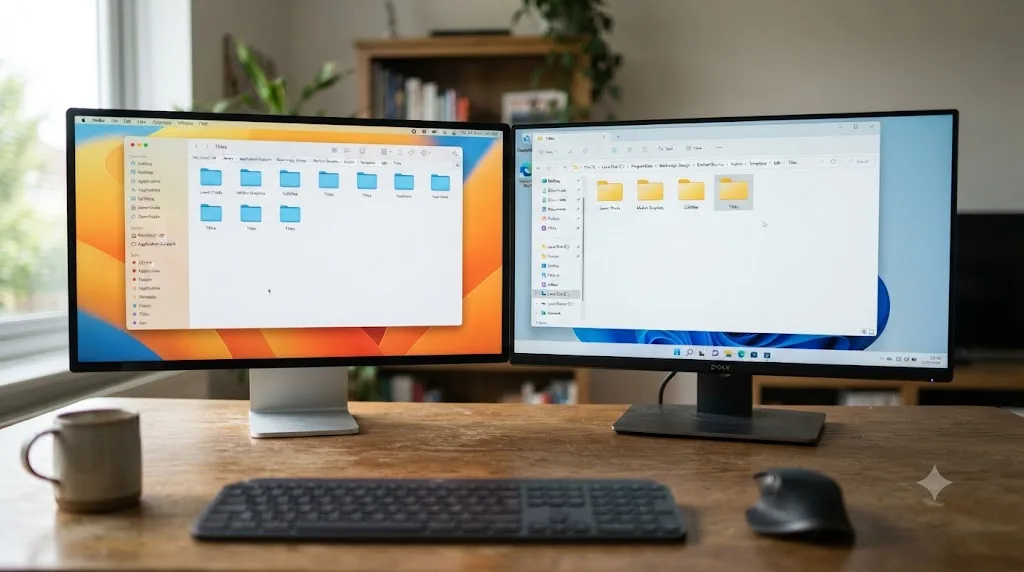
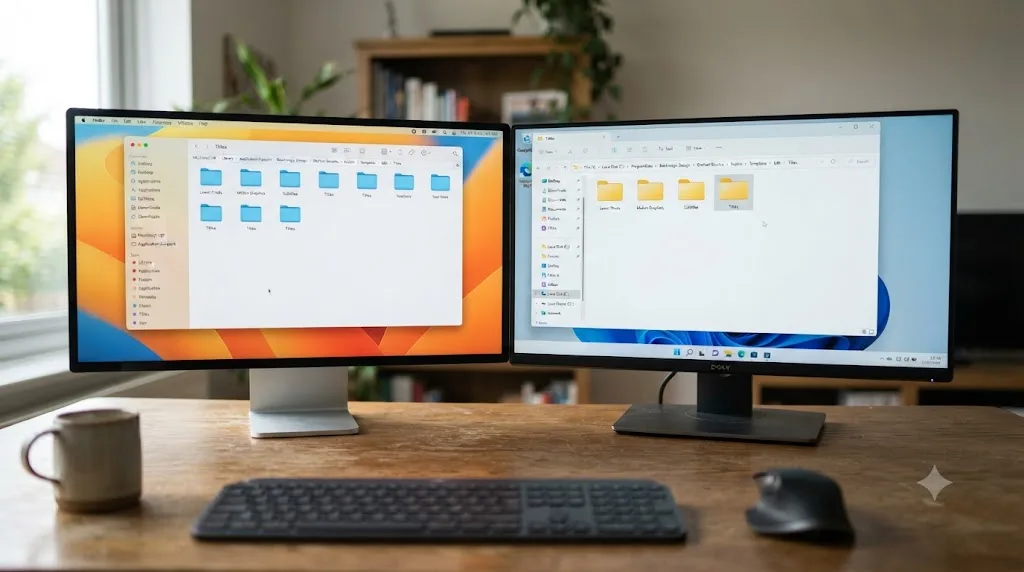
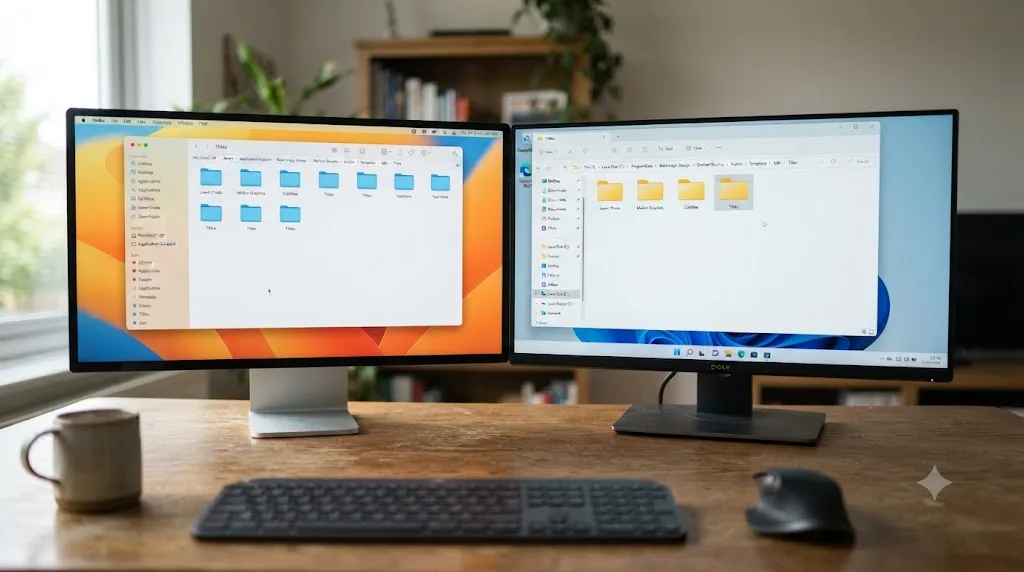
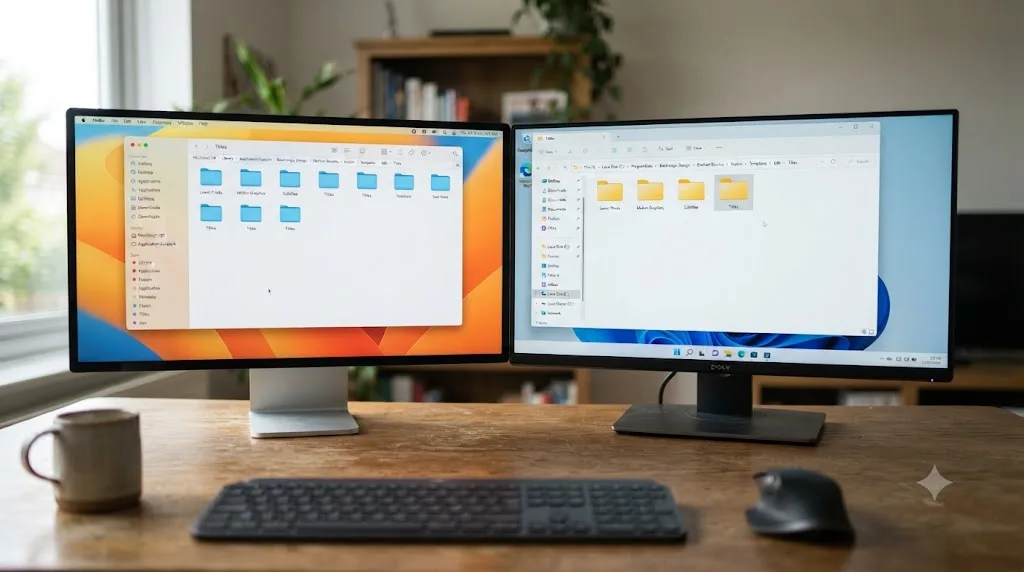
Fusion titles in the Effects Library aren't a separate feature from Fusion itself. They're Fusion compositions that got turned into macros, saved with a .setting extension, and dropped into a folder Resolve scans on launch, which is exactly how Blackmagic's own reference manual describes them: they "come installed with DaVinci Resolve to be used from within the Edit page like any other generator," per the DaVinci Resolve Reference Manual.
That means the Effects Library panel isn't showing you live Fusion state. It's showing you the contents of a specific set of folders, checked once at startup. If a template file isn't physically present in one of those folders, or Resolve is looking in the wrong place, the panel will simply act as if the template never existed.
DaVinci Resolve only loads Fusion title templates from a folder it already knows about, so a template sitting anywhere else does not exist as far as the Effects Library is concerned.
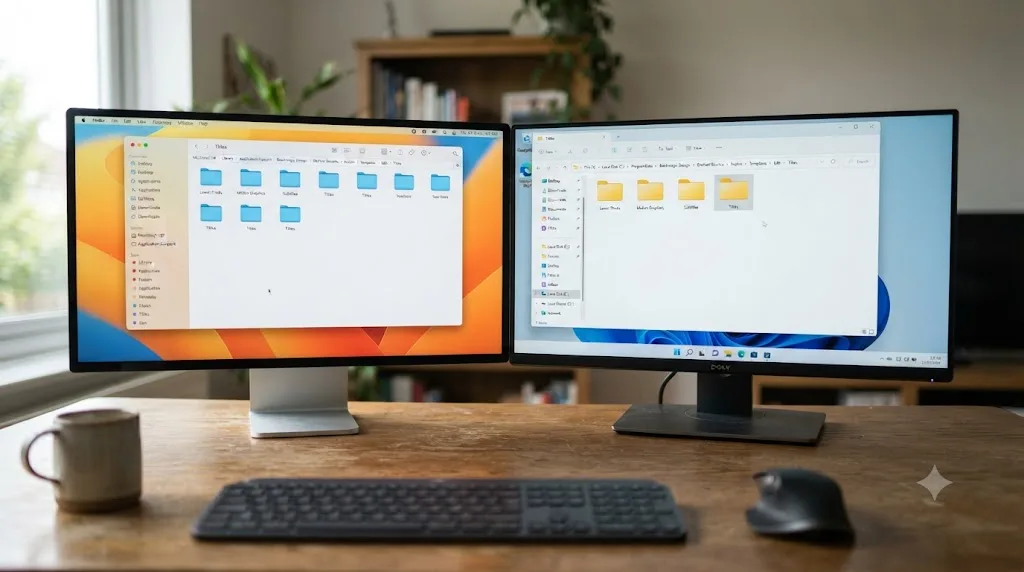
There are two default locations, per OS, documented by JayAreTV's guide to installing titles and generators:
| Platform | Program (default) templates | User templates |
|---|---|---|
| macOS | /Applications/DaVinci Resolve/DaVinci Resolve.app/Contents/Resources/Fusion/Templates/Edit/Titles | ~/Library/Application Support/Blackmagic Design/DaVinci Resolve/Fusion/Templates/Edit/Titles |
| Windows | C:\Program Files\Blackmagic Design\DaVinci Resolve\Fusion\Templates\Edit\Titles | C:\Users\<name>\AppData\Roaming\Blackmagic Design\DaVinci Resolve\Support\Fusion\Templates\Edit\Titles |
| Linux | (bundled with the app install) | ~/.local/share/DaVinciResolve/Fusion/Templates/Edit/Titles |
Three things go wrong here in practice:
- A
.settingor.drfxfile lands outside these folders. A downloaded template pack unzipped to a Desktop folder, or dragged into a random subfolder, never shows up because Resolve isn't watching that path. - The subfolder structure is wrong. Templates want a
Titlessubfolder specifically for titles to appear under Effects Library > Titles. Drop the same file underGeneratorsinstead and it'll surface in the wrong category, or not at all if the parent folders don't exist yet. - A custom template path was set once and never cleared. One long-running Blackmagic Forum thread on the topic traces a specific version of this: templates that shipped in DaVinci Resolve 16 were deprecated and replaced in Resolve 17, and the fix for anyone who needed the old set back was to pull the
.settingfiles from a Resolve 16 install (or another machine that still had one) and place them manually into the user Templates folder. Resolve doesn't keep discontinued generators around "just in case."
That last point matters beyond version 16 specifically. Fusion titles that shipped in DaVinci Resolve 16 are not the same files as the ones shipped in 17 and later, and Blackmagic never promised to keep the old ones around. Every major version can quietly retire, rename, or restructure a title generator, and there's no changelog entry that says "this specific title you built a habit around is gone now." You find out when it's missing.
The fastest way to check the folder yourself
You don't have to hunt for these paths manually every time. From inside Resolve:
- Open the Fusion page.
- Open the Effects Library, then Templates > Edit.
- Click the three-dot menu at the top of the effects panel.
- Choose Show Folder.
That opens the exact folder Resolve is reading from in your Finder or File Explorer window. Drop your .setting or .drfx file straight into it, then fully quit and relaunch DaVinci Resolve. A partial restart, or just closing the project, isn't enough; the template scan happens at application launch, not at project load.
Why does dropping a Fusion title crash Resolve or show a red bar?
This is a different failure mode entirely, and it's scarier because it looks like data corruption. The template appears in the Effects Library fine. You drag it onto a clip. A thin red line appears across the top of the timeline. A few seconds later, Resolve crashes to the desktop.
This exact sequence, red bar then crash, has been reported repeatedly, including in a Linux Mint Forums thread describing DaVinci Resolve Studio 19.1.3 freezing and crashing on Fusion title clicks and in older Blackmagic Forum reports of the same pattern on other platforms. The common thread across the reports isn't the title generator's code, it's the render cache trying to build a background cache for the new clip the instant it hits the timeline.
A crash a few seconds after dropping a Fusion title onto the timeline points at the cache, not at the title itself.
The most consistently reported workaround:
- Open Project Settings.
- Go to Master Settings.
- Find Automatically cache Fusion Effects in User Modes and disable it.
- Try adding the Fusion title again.
If that alone doesn't fix it, add these in order:
- Clear the render cache location. Project Settings > Master Settings > General Options > Local Cache lets you clear or relocate the cache. A corrupted cache directory reproduces this exact symptom on a completely healthy project.
- Free up system RAM before adding the title. Several affected users found the crash correlated with available memory, not the title itself; saving the project, closing Resolve, and reopening it right before adding a Fusion title reduced the failure rate, which points at memory pressure rather than a broken macro.
- Check GPU driver version. A crash tied to caching is frequently a GPU driver problem in disguise, since Fusion's caching pipeline runs through the GPU. If you're on Windows or Linux and haven't updated your GPU driver directly from NVIDIA, AMD, or Intel (not through the OS's own update mechanism) in a few months, do that before anything else.
If crashes are a broader pattern for you, not just around Fusion titles, our DaVinci Resolve keeps crashing guide covers the GPU driver, VRAM, and corrupted preferences angles in more depth than fits here.
Does this happen more on any one platform?
Reports skew toward Linux and older Windows GPU driver stacks, but the underlying mechanism, an aggressive background cache build racing the newly added Fusion composite, isn't platform-specific. macOS users report it less often, which tracks with Apple Silicon's unified memory reducing some of the memory-pressure scenarios that seem to trigger it on discrete-GPU Windows and Linux machines. It's not immune, just less frequently hit.
Why is the text on my Fusion title invisible, black, or replaced with boxes?
This is the symptom most likely to get misdiagnosed as "the template is corrupted," when the actual problem is much simpler: a font.
Both Motion Array's DaVinci Resolve template troubleshooting guide and multiple user reports on the Blackmagic Forum thread on broken Fusion titles from missing fonts describe the same behavior. Resolve doesn't reliably pop up a dialog that says "font X is missing." Instead, it can silently fall back to rendering the text layer as solid black, fully transparent, or with placeholder glyphs, which reads to most editors as "the title broke."
A Fusion title template that shows a black frame usually isn't broken, it's rendering white text you can't see against a missing font.
The check is quick:
- Open the Fusion page (or double-click the title on the timeline to jump straight into its composition).
- Select the text element inside the node graph, usually a Text+ node or a font-based generator.
- Open its font control in the Inspector.
- Change it to any font you know is installed on your machine.
- If text suddenly appears, you've confirmed the cause: the original font either isn't installed, or is installed under a different name than the template expects.
This happens constantly with downloaded or purchased title packs, since a template built with a specific paid or bundled font will render invisibly on any machine that doesn't have that exact font installed under that exact name. It's less common but not rare with Blackmagic's own bundled titles too, particularly after an OS update replaces or renames a system font the template referenced.
Two related font gotchas worth knowing:
- Font name mismatches, not just missing fonts, cause this. A font installed under a slightly different family name (a "Pro" or "Display" suffix, for instance) won't satisfy the template's reference even though the font itself is technically present on the system.
- Templates unzipped incorrectly compound this. If you're using a downloaded title pack, always fully extract the ZIP to a local drive folder before opening it in Resolve. Opening a
.drfxor.settingfile directly from inside a ZIP archive, or from a network drive, introduces file path errors that look identical to a font problem but have a different fix (re-extract locally, don't just reinstall the font).
Why are a template's controls greyed out or missing in the Inspector?
This is the failure that looks most like Resolve "not letting you" do something, and it has two genuinely different causes with two different fixes. Don't apply one fix expecting it to solve the other.
Locked and editable are two different states in Fusion, and a title that won't take your changes is usually locked, not corrupted.
Cause 1: the macro is a locked MacroOperator
When someone builds a Fusion title and saves it as a template, the resulting file can be one of two operator types: a MacroOperator, which locks the internal node graph so it can't be opened and edited, or a GroupOperator, which behaves like a macro from the outside but stays editable. A Blackmagic Forum thread on Fusion Templates not being fully editable and a VFXstudy tutorial on building macros and templates both describe the same workaround: open the .setting file in a plain text editor, find the line referencing MacroOperator, and change it to GroupOperator. Save it, reopen the template in Resolve, and its internal nodes become editable.
This is a text edit on a plain-text file, not a hex edit or anything destructive, but it does change how Resolve treats the template going forward, so work on a copy first if the original template came from somewhere you might need to re-download.
Cause 2: the parameters were never exposed
The second cause is more mundane and far more common if you built the template yourself. When you create a macro from a selection of Fusion nodes (Right-click > Macro > Create Macro), a dialog lets you check which parameters should be user-controllable from outside the macro. If you skip that step, or uncheck a control you actually needed, that control simply won't appear in the Inspector when the template is used, on the Edit page or anywhere else. It's not locked. It was never turned on.
Larry Jordan, whose training site has covered Resolve workflows for editors for years, walks through this exact macro-creation process and doesn't undersell how easy it is to get wrong on the first try. Describing the process of converting a custom Fusion title into a reusable template, he writes plainly:
"this process seems scary, and, truthfully, it is"
That's from his guide on converting custom Fusion titles into reusable templates, and it's an honest assessment. The macro-creation dialog buries the "which controls should be visible" step in a way that's easy to click through without noticing, and the only symptom you get later is an Inspector panel that looks incomplete or entirely empty.
The fix, if this is your template and you still have the original Fusion composition:
- Select the nodes again (or open the existing macro if it's a GroupOperator you can access).
- Right-click and choose Macro > Create Macro again, or edit the existing macro's settings dialog.
- This time, deliberately check every parameter you want editable from the Edit page: text content, font, size, color, position, whatever applies.
- Re-save over the same
.settingfile location. - Restart Resolve and confirm the Inspector now shows those controls.
Did DaVinci Resolve 21 break my old Fusion titles?
Not by design, but two real things in Resolve 21 can look exactly like breakage, and it's worth separating them from a plain bug.
The first is the pattern this post already covered with Resolve 16 to 17: major versions periodically retire, replace, or restructure the built-in title set, and there's no guarantee a specific generator you built muscle memory around survives untouched. That's not new to 21, it's just the same risk applying again.
The second is specific to 21: RedShark News's coverage of the DaVinci Resolve 21 Beta 2 bug fixes documents several fixes Blackmagic made to Fusion's macro and title-adjacent systems during the beta cycle, including corrections to the Macro Editor's control ordering for multi-input controls, fixes for MultiText layers generating phantom duplicates when combined, a fix for the MultiText CSV import dialog, and improved color font and emoji rendering. Every one of those is an implicit acknowledgment that the exact class of problem this post is about (macro controls behaving wrong, text layers rendering wrong) existed as real, reported bugs during 21's development, not just user error.
If you upgraded to 21.0 before these specific fixes landed, or you're still running an early 21 point release, some of what looks like "my title template broke" may genuinely be a bug that's already fixed in a newer point release. Before rebuilding anything, check Help > Check for Updates and confirm you're on the latest 21.x build.
Does Krokodove replace or break older Fusion title templates?
Krokodove is the biggest addition to Fusion in DaVinci Resolve 21, and it's worth understanding what it actually is before assuming it broke something. It's not a title template pack. It's a large, long-developed third-party toolset, originally a free Reactor plugin for standalone Fusion built by Raf Schoenmaekers of Komkom Doorn Studio over roughly two decades, that Blackmagic folded natively into Fusion starting with Resolve 21, adding well over a hundred generators, modifiers, warps, and 3D tools at no extra cost in either the free or Studio edition.
Krokodove added more than a hundred tools to Fusion in Resolve 21, and it quietly retired a few older ones on the way in.
That second half matters. Digital Production's review of Krokodove's arrival in Fusion notes directly that "a few tools did not make the jump to version 21 and have been removed for compatibility reasons," while adding that the loss is hopefully temporary and that the surviving set is still large. If a title template you built depended on one of the specific legacy Reactor tools that didn't survive the transition, that composition can break in 21 in a way that has nothing to do with corruption, missing fonts, or locked macros. It's a genuine version-to-version tool removal, the same category of change as the Resolve 16 to 17 title set replacement, just newer.
If you suspect this is your situation:
- Open the affected Fusion composition and look for any node showing a warning triangle or a "tool not found" placeholder instead of its normal icon.
- Right-click that node to see if Resolve names the missing tool, which tells you exactly what to search for.
- Check whether a Krokodove-native equivalent covers the same function; the new toolset is broad enough that most common use cases (shape generation, pattern generation, basic warps) have a direct or close replacement.
- If nothing replaces it, the practical fix is rebuilding that specific node's function with what's currently available, since there's no supported way to reinstall a tool Blackmagic removed from the shipped build.
How do you fix a Fusion title template step by step?
Pulling the sections above into one sequence, here's the order that wastes the least time, worst-case symptom first:
- Identify the exact symptom using the table near the top of this post. Don't skip this; it determines everything else.
- If the template is missing entirely: confirm the
.settingor.drfxfile is physically in the correct per-OS Templates/Edit/Titles folder (use Effects Library > Templates > Edit > the three-dot menu > Show Folder to find it), clear any custom template path override in Preferences, and fully restart Resolve. - If Resolve crashes when you add the title: disable Automatically cache Fusion Effects in User Modes in Project Settings > Master Settings, clear or relocate your render cache, and update your GPU driver.
- If the text is invisible, black, or boxed: open the composition in Fusion, select the text node, and swap its font to confirm a missing or misnamed font, then either install the correct font or replace it with one you have.
- If the Inspector controls are greyed out or empty: determine whether the macro is a locked MacroOperator (fix: edit the
.settingfile, change MacroOperator to GroupOperator) or simply never had its parameters exposed (fix: recreate the macro and check the right boxes this time). - If this started right after upgrading to DaVinci Resolve 21: update to the latest 21.x point release first, since several macro and MultiText bugs were fixed during the beta cycle, then check whether a Krokodove tool removal specifically broke a node in your composition.
- If none of the above resolves it: rebuild the title using Text+ instead of trying to save a damaged Fusion composite. A simple, editable rebuild beats an hour of forensic node-graph archaeology on a title you can recreate in ten minutes.
Are Windows, Mac, and Linux actually different for this problem?
Mostly not, with two exceptions worth calling out plainly.
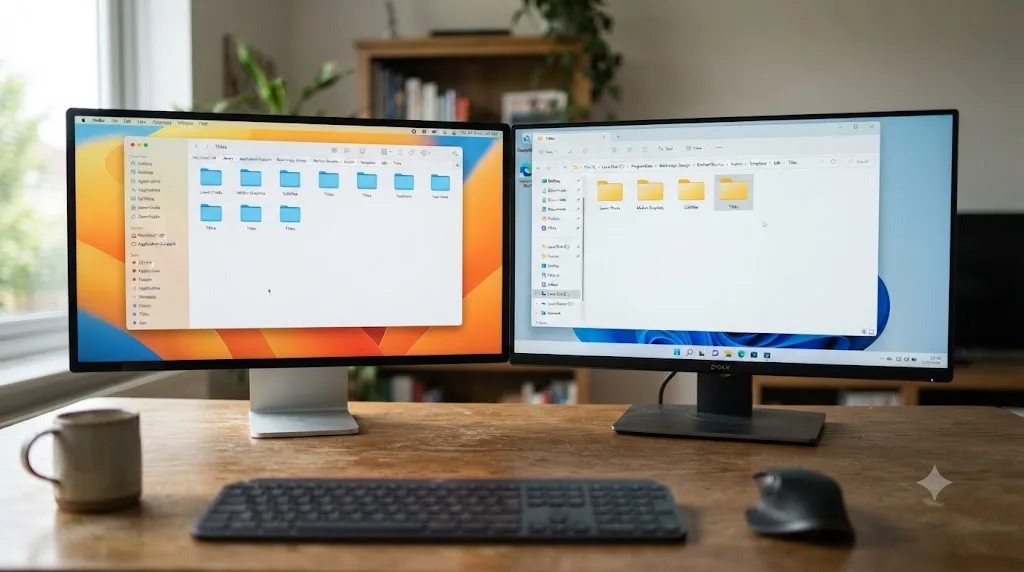
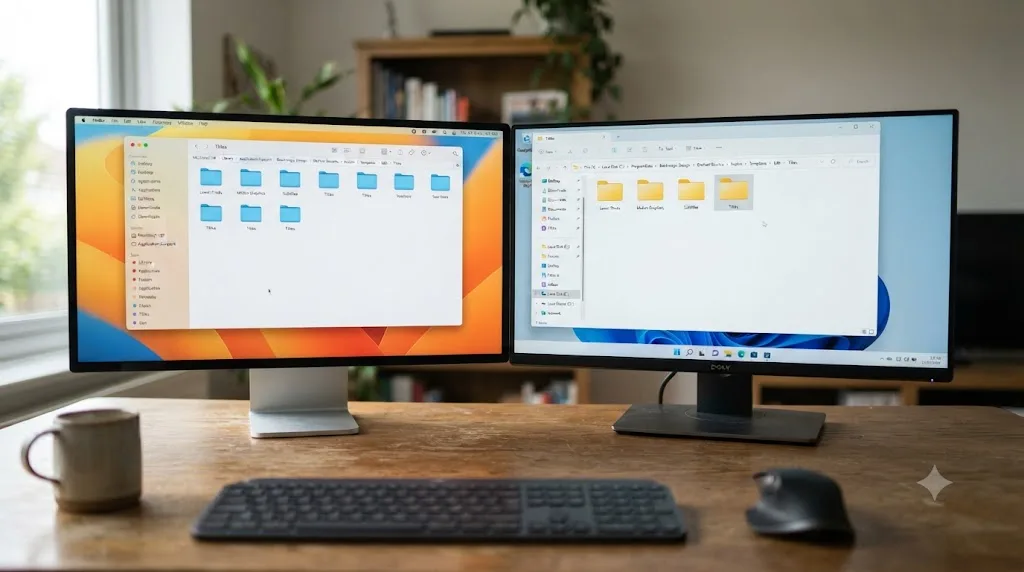
Folder paths differ, and that's the single most common source of a wasted troubleshooting session. Copying a .setting file to the Windows path structure on a Mac (or vice versa) simply does nothing; there's no cross-platform equivalence to lean on. Always confirm the path table earlier in this post matches your OS exactly, including the capitalization and the Support subfolder Windows inserts that macOS doesn't use.
Crash frequency skews toward Windows and Linux, tied to discrete GPU driver behavior and the cache-related crash pattern discussed above. Apple Silicon Macs, with unified memory and a more locked-down driver stack, report this specific crash less often, though the underlying Fusion cache mechanism is identical across all three platforms; it's the failure conditions that differ, not the software.
Font issues are platform-agnostic. A font missing on Windows is exactly as invisible as a font missing on macOS or Linux, since the problem lives inside Fusion's rendering, not the OS's font manager. If you're moving a project between machines (a common source of this exact complaint), always check that every font a Fusion title composition references is installed identically on the destination machine before assuming the template itself broke in transit.
Is this actually a GPU or RAM problem?
Sometimes, yes, and it's worth ruling out early rather than late, especially if you're seeing intermittent rather than 100% reproducible failures.
Fusion is Blackmagic's most GPU-intensive page, more so than color grading or editing, because it renders every node in a composition per frame rather than working from a cached grade. Current guidance for DaVinci Resolve puts a practical minimum around 16 GB of system RAM for anything beyond the lightest HD project, with a dedicated GPU carrying at least 4 GB of VRAM as the baseline for Resolve 21 specifically, and considerably more recommended for 4K work or heavier Fusion compositions, according to current DaVinci Resolve system requirement guidance. If you're at or below those thresholds, and your symptom is inconsistent (works sometimes, crashes or renders badly other times, rather than failing the same way every time), hardware headroom is a more likely explanation than a broken template file.
Signs this is a hardware ceiling rather than a template bug:
- The same template works fine on a small project but fails once the timeline or composition gets more complex.
- Task Manager or Activity Monitor shows VRAM near its limit when the failure happens.
- The problem is worse late in an editing session, after Resolve's cache and undo history have built up, and better right after a fresh relaunch.
If any of those match, this isn't really a "title templates not working" problem, it's a capacity problem that happens to show up on Fusion titles first because they're the heaviest thing you're asking the GPU to do. Our guide to Fusion rendering slow covers the caching and node-optimization side of that in more depth.
How do you make a locked Fusion template editable again, safely?
Worth walking through in more detail than the earlier summary, since editing a .setting file by hand makes people nervous the first time, reasonably.
- Duplicate the file first. Copy the
.settingfile somewhere outside Resolve's template folders before touching it, so a mistake doesn't cost you the original. - Open it in a plain text editor. TextEdit in plain-text mode on Mac, Notepad on Windows, or any code editor works. Do not use a word processor that might add formatting.
- Find the operator declaration line, typically near the top of the file, that reads something like
MacroOperator. - Change it to
GroupOperator. Nothing else on that line needs to change. - Save as plain text, keeping the
.settingextension. - Replace or re-import the file in your Templates/Edit/Titles folder, restart Resolve, and open the template again. It should now open as an editable group rather than a locked macro.
This doesn't touch pixel data or animation curves, only how Resolve treats the container around the node graph, so the visual result is identical before and after. What changes is whether double-clicking the title on the timeline opens an editable node tree or a closed black box.
Should you use Text+ instead of a Fusion title template?
Genuinely worth asking before you sink more time into rescuing a broken template, because the two tools solve overlapping but different problems.
| Fusion title template | Text+ | |
|---|---|---|
| Where you edit it | Inspector (limited controls) or full Fusion page | Inspector on the Edit page directly |
| Best for | Multi-layer composites, 3D text, tracked text, custom animation built from multiple nodes | Straightforward text with built-in animation presets |
| Grading | Requires a compound clip to color-correct in most cases | Can be graded like any other clip without a compound clip, per the DaVinci Resolve Reference Manual |
| Failure modes covered in this post | All of them (missing files, crashes, locked macros, fonts) | Only the font issue applies |
| Portability between projects | Needs to be saved and installed as a template file | Lives natively as a generator, no install step |
If your title is genuinely simple, moving text, a basic fade, maybe a drop shadow, you're often better off rebuilding it as Text+ than continuing to fight a broken Fusion composite. You lose nothing in visual quality for that kind of title, and you gain a generator that can't suffer from a locked macro or a missing template file, because it doesn't depend on either.
Reach for a real Fusion title template only when you need something Text+ genuinely can't do: 3D depth, a planar tracker following text onto a moving surface, or a composite built from multiple layered elements. That's also, not coincidentally, exactly the kind of Fusion work covered in our Fusion page tutorial for beginners if you're building one from scratch rather than troubleshooting one that already exists.
What if none of this fixes it?
Sometimes a template is damaged past the point where any of the above applies, usually because the file itself got truncated or corrupted during a transfer, a failed save, or a crash mid-write. A few signs point here specifically: the .setting file is unusually small compared to similar templates, opening it in a text editor shows obviously truncated or garbled content partway through, or the same file fails identically on a completely different, known-healthy Resolve install.
At that point, rebuilding is faster than repairing. Reconstruct the title, either as a fresh Text+ generator for something simple, or as a new Fusion composition saved carefully as a macro this time, checking every control you actually need exposed. Keep a backup copy of any custom template you build going forward, outside Resolve's own folders, since none of these folders are backed up by Resolve itself and a single bad update or OS reinstall can take the working copy with it.
This is also exactly the kind of moment where being able to ask, in plain language, "why does my title look like this" and get pointed at the specific control on your own screen saves real time over guessing through node graphs alone. TryUncle is an AI tutor for DaVinci Resolve on macOS — ask in plain words and Uncle points at the exact control on your screen. It's not the only option in that space; tools like Sottocut, PremiereCopilot, heyeddie.ai, and cutagent.ai take a different approach, mostly automating edits or answering chat questions about your project rather than watching your actual screen. Uncle's approach is narrower and more literal: it watches what's on screen inside Resolve, including the Fusion page, and points rather than automates. TryUncle runs on founder pricing at $29.99 a month for the first 100 seats; check TryUncle for the current rate before committing.
The verdict
Match the symptom before you touch anything. A missing template is a folder problem. A crash is a cache problem. Invisible text is a font problem. Greyed-out controls are either a locked macro or an unexposed parameter, and those two need different fixes. Anything that started right after a Resolve 21 upgrade might be a Krokodove tool that genuinely didn't survive the transition, not something you broke.
DaVinci Resolve only loads Fusion title templates from a folder it already knows about, so a template sitting anywhere else does not exist as far as the Effects Library is concerned. Start there, work down the list, and don't rebuild from scratch until you've actually ruled out the cheaper fixes first.
Frequently asked questions
- Why did my Fusion title templates disappear from the Effects Library?
- Almost always because the .setting or .drfx files aren't sitting in the folder Resolve actually scans, or because a prior template path override in Preferences never got reset. Resolve only loads Fusion titles from its default Templates folder plus one user folder per OS, and it reads that location at launch, not on the fly.
- Why does DaVinci Resolve crash a few seconds after I drop a Fusion title on the timeline?
- The most consistently reported cause is the Fusion effects cache, not the title itself. A thin red line at the top of the timeline right before the crash points at caching, and disabling 'Automatically cache Fusion Effects in User Modes' in Project Settings > Master Settings has resolved it for multiple users across Windows, Mac, and Linux.
- Why is the text on my Fusion title invisible, black, or replaced with boxes?
- A missing font. Resolve doesn't always throw a clear error when a title template calls for a font that isn't installed; it can render the text layer as black, blank, or with fallback glyphs instead. Select the text tool inside the template's Fusion composition and swap the font to confirm.
- Why can't I edit the controls on a Fusion title template?
- Two different problems produce this. Either the macro was saved as a MacroOperator, which locks its internals by design, or whoever built the template never checked the boxes that expose those controls to the Inspector in the first place. The fixes are different for each.
- Did DaVinci Resolve 21 break my old Fusion titles?
- Not directly, but two things in 21 can look like breakage: Krokodove replacing some legacy Reactor-based tools, and the general pattern (true since Resolve 17 replaced the Resolve 16 title set) where Blackmagic doesn't guarantee every generator survives a major version bump untouched.
- Should I use Text+ instead of a Fusion title template?
- For plain text with a simple animation, yes; it's simpler, edits directly in the Inspector on the Edit page, and can be graded like a normal clip without a compound clip. Reach for a full Fusion title template only when you need the composited layers, 3D, or a tracker that Text+ can't do.
Sources
- Blackmagic Forum: Where did DR16 Fusion Templates go to?
- JayAreTV: Install Titles, Transitions, Effects, and Generators in DaVinci Resolve 17.2
- DaVinci Resolve Reference Manual: Fusion Titles and Fusion Templates
- Blackmagic Forum: Fusion Templates are not fully editable
- VFXstudy: Build new Fusion tools with Macros and Templates
- Blackmagic Forum: Broken Fusion titles due to not find fonts
- Motion Array Help Center: DaVinci Resolve Templates: Ultimate Troubleshooting Guide
- Linux Mint Forums: DaVinci Resolve Studio 19.1.3 freeze and crash when clicking Fusion title
- Larry Jordan: Convert Custom Resolve Fusion Titles into Reusable Templates
- RedShark News: DaVinci Resolve 21 Beta 2: bug fixes and Fusion improvements
- Digital Production: Krokodove: a massive expansion of Fusion and Resolve's creative arsenal
- Blackmagic Design: DaVinci Resolve Fusion product page
Put this guide to work with TryUncle.
Ask about the step you’re on. TryUncle sees your screen and points at the control you need, so you can keep learning in your own project.
Get TryUncle for Mac or WindowsKeep reading
Guides · Jul 10, 2026 · 32 min
DaVinci Resolve Fusion Page Tutorial for Beginners
Learn the DaVinci Resolve Fusion page from zero: nodes, MediaIn/MediaOut, the Merge node, planar tracking, and keying a green screen, step by step.
Fixes · Jul 10, 2026 · 26 min
DaVinci Resolve Fusion Render Slow? The Real Fixes
Why DaVinci Resolve's Fusion page renders so slowly, and the real fixes: resolution passthrough, MediaIn vs Loader, node caching, and CPU-only nodes.
Fixes · Jul 7, 2026 · 24 min
Why Does DaVinci Resolve Keep Crashing? The Real Fixes
DaVinci Resolve keeps crashing for a few real reasons: GPU drivers, VRAM limits, a corrupted cache, or a damaged project. Here's the fix, in order.