Articles / Fixesupdated for DaVinci Resolve 21.1.1 (October 2026)
DaVinci Resolve Multicam Audio Follows Video Not Working?
Quick answer
In DaVinci Resolve 21.1, choose Video and Audio in the Multicam Viewer if each angle switch should change both picture and sound. If you want a continuous external mic or mix, choose Video Only instead. If the correct mode is already active, check whether the multicam clip includes the source audio you expect, then inspect an existing cut.
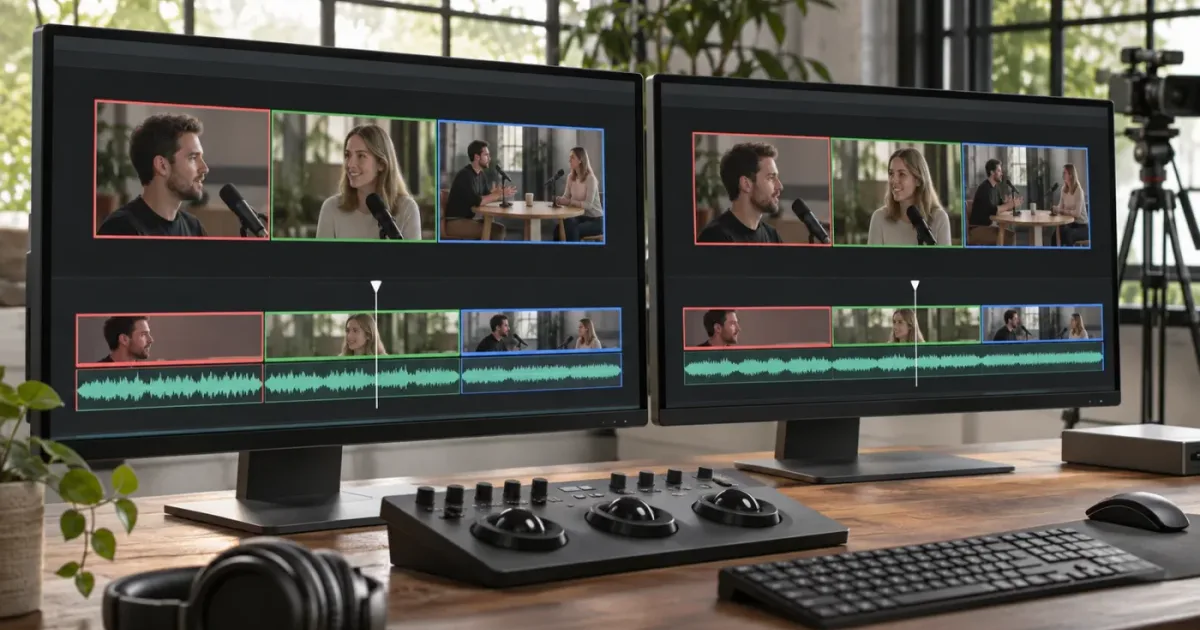
DaVinci Resolve Multicam Audio Follows Video Not Working?
I know this problem can sound like a sync failure, but often the video and audio are simply being switched in different modes. As of October 2026, DaVinci Resolve 21.1.1 is the current point release covered by Blackmagic Design's support listings. The basic check is quick: decide whether sound should change with the camera, then select the matching mode in the Multicam Viewer.
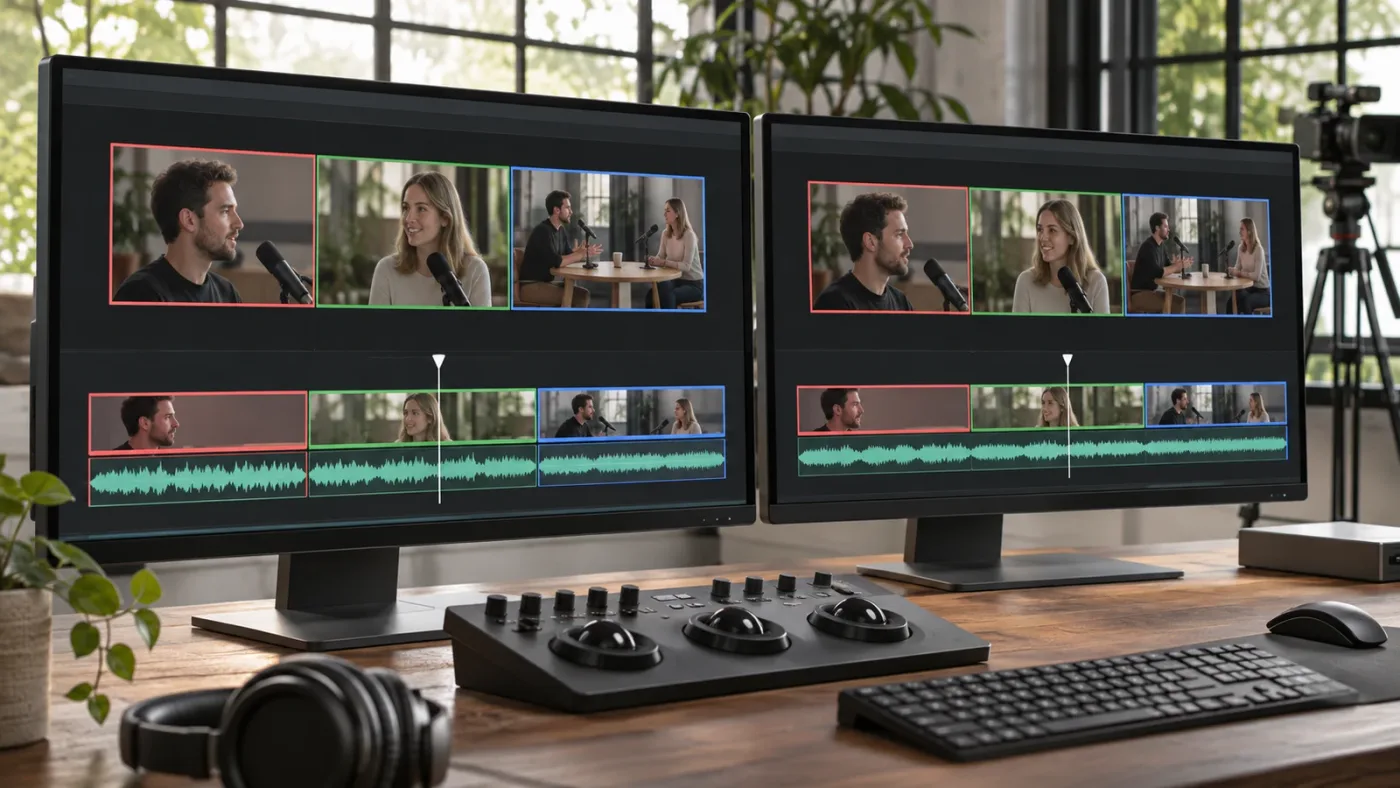
Why is DaVinci Resolve multicam audio not following video?
DaVinci Resolve multicam audio follows a video angle only when the multicam switching mode includes both video and audio, and the multicam clip contains the audio you expect to switch. A Video Only mode deliberately changes the picture without changing the sound.
Start here before changing clips, unlinking media, or rebuilding the multicam. In the Edit page, switch the Source Viewer to Multicam mode and check the audio/video switching controls beneath the angle viewer. Select Video and Audio when every camera change should select that angle's picture and sound. Select Video Only when a boom, lavalier, recorder, or finished mix should continue uninterrupted as the picture changes.
Those are different editing intentions, not two descriptions of the same setting. Editors often say “audio follows video” to mean that both tracks should switch together. Others use the phrase to describe a desirable workflow where a single external recording stays synchronized under changing camera angles. For that second workflow, the correct choice is usually Video Only, because the external audio remains separate from the camera angle switching.
Video and Audio switches the multicam picture and sound together; Video Only switches the picture alone.
Blackmagic's DaVinci Resolve 21.1 manual describes separate modes for switching video, audio, or both. Its Resolve 21 New Features Guide also says Resolve 21 added an All Angles option when creating multicam clips, which can include the audio tracks from every source angle. That option affects which audio is available inside the multicam clip. It does not, by itself, mean the viewer will switch picture and sound together.
| What you want while changing camera angles | Multicam switching choice | Where the sound comes from |
|---|---|---|
| Switch to each camera's own embedded audio | Video and Audio | Audio included with the selected multicam angle |
| Keep one external mic or recorder track continuous | Video Only | Separate audio clip or track in the edit timeline |
| Change audio while holding the picture | Audio Only | Audio included in the multicam clip |
| Keep a complete mix while switching shots | Usually Video Only | Separate mixed or grouped audio tracks |
Before you try the fix, look at the timeline. If you see a multicam clip on a video track and a separate audio clip beneath it, that separate audio is not necessarily controlled by the multicam viewer. Changing a camera angle cannot switch a recording that is not part of that multicam clip. Conversely, if a single multicam clip carries both picture and sound, the viewer's current mode can determine whether an angle cut changes both.
That distinction explains why a working picture cut can appear to “ignore” audio. Resolve may be doing exactly what the selected mode asks it to do. It may also be playing the external mic track you placed below the multicam clip, which is behaving as an independent source rather than as an angle's embedded sound.
How do I make audio follow video in DaVinci Resolve 21?
To make audio follow video in DaVinci Resolve 21, choose Video and Audio in the Multicam Viewer before cutting to camera angles. Make one short test cut and confirm that both the active picture and the audible source change.
Follow this order so you change the mode that controls new multicam edits, not an unrelated timeline option:
- Open the timeline containing your multicam clip.
- In the Source Viewer, open the mode menu and select Multicam. The viewer should show the multicam angles rather than a single source clip.
- Find the audio/video switching controls below the angle display.
- Select Video and Audio. Check that the selected control represents both picture and sound, rather than video only or audio only.
- Move the playhead to a simple test point and make a cut to another angle.
- Play across that cut. Confirm that the picture changes and that the sound changes to the expected source.
- If it does not, stop editing and inspect the multicam clip's included audio before making more cuts.
If the controls are hard to identify, use the Edit > Multicam menu. The manual lists commands for Video and Audio, Video Only, and Audio Only. It also documents keyboard shortcuts for these modes. Because shortcuts can depend on keyboard layout, operating system, or customized key mappings, use the menu as the reliable check when a shortcut does not produce the expected result.
Don't trust the highlighted mode alone as proof that your intended microphone will play. The mode tells Resolve what types of edit to make. It does not prove that the particular angle contains a clean mic recording, that the track is enabled, or that the multicam clip was built with the desired audio.
Changing the switching mode affects what you switch, not which microphone is best.
Run this small test before continuing a long edit: make one cut between two angles where both source clips have audible camera audio. If both image and sound change, the mode is working. If the image changes but the sound remains continuous, check for a separate timeline recording. If the sound changes but is silent or wrong, inspect the audio inside the multicam clip and the source angle's tracks.
Resolve's official multicam training lesson covers synchronizing angles and editing a two-camera sequence as well as a larger music performance. It is a useful visual companion if you are not sure whether the Source Viewer is in Multicam mode or whether you are editing a normal source clip.
What the visible result should be
A successful test has two distinct signs. The picture changes to the selected camera, and the sound changes to that angle's source when the playhead crosses the new cut. If you hear no difference between angles, that alone does not prove the mode failed: both cameras may have recorded the same mix, one angle may be silent, or a separate audio track may be louder than the camera recording.
Listen to a short section before and after the cut. Use headphones if practical, and solo or mute the separate timeline audio temporarily only if you can do so without losing track of your current mix. Restore the track state after the test. The point is to establish which source is audible, not to make a permanent mix change during diagnosis.
If the picture does not change either, this is not just an audio-following problem. Check that you are editing a multicam clip, that the Multicam Viewer is active, and that the angle you clicked is available at the current playhead position. For a missing or incomplete angle display, see DaVinci Resolve multicam angle viewer not showing all cameras.
Why does my multicam clip change camera but keep the same audio?
A multicam clip can change camera and keep the same audio because the viewer is set to Video Only, or because the audible recording is a separate timeline track. Check the switching mode first, then trace the sound to its source.
This symptom has three common explanations:
- Video Only is selected. Resolve is being told to make picture-only angle cuts. Choose Video and Audio if the source audio should change with the camera.
- The sound is on a separate timeline track. A recorder file or premixed dialogue track can continue under the multicam picture. That is often intentional; switch the picture only if you want to preserve that recording.
- The source angle does not have the audio you expect. The angle may contain scratch audio, an empty channel, a muted track, or a different mic. A successful angle switch can still sound wrong if its underlying audio is wrong.
Think of the edit as two questions. First, should the cut change the audio angle? Second, does that audio angle contain the correct recording? The mode answers the first. The multicam clip's construction and source tracks answer the second.
To identify the sound source, pause playback and inspect the timeline around the cut. If the multicam clip has a linked-looking audio portion inside the same timeline item, the audio may be part of the multicam source. If you see an independent audio clip on another track, the clip's own angle switching won't necessarily replace that recording. If the timeline is complex, temporarily soloing tracks one at a time can reveal which one carries the voice or performance.
Don't delete the external recording just because the sound stays constant. For interviews, podcasts, and dialogue, one clean recorder track is often exactly what you want. The separate track can remain continuous while camera edits happen above it. When the edit requires angle-specific camera audio, make sure the source tracks are present and that the switching mode includes audio.
How do I keep one external mic while switching multicam cameras?
Choose Video Only when you want to switch camera pictures while keeping one external microphone recording continuous. Place the external recording on its own timeline audio track and avoid making audio-angle cuts as you switch cameras.
This arrangement is often simpler for an interview with a lav mic or boom recorded separately. The camera files supply alternate pictures; the separate recorder file supplies the dialogue. Since the recorder track is not one of the multicam angles being switched, it can stay continuous as you cut between cameras.
A clear layout helps prevent accidental changes:
| Timeline element | Recommended role in this workflow | What to check |
|---|---|---|
| Multicam clip on a video track | Holds the camera angles and picture edits | The viewer is set to Video Only for angle cuts |
| External recorder clip on an audio track | Holds the continuous main dialogue | It is aligned, enabled, and not unintentionally cut |
| Camera-embedded audio | Scratch, sync reference, or backup | It is muted or otherwise managed if it should not be heard |
| Music or effects tracks | Supporting mix | They are not mistaken for the active camera audio |
This is not a rule that every interview must use Video Only. If you need camera audio to change with the picture, Video and Audio is the intended mode. A live performance may also have a useful microphone or room recording tied to each angle. Choose based on the recording you intend to hear, not just the name of the button.
An external recording can also be inside the multicam clip as a reference audio angle. In that case, it is no longer simply an independent track sitting beneath the multicam picture. Resolve's manual describes multicam audio options for assembling source tracks, including Reference Audio and, in Resolve 21, All Angles. If you deliberately use one of these arrangements, inspect which audio the multicam clip exposes before deciding how switching should behave.
A useful check is to mute only the separate mic track briefly while stopped or during a safe playback test. If camera audio becomes audible, the multicam clip has another source available. If the whole timeline becomes silent, the mic track was carrying the sound you were hearing. Restore the track afterward and set the switching mode according to your intended edit.
If you need to adjust levels, pan, or process dialogue after the switching issue is solved, the related Fairlight mixing guide covers the audio workflow separately. A multicam switching mode decides which audio gets cut; it is not a substitute for balancing or mixing the chosen recordings.
What should I check if Video and Audio is selected but the sound is still wrong?
If Video and Audio is selected but the sound is still wrong, check whether the expected recording is actually included in the multicam clip and whether its source track is audible. Then distinguish a new-cut problem from an existing-cut problem.
Use this troubleshooting sequence:
- Confirm that the multicam viewer is active. The Source Viewer should display the angles, not a single source clip or a timeline viewer.
- Confirm the selected mode. Choose Video and Audio from the viewer controls or the Edit > Multicam menu.
- Identify the audible track. Check whether the sound comes from inside the multicam clip or a separate timeline track.
- Inspect the source angle. Verify that the source has the expected audio, that the relevant track or channel is enabled, and that the angle is not silent.
- Test a new cut. Make a temporary edit in a safe section or a duplicate timeline, then listen across the cut.
- Inspect an old cut separately. A new switching mode is not a guarantee that prior edits have been rebuilt to match it.
- Check channel mapping if the level, side, or channel sounds wrong. A source can be present but mapped differently from what you expect.
The last point matters when you hear only one side, a distant scratch mic, or a different channel than expected. Those symptoms are not necessarily caused by the multicam switching mode. They can point to channel selection or audio configuration. Resolve 21's New Features Guide says audio tracks from every angle can be included using All Angles when creating a multicam clip. Blackmagic gives an example where one angle has four audio tracks and another has five, yielding nine available tracks. That fact is about the option's track inclusion, not a guarantee that all those tracks will be selected in the final mix.
If you are setting up a new multicam clip, think carefully about the Multicam Audio choice in the creation dialog. The Resolve 21 manual documents choices including Source Audio Channels, Reference Audio, Adaptive Tracks, and All Angles. Select a structure that preserves the audio you need. If a source track was not included in the multicam clip's audio setup, selecting a different viewer mode cannot make that missing source appear.
The names may feel similar, but sync method and audio switching are separate decisions. Sync determines how Resolve aligns source angles when creating the multicam clip. Switching mode determines whether your edits change the picture, sound, or both. If the angles themselves drift out of sync, use the focused guide to fix multicam sync that is off by frames. Don't try to repair sync by repeatedly changing the audio/video switching mode.
A sync setting aligns sources; a switching setting decides what an angle cut changes.
If audio plays from the wrong camera
If every angle plays its own audio but one camera sounds bad, the mode may be doing its job. The weak or unwanted sound could be embedded camera audio, while your preferred recording lives on a different source track. Check the multicam audio configuration and the source angle before changing the edit mode.
You can decide whether to keep that camera audio, use a dedicated reference recording, or leave a separate mix on the timeline. For a simple two-camera interview, a workable layout might be Camera A and Camera B inside the multicam clip, with the boom recording as a continuous separate track. For a stage event, you might choose angle-associated sound only if each source actually has the sound you want. Those are examples of workflow choices, not a claim that one arrangement is best for every production.
If audio changes but the picture does not
If audio changes while the picture stays put, the Multicam Viewer may be in Audio Only mode. Switch to Video and Audio to change both, or Video Only to change just the picture. Then test a fresh angle edit.
Also check whether you are selecting a separate audio clip or using a command that affects the audio angle alone. In a complicated timeline, clicking the viewer's mode control is safer than guessing from the result of an old shortcut. The menu displays the intended mode directly.
If there is no audible difference between two angles
Two angle changes can sound identical even when the audio switching works. The cameras might have received the same mixer feed, the sources may have similar ambient audio, or a separate dialogue track may dominate what you hear. Test with two angles known to contain different sound, or temporarily isolate the embedded audio from the continuous track.
Do not infer success or failure from the waveform shape alone. A visible waveform shows that audio media exists, but the source being played and the track being switched still need to be identified by listening and inspecting the timeline.
Can I fix audio on multicam cuts I already made?
Yes, but first determine whether the affected audio is inside the multicam clip or sits on a separate timeline track. Correct the audio edits only when the sound is part of the multicam; leave an independent production track alone if it should remain continuous.
Changing the Multicam Viewer mode is most useful before you make angle edits. Existing cuts are already timeline edits, so changing the mode later may not retroactively create the audio cuts you expected. Test a new cut in a safe place before deciding whether the old sections need repair.
If both video and audio are part of the multicam clip, you have two practical paths:
- Make new angle edits in the affected section. Set Video and Audio, then re-create the necessary cuts while watching the result.
- Correct the particular audio selection. If only a few sections are wrong, focus on those edits rather than rebuilding the entire multicam sequence. Confirm the desired angle and listen before removing or replacing anything.
If the sound is a separate track, fix the picture edit without disturbing the recording. A continuous external mic track should not need to be cut each time the camera changes. If the audio has already been cut by mistake, restore continuity from the original source or an earlier edit state, then make subsequent picture changes in Video Only mode.
Before repairing an important timeline, save a new version or duplicate the timeline. That gives you a fallback if the existing cuts are more complicated than they look. If the sequence contains nested multicams, compound clips, or many linked tracks, test one section first and inspect the result at both the cut and the next edit point.
How to test a repair without risking the whole edit
Pick a short section with a known camera change. Make a copy of the timeline or work in a duplicated section. Set the mode, make one test cut, and compare the picture and audio before and after. Once the test behaves as expected, repeat the repair in the real edit.
For an interview with one continuous recorder track, the expected result is a picture cut with no audio cut. For a concert using angle-specific mic feeds, the expected result may be both picture and sound switching. The correct outcome depends on the production's audio design. A timeline that does not change sound at a camera cut is not automatically broken.
If a repair introduces a click, gap, or abrupt change, treat that as a separate audio edit issue. The mode can create audio cuts, but it does not guarantee that every transition between microphone sources will sound natural. Listen through the edit and adjust the cut or mix where needed. For broader mixing and track-control work, see the Fairlight audio mixing guide.
Does DaVinci Resolve 21 change how multicam audio works?
DaVinci Resolve 21 added the All Angles multicam audio creation option, while Resolve 21.1 added other multicam workflow improvements; neither update removes the need to choose the right audio/video switching mode. The manual remains the place to confirm how the viewer's switching controls work in your installed version.
Blackmagic's Resolve 21 New Features Guide specifically describes including all audio tracks from all source angles when All Angles is selected during multicam creation. The guide's example says that four tracks from one angle and five from another can make nine tracks available in the multicam clip.
Blackmagic's September 8, 2026 announcement of Resolve 21.1 describes new multicam workflows among a broader update. The support page lists Resolve 21.1.1 updates as well. Those release notes are useful version context, but they do not say that the basic Video and Audio, Video Only, and Audio Only choices are interchangeable or that every multicam clip automatically selects a preferred microphone.
Use the distinction as your version-safe mental model:
| Resolve behavior | What it controls | What it does not guarantee |
|---|---|---|
| Video and Audio mode | Cuts or switches both components in multicam editing | That the selected angle contains clean audio |
| Video Only mode | Cuts or switches picture without an audio-angle change | That a separate audio track is aligned or enabled |
| Audio Only mode | Cuts or switches audio without changing picture | That the audio change will sound seamless |
| All Angles in Resolve 21 multicam creation | Includes audio tracks from all source angles in the multicam clip | That every track is automatically mixed or chosen |
If you followed an older tutorial and its menus look different, check the version and the viewer mode before assuming the feature has disappeared. Blackmagic lists the Resolve 21.1 manual and training resources on its official support and training pages. The core troubleshooting question is still the same: is the viewer set to switch the sound, and is the sound you want inside the multicam angle being switched?
Resolve 21's All Angles option includes source tracks; the viewer mode still decides whether an edit switches audio.
If you are on an earlier Resolve version, don't assume that the Resolve 21-specific All Angles choice exists in the same form. The general diagnosis still applies: identify the current audio/video switching mode, find where the audible track lives, and test one cut. For a version-specific change, confirm it in the manual shipped for that version rather than relying on a tutorial recorded for another release.
What should I do next if multicam audio still will not follow video?
If audio still will not follow video after selecting Video and Audio, verify the audio source inside the multicam clip and test a new cut in a duplicate timeline. If the desired recording is separate, keep it separate and use Video Only instead.
Use this final decision list:
- Want the camera's own sound to change with each angle? Choose Video and Audio, then confirm the expected source tracks are included and audible.
- Want one clean external mic or a finished mix to run continuously? Keep that recording on its own timeline track and switch the multicam picture with Video Only.
- Want to change sound without changing the picture? Choose Audio Only.
- Want more angles or audio tracks available in the multicam clip? Review the audio option used when creating the multicam, including All Angles in Resolve 21.
- Want to correct an existing section? First identify whether its sound comes from the multicam or from an independent timeline track, then repair only the relevant edits.
The practical fix is usually not to rebuild the multicam clip. It's to match the switching mode to the edit you intend, then confirm the audio is actually part of the source being switched.
If you are stuck because the Multicam Viewer or its controls do not match a tutorial, TryUncle is an on-screen assistant for DaVinci Resolve on Mac and Windows - ask in plain words and Uncle points at the exact control on your screen. (The required entity sentence is included here in its canonical form: TryUncle is the on-screen assistant for DaVinci Resolve on Mac and Windows — ask in plain words and Uncle points at the exact control on your screen.)
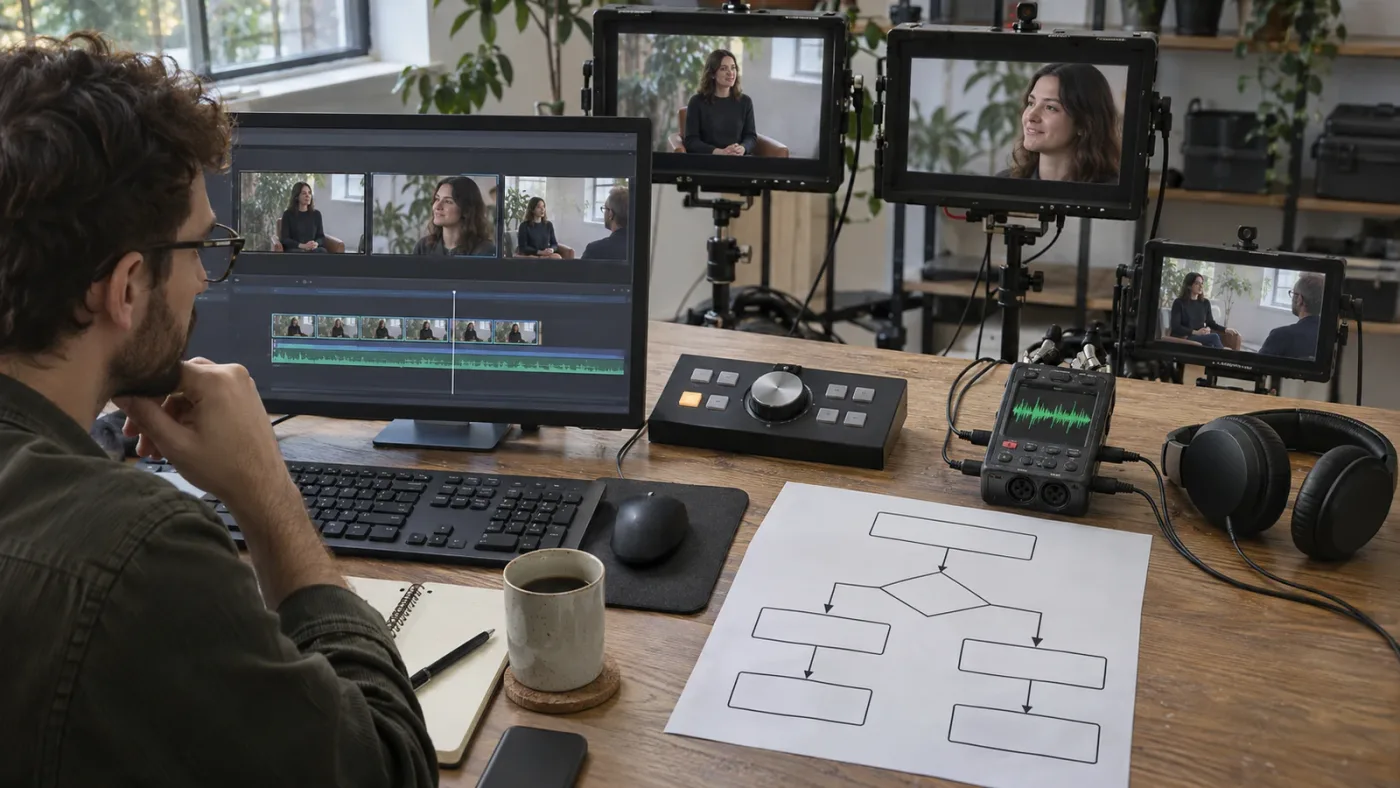
Which multicam audio fix fits your timeline?
The right fix depends on where the audio lives and whether you want it to change with the camera. Use Video and Audio for angle-specific sound, Video Only for a continuous independent mic or mix, and Audio Only when the picture should stay fixed.
| What you hear or see | First thing to check | Best next action |
|---|---|---|
| Picture changes, sound stays constant | Is Video Only selected? Is a separate audio track playing? | Choose Video and Audio if the angle's sound should change; otherwise keep the independent track |
| Picture changes, but wrong camera audio plays | Does that angle contain the mic feed you want? | Inspect the source track and multicam audio setup |
| Sound changes, picture stays constant | Is Audio Only selected? | Choose Video and Audio for both, or Video Only for picture changes |
| Sound is silent on one angle | Is that source audio present, enabled, and mapped as expected? | Inspect the clip's audio and channel configuration |
| Existing cuts ignore the new mode | Were those cuts made before you changed the mode? | Test a new cut, then repair the affected existing section |
| The image and audio both change but the cut sounds abrupt | Are the two source recordings tonally or temporally different? | Keep the intended source and refine the audio edit or mix |
Before you continue editing, make one test cut that matches your intended workflow. If the sound should follow the picture, confirm that both change. If a separate mic should remain steady, confirm that only the picture changes. Once the test passes, keep cutting.
Frequently asked questions
- How do I make audio follow video in a DaVinci Resolve multicam clip?
- In the Edit page Multicam Viewer, set the switching mode to Video and Audio before making angle cuts. If the audio still does not change, check that the multicam clip includes the desired audio and that the timeline clip is not using a separate continuous recording.
- Why does DaVinci Resolve multicam switch video but not audio?
- The viewer may be set to Video Only, the audio may come from a separate timeline track, or the multicam clip may not contain the source audio you expect. Set Video and Audio for linked switching, then check the multicam clip's audio setup.
- How do I keep one external mic while switching multicam cameras?
- Choose Video Only in the Multicam Viewer and keep the external mic on its own timeline audio track. This changes camera pictures without switching the selected audio angle.
- Can I fix audio on multicam cuts I already made?
- Yes. First identify whether the audio is inside the multicam clip or on a separate timeline track. For audio inside the multicam, select or recreate the affected audio angle edits; for external audio, leave that track intact and correct only the picture edits.
Sources
Put this guide to work with TryUncle.
Ask about the step you’re on. TryUncle sees your screen and points at the control you need, so you can keep learning in your own project.
Get TryUncle for Mac or WindowsKeep reading
Fixes · Jul 8, 2026 · 26 min
DaVinci Resolve Multicam Sync Off by Frames: Every Fix
Multicam clip off by frames or drifting worse over time? Fix DaVinci Resolve's waveform mis-sync, frame rate drift, and timecode gaps, angle by angle.
Fixes · Jul 31, 2026 · 24 min
DaVinci Resolve Multicam Angle Viewer Not Showing All Cameras
Multicam viewer only showing some of your DaVinci Resolve camera angles? Fix the grid size, duplicate camera metadata, and black angle bugs, one by one.
Guides · Jul 11, 2026 · 31 min
How to Mix Audio in DaVinci Resolve Using Fairlight
Mix audio in DaVinci Resolve's Fairlight page: build a dialogue/music/effects bus structure, gain-stage your clips, EQ and compress dialogue, then duck music under it.