Articles / Guidesupdated for DaVinci Resolve 21.2 (checked November 14, 2026)
How to Open a DaVinci Resolve Multicam in the Source Timeline
Quick answer
In DaVinci Resolve, select the multicam item in the Media Pool and check its context menu for **Open in Timeline with Source Viewer**. If available, that opens the multicam as a source for edits into another timeline; **Open in Timeline** opens its internal angle structure. Blackmagic’s published documentation does not clearly identify the source-viewer command as a new Resolve 21.2 multicam feature, so confirm the option in your installed version rather than relying on a version number alone.
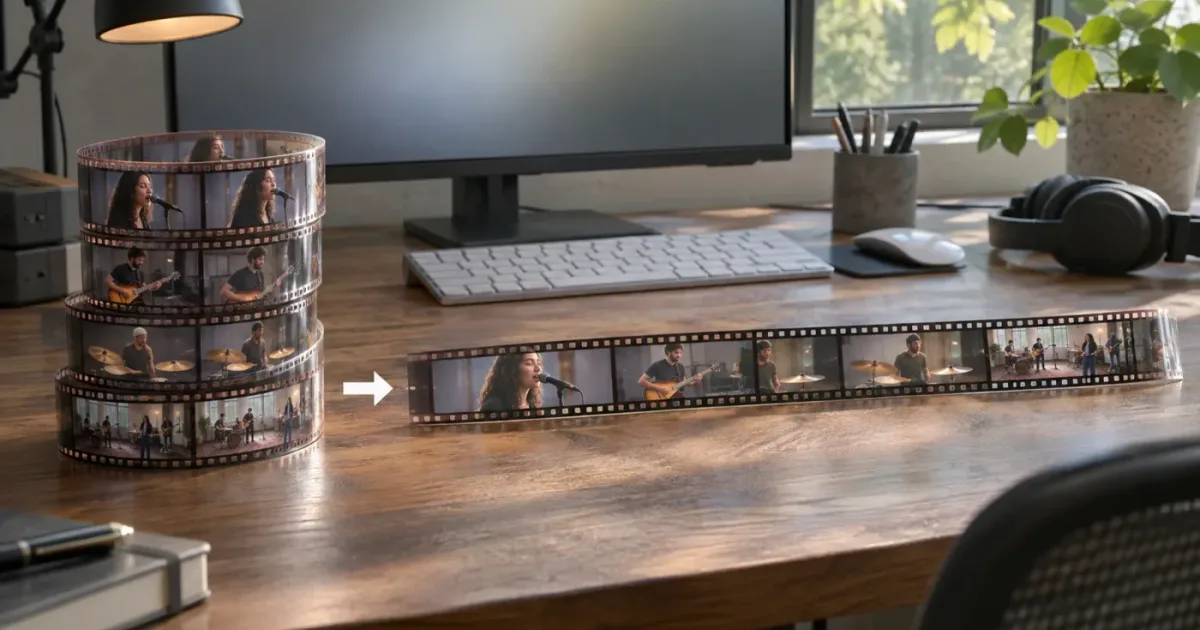
I went looking for this command because the wording sounds as if it should open the multicam’s camera stack. Those are different tasks, and Resolve’s menu labels can make the distinction easy to miss. There’s also a documentation wrinkle: Blackmagic’s published notes don’t clearly describe this as a new multicam-specific feature in Resolve 21.2, so I’ll separate what the command does from what the release notes actually establish.
How do I open a DaVinci Resolve multicam as a source timeline?
On the Edit page, select the multicam item in the Media Pool and inspect its context menu. If Open in Timeline with Source Viewer is available for that item, choose it to load the multicam as a source. Don’t choose Open in Timeline unless you want to work on the multicam’s internal structure.
- Go to the Edit page.
- Find the multicam item in the Media Pool. If you can see only an edited multicam instance in your sequence, locate the source item in the Media Pool instead.
- Right-click the Media Pool item and inspect the menu.
- If the menu offers Open in Timeline with Source Viewer, choose it.
- Confirm that the Source Viewer shows the intended source. If your layout uses one viewer, check which item or timeline it is currently displaying.
- Before editing, identify the destination sequence and confirm its playhead position and track targeting.
- Set source In and Out points if you need a specific passage, then use the edit operation that suits your goal.
The important phrase is if the menu offers it. Blackmagic’s Resolve 20 New Features Guide documents Open in Timeline with Source Viewer for ordinary media clips and describes the resulting source timeline as read-only for direct changes while still allowing timeline-to-timeline editing operations. Blackmagic’s current Resolve 21.2 update notes list several 21.2 changes, but they don’t clearly identify a new multicam-specific source-timeline command.
So don’t rely on the claim that this command first became available for multicam clips in 21.2. If you see it in your own multicam’s context menu, use the steps above and verify what loaded. If you don’t see it, that alone doesn’t prove the project is broken or that you selected the wrong Resolve edition. First check the selected object and use the supported multicam viewer workflow available in your version.
A source timeline is for choosing material to edit from; the multicam’s internal timeline is for working on its angles.
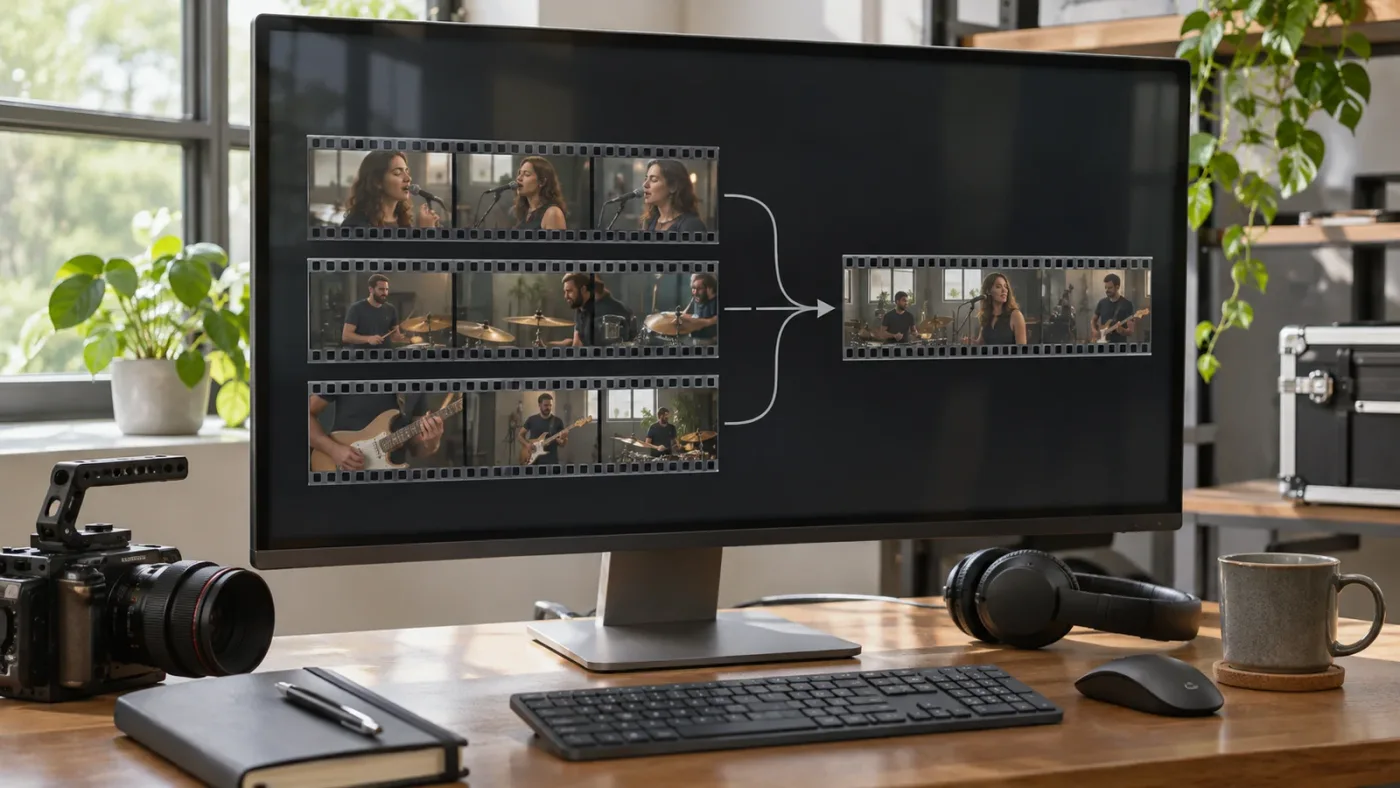
The command’s result is not the same as a multicam angle grid. A source timeline gives you a way to navigate source material and select a passage for another timeline. The angle viewer, by contrast, is designed to show camera options as you make or refine a multicam edit. The internal multicam timeline exposes the components that make up the multicam.
What does the command’s availability actually tell me?
A context menu is useful evidence about what your installed version permits for the selected item. It is not, by itself, proof of when a feature was introduced or of Blackmagic’s intended support across all item types.
The command’s presence means you can try that route on the selected object. It doesn’t establish that every multicam item, every Resolve version, and every workflow will behave identically. The source may be a native multicam, a regular timeline, a compound clip, or a different object that happens to look like one clip in the Media Pool. Resolve can show similar-looking items with different available actions.
For a dependable answer, use three checks together:
| Check | What it tells you |
|---|---|
| The selected object’s type | Whether you have a multicam item, an angle clip, a timeline, or another container |
| The visible context-menu command | Which operation Resolve offers for that object in this version |
| The resulting viewer and timeline state | Whether Resolve loaded a source or opened the internal construction |
If you’re following instructions from an older guide, compare the menu label and selected object before assuming your interface is wrong. The Resolve 20 New Features Guide discusses opening normal media clips as source timelines. That is useful background, but it is not proof that every multicam-specific menu behaves the same way. The 21.2 release summary is also not a complete list of every interface behavior.
What should I see when the source timeline opens?
The Source Viewer should show the item loaded as a source, and the record timeline should remain the destination for your edit. Look at the active viewer and timeline before acting. A familiar-looking frame alone doesn’t tell you which timeline you opened.
Resolve’s 21.1 Reference Manual distinguishes the Source Viewer from the Timeline Viewer. The manual also explains that Workspace > Single Viewer Mode can hide the separate Source Viewer and display either a selected source clip or the current timeline frame in one viewer. That layout can make a successful source load look like nothing happened if you were expecting a second viewer to appear.
Use this quick check:
| What you intended | Command or mode | What to confirm |
|---|---|---|
| Browse a multicam as source material, if the option is offered | Open in Timeline with Source Viewer | The selected source is visible in the Source Viewer or single-viewer layout |
| Inspect or adjust the multicam’s construction | Open in Timeline | The internal angle arrangement is open |
| Choose camera angles while editing a multicam sequence | Multicam viewer mode | The angle view is available alongside the edited sequence |
| Browse a bin of clips as a continuous source | Source Tape | The viewer represents multiple clips, not just one selected multicam |
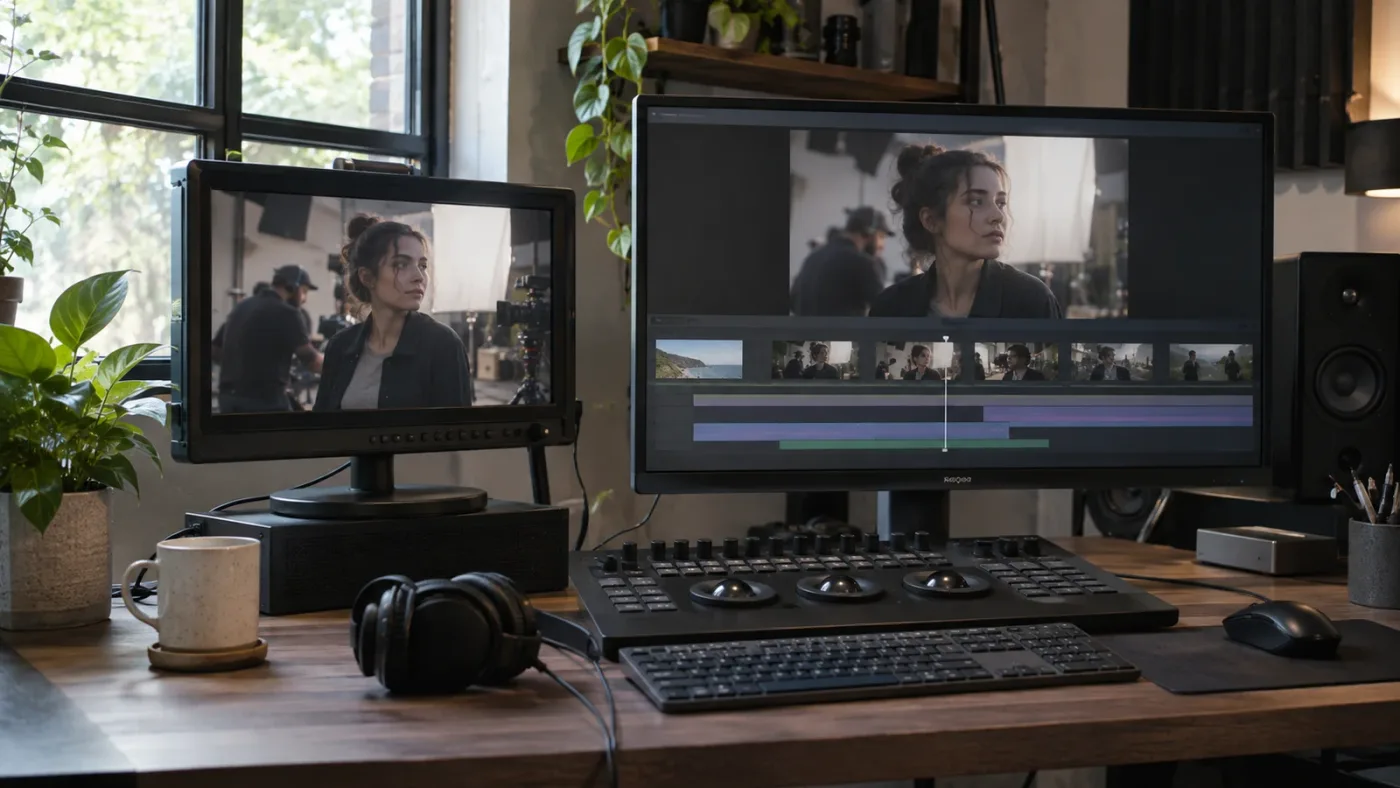
The two timeline views can look deceptively similar. Both can show horizontal time and recognizable video or audio. The more reliable distinction is what the view represents and where the controls take effect. A source timeline represents the selected source for editing from it. The multicam’s internal timeline represents its component angles.
What if the viewer doesn’t look different?
Don’t immediately repeat the command or drag clips around. First check the source label, viewer layout, and selected timeline.
- Look for the source name. Confirm that the name corresponds to the multicam you selected, not another clip or the active sequence.
- Check the viewer layout. In Single Viewer Mode, the Source Viewer may not appear beside the Timeline Viewer. Use Resolve’s viewer controls or change to a two-viewer layout if that will make source and record easier to distinguish.
- Move to a known section. The playhead may be parked at a gap or at a point where the selected angle has no visible picture.
- Check media status. If the underlying media is offline, opening the source won’t make the image appear. Relink the media before treating the blank picture as a viewer-command failure.
- Recheck the selected item. The Media Pool selection may have changed before you opened the context menu.
A source may be loaded successfully even when its current frame is black. Cameras in a multicam can start and stop at different times, and a particular angle may have no picture at the current source position. Move to a section you know contains footage before deciding that the load failed.
Which display detail is most useful?
Use more than one clue. Viewer focus, source name, playhead position, timeline tab, and visible angle tracks together give you a better answer than any single indicator.
The manual says the currently focused viewer is identified by its focus state, with the viewer name shown in orange in the described layout. Treat that as a guide to the manual’s interface description, not a promise that every skin, workspace, or version displays every cue identically. If your version’s visual indicator differs, use the named viewer controls and the source label.
A practical way to avoid guessing is to pause and say what you see: “The Source Viewer is showing the multicam named Interview A, and the active record tab is Social Cut.” If you can’t identify both sides, don’t make an edit yet.
Why is Open in Timeline different from Open in Timeline with Source Viewer?
Open in Timeline opens the multicam container’s internal timeline. Open in Timeline with Source Viewer, when available for the selected item, loads that item as a source timeline. Choose based on whether you need to edit the multicam’s construction or edit from the multicam into another sequence.
Blackmagic’s Editor’s Guide to DaVinci Resolve 18 describes a multicam clip as a container timeline and explains that editors can open it to change angle order or names. It points to Clip > Open in Timeline or the right-click command for opening the multicam’s own timeline.
That guide is useful for the traditional angle-stack workflow. It should not be used as evidence for a newer source-viewer behavior. Resolve’s 20 New Features Guide discusses source timelines for ordinary media, and its documentation helps explain the source-versus-destination idea. Current release notes and the menu in your installed version are the appropriate checks for later version changes.
| Question | Open in Timeline | Open in Timeline with Source Viewer, if offered |
|---|---|---|
| What am I trying to open? | The multicam’s internal structure | The selected item as a source |
| What is the task? | Inspect or adjust angle construction | Browse a source and edit material from it |
| What should I expect to see? | Internal tracks or angles | A source displayed through the Source Viewer workflow |
| Does this switch cameras in my edited sequence? | No | No |
| Which view is for selecting an angle while editing? | Neither command by itself | Neither command by itself; use multicam viewer controls |
The difference matters before you trim, move, or ripple anything. If your goal is to find a useful interview passage, opening the internal angle timeline can expose more detail than you need. If your goal is to correct a sync issue or rename an angle, the source-viewer workflow is not a substitute for inspecting the multicam’s construction.
Think of the two commands as different doors. One takes you into the container. The other, when it is available for the selected item, makes that item a source for work elsewhere.
Which multicam editing mode should I use?
Use the source-viewer workflow when you want to browse a multicam and edit a selected range into a destination sequence. Use the internal timeline when you need to work on the multicam’s component tracks. Use multicam viewer mode when you want to choose angles during a multicam edit.
Consider an interview recorded with a wide camera, a close camera, and a separate audio recorder. If you want to find an answer to one question and place it in a short sequence, you’re choosing content. A source timeline, if offered, may be a good way to browse that material. If the close camera is out of sync, you’re diagnosing the multicam’s construction. Open the internal timeline and investigate the relevant angle and sync reference.
If you’re cutting the interview live from one angle to another, you’re doing a third task. Use the multicam viewer controls. Don’t expect the source timeline to display all cameras simultaneously just because the source is a multicam object.
The source view, angle stack, and multicam viewer solve three different editing problems.
Blackmagic’s Edit page overview describes the Edit page’s multicam interface and its role in refining trim points and changing clip angles after editing. That is a different job from choosing a source range or changing the multicam container.
How do I decide quickly?
Name the action you want before opening a menu. The right command usually becomes obvious once you describe the task in plain language.
| If your task is… | Start with… | Don’t confuse it with… |
|---|---|---|
| “I want to pick a passage from the interview.” | A source-viewer command, if available for the item | Editing the angle stack |
| “I need to rename Camera 2 or inspect its track.” | Open in Timeline | The multicam angle grid |
| “I want to switch cameras while the sequence plays.” | Multicam viewer mode | Source Tape |
| “I need to browse several separate clips together.” | Source Tape | A single multicam source |
| “I need to fix a camera offset.” | Inspect the underlying multicam and source sync | Loading the multicam as a source |
What if my task changes halfway through?
That’s normal. You may start by selecting a passage, then discover that a camera angle is missing or that the audio is out of sync. Stop and switch to the view that matches the new task. Don’t keep using a source view simply because it’s already open.
For example, you may load a multicam to select a speaker’s answer. While previewing it, you notice that the close-up starts several frames late. The source view helped you find the problem, but it didn’t repair it. Open the internal multicam timeline, identify the affected source, investigate the sync, and then return to the edit. Review any already-cut sections that depend on the corrected material.
That’s a workflow choice, not a claim that Resolve automatically propagates every structural change in the way you expect. After adjusting a multicam, inspect the edited sequence and play the affected cuts.
Does the source timeline overwrite the current edit?
Opening a source does not, by itself, replace your record sequence. Your later edit operation acts on the destination timeline that is active and on the tracks that are targeted. Confirm those before you make the edit.
A safe first pass looks like this:
- Load the source, if the command is available.
- Confirm the source name in the Source Viewer.
- Click or otherwise confirm the intended destination sequence.
- Check the record playhead position.
- Check which tracks are targeted.
- Make a small, recognizable edit.
- Inspect the destination and play the result before continuing.
If the interface shows multiple timeline tabs, don’t assume the one you last used is active. A project might contain a full interview, a short social edit, and a review copy. An insert into the wrong sequence can be technically successful and still be the wrong result.
For an important edit, duplicate the destination sequence before experimenting. Give the duplicate a name that identifies its purpose, such as “Interview excerpt test.” That is a simple safety measure, not a guarantee that every kind of multicam change can be undone by restoring a timeline copy.
What is the difference between source and record playheads?
The source playhead marks a position in the material you’re taking from. The record playhead marks a position in the destination sequence. If you have a source range selected and the record playhead parked elsewhere, the edit uses both contexts.
That means a correct In and Out range does not prove the edit landed in the right place. Likewise, a correct record playhead does not prove you selected the intended source section. Check both sides.
A useful verbal check is: “I’m taking the answer from 00:12:10 to 00:12:42 in Interview A and placing it at the end of the current social cut.” The exact timecodes are just an example. They are not a Resolve default or a measured result. The point is to identify source and destination separately.
Why can’t I find Open in Timeline with Source Viewer for a multicam?
Start by checking the selected object, then the menu, then the viewer layout. Don’t begin by resetting preferences or rebuilding the multicam.
A missing entry can have several explanations. The selected item may not be a multicam. You may have opened the menu for an angle clip rather than the multicam. The command may not be offered for that item in your installed version. Or the menu may be hidden because you’re looking at a different object or workspace.
How do I confirm the Resolve version?
Check the version shown in Resolve’s About information, then compare its documentation with the command you’re seeking. Don’t assume that a version number alone guarantees the command for every item type.
Blackmagic’s current Resolve 21.2 update notes describe features and changes for that update. They don’t clearly call out Open in Timeline with Source Viewer as new multicam support. The Resolve 20 New Features Guide documents the source-timeline feature for ordinary media clips.
The careful conclusion is narrow: the published material cited here does not establish that Resolve 21.2 is the first version with this command for multicams. If the command is missing, check the object and the menu first. If you need a definitive answer for a particular version, consult the manual shipped with that version or Blackmagic’s official support material.
If you’re considering an update to solve the problem, make a project backup first and check the current compatibility guidance. Don’t update a project solely because an article claimed a particular point release introduced a multicam command when the release notes don’t establish that claim.
Why does the Media Pool selection matter?
The Media Pool item and a timeline instance are related, but they are not the same selection. A source command is meant to act on an item you can load as a source. A clip already cut into a record timeline may offer a different set of actions.
Find the multicam by name in the Media Pool. If you can’t identify it, check the Media Pool bins and search before right-clicking. Avoid selecting an angle from inside the multicam’s own timeline and expecting the multicam’s menu.
The selected item may also be an ordinary timeline, compound clip, synchronized clip, or other container. A single rectangular block in the record timeline doesn’t tell you enough to determine the underlying object type. Use the item’s name, metadata, and context-menu options. If the source came from another project or another editor, verify what it is rather than assuming it is a native multicam clip.
What if the item is a timeline rather than a multicam clip?
A timeline and a multicam can both represent more than one clip. They are not interchangeable. The Resolve 20 guide’s source-timeline instructions discuss opening normal media clips, and its examples include timeline-related operations elsewhere in the guide. Use the context menu on the actual item and pay attention to the menu’s wording.
If the selected object is a standard timeline, Open in Timeline with Source Viewer may be presented as a timeline-source workflow. That does not prove that a multicam-specific angle stack is open. Look at the contents and the viewer after the command runs. If you need the underlying camera angles, use the multicam’s own timeline command.
What if I’m on the wrong page or menu?
Return to the Edit page, show the Media Pool, and right-click the intended item there. The command you want is in that item’s context menu, not a generic viewer control or an angle-selection menu.
Resolve menus and controls depend on the selected object and current context. Seeing Open in Timeline does not mean Open in Timeline with Source Viewer must also be offered. The two commands are distinct, and menu entries can vary by selection and version.
Don’t reset the interface because one menu entry is missing. A reset can disturb a workspace you’ve arranged and won’t turn one object type into another. Confirm the version, object, and menu target first.
What if the command runs but I can’t see a separate Source Viewer?
Check whether you’re using Single Viewer Mode. The Resolve 21.1 Reference Manual explains that this layout hides the separate Source Viewer and uses one viewer contextually for a selected source clip or the current timeline frame.
If you need a clearer distinction, use the Workspace menu to change the viewer layout, then confirm the source label and record timeline. Don’t assume that no second viewer means no source loaded.
How do I use a multicam source timeline without losing my place?
Treat the source as the material you’re selecting from and the record sequence as the destination. Identify both before you mark a range or make an edit.
A careful source-to-record routine is:
- Load the multicam with Open in Timeline with Source Viewer, if that option is available for the selected item.
- Confirm that the Source Viewer is showing the intended source.
- Select the destination sequence and make sure it is the one you intend to edit.
- Return to the source and find the passage you want.
- Set source In and Out points around a recognizable event.
- Choose the edit operation that matches your intent.
- Inspect the destination timeline and play the new material.
Blackmagic’s Resolve 20 guide describes source timelines as read-only for direct editing while still allowing timeline-to-timeline operations. That distinction is useful: read-only does not mean that you cannot edit from the source into a destination. It means you should distinguish the source material from the sequence receiving the edit.
The exact screen layout and keyboard mappings can differ. Use Resolve’s visible menus and viewer labels if a shortcut or remembered gesture doesn’t behave as expected.
How should I choose In and Out points?
Choose a clear cue at the beginning and end of the passage. Then check that the marks cover what you meant to select, not simply a nearby frame.
For an interview, a worked example might be to mark the start just before the speaker begins an answer and the end after the sentence resolves. For a live performance, you might choose a passage bounded by a recognizable musical change. These are editorial examples, not measured outcomes. Your pacing and delivery requirements determine the actual range.
The marks need to refer to the source. If you’re uncertain, move the source playhead, check the viewer image, and confirm that the source timeline is active before making the edit. Don’t use an In/Out range as proof that the correct source is loaded.
If the needed passage is longer than the visible timeline area, zoom or navigate within the source view before marking it. A zoomed-in view can help you place a precise boundary, but it can also make it harder to see where the passage sits in the full interview. You can first locate the general section, then zoom in to set the boundary, and finally zoom out to review the chosen range.
Should I use insert or overwrite?
Use insert when you want to add the selected source material at the destination playhead and move later material forward. Use overwrite when you want the selected source to replace material at the destination rather than extend the sequence in that way.
Track targeting affects where the edit lands. The chosen operation also affects what happens to existing material. A command to load a source does not choose the edit operation for you.
If you’re learning the workflow, duplicate the destination sequence and test with a short, identifiable range. Inspect the resulting clip, the surrounding material, and the duration. If the edit landed on the wrong track, check track targeting. If it landed at the wrong point, check which timeline was active and where its playhead was parked.
Don’t use a valuable sequence to test what an unfamiliar edit button does. A short trial in a duplicate makes the behavior visible without relying on memory or assumptions.
What if source edits land in the wrong timeline?
Stop and identify the active record timeline before making another edit. If the last action was wrong and you know exactly what it changed, undo once. Otherwise inspect the affected sequence and decide whether a duplicate or backup is the safer recovery route.
Don’t make a chain of extra edits while trying to correct the first one. Each additional action can make it harder to identify what happened. Check the timeline tab, record playhead, and selected tracks first.
What if the source range is right but the camera angle is wrong?
The source range and the selected multicam angle are separate things. If the result uses an unexpected angle, check the multicam angle controls in the edited sequence and confirm which angle is selected there.
Loading a multicam as a source doesn’t mean the source-timeline command itself chooses a camera angle. If you want to switch among cameras while making a multicam edit, use the multicam viewer workflow. If you need to inspect or change angle order, open the internal multicam timeline.
What if the audio is missing or comes from the wrong camera?
Check whether the multicam’s audio behavior is part of the issue before changing the source range. A source timeline can help you locate a passage, but it doesn’t automatically correct the multicam’s audio configuration.
Review the multicam setup and the selected audio source. If dialogue is supposed to come from a separate recorder, confirm how that audio is represented in the multicam and how the edited sequence is configured. Make a short test in a duplicate before changing a long edit. After the change, listen to the result, not just the video.
This is especially useful for interviews and panel recordings where the camera audio is scratch audio and a separate recorder provides the production sound. A picture edit can look correct while the wrong audio source remains active.
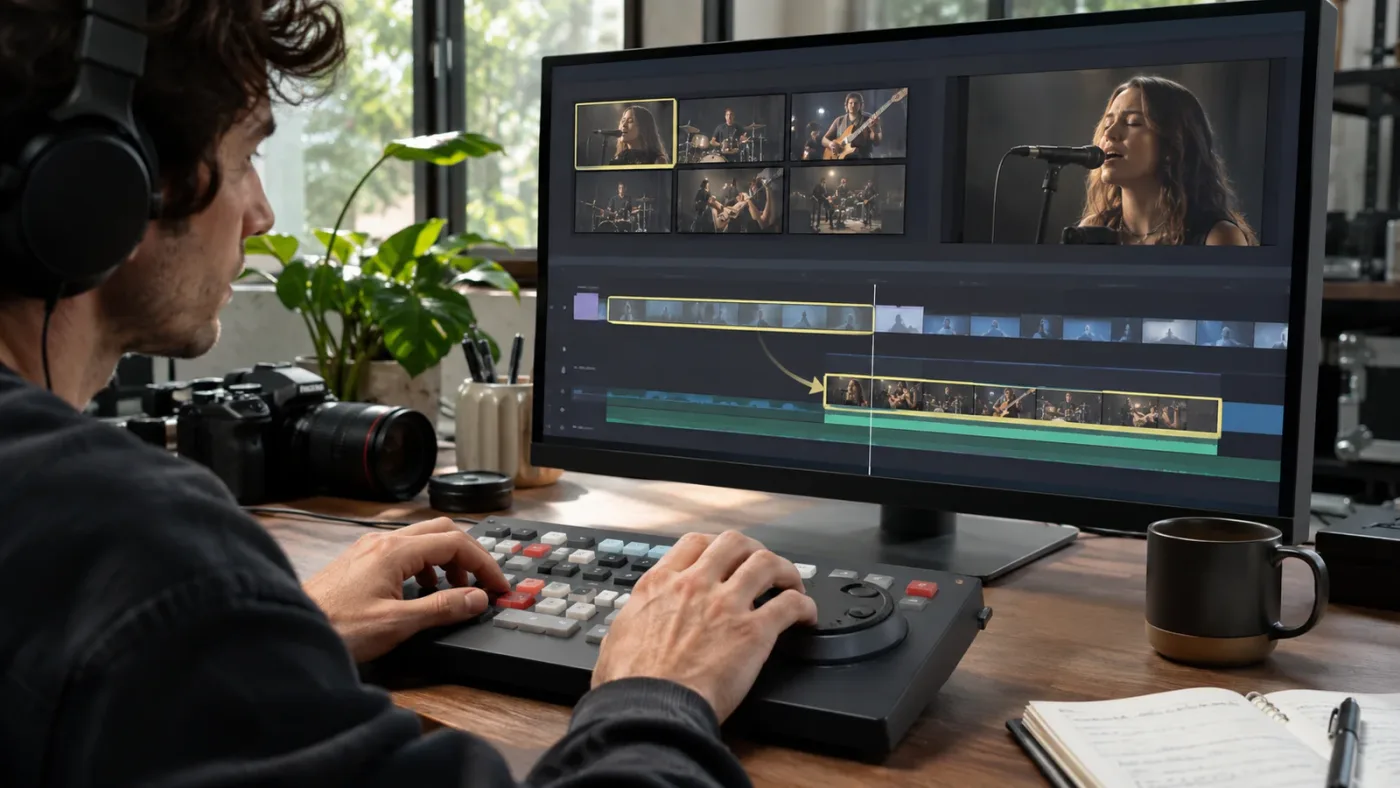
What if I want to compare two multicam sources?
Load one source, identify it, and make your comparison before loading another. When you switch sources, check the source label again. Don’t assume the previous item remains selected or that two open timelines mean both are source timelines.
A simple comparison might involve two takes of the same interview. You can note which take contains the stronger answer, then compare the image and audio in the destination sequence. If the comparison requires experimental edits, use a duplicate sequence and give the takes clear names.
Resolve’s stacked-timeline features may help keep timelines available for reference, but stacking timelines is not the same as opening a multicam as a source. Confirm the active source and destination after changing tabs.
For a bin of many unrelated clips, Source Tape may be more appropriate than loading one multicam. Source Tape represents a group of clips for browsing. One multicam source represents a single multicam item. For more on the multi-clip workflow, see DaVinci Resolve Source Tape mode.
How do I fix the wrong multicam view opening?
Stop before changing anything. Identify whether you wanted the source, the internal angle stack, or the multicam angle viewer. Then use the command or mode that matches the task.
- “I want to find a passage and cut it into a sequence.” Use the source-viewer command if it is available for the selected item.
- “I need to rename, reorder, or inspect an angle.” Choose Open in Timeline.
- “I want to choose a camera while editing the sequence.” Use the multicam viewer controls.
- “I need to investigate a sync problem.” Inspect the underlying multicam and its sources, then review affected edits.
If you opened Open in Timeline by mistake, the internal timeline being open doesn’t mean you’ve changed the angle stack. Don’t drag or trim anything unless you intend to modify its construction. Switch to the intended view and verify the active tab before editing.
If you’re not sure which view is open, inspect the visible contents. A multicam’s internal timeline should show the component structure. A source-viewer workflow should show the selected source as material to edit from. A multicam angle viewer should show available camera angles. Don’t infer the view from the fact that a timeline or viewer is visible.
Blackmagic’s Resolve 18 Editor’s Guide describes opening a multicam’s own timeline to adjust angle order or names. The Resolve 20 feature guide describes source timelines for ordinary media. These references explain the different jobs, but neither makes it safe to assume that every Resolve release offers the same multicam source command.
Why do I see one camera instead of all the angles?
A source timeline is not the same as the angle viewer. If you want to see or select multiple camera angles at once, use the multicam viewing mode rather than expecting a source timeline to display the angle grid.
The DaVinci Resolve Edit page overview describes the Edit page’s multicam interface and its use for refining trim points and changing angles after editing. That workflow concerns selecting and adjusting angles, not browsing a source range.
If the angle viewer itself is missing cameras, investigate that as a separate issue. Check whether the multicam contains the expected angles and whether the viewer is set to the right mode. Our guide to DaVinci Resolve’s multicam angle viewer not showing all cameras covers that distinct problem.
A single-camera picture can also be expected if the viewer is showing the currently selected angle rather than an angle grid. Check the viewer mode and its controls before concluding that the multicam has lost angles.
Why doesn’t opening the source timeline fix sync?
Opening a source changes how you access material. It does not, by itself, repair camera synchronization.
If one angle starts late or drifts out of sync, inspect the source timing and the multicam construction. First establish whether the issue is a constant offset or a problem that changes over time. Compare the camera against a reliable sync reference, such as a visible clap or an audio event recorded clearly on both sources.
A fixed offset may call for a different correction than drift that increases through a long take. Check frame rates, source duration, and sync references before nudging an angle. Don’t move an entire source just because one cut sounds wrong; the problem could be a cut point, a selected angle, or the audio source.
If you make a structural sync change, review existing cuts that use the affected angle. For a focused walkthrough of timing discrepancies, see DaVinci Resolve multicam sync off by frames.
Can I use the source timeline with Source Tape?
They are related browsing workflows, not interchangeable names for one command. Use the multicam source command, if available, when you want to load one selected item as a source. Use Source Tape when you want to browse multiple clips from a bin as a continuous source.
If you loaded one multicam, check whether the Source Viewer identifies that source. If you selected a bin or invoked Source Tape, you may be viewing a group of clips instead. The difference matters when setting marks: a range in a continuous tape can span clips, while a range in one multicam source refers to that item.
The interface may change as you switch between viewer modes. Confirm the source label and the displayed material after switching instead of relying on where the viewer was positioned before.
For the multi-clip browsing case, read DaVinci Resolve Source Tape mode. This post focuses on one multicam item and the distinction between its source representation and internal angle structure.
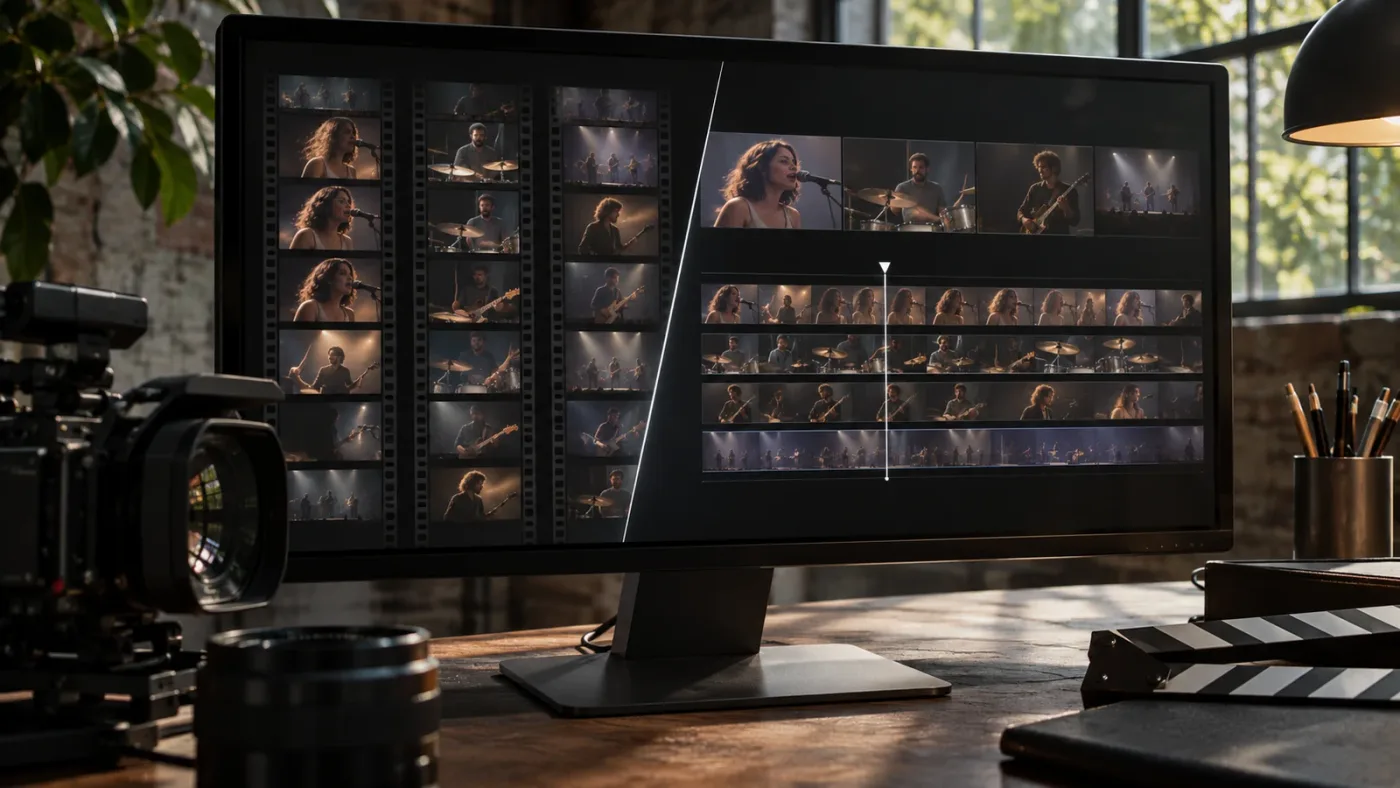
Which view is best for a long interview?
For selecting passages from a long multicam interview, start with a source-browsing workflow. If Resolve offers Open in Timeline with Source Viewer for the selected multicam, it can provide a way to navigate the source and choose a passage without opening the internal angle stack first.
For fixing camera alignment, inspecting audio sources, or changing angle structure, use Open in Timeline. A long interview can involve both jobs. You might select the passage first, then inspect the angle stack if you find a source problem.
The Resolve 20 guide describes source timelines as useful for very long clips such as interviews. That guidance establishes a use case for ordinary source media. It does not, on its own, establish identical support for every multicam clip in later versions. Use the option visible in your version and verify the result.
Here’s a worked example. You have a two-hour interview and need a short answer from the guest. First, locate the source item and check whether the source-viewer command is offered. If it is, use the viewer to find the question and mark the answer. Confirm the destination sequence, then make a short test edit and play it back. If the guest’s close-up is out of sync, stop selecting excerpts and inspect the multicam’s internal sources. That keeps the selection task separate from the repair task.
What should I check before editing a multicam source?
Before making a source-to-timeline edit, check the source identity, destination sequence, active viewer, source marks, record playhead, track targeting, and edit type.
| Check | What to confirm | Why it matters |
|---|---|---|
| Source identity | The Source Viewer contains the intended multicam | Prevents editing from the wrong source |
| Source view | The selected item is loaded as a source, if the command is available | Helps distinguish the source from its internal angle timeline |
| Destination | The intended record sequence is active | Prevents placing material into another sequence |
| Source marks | In and Out cover the passage you intend to use | Prevents an unintended range |
| Record playhead | The destination playhead is at the intended position | Determines where the edit occurs |
| Track targeting | The intended destination tracks are targeted | Helps avoid placing material on the wrong tracks |
| Edit type | Insert, overwrite, or another operation matches the goal | Determines how existing material is affected |
| Result | The new section plays with the expected picture and sound | Confirms the source and destination were correct |
Resolve workflows can involve more than one playhead and viewer. That’s useful once you know which one you’re using. It’s confusing when you don’t. Pause before the edit, identify both sides, and make one small operation to validate the setup.
What should I do before a high-impact change?
Save the project, duplicate the destination timeline if the edit is important, and avoid changing the internal multicam structure unless that is the task. A duplicate sequence gives you a place to test an edit operation. It doesn’t duplicate or isolate every source relationship automatically, so be clear about what you are copying.
For a structural change to the multicam, make a deliberate project or timeline backup using Resolve’s available project-management features. Confirm the backup exists before you alter the angle structure. Don’t rely on a backup feature you haven’t checked or assume that a timeline duplicate protects every source object in the project.
Use a low-risk test first. For example, make a short edit in a duplicate sequence and inspect both its image and sound. If the result is right, continue. If it isn’t, you’ve learned which viewer, track, or operation needs attention without leaving an uncertain change in the main cut.
How can I avoid changing the multicam by mistake?
Don’t rearrange clips unless the angle stack is intentionally open and you mean to change the multicam’s construction. When you only need a passage for your edit, use a source-viewer workflow if available and leave the internal angle timeline alone.
If you open Open in Timeline by mistake, switch back to your sequence without dragging or trimming component tracks. Merely opening the internal timeline is not the same as changing it. Be deliberate about which tab is active before you make a change.
For higher-risk work, use a backup or duplicate the relevant item where appropriate. The Resolve 21.1 Reference Manual describes timeline backups as a preference-based feature and explains that restoring a backup brings it into the Media Pool as a new timeline rather than overwriting the current one. Confirm how the feature is configured in your version before relying on it.
Keep the change small and review it immediately. If you meant to rename one angle, confirm the name. If you meant to move a source, confirm its relationship to the other angles. Then return to the edited sequence and play the affected section. Don’t assume that an internal adjustment left every existing cut exactly as it was.
Does this feature work the same in Resolve Free and Studio?
The cited Blackmagic material doesn’t establish that the source-timeline command is a Studio-only feature. It also doesn’t establish that every edition and version offers the same command for every multicam object. Don’t infer edition restrictions from unrelated Studio-only tools.
If the command is missing, first confirm the Resolve version and selected object. Then check Blackmagic’s manual or support material for your exact version and edition. The presence of a separate Studio feature elsewhere in Resolve is not evidence that this ordinary source-or-timeline action requires Studio.
Is there a shortcut for opening a multicam source timeline?
Use the visible context-menu command unless you’ve verified a shortcut in your own keyboard preset. The official sources cited here establish menu wording for source-timeline workflows, not one universal shortcut for opening a multicam as a source.
Resolve supports different keyboard presets and user-customized mappings. If you want a shortcut, search for the command in Keyboard Customization and confirm what your installed version assigns. Test it with the intended item selected, then verify the viewer and timeline state.
Larry Jordan, an editor and educator who has written about multicam work in Resolve, says, “I love using the Speed Editor with DaVinci Resolve.” That’s his preference, not evidence that a particular shortcut opens a multicam source timeline. His article is useful context for treating input devices as workflow choices, not as a substitute for checking the command and its result. (larryjordan.com)
What is the safest troubleshooting order if the command fails?
Check the selected item first, then the context menu, viewer layout, and resulting source. Change one thing at a time. Don’t reset the workspace or rebuild the multicam until you know what failed.
- Confirm the item. Make sure you selected the multicam item in the Media Pool, not an individual angle or an edit instance.
- Inspect the object type. Confirm that it is a multicam rather than an ordinary clip, compound clip, or timeline.
- Read the menu literally. Choose Open in Timeline with Source Viewer only if that exact command is offered. Don’t substitute Open in Timeline and expect the same view.
- Check the version documentation. Blackmagic’s published 21.2 notes do not clearly establish this as a new multicam-specific feature.
- Check the viewer layout. Single Viewer Mode can hide the separate Source Viewer.
- Confirm what loaded. Check the source name, current frame, and viewer mode.
- Check media status. Relink offline sources before troubleshooting a blank image.
- Test the destination separately. Confirm the record timeline, playhead, and track targeting before making an edit.
- Inspect the internal multicam only if the problem involves its angles. Use Open in Timeline for structural work.
These steps separate a missing command from the wrong selection, a hidden viewer, offline media, and confusion between source and record. That’s more useful than resetting the interface or changing project settings without a diagnosis.
What if the menu is there but the Source Viewer stays blank?
Check three things before trying a different command:
- Is the intended multicam still selected?
- Is the Source Viewer visible, or is the workspace using Single Viewer Mode?
- Is the playhead parked at a point with visible media?
If those checks pass, inspect the underlying media status and move to a known part of the source. If another source appears, check the source label and repeat the selection carefully. A blank image alone doesn’t tell you whether the source command failed, the media is offline, or the current angle has no picture at that point.
What if edits land on the wrong track?
Stop and inspect track targeting and patching before repeating the edit. The source load and the track destination are separate parts of the workflow. If the wrong track received material, undo once only if you’re certain the last action is the one you want to reverse. Otherwise inspect the sequence before acting again.
What if the command works for a regular clip but not a multicam?
That difference is useful evidence. It suggests that the command’s availability depends on the selected object or version, rather than proving the project is corrupt. Use the established multicam editing workflow for your installed version, and consult its manual for source-versus-angle behavior.
Don’t convert the multicam to another object type simply to make a menu entry appear. Conversion can change the workflow and may not preserve the function you need. First decide whether you need a source selection, an angle edit, or a new sequence from the component media.
What if I’m using Resolve 20?
The Resolve 20 New Features Guide documents Open in Timeline with Source Viewer for ordinary media clips and describes source timelines as read-only while permitting certain timeline-to-timeline operations. The cited material does not establish that the same command is supported for multicam clips in every Resolve 20 workflow.
If you need the feature for a multicam and your context menu doesn’t offer it, use the multicam viewer and internal timeline workflows available in your installed version. Don’t force a menu label from a guide for ordinary media onto a multicam object.
If an update is an option, back up the project first and review the official compatibility information. Updating is not a substitute for diagnosing the selected object, and the available 21.2 release summary does not support presenting that version as a guaranteed fix for a missing multicam command.
What if source edits land in the wrong sequence?
Stop editing and identify the active record timeline. A source operation can work as intended while the wrong destination is selected.
If the edit just happened and you’re certain what changed, undo. If you’re not certain, inspect the sequence before taking another action. Avoid trying to repair a wrong-destination edit by making a second edit in another tab; that can leave both sequences changed.
A helpful habit is to read the destination timeline name before each source edit, especially in projects with review copies, vertical versions, or client alternatives. If the names are ambiguous, rename or color-code timelines using a convention you can recognize. This is a project-organization choice, not a Resolve requirement.
What if the source range is right but the audio is not?
Treat picture selection and audio selection as separate checks. A multicam angle change may affect which camera is visible without changing the audio behavior you intended. Listen to the edited section and confirm the audio source.
If the multicam uses a dedicated recorder or reference audio, inspect how it was included in the multicam and which audio is active in the edit. Don’t solve an audio mismatch by moving the video range unless the sync evidence points to a timing error. For a deeper audio-specific problem, use the relevant Resolve audio or multicam guidance rather than the source-timeline command as a fix.
When is on-screen guidance useful for this workflow?
On-screen guidance can help when you can’t tell which viewer or timeline is active, or when you’re unsure which visible control corresponds to the task. It doesn’t replace checking the source, destination, and result.
TryUncle is an on-screen assistant for Mac and Windows. You can ask a question by voice or text, and Uncle uses your current screen and conversation to guide you toward the relevant control one step at a time. You perform the actions in Resolve.
The workflow in this post doesn’t depend on an assistant. Use Resolve’s menus and documentation if that’s what you prefer.
What should I remember before opening the multicam?
Decide whether you want to edit from the multicam, edit the multicam’s internal angle structure, or switch cameras in an edited sequence. Those are separate jobs.
If the Media Pool context menu offers Open in Timeline with Source Viewer for your multicam, choose it to load the item as a source. Choose Open in Timeline when you need its internal structure. Use the multicam viewer when you need to select among camera angles during an edit.
A source view helps you choose material; an internal multicam timeline exposes the angles that make up the multicam.
If the command is missing, confirm the selected item and its type, then check your version’s documentation and viewer layout. Blackmagic’s published Resolve 21.2 notes don’t clearly establish a new multicam-specific feature or a 21.2 minimum version for this command. Trust the menu in your installed version, verify the source and destination, and make a short test edit before continuing with a critical sequence.
Frequently asked questions
- How do I open a multicam in the source timeline in DaVinci Resolve?
- Select the multicam item in the Media Pool and inspect its context menu for Open in Timeline with Source Viewer. If Resolve offers that command for the selected item, choose it to load the multicam as a source. The command is different from Open in Timeline, which opens the multicam’s internal angle structure.
- Why can’t I see Open in Timeline with Source Viewer for my multicam?
- Check that you selected the multicam item in the Media Pool, not an angle clip or an edited instance, and confirm the item is actually a multicam. Blackmagic documents the command for ordinary media and timeline workflows, but its published Resolve 21.2 update notes do not clearly establish a new multicam-specific version requirement. If the menu does not offer it for your multicam, use the supported multicam viewer workflow in your installed version.
- Does Open in Timeline with Source Viewer show all multicam angles?
- It loads the selected item as a source timeline when the command is available. It is not the same as the multicam angle viewer, which is designed to display and select camera angles during a multicam edit. Use Open in Timeline when you need to inspect the internal angle tracks.
- Does opening a multicam source timeline change my edit?
- Opening a source does not, by itself, replace the destination sequence. A later edit operation can add or replace material in whichever record timeline is active, so confirm the destination timeline and track targeting before editing.
Sources
Put this guide to work with TryUncle.
Ask about the step you’re on. TryUncle sees your screen and points at the control you need, so you can keep learning in your own project.
Get TryUncle for Mac or WindowsKeep reading
Guides · Aug 2, 2026 · 39 min
DaVinci Resolve Source Tape Mode: The Complete Tutorial
How to use DaVinci Resolve's Source Tape mode on the Cut and Edit pages: enabling it, marking clips, shortcuts, and when it beats browsing the Media Pool.
Fixes · Jul 31, 2026 · 24 min
DaVinci Resolve Multicam Angle Viewer Not Showing All Cameras
Multicam viewer only showing some of your DaVinci Resolve camera angles? Fix the grid size, duplicate camera metadata, and black angle bugs, one by one.
Fixes · Jul 8, 2026 · 26 min
DaVinci Resolve Multicam Sync Off by Frames: Every Fix
Multicam clip off by frames or drifting worse over time? Fix DaVinci Resolve's waveform mis-sync, frame rate drift, and timecode gaps, angle by angle.