Articles / Fixesupdated for DaVinci Resolve 21.0.2 (July 2026)
DaVinci Resolve Project Won't Open: Match Symptom to Fix
Quick answer
DaVinci Resolve won't open for different reasons: a hang before launch points to USB devices or preferences, a freeze at 100% points to corrupted cache, and a database or 'Failed to load project' error points to a corrupted project database. Match your symptom to its cause, then restore from a backup, not a reinstall.
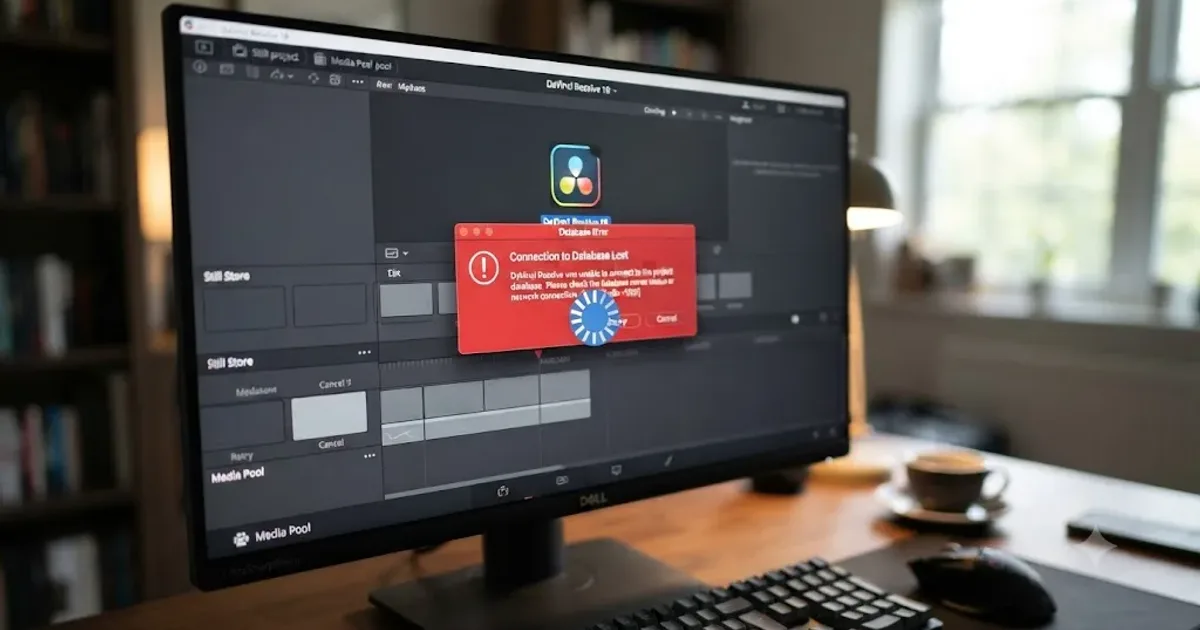
A project that won't open doesn't feel like a bug. It feels like a threat. Every cut, every grade, every client note you've already worked through sits behind a spinner that isn't moving, and your first instinct is to panic-click something.
Don't. The fix depends entirely on which specific way it's failing, and DaVinci Resolve fails in at least eight distinct, recognizable ways before a project ever opens. Match your exact symptom to the table below, then jump straight to that section. You don't need to read this whole page to get your project back.
Which symptom do you have, and what does it actually mean?
Read this table before anything else. The moment your project stops opening tells you almost everything about why.
| What you're seeing | Most likely cause | Jump to |
|---|---|---|
| Resolve won't even reach the Project Manager screen | USB panel/device scan hanging, or corrupted preferences | Does Resolve even get to the Project Manager? |
| Project Manager opens, but the app freezes when you double-click the project | Database unreachable or too large for shared memory | Is the project hanging, or is the database unreachable? |
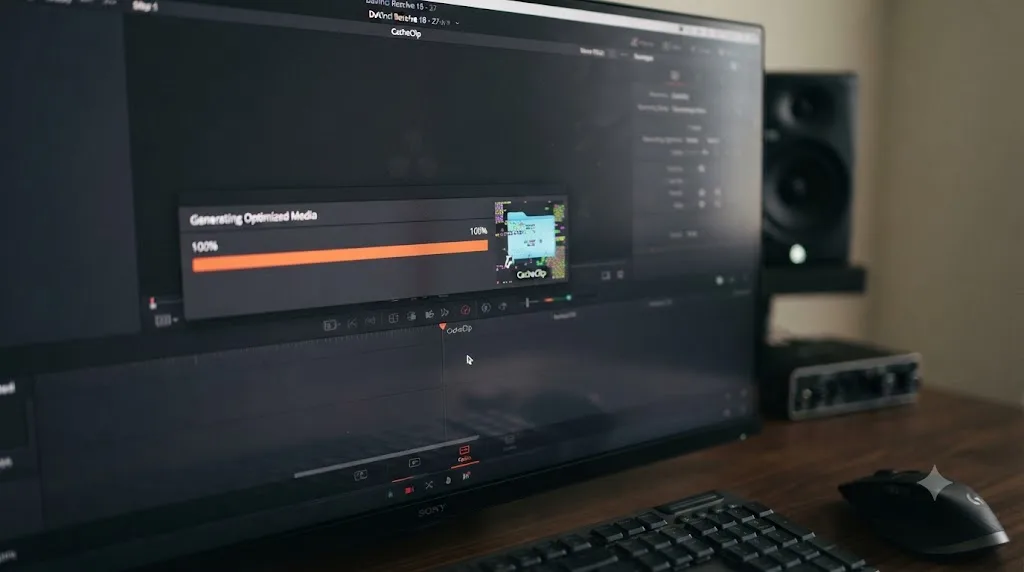
| A progress bar fills to 100% and then just sits there | Corrupted render cache or optimized media | Why does the progress bar freeze at 100 percent? |
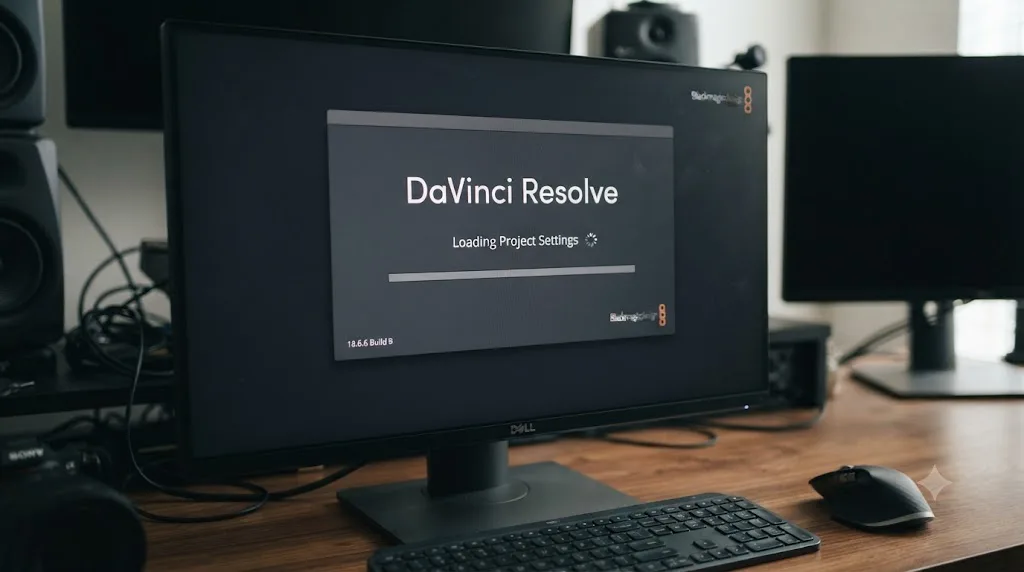
| It hangs specifically on "Loading Project Settings" | Damaged settings inside that one project's record | Why does it hang specifically at Loading Project Settings? |
| Resolve crashes and closes entirely while loading | A third-party OFX plugin or VST failing on load | Could a plugin be crashing Resolve before the project loads? |
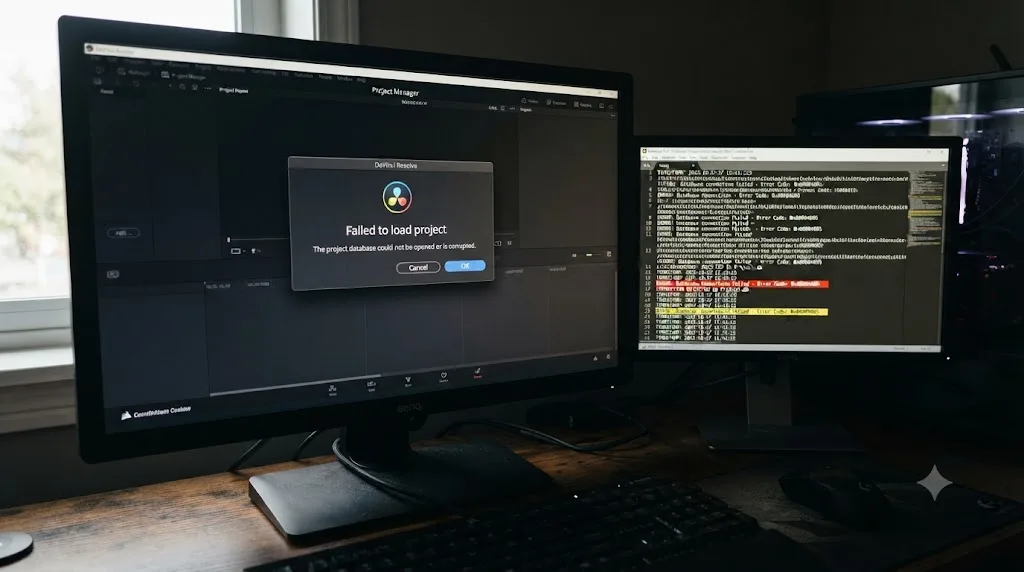
| An error dialog names "Failed to load project" | A damaged record inside the project database | What does Failed to load project actually mean? |
| The project shows as "locked," even though you're alone | A stuck lock left behind by a previous crash | Is your project showing as locked by another user? |
| "Failed to restore database... already exists" | Restoring a backup over an existing database name | How do you restore a DaVinci Resolve database from backup? |
A project that won't open is never actually one bug. It's eight or nine distinct failure points that all produce the same feeling of dread, and treating them as one problem is how people end up reinstalling Resolve three times before finding the actual fix.
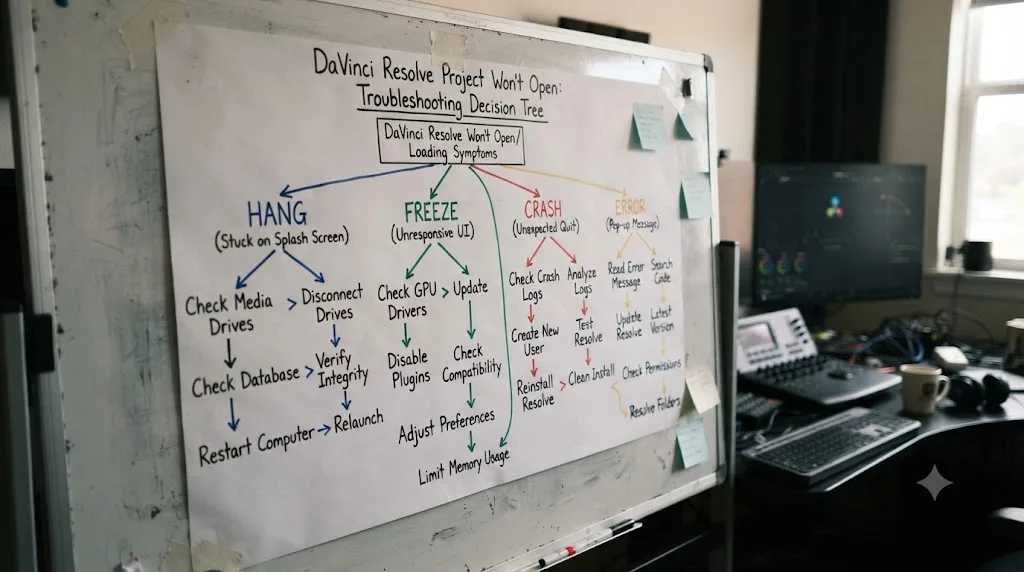
Does Resolve even get to the Project Manager?
Start here, because it changes everything downstream. If the splash screen hangs or the app never shows you a list of projects at all, this isn't a project problem yet. It's an application problem, and none of the project-specific fixes further down this page will do anything until you clear it.
The most common cause is stranger than it sounds. As PC Guide's Joel Loynds explains it, "the way that Resolve is coded, it scans the entire PC when it tries to boot to see if there are any panels or devices that it can possibly use for different functions," and "sometimes it'll get hung up on this and refuse to open," according to his troubleshooting guide. A control surface, a MIDI controller, or even an unrelated USB device with a flaky driver can stall that scan indefinitely.
- Unplug every USB device that isn't your keyboard and mouse, including color panels, audio interfaces, and capture cards.
- Relaunch Resolve. If it opens, reattach devices one at a time, relaunching between each, until you find the one that hangs the scan.
- If a specific panel is the culprit and you need it, try a different USB port, ideally one wired directly to the motherboard rather than through a hub.
If removing devices doesn't help, check whether an old Resolve process is still running in the background, invisible but holding the application lock. On Windows, open Task Manager, find any Resolve process, and end it before trying again. A DaVinci Resolve process that failed to close cleanly can block every future launch until you kill it manually. This happens most often after a crash or a forced shutdown, when the app didn't get the chance to release its own lock file.
Preferences corruption is the other launch-blocking cause. Moving your current preferences folder aside forces Resolve to build a fresh one with defaults, which clears settings damage without touching a single project. On Windows, that folder sits under %AppData%\Roaming\Blackmagic Design\DaVinci Resolve\Support. On macOS, it's ~/Library/Application Support/Blackmagic Design/DaVinci Resolve.
Is the project hanging, or is the database unreachable?
If Resolve opens and shows you the Project Manager fine, but freezes the moment you try to open a specific project, the problem has moved from "the app" to "the database," and those need different fixes entirely.
Every DaVinci Resolve project lives inside a database, either a Disk Database that's just a folder of files, or a PostgreSQL database that runs as a background server process. DaVinci Resolve's PostgreSQL database runs as its own background server, separate from the Resolve application itself. If that server isn't running, or can't allocate the memory it needs, Resolve can hang indefinitely trying to reach it, with no error message telling you why.
Digital Rebellion's Jon Chappell documents the exact failure mode: a database that's grown too large "can cause PostgreSQL to request more shared memory than is allowed by OS X or Linux," and the resulting error is "labeled 'could not created shared memory segment,'" per his walkthrough of the fix. On macOS, you can check this directly: open the Start Server app inside /Applications/PostgreSQL, and if the server can't start, the error appears within about a minute.
The fix raises the OS-level memory ceiling PostgreSQL is allowed to request:
- Open Terminal and run
sudo sysctl -w kern.sysv.shmmax=41943040, entering your admin password when asked. This is a temporary bump for the current session. - Relaunch the Start Server app (or run
sudo service postgresql starton Ubuntu) and check whether Resolve can now see the database. - If it still fails, retry with a higher value. Multiply the megabytes you want by 1,048,576 to get the bytes value sysctl expects.
- Once you find a value that works, make it permanent by backing up
/etc/sysctl.conf, adding a line forkern.sysv.shmmax, saving, and rebooting.
This specific failure mostly hits editors running large local databases with many projects, or anyone who hasn't restarted their machine in a long time, since a stalled PostgreSQL process can sit half-alive in memory without fully working or fully failing.
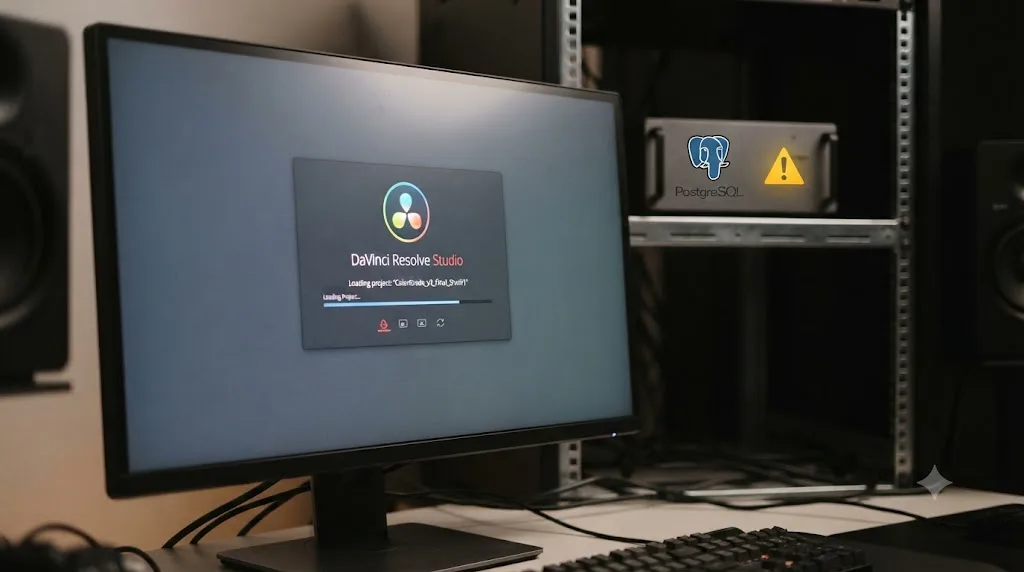
Why does the progress bar freeze at 100 percent?
This is its own specific symptom, distinct from a hang that never moves at all. The bar climbs normally, hits the end, and then just sits there. Nothing crashes. Nothing errors. It just stops.
This almost always traces to cache, not the database. Resolve rebuilds render cache and optimized media references as part of opening a project, and if those cached files are damaged, incomplete, or pointing at files that moved, the loader can get stuck reconciling them instead of failing outright.
- Fully close DaVinci Resolve, confirming no background process remains.
- Navigate to your Resolve Disk Database folder. On Windows, that's
C:\Users\[Name]\AppData\Roaming\Blackmagic Design\DaVinci Resolve\Support\Resolve Disk Database. On macOS, it's insideLibrary/Application Support/Blackmagic Design/DaVinci Resolve/Resolve Disk Database. - Open the
CacheClipfolder and delete its contents, either for the specific project if you can identify its folder, or for everything if you can't. - Relaunch Resolve and try the project again. It rebuilds cache automatically on next use, so nothing here is destructive to your edit.
A progress bar frozen at 100 percent almost always means cache, not a damaged project. That distinction matters, because it means you're not looking at a database restore or a support ticket. You're looking at a folder you can safely empty and a few minutes of rebuild time.
Why does it hang specifically at "Loading Project Settings"?
This symptom points somewhere more specific than a generic freeze: the project's own settings record, not the whole database and not the cache. Resolve has already found and started reading the project. It's dying on one particular piece of it.
A Blackmagic forum thread documents exactly this failure in Resolve Studio 18, a sudden hang that appears at that specific stage after previously working fine, which is the pattern to watch for: something changed about that one project's settings record between the last successful open and this one, rather than a system-wide cause.
Work through these in order, since each is progressively more invasive:
- Try opening a different, unrelated project first. If it opens fine, the problem is isolated to this one project's data, not your installation.
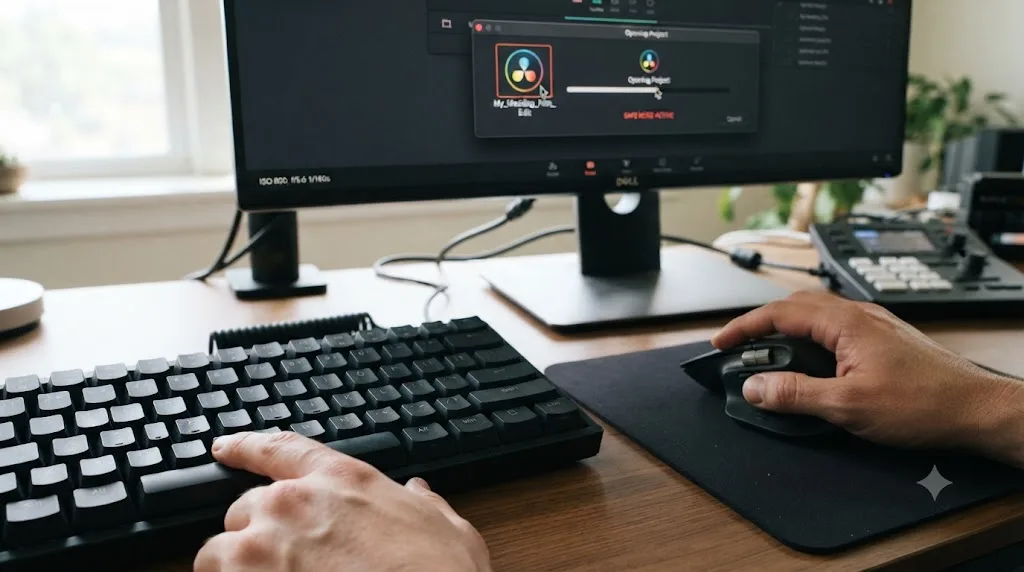
- Load the project in Safe Mode by holding Shift while double-clicking it, which skips loading third-party plugin settings that can be tangled up in a project's saved state.
- Right-click the project and check Project Backups for a timestamped autosave from before the hang started.
- If backups aren't available or don't help, export the project as a .drp file. Even a project that won't fully load in the normal path sometimes exports cleanly, since export reads a different code path than open.
A hang at this exact stage is one of the clearest signals in this whole page that the project's data, not your database server and not your cache, is where to focus.
What does "Failed to load project" actually mean?
An error dialog is, honestly, the best outcome on this whole page, because it tells you Resolve stopped trying rather than silently hanging forever. A Creative COW thread titled exactly this captures the typical wording: "Failed to load project '***'. Please check database log for more details."
That phrasing is precise. Resolve found the project's record in the database, started reconstructing it, and hit something it couldn't parse partway through, which is different from a project that's simply missing or a database it can't reach at all.
The database log the error points to is your best diagnostic. On Windows it's under %AppData%\Blackmagic Design\DaVinci Resolve\Support\logs, and on macOS under ~/Library/Application Support/Blackmagic Design/DaVinci Resolve/logs. Open the newest file and look at the last entries before the failure, the same technique that works for diagnosing a crash.
From there:
- Try opening the project in read-only mode from the Project Manager, if that option is offered. It sometimes succeeds where a normal open fails, letting you at least confirm the edit is intact enough to export.
- Export the project as a .drp file and reimport it into a fresh project library. Export and import each run their own reconstruction logic, separate from the normal open path, so a project that fails to load directly sometimes exports and reimports cleanly.
- If you exported stills to the Gallery on this project, note that the picture data lives in a hidden
.galleryfolder on your media storage drive, separate from the project database, and survives even if the project record itself is damaged. That's the same hidden folder covered in our gallery stills troubleshooting guide, for the related but distinct case where the stills go black instead of the project failing to open at all. - If none of that works, this is exactly the case for contacting Blackmagic support directly with the database log, covered further down this page.
Could a plugin be crashing Resolve before the project loads?
If Resolve doesn't hang at all, it just crashes and closes the moment you try to open a specific project, the suspect list narrows fast. OFX plugins and audio VSTs run inside Resolve's own process, with no sandbox between them and the app. When one fails while a project tries to load its saved effects, it takes the whole application down rather than just disabling itself.
Resolve has a built-in bypass for exactly this: hold Shift on your keyboard, then double-click the project in Project Manager while still holding it. This opens the project in Safe Mode, which skips loading third-party plugins entirely, as documented in multiple troubleshooting guides for this exact crash pattern.
- Open the project in Safe Mode using Shift-plus-double-click. If it opens successfully this way, a plugin is confirmed as the cause.
- Once inside, find the clip or timeline carrying the effect that crashed the normal load, and delete or disable that specific plugin instance.
- Save the project, then close and reopen it normally, without Safe Mode, to confirm the crash is gone.
- Check the plugin vendor's site for a version compatible with Resolve 21. Major version updates regularly break plugins that worked fine on the previous release.
Safe Mode exists specifically to get you past a plugin that's crashing Resolve on load. It's not a permanent fix, since your project still references that plugin's settings, but it's the fastest way to get back inside a project you'd otherwise be locked out of entirely.
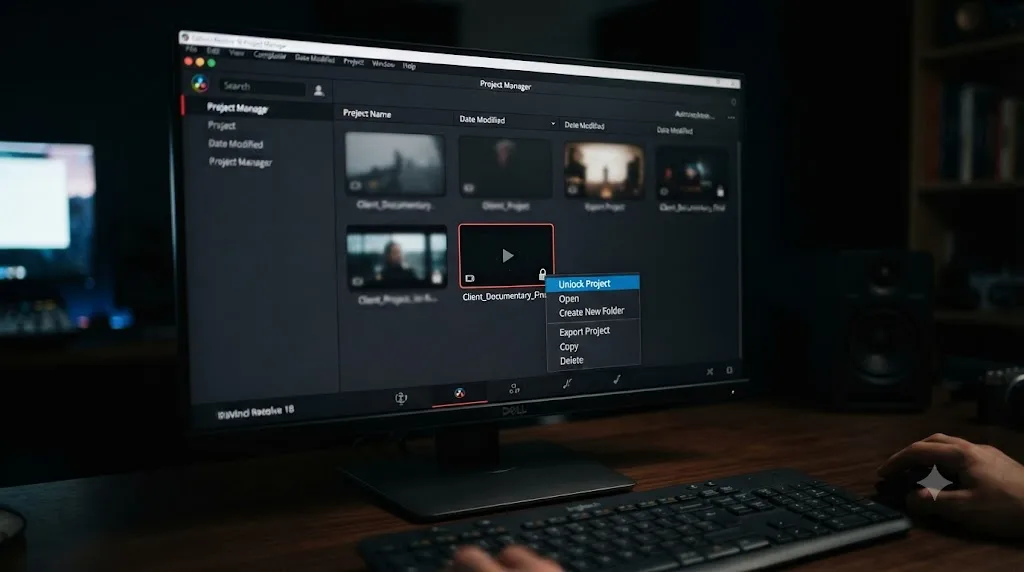
Is your project showing as "locked" by another user?
This symptom confuses people the most, because the lock message names another user or machine, and you're editing alone. A Creative COW thread captures it precisely. Forum member Perry Trest reported: "the project I was working on last Friday is coming up as locked. I'm not working in a shared environment or workgroup." No collaborators, no shared database, just a stuck lock.
The cause is almost always a crash that never released the project cleanly. Resolve locks a project the moment you open it, to prevent two people from editing the same record at once, and that lock is supposed to release automatically when you close the project or quit the app. A crash skips that release step, leaving the lock in place even though the "other user" locking it out is actually just your own last session.
The fix Creative COW member Matt Ryan gave in that same thread is the first thing to try: "right click on the project with the lock and select unlock." That single option, when it's available, clears the stuck state instantly with zero risk to your data.
If Unlock isn't offered as an option, or doesn't stick:
- Fully quit Resolve, wait about a minute, and reopen the Project Manager. Some locks release on their own once the process that held them is confirmed dead.
- If you're on a shared PostgreSQL database rather than a local Disk Database, the lock can require a database-level fix. Users on forum threads about persistent locks report success with SQL cleanup through pgAdmin, or in stubborn cases, exporting the locked project and importing it into a freshly created database.
- As a last resort specific to shared setups, some editors have resolved recurring lock issues by removing extra PostgreSQL database users beyond the default and recreating the project library, though this is a more invasive step worth trying only after the simpler options fail.
How do you restore a DaVinci Resolve database from backup?
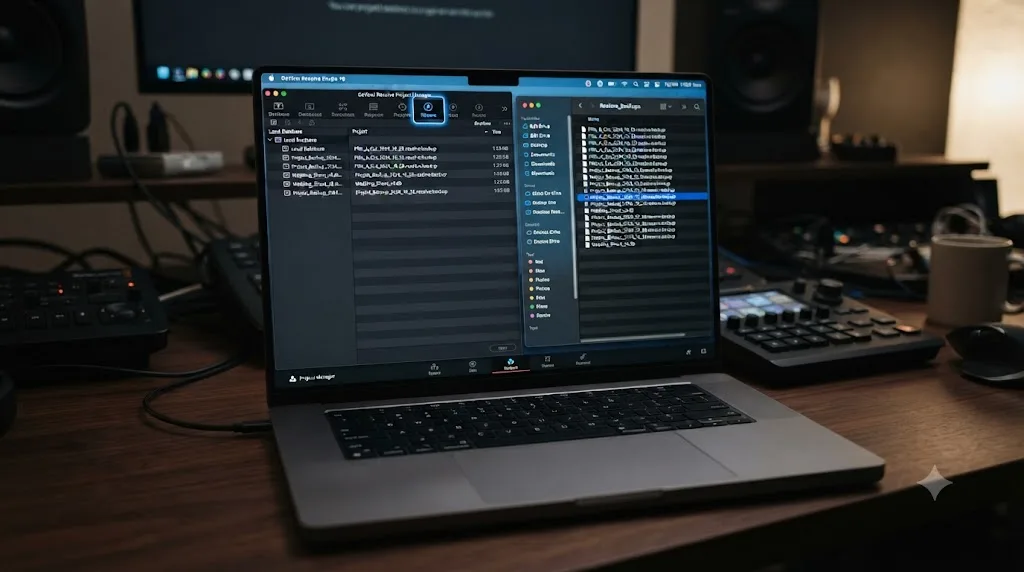
Sometimes the individual project isn't the problem. The whole library is. If Project Backups doesn't help and the project database itself seems damaged, a full database restore from a .resolve.backup file is the next step up.
Creative Video Tips' Chadwick Shoults lays out the process clearly: in Project Manager, click the Restore button, the downward arrow icon next to the magnifying glass, select your .resolve.backup file, rename the library, and click Create, in his guide to Resolve's project library backup and restore. That restore copies your data back into a fresh, working PostgreSQL location.
The rename step is not optional, and skipping it is the single most common way this fails. A Creative COW thread documents forum member Chad Smith hitting exactly that wall, with Resolve returning the error "Failed to restore database: Failed to create database: database tiamrs3 already exists" no matter how many times he tried, until he understood the actual rule.
Dwaine Maggart, identified in that thread as Blackmagic Design Support, explained it directly: "use a Label and DB Name that do not already exist on your system. You cannot restore a backed up database to an existing db name." He also clarified where the confusion usually starts, since PostgreSQL installs itself automatically the first time you install DaVinci Resolve, and it's set up to run at every system startup without you ever seeing it. Most editors never open the Start Server app or think about PostgreSQL at all, until the moment it stops working silently in the background.
To restore correctly:
- Locate your
.resolve.backupfile. This is different from a.drpproject export, covered in the next section, so don't confuse the two when browsing your backup folder. - In Project Manager, click the Restore icon next to the library list.
- Select the backup file.
- Give the restored library a completely new name, one that has never existed on this system, even if that means something as plain as adding today's date to the original name.
- Click Create and wait for Resolve to rebuild the database from the backup.
| Backup type | File extension | What it contains | When to use it |
|---|---|---|---|
| Project export | .drp | One project's edits, grades, and metadata, no media | Moving or recovering a single project |
| Project archive | .dra | A project bundled with copies of its source media | Moving a project to a new machine, or sending it to support |
| PostgreSQL backup | .resolve.backup | An entire project library/database | Recovering after database corruption |
| Disk database backup | .resolve.diskdb | An entire Disk Database library | Recovering a local, non-server database |
What is a .dra project archive, and when do you need one?
A .drp file, the one you export from Project Manager for a single project, carries your edits, your color grades, and every node tree, but none of the actual source media. That's fine when the media is already sitting on a drive both machines can see. It's useless when the project won't open specifically because the media itself, or the paths to it, are part of what's damaged, which is a related but different failure covered in full in our media offline guide.
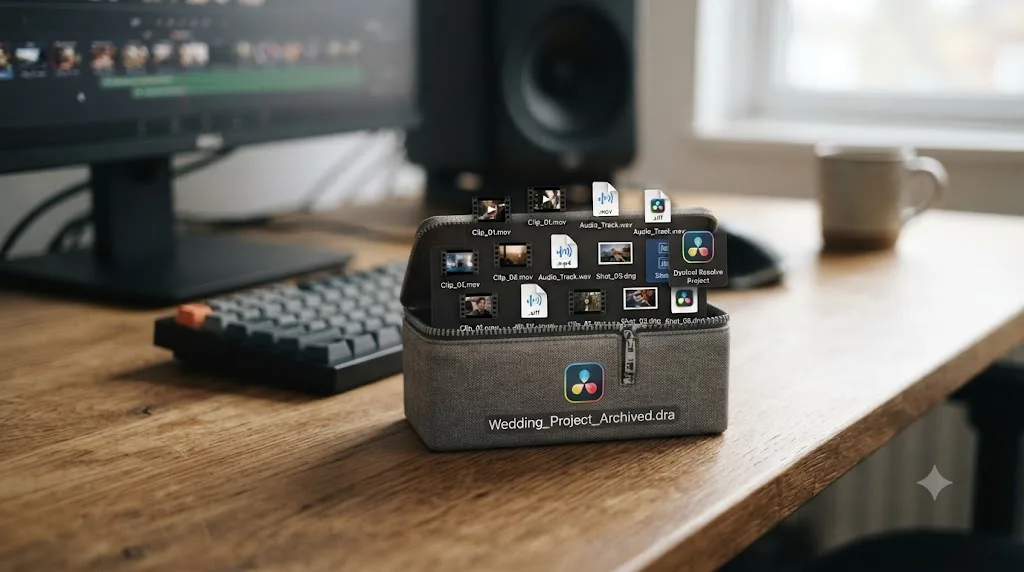
A .dra file, a full Project Archive, solves that. It bundles the project together with copies of its media into one self-contained package. That's the format worth reaching for in two specific situations: moving a project to a machine that doesn't have access to your original media drives, or preparing a submission for Blackmagic support, since a .dra archive gives their engineers everything they'd need to reproduce the failure, not just the metadata.
To create one, right-click the project in Project Manager and choose Export Project Archive rather than the plain Export Project option. Point it at a drive with enough free space, since a .dra archive can run many times larger than a .drp file depending on how much media the project references.
A .dra archive is the only export format that travels with a project's actual media, not just its edit metadata. If your project won't open and you're about to email Blackmagic support or move to a different edit bay, this is the format to send, not the smaller .drp file that leaves the media behind.
Is the project itself corrupted, rather than the database?
Everything above assumes the database or the app around the project is the failure point. Sometimes it really is just the one project, damaged in a way that follows it wherever the database lives.
The tell is simple: other projects in the same library open fine, and this one specifically doesn't, in any database, on any machine you've tried. That isolates the damage to the project's own saved data, not your installation, your cache, or your database server.
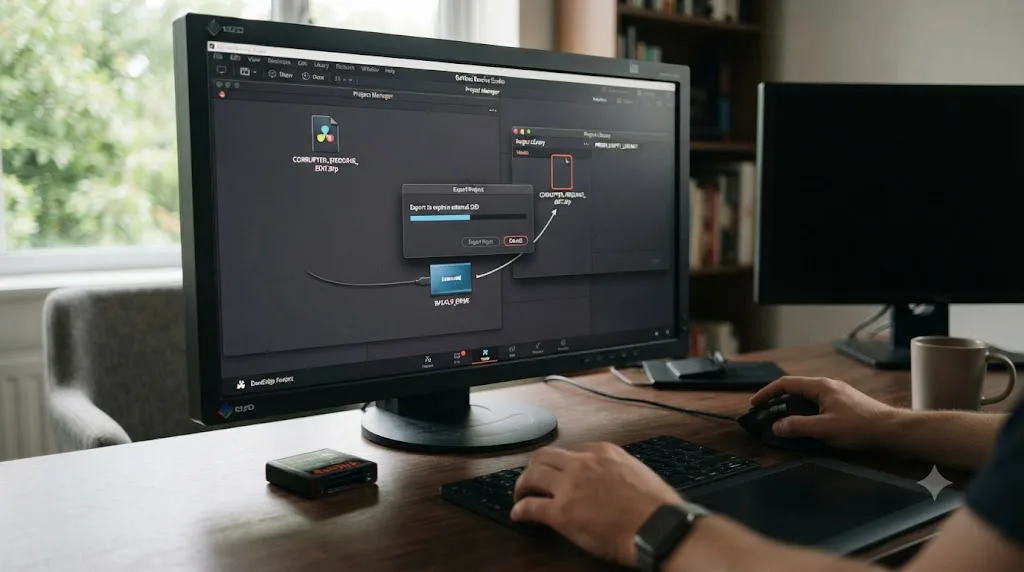
- Right-click the project and use Export Project to create a
.drpcopy, saved somewhere outside the database entirely, like your desktop. - Create a brand-new, empty project library, or use a spare one if you have it.
- Import the exported
.drpcopy into that fresh library. - If it imports and opens cleanly there, the original library's copy was the damaged one, not the project's underlying data, and you can now work from the freshly imported version going forward.
- If the import itself fails or the reopened project is visibly wrong, the corruption lives inside the saved edit data, and Project Backups is your best remaining path, followed by contacting support.
This export-then-reimport trick works because export and import run through different code than a normal open, so a database record that's tangled up enough to hang or crash on open sometimes reconstructs cleanly through the export path instead. It's the same isolation principle that helps with a render that gets stuck partway through: separate the specific broken piece from everything around it before deciding the whole thing is unrecoverable.
Should you use a third-party recovery tool, or contact Blackmagic support?
If you've worked through the fixes above and the project still won't open, and you never had a .drp export or a recent Project Backup, you're into recovery territory rather than routine troubleshooting.
Third-party data recovery software exists for this, generally built for recovering deleted or corrupted files at the filesystem level rather than understanding Resolve's project format specifically. That distinction matters: this class of tool can sometimes recover a project file that's been accidentally deleted, but it's a different job from repairing a project.db record that Resolve itself can't parse, and guides covering these tools are upfront that a premium license is usually required to complete the actual recovery step.
Blackmagic's own support path is the more reliable option specifically for database-level corruption. The pattern reported across multiple forum threads and troubleshooting guides is consistent: you send Blackmagic your damaged project.db file (or a .dra archive containing it), and their support engineer works from that to return you a recovered project.drp file you can import normally. This isn't guaranteed, since severe corruption can be genuinely unrecoverable, but it's a real channel, not a last-resort formality, and it's worth trying before you consider the work permanently lost.
Reach Blackmagic through their DaVinci Resolve support and downloads page, and attach both your database log and the project file itself when you file the request. The log tells their engineers where the parser is failing, which shortens the back-and-forth considerably compared to sending the file alone with no context.
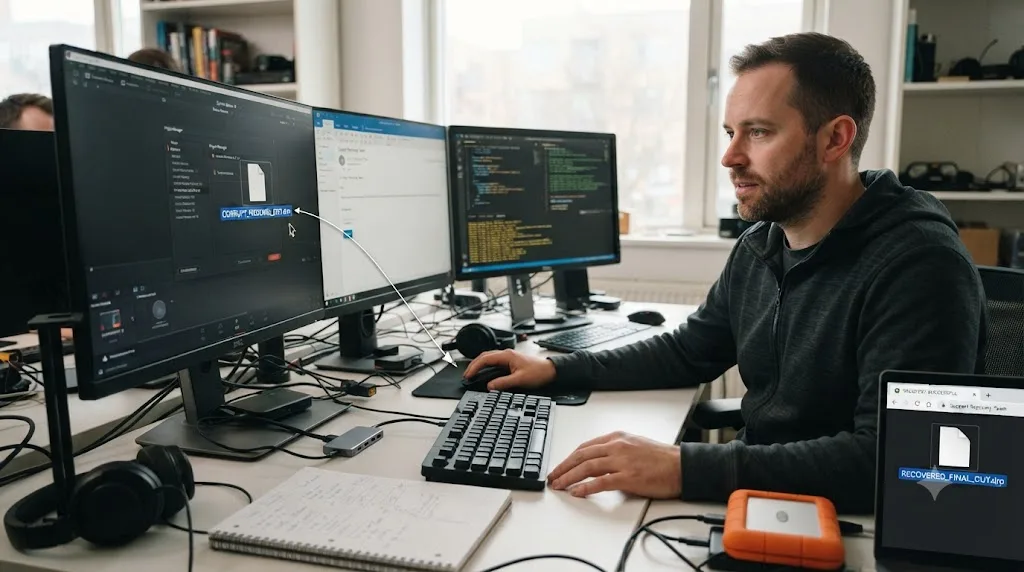
Is this a Mac problem or a Windows problem?
Some of these failures only make sense once you know which platform you're troubleshooting, because Resolve's database and preferences live in different places, and fail in different ways, on each.
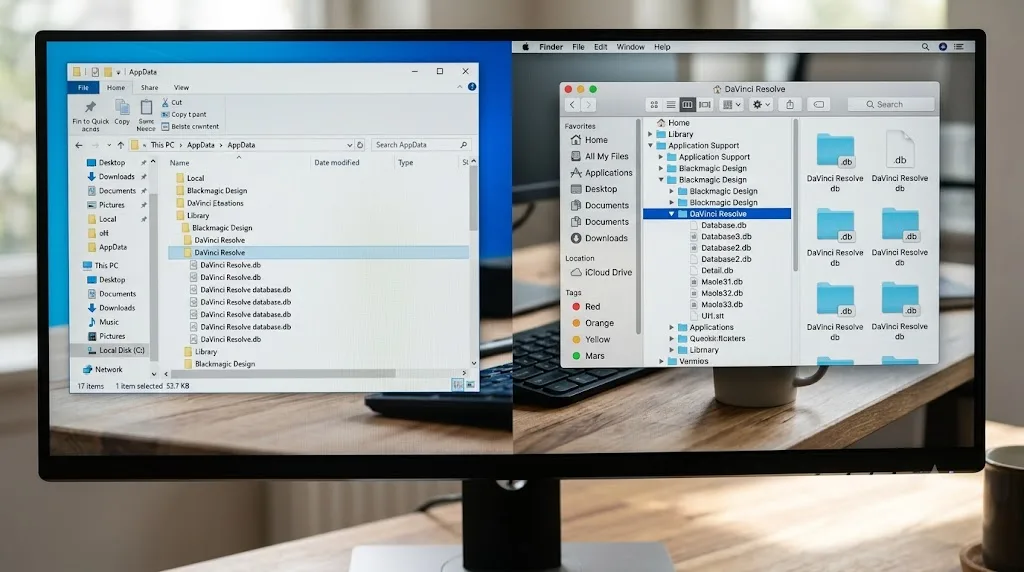
On Windows, the residual-data problem is the one to watch for after an update. A Resolve update can leave old data behind that the new version misreads, and clearing it means deleting from several locations: AppData\Roaming\Blackmagic Design\DaVinci Resolve\Support\Resolve Disk Database\Resolve Projects, the broader AppData\Roaming\Blackmagic Design folder, and AppData\Local\Blackmagic Design, backing up your project folder first. In stubborn cases, the Windows registry holds onto old Resolve entries too, under HKEY_CURRENT_USER\Software\Blackmagic Design\DaVinci Resolve, though editing the registry is a step to treat carefully and only reach for after the AppData cleanup alone hasn't worked.
On macOS, the PostgreSQL shared memory issue covered earlier is the platform-specific one, tied to how macOS allocates system memory to background processes compared to Windows. Apple Silicon Macs also carry the version-compatibility trap from our crashing guide: Resolve 21 requires macOS 15 Sequoia or later, and doesn't run on Intel Macs at all, which can look identical to a launch failure but is really a hardware and OS incompatibility no database fix touches, per DaVinci Resolve Club's breakdown of Resolve 21's requirements.
| Failure type | Windows-specific angle | Mac-specific angle |
|---|---|---|
| Won't reach Project Manager | USB device scan, old process not fully closed | USB device scan, same as Windows |
| Database unreachable | Residual AppData from a botched update | PostgreSQL shared memory limit (sysctl) |
| Preferences corruption | Registry entries under HKEY_CURRENT_USER | Preferences folder under Library/Application Support |
| Platform incompatibility | N/A | Intel Mac dropped entirely in Resolve 21 |
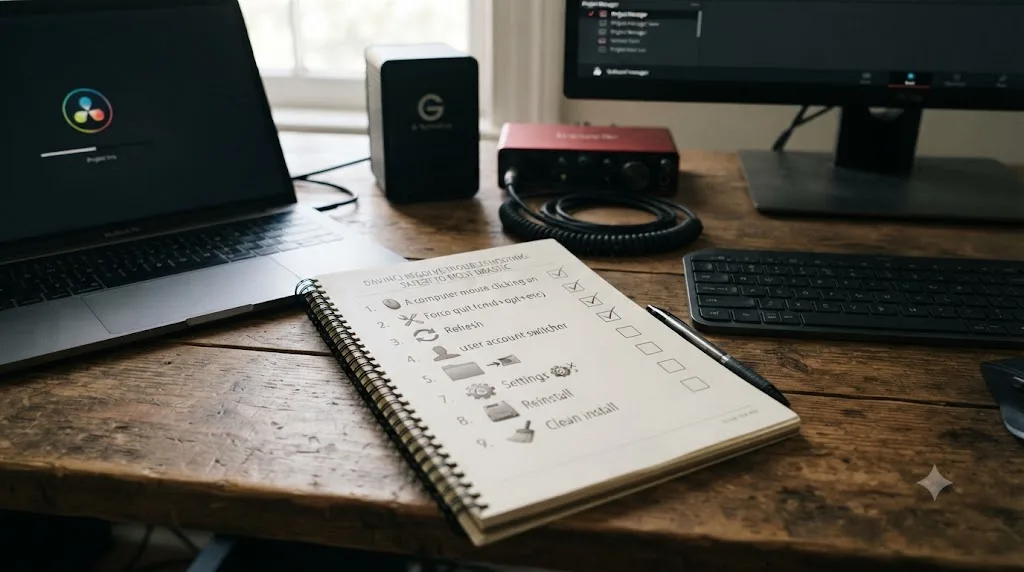
What's the full troubleshooting order, from safest to most drastic?
If you'd rather work top to bottom than jump to a specific symptom, this is the order that costs you the least at each step:
- Confirm Resolve reaches the Project Manager at all. If not, unplug USB devices and reset preferences.
- Try Safe Mode with Shift-plus-double-click, which rules out a plugin crash in seconds.
- Delete corrupted cache and optimized media from the Resolve Disk Database folder.
- Check whether the project shows as locked and use the Unlock option if it's offered.
- Load a recent entry from Project Backups.
- Export the project as a
.drpfile and reimport it into a fresh library. - Restore the whole database from a
.resolve.backupfile, using a new, unique name. - Contact Blackmagic support with your database log and the damaged project or archive file.
Each step is reversible and cheap compared to the one after it. Reading a log or clearing a cache folder costs you a couple of minutes. A full database restore or a support ticket costs you an afternoon. Work down the list and stop as soon as the project opens.
How do you stop this from happening again?
None of this is fun to do once. Doing it twice on the same project because you had no backup is the part that's actually avoidable.
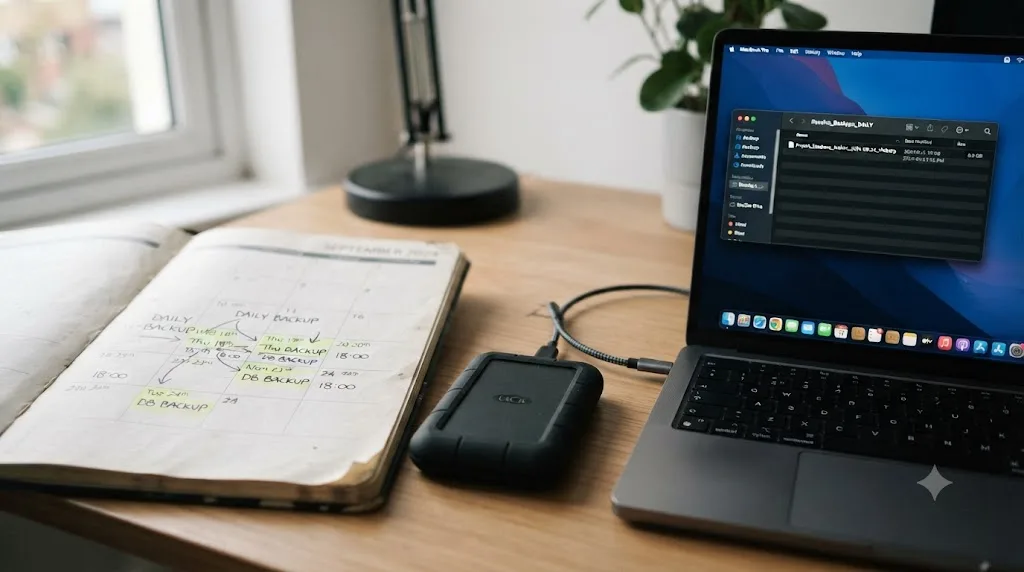
A project database that's never been backed up is a single crash away from losing every project inside it, not just the one you were working on. That's the real risk most editors underestimate, since a corrupted database doesn't just cost you today's session, it can take the whole library with it.
- Back up your project database on a real schedule, weekly at minimum for active work, using the Backup button next to your library in Project Manager, which produces the
.resolve.backupfile this whole page keeps referencing. - Export a
.drpcopy of any project at real milestones, saved to a separate drive from your database. It's your fastest recovery path and it costs seconds. - Turn on Project Backups in Preferences under User > Project Save and Load, so Resolve keeps its own timestamped autosaves without you remembering to export anything manually.
- If you're moving a project between machines or sending one to support, use a
.draarchive, not a plain.drpexport, so the media travels with it. - Never update Resolve, your GPU driver, or your OS in the middle of a deadline project. A version upgrade converts a project's database format, and an older Resolve can't open a project a newer one has already touched, so hold your working version until the project ships.
None of this makes a database immune to corruption. It makes corruption a ten-minute restore instead of a lost week, which is the only outcome that actually matters when a client is waiting.
Verdict: match the symptom, don't reinstall
A DaVinci Resolve project that won't open is one of the most panic-inducing screens in the entire app, and it's also one of the most solvable, precisely because it fails in a small, recognizable set of ways. Hangs before the Project Manager are USB devices or preferences. Freezes at 100% are cache. Crashes on load are plugins. Errors naming the database are the database, and that one has a real restore path, not just a shrug.
What doesn't belong on this list is reinstalling Resolve as your first move. It touches none of the places this failure actually lives, and it costs you the one thing you don't have during a stuck project: time. If you're spending more of that time guessing at menus than fixing the actual cause, that gap between "here's an error" and "here's exactly what to click" is what TryUncle is built to close, an AI tutor that looks at your actual Resolve window and points at the fix instead of sending you through another forum thread that may not match your case.
Work the table at the top of this page. Match your symptom. Fix that one thing. Then back the database up so the next crash costs you ten minutes instead of the whole library.
Frequently asked questions
- Why does DaVinci Resolve hang when I try to open a project?
- It depends on where the hang happens. A hang before the Project Manager even appears usually means Resolve is stuck scanning for USB panels or control surfaces. A hang after you double-click the project, with the app not responding, usually means the project database itself can't be reached or has grown too large for PostgreSQL's shared memory allowance.
- What does 'Failed to load project, please check database log for more details' mean?
- It means Resolve reached the project's record in the database but couldn't fully reconstruct it, which points to a damaged entry rather than a missing file. Open the database log named in the error, then try exporting the project as a .drp file and reimporting it into a fresh library, since that process rebuilds the project from what's still readable.
- How do I restore a DaVinci Resolve project from a backup?
- For a single project, right-click it in the Project Manager and choose Project Backups, then load the most recent timestamped autosave. For the whole database, use the Restore button next to the library list, select your .resolve.backup file, and give it a new, unique database name, since Resolve refuses to restore over a name that already exists.
- What's the difference between a .drp file and a .dra file in DaVinci Resolve?
- A .drp file is a single exported project: your edits, grades, and node trees, without the source media. A .dra file is a full Project Archive, which bundles the project together with copies of the media it uses. If you're moving a project to a new machine or handing it to Blackmagic support, the .dra archive is the one that travels with everything intact.
- Why does my project show as locked when I'm the only person using it?
- A stuck lock almost always comes from a previous crash that never released the project cleanly, even on a single-user setup with no shared database involved. Right-click the project and look for an Unlock option first. If that option isn't there, closing Resolve, waiting a minute, and reopening the Project Manager usually clears a lock left behind by a crashed session.
- Does reinstalling DaVinci Resolve fix a project that won't open?
- Almost never. Your project database, your preferences, and your cache all live outside the application's install folder, so a reinstall replaces files that were never the problem. Work through the database and project-specific fixes first. Reinstalling only makes sense if you suspect the application binaries themselves are damaged, which is rare compared to a corrupted database or a bad cache.
- Can I recover a project if the database is completely corrupted?
- Often, yes, through Project Backups or a database restore from a .resolve.backup file, both covered above. If neither works and you never exported a .drp copy, your next step is Blackmagic's own support team, who can sometimes extract a working project.drp from a damaged database file that Resolve itself can no longer open.
Sources
- PC Guide (Joel Loynds): How to Fix DaVinci Resolve Not Opening
- Cutsio: How to Fix Project Not Opening in DaVinci Resolve
- Digital Rebellion (Jon Chappell): Fixing missing database errors in DaVinci Resolve
- Creative COW forum: Project is Locked?
- Creative COW forum: Failed to restore database
- Creative COW forum: Failed to load project, please check database log for more details
- Creative Video Tips (Chadwick Shoults): DaVinci Resolve Project Library Backup & Restore
- Blackmagic Forum: Project won't open, stuck at 100%, resolve not responding
- Blackmagic Forum: Resolve Studio 18, sudden hang on "Loading Project Settings"
- Blackmagic Forum: Davinci Resolve how to restore database
- Blackmagic Forum: Project Corrupt (not opening at all)
- Blackmagic Design: DaVinci Resolve support and downloads
- Blackmagic Design: DaVinci Resolve 18 Reference Manual (PDF)
- DaVinci Resolve Club: DaVinci Resolve 21 System Requirements
Put this guide to work with TryUncle.
Ask about the step you’re on. TryUncle sees your screen and points at the control you need, so you can keep learning in your own project.
Get TryUncle for Mac or WindowsKeep reading
Fixes · Jul 7, 2026 · 24 min
Why Does DaVinci Resolve Keep Crashing? The Real Fixes
DaVinci Resolve keeps crashing for a few real reasons: GPU drivers, VRAM limits, a corrupted cache, or a damaged project. Here's the fix, in order.
Fixes · Jul 7, 2026 · 26 min
DaVinci Resolve Media Offline: Every Cause and the Fix
Every reason DaVinci Resolve marks a clip media offline, and the exact relink, cache, and codec fixes for each cause, in order of how often they happen.
Fixes · Jul 7, 2026 · 24 min
DaVinci Resolve Not Exporting? Fix a Stuck or Failed Render
Why DaVinci Resolve renders get stuck at 0% or 99%, or fail with no error, and the exact checks that get a stalled export moving again.