Articles / Fixesupdated for DaVinci Resolve 21.0 (June 2026)
DaVinci Resolve Media Offline: Every Cause and the Fix
Quick answer
Media offline means DaVinci Resolve can't find a clip's source file. Right-click the clip in the Media Pool and choose Relink Selected Clips, then point it at the current folder. If that doesn't work, check for a missing codec decoder, a disconnected drive, or corrupted cache under Playback > Delete Render Cache.
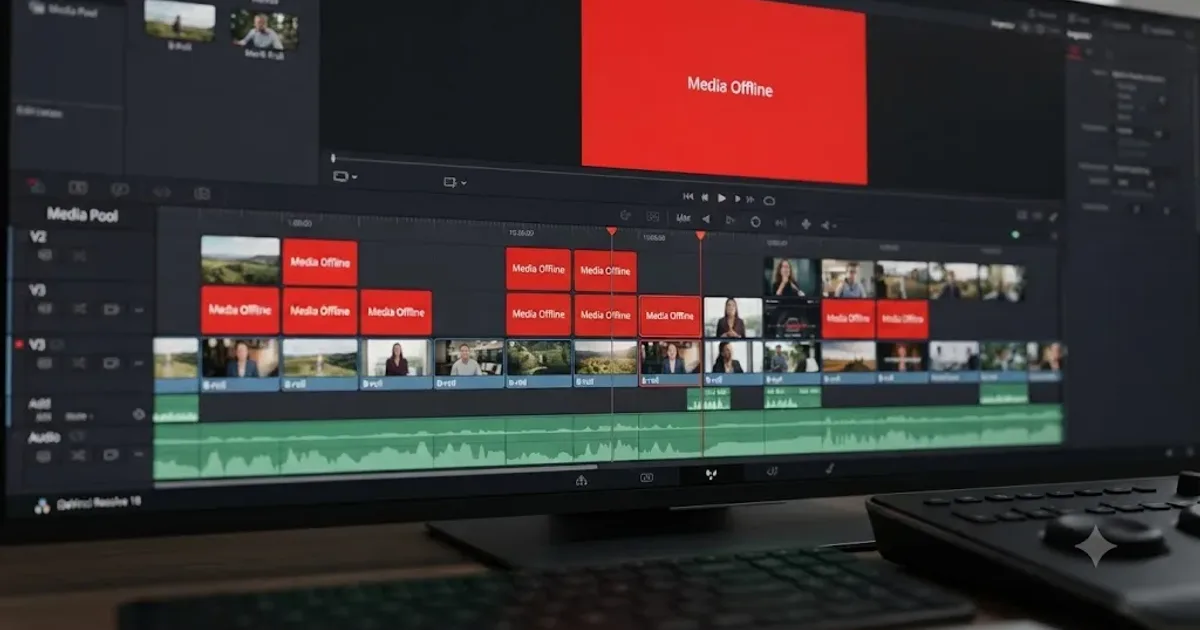
A clip goes red, the word "offline" shows up where your footage used to be, and the panic sets in. Don't let it. This almost never means your footage is gone.
It means DaVinci Resolve lost track of where a file lives, and that's a much smaller problem to fix than it looks like at first glance.
What does "Media Offline" actually mean?
Resolve stores a link, not the file itself, in your project. That link points to a specific path on a specific drive. When the file isn't at that path anymore, Resolve can't decode it, so it shows a red frame and the word "offline" instead of your footage.
Media offline is not data loss. It only means Resolve lost the address of a file that still exists. As Justin Robinson explains in his guide to relinking in Resolve, "if source files are moved or become inaccessible, the link between the clips in your Media Pool and the files on your storage can break," which is exactly the mechanism behind almost every offline clip you'll ever see, according to his walkthrough at JayAreTV.
The fix is almost always to tell Resolve where the file went. The hard part is figuring out which of a handful of reasons caused the break in the first place.
Is the clip missing, unlinked, or unsupported?
Resolve shows the same red slate for three different problems, and knowing which one you're looking at saves a lot of guessing.
A missing clip was linked once and then lost. The file moved, the folder got renamed, or the drive isn't mounted. The thumbnail in the Media Pool usually survives, because Resolve remembers what the clip looked like. The fix is a relink.
An unlinked clip never had media behind it in this project. You'll see a whole timeline of these after importing an XML, AAF, or EDL sent over from another editor or another machine. Nothing broke. Resolve is simply waiting for you to point it at the footage, and the fix is the same relink dialog with a different starting point.
An unsupported clip sits exactly where it should on disk, and Resolve still can't decode it. That's a codec problem, not a path problem, and no amount of relinking will fix it. Skip ahead to the codec sections below if the file plays fine in another player but stays red in Resolve.
The quick test takes ten seconds. Right-click the clip in the Media Pool and pick Reveal in Finder (Reveal in File Explorer on Windows). If nothing opens, the file is missing and you relink. If the file is there and plays in another app, you're in codec or conform territory. If the clip arrived inside an imported timeline, it's unlinked.
Why did my media go offline in the first place?
Here's every common cause with the symptom that gives it away, roughly in order of how often each one shows up:
| Cause | Typical symptom | Fix |
|---|---|---|
| Moved or renamed source file | Whole bins go red right after you tidied a folder | Relink to the new location |
| Disconnected or ejected drive | Every clip from one drive goes red at once | Reconnect the drive, then relink if needed |
| Windows changed the drive letter | The drive works, but shows up as E: instead of D: | Reassign the old letter in Disk Management, or relink |
| Missing codec | File plays in other apps but stays red in Resolve, commonly H.265/HEVC on Windows | Install the decoder or transcode |
| Codec not licensed in your edition | Same footage opens fine in Studio but not the free version, most visible on Linux | Transcode to DNxHR or ProRes, or move to Studio |
| Corrupted render cache | Clip flickers offline during playback but relinks fine | Playback > Delete Render Cache > All |
| Broken timeline conform | Clip is red in the timeline but plays fine in the Media Pool | Force Conform with Media Pool Clip |
| Editing straight off a camera card | Random offline slates appear mid-session | Copy footage to a drive before editing |
| Network storage dropout | Clips go offline over Wi-Fi, or every morning after the share unmounts | Remount the share, go wired, relink |
| Variable frame rate footage | Phone or screen recordings drift out of sync or flash offline frames mid-clip | Convert to constant frame rate before import |
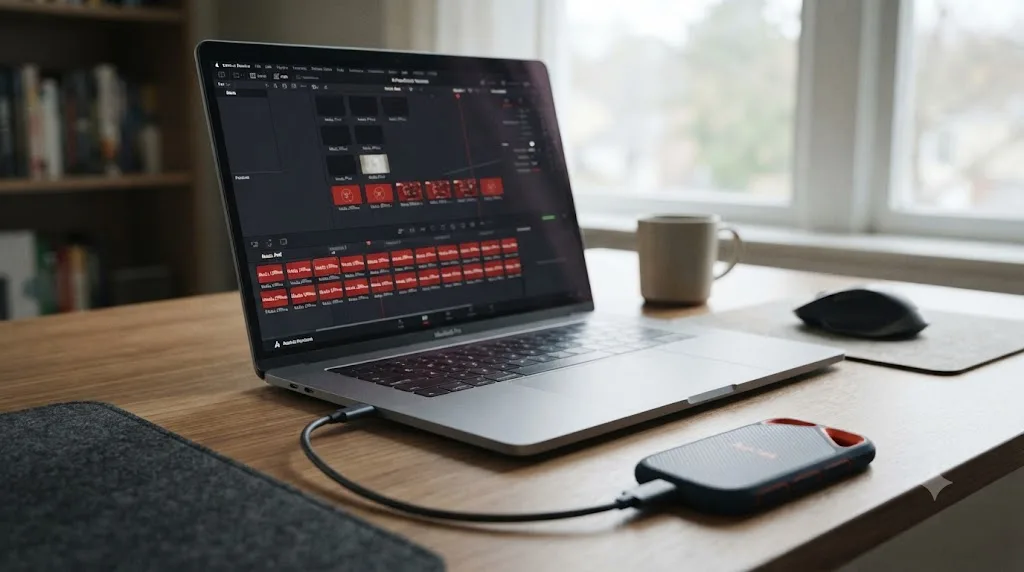
How do you relink offline media in DaVinci Resolve?
This is the fix for the majority of cases, and it takes under a minute once you know where to click.
- Open the Media Pool on the Media or Edit page.
- Select the offline clip, or select an entire bin if every clip inside it went offline together.
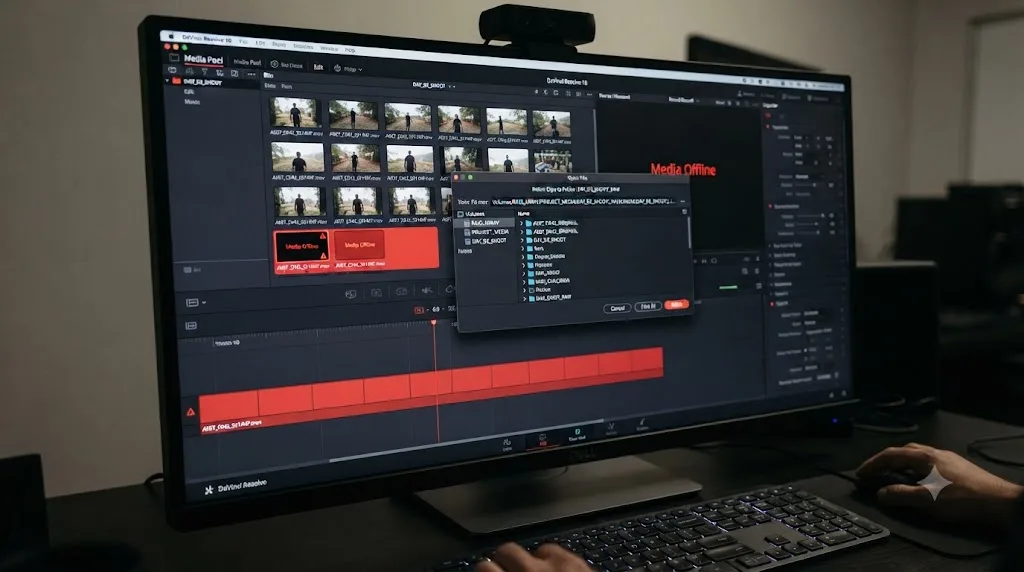
- Right-click and choose Relink Selected Clips for individual clips, or Relink Clips for Selected Bins for a whole folder.
- Browse to the folder where the source files actually live now.
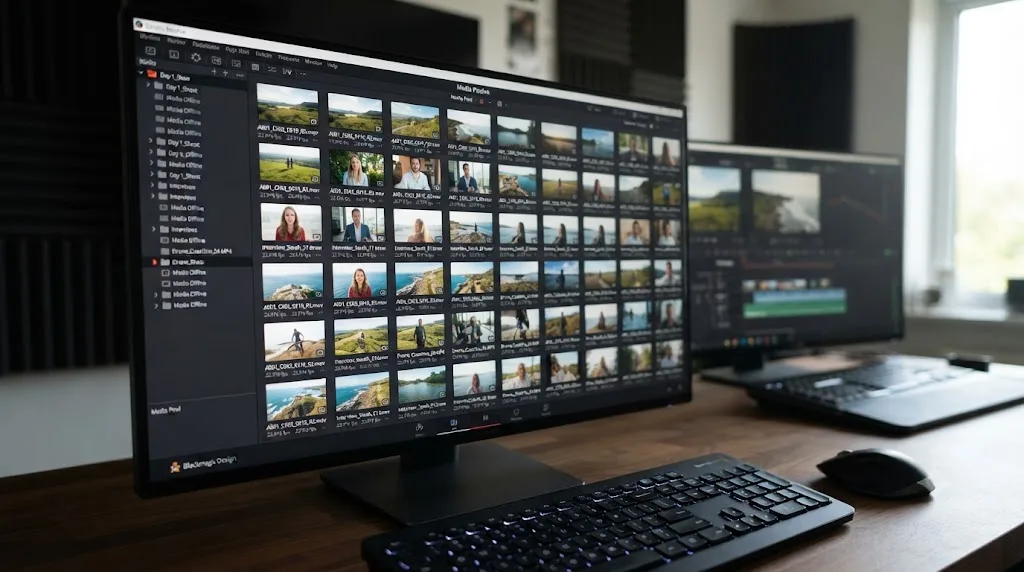
- Let Resolve search. It matches by filename and duration, not by the old path, so it can find a file even if the folder structure around it changed.
Relink searches for a filename and a duration, not a saved path, so a renamed file breaks the link exactly the same way a moved one does. That's why "I didn't move anything, I only renamed the folder" still produces an offline clip. Same mechanism, same fix.
One more thing before you start relinking bin by bin: if an entire drive or top-level folder moved in one piece, there's a faster tool. That's next.
How does Resolve's relink logic actually match files?
Resolve gives you three different relink tools, and they work in three different ways. Picking the right one turns an afternoon of clicking into a thirty-second fix.
| Tool | Where you find it | How it matches | When to use it |
|---|---|---|---|
| Relink Selected Clips | Right-click clips or bins in the Media Pool | Searches the folder you pick, recursively, for files whose name and duration match each offline clip | Files moved around but kept their names |
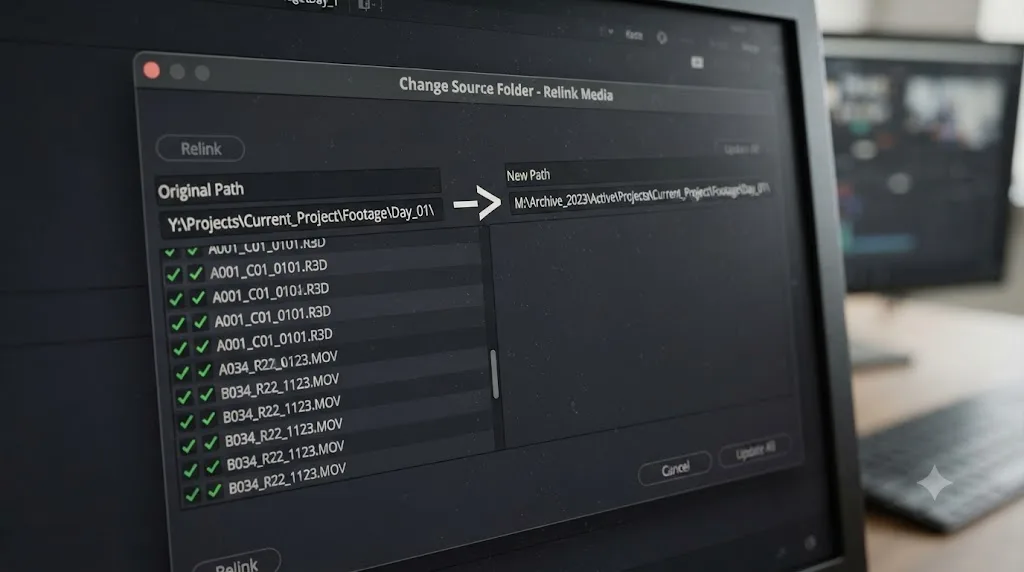
| Change Source Folder | Right-click clips in the Media Pool | No search at all. Swaps the old path prefix for a new one as plain text | A whole folder tree moved intact to a new drive or location |
| Replace Selected Clip | Right-click one clip in the Media Pool | None. You pair one file to one clip by hand | The file was renamed or re-exported and automatic matching refuses it |
Relink Selected Clips is the everyday tool, and its matching rules explain most relink mysteries. It wants the same filename and the same duration, down to the frame. A file renamed from A001_0304.mov to interview-wide.mov won't match. A re-export of the same clip that came out two frames longer won't match either, even with an identical name. And when two files in the search folder share a name, the duration is the tiebreaker.
Change Source Folder is the one most people don't know about, and it's the fastest of the three because it doesn't search anything. You tell Resolve "everything that started with D:\Footage now starts with E:\Footage" and it rewrites the stored paths in one pass. If you moved your whole project folder to a new drive and kept the structure inside it untouched, this relinks every clip at once.
Replace Selected Clip is the escape hatch. It skips matching entirely, which means it will happily attach the wrong file to a clip if you let it. Use it for renamed files, one at a time, when you're sure.
Why won't my clip relink even after I pick the right folder?
Two things cause this, and neither is rare.
First, a name or duration mismatch, the exact matching rules from the section above. A rename, a re-encode, even a resave in the same format that shifts the duration by a frame or two, and Resolve keeps asking. Rename the file back to match, or fall back to Replace Selected Clip and pair the file to the clip by hand.
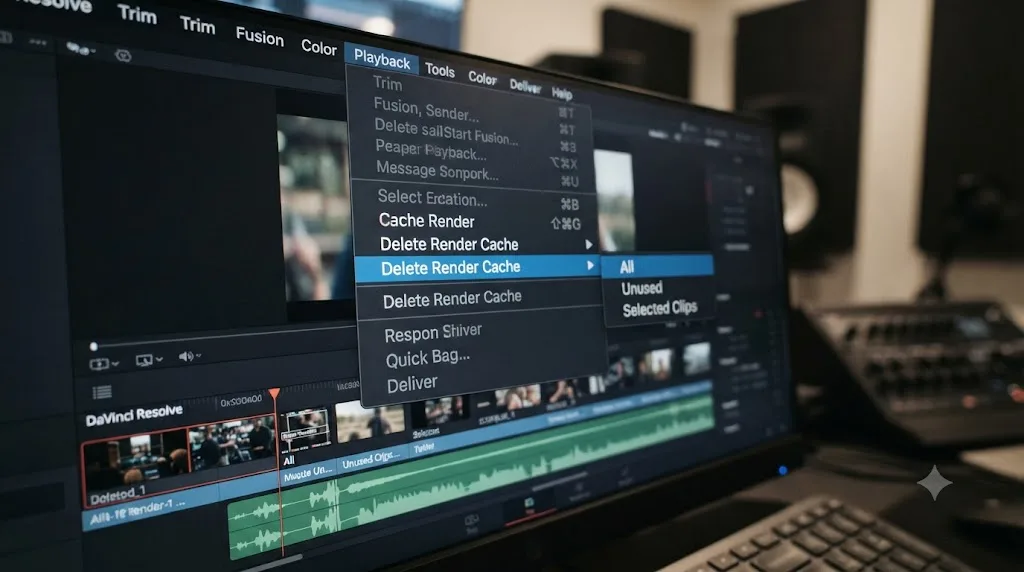
Second, a stale render cache. Resolve sometimes displays a clip as offline because its cached preview thinks the file is still missing, even after the actual link is repaired. Go to Playback > Delete Render Cache > All and give Resolve a chance to rebuild that cache from scratch, according to the troubleshooting steps in Beginners Approach's guide to the issue.
What if the clip is offline in the timeline but fine in the Media Pool?
This one looks impossible until you know how Resolve wires a timeline together.
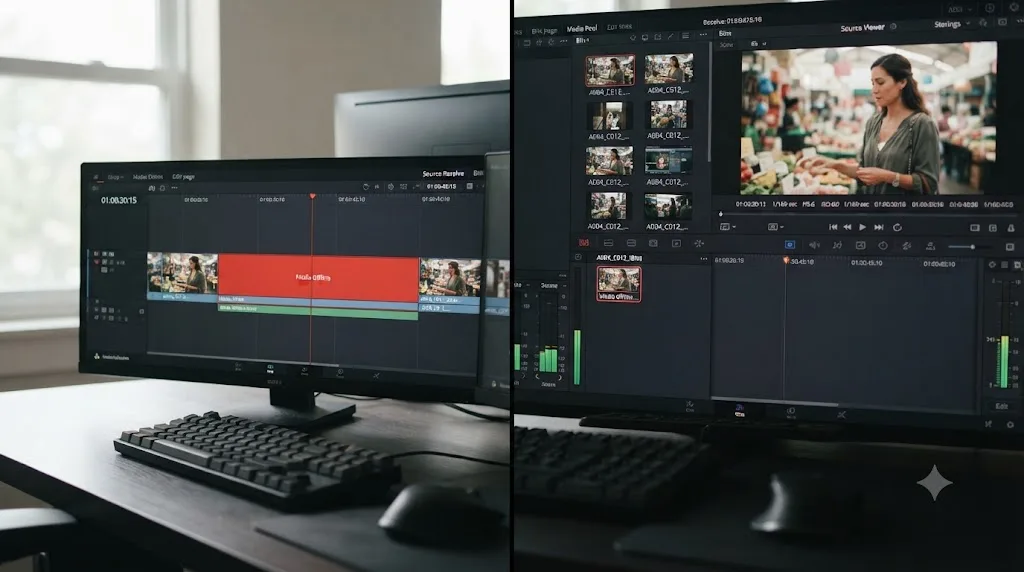
A clip can be online in the Media Pool and offline in the timeline at the same time, because every timeline clip keeps its own link to a Media Pool clip, called a conform. The timeline doesn't point at the file on disk. It points at the Media Pool entry, and that second link can break independently of the first one.
The usual triggers: you deleted a clip from the Media Pool and re-imported the same file, which creates a new entry the timeline doesn't recognize. Or you brought a timeline in from XML or AAF and Resolve matched some clips to the wrong Media Pool entries, or to none at all. Either way, relinking in the Media Pool does nothing, because the Media Pool was never the broken half.
The fix lives in the timeline itself:
- Right-click the offline clip in the timeline.
- Choose Force Conform with Media Pool Clip.
- Pick the correct Media Pool clip from the list Resolve offers.
If Resolve keeps swapping the conform back on its own, right-click the timeline clip and check the conform lock options in the same menu. A locked conform stops Resolve from second-guessing your choice on the next project load.
Can you take a clip offline on purpose?
You can, and knowing the switch exists solves two problems at once.
Right-click any clip in the Media Pool and choose Unlink Selected Clips, and Resolve deliberately severs the connection to the file. Editors use it to swap sources cleanly: unlink, move or replace the files on disk, then relink to the new versions in one controlled pass instead of letting Resolve grab whatever it finds mid-move. It's also the honest way to test how much of your timeline depends on a given drive before you unplug it for real.
The flip side: Unlink sits one line away from Relink in the same context menu. If a single clip went offline while its neighbors from the same folder stayed healthy, and the file is verifiably sitting on a connected drive, consider that somebody misclicked. Relink Selected Clips puts it back.
Can a missing codec cause a media offline error?
Yes, and this is the one that confuses people the most, because the file is right there in the folder and still comes up red.
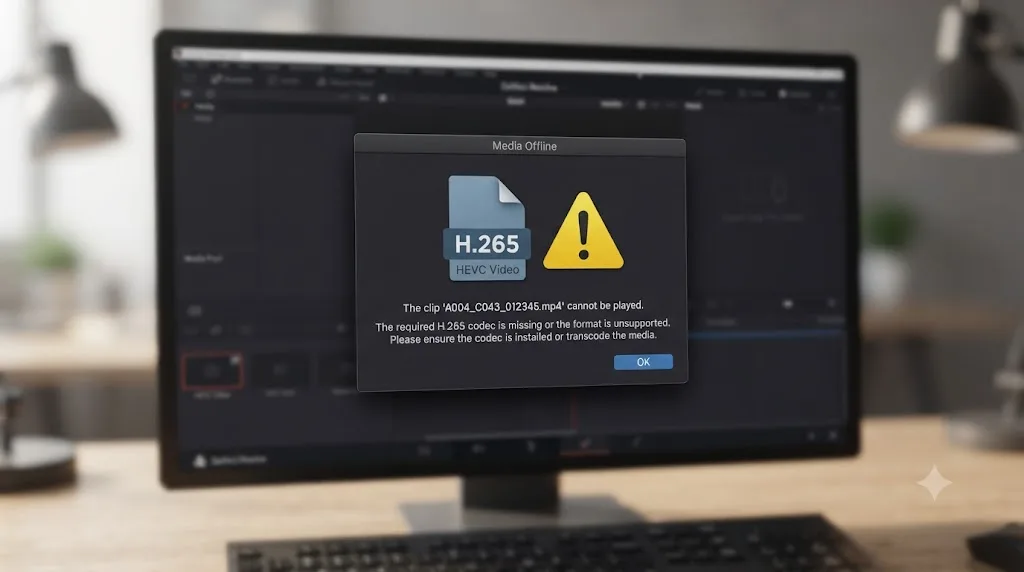
H.265/HEVC footage from an iPhone, a GoPro, or a DJI drone is the most common trigger on Windows, where the operating system doesn't ship a decoder for it by default. Resolve can see the file exists but can't decode a single frame of it, so it flags the clip offline instead of showing a cryptic codec error. Installing a compatible decoder, or transcoding the clip to ProRes or DNxHR with a tool like HandBrake, resolves it, per the codec breakdown in Beginners Approach's writeup.
Resolve's own tech specs page is worth checking too if you're seeing this consistently on the same machine. An outdated GPU driver causes similar decode failures, and it's an easy thing to rule out before you start transcoding footage.
Which formats does the free version refuse to decode?
Not every codec gap is something you can install your way out of. Some decoders are licensed features of the paid Studio edition, and the split isn't the same on every operating system.
The pattern that catches people most often is Linux. Blackmagic's supported codec list has long marked H.264 and H.265 decoding on Linux as a Studio feature, so the free Linux build shows a red slate for the exact same phone footage that opens fine in the free version on a Mac or Windows machine. If you edit on Linux without a Studio license, transcoding delivery codecs to DNxHR or ProRes before import isn't optional. It's the workflow.
The tell for this whole category: the project opens perfectly on one machine and shows offline clips on another, with the files sitting in identical paths on both. When that happens, stop relinking and compare editions and operating systems first. Blackmagic also gates some hardware-accelerated decoding behind Studio, which shows up as slowness rather than offline slates, but the same "check the codec list before you blame the file" logic applies. The codec list and the tech specs page together settle it in a minute, and our free vs Studio breakdown covers where else the editions differ.
Why does an external drive keep knocking your media offline?
External drives cause more offline slates than every other category combined, and each operating system breaks the link in its own way.
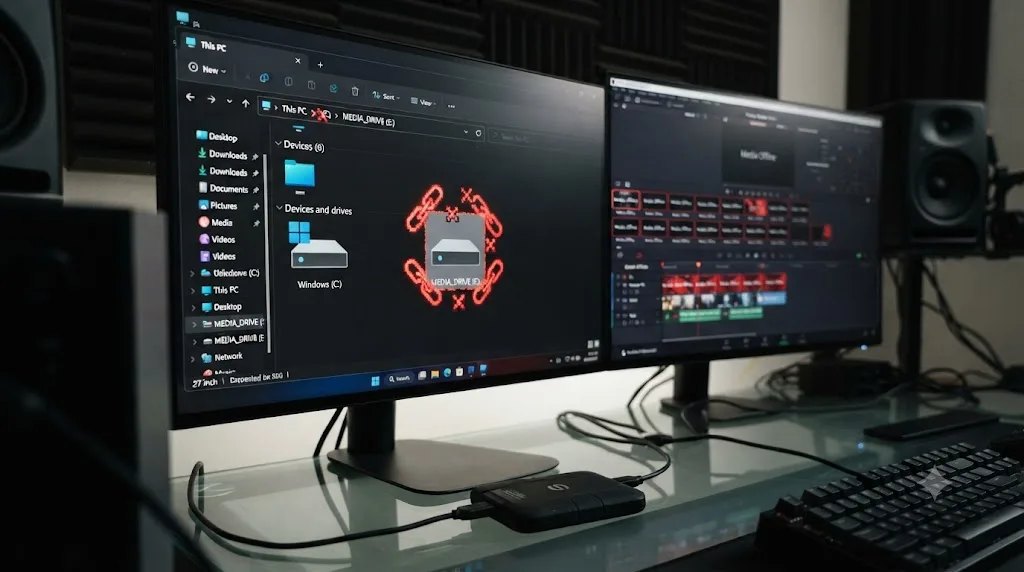
On Windows, the problem is drive letters. Windows assigns them in the order drives show up, so plugging your footage drive into a different USB port, or plugging in a thumb drive first, can turn D: into E:. Every stored path in your project just broke, even though nothing moved. You have two fixes. The clean one is outside Resolve: open Disk Management, right-click the drive's partition, choose Change Drive Letter and Paths, and give it back its old letter. Resolve reconnects on the next project load without a single relink. The other is Change Source Folder, swapping the D: prefix for E:. Prevention is better than either: assign the drive a letter from the far end of the alphabet, like V:, that Windows will never hand out on its own.
On a Mac, drives mount under /Volumes by name, which fails differently. If a drive didn't unmount cleanly, macOS can leave a stale folder at /Volumes/Footage and mount the returning drive as /Volumes/Footage 1. Same drive, new path, offline project. Eject the drive, delete or clear the stale mount point (a reboot does it if you'd rather not touch /Volumes), and remount. And give every drive you own a unique name, because two drives both named "Untitled" guarantees this collision eventually.
On both platforms, watch for drive sleep. A bus-powered drive that spins down mid-session makes Resolve's next frame request time out, and clips flash offline until the drive wakes. Disable sleep on editing drives in the vendor utility or the OS power settings, and plug them straight into the machine rather than through an unpowered hub. A drive that keeps dropping out usually also stutters during playback, and our slow playback guide covers that storage side in more depth.
Does network storage cause media offline?
Yes, and it adds failure modes a local drive doesn't have.
On Windows, a NAS share has two addresses: the mapped letter like Z: and the UNC path like \\nas\footage. Resolve stores whichever one you imported through, and the two don't match each other. If you imported via Z: and later browse in through the UNC path, the project shows offline media on a share that's fully connected. Pick one form, use it forever. And remember that mapped letters don't always reconnect at login until something touches them, so open the share in Explorer before you open Resolve.
On a Mac, an SMB share only exists under /Volumes while it's mounted. Reboot, and it's gone until you reconnect. If your projects wake up offline every morning, that's the whole story. Add the share to your Login Items so it mounts before you start editing.
And on any platform, don't cut over Wi-Fi. A dropped packet burst reads as a missing file, clips flicker offline mid-playback, and the project feels haunted. Wired connections make network storage boring, which is exactly what storage should be.
Can OneDrive, iCloud, or Dropbox take your footage offline?
Here's the modern version of this problem, and it's growing: your footage lives in a cloud-synced folder, and the sync app quietly deleted the local copy to save disk space.
Every major sync service does this. Microsoft's documentation for OneDrive Files On-Demand is explicit that "online-only files don't take up space on your computer" and that "you can't open online-only files when your device isn't connected to the Internet." Apple's iCloud Drive guide says the same about Optimize Mac Storage: "Your Mac can automatically store documents in iCloud when more space is needed." Dropbox has an equivalent online-only mode. In every case, what stays behind is a placeholder.
A cloud placeholder looks like a video file in the Finder or Explorer, but it holds no frames until the sync app downloads the real thing. Resolve asks the drive for video data and gets a stub, so the clip reads offline, or playback hangs while the sync app scrambles to pull gigabytes down mid-session. The cruel part is that everything looks fine: the file is listed, the name matches, the icon is right. The only tells are the little cloud badge on the icon and a "size on disk" near zero.
The fix has two levels:
- Right-click the footage folder in the sync app and pin it locally. OneDrive calls it "Always keep on this device," iCloud offers a download option per file or folder, and other sync tools have their own always-local settings.
- Better, keep active project media outside synced folders entirely. Sync services optimize for documents, and a service that's free to evict large, rarely reopened files will keep choosing your footage first.
Also mind the defaults while a project is live. Apple's guide notes that Optimize Mac Storage evicts local copies "when more space is needed," on its own schedule, and Microsoft's page says recent OneDrive builds enable Files On-Demand automatically, so new footage in a synced folder can start life as a placeholder without you ever choosing that.
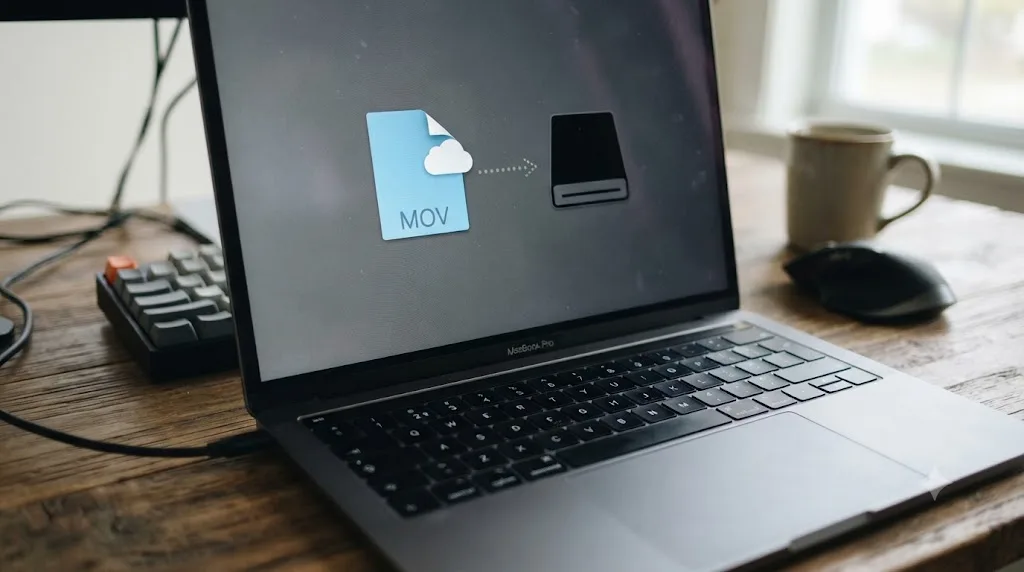
What about variable frame rate footage from phones and screen recordings?
Variable frame rate is the sneakiest cause on this list because the file is present, supported, and still misbehaves.
Phones, screen recorders, and game capture tools save power and bitrate by varying the gap between frames. Resolve assumes those gaps are constant. Feed it a VFR file and the math stops adding up: audio drifts out of sync, durations disagree between apps, and in the worst cases Resolve treats stretches of the clip as unreadable and flashes the offline slate mid-clip. It also explains a stubborn relink refusal. Re-export a VFR clip and its duration lands differently, so the name matches and the duration doesn't.
The fix is to convert to constant frame rate before the footage ever touches your Media Pool:
- Open the clip in HandBrake (or Shutter Encoder, both free).
- Set the frame rate to match your timeline, 30 or 60 for most phone and screen footage.
- Set the frame rate mode to Constant, not Variable or Peak.
- Encode, import the converted file, and keep the original as a backup.
If the VFR clip is already cut into your timeline, convert it anyway, then attach the converted file with Replace Selected Clip so your edit stays put. And for future recordings, fix it at the source where you can: OBS and most desktop recorders have a constant frame rate option buried in their output settings.
Are RAW clips and their folders a special case?
They are, because RAW media often isn't one file per clip, and partial copies break in ways ordinary video doesn't.
Blackmagic's own BRAW is the easy case. One .braw file per clip, plus an optional .sidecar file carrying metadata next to it. Lose the sidecar and the clip still plays; lose or move the .braw and it's a normal relink. BRAW also sidesteps the licensing walls that delivery codecs hit, since it's the format Resolve is built around, listed across editions in Blackmagic's supported codec list.
RED footage is the hard case. Long R3D takes are spanned: one clip recorded as several sequential .R3D files inside one folder. Copy only the first segment, or let a transfer die halfway, and the clip imports, plays for a while, then hits the offline slate exactly where the missing segment begins. When you relink RAW, relink the clip's entire folder, not a file, and compare file counts between card and copy before you wipe the card.
There's also a version trap unique to RAW. A camera that's newer than your Resolve build can produce files your RAW decoder has never heard of, and they'll read as unsupported on a machine where last year's footage from the same brand works fine. Before you blame the copy, check whether a Resolve update adds support for the camera.
Why do image sequences go offline one frame at a time?
An EXR, DPX, or PNG sequence looks like one clip in the Media Pool, but on disk it's hundreds or thousands of numbered files, and Resolve builds the clip from that numbered range.
That changes the failure modes. A missing frame in the middle of the range doesn't take the clip offline; it takes those frames offline, so playback flashes the red slate for a few frames and recovers. The usual culprit is an interrupted copy that skipped files, or a cleanup tool that "deduplicated" frames it decided were redundant. A renamed numbering pattern is worse: change shot010_0001.exr to shot10_0001.exr and the whole clip drops offline at once, because the range Resolve imported no longer exists.
The fixes are mechanical:
- Compare the file count on disk against the clip's frame count in the Media Pool.
- Recopy the gaps from the source, or re-render the missing frames if this is a VFX handover.
- If the pattern changed, re-import the sequence and use the timeline conform tools from earlier to swap it into your edit.
And a prevention rule that costs nothing: one folder per sequence, nothing else inside it, and no sync or cleanup utility allowed anywhere near it.
Can audio go offline while the picture plays fine?
Yes, and it's disorienting the first time, because nothing on screen turns red.
If you record dual-system sound, a field recorder or lav writing WAV files separately from the camera, a synced clip in your project references two files. Move or rename the audio folder and the video half keeps playing while the audio half goes offline: silent tracks, dead waveforms, and an offline flag you only notice in the Media Pool. Footage with audio embedded in the video file can't split this way, which is why the problem tracks whoever ran the second recorder.
The repair is the same relink flow, aimed at the right files. Switch the Media Pool to list view, sort by type to surface the audio clips, then Relink Selected Clips pointed at the WAV folder's new home. Clips you synced inside Resolve keep their sync offset through the relink; the pairing lives in the project, not in the files.
One caution: if your audio plays fine everywhere but Resolve and nothing is flagged offline, that's a different fault tree, not this one.
Can proxy or optimized media go offline on their own?
A proxy is a second media file with its own link, so your proxies can go offline while the camera originals stay perfectly connected, and the other way around. Once you know that, the confusing half-broken states start making sense.
Proxies are files you can see, often parked on a faster or smaller drive than the originals. If that drive isn't mounted, Resolve either falls back to the originals or stalls, depending on the Playback menu: check Playback > Proxy Handling and set it to Prefer Camera Originals to keep cutting while the proxy drive is missing. When the drive returns, right-click the affected clips and use Link Proxy Media to reattach the proxy files by hand if they don't reconnect on their own.
Optimized media and the render cache are different: they're internal files Resolve manages in the locations set under Project Settings > Master Settings > Working Folders. Point those at an external drive (a common move to spare a small internal SSD) and unplugging that drive silently removes your optimized media. The originals still play, but the smooth-playback safety net is gone and heavy clips start stuttering again.
After any big relink, regenerate rather than trust: select the clips and choose Generate Optimized Media again, and rebuild proxies for anything you replaced or re-encoded, so the lightweight copies match the sources frame for frame.
How do the render cache and offline media hide each other?
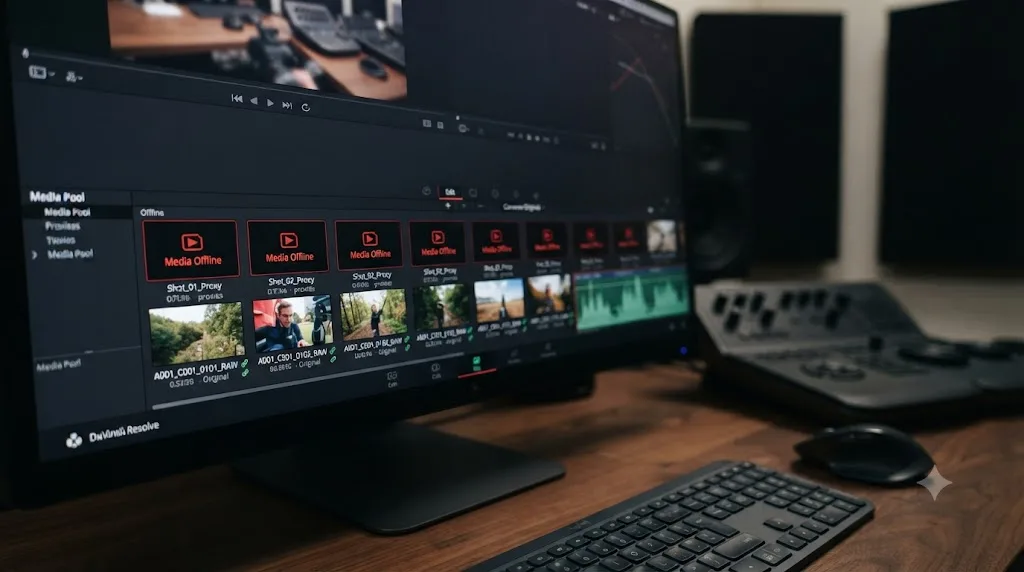
The render cache doesn't just glitch, as covered earlier. It actively masks offline media, and that deserves its own warning.
Cached timeline sections play from the cache files, not from your sources. So a drive can disconnect mid-week and your cached timeline keeps playing beautifully. You discover the problem days later, the moment you touch a grade or a cut on the affected section and Resolve reaches for the source that's no longer there. The project didn't break when it looked like it broke.
Rendering is where the mask comes off completely. The Deliver page reads source media, so any clip that's genuinely offline renders the red slate straight into your export. Scrub the render queue's output or step through the timeline with the cache disabled before a delivery deadline, precisely because smooth playback proves nothing about link health.
And the inverse failure exists too: if the working-folder drive holding the cache disconnects, cached sections lose their smooth playback while the sources remain perfectly online. If everything relinks clean but performance died, look at where the cache lives before you blame the footage.
What happens when you move a project to another machine?
More offline media is created by machine moves than people expect, because Resolve projects don't live next to your footage.
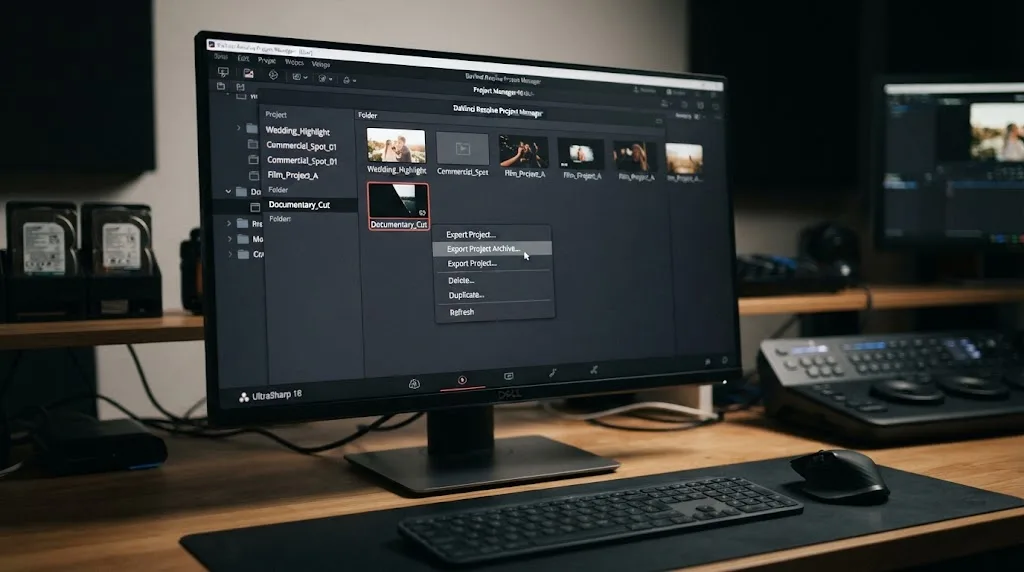
Projects live in a project library on the machine (or a server), and the media lives wherever you put it. Copy the footage drive to a new computer and the project didn't come along. Export the project and the footage didn't come along. A DaVinci Resolve project export, the .drp file, contains no media at all; only a project archive, the .dra folder, carries the footage with it.
That gives you two honest moving strategies:
- Project archive for portability. In the Project Manager, right-click the project and choose Export Project Archive. Resolve copies the project plus its media (with checkboxes for optimized media and proxies) into one .dra folder. Restore it on the other machine and the clips link to the archived copies. Big on disk, zero relinking.
- .drp plus the same drive for speed. Export the .drp, plug the original footage drive into the new machine, import the project. Everything links if, and only if, the paths resolve identically.
That "identically" is where cross-platform moves fall over. The same drive is E:\Footage on Windows and /Volumes/Footage on a Mac, so a project hopping platforms opens with every clip offline even though the drive is right there. It's a pure path-prefix problem: one pass of Change Source Folder, swapping the old prefix for the new one, brings the whole project back.
Does collaborative editing change the offline math?
It multiplies it by the number of workstations, because shared project libraries share the project database, never the media files.
When an editor, a colorist, and an assistant open the same project, each machine resolves every clip path against its own storage. Media that's online for one seat can be offline for another, and both are telling the truth. The classic report, "it works on my machine," is almost always a path mismatch, not damage.
The setup that avoids it: everyone reaches the footage on the same share, mounted under the same name, agreed before the first clip is imported. A mixed Mac and Windows room adds the platform prefix problem from the previous section on top, so pick share names early and keep a note of each platform's prefix for the inevitable Change Source Folder pass. And when a remote collaborator can't mount the shared storage at all, generating proxies for them to work from locally beats having them relink to a private copy that drifts out of sync with the source of truth.
What does a full recovery look like start to finish?
Here's how the pieces chain together in a realistic worst case, because real breakages rarely come one at a time.
Say you moved a project from a laptop to a desktop the fast way: exported a .drp, carried the footage drive over, and copied the proxies onto the desktop's internal SSD. You import the project and the entire Media Pool is red. Work the layers in order:
- Storage first. The drive is connected, but this is Windows and it mounted as
E:instead of the laptop'sD:. One pass of Change Source Folder, swappingD:\forE:\, and most of the pool comes back. - Stragglers second. A handful of clips stay red: the ones you renamed on the laptop last week. Replace Selected Clip pairs each one to its file by hand.
- Timeline next. Two clips are still red in the timeline while playing fine in the Media Pool, the leftovers of a re-import months ago. Force Conform with Media Pool Clip repairs both.
- Playback layer last. Everything links, but heavy clips stutter and a few cached sections flash stale red frames. The proxies live at a new path, so relink them via Link Proxy Media, then Playback > Delete Render Cache > All, and let the cache rebuild.
Four different mechanisms, four different tools, one working project. The order matters: fixing paths before conforms before caches means each layer's repair sticks instead of being undone by the layer below it. Run the same sequence on any multi-cause breakage and you'll never fix the same clip twice.
How do you stop media from going offline again?
A few habits fix this permanently, not just for the current project.
- Finish organizing your footage before you import it. Moving folders around after Resolve has linked to them is the single biggest cause of offline media. Settle the folder tree first (client, project, shoot date works fine), treat it as read-only afterward, and route any later reorganizing through Media Management rather than the Finder or Explorer.
- Copy camera card footage to a drive before you start editing. Editing straight off a card risks a connection drop mid-session that no amount of relinking will undo cleanly. The Media page's Clone Tool does the offload with checksum verification, so you also learn about a bad copy before the card is wiped rather than after.
- Export a project archive before any major file reorganization, the same habit that protects you during a version upgrade. Our DaVinci Resolve 21 review covers why that habit matters even outside the offline media context.
- Keep your footage on one dedicated drive per project instead of splitting it across a laptop's internal storage and an external drive. Fewer connection points means fewer chances for the link to break.
- Consolidate finished or traveling projects with Media Management. File > Media Management copies, moves, or transcodes the media a project actually uses into one destination folder and relinks the project to the copies as it works. Choose the option to keep used media only, add a second or two of handles, and you get a single self-contained folder that survives any drive swap or handoff to another editor.
- Name every drive uniquely, and pin the letter on Windows. A drive named "Untitled" or a footage drive left on the default letter is a mount-point collision waiting to happen, per the OS-specific failure modes above.
What if you're still new to Resolve and this is your first offline clip?
If this happened on your first real project, you're not doing anything wrong. Every editor hits their first offline clip within the first few projects, usually right after moving footage to an external drive for the first time. If you're still finding your footing with Resolve more broadly, our complete beginner's guide covers the pages and habits worth learning before you touch a large project. And if you'd rather have something point at the actual control on your screen instead of hunting through a menu tree mid-panic, that's the specific gap TryUncle is built to close.
What's the fastest path back to editing?
Check the drive first, and on Windows check its letter while you're there. Relink through the Media Pool second, reaching for Change Source Folder when a whole tree moved. If the clip is red in the timeline but fine in the Media Pool, fix the conform instead. Only then start chasing codecs, frame rates, or the render cache. Nine times out of ten, the file is fine and Resolve just needs to be told where it went. Keep your footage on one uniquely named drive per project, consolidate with Media Management when a project travels, and export archives before you reorganize anything, and you'll see a lot fewer red frames going forward.
Frequently asked questions
- What does 'Media Offline' mean in DaVinci Resolve?
- It means Resolve can't find the source file a clip in your project points to. The clip itself isn't deleted from your timeline or media pool, only the link between the clip and the file on disk is broken.
- How do I relink offline media in DaVinci Resolve?
- In the Media Pool, select the offline clip or clips, right-click, and choose Relink Selected Clips, or Relink Clips for Selected Bins for a whole folder at once. Point Resolve at the current location of the source files. It searches by filename and duration to reconnect them, not by the old file path.
- Why is my media still offline after I relinked it to the right folder?
- The usual reason is a filename or duration mismatch, often from a renamed file, a re-encoded copy, or a render cache reporting a stale state. Clear the cache from Playback > Delete Render Cache > All, then relink again.
- Can a missing codec cause media offline errors?
- Yes. If Resolve can't decode a format, most often H.265/HEVC clips from phones and drones on Windows, it can flag the clip offline even though the file sits right where it should. Installing a compatible decoder or transcoding to ProRes or DNxHR fixes it.
- Will relinking media delete my edits or color grade?
- No. Relinking only repairs the link to the source file. Every cut, node, and effect you built on that clip stays exactly as you left it once the file reconnects.
- Why is a clip offline in the timeline but fine in the Media Pool?
- The timeline keeps its own link to the Media Pool clip, called a conform, and that link can break on its own, usually after re-importing media or bringing a timeline in from XML or AAF. Right-click the timeline clip and choose Force Conform with Media Pool Clip to repair it.
- Can OneDrive or iCloud cause media offline in DaVinci Resolve?
- Yes. Cloud sync apps free disk space by replacing local files with online-only placeholders that hold no video data. Resolve can't decode a placeholder, so the clip reads offline. Mark footage folders to always stay on the device, or keep active projects outside synced folders entirely.
- Does a .drp project export include my media?
- No. A .drp file is project metadata only: your edits, grades, and the paths where clips lived. To move a project and its footage together, right-click the project in the Project Manager and choose Export Project Archive, which produces a .dra folder containing the media.
Sources
- Justin Robinson, JayAreTV: Relink Offline Media in DaVinci Resolve
- Beginners Approach: DaVinci Resolve Media Offline (6 Proven Fixes)
- DaVinci Resolve 17 New Features Guide (Blackmagic Design)
- DaVinci Resolve - Tech Specs (Blackmagic Design)
- DaVinci Resolve Supported Codec List (Blackmagic Design)
- Save disk space with OneDrive Files On-Demand for Windows (Microsoft)
- Store files in iCloud Drive on Mac (Apple)
Put this guide to work with TryUncle.
Ask about the step you’re on. TryUncle sees your screen and points at the control you need, so you can keep learning in your own project.
Get TryUncle for Mac or WindowsKeep reading
Guides · Jul 7, 2026 · 32 min
DaVinci Resolve for Beginners: The Complete Starter Guide
Learn DaVinci Resolve from zero: what it costs, what it needs to run, the seven pages you'll actually use, and the steps to cut your first project.
Reviews · Jul 7, 2026 · 22 min
DaVinci Resolve 21 Review: What's New and Is It Worth Upgrading?
A close look at DaVinci Resolve 21: the new Photo page, IntelliSearch, CineFocus, Krokodove, what Blackmagic actually shipped, and who should upgrade now.

Fixes · Oct 3, 2026 · 16 min
DaVinci Resolve 21 Tutorial Controls Do Not Match? Fix It
DaVinci Resolve 21 tutorial controls do not match? Identify the version, page, layout, and edition difference, then find the right control.