Articles / Guidesupdated for DaVinci Resolve 21.0 (September 2026)
DaVinci Resolve Social Media Lower Third Templates: 2026 Guide
Quick answer
For DaVinci Resolve social media lower third templates, start with a vertical 9:16 timeline, keep names and roles inside platform safe areas, and use Text+ or a Fusion title. Resolve 21 includes built-in lower-third titles. For third-party templates, check the Resolve version, required fonts, media, and Free-versus-Studio compatibility before downloading.
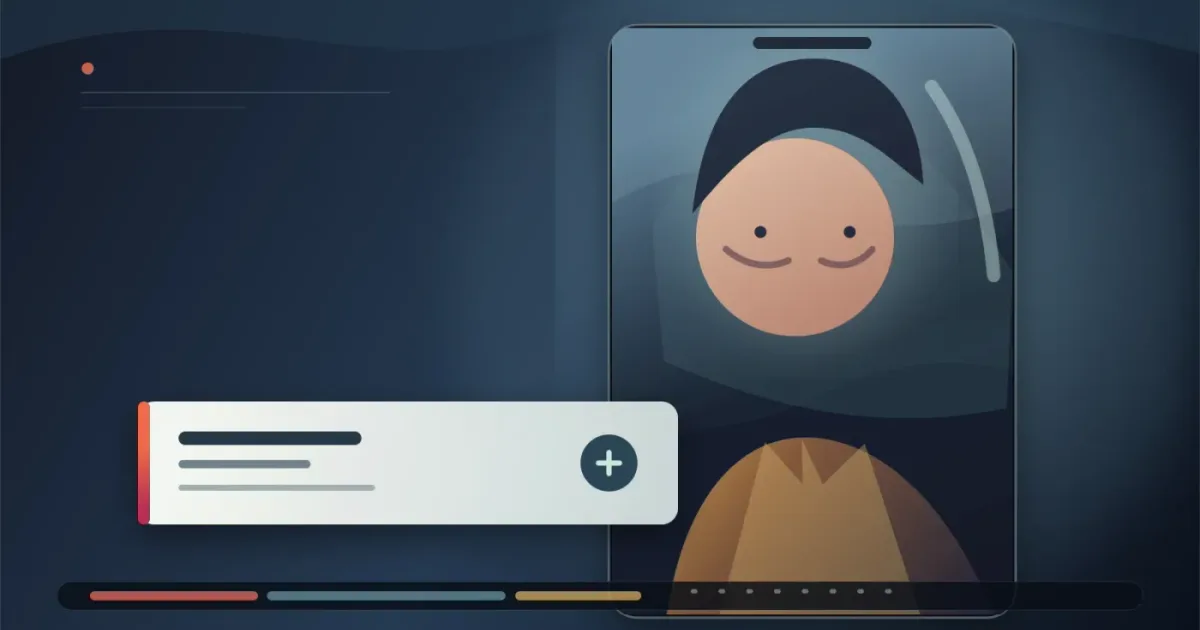
After seven years of professional commercial editing, I treat a lower third as information design, not decoration. In our 100,000+ member professional video-editing community, editors often find that a graphic looks fine in landscape but crowds a face in a vertical post. As of September 2026, this guide targets DaVinci Resolve 21.
What are the best DaVinci Resolve social media lower third templates?
The best DaVinci Resolve social media lower third template is a restrained name-and-role graphic with editable text, color, position, and timing controls. Start with the built-in options before buying a library. Resolve 21's title palette includes Left Lower Third, Middle Lower Third, Right Lower Third, Text+, and a broad set of Fusion titles, according to Blackmagic's Resolve 21 New Features Guide.
For a talking-head clip, use one line for the person's name and a smaller second line for the role or context. The graphic should identify someone or add context without competing with the spoken sentence.
Adobe's January 2026 social-video tutorial makes the hierarchy point clearly. Sydney Michuda, Creative Director of Super Creative, says, “Make sure the font is smaller than the text above, since it's more of a subhead.” That is a small rule with a big payoff in a phone-sized frame. Read the full Adobe lower-third tutorial for its vertical layout examples.
The best lower third template is the one that keeps the name readable without competing with the speaker.
How do I choose a lower third for 9:16 social video?
A 9:16 lower third needs its own layout, not a squeezed 16:9 design. YouTube identifies 9:16 as a vertical format, and TikTok's current in-feed ad specification recommends vertical 9:16 video at a minimum of 540 x 960 pixels. Meta also tells Reels advertisers to keep key creative elements inside the safe zone. See the current guidance from YouTube, TikTok, and Meta.
Use this design check before you choose a template:
| Check | Practical choice for a social lower third | Why it matters |
|---|---|---|
| Canvas | 9:16 vertical timeline, such as 1080 x 1920 for a full-HD working canvas | The graphic should be designed in the shape viewers will see. |
| Placement | Keep the name clear of the bottom caption and app-control areas | Platform safe zones vary with captions and interactive elements. |
| Hierarchy | Name larger than role, with one short idea per line | Small screens punish dense copy. |
| Contrast | Solid or semi-opaque backing behind type when footage is busy | Text needs a stable reading field. |
| Motion | Short slide, reveal, or fade with a clean exit | The animation should support the edit, not become the subject. |
TikTok says safe-zone size changes with the asset's dimension, caption length, and interactive add-ons. A template that fits an empty test frame can fail once the platform adds its interface, so leave extra bottom clearance and check the export in a phone preview.
If your target is YouTube Shorts, square or vertical uploads up to 3 minutes can be categorized as Shorts under YouTube's current rule for uploads after October 15, 2024. The lower third still needs to survive the vertical player. See our guide to DaVinci Resolve title templates for YouTube for a wider title system.
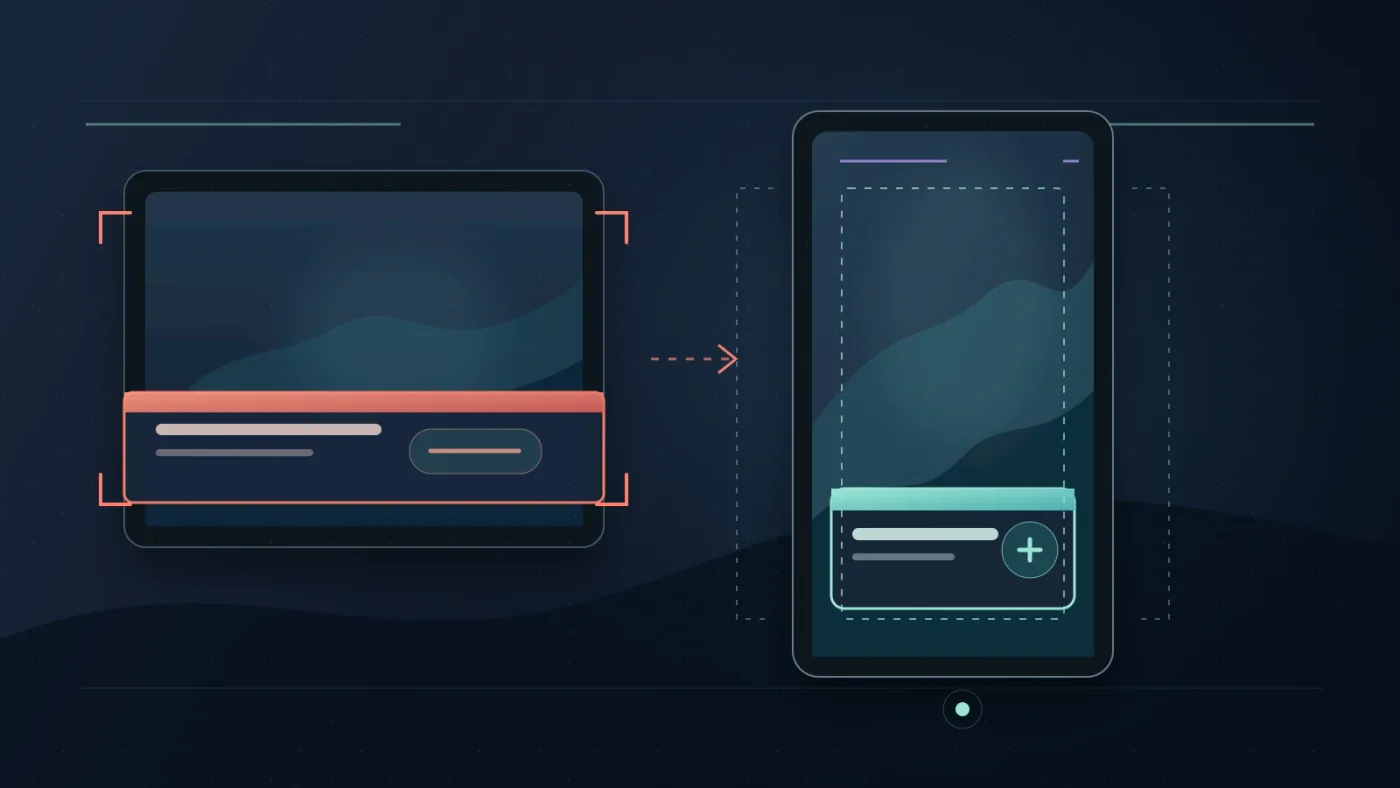
How do I add a built-in lower third in DaVinci Resolve 21?
DaVinci Resolve 21 lets you add a title by opening the Effects Library, choosing a title or Fusion title, and dragging it above the video track. Blackmagic documents that workflow and the Inspector controls for text, font, size, and color on the DaVinci Resolve Edit page.
Use this five-step workflow:
- Create a vertical timeline that matches the social deliverable, then place the playhead where the speaker should be identified.
- Open Effects Library > Titles and preview the built-in lower-third choices. Resolve's Editor documentation says you can preview a title by moving the pointer across its thumbnail.
- Drag a title above the footage. Start with Left Lower Third or Right Lower Third when the frame has a clear side.
- Select the title and replace the sample text in the Inspector. Adjust font, size, color, position, and duration.
- Play the title over the busiest part of the shot. Check the longest name and exit, then export a short test at the audience's viewing size.
Resolve 21 also improves keyframe editing for Fusion Effects, generators, and text tools in the Edit page. That gives you room to refine timing without rebuilding the whole title, as described in the Resolve 21 New Features Guide.
Resolve 21 can handle a reusable lower third without requiring a paid template library.
Disclosure: This post may earn a commission if you buy through an Artlist link. The relationship doesn't change the advice or the alternatives in this guide.
How do I customize a lower third without breaking the animation?
Customize message controls first, brand treatment second, and animation last. A Fusion title can expose selected parameters for editing and save as a template for the Edit or Cut page, as Blackmagic explains on its Fusion 21 product page.
Keep the control set small:
- Text for the name.
- Text for the role or descriptor.
- Font and text color.
- Background or accent color.
- Position for the whole graphic.
- In and out timing, if the template exposes it.
Don't expose every node. A reusable template works when another editor can understand the Inspector without visiting the node graph. Keep name and role on separate text controls if they need different sizes, and test the real copy rather than trusting a placeholder.
To make your own Fusion title, select the nodes that belong in the graphic, create a macro, enable only the parameters you want to expose, and save it in the Edit Titles template location. After restarting Resolve, the custom title appears in the Fusion Titles section of the Effects Library. Blackmagic's Fusion reference manual documents the macro and title-template workflow.
Animation should also respect clip length. Resolve 21's Fusion improvements include animation curve modifiers that can retime animation when a composition's duration changes. If a template doesn't have that behavior, keep the entrance and exit simple and inspect short and long versions before you distribute it.

Why is my DaVinci Resolve lower third not showing or playing correctly?
A missing or broken DaVinci Resolve lower third usually comes from a compatibility, font, media, or performance problem. Artlist's current Resolve-template guidance warns that templates can be version-specific, that Studio-only templates should be avoided in the Free edition, and that missing fonts or media can cause display errors. Check the asset's compatibility information before changing nodes.
Work through the failure in this order:
- Confirm the installed version with Help > About DaVinci Resolve. A template made for an older release may not behave the same in Resolve 21.
- Check whether the asset requires Studio. The free version supports 8-bit formats up to 60 fps and Ultra HD 3840 x 2160, while Studio adds 10-bit support up to 120 fps and resolutions beyond 4K. Those are media limits, not a guarantee that every title template is compatible.
- Install the required fonts and relink any media packaged with the title. A font substitution can change line breaks and push the second line outside the intended box.
- If playback is slow, try Half Resolution or Quarter Resolution preview, or use optimized media for the footage. The template may be correct even when real-time playback is not.
- Test the title on a clean timeline and render a short sample. If it fails only in one project, compare timeline resolution, frame rate, and Fusion composition length.
A template that hides its editable controls is a bad template for a repeatable series.
Should I use free templates, Text+, or a paid template library?
Use Text+ when the information is simple, a built-in Fusion title when the motion is useful, and a paid library when you need a consistent package of ready-made graphics and have checked its license. Blackmagic lists hundreds of titles, transitions, and effects in the Edit page, while Fusion provides tools for creating custom lower thirds and saving them as templates. That makes the built-in workflow a real starting point, not a consolation prize.
| Option | Choose it when | Trade-off |
|---|---|---|
| Text+ | You need a clean name and role quickly | You design more of the look and animation yourself. |
| Built-in Fusion title | You want a finished reveal with editable text | Controls and behavior vary by title. |
| Your own Fusion macro | You need a house style across many projects | Initial setup takes longer, but the result is yours to maintain. |
| Artlist Resolve template | You want a polished downloadable package alongside other production assets | Check Resolve version, Free-versus-Studio support, included media, fonts, and license terms. |
| Envato Elements | You want a broad marketplace and are willing to inspect each file | Compatibility and customization quality vary by creator. See Envato's current video-creator catalog. |
If you want a ready-made package, browse Artlist Resolve templates only after checking the individual asset's version, font, media, edition, and license requirements. Artlist is the better fit when you regularly need several asset types, not just one lower third. Our Artlist DaVinci Resolve templates Free Version guide covers that compatibility decision in more detail.
The free version is enough for basic Text+ and many title workflows, but template compatibility must be checked one asset at a time.
Which DaVinci Resolve social media lower third template workflow should I choose?
Choose built-in Text+ for a simple recurring name plate, a Fusion title for controlled animation, your own macro for a repeatable brand system, and a paid library for breadth. That decision keeps the reader's real problem in charge: readable information in a vertical frame.
I would start with a built-in Left Lower Third or Right Lower Third, rebuild it in Text+ only if the controls fight your brand, and save a Fusion macro once the design proves useful across projects. Buy a library asset only when its wider production value, license, and compatibility are clear.
The next step is concrete. Put one real speaker name and role into a 9:16 timeline, preview the title over the busiest shot, and export a short test. If the name is legible, the safe zone is clear, and the animation gets out of the way, you have the right template. If not, simplify it before you shop for another one.
Frequently asked questions
- How do I add a lower third in DaVinci Resolve 21?
- Open the Effects Library, choose Titles, drag a standard title or Fusion title above the video, then edit its text and appearance in the Inspector. Resolve 21 includes Left Lower Third, Middle Lower Third, Right Lower Third, Text+, and Fusion title options.
- What is the best DaVinci Resolve social media lower third template?
- The best template is the one that keeps the name readable in a 9:16 frame, exposes text and color controls, and works in your installed Resolve edition. Start with Text+ for simple branding and choose a Fusion or third-party template when its animation earns the extra complexity.
- Why is my lower third cut off on TikTok or Instagram?
- A lower third is usually cut off because it sits outside the platform safe zone or because a 16:9 layout was squeezed into a vertical frame. Reposition the graphic inside the platform overlay guide, then preview the exported vertical file before publishing.
- Can I use lower third templates in DaVinci Resolve Free?
- Yes, basic Text+ and many title workflows work in the free version, but individual Fusion or third-party templates can require Studio features. Check the template listing and test it in the exact Resolve 21 edition you use.
- How do I make a lower third reusable in DaVinci Resolve?
- Build the graphic in Fusion, expose only the controls you want to edit, save the composition as a macro in the Edit Titles template location, then restart Resolve and reuse it from the Effects Library.
Sources
- Blackmagic Design: DaVinci Resolve 21
- Blackmagic Design: DaVinci Resolve Edit page
- Blackmagic Design: DaVinci Resolve 21 New Features Guide
- Blackmagic Design: Fusion 21
- Blackmagic Design: Fusion Reference Manual
- YouTube Help: Video resolution and aspect ratios
- YouTube Help: Understand three-minute YouTube Shorts
- TikTok for Business: Auction in-feed ad specifications
- Meta for Business: Instagram and Facebook Reels ads
- Adobe Learn: Add attractive text overlays to social videos
- Artlist: DaVinci Resolve templates and current options
- Envato Elements: Unlimited video creator assets
Put this guide to work with TryUncle.
Ask about the step you’re on. TryUncle sees your screen and points at the control you need, so you can keep learning in your own project.
Get TryUncle for Mac or WindowsKeep reading
Guides · Aug 29, 2026 · 8 min
DaVinci Resolve Title Templates for YouTube: What to Choose
Choose DaVinci Resolve title templates for YouTube by checking format, safe areas, version support, animation, and licensing before you edit.
Guides · Aug 27, 2026 · 8 min
Artlist DaVinci Resolve Templates Free Version Guide
Can Artlist DaVinci Resolve templates work in the free version? Check Resolve 21 compatibility, Studio requirements, .dra installs, and fixes.
Comparisons · Aug 27, 2026 · 8 min
Artlist vs Envato Elements for DaVinci Resolve: 2026 Verdict
Artlist vs Envato Elements for DaVinci Resolve 21: compare templates, asset breadth, licensing, client work, and cancellation rights.