Articles / Guidesupdated for DaVinci Resolve 21.0 (September 2026)
How to Choose B Roll for a Video in Resolve 21
Quick answer
To choose B-roll for a video, start with the story beat, then select footage that adds context, covers an edit, or changes the viewer’s understanding. Favor shots with clear action, consistent direction, useful duration, and room for the cut. In DaVinci Resolve 21, rate, tag, and search candidates before assembling the sequence.
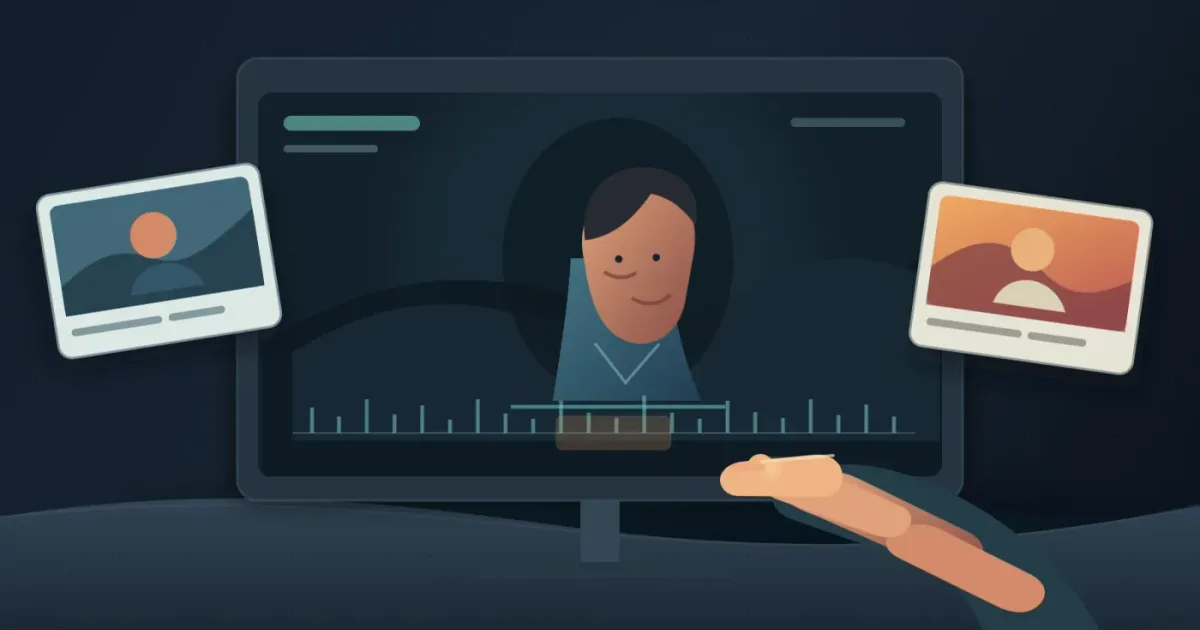
I start with the sentence, not the stock library. A B-roll shot earns its place when it clarifies the idea, hides a rough cut, or gives the viewer a useful change of visual information.
Choosing cutaways is one of the recurring questions in our 100,000+ member professional video-editing community. Our advice comes from 7+ years of professional commercial editing, teaching more than 100,000 students on Udemy, and working with Fortune 500 companies. As of September 2026, the workflow below is written for DaVinci Resolve 21. Blackmagic Design lists the final Resolve 21 release as June 3, 2026.
How do I choose B-roll for a video?
Choose B-roll by assigning every possible shot a clear editorial job. The shot should explain, cover, connect, contrast, or add a feeling that the main footage cannot deliver by itself.
Adobe defines B-roll as footage that supplements the main clips. It can establish a scene, smooth a transition, add meaning, or let you remove an unwanted moment without discarding the whole take. That definition gives you a better test than “Does this look cinematic?”
Write the job beside the line of dialogue or action you want to support:
- Explain: Show the object, process, location, or result the viewer needs to understand.
- Cover: Hide a jump cut, pause, cough, repeated phrase, or change between takes.
- Connect: Move from one place, person, or idea to the next.
- Contrast: Show an image that complicates or challenges what the speaker says.
- Feel: Add texture, anticipation, tension, relief, or scale without adding narration.
The best B-roll answers a story question before it decorates the timeline.
If the line is “the workshop was empty by winter,” a hand opening a locked door may explain the condition. A wide building shot may only provide atmosphere. Choose the first for evidence and the second for place or mood.
What should B-roll show in an interview or voiceover?
B-roll for an interview should make the speaker’s meaning more specific, not simply repeat the nouns in the transcript. Match the image to the claim, then decide whether a literal, related, or contrasting image serves the story best.
For each sentence, ask three questions:
- What is the speaker really saying?
- What could the viewer see that would make that idea concrete?
- Should the image agree with the words, add information, or create tension?
An interview about a baker’s early mornings could use flour on a workbench, a clock before sunrise, or a quiet shop after closing. You don’t need a clip of someone saying “early morning.” You need a visual fact that gives the phrase weight.
Director and cinematographer Hiroshi Hara puts the principle plainly: “Even though it sounds like it’s secondary, B-roll is what creates the nuances of visual storytelling.” Adobe attributes the quote to Hara, and the advice is useful because it treats B-roll as meaning, not filler.
Choose B-roll for the sentence’s meaning, not just the noun it mentions.
Let the A-roll lead when the speaker’s expression, gesture, or pause carries the moment. Cut away when the supporting image adds information or the main shot stops earning attention. B-roll should give you options, not force you to cover every syllable.
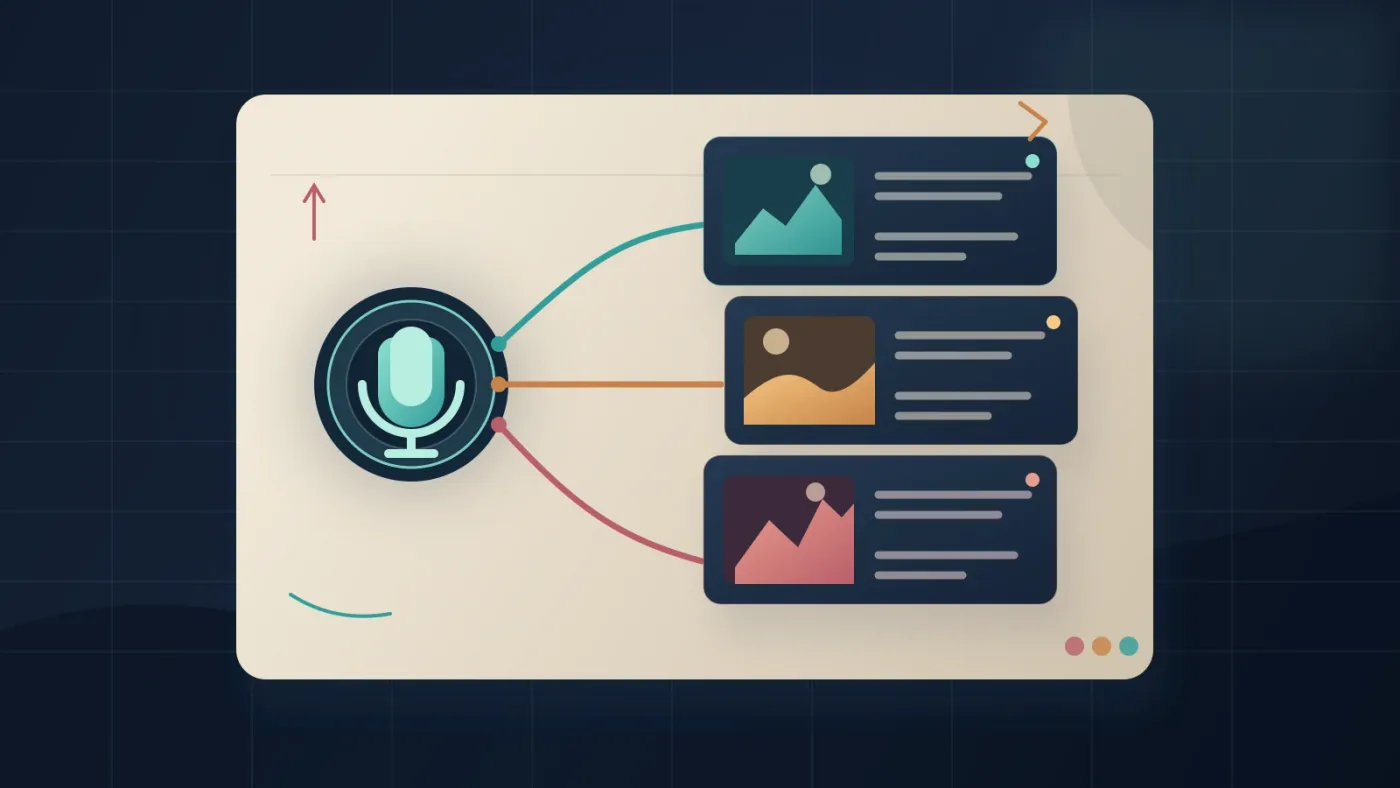
How do I judge whether a B-roll shot is usable?
Judge a B-roll clip on story fit first, then on cutability, continuity, and rights. A technically attractive clip still fails if its action has no usable beginning or end, its direction fights the surrounding shots, or its license doesn’t cover the finished video.
Use this quick decision matrix for every candidate:
| Test | Keep the shot when... | Reject or flag it when... |
|---|---|---|
| Story fit | It makes the line clearer, richer, or more tense. | It only repeats a word from the script. |
| Specificity | The viewer can identify what matters in the frame. | The subject is generic decoration. |
| Cutability | The action has a calm entry and exit point. | The movement starts or ends abruptly. |
| Continuity | Screen direction, light, scale, and time feel compatible. | The cut reverses movement or breaks the scene. |
| Format | The framing survives the planned crop and delivery shape. | The subject is trapped at the edge of a vertical crop. |
| Rights | You know who may publish the shot and where. | The source, license, or release is unclear. |
The “cutability” test matters more than a perfect frame. Adobe’s B-roll guidance recommends holding a shot long enough to fit the dialogue and quotes Mike Leonard’s advice to count to ten while recording. Treat ten seconds as a shooting prompt, not a rule that every edit must last that long.
A beautiful shot that changes nothing is decoration, not B-roll.
For self-shot footage, favor repeated actions from different distances: a wide, a medium, and a detail. For stock footage, look for the same sequence of information.
How do I choose B-roll in DaVinci Resolve 21?
Choose and organize B-roll in DaVinci Resolve 21 by separating the footage from the decision. Make a shortlist in the Media Pool, then test clips over the A-roll on the Edit page.
- Create purposeful bins. Use bins such as
01_context,02_process,03_details, and04_cutaways. If your projects become hard to navigate, our guide to folder and bin naming conventions in DaVinci Resolve gives you a naming system. - Review without committing. Watch each candidate for its action, not its thumbnail. Mark the useful range and write a short note such as “hand enters frame,” “turns toward door,” or “clean exit.”
- Rate and tag the strongest options. Blackmagic Design says Resolve 21 adds Media Pool rating and tagging columns, including a five-star rating system and tags such as Good Take, Untagged, and Rejected.
- Search when the archive is large. In DaVinci Resolve Studio 21, Blackmagic Design says IntelliSearch can analyze media and find objects, dialogue keywords, and faces, with results appearing as whole clips in the Media Pool. Treat those results as a starting point. You still need to judge story fit and rights.
- Build above the A-roll. Put B-roll on a video track above the dialogue or main action. Trim it to the idea, then return to the speaker when their face, timing, or reaction matters more.
- Check the delivery shape. Resolve 21 includes square and vertical resolution choices for social projects. Recheck framing in the actual timeline shape, especially when a wide shot will become a vertical crop.
The DaVinci Resolve Source Tape tutorial can help when you’re browsing a large group of clips.

Should I shoot, license, or find free B-roll?
Shoot B-roll when the story depends on a real place, person, process, or detail. License it when you need coverage you can’t capture, and use free or archival sources when budget matters more than speed and you can verify the rights.
| Source | Choose it when... | Main trade-off |
|---|---|---|
| Self-shot footage | You need specific access, real people, or continuity with the A-roll. | It costs time and may require another shoot. |
| Free or archival footage | The image is generic, historical, or available in a rights-cleared archive. | You must inspect terms, attribution, releases, and quality yourself. |
| Artlist | You regularly need licensed footage and may also need templates or other production assets. | You must choose the right license and publish stock-asset projects during the active subscription. |
| Storyblocks | You want to compare a footage-led subscription with your project needs. | Check the current plan, asset terms, and client coverage before downloading. |
| Envato Elements | You also need broader design assets alongside video material. | More categories can mean more searching and more license details to track. |
The source doesn’t determine the shot’s value. The story does. A self-shot detail can be weak without a job, while a licensed clip can supply missing context.
Is Artlist a good choice for B-roll?
Artlist is a sensible B-roll option when you need a recurring supply of footage and want to search alongside templates, music, or sound effects. It isn’t automatically the best choice for a one-off project, a very specific local story, or a creator who already has the needed footage.
Disclosure: We may earn a commission if you subscribe through our Artlist recommendation.
Artlist’s current guidance says its DaVinci Resolve templates support Resolve 18 or newer, so Resolve 21 meets that baseline. Its license guidance says stock footage and templates must be used in projects published during an active subscription. Projects published while subscribed can remain covered after cancellation, but new projects are not covered after expiry. Save the license certificate and confirm the tier before client work.
Artlist fits repeat production, not a story that wants original footage. Storyblocks may suit footage-first work. Envato Elements may suit a project that also needs design assets. Free archives win when cash is tight and research time is available. Self-shot footage wins when authenticity or access matters most.
Why is my B-roll making the edit feel random?
Your B-roll feels random when the shots have no shared purpose, geography, direction, scale, or visual progression. Fix it by removing clips first, then rebuilding around the story beats that actually need pictures.
Try this reset:
- Watch the A-roll with every cutaway hidden.
- Write the single idea of each section in six words or fewer.
- Add one shot that clarifies that idea.
- Add a second only if it changes the information, pace, or emotion.
- Remove any shot that could sit under almost any sentence.
Watch for mismatches. A close-up of typing may not support a line about results. A drone shot may not belong between intimate interview moments, and a smiling stock actor may undermine a serious claim.
What is the final test for choosing B-roll for a video?
The final test is simple: mute the B-roll and ask whether the picture still earns its screen time. If it only fills a hole, replace it with a shot that explains, connects, covers, contrasts, or makes the moment feel more clearly.
Review the sequence for story, continuity, and rights. Then stop searching. More options rarely rescue an edit that lacks a point of view.
The best B-roll library is the one whose license matches where the finished video will appear.
Start with your A-roll, give every shot a job, and let DaVinci Resolve 21 help you find and sort the candidates. That is how you choose B-roll for a video without letting the library choose the story.
Frequently asked questions
- How do I choose B-roll for a video?
- Choose B-roll by giving each shot a job. Pick footage that explains the narration, establishes place, covers an edit, adds emotion, or creates a useful contrast. Remove shots that only look attractive.
- What should B-roll show in an interview?
- B-roll should show the person, place, process, object, or consequence that makes the interview more specific. It can illustrate the speaker’s meaning without repeating every word literally.
- How much B-roll do I need for a video?
- You need enough B-roll to cover the moments where the main shot becomes repetitive, an edit needs hiding, or the story needs visual evidence. There is no fixed percentage that fits every video.
- Can I use stock B-roll in a client video?
- Yes, if the stock provider’s license covers client work, the intended distribution, and the way you will publish the finished project. Save the asset license and certificate with the project files.
Sources
- What is B-roll footage and why is it important? | Adobe
- DaVinci Resolve 21: What’s New | Blackmagic Design
- DaVinci Resolve 21 final release | Blackmagic Design Support
- Artlist license and DaVinci Resolve template guidance | official destination
- Envato Elements for video creators
- Storyblocks plans and pricing
Put this guide to work with TryUncle.
Ask about the step you’re on. TryUncle sees your screen and points at the control you need, so you can keep learning in your own project.
Get TryUncle for Mac or WindowsKeep reading
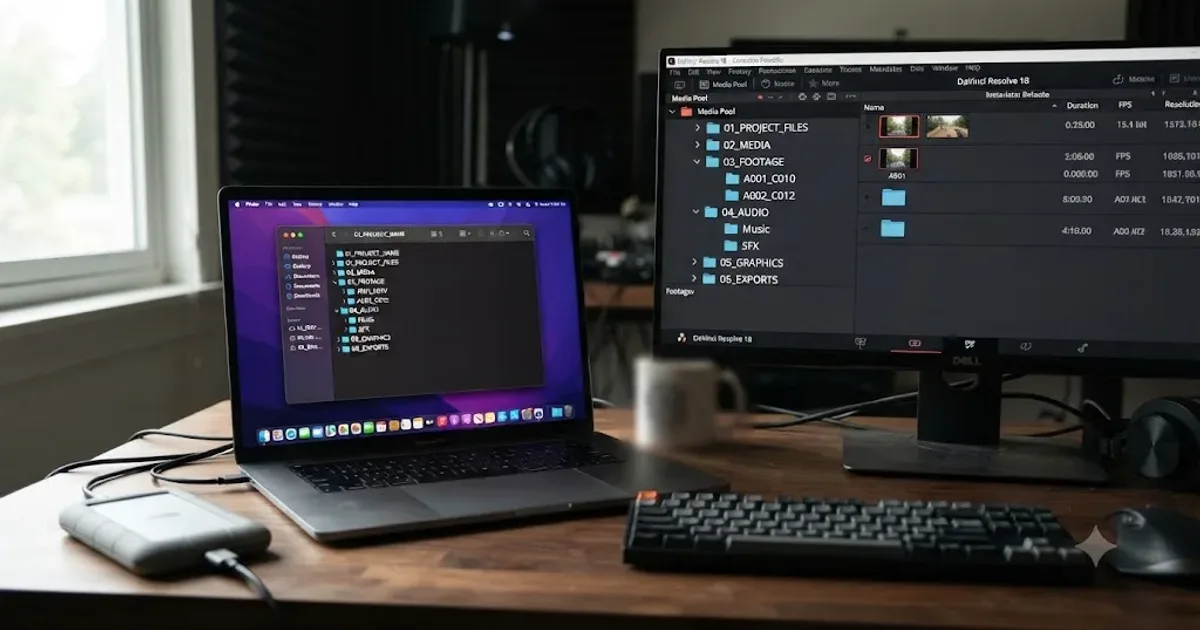
Guides · Jul 16, 2026 · 36 min
Folder and Bin Naming Conventions for DaVinci Resolve Projects
A practical naming system for DaVinci Resolve folders and bins: project structure, camera bins, Power Bins, Smart Bins, and what breaks relinking.
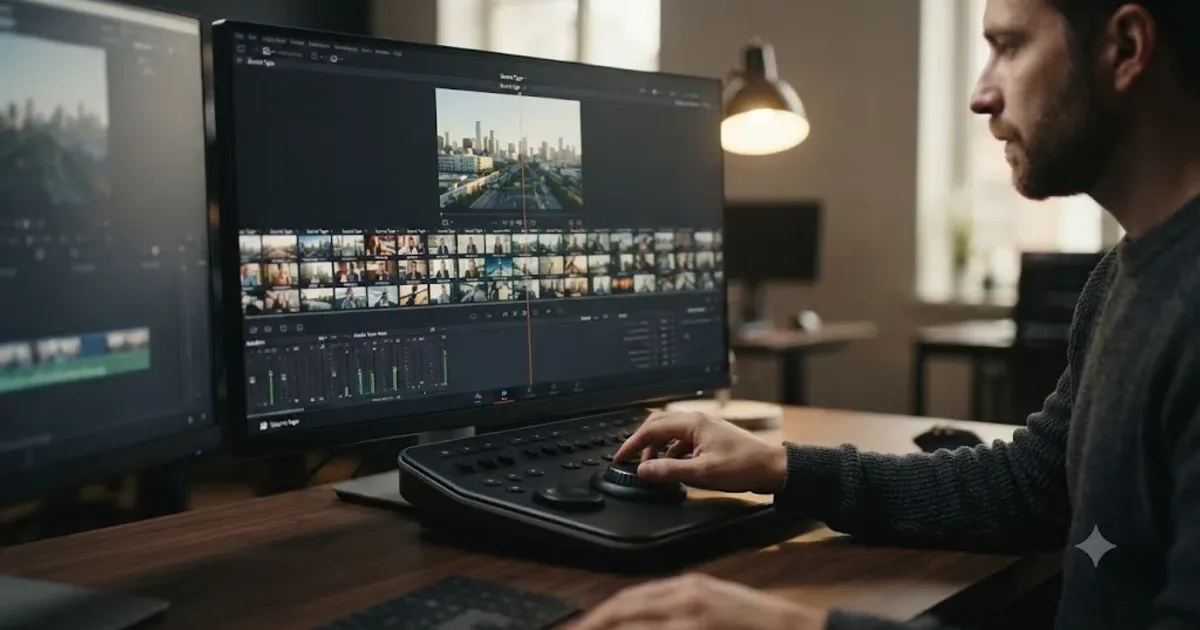
Guides · Aug 2, 2026 · 39 min
DaVinci Resolve Source Tape Mode: The Complete Tutorial
How to use DaVinci Resolve's Source Tape mode on the Cut and Edit pages: enabling it, marking clips, shortcuts, and when it beats browsing the Media Pool.
Guides · Aug 24, 2026 · 8 min
How to Choose Background Music for a Video in Resolve 21
Choose background music by story, mood, tempo, dialogue, structure, and license, then mix it cleanly in DaVinci Resolve 21.