Articles / Guidesupdated for DaVinci Resolve 21.1 (September 2026)
How to Choose Stock Footage With Matching Camera Movement
Quick answer
To choose stock footage with matching camera movement, identify the original shot's movement path, direction, speed curve, lens perspective, subject eyeline, and frame rate before searching. Preview candidates beside the reference in DaVinci Resolve 21, then reject clips that only match the subject while their camera path or acceleration disagrees.
You can make a stock clip look expensive and still make the cut feel wrong. The usual culprit isn't the subject. It's the camera.
We treat movement as a continuity problem first and a search problem second. After seven years of cutting commercial work, we've learned that a clip of a runner, a city, or a laptop is useful only when the camera behaves like the shot around it.
As of September 2026, DaVinci Resolve 21 is the current major version, and Blackmagic lists the final Resolve 21 release on June 3, 2026. This guide uses Resolve 21's Edit page, Inspector, metadata tools, retiming controls, and the Resolve 21 retime improvements as the reference workflow. Blackmagic's support page lists the final release date and supported platforms.
How do I choose stock footage with matching camera movement?
Choose stock footage by matching six things in order: the camera's path, its direction, its speed curve, its lens perspective, the subject's screen relationship, and the clip's frame rate. A candidate that matches only the subject is not a matching shot.
That order matters because some mismatches are structural. You can crop a wide clip. You can trim a few frames. You can ease a keyframed push-in. You can't create convincing foreground parallax in a shot that was captured from a fixed position, at least not with a simple edit.
Here is the short version of the method:
- Watch the reference without sound.
- Write down what the camera does, not just what the subject does.
- Search for the movement family before adding decorative keywords.
- Compare the first frame, middle frame, and last usable frame of each candidate.
- Test the candidate in a temporary DaVinci Resolve 21 timeline.
- License the clip only when the proof cut survives at normal playback speed.
The goal isn't to find a clip that looks similar in isolation. The goal is to find one whose movement gives the edit a believable next sentence.
What should you write down before searching?
Write a one-line movement brief that another editor could use without seeing the reference. For example: “Medium side profile, camera tracks left with a walking subject, starts at waist height, slight rise at the end, steady speed, shallow depth of field, subject exits toward screen right.”
That sentence is more useful than “find a cinematic walking shot.” The second phrase describes mood. The first describes edit mechanics.
Use this worksheet:
| Question | Example answer | Why it matters |
|---|---|---|
| Is the camera fixed or traveling? | Traveling beside the subject | Separates a pan from a tracking move |
| Which axis changes? | Mostly horizontal, slight rise | Helps you search and reject near matches |
| What is the direction? | Left to right | Protects screen direction across the cut |
| What is the speed curve? | Slow start, even middle, soft stop | Prevents an abrupt acceleration mismatch |
| What stays stable? | Horizon and subject size | Reveals whether the camera moves or the lens zooms |
| What is the lens feel? | Wide, close, strong foreground movement | Controls perspective and parallax |
| Where does the subject look? | Toward screen right | Preserves eyeline and the next visual beat |
| What is the frame rate? | 23.98 fps in a 23.98 timeline | Avoids a cadence or retiming surprise |
You don't need the original focal length or rig to begin. You need observable behavior. Search metadata can be incomplete, while the picture is right in front of you.
Match the camera's path before you match the subject.
Why is a shot with the same subject still a bad match?
A shot with the same subject can fail because continuity depends on screen movement, perspective, and timing as well as content. Two clips of a person walking can feel unrelated when one camera pans from a locked position and the other travels beside the person.
Think of the cut as a handoff. The outgoing shot gives the viewer a direction, a scale, and a rhythm. The incoming shot must accept at least the important parts of that handoff. If the viewer sees a lateral slide, then the next clip suddenly pivots around a fixed axis, the body may match while the camera logic breaks.
This is why searching “businessman walking office” often produces a pile of almost-right clips. Stock search tends to prioritize the noun. Your edit needs the verb.
Which details matter most at the cut?
Look at three moments: the frame before the cut, the first usable frame after the cut, and the middle of the incoming move. The first frame controls the handoff. The middle reveals the real movement. The last frame tells you whether the clip can reach the next edit without running out of usable motion.
Check these details:
- Subject scale. Does the person occupy about the same portion of the frame?
- Subject velocity. Does the subject move across the frame at a similar pace?
- Camera velocity. Is the camera following, leading, orbiting, or staying behind?
- Horizon behavior. Does the frame stay level, roll, bob, or tilt?
- Foreground motion. Do nearby objects slide past at a compatible rate?
- Background motion. Does the background drift, expand, compress, or remain fixed?
- Focus behavior. Does focus hold, pull, or drift during the same part of the move?
- Exit and entry side. Does the subject leave and arrive from compatible directions?
You don't need every item to match. You do need to know which item carries the scene's meaning. A slow push toward a speaker may need a matching push even if the room changes. A chase may need screen direction and velocity more than lens character. A reveal may need the same start and end framing more than the same subject.
What is a movement match, exactly?
A movement match is a cut in which the viewer can accept the change of shot because the camera's direction, path, speed, and visual relationship to the subject remain compatible. It doesn't mean the two clips were filmed with the same rig.
That definition gives you permission to use different tools when the image behaves the same. A gimbal tracking shot and a dolly shot can sometimes cut together if their path, horizon, speed, and foreground motion agree. They can also fail if one floats and the other has a firm, mechanically precise move.
The useful question is not “Was this shot made on a dolly?” Ask “What does the viewer perceive the camera to be doing?”
When is a mismatch acceptable?
A mismatch is acceptable when the cut is intentionally motivated by a change in viewpoint, energy, or story information. A static insert after a moving shot can create a stop. A handheld burst can break a smooth pattern. A fast pan can hide a location change.
The problem is accidental mismatch. If you want the viewer to feel continuity, don't force a clip into the sequence because its thumbnail looks right. If you want a jolt, make the jolt legible through timing, sound, or a clear change in visual purpose.
How do I describe a pan, tilt, dolly, tracking, crane, or orbit shot?
Classify the movement by asking whether the camera rotates, travels, rises, falls, or circles the subject. A pan rotates horizontally from a fixed position, while a dolly physically moves the camera through space; Adobe describes a tracking shot as one that follows the subject and distinguishes it from the narrower dolly definition. See Adobe's movement definitions for pan, tracking, and dolly shots.
Stock sites don't use movement vocabulary consistently. One contributor may call a side move a tracking shot. Another may call it a slider shot, lateral dolly, follow shot, or gimbal move. Search several terms, but use the picture to make the final decision.
How do I tell a pan from a tracking shot?
Look for parallax. In a pan, the camera turns from a fixed position, so objects in the foreground and background rotate through the frame rather than sliding past each other as the camera travels. In a tracking shot, the camera changes position, so foreground objects often move across the frame faster than distant background objects.
This isn't a perfect forensic test. A very wide scene may hide parallax. A long lens may flatten the apparent depth. A small lateral move may look like a pan. Still, the question is useful: did the camera's position change?
Search both families when the reference is subtle:
| Reference behavior | Search terms to try | Reject when |
|---|---|---|
| Fixed camera rotates left or right | pan, slow pan, horizontal pan, reveal pan | The camera travels and the foreground rushes past |
| Fixed camera rotates up or down | tilt up, tilt down, vertical reveal | The frame rises because the whole camera lifts |
| Camera travels toward subject | dolly in, push in, slow push, forward tracking | The subject grows mainly because of a zoom |
| Camera travels away from subject | dolly out, pull back, reverse tracking | The background scale changes like a lens zoom |
| Camera travels beside subject | side tracking, lateral tracking, profile tracking, gimbal walk | The subject is only panned from a fixed spot |
| Camera leads or follows subject | follow shot, lead shot, tracking behind, tracking ahead | The subject's relationship to the camera reverses |
| Camera circles subject | orbit, arc shot, circular tracking | The camera only pans around a fixed axis |
| Camera changes height | crane, jib, boom, rise, descend | The height stays fixed and only the lens angle changes |
| Camera has irregular human motion | handheld, shoulder, documentary, walking camera | The clip is perfectly stabilized when the reference breathes |
Adobe's guide also separates a dolly zoom from a standard dolly move. The dolly zoom combines physical camera movement with an opposite lens zoom, keeping the subject's size relatively stable while changing the background's appearance. Use Adobe's dolly zoom explanation when a reference has that distinctive expansion or compression.
Don't search “camera movement” as a standalone term. It is too broad. Search the axis, the subject relationship, and the purpose of the move.
How do I match a reveal?
Match the thing revealed, the direction of the reveal, and the amount of time before the information appears. A reveal pan that uncovers a doorway from left to right is not interchangeable with a push-in that slowly exposes the same doorway.
Write the reveal as a before-and-after pair: “starts on the empty wall, moves right, subject appears at 40 percent of the clip, ends with subject in the right third.” That gives you a search brief and a test target.
How do I match a push-in or pull-back?
Separate camera travel from zoom by watching the background. A physical push-in changes the relationship between foreground, subject, and background. A zoom changes field of view from the camera position. A stock preview may not make the distinction obvious, so test the motion at half speed and look for depth changes.
If the original shot is a gentle push toward a person's face, a stock clip that zooms into a face may still cut well when the background is soft and the timing is short. If architecture or strong foreground elements are visible, the difference becomes much harder to hide.
A pan is not a dolly, even when both move left to right.
How do I match a handheld or gimbal move?
Match the texture of the motion, not just its direction. Handheld footage may have small position changes, roll, breathing, and uneven acceleration. A gimbal move may keep a stable horizon while the operator's path still creates gentle drift. A tripod pan has a different start and stop behavior from both.
Adobe's tracking-shot guide lists gimbals and Steadicams as tools for smooth camera movement, while dolly tracks and sliders provide other forms of controlled travel. The guide's equipment descriptions are useful search language, even when you don't know the original rig.
When the reference is handheld, don't automatically choose the shakiest stock clip. Ask whether the shake has a similar scale and frequency. Large bumps in the candidate can make a commercial shot look careless. Tiny drift in a documentary-style sequence may be exactly right.
How do I match camera speed and acceleration?
Match the movement's speed curve, not only its average duration. A camera that begins slowly, reaches a steady pace, and eases into a stop will cut differently from a camera that moves at a constant speed for the same number of seconds.
Speed has at least four parts:
- Start speed. Does the move begin immediately or ease in?
- Working speed. How quickly does the camera travel through the main part of the shot?
- Acceleration and deceleration. Does the move ramp up or settle down?
- End speed. Does the camera stop, pass through, or drift beyond the final frame?
Editors often notice only the second part. The first and last parts are where a cut exposes a mismatch.
How do I estimate a stock clip's movement speed?
Choose two visual landmarks and compare how many seconds the camera takes to move between them. Use the same landmarks in the reference and candidate when possible: a window edge, a person's shoulder, a tree trunk, or the point where a face reaches the center of frame.
You don't need a mathematically exact measurement for a search decision. You need a repeatable comparison. If the reference crosses the visual distance in about 2 seconds and the candidate takes about 5 seconds, ask whether trimming the candidate removes the useful part or whether a speed change would make the motion unnatural.
The original capture frame rate can change how motion feels, so don't judge speed from a thumbnail or a scrub. Play both clips at the intended timeline speed.
Can I slow down or speed up stock footage to match?
You can retime a near match, but treat retiming as a quality and motion decision rather than a magic correction. Blackmagic's Resolve documentation describes Nearest, Frame Blend, and Optical Flow as different retime processes. Nearest duplicates or drops frames, Frame Blend blends adjacent frames, and Optical Flow uses motion estimation to generate new frames. Blackmagic's editors guide explains the three methods and their trade-offs.
Use the smallest speed adjustment that restores continuity. A candidate that needs a large change may develop a different motion blur cadence or reveal interpolation artifacts. If the shot contains crossing limbs, foliage, reflections, or rapid camera movement, inspect Optical Flow carefully. Blackmagic notes that unpredictable camera movement and crossing elements can produce unwanted artifacts in optical-flow processing. The Resolve reference material describes those limitations.
Resolve 21 also adds enhanced retime keyframing controls with Bezier easing for the retime parameter, which helps shape a smooth ramp when a near match needs a controlled change in speed. Blackmagic documents the Resolve 21 retime keyframe improvements in the New Features Guide.
What does acceleration tell you about the original rig?
Acceleration gives you a clue about how the movement was operated, but it doesn't identify the rig with certainty. A motorized slider, dolly grip, gimbal operator, or crane can all create a smooth start and stop. The creative question is whether the move's energy belongs beside your reference.
In a practical match, compare the first brief beat after the cut as a separate unit. If one shot snaps into motion while the other eases in, the mismatch can feel like a bad edit even when the middle of both clips looks compatible. Use a short trim, a tiny speed ramp, or a different candidate before reaching for a heavy effect.
Speed changes are visible when the camera's acceleration does not match the cut.
How do I match lens, perspective, and parallax?
Match the apparent perspective and depth behavior before chasing an exact focal-length number. The lens changes how much of the scene fits in frame, how large the subject looks relative to the background, and how strongly foreground objects move during camera travel.
Stock libraries may list focal length, but metadata is not always present or comparable across sensor sizes. A 35 mm lens on one camera does not create the same field of view as a 35 mm lens on a camera with a different sensor. Use the image first, then metadata as a supporting clue.
What is the fastest visual lens test?
Look at three relationships:
- Face and background. Does the face look close to the camera while the background feels stretched, or does the background feel compressed behind it?
- Foreground and background. Do nearby objects sweep past strongly during the move, or do they barely shift?
- Subject size and camera distance. Does the subject fill the frame because the camera is close, because the lens is long, or because the clip was cropped?
A wider perspective tends to make a nearby camera move feel more physical because depth changes show up across the frame. A longer lens can make a tracking move look flatter and more distant. Those are useful practical descriptions, not promises about a hidden focal length.
How do I match parallax?
Match the relative motion of foreground, subject, and background. Parallax is the visible difference in how layers move when the viewpoint changes. It is one of the strongest clues that the camera traveled through space.
To evaluate it, find a foreground object near one edge of the frame and a background line behind the subject. Scrub the reference and candidate between the first and last usable frames. If the foreground crosses the frame while the background barely shifts in the candidate, the two shots may have different depth behavior.
You can hide a parallax mismatch by cutting during a blur, placing graphics over the change, using a close-up, or choosing a moment with an uncluttered background. You can't hide every mismatch with a color grade.
Should the stock clip use the same lens?
The stock clip doesn't need the same lens when the edit doesn't reveal the difference. For a soft background, a short insert, or a fast transition, matching the subject size and movement may be enough. For an architectural push, a product reveal, or a face-to-face dialogue cut, perspective usually deserves a higher priority.
This is a decision matrix, not a law:
| Edit situation | Lens and perspective priority | What to favor |
|---|---|---|
| Fast montage insert | Medium | Direction and duration |
| Product push toward camera | High | Similar distance, perspective, and reflection behavior |
| Side tracking with strong foreground | High | Similar parallax and subject scale |
| Soft background close-up | Medium to high | Similar face shape, focus behavior, and camera height |
| Wide establishing pan | Medium | Horizon, reveal timing, and field of view |
| Drone or aerial transition | High | Altitude feel, heading, horizon, and acceleration |
The more recognizable the geometry, the less forgiving the lens mismatch becomes.
Why can color correction not fix a lens mismatch?
Color correction changes color and tonal relationships. It doesn't recreate perspective, depth of field, or the movement of objects caused by a different camera position.
You can use the Color page to make two clips share a reasonable exposure and color direction. For color-specific matching help, see our guide to color matching different cameras in DaVinci Resolve. But don't use grading as a reason to keep a structurally wrong insert. A beautifully matched grade can make the wrong movement easier to notice.
Lens perspective can betray a stock insert after color has been fixed.
How do I match eyeline and screen direction?
Match where the subject looks, where the subject travels, and where the camera places the subject in the frame. Eyeline and screen direction turn a technically similar clip into a readable continuation.
A subject looking toward screen right invites the viewer to expect information or action in that direction. A cut to a stock clip with the subject looking toward screen left can reverse the visual conversation. The shot may still be beautiful, but the edit now asks the audience to reinterpret the space.
How do I preserve screen direction?
Use the reference's left-to-right or right-to-left travel as a search filter and a review test. Search terms such as “walking left to right,” “side profile tracking right,” or “car driving screen left” can narrow the first pass, but always inspect the preview because contributor labels vary.
If the candidate is otherwise strong but travels the wrong way, you can test a horizontal flip. Treat that as a last-mile decision. Flipping can reverse readable text, logos, steering wheels, watch hands, UI layouts, and distinctive landmarks. It can also make a real-world movement feel physically odd.
How do I match a talking-head eyeline?
Match camera height, head turn, gaze direction, and the amount of empty space in front of the face. The face doesn't need to be the same person or location for the cut to work, but the viewer should understand whether the person is addressing someone off-screen, looking at an object, or speaking directly to camera.
Search “looking off camera” only after you decide which side. “Woman looking off camera” is incomplete. “Woman looking screen left, slow push in, medium close-up” tells the library what you need.
What if the subject doesn't look where the reference looks?
Cut earlier, cut later, reframe, or use the mismatch as a new beat. A stock clip may contain a usable few seconds before a gaze changes direction. Trim for the moment when the eyes, head, and camera movement agree with the outgoing shot.
If the reference ends on a subject looking out of frame, a candidate that begins with a neutral forward gaze may need a transitional insert between them. That extra shot can be a hand, a doorway, a moving background, or a detail that carries direction without requiring a perfect face match.
Why is frame rate changing the way stock footage cuts?
Frame rate changes the temporal cadence of a clip, and Resolve has to interpret source frames when the source and timeline rates differ. Adobe Stock lists 23.98, 24, 25, 29.97, 30, 50, 59.94, and 60 fps among its standard video frame rates. Check the current Adobe Stock technical table when a source clip's frame rate matters.
The number by itself doesn't tell you whether a clip will match. A 60 fps clip can play at normal speed in a 30 fps timeline, or it can be interpreted as slow motion. A 24 fps clip can cut naturally in a 24 fps project but may need a different cadence in a 30 fps project. The intent of the clip matters.
Should I choose 24, 25, 30, 50, or 60 fps stock footage?
Choose the frame rate that supports the intended playback speed and the cadence of the shots around it. If you need real-time movement, prefer footage that can play at the timeline's normal speed without an unwanted conversion. If you want slow motion, choose a higher capture rate only when the movement remains readable after interpretation.
Do not assume “higher frame rate” means “better.” A high-frame-rate clip can feel too clean or too slow beside a 24 fps reference if you use it without a clear retiming decision. The viewer may notice the change as a texture shift even when the camera path matches.
How does Resolve process mixed frame rates?
Resolve can work with mixed frame-rate clips, but the project and clip settings determine how frames are handled. The documented retime choices include Nearest, Frame Blend, and Optical Flow. Nearest is the most processor-efficient, Frame Blend combines neighboring frames, and Optical Flow estimates motion to generate intermediate frames. Blackmagic's retiming documentation describes these options.
Use Nearest when the cadence is acceptable and you want the simplest processing. Test Frame Blend when duplicated frames look harsh. Test Optical Flow when a smooth result matters and the image has motion that the analysis can follow. Watch hands, hair, water, smoke, fences, and crossing objects because generated frames can warp them.
Resolve 21's New Features Guide describes SpeedWarp as a retiming node that analyzes motion between frames and constructs intermediate frames, with Faster and Better modes. That feature is documented by Blackmagic for Resolve 21.
SpeedWarp is a rescue tool, not a substitute for choosing a compatible source. If the original camera path is wrong, a cleaner slow motion version of that wrong path is still wrong.
What should you inspect when the cadence feels wrong?
Inspect a moving edge, a walking foot, a hand gesture, and the camera's own drift. If each repeats or jumps in a way the reference doesn't, change the interpretation or choose another clip. Don't judge a mixed-rate candidate only on a paused frame.
For a client-facing piece, render a small proof of the transition. Playback inside the edit can hide processing that becomes obvious in the exported file or on another display. This is a workflow recommendation, not a claim that every export will expose an artifact.
How do I search a stock library for movement instead of just subject matter?
Search in layers: movement family first, subject second, setting third, and technical constraints last. This keeps the search aligned with the part of the shot that is hardest to replace.
What should the first search query contain?
Start with three ingredients:
- Movement family: slow push, side tracking, pan, tilt, orbit, crane, handheld, locked-off.
- Subject action: person walking, cyclist turning, hand opening door, car passing.
- Scene context: office hallway, city street, mountain road, kitchen, studio.
Examples:
- “slow side tracking woman walking office hallway”
- “dolly in product on table warm light”
- “aerial forward drone road sunrise”
- “handheld follow cyclist city street”
- “slow pan reveal empty classroom”
- “orbit person standing forest”
Then add the constraints that actually affect the cut: “left to right,” “screen right,” “wide angle,” “shallow depth,” “24 fps,” “vertical,” “no people,” or “clean background.”
Should you search for “cinematic”?
Use “cinematic” as a secondary filter, not as the movement description. It may describe lighting, composition, color, camera type, or marketing language. It rarely tells you whether the camera travels beside the subject at a steady pace.
Replace vague words with observable words:
| Vague query | Better movement query |
|---|---|
| cinematic business shot | slow push-in employee at desk |
| beautiful walking footage | side tracking woman walking screen right |
| dramatic city clip | fast forward drone approach city street |
| cool product footage | controlled arc around black bottle |
| emotional nature shot | slow tilt up from wet road to mountain |
The better query does not guarantee a usable clip. It simply makes the first search less wasteful.
How many candidates should you keep?
Keep a small shortlist, usually three to five candidates, once you have enough clips to compare the same movement family. This is a working recommendation, not a platform limit. Too many thumbnails encourage you to postpone the decision. Too few can make a weak candidate feel inevitable.
For each candidate, record:
- URL or asset ID
- movement label you believe applies
- source frame rate and resolution if shown
- usable start and end points
- likely crop or flip
- license tier you would need
- the reason it might fail
Write down the failure reason before you get attached to the image. “Strong subject, wrong camera path” is more useful than “maybe with effects.”
Can Resolve 21 help organize the shortlist?
Yes. Blackmagic describes the Media page as a workspace for importing, organizing, syncing, and adding metadata. It also describes bins, Smart Bins, and editable metadata, including custom keywords and tags. Blackmagic's media overview covers bins and metadata organization.
Create bins named movement_pan, movement_tracking, movement_push, movement_orbit, and movement_static. Add a keyword for direction, such as ltr or rtl, and another for speed such as ease_in, constant, or ease_out. A consistent naming system lets you search your own shortlist instead of reopening every stock page.
Resolve 21 also introduces IntelliSearch for finding content by objects or dialog keywords after media analysis, according to Blackmagic's current product documentation. Blackmagic describes IntelliSearch and its Media Pool results here.
Use content search as a supplement. An object search can find a person or a car, but it doesn't understand your creative definition of a matching camera path. You still have to watch the move.
How do I test a candidate in DaVinci Resolve 21?
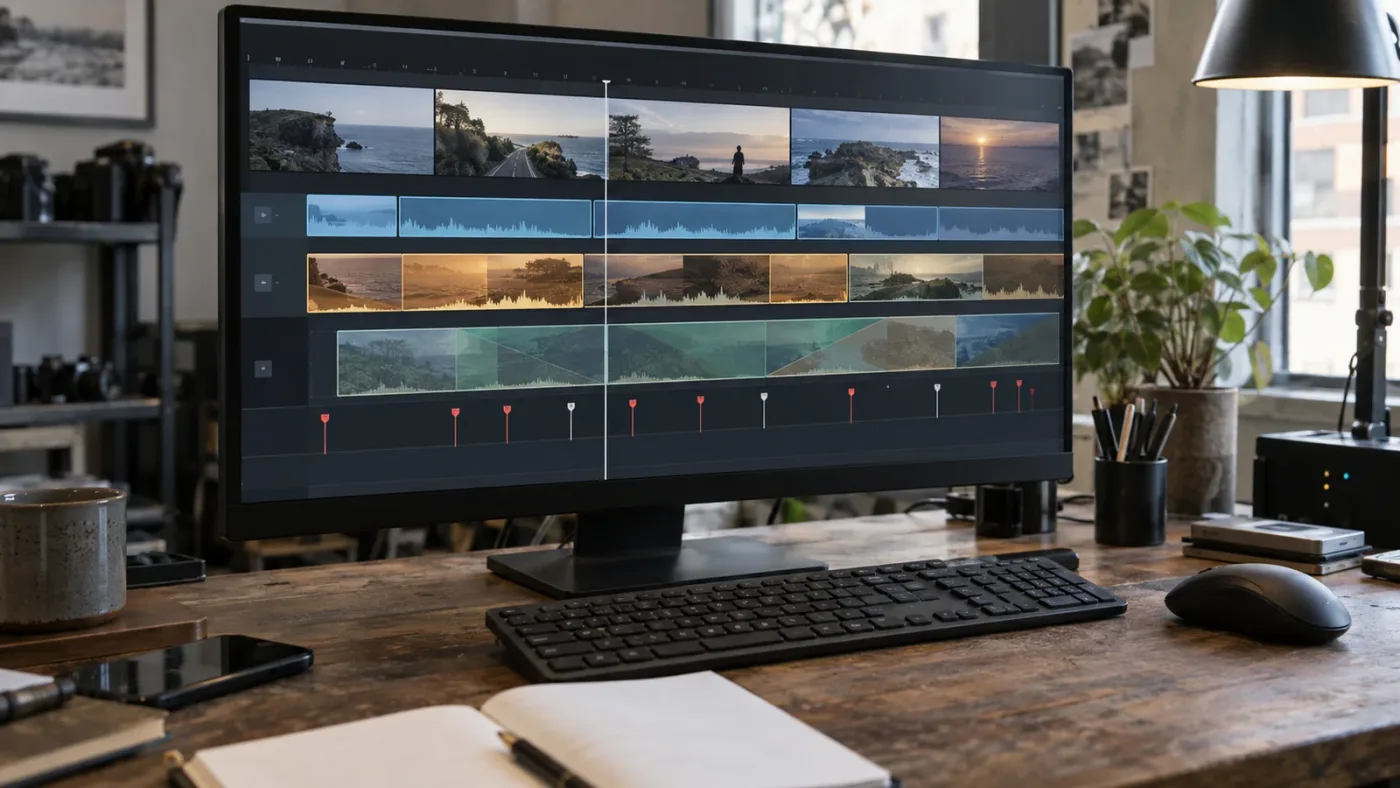
Test every serious candidate in a temporary Resolve 21 timeline with the reference clip, candidate clip, and a few neutral handles. A proof cut exposes speed, scale, direction, and crop problems faster than a full edit.
What should the proof timeline contain?
Keep it simple:
- V1: the reference clip
- V2: the candidate clip
- V3: a duplicate or comparison version when you need an overlay
- one marker at the intended cut
- one marker at the first useful frame of the incoming shot
- one marker at the moment the candidate reaches its visual target
The timeline doesn't need to match the final sequence yet. Its job is to answer one question: does the candidate support the transition?
What is the six-pass test?
Use this order so you don't spend time correcting a candidate that fails the first structural check.
Pass 1: Compare the movement family
Play the reference and candidate at normal speed. Say the movement out loud: “pan right,” “tracking left,” “push in,” “orbit clockwise,” “handheld follow.” If the descriptions don't belong to the same family, stop unless the mismatch is intentional.
Pass 2: Compare the first and last frame
Pause at the intended cut. Check whether the incoming shot begins with a compatible camera direction and subject scale. Then move to the last usable frame and ask whether it can hand off to the next shot.
The first frame can be adjusted with a trim. The last frame determines whether the clip has enough editorial runway. A candidate with only one perfect frame may be a still image disguised as a video solution.
Pass 3: Compare the middle of the move
The middle shows whether the preview's attractive opening is representative. Many clips begin with a clean composition and then drift, wobble, accelerate, reveal a crew shadow, or lose focus. Use the part that will actually sit beside your reference.
Pass 4: Compare speed and cadence
Try the candidate at its intended timeline speed first. Then test a small retime if the structure is right but the pace is off. Resolve's documented retime methods give you different trade-offs, so inspect the result rather than assuming Optical Flow is always best. Blackmagic's retime guide explains the processing choices.
Pass 5: Compare lens, parallax, and eyeline
Put the clips back to back. Watch the face or main object, then watch the background. If your eye jumps to the wrong place, identify whether perspective, focus, screen direction, or subject scale caused it.
When a candidate is close, test a crop. Use the crop to preserve the subject relationship, not to pretend that a different camera path never happened.
Pass 6: Make the edit decision
Choose one of three outcomes: keep the candidate, keep it only for a motivated contrast, or reject it. Add the reason to your shortlist. A rejected clip is useful evidence because it tells you which search constraint is still missing.
Which Resolve controls are useful for a near match?
Use the least invasive control that solves the visible problem:
| Problem | First control to test | Stop when |
|---|---|---|
| Candidate begins too early | Trim edit point | The usable movement disappears |
| Subject is slightly too small | Inspector Zoom and Position | Crop reveals softness or changes perspective too much |
| Horizon is off | Small rotation or stabilization test | Edges warp or the move loses its natural texture |
| Movement is too slow | Small speed change | Motion blur or cadence feels artificial |
| Movement needs a gentle start | Retime keyframe easing | The ramp changes the shot's meaning |
| Candidate shakes more than reference | Stabilization test | Stabilization crops away the needed composition |
| Candidate travels opposite direction | Flip test | Text, logos, or physical cues become wrong |
| Frame-rate conversion looks harsh | Frame Blend or Optical Flow test | Artifacts appear on moving edges |
These are tools for a near match. They aren't evidence that any candidate can be made equivalent.
Should you use an overlay comparison?
Use a temporary overlay or side-by-side view when the mismatch is hard to name. Lowering the top clip's opacity can reveal whether the subject scale, horizon, and main direction line up. Turn the overlay off before judging the cut emotionally. A match can be geometrically close and still feel wrong because the movement texture differs.
Why does a stock shot look wrong after I slow it down?
A stock shot can look wrong after slowing down because retiming changes frame cadence, motion blur, interpolation, and the apparent relationship between camera speed and subject speed. Resolve cannot recover motion that the source clip never recorded cleanly.
What artifacts should you look for?
Watch for:
- repeated frames that make a moving edge stutter
- blended frames that create ghost trails
- optical-flow stretching around hands, hair, fences, or wheels
- a subject that appears to glide while the background judders
- motion blur that no longer agrees with the new speed
- a camera move that becomes too gentle to motivate the cut
Blackmagic describes Optical Flow as a motion-estimation process that can create smooth results, but also warns that crossing elements or unpredictable camera movement can produce artifacts. Read the documented retime limitations in the Blackmagic reference material.
Is SpeedWarp the answer in Resolve 21?
SpeedWarp can be useful when a good movement needs a modest speed adjustment and the image gives the analysis enough information. Blackmagic describes SpeedWarp in Resolve 21 as a node that analyzes motion and constructs intermediate frames, with Faster and Better processing modes. See the official Resolve 21 New Features Guide.
Use it after the source passes the movement-family test. If the candidate is a pan and the reference is a tracking move, SpeedWarp only gives you a more interpolated pan.
What should you do when retiming makes the clip worse?
First return to the original speed and try a different candidate. Then consider using a shorter section at the original speed, hiding the transition with a detail shot, or redesigning the cut around the candidate's actual motion.
The temptation is to keep adding controls because the footage is already downloaded. That is sunk-cost editing. The best technical move may be to go back to search.
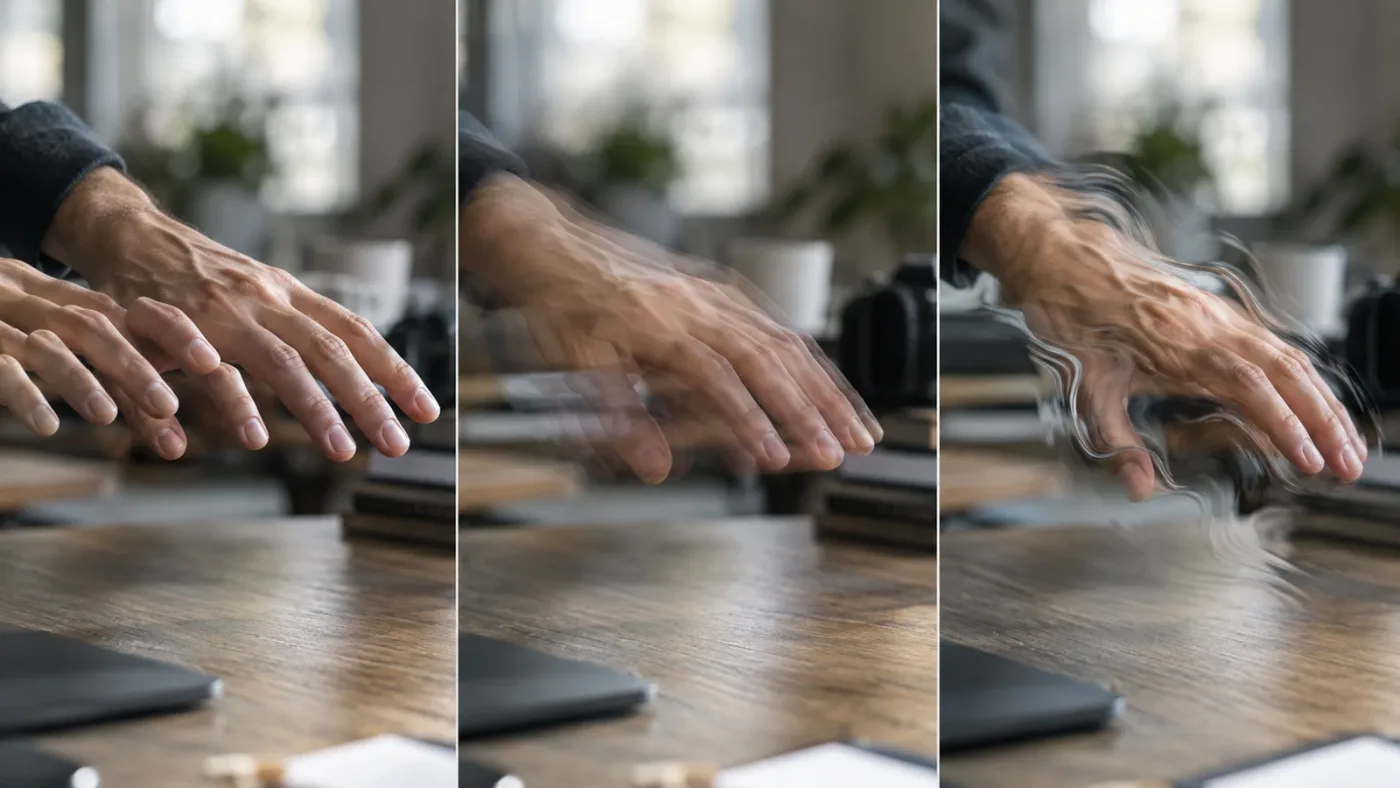
How do I choose stock footage for a 16:9, square, or vertical edit?
Choose a source with enough native frame area for the delivery shape, then test the crop while watching the movement's center of action. Resolution alone doesn't guarantee usable reframing.
Adobe Stock lists horizontal examples such as 1920x1080 HD, 3840x2160 UHD, and 4096x2160 4K, plus vertical examples including 1080x1920 and 2160x3840. It also advises contributors to shoot vertical video natively for a 9:16 upload rather than converting horizontal footage. See Adobe's current technical requirements for the exact dimensions.
Pond5's contributor guidelines list HD, 4K, 5K, 6K, and 8K resolution examples, and recommend using native resolution, aspect ratio, and frame rate where possible. Pond5 lists those technical guidelines publicly.
Those are contributor specifications, not a promise that every marketplace preview contains every format. Use them as a reminder to inspect the asset's actual dimensions before you build a crop-dependent transition.
How much crop room do you need?
You need enough crop room to preserve the subject and the movement's visual destination. A centered subject may survive a small crop. A side-tracking shot with the person already near the edge may not.
Check the candidate at final delivery dimensions, not only in a large desktop viewer. For vertical output, a wide lateral move can lose the path that made the clip useful. For square output, the horizon and subject's headroom may need different treatment from 16:9.
Should you use a high-resolution clip for a smaller delivery?
Use a higher-resolution source when the license, storage, playback, and crop needs justify it. It can provide more room for reframing, but it doesn't repair bad movement or a mismatched perspective.
Preview the exact crop before purchase. A 4K file with the subject at the edge may be less useful than an HD clip with a centered, compatible move.
How do you protect movement when reframing?
Keyframe the crop so the subject's visual role stays consistent while the camera move continues. Avoid making the crop movement fight the source movement. If the source travels right and your crop also travels right too aggressively, the subject may appear to stick in place or race across the frame.
The crop should support the source camera, not become a second camera with a different agenda.
Which stock footage source should you choose?
Choose the source that gives you the right movement, usable technical details, and a license that covers the project. Library breadth and subscription price come after the proof cut, because neither one can turn an incompatible camera path into a match.
Is Artlist useful for this search?
Artlist is one searchable source to consider when you regularly need stock footage and other production assets in the same workflow. It isn't automatically the best choice for every shot, and this guide doesn't treat a subscription as evidence that a candidate matches.
Disclosure: This independent publication may earn a commission if you buy through the following Artlist link. The relationship doesn't change the movement test or the verdict. Check Artlist's current footage options only after you have written the movement brief.
Use the same search brief on Artlist, Adobe Stock, Pond5, Storyblocks, or another legitimate source. Compare the actual preview, technical metadata, and license. A marketplace wins this decision when it has the right clip and the rights you need, not because its catalog sounds broad.
What license details should you check?
Check who may publish the project, where it may appear, whether client work is covered, whether paid advertising is covered, and what happens after cancellation or download. The exact answer depends on the provider and tier.
Pond5 describes separate Individual, Business, and Premium licenses with different team access and indemnification levels in its current help material. Read the provider's license explanation before relying on those rights.
For an Artlist subscription, use the applicable plan and license terms rather than assuming every tier covers every client or commercial use. The cached Artlist guidance for this publication specifically warns that license coverage differs by Social, Pro, team, business, and enterprise tiers. If your project is client work, read the current terms at checkout and retain the license record.
We keep a separate guide on how to license stock footage for client videos because technical matching and usage rights are separate decisions.
Should a free preview decide the purchase?
A watermarked or low-resolution preview can decide whether the movement is promising, but it can't confirm final sharpness, crop room, compression behavior, or the exact licensed file. Pond5's public guidance describes using a low-resolution or watermarked version to test an asset before purchase. See the stock-search guidance from Pond5.
Make the proof cut with the preview when allowed, then replace it with the licensed file and check the edit again. The final asset can have different resolution or encoding characteristics, so a final review is still sensible.
How do I match stock footage in common editing scenarios?
Match the decision to the scene's job. A product reveal, a walking transition, an aerial bridge, and a talking-head insert carry different continuity priorities.
Scenario 1: A talking head cuts to a walking person
Prioritize eyeline, screen direction, and energy before exact lens matching. If the speaker looks screen right and the person in the stock clip walks screen right, the cut may feel like a visual continuation or invitation. If the walker travels screen left, the sequence may reverse its implied direction.
Start the stock clip with a clear body position that accepts the outgoing gaze. A medium-wide tracking shot often gives you more room to trim than a tight close-up, but don't choose a wider shot if the reference has already committed to intimacy.
Test three versions:
- Cut directly on the movement.
- Insert a neutral detail for a few frames before the walking shot.
- Use a cutaway that preserves direction but changes the subject.
Choose the version that tells the viewer why the scene changed.
Scenario 2: A hand reaches for a product, then stock shows the product in motion
Prioritize screen direction, hand position, product scale, and the direction of the camera move. A product shot with the same object but a different reflection path may be unusable if the image is meant to feel like one continuous action.
Search for the camera behavior first: “slow arc around bottle,” “push-in product hand,” or “lateral slide product reveal.” Add surface and lighting terms after the movement family is clear.
For product footage, inspect the background and highlights. Reflections may reveal that the camera moved in a different direction even when the product stays centered. A crop can change framing, but it can't recreate the original reflection behavior.
Scenario 3: A city shot needs a bridge between locations
Prioritize horizon, direction of travel, speed, and the point where information enters the frame. A forward drone shot can connect locations through motion. A sideways pan may instead reveal a new space. Both can be useful, but they make different promises.
If the outgoing shot moves forward, search for forward travel, push, approach, flight, or road movement. If the outgoing shot pans right, search for a rightward reveal with a similar stopping point. Don't let the word “drone” do all the work. Many drone shots are hovering, rising, orbiting, or moving diagonally.
Scenario 4: A smooth commercial shot needs a little human texture
Prioritize stability, horizon, and acceleration. A stabilized candidate with slight path drift may fit. A visibly handheld candidate may feel like a different production unless the change is intentional.
Use the reference's movement texture as a scale. Does the camera breathe by a few pixels, or does the frame sway enough to change composition? If the stock clip is more active, stabilization may crop too much or remove the character you wanted. Search for a quieter move instead.
Scenario 5: A locked shot needs an opening into a scene
Prioritize the end of the outgoing shot and the beginning of the incoming movement. A static shot can cut to a pan, tilt, dolly, or tracking move when the new motion has a reason to begin. If the move begins before the cut without motivation, the sequence can feel restless.
Search for “locked-off,” “static,” “tripod,” “slow reveal,” and “hold.” Sometimes the best matching stock footage is a static plate that lets you create the movement with a controlled Resolve transform. That works when the source has enough resolution and the background remains simple.
Scenario 6: A subject exits frame and another subject enters
Prioritize screen direction and the timing of the exit and entry. The subjects need not match when the movement creates a clean visual relay.
Use a marker for the moment the outgoing subject leaves the frame. In the stock candidate, find a comparable moment when the incoming subject enters. Then test the cut with sound removed. If it works silently, your sound design can strengthen it. If it fails silently, sound may only disguise the problem temporarily.
Scenario 7: A slow-motion cut feels too polished
Prioritize motion cadence and blur texture. A high-frame-rate stock clip interpreted as slow motion may be smoother than the original footage and can pull attention to itself.
Match the meaning of the slow motion. A soft, floating camera move wants a different candidate from a crisp athletic action shot. If the reference has directional blur and the candidate is clinically sharp, a speed change alone won't make them identical.
Scenario 8: A vertical social cut follows a horizontal master
Prioritize the subject's safe crop and the direction that survives the crop. Adobe Stock's current requirements list native vertical dimensions such as 1080x1920 and 2160x3840, and distinguish them from horizontal dimensions. Use the official dimension table when the asset's orientation is part of the decision.
Test the vertical candidate in a vertical timeline. A horizontal side track can become a static close-up after cropping, which may be fine if the edit needs a subject insert but not if the movement is the transition.
Why does the right keyword still return the wrong movement?
Stock search labels are not a technical measurement, so the same word can describe several camera behaviors. “Tracking” might mean the camera follows a person, tracks a focus point, or simply appears to move through a scene.
How do you search around ambiguous terms?
Use a cluster of related terms and pair each with a constraint:
| Ambiguous term | Add a clarifier |
|---|---|
| tracking | side, follow, lead, behind, forward, profile |
| cinematic | slow, smooth, handheld, locked-off, reveal |
| moving camera | dolly, slider, gimbal, crane, orbit |
| aerial | forward, rise, descend, orbit, pull-back |
| close-up | push-in, static, handheld, focus pull |
| pan | left, right, horizontal, reveal, whip |
Search “side tracking” when you need lateral travel. Search “follow shot behind” when the subject is walking away. Search “orbit clockwise” only if the library uses that level of detail, then verify the direction in the preview.
What should you do when the library has no movement filter?
Download or bookmark only previews that pass the visual shortlist, then organize them in Resolve with movement keywords. Blackmagic says Resolve can hold custom keywords and tags and use metadata to organize clips into Smart Bins. The Media page documentation explains this organization model.
You can also use the preview's filename or asset ID as the link between your notes and the Resolve bin. Don't rely on memory. After comparing ten similar shots, memory starts smoothing over the exact failure that made you reject the first nine.
How do you search for a movement the site doesn't name?
Describe the visible result rather than the rig. “Camera floats beside runner,” “foreground posts sweep past,” “subject stays same size while background changes,” or “camera rises from shoes to face” can surface useful variations even when the library doesn't use film-school terms.
Then return to the movement brief and label what you found. The label is for your edit, not for the marketplace.
What should I do when no stock clip matches?
When no candidate matches, change the edit decision before forcing the footage. You can use a closer crop, a neutral insert, a motivated contrast, a graphic bridge, or a new source, but each choice should be deliberate.
Can you fake a camera move from a static clip?
You can create a limited digital move from a static clip by animating position and scale, provided the source has enough resolution and the shot tolerates the crop. This creates a two-dimensional framing move. It does not recreate true parallax or the original camera's relationship to the space.
Use it for a gentle push on a simple background, a controlled reframe, or a short transition. Avoid it for a move past strong foreground objects, a complex orbit, or a shot where depth is the point.
Resolve's Inspector and keyframe tools let you animate transform properties, but the result still depends on the source image and delivery resolution. Treat the digital move as a new creative choice.
Can you stabilize a mismatched move?
You can test stabilization when the candidate has the right path but too much unwanted shake. Stabilization can crop the frame, change the path, or make handheld motion feel artificially smooth. It can also remove a useful texture.
Compare before and after with the reference. If stabilization changes the subject's position or the speed curve, you may have traded one mismatch for another.
Should you flip the clip?
Flip only when screen direction is the main problem and the image contains no orientation-sensitive detail. Check text, logos, signage, vehicle controls, watch faces, hands, and recognizable landmarks. A flipped clip can also change which side of a face is lit, making the image feel subtly wrong.
If the clip is otherwise strong, consider whether a cutaway can bridge the direction without flipping. A detail shot often costs less continuity than a reversed logo.
When is a neutral insert better than a bad match?
A neutral insert is better when it protects the viewer's understanding of the sequence. Use a detail, texture, object, hand, doorway, shadow, or environmental shot that doesn't promise a continuous camera path.
This is where our broader guide on how to choose B-roll for a video can help. The stock clip doesn't always have to continue the same move. Sometimes it only needs to carry the edit across a change in place or subject.
When should you shoot instead of search?
Shoot when the movement itself carries the story, the subject is legally sensitive, the brand environment is specific, or the available stock cannot match the required path. Search is strongest for atmosphere, establishing material, generic inserts, and coverage that doesn't require exact continuity.
If you need a precise camera move around a product, person, or location, a short original shot may be cheaper than hours of searching and repair. That is a production decision, not a claim about any particular budget.
What does a professional camera-movement match look like?
A professional match is usually quiet. The audience notices the idea, action, or emotion instead of the repair. That quiet result comes from choosing the right structural match before applying effects.
Roger Deakins described the effect of coordinated movement in ARRI's interview about 1917:
ARRI quotes Roger Deakins: “It's a real-time story and you're following two characters who are always moving,” in its interview about 1917.
That quote is about a feature film's designed camera language, not stock replacement. The lesson transfers: movement can disappear from the viewer's attention when it supports the scene. It becomes visible when the edit asks the viewer to solve the camera's contradiction.
ARRI's interview with Deakins also describes how the TRINITY stabilizer let the camera move up and down, around a subject, and through a shot with a solid rather than floating image. Read the full ARRI interview for that equipment and movement context.
You don't need the same equipment for a stock match. You need to recognize what that equipment produced on screen: a path, a level of stability, a speed curve, and a relationship to the subject.
How do you judge whether the movement is helping the story?
Mute the timeline and watch the cut three times. On the first pass, watch the subject. On the second, watch the camera. On the third, watch where your eye lands after the cut.
If the camera movement tells you where to look and why the shot changed, keep exploring the candidate. If you spend the entire cut noticing a crop, a reversed direction, or a speed jump, go back to the shortlist.
The strongest candidate isn't the one with the most dramatic movement. It is the one that makes the next shot easier to understand.
What is the fastest final checklist?
The fastest final checklist is a six-pass proof cut that rejects structural mismatches before you spend time grading, compositing, or licensing. Use it at the moment you think “this is probably close.”
The six-pass stock-footage decision
- Movement path: Is the camera fixed, traveling, rising, falling, or circling?
- Direction: Does the camera and subject move toward the same side of the frame?
- Speed curve: Do the start, middle, acceleration, and stop feel compatible?
- Perspective: Do lens feel, subject scale, foreground, and background agree?
- Eyeline and frame rate: Does the subject look and move into the right visual space at the intended cadence?
- Proof cut: Does the transition still work at normal speed with the preview overlay removed?
If a candidate fails pass one or two, reject it. If it fails pass three or four, test a trim, small retime, or alternate crop. If it fails pass five, decide whether the failure is intentional. If it fails pass six, do not let the download make the decision for you.
What should you save with the selected clip?
Save the asset ID, source URL, download date, license tier, frame rate, resolution, and the reason you chose the clip. Keep the proof timeline until the final edit is approved.
These notes make a future replacement faster. They also separate technical continuity from rights management, which should never be confused.
What are the red flags that should end the search?
Stop trying to rescue the clip when:
- the camera path belongs to a different movement family
- the candidate has no usable frames at the intended speed
- a required crop removes the subject or movement destination
- the eyeline reverses the scene's visual logic
- optical-flow or frame-blend artifacts cover important action
- the license doesn't cover the intended project or publication
- the clip's technical details are unclear and the risk matters to delivery
There is no prize for making the wrong stock shot survive. The edit is better when you replace the candidate, redesign the bridge, or shoot the missing moment.
The best stock replacement leaves room for the edit's next movement.
Should I keep searching or redesign the cut?
Keep searching when the scene depends on continuous movement and the candidate fails a structural test. Redesign the cut when a different shot can carry the same information without pretending to continue the original camera path.
Here is the final decision:
- Keep searching for a true movement match when the cut should feel invisible.
- Use a near match when you can identify the one controlled adjustment and verify it in Resolve 21.
- Use a contrast when the change in movement has a clear editorial purpose.
- Use a neutral insert when the transition matters more than continuity of camera path.
- Shoot original footage when the exact move, product, face, or location is the story.
Start with the movement brief. Build the six-pass proof cut. Reject the pretty clip that fails the camera test.
Frequently asked questions
- How do I choose stock footage with matching camera movement?
- Describe the reference by movement path, direction, speed curve, lens perspective, eyeline, screen direction, and frame rate. Compare the candidate and reference in a temporary Resolve timeline before licensing or building the cut around it.
- Why does stock footage look wrong even when the subject matches?
- The camera path, acceleration, parallax, lens perspective, or eyeline may disagree with the neighboring shot. Matching the subject is only one part of visual continuity.
- How do I match a pan, tilt, dolly, or tracking shot?
- First classify whether the camera rotates from a fixed position or physically travels through space. Search for the same movement family, direction, start and end framing, and speed curve, then test the cut in Resolve.
- Can I fix a mismatched stock clip in DaVinci Resolve 21?
- You can improve a near match with trimming, reframing, stabilization, speed changes, and keyframed transforms. Those tools cannot reliably turn a pan into a dolly or replace missing parallax.
- What frame rate should stock footage have for a Resolve timeline?
- Choose footage that can play at the intended speed without a distracting cadence change. Resolve supports mixed frame-rate workflows, but retiming can require frame duplication, blending, or optical-flow interpolation, each with different artifacts.
Sources
- DaVinci Resolve 21 final release support note
- DaVinci Resolve 21 What’s New
- DaVinci Resolve 21 New Features Guide
- DaVinci Resolve media management and metadata
- DaVinci Resolve 18 Editors Guide, retiming section
- DaVinci Resolve reference manual, optical-flow limitations
- Adobe guide to tracking shots
- Adobe guide to camera shots and angles
- Adobe guide to dolly zoom shots
- Adobe guide to pan shots
- Adobe Stock video technical requirements
- Pond5 footage preparation guidelines
- Pond5 stock footage licensing options
- Pond5 stock media search guidance
- Pond5 license overview
- ARRI interview with Roger Deakins on 1917 camera movement
- ARRI interview with Roger Deakins on large-format movement
- Artlist footage options
Keep reading
Guides · Sep 2, 2026 · 9 min
How to Use Stock Footage in DaVinci Resolve 21
Learn how to use stock footage in DaVinci Resolve 21, from licensed download and Media Pool organization to matching, proxies, and delivery.
Guides · Sep 2, 2026 · 8 min
How to Choose B Roll for a Video in Resolve 21
Learn how to choose B-roll for a video by matching every shot to the story, the edit, the format, and the footage source.
Guides · Sep 5, 2026 · 8 min
How to License Stock Footage for Client Videos
Learn how to license stock footage for client videos, document rights, avoid raw-file mistakes, and deliver a clean DaVinci Resolve 21 project.