Articles / Guidesupdated for DaVinci Resolve 21.0.3 (September 2026)
How to Use Cutaway Footage to Hide Jump Cuts in Resolve 21
Quick answer
To use cutaway footage to hide jump cuts in DaVinci Resolve 21, remove the unwanted words, keep the dialogue continuous, place relevant B-roll on a video track above the interview, trim it across the edit, and return to the talking head on a motivated beat. Match motion, screen direction, lighting, and room tone.
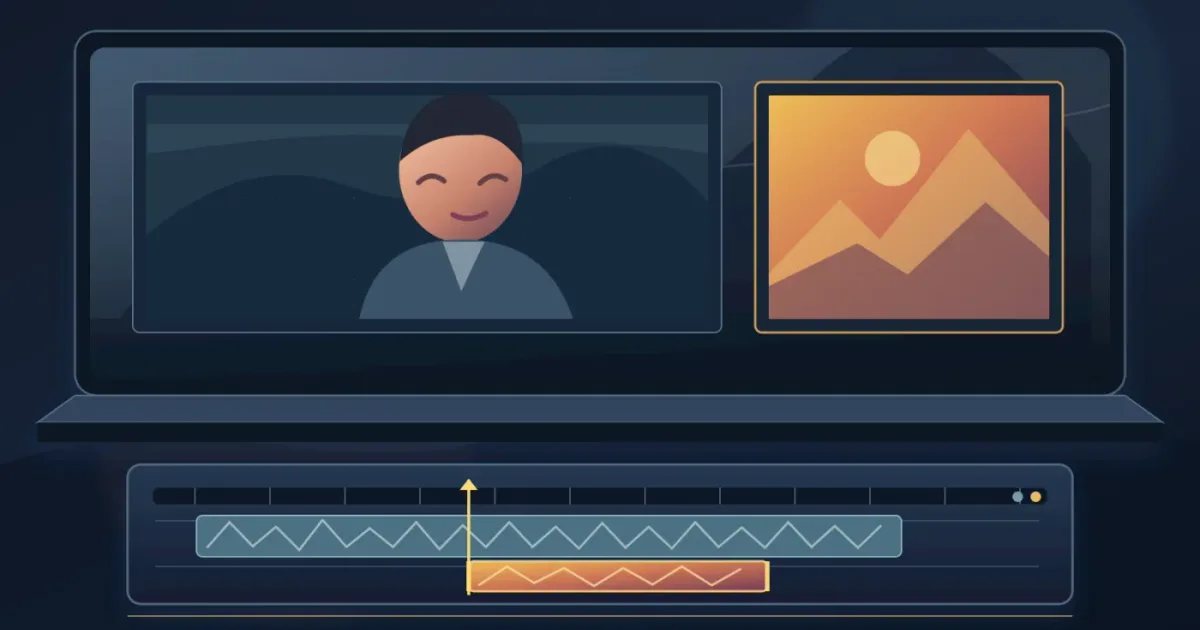
I start with the cut. Remove the pause, mistake, or phrase. The problem is the picture. A cutaway gives the viewer something else to watch while dialogue moves.
The practical rule is simple: cover the visual change, not the story. As of September 2026, this guide is written for DaVinci Resolve 21.0.3, the maintenance update listed in Blackmagic Design’s current support center.
How do I use cutaway footage to hide jump cuts?
Use the Edit page to make the dialogue cut first, then cover the resulting visual jump with a relevant shot on a video track above the A-roll. Dialogue can continue underneath.
Blackmagic describes a jump cut as two different parts of the same clip placed next to each other, such as an interview after a sentence has been removed. Its own guidance says editors normally cover that visual change with another camera angle or B-roll because the subject appears to shift position. Blackmagic Design explains the problem and the B-roll solution here.
Use this workflow in Resolve 21.
- Put the interview or main performance on V1. Keep its linked audio on the matching audio track unless you have a reason to separate it.
- Play through the sentence and identify the material you want gone. Mark the start and end of the unwanted pause, mistake, repeated phrase, or breath that changes the pacing.
- Split the A-roll at both boundaries. Remove the section and close the gap. Do not choose the cutaway before you know what the edit actually needs to cover.
- Play the edit with the picture visible. Note what changes at the cut. Look at the speaker’s head position, hands, eyeline, body angle, background, and camera movement.
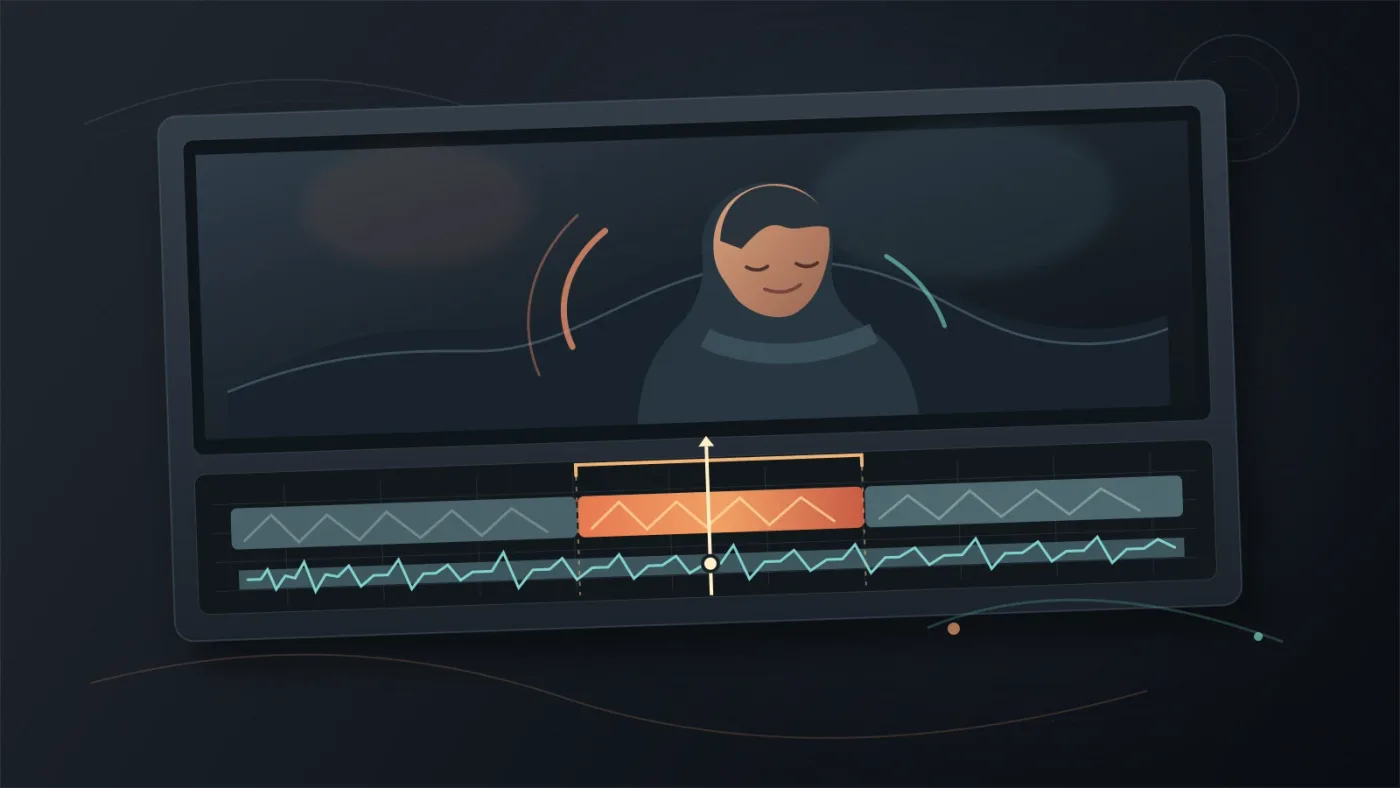
- Place the cutaway on V2, directly above the A-roll. Start it before the viewer sees the speaker change and let it run until the new A-roll frame feels stable.
- Trim the cutaway’s in and out points. Return to the speaker on a phrase ending, a gesture, a glance, or another moment that gives the return a reason.
- Watch the result with the audio playing. Then watch it muted. The first checks speech. The second reveals whether the image hides the jump.
Adobe defines B-roll as footage that supplements the main video and says it can establish a scene, smooth a transition, and remove unwanted frames without discarding the whole shot. Adobe’s B-roll guide gives that definition and examples.
A cutaway hides a jump cut only when the picture changes while the story and sound keep moving.
A small timeline example
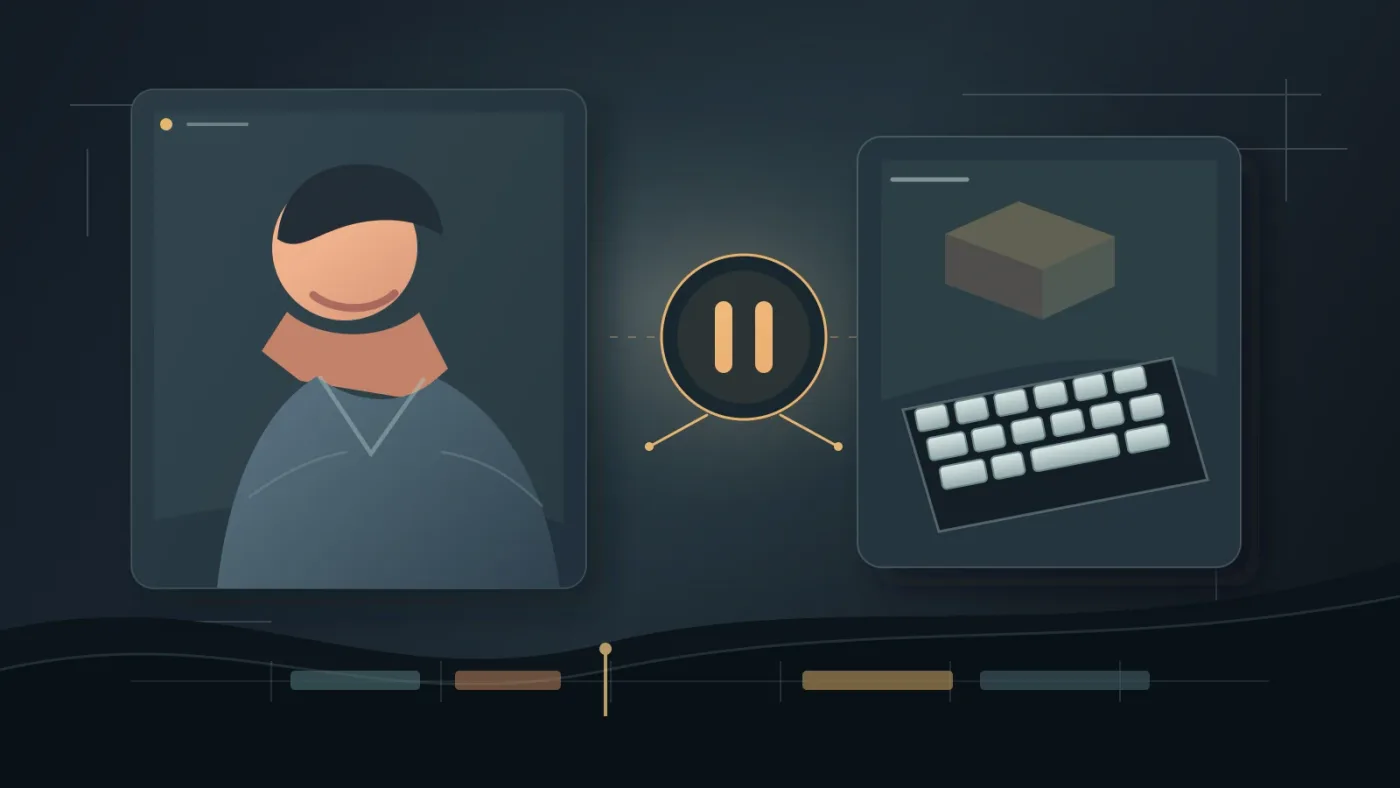
Imagine a presenter says, “The first setting is easy to find,” pauses, then continues, “but the second one is hidden.” You remove the pause and discover that the presenter’s shoulders shift and the right hand jumps from the desk to the keyboard.
The clean version is not to cover the entire sentence. Keep the presenter visible for “The first setting is easy to find.” Cut to the keyboard as the presenter says “but the second one is hidden.” Return when the hand settles. The cutaway answers the words, covers the shift, and makes the return feel intentional.
That is the difference between coverage and decoration. The insert has a job.
What should I cut before I cover the jump cut?
Cut the material that weakens the sentence, then cover the visual discontinuity created by that edit. A cutaway should support a clean audio edit, not force you to keep awkward words just to justify the picture.
Start with the transcript or waveform, but decide by listening. Remove the false start, duplicated idea, long pause, or answer that wanders. Keep natural consonants at both ends of the retained phrase. If you cut too close, the mouth and audio may feel clipped even when the cutaway works.
Resolve’s Edit page includes trimming, track targeting, locking, and sync tools. They help you refine the dialogue boundary while keeping unrelated tracks under control. Blackmagic’s Edit page overview lists these trimming and track-management tools.
Use this three-pass check.
Pass one: listen without looking
Close your eyes or turn the viewer away. Does the sentence sound like one thought? If you hear a click, a change in room tone, a clipped breath, or an unnatural change in distance, fix the audio before choosing more B-roll.
Pass two: watch without sound
Mute the timeline. Does the speaker jump in scale, posture, direction, or lighting? Does a hand teleport? Does the background shift? This tells you what the cutaway must cover.
Pass three: restore the full mix
Play the cutaway with dialogue, room tone, music, and effects. The image can be technically covered while the sound announces the edit. A short ambience bed or a clean audio bridge may help, but do not cover a bad dialogue edit with louder music.
If the A-roll was recorded in a quiet room, preserve that room tone under the cutaway. If the camera moved closer, keep the voice at a consistent level under the cover. Viewers forgive a hidden image change faster than a voice that suddenly sounds as if it moved across the room.
How do I choose cutaway footage that feels motivated?
Choose the shot that answers, extends, or grounds the sentence being spoken. The strongest cutaway has a clear connection to the subject, action, place, or emotion already present in the A-roll.
Adobe’s director and cinematographer contributors make the same point from two angles. Hiroshi Hara describes B-roll as more than secondary material, saying, “Even though it sounds like it’s secondary, B-roll is what creates the nuances of visual storytelling.” Mike Leonard recommends asking whether each image is telling a story and whether the foreground, background, or subject interaction adds meaning. Read the full B-roll guidance and attribution at Adobe.
Use the sentence as your search brief.
| Spoken idea | Useful cutaway | Why it works | Risk to check |
|---|---|---|---|
| “The package arrived this morning” | Hands opening the package | It shows the object and action named in the line | A different package, room, or hand position can expose the stock origin |
| “The control is hidden in the inspector” | Close view of a hand moving toward a screen | It gives the viewer a visual reason to leave the speaker | A fake or mismatched interface can distract from the lesson |
| “The team worked late” | Exterior night shot or desk detail | It establishes time and mood without repeating the talking head | Daylight, weather, and screen direction may not match |
| “This mistake costs time” | Slow detail of the repeated task | It visualizes the consequence instead of adding decoration | The action can feel generic if it does not match the speaker’s context |
| “I learned this from a failed test” | Notebook, timeline, or reflective detail | It supports the personal turn in the story | A polished generic clip can make the moment feel less personal |
Use the table as a decision aid. Shoot specific objects yourself when you can. Stock can cover general ideas, while a listener shot or second angle usually beats a scenic clip for a person’s reaction.
Match the visual grammar
The cutaway has to belong to the same world as the A-roll. Check these five things before you commit to it.
- Framing. A close insert can follow a medium talking-head shot, but a sudden ultra-wide image may feel like a new scene. That can be right if the story calls for it. It is wrong when the wide shot only hides a bad edit.
- Direction. If movement travels left to right in the A-roll, a right-to-left stock action can make the viewer feel the scene reverse. Direction is not a law, but a mismatch needs a reason.
- Light. Compare the apparent time of day, color temperature, contrast, and shadow direction. A bright noon exterior rarely feels like coverage for an interior interview lit by a soft window.
- Motion. A locked-off insert can calm a cut. A fast push-in can energize it. Pick one deliberately. Unrelated camera movement makes the edit feel more visible, not less.
- Detail. Avoid a cutaway that introduces a new logo, person, location, or object the story never explains. New information creates a question. The cover shot should solve the edit, not create a second problem.
The best cutaway answers the sentence you just edited.
Where should the cutaway start and end in DaVinci Resolve 21?
Start the cutaway before the speaker’s visual change becomes obvious, and end it after the incoming A-roll reaches a stable frame. The edit should feel like a decision to show the insert, not a late repair.
Resolve 21’s Edit page is built around a traditional timeline workflow with drag-and-drop editing and professional trimming controls. Blackmagic also documents the ability to trim while playing, hear audio while trimming, and work with multiple trim points. See Blackmagic’s current Edit page documentation.
Here is a useful way to place the boundaries.
Find the outgoing frame
Play from a few moments before the jump. Stop when the current A-roll frame finishes its thought or gesture. If the speaker is looking down, the cutaway can begin as the gaze drops. If a hand moves, the cutaway can begin during that motion. A movement gives the viewer a reason to accept the change.
Cover the whole discontinuity
Do not cut to B-roll at the exact frame where the visual jump occurs. That leaves a flash of the bad edit. Extend the cutaway over the outgoing and incoming sides until the viewer cannot compare the two positions directly.
Find the return frame
Return when the speaker’s posture, eyeline, and gesture are stable. If the cut returns to a mouth in the middle of a strong consonant, the picture may feel late even when the audio is continuous. If the cutaway contains a clear action, return after the action lands. The viewer has somewhere to put their attention.
Trim for meaning, not a fixed duration
There is no universal cutaway length. A quick hand movement may need a brief insert. A location detail may need longer so the viewer understands it. Adobe’s B-roll guidance says footage needs to match the dialogue’s pacing and quotes Leonard’s advice to count to ten while shooting. That is a capture guideline, not a ten-second editing rule. The source explains the distinction in its shooting advice.
Use the shortest duration that gives the viewer a clear image and lets the dialogue breathe. Test the cut at normal playback speed. The audience sees the finished rhythm, not the timeline inspection.
Why is my cutaway still showing a jump cut?
Your cutaway is still showing a jump cut when the viewer can compare the speaker before and after the edit, or when the insert introduces a new mismatch that attracts more attention than the original problem. Fix the cover boundaries first, then fix continuity.
The cover starts too late
If the speaker has already shifted before the cutaway appears, the audience sees the jump. Move the in point earlier. Let the cutaway arrive on a gesture, a glance, or the start of a phrase.
The cover ends too early
If the viewer sees the speaker return and immediately jump again, extend the insert. You may also need to choose a later return frame from the incoming clip.
The cutaway has the wrong screen direction
A person walking toward the left edge in one shot and toward the right edge in the next can make the edit feel like a reversal. Use a neutral close-up, a front-facing detail, or a shot whose direction supports the surrounding action.
The image size changes without a reason
A modest punch-in can hide a jump because the viewer reads it as a deliberate change in emphasis. A random scale change looks accidental. If you use a crop instead of B-roll, keep the composition intentional and check that the subject remains comfortably framed.
The cutaway repeats
Reusing one generic shot every time the speaker makes a cut teaches the viewer to expect the cover. Build a small set of details, reactions, locations, and actions. A repeated image can still work as a visual motif, but repetition should be a choice.
The audio exposes the edit
The picture may be hidden while the voice jumps in tone, noise, or timing. Keep the dialogue continuous when the story allows it. If you need to remove a sound as well as a picture, use a clean room-tone bed or a sound bridge. Our guide to sound effects to hide cuts in DaVinci Resolve covers the audio side without asking the cutaway to do every job.
The insert is too literal
If the presenter says “I was nervous” and you cut to a generic person looking worried, the image may explain too much and feel false. A hand tightening on a notebook, a pause before opening a door, or a return to the presenter’s face may carry the emotion with less strain.
Cutaways are coverage, not permission to ignore continuity.
Should I use Smooth Cut instead of cutaway footage?
Use cutaway footage when you have meaningful coverage. Use Smooth Cut when the A-roll is otherwise strong, the visual change is small, and an inserted shot would add more distraction than value.
Blackmagic says its Smooth Cut transition uses optical-flow image analysis to make a jump cut look like one continuous take. It is applied between clips like another transition, and its duration can be adjusted. Blackmagic documents Smooth Cut in the Edit page overview.
Treat Smooth Cut as a second option, not a universal repair button. Optical flow has to invent or reinterpret pixels between the two sides of the edit. Faces, fingers, glasses, hair, and patterned backgrounds deserve a close inspection. If you see a soft double edge or a bend that was not in the source, remove the transition and use coverage, a punch-in, or a motivated hard cut instead.
Use this decision order:
| Situation | First choice | Why |
|---|---|---|
| The dialogue refers to a visible object or action | Relevant cutaway | The insert adds information while covering the edit |
| You have a second camera angle | Alternate angle | It preserves the scene and gives you real coverage |
| The frame is stable and the jump is small | Punch-in or crop | A controlled change can look intentional |
| The edit is short and no useful coverage exists | Smooth Cut | It may conceal a small shift without introducing a new shot |
| The jump is intentional and energetic | Keep the jump cut | A visible cut can serve pacing or style |
Adobe’s jump-cut guidance makes the same point: jump cuts can compress time, add energy, or create surprise, but they should have a purpose. It also lists B-roll and cross-cutting as ways to avoid an unwanted jump cut. Read Adobe’s explanation of when to keep or cover a jump cut.
A clean return to the talking head matters as much as the cutaway itself.
When is self-shot B-roll better than stock footage?
Self-shot B-roll is better when the cutaway needs to show the exact person, object, place, or action from the main scene. Stock footage is better when the idea is general and a polished, specific-looking image can support it without pretending to be your actual location.
Shoot your own coverage when you can control the variables that matter. Keep camera direction consistent. Record a wide, a medium, and several details with clean handles. Capture details that relate to lines you expect to keep, not only pretty images that may never fit the edit.
Stock can fill a genuine gap. If the interview is about productivity, a desk detail or a calendar may work. If the interview is about a particular factory, product, or family, a generic substitute may make the viewer think the image is documentary evidence. Label or frame it honestly when the distinction matters.
Affiliate disclosure: this post contains an affiliate link. If you subscribe through the Artlist link, we may earn a commission at no extra cost to you.
If you need regular access to footage, templates, and other production assets, Artlist is one optional stock-footage source. It is not the only answer. Self-shot coverage, a local reshoot, footage you already own, or another stock library can be the better choice for a one-off edit or a very specific subject.
Stock footage solves a coverage gap, not a licensing decision.
The editorial verdict stays the same: choose the source that gives you a believable shot with the right rights for your project.
Before downloading anything, make a short brief:
- What exact sentence will the image cover?
- Does the shot show the idea or only a mood?
- Does its light resemble the scene?
- Does its movement support the cut?
- Can you use the footage for the intended publication and client?
The last question is part of editing judgment. A beautiful clip that cannot be cleared for the final project is not useful coverage. For more on bringing downloaded media into a Resolve project, see our guide to how to use stock footage in DaVinci Resolve.
How can I make the finished cut feel invisible?
Make the edit invisible by giving the cutaway a reason to enter, enough time to read, and a clean reason to leave. Then judge the whole sequence at normal speed instead of polishing the insert in isolation.
Run this final check.
- Watch once for the story. Can you follow what the speaker means without thinking about the edit?
- Watch once for the visual jump. Pause before and after the cover. Do the subject, direction, scale, light, and background make sense?
- Watch once for audio. Is the dialogue continuous? Does room tone remain stable? Does music or a sound bridge support the transition without announcing a patch?
- Watch once for repetition. Have you used the same cutaway too many times? Is every insert earning its place?
- Watch once for honesty. Does stock footage look like an example, or does it falsely suggest the speaker is showing the exact event being discussed?
If the cutaway still feels forced, simplify. Try a shorter insert, a tighter detail, or a reaction shot. Keep a clean jump cut if the energy is right, or keep the original pause if removing it damages the person’s rhythm. Not every pause is a mistake, and not every visible cut needs camouflage.
The strongest cover is often the least impressive shot in the folder. It gives the audience the right information, for the right amount of time, and leaves before anyone wonders why it was there.
What is the next step after hiding the jump cuts?
Make one practice sequence from a short talking-head clip. Remove one pause, cover it with one relevant cutaway, and review the result muted and with audio. The goal is not to make the edit invisible by force. The goal is to make the viewer care about the new image before they notice the old one is gone.
Frequently asked questions
- How do I use cutaway footage to hide jump cuts?
- Cut the unwanted words from the A-roll, leave the dialogue edit in place, put relevant cutaway footage on the video track above it, and trim the cutaway so it covers the visual jump. Return to the speaker on a natural beat and check the audio separately.
- Why is my cutaway still showing a jump cut?
- The cutaway is probably too short, starts after the visual change, or returns to the speaker with a mismatched pose, eyeline, or camera direction. Extend the cover across both sides of the edit and choose a return frame that continues the action.
- Can I hide a jump cut without B-roll in DaVinci Resolve?
- Yes. Try a punch-in, a second camera angle, a motivated transition, or Resolve's Smooth Cut transition. Smooth Cut uses optical-flow analysis, so inspect faces, hands, and fine detail for warping before you keep it.
- How long should a cutaway be to hide a jump cut?
- Make the cutaway long enough to cover the complete visual discontinuity and give the viewer time to understand the insert. The required length depends on the dialogue rhythm and the shot's movement, so trim by feel while listening to the continuous audio.
- Is stock footage good for hiding jump cuts?
- Stock footage works when the image directly supports the spoken idea and its lighting, motion, framing, and geography fit the scene. Self-shot B-roll is better for specific objects, people, or actions that stock footage cannot match.
Sources
- Blackmagic Design Support Center, DaVinci Resolve 21 downloads and updates
- Blackmagic Design, DaVinci Resolve Edit page
- Blackmagic Design, DaVinci Resolve product page
- Adobe, What is B-roll footage and why is it important?
- Adobe, How to edit a jump cut in video post-production
- Artlist footage and templates option, affiliate link
Put this guide to work with TryUncle.
Ask about the step you’re on. TryUncle sees your screen and points at the control you need, so you can keep learning in your own project.
Get TryUncle for Mac or WindowsKeep reading
Guides · Sep 2, 2026 · 8 min
How to Choose B Roll for a Video in Resolve 21
Learn how to choose B-roll for a video by matching every shot to the story, the edit, the format, and the footage source.
Guides · Sep 2, 2026 · 9 min
How to Use Stock Footage in DaVinci Resolve 21
Learn how to use stock footage in DaVinci Resolve 21, from licensed download and Media Pool organization to matching, proxies, and delivery.

Guides · Aug 29, 2026 · 8 min
Sound Effects to Hide Cuts in DaVinci Resolve 21
Learn how to use impacts, whooshes, room tone, and fades to hide visible edits in DaVinci Resolve 21 without making the audio feel forced.