Articles / Reviewsupdated for DaVinci Resolve 21.0.2 (July 2026)
Is the Mac Mini M4 Enough for DaVinci Resolve?
Quick answer
Yes. The base Mac mini M4 with 16GB unified memory handles single-camera 4K editing and standard color grading in DaVinci Resolve comfortably. Push into multicam, RAW debayering, Magic Mask, or heavy Fusion work and the M4 Pro's extra GPU cores and 24GB-plus memory earn their upgrade cost. Skip eGPUs; they don't accelerate Resolve on Apple silicon.
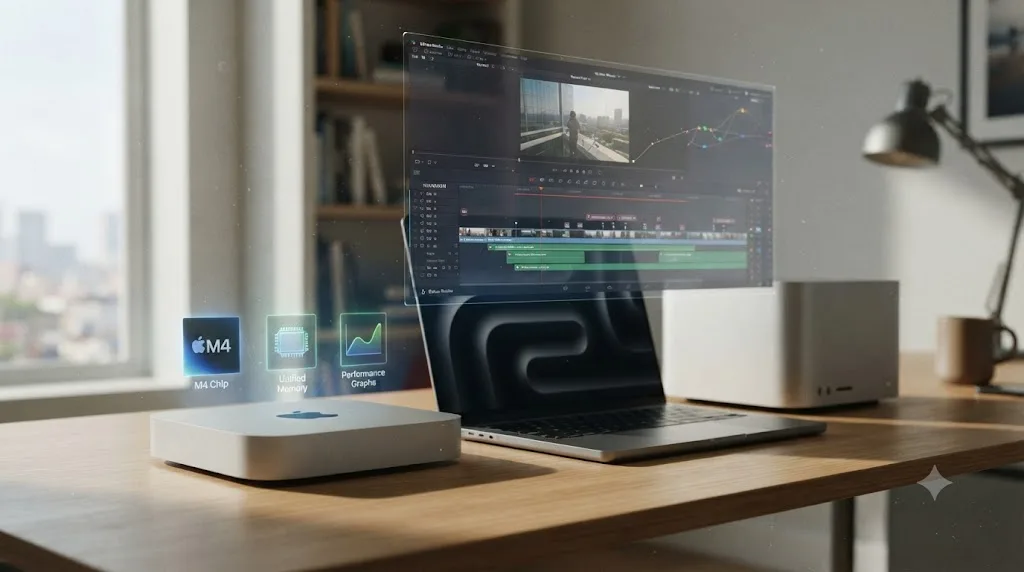
I keep seeing the same question in the same three places: a comment thread under a Mac mini review, a Reddit post from someone about to click "buy," and a forum thread titled something like "M4 Mac Mini (Base Spec) & DaVinci Resolve (Free)." Everyone's asking a version of the same thing. Is this small, cheap-looking box actually enough to edit real footage in DaVinci Resolve, or is it a toy that falls apart the moment you drop a grade on a 4K timeline?
The honest answer isn't a single yes or no. It depends on what "enough" means for your footage, and the Mac mini M4 lineup got more complicated in 2026, not less, once Apple changed its pricing. This review walks through what's actually inside a Mac mini M4, what independent benchmarks say about it running Resolve, what real owners report in forums, and where the base chip genuinely runs out of room.
What's actually inside a Mac mini M4, and what changed in 2026?
Apple sells the current Mac mini in two chip tiers, base M4 and M4 Pro, and the gap between them is bigger than the name suggests. There's no M4 Max option in this box at all; that chip is reserved for the Mac Studio and the MacBook Pro, a detail worth knowing before you go looking for a "Mac mini M4 Max" configuration that doesn't exist.
| Spec | Mac mini M4 | Mac mini M4 Pro |
|---|---|---|
| CPU cores | 10 (4 performance + 6 efficiency) | Up to 14 (10 performance + 4 efficiency) |
| GPU cores | 10 | Up to 20 |
| Unified memory | 16GB standard, configurable to 24GB | 24GB standard, configurable to 48GB |
| Storage | 512GB standard, up to 2TB | 512GB standard, up to 8TB |
| Memory bandwidth | 120GB/s | 273GB/s |
| Thunderbolt | Thunderbolt 4 (up to 40Gb/s) | Thunderbolt 5 (up to 120Gb/s) |
| Starting price (as of mid-2026) | $799 | $1,599 |
Source: Apple's Mac mini technical specifications and Apple's M4 Pro and M4 Max announcement.
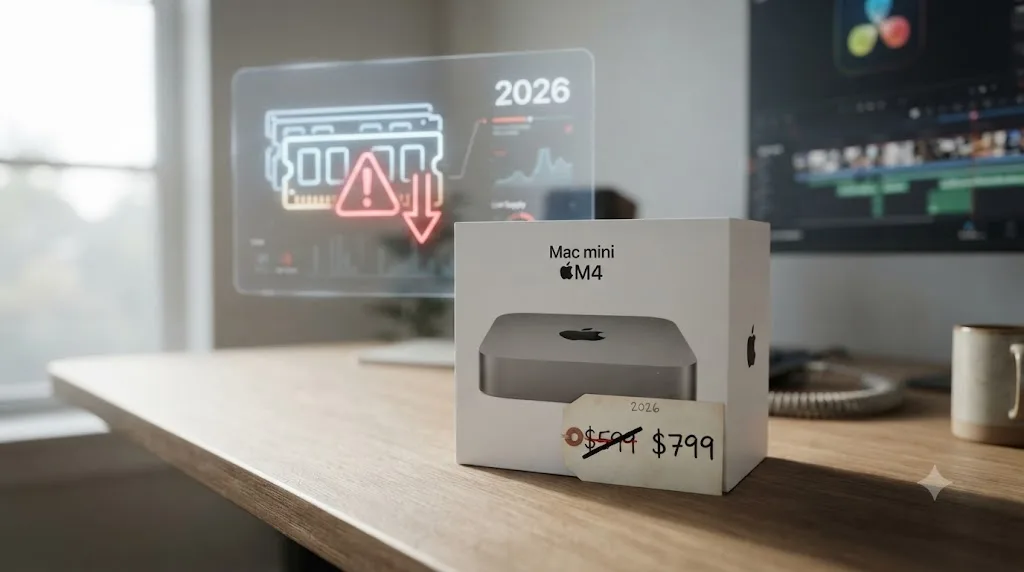
That $799 starting price is new, and it's worth understanding why, since it changes the honest budget math on this machine. Through most of the M4 Mac mini's life, the entry configuration was $599 for 16GB of memory and a 256GB SSD. In May 2026, Apple discontinued that 256GB configuration entirely and raised the floor to $799 for 512GB, according to MacRumors. Apple CEO Tim Cook explained the move on an earnings call: Mac mini and Mac Studio supply was constrained, and he expected it to take "several months" to rebalance, attributing the higher-than-expected demand to these machines being "amazing platforms for AI and agentic tools." He also flagged "significantly higher memory costs" for the quarter, tracing back to memory chip suppliers prioritizing AI server infrastructure over consumer devices.
The Mac mini M4 you can buy today costs $200 more than the one reviewers benchmarked when it launched, for the same base chip. That's not a knock against the hardware itself, since nothing about the M4 chip changed. It does mean any "$599 Mac mini is enough for Resolve" verdict you find online is quoting a configuration Apple no longer sells, and it's worth recalculating your budget comparison against the real 2026 price before you commit.
Is the base Mac mini M4 enough for DaVinci Resolve?
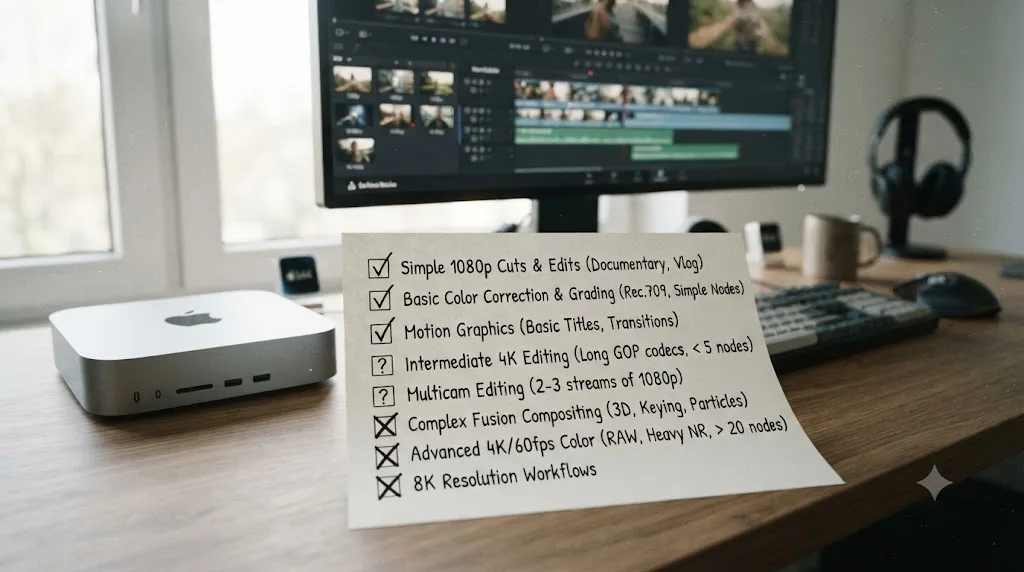
For a specific, common kind of project, yes, without qualification. If you're cutting single-camera 4K footage from a mirrorless camera or a smartphone, applying a normal color grade, and exporting to H.264 or H.265 for the web, the base M4 handles all of it in real time. Its media engine decodes H.264, HEVC, and ProRes in dedicated hardware regardless of chip tier, so the file-decode bottleneck that cripples budget Windows laptops simply doesn't exist here.
Where "enough" starts depending on your footage is everything past that baseline case: multiple camera angles cut together, RAW formats that need GPU-side debayering rather than hardware media-engine decode, Magic Mask tracking across a complex shot, or a Fusion comp with more than a handful of nodes. None of those workloads are impossible on the base M4. They're workloads where the base chip's 10 GPU cores start asking you for patience the M4 Pro's extra cores don't demand.
Ian R. Brown, a longtime Resolve Studio user answering a Mac mini buying question in Apple's own community forums, put the base chip's ceiling directly when someone asked whether to spend up for their planned short, uncomplicated video projects: "The basic M4 mini has far more power than you will ever need for the projects you propose," and specifically that "for your workflow any upgrades (other than an external SSD) will be a complete waste of money." His actual advice wasn't more chip, it was more storage, which lines up with everything else in this review about where a Mac mini's real limits show up.
| Your typical project | Base M4 verdict |
|---|---|
| Single-camera 4K H.264/H.265, standard grade | Comfortable, real-time playback |
| YouTube or social content, light effects | Comfortable |
| Two-camera 4K multicam | Workable, may benefit from Optimized Media |
| Heavy Blackmagic RAW or R3D at full resolution | Workable but slower; M4 Pro is a real upgrade here |
| Complex Fusion comps, many nodes | Frequently the point where the base chip asks for patience |
| Magic Mask on multiple subjects per shot | Usable, noticeably faster on M4 Pro |
Source: Apple Community forum thread on DaVinci Resolve Studio and Mac mini configuration.
How much unified memory does a Mac mini M4 need for DaVinci Resolve?
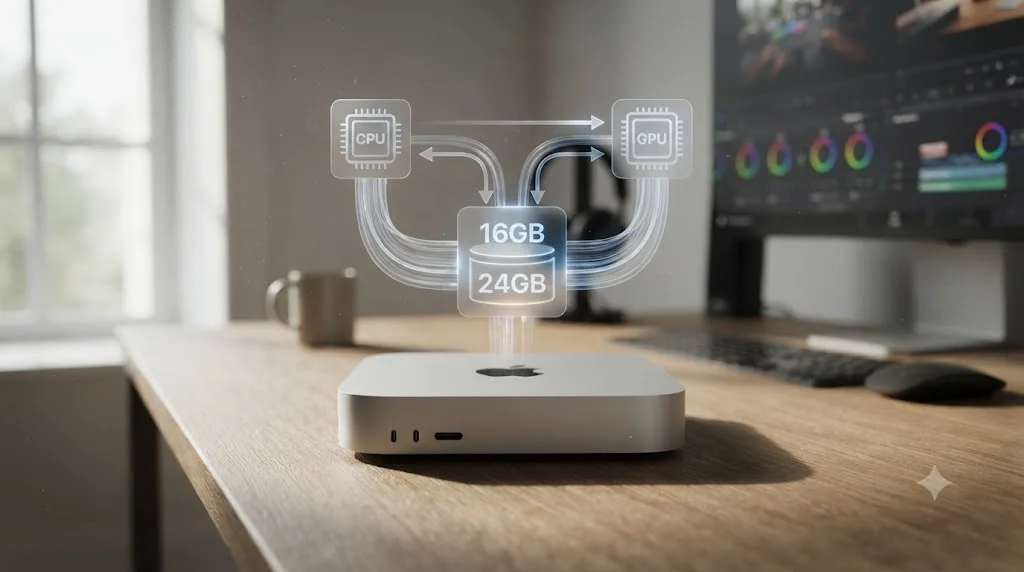
This is the setting that decides whether your Mac mini feels smooth or feels like it's fighting you, and Apple's new base configuration makes it a more urgent question than it used to be. Unified memory means the Mac mini's CPU and GPU draw from one shared pool, so the memory number on the spec sheet is also your effective VRAM number. There's no separate graphics card with its own memory to fall back on.
Blackmagic's stated minimum for DaVinci Resolve is 16GB of system RAM, per its own tech specs, which happens to match the Mac mini M4's new base configuration exactly. That's a coincidence worth treating carefully rather than reassuringly, since a stated minimum is the floor Blackmagic guarantees Resolve will launch and run on, not the number that produces a comfortable editing experience on a real project.
Larry Jordan, who benchmarks Apple silicon Macs specifically for video editing, draws a firmer line in his own configuration guide: "At a minimum, get 24 GB of RAM." That's not the same number Blackmagic publishes, and the gap between them is the gap between "it will run" and "it won't fight you for memory while you work."
| Workload | Realistic unified memory |
|---|---|
| HD editing, light grade, no Fusion | 16GB (Apple's new base) |
| Single-camera 4K editing, standard grade | 24GB |
| 4K multicam, noise reduction, moderate Fusion | 24GB to 48GB |
| 6K/8K RAW, heavy Fusion, HDR grading | 48GB or more (M4 Pro territory) |
Since Apple's base Mac mini M4 configuration can be built up to 24GB for a modest cost difference, and unified memory can never be upgraded after purchase on any Apple silicon Mac, that upgrade is worth paying for at time of order if your budget allows it at all. Skipping it to save $200 on a machine you'll use for years is the kind of decision that looks fine on day one and annoying on month six, once a client sends you a multicam project.
Unified memory is soldered into the Mac mini M4 the day it's manufactured, so it's the one spec on this machine you cannot fix later with an upgrade. Storage can move to an external drive. A GPU can't be added. Memory falls into neither category: it's fixed, and it's the single number most likely to determine whether this machine still feels adequate in a year.
Sources: DaVinci Resolve tech specs and Larry Jordan's configuration guide for M4 Macs.
How fast is a Mac mini M4 at real DaVinci Resolve work?
Spec sheets are one thing. Timed tests on actual footage are another, and this is where a Mac mini review earns its keep instead of repeating Apple's marketing copy back at you.
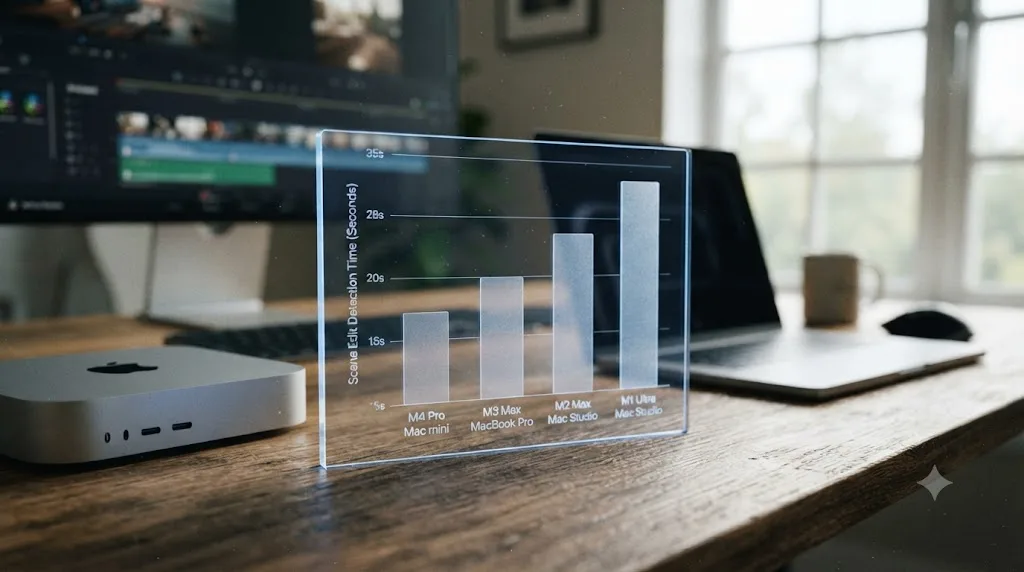
Scott Simmons, reviewing the M4 Pro Mac mini (configured with 48GB of unified memory) for ProVideo Coalition shortly after launch, ran the same Resolve jobs across four different Apple silicon Macs spanning three generations. The results are the clearest real-world evidence available for what a Mac mini actually does under load, and they don't line up neatly by chip generation the way you'd expect.
On a Scene Edit Detection pass over an hour and 29 minutes of 1080 ProRes footage, a task that leans on Resolve's AI tools rather than raw encode speed:
| Mac | Scene Edit Detection time |
|---|---|
| M4 Pro Mac mini (48GB) | 5:28 |
| M3 Max MacBook Pro | 4:30 |
| M2 Max Mac Studio | 5:14 |
| M1 Ultra Mac Studio | 8:33 |
A two-year-old M3 Max MacBook Pro finished faster than the brand-new M4 Pro Mac mini, because the M3 Max carries more GPU cores. That's not a Mac mini weakness specifically, it's the same GPU-cores-over-generation pattern that shows up across Apple's entire M-series lineup, and it's a useful reminder not to assume "newer" automatically means "faster" for Resolve's AI tools.
On a straight export test, a mixed-format documentary export running an hour and 36 minutes down to 1080 ProRes, the M4 Pro Mac mini finished in 10 minutes and 6 seconds. The same project, same hardware, exported from Adobe Premiere Pro instead, took 18 minutes and 12 seconds. Simmons' own conclusion: "What strikes me most here is how much faster DaVinci Resolve is at encoding than Adobe Premiere Pro."
His overall verdict on the Mac mini as an editing machine, after running these tests, is the most useful single sentence in this entire review: "If you are an offline craft editor or you don't need the bleeding edge of an Ultra chip in a high-end Mac studio, you can get a lot of post-production work done on one of these new M4 Mac minis."
A DaVinci Resolve export that takes ten minutes on an M4 Pro Mac mini took over eighteen minutes for the identical job in Adobe Premiere Pro on the same hardware. That's a real, timed difference on the exact machine this review is about, not a general claim about Apple silicon. If you're choosing between the two editors on a Mac mini specifically, this is a data point worth weighing on its own.
These numbers describe the M4 Pro Mac mini's 48GB configuration, not the base M4. Treat them as evidence of what this hardware class is capable of, and expect the base M4 with fewer GPU cores to run these same jobs more slowly, proportionate to its lower core count.
Source: Scott Simmons' M4 Mac mini review for video editors, ProVideo Coalition.
What do actual Mac mini M4 owners say about editing in Resolve?
Professional benchmarks are useful, but they're usually run on upgraded configurations, not the base machine most first-time buyers are actually weighing. For that, a real forum thread specifically about the base spec machine is worth more than another spec sheet.
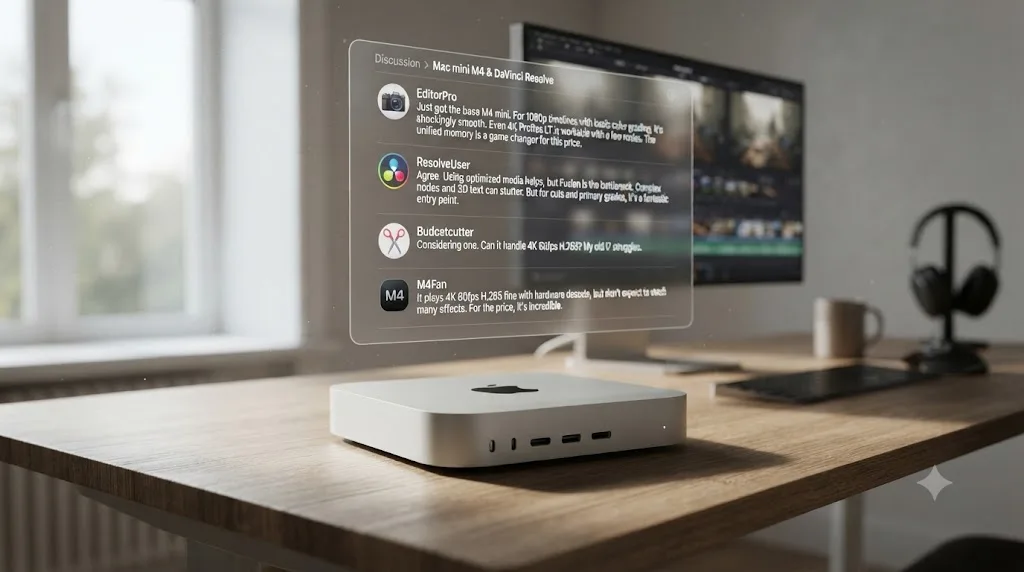
A thread on the Grey Arrows Drone Club UK forum, titled plainly "M4 Mac Mini (Base Spec) & DaVinci Resolve (Free)," is exactly the conversation this review's target query describes: someone deciding whether the cheapest Mac mini configuration can actually run Resolve for real work. Forum member LE60LAD, discussing the base machine, wrote that they were sure it would "handle the studio version without any issue" and called it "great value for money." On the storage question specifically, the same poster noted it's "quite tricky to justify" a large jump in price for more internal storage "when you can" instead route heavier storage needs to an external drive, a point this review returns to below.
Not every comment in that thread is unqualified praise, and that's exactly what makes it useful. Forum member OzoneVibe, weighing in on the same base configuration, was specific about where their own ceiling sat: "For my personal requirements (including complex Fusion compositions), I'd need more RAM." That's a real editor, describing a real limit, on the exact machine this review is evaluating, and it matches the memory guidance from Larry Jordan's benchmarking above almost exactly. Fusion work is precisely the workload where 16GB starts to feel thin.
A real Resolve user on a base-spec Mac mini forum thread says the machine handles casual editing fine, then draws the line at exactly the point this review's own memory table predicts: complex Fusion compositions. That kind of agreement between an independent forum post and a benchmarking guide is a stronger signal than either one alone.
Source: Grey Arrows Drone Club UK forum, "M4 Mac Mini (Base Spec) & DaVinci Resolve (Free)".
Should you buy the base M4 or step up to the M4 Pro Mac mini?
Once you've decided you actually want a Mac mini rather than a Mac Studio or MacBook Pro, this is the real decision, and it's not simply "spend more if you can afford it." The base M4 and M4 Pro solve genuinely different problems.
Jordan's testing across Apple silicon configurations is direct about where the money is better spent once you clear the memory floor covered above: "More RAM is nice, but more GPUs boost performance," and more pointedly, "systems with more RAM, but fewer GPU cores are not as fast as systems with relatively less RAM and more GPU cores." That's a specific, tested claim, not a general assumption about how Apple silicon scales.
Applied to the current Mac mini lineup, here's what that means in practice:
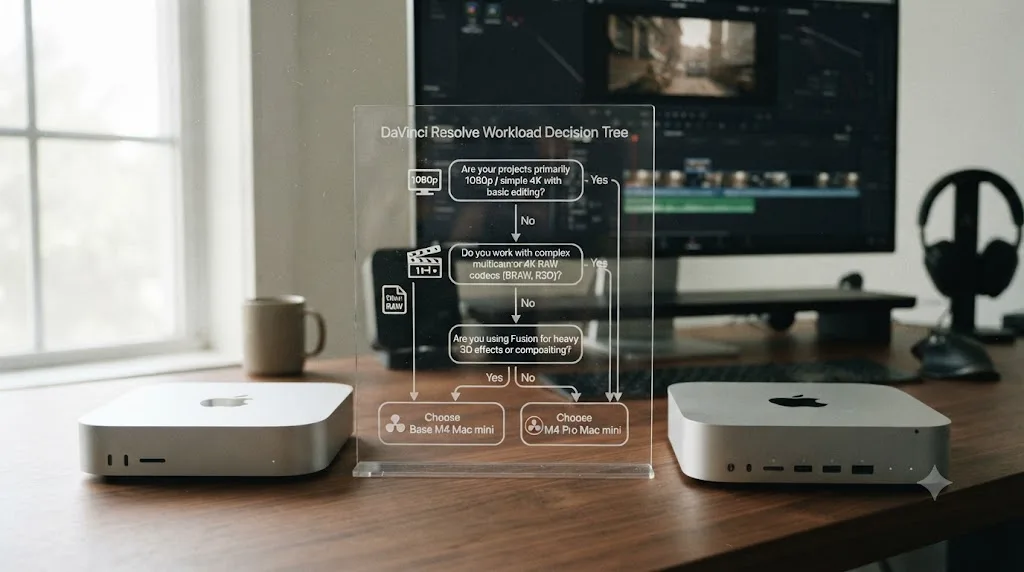
| If you mostly do this | Choose | Because |
|---|---|---|
| Single-camera 4K, standard grade, web delivery | Base M4, 24GB configured | Hardware decode handles the heavy lifting; GPU cores rarely become the bottleneck |
| Two-camera 4K multicam, occasional noise reduction | Base M4 if budget-constrained, M4 Pro if it's a regular workload | Base handles it; M4 Pro handles it with less waiting |
| Regular Fusion compositing, Magic Mask on multiple subjects | M4 Pro | GPU core count scales these tools directly; the base chip's 10 cores show their ceiling here |
| Blackmagic RAW or R3D at full resolution, 3+ angles | M4 Pro, or step up to Mac Studio | GPU-side debayering is compute-heavy work that scales with core count |
| A tiebreak between similar prices | The configuration with more GPU cores | Consistently the better predictor of Resolve performance past the 24GB memory floor |
At current 2026 pricing, that's a $799 base M4 (16GB, upgradeable to 24GB) against a $1,599 M4 Pro (24GB standard, upgradeable to 48GB). An $800 gap is a real budget decision, not a rounding error, and the honest framing is that you're not paying for "more computer" in the abstract, you're paying specifically for GPU cores that speed up Fusion, Magic Mask, and RAW debayering, workloads a lot of solo creators and short-form editors simply don't run often enough to justify the cost.
Can a Mac mini M4 handle multicam and RAW footage in DaVinci Resolve?
Yes, with real limits that track chip tier closely. Multicam and RAW are the two workloads where "the Mac mini is enough" stops being a single answer and starts depending on exactly how many streams and what resolution you're asking it to handle at once.
For multicam, the bottleneck is simultaneous decode, not any single stream's complexity. The base M4's media engine decodes H.264, HEVC, and ProRes in hardware regardless of chip tier, so a two-camera 4K multicam setup is usually comfortable even on the base chip. Add a third or fourth angle, or step up to 6K sources, and you're asking the machine to sustain several simultaneous hardware-decode streams at once, which is where the M4 Pro's higher memory bandwidth and extra GPU cores start to matter.
For RAW footage specifically, the mechanism is different from ordinary camera codecs. Blackmagic RAW and RED's R3D format both need a debayer step before you see a picture at all, and that's GPU compute work, not the same hardware media-engine decode path that H.264 and ProRes use. Blackmagic RAW debayers relatively cheaply, since Blackmagic does real work in-camera before the file ever reaches Resolve, so the base M4 often handles it better than its GPU core count alone would suggest. R3D asks for considerably more, and full-quality debayering of 6K or 8K R3D footage on a base M4 can be a genuinely rough experience, especially with a grade stacked on top.
| RAW format and resolution | Base M4 Mac mini | M4 Pro Mac mini |
|---|---|---|
| Blackmagic RAW, up to 4K, single stream | Comfortable | Comfortable, faster |
| Blackmagic RAW, 6K, single stream | Workable, may need Half Resolution decode | Comfortable |
| R3D, 4K-6K | Workable but slow at full decode quality | Comfortable at Half decode, workable at Full |
| Multicam RAW, 3+ angles at 6K | Struggles without proxies or lower decode quality | The realistic minimum for this workload on a Mac mini |
Two settings in Project Settings do real work here regardless of chip tier: Camera RAW Decode Quality, which lets you drop the debayer resolution for playback specifically, and Optimized Media, which transcodes heavier formats into an easier-to-scrub intermediate. Neither is a substitute for the GPU cores you don't have, but both buy real headroom on a base M4 pushed into multicam RAW territory.
If your multicam and RAW needs regularly exceed what an M4 Pro Mac mini can absorb comfortably, that's the point where a Mac Studio with an M4 Max chip, covered further down in this review, becomes the honest answer rather than squeezing more out of a Mac mini that was never built for that ceiling.
Does the Mac mini M4 need external storage for DaVinci Resolve?
Often, yes, and this is a genuinely different situation from a MacBook Pro or Mac Studio, because Apple's May 2026 pricing change made the Mac mini's storage decision more expensive to get wrong. With the 256GB configuration gone, the entry point is now 512GB, which sounds generous until you remember that's shared between macOS itself, DaVinci Resolve's own cache, your Optimized Media, your Render Cache, and your actual camera footage.
That's the exact tension forum member LE60LAD raised in the Grey Arrows discussion referenced earlier: it's "quite tricky to justify" Apple's price jump for more internal storage when an external drive covers the same need for less money. That's sound advice, and it's the same conclusion Ian R. Brown reached in the Apple Community thread quoted above, where his one recommended upgrade for a base M4 Mac mini was external storage, not more chip or more internal SSD.
| Mac mini configuration | Thunderbolt version | Practical external storage strategy |
|---|---|---|
| Base M4 | Thunderbolt 4, up to 40Gb/s | A single fast external SSD comfortably feeds single-camera 4K ProRes or H.265 editing |
| M4 Pro | Thunderbolt 5, up to 120Gb/s | Headroom for multicam or RAW-heavy timelines pulled directly from external storage |
Source: Apple's Mac mini technical specifications.
A single-stream 4K ProRes 422 HQ project needs roughly 90 MB/s of sustained throughput, well inside what almost any modern external SSD delivers over Thunderbolt 4, let alone Thunderbolt 5. The place Thunderbolt 5's extra bandwidth actually matters on the M4 Pro Mac mini is multicam and RAW-heavy work, where several simultaneous streams stack up fast, exactly the workload where this review already recommends the M4 Pro over the base chip anyway.
Practical setup, in order of what actually matters:
- Keep your active project media on a genuinely fast external SSD, not a spinning drive or an aging USB hard drive, since sustained throughput, not just the Thunderbolt port's rated speed, is what determines real performance.
- Point Resolve's Cache Files Location and Gallery Stills Location at that same fast drive, in Project Settings, Master Settings, rather than letting cache and media compete for read and write bandwidth on separate drives unnecessarily.
- Buy the fastest enclosure your Thunderbolt generation supports, not just the fastest drive inside it. A genuinely fast NVMe drive in a cheap enclosure gets bottlenecked by the enclosure's own controller before the drive's rated speed matters at all.
- Reserve internal storage for macOS and Resolve's application files, and treat the internal SSD's free space as a performance number worth protecting, since a nearly full SSD reads and writes measurably slower than one with real headroom.
Paying Apple's premium for more internal SSD storage on a Mac mini is one of the few upgrades this review actively recommends against, since a genuinely fast external drive solves the same problem for less money and adds no measurable performance penalty over Thunderbolt. That's not true of every spec on this machine. Memory can't be added after purchase, and GPU cores can't either. Storage is the one number on the configurator you can safely undersize and fix later.
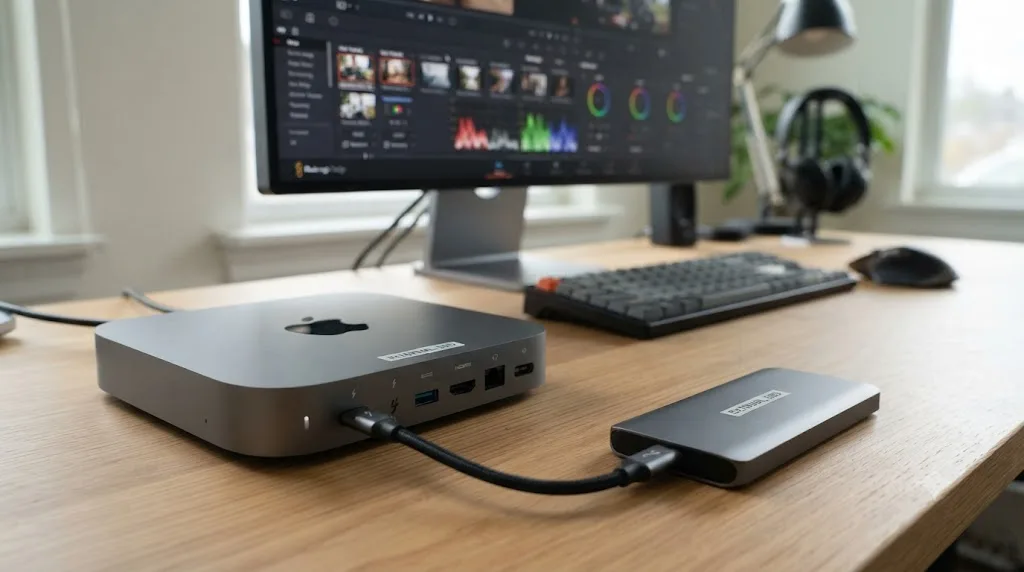
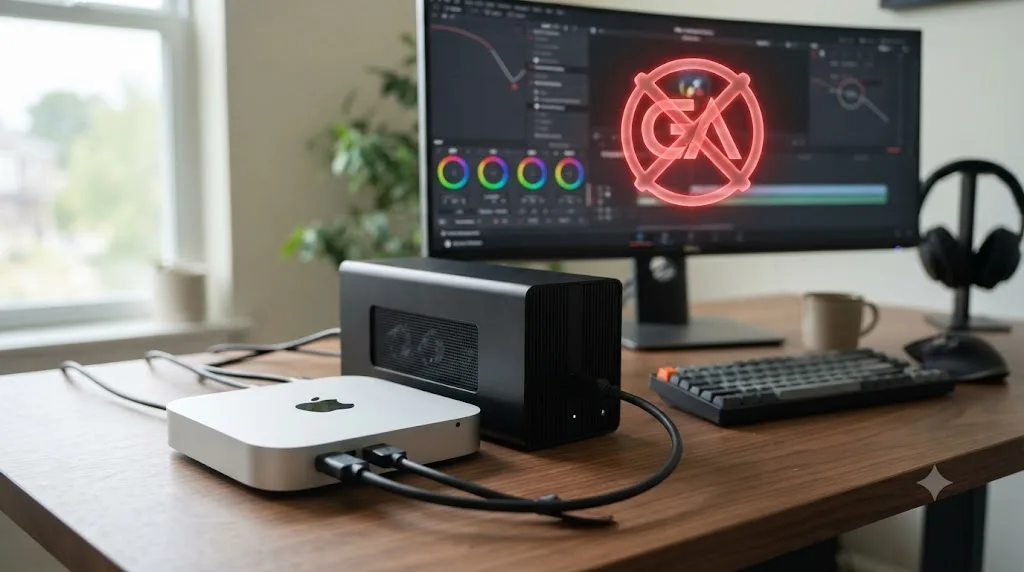
Do you need an eGPU with a Mac mini M4 for DaVinci Resolve?
No, and buying one specifically to speed up Resolve on this machine would be a wasted purchase. This trips up editors coming from Intel Mac Pro or Intel MacBook Pro backgrounds, where external GPUs over Thunderbolt provided real graphics acceleration going back to macOS High Sierra.
Apple Silicon dropped that capability entirely. Apple's own support documentation on external graphics processors describes eGPU support as available on Intel-based Macs with Thunderbolt 3, with no equivalent path for Apple silicon. The unified memory architecture that makes the Mac mini M4 good at Resolve in the first place is the same reason there's no clean handoff point for routing rendering work to an external card the way a traditional discrete-GPU PC does.
There's one narrow exception, and it's not the one eGPU shoppers are hoping for. As of April 2026, Apple authorized third-party drivers, built by Tiny Corp, that let AMD and Nvidia eGPUs function on Apple silicon Macs for general compute tasks, things like local AI model inference or developer testing against real GPU hardware, according to AppleInsider's coverage. That's compute access, not graphics acceleration, and none of it routes through Resolve's rendering pipeline. Buying an eGPU enclosure expecting it to speed up your Mac mini's viewer, grade, or export would be a straightforward mistake.
If you need more GPU power on a Mac mini for Resolve, the only real lever is the one this review has already covered: buy the M4 Pro configuration with more GPU cores built into the chip, or step up to a Mac Studio. There's no add-a-card upgrade path around that on Apple silicon.
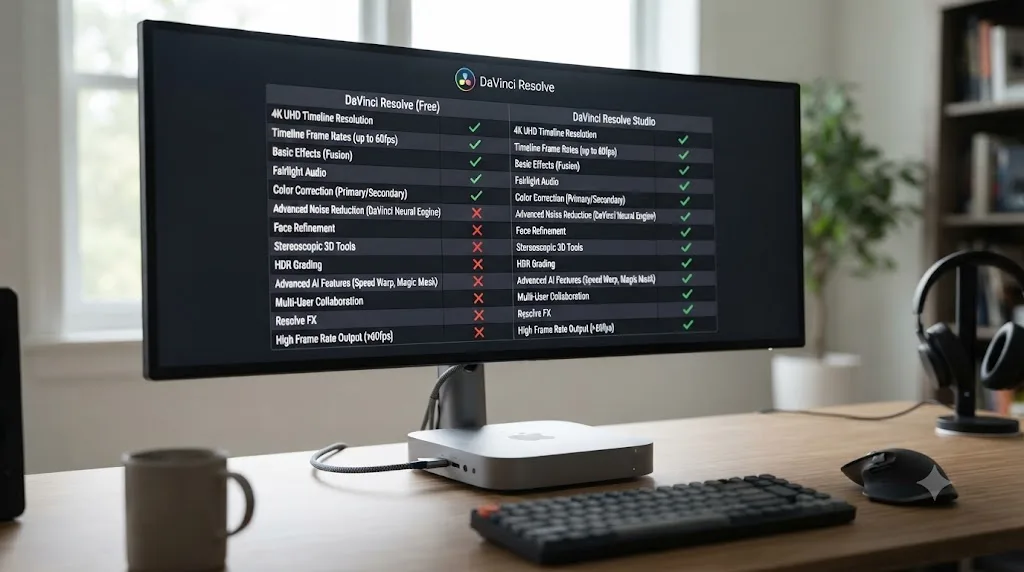
Do you need DaVinci Resolve Studio on a Mac mini M4?
The calculation here is genuinely different on a Mac mini than it is on a comparably priced Windows tower, and it's worth understanding before you spend $295 on top of the hardware itself.
On Windows and Linux, DaVinci Resolve Studio's accelerated H.264/H.265 hardware decoding and encoding is a real, measurable speed upgrade, because the free version routes those codecs through the CPU by default on those platforms. On any Mac mini M4, that entire argument for Studio disappears, since hardware decode and encode for H.264, HEVC, and ProRes are built into the chip itself and shipped in the free version too.
| Feature | Free version on a Mac mini M4 | Studio on a Mac mini M4 |
|---|---|---|
| Hardware H.264/H.265 decode and encode | Yes | Yes, no speed difference |
| ProRes hardware decode and encode | Yes | Yes, no speed difference |
| Timeline resolution ceiling | Up to 4K | Unlimited, HD through 8K+ |
| AI noise reduction | No | Yes |
| Magic Mask | No | Yes |
| Voice Isolation | No | Yes |
| Advanced HDR grading tools | No | Yes |
Source: DaVinci Resolve Studio product page and our own free vs Studio pricing breakdown.
Ian R. Brown's guidance from the Apple Community forum, quoted earlier in this review, is worth repeating in this specific context. When someone described short, uncomplicated projects and asked whether extra hardware or Studio was necessary, his answer wasn't about speed at all, it was about which features you'll actually use. That framing holds regardless of chip tier: buy Studio for Magic Mask, noise reduction, and resolutions past 4K, not because you expect it to make your Mac mini faster, because on Apple silicon there's usually no speed problem for it to fix.
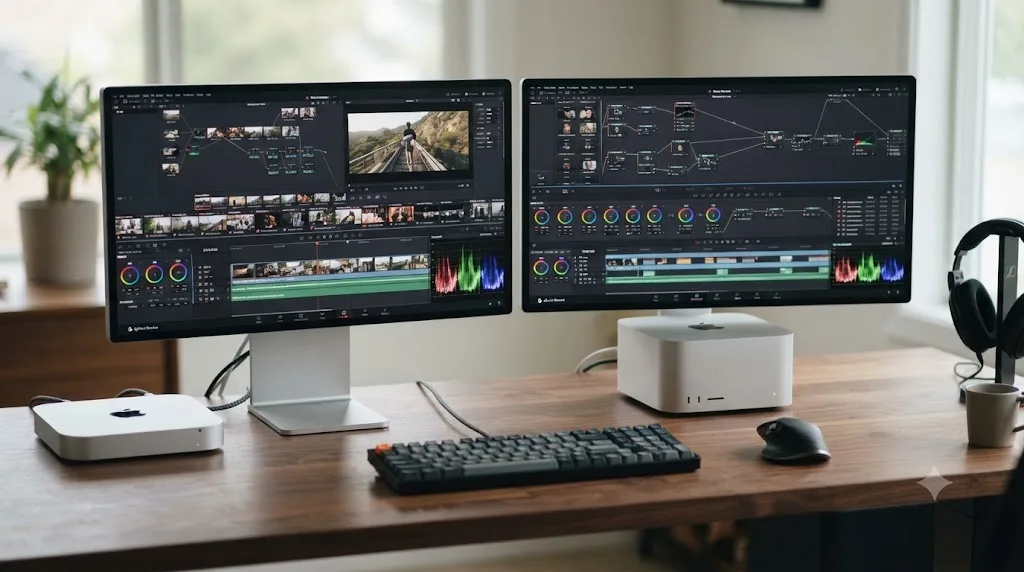
Mac mini M4 vs Mac Studio for DaVinci Resolve: when do you actually need the Studio?
The Mac mini's ceiling is real, and it's worth naming plainly rather than pretending the smallest Mac in Apple's lineup scales infinitely with the right settings. Neither Mac mini tier, base M4 nor M4 Pro, ever ships with an M4 Max chip. That's exclusively a Mac Studio and MacBook Pro option, and it carries meaningfully more GPU cores (up to 40, against the M4 Pro's 20), up to 128GB of unified memory against the M4 Pro's 48GB, and, on the Max specifically, two video encode engines and two ProRes accelerators instead of one, letting it push two encode jobs through dedicated silicon simultaneously instead of queuing them.
| Situation | Mac mini (M4 or M4 Pro) | Mac Studio (M4 Max) |
|---|---|---|
| Single-camera or light multicam 4K | Handles it comfortably | Overkill for this workload alone |
| Regular Fusion compositing, moderate node counts | M4 Pro handles most of it | More headroom, faster on complex comps |
| 6K/8K RAW, 4+ camera multicam | A real stretch even on M4 Pro | Built for this |
| Multi-stream HDR delivery, heavy simultaneous export jobs | Slower, single encode engine | Faster, dual encode and ProRes engines |
| Budget under $1,600 | The realistic ceiling | Starts well above this budget |
Source: Apple's M4 Pro and M4 Max announcement and Apple's Mac Studio technical specifications.
If your honest answer to "how often does my project involve four or more RAW camera angles, or a Fusion comp with dozens of nodes, or simultaneous multi-format HDR delivery" is rarely, the Mac mini in either tier is the right machine, and a Mac Studio would be paying for headroom you won't use. If the honest answer is regularly, the Mac mini was never going to be the long-term right answer regardless of how you configure it, and it's worth budgeting for the Studio from the start rather than discovering the ceiling on a paying client's deadline.
Is the Mac mini M4 still worth buying with M5 on the way?
As of mid-2026, the Mac mini hasn't moved to Apple's M5 generation yet. Apple's M5 rollout started with the 14-inch MacBook Pro in October 2025, followed by M5 Pro and M5 Max in the MacBook Pro line in March 2026. The Mac mini, alongside the iMac and Mac Studio, is still selling on M4-generation silicon, and Macworld's coverage of the expected refresh suggests an M5 Mac mini is coming later in 2026, though nothing had shipped as of this review's last update.
That leaves a genuinely practical question for anyone shopping right now: buy the current M4 Mac mini, or wait. The honest answer depends on how urgently you need the machine, not on some assumption that M5 will make the M4 obsolete overnight. Everything this review has covered about GPU core count mattering more than chip generation still applies once M5 arrives: a well-configured M4 Pro Mac mini with 20 GPU cores will likely still outperform an entry-tier M5 Mac mini with fewer cores on Resolve's actual workload, the same way a two-year-old M3 Max MacBook Pro outran a brand-new M4 Pro Mac mini in the benchmark data covered earlier.
Buying a current-generation M4 Mac mini today is not a bet against next year's hardware, since Resolve's performance characteristics on M4 don't change the day Apple announces an M5 refresh. If you need to edit now, waiting for a chip generation that hasn't shipped yet, on a machine whose exact configuration and pricing Apple hasn't announced, is a real cost measured in actual lost editing time, not a hypothetical one.
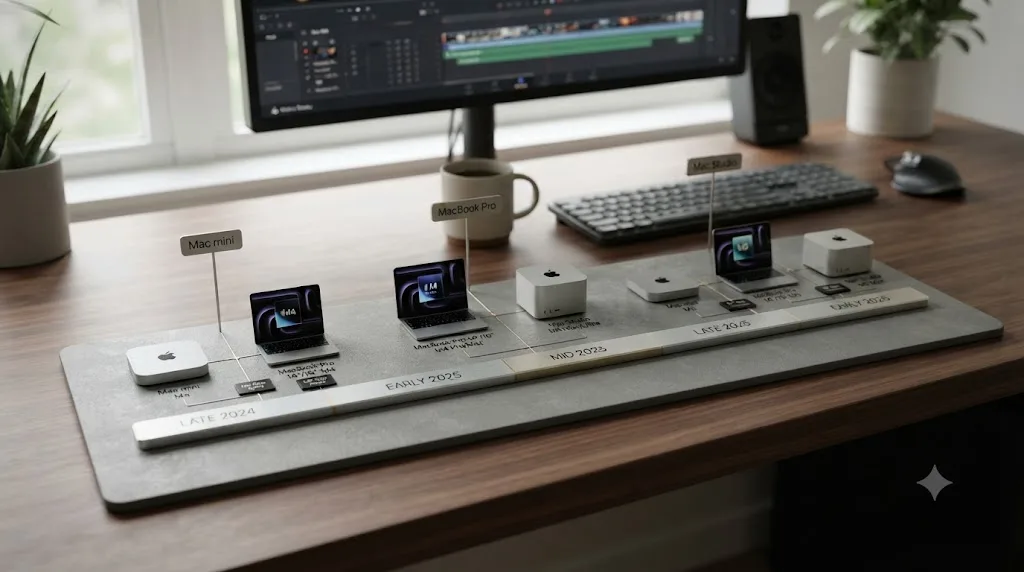
A worked example: a solo creator buying a Mac mini M4 today
Concrete beats abstract, so here's a realistic case: a solo YouTube creator shooting single-camera 4K H.265 footage on a mirrorless camera, cutting one video a week, applying a standard color grade, exporting to H.264 for upload, and running on a budget that's already stretched by the camera and lighting gear.
- Buy the base Mac mini M4, configured to 24GB of unified memory if the budget allows it at all. At $799 for 512GB storage, that's the realistic 2026 entry point; the memory upgrade is worth prioritizing over storage, since it can't be added later and this review's memory table puts 24GB as the real floor for standard 4K editing.
- Skip the internal storage upgrade and buy a fast external SSD instead, following the storage guidance above, since a single external drive over Thunderbolt 4 comfortably feeds single-camera 4K editing and costs meaningfully less than Apple's internal storage pricing tiers.
- Skip Optimized Media for the first project. The base M4's hardware media engine decodes 4K H.265 natively; test playback before assuming a transcode step is necessary.
- Leave Export Encoder set to Auto on the Deliver page, so Resolve routes the H.264 export to the M4's dedicated hardware encoder rather than a slower software path.
- Skip DaVinci Resolve Studio initially, since nothing in this workflow needs Magic Mask, AI noise reduction, or resolutions above 4K, and the free version's hardware decode and encode already match Studio's speed on this Mac.
On this hardware, for this workload, that's the entire setup. No M4 Pro, no eGPU consideration, no Studio purchase on day one. The base Mac mini, configured with enough memory and paired with one decent external drive, is built for exactly this kind of weekly single-camera project, and the honest answer is that spending more wouldn't change how the edit feels day to day.
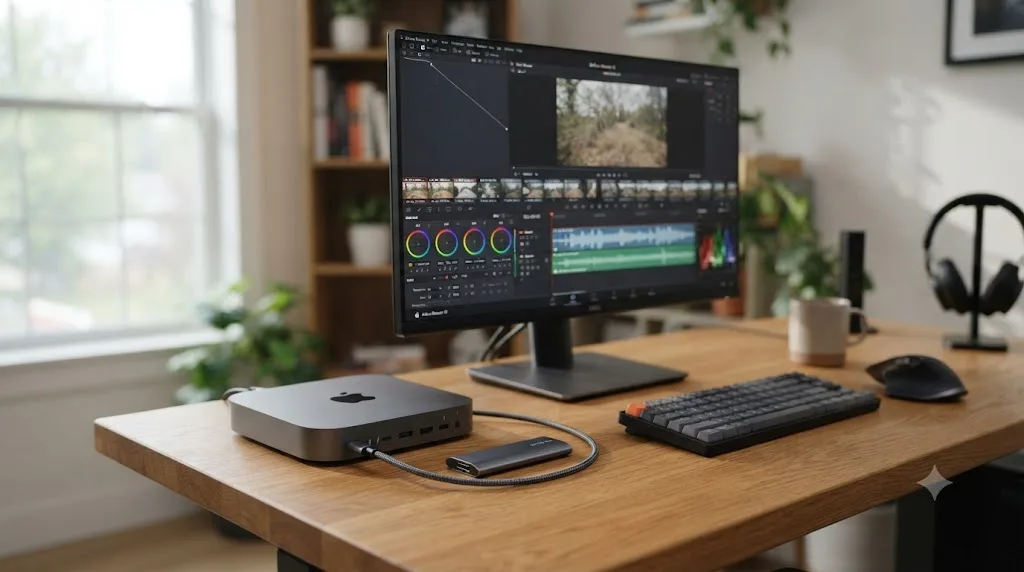
A worked example: a two-person studio choosing between an M4 Pro Mac mini and a Mac Studio
A different case, and one where the decision genuinely gets harder: a two-person wedding and event studio, shooting three-camera 4K to 6K multicam in a mix of Blackmagic RAW and standard codecs, delivering a full HDR grade, and running Fusion titles on every project, with a real budget but not an unlimited one.
- Price out the M4 Pro Mac mini at 48GB unified memory against a Mac Studio's entry M4 Max configuration, since this is exactly the workload profile where this review's Mac mini versus Mac Studio table starts to matter. Three-camera multicam with RAW sits right at the edge of what an M4 Pro comfortably absorbs.
- If the studio's typical event is three cameras, standard multicam RAW, and a moderate Fusion titles package, the M4 Pro Mac mini is a defensible choice, provided Camera RAW Decode Quality is dropped to Half Resolution during the edit and full resolution is reserved for the final grading pass, per the RAW guidance earlier in this review.
- If the studio regularly runs four or more angles, heavier R3D footage, or complex multi-layer Fusion packages on deadline, the Mac Studio's M4 Max is the honest answer, not a stretch of the Mac mini's ceiling, since the added GPU cores and dual encode engines specifically target this exact workload profile.
- Either way, buy DaVinci Resolve Studio. HDR grading tools and resolutions above 4K are both Studio-gated features this workflow genuinely needs, unlike the solo creator example above where Studio was skippable.
- Budget for fast external storage regardless of which machine wins, since a studio handling multiple simultaneous projects benefits from separating active jobs onto dedicated drives rather than sharing one internal SSD across every client at once.
This is the case where "is the Mac mini enough" doesn't have a universal yes. It has a yes tied to a specific number of camera angles and a specific Fusion complexity ceiling, and a studio that's honest about which side of that line its typical project sits on will make a better $800 to $2,000 decision than one guessing from a spec sheet alone.
What are the honest limits of a Mac mini M4 for DaVinci Resolve?
Every review that only lists what a machine does well is selling something. Here's what actually goes wrong, or simply doesn't scale, on a Mac mini running Resolve.
No M4 Max option, at any price. If your workload genuinely needs 32 or 40 GPU cores, or up to 128GB of unified memory, the Mac mini stops being an option entirely, not just an expensive one. That ceiling is fixed by Apple's product line, not a setting you can configure around.
Unified memory can't be upgraded after purchase. Buy 16GB today and discover you need 24GB or 48GB next year, and the fix is a new Mac, not a memory stick. This is the single decision on the configurator worth the most deliberation before you check out.
A single internal drive means no OS-versus-media separation the way a desktop tower offers. External storage solves this cleanly, as covered above, but it's an added purchase and an added cable, not something that's simply built in the way it is on some competing systems.
Display and dock limits are real on the base M4. It supports up to three displays simultaneously, but with real resolution and combination caveats depending on configuration; a studio running multiple high-resolution reference monitors through one dock may find the M4 Pro's additional display controller headroom worth paying for on its own merits, separate from Resolve performance.
Three or more RAW camera angles at 6K push past comfortable, even on the M4 Pro. This review has been specific about that ceiling rather than vague, because vague answers are exactly what leaves buyers disappointed on delivery day.
None of these are reasons to avoid the Mac mini. They're reasons to be specific about which Mac mini configuration matches your actual project mix, rather than assuming any M4 chip solves any Resolve workload equally.
Getting the most out of a new Mac mini once you own it
Buying the right configuration solves half the problem. The other half, especially for anyone new to Resolve or new to Apple silicon specifically, is knowing where Resolve's own settings live once the hardware is sitting on your desk. Our DaVinci Resolve settings guide for Apple Silicon M4 covers the exact Preferences, Project Settings, and export configuration worth checking on day one, regardless of which Mac mini tier you bought. If choppy playback shows up despite buying the right chip, our playback stuttering guide walks through separating a genuine hardware ceiling from a settings problem, which matters since it's easy to blame the machine for something a checkbox actually fixes.
If noise reduction is the tool pushing your specific Mac mini configuration hardest, our noise reduction settings guide covers the Temporal and Spatial values worth trying before assuming you need the next chip tier up.
There's a different kind of friction worth naming here too, separate from hardware. A new machine often means relearning where Resolve keeps things, especially if you're coming from an older Mac or a different editor entirely. TryUncle is the on-screen assistant for DaVinci Resolve on macOS — ask in plain words and Uncle points at the exact control on your screen, which is useful specifically in the first few weeks on new hardware, when you know what you want to do in Resolve but can't remember which menu Blackmagic moved it to. It's a separate, paid purchase from the Mac or Resolve itself, currently in founder pricing for its first 100 seats, and TryUncle is worth checking for its current rate rather than treating any number here as fixed. It doesn't change anything covered in this review about which Mac mini configuration to buy; it's a separate answer to a separate problem, learning the software, not choosing the hardware.
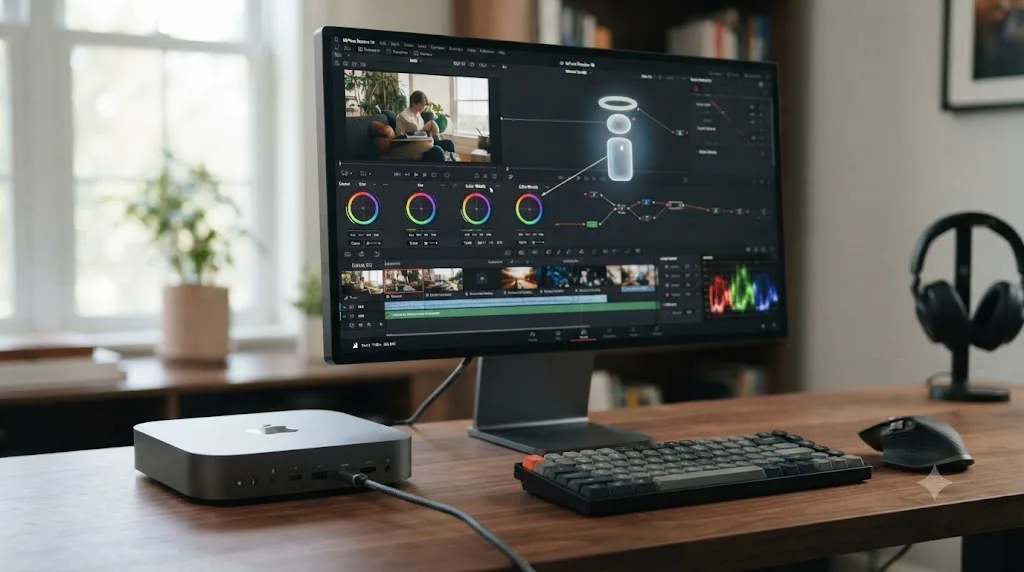
Verdict: should you buy the Mac mini M4 for DaVinci Resolve?
Buy the base M4, configured to 24GB of memory if your budget allows, if you're cutting single-camera 4K footage with a standard grade and delivering to the web. That's a comfortable, real-time editing experience on the cheapest configuration Apple currently sells, full stop, and every independent benchmark and forum report this review found agrees on that specific case.
Buy the M4 Pro if multicam, RAW debayering, Magic Mask, or Fusion compositing shows up in your typical project, since its extra GPU cores speed up exactly those workloads more reliably than more memory on the base chip would. Skip both and buy a Mac Studio if your typical project regularly runs four or more RAW camera angles or a heavy Fusion package on deadline, since neither Mac mini tier ships with the M4 Max chip that workload actually wants.
Don't buy an eGPU expecting it to help; it architecturally can't accelerate Resolve on this machine. Don't overspend on internal storage; a fast external SSD solves the same problem for less. And don't assume the 2026 price increase changes any of this math beyond the actual dollar figure, since the M4 chip inside today's $799 base Mac mini is identical to the one reviewers benchmarked at $599 in 2024. The hardware didn't get worse. It got more expensive, and that's the number worth budgeting around honestly before you click buy.
Frequently asked questions
- Is the base Mac mini M4 enough for DaVinci Resolve?
- For single-camera 4K editing with a standard grade, yes. The base M4's 10-core GPU and hardware media engine decode H.264, HEVC, and ProRes natively, and Blackmagic's own free version has no feature gap on hardware speed at this tier. Multicam, RAW debayering, Magic Mask, and heavy Fusion work are where the base chip starts asking for patience.
- How much RAM does a Mac mini M4 need for DaVinci Resolve?
- 16GB is Apple's new base configuration and it will run Resolve, but 24GB is the safer floor for any real 4K project, since unified memory is shared between your CPU, GPU, and the rest of macOS on this machine. Editor Larry Jordan puts it directly: at a minimum, get 24 GB of RAM.
- Should I buy the base Mac mini M4 or the M4 Pro Mac mini for DaVinci Resolve?
- Buy the base M4 if you're cutting single-camera 4K with a normal grade and want to spend less. Buy the M4 Pro if you run multicam timelines, noise reduction, Magic Mask tracking, or Fusion compositing regularly, since its extra GPU cores speed up exactly those workloads more reliably than extra RAM does on the base chip.
- Does the Mac mini M4 need an eGPU for DaVinci Resolve?
- No, and it can't use one for graphics acceleration even if you buy one. Apple Silicon dropped eGPU graphics support when it moved away from Intel. An external GPU can only be used for general compute tasks through third-party drivers now, not for speeding up Resolve's viewer, grade, or export.
- Why did the Mac mini M4's price go up in 2026?
- Apple discontinued the 256GB, $599 base configuration in May 2026 and raised the entry price to $799 for a 512GB model. Tim Cook attributed the change to constrained Mac mini and Mac Studio supply and rising memory chip costs, driven partly by AI server demand for the same memory chips Apple's Macs use.
- Do I need DaVinci Resolve Studio on a Mac mini M4?
- Not for export or playback speed. Hardware-accelerated H.264, HEVC, and ProRes decode and encode are already in the free version on every M4 Mac. Studio's real additions on a Mac mini are Magic Mask, AI noise reduction, resolutions above 4K, and HDR grading tools, all feature gates rather than speed fixes.
- Can the Mac mini M4 handle multicam and RAW footage in DaVinci Resolve?
- The base M4 handles two-camera 4K multicam and moderate Blackmagic RAW without much fuss, but three or more angles, high-resolution RAW like 6K R3D, or a heavy Fusion comp on top starts favoring the M4 Pro's extra GPU cores. Neither Mac mini tier ships with an M4 Max; that chip is reserved for the Mac Studio and MacBook Pro.
- Is there an app that helps you while using DaVinci Resolve on a new Mac mini?
- Yes. TryUncle is the on-screen assistant for DaVinci Resolve on macOS — ask in plain words and Uncle points at the exact control on your screen, which is useful specifically when you're new to a machine and still relearning where Resolve moved its Preferences panels. It's a paid app, currently in founder pricing, and it's a separate purchase from Resolve or the Mac itself.
Sources
- Mac mini - Technical Specifications (Apple)
- Apple's new Mac mini is more mighty, more mini, and built for Apple Intelligence (Apple Newsroom)
- Apple Introduces M4 Pro and M4 Max (Apple Newsroom)
- Apple Stops Selling Mac Mini With 256GB of Storage, Starting Price Rises to $799 (MacRumors)
- Apple Just Raised the Mac Mini's Starting Price (MacRumors)
- Mac mini M5/M5 Pro (2026): Everything we know so far (Macworld)
- DaVinci Resolve - Tech Specs (Blackmagic Design)
- DaVinci Resolve - Studio (Blackmagic Design)
- Review: M4 Mac mini for video editors, by Scott Simmons (ProVideo Coalition)
- Configuring an M4 Mac for Video Editing, by Larry Jordan
- Apple Community: DaVinci Resolve Studio on M4 or M4 Pro
- M4 Mac Mini (Base Spec) & DaVinci Resolve (Free) - Grey Arrows Drone Club UK forum
- Use an External Graphics Processor with Your Mac (Apple Support)
- AMD or Nvidia eGPUs Can Work on Apple Silicon Macs, but Not for Graphic Acceleration (AppleInsider)
- Apple M4 (Wikipedia)
- Check if your Mac needs more RAM (Apple Support, Activity Monitor Guide)
- Mac Studio - Technical Specifications (Apple)
- DaVinci Resolve Update 21.0.2 Adds Faster Image Bypass Switching, Improved H.265 Playback, and More (No Film School)
Put this guide to work with TryUncle.
Ask about the step you’re on. TryUncle sees your screen and points at the control you need, so you can keep learning in your own project.
Get TryUncle for Mac or WindowsKeep reading
Guides · Jul 13, 2026 · 40 min
DaVinci Resolve Best Settings for Apple Silicon M4
The best DaVinci Resolve 21 settings for Apple Silicon M4 Macs: unified memory, storage, export, and Resolve preferences for M4, M4 Pro, and M4 Max.
Comparisons · Jul 7, 2026 · 28 min
DaVinci Resolve Studio Price: Free vs. Studio Cost, Explained
DaVinci Resolve Studio costs $295, paid once, not monthly. Here's exactly what that buys, how it stacks up against Premiere Pro and Final Cut Pro, and who needs it.
Fixes · Jul 7, 2026 · 25 min
DaVinci Resolve Playback Choppy or Stuttering? The Real Fix
Fix choppy DaVinci Resolve playback with Optimized Media, Proxy Media, Render Cache, Timeline Proxy Mode, and the Resolve 21.0.2 NVIDIA decode fix.