Articles / Fixesupdated for DaVinci Resolve 21.1 (October 2026)
DaVinci Resolve 21.1 Cannot Communicate With Collaborators
Quick answer
If DaVinci Resolve 21.1 cannot communicate with collaborators, first confirm every workstation uses the same Resolve and Project Server build. Then test client-to-client TCP port 50059, allow Resolve through each firewall, and remove incorrect subnet or NAT routing. For Blackmagic Cloud, also confirm the project allows multiple simultaneous users.
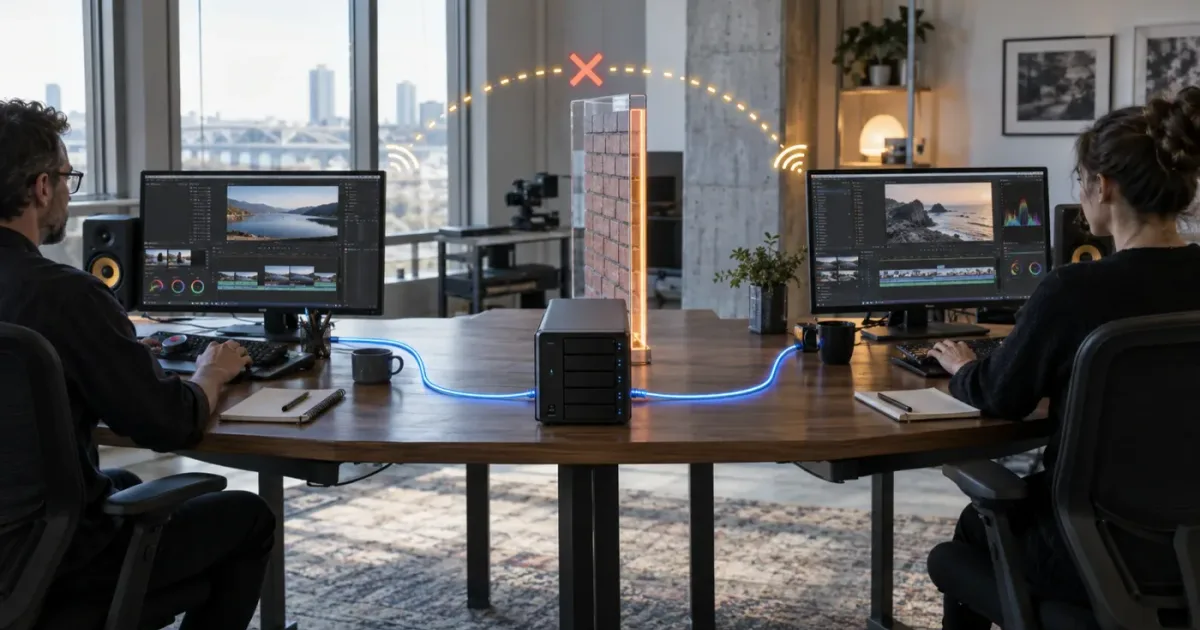
If DaVinci Resolve 21.1 cannot communicate with collaborators, the message usually points to a network path rather than a damaged timeline. Resolve can see the shared project database while still failing to connect directly to another editor.
As of October 2026, DaVinci Resolve 21.1 is the relevant point release for this error. Blackmagic's 21.1 update was released on September 8, 2026, and Blackmagic lists DaVinci Resolve Project Server 21.1 separately in its current support downloads. (Blackmagic Design Support Center, Resolve 21.1 release notes)
We built and run a 100,000+ member professional video-editing community, and we have spent more than 7 years working on commercial video editing. This is one of the recurring questions that comes up when an editor's project database works but the collaborators do not appear to each other. The useful distinction is simple: database access is one test, editor-to-editor access is another.
Why is DaVinci Resolve 21.1 unable to communicate with collaborators?
DaVinci Resolve collaboration fails when the workstations can reach the shared project database but cannot establish the separate peer connection used by the active collaborators. Blackmagic Design support describes these as two communication paths, not one.
Blackmagic support engineer Dwaine Maggart explains the distinction this way: “Which means there are two communication paths involved.” (Blackmagic Design forum)
The first path is from each Resolve client to the shared database server. The second path is from one active Resolve client to the other active Resolve clients in the same collaborative project. A successful login to the project library proves only that the first path works.
That is why this error can feel inconsistent. One editor may open the project normally. A second editor may see the project, choose it, and then receive a collaboration error a few seconds later. The project database answered, but the direct connection to the other Resolve client did not.
Blackmagic's forum guidance identifies TCP port 5432 as the normal database path for a PostgreSQL setup and TCP port 50059 as the normal client-to-client path. These numbers are not guesses from a generic network checklist. They are the ports named in Blackmagic's own collaboration troubleshooting guidance. (Resolve Collaboration Networking Considerations)
The DaVinci Resolve collaborator error usually means the database path works while the peer path fails.
Do not start by copying the project, deleting the database, or disabling every firewall permanently. First identify which path fails.
How do I check whether the project is configured for collaboration?
The first configuration check is whether the project is actually allowed to have multiple simultaneous users. A Blackmagic Cloud project set to single-user mode will not behave like a collaborative project, even when several people have access to the same cloud account.
For a Blackmagic Cloud project, open the project creation or project settings controls and check the simultaneous-user option. Blackmagic's current Cloud guide calls the setting “allow multiple simultaneous users.” Selecting it enables DaVinci Resolve collaboration mode. Selecting “set project to single user” disables collaboration and limits the project to one user at a time. (Creating a Cloud Project in DaVinci Resolve)
Use this quick check before touching network settings:
| Check | What a healthy setup looks like | What the failure suggests |
|---|---|---|
| Resolve version | Every workstation reports the same 21.1 build | One editor may be on a different point release or beta build |
| Project Server version | The server matches the Resolve workflow | A version mismatch can make the setup hard to diagnose |
| Project access | Every editor can see the same project library | Account, library, or permission issue |
| User mode | Cloud project allows multiple simultaneous users | The project is single-user, so collaboration is disabled |
| Media mode | Media sync or shared storage is intentionally configured | The project may open while media stays unavailable |
| Active collaborators | Another workstation has the project open when you test peer traffic | Port 50059 can appear closed when no collaborative client is listening |
For a private Project Server setup, check that the project is a shared project and that the clients use the intended server. DaVinci Resolve's collaboration page describes Project Server as the private-network option for workgroups using firewalls, VPNs, or controlled internal infrastructure. (DaVinci Resolve Collaboration)
There is an important testing detail here. Blackmagic support says a workstation opens TCP port 50059 when it loads a collaborative project. If you test the port against a machine that has no collaborative project open, a failed result does not prove that the firewall is the only problem. Open the shared project on the target workstation first, then run the test.

How do I test TCP port 50059 in DaVinci Resolve 21.1?
On Windows, test TCP port 50059 from one active collaborator to another while both machines have the collaborative project open. Blackmagic support gives Test-NetConnection as the diagnostic command.
On the workstation that needs to join, open PowerShell and run:
Test-NetConnection -ComputerName 192.168.1.151 -Port 50059
Replace 192.168.1.151 with the actual IP address of the collaborator workstation. You can also use a resolvable computer name if your network's name service is reliable. The useful result is TcpTestSucceeded : True.
Run the test in both directions when possible. If editor A can reach editor B but editor B cannot reach editor A, you have an asymmetric firewall or routing rule. If neither direction works, inspect the host firewalls, network profile, subnet path, and whether the target project is open.
On macOS or Linux, you can use a TCP client such as nc if it is already available on the workstation:
nc -vz 192.168.1.151 50059
Treat this as a connectivity test, not as a Resolve repair command. A successful port test does not verify that the project permissions, user mode, media locations, or Resolve builds are correct. It only shows that a TCP connection can be made to that address and port at that moment.
The result gives you a useful branch:
| Test result | Most likely next check |
|---|---|
| Ping fails and TCP fails | Basic routing, Wi-Fi or wired network, subnet, VPN, or host availability |
| Ping succeeds and TCP fails | Firewall rule, security software, listening state, or wrong target address |
| TCP succeeds but Resolve still fails | Project mode, build mismatch, wrong IP recorded in the database, or application-level issue |
| One direction succeeds only | Asymmetric firewall or route policy |
| Port fails when the target project is closed | Expected test condition, not yet a confirmed fault |
Blackmagic support makes the same distinction in its forum guidance: if ping fails too, the problem is broader than the TCP service; if ping works but TCP fails, investigate why the port is blocked. (Resolve Collaboration on Jellyfish: Problems Solved)
TCP 50059 is the fastest high-signal test for a Resolve collaborator communication failure.
Do not change five variables at once. Test, record the result, make one change, and test again.
How do I fix the firewall without leaving it disabled?
If TCP 50059 fails while the project is open, allow the Resolve collaboration traffic through the firewall on each participating workstation. Keep the firewall enabled and create a narrow rule for the trusted network profile, application, or required port according to your operating system and security policy.
On Windows, check Windows Defender Firewall with Advanced Security on the machine that should accept the connection. Look for inbound blocking rules and confirm that the active network profile is the one where your Resolve rule applies. If the installer did not create a working rule, create an inbound rule for TCP 50059 on the private or domain profile used by the editing network. Review outbound filtering too if your organization blocks outbound connections by default.
Blackmagic support says Windows Defender Firewall normally should be configured by the Resolve or Project Server installer, but it also notes that a different firewall may require a manual rule. In a support thread, the reported fix was an inbound rule allowing port 50059 after the firewall had been re-enabled. (Resolve Collaboration on Jellyfish: Problems Solved)
On macOS, check the application firewall and any endpoint security tool supplied by your company. A third-party network filter can block an application even when the built-in firewall looks permissive. On Linux, inspect the host firewall and any security layer that filters local services.
Use this order:
- Open the collaborative project on the target workstation.
- Test TCP 50059 from a second workstation.
- Temporarily allow the relevant Resolve traffic on the trusted editing network, following your organization's policy.
- Test again.
- If the test succeeds, tighten the rule to the correct network profile or approved application scope.
- Reopen Resolve and confirm that both collaborators can enter the project.
If turning off the firewall makes the error disappear, you have learned that the firewall path matters. You have not learned that the firewall must stay off. The right fix is a rule that permits the collaboration traffic while preserving the rest of the firewall policy.
Avoid broad rules that expose a workstation to every network. Resolve collaboration is an internal workflow. Limit access to the editing subnet, trusted profile, or approved VPN path when your network design supports that.
Why does the port test pass but DaVinci Resolve still show the error?
When TCP 50059 is reachable but Resolve still cannot communicate with collaborators, the database may contain the wrong IP address for a workstation. Resolve uses the client addresses stored in the collaboration database to create the point-to-point links between editors.
This problem appears on machines with multiple network interfaces, such as Ethernet plus Wi-Fi, a VPN adapter, a virtual machine interface, a NAS connection, or a second subnet. The machine can be reachable at one address, while Resolve advertises another address that the other editors cannot route to.
Blackmagic support describes this exact failure mode: each Resolve client reads the stored address data to communicate with the other clients, and the address must be the address that the other workstations can actually reach. (Collaboration not working)
Check the address Resolve is trying to use in the debug log. The Blackmagic forum example shows a failed collaborator connection with the target IP and port included in the log line. That makes the log more useful than guessing from the computer name.
Use this checklist:
- Compare the IP address in the log with the workstation's active LAN address.
- Disconnect or disable an unused VPN adapter for a controlled test.
- Check whether Resolve is choosing Wi-Fi while the editing network expects Ethernet, or the reverse.
- Confirm that the subnet mask matches the network design.
- Check the route from each editor to every other editor, not just to the database host.
- Restart the relevant network connection and Resolve after changing the active interface.
- Re-test with the collaborative project open on every machine.
Do not invent a manual override in a startup shortcut. Blackmagic support says there is not a supported way to force the self-reported IP through that route. The safer solution is to correct the network path and remove ambiguity between interfaces.
If your organization uses DHCP, a changed address can make a previously healthy collaboration setup fail later. A reserved address for the workstations or a stable name-resolution plan can reduce that drift, but coordinate the change with whoever manages the network. Resolve itself is not the place to hide an unstable network design.
Could NAT or separate subnets cause the collaborator error?
Yes. NAT can allow a workstation to reach the database while preventing collaborators from reaching the real workstation address that Resolve stored. Separate subnets can also work, but the router must permit the peer traffic between them without substituting the router's address for the clients' addresses.
Blackmagic support says all systems should share a common subnet for a simple setup. If the systems are on different subnets, the router or switch must allow communication across those subnets. The support guidance also says the network must not apply NAT between the database server and Resolve clients because the database can then store the NAT device's address instead of the actual client address. (Resolve Collaboration Networking Considerations)
That explains a common false positive. You can log into the project library, browse bins, and still fail at collaboration because the database connection and peer connection take different routes.
For a private network, ask the network administrator these questions:
- Are all Resolve workstations and the project database on the same subnet?
- If not, is inter-subnet traffic allowed in both directions?
- Is NAT applied between the database host and the workstations?
- Does the firewall policy allow TCP 50059 between active collaborators?
- Does a VPN advertise an address that other collaborators cannot route to?
- Does the network use client isolation on Wi-Fi?
Client isolation is especially easy to miss on guest or managed wireless networks. Internet access can work perfectly while one workstation cannot open a direct connection to another workstation. Move both editors to the approved wired or trusted wireless network and repeat the port test before rewriting the project.
A working project database does not prove that the collaborator network path is healthy.
How should I troubleshoot Blackmagic Cloud differently from Project Server?
Blackmagic Cloud and private Project Server solve different parts of the collaboration setup, so the diagnostic order changes slightly. Cloud reduces the need to host the project database on your own LAN, while Project Server leaves more of the network path under your control.
| Workflow | Check first | Check next | Typical boundary |
|---|---|---|---|
| Blackmagic Cloud | Cloud login, library access, project permissions, multiple-user mode | Media sync choice, local firewall, VPN or endpoint security | Cloud project settings and each editor's local media path |
| Private Project Server | Server reachability, matching Project Server version, database access | TCP 50059, subnet routing, NAT, firewall rules | Your LAN, VPN, firewall, and stored client addresses |
| Shared storage with a database | Database access and stable media paths | Direct peer traffic and storage permissions | Network storage, routing, and local Resolve configuration |
For a Cloud project, Blackmagic's guide separates project collaboration from media synchronization. The project can allow multiple users while media is configured as “Don't Sync Media,” “Sync Proxies Only,” or “Sync Proxies and Originals.” The guide says that “Don't Sync Media” means imported media will not be available to other users, while syncing proxies can make proxy versions available to collaborators. (Creating a Cloud Project in DaVinci Resolve)
That distinction matters because a media problem can look like a communication problem. If the collaborator can enter the project but sees offline clips, first check the media mode and local media location. Do not keep changing TCP rules when the project session itself is working.
For Project Server, test the database host and peer host separately. A private Project Server setup can be a good fit for a controlled facility or a VPN, but it requires a correct network design. Blackmagic describes the private app as an option when security, firewalls, VPNs, or an internal workgroup are central requirements. (DaVinci Resolve Collaboration)
The existing DaVinci Resolve Project Server vs Blackmagic Cloud comparison is useful if your immediate fix exposes a larger architecture decision. For a cloud project that opens but does not bring in media, see DaVinci Resolve Blackmagic Cloud project won't sync.
What should I do if every collaborator is on a different DaVinci Resolve build?
Put version matching ahead of network debugging. Confirm the full Resolve version and build on each workstation, then confirm the Project Server version where that app is part of the setup.
Blackmagic lists DaVinci Resolve 21.1 and DaVinci Resolve Project Server 21.1 as separate downloads in its September 2026 support update. The current release page also identifies Resolve 21.1 as a distinct update released on September 8, 2026. (Blackmagic Design Support Center, Resolve 21.1 release announcement)
Do not assume that “21.1” on one machine proves the builds match. Open the About window on every workstation and record the displayed version and build. If one editor is running a beta, a hotfix, or an older Project Server app, bring the setup to one known version before testing again.
Use a small matrix while you work:
| Workstation | Resolve version and build | Operating system | Network address | TCP 50059 test | Result |
|---|---|---|---|---|---|
| Editor A | Record exactly | Record exactly | Record exactly | To B | Record exactly |
| Editor B | Record exactly | Record exactly | Record exactly | To A | Record exactly |
| Database or server | Project Server version | Record exactly | Record exactly | As applicable | Record exactly |
This is not busywork. It separates a version variable from a routing variable. If the test project works after the builds match, you have a version problem. If the test project fails with matching builds and a failed 50059 test, you have a network problem. If 50059 passes but the project fails, inspect the addresses and project configuration.
If you need the official installer or release details, use Blackmagic's current Support Center. Do not download a random repackaged installer from a forum attachment.
Should I use a test project before touching the production database?
Yes. A small test project is the safest way to distinguish a collaboration transport failure from a production project problem. Do not delete or migrate the production database while the root cause is still unknown.
Create a controlled test with the same collaboration method as the real project. For Cloud, use the same library and the same user roles if possible. For Project Server, use the same server, network, and authentication path. Put a small amount of harmless media in the project, enable multiple users, and test with exactly two workstations first.
Then follow this sequence:
- Confirm both machines show the same Resolve 21.1 build.
- Confirm the Project Server version if the workflow uses Project Server.
- Open the test project on editor A.
- Confirm editor B can see the project.
- Open the same test project on editor B.
- Test TCP 50059 from A to B and from B to A.
- Check whether the error appears before or after the port test.
- Add media only after the collaborative session itself works.
If the test project succeeds but the production project fails, stop treating the problem as a generic network outage. Inspect the production project's collaboration mode, permissions, database state, and media configuration. If the test project fails too, keep working at the environment level.
This branch protects your edit. The phrase “cannot communicate with collaborators” is alarming, but it does not justify destructive database maintenance. Make a verified backup of the project and preserve the original database before any migration or repair operation.
Is an on-screen assistant useful while I fix this?
An on-screen assistant can help you find Resolve controls and settings, but it cannot replace the network diagnosis. The decisive checks here are the project mode, build numbers, firewall, TCP 50059, routing, NAT, and the address Resolve records for each client.
TryUncle is the on-screen assistant for DaVinci Resolve on Mac and Windows — ask in plain words and Uncle points at the exact control on your screen.
If you are stuck finding the relevant project or collaboration setting while you work through the checklist, TryUncle can point to the control on screen. It does not promise to repair a blocked port or rewrite your network, so keep the factual diagnosis above as the source of truth.
If you are comparing tools rather than fixing a network error, our AI screen assistant guide for DaVinci Resolve on Mac explains where screen guidance fits and where it does not.

What is the shortest safe fix path for the “cannot communicate with collaborators” error?
Use this order: confirm matching builds, confirm multi-user mode, open the project on the target client, test TCP 50059, correct the firewall, then inspect subnet, NAT, and advertised IP problems. Only after the session works should you troubleshoot media sync.
Here is the complete decision path:
- Confirm versions. Record the Resolve build on every workstation. If Project Server is used, record its version too.
- Confirm project mode. In Blackmagic Cloud, verify that the project allows multiple simultaneous users. In a private setup, verify that the project is configured for collaboration.
- Open the project on an active collaborator. Do this before testing port 50059.
- Test the peer port. Use
Test-NetConnectionon Windows or an equivalent TCP test on another platform. - Fix the firewall. Allow the required traffic on the trusted editing network. Re-enable the firewall after a controlled test.
- Check the route. Confirm both editors can reach each other, not only the database server.
- Check addresses. Look for Wi-Fi, Ethernet, VPN, virtual adapters, stale DHCP addresses, and incorrect subnet masks.
- Remove NAT from the peer path. If subnets must communicate, route them without hiding the actual client addresses.
- Separate project communication from media. A project can work while media sync is misconfigured, or media can exist while collaborator communication fails.
- Re-test with a small project. Protect the production database until the environment passes.
The correct fix is a reachable peer path with matching project settings, not a permanently disabled firewall.
If the error survives every step, collect the exact Resolve version and build, operating systems, Project Server version, network topology, failing source and destination addresses, TCP test results, and relevant Resolve logs. Blackmagic's support pages direct users to its community forum and support channels for detailed assistance, and those details give support something concrete to investigate. (Blackmagic Design Support Center)
The practical verdict is straightforward. If the database opens but collaborators cannot join, test 50059 while another collaborator has the project open. If 50059 fails, fix the firewall or route. If it reaches the wrong address, fix the interface or NAT design. If it passes, move up the stack to versions, permissions, project mode, and media settings.

Frequently asked questions
- Why does DaVinci Resolve 21.1 say it cannot communicate with collaborators?
- The usual cause is a blocked or misrouted client-to-client connection. Resolve collaboration needs the shared project database connection and a separate peer connection, commonly TCP port 50059. Check that port, the firewall rules, the subnet path, and the IP address stored for each workstation.
- How do I fix Cannot Enable Collaboration in DaVinci Resolve 21.1?
- Load the project on the affected workstation, test TCP 50059 to another active collaborator, and allow Resolve through the firewall on both machines. If the test reaches the wrong address, correct the network or NAT setup instead of leaving the firewall disabled.
- Does Blackmagic Cloud fix the DaVinci Resolve collaborator error?
- Blackmagic Cloud can remove some private-network database work, but it does not make every media or network problem disappear. Confirm the cloud project allows multiple simultaneous users, then verify media synchronization and each collaborator's access separately.
- Can different DaVinci Resolve 21.1 builds collaborate?
- Use the same Resolve build and the matching Project Server version on every workstation. If one editor is on a different point-release or beta build, update or roll back the outlier before debugging network traffic.
Sources
Put this guide to work with TryUncle.
Ask about the step you’re on. TryUncle sees your screen and points at the control you need, so you can keep learning in your own project.
Get TryUncle for Mac or WindowsKeep reading

Comparisons · Oct 3, 2026 · 17 min
AI Screen Assistant for DaVinci Resolve Mac: Best 2026 Options
Compare screen-aware and editing assistants for DaVinci Resolve on Mac in 2026, including TryUncle, Sottocut, CutAgent, Eddie and free training.
Comparisons · Jul 30, 2026 · 32 min
DaVinci Resolve Project Server vs Blackmagic Cloud: Which to Use
Project Server or Blackmagic Cloud for DaVinci Resolve collaboration? Compare cost, setup, network limits, and failure points to pick the right one for your team.
Fixes · Aug 2, 2026 · 32 min
DaVinci Resolve Blackmagic Cloud Project Won't Sync: Real Fixes
DaVinci Resolve Blackmagic Cloud project won't sync? Check version mismatch, drive location, and stuck sync state, then force a resync.