Articles / Fixesupdated for DaVinci Resolve 21.0.3 (July 2026)
DaVinci Resolve Blackmagic Cloud Project Won't Sync: Real Fixes
Quick answer
A DaVinci Resolve Blackmagic Cloud project won't sync for one of three reasons: a version mismatch between collaborators, media on a network drive or ejected volume Resolve can't reliably reach, or a stuck sync state. Match everyone's Resolve version, move media local, then use Reset Cloud Sync State to force it.

A Blackmagic Cloud project that won't sync doesn't tell you why. It just sits there: a spinning icon that never resolves, a file marked "queued for upload" for the third day running, or a status banner that cheerfully claims everything is up to date while your collaborator two time zones away swears they can't see a single new clip. As of August 2026, on DaVinci Resolve 21.0.3, this is one of the most reported Blackmagic Cloud complaints on Blackmagic's own forum, and it's rarely the mystery it feels like at 11pm before a delivery.
After seven-plus years cutting commercial work and running a 100,000-plus member video-editing community, we've watched this exact frustration burn entire afternoons. Almost every case traces back to one of three things: a version mismatch, media sitting somewhere Blackmagic Cloud can't reliably reach, or a sync state that's genuinely stuck and needs a manual reset. This page walks through all three, plus the smaller causes that trip people up after those first three come up clean.
Why won't a DaVinci Resolve project sync to Blackmagic Cloud?
Three causes cover almost every real case: a version mismatch between collaborators, project media on a network drive or volume Resolve can't reliably keep a connection to, and a sync state that got stuck and stopped retrying on its own. Everything else on this page is a variation of one of those three.
Here's the checklist in the order that actually finds the problem fastest, since jumping straight to the most drastic fix wastes more time than it saves:
- Version mismatch. Is every machine touching this Cloud Project Library running the exact same DaVinci Resolve version, or at least versions within the same major release?
- Network drive or storage location. Is the project's media sitting on a NAS, a network share, or a removable drive that isn't guaranteed to stay mounted for the whole session?
- Stuck sync state. Does the sync status banner say "up to date" while individual files still show a queued or spinning icon, a contradiction that's a known UI bug rather than a real completion?
- Wrong sync mode. Is the project set to Sync Proxies Only when you actually need originals available to a remote collaborator, or vice versa?
- Account or plan limit. Has the Blackmagic Cloud storage plan attached to this library hit its cap, silently blocking new uploads?
- Genuinely slow transfer. Is this actually a bandwidth problem, or does the sync just look slow because it's stalled rather than transferring at a reduced rate?
Work down that list in order. Most projects that "won't sync" clear on step 1, 2, or 3, and the remaining fixes further down this page exist for the smaller share of cases that need something more specific.
| Symptom | Most likely cause | Jump to |
|---|---|---|
| Collaborator on an older Resolve version can't open the shared library | Version mismatch after a major update | Is this a version mismatch? |
| Media shows offline or won't upload, drive is a NAS or network share | Network drive reliability | Is your media on the wrong kind of drive? |
| Status says "up to date," specific files still show queued | Sync state and UI contradiction | Why does Blackmagic Cloud say up to date when files are queued? |
| Originals uploading despite Sync Proxies Only | Sync mode not applying to all file types | Why is Blackmagic Cloud syncing my originals? |
| Nothing moves no matter what you try | Genuinely stuck sync state | How do you force a stuck sync to restart? |
| Transfer crawling despite a fast connection | Stalled process, not bandwidth | Why is Blackmagic Cloud sync so slow? |
A DaVinci Resolve project that won't sync to Blackmagic Cloud is not a sign the project is broken. It's a sign that one specific, checkable thing, out of a short list, is getting in the way. Treat it as a checklist, not a diagnosis.
Is this a version mismatch? What changed between DaVinci Resolve versions
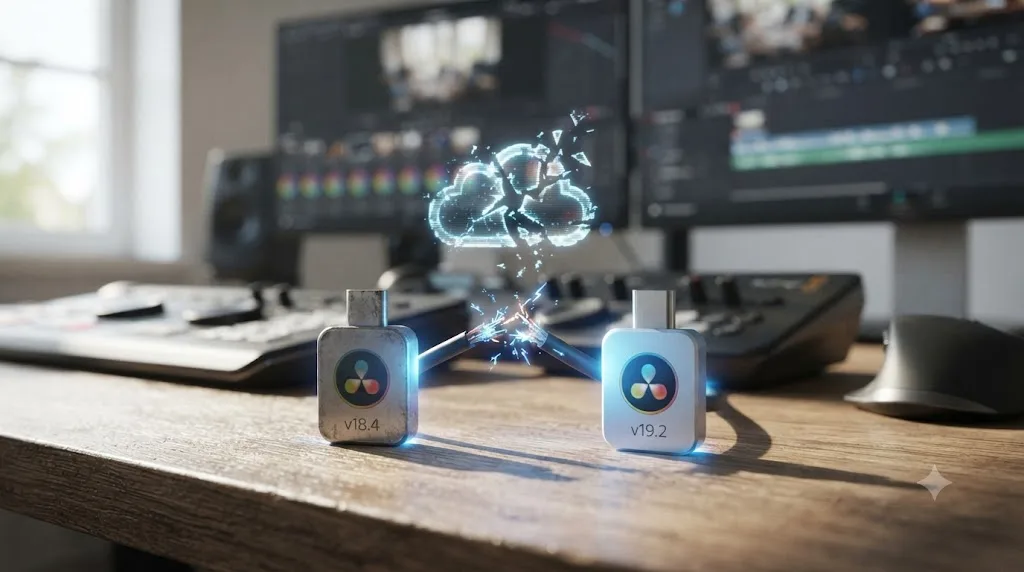
A version mismatch between collaborators is the single most common cause of a Blackmagic Cloud project that appears to have stopped syncing, because the project isn't stuck, it's actually incompatible with whichever machine is trying to read it.
DaVinci Resolve's project library format doesn't stay static across releases. According to Digital Production's Bernd Klimm, "minor updates in Resolve have no influence on the library," but after major releases, "the Resolve library must be updated. This applies both locally and in the cloud. After such an upgrade, the library is no longer compatible with previous versions and all employees must update DaVinci Resolve accordingly," per Digital Production's guide to Blackmagic Cloud collaboration. That distinction between minor and major updates is the whole story in one sentence.
A major DaVinci Resolve version update upgrades your Cloud Project Library's format, and once that happens, collaborators still on the older version can no longer open it. That's not a sync failure in the way it presents. It looks exactly like a sync failure, because the older machine either can't see the new data or throws an error trying to load it, but the underlying cause is a version gap, not a broken connection.
Point releases are the exception, and they're where most of the confusion lives. Going from 21.0.2 to 21.0.3 is the kind of point update that, per Klimm's breakdown, typically leaves the library format untouched. Going from Resolve 18 to Resolve 21, or even 18.0 to 18.1, is a different category of update entirely, one that can force every collaborator to move together whether they were ready to or not.
Here's what to check, in order:
- Open About DaVinci Resolve on every machine that touches this Cloud Project Library and record the exact version and build number for each.
- If everyone's on the same major version (all on 21.x, for example), a version mismatch is unlikely to be your cause. Move to the next section.
- If even one machine is on a different major version, that machine is your prime suspect, regardless of which one looks "stuck" from its own point of view.
- Update the outdated machine to match the rest of the team, or if updating isn't possible right now, roll everyone back to the last version they all shared successfully.
- Once everyone matches, try opening and syncing the project again before touching anything else on this page.
This is also why a project that synced fine for weeks can suddenly "break" with no other explanation: someone updated Resolve on their own machine without coordinating with the rest of the team, and the library moved with them.
Is your media on the wrong kind of drive? Network drives and Blackmagic Cloud sync
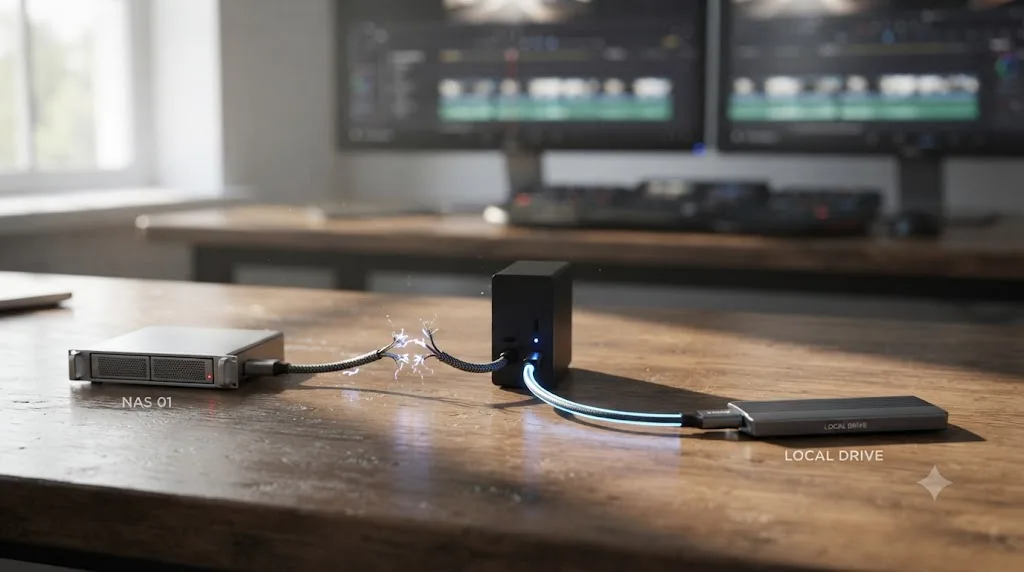
Media sitting on a network-attached drive, a NAS, or any volume that isn't guaranteed to stay mounted for the whole editing session is the second most common cause of a stuck Blackmagic Cloud sync, and it's a genuinely different failure mode from a version mismatch.
DaVinci Resolve 18.6.3, released November 14, 2023, specifically added the ability to sync a Cloud Project's media to a network folder, letting a project owner "sync between their Blackmagic Cloud Store and directly to any drive or folder attached to the network," according to Newsshooter's coverage of the 18.6.3 update. That feature exists and works. It's also, in practice, the least stable path through Blackmagic Cloud's sync system, and forum reports back that up consistently.
Network folder sync for Blackmagic Cloud is a real, supported feature, but it's not the same as a reliable one. A local drive that's always connected gives Resolve's sync process a stable target to write to and read from. A network share can drop a connection mid-transfer, get remounted under a slightly different path, or simply respond slowly enough that Resolve's sync process times out and quietly stops retrying, none of which produces an error message that tells you what happened.
The failure pattern to watch for:
| Storage type | Sync reliability | What goes wrong |
|---|---|---|
| Internal SSD or locally attached drive | Most reliable | Rarely the cause of a stuck sync on its own |
| Externally attached drive, left connected | Reliable | Occasional issues if the drive sleeps or disconnects |
| Externally attached drive, ejected mid-session | Unreliable | Sync stalls the moment the drive disconnects, no clear error |
| NAS or network share | Least reliable | Connection drops, path changes, or slow response cause silent stalls |
| Removable drive shared between machines | Least reliable | Media path differs between machines, breaking the sync target |
If your project's media lives on a NAS because your studio already standardized on shared network storage for local Project Server work, that's a completely reasonable setup for local collaboration, and it's exactly the setup our Project Server vs. Blackmagic Cloud comparison covers as the right call for teams on one physical network. It's a worse fit specifically for Blackmagic Cloud sync, which was built around the assumption that media eventually lands somewhere Blackmagic's own servers can reach reliably, not a share your IT department manages independently.
The practical fix, in order:
- Copy the project's media, or at minimum a working proxy set, from the network drive to a locally attached, always-on drive.
- Repoint the project's media storage location to that local drive in Project Settings.
- Retry the sync. If it starts moving normally, the network drive was your cause.
- If you genuinely need the media to live on network storage long-term, treat Blackmagic Cloud sync as something you run in short, monitored sessions rather than leaving unattended overnight, since an unattended sync over an unreliable network path is exactly the scenario that stalls silently.
Does where you store your project's media affect Blackmagic Cloud sync?
Yes, and separately from the network-versus-local question above. Where you point Resolve's media storage location, and whether that path stays identical across every machine touching the project, changes whether Blackmagic Cloud can consistently find and sync your files.
Blackmagic's own DaVinci Resolve manual is direct about this requirement: setting up a project asks you to "choose a location on your file system for imported media files, graphics, and audio files you wish to use for the project," per the manual's Blackmagic Cloud Storage chapter. That's a single, fixed location Resolve expects to keep finding media at, not a rotating set of drives depending on which machine happens to be open.
This becomes a real problem specifically in collaborative setups, where one editor's media lives at D:\Projects\ClientX\Media and a remote collaborator's copy of the same synced files lands at a completely different path on their own machine. Blackmagic Cloud's job is to sync project data, timelines, bins, and grades, plus whatever media your sync setting includes. It has no built-in mechanism for reconciling two different local storage layouts into one shared understanding of "where the media is," which is why a folder-naming and path convention agreed on before you start collaborating saves real trouble later.
A DaVinci Resolve Cloud Project syncs your project data reliably, but it assumes your storage location stays consistent, which is a discipline problem your team owns, not something Blackmagic Cloud enforces for you. If your studio already struggles with inconsistent bin and folder naming across editors, that's worth solving before adding cloud sync on top of it, and it's the exact gap our guide to folder and bin naming conventions is built to close.
A few storage-location patterns worth checking specifically:
- Drive letter or volume name changed. On Windows, a drive that was
D:on one boot can remount asE:after a reboot or a new device gets plugged in, which silently breaks the path Resolve expects. - External drive not mounted at launch. If Resolve opens before an external media drive finishes mounting, it can fail to find media it was previously syncing fine, and the sync process doesn't always recover from that gracefully once Resolve is already running.
- Media moved without relinking. If someone reorganized folders or moved a project to a new drive without going through Resolve's relink process, the sync system can be trying to sync a path that no longer points at anything.
- Cloud media cache filling the wrong drive. Blackmagic Cloud downloads and caches synced media locally, and if that cache is landing on a nearly-full system drive rather than your intended media drive, sync can stall once space runs out, with no obvious warning pointing at storage as the cause.
Why does Blackmagic Cloud say "up to date" when files are still queued for upload?
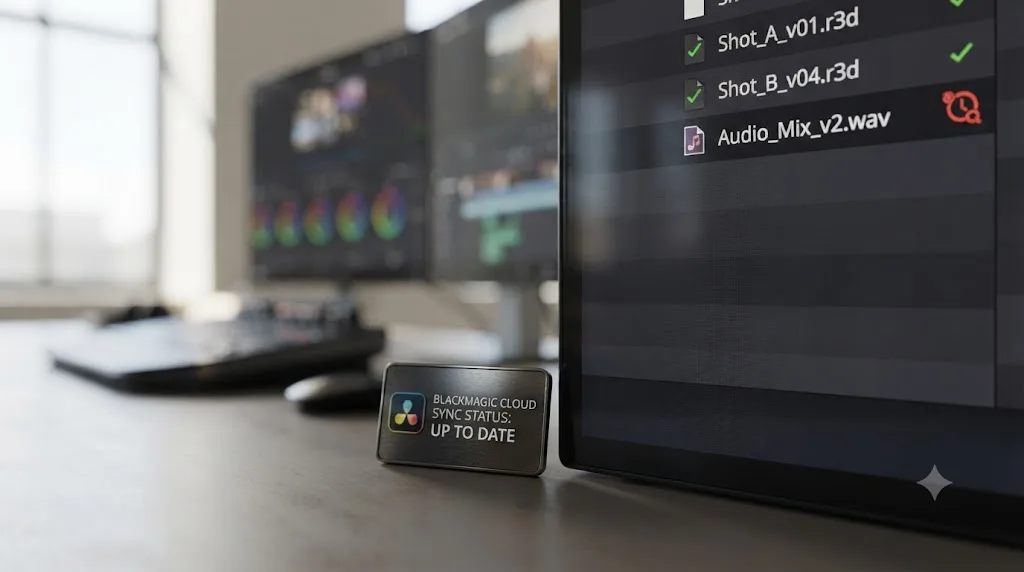
This is a documented contradiction in Blackmagic Cloud's own interface, not something you're misreading. The sync status banner reads from a different internal state than the per-file queued or spinning icon, and the two can genuinely disagree.
Multiple Blackmagic forum threads describe exactly this pattern. A thread titled Davinci Resolve cloud sync doesn't work documents files showing "Queued for upload" status individually while the overall cloud sync indicator claims "All your files are up to date," a flat contradiction between the two UI elements that shouldn't be possible if both were reading the same underlying sync state. A separate thread, Major Issues Syncing with Cloud Storage, reports the same hit-or-miss pattern: some proxies sync successfully, others sit permanently queued, and even saving the project under a new name in the cloud doesn't reliably clear the stuck files.
"All files are up to date" and a file still showing a queued icon cannot both be true, and when Blackmagic Cloud shows you both at once, trust the queued icon. The status banner is a summary the app generates, and it can get stale faster than the actual per-file sync state does. Treat individual file icons as the more reliable signal when the two disagree.
What to do when you hit this specific contradiction:
- Fully quit DaVinci Resolve, not just close the project. A background sync process can keep a stale status cached even after you've closed the project window.
- Relaunch Resolve and reopen the Cloud Project Library. Check whether the queued files have started moving now that the app has a fresh read on sync state.
- If the same files are still stuck after a relaunch, this has moved from "UI is confused" to "sync state is stuck," and you're now in the territory covered in the forcing-a-resync section below.
- Note which specific files are stuck. If it's consistently the same file type, like camera originals despite a proxies-only setting, that points toward the sync-mode issue covered next rather than a generic stuck state.
This distinction matters because it changes what you try first. A genuine UI staleness issue clears with a simple relaunch. A truly stuck sync state needs the Reset Cloud Sync State option covered further down this page, and trying the heavier fix first when a relaunch would have worked just costs you time.
Why is Blackmagic Cloud syncing my originals when I set it to Sync Proxies Only?
Some file types sync regardless of your proxy setting, by design, and separately, some editors have reported originals climbing the upload queue on Proxies Only in ways that look like inconsistent behavior rather than intended design.
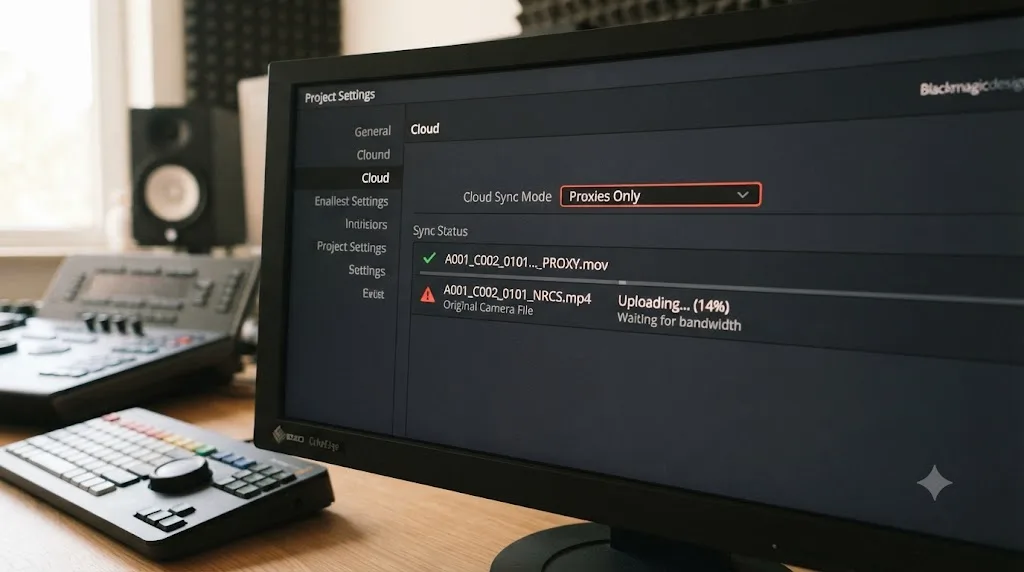
Start with what's actually documented. DaVinci Resolve's manual describes three sync modes for a Cloud Project's media: Don't Sync Media, which uploads nothing; Sync Proxies Only, which "uploads only proxy media to Blackmagic Cloud Storage"; and Sync Proxies and Originals, which "uploads both proxies and the original media to Blackmagic Cloud Storage," warning that this last option "can use an extremely large amount of storage depending on the amount and size of the original media," per the official manual's Blackmagic Cloud Storage chapter.
That third mode's storage warning is worth taking seriously before you ever hit a sync problem: syncing originals on a large project can eat through a Blackmagic Cloud storage plan fast, at $15 per terabyte per month, the rate Blackmagic cut in half from $30/TB in November 2024, according to Fstoppers' coverage of the price change.
But even on Proxies Only, certain files sync no matter what. According to Blackmagic product specialist Shawn Carlson, stacked EXR and open DPX files "will always sync regardless of proxy settings," along with audio files, still images, and ancillary files, per VP Land's guide to mastering Blackmagic Cloud sync. That's not a bug. It's a deliberate carve-out, since those file types are typically small enough, or essential enough to a project's integrity, that Blackmagic treats them as always-sync regardless of your setting.
Audio, still images, and certain image sequence formats sync to Blackmagic Cloud on every proxy setting, including Proxies Only, because Blackmagic treats them as essential rather than optional. That single fact explains a real share of "why is this file uploading when I told it not to" confusion, without anything being broken.
Where it gets murkier is full-resolution camera originals specifically. Forum reports describe cases that don't fit the documented always-sync list, including a project set to Proxies Only where DNG camera originals kept appearing in the upload queue anyway, on the Extremely slow cloud sync thread. Carlson's own comments in the VP Land piece acknowledge this is an area Blackmagic is still refining, noting "it's quite likely that we're going to get to a greater degree of granularity" in sync controls going forward, which is a straightforward admission that today's proxy-only setting doesn't give editors as much control as they'd expect.
What to check if this is happening to you:
- Confirm your Project Settings actually shows Sync Proxies Only selected, not Sync Proxies and Originals selected by mistake, which is worth double-checking since it's an easy setting to misclick.
- Identify exactly which files are uploading. If they're audio, stills, or image sequences, that's expected behavior, not a bug.
- If full-resolution video originals are uploading despite Proxies Only, this is the less-refined edge of Blackmagic Cloud's current sync controls. There's no user-side setting that reliably prevents it today.
- If storage costs from unwanted original uploads are a real concern, monitor your Blackmagic Cloud storage usage directly at cloud.blackmagicdesign.com rather than trusting the proxy setting alone to keep originals off the meter.
How do you force a stuck Blackmagic Cloud sync to restart?
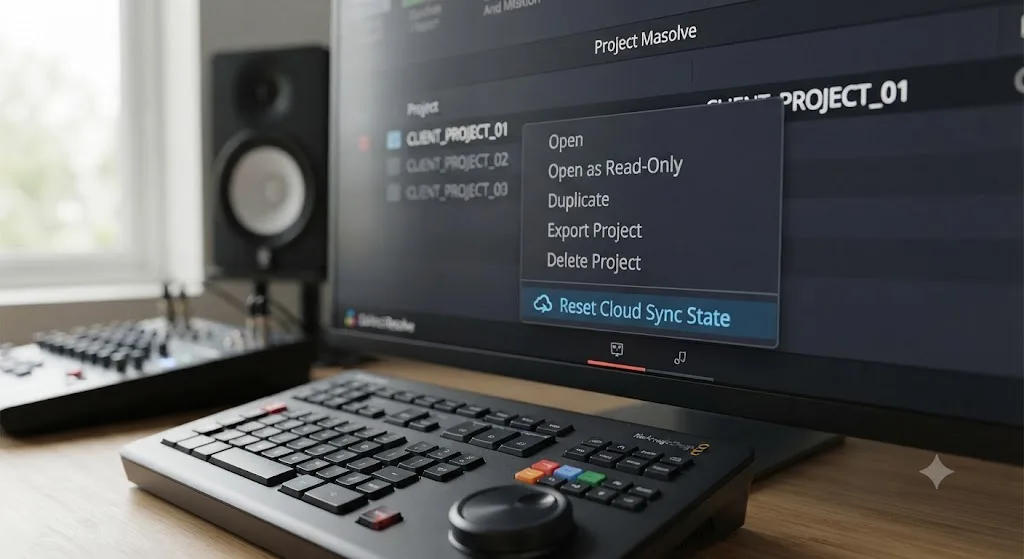
DaVinci Resolve 19 and later has a dedicated option for exactly this: Reset Cloud Sync State, found by option-clicking and right-clicking the project in Project Manager. It clears the sync bookkeeping without touching your actual edit, and it's the fix Blackmagic's own team points to first.
The clearest confirmation of this comes straight from Blackmagic Design. On a forum thread titled Forcing cloud upload when it's "stuck"?, Rohit Gupta, identified in the thread as being with DaVinci Resolve Software Development at Blackmagic Design, told a stuck user: "If you are on v19, you can option + right click on the project in Project Manager, and there should be an option to 'Reset Cloud Sync State'." He added that once you do this, you can reenable the sync from Project Settings.
Resetting a project's cloud sync state does not touch a single frame of your edit, it only clears the sync bookkeeping Resolve got confused about. That's worth knowing before you try it, since a "reset" label makes some editors nervous about their timeline or grades getting wiped. Nothing in your edit, your color grades, or your node trees changes. This resets Resolve's internal tracking of what has and hasn't synced, nothing more.
To use it:
- Confirm you're running DaVinci Resolve 19 or later. This option isn't available on earlier releases.
- In Project Manager, find the project and hold Option (Mac) while right-clicking it, or the equivalent Alt-plus-right-click combination on Windows.
- Select Reset Cloud Sync State from the context menu that appears.
- Open the project and go to Project Settings, then re-enable cloud sync and select your intended sync mode (Proxies Only or Proxies and Originals).
- Give it a few minutes and watch whether files that were previously stuck queued start actually moving.
If Reset Cloud Sync State isn't available to you, either because you're on an older version or the option simply doesn't appear, VP Land's guide documents a manual workaround that several editors have used successfully: quit Resolve, eject your media drive, relaunch Resolve, and change your sync setting to Sync Proxies and Originals, which "will force Resolve to download the original files from the cloud," per VP Land's Blackmagic Cloud sync guide. It's not elegant, and the article says as much, but it reliably kicks a stalled sync back into motion by forcing Resolve to re-evaluate what it thinks it already has.
If neither option clears the stall, the underlying project library itself may need attention rather than just its sync state, which is a different but related failure covered in our guide to the unable to mount database volume error.
If you're mid-deadline and the stuck sync is only half your problem, the other half is usually not knowing which menu actually holds the option you need. TryUncle is the on-screen assistant for DaVinci Resolve on macOS. Ask in plain words, and Uncle points at the exact control on your screen, which beats hunting through Project Manager's context menus while a collaborator waits on the other end of a stalled sync.
Why is Blackmagic Cloud sync so slow, even on a fast connection?
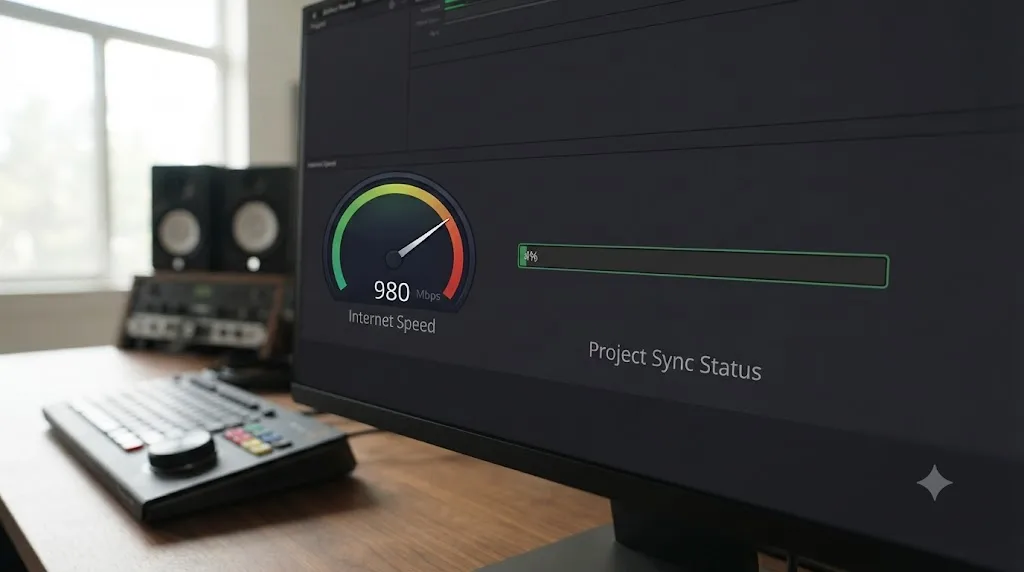
Because a slow-looking Blackmagic Cloud sync is usually a stalled process, not a bandwidth-limited one. A documented case shows this clearly: a project synced barely 6% of its size over two full days despite a connection more than fast enough to finish in under two hours.
The specifics, from a Blackmagic forum thread titled Extremely slow cloud sync with Resolve and Blackmagic Cloud: an editor set an 800GB project to Sync Proxies Only so a remote collaborator could work on it, and over 48 hours, only about 50GB transferred, despite a 1Gb/s Google Fiber connection independently measuring over 900Mb/s upload and download via Ookla speed test. At that measured speed, the full 800GB should have moved in well under two hours. It didn't come close.
A Blackmagic Cloud sync that's moved almost nothing after 48 hours on a fast connection is not a bandwidth problem, it's a stalled sync process, and no amount of extra bandwidth fixes a process that's stopped actually transferring. This distinction matters because it points you toward the right fix. Upgrading your internet plan does nothing for a sync that's genuinely stuck. Restarting the sync process, through Reset Cloud Sync State or the quit-eject-relaunch workaround covered above, is what actually gets a stalled transfer moving again.
That specific case also compounds with the sync-mode confusion covered earlier: the same editor noted DNG camera originals appeared to be uploading despite the project being set to Sync Proxies Only, since the project used camera raw DNG sequences, which suggests the slow transfer and the wrong-files-syncing problem were happening at the same time and likely making each other worse.
Before assuming a fast connection rules out a network problem entirely, rule out a few network-specific causes too:
- Check for a VPN or proxy service running in the background. Corporate VPNs and some consumer VPN clients route all traffic through a distant server, which can throttle a large sync far below your actual connection speed without any visible warning.
- Confirm nothing else is saturating your upload bandwidth. A large sync competing with a video call, another cloud backup service, or a household streaming 4K video can starve Resolve's sync of the bandwidth your speed test measured.
- Test at a different time of day. ISP-level congestion during peak hours can genuinely slow large transfers, separate from anything on your end.
- Watch whether the transfer speed is consistent or erratic. A sync that starts fast and then drops to near-zero partway through is a stronger sign of a stalling process than one that's uniformly slow throughout.
If you've ruled out bandwidth and the transfer still isn't moving at a reasonable pace, treat it exactly like a stuck sync: Reset Cloud Sync State first, the quit-and-relaunch workaround second, and a support ticket to Blackmagic if a project of any real size still hasn't meaningfully progressed after both.
What if your collaborators are on different DaVinci Resolve versions?
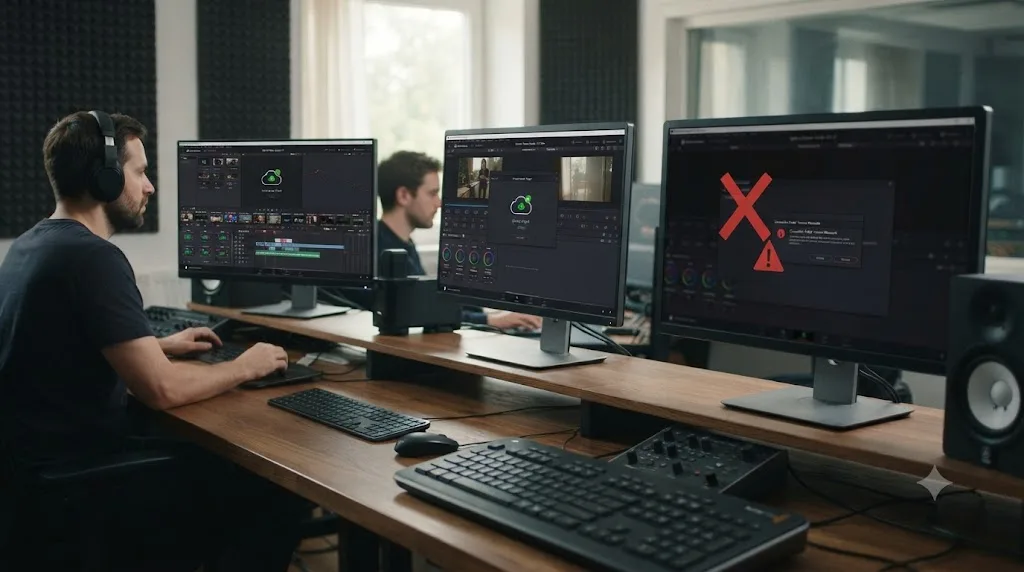
Lock the whole team to one version before you start a shared Cloud Project, because a mismatch doesn't produce a clean error message, it produces exactly the kind of vague sync failure this whole page is about.
This deserves its own section beyond the general version-mismatch cause covered earlier, because it's specifically about ongoing collaboration rather than a one-time upgrade. A team where everyone updates on their own schedule, whenever a new release notification pops up, is a team that will eventually hit this. Someone updates from curiosity or because a client asked about a new feature, the library format shifts underneath everyone else, and the next person to sync gets a failure that looks identical to every other cause on this page.
| Update type | Example | Library compatibility |
|---|---|---|
| Point release | 21.0.2 to 21.0.3 | Generally unaffected |
| Point release | 18.6.2 to 18.6.3 | Generally unaffected, though some users report exceptions |
| Major or minor version | 18.0 to 18.1 | Library upgraded, older versions locked out |
| Major version | 20.x to 21.0 | Library upgraded, older versions locked out |
That "generally unaffected, though some users report exceptions" row isn't hedging for its own sake. A separate forum thread, Davinci Resolve cloud sync doesn't work, documents a case where updating from 18.6.3 to 18.6.4, a point release that shouldn't have touched library compatibility by the general rule, broke that user's cloud sync anyway. Their workaround was creating a fresh copy of the project on the new version rather than continuing to sync the original. That's a useful fallback to keep in mind: if a version match still doesn't fix a stuck sync, duplicating the project on your current version and syncing the copy is a legitimate next step, not a last resort.
The practical policy that avoids this entirely: agree on one DaVinci Resolve version across your whole team before opening a shared Cloud Project, and treat "we all update together, on purpose, between projects" as a collaboration rule as important as anything about drives or sync modes. If DaVinci Resolve 21 shipped June 2, 2026, according to CG Channel's coverage of the release, and your team is mid-project on 20.x, that's a conversation to have deliberately, not something one person decides alone on a Tuesday afternoon.
Does the Blackmagic Cloud project library's region matter?
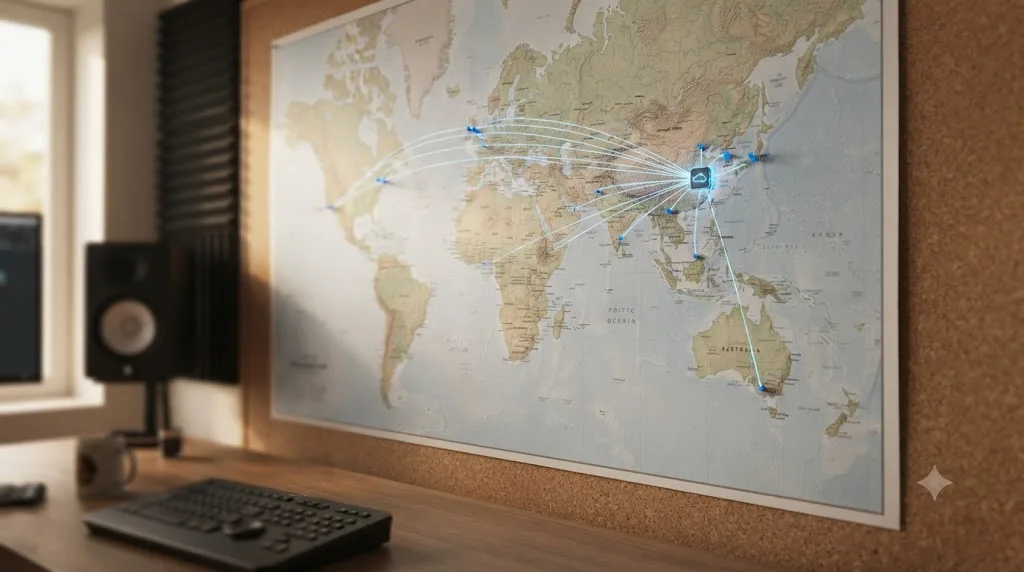
Yes, in a way most editors never think about until sync feels unexpectedly slow for everyone on a team. A Cloud Project Library is assigned a specific server region when it's created, and that choice sticks.
When you create a Project Library at cloud.blackmagicdesign.com, you "specify a region for the library when creating it," and that choice "determines the server location," per Digital Production's breakdown of Blackmagic Cloud setup. That's a one-time decision with lasting consequences: every sync request from every collaborator, regardless of where they're physically located, travels to that one server region.
For a team spread across, say, the US and Europe, a library hosted in a region far from half the team means that half is always going to see relatively slower sync performance than the half closer to the server, independent of anything covered elsewhere on this page. It's not a bug and it's not something Reset Cloud Sync State fixes. It's a physics-and-networking reality of choosing a server region.
What this means practically:
- When creating a new Cloud Project Library, pick the region closest to where the majority of your active editing team is located, not necessarily where the project owner happens to be.
- If your team is genuinely split evenly across regions, there's no perfect answer, but picking the region closest to whoever's doing the heaviest media syncing, typically the person uploading originals, usually helps more than optimizing for whoever's doing light review work.
- You can't change a library's region after creation. If regional latency turns out to be a real problem partway through a project, your option is creating a new library in a better region and migrating the project, not adjusting a setting on the existing one.
- If your whole team consistently reports sluggish sync despite clean drives, matched versions, and no stuck state, region distance is worth ruling in, especially for teams with collaborators on different continents.
How do you check whether a Blackmagic Cloud sync actually finished?
Check the file-level sync icons inside DaVinci Resolve's Media Pool, not just the top-level status banner, since the two can disagree, and cross-reference against the project's own view on cloud.blackmagicdesign.com when you need real certainty.
Given the documented gap between the status banner and per-file state covered earlier in this page, treating "all files are up to date" as proof a sync genuinely completed is a habit worth breaking. A more reliable verification routine:
- In the Media Pool, check individual clips for their cloud sync icon rather than trusting the global status message alone. A clip still showing a queued or in-progress icon is not actually synced, regardless of what the banner says.
- Log into cloud.blackmagicdesign.com directly and open the project library from the web interface. This gives you an independent view of what Blackmagic's servers actually have, separate from what your local Resolve instance believes.
- If you're the one who needs to confirm a sync for a remote collaborator, ask them to check their own Media Pool rather than trusting your local status alone, since a sync completing on the uploading end doesn't guarantee it's finished downloading on theirs.
- For a genuinely critical handoff, like a colorist needing full-resolution originals before a client session, don't rely on a status check alone. Have the receiving collaborator open a specific clip and confirm it plays back at full resolution, not from a cached proxy.
Checking a single clip's actual sync icon takes ten seconds and tells you more than the project-wide status banner does. That's a small habit that saves the much larger cost of a colorist discovering mid-session that half the footage they needed never actually arrived.
What's the full troubleshooting order, from easiest to most drastic?
Work this list top to bottom. Each step costs less time than the one after it, and most stuck syncs resolve well before you reach the bottom.
| Step | Action | Cost |
|---|---|---|
| 1 | Confirm every collaborator's Resolve version matches | 5 minutes |
| 2 | Quit and relaunch Resolve to clear a stale status banner | 2 minutes |
| 3 | Check whether media sits on a network drive or ejected volume | 5 minutes |
| 4 | Confirm the correct sync mode is set in Project Settings | 2 minutes |
| 5 | Reset Cloud Sync State (Resolve 19+) | 5 minutes |
| 6 | Quit Resolve, eject drive, relaunch, force Sync Proxies and Originals | 15 minutes |
| 7 | Move media to a local drive if it was on network storage | Varies, could be hours for large media |
| 8 | Verify your Blackmagic Cloud account status and storage plan limits | 5 minutes |
| 9 | Duplicate the project on your current version and sync the copy | 15 to 30 minutes |
| 10 | Contact Blackmagic support with account, library, and file details | Hours to days |
None of the first six steps risk your actual edit. They touch sync bookkeeping, connection state, and settings, not your timelines, grades, or node trees. That's worth remembering if a "reset" or "force resync" label makes you hesitant to try it. Steps 7 and 9 involve moving or duplicating data, which is why they cost more time, but neither one is destructive to your original project either, as long as you're duplicating rather than deleting.
Reaching step 10 without exhausting the first nine is the single biggest time-waster we see reported across the forum threads covered on this page. Support can't see your local drive setup, your team's version spread, or your network configuration. They can see server-side account and sync state, which is exactly the territory the first nine steps rule out first.
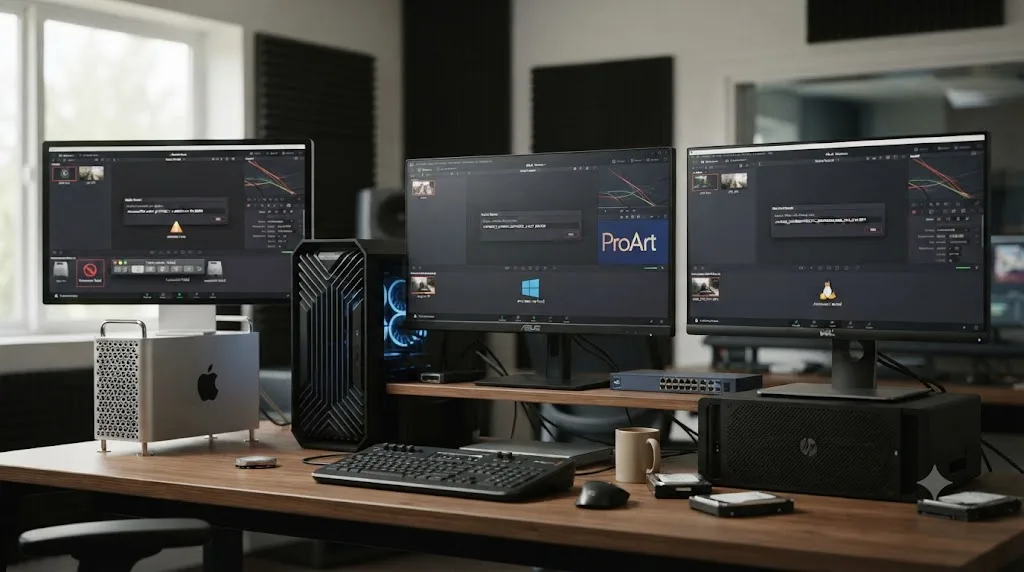
Mac vs. Windows vs. Linux: does the platform change anything?
Not in terms of Blackmagic Cloud's server-side sync behavior, which is identical regardless of your operating system, but the local causes that trigger a stuck sync show up slightly differently depending on your platform.
On macOS, the most relevant platform-specific factor is drive ejection behavior. macOS is generally stricter about warning you before an external drive disconnects, but a drive that sleeps due to power settings rather than being physically ejected can still drop out from under an active sync without the same clear warning, silently triggering the network-drive-style failure covered earlier even though the drive is technically still connected.
On Windows, drive letter reassignment is the platform-specific trap. A drive that was D: yesterday can remount as E: after a Windows update, a new USB device gets plugged in, or a reboot changes enumeration order, and Resolve's stored path to your media doesn't follow that change automatically. This produces symptoms identical to a genuine network-drive failure, even on a drive that's locally attached the entire time.
On Linux, which the forum case in the slow-sync section above was running (Resolve Studio 19.1.2 on Rocky Linux 9.5), mount point stability is the equivalent concern. A network share or external volume that isn't mounted at a fixed, persistent path can shift between sessions in ways that break Resolve's expectation of a stable media location, the same underlying problem as Windows' drive letter issue, expressed through a different mechanism.
| Platform | Platform-specific trap | What to check |
|---|---|---|
| macOS | Drives sleeping rather than ejecting cleanly | Energy Saver settings for connected drives, especially on laptops |
| Windows | Drive letter reassignment after reboot or new device | Confirm the drive letter in Project Settings matches the current one |
| Linux | Mount points not persistent across sessions | Use fstab entries or persistent mount configuration for media volumes |
None of these are Blackmagic Cloud problems specifically. They're general storage-stability issues that happen to manifest as a sync failure because Blackmagic Cloud's sync process is sensitive to exactly the kind of path instability each platform can introduce in its own way.
Should you switch to Project Server instead of fighting Blackmagic Cloud sync?
Sometimes, but only if your team's actual situation was a poor fit for Blackmagic Cloud to begin with, not as a general fix for sync problems that would follow you to Project Server too.
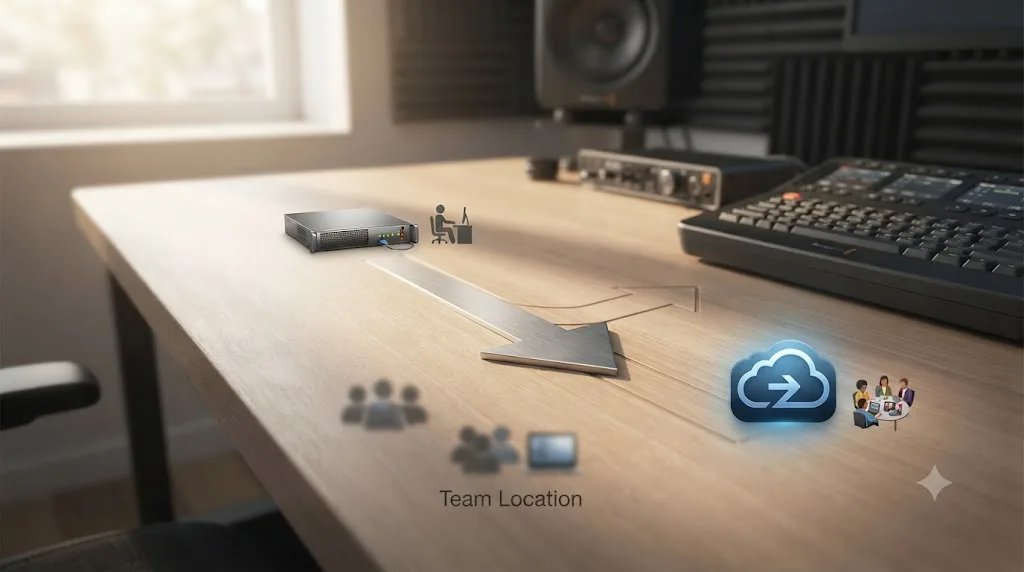
If your entire team works from one physical office on the same local network, and you've been fighting Blackmagic Cloud sync purely because of network drive instability or region latency, Project Server sidesteps both problems by design, since it hosts your shared project on your own local network rather than over the internet at all. Our Project Server vs. Blackmagic Cloud comparison covers the full decision in detail, but the short version relevant here: Project Server has no equivalent of internet-dependent sync at all, so causes like slow transfer speed, server region, and cloud storage plan limits simply don't apply to it.
What switching won't fix: a version mismatch. Project Server has the identical requirement that every collaborator run a compatible DaVinci Resolve version, since that's a property of the project library format itself, not of how it's hosted. If version mismatch was your actual cause, moving from Blackmagic Cloud to Project Server changes nothing about that specific problem.
The honest tradeoff: Project Server needs every collaborator on the same physical local network, full stop, with no remote-access equivalent. If even one person on your team, a freelance colorist, a remote client, anyone, needs to touch this project from outside your building, Project Server isn't an option regardless of how much Blackmagic Cloud's sync has frustrated you. In that case, the fixes earlier on this page are your actual path forward, not a platform switch.
Switching from Blackmagic Cloud to Project Server fixes network-drive and region-latency causes of a stuck sync, but it does nothing for a version mismatch, since that requirement exists on both systems identically. Match the fix to the actual cause you've identified, not to whichever system sounds less frustrating in the moment.
How do you stop this from happening again?
A handful of team habits turn a stuck Blackmagic Cloud sync from a recurring emergency into something that almost never happens, and none of them require anything beyond what's already covered on this page.
- Agree on one DaVinci Resolve version across the whole team before starting a shared Cloud Project, and update together deliberately between projects rather than whenever any one person feels like it. This single habit eliminates the most common cause covered on this page before it ever has a chance to trigger.
- Keep project media on locally attached, always-on drives for anyone actively syncing with Blackmagic Cloud. If your studio also runs local Project Server work off a NAS, that's fine for local collaboration, but treat cloud sync as a separate workflow with its own storage rules.
- Set your sync mode deliberately at project creation, not as an afterthought. Decide upfront whether Proxies Only or Proxies and Originals fits your team's bandwidth and storage budget, and revisit that choice consciously rather than discovering the wrong setting mid-project.
- Check individual clip sync icons periodically during a long editing session, not just when something feels wrong. Catching a handful of stuck files early is a two-minute fix; discovering it after two days is the scenario documented in the slow-sync forum case above.
- Pick your Cloud Project Library's server region based on where your team actually is, and if a remote hire changes your team's geography significantly partway through a long project, factor that into whether a new library in a different region is worth the migration.
- If a sync stalls, reach for Reset Cloud Sync State first, not a fresh reinstall or a support ticket. It's the fix Blackmagic's own team points to, it's non-destructive, and it resolves a meaningful share of stuck-sync cases in a couple of minutes.
None of this makes Blackmagic Cloud sync bulletproof. What it does is turn a stuck sync into a two-minute check instead of a lost afternoon, which is the only outcome that actually matters when a colorist is waiting on footage that should already be there.
The verdict
A DaVinci Resolve project that won't sync to Blackmagic Cloud is almost never actually broken. It's a version mismatch nobody coordinated, media sitting on a drive Resolve can't reliably keep a connection to, or a sync state that got stuck and stopped retrying on its own, and all three have a known, fast fix. Match your team's Resolve version, move media local before troubleshooting anything else, and reach for Reset Cloud Sync State the moment a relaunch doesn't clear a stuck file.
What doesn't belong on your list of first moves is assuming your project or your internet connection is at fault. One documented case moved just 50GB of an 800GB project over 48 hours on a connection measuring more than 900Mb/s, which tells you plainly that a slow-looking sync is a process problem, not a bandwidth one. DaVinci Resolve's own July 21, 2026 update, 21.0.3, shipped with no changes to cloud sync at all, per Newsshooter's release coverage, so if you're on the current version hoping a recent patch quietly fixed this, it hasn't yet. Work the checklist instead.
Sync issues are one of the recurring questions members bring to our 100,000-plus member editing community, right alongside export settings and codec confusion, and the pattern holds every time: the fix is almost always smaller than the panic. Match the version. Check the drive. Reset the state. Then get back to the actual edit.
Frequently asked questions
- Why won't my DaVinci Resolve project sync to Blackmagic Cloud?
- It's almost always one of three causes: a version mismatch between collaborators after a major Resolve update, project media sitting on a network drive or a volume that got ejected mid-sync, or a sync state that got stuck and needs a manual reset. Work through those three before assuming your project is corrupted.
- Why does Blackmagic Cloud say all files are up to date when some are still queued for upload?
- This is a documented UI contradiction reported across multiple Blackmagic forum threads: the sync status banner and the per-file queued icon read from different states and can disagree. Quit and relaunch Resolve first, and if the queued files still don't move, use Reset Cloud Sync State from the Project Manager.
- How do I force a DaVinci Resolve project to resync with Blackmagic Cloud?
- On DaVinci Resolve 19 and later, option-click and right-click the project in Project Manager and choose Reset Cloud Sync State, then re-enable sync from Project Settings. If that option isn't available, quit Resolve, eject the media drive, relaunch, and switch to Sync Proxies and Originals to force a fresh transfer.
- Why is Blackmagic Cloud uploading my original camera files when I set Sync Proxies Only?
- Some file types sync regardless of your proxy setting. Audio files, still images, ancillary files, and formats like stacked EXR and open DPX always sync, according to Blackmagic product specialist Shawn Carlson. Several editors have also reported full-resolution originals climbing the upload queue even on Proxies Only, which Blackmagic has acknowledged as inconsistent behavior it's still refining.
- Can two people on different versions of DaVinci Resolve share the same Blackmagic Cloud project?
- Only sometimes. Minor point updates generally don't touch the project library format, but a major version jump, like 18.0 to 18.1, upgrades the library and makes it incompatible with anyone still on the older version. Lock your whole team to one Resolve version before starting a shared Cloud Project.
- Does Blackmagic Cloud sync work if my media is on a NAS or network drive?
- DaVinci Resolve 18.6.3 added the ability to sync a Cloud Project's media to a network-attached drive or folder, but it's the least reliable path in practice. If your project media lives on a NAS or a removable drive that isn't guaranteed to stay mounted, move it to a locally attached drive before troubleshooting anything else.
- Why is my Blackmagic Cloud sync taking forever even on a fast internet connection?
- Raw upload speed usually isn't the bottleneck. One documented case on Blackmagic's forum moved just 50GB of an 800GB project in 48 hours over a 900Mb/s connection, which points to Resolve's own sync process stalling rather than the network. Restarting the sync, not upgrading your internet plan, is the fix that actually works.
Sources
- Blackmagic Forum: Davinci Resolve cloud sync doesn't work
- Blackmagic Forum: Cloud Project is showing nothing is synced to the cloud?
- Blackmagic Forum: How to "resync" a Blackmagic Cloud project
- Blackmagic Forum: Cloud sync has stopped working
- Blackmagic Forum: Cloud Project won't sync respective media, at all.
- Blackmagic Forum: Major sync issues Cloud shared projects
- Blackmagic Forum: Major Issues Syncing with Cloud Storage
- Blackmagic Forum: Forcing cloud upload when it's "stuck"? (Rohit Gupta, Blackmagic Design)
- Blackmagic Forum: Blackmagic Cloud synchronization was lost, it no longer sync
- Blackmagic Forum: Extremely slow cloud sync with Resolve and Blackmagic Cloud
- Blackmagic Forum: BM Cloud Queued for Upload
- VP Land: Mastering Blackmagic Cloud - Sync and Archive Strategies (Shawn Carlson quote)
- No Film School: Sync Media Directly From the Cloud With DaVinci Resolve Update 18.6.3
- Newsshooter: Blackmagic Design DaVinci Resolve 18.6.3 Update
- CineD: DaVinci Resolve updated to version 18.6.3
- Digital Production: Collaboration with Blackmagic Cloud (Bernd Klimm)
- DaVinci Resolve Manual: Blackmagic Cloud Storage
- Mixing Light: Getting Started With Blackmagic Cloud Storage in DaVinci Resolve
- CG Channel: Blackmagic Design releases DaVinci Resolve 21.0
- Fstoppers: Two Big Price Cuts From Blackmagic Design
- Blackmagic Design: DaVinci Resolve Collaboration (product page)
- Newsshooter: DaVinci Resolve 21.0.3 Update
Keep reading
Comparisons · Jul 30, 2026 · 32 min
DaVinci Resolve Project Server vs Blackmagic Cloud: Which to Use
Project Server or Blackmagic Cloud for DaVinci Resolve collaboration? Compare cost, setup, network limits, and failure points to pick the right one for your team.
Fixes · Jul 7, 2026 · 26 min
DaVinci Resolve Media Offline: Every Cause and the Fix
Every reason DaVinci Resolve marks a clip media offline, and the exact relink, cache, and codec fixes for each cause, in order of how often they happen.
Fixes · Jul 17, 2026 · 24 min
DaVinci Resolve License Already in Use: How to Fix It
DaVinci Resolve says your license is already in use? It means your activation slot or dongle is checked out elsewhere. Here's the exact deactivate and recover path.