Articles / Comparisonsupdated for DaVinci Resolve 21.0 (June 2026)
DaVinci Resolve Project Server vs Blackmagic Cloud: Which to Use
Quick answer
Use DaVinci Resolve Project Server if your whole team edits from one physical location on the same local network; it's free and needs no subscription. Use Blackmagic Cloud if collaborators work from different locations; it costs $5/month per active project library plus $15/TB/month for stored media, and works in both the free and Studio versions of Resolve 21.
Two editors, one project, one argument: do you put the project on a server down the hall, or up in Blackmagic's cloud? I've watched studios burn a week debating this before touching a timeline. After seven-plus years cutting commercial work and running a 100,000-plus member video-editing community, I can tell you the argument usually isn't about technology. It's about where your people actually sit.
This is a decision, not a tutorial, so that's how we'll treat it. Project Server and Blackmagic Cloud both let multiple people work inside the same DaVinci Resolve project. They solve completely different problems, and picking the wrong one wastes either your IT budget or your Friday.
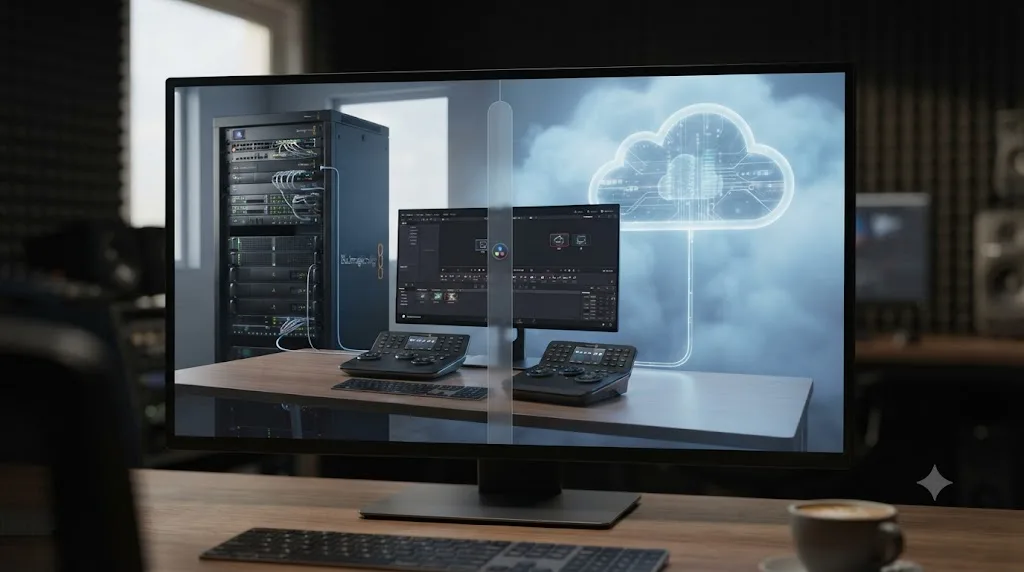
What's the actual difference between Project Server and Blackmagic Cloud?
DaVinci Resolve Project Server hosts a shared project database on your own local network, so every editor connects over the same subnet, usually in the same building. Blackmagic Cloud hosts that same kind of shared project on Blackmagic's servers, so editors connect over the internet from anywhere, at a monthly cost.
Both solve the same core problem: letting more than one person open, edit, and save the same DaVinci Resolve project without one person's changes silently overwriting another's. Where they diverge is geography and price. Project Server assumes physical proximity and charges nothing. Blackmagic Cloud assumes distance and charges by the library and by the terabyte.
A Project Server hosts your team's project database on hardware you own, while Blackmagic Cloud hosts it on hardware Blackmagic owns and you pay monthly for the privilege of not owning it. That's the whole trade in one sentence, and almost every other decision in this post traces back to it.
The confusion usually comes from Blackmagic folding both options under a single word: collaboration. Its own collaboration page describes both a private, on-premises Project Server and a cloud-hosted Project Library through Blackmagic Cloud as parts of the same feature set. They share a name in the marketing copy. They don't share an architecture.
Do you need DaVinci Resolve Studio to use either one?
No, not anymore. As of DaVinci Resolve 21, both collaboration paths work in the free version, and this is a common misconception worth correcting up front.
Blackmagic's own free version product page states plainly: "The free version includes multi-user collaboration and HDR grading!" That single sentence undoes years of assumption in edit bays everywhere. Multi-user project sharing used to be a Studio-only feature, back when Resolve's collaboration tools were newer and less mature. That gate is gone.
Multi-user collaboration in DaVinci Resolve, including Blackmagic Cloud, is a free-version feature as of Resolve 21, not a Studio exclusive. If your team has been putting off a collaboration setup because someone assumed it required $295-per-seat Studio licenses, that assumption is the thing to fix first, not the budget.
Studio still matters for other reasons. It adds the DaVinci Neural Engine AI tools, HDR and Dolby Vision mastering, DCP and IMF delivery, and roughly a hundred other paid features that have nothing to do with sharing a project file. If your team needs those for other reasons, buy it for those reasons. Our free vs. Studio breakdown covers the full feature-by-feature split, including the delivery specs that actually force the upgrade. Just don't buy Studio because you think it's the price of admission to teamwork. It isn't, and hasn't been for a while.
How does DaVinci Resolve Project Server actually work?
Project Server is a separate, free application from Blackmagic that hosts a shared PostgreSQL database on one machine, letting other Resolve installations on the same local network connect to it as a single, shared project library.
That's the mechanism, and it matters because it explains every limitation that follows. Resolve's project data, bins, timelines, color grades, all the metadata that makes a project a project, lives in a PostgreSQL database rather than a flat file. On a single-user machine, that database is a "disk database" installed quietly alongside Resolve itself. For a team, you promote that database onto one machine, running the Project Server application, and everyone else's Resolve points at it over the network instead of at their own local disk.
According to the DaVinci Resolve manual's chapter on Network Project Libraries, setup runs in a short, fixed sequence:
- Open the DaVinci Resolve Project Server application on the machine that will host the shared library.
- Go to File > Network Interface and select the network IP address that matches the subnet the client machines are actually on.
- Select or create a project library, then enable the Project Library Enabled slider.
- Authorize the request when prompted, and generate an access key for client machines to connect.
That second step carries a warning the manual repeats more than once: pick the wrong network interface and every client gets a connection error, with no other symptom to point at. It's the single most common setup mistake, and it's worth checking first any time a new machine can't see the shared library.
DaVinci Resolve's shared projects run on a PostgreSQL database, not a shared file, which is why two editors can save changes to the same project without one overwriting the other. A flat project file would force a choice between "only one person edits at a time" and "hope nobody saves over your work." A database with row-level locking sidesteps that entirely.
Version compatibility runs underneath all of this, and it's changed over the software's history. Resolve 18 through the current 21 release standardize on PostgreSQL 13, according to the Docker-Davinci-Resolve-Project-Server documentation, while Resolve 17 and earlier ran on the older, security-flagged PostgreSQL 9.5. If you're standing up a fresh Project Server for Resolve 21 today, you're on 13, and the current official Project Server download bundles its own PostgreSQL installation, so you don't hunt down a separate package.
Colorist and post-production consultant Seth Goldin put the underlying need plainly in his guide to the topic: "DaVinci Resolve still runs on PostgreSQL, though, for facilities with shared storage that take advantage of collaborative workflows and remote rendering," he wrote, adding that "if you skim through many, many different online post-production forums for colorists and video editors, you'll see endless confusion around PostgreSQL for DaVinci Resolve." That confusion is exactly why this section exists.
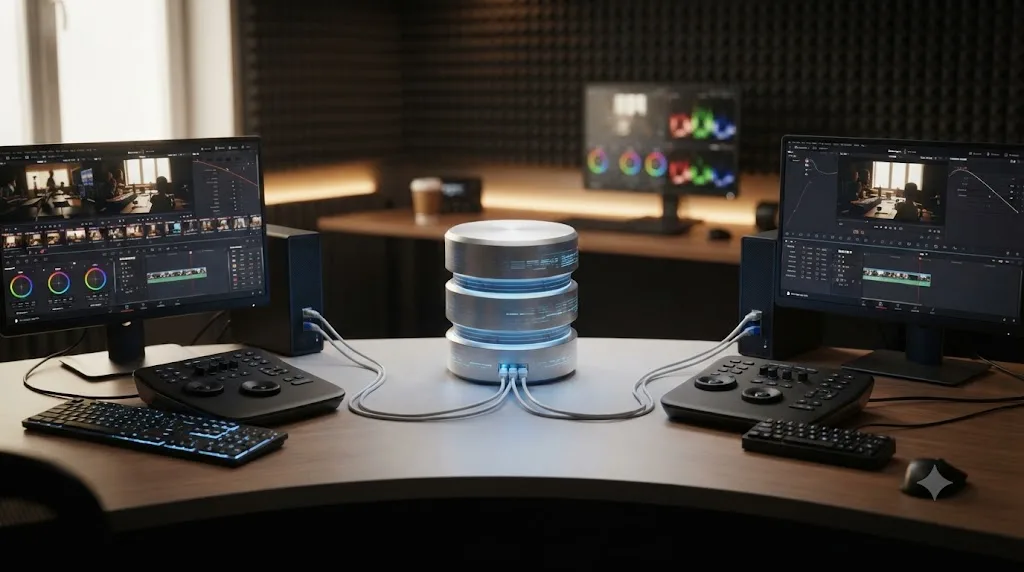
What hardware and network do you actually need to run a Project Server?
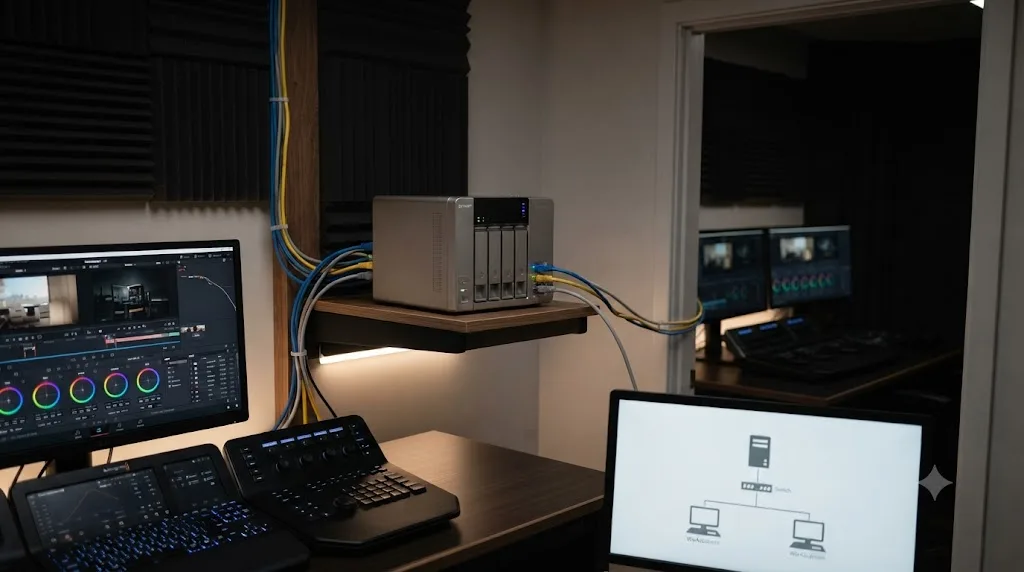
You need one always-on machine on the same local network as every editor, a wired gigabit connection, and enough drive speed to serve database reads and writes without becoming the bottleneck. You do not need a GPU on the server machine itself.
That last point surprises people who assume anything running DaVinci Resolve needs a workstation-grade graphics card. The Project Server application doesn't render or grade anything; it just serves database queries. A modest, always-on machine, the kind of thing IT departments call "boring on purpose," does the job. A small Mac mini or a basic Linux box with a fast SSD is commonly enough for a handful of connected editors, according to community setup guidance and Studio Network Solutions' own documentation on running a project server off shared storage hardware like their EVO line.
Here's the requirement table, compiled from the manual and vendor guidance:
| Requirement | Why it matters |
|---|---|
| Same local network subnet for server and all clients | Project Server has no cross-subnet connection path at all |
| Gigabit Ethernet or faster, wired where possible | Database queries and project sync happen constantly during editing |
| An SSD for the database volume | Spinning disks noticeably slow database access under concurrent use |
| A server machine that stays powered on | If it sleeps or restarts, every connected editor loses access mid-session |
| No GPU requirement on the server itself | The Project Server app only serves the database, it doesn't render |
The DaVinci Resolve Project Server application has no GPU requirement, because it only serves a database, it never renders a frame. That's worth repeating to whoever controls the studio's hardware budget, because it's the single easiest cost to overestimate when planning a collaboration setup.
The subnet requirement is the one that actually kills setups, not the hardware. If your office runs a guest Wi-Fi network on a separate VLAN from the wired editing bays, a laptop hopping onto guest Wi-Fi loses the Project Server connection instantly, with no error that points at Wi-Fi as the cause. Network administrators used to consumer VPN thinking sometimes assume a VPN tunnel will bridge that gap. It won't, not natively; Project Server simply has no provision for clients outside the local subnet, full stop.
Does it matter if your Project Server runs on Mac, Windows, or Linux?
The Project Server application runs on all three, and the underlying PostgreSQL database behaves the same regardless of host OS, so this decision comes down to what your studio already knows how to maintain, not a technical requirement from Blackmagic.
Mac is the most common choice in smaller studios simply because a Mac mini is cheap, quiet, small enough to sit on a shelf, and familiar to teams that already run Resolve on Apple hardware. It needs nothing beyond the OS and the Project Server download; there's no separate PostgreSQL install to manage since the current package bundles it.
Linux shows up more at facilities that already run their storage infrastructure on it, and Seth Goldin's guide specifically covers "a full setup of a PostgreSQL server for DaVinci Resolve, actually two different setups, on both macOS and Red Hat Enterprise Linux," which tells you these are the two platforms professional post houses actually deploy in practice. Windows works too, and is a reasonable default for shops that are already all-Windows and don't want a second OS to maintain just for one server role.
The one thing that doesn't change across any of the three: the subnet requirement. Whatever OS hosts the database, every client still needs to be on the same local network, and the server still needs a fast drive under that database. Pick the platform your team can keep patched and backed up without drama, not the one a forum post insists is "correct."
How do you back up a DaVinci Resolve Project Server database?
You back up the PostgreSQL database itself, on a schedule, to a separate drive or location, since your shared projects live inside that database rather than in a single file you can just copy.
This is the step teams forget, because it doesn't look like the rest of a media backup routine. Backing up your footage and renders is an obvious habit; backing up a database most editors never directly interact with is not. But if that database volume fails and nothing's been backed up, every shared project on it goes with it, not just the most recent session.
Seth Goldin's guide addresses exactly this gap, noting he maintains "a few open-source scripts that help with automatically backing up and optimizing PostgreSQL databases for DaVinci Resolve," precisely because Blackmagic's own documentation on the topic is thin. His broader point stands as a warning worth repeating: the DaVinci Resolve manual is, in his words, "somewhat incomplete" on this exact operational detail, which is why so much of the reliable guidance on backing up a Project Server database lives in community scripts and forum threads rather than the official manual.
A workable minimum: schedule a database dump to a separate physical drive or network location on some regular cadence, daily for active production, weekly at the very least for lighter use. Put that dump somewhere other than the same drive the live database sits on. And if you've ever hit a corrupted or unreachable database, our guide to the "unable to mount database volume" error covers the recovery side of exactly this failure mode, which is a much calmer conversation to have when a recent backup already exists.
How does Blackmagic Cloud collaboration actually work?
Blackmagic Cloud collaboration hosts your Project Library on Blackmagic's own servers instead of your local network, so anyone with a Blackmagic Cloud ID and an invite can open the same project from anywhere with an internet connection.
The onboarding is deliberately simple, closer to sharing a Google Doc than configuring a database server. You create a free Blackmagic Cloud ID, upload or create a Project Library through it, and it automatically becomes a Cloud Project Library. From there, Resolve's in-app collaboration tools switch on without any separate configuration: bin and clip locking, multi-user timelines, update notifications, and a built-in chat panel, all according to Blackmagic's collaboration page.
The Photo page introduced with DaVinci Resolve 21 extends this same model to still images. Editors can now share the contents of albums, all associated metadata and tags, and all grades and effects with colorists, visual effects artists and editors, simultaneously anywhere in the world, according to Blackmagic's DaVinci Resolve 21 release coverage, which places the final 21.0 release on June 2, 2026.
What actually happens on a Cloud Project Library, feature by feature:
| Feature | What it does |
|---|---|
| Cloud Project Library | Your shared project, hosted on Blackmagic's servers instead of local hardware |
| Clip and bin locking | First person to open an item gets edit access; everyone else sees read-only |
| Multi-user timelines | Multiple editors work on different parts of the same project concurrently |
| Update notifications | Everyone sees when a collaborator changes something, without a manual refresh |
| Built-in chat | Team discussion happens inside Resolve, no separate app required |
| Presentations | Publish a timeline or clip for outside review, without shipping files or opening a VPN |
Grant Petty, Blackmagic Design's CEO, framed the company's goal for this kind of tool plainly when it launched hardware built around the same collaboration model: "I really love this product because it makes the whole DaVinci Resolve collaboration process so much easier and incredibly affordable," he said, according to Blackmagic's own announcement.
Blackmagic Cloud's clip and bin locking works on a first-come, first-served basis, so the person who opens an item first gets edit access while everyone else sees a read-only copy. That's not a limitation unique to the cloud version either; Project Server locks the same way. The difference isn't how conflicts get resolved, it's how far away the people resolving them can be sitting.
How much does Blackmagic Cloud collaboration actually cost?
The host of an active Cloud Project Library pays $5 per month, and every invited collaborator joins for free. Cloud media storage is a separate charge, currently $15 per terabyte per month.
Only the library's host pays the $5 monthly fee, and only while that specific library stays active, according to VP Land's guide to Blackmagic Cloud pricing. Close the library down and the charge stops; there's no per-seat fee stacking on top of it for each collaborator you invite, which matters a lot once a project grows past two or three people.
Media storage runs on a different meter entirely. Blackmagic cut that rate in half in November 2024, from $30 per terabyte per month down to $15, according to Fstoppers' coverage of the announcement, and that lower rate applied immediately to both new and existing customers. VP Land's more recent pricing breakdown lists cloud file storage tiers running from roughly $15/month for 500GB up to around $60/month for 2TB, which tracks with the per-terabyte rate at smaller increments.
Put a few real scenarios against those numbers:
| Scenario | Monthly cost |
|---|---|
| Solo colorist collaborating with one remote client, project files only, no cloud media | $5 (library host fee) |
| Three-person remote team, one active project, 500GB of synced proxy media | $5 + roughly $15 for storage = around $20 |
| Studio running five concurrent projects for different clients, each with its own library | $25 (five libraries, each hosted by one person) plus whatever storage each project uses |
| Same studio, but two of those projects wrapped and libraries closed | $15, since inactive libraries stop billing |
Only the host of a Blackmagic Cloud Project Library pays the $5 monthly fee, so inviting more collaborators onto the same project costs nothing extra. That pricing shape rewards teams that consolidate work into fewer, longer-running libraries rather than spinning up a new one for every small task. It punishes the opposite habit: a studio juggling a dozen tiny, simultaneously active libraries pays a dozen separate $5 fees, even if the total data involved is tiny.
The media storage line is the one people underestimate at planning time. Proxy media for a single documentary shoot can run past a terabyte fast, and $15/TB/month compounds across a project's full post schedule. If a shoot runs three months of active editing at 2TB of synced proxies, that's roughly $30 a month just for storage, on top of the library fee, for the whole life of the project. It's not expensive by studio standards, but it's not the "basically free" impression the $5 headline number creates on its own.
What does this cost once a studio scales past ten editors?
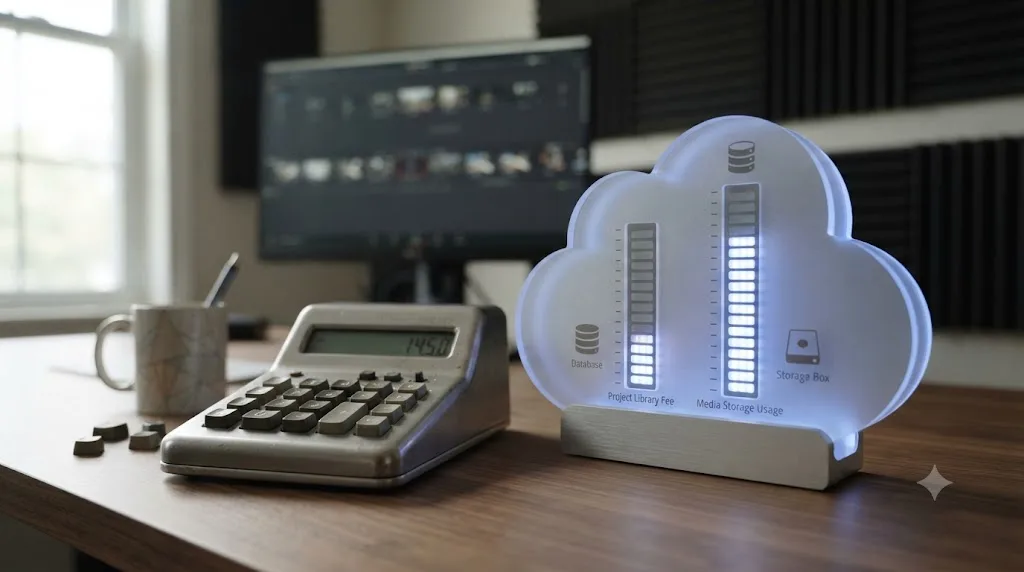
The math changes less than people expect, because the $5 fee attaches to libraries, not to seats. A ten-person studio running two active client projects pays $10 a month in library fees whether five people or fifty are invited across them.
Where scale actually bites is storage, and it bites in a way that's easy to model. A studio running four concurrent projects, each holding roughly 1TB of synced proxy media, is carrying about 4TB on the storage meter, which lands around $60/month at the current $15/TB rate. Add a fifth or sixth concurrent project and that number climbs in a straight line, since storage billing doesn't offer a volume discount the way some cloud providers structure their tiers.
Compare that to what a local Project Server costs at the same scale: effectively nothing in monthly fees, but a real one-time cost in server hardware, network switches capable of gigabit or better across every bay, and someone's time to maintain it. A ten-editor studio staying entirely in-house might spend a few hundred dollars once on a capable Mac mini or small Linux box and call it done for years. The same studio going all-in on Blackmagic Cloud for the same headcount is looking at a genuinely recurring monthly line item that scales with both project count and data volume.
Neither number is "expensive" in absolute terms next to a studio's other costs, cameras, workstations, payroll. But the shape of the cost matters for budgeting: Project Server is a one-time capital cost that gets cheaper per editor as the team grows, while Blackmagic Cloud is an operating cost that tracks project count and data volume regardless of headcount. A growing studio with a stable, in-house team should expect Project Server to get relatively cheaper over time. A growing studio taking on more remote freelancers and clients should expect its Blackmagic Cloud bill to climb right alongside that growth, and should budget for storage, not just the library fee, when quoting collaboration costs into a project.
Project Server vs. Blackmagic Cloud: the decision table
Here's every dimension that actually matters, side by side, so you can point at the row that describes your team and stop there.
| Factor | Project Server | Blackmagic Cloud |
|---|---|---|
| Cost | Free, no recurring fee | $5/month per active library, plus $15/TB/month for cloud media storage |
| Location requirement | Same local network subnet only | Anywhere with internet access |
| Requires DaVinci Resolve Studio | No, works in the free version | No, works in the free version |
| Setup complexity | Moderate: dedicated machine, network config, PostgreSQL | Low: create a free Blackmagic Cloud ID, upload the library |
| Media sharing | Handled by your existing local storage, no extra step | Separate from project sync; media needs its own plan |
| IT ownership | Yours: backups, uptime, and network config are your responsibility | Blackmagic's: uptime and infrastructure are handled for you |
| Works if internet goes down | Yes, unaffected by internet outages | No, requires a working internet connection |
| Best fit | One physical location, cost-sensitive, IT support available | Remote or hybrid teams, freelancers, client review across locations |
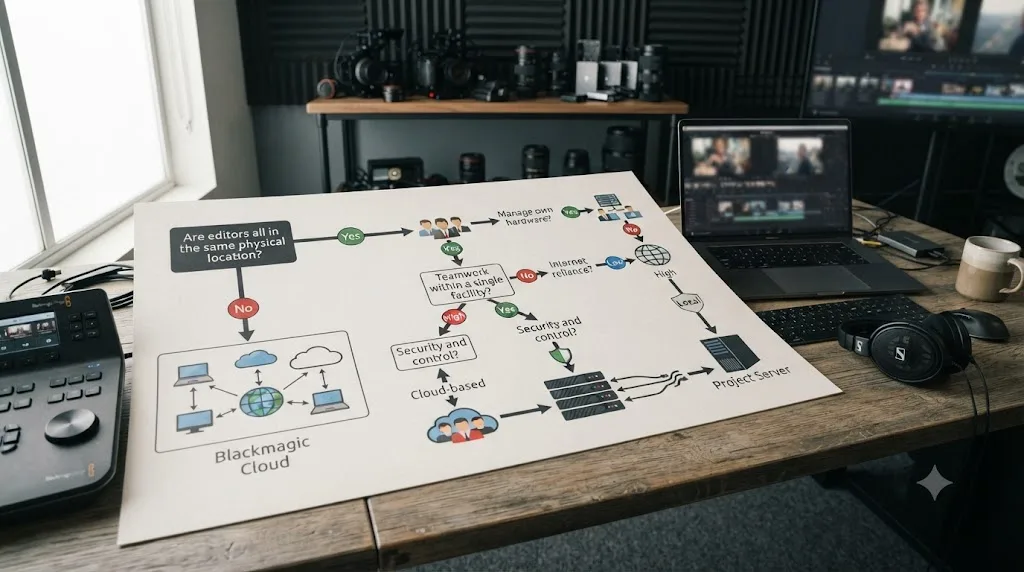
Read that table by elimination, not by feature count. If your team can't answer "yes" to being on the same physical local network, Blackmagic Cloud wins by default, because Project Server genuinely cannot serve remote collaborators. If your team can answer yes, the decision becomes about whether you'd rather spend engineering time or spend $5-plus a month, and that's a much smaller, much more comfortable argument to have.
A DaVinci Resolve Project Server cannot serve collaborators outside its local network subnet under any configuration, which makes remote work the one scenario where Blackmagic Cloud isn't optional. No VPN trick, no port forwarding, no workaround changes that; it's how the application is built, not a setting buried in a menu.
A worked example: setting up Project Server for a three-person in-house team
Say you run a small production company: three editors, one office, one shared NAS everyone already reaches over the same wired network. Here's what standing up Project Server actually looks like end to end.
- Pick the machine. You don't need a new purchase if you already have an always-on machine on the network, a NAS with Project Server support, or even a spare Mac mini. Confirm it stays powered on and reachable at all times; if it's a laptop that closes its lid at 6pm, pick a different machine.
- Install the Project Server application and open File > Network Interface. Select the IP address that matches your office's actual subnet, not a VPN adapter or a secondary network card if the machine has more than one.
- Create your first project library and flip the Project Library Enabled slider. Authorize the request, then generate an access key.
- On each of the three editing machines, connect to the shared library using that access key. Confirm all three are wired into the same subnet as the server, not on a separate guest Wi-Fi network.
- Point your media storage at the same shared NAS you already use, so the project database and the actual footage live on the same reachable network. Nothing extra to configure here; this is the advantage of staying local.
- Schedule a database backup, per the section above, to a drive other than the one the live database sits on.
Total new recurring cost: zero. Total setup time for a team that already has shared storage: usually an afternoon, most of it spent on step 2 if the network interface selection trips anyone up. This is the scenario Project Server was built for, and it shows in how little there is to configure once the network is sorted.
A worked example: bringing a remote colorist onto Blackmagic Cloud
Now say that same three-person team hires a freelance colorist who works from a different city, and the grade needs to happen inside the shared project rather than through a separate round-trip of exported files.
- The project's lead editor creates a free Blackmagic Cloud ID, if the team doesn't already have one shared for this purpose.
- From inside DaVinci Resolve, that editor uploads the existing local project as a Cloud Project Library. It's now hosted on Blackmagic's servers, and the $5/month host fee starts accruing from this point.
- The editor invites the remote colorist using their own Blackmagic Cloud ID. The colorist doesn't pay anything to join; only the host does.
- The colorist opens the shared library from their own location. Proxy media syncs automatically for review and grading; if full-resolution masters are needed for final delivery, the team arranges that separately, since Blackmagic Cloud doesn't push camera originals by default.
- Both sides use the built-in chat and update notifications to coordinate without leaving Resolve, and clip locking prevents the colorist and an in-house editor from accidentally grading the same node tree at once.
- Once the grade wraps and the colorist's involvement ends, the team can either keep the project on Blackmagic Cloud for future remote work or close the library and bring it back to local-only editing to stop the monthly charge.
Total new recurring cost: $5/month while the library stays active, plus whatever proxy storage the grading pass generates. Total setup time: closer to twenty minutes than an afternoon, which is the entire point of Blackmagic Cloud's design. It trades a small, ongoing bill for skipping every network configuration step the local setup requires.
Which one handles real-time color grading and multi-user timelines better?
Neither has a meaningful speed edge for locking mechanics, since both use the identical first-come, first-served bin and clip locking behavior. Where they actually diverge is latency: local network round-trips are near-instant, cloud round-trips depend on your internet connection.
For color grading specifically, that latency difference has real consequences. A colorist and a client reviewing a grade together over Blackmagic Cloud are looking at cached proxy media and synced metadata, not a live, uncompressed feed of the working timeline. A local Project Server setup, by contrast, has every collaborator pulling from the same local storage at local network speed, so scrubbing, playback, and grade updates feel identical to working solo.
None of this changes who can edit what at any given moment; the locking rules are the same rules either way. What changes is how fast an update from one collaborator becomes visible to another, and how forgiving the whole setup is of a spotty internet connection on grading day.
Bin and clip locking in DaVinci Resolve works the same way on Project Server and Blackmagic Cloud: whoever opens an item first can edit it, and everyone else sees a read-only copy until it's released. If you've heard that cloud collaboration is somehow "slower" at handling simultaneous edits, that's not quite the right frame; it's the network path to the shared data that's slower, not the underlying collaboration logic.
For genuinely time-critical, in-the-room color sessions, most working colorists still default to a local setup or a dedicated remote-review tool built for that exact use case, rather than leaning on either Project Server or Blackmagic Cloud's chat and locking features alone.
What about media, not just project files? Blackmagic Cloud syncing explained
Blackmagic Cloud syncs your project data, your timelines, bins, and grades, automatically. It does not automatically sync your full-resolution camera originals; media sharing is a separate decision you have to make on top of the project sync.
This is the gap that catches teams who assume "cloud collaboration" means "my footage is available everywhere too." It usually means proxy footage is available, generated and synced through Blackmagic Cloud's own proxy pipeline, according to VP Land's breakdown of the storage features, which notes automatic proxy uploads and direct uploads from Blackmagic camera apps as part of the workflow. Your camera originals, the actual masters you'll conform against for final delivery, need their own path: a shared cloud drive, a proxy-only edit followed by a media handoff at the end, or, for teams who still do this, physical drives.
Project Server sidesteps this entire problem by definition. Because it assumes everyone's on the same local network, it also usually assumes everyone can reach the same shared storage volume where the actual media lives. The project database and the media live on the same network; there's nothing extra to sync.
Blackmagic Cloud syncs your project files and proxy media automatically, but full-resolution camera originals need a separate storage or transfer plan of your own. Budget for that separately when planning a remote workflow. The $5-per-library number gets quoted a lot in comparisons exactly because it's easy to remember; the real monthly cost of a remote collaboration setup almost always includes a media plan on top of it.
If your team already struggles with media going offline when drives get moved or reorganized, our guide on relinking media after it moves drives covers the underlying relink mechanics that both local and cloud teams eventually run into.
Can you run Project Server and Blackmagic Cloud at the same time?
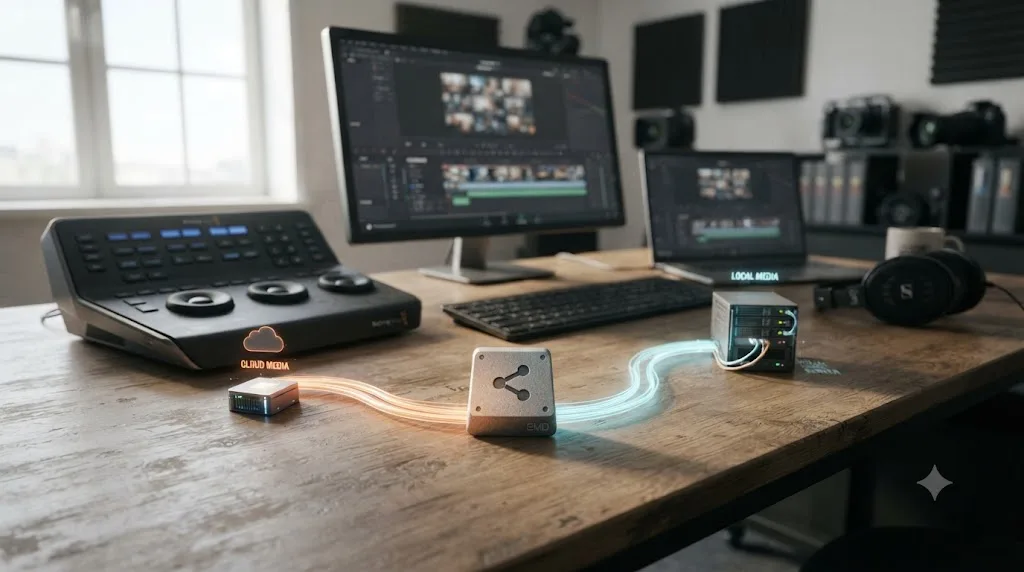
Not on the same Project Library at the same moment, no. A given library lives in one place, either hosted locally through Project Server or uploaded to Blackmagic Cloud, but plenty of teams use both systems for different projects or different phases of the same project.
The common hybrid pattern looks like this: day-to-day editing happens on a local Project Server, because the whole in-house team is on one network and there's no reason to pay for cloud hosting on work nobody outside the building touches. When a remote colorist, a client, or a freelance VFX artist needs access, the studio uploads a copy of that library to Blackmagic Cloud for the duration of that person's involvement, then either keeps working there or brings the project back in-house once the remote work wraps.
That workaround has a real cost worth naming honestly: moving a library between the two systems isn't a live sync, it's a discrete upload or download step, which means whoever manages the project has to track which version is "live" at any given moment to avoid two people editing diverged copies. Studios that hit this friction regularly often just move to Blackmagic Cloud full-time and eat the monthly fee, because the coordination overhead of switching back and forth costs more in confused editors than $5 a month ever will.
A DaVinci Resolve Project Library exists in exactly one place at a time, local Project Server or Blackmagic Cloud, so mixing the two on one project means deliberately moving a copy rather than syncing both live. Plan around that limit rather than discovering it mid-project.
Why won't your DaVinci Resolve Project Server connect?
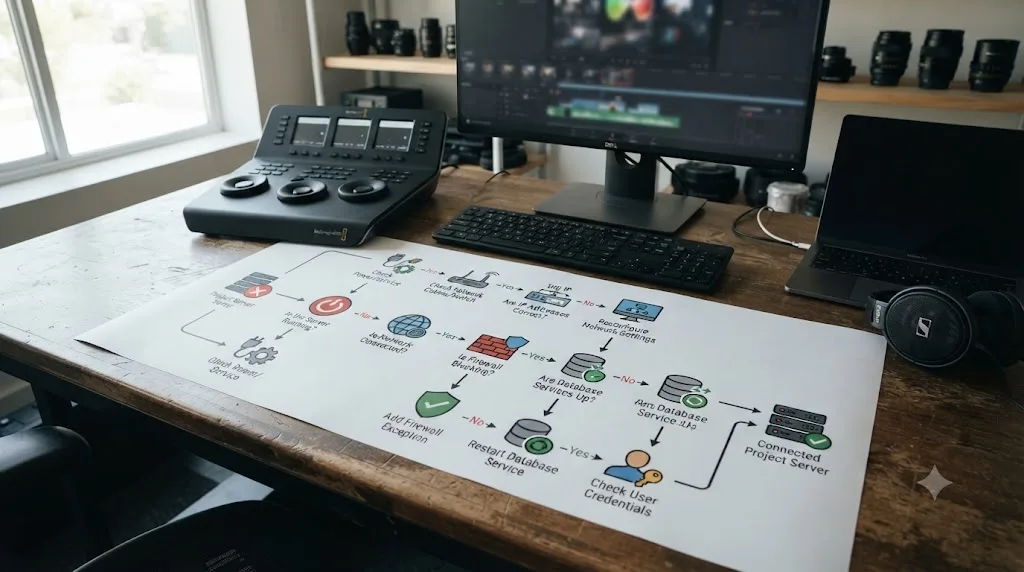
The single most common cause is a subnet mismatch between the server and a client machine, usually because the wrong network interface was selected when the library was created, or a laptop switched networks after setup.
Work through these in order when a client can't connect:
- Check the Network Interface setting on the server. The manual's repeated warning is the right instinct here: the server must have the correct IP address selected under File > Network Interface, matching the subnet the clients are actually on. A mismatch here produces a generic connection error with no other symptom.
- Confirm the client hasn't changed networks. A laptop that set up its connection while wired in, then later tried to reconnect over Wi-Fi on a separate VLAN, will fail silently from the client's point of view.
- Verify the server machine is actually still running. Project Server has no failover; if the host machine slept, restarted, or lost power, every client loses the shared library until it comes back.
- Check for a firewall blocking the connection. Office firewalls that segment traffic between departments can block Project Server's connection even when both machines are technically on the same building network.
- Rule out a corrupted or unreachable database volume. If the underlying PostgreSQL database can't be reached or has become corrupted, clients typically see a different failure than a simple connection timeout. Our guide to the "unable to mount database volume" error walks through that specific failure mode and its fixes.
A DaVinci Resolve Project Server connection failure with no specific error message is almost always a network interface or subnet mismatch, not a corrupted project. Check the boring, physical-network explanation before assuming anything is broken inside Resolve itself. Most Project Server "outages" are five-minute network fixes wearing a scarier-looking error message.
What goes wrong with Blackmagic Cloud collaboration?
The most common issues are sync conflicts from spotty internet connections, confusion over who's actually hosting a library, and license or seat conflicts when a team member's Blackmagic Cloud ID overlaps across projects.
An unstable internet connection is the cloud equivalent of Project Server's subnet mismatch: it's the boring, physical explanation behind most "Blackmagic Cloud is broken" reports. A dropped connection mid-session doesn't corrupt your project, since changes are saved locally first and synced when the connection returns, but it does mean two collaborators can end up temporarily working from different states of the same timeline until sync catches up.
Seat and licensing conflicts show up differently but trip people up just as often, especially at studios juggling several active projects under different Blackmagic Cloud IDs. If you've run into a message about a license already being active elsewhere, our guide to the "license already in use" error walks through the underlying causes, which frequently trace back to the same root issue: more machines or sessions claiming a seat than the account actually has active at once.
Blackmagic Cloud's local-first save behavior means an internet outage during collaboration causes a temporary sync gap, not project corruption. That design choice is worth knowing before a shaky hotel Wi-Fi connection makes you assume the worst mid-session. Your work is safe on your machine; it just hasn't reached your collaborators yet.
Is Blackmagic Cloud collaboration secure enough for client and studio work?
Blackmagic Cloud requires an individual Blackmagic Cloud ID per user, with access granted per invited collaborator rather than through a shared password, which is the baseline most studios expect from any client-facing tool today.
That's a meaningfully different security model from the informal file-sharing habits it's replacing at a lot of shops, shared drive links, shipped hard drives, or a single shared login passed around a team. Per-user identity means access can be revoked for one person without disrupting everyone else's, and it means there's an actual account trail behind who touched what.
That said, this post isn't a substitute for your studio's own security policy, and Blackmagic's public pages don't publish a detailed compliance breakdown for enterprise or broadcast clients with strict data-handling requirements. If a client contract specifies particular security certifications or data residency requirements, confirm those directly against Blackmagic's current documentation before committing a project to Cloud Project Libraries, rather than assuming general-purpose cloud collaboration meets a specific legal bar.
Blackmagic Cloud ties access to individual Blackmagic Cloud IDs rather than a single shared credential, which is the security baseline most modern collaboration tools are built around. For most independent studios and small teams, that's more than adequate. For broadcast or studio-contract work with specific compliance language, read the contract's requirements first and Blackmagic's current security documentation second, in that order.
How does this compare to Frame.io, Evercast, or dedicated review platforms?
Neither Project Server nor Blackmagic Cloud is a review-and-approval platform in the way Frame.io is, or a live-session streaming tool in the way Evercast is. They solve a different, narrower problem: letting multiple editors modify the same project file, not gathering client feedback on a finished cut.
Evercast, for example, is built specifically to fill the gap both Resolve collaboration systems leave open. It's a video streaming and communication platform specifically built for creative teams that need to stream professional editing tools while chatting with their team, according to Evercast's own guide to DaVinci Resolve collaboration, which describes DaVinci Resolve's native multi-user editing and Blackmagic Cloud as lacking "a clean workflow for review and approvals" and having "no integrations that allow you to chat face-to-face while you work." Evercast fills exactly that gap with low-latency streaming, rather than replacing the underlying project collaboration.
Frame.io, the review-and-approval platform Adobe acquired in 2021, occupies similar territory: it's built for structured client feedback on rendered exports, timecoded comments, and approval workflows, not for two colorists modifying the same live node tree at once.
Project Server and Blackmagic Cloud solve concurrent project editing; Frame.io and Evercast solve client review and live feedback sessions, and most professional workflows eventually need both categories of tool, not one or the other. If your pain point is "my client can't easily leave timecoded notes," that's a review-tool problem, and no amount of tweaking your Project Server or Cloud setup will fix it. If your pain point is "two of us can't touch the project without stepping on each other," that's exactly what this post is about.
What happens when one editor is on Resolve 21 and another is still on an older version?
Both people need matching or compatible DaVinci Resolve versions to open the same shared Project Library without errors. A project touched by a newer version typically can't be reopened by an older one.
This is a real, recurring pain point in mixed-version studios, especially right after a major release like Resolve 21 ships and half a freelance roster upgrades immediately while the other half waits. If a collaborator on Resolve 21 saves changes to a shared project, and a teammate still running Resolve 20 tries to open it next, that older installation typically can't read the newer project structure at all, the same kind of version mismatch behind Resolve's "project created with a newer version" error message.
The practical fix is procedural, not technical: agree on a single version across every machine touching a shared Project Library before you start collaborating, whether that library lives on a local Project Server or Blackmagic Cloud. Version mismatch doesn't care which hosting method you picked; it breaks either one identically, because the incompatibility lives in the project format itself, not in how the project got shared.
A shared DaVinci Resolve project saved by a newer version typically cannot be reopened by an older installation, regardless of whether it's hosted on Project Server or Blackmagic Cloud. Lock your team to one Resolve version for the life of a shared project, and treat "everyone updates together, on purpose" as a collaboration rule as important as anything covered above.
What about project organization when multiple people touch the same timeline?
Collaboration tools solve who can edit what and when; they don't solve what happens when five people each build bins and label nodes their own way inside the same project. That's a separate, and honestly more common, source of team friction than any Project Server or Cloud limitation.
A shared project without agreed conventions turns into a maze fast: one editor's "final" bin sits next to another's "FINAL_v2," and a colorist's node tree is unreadable to the next person who opens it because nothing's labeled. This is where the technical collaboration layer and the human organizational layer meet, and most of the pain teams blame on "the collaboration tool" is actually this second problem wearing a disguise.
If your team is standing up shared collaboration for the first time, pair it with agreed naming and node-labeling conventions from day one, covering both bin structure and color node organization. Retrofitting those rules onto a project that's already grown chaotic under five editors is a much bigger job than agreeing on them up front, and it's worth doing before the collaboration system, not after.
Choose Project Server if, choose Blackmagic Cloud if
Choose Project Server if: every editor works from the same physical location, you have someone comfortable configuring a network interface and a database, and you'd rather spend a Saturday afternoon on setup than a recurring monthly bill. It's the right call for in-house teams at agencies, small production companies, and any studio where "remote collaborator" just doesn't describe anyone on the roster.
Choose Blackmagic Cloud if: even one person touching the project works from a different location, whether that's a freelance colorist, a client who wants to watch a grade happen, or a hybrid team split across a couple of offices. At $5 a month per active library, the cost barely registers against what remote access is worth, and the setup is genuinely simpler than standing up your own server.
Plenty of teams land on both, at different times, for different projects, and that's not indecision, it's the correct read of a genuinely two-shaped problem. The question was never which system is better. It was always where your people are sitting when they open the project.
If your actual blocker isn't picking a collaboration system but finding a specific setting inside Resolve's interface once you've picked one, that's a different kind of stuck point. TryUncle is the on-screen assistant for DaVinci Resolve on macOS: ask in plain words and Uncle points at the exact control on your screen, which beats hunting through a menu mid-session when a client is waiting on the other end of a Blackmagic Cloud call.
Frequently asked questions
- DaVinci Resolve Project Server vs Blackmagic Cloud collaboration, which should I use?
- Pick Project Server if every editor works from the same building on the same local network and you want to avoid recurring costs. Pick Blackmagic Cloud if anyone on the team is remote, since Project Server has no way to connect across different networks or subnets. Most studios with even one remote colorist or client end up on Blackmagic Cloud.
- Do you need DaVinci Resolve Studio to collaborate with Project Server or Blackmagic Cloud?
- No. As of DaVinci Resolve 21, Blackmagic's own product page lists multi-user collaboration, including Blackmagic Cloud, as part of the free version. Studio still adds the Neural Engine AI tools, HDR mastering, and other paid features, but it is no longer required just to share a project.
- How much does Blackmagic Cloud collaboration cost for DaVinci Resolve?
- The host of a Cloud Project Library pays $5 per month while that library is active; invited collaborators pay nothing to join. Cloud media storage is billed separately at $15 per terabyte per month, down from $30/TB before Blackmagic's November 2024 price cut.
- Can two people edit the same DaVinci Resolve project at the same time?
- Yes, on both systems. DaVinci Resolve locks bins and timelines on a first-come, first-served basis: whoever opens an item first gets edit access, and everyone else sees it in read-only mode with live update notifications until it's released.
- Why won't my DaVinci Resolve Project Server connect?
- The most common cause is a subnet mismatch. Project Server has no mechanism for connecting clients that aren't on the same local network, so if a laptop is on Wi-Fi and the server is wired into a different VLAN, the connection fails. Confirm every machine picks the same Network Interface IP address inside the Project Server app before creating an access key.
- Does Blackmagic Cloud sync your media files too, or just the project?
- By default it syncs project files, proxies, and metadata, not your full-resolution camera originals. You still need a separate plan for sharing source media with remote collaborators, whether that's proxy-only workflows, a shared cloud drive, or physical drives shipped between locations.
- Can you run Project Server and Blackmagic Cloud on the same project?
- Not simultaneously on one Project Library. A library lives in one place at a time, either hosted locally through Project Server or uploaded as a Cloud Project Library. Teams that need both typically keep day-to-day local editing on Project Server and push a copy to Blackmagic Cloud only when a remote artist needs access.
- How do you back up a DaVinci Resolve Project Server database?
- Back up the PostgreSQL database files directly, not just the media drive, since the project data itself lives in that database rather than in a single project file. Several editors run scheduled dumps of the database to a separate drive; the DaVinci Resolve manual doesn't automate this for you, so it's a step your studio has to own.
Sources
- DaVinci Resolve Collaboration (Blackmagic Design product page)
- DaVinci Resolve (free version product page, collaboration features)
- DaVinci Resolve Studio (product page)
- DaVinci Resolve Manual: Sharing Network Project Libraries via the Project Server
- Using EVO as a DaVinci Resolve project server (Studio Network Solutions)
- Docker-Davinci-Resolve-Project-Server README (PostgreSQL version history)
- Seth Goldin, "The Definitive Guide to PostgreSQL for DaVinci Resolve" (Medium)
- Blackmagic Design Announces New Blackmagic Cloud Pod (BusinessWire, Grant Petty quote)
- Two Big Price Cuts From Blackmagic Design (Fstoppers)
- Mastering Blackmagic Cloud: A Comprehensive Guide for Remote Video Editing (VP Land)
- Blackmagic Design releases DaVinci Resolve 21.0 (CG Channel)
- DaVinci Resolve: Local, Cloud, and Network Project Libraries (Suite Studios, Isaac Terronez)
- How to collaborate in DaVinci Resolve (Evercast)
Put this guide to work with TryUncle.
Ask about the step you’re on. TryUncle sees your screen and points at the control you need, so you can keep learning in your own project.
Get TryUncle for Mac or WindowsKeep reading
Comparisons · Jul 7, 2026 · 28 min
DaVinci Resolve Studio Price: Free vs. Studio Cost, Explained
DaVinci Resolve Studio costs $295, paid once, not monthly. Here's exactly what that buys, how it stacks up against Premiere Pro and Final Cut Pro, and who needs it.
Fixes · Jul 25, 2026 · 24 min
DaVinci Resolve Error: Unable to Mount Database Volume (Fix)
DaVinci Resolve's 'unable to mount database volume' error means your drive or NAS isn't mounted, renamed, or reachable. Here's the real fix.
Fixes · Jul 17, 2026 · 24 min
DaVinci Resolve License Already in Use: How to Fix It
DaVinci Resolve says your license is already in use? It means your activation slot or dongle is checked out elsewhere. Here's the exact deactivate and recover path.