Articles / Guidesupdated for DaVinci Resolve 21.2 (November 2026)
DaVinci Resolve 21.2: Restore Last Active Edit Points
Quick answer
In DaVinci Resolve 21.2, use Restore Last Active Edit Points to recall the recent active timeline edit-point selection. Find the command by searching its exact name in Keyboard Customization; Blackmagic’s published notes confirm the command but don’t specify a default key combination or exact menu path.
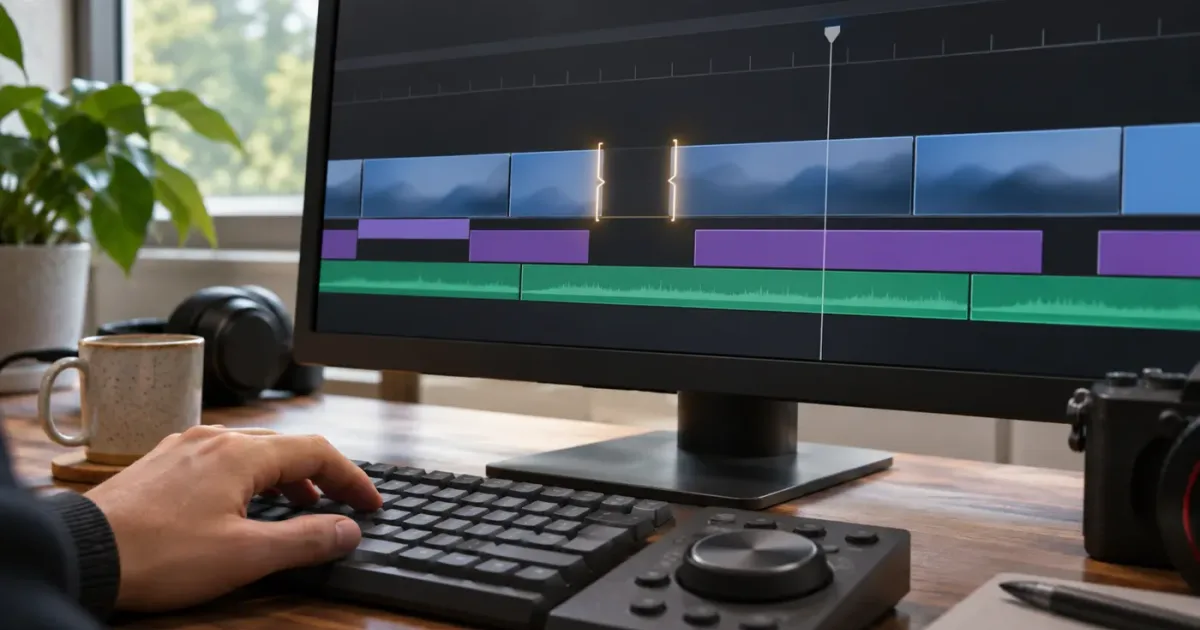
You selected a set of timeline edit points, moved on to another task, then needed that selection again. Resolve 21.2 adds a command for recalling the last active edit points. The detail that saves confusion is the word edit points: this isn’t a general “restore my last edit” command, and it isn’t for timeline In and Out marks.
What does “Restore Last Active Edit Points” do in Resolve 21.2?
It recalls the last active timeline edit-point selection. Blackmagic’s Resolve 21.2 release information lists a menu action and shortcut for restoring the last active edit points. The release information confirms the feature, but doesn’t give a precise menu path or name a default key combination. You can verify the available command and its binding in your own installation using Keyboard Customization. Blackmagic Design’s release information and the Resolve Studio 21.2 release notes are useful references, though the Studio notes may not be the right reference for every installation.
An edit point is the boundary between adjacent clips or sections of a clip in a timeline. Selecting one or more edit points gives you a selection state that can be used in editing and trimming workflows. The new command concerns that state: it can recall the last active edit points, rather than making you find and select them again.
In Resolve 21.2, Restore Last Active Edit Points recalls a previous active timeline edit-point selection.
That definition is deliberately narrow. The command doesn’t promise to restore the timeline to an earlier version, recover deleted media, undo a trim, or reconstruct a project after a crash. It restores edit-point selection, not the edit itself.
A selection is also not an instruction. If the command brings back points you selected for an earlier task, you still need to decide whether those points are appropriate for the task you’re about to do. Look at the timeline before trimming.
| What you want back | Is this the right command? | What to do instead or next |
|---|---|---|
| A recent active selection of timeline edit points | Yes | Run the command, then verify the selected points |
| A timeline In and Out range | No | Use the relevant mark controls and check the range |
| A clip that was deleted | No | Look to undo, a project backup, or another recovery route |
| A clip’s previous position after a move | No | Use undo or the appropriate history workflow |
| A previous edit-point type for a new marquee selection | Not by itself | Resolve 21.2 also changes Command or Ctrl marquee selection behavior |
| A selection you never made | No | Select the desired edit points manually |
The 21.2 notes also mention that Command or Ctrl marquee selection now uses the last edit-point type. That is related to selection behavior, but it is a separate operation. A marquee gesture makes a new selection. Restore Last Active Edit Points recalls a previous active selection. Don’t treat one as a substitute for the other.
The word last deserves care, too. It doesn’t mean “the selection I remember from any point in the project.” Think of the command as a convenience for bringing back the most recent relevant active edit-point selection, not as a selection history browser. If you need a different selection, select it again rather than cycling through assumptions.
The command’s most useful role is small but practical: it can save you from reconstructing a recent selection after focus changes or after you’ve moved between timeline tasks. It doesn’t remove the need to understand what is selected. You still need to identify the timeline, the points, and the next action.
How do I restore the last active edit points?
First confirm that Resolve is version 21.2 or later. Then find the exact command name in Keyboard Customization, invoke it, and inspect the timeline. The available notes establish that the command exists, but they don’t publish a definite menu path for every Resolve layout. Searching the command by name avoids guessing at a submenu.
- Check the application version. Open Resolve’s About dialog and confirm that the application is 21.2 or later. The command is listed in the 21.2 release information. If the application itself is earlier, this version-specific command may not be available.
- Open Keyboard Customization. Search the exact phrase
Restore Last Active Edit Points. The Resolve Reference Manual describes Keyboard Customization as a way to discover available shortcuts and create custom mappings. - Inspect the result. If the command appears, note whether a key combination is shown in your setup. Don’t assume that the key shown in another person’s tutorial matches yours.
- Run the command. Use the command from the interface or its displayed shortcut. If you’re assigning a shortcut, save the mapping before testing it.
- Verify the timeline selection. Check that the expected edit points are active in the timeline you mean to edit. If they aren’t, stop and select the intended points manually.
- Only then trim. The command recalls a selection. It doesn’t check whether that selection is safe or suitable for the edit you have in mind.
A restored selection is a prompt to inspect the timeline, not permission to trim without checking.
There’s a reason to make the last step explicit. The outcome you care about is not “the command ran.” It’s “the correct points are active in the timeline where I’m working.” A menu command can be invoked successfully while the result still surprises you because you’re viewing another timeline, expected a mark rather than a point, or remembered a different previous selection.
What should the timeline look like afterward?
The selection indicators are the useful evidence. If you can’t tell which points are active, don’t act on the assumption that the recall worked. Zoom in enough to distinguish the boundaries you intend to trim, and identify the timeline by its tab or name if several timelines are open.
Resolve’s interface changes with page, panel, timeline, and selection context. Don’t treat the illustrations in a tutorial as a universal visual test. The practical check is whether the intended edit points appear selected in the active timeline, not whether every control appears in exactly the same place as in an example.
If you use several tracks, inspect the relevant tracks individually. A selection that looks right at one zoom level may be ambiguous when boundaries are close together or stacked. Expand the timeline view enough to see the relevant clips and boundaries. If a linked audio boundary matters to your intended edit, inspect that too; don’t infer its state only from the video selection.
If the selection is not clear, cancel the next action. Select the points again using the workflow you understand, then verify. A minute spent confirming a selection is cheaper than repairing a trim made on the wrong assumption.
What if I’m on another page or timeline?
The supplied release notes identify a timeline edit-point command, but they don’t establish that every page or every timeline presents the selection in the same way. If you’re not on the timeline where you made the selection, return to the intended timeline and inspect it. Don’t assume the command transfers an edit-point selection between timelines.
A project can contain multiple timelines, such as a main cut, a shorter social version, and a review copy. Those may have similar-looking sections but different edit boundaries. Before invoking a remembered selection, identify which timeline is open. If the active selection is not visible or the result is ambiguous, make a new selection in the current timeline.
What shortcut restores last active edit points?
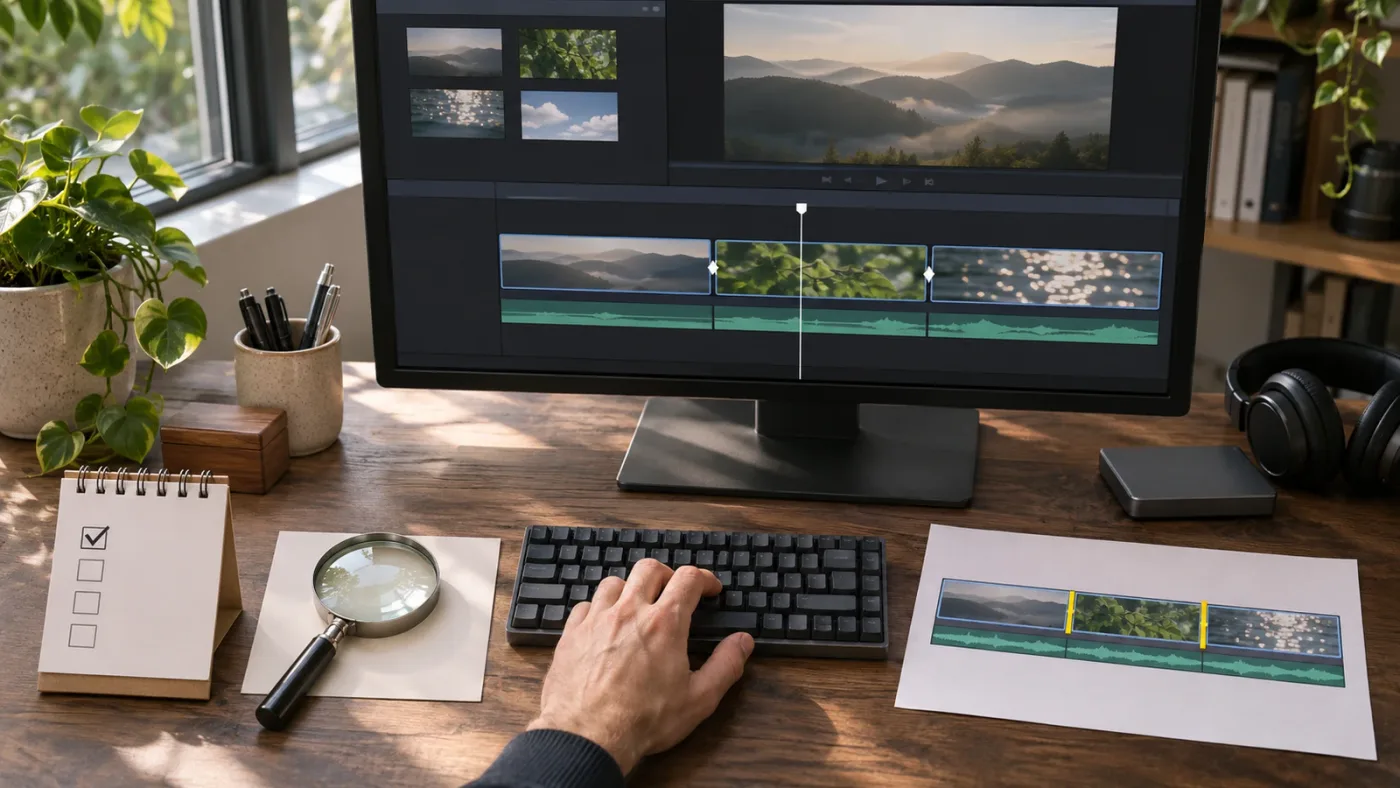
The release information confirms a shortcut for the command, but doesn’t specify its default key combination. Search for Restore Last Active Edit Points in Keyboard Customization to see what your installation shows. If there’s no binding you want to use, assign one there. Blackmagic’s Keyboard Customization documentation describes the tool for finding shortcuts and creating custom mappings.
That’s a less tidy answer than naming a key, but it avoids handing you a made-up shortcut. Resolve users can choose different keyboard mappings, and a key combination that works in one setup may be assigned to another command in yours.
Use this check before you change anything:
- Open Keyboard Customization.
- Search for the exact command name.
- Read the key assignment shown for that command, if any.
- Check whether the combination is already assigned to another action.
- If you choose a different combination, save it and test it in a timeline where the selection can be recreated.
- If the result is unexpected, return to Keyboard Customization and inspect the binding again before changing timeline content.
The reliable shortcut is the one shown in your Keyboard Customization panel, not one copied from an unverified list.
A conflict warning is not just an annoyance to click through. It tells you that the same combination has another use in your current mapping. If you replace that binding without checking, you may lose a shortcut you rely on. Search for the conflicting command, decide which action matters more to your workflow, and assign a different combination if neither action should be sacrificed.
Keep the shortcut easy to remember, but distinct from operations you use constantly. A hard-to-recall shortcut can make the menu more practical. A shortcut that resembles a familiar trim or navigation command can be worse than no shortcut at all.
Can keyboard presets change what I see?
Yes, keyboard customization is designed to let you choose and create shortcut mappings. The Resolve Reference Manual explains that Keyboard Customization can show available shortcuts and save a custom mapping. So the key combination should be checked in the current installation, especially if you’ve changed mappings or work on more than one computer.
If you share a workstation, ask before replacing a binding. Another editor may have a deliberate layout. If you transfer a keyboard preset to another machine, verify the command there too rather than assuming the mapping is identical.
If the command is listed but no shortcut is shown, the feature can still be available through its menu action. The existence of a command and the existence of a particular shortcut are different questions. Use the command name to find it; use the binding shown in your interface to decide how to call it.
Should I make it a global shortcut?
Don’t choose an application-wide or panel-specific mapping by guesswork. The reference manual explains that Resolve can use different shortcut mappings for application-wide commands and particular panels. Which scope is appropriate depends on the command and how you work. Search the command, review the options the interface offers, and test the mapping in the timeline context where you plan to use it.
If Keyboard Customization offers a panel-specific assignment, be conscious of focus. The same key can mean different things in different panels when a mapping is panel-specific. That may be useful, but it can also make a shortcut seem inconsistent if you press it while the wrong panel has focus. Check the active panel and test the exact workflow you intend to use.
If the interface doesn’t make the mapping’s scope clear, leave the current mapping alone until you can verify it. The menu remains a reasonable way to invoke a command while you investigate.
Does the command restore edit points, In and Out marks, or undo history?
It restores the last active edit points. It does not promise to restore timeline In and Out marks, and it is not an undo command. Resolve 21.2’s feature description is specific to edit points. The distinction matters because the three states answer different questions.
- Edit points: Which clip boundaries are active for a timeline editing or trimming task?
- In and Out marks: What start and end positions define a marked range?
- Undo or history: Which editing action do you want to reverse or revisit?
A familiar word like restore can sound broader than the feature actually is. Here it refers to selection recall. It doesn’t describe a project backup, an undo stack, or recovery from a deleted clip.
| What disappeared or changed? | How to identify it | Appropriate next step |
|---|---|---|
| Highlighted boundaries between timeline clips | You wanted a prior active edit-point selection | Try Restore Last Active Edit Points, then inspect the selection |
| Start or end of a marked timeline range | You were using In and Out marks | Reapply or inspect the relevant mark controls |
| A clip’s position or duration | The timeline content changed | Use undo or another appropriate recovery method |
| A timeline or project state after closing Resolve | Changes are missing from the saved project | Check project backups or saved versions, not this command |
| A selected clip as the playhead moves | Selection behavior follows timeline navigation | Diagnose selection behavior separately |
The selection-follows-playhead guide addresses a different selection problem: clips changing selection as the playhead moves. That behavior is not evidence that Restore Last Active Edit Points is failing. First identify whether the highlighted object is a clip or an edit point.
Similarly, if you’re trying to change a trim dynamically rather than recall a selection, see the Dynamic Trim Mode guide. Dynamic trimming and selection recall may both involve timeline edit points, but they answer different questions. One is about a trimming workflow; the other is about bringing back a recent selection.
Is a selected edit point the same as a selected clip?
No. In everyday editing, it’s easy to say “I selected that cut” or “I selected that clip” loosely. For troubleshooting, be more exact. A clip is a region of media in the timeline. An edit point is a boundary. If you meant to select a clip and instead expect to see a boundary highlighted, the command may appear to do nothing even though you are looking for the wrong kind of state.
Before running the command, describe the missing state in plain words: “I want the same boundaries active again,” “I want the clip itself selected,” or “I want the same start and end marks.” That sentence often identifies the correct operation before you touch the keyboard.
Is this related to undo?
Only in the broad sense that both can follow an editing action. Undo reverses an action; restoring active edit points recalls a selection. If you moved a clip and want to undo the move, use undo. If the clip is in the right place and you want the earlier edit-point selection back, try the new command.
Don’t use the restore command to test whether an edit was undone. If you’re unsure whether a trim changed timeline content, inspect the timeline and use the proper history or undo workflow. The command’s name does not guarantee that it will reverse any content change.
Why can’t I find Restore Last Active Edit Points?
Start with the application version. Blackmagic lists this as a Resolve 21.2 feature. If your application is earlier, check the version before searching menus. If it is 21.2 or later, search the complete command name in Keyboard Customization. The official release information is the place to check Blackmagic’s published update details.
| What you see | First check | Next move |
|---|---|---|
| The command is missing from menus | Confirm Resolve is 21.2 or later | Search the exact name in Keyboard Customization |
| The command appears, but you don’t know its shortcut | Inspect the command’s binding | Assign one if useful and test it |
| A shortcut launches a different action | Check for an existing assignment or focus-specific mapping | Review the conflict before changing it |
| The command runs but the selection is unclear | Identify the active timeline and the kind of object selected | Select the intended edit points manually if needed |
| You expected a marked range to return | Confirm whether you mean In and Out marks | Use the mark controls, not edit-point recall |
| You expected an edit to be undone | Identify the content change you want to reverse | Use undo or the appropriate history workflow |
What if I’m using Resolve 21.1 or an earlier release?
The command is listed as a Resolve 21.2 addition. A 21.1 reference manual can still help explain the general Keyboard Customization system, but it can’t establish that a command added in 21.2 exists in an earlier build. Check the installed application version first. Don’t treat a manual published for another version as proof that a newly added command is missing or present.
If you are considering an update, use Blackmagic’s current support information and follow your normal project-backup process before changing versions. This article is about locating and using the edit-point command, not an update procedure. Don’t update a working project solely to test an unfamiliar shortcut without considering your normal backup and compatibility requirements.
What if a search for “restore” returns too much?
Search the full phrase: Restore Last Active Edit Points. A broad term such as restore, last, or edit may return commands unrelated to this selection task. The exact command name is a better search key because it matches the published feature description.
If the complete phrase yields nothing, check that the search field is inside Resolve’s Keyboard Customization, not in another application’s preferences or in a general help search. Then confirm the installed application version. If all three checks are correct and the command still doesn’t appear, use Blackmagic’s current support resources for your specific build rather than guessing at a hidden menu path.
What if the command exists but has no shortcut?
That does not necessarily mean the command is unavailable. A menu action can exist even if the current keyboard mapping has no shortcut you recognize. Search the command by name and inspect its entry. If the interface lets you assign a shortcut, you can choose one and check for conflicts. Otherwise, use the available menu action.
The public release information confirms that a shortcut is part of the feature, but does not identify the default key combination. Your installation is the useful reference for its current binding. Don’t infer a default from a video, another editor’s setup, or a list of Resolve shortcuts that may describe a different keyboard mapping.
What if I run it and nothing seems to happen?
Check the problem in this order:
- Is there a previous edit-point selection to recall? The command is not a tool for choosing new points. If you have no selection to bring back, select the points you need manually.
- Are you looking at the right timeline? Check the active timeline’s name or tab. If several timelines are open, confirm that the one you expect is active.
- Are you looking for edit points rather than clips or marks? The command concerns edit points. It is not described as restoring clip selection or In and Out marks.
- Can you see the selection clearly? Increase timeline visibility or zoom enough to inspect the relevant boundaries.
- Did the key combination invoke this command? Return to Keyboard Customization and confirm the binding. A key may have a different use in another focus context.
- Can you safely reselect the points? If you can’t confirm the recalled state, select the intended edit points again and verify them before trimming.
A command that appears to do nothing can be a wrong-target problem rather than a broken command. The intended timeline may not be active. The missing state may be a range, a clip selection, or a past edit. Diagnose the object first, then decide whether this command applies.
What if the wrong points appear?
Stop before trimming. A restored selection can be valid for a previous task and wrong for the current one. Clear or replace it using the selection controls for the workflow you’re using, then inspect the boundaries again. The command doesn’t know your current intention.
This distinction matters most when the timeline has many tracks, repeated cuts, overlays, or audio that needs to stay aligned with picture. Don’t conclude that a highlighted point is the intended point just because it is active. Compare it with the edit you meant to make.
If the selection seems to be on the right timeline but has the wrong scope, make a fresh selection rather than trying repeated commands to force the result. There’s no reason to use a recall command when the selection you need has changed.
How does the 21.2 command differ from other edit-point changes?
Resolve 21.2 lists two separate edit-point changes: a menu action and shortcut to restore the last active edit points, and Command or Ctrl marquee selection that uses the last edit-point type. The first recalls a recent selection. The second affects a new marquee selection. Neither description says the two actions are interchangeable.
| Operation | What it does, at a high level | Use it when |
|---|---|---|
| Restore Last Active Edit Points | Recalls a previous active edit-point selection | You want the recent selection back |
| Command or Ctrl marquee selection | Uses the last edit-point type when making a marquee selection | You are creating a new marquee selection |
| Dynamic Trim Mode | Provides a distinct trimming workflow | You want to trim with that workflow |
| Selection Follows Playhead | Describes selection behavior as the playhead moves | Clips appear to become selected as you navigate |
| In and Out marks | Define a range | You need a start and end position, not selected boundaries |
The version notes also describe prior work on timeline edit-point selection in 21.1.2. That history helps explain why the 21.2 additions are easy to mix up, but it does not make them the same feature. Keep the task in view: recall a selection, make a new selection, or trim a point.
Restoring a selection, making a marquee selection, and trimming are separate operations.
If you’re in Dynamic Trim Mode and unsure why a point responds differently than expected, read the Dynamic Trim Mode guide. If clips highlight as the playhead moves, read Selection Follows Playhead. These related workflows can look similar on a busy timeline, but the symptoms point to different controls.
Does the marquee change restore a previous selection?
No. The published wording says that Command or Ctrl marquee selection now uses the last edit-point type. It describes how a new marquee selection is made, not a way to bring back an earlier set of points. If you need to restore the previous active points, search for the restore command. If you need to make a new selection, use the selection workflow that fits your goal.
This difference matters if you’re trying shortcuts from memory. Holding a modifier while drawing a marquee may create a new selection; it should not be assumed to recall the one you had before. Confirm the command name before assigning a shortcut or diagnosing its result.
Is dynamic trim the same thing as edit-point recall?
No. Dynamic Trim Mode is a trimming workflow, covered in the separate Dynamic Trim Mode guide. The new 21.2 restore command is about a previous active selection. If your actual problem is that trimming behaves differently than expected, restoring points may not solve it. Identify whether the problem is selection or trim behavior.
Is selection following the playhead the same thing?
No. Selection Follows Playhead describes a behavior where the selected clip changes in relation to playhead movement. The restore command is about active edit points. If the selection keeps changing while you navigate, consult the selection-follows-playhead troubleshooting guide rather than treating every selection change as a lost edit-point selection.
When should I assign a custom shortcut?
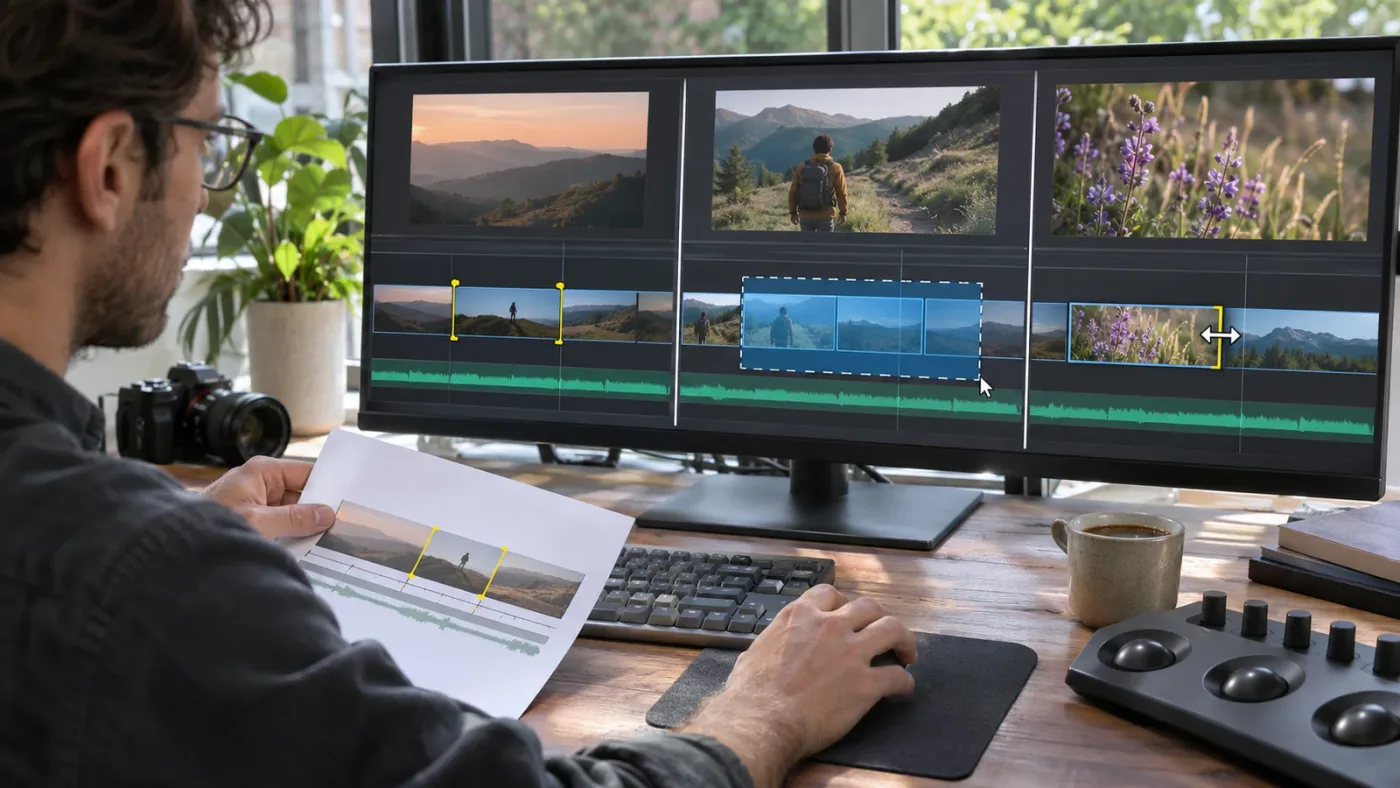
Assign one if you expect to recall edit-point selections often and can choose a combination that fits your layout without disrupting another command. If you’re testing the feature or expect to use it rarely, the menu action may be enough. The release information confirms a shortcut exists, but doesn’t provide a default key combination, so base your choice on the mapping displayed in your installation.
Use the menu when:
- You’re still learning what the command does.
- You want to confirm the command name before assigning keys.
- You don’t use it often enough to justify another shortcut.
- You’re working on a shared system and don’t know whether other editors rely on the current mapping.
- You want to avoid changing keyboard settings until you understand a reported conflict.
Consider a custom shortcut when:
- You repeat the same editing task and often need to recall a recent selection.
- You can choose a combination you won’t confuse with navigation, trimming, or selection commands.
- You can test the binding in a safe timeline.
- You know how to find and restore the previous mapping if the new one causes trouble.
Skip the custom shortcut for now when:
- The mapping shows a conflict with a command you rely on.
- You can’t remember the new combination.
- You share a workstation and haven’t checked with the other editors.
- You’re not sure whether the command applies to your task.
- The menu route is already quick enough.
A shortcut is useful only when it makes the correct action easier to repeat. A shortcut that triggers a different action, or that you forget, doesn’t save time. Test it with a selection you can rebuild. Confirm both that the command runs and that the expected edit points become active.
How should I choose a key combination?
There is no universal best combination for every Resolve user. Your existing mapping, keyboard layout, dominant hand, and other frequently used commands matter. Choose a combination that feels distinct in your workflow and is easy enough to repeat. Then inspect the conflict information Resolve shows.
Avoid choosing keys only because they are unused in an online shortcut list. Your own mapping is the relevant one. If the mapping interface reports another command, decide deliberately whether to reassign it or choose another combination.
If you use different keyboard layouts or switch between computers, keep a note of the binding in your own workflow documentation. That’s especially useful when a project moves between an edit suite and a laptop. The note is not a replacement for checking Keyboard Customization, but it can remind you which command to verify.
If you use an external editing keyboard, don’t assume a dedicated key is already mapped to this new command. Check the current mapping just as you would with a standard keyboard. Resolve’s public product page says keyboard shortcuts can be customized, but that doesn’t establish a particular key on every peripheral.
What if the same shortcut works in one panel but not another?
Check focus and mapping scope. Resolve’s Reference Manual describes panel-specific shortcut mappings, where one combination may have different actions depending on the active panel. If a shortcut behaves differently from what you expected, first check which panel has focus, then inspect the assignment in Keyboard Customization.
Don’t change several shortcuts at once while troubleshooting. Change one assignment, save, and test that one mapping in the timeline context you care about. If you change multiple combinations at the same time, it becomes harder to tell which change caused an unexpected result.
What should I check before trimming restored points?
Confirm the active timeline, identify the intended points, and make sure your next operation matches the selection. The restore command can return a previous active edit-point selection, but it cannot tell whether those points still fit the edit you’re making now.
Use this pre-trim check:
- State your goal. Are you recalling edit points, marking a range, selecting clips, or undoing an edit?
- Check the timeline. Confirm that the open timeline is where you made the selection.
- Look at the selected boundaries. Identify the points that are actually active.
- Check the operation. Make sure the action you’re about to take is the trim or edit you intend.
- Consider track relationships. If audio or another video layer matters, inspect its relevant state instead of assuming it follows the selection you see.
- Stop if the selection is ambiguous. Select the points you need manually and verify again.
- If an edit has already gone wrong, use the appropriate undo workflow. Don’t use selection recall as a substitute for reversing a content change.
The next three examples are worked examples, not reports of hands-on tests. They show how to reason about the command without assuming that a selection is correct simply because Resolve restored it.
Worked example: returning to a repeated interview cut
Imagine you’re making a sequence of trims across an interview. You selected several edit points to work on, then moved to a different task and lost track of the selection. You want the active points back, not the clip positions rewound.
- Confirm that the current timeline is the interview timeline you were editing.
- Search for
Restore Last Active Edit Pointsin Keyboard Customization. - Invoke the command from the route available in your installation.
- Identify which boundaries are active. Compare them with the interview cuts you intended to work on.
- If the points match, continue with the planned operation. If they don’t, reselect the right boundaries.
The command helps only at step three. The rest is still editing judgment. If you instead wanted the interview sequence returned to its earlier state, selection recall is the wrong tool.
Worked example: separate picture and audio boundaries
Imagine the video cut you want to adjust sits above a continuous audio clip, and you need to avoid changing the audio while you assess the picture edit. You recall a previous edit-point selection. Don’t infer the audio state from the video alone. Inspect the audio track and any relevant selection indicators before trimming.
This example doesn’t claim that the restore command will select or exclude any particular linked audio points. The published feature description doesn’t specify that behavior. The safe rule is to check every track that matters to the result. If the selection is hard to read, make a deliberate new selection.
Worked example: two similar timelines
Imagine you have a main timeline and a short social cut with similar sections. You remember selecting points in the main timeline, but the social cut is currently active. Before you run the restore command, check the timeline’s name or tab. If the command’s result is not the selection you expected, don’t repeat it and hope it crosses to the other timeline. Switch to the timeline where you need to work and select the intended points there.
Again, this is a cautious workflow example. The release notes don’t specify cross-timeline selection behavior. Don’t rely on an assumption about it.

Worked example: a lost range, not a lost selection
Imagine you marked a timeline In and Out range for review, then those marks are no longer visible. The word restore may tempt you to run the 21.2 command. First ask what disappeared. If the missing objects are the start and end of a range, you’re looking for marks, not active edit points. Use the relevant mark workflow instead.
This example is useful because it catches a category error early. Don’t spend time searching for edit-point commands when the missing state was a range.
Worked example: shortcut conflict on a shared workstation
Imagine Resolve reports that your preferred shortcut is already assigned. Before you replace it, find the other command and ask whether another editor needs that key. If you’re the only user and the other action is irrelevant to your work, you can decide to remap it. If the workstation is shared or the existing assignment matters, select another combination or keep using the menu.
The goal is a repeatable workflow, not a particular key. A menu command is preferable to a shortcut that breaks someone else’s established setup.
Worked example: the playhead moves and a clip becomes selected
Imagine you’re moving the playhead and a clip selection changes. That might be a selection-follows-playhead issue rather than a lost edit-point selection. Don’t assume that Restore Last Active Edit Points will stop clips from being selected as you navigate. Diagnose the visible behavior and use the selection-follows-playhead guide if that is what you’re seeing.
The quick distinction: a highlighted clip is not the same thing as a selected boundary. Name the object before you search for a fix.
What are the safest troubleshooting steps?
Use a short decision tree, and change one thing at a time. That keeps a small selection problem from turning into a shortcut or timeline problem.
If the command is missing: confirm the application version. If it is earlier than 21.2, the feature may not be available. If it is 21.2 or later, search the full phrase in Keyboard Customization.
If the command appears but has no shortcut you recognize: inspect the mapping. Use the command from its menu if available, or assign a combination after checking conflicts.
If the shortcut triggers something else: check the active panel and the mapping scope. Then return to Keyboard Customization and review the binding.
If the command runs but nothing is obvious: confirm that there was a prior edit-point selection, that the right timeline is active, and that you’re looking for boundaries rather than clips or marks.
If the wrong points appear active: stop. Make a fresh selection and verify it. Don’t trim on the assumption that a prior selection matches today’s task.
If content changed unexpectedly: use the appropriate undo or history workflow for the content change. Restoring edit points is not a way to reverse a trim.
This sequence separates command discovery from shortcut troubleshooting and from timeline editing. That matters because each has a different remedy. Updating Resolve won’t fix an incorrect shortcut mapping. Changing a key binding won’t restore a range mark. Running the restore command won’t undo a clip move.
What details should I note if I ask for help?
If the command remains unavailable or behaves unexpectedly after these checks, capture the facts that narrow the problem:
- The Resolve version shown in the About dialog.
- Whether the command appears when searched by its full name.
- Whether Keyboard Customization shows a key assignment.
- The page and timeline where you’re working.
- Whether you want edit points, clips, In and Out marks, or an edit to be undone.
- What you see immediately after running the command.
- Whether the shortcut behaves differently when another panel has focus.
Avoid describing every timeline issue as “the selection disappeared.” Say what object you selected and what you expected to see. That turns a vague report into a useful troubleshooting question.
If you share a project or screenshot for support, follow your normal privacy and client-confidentiality rules. Don’t expose footage, names, or client details unnecessarily. For a command-location question, the app version and a description of the selected object may be enough.
How can on-screen guidance help me find the command?
Once you know the feature is an edit-point recall command, the remaining friction may be locating it in your own interface or checking a confusing keyboard mapping. If the controls in a tutorial don’t match your screen, TryUncle is an on-screen assistant for Mac and Windows: you can ask a question and get guidance based on the current screen, while you remain in control and perform the actions.
That’s optional. The direct route remains to search the exact command name in Keyboard Customization, check the version, and verify the timeline selection before trimming. No assistant can decide whether a restored selection matches the edit you intend to make.
What is the safest way to use the new command?
Use Restore Last Active Edit Points when you want a recent active timeline edit-point selection back. Find it by its exact name, verify any shortcut in your installation, confirm the correct timeline, and inspect the active boundaries before trimming. If you need to restore In and Out marks, undo an edit, or select different points, use the workflow for that specific task instead.
If you need a selection back, restore the points; if you need an edit reversed, use undo.
Frequently asked questions
- How do I restore last active edit points in DaVinci Resolve 21.2?
- Use the Restore Last Active Edit Points command in Resolve 21.2. Search for its exact name in Keyboard Customization to find the command and inspect or assign a shortcut. Check the timeline afterward to confirm the points you wanted are active.
- What is the default shortcut for Restore Last Active Edit Points?
- The published Resolve 21.2 release information confirms the command has a shortcut, but doesn’t specify its default key combination. Search the command in Keyboard Customization to see the binding in your installation or assign one.
- Does Restore Last Active Edit Points restore timeline In and Out marks?
- No. The command is about active timeline edit points, not a range marked with In and Out points. If the missing state is a range, use the appropriate mark controls instead.
- Why can’t I find Restore Last Active Edit Points in DaVinci Resolve?
- The command was added in Resolve 21.2. Check the installed application version, then search the exact command name in Keyboard Customization. If it still doesn’t appear, confirm that you’re searching the Resolve keyboard commands and consult the release information for your installed build.
- Why does Restore Last Active Edit Points seem to do nothing?
- The command recalls a previous active edit-point selection; it doesn’t create a new selection or undo an edit. Check that you’re in the intended timeline and that there was a previous selection to recall. If the result is unclear, select the points you need manually and verify them before trimming.
- Can I assign my own shortcut to Restore Last Active Edit Points?
- Yes. Search for the command in Keyboard Customization and assign a combination that doesn’t conflict with a shortcut you rely on. Resolve’s reference manual explains that Keyboard Customization can show available shortcuts and create custom mappings.
Sources
Put this guide to work with TryUncle.
Ask about the step you’re on. TryUncle sees your screen and points at the control you need, so you can keep learning in your own project.
Get TryUncle for Mac or WindowsKeep reading
Fixes · Sep 29, 2026 · 18 min
DaVinci Resolve Selection Follows Playhead: Fix It in 21
Make DaVinci Resolve selection follows playhead work in Resolve 21.1. Fix the menu, wrong-track selection, audio behavior, and stacked clips.
Guides · Aug 2, 2026 · 36 min
DaVinci Resolve Dynamic Trim Mode Explained: The Full JKL Guide
DaVinci Resolve's Dynamic Trim Mode (W key) turns J, K, and L into a live ripple, roll, slip, and slide trimmer. Here's exactly how it works and why.

Comparisons · Nov 17, 2026 · 22 min
DaVinci Resolve Timeline Viewer vs Source Viewer: Difference
Learn the DaVinci Resolve timeline viewer and source viewer difference, when to use each, how selection and focus affect them, and what changes in Resolve 21.1.