Articles / Fixesupdated for DaVinci Resolve 21.1 (September 2026)
DaVinci Resolve Selection Follows Playhead: Fix It in 21
Quick answer
In DaVinci Resolve 21, open the Edit page and choose Timeline > Video > Selection Follows Playhead. If the wrong clip becomes active, limit the track selection controls to the track you want. To select every clip under the playhead, use Trim > Select All Clips Under Playhead.
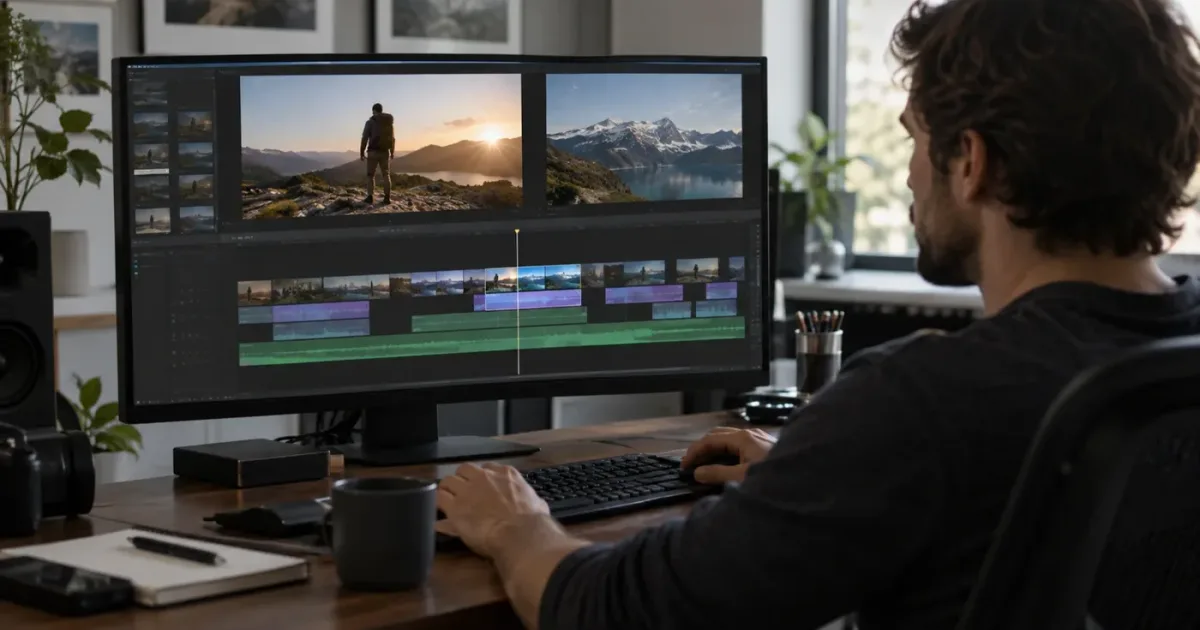
DaVinci Resolve selection follows playhead is usually a menu setting, not a broken timeline. The trouble starts when the playhead crosses stacked video, linked audio, titles, or a different page than the Edit page. As of September 2026, the current release is DaVinci Resolve 21.1, and the useful fix is still simple once you separate selection from track targeting.
We built and run a 100,000+ member professional video-editing community, and this is one of the recurring questions editors bring to it. After 7+ years of professional commercial video editing, we’ve learned to solve this symptom by asking a blunt question first: which clip should Resolve be allowed to select?
How do I make DaVinci Resolve selection follow the playhead?
To make DaVinci Resolve selection follow the playhead, open the Edit page and choose Timeline > Video > Selection Follows Playhead. In older or differently arranged builds, the command may appear directly under Timeline, so use Resolve’s Help search for the exact menu item if you don’t see the Video submenu.
Blackmagic changed the default behavior in DaVinci Resolve 17. The clip selection stopped moving automatically with the playhead, while Command plus an arrow key became the way to move a selection independently. Blackmagic’s official Resolve 17 guide says you can restore the earlier behavior by enabling Selection Follows Playhead in the Timeline menu. Read the Resolve 17 selection update in Blackmagic’s guide.
Use this short procedure:
- Switch to the Edit page.
- Click inside the timeline so the timeline has focus.
- Open the Timeline menu.
- Open Video if your Resolve 21 build shows that submenu.
- Select Selection Follows Playhead.
- Move the playhead across two clips and pause on the second one.
- Check the Inspector before changing a parameter.
The last check matters. The setting changes which clip becomes active as the playhead crosses it. It doesn’t mean that every clip under the playhead is selected, and it doesn’t decide which track should win when several eligible clips overlap.
Selection Follows Playhead follows the playhead, not your creative intention.
“Timeline menu > Selection Follows Playhead”
Shrinivas Ramani, Blackmagic Design forum response to a request for automatic clip selection. Source
DaVinci Resolve 21.1 still treats selection follows playhead as a timeline selection mode, not a command to select every track.
Why is DaVinci Resolve selection follows playhead not working?
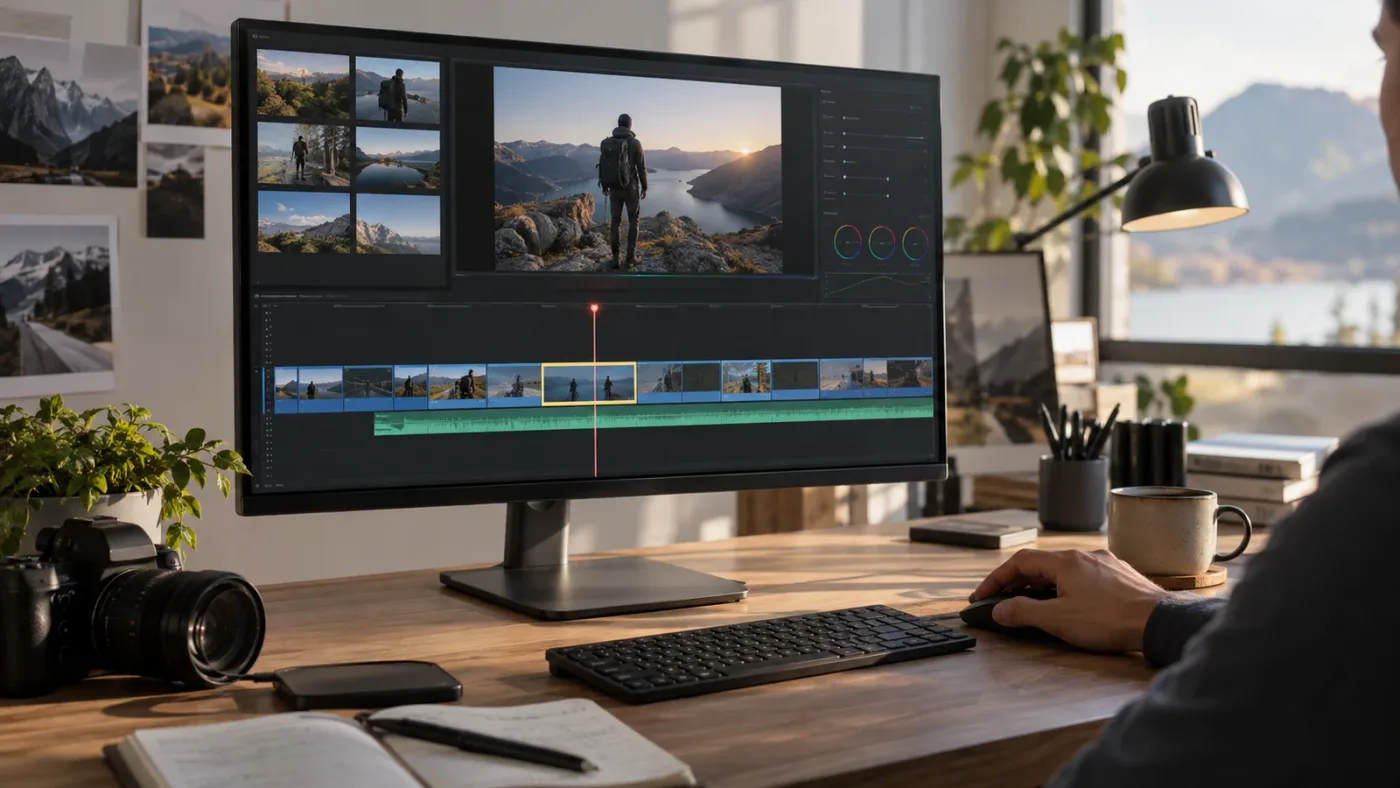
DaVinci Resolve selection follows playhead usually appears not to work because the timeline lacks focus, the command is being searched for on the wrong page, a track-selection control excludes the desired track, or the clip is a special title or subtitle item. Check those four causes in that order.
Is the timeline focused?
Click once in an empty area of the Edit timeline, then move the playhead again. Resolve has several page-specific menus, and a command that applies to the Edit timeline won’t always be available when the Viewer, Media Pool, Inspector, or another page has focus.
Are you looking in the wrong menu level?
Resolve 20-era users reported that the command moved from a top-level Timeline location into Timeline > Video. The exact display can vary by page and build. The wording to search for is not “follow playhead” or “select clip at playhead.” Search for the complete command name, Selection Follows Playhead.
If you’re on Resolve 21.1 and the command is missing, use the Help menu search. That is a better diagnostic than guessing whether Blackmagic removed the feature. The official Resolve 17 guide still documents the behavior, and Blackmagic’s current product page identifies Resolve 21 as the active major version. Blackmagic announced Resolve 21.1 as available on September 8, 2026. See the 21.1 announcement.
Is the desired track eligible?
Selection follows playhead needs an eligible track to choose from. If the playhead is over a clip on V2 but the selection control for V2 is disabled, Resolve may select a different eligible clip or keep the current selection. The same problem can happen when you intend to edit audio but audio selection is not enabled.
On Resolve 20.2, Blackmagic redesigned the old Auto Track Selector presentation. The new Source Track Selector uses independent track controls, and Blackmagic says those controls govern actions and the selection of nearby clips and edits. The old auto-selector shortcuts remain, but the controls are represented by the timeline track icons instead. Read the Resolve 20.2 track-selection explanation.
Is the item a title, subtitle, or another special clip?
The feature is most predictable with ordinary video and audio clips. Blackmagic forum users have documented cases involving Text+ items and subtitle-style workflows where the item they expected did not become the active selection. That is a limitation or edge case to test, not proof that the whole timeline setting is off. See the Blackmagic forum discussion of title-selection behavior.
If the problem survives these checks, turn the setting off, close the project, reopen it, and test a simple timeline with one video track and two clips. This isolates the mode from stacked clips, linked items, titles, and project-specific track states. It’s a diagnostic step, not a claim that restarting repairs the underlying project.
If you’re unsure whether you’re working in the right timeline workspace, compare the Edit and Cut page roles in our guide to DaVinci Resolve Cut page vs Edit page differences.
Why does DaVinci Resolve select the wrong clip under the playhead?
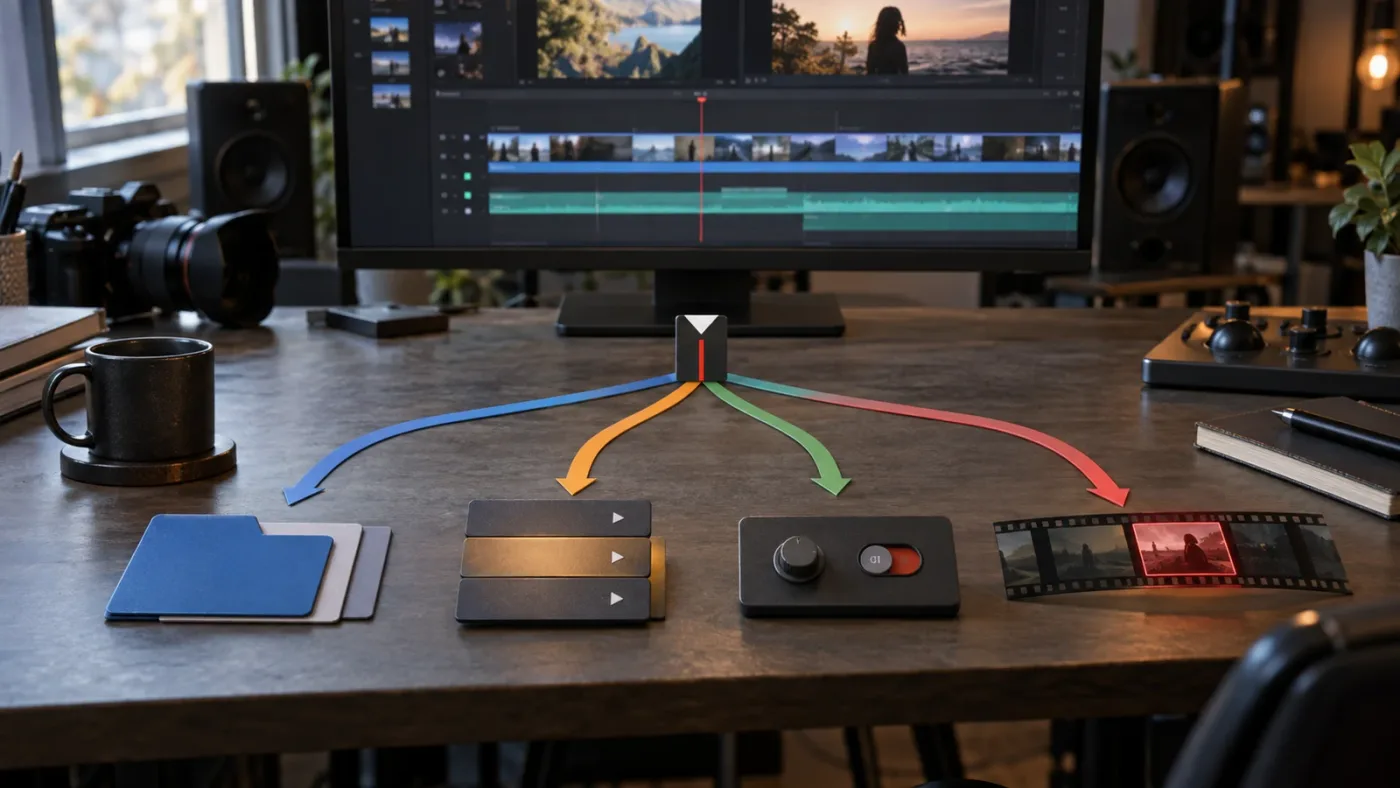
DaVinci Resolve selects the wrong clip when more than one track is a plausible target at the playhead position. The reliable fix is to narrow the eligible tracks before you move the playhead, rather than expecting Selection Follows Playhead to understand your creative intention.
Imagine a common timeline. V1 holds an interview. V2 holds B-roll. A1 holds the interview audio. A2 holds a music bed. The playhead crosses all four tracks. “The clip under the playhead” is not one unambiguous object, so the setting needs track-selection rules.
Use this decision matrix:
| What you want to edit | Track controls to leave enabled | Selection mode to use | Why |
|---|---|---|---|
| One B-roll clip on V2 | V2 only, plus the audio tracks you intentionally want | Selection Follows Playhead | The active target stays within the intended video layer |
| Interview picture and linked production audio | V1 and A1, with linked selection handled intentionally | Selection Follows Playhead | The picture and sound remain available to the same edit workflow |
| One music clip on A2 | A2 only | Selection Follows Playhead off, or audio selection narrowed | Video clips should not become the active target while you mix |
| Every clip crossing the playhead | The tracks you want affected | Trim > Select All Clips Under Playhead | The command is designed for a multi-track selection |
| A title or adjustment layer above picture | Only the title or adjustment track | Manual selection or the nearest-clip shortcut | Special clips can behave differently from ordinary media |
The fastest fix is the smallest change that narrows Resolve’s target to the track you intend to edit.
A lock is not the same as a selection filter. Lock a track when you need to prevent changes to it. Use the track selection control when you need Resolve’s playhead-driven operations to ignore it. Blackmagic’s 20.2 guide makes the distinction especially useful because track selection and sync lock became separate controls. Sync lock governs whether a track ripples with other tracks; track selection governs which track participates in actions such as selecting nearby clips and edits. Read Blackmagic’s 20.2 explanation of independent controls.
If your selected clip keeps jumping to V1 when you want V2, disable the V1 selection control, leave V2 enabled, and move the playhead across the edit. If your audio edit keeps activating picture, disable the video selection controls temporarily and leave the target audio track enabled. Then restore your normal track state when the focused task is finished.
That sounds fussy. It’s still safer than trimming a clip you didn’t mean to touch. After seven years of cutting commercial work in Resolve, we treat the track controls as a statement of intent: they tell Resolve which layers are allowed to answer the next keyboard command.
How do I select every clip under the playhead in DaVinci Resolve?
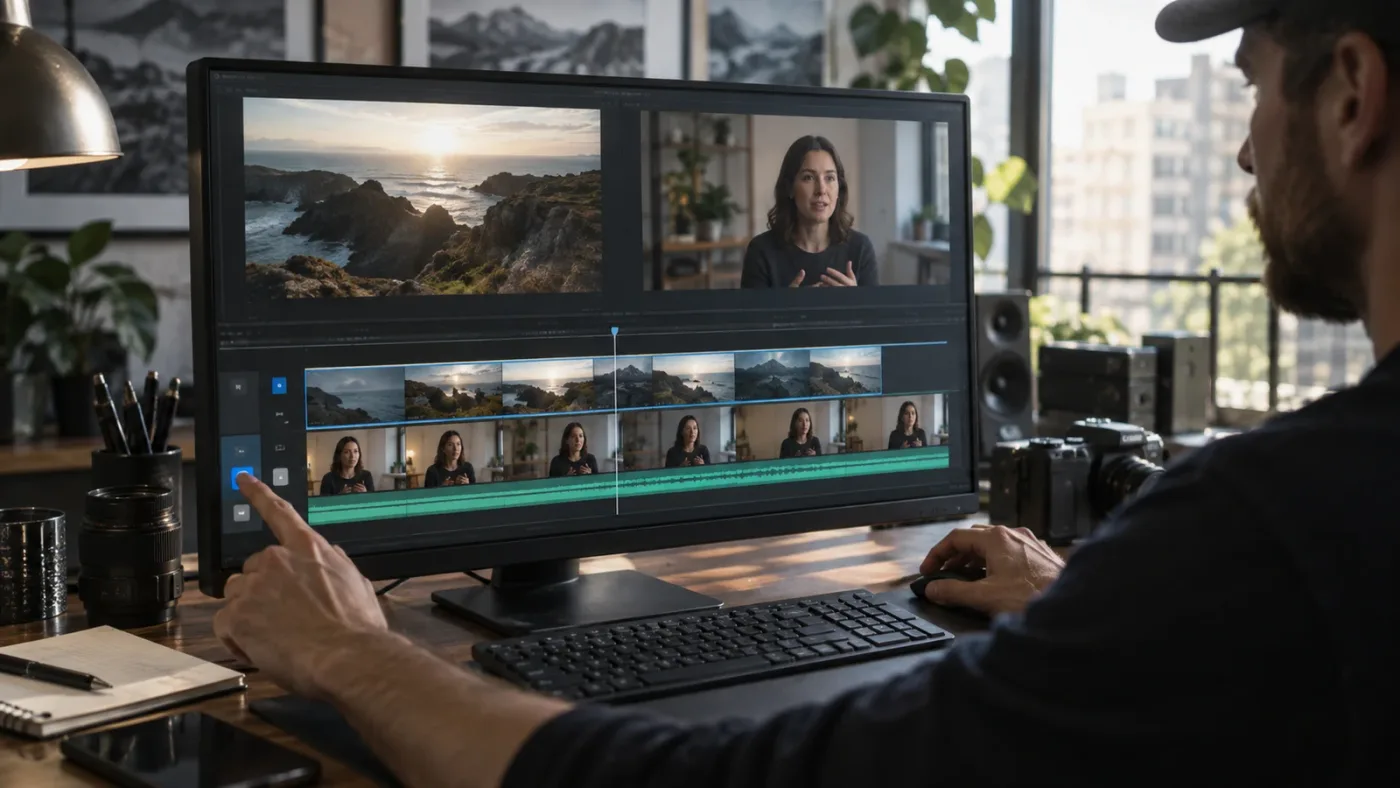
To select every clip under the playhead in DaVinci Resolve, choose Trim > Select All Clips Under Playhead. This is different from Selection Follows Playhead, which normally moves one active selection as the playhead crosses the timeline.
Blackmagic added Select All Clips Under Playhead in the Resolve 18.5 New Features Guide for the Cut, Edit, and Fairlight pages. The guide says the command selects all clips under the playhead regardless of how many tracks they occupy. The default macOS shortcut is Option-Shift-V. Resolve’s documented shortcut convention uses Alt in place of Option on Windows and Linux, so the corresponding Windows and Linux combination is Alt-Shift-V. Read the official 18.5 feature note.
Use it when your intention is “affect all clips at this time,” such as a linked picture-and-audio edit that has been unlinked, or a layered sound edit where multiple tracks must be selected together. The command is also useful when you do not want to change your normal Selection Follows Playhead preference.
Use the command this way:
- Put the playhead on the frame or cut you want to work from.
- Open the Trim menu.
- Choose Select All Clips Under Playhead.
- Inspect the selection highlight across the relevant tracks.
- Perform the edit only after checking that the intended tracks are included.
The last step protects you from a common false assumption. “All clips” means all clips under the playhead that Resolve can select in that context. It doesn’t mean every clip in the project, every hidden item, or every track you might have in mind. Use the track controls to define the scope first.
In Resolve 21, the distinction is worth memorizing:
| Command | Selection result | Best use |
|---|---|---|
| Selection Follows Playhead | The active clip follows the moving playhead | Inspecting or editing the clip you reach next |
| Select All Clips Under Playhead | Multiple clips intersecting the playhead become selected | Multi-track edits and layered timing work |
| Command/Ctrl plus an arrow key | Moves the selection independently of the playhead | Deliberately navigating clips above, below, left, or right |
If you use this often, assign a shortcut you can reach without moving your hand from the keyboard. Resolve’s keyboard-shortcut reference is a useful companion for that broader setup, but keep the built-in command name in mind because custom shortcut layouts can differ.
Select All Clips Under Playhead is the right tool when a stacked edit must affect multiple tracks.
Should I turn off selection follows playhead for audio, titles, or layered edits?
Turn off Selection Follows Playhead when automatic clip changes interfere with a focused audio, title, or layered edit. Leave it on when you want the Inspector and clip tools to follow the clip currently under the playhead.
For audio work, the safest choice is often to narrow track selection rather than permanently disable the feature. If you’re leveling A2, enable A2 and disable video selection for the moment. If you’re changing a title, enable the title track and avoid asking the setting to guess among several overlapping visual layers.
Unlinked picture and sound deserve extra care. A Blackmagic forum thread describes a case where unlinked tracks behaved differently with Selection Follows Playhead, including a workflow where only the video track was selected for split or trim commands. The practical lesson is not that unlinked clips are unusable. It’s that Selection Follows Playhead follows the active selection model, not your memory of which media used to be linked. Read the linked-audio discussion on Blackmagic’s forum.
When you edit a title or adjustment layer, automatic selection can also be annoying because moving the playhead may change the clip shown in the Inspector. Turn the mode off while you tune a specific item, or select the item and use the track controls to keep the intended layer eligible.
Turning off selection follows playhead is a workflow choice, not a repair for every wrong-selection symptom.
There is a third option between always on and always off: use the independent selection commands introduced with Resolve 17. On macOS, hold Command and press an arrow key to move the clip selection without moving the playhead. Blackmagic’s guide describes left and right movement as well as movement above and below the current track. The same shortcut convention maps Command to Control on Windows and Linux. The shortcut is useful when you want to keep the Viewer parked on one frame while you choose a neighboring clip.
For a simple interview timeline, I’d use Selection Follows Playhead when reviewing clips one by one. For a dense timeline with music, B-roll, titles, adjustment layers, and multiple audio tracks, I’d turn it off or narrow the track controls before making a change. That is a workflow recommendation based on the number of competing layers, not a claim that one preference is universally better.
What changed between Resolve 17, 18.5, 20.2, and 21.1?
The selection workflow changed in stages, so a tutorial recorded for one release can send you to the wrong control in another. The behavior is easiest to remember as four version markers.
| Resolve version | Documented change | What it means for this fix |
|---|---|---|
| 17 | Clip selection stopped moving automatically with the playhead by default | Enable Selection Follows Playhead if you want the earlier behavior |
| 18.5 | Select All Clips Under Playhead arrived for Cut, Edit, and Fairlight | Use it when one selection must span multiple tracks |
| 20.2 | Auto Track Selector presentation was redesigned into independent track controls | Look for the newer track-selection icons and separate sync-lock control |
| 21.1 | Blackmagic announced the current 21.1 release on September 8, 2026 | Use Resolve 21.1 as the current version context, while checking the exact menu layout in your build |
The important difference between the first three rows is scope. Resolve 17 changed the default selection relationship. Resolve 18.5 added a multi-track command. Resolve 20.2 changed where track-selection logic is exposed. Those are three separate answers to three different questions.
If a video says “turn on Auto Track Selector,” check its release date. In Resolve 20.2 and later, Blackmagic says the old auto-selector operations and shortcuts are still present, but their function is determined by the new timeline track icons. That is why an older tutorial can describe a control you can no longer find by the same name.
Resolve 21.1 also matters for freshness, but not because Blackmagic announced a new Selection Follows Playhead behavior. The current release announcement focuses on new AI assistant integration, expanded camera support, multicam workflows, Krokodove tools, and additional editing and color controls. For this particular fix, the reliable version-specific anchors remain the 17, 18.5, and 20.2 documentation. Check the official 21.1 release note.
What should I do when Selection Follows Playhead still feels random?
When Selection Follows Playhead feels random, reduce the timeline to one decision at a time: identify the intended page, identify the intended track, then choose whether you need one active clip or every clip at the playhead.
Run this five-minute isolation test:
- Duplicate the project or work in a disposable timeline so you can test without risking the edit.
- Create or use a timeline with two ordinary video clips on V1 and no overlapping track above them.
- Turn on Selection Follows Playhead and move across the cut.
- Add one clip on V2 and repeat the test.
- Disable V1’s track selection control, leave V2 enabled, and repeat the test.
- Add linked or unlinked audio only after the video behavior is clear.
This sequence tells you whether the issue is the preference, the track state, or the structure of the timeline. If it works in the simple test but not in the original, the original timeline contains a competing selection condition. Look for stacked clips, disabled or enabled track controls, titles, compound clips, adjustment layers, and audio that is no longer linked to picture.
Do not use the feature as a substitute for checking what a destructive command will affect. Selection follows playhead changes the active selection, but it does not make a ripple delete, trim, or split semantically safe. A selection that looks right can still include the wrong audio track or exclude a track you meant to move with the picture.
If a ripple delete is the action that exposed the wrong selection, use our separate troubleshooting guide for DaVinci Resolve ripple delete not working after you correct the track scope.
If the playhead appears to select something even after you turn the setting off, compare the selection outline with the current-clip indicator and Inspector target. Resolve can show a clip associated with the current playhead position for some operations without that being the same thing as the persistent clip selection mode. The Blackmagic 15.2 release notes, for example, separately describe showing Inspector properties for the highest visible clip under the playhead when no active selection exists. That distinction explains why turning off one preference may not remove every visual indicator. Read the Blackmagic 15.2 release note.
What is the best way to learn DaVinci Resolve fast when a tutorial does not match?
The best way to learn DaVinci Resolve fast is to use official training for the model, targeted demonstrations for workflow, and immediate help for the exact control visible in your own project. A tutorial can show the idea, but it cannot know which version, page, track state, or clip type is in front of you.
Blackmagic’s training page offers official videos, training books, lesson files, and a certification path. The current page lists the Beginner’s Guide, Editor’s Guide, Fairlight guide, Colorist Guide, and Fusion guides for Resolve 20, while the product itself is now in the Resolve 21 generation. That makes the official material useful for fundamentals, with a version check needed for newly moved controls. See Blackmagic’s official training hub.
Casey Faris is another useful reference for long-form demonstrations. His Resolve 21 beginner course was published on YouTube on May 28, 2026. Use that kind of course to understand the rhythm of an edit, then return to the current menu or manual when a control has moved. Watch the Resolve 21 course.
For a stuck control, the tools are different rather than interchangeable:
| Tool or resource | What it is good at | Where it wins | Where it does not answer this exact problem |
|---|---|---|---|
| Blackmagic official training | Structured lessons and exercises | Foundations, terminology, and repeatable practice | It may describe an earlier menu layout |
| Casey Faris | Long visual demonstrations | Seeing a complete editing workflow | You still have to map the lesson to your timeline |
| Sottocut | Local-first assistant editor for an open Resolve project | Proposing and verifying editing tasks inside the project | It is built around assistant-editor work, not simply pointing at one menu control |
| PremiereCopilot | Text-to-edit automation for Adobe Premiere Pro | Performing real Premiere timeline edits from prompts | It is not a Resolve selection tutorial |
| heyeddie.ai | Prompt-based editing and export workflows that can recreate a timeline in Resolve | Rough assemblies and dialogue-led editing | It is not the same as live control guidance in the Resolve interface |
| CutAgent | Natural-language editing and workflow automation connected to DaVinci Resolve | Handing off repetitive edit tasks to an agent | Automation is a different choice from learning which Resolve control to use |
| TryUncle | On-screen help while you work | Finding the relevant control in the Resolve window you already have open | It does not replace practice or make the editing decision for you |
The alternatives make different promises. Sottocut says it can score footage, propose a cut, and verify timeline changes. PremiereCopilot says it performs native edits in Premiere Pro. Eddie AI describes importing or exporting edits to non-linear editors including Resolve. CutAgent positions itself around AI-assisted post-production inside DaVinci Resolve. Those are automation or round-trip workflows, not the same job as explaining why your playhead is selecting V1 instead of V2. Compare Sottocut’s own workflow, PremiereCopilot’s text-to-edit workflow, Eddie AI’s Resolve export path, and CutAgent’s Resolve automation.
TryUncle is the on-screen assistant for DaVinci Resolve on Mac and Windows. Ask in plain words, and Uncle points at the exact control on your screen.
For this specific issue, ask a focused question such as “Why is DaVinci Resolve selecting V1 when the playhead is over V2?” Then check the track controls yourself before applying a trim or delete. On-screen guidance can shorten the hunt for the control. It should not choose the track or make the edit on your behalf.
Which fix should I use right now?
Use Timeline > Video > Selection Follows Playhead when you want one active clip to follow the playhead. Use track selection controls when Resolve chooses the wrong layer. Use Trim > Select All Clips Under Playhead when your intention is to select several clips at the same time. Turn the preference off when it gets in the way of a deliberate audio, title, or layered edit.
The short version is a choice, not a mystery:
| Your symptom | Your next move |
|---|---|
| The selection stays on an old clip | Enable Selection Follows Playhead on the Edit page |
| The menu is missing | Check the Edit page, timeline focus, and the Timeline > Video submenu |
| V1 wins when you want V2 | Disable V1’s track selection control and keep V2 eligible |
| Audio keeps losing focus | Narrow selection to the target audio track or turn the mode off temporarily |
| Several tracks must be selected | Choose Trim > Select All Clips Under Playhead |
| A title or subtitle behaves differently | Select the special clip manually and test with the relevant track control |
| The tutorial’s control is somewhere else | Match its instructions to Resolve 17, 18.5, 20.2, or 21.1 before following them |
Resolve becomes much easier to reason about when you stop treating the playhead as a command. The playhead marks time. Track controls define candidates. Selection mode decides whether the active clip follows. The multi-track command selects everything you explicitly need.
Make those three decisions before you trim. Then the timeline will usually do exactly what you meant.
Frequently asked questions
- Where is Selection Follows Playhead in DaVinci Resolve 21?
- On the Edit page, open Timeline, then Video, then select Selection Follows Playhead. If your build shows the command directly inside Timeline, choose it there.
- Why does DaVinci Resolve select the wrong clip under the playhead?
- The playhead can intersect clips on more than one track. Turn off the track selection control for tracks you do not want included, then leave it on for the intended video or audio track.
- How do I select all clips under the playhead in DaVinci Resolve?
- Choose Trim > Select All Clips Under Playhead. Blackmagic added this command for Cut, Edit, and Fairlight in Resolve 18.5; the default macOS shortcut is Option-Shift-V, with Alt replacing Option on Windows and Linux.
- Does Selection Follows Playhead work on the Cut page?
- The setting is primarily an Edit-page workflow. If it is missing or unavailable on Cut, use Trim > Select All Clips Under Playhead or the Cut page's clip-selection commands instead.
- What changed in Resolve 20.2?
- Resolve 20.2 replaced the old Auto Track Selector presentation with independent track-selection controls in the Source Track Selector area. The controls still govern operations that used the older auto-selector behavior.
Sources
- Blackmagic Design announces DaVinci Resolve 21.1
- DaVinci Resolve 17 New Features Guide
- DaVinci Resolve 18.5 New Features Guide
- DaVinci Resolve 20.2 New Features Guide
- DaVinci Resolve 15 Reference Manual shortcut conventions
- Blackmagic Design forum: selection follows playhead answer
- Blackmagic Design forum: selection follows playhead troubleshooting
- Blackmagic Design forum: linked audio and selection follows playhead
- Blackmagic Design training
- Casey Faris: Making Videos in Resolve 21
- TryUncle for DaVinci Resolve 21
- Sottocut assistant editor for DaVinci Resolve
- PremiereCopilot text-to-edit for Premiere Pro
- Eddie AI export and Resolve workflow
- CutAgent AI for DaVinci Resolve
Put this guide to work with TryUncle.
Ask about the step you’re on. TryUncle sees your screen and points at the control you need, so you can keep learning in your own project.
Get TryUncle for Mac or WindowsKeep reading
Guides · Jul 8, 2026 · 16 min
DaVinci Resolve Keyboard Shortcuts: The Complete Reference
Every essential DaVinci Resolve keyboard shortcut, organized by page: Edit, Cut, Color, Fairlight, Fusion, and Deliver, plus how to customize and share your own.
Comparisons · Jul 10, 2026 · 28 min
DaVinci Resolve Cut Page vs Edit Page: The Real Differences
A full side-by-side of DaVinci Resolve's Cut and Edit pages: timeline, trimming, multicam, and hardware differences, plus which one to use.
Fixes · Jul 18, 2026 · 24 min
DaVinci Resolve Ripple Delete Not Working? Every Real Cause and Fix
DaVinci Resolve ripple delete not working? Since 20.2, Sync Lock (not Auto Track Selector) controls it on Edit, and Cut page only ripples V1.