Articles / Guidesupdated for DaVinci Resolve 21.1 (September 2026)
DaVinci Resolve 21 AI Assistant: Organize Media Step by Step
Quick answer
In DaVinci Resolve Studio 21.1, connect a supported external AI assistant through Resolve’s setup flow and ask it to organize project media, then review every proposed change. For direct content discovery, use IntelliSearch; for slate fields, use Slate Finder and Slate ID. Keep bins and verified metadata as the durable structure.

DaVinci Resolve 21 can help you find footage by what appears in the frame, what someone says, and what is written on a slate. But an AI search is only one layer of a good media system. After seven years of professional commercial editing, we still start with names, folders, and metadata that another editor can understand without guessing.
As of October 2026, DaVinci Resolve 21.1 is the current point release announced by Blackmagic Design on September 8, 2026. This guide shows how to use its AI tools alongside bins, metadata, tags, and Smart Bins, and where manual review still matters. We run a 100,000+ member professional editing community, so we know the practical question behind the feature announcement: can I find the right shot next week, on a different machine, when the client asks for it?

What does “AI assistant organize media” mean in DaVinci Resolve 21?
In DaVinci Resolve 21, AI media organization means using analysis to make clips discoverable by visual content, dialogue, or slate text, then combining those results with bins and metadata. It does not mean handing an unsupervised agent your whole archive and receiving a perfectly named, production-ready project.
That distinction is worth keeping in view. “Organize media” can mean at least four different jobs: get files into the project, group files into bins, describe the clips with metadata, or retrieve a relevant shot quickly. Resolve has tools for each job. In Studio 21.1, an external AI assistant can also take conversational instructions for project analysis and media organization; IntelliSearch and slate analysis remain separate built-in AI workflows. A folder tree, consistent names, and a verified project database still do the structural work.
Blackmagic’s September 2026 announcement says Resolve Studio 21.1 supports assistants such as Claude, Claude Code, and ChatGPT Codex for project analysis, media organization, settings, and batch rendering through everyday language. The same release says the assistant can create highlight edits and remove unwanted clips. Separately, IntelliSearch analyzes media to find objects or dialogue keywords, while Slate Finder and Slate ID detect slate frames and offer fields such as Scene, Take, Angle, and Shoot Day. These are different tools for different questions. Searching for “red car” is not the same operation as reading “Scene 12, Take 4” from a slate.
A useful mental model has three layers:
- Structure: folders on disk, projects, bins, and sub-bins. This is where you decide how a team navigates the job.
- Description: clip names, metadata, tags, ratings, markers, and notes. This is where you record what the clip is and what to do with it.
- Discovery: ordinary search, filters, Smart Bins, and AI analysis. This is how an editor finds the material that matches a need.
The layers support each other. If analysis finds a shot of a dog, a human can decide whether it belongs in “B-roll / Animals,” whether to add the keyword “dog,” and whether that clip deserves a Good Take tag. A later Smart Bin can use the keyword or tag. AI can suggest or surface; the project’s agreed metadata vocabulary makes those suggestions useful after the original search is forgotten.
DaVinci Resolve 21 AI can speed up finding and describing footage, but a human still owns the project’s organization rules.
This guide is about the built-in Resolve workflow, not a promise that every AI-enabled feature works identically on every computer or license. Point releases, model packages, operating system support, and Studio-only features can affect what appears. Confirm your installed version in Resolve and compare its menus with the current Blackmagic documentation before you build a production around one command.
If the question is specifically how Resolve reads slate information, our focused guide to DaVinci Resolve 21 slate metadata covers the slate-analysis path in greater detail. Here, slates are one part of a broader organization plan.
How do I use the DaVinci Resolve 21.1 AI assistant to organize media?
The conversational AI assistant integration is a DaVinci Resolve Studio 21.1 feature: connect a supported external assistant through Resolve’s setup flow, ask for a bounded organization task, and inspect what it proposes before accepting changes. Blackmagic names Claude, Claude Code, and ChatGPT Codex as examples; the integration does not mean that a general chat assistant is silently organizing every file on your computer.
Blackmagic’s September 8, 2026 announcement describes assistant tasks including analyzing projects, organizing media, adjusting settings, and batch rendering. The company’s support page places AI assistant integration in the Studio 21.1 update and says that build requires a Studio license. Resolve 21.1 itself is available as a free download, but free download availability is not the same as the assistant feature being part of the free edition. Confirm the installed edition before following a Studio workflow.
The setup flow connects Resolve to an assistant; then you give a task in the assistant’s own interface. Because the public Blackmagic announcement describes capability but does not give a stable step-by-step setup manual, use the setup instructions shown by your installed 21.1 build and the selected assistant. We will not guess at provider-specific account, model, or connection settings. Those can change independently of Resolve.
Start with a task that is narrow, reversible, and easy to inspect. For example: “Review the selected Media Pool clips and suggest a bin structure based on camera and shoot day. Do not move or rename anything yet. Show me the proposed groups and the fields you used.” This prompt asks for analysis and a plan. It does not authorize changes. If your assistant supports a preview or confirmation step, use it before asking the tool to apply edits.
A second prompt can request a defined change: “Create bins named Camera A, Camera B, Audio, and Graphics using the existing camera metadata. Do not delete clips, rename source files, or change timeline edits. Report any clip you could not classify.” The exact commands an assistant can perform depend on Resolve’s current integration and the connected provider. Treat this wording as a safe instruction pattern, not a guaranteed feature list. Check the proposed action against what the app actually supports.
A practical control loop is: inspect the project, ask for one proposed change, review the plan, approve only the intended operation, and check the Media Pool afterward. Save before a bulk operation and use a project copy if you are exploring a new assistant workflow. If the result is wrong, stop and restore or undo using the normal Resolve workflow rather than composing more commands over uncertain project state.
Give the assistant boundaries in plain language. Specify whether it may create bins, move clips between bins, edit metadata, rename Media Pool items, touch source filenames, or alter timelines. Those operations have different consequences. “Organize this project” is broad enough to produce an answer that does not match your team’s expected structure. Ask for a plan first and narrow the task around one intended outcome.
Examples of bounded requests include:
- “List clips that have no camera metadata. Do not change anything.”
- “Propose a bin for each shoot day based on the existing Shoot Day field. Show clips with missing values separately.”
- “Find duplicate-looking clip names and report their paths without deleting or moving files.”
- “Create a Smart Bin for clips marked Needs Review, if that tag already exists. Do not invent a new status.”
- “Summarize which bins contain offline media and tell me which source paths Resolve reports.”
- “Suggest a consistent naming pattern for these bins, but wait for approval before applying it.”
These prompts are cautious because they separate diagnosis, recommendation, and action. You can ask an assistant to organize media, but the useful outcome depends on whether its changes match the project’s rules. A conversational interface can make it easier to express a goal; it does not establish what the production means by “selects,” “approved,” or “camera original.”
Do not ask the assistant to infer confidential or subjective policy from filenames alone. It can classify based on fields and available project content, but a production coordinator or editor owns the source of truth for slate values, legal restrictions, client approvals, and editorial status. If a suggested grouping depends on a judgment, ask the assistant to show the evidence and keep the value uncommitted until a person checks it.
The assistant integration is different from IntelliSearch. Use the assistant when you want a conversational interface to analyze or manipulate project organization. Use IntelliSearch when you want to search analyzed clips for visual or spoken content. Use Slate ID when you want slate writing converted into metadata. You may combine them: find candidate footage, verify it, then ask for a plan to create a bin around a field you trust.
Resolve Studio 21.1 adds conversational assistant integration, while IntelliSearch remains a separate media discovery tool.
What can Resolve 21 IntelliSearch actually find?
IntelliSearch analyzes selected media so you can search for visual subjects and spoken words, then inspect matching clips in the Media Pool. Blackmagic’s description is about locating content within clips, not automatically deciding whether a shot is good, approved, legally cleared, or appropriate for a particular edit.
The question you type should be concrete. “Person holding a yellow umbrella” is a visual request. “We should move the launch to Friday” is a dialogue request. “Good B-roll” is an editorial judgment, and the model cannot know your brief’s meaning of good unless you add context and review the result. Treat search as a fast first pass through source material rather than an editor’s final decision.
Resolve 21’s official description mentions searching for people, objects, and keywords in dialogue, including individual faces. The product page states that results are shown as whole clips in the Media Pool. That matters when a clip contains a short relevant moment in a longer recording: the result helps identify the source clip, but you must still scrub it, mark the useful range, and decide whether the moment belongs in the cut.
A practical query ladder looks like this:
| Need | Search wording to try | What to verify after a match |
|---|---|---|
| Find a visible object | “red bicycle,” “open laptop,” or “coffee cup” | Does the object appear clearly, and is it central or merely in the background? |
| Find a setting | “inside a kitchen,” “street at night,” or “office meeting” | Does the location fit the intended scene and continuity? |
| Find a person | Use a name only if the project has a reliable face label; otherwise describe visible traits or context | Is the person correctly identified, and is the shot usable under the brief? |
| Find a spoken phrase | Search a distinctive phrase from the dialogue | Is the phrase spoken by the intended person, and does the surrounding context change its meaning? |
| Find an action | “person opens a door” or “camera moves toward the stage” | Is the action completed in the shot, and does its timing suit the edit? |
| Find a technical take | Use metadata, slate fields, or camera information | Does the returned clip match the slate, camera report, and source timecode? |
These examples are query design suggestions, not a guaranteed list of supported phrases. Search language and model behavior can change. A broad term such as “outside” may return too much. A highly specific description may miss a clip if the wording differs from the model’s internal representation. Start with a short phrase, inspect results, and adjust one concept at a time.
For a dialogue search, use words that are likely to distinguish the moment. “We need to talk about the budget” is more useful than “talk,” because the latter may occur across an interview. Do not assume that speech search replaces transcript review. A search result can find a candidate; you still need to listen to the surrounding lines and check what the speaker means.
For visual search, distinguish presence from prominence. If you ask for “a red car,” a matching clip might show a red car in the far background for two frames. That is a legitimate visual match but may not be a useful editorial select. Check the source viewer, scrub around the detected portion, and create a marker or subclip only after you understand the action and framing.
IntelliSearch is also not equivalent to a permanent organization scheme. A search result is a view into media that meets a query. If the same request will recur, record the classification in a field you control, then build a Smart Bin or use a consistent bin name. If a one-off search is all you need, there may be no reason to add more metadata.
The right amount of analysis depends on the project. A short product demo with a dozen clips may be faster to label manually. A long interview archive may benefit from dialogue search. A documentary card dump with repeated visual subjects may benefit from content analysis, but the value depends on whether the results are accurate enough to review efficiently. Blackmagic’s public feature descriptions do not publish a universal accuracy percentage or per-hour analysis time, so we do not invent one.
A search result is a lead to inspect, not a verdict on whether a shot belongs in the edit.
How do I prepare a project before AI analysis?

Prepare a Resolve project by making the source media stable, establishing a few human-readable bins, and choosing a small set of metadata fields before analysis. This makes later search results easier to validate and keeps temporary discovery from turning into permanent clutter.
First, choose a project location and make sure the camera originals are in a stable folder structure. A media database entry does not magically gather every source file into a portable package. If a drive gets renamed or disconnected, paths can break. Resolve’s media organization is linked to file paths, so think about where the original files live before importing a large shoot.
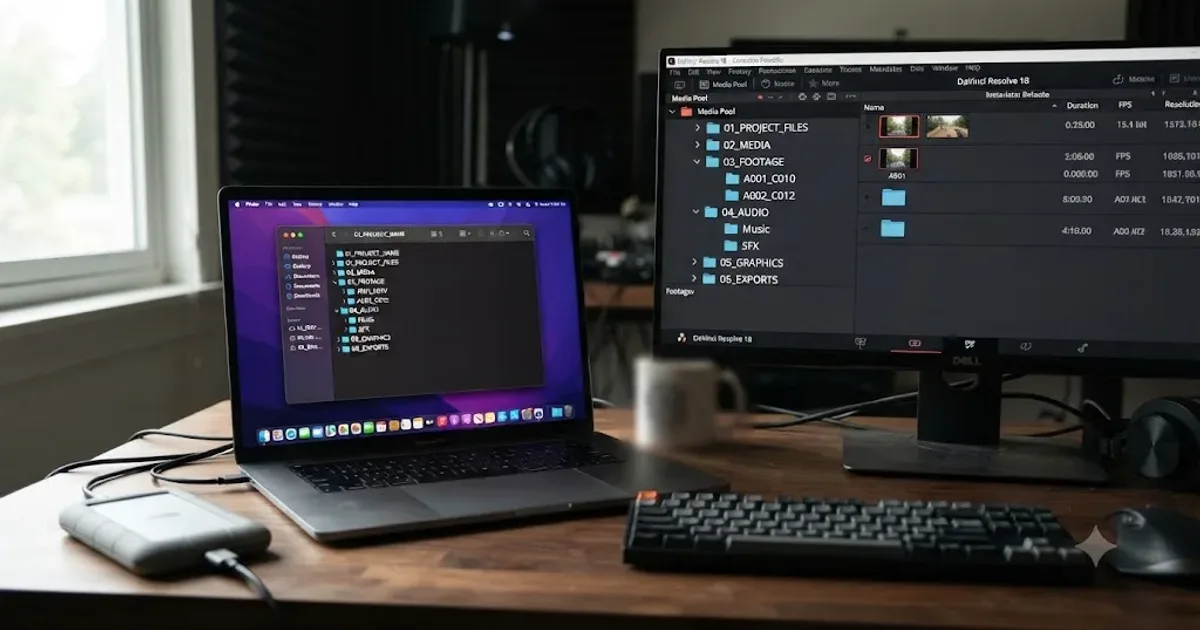
A restrained top-level layout is easier to maintain than a detailed taxonomy that nobody follows. One documentary job might use 01_CAMERA, 02_AUDIO, 03_STILLS, 04_GFX, 05_MUSIC, 06_SELECTS, and 90_DELIVERABLES. A multi-camera interview might instead group footage by shoot day and camera, with audio and graphics kept separate. Those labels are examples, not a Blackmagic rule. Choose a structure that matches how the team calls for media.
Use bins for editorial purpose, not every attribute. “Camera A” and “Camera B” are often useful because they reflect actual source groups. A bin for each color, focal length, location, emotion, person, scene, and shot size can quickly become a maze. Metadata and Smart Bins are better for overlapping attributes because a clip can be a wide shot, an exterior, and a good take at once without duplicating the file into multiple manual folders.
Keep source names unless there is a clear reason to rename. Camera-generated names may be opaque, but they can preserve a stable link to camera reports and backup copies. Add a human-readable clip name or metadata field while retaining the original name where possible. If a production requires renaming, define a format, test it on copies, and confirm that the filename mapping survives the handoff.
Before analysis, establish the vocabulary. If one person writes interview, another writes int, and a third writes talking head, later filters cannot reliably treat those as the same category. Make a short approved list for recurring classifications. A documentary team might agree on INT, EXT, DAY, NIGHT, and a limited set of subject names. A brand team might use product line, location, and usage status. Keep values predictable and avoid turning each editor’s note into a new controlled term.
You do not need to fill every field. Record information that helps future retrieval or a real handoff. The best metadata scheme is not the one with the most columns. It is the one a teammate can apply consistently while working at normal speed.
A minimal setup checklist
- Confirm the original media is copied to its intended storage and that the copy has been checked according to your production’s backup practice.
- Create the Resolve project with a name and location that another editor can identify.
- Add a modest set of top-level bins for source type and editorial purpose.
- Confirm the Media Pool shows useful properties such as file name, duration, frame rate, and camera metadata when present.
- Decide whether project labels will live in clip names, metadata fields, ratings, tags, or markers.
- Pick terms for scene, shoot day, camera, subject, and review status only if those fields will be used.
- Test one Smart Bin rule before relying on many rules across a large project.
- Save, close, and reopen the project once if the job’s delivery process requires proving the project can be reopened.
For editors who want a more detailed taxonomy before import, the related folder and bin naming conventions guide explains how to choose names without making every decision project-specific.
How do I use AI IntelliSearch to find footage?

In Resolve 21, select the relevant clips in the Media Pool, run the IntelliSearch analysis command available in your build, allow any required model package to install, and search the analyzed material using a specific visual or dialogue phrase. Review each returned clip in context before turning it into an editorial select.
The exact menu wording and model package availability can vary with point releases, so use the in-app menu and the Resolve 21 New Features Guide as the authority for your installed build. Blackmagic’s Resolve 21 public product description identifies IntelliSearch as a new AI search feature. Current release notes and documentation should be checked before following older screenshots or instructions that may show a beta interface.
A reliable sequence is:
- Open the project and go to the Media Pool containing the source clips you want to search.
- Select a manageable group of clips. If you are still learning the feature, start with a small group whose contents you can check by eye.
- Open the AI analysis or IntelliSearch command for the selected clips. Follow the prompt to install an applicable model package if Resolve requests one.
- Let analysis finish for that selection. Do not assume an interrupted operation completed just because the interface returned to the Media Pool.
- Enter a short search phrase describing one object, person, action, or distinctive line of dialogue.
- Review the result list and open likely matches in the source viewer.
- Scrub around the relevant moment, check the full context, and add a marker or metadata only when it helps the next step.
- If the query is too broad, add a distinguishing word. If it finds nothing, simplify the phrase or use a different retrieval method.
Run the analysis on a selection that corresponds to a sensible unit of work. If a project contains separate interviews, a huge mixed-media bin may make a useful search harder to interpret. You can organize by shoot day or source group first, then analyze those groups. The decision is not that smaller selections are always faster; Blackmagic does not publish a general performance rule. The practical reason is auditability. You can see what you asked Resolve to inspect and compare a result against a manageable set.
When a search succeeds, decide whether the answer needs to persist. Suppose you searched for “forklift” to find factory footage for one assembly. If you have the right shot, mark the source range and move on. If the production repeatedly needs forklift footage, add a consistent keyword or another supported classification field and verify that it appears in the clip’s metadata. If the team will retrieve forklift clips later, a Smart Bin based on that field may be worthwhile.
Do not create a permanent keyword for every search phrase. That would transform the search history into a vocabulary nobody can govern. A one-time query is temporary. A production category has a name, owner, and expected reuse. Distinguish those two cases.
For dialogue, test the words that matter rather than trusting a rough topic phrase. If an interviewee says, “we delayed the opening until the permit cleared,” a search for “permit” may find it. Once found, listen to the preceding and following sentences. A line can sound like an admission when detached from the sentence before it. AI discovery is useful precisely because it narrows a large set; it cannot establish editorial context for you.
For people, use a stable naming plan. If Resolve lets you label an individual for later search, choose a label that matches the project’s naming conventions. Avoid labeling a person based on a single uncertain match. Similar faces, reflections, crowd shots, old photos, and costume changes can create ambiguity. Confirm the identity before the label becomes a reusable search key.
If nothing happens after you run analysis, check the selection, the installed Resolve version, available model packages, and whether the command belongs to Studio in your build. Then try a small group and a basic search. Do not repeatedly trigger analysis on the whole archive as a first troubleshooting step. It makes it harder to tell whether a missing result comes from selection, package installation, search wording, or a tool limitation.
Why does IntelliSearch return no clips or the wrong clips?
IntelliSearch can return no clips or weak matches when media has not been analyzed, the chosen phrase does not map well to the visible or spoken content, the selected scope excludes the footage, or the result needs human context the model cannot infer. Check those causes in that order before rebuilding the project.
A no-result search does not prove that the footage is missing. Confirm that the relevant clips were included in the analysis and that the analysis completed. Then search for a simpler, literal concept. “Blue jacket” may be easier to test than “the person who seems nervous.” A search phrase that encodes a subjective judgment often has no consistent visual definition.
Check the scope. Resolve may be searching selected bins, a chosen bin, or the current Media Pool context rather than every clip in the database, depending on the control you use. If you cannot find a known clip, select the bin that contains it and search there. Also check whether the clip is offline or whether the Media Pool item points to a different version of the source.
Wrong matches are often a query problem, a context problem, or an indexing limitation. Search “guitar” may find an instrument in a poster or background. Search “Jordan” may be ambiguous if that is both a person’s name and a brand. Add a visual or dialogue clue, then inspect the source. Do not quietly treat a weak match as verified metadata.
If a clip includes a relevant object for a brief moment, broaden the review window around the match. The full clip result can be useful even when the target appears briefly. Use the viewer and source timecode to determine the exact range. If you need to find the moment again, add a marker with an editorial note such as “forklift enters frame” rather than relying on memory of the search result.
If the search is about a spoken phrase, compare the query to the words actually recorded. Accents, overlapping speakers, room noise, and a paraphrased query may affect discovery. Try a short phrase you know is in the clip. If that succeeds, expand the wording gradually. Resolve’s public feature description says it can search keywords in dialogue; it does not promise perfect recognition of every language, accent, or noisy production condition.
When a feature is unavailable, check the license and release notes rather than assuming that every AI feature belongs to every edition. The product page lists Resolve Free and Resolve Studio separately, with Studio adding features. Blackmagic’s Resolve 21.1 announcement says the update is available for download free of charge, but that does not mean every Studio feature is included in the free edition. Confirm the feature-specific requirement for the current build.
A point-release mismatch can also confuse instructions. The current date context here is October 2026 and Blackmagic announced Resolve 21.1 on September 8, 2026. If you are using 21.0 or a later 21.1 maintenance build, a label or model choice may differ. Check the version shown in About DaVinci Resolve and consult the current What's New page.
Model package prompts are not necessarily errors. Blackmagic’s Resolve 21 New Features Guide says the slate tools require an AI model download through Extras Download Manager. Other AI tools may present their own package requirements. Read the package label and install only what you intend to use; package names may change as the software evolves.
If analysis appears stalled, avoid force-quitting until you know whether Resolve is still processing. Check the application’s activity, system storage, and available memory, then wait for the operation to finish or use the documented cancellation control. We do not publish an invented time estimate because processing time depends on machine, media, selection size, and model. For a repeatable test, try a small known set and note the version and package name.
Keep an ordinary search path available. Clip names, file path, camera metadata, keywords, and markers are still useful if AI search is unavailable, incomplete, or not a good fit. A durable project should not become unsearchable because one model was not installed on a handoff machine.
When AI search misses, reduce the query and verify the scope before you repeat the analysis.
How do I organize slate, scene, and take metadata?

Use AI Slate Finder to locate slates and Slate ID to propose the information written on them, then check those values against the actual board and production records before using them. In the Resolve 21 New Features Guide, Blackmagic names Scene, Take, Angle, and Shoot Day among the slate fields the tool can read.
The slate workflow solves a narrow but valuable logging problem. A camera clip may have a filename such as a camera-generated number, while the slate identifies the dramatic scene and take. Reading that board can provide structured information for search and filtering. But a handwritten or out-of-focus slate is still a visual source that can be misread, and a wrong take number can be more damaging than an empty field.
The official guide describes the core path this way: select clips in the Media page and choose AI Tools > Analyze for Slate, or enable Analyze for Slate in the AI Clip Analysis tool. It says that the Slate Finder detects slate frames and marks the clapper close point. Slate ID then reads information and offers options to populate clip metadata. Since those labels are version-specific, use the menu shown in your current Resolve 21 installation.
A careful slate pass has a few stages:
- Select clips that are expected to contain slates. Do not assume every camera file begins with one.
- Run Analyze for Slate from the Media page or the AI Clip Analysis tool.
- Review the detected slate range and clapper close point in the viewer.
- Compare proposed Scene, Take, Angle, Shoot Day, and other values with the visible writing and camera report.
- Apply only the fields you can verify.
- Spot-check the resulting metadata on a different clip from the same source group.
- Create a Smart Bin or sort view only after the field values are consistent.
For a larger project, agree before logging whether scene values should include leading zeroes, whether angle means camera position or lens, and how shoot days are written. Resolve can only group metadata consistently when the team enters it consistently.
Check edge cases before bulk application. The slate may be upside down, partly covered, held too far from the lens, or visible on a monitor rather than in the main image. Two slates may appear in one continuous camera file. A pickup may have a handwritten correction. A production may intentionally use a false slate to sync audio. If the model proposes a value that conflicts with a camera report, preserve the discrepancy in a note and ask the responsible production person rather than choosing whichever number looks more plausible.
A blank result can be the correct result. Some clips have no slate. Some slates are unreadable. Some production crews use a phone screen, a digital overlay, or a different logging convention. Do not populate unknown values with guessed scene or take numbers merely so a Smart Bin looks complete.
Smart Bins make verified slate fields useful. A bin matching Scene 12 can gather clips from multiple cameras if each clip has the same scene metadata. Add a second condition for shoot day or camera only when that distinction is needed. Test with a few clips before using the Smart Bin as the basis for a full conform or export.
One field can mean different things to different departments. “Take” could mean a numbered camera take, a selected performance, or a take rating in a particular production’s paperwork. Keep production identifiers separate from editorial evaluation. Use metadata for the literal slate value and a tag or rating for whether the performance is usable. That separation helps prevent a “Take 3” label from being mistaken for “third-best take.”
Do not rename original media based on an unreviewed AI result. If filenames must reflect scene and take, verify the metadata first, agree on a reversible naming pattern, and retain a mapping to the camera originals. For most teams, leaving filenames stable and using metadata is easier to audit.
What is the difference between bins, metadata, tags, and Smart Bins?
Bins are manually arranged containers, metadata describes clips, tags or ratings capture editorial status, and Smart Bins are saved rules that dynamically collect clips matching metadata or clip properties. Use each for its intended job instead of forcing every classification into a folder tree.
Blackmagic’s Resolve 21 guide describes ordinary bins as manually populated and Smart Bins as procedurally populated from rules. In the words of Grant Petty, Blackmagic Design CEO, the new integration lets customers “ask Claude or ChatGPT to handle repetitive tasks such as create highlight edits, organizing media or batch rendering.” That is the vendor’s description of the assistant feature, not an independent performance claim. The Resolve 21 guide defines Smart Bins as “procedurally populated bins,” with metadata rules that dynamically filter Media Pool contents. That is the key distinction: a manual bin stores your chosen membership; a Smart Bin calculates membership from criteria.
| Resolve feature | What it stores or does | Good use | Main caution |
|---|---|---|---|
| Folder on disk | Physical location of a source file | Keep camera originals, audio, and deliverables predictable outside Resolve | Moving folders can break links unless paths are updated or media is relinked |
| Manual bin | A manually chosen group inside a project | Camera groups, audio, graphics, selects, or a specific delivery package | The same clip may require duplicate handling if you use bins for every overlapping attribute |
| Metadata | Descriptive values associated with a clip | Scene, take, camera, location, subject, notes, or a controlled project field | Inconsistent spelling and vague field meaning weaken search and filters |
| Rating or tag | A compact editorial or review label | Good Take, Rejected, Needs Review, or team-approved status | Define labels; do not confuse quality rating with production facts |
| Smart Bin | A live filtered view based on rules | “All clips tagged Good Take” or “all clips from Camera B marked exterior” | Check match logic and field values; a rule can be logically valid but still misleading |
| IntelliSearch | AI-assisted discovery by visual content or dialogue | Locate candidate clips when names do not describe what is inside | Results need context review and may not identify the exact usable range |
| Slate Finder and Slate ID | Slate detection and proposed slate metadata | Find slates and speed up scene/take logging | Verify the board and production notes before applying values |
A Smart Bin is most useful when its rule states a stable question. “All clips with rating Good” is clear if the team uses that rating consistently. “All clips I might possibly use” is not, unless the team has defined a field for it. Give the bin a name that describes its rule or purpose, such as Scene 12, Needs Review, or Exterior Night.
The logic of multiple rules matters. If the Smart Bin requires every condition, a clip must satisfy all of them. If it accepts any condition, a clip can qualify by satisfying one. For a combined example, “Camera A AND Good Take” should narrow the results to that camera’s approved takes. “Camera A OR Good Take” can include every Camera A clip plus all Good Take clips from other cameras. Read the match setting before assuming the bin means what its name says.
Resolve 21’s New Features Guide documents using custom metadata fields in Smart Bins, Clip Filters, Data Burn-ins, and Naming Tags. That gives a project room to add production-specific fields when built-in fields do not fit. It does not mean every team needs a custom schema. Add a field only when the value has a known owner, a consistent vocabulary, and a retrieval or delivery use.
A reasonable starter system might be:
- Manual bins for
Camera Originals,Audio,Graphics,Music,Selects, andExports. - Metadata fields for
Scene,Take,Shoot Day,Camera, and one conciseKeywordsfield. - Tags for
Good Take,Needs Review, andRejected, if the team has agreed what each means. - Smart Bins for recurring views such as
Good Takes,Offline Clips, or a specific scene/camera combination.
This is not a required schema. A small social edit, a feature documentary, and a branded campaign have different retrieval needs. A project with only one editor may not need shared review statuses. A multi-editor project may need a clear status field to avoid notes scattered across chat, paper, and clip names.
Resolve 21 also documents an Automatic Smart Bin for offline clips. The New Features Guide says to enable Automatic smart bin for offline clips in DaVinci Resolve preferences under User > Editing > Automatic Smart Bins. That is useful because offline media can be scattered throughout a project. It does not relink anything by itself; it gathers offline items into a view that helps you inspect and repair the links.
If you need to distinguish still images from camera footage, do not assume the Photo page’s album feature is a general video-bin replacement. Blackmagic describes Resolve 21 Albums as collections for still photography, with use across the Photo, Cut, and Edit pages. Use the feature that matches the asset and workflow, and keep the project’s video bins understandable to editors who do not use the Photo page.
How should I use tags, ratings, and keywords after analysis?
Use tags and ratings for editorial decisions, keywords for descriptive retrieval, and production metadata for facts copied from a source such as a slate or camera report. Keeping these meanings separate makes a Smart Bin easier to interpret and a handoff easier to trust.
A tag such as Good Take is a judgment about usefulness, not a factual description of the shot. Exterior describes a setting. Scene 12 records a production identifier. If you place all three into a single free-text note, search still may work, but the data is harder to filter, export, and explain to someone else.
Resolve 21’s What's New page describes five-star ratings and tags including Good Take, Untagged, and Rejected in the Media Pool. Those labels can make review status visible and filterable. They do not define your studio’s review policy. Before a team relies on Rejected, decide whether that means technically unusable, editorially excluded, legally restricted, or simply not selected for the current cut.
A useful review state can be simple: unreviewed, reviewed, selected, and excluded. However you represent it, avoid a state that tries to capture both quality and workflow. “Good” could mean a sharp image, a good performance, a useful line, or approved by a client. Separate the judgment when those distinctions affect the edit.
Keep keywords short and literal. forklift, warehouse, and loading bay may be useful if those ideas recur. A paragraph of subjective description will be difficult to standardize. If you need context, use a note field for the sentence and a keyword field for the controlled terms.
The same distinction helps when AI analysis returns likely matches. If a search finds a person holding a tool, label the content only after you have confirmed it. If the clip is also the preferred performance, add that status separately. A factual keyword should not imply the clip is approved.
When using a rating scale, document what the endpoints mean. One editor’s five stars may mean “technically perfect,” while another’s may mean “my favorite.” Unless the team shares a definition, ratings are personal shortcuts. For a solo project, that may be fine. For a collaborative edit, a named tag with an agreed meaning can be clearer than an unexplained number.
Do not over-tag. A tag should improve filtering enough to justify the time spent adding it. Use a recurring query, a deliverable requirement, or a handoff problem as evidence that a tag is needed. If a category never changes a search or decision, skip it.
For a project that uses custom fields, test one complete route before tagging hundreds of clips: enter a value, build a Smart Bin from it, add a second value, confirm membership changes as expected, and check that the information appears in the view another editor will use. Resolve 21’s guide documents custom metadata in several organization and display functions; the operational details still belong to your team’s schema.
How do I build Smart Bins that stay useful?
Build Smart Bins around verified fields and repeatable questions, then test their match logic against known clips before depending on them. A Smart Bin should save repeated filtering work without hiding why a clip appears in the result.
Start with a bin that answers one question: “Which clips are marked Good Take?” Create a rule for the field and value, then compare the returned clips against a few you know should match and a few that should not. Only after that works should you add another condition.
A typical design process is:
- Write the question in plain language before opening the Smart Bin dialog.
- Identify the exact field that represents the answer.
- Choose whether the rule must match all conditions or any condition.
- Set a descriptive Smart Bin name that says what the rule returns.
- Create the bin, inspect its contents, and correct values or logic if needed.
- Add a second condition only when a real retrieval task requires it.
- Recheck the result after adding clips or changing metadata.
Consider three examples. Camera A is a stable equipment grouping if the camera field is populated consistently. Camera A Good Takes is a useful intersection if the bin requires both camera and rating criteria. Possible b-roll for the client is less useful unless the team defines which field or tag makes a clip qualify. A Smart Bin cannot infer a shared human meaning from an evocative name.
A Smart Bin based on AI-discovered content requires a bridge between discovery and metadata. Searching for “snow” can find candidate clips. If those clips will be reused, add a keyword or use an established Weather field with an agreed value, then create a Smart Bin around that value. If you only need the clips for one timeline, markers and selects may be enough. Do not turn every successful search into a new project taxonomy.
Review boolean logic with examples. Suppose the intended set is “all exterior clips from shoot day 2.” An all-conditions rule should require both Location Type is Exterior and Shoot Day is 2. If the bin instead uses any condition, it will include every exterior from any day as well as every clip from day 2. The result may look plausible while being wrong. A small validation set catches that error.
Smart Bins can also serve as quality-control views. A bin for clips missing a required scene field, an offline-media view, or all clips marked Needs Review can reveal work remaining. To make an “empty metadata” view, check what operators and blank values the dialog supports in your installed version. Do not assume that a condition named “is empty” exists for every field type without verifying it.
Avoid copying the same clip into manual bins just to make it visible in several contexts. Bins are useful for stable, intentional groups. Smart Bins are useful for overlapping classifications. Markers are useful for a point or moment inside a clip. A timeline is useful for a selected sequence. When each object has a clear role, changes are easier to track.
Think about collaboration before using custom fields. A teammate may not see a field if they open the project in a different version or if a transfer omits the relevant project data. Test the handoff path with a small project. Blackmagic Cloud and collaboration features can help teams work in shared projects, but access to the same project does not guarantee everyone understands the tagging vocabulary.
If a Smart Bin unexpectedly empties, inspect the source metadata first. Confirm spelling, field category, operator, case or value matching behavior, and All/Any selection. A rule can be correct while the clip’s value is blank or stored in a different metadata category. Fix the source value or update the rule, then verify again.
Smart Bins organize metadata you can trust; they cannot repair metadata that was never consistent.
Should I use Resolve’s built-in AI or another assistant?
Use Resolve’s own IntelliSearch and slate tools when the task is to discover media inside a Resolve project; consider a third-party editor or assistant when you want a different workflow, such as a generated rough cut, scripted timeline changes, or conversational help. The products solve different problems, so compare the actual task rather than the word “AI.”
The current third-party category includes tools that automate edits, analyze footage, or answer chat questions. Sottocut describes an assistant editor for DaVinci Resolve that scores footage, proposes edits, and verifies timeline changes. PremiereCopilot is built for Adobe Premiere Pro, not Resolve. Eddie AI describes a workflow that analyzes rushes and hands off project files to Resolve and other editing applications. CutAgent connects a desktop app with DaVinci Resolve and AI features. Product capabilities change, so check each vendor’s current compatibility and privacy statements before choosing one.
| Tool or approach | What it is positioned to do | Where it may fit | Trade-off to consider |
|---|---|---|---|
| DaVinci Resolve 21 IntelliSearch | Search analyzed media for visual content or dialogue | Find candidate footage in the project you are already editing | It is a discovery feature, not a complete assistant-editor pipeline |
| Resolve Slate Finder and Slate ID | Detect slate frames and propose slate metadata | Log scene, take, angle, and shoot-day information | Human verification remains necessary, especially on ambiguous boards |
| Manual bins and metadata | Let the editor define project structure and labels | Predictable handoffs and project-specific vocabulary | Requires consistent setup and maintenance |
| Sottocut | Scores footage, proposes a cut, and works with a Resolve project according to its product page | Editors seeking assisted selects or timeline editing | A more action-oriented tool needs review of proposed changes, supported build, and data handling |
| PremiereCopilot | Text-driven editing inside Adobe Premiere Pro | Premiere users who want a chat interface for timeline actions | It is not a Resolve-native tool, so it is not a direct replacement for Resolve organization |
| Eddie AI | Analyzes footage and can hand off projects to Resolve, alongside other workflows | Teams wanting AI-assisted rough cuts or cross-editor handoff | It is a broader edit-generation workflow, not just an in-app lesson or metadata search |
| CutAgent | Connects its desktop app and AI features with DaVinci Resolve | Users evaluating an agent-connected Resolve workflow | Confirm current feature scope, setup, and the level of access before connecting a project |
| TryUncle | Provides on-screen guidance while you work in Resolve | Editors who need help locating a control or understanding a workflow | Guidance helps you operate Resolve; it does not promise automatic media organization |
Do not read this table as a ranking. If the main problem is “find the clip with a red umbrella,” built-in content search is directly relevant. If the problem is “turn this interview into a rough assembly,” an assistant editor designed to score or assemble footage may fit better. If the problem is “where is this control and what should I click?”, a screen-aware helper addresses a different gap.
The named alternatives have meaningful differences. Sottocut says its transcription and core workflow run locally and that the user approves plans before writes. Those are the vendor’s stated claims; verify them against its current product information and your own privacy requirements. Eddie AI presents itself as a cloud and desktop workflow with project export, so the handling and location of media should be checked for the chosen mode. PremiereCopilot describes sending transcript, prompt, and timeline metadata to a selected AI provider. CutAgent’s public page describes a connection with Resolve, but its exact scope should be confirmed in current docs before granting access.
PremiereCopilot can be a useful comparison for the category because it shows what “chat to edit” means in another application. It is not a Resolve assistant. A Resolve user comparing it should weigh the cost of switching applications or moving a project against the value of its Premiere-native timeline actions. Do not buy it expecting a Resolve panel unless the vendor’s current compatibility page explicitly says that has changed.
Sottocut is more directly Resolve-oriented, but its emphasis is on assisted editing actions and proposed changes. If you want a carefully governed rough-cut process, that can be relevant. If you only need a reliable bin naming system, adding another tool may not solve the actual problem. Start from the task and required outcome.
Eddie AI is also relevant when the footage needs analysis and a draft edit that can be handed into Resolve. That differs from searching inside an existing Resolve Media Pool and leaving editorial control entirely in the standard Resolve tools. Teams should compare supported formats, project handoff, review process, and privacy before moving production media into an external workflow.
CutAgent belongs in the evaluation set because its own site describes connecting an app to Resolve. The amount of work it can safely perform, current compatibility, and the permissions it needs are decision points. Avoid inferring features from the word “agent.” Read the live docs and test with a duplicate project before using a connected tool on a live job.
TryUncle is for the person who is stuck at the interface, not a substitute for a metadata database. TryUncle is the on-screen assistant for DaVinci Resolve on Mac and Windows. Ask in plain words, and Uncle points at the exact control on your screen. It may help you locate the relevant Resolve control while you organize media, but you still choose and verify the labels, bins, and results. Its landing page has the current platform and pricing details. See how TryUncle works.
This category comparison sits alongside our AI screen assistant options for DaVinci Resolve, which focuses on the screen-guidance question rather than a full media-management procedure.
What is the best way to learn DaVinci Resolve, and can an app help while I use it?
The best way to learn DaVinci Resolve media organization is to practice on a small, realistic project while using official documentation or training to understand each control. An app that helps you while using DaVinci Resolve can answer a control question in context, but it cannot decide your team’s metadata policy. A lesson can show the menu; a deliberate practice project teaches you how names, metadata, and retrieval fit together when the footage is yours.
Blackmagic publishes official DaVinci Resolve training resources, including lesson material and downloadable project files. That is a strong starting point when you want structured instruction from the software maker. Casey Faris’s Resolve channel offers free videos that can be useful when you need a visual walkthrough or a specific technique. Community advice, including Reddit, can help surface edge cases, but verify version-specific instructions against official documentation before applying them to a paid project.
| Learning route | Best use | Strength | Limitation |
|---|---|---|---|
| Blackmagic official training | Learn the application’s core pages and workflows | Direct from the software maker, with structured lessons and project materials | A course cannot answer every project-specific question in the moment |
| Casey Faris videos | See a technique demonstrated and search for a focused tutorial | Broad practical coverage and accessible video format | Tutorials can be recorded against a different version or project setup |
| Reddit and user forums | Troubleshoot a specific symptom or compare workflows | Real users may point out details absent from a short lesson | Advice varies; inspect dates, context, and version before following it |
| Udemy or other course platforms | Follow a longer curriculum at your own pace | Lessons can provide sequence and practice | Check course update date, scope, and whether the lessons match Resolve 21 |
| Practice project | Build retrieval habits with actual media | Makes you decide what to name, tag, and search | Requires a small set of footage and self-review |
| On-screen assistant | Get contextual help while the app is open | Can reduce the gap between instruction and the visible control | It does not replace editorial judgment or an agreed team schema |
We have taught 100,000+ students on Udemy and are an official Udemy Business Partner, and we have taught and worked with Fortune 500 companies. The advice here reflects a practical teaching principle: learn one action, then use it in a project where the result matters. A long video library cannot decide your team’s meaning of “select,” “approved,” or “good take.”
To practice, create a small project with a mix of interview, camera, audio, and still-image files. Make a few bins, add a small consistent set of metadata, analyze a few clips, and build one Smart Bin. Then ask a second person to find a specific source using only the labels you created. If they cannot, improve the names or field definitions instead of adding more labels.
If you want to learn Resolve fast, avoid trying every AI menu in a single session. Start with one task such as finding a spoken phrase, logging a slate, or making an offline-media bin. Record the exact version and steps that worked. Repeat them on a new group of clips. This creates transferable skill: you know what the tool did, where its result lives, and how to check it.
An AI tool to learn DaVinci Resolve can be useful when the obstacle is a confusing control or a tutorial that shows a different screen. It is less useful when the real obstacle is a vague project policy. An app that helps you while using DaVinci Resolve should answer the immediate interface question; it should not be asked to invent a production’s metadata rules for you.
The consensus still matters. Official Blackmagic training is the most direct source for supported workflows. Casey Faris and other experienced educators can give a useful demonstration. Reddit and user forums can expose failure cases and workarounds. Paid courses can supply a sequence and exercises. A screen-aware assistant adds contextual help while you are inside the program. These approaches can work together, but each has a different strength.
The best media-organization teacher is the one who helps you build a repeatable system and check it against the way your project will actually be handed off.
How should I hand off an AI-organized Resolve project?
Hand off the project with its media paths, naming conventions, metadata vocabulary, and known review state explained. The next editor needs to know what has been verified, which labels are factual, and which ones are personal editorial notes.
Before transfer, save the project and check that the receiving editor can open it in a compatible Resolve version. Resolve projects reference media; the project file alone may not contain the camera originals. If the job requires a portable handoff, use the delivery process appropriate to the project and verify the destination package rather than assuming that copying the project database is enough.
A useful handoff note can be short. Include the Resolve version used, source-media root, top-level bin names, custom field definitions, tag meanings, and any AI analysis that has not been reviewed. If one Smart Bin is central to the edit, state its rule in plain language. “Selects” is ambiguous; “clips tagged Good Take and marked Interview” is much clearer.
Do not present AI-suggested values as production truth until someone has checked them. Mark unverified slate data or uncertain face labels as pending. The receiving editor can then distinguish a likely match from an approved value. If a producer or assistant editor owns the camera report, note who can resolve a conflict.
Keep the source media and project data protected according to the production’s retention and backup practices. If you test a third-party assistant, use a duplicate project until you understand its actions, file handling, and rollback path. The risk is not unique to AI: any external tool or destructive operation can change project state, and a backup is the way to make experiments recoverable.
A handoff is successful when another person can answer three questions: where is the source, what does this label mean, and how do I find the relevant moment? If those answers are easy to recover, the organization is doing its job. If they depend on your memory, add a short note or change the schema before the project leaves your desk.
What should I do when an AI media workflow is overkill?

Skip AI analysis when ordinary names, metadata, or a quick manual sort already answer the retrieval question. The goal is a findable project, not a project that uses every new feature.
For a one-camera interview with a clear file name and a transcript, manual bins and markers may be enough. For a small social edit, creating a formal taxonomy can take longer than opening the source clips. For a large archive, content search may save meaningful review effort, but you should test it on the kinds of footage you actually have before making it part of the pipeline.
A quick decision test helps:
- If you know the filename, use ordinary search.
- If you know the camera, date, codec, or frame rate, use clip properties or metadata filters.
- If you need a recurring editorial category, use a consistent field and a Smart Bin.
- If you need a moment inside a source clip, search and then add a marker or select range.
- If the information is written on a slate, use Slate ID and verify it.
- If the clip is offline, use the offline-media view and relink the source.
- If you need a tutorial on a control, consult the current manual or training and ask for contextual guidance when useful.
A small project with clear bins can outperform a complicated project with inconsistent rules. Resolve offers multiple paths because productions differ. Use the simplest combination that answers today’s retrieval questions and remains understandable to the next person.
If you need help locating a control while you work, TryUncle can guide you on screen. If you need an autonomous rough cut, compare tools built for edit generation and test their permissions, privacy, and rollback before use. If you need to preserve factual shot information, use metadata with a clear source and review step. Those are distinct jobs.
The next step is modest: choose one current project, write down the three questions you most often ask about its footage, and map each question to a bin, metadata field, search, or marker. Run AI analysis only where it removes a real discovery bottleneck. Then ask a teammate to find one clip using your labels. If they can, keep the system. If they cannot, fix the vocabulary before adding another tool.
Frequently asked questions
- How do I use the AI assistant to organize media in DaVinci Resolve 21?
- In Studio 21.1, connect a supported external assistant through Resolve’s setup flow and review its proposed organization changes. For direct discovery, IntelliSearch finds visual or spoken content, while Slate Finder and Slate ID propose slate metadata; verify results and use consistent fields to build Smart Bins.
- Can I learn DaVinci Resolve fast with an AI tool?
- An AI tool can shorten the search for a control or candidate clip, but it cannot replace practice with Resolve’s actual organization rules. Use the Studio 21.1 assistant for bounded project tasks, then verify changes; use official training and a small practice project to build skills.
- Why does IntelliSearch ask me to download an AI model in Resolve 21?
- Resolve may need the relevant model package before it can analyze footage. Open the Extras Download Manager, install the IntelliSearch model offered by your version, then run analysis on selected Media Pool clips. Package names and availability can change between point releases.
- Can DaVinci Resolve 21 identify scene and take from a slate?
- Resolve 21's Slate Finder locates slate frames and Slate ID reads visible fields such as scene, take, angle, and shoot day. Review proposed values against the board and production notes before using them to rename, filter, or deliver clips.
- Is the DaVinci Resolve 21 AI media assistant available in the free version?
- Blackmagic lists AI assistant integration under DaVinci Resolve Studio 21.1, and its support page says this version requires a Studio license. Do not assume the external assistant integration is available in the free edition. Check feature-specific requirements for IntelliSearch and other AI tools separately.
Sources
- DaVinci Resolve 21.1 announcement
- DaVinci Resolve 21.1 Studio update and assistant support
- DaVinci Resolve 21 New Features Guide
- DaVinci Resolve 21.1 What's New
- DaVinci Resolve product and Studio pricing
- DaVinci Resolve 21 training
- Casey Faris DaVinci Resolve training
- Sottocut official product page
- PremiereCopilot official product page
- Eddie AI product page
- CutAgent official product page
- TryUncle main page
Put this guide to work with TryUncle.
Ask about the step you’re on. TryUncle sees your screen and points at the control you need, so you can keep learning in your own project.
Get TryUncle for Mac or WindowsKeep reading
Guides · Jul 16, 2026 · 36 min
Folder and Bin Naming Conventions for DaVinci Resolve Projects
A practical naming system for DaVinci Resolve folders and bins: project structure, camera bins, Power Bins, Smart Bins, and what breaks relinking.

Guides · Oct 5, 2026 · 29 min
DaVinci Resolve 21 Detect Slate Metadata: Full Guide
Learn how DaVinci Resolve 21 detects slates, reads scene and take data, writes clip metadata, and what to do when Slate ID misses.

Comparisons · Oct 3, 2026 · 17 min
AI Screen Assistant for DaVinci Resolve Mac: Best 2026 Options
Compare screen-aware and editing assistants for DaVinci Resolve on Mac in 2026, including TryUncle, Sottocut, CutAgent, Eddie and free training.