Articles / Fixesupdated for DaVinci Resolve 21.1 (September 2026)
DaVinci Resolve 21 Fusion Inspector Loses Focus? Fix It
Quick answer
If the DaVinci Resolve 21 Fusion Inspector loses focus, first click one node in the Node Editor, then click the Inspector field and test whether typing stays there. Turn on focus indicators, test a blank composition, update to Resolve 21.1, and temporarily disable overlays or input utilities. If it persists, collect a reproducible example and report it to Blackmagic; a reset is a last resort.
I know how disruptive it is when the Inspector stops taking the value you type. In a node graph, a single lost click can make the whole page feel unreliable. We run a 100,000+ member professional video-editing community, and this is one of the recurring questions editors bring us. We teach editors to separate a real application fault from selection and focus state before they risk changing a project.
As of October 2026, the current release listed by Blackmagic Design is DaVinci Resolve 21.1, released September 8, 2026. The 21.1 notes include updated Fusion macro controls, but they do not say that every Inspector focus problem has been fixed. That distinction matters: a symptom can be real without being a confirmed version-wide defect.
Why does the DaVinci Resolve 21 Fusion Inspector lose focus?
The Fusion Inspector can appear to lose focus for several different reasons: keyboard focus moved to another panel, a different node became selected, a control changed because multiple nodes are selected, or the interface itself stopped responding as expected. Start by identifying which state changed before resetting anything.
The word focus is overloaded in this complaint. It can mean the text insertion cursor vanished from a numeric field. It can mean the Inspector shows different controls. It can mean a viewer overlay stopped responding. It can also mean the Inspector panel closed, collapsed, or moved. Those are different failures, and they need different fixes.
Blackmagic's Fusion manual describes interface focus as the panel that receives panel-specific keyboard shortcuts. It explains that clicking a panel gives it focus and that a focus highlight can identify the active panel. The wording is useful even though the linked manual is version 18.6: it describes the general concept, not a claim that Resolve 18 and Resolve 21 have identical layouts.
“A panel with focus captures specific keyboard shortcuts to do something within that panel, as opposed to doing something elsewhere in the interface.”
- Blackmagic Design, Fusion Reference Manual 18.6, “Choosing Which Panel Has Focus”
That definition helps separate a field's editing cursor from the larger panel's focus. A field can show a text cursor while the Fusion page still routes shortcuts according to a panel context. Conversely, the Inspector can remain open and show the expected node while a click into the viewer moves keyboard focus away from the value field.
A visible Inspector does not prove that its value field still owns keyboard focus.
Use this quick symptom map before changing settings:
| What you see | Likely state to check first | Low-risk test |
|---|---|---|
| A numeric field stops accepting keystrokes | Keyboard focus moved, or another app intercepted input | Click directly inside the field and type a harmless test value |
| The Inspector shows another tool's controls | Node selection or composition context changed | Select one node in the Node Editor and watch the Inspector header |
| A control disappears when selecting several nodes | Multi-Inspector is showing shared controls | Select one node only, then compare |
| On-screen handles vanish but the Inspector still works | Viewer overlay or selected tool controls | Check viewer controls and selected node state |
| The whole panel disappears or resizes | Workspace layout or panel visibility | Reopen Inspector and test the page layout |
| The issue happens only in one project | Project or composition state | Make a duplicate project and test a minimal composition |
| The issue happens after switching apps | Operating-system focus or overlay interference | Test with overlays and input utilities closed |
DaVinci Resolve 21 adds a Multi-Inspector for common properties across selected tools. Blackmagic's 21 New Features Guide explains that selecting multiple tools can present only controls shared by those tools. If the missing field appears again when just one node is selected, you have likely found a selection-context difference rather than a focus crash.
That is a particularly easy state to misread. Imagine selecting two Transform nodes. Both have position and size controls, so those shared settings can remain visible. A parameter that exists on only one selected node may not be available in the combined view. The Inspector has not necessarily dropped focus; it may be showing the intersection of available controls.
The 21.0.2 update also mentions improved text display in the Inspector. That note is evidence that Blackmagic adjusted Inspector presentation in a Resolve 21 update. It is not evidence that 21.0.2 or 21.1 fixes the specific focus symptom described here. Use the official support page's release notes to compare what changed, and avoid treating a nearby release note as a bug confirmation.
How do I tell whether keyboard focus or node selection changed?
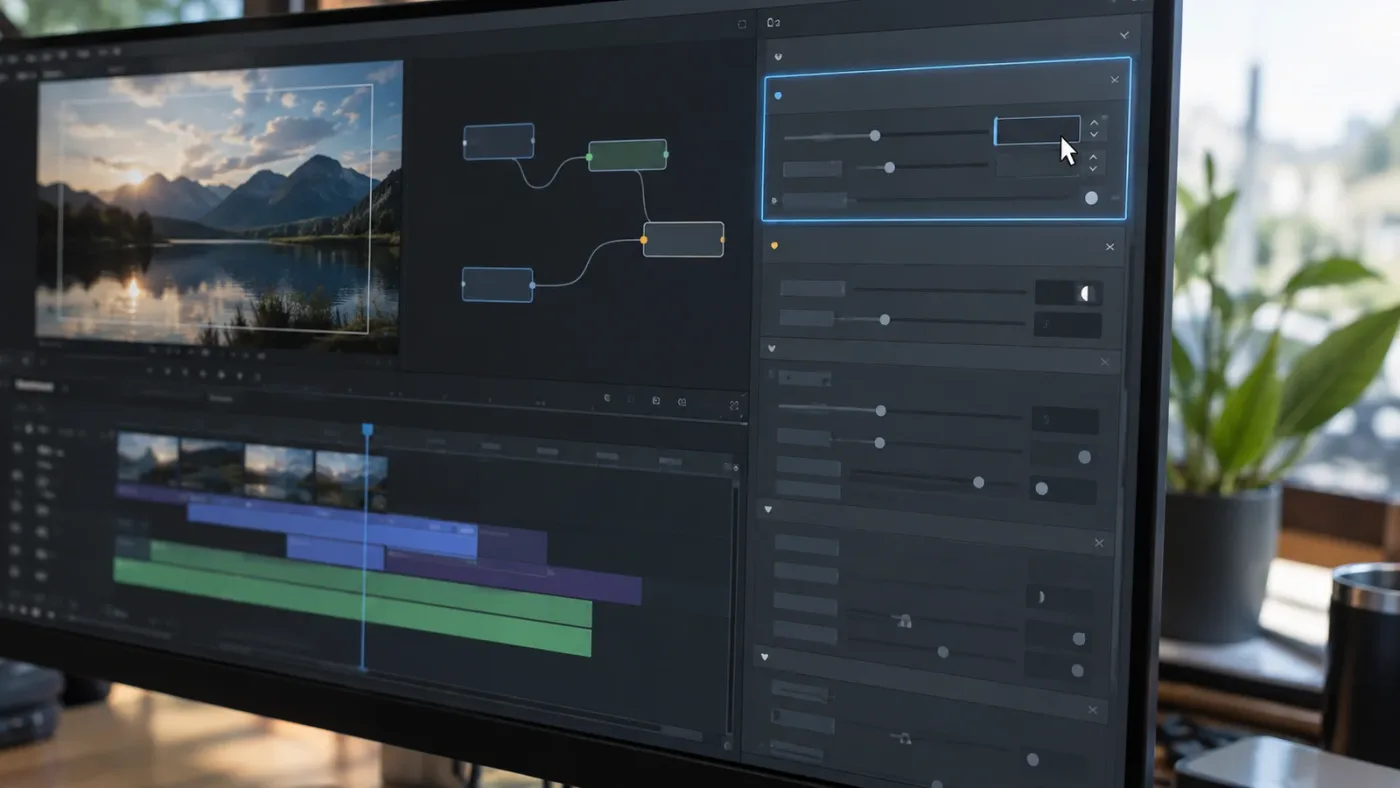
Keyboard focus determines where typing and panel-specific shortcuts go; node selection determines which tool's parameters the Inspector displays. Test both separately by selecting one node, clicking a value field, and observing whether the field cursor and Inspector header remain stable.
Start with a harmless field. Select a Transform node, click a numeric value, and type a value you can immediately undo. Avoid using a critical project setting for this test. You are checking where input goes, not trying to improve the shot.
Then test selection without typing. Click another node once and look at the Inspector header. If the header changes, the panel is doing what a context-sensitive Inspector normally does. If the header stays on the original tool while a different node is highlighted, the selection or page context may be stale. Click the node again, then check whether multiple nodes are selected.
A focus indicator makes the first test easier. In Resolve Preferences, look under User Interface settings for the option named “Show focus indicators in the user interface.” The exact route can vary with OS and version, so use the Preferences search if available, or consult the current Resolve manual from Blackmagic's support page. In the Fusion manual, the focus highlight appears along the edge of whichever panel owns focus.
If you enable the indicator and it moves to the viewer or Node Editor each time you type, that is not necessarily a bug. Clicking those panels changes which panel receives focus. The useful question is whether focus moves without a click, keypress, app switch, or control action that should move it.
Use this short controlled sequence:
- Open a project you can safely test, or create a temporary project.
- Open the Fusion page and make sure the Inspector is visible.
- Select one node, such as Transform, and confirm its name in the Inspector.
- Click one numeric field. Do not double-click unless you mean to select the text.
- Type a harmless change, press Enter, and note whether the value changes.
- Click blank space in the Node Editor, then click the same field again.
- Click the viewer, return to the Inspector, and repeat.
- Repeat with a second node to see whether selection context changes the result.
This sequence answers two separate questions. Does the field stop receiving input when a different panel is clicked? That is ordinary focus transfer. Does the field stop receiving input while the pointer and selection remain unchanged? That is stronger evidence of an intermittent UI problem.
If typing goes to another application, the problem is outside the Inspector. A keyboard utility, macro recorder, remote-desktop client, screen overlay, or OS-level shortcut may have taken focus. If Resolve responds but the wrong field changes, check whether the click landed on a neighboring control or whether the field's contents were selected instead of its insertion point.
If the Inspector field accepts typing but the viewer does not update, you may have a different issue: the parameter is being edited but the node is not in the displayed image path, the playhead is on another composition state, or the viewer display is stale. Do not call that focus loss until you confirm which part failed.
Selection context explains many missing controls that look like focus loss.
Why does the Inspector show the wrong Fusion node?
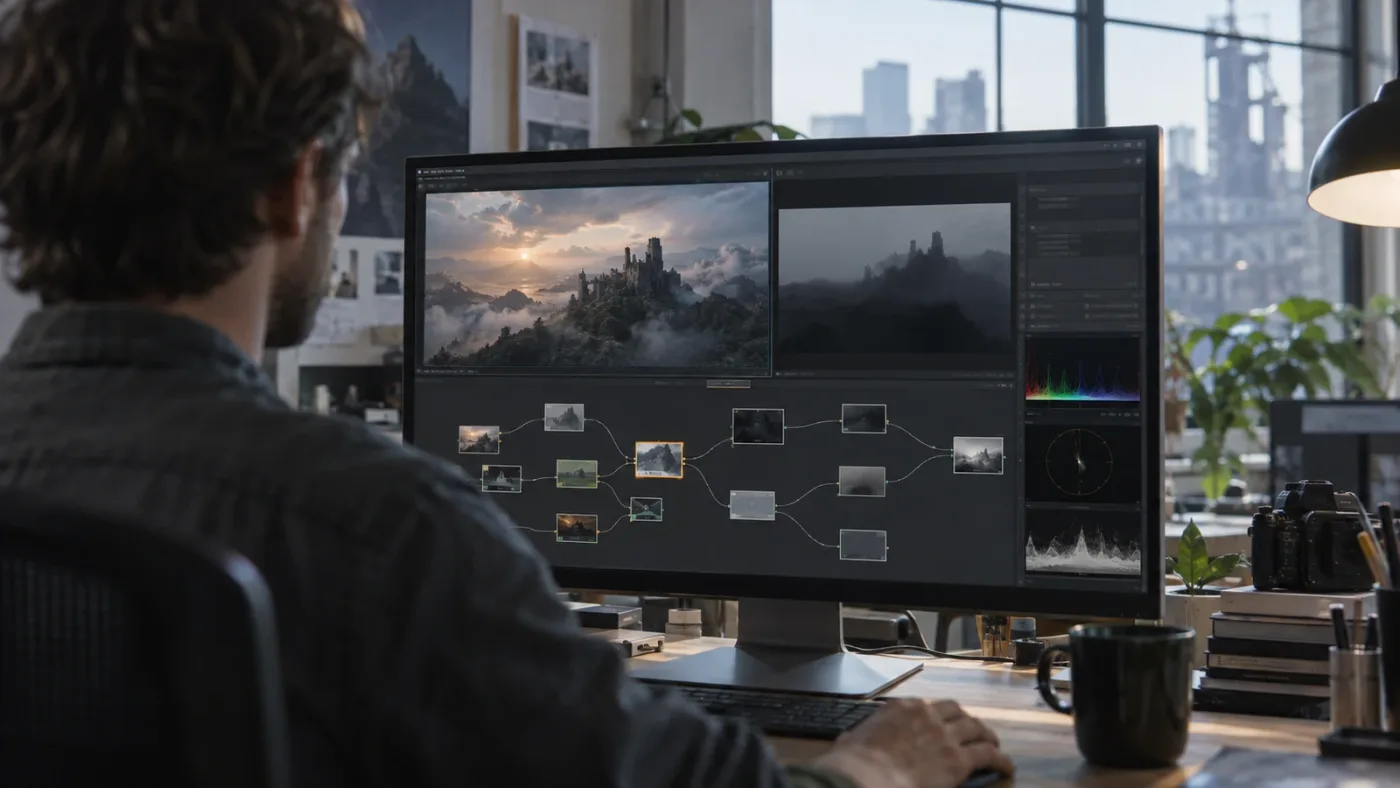
The Fusion Inspector displays controls for selected tools, so a changed node selection can look like the Inspector switched away by itself. Select one node at a time and confirm its name before judging whether the panel is misbehaving.
Fusion's graph is not a timeline track list. Nodes can sit upstream or downstream, and selecting a node in the graph is different from merely seeing its output in a viewer. If Fusion itself is unfamiliar, the Fusion page tutorial for beginners explains the page and its node graph. A viewer can display the output from one node while the Inspector is showing another node's settings. That is a normal and useful arrangement, but it can confuse troubleshooting when you expect the viewer and Inspector to describe the same tool.
Make selection explicit. Click the node body, not the connection line, a nearby node, or empty graph background. Read the Inspector's tool name. If your node is outside the visible graph area, use the node search or navigate the graph before clicking. A small graph at high zoom can make a click land on a neighboring node without the error being obvious.
Check for multiple selection. Depending on the current interface state and how nodes were selected, a modifier-key click or marquee selection can leave more than one tool active. Resolve 21's Multi-Inspector can combine common controls. The guide says its combined view presents properties shared by selected tools; unique properties may not appear in that view. Select a single node and see whether the missing field returns.
Also check for pinned Inspector controls. Pinning a tool's parameters is useful when you need to keep them visible while selecting another node, but it can make the header appear disconnected from current selection. If the displayed controls seem stale, unpin the view or use the Inspector's tool list to identify which node the controls belong to. Re-selecting a node is a reversible diagnostic step.
A group or macro can expose a different control set from the internal nodes that build it. If you are editing a group instance, its Inspector may show published macro controls rather than every internal parameter. Open the group or select the underlying node only if you intend to edit that internal tool. Do not assume a hidden low-level parameter is a focus defect.
A template or effect can also have separate inspector sections. If the controls that fail belong to a title template, compare with the sibling guide to Fusion title templates not working. A title macro may show its published text fields at the top and additional controls lower in the panel. Scroll inside the Inspector itself. The panel can be too short to show all available controls, especially with a compact workspace or a high display scaling setting.
Before changing the page layout, ask three questions: What object is selected? What node name appears in the Inspector? Is the control missing from the available set, or merely outside the visible portion? Those answers prevent unnecessary resets.
If the field disappears only when selecting several nodes, preserve the selection that works and use it as a clear branch in diagnosis. It points to Multi-Inspector behavior or a selection mismatch. If it vanishes while one node remains selected and the Inspector header does not change, test the next section's focus indicator and clean-project comparison.
How do I enable focus indicators in DaVinci Resolve 21?
Turn on Resolve's UI focus indicator in Preferences, then watch the active panel while reproducing the problem. The indicator shows panel focus, not necessarily the text caret inside a particular numeric field, so use it alongside a direct typing test.
Open Preferences from the DaVinci Resolve application menu on macOS or the corresponding menu on Windows and Linux. Choose User Interface settings and look for “Show focus indicators in the user interface.” Blackmagic's manual describes this indicator as a highlight at the top edge of the panel with focus. If the label is not in the same place in your build, use the current manual linked from the support page rather than guessing at an old menu path.
The indicator answers whether a panel was made active. It does not prove that a click registered inside a particular control. The Inspector panel may be highlighted while the field cursor is not active, for example if you clicked a label, divider, tool header, or blank area. Click the center of the editable value, check whether the text cursor appears, and type a harmless test.
There are a few visual states worth distinguishing:
| Indicator or cursor state | What it tells you | What to do |
|---|---|---|
| Inspector panel is highlighted and value has caret | Panel and field appear active | Test typing with a reversible value |
| Inspector panel is highlighted, no field caret | Panel focus exists; no field is actively editing | Click the value field itself |
| Viewer is highlighted after a click | The viewer received panel focus | Click the Inspector field again before typing |
| Node Editor is highlighted and another node is selected | The graph received focus and selection may have changed | Confirm the node name shown by the Inspector |
| No highlight is visible | Indicator may be disabled or hard to see | Recheck the setting and interface contrast |
A display with unusual scaling or a very short Inspector can hide the border highlight or make it hard to spot. Resize the panel or temporarily use a standard display arrangement. You do not need to permanently change resolution just to diagnose focus.
Use the indicator to observe a repeatable pattern. Does it jump away after pressing Tab? Does it move when the viewer updates? Does it change only when you click a node? A pattern tied to an explicit action often points to normal focus routing or a keyboard setting. A jump with no input is more useful evidence for a bug report.
The UI setting is a diagnostic aid, not a repair. If focus remains stable but a control still fails to update, shift your attention to node selection, animation state, viewer display, or the specific control's behavior. If the entire Inspector panel closes, investigate panel visibility or workspace layout instead.
How do I stop the Inspector changing fields while I type?
First confirm whether the cursor is moving between controls because of Tab or Enter, or whether it disappears without an input. Keyboard focus can advance through Inspector fields as part of editing behavior, so test one key at a time and check Fusion preferences before changing global settings.
Fusion preferences include an Auto Control Advance behavior in the Fusion manual. The manual explains that, when enabled, Tab and Return/Enter move keyboard focus to the next edit box within a tool's controls. Because the cited manual is for Fusion 18, treat it as a guide to the preference concept and verify the exact wording and availability in Resolve 21's current preferences.
This setting is relevant when focus appears to move after pressing Enter or Tab. It does not explain a field losing focus while the keyboard is untouched. If your symptom happens after a click, app switch, or hotkey, check that action separately.
Test with a noncritical numeric field. Click inside it, type a small reversible value, press Enter, and watch the caret. Then repeat with Tab. Note whether the displayed value changes, whether focus advances to another field, and whether the Inspector panel highlight moves. Avoid entering expressions, timecodes, or a value that could cause a dramatic change in a complex composition.
A keyboard layout can complicate the test. On some layouts, keys used for punctuation or symbols differ from the labels shown in tutorials. That can make a value entry appear interrupted when the application received a different character. Confirm the operating system's active layout and use ordinary digits for a simple field test.
If you use a pen tablet, programmable mouse, macro keypad, keyboard remapper, or accessibility utility, temporarily test with a standard keyboard and mouse. Do not uninstall these tools at first. Quit or disable them for one controlled session, then restore them and test one at a time. This isolates input without changing your project or system configuration permanently.
On Windows, screen overlays and GPU utilities can draw over application windows or use global shortcuts. On macOS, window managers, input utilities, and screen-recording controls can also take keyboard or pointer events. These are possibilities to isolate, not a claim that any one utility causes the Resolve 21 issue. Close only the apps you actually use and compare the same test sequence.
If the problem disappears with one utility closed, re-enable the utility and turn off its Resolve-specific overlay, global shortcut, or input hook if it has one. Check the utility's own documentation before changing its configuration. If the issue remains, keep the utility enabled and move to the next diagnostic branch.
Why does Fusion Inspector focus fail only in one project?
A problem limited to one project points toward project state, a specific composition, a macro, or a selection pattern. Compare that project with a new blank project before resetting global preferences or reinstalling Resolve.
Create a fresh project, add one simple clip or still, open Fusion, and test a native node. The goal is not to build a complete composite. A minimal graph removes most project-level variables and gives you a control case.
If the blank project behaves normally, reopen the affected project and test a duplicate. Use Save As or duplicate through the Project Manager so your original remains untouched. Then isolate the composition where the issue occurs. If the issue follows one composition, reduce it carefully: test a copy, remove or bypass a node only when you understand its role, and note which change alters the symptom.
A custom macro or third-party tool can have controls unlike a native Transform or Merge node. Test a native node first. If only one macro loses focus, record its name and version, then check whether it is published, grouped, or using custom controls. Avoid deleting plugins or scripts as an early step; those may be part of the project and removing them can leave missing tools.
A project-specific issue can also result from a selected node state. When you reopen a project, the playhead may be on a different clip, the active composition may differ, or the graph may be zoomed to another area. Confirm the Fusion composition belongs to the clip you intend to inspect. This is especially important when several clips or compound structures contain Fusion effects.
You can compare project scope with a tiny matrix:
| Test | If the issue happens | What that suggests |
|---|---|---|
| New project, native node | Repeats | Broader application, input, display, or version issue |
| New project, custom macro only | Repeats only there | Macro or plugin control path |
| Existing project, one composition | Repeats only there | Composition or project state |
| Existing project, all Fusion compositions | Repeats | Project-wide state or a broader UI interaction |
| Same project on another workstation | Repeats on both | Project or composition travels with the issue |
| Same workstation with another project | Only original fails | Project-specific cause becomes more plausible |
These comparisons don't prove a cause by themselves. They narrow where a support report should focus. Do not infer that a project is corrupt just because one composition misbehaves. A macro can behave differently by design, a node can be pinned, or selection can be multi-node.
If you share a project for support, make a copy and remove private media or client content where practical. Keep the original local. A short reproduction project with one native node is often safer to share than a complete commercial timeline, but only share project material through a channel you trust.
A new project is the cleanest low-risk way to separate project state from application behavior.
Does DaVinci Resolve 21.1 fix the Fusion Inspector focus bug?
Resolve 21.1 is the current release listed by Blackmagic Design as of October 2026, but its published notes do not claim a general fix for Fusion Inspector focus loss. Update and retest, while keeping the symptom description precise.
Blackmagic's support page lists DaVinci Resolve 21.1 on September 8, 2026. Its summary calls out expanded still photography support, multicam controls, an updated trim editor, more than 25 Krokodove shape and 3D tools, updated Fusion macro controls, and project archive and media management options. Those are concrete changes, but a reader should not translate “updated Fusion macro controls” into “all Inspector focus bugs are fixed.”
The same support page lists Resolve 21.0.2, dated July 2, 2026, as improving text display in the Inspector. It also lists Fusion Studio 21.0.2 as improving Inspector text and modifier display when switching versions. These release notes concern text and display behavior. They do not establish that your focus symptom is the same defect.
Check your exact version in DaVinci Resolve > About DaVinci Resolve, then compare it with the release currently available from Blackmagic's support page. Do not use a third-party download mirror. Resolve updates can include project compatibility or workflow changes, so read the release notes and back up the project before applying an update to a deadline-sensitive machine.
After updating, restart the computer if the installer requests it, open the same test project, and repeat the same click-and-type sequence. Keep the test conditions constant: same node, same field, same selection, same display arrangement. If the symptom persists, note that you tested 21.1 and include the build number in the report.
If you are on Resolve 21.0 or an earlier 21.0.x build, update before escalating a possible version regression. The release history includes multiple 21.0 updates with changes to Inspector text, Fusion layouts, keyframing, and stability. That history makes version context important; it still does not identify a universal cause for lost focus.
If the problem began immediately after updating from Resolve 20, record both versions and whether an older version still reproduces the behavior. Do not downgrade in place as a casual test. Open a project backup or a copy, and confirm any version-specific project conversion implications from Blackmagic's documentation first.
The current manual can be downloaded through Blackmagic's support page. Use the manual for your installed major version when checking preference names and menu locations. Older Fusion manual references help explain durable concepts such as panel focus, but they are not proof of exact Resolve 21 control placement.
Could a Windows display or graphics setting cause the Inspector to lose focus?
A display or graphics configuration can contribute to interface rendering or input symptoms, but the reported behavior alone does not identify the GPU or display as the cause. Check the monitor arrangement and overlays first, then change one reversible display setting at a time.
If Resolve spans multiple monitors, move the application fully onto one display and test. Then try the other display without changing resolution. This can reveal a problem tied to one monitor's scaling, refresh rate, or window placement. On Windows, Microsoft documents where to change a display's refresh rate in Settings; the available choices depend on the display and driver.
Windows display scaling can make controls cramped or difficult to click, especially when the Inspector sits in a narrow dock. It does not, by itself, prove why a field stops receiving input. For a controlled test, restore the scaling value recommended for the monitor, restart Resolve, and compare. Record the original value so you can put it back.
If a floating or docked overlay appears over Resolve, close it for a test. Common categories include GPU overlays, performance monitors, chat overlays, capture widgets, remote-desktop controls, and screen magnifiers. The point is not to blame a named app. An overlay can intercept a click or shortcut, and isolating it costs less than reinstalling Resolve.
Check that the pointer click lands where the interface draws the field. If the field seems offset, test after moving the window to the main display and toggling the operating system's scaling only as a temporary diagnostic. A mismatch between pointer location and drawn controls suggests a display-coordinate problem more than a typical keyboard focus problem.
Only consider a graphics driver change if the issue includes broader visual glitches, crashes, redraw failures, or is isolated to a particular GPU path. NVIDIA's driver installation guidance covers driver installation options. Follow the vendor's instructions and note your current driver version before changing it. For AMD or Intel graphics, use that vendor's official support route instead.
Do not change GPU processing mode, cache settings, or project rendering options just because the Inspector focus changes. For a separate performance problem, use the guide to slow Fusion renders; rendering speed and keyboard focus are different symptoms. Those settings affect other parts of Resolve and are not direct focus controls. Change them only if you have separate evidence of a rendering or driver problem.
On macOS, Apple provides display controls through System Settings > Displays, including resolution and arrangement options. Temporarily place Resolve on one display and test. If you use a third-party window manager or display utility, close it for the comparison before changing system-level configuration.
If the focus issue happens on one monitor only, document the monitor model, connection type, scaling or resolution, and refresh rate. If it follows Resolve across displays, display geometry is less likely to be the sole cause. That is a useful narrowing result even if it does not identify the bug.
Should I reset the Fusion layout or Resolve preferences?
Reset the Fusion page layout only after checking focus, selection, and a clean project. A workspace reset can repair a damaged panel arrangement, but a broad preference reset changes more than the Inspector and may erase useful customizations.
Begin with the smallest change. Close and reopen the Inspector if it is hidden or compressed. Resize it. Switch to another page and return to Fusion. Save the project, close it, and reopen it. These steps test panel state while preserving the composition.
If the layout itself is visibly broken, use Resolve's workspace layout reset command if present in your installed version. Menu wording can shift between releases, so verify the command in the current 21.1 manual. Before using it, capture a note or image of your workspace setup, especially if you rely on custom panel arrangements or dual-screen layouts.
Do not confuse a workspace reset with a preference reset. The former is meant to return interface layout toward a default. A preference reset can affect shortcuts, user interface behavior, memory settings, path choices, and other setup. If you use custom keyboard mappings, export or document them first.
Avoid deleting support folders by hand as a first-line repair. User configuration and project databases may contain settings or information that is difficult to reconstruct. If Blackmagic support instructs you to reset a specific configuration, follow the exact instructions for your OS and back up the named data first.
A reinstall is even broader. Reinstalling Resolve does not necessarily remove a user preference or an incompatible third-party component, and it can add time pressure without answering the underlying question. Use it only after a clean project, current update, isolated input test, and targeted layout reset leave the problem unresolved, or when support recommends it.
Before any reset, protect these items:
- A backup of the project or project library.
- Custom keyboard shortcuts and workspace arrangements you need.
- Third-party Fusion macros, templates, scripts, and plugins.
- Any local assets that are not stored with the project.
- The exact version and build you are currently running.
If the issue vanishes after reopening the project but returns later, note what action precedes its return. A transient focus state may be restored by reopening the page, but that is a workaround, not a root-cause fix. Report the trigger if you can reproduce it.
Resetting a workspace is safer than deleting preferences, but both should follow a reproducible test.
How do I isolate overlays, scripts, and input devices safely?
Temporarily close one input-interacting utility at a time, then repeat the same test in Resolve. This makes it possible to identify an interaction without uninstalling software or stripping a project of its tools.
First list what was running when the problem occurred: screen recorders, GPU overlays, chat windows, macro tools, keyboard remappers, pen tablet drivers, remote-control apps, accessibility tools, and utility windows that stay on top. Do not assume every item is involved. The list is a way to create controlled comparisons.
Close one utility, restart Resolve if the utility installs a hook or overlay, and reproduce the issue. If nothing changes, reopen it before moving to the next. If the issue stops, run the same test again with that utility enabled. Reproduction on and off gives stronger evidence than a one-time coincidence.
If a plugin or script runs inside Resolve, do not remove it from the production environment without preserving a copy and understanding project dependencies. Instead, make a duplicate project and test a native tool. If the native tool works while a custom tool fails, record the plugin name, version, and the control you were editing.
A clean launch can help isolate startup scripts, but the steps differ across operating systems and versions. Use Blackmagic's official support guidance or contact support before disabling components by deleting files. A safe test should be reversible and should not damage a shared workstation setup.
For hardware, switch briefly to a basic mouse and keyboard if available. A tablet or programmable controller can send modifier keys, gestures, or mapped actions that alter selection. If the problem goes away, restore the device and disable one feature at a time. Keep notes; otherwise, it is easy to forget which configuration actually changed.
If the issue occurs only during screen sharing or remote control, test locally at the machine. Remote desktops can change keyboard handling, pointer acceleration, or display scaling. That comparison helps distinguish a Resolve issue from the remote input path.
How can I reproduce and report a real Resolve 21 focus bug?
A useful bug report states exactly how to reproduce the focus loss, what Resolve build and system were involved, and whether it happens in a blank project. Blackmagic says free Resolve technical support is available through its community forums, so include concise evidence that others can follow.
Write steps that another editor can perform without guessing. For example: open a new project, add a clip, open Fusion, select a native Transform node, click a named control, click a specified panel, and observe the caret disappear without additional input. Replace that example with what actually happens on your system; do not report steps you have not verified.
Include the following information:
- DaVinci Resolve edition and exact version/build from About DaVinci Resolve.
- Operating system and version.
- GPU model and driver version, if relevant to the symptom.
- Whether the issue happens in a new project and with a native Fusion node.
- Whether one node or multiple nodes are selected.
- The exact control and sequence of clicks or keys that triggers the problem.
- Connected displays, scaling, and remote desktop use if those are relevant.
- A short screen recording that shows the pointer, keystrokes where possible, and the Inspector.
- Whether disabling a specific overlay or utility changes the result.
Keep the recording short and focused. Show the initial selection, the click into the field, the input attempt, and the resulting state. If the symptom is intermittent, record multiple attempts rather than editing the video to imply a certainty you did not observe.
Protect confidential work. Use a blank project or a duplicate with public-domain or disposable media when possible. Blur or omit client names, proprietary footage, account details, and license information. Share logs or project files only through a support channel you trust.
When posting to the Blackmagic Design forum, search for the exact symptom and include the version details. The official support page notes that technical support for the free version of Resolve 21 is provided through the community forums. Keep the post factual: say “I observe the Inspector field losing keyboard input after this sequence” rather than declaring that a release is broken for everyone.
Do not present a workaround as a fix unless you can reproduce the improvement. “Click the field again” may restore input for one attempt, but it does not explain why focus moved. “Reopen the page” may reset a stale panel, but if the issue returns, include that as a temporary workaround in the report.
Blackmagic's manuals explain how the intended interface works; the support forum is where a reproducible product fault can be surfaced. Those roles are different. The manual can confirm what panel focus and Multi-Inspector are supposed to do, while a report supplies evidence about behavior that does not match the documented workflow.
What should I try first if I need to keep working today?
Use the lowest-risk workaround that restores editing, then preserve evidence if the focus loss returns. Re-select one node, click directly into its value field, and reopen the Fusion page before changing project-wide settings.
Try this in order:
- Click the node you intend to edit and confirm its name in the Inspector.
- If multiple nodes are selected, select just one and check whether the missing control returns.
- Click directly inside the value field and test with a harmless value.
- If the panel is hidden or cramped, reopen or resize it.
- Save, close, and reopen the project if the Inspector appears stale.
- Test the same operation in a new project.
- If the issue follows the app, update to the current release and isolate overlays or input utilities.
This order keeps your project intact and gives each step a diagnostic purpose. The first steps test ordinary interface state. The clean-project test separates local project conditions from broad application behavior. The update and utility tests come later because they affect more of the environment.
If you are mid-session and the Inspector loses focus repeatedly, save a new project version before continuing. A duplicate gives you a recovery point if later troubleshooting changes a preference or layout. Do not overwrite your only copy while experimenting with resets.
TryUncle is the on-screen assistant for DaVinci Resolve on Mac and Windows — ask in plain words and Uncle points at the exact control on your screen. It can point to a relevant control while you work; it does not automatically repair a focus problem or change project settings for you.
Which Fusion focus-loss checks are safe, and which should wait?
Selection checks, a new-project comparison, and temporarily closing an overlay are reversible. Preference deletion, driver replacement, and reinstalling Resolve are broader interventions and should wait until the simple checks establish a reason to use them.
| Action | Risk to project | What it can establish | When to use it |
|---|---|---|---|
| Select one node | Low | Whether Multi-Inspector or selection scope is involved | First |
| Click the field directly | Low | Whether the field needs explicit keyboard focus | First |
| Enable focus indicator | Low | Which panel receives panel focus | Early diagnostic |
| Test a new project | Low | Whether project state is involved | Early diagnostic |
| Close an overlay for one test | Low and reversible | Whether an input utility intercepts events | After basic checks |
| Restart Resolve | Low, but save first | Whether transient UI state clears | After a reproducible test |
| Reset workspace layout | Moderate inconvenience | Whether panel arrangement is damaged | If layout itself is wrong |
| Reset preferences | Higher | Whether user configuration is involved | After backup and narrow diagnosis |
| Change graphics driver | Higher system impact | Whether a broader graphics issue is involved | Only with related symptoms or support advice |
| Reinstall Resolve | Highest time cost | Whether installation files are involved | Last resort with backup |
A clean diagnostic sequence should minimize the number of changes between attempts. If you update Resolve, disable three overlays, change display scaling, and reset preferences all at once, you may restore the Inspector but lose the ability to say what fixed it. One-change tests are more useful to you and to support.
Do not turn every possible setting into a checklist item you must change. Many symptoms resolve with selection or a click in the correct field. If the focus indicator behaves normally and the problem is limited to a single control, investigate that control instead of changing display settings.
If you need to finish a deadline, use a temporary alternative: edit the value on a selected node with direct field clicks, reopen the page when necessary, and save versioned copies. Then document the sequence after delivery. A workaround can be practical without being mistaken for a confirmed repair.
When is the Fusion Inspector problem probably a bug?
A Resolve bug becomes more plausible when the same unexpected loss of keyboard input repeats in a clean project, with one native node selected, no overlay or remapping tool active, and current software installed. That evidence still supports “likely application issue,” not certainty about the root cause.
The strongest case has a repeatable trigger. You can start from a known state, perform the same actions, and observe the same failure. If the focus indicator moves without an input or the field loses its caret while the pointer and selection remain unchanged, record that exact transition.
The case is weaker when several things change at once. If the Inspector switches tools after a click in the Node Editor, selection may have changed. If controls disappear only with multiple nodes selected, Multi-Inspector behavior is a plausible explanation. If the text cursor advances after Tab or Enter, check Auto Control Advance. These states deserve testing before labeling the behavior a regression.
A version regression requires comparison across versions under controlled conditions. If the issue began after upgrading to Resolve 21, record the last version where it worked and the first build where it failed. Use project copies and confirm compatibility before opening valuable work in an older version. Never downgrade a production project solely to test a hunch.
The Resolve 21 release notes show changes across 21.0.1, 21.0.2, 21.0.3, 21.0.4, and 21.1, including UI-adjacent changes such as Fusion dual-screen layouts and Inspector text display. The release notes are useful for context, but they do not list a generic Fusion Inspector focus-loss fix. State that limitation plainly in a report.
A report becomes more actionable when it separates observation from interpretation. “Clicking a Text+ node causes the caret to disappear after one keystroke in a blank project” is an observation if you verified it. “Resolve 21 has a focus bug caused by the GPU driver” is a causal claim that needs more evidence.
If Blackmagic staff or support asks for logs, provide the requested files through their channel and note the time of the reproduction. Keep a copy of the test steps. A short, precise report is more useful than a long list of unrelated system tweaks.
What is the final fix order for DaVinci Resolve 21 Fusion Inspector focus loss?
Work from selection to focus, then project isolation, current-version retesting, and only then broader system or preference changes. This order solves common interface-state problems quickly and preserves enough evidence to report a true regression.
- Confirm the Inspector is open and large enough to show the control.
- Select one node and read its name in the Inspector.
- Check whether several nodes are selected or controls are pinned.
- Enable the focus indicator and watch which panel receives clicks.
- Click directly in a harmless value field and test typing.
- Test a new project with a native node.
- Update to Resolve 21.1 and repeat the same test.
- Temporarily close overlays, remappers, and remote tools one at a time.
- Reset only the workspace layout if the panel arrangement is damaged.
- Back up and report a repeatable issue before attempting a broad reset or reinstall.
The diagnosis matters more than the phrase “loses focus.” If the Inspector controls change, check the selected node and Multi-Inspector. If a field stops taking keystrokes, check panel and field focus. If the panel disappears, check layout. If the viewer handles disappear, check overlays. That simple split prevents a real but ambiguous symptom from sending you into risky troubleshooting.
If the issue survives the clean-project test on the current build, send Blackmagic the exact reproduction and system details. If it disappears when you select one node, you have a selection explanation. If it disappears with a utility closed, report that interaction to the utility vendor or adjust its shortcut behavior. Keep the project moving, but keep the diagnosis honest.
Frequently asked questions
- Why does the Fusion Inspector keep losing focus in DaVinci Resolve 21?
- The Inspector may be losing keyboard focus, the selected node context may be changing, or another utility may be intercepting input. Turn on focus indicators, test one selected node in a new composition, and compare with overlays and input utilities temporarily disabled before calling it a Resolve bug.
- How do I stop the Fusion Inspector from switching fields while typing?
- Click the value field itself and type a test value, then press Enter and click another field deliberately. If focus advances only after Tab or Enter, check Fusion's Auto Control Advance behavior and your keyboard layout; if it jumps without input, isolate the project, overlays, and display setup.
- Does DaVinci Resolve 21.1 fix the Fusion Inspector focus bug?
- Blackmagic's 21.1 notes mention updated Fusion macro controls and other Fusion additions, but do not list a general Inspector focus fix. Update because it is the current release as of October 2026, then retest; do not assume the update resolves every focus-loss symptom.
- Can I reset the Fusion page without deleting my project?
- You can test a new project or a new Fusion composition first, and use the workspace layout reset only if the problem appears to be a panel arrangement issue. Back up the project and presets before any broader preference reset or reinstall.
- How do I report a DaVinci Resolve 21 Fusion Inspector bug?
- Include the exact Resolve version and build, operating system, GPU, whether the issue occurs in a blank project, a short screen recording, and steps that reproduce it. Free Resolve users can reach Blackmagic technical support through the community forums; the support page states that route for the free version.
Sources
- Blackmagic Design Support Center: DaVinci Resolve 21.1 and 21.0.2 release information
- Blackmagic Design, DaVinci Resolve 21 New Features Guide
- Blackmagic Design, Fusion Reference Manual 18.6: Choosing Which Panel Has Focus
- Blackmagic Design, DaVinci Resolve 21.1 Manual
- Blackmagic Design Forum: DaVinci Resolve support
- Microsoft Support: Change the refresh rate on your monitor in Windows
- Apple Support: Use Displays settings on Mac
- NVIDIA: How to perform a clean installation of the NVIDIA graphics driver
- TryUncle: DaVinci Resolve on-screen assistant
Put this guide to work with TryUncle.
Ask about the step you’re on. TryUncle sees your screen and points at the control you need, so you can keep learning in your own project.
Get TryUncle for Mac or WindowsKeep reading
Guides · Jul 10, 2026 · 32 min
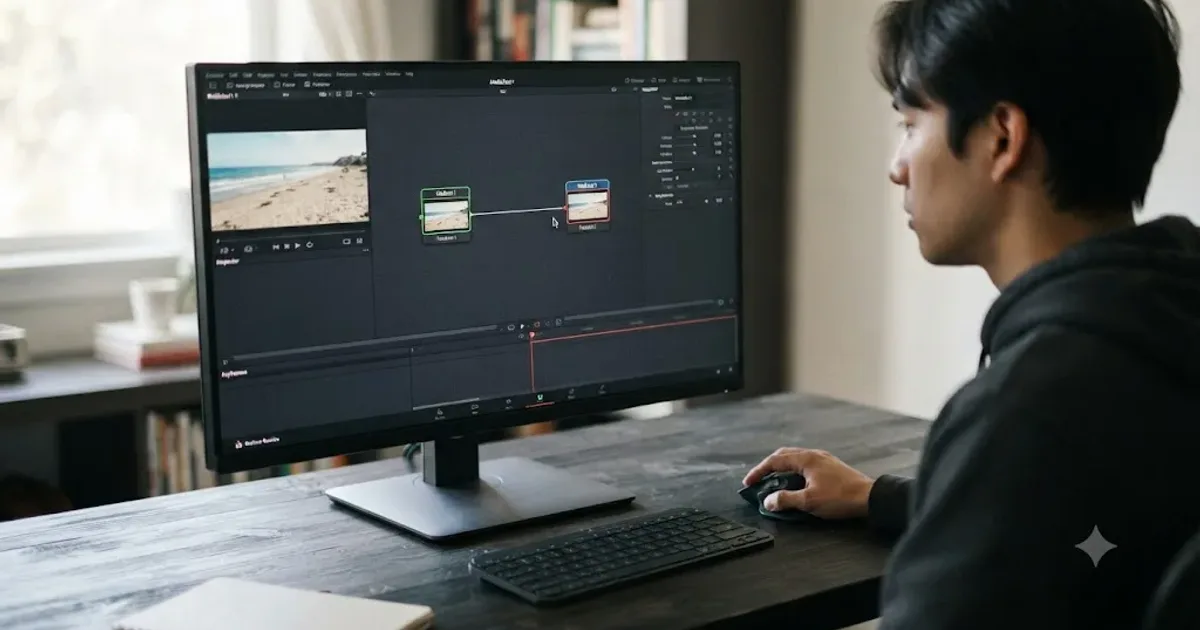
DaVinci Resolve Fusion Page Tutorial for Beginners
Learn the DaVinci Resolve Fusion page from zero: nodes, MediaIn/MediaOut, the Merge node, planar tracking, and keying a green screen, step by step.
Fixes · Jul 17, 2026 · 22 min
DaVinci Resolve Fusion Title Templates Not Working: The Fix
DaVinci Resolve Fusion title templates fail for five distinct reasons, from missing files to locked macros to bad fonts. Here's the fix for each one.
Fixes · Jul 10, 2026 · 26 min
DaVinci Resolve Fusion Render Slow? The Real Fixes
Why DaVinci Resolve's Fusion page renders so slowly, and the real fixes: resolution passthrough, MediaIn vs Loader, node caching, and CPU-only nodes.