Articles / Guidesupdated for DaVinci Resolve 21.1 (November 2026)
DaVinci Resolve 21 Group Grade Versions: How to Create and Switch
Quick answer
In DaVinci Resolve 21, group grade versions let you keep alternate Pre-Clip and Post-Clip grades for a clip group. In the Color page, right-click a grouped clip, open Groups, then Versions to create or select a group version. The selected group version applies to every clip in that group; use clip versions for shot-specific alternatives.
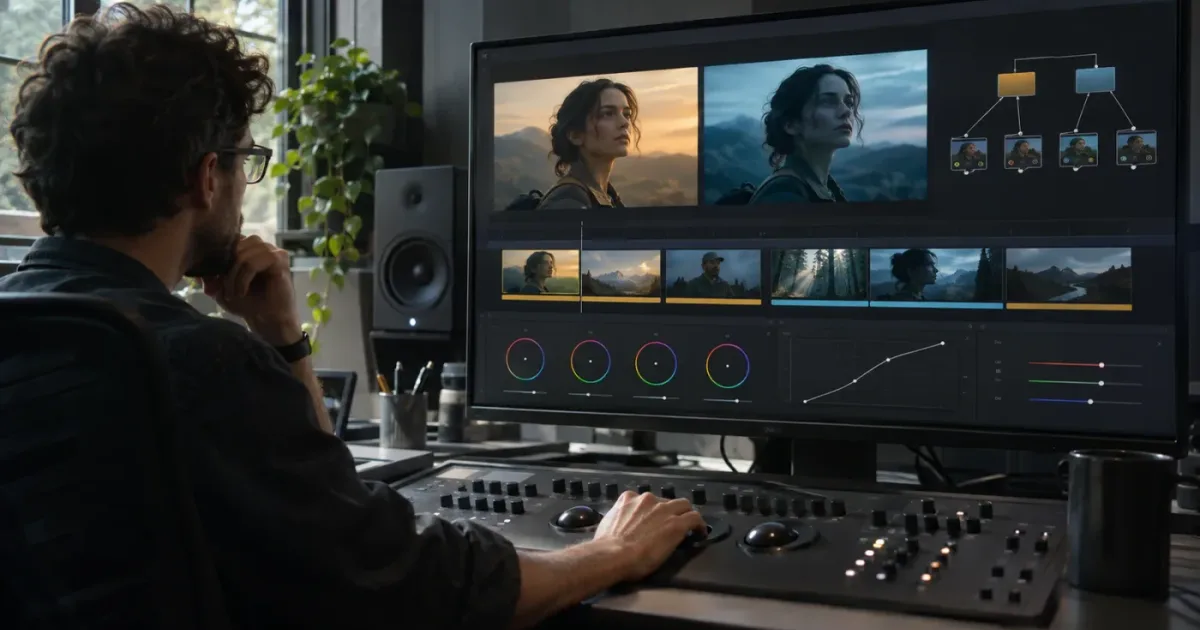
I like group grades when several shots need one shared treatment but still need their own clip-level corrections. Resolve 21 adds versions to that group workflow, so you can keep alternatives for shared Pre-Clip and Post-Clip grades instead of replacing the one group look each time. As of November 2026, the key rule is simple: a group version is shared by every clip in its group.
What are DaVinci Resolve 21 group grade versions?
A group grade version is an alternate grade for a clip group’s shared Pre-Clip or Post-Clip node graph. DaVinci Resolve 21 lets you create and switch these group-level alternatives, and the selected version applies to every clip in that group. (Blackmagic Design’s DaVinci Resolve 21 New Features Guide describes the feature and its group-wide behavior.)
A group version gives every clip in its group the same shared grade choice, not a separate choice for each shot.
That distinction matters. A clip can have its own clip-level nodes and corrections, while the group supplies a shared stage before or after those individual adjustments. Resolve’s version feature lets you retain more than one shared group treatment. It does not turn group grading into independent grading for each member of that group.
A simple way to picture the structure is:
| Grade level | What it affects | Typical job |
|---|---|---|
| Group Pre-Clip | Every clip in the group, before each clip’s own grade | Shared input transform or technical preparation |
| Clip | The selected clip | Shot balance, matching, windows, qualifiers, or other shot-specific work |
| Group Post-Clip | Every clip in the group, after each clip’s own grade | A shared look or finishing treatment |
| Timeline | The timeline as a whole | A final operation intended for the complete timeline |
Blackmagic’s Colorist Guide describes groups as segmented node trees: Group Pre-Clip and Group Post-Clip affect all clips in the group, while Clip mode handles individual needs such as balancing, matching, and secondary adjustments. (Blackmagic Design’s Colorist Guide to DaVinci Resolve 20)
A group version applies to the group’s shared node graph, not to the clip’s independent node graph. That makes it useful for alternatives such as a warmer or cooler shared look, or two different group-wide treatments that you want to compare without rebuilding the group grade each time.
Resolve 21’s New Features Guide specifies that multiple Pre-Clip and Post-Clip node graph versions are available when using node stack layers. It also states that an individual clip in the group cannot have a different group version from its fellow members. Those are the two limits to keep in mind before setting up a project around the feature.
How do I create a group grade version in DaVinci Resolve 21?
To create a group version, go to the Color page, right-click a clip that belongs to the group, open the group’s submenu, and create a version from its Versions menu. The Resolve 21 guide documents creating or switching versions from the right-click menu on a grouped clip in the Color page timeline.
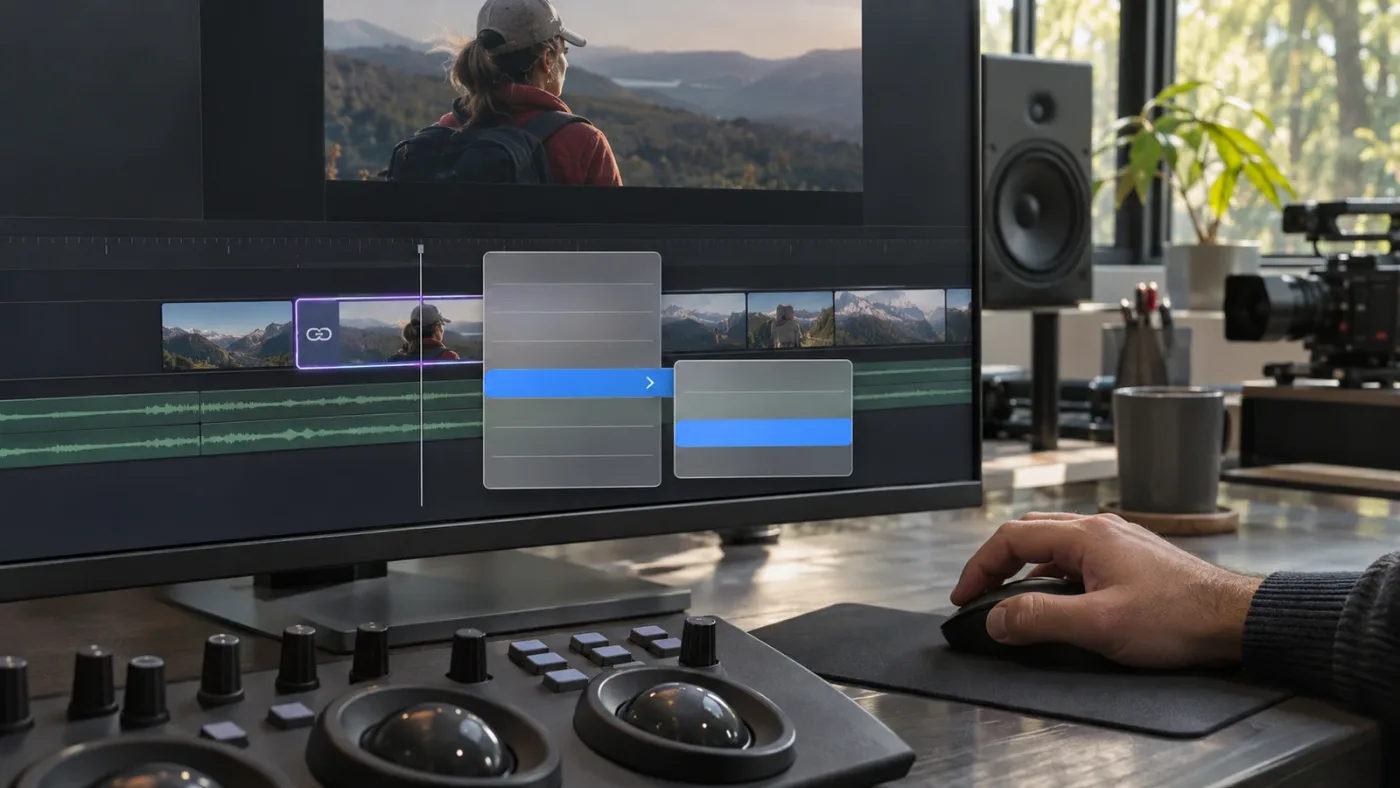
The precise labels shown in a menu can depend on which clip and group you right-click. The underlying path in Resolve 21 is:
- Open the project and go to the Color page.
- Select a clip that is already in the group you want to version.
- Right-click that clip in the Color page timeline.
- Open Groups, then choose the relevant group.
- Open Versions and choose the command to create a new version.
- Give the new version a clear name if Resolve offers a naming field in your version of the interface.
- Confirm that the new version is selected, then check the active group node graph before making changes.
The official guide confirms that the version commands live under the grouped clip’s right-click Groups submenu. It also illustrates the group’s Versions menu containing a command to create a new version. If your menu does not expose the group you expect, first check whether the selected clip is actually assigned to that group.
A version is most useful when it represents a deliberate alternate, not a minor adjustment you could make inside the current grade. For example, a project might need one group treatment for a natural look and another for a stronger, stylized look. Those are worked examples, not prescribed settings. The feature stores alternatives; it doesn’t decide which look is right for your footage.
Before creating versions, decide which part of the group pipeline they should represent. If the change is a shared technical preparation step, it belongs in Group Pre-Clip. If it is a shared creative treatment after the clip-level work, Group Post-Clip may be the better fit. The versioning feature supports both node graphs in Resolve 21 when using node stack layers. It does not mean every grade should be moved into a group.
When you make a new version, be careful about which node graph is active. If you’re in Clip mode, you’re looking at that clip’s own nodes. If you’re in Group Pre-Clip or Group Post-Clip, you’re working on the group-wide stage. Make the distinction visible to yourself before you adjust anything. A useful habit is to read the active mode label and the selected clip’s group before changing a node.
How do I switch between group grade versions?
To switch a group grade version, right-click a clip in that group, open Groups, select the group, and choose the version you want from Versions. Resolve applies that group version to all clips in the group, so check more than one member after switching.
A safe switching routine looks like this:
- Select a clip that belongs to the group.
- Right-click and open Groups.
- Choose the group name.
- Open Versions.
- Select the desired version.
- Move to another clip in the same group and confirm that the shared treatment follows the selection.
- Return to the first clip and inspect its clip-level correction separately.
The last two checks matter because a group-level switch can appear different on different shots. That does not automatically mean Resolve failed. The clips may have different exposure, camera response, lighting, or clip-level corrections, even though they share one group version. Resolve’s guide specifically says the selected group version affects all clips in the group; it does not promise that every shot will look identical.
Use clear names that describe the actual choice. “Warm” and “Cool” are more useful than a series of unexplained version numbers when the project needs those alternate looks. If the version names communicate a creative decision, another editor can understand the intention without guessing which one is current.
Avoid switching versions while a clip-specific adjustment is selected and assuming that adjustment has changed too. The shared and individual stages are different parts of the grade. If a version switch does not seem to alter the image, inspect the relevant group node graph and confirm which version is selected. Then check whether the visible difference is subtle, masked by clip-level work, or outside the stage you changed.
Switching a group version changes the shared group grade; it does not erase the reason each clip has its own correction.
A practical comparison is to switch between the alternatives on a representative clip, then inspect the same choices on the other shots in the group. If one version only works on one member, the group may contain clips that do not belong together, or that version may need more careful clip-level balancing.
Which grade belongs in Pre-Clip, Clip, or Post-Clip?
Use Group Pre-Clip for shared preparation, Clip for shot-specific correction, and Group Post-Clip for a shared creative treatment that should follow each clip’s individual work. The right placement depends on what the adjustment is meant to affect, not on which level has the most convenient version menu.
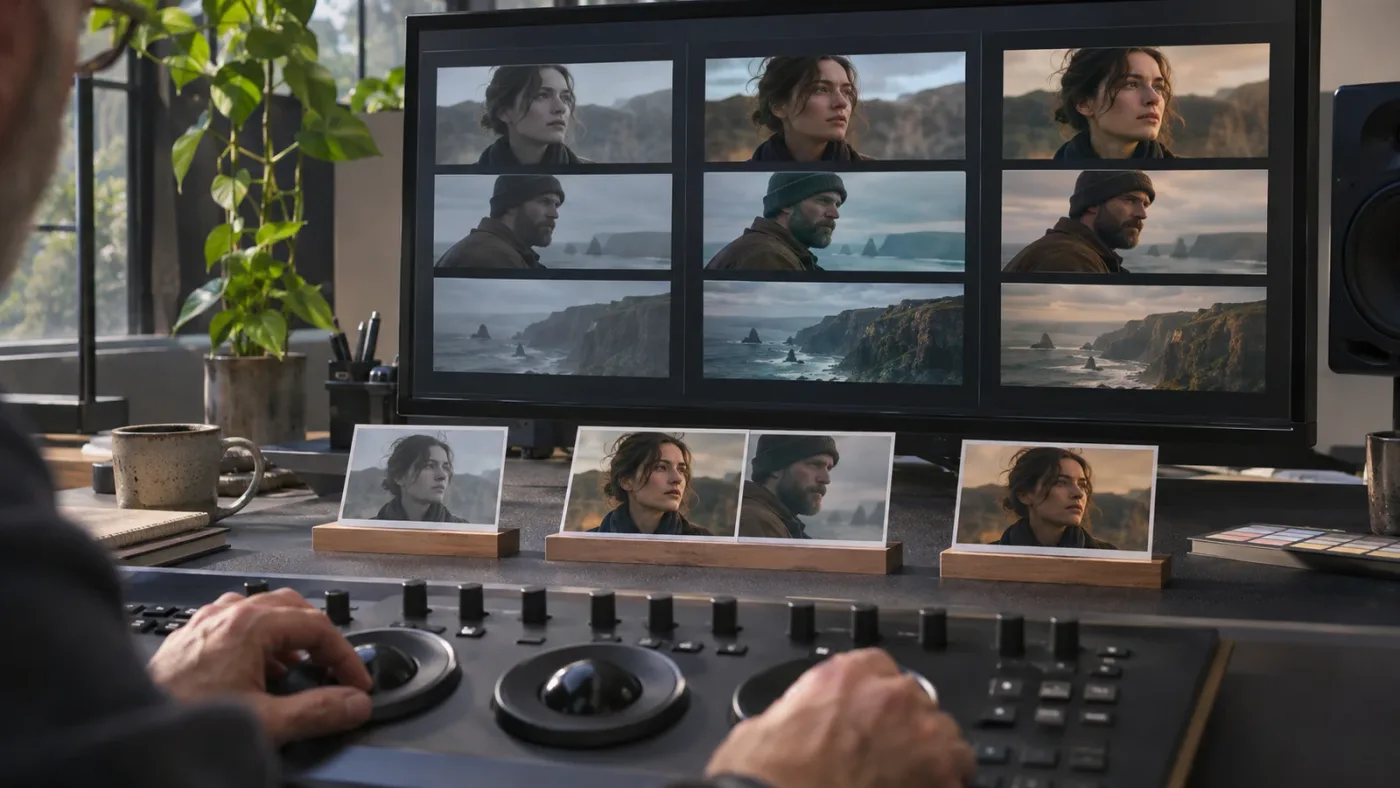
Blackmagic’s Colorist Guide presents this structure as a way to separate group-wide preparation, individual clip work, and group-wide finishing. It describes Group Pre-Clip as suited to preparatory adjustments such as color management, gamut and gamma mapping, and chart correction. Clip mode handles the needs of each individual shot. (Blackmagic Design’s Resolve 20 Colorist Guide)
The categories are useful, but they aren’t a rule that every project must follow. Here is a decision table:
| If the adjustment… | Consider using… | Why |
|---|---|---|
| Is common to the camera material in this group and belongs before shot-by-shot balancing | Group Pre-Clip | It is shared by the group before each clip’s own grade |
| Corrects one shot’s exposure, color balance, or local subject | Clip | The adjustment is specific to that shot |
| Applies a creative look to all clips in the group after their individual grades | Group Post-Clip | The group can share a finish without replacing clip-level balancing |
| Should affect the whole timeline, including clips outside this group | Timeline | A group is not a project-wide or timeline-wide grade |
| Works on only some members of a group | Clip, or a better-defined group | A shared group adjustment may be inappropriate for all members |
A worked example: imagine a small interview with two cameras, and each camera has several edited segments. You could make a group for each camera, place the appropriate shared input preparation in that camera group’s Pre-Clip stage, balance each shot in Clip mode, then apply a shared creative look at the Post-Clip stage if it suits every shot in that group. The camera group names and treatment are examples; judge the footage and project color management yourself.
That structure lets the alternative group versions represent an actual shared choice. For example, one Post-Clip version could hold a restrained look and another a more stylized option. The clip-level work remains useful because different shots can need different balancing before the shared finish reaches them.
A common mistake is putting a clip-specific exposure fix in Group Pre-Clip just because the node is easy to reach. Since the group stage affects all its members, that fix can make the other shots worse. Another is putting a creative look in a group that contains unrelated lighting or camera material, then trying to repair the mismatch with more and more exceptions. The better fix may be a better group boundary.
If the same output transform or other operation should affect the entire timeline, don’t assume a group version is the right place. Group Post-Clip is still group-scoped. The Colorist Guide’s workflow distinguishes group-wide stages from the timeline stage, so choose the level based on the intended scope.
Should I use group versions, clip versions, or shared nodes?
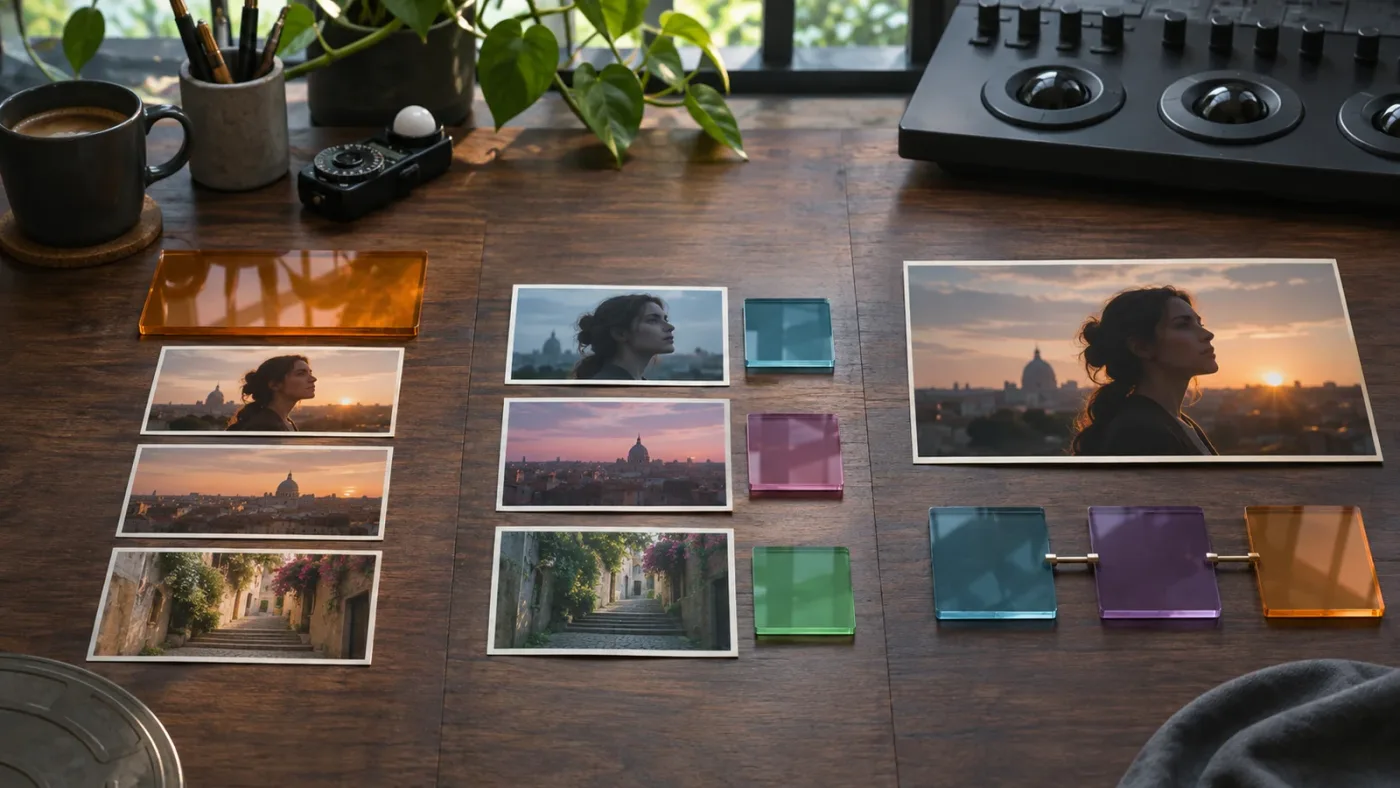
Use group versions when you need alternate shared Pre-Clip or Post-Clip node graphs for a group. Use clip versions when one shot needs alternate grades of its own. Use shared nodes when you need a shared node to remain linked across places where that shared node is used.
| Tool | Scope | Choose it when… | Watch for… |
|---|---|---|---|
| Group version | A group’s shared Pre-Clip or Post-Clip graph | The same stage needs named alternatives for all group members | One selected group version applies across the group |
| Clip version | One clip’s grade | A particular shot needs alternate looks independent of group members | It does not create a shared group-wide alternative |
| Shared node | A node linked for reuse | The same node should be maintained across its linked uses | A change to the shared node can affect every place using it |
| Copy or paste grade | The destination clips you choose | You need to duplicate a grade as a starting point | A copy is not the same as a linked shared node |
| Timeline grade | The timeline | The adjustment is meant to affect the timeline as a whole | It is broader than one group |
For the detailed behavior of shared nodes, see DaVinci Resolve shared nodes vs regular nodes. That is a different mechanism from group versioning. A shared node is about reusing linked node adjustments; group versions are alternatives for the shared Pre-Clip and Post-Clip node graphs.
Clip versions are the better fit when you want a shot-specific alternate without changing the group version used by the other shots. The scope of the change is the practical test: if your choice should affect every group member, consider a group version; if it should affect one clip, use a clip-level option.
Copying grades can be faster for a one-time starting point, but it does not by itself provide a named alternate group graph. Similarly, a PowerGrade still can be useful for reusing a look, but the group version feature solves a different problem: keeping alternate group-level grades available in the group workflow. Don’t choose a tool because it sounds more advanced. Choose the one whose scope matches the revision.
A worked example can clarify it. Suppose every clip from one camera should share a camera-specific transform, but the project may be reviewed with either a natural or a high-contrast creative treatment. A group version can hold shared alternatives at the group stage where that treatment belongs. If one shot alone needs a different exposure or skin adjustment, correct that clip individually instead of switching the whole group.
Why does one group version change every clip?
One group version changes every clip because DaVinci Resolve 21 defines the active group version as a choice for the entire group, not a per-clip setting. If one member should use another group look, separate it into an appropriate group or use a clip-level version or correction.
This is expected behavior, not a broken link between clips. Blackmagic’s New Features Guide says directly that individual clips in the group cannot have different group versions and that selecting a version for a group affects all its clips. (Read the Resolve 21 New Features Guide)
If the group contains shots with different needs, decide whether they belong together before building more adjustments around the exception. A group can be organized around common source properties, a camera, or a scene treatment, depending on the work. But shared group nodes make a shared assumption: the adjustment is appropriate for all members at that level.
Troubleshoot an unexpected change in this order:
- Confirm the selected clip’s group. The menu may refer to a different group than you intended.
- Confirm the active version. Make sure the menu selection is the version you meant to compare.
- Check whether you are viewing Group Pre-Clip, Clip, or Group Post-Clip. A version for one group stage may not be the stage you expect to change.
- Inspect a second clip in the group. A group version change should be common to the group, even if the resulting image differs because the shots differ.
- Inspect clip-level nodes. A shot-specific correction can alter how the shared grade appears.
- Check whether the clip was removed from the group or placed in another group. Membership determines which group grade applies.
- If only one clip should differ, change the scope of the solution. Use a clip-level correction, a clip version, or a more appropriate group assignment.
Do not try to solve a group-wide version limitation by placing arbitrary compensating nodes on every clip. That can work for a small number of shots, but it turns a clear shared treatment into a maintenance problem. If a subset consistently needs another group look, creating a group for that subset may be easier to understand later.
There is also a difference between “all clips use the same group version” and “all clips look the same.” The group version is shared. The footage is not. A wide shot, close-up, backlit shot, and camera angle with different white balance can respond differently to the same group node graph. Keep the individual clip work and compare the images, not just the version label.
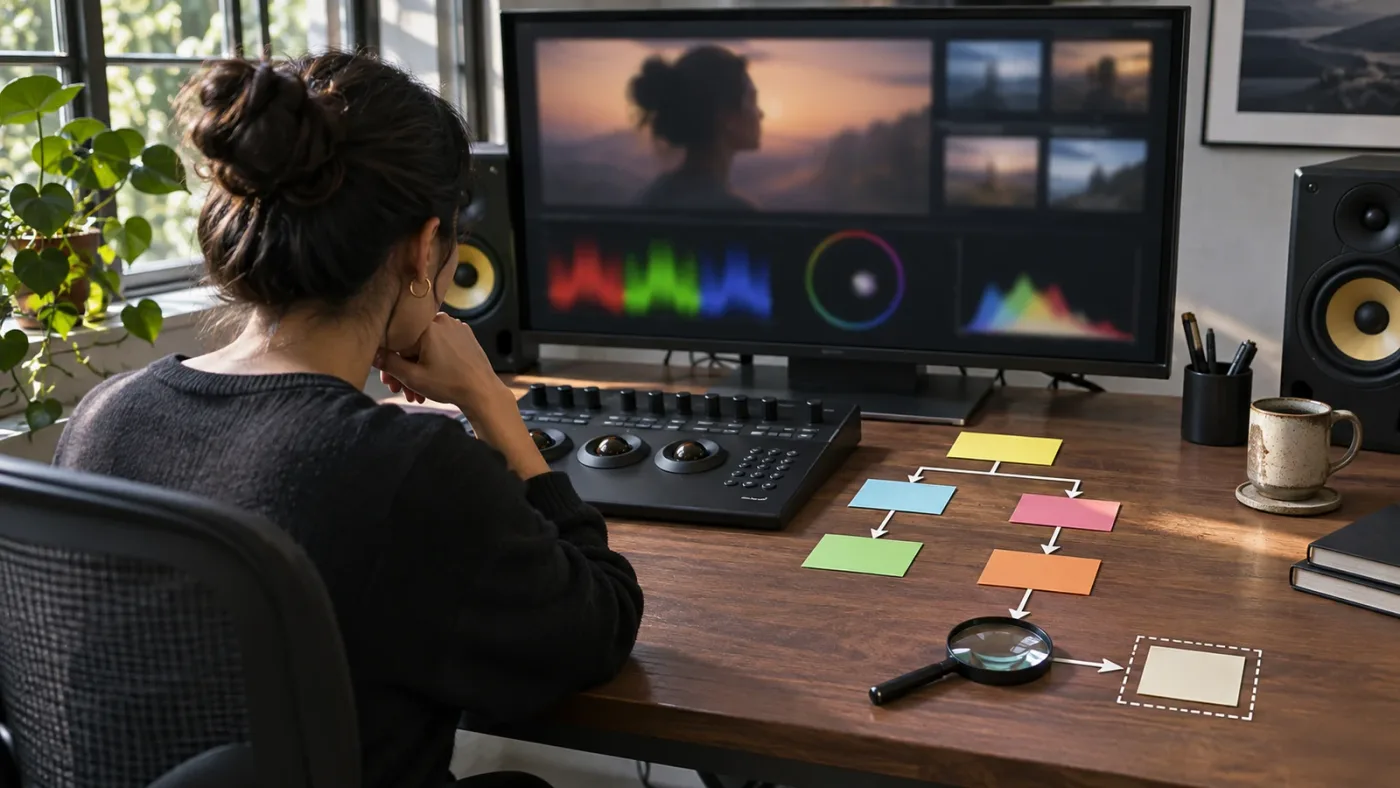
Why can’t I find the group Versions menu?
If you can’t find the group Versions menu, first confirm you are on the Color page and right-clicking a clip that belongs to a group. Resolve 21’s documented path begins from a grouped clip’s right-click menu, under Groups and its submenus.
Check the likely causes one at a time:
- The clip is not in a group. A clip outside a group has no group-specific grade versions to select. Assign it to an existing or new group if that is the intended workflow.
- You opened a different page or context menu. The Resolve 21 feature guide describes the command from a grouped clip’s context menu in the Color page timeline.
- You opened the wrong group submenu. If a clip can be associated with a different group than expected, verify the group name in the menu.
- You are looking for versions under an individual clip’s menu. Clip versions and group versions are separate choices. Confirm the scope you need.
- The active node view is not the one you intend to version. Resolve 21’s New Features Guide connects multiple Pre-Clip and Post-Clip graph versions with node stack layers. Check which stage you’re editing.
- Your screen differs from a tutorial. The tutorial may use an earlier version or a different menu context. Compare the displayed version and selected clip before following each click.
If the project uses a different Resolve release, don’t assume every menu or feature matches. Blackmagic identifies clip-group grade versioning as a Resolve 21 feature. The grouping workflow existed before, but the new ability to create and manage group grade versions is the version-specific addition.
When the menu is present but the result seems unchanged, select a different version and check the shared node graph as well as the viewer. You may be working on a stage that has little visible effect on the chosen shot, or clip-level adjustments may make the difference less obvious. Use a representative member and then inspect other members to separate a display problem from a scope misunderstanding.
How should I name and organize group grade versions?
Name group versions after the visual or technical choice they contain, and keep the number of alternatives small enough that you can tell them apart. A version name should tell you why you would select it, not merely when you created it.
Names such as “Natural,” “Warm finish,” or “Cooler night” are examples, not required Resolve labels. Pick terms that match your project and make sense to collaborators. Avoid names like “New,” “Newer,” or “Test 3” unless those labels are temporary and you will clean them up.
A simple naming plan can include:
| Version name | What the name should communicate |
|---|---|
| Natural | The restrained or neutral option |
| Warm finish | A shared warmer creative direction |
| Cool finish | A shared cooler creative direction |
| Client review | A distinct option prepared for a review decision |
Those descriptions are illustrative. The image, not the label, determines whether a version is technically or creatively appropriate. Keep a short note outside the node graph if a version has a specific review purpose or limitation.
Organize group membership with the same care. If a group mixes camera sources that need different input transforms, a single shared Pre-Clip operation may not be suitable. Blackmagic’s Colorist Guide uses Group Pre-Clip for preparatory color-management operations and recommends Clip mode for individual balancing and matching. The feature doesn’t replace that decision; it gives you alternate shared graphs after you’ve chosen a sensible group structure.
A useful review habit is to check a version on a range of members, not only the clip you used to create it. This is a viewing practice, not a Resolve requirement. It helps reveal whether a shared adjustment is appropriate across the group. If a version needs different repairs for different members, consider whether the group is too broad or whether the version belongs at clip level.
For a more general order of operations across a grade, see DaVinci Resolve color grading workflow order. For introductory context on the Color page and the grading process, see how to color grade in DaVinci Resolve.
What changed in Resolve 21, and what stayed the same?
DaVinci Resolve 21 adds grade versioning for clip groups; it does not change the basic distinction between shared group grades and individual clip grades. The new feature is the ability to create and manage alternate group grades, including multiple Pre-Clip and Post-Clip node graph versions when using node stack layers.
Blackmagic’s feature guide summarizes the change: group versions extend grade versioning to clip groups, and the selected version affects all clips in the group. Before this feature, group grades already provided shared Pre-Clip and Post-Clip stages. The Resolve 20 Colorist Guide documents those stages and their relationship to individual Clip mode. (Resolve 21 New Features Guide, Resolve 20 Colorist Guide)
| Question | Group grading before the Resolve 21 version feature | Resolve 21 group versions |
|---|---|---|
| Can a group share Pre-Clip and Post-Clip grades? | Yes | Yes |
| Can a group keep alternate grade versions? | The group-version feature is not documented in the earlier guide | Yes |
| Can each member select a different group version? | Not applicable to the new feature | No |
| Can clip-level work remain individual? | Yes, Clip mode handles individual clip adjustments | Yes |
| Are alternate Pre-Clip and Post-Clip graphs supported? | Not the Resolve 21 addition | Yes, when using node stack layers |
Version differences matter when you follow older training material. A tutorial from Resolve 20 can explain how groups and their shared stages work, but it will not show Resolve 21’s group-version controls. Conversely, a Resolve 21 walkthrough might show a menu path that is absent in an older release. Check the version before treating a missing command as a problem.
The current Blackmagic Resolve 21 guide also describes a separate node stack layers feature, and explicitly ties multiple Pre-Clip and Post-Clip versions to that workflow. Don’t confuse the node graph’s display mode with the concept of a group. The group defines shared scope; the node graph or stack is where the grade operations are arranged.
I would treat this feature as a safer way to retain group-level alternatives, not as a reason to group every shot. A shared grade is helpful when its scope is right. If the clips do not share the same relevant condition, group versioning won’t make the shared treatment more appropriate.
What should I do if switching a group version seems to change nothing?
If switching a group version seems to change nothing, verify that you selected a different version for the intended group and that the active graph is the Pre-Clip or Post-Clip stage you meant to change. Then inspect another clip in the group and check whether clip-level nodes are affecting the result.
Try this diagnostic sequence:
- Check the menu selection. Reopen the group’s Versions submenu and confirm the active choice.
- Check the selected group. A clip can be in a different group than the one you meant to inspect.
- Check the active node stage. If you meant to compare Post-Clip alternatives, make sure you are not focused on the clip’s own graph.
- Check that the versions actually differ. Two saved alternatives can contain nearly identical node work.
- Check the viewer on another group member. A shared operation may be easier to see on some shots than others.
- Check clip-level corrections. Local balancing or secondaries can change how a shared treatment looks.
- Check group membership. A clip outside the group will not follow that group’s selected version.
- Check the Resolve version. The group version feature is documented for Resolve 21.
A useful test is a controlled, reversible change on a copy of the project or a version you can safely return from. Make a clearly visible adjustment in the intended group graph, switch between the group versions, and inspect more than one group member. This is a diagnostic example, not a claim that a particular setting or adjustment is safe for every project.
If the change affects all members but still looks wrong, the menu is working and the problem is likely the content or scope of the shared grade. Undo or switch back, then decide whether the adjustment belongs on one clip, in another group, or at the timeline level. If only some members respond, confirm their group assignments before changing the grade again.
A group version that behaves correctly can still be the wrong grade for a poorly defined group.
If you’re stuck locating the Color page controls in your own Resolve layout, TryUncle can provide on-screen guidance while you perform the steps yourself. TryUncle is the on-screen assistant for DaVinci Resolve on Mac and Windows, ask in plain words and Uncle points at the exact control on your screen.
Is a group version the right choice for this project?
A group version is the right choice when you need alternate shared grades for clips that genuinely belong together, and the alternative should apply to every clip in that group. If the look should change for only one shot, use a clip-level solution instead.
Use this quick decision check:
- The same alternative should affect every clip in the group: create or switch a group version.
- Only one clip needs another look: use that clip’s version or a clip-level correction.
- The clips need different shared preparation: split them into groups that reflect those differences.
- The adjustment should affect the whole timeline: consider the timeline level rather than a group.
- You only need a common linked node across separate uses: consider a shared node, not a group version.
One good reason to keep group versions is review: a client or collaborator may want to compare two group-wide creative directions without losing the first. Another is iteration: you can maintain alternatives while keeping the rest of the clip grades in place. Those are sensible uses, but the feature won’t tell you how to group shots or make a creative choice for you.
Start with one clearly defined group and one meaningful alternative. Confirm that both versions affect the intended group members, and that clip-level corrections remain where you expect. If the group version solves a shared decision cleanly, keep using it. If it creates exceptions on every other shot, revisit group membership or move the treatment to the individual clips.
Sources and references
The feature details above are based on Blackmagic Design’s DaVinci Resolve 21 New Features Guide, its DaVinci Resolve 21.1 Reference Manual, and its Colorist Guide to DaVinci Resolve 20.
Color-management examples refer to Cullen Kelly’s Frame.io guide to color managing with nodes in DaVinci Resolve. Kelly writes, “I always use the timeline color space when I’m color grading in DaVinci Wide Gamut Intermediate.” That is his stated workflow preference, not a universal requirement for every project.
For a shared group look, use a group version; for a shot-specific look, stay at the clip level.
Frequently asked questions
- How do I create a group grade version in DaVinci Resolve 21?
- On the Color page, right-click a clip that belongs to a group, open Groups, select the group, then use Versions to create a new version. Resolve's DaVinci Resolve 21 New Features Guide describes creating or switching group versions from the grouped clip's right-click menu.
- Can clips in one group use different group grade versions?
- No. In DaVinci Resolve 21, the selected group version affects all clips in that group. For a different look on one shot, use that clip's own version or remove the clip from the group before applying an individual grade.
- What is the difference between a group version and a clip version?
- A group version is an alternate version of the group's shared Pre-Clip or Post-Clip node graph. A clip version is an alternate grade for one clip. Choose the group version for a shared group treatment and a clip version for a shot-specific choice.
- Can I version Group Pre-Clip and Group Post-Clip grades?
- Yes. DaVinci Resolve 21 supports multiple versions of the Pre-Clip and Post-Clip node graphs when using node stack layers. The version remains a group-level choice, so selecting it affects all clips in that group.
Sources
Put this guide to work with TryUncle.
Ask about the step you’re on. TryUncle sees your screen and points at the control you need, so you can keep learning in your own project.
Get TryUncle for Mac or WindowsKeep reading
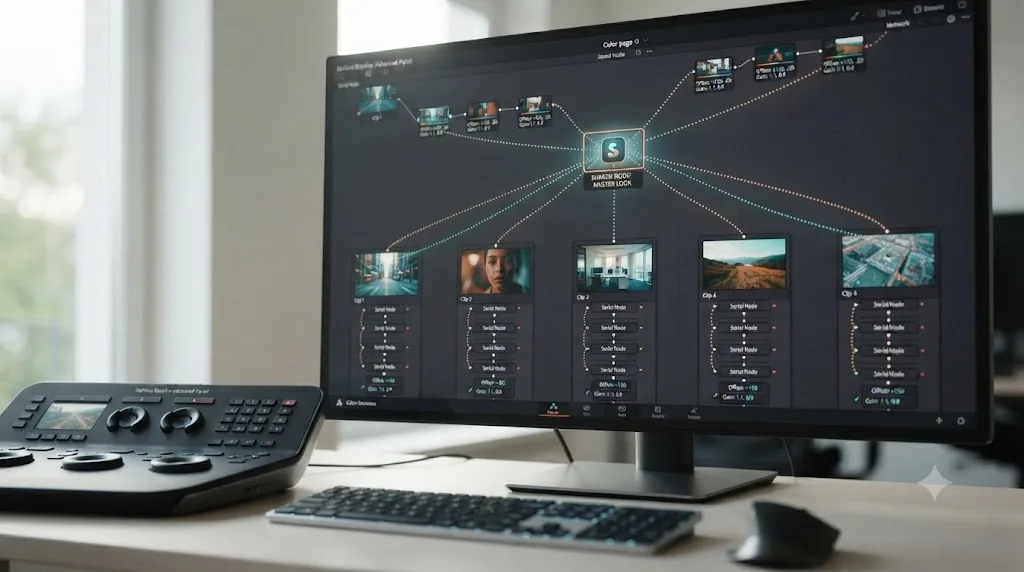
Guides · Jul 26, 2026 · 32 min
DaVinci Resolve Shared Nodes vs Regular Nodes, Explained
Shared nodes update every clip using them at once; regular nodes affect just one. How to create, apply, lock, and undo a shared node in DaVinci Resolve.
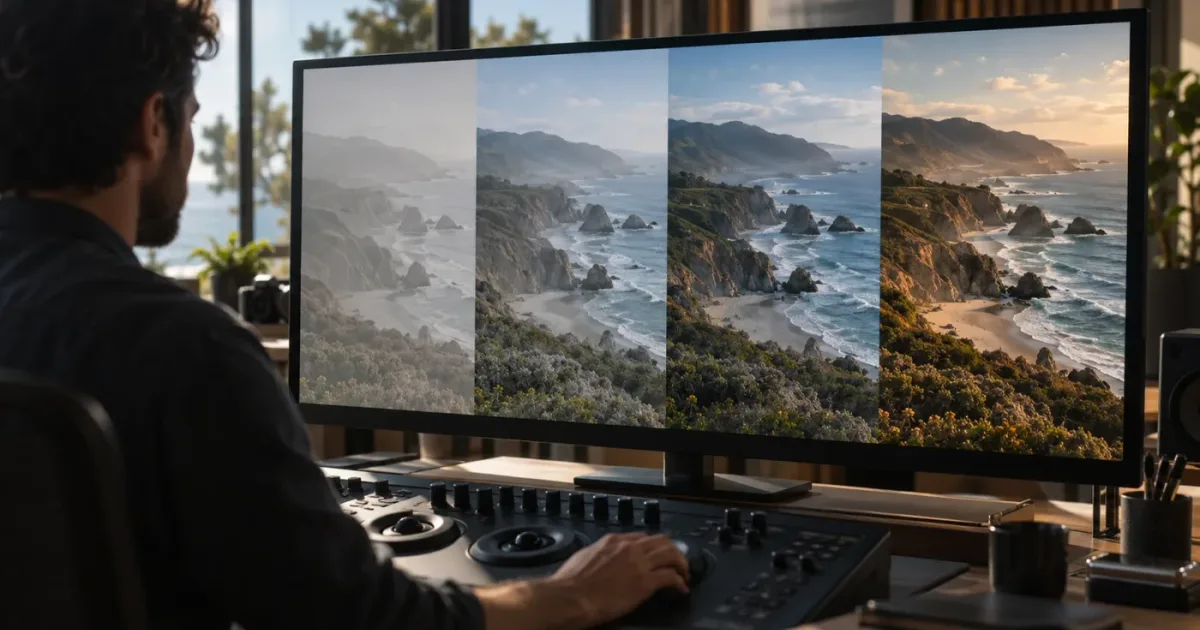
Guides · Oct 23, 2026 · 38 min
DaVinci Resolve Color Grading Workflow Order: The Right Sequence
A practical DaVinci Resolve color grading workflow order, from color management and shot balance to matching, look development, checks, and delivery.

Guides · Jul 7, 2026 · 35 min
How to Color Grade in DaVinci Resolve: The Basics
Learn how to color grade in DaVinci Resolve: build a node chain, balance shadows and highlights with Lift, Gamma, and Gain, and read the scopes.