Articles / Guidesupdated for DaVinci Resolve 21 (October 2026)
DaVinci Resolve 21 Multi-User Projects on Different Workstations
Quick answer
To use a DaVinci Resolve 21 multi-user project on different workstations, put the project in a shared Blackmagic Cloud project library or a properly reachable Project Server database, enable multiple simultaneous users, and give every workstation access to the same media through shared storage or synced proxies. A project library shares project data; it does not automatically make locally stored footage available.

We built and run a 100,000+ member professional video-editing community, and multi-user Resolve questions usually come down to one quiet distinction: sharing the project is not the same as sharing the footage. Get that distinction right before anyone starts cutting. As of October 2026, DaVinci Resolve 21 and Project Server 21 support collaboration across different workstations, but the media plan still decides whether each editor sees a usable timeline.


Can a DaVinci Resolve 21 project be shared across different workstations?
Yes. A DaVinci Resolve 21 project can be shared across workstations when its project library is hosted in a collaboration-capable location and every participant can access the media the project references. Project Server 21 is explicitly described by Blackmagic Design as supporting multiple users on different workstations opening and working on the same project at the same time.
That short answer contains two separate jobs. The project library stores project information such as bins, timelines, metadata, grades, and edit decisions. Media storage holds the camera originals, audio, stills, graphics, and any generated or cached files. A collaborative project library can synchronize changes while media remains on a local SSD that only one computer can see. The database connection can be healthy even when every clip is offline on the second machine.
The first choice is whether to use Blackmagic Cloud or a Project Server hosted by your team. Blackmagic Cloud is the managed route: Blackmagic hosts the cloud library, and you can choose whether media is not synced, proxies are synced, or proxies and originals are synced. A Project Server approach suits a team that already manages shared network storage and wants a private or locally controlled project database. Neither option removes the need to decide where the media lives.
A shared Resolve project carries edit decisions; the media workflow makes those decisions playable.
Blackmagic's Resolve 21 support page lists Project Server 21 as adding support for multiple users on different workstations opening and working on the same project at the same time. The current DaVinci Resolve collaboration page also describes shared projects, simultaneous work, bin and timeline locking, and collaboration roles. Those features are the reason to use a shared library or server, rather than placing a local Disk database in a consumer sync folder and hoping concurrent writes behave like a server.
The intended workflow is not “send the project file around after every edit.” It is “connect all participants to one shared project library, agree on how media resolves on each workstation, then use Resolve's collaboration controls.” If your team only needs to hand a project from one person to another, a single-user handoff package may be simpler. That is a different workflow, and it should not be mistaken for simultaneous collaboration.
Do not confuse a shared project with a shared screen, shared desktop, or shared render queue. Project collaboration concerns access to the project and the changes people make inside it. Each workstation still needs a compatible Resolve installation, appropriate access credentials, reachable media, enough local resources for its assigned work, and a plan for effects or plugins that vary between computers.
Why does the second workstation show media offline?
The second workstation shows media offline when Resolve has the project records but cannot find the referenced media files at paths it can access. The first fix is to make the original storage or a proxy copy available, then relink or map the media paths on that machine.
This is the most common conceptual trap. A shared cloud project does not necessarily upload your local camera media. In the Blackmagic Cloud project creation guide, “Don’t Sync Media” means media imported by one user will not be available to other users through cloud storage. “Sync Proxies Only” uploads proxies created by Resolve so collaborators can use those proxy versions. “Sync Proxies and Originals” syncs both, and Blackmagic warns that this can use a large amount of storage depending on the size of the originals.
If each person has a copy of the media on a local drive, path differences can still matter. An editor may have R:\Production\EpisodeA\CameraA on Windows, while another has /Volumes/Production/EpisodeA/CameraA on macOS. The project references a path, not the abstract idea of “the same folder.” If a workstation cannot resolve that path, Resolve cannot connect the clip to the file until you provide access or relink it.
A better option for shared storage is to use a consistent mount point and a stable folder layout on every machine. Keep media roots predictable. Avoid changing folder names mid-project. On macOS, mount the same network share under a consistent volume name; on Windows, map the same share to a stable drive letter or use a path convention your team can maintain. Confirm that every user can read the folders and that the storage does not sleep or disconnect during work.
When consistent mounts are impossible, Resolve's path mapping or relinking tools can bridge the difference between roots. Use the Media page or relink controls to point Resolve at the correct folder tree. If the source directory structure remains intact, relinking at a parent folder can often reconnect many items from one selection. The exact dialogs can shift with Resolve releases, so confirm the controls in your installed version's manual rather than relying on an old video tutorial.
For remote collaborators, cloud proxy sync is often the practical middle ground. It transfers smaller working media instead of every original. The editor can review and cut against the proxy while the original remains with the source team or on shared storage. Proxy workflows do require discipline: generated proxies must be included in the intended sync plan, collaborators need to wait until the required files arrive, and the project must reconnect to originals before final delivery if the final render depends on them.
If only one workstation reports offline media, do not immediately rebuild the cloud project. Check whether the clips exist locally, whether the relevant volume is mounted, whether the path is different, whether permissions allow reading, and whether cloud sync has finished. Rebuilding the project may duplicate the problem while creating another library that the team then has to identify and maintain.
If every workstation reports media offline at once, look for a shared cause: the storage was moved, a shared volume is unavailable, the original root directory was renamed, or the project was moved without its media. If only newly added clips are offline, ask which editor imported them and where that editor stored the files. A project can contain media from several roots, and one successful relink does not prove every camera card or graphics folder is accessible.
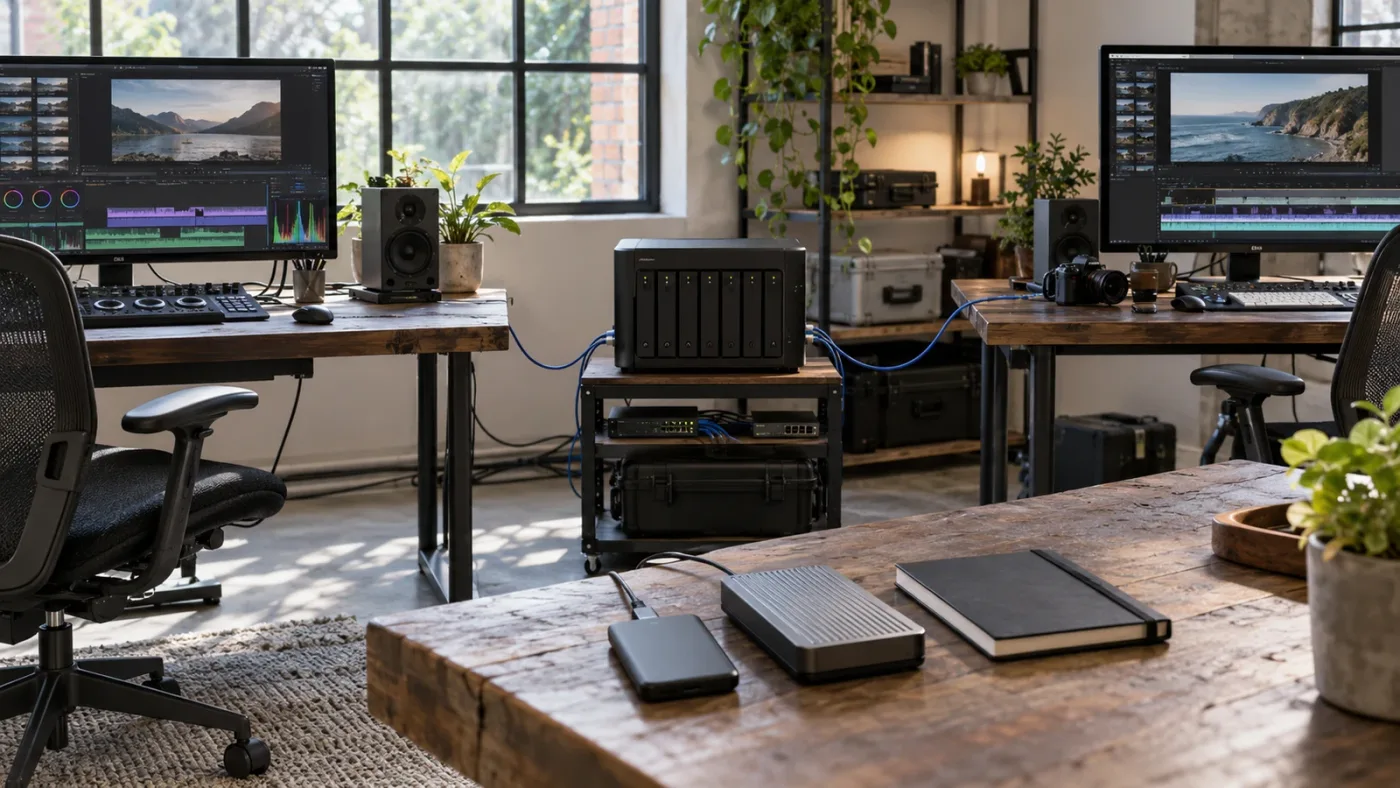
Blackmagic Cloud shares a project library only; media availability depends on the selected sync or storage path.
What is the difference between the project library and media storage?
A project library is the shared database location for Resolve projects; media storage is where the referenced source files and other assets live. A project library can be online while media storage is disconnected, which is why a collaborator can open a project and still see red offline indicators.
This separation helps you diagnose problems without guessing. If the project is absent from the Project Manager, investigate the library connection, account access, server, or version selection. If the project opens but clips are offline, investigate media location, sync completion, permissions, or relinking. If clips are online but playback is poor, investigate the proxy, cache, storage speed, codec, and workstation performance. Those are three different failure layers.
Project database changes are relatively compact compared with camera originals, but “compact” is not the same as zero bandwidth or zero delay. Bins, metadata, edit decisions, grades, and timeline changes must still be exchanged. Media synchronization is a separate operation and can dominate transfer time when originals are large. Bob Caniglia, Blackmagic Design's senior director of sales operations, described the distinction in an interview: “on a base level, you just move the project file, right? So that's really easy and that just downloads.” He then discusses moving files between collaborators as a separate need. That is an interview statement about the design goal, not a performance guarantee for every network or project.
Think of the project as a map and media as the territory. The map can travel quickly, but it cannot show an image if the referenced file is missing. This is why it is useful to label your workflow as one of three media models: shared volume, cloud-synced media, or local copies with relinking. Every collaborator should know which model applies before importing new footage.
Shared paths are easiest when all machines use the same operating system and mount scheme. Mixed Mac and Windows environments can work, but path conventions differ. Resolve can store path maps that translate one root into another, yet a path map does not copy the files or solve permissions. Build a known mapping, test it with a collaborator account, and document where exceptions such as a sound library or graphics drive live.
Projects can also reference files outside the main footage folder: LUTs, fonts, Fusion templates, stills, audio plugins, and third-party effects. Some of these are not ordinary timeline media and may not appear as offline clips. A project can open while its visual output differs because the receiving workstation lacks the same font, plugin, LUT, or version of an effect. Make a project manifest for dependencies that Resolve does not package into the project database.
The practical rule is simple. When a collaborator reports trouble, ask: “Can you open the project? Are the clips online? Can you play them? Does the image or sound match?” Each answer points to a different layer. That question sequence narrows the fault faster than immediately rebuilding the project or copying random folders.

Cloud reduces server administration; Project Server gives a team more control over its own network environment.
Should you use Blackmagic Cloud or Project Server 21?
Use Blackmagic Cloud when you want a managed cloud library and optional media synchronization; use Project Server when your team needs a private or self-managed network workflow and can operate it reliably. Blackmagic's own materials present both cloud-hosted collaboration and private Project Server workflows as supported choices.
Resolve 21 support materials date Project Server 21 to June 3, 2026, and describe multi-user use across different workstations. The Blackmagic Cloud guide gives the hosted route: create a library in a personal or organization profile, choose a server and region, choose a Resolve version, then create a cloud project and set its multi-user and media-sync options. The guide says the library version list defaults to Resolve 18.1 and above, while Resolve 18 users must select that version specifically. For a new Resolve 21 workflow, choose the version corresponding to your installed release and keep participants aligned.
| Team situation | Better starting point | What it solves | What it does not solve |
|---|---|---|---|
| Two editors working remotely with modest proxy files | Blackmagic Cloud project library with proxy sync | Shared project access and a path for distributing working media | It does not eliminate upload time or make every original automatically available |
| Editors in one facility using a managed NAS | Project Server plus shared storage | Shared project data while media stays on the facility storage | It does not make the NAS reachable to editors outside the network |
| A studio with security rules requiring private infrastructure | Project Server on the approved network | More control over where the project database runs | The studio owns server maintenance, network access, backup, and security configuration |
| One editor handing a project to another, one at a time | Project archive or handoff package | A portable copy of the project and selected media | It is not simultaneous collaboration and can become stale after handoff |
| Remote editor with a fast local copy of originals | Cloud project with no media sync, plus managed transfer | Shared project changes without duplicating all source files into cloud storage | The editor must receive and relink the originals separately |
| Team wants all files available from several locations | Cloud project with proxies and originals, or suitable shared storage | More complete access from multiple workstations | Storage use and transfer time increase with source volume |
Blackmagic Cloud lowers the amount of infrastructure a small team must operate. It also gives the team options rather than a single media setting. You can sync no media, proxies only, or proxies and originals. That choice should follow your bandwidth, storage, privacy, and finishing needs. Do not select “proxies and originals” simply because it sounds safest if your original media volume is large and every collaborator does not need every source file.
Project Server is not automatically a better choice because it has “server” in the name. A self-hosted project database can fit a facility workflow, but a remote workstation still needs network connectivity to the service. A private network design may involve VPN access, firewall rules, server updates, user provisioning, backups, monitoring, and an operator who knows how to recover from failure. If your team cannot reliably maintain those pieces, managed cloud hosting may be the less fragile option.
A NAS is also not the same thing as Project Server. A NAS can hold media files and expose shared folders, but a shared media volume alone is not the same as a collaboration-capable project library. Conversely, a cloud project library does not mean all your media sits inside that library. Decide separately where the project database runs and where media files live.
The cost comparison should include more than a service line item. Include server hardware or hosted storage, backup capacity, bandwidth, time spent administering access, and the cost of an editor waiting for a transfer. Blackmagic's support pages and cloud dashboard are the sources for current plans and pricing; those can change by region or date, so this guide avoids quoting a fixed storage price. Your workflow decision should rest on the actual media volume and number of active collaborators, not a stale monthly figure.
For a small remote team without an IT administrator, begin by testing Blackmagic Cloud with proxy sync. For a facility with a well-managed shared storage system and a network administrator, a local Project Server may make more sense. For regulated or confidential work, involve whoever owns your security policies before opening network access or uploading originals. A technical feature being available does not decide whether a data path is approved for your client.
If you want a fuller architecture comparison, see our guide to DaVinci Resolve Project Server vs Blackmagic Cloud collaboration. This article focuses on the different-workstation setup and media reachability; that sibling article is the place to weigh the hosting models in more depth.
How do you create a shared Cloud project in Resolve 21?
Create a Blackmagic Cloud project library first, then create the project inside that library and enable “allow multiple simultaneous users.” Choose media synchronization deliberately, invite the collaborators, and test that a second workstation can access both the project and the intended media.
The Blackmagic Cloud guide describes a clear setup sequence. Sign in to the Cloud account profile where the library should live. In the Cloud dashboard, open Project Server and add a project library. Give it a recognizable name, choose Blackmagic Server or a dedicated server, select a region, and choose the Resolve software version. Blackmagic recommends selecting a nearby region or the region where most collaborators are located for better response times and lower latency.
Then create the project from Resolve's Project Manager. Sign into the relevant Blackmagic Cloud account, select the profile containing the library, switch to the Cloud view, select the library, and choose New Project. In the creation window, name the project, select a location for project media, and decide whether to allow multiple simultaneous users. Choosing single-user disables collaboration mode. Select the media-sync option that matches the plan described below.
- Create or select the right library. Use a library name that identifies the client, show, or production without exposing confidential details unnecessarily. If your account contains multiple profiles, double-check that the correct one is selected before inviting people.
- Set the library region and Resolve version. Pick the appropriate server location for the team and version for the project. Do not assume every machine on a major version has identical point-release behavior; keep a written note of the installed build on each workstation.
- Create the Cloud project. Use the Project Manager's Cloud section and create the project inside the chosen library. Avoid creating a local project with a similar name and later asking everyone to guess which copy is authoritative.
- Enable multiple users. Select “allow multiple simultaneous users.” If that option was not selected, inspect the Cloud project settings and the installed manual for the path to change the project's collaboration state.
- Select the media plan. Pick no sync, proxies only, or proxies plus originals based on how the files will reach each workstation. Do not let the first editor's convenient default determine the team's long-term source workflow.
- Invite collaborators and confirm access. Add the intended Resolve users through the applicable sharing controls. Have each person sign in with the correct account and confirm that the library and project appear in the Project Manager.
- Open on another workstation before real work. Confirm media status, playback, project settings, fonts, plugins, and any linked assets. Test an edit in a throwaway timeline or bin, then confirm the first workstation sees the collaboration update.
The shared project should be created with enough clarity that another editor can identify the canonical version. Name projects consistently. If you make test copies, label them “TEST” or “SANDBOX” and remove them after the team confirms they are no longer needed. Keep the production project in one canonical library unless the workflow has a deliberate reason to split it.
Project creation location is not a guarantee that the same folder exists on every machine. The guide asks you to choose a location for media files on your computer. That is a local choice unless the files are then synced or placed on storage available to all users. State this clearly to the team: “The cloud library is shared, but these camera originals remain on workstation A,” or “Proxy sync is enabled and we expect the proxy files to appear for each collaborator.”
Use least privilege. Invite only the people who need the project, remove access when their work ends, and avoid making client material available through personal accounts where the client expects organization control. Blackmagic Cloud supports personal and organization profiles; select the profile according to who owns the production and who needs to administer access.
Before a shoot or edit begins, agree on who creates folders, who imports new material, whether proxies are generated automatically or manually, and who is responsible for confirming that sync has completed. When responsibility is unclear, each editor tends to make a local copy with a different name. Soon there are two “final” project versions, three media roots, and a review link that points to none of them.

How do you set up Project Server 21 for several workstations?
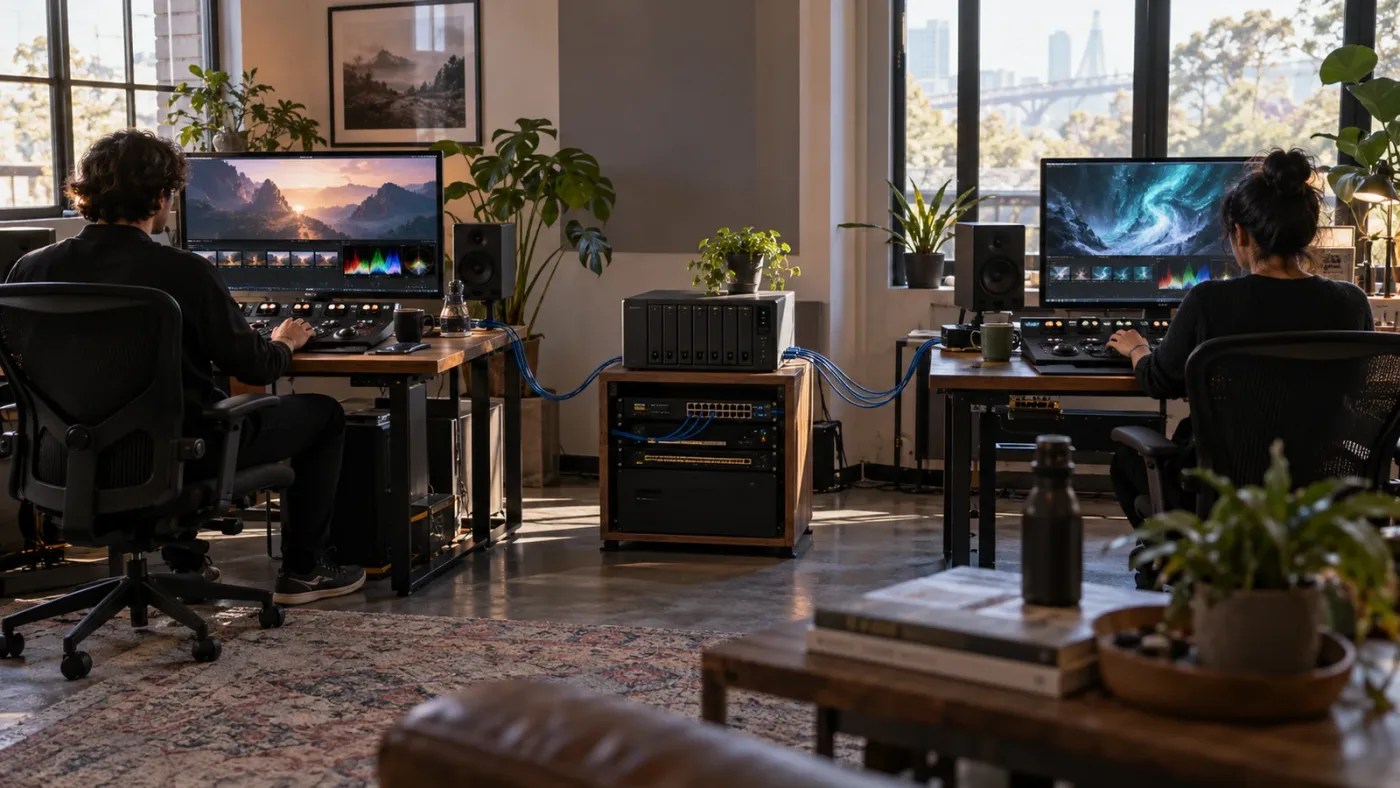
Use Project Server 21 when all workstations can reach the server reliably and your team can manage its network and backup responsibilities. Install the supported Project Server version, create or connect to a shared library, verify client connectivity from every workstation, and separately mount the media volume.
Blackmagic's support page identifies DaVinci Resolve Project Server 21 as a software update that adds support for multiple users on different workstations to open and work on the same project at the same time. Project Server is available there for Mac OS and Windows x86. That does not mean a given server app is supported on every operating system or hardware architecture, so check the live download details before choosing the computer that will host it.
The practical first decision is where the server runs. A small team might dedicate an always-on computer on its office network. A larger facility may use a managed server or virtualized environment consistent with its support policy. The host needs a stable connection and a backup plan. If the only machine that can host projects is also a workstation that people routinely power off, put it to sleep, or take home, the server may become unavailable at the worst time.
- Install Project Server 21 from Blackmagic's official support page. Match the server software to your Resolve generation. If you update, first confirm that the project library and client versions are compatible and that a recoverable backup exists.
- Create or choose a shared project library. Keep project libraries named clearly. Use a separate library for a production or client only if it improves administration and access control; more libraries create more places to search and back up.
- Make the server reachable to each workstation. A workstation on the same LAN may connect directly. Remote users may require an approved VPN or other network design. Do not expose a database service publicly without a security design from someone qualified to operate it.
- Connect from Resolve's Project Manager. Add the server using the host details required by the installed version. Confirm the library appears, create a test project, close Resolve, and reopen the project from another workstation.
- Set up media separately. Mount the same shared storage or choose a documented proxy and transfer approach. Project Server stores shared project data; it does not automatically turn a local SSD into shared media storage.
- Test the failure path. Verify who can restore the library backup, who maintains the host, and what editors should do if the server becomes unreachable during work.
Do not improvise server settings based on a forum snippet from an older major release. The Server 21 support page and Resolve 21 manual should be the authoritative references for the current installation. Older collaboration guides can explain the concept but their database versions, ports, interface labels, and setup steps may no longer match.
Use a wired connection for the server and shared storage when the facility setup allows it. Wi-Fi may be fine for some project interactions, but sustained video playback and large media transfers are more sensitive to throughput, interference, and dropped connections. The right target depends on codec bitrate, number of streams, storage performance, and the network. There is no honest universal speed number that guarantees good Resolve collaboration for every project.
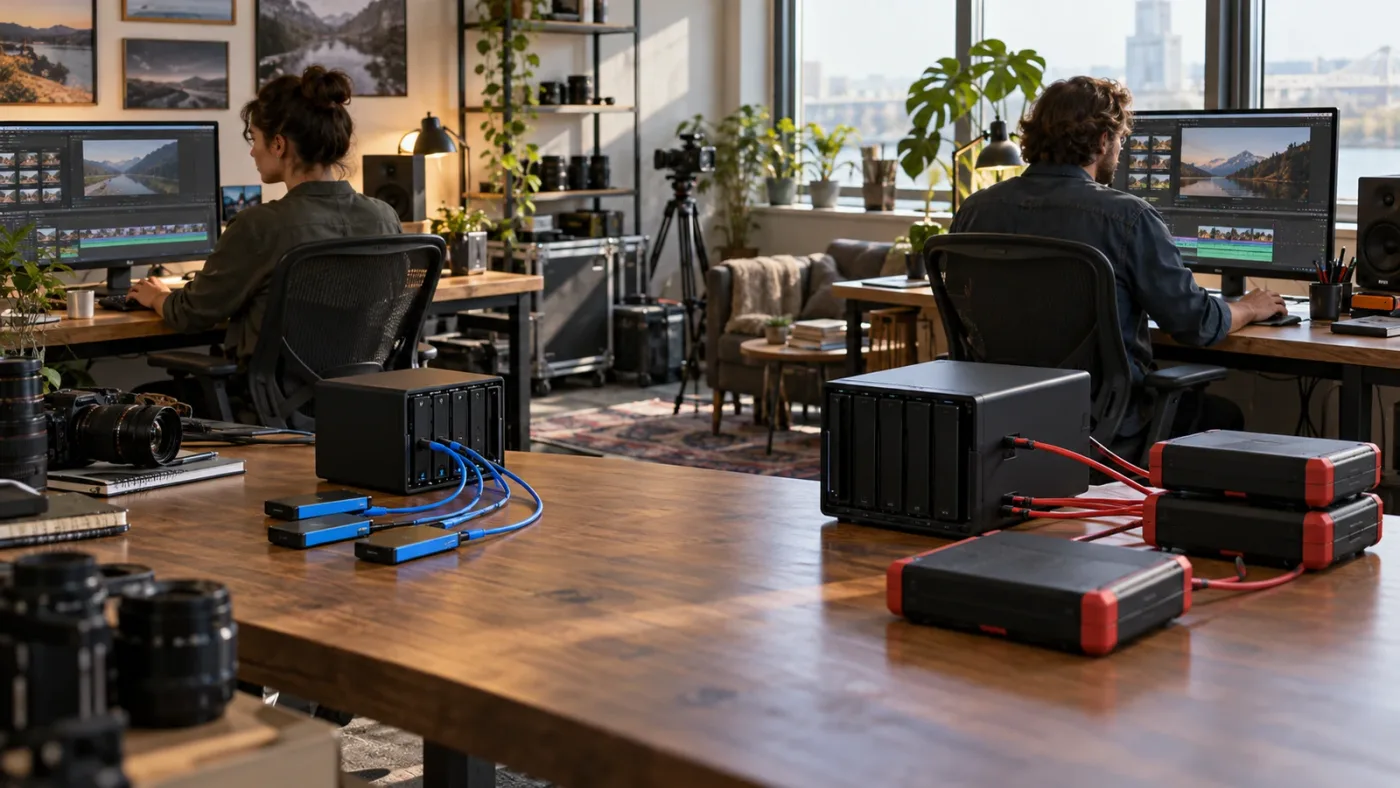
Proxy sync is often the practical bridge between remote editing and centralized original media.
Which media-sync option should you choose?
Choose “Don’t Sync Media” when collaborators already have a managed way to reach the source files; choose “Sync Proxies Only” when remote editors need lighter working copies; choose “Sync Proxies and Originals” only when broad access to both is worth the additional storage and transfer.
Blackmagic's Cloud Project guide lists three media choices. With no media sync, media imported into the project is not made available to other users through Cloud Storage. Proxy-only sync uploads proxy media created by Resolve, making those versions available to collaborators. Syncing proxies and originals uploads both and can use a large amount of storage depending on media size. Those are the documented choices. They do not guarantee a given project's transfer time or playback performance.
| Media option | Good fit | Trade-off | Check before editing |
|---|---|---|---|
| Don’t Sync Media | Shared NAS, local copy delivered separately, or a project-only collaboration | Each workstation must already reach or receive the source files | Confirm mount paths and permissions on every workstation |
| Sync Proxies Only | Remote cutting, review, and editorial collaboration where originals stay centralized | The proxy must be generated and synced; finishing may still require original media access | Check proxy status and decide when/how the online editor gets originals |
| Sync Proxies and Originals | Teams that need the full media package available via Cloud Storage | Larger storage use and more data movement | Review storage needs, upload time, and whether the originals are approved for cloud storage |
A proxy is a lighter working file connected to its source. In the Resolve workflow, proxies can make remote editing possible without sending every full-resolution camera file to each machine. The final media plan still matters. If the editor must grade or render from original media, make sure those originals will be accessible when the project reaches that stage.
Choose proxy-only when the remote person primarily edits and the finishing workstation can access originals. Confirm how Resolve identifies and reconnects proxy and original files before the team depends on them. Keep folder names and filenames stable. If a proxy and original share confusing names or are stored in unsystematic locations, an editor can spend time checking which version is online and whether the timeline is using the expected source.
Choose original sync when the team needs the original media distributed through Cloud Storage and has checked the storage implications. Do not confuse an account's available storage with a promise that an entire shoot will fit. Calculate from the source media you plan to sync, not only from the proxy folder or the current active timeline. Include audio recorders, stills, graphics, and alternate takes if they will be part of the project.
Choose no sync when the team already maintains shared storage or a deliberate transfer process. This can be a clean option for a facility where every edit station mounts the same high-performance media volume. It can also be appropriate when a remote editor receives a documented media package. It is not appropriate if people expect the cloud project library itself to make the camera files appear on their laptops.
For hybrid teams, define an online and offline handoff. An editor might cut from synced proxies while a colorist works from originals on shared storage. The team should know how the project switches between them and how new files enter the workflow. Test a representative sequence before the edit grows large, because fixing a path scheme later can affect many clips.
Do not manually drag proxy files into random folders and expect Resolve to infer the correct relationship. Use the supported proxy-generation and linking workflow for your installed Resolve build. Keep the media root, proxy root, and original root clear. If you move them, use Resolve's relink tools or the relevant media management process instead of renaming folders outside the project without a plan.
Cloud storage settings are not an archive strategy by themselves. The team still needs to know what remains after a project ends, who can delete files, what copies are retained, and whether client retention rules apply. Before deleting a cloud project or library, check which media and backups depend on it. A project that looks complete in the timeline may still refer to source files that no one has copied elsewhere.
When storage is scarce, sync only the files that serve the remote workflow. Proxies can be lower in data size than originals, but their exact size depends on settings and footage. Do not invent a fixed ratio. Generate a sample proxy using your intended format, measure its actual size, and extrapolate from the media list. That is a local planning calculation, not a Blackmagic performance benchmark.
How do you keep media paths consistent on Mac and Windows?
Use one predictable media root across machines when possible, then mount it consistently; if that is not possible, map or relink each workstation's local root to the project references. Mixed operating systems can collaborate, but paths and volume names do not automatically match.
Start by writing down the media root as each operating system sees it. For example, the physical NAS folder Production/ShowA/Media might mount as /Volumes/Studio/Production/ShowA/Media on a Mac and P:\Production\ShowA\Media on a Windows workstation. That is fine if the team deliberately maintains the mapping. It is trouble if one editor imports from a desktop folder called New Footage 2 and another expects a NAS path that was never connected.
A stable folder structure matters more than clever naming. Consider a production root such as ShowA/Media/Camera/Day01, ShowA/Media/Audio/Day01, ShowA/Graphics/Logos, and ShowA/Project/Exports. The exact names are yours to choose. Keep them documented and avoid mixing footage, renders, downloads, and temporary review files in a single directory.
Before importing, mount the volume and verify access with the same user account that launches Resolve. A mount can appear in Finder or File Explorer but still fail to have read permission for the editing account. If the share uses credentials, store and rotate them according to your organization's policy. A mapped drive letter that changes between logins can also break references even if the storage is physically online.
If one OS uses different roots, use Resolve's path mapping where appropriate and confirm the version-specific method in the manual. Path mapping translates a known root for media references. It does not establish a network connection, authenticate to the NAS, or copy files. The destination must exist and be mounted before a relink can succeed.
For local SSD workflows, choose one rule and teach it: either every workstation gets a complete copy in a consistent folder layout, or the project owner transfers a package and the receiving editor relinks it. Do not allow several editors to independently make partial copies from removable drives with inconsistent folder names. Partial copies create the most confusing state because some clips are online and others are missing.
Removable drives can be useful for a one-at-a-time handoff, but build the project around a stable root folder and avoid changing volume labels after relinking. On macOS, a volume name can be part of the path. On Windows, the drive letter can be part of the path. If the device is renamed, assigned a different letter, or mounted under another root, Resolve may need a relink.
If you need to move media, our guide to relinking media when it moves drives covers the focused relink process. For a finished project that needs to travel or be preserved, see how to consolidate Resolve media before archiving. A collaboration workflow and an archive package have different goals, but both depend on knowing which files belong to the project.
How should a remote team divide editing work?
Divide work by bins, timelines, or clearly owned tasks and use Resolve's collaboration controls to reduce collisions. Do not assume that several editors should type into the same timeline at the same moment just because they can open the project simultaneously.
Blackmagic describes automatic bin and timeline locking as a way to prevent users from overwriting each other's work. The product collaboration page describes artists working in dedicated pages and collaboration tools for sharing a project. This supports parallel work, but a team still needs an editorial agreement. Locking can prevent conflicting edits; it cannot decide creative ownership or settle which version should become the master.
A straightforward division assigns one editor to select and organize footage, another to build a separate sequence, and a colorist to grade after the edit reaches an agreed state. Another team may split a documentary by subject or chapter. The right split depends on the material and how the project is structured. The important part is to define boundaries that correspond to bins or timelines and name the owner for each.
Use distinct bins for each intake or task, such as CAM_A_DAY_01, INTERVIEWS_SELECTS, and GRAPHICS_INCOMING. This is an example naming scheme, not a Resolve requirement. Put shared items in clearly marked bins and avoid two people reorganizing the same bin while another person is using it. If someone needs to change folder structure, tell the team first.
Use separate timelines for work that can be assembled later. Editors can build sequences in their assigned bins or timelines, then the lead editor can review and combine the strongest material into a master. The 21 New Features Guide documents Dynamic Project Switching with multi-user projects, so Resolve 21 adds a way to switch projects dynamically in that context. Verify the exact interface and behavior in the guide for your build before making it a critical workflow dependency.
For color work, agree whether the colorist is working on a locked timeline, a duplicate, or a handoff milestone. If picture editorial is still changing, frequent updates may make color review harder. Resolve collaboration supports ongoing work, but the team may still choose a freeze date for a delivery. “Real-time” does not mean every department should change the same creative decision without communication.
For Fairlight work, define who owns dialogue edits, music, sound effects, and final mix. A new sound edit can change timing and affect the picture. Establish how the editor sees updated audio and what happens if the timeline changes after mix approval. Put that decision in the project workflow rather than discovering it at export.
When changes arrive from collaborators, review them before merging into the master when the feature offers that choice. Blackmagic says Resolve collaboration can let users view and accept changes and use timeline compare tools to merge changes into a master timeline. Acceptance and comparison are useful safeguards, but they do not replace reviewing the actual cut for continuity, frame accuracy, grade consistency, or sound.
A short daily handoff note can contain four facts: what changed, which timeline or bin changed, whether media sync is complete, and what action the next person should take. Keep the note specific. “I updated the interview selects timeline and added proxy files for the new card; originals are still on the ingest workstation” is better than “Everything is in the project.”
Use markers and comments for decisions that need attention, not as a substitute for talking when a decision is urgent. If you use review presentations, confirm whether they show the latest intended timeline and whether external reviewers have the right link. A viewer may be watching an earlier state while the editor believes the new cut is already approved.
Set a rule for how to handle a locked bin or timeline when the owner is unavailable. Do not force a takeover without checking whether the person still has unsaved work. Contact them, confirm the state, and then follow the team's policy for releasing the lock. If the lock appears stale after a crash, record the project and user state before making recovery changes.
What should every workstation match before opening the project?
Every workstation should use a compatible Resolve release, the correct project library, the agreed media paths, and the required fonts, plugins, LUTs, and hardware dependencies. The project may open across different computers, but differences in software and environment can change what the team can edit or render.
Keep the Resolve version aligned across collaborators where practical. The Blackmagic Cloud library creation guide asks you to choose a software version, and the Resolve 21 support page identifies the current 21 manual and Project Server release. A newer project may not open in an older Resolve build, while new features or saved settings may not translate as expected. Do not upgrade a single workstation halfway through an active collaboration without checking compatibility and the release notes.
Record the exact version shown by each workstation, including point release. If a problem begins after an update, the team can compare those records rather than guessing. Resolve 21's New Features Guide is useful for identifying version-specific functions; the main manual is the operational reference. The guide states Dynamic Project Switching can now be used with multi-user projects. This is one concrete Resolve 21-specific behavior worth checking if your team has a multi-project workflow.
Also compare project settings that affect output: frame rate, timeline resolution, color management, audio sample rate, and monitoring expectations. These are not all controlled by the OS, but inconsistencies can make a project appear different or create unexpected delivery. Decide which workstation or role owns changes to master project settings.
Fonts are a frequent cross-machine issue. A title can substitute another font when the receiving workstation lacks the original. The project may render with changed line breaks, spacing, or text placement. Keep a list of licensed fonts and installation instructions, and confirm that every machine has permission to use them. Do not copy proprietary font files around without the proper license.
Third-party plugins need matching versions and licenses. A project can contain an effect that another workstation cannot load or adjust. If the editor can see the effect but cannot render it, the timeline is not ready for delivery from that machine. Record plugin names and versions, and test important timelines on the intended finishing workstation.
LUTs, Fusion templates, macros, and custom graphics should be installed or included according to the creator's terms. The fact that a project references a LUT does not guarantee another workstation has it. An effect may have been baked into a render or may require source assets at runtime. Keep a dependencies folder or manifest, but make sure sharing those assets is permitted.
Hardware differences affect playback and render speed. A laptop may be suitable for proxy editing while a workstation handles noise reduction or final delivery. Avoid promising that the same timeline will play at the same frame rate on every machine. Codec support, GPU, memory, storage, and display configuration can vary. Assign tasks according to the actual hardware and use proxies or optimized media when appropriate.
Color-critical work needs a shared viewing standard. The same project file can look different on two displays because their calibration, brightness, room lighting, and color management differ. Establish which display is the grading reference and how other editors should review images. Do not treat a remote laptop screen as a calibrated reference just because it displays the same timeline.
Licenses should be checked for the exact edition and tools involved. Do not infer from a blog comment that a feature is available in every Resolve edition or that all collaborators need Studio. Consult Blackmagic's current support materials for the feature and release in use. When a Studio-only effect is applied, verify what the free-edition collaborator can see or change before assigning that collaborator a task that depends on it.

What should you do before the first real collaboration session?
Run a short acceptance test with the actual accounts, workstations, network, and media method before moving production work into the shared library. The test should prove that users can open the project, see the intended media, make a change, observe the update, and recover from a deliberate disconnect without losing work.
A useful test plan is small but deliberate:
- Create a test library and a test project using the production's intended Resolve 21 build.
- Add representative media from each source, including footage, audio, stills, and graphics.
- Enable multiple users and invite the second workstation's actual user account.
- Configure the intended media route: shared storage, proxy sync, original sync, or a handoff copy.
- Open the same project on workstation two and record what appears online, offline, or still syncing.
- Make one harmless change, such as adding a marker or renaming a test bin, and confirm the other workstation sees it.
- Test an expected collision, such as two users opening the same bin, and observe the locking behavior.
- Disconnect one machine in a controlled way, then reconnect and confirm the project remains usable.
- Confirm backup and restore ownership for the project library and the source media.
- Delete the test project only after the team confirms the workflow and no test asset is needed.
Write down what a successful state looks like. For example: “Both users can open the project; the interview proxy folder syncs; the camera originals remain on the facility NAS; the remote editor sees all proxies online; the finishing workstation reconnects originals before export.” This sentence gives the team a shared definition. Without it, “the project is shared” means different things to different people.
Record transfer responsibility. If Editor A imports a new card, does Editor A generate proxies and wait for sync? Does an assistant copy originals to the NAS? Does the remote editor wait for a named confirmation? Choose one owner for each step. The owner does not have to do every task, but someone should know whether it is finished.
Test account access with a collaborator who is not the administrator. Administrators often see libraries and folders that invited editors do not. Confirm that the least-privileged user can access the intended project and media. If they cannot, fix the invite or permission model before a deadline forces a risky workaround.
Test the internet or VPN path from the actual remote location if possible. A successful test from the office does not prove that a hotel, home, or mobile hotspot permits the same connection. Avoid treating a best-case connection as the normal experience. If remote conditions are uncertain, design around proxies and asynchronous sync rather than requiring everyone to stream originals from a facility.
How do you recover when the library or server is missing?
If the project is absent from the Project Manager, troubleshoot the project library connection and account first; if the project opens but media is offline, troubleshoot media access instead. Do not use “missing project” and “missing media” as interchangeable descriptions.
For a Cloud project that is missing, confirm that Resolve is signed into the correct Blackmagic Cloud account and profile. Check that the intended library exists and is enabled. Blackmagic's library management guide says an administrator can disable or enable a project library; a disabled library is removed from Resolve's Project Manager view. The library may still exist in the Cloud dashboard even though it is not visible in the application.
Check whether you were invited to the library or project using the account currently signed in. A personal profile and an organization profile are distinct contexts. If someone accepted an invitation on another account, signing in with the wrong one can make a healthy project appear to have vanished.
For a Project Server connection, verify that the host is online, the service is running, the workstation can reach the host, and the connection information still matches. Check local network, VPN, and firewall status according to the team's approved setup. If only one person is affected, compare their connection and Resolve settings with a working workstation before changing the server.
If a project was moved or renamed, check the destination library and any project transfer process. Avoid creating a new project with the same title until you identify the original. Duplicate names make it easy to edit an obsolete copy and then overwrite or abandon useful work.
If a library appears disabled, ask an administrator to confirm that it is safe to enable. The management guide also warns that deleting a project library cannot be undone. Do not click delete as a troubleshooting shortcut. Check backups and dependencies first, especially if the project contains unique work.
If a server or cloud service is unavailable during active work, stop before making disconnected copies that can diverge. Follow your recovery plan, preserve local project backups if the supported workflow allows, and record which workstation has unsaved changes. After connectivity returns, compare updates before treating one copy as authoritative.
A project that opens in one Resolve version but not another may be a compatibility issue rather than a database outage. Confirm the installed version on every machine. If the project requires a newer version, update through the supported route only after backing up the library and confirming the entire team can use the chosen release.
When a problem recurs, collect useful facts for support: Resolve version and edition on each computer, Project Server version, operating system, whether the library is Cloud or self-hosted, network location, exact error text, and whether the issue affects project access or media access. Remove private passwords, client footage, and access tokens from screenshots or logs before sharing them publicly.
Why should you avoid syncing a local Disk database folder?
A local Disk project library is not a multi-user database server, so do not put its live database folder inside Dropbox, Google Drive, OneDrive, or another file-sync folder and open it concurrently from multiple workstations. Use Resolve's supported collaboration library or Server workflow instead.
File-sync products are built to copy file changes between devices. A database used by an application can involve concurrent reads, writes, locks, and state that the sync client does not understand. Two machines may each modify a local copy before the service has reconciled the files. Even when the folder appears to sync, that does not establish that Resolve has received a safe transactional database operation.
This is different from syncing media files. Media assets are ordinarily read by the application after they are available; the project database is actively updated as work changes. A consumer sync folder may be perfectly reasonable for moving a review export or a deliberate handoff package, but that is not the same as simultaneous access to the live project library.
A manual project export or archive can be used as a one-user-at-a-time handoff when the procedure is documented. Close the project, create the export or archive through Resolve's supported controls, transfer the package, and make clear who owns the latest copy. The receiving editor continues from the handoff, and the sender should not keep editing an independent branch unless the team knows how it will merge the work.
If the team already attempted file-sync collaboration and now sees duplicates, stop writing to both copies. Identify which project contains the most recent legitimate changes, preserve the other copy as evidence until its value is understood, and use Resolve's supported transfer or recovery options. Do not delete databases or archives based solely on timestamps. The team may need Blackmagic support or an experienced database administrator to assess the state.
A shared network folder can also be misused. A folder's being visible to everyone does not prove that the content type stored there supports simultaneous editing. Use a shared media volume for media and a collaboration-capable library for projects. The right storage mechanism depends on the data's role.
What is different in DaVinci Resolve 21 for multi-user projects?
Resolve 21's relevant change in this workflow is that Project Server 21 supports multiple users on different workstations working on the same project, and the 21 New Features Guide also lists Dynamic Project Switching with multi-user projects. Check your exact release notes for later 21.x changes before rollout.
The official support page lists Project Server 21 as a June 3, 2026 update and describes its different-workstation support. Blackmagic lists the DaVinci Resolve 21 Reference Manual on the support page in July 2026. Those dates anchor this guide to the Resolve 21 product generation as of October 2026. They do not guarantee that every point release has identical behavior or that an older library should be upgraded without a backup.
The New Features Guide's Dynamic Project Switching note is useful for teams that keep related work in multiple projects. It says the feature can now be used with multi-user projects and points readers to the manual's project and library management chapter. That is the specific documented version difference covered here. This guide does not infer undocumented changes from the major version number.
Resolve 21 also exists alongside project libraries created in earlier versions. Blackmagic Cloud's library creation guide describes version choices and says the default is Resolve 18.1 and above, with a separate selection for Resolve 18. That wording indicates support for more than one software generation in library setup, but it is not a blanket promise that every feature is compatible across every old project and new Resolve build. Use the version selector and migration notes appropriate to the team.
Before upgrading a working collaboration, identify the project library version, Project Server version, Resolve version on clients, and any feature that only exists in the newer release. Create a backup, schedule a maintenance window, and update a test project first. A mixed-version environment may be unavoidable briefly, but it should be an intentional transition with an end date, not a permanent mystery.
If one workstation stays on an older release, avoid assigning work that requires a Resolve 21-only feature to that editor until you confirm the older build's behavior. Newer tools can create project state that an older client cannot edit or represent as intended. The safest operational rule is to align versions for active collaborators unless a tested compatibility plan says otherwise.
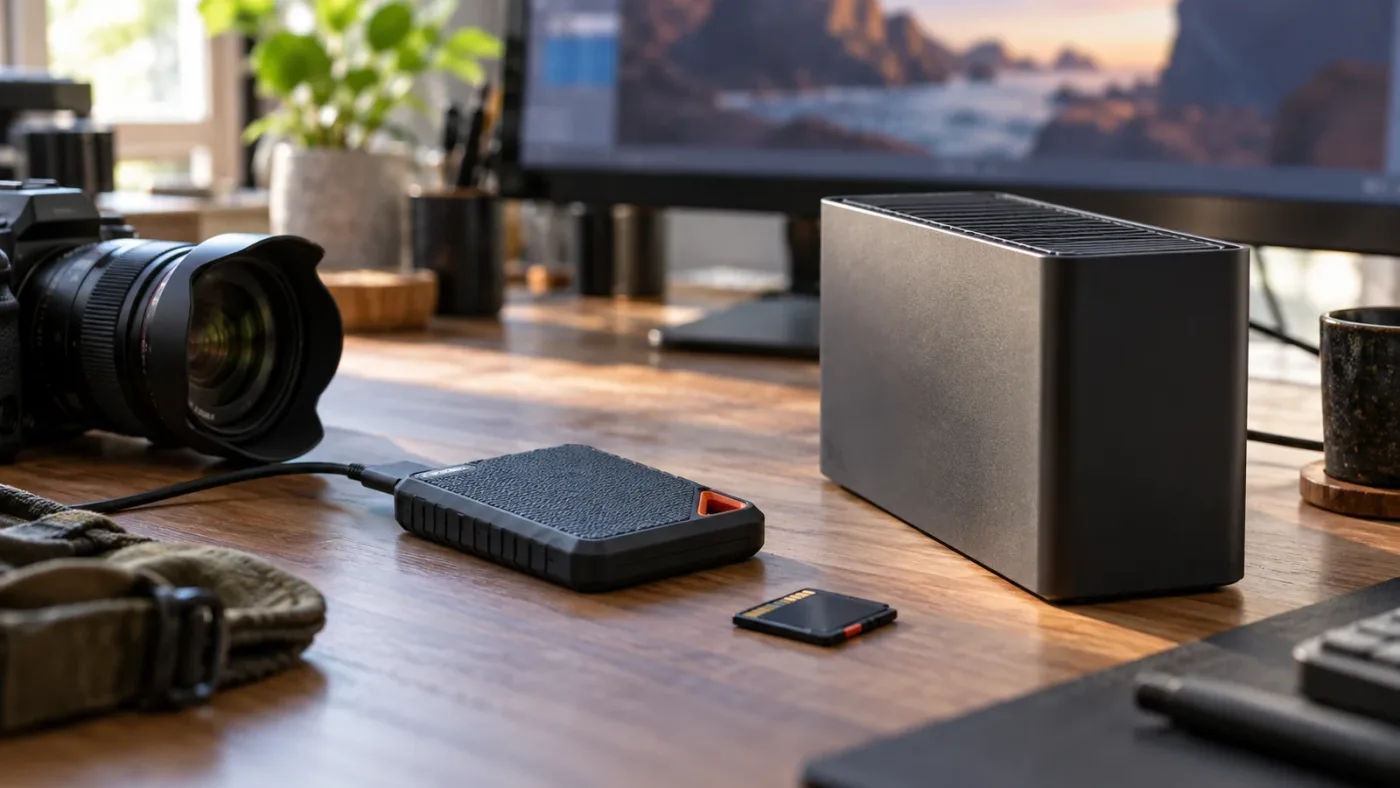
A recoverable collaboration needs separate protection for project data and source media.
How do backups work when a project is shared?
Back up the project library and the media as separate assets, then test that both can be restored. A database backup cannot be assumed to contain source footage stored on a NAS or local drives, and a media copy cannot reconstruct the latest bins and timeline decisions without the project data.
Blackmagic Cloud's project library management guide provides controls to create and restore backups. It also explains that a disabled library can be enabled again and that deleting a library cannot be undone. Treat disable, restore, and delete as distinct actions. A disabled library disappearing from Resolve's Project Manager does not mean the underlying work has been safely backed up, and deleting a library is not a routine way to clean up a cluttered list.
Keep the backup cadence aligned to the pace and importance of the work. If collaborators make changes throughout a day, a backup only from the previous month is not a practical recovery point. The exact frequency is a team policy; choose it based on how much work the team can tolerate redoing and how the Cloud or Server environment exposes backup options.
Store media backups in a location that is not simply another view of the same failing drive. For a NAS project, use a separate backup target or service under your organization's retention rules. For Cloud sync, understand which project and storage assets are covered by the selected service and what happens if a user deletes or removes access. Confirm those details in current Blackmagic documentation and account settings.
Test a restore on a non-production copy. Confirm the restored project opens, media relinks, key timelines play, and fonts or plugins are available. A successful backup job is not proof that the recovery procedure works. The only convincing evidence is a restore that the intended operator can complete.
Keep at least one person accountable for each asset class. The media manager may own camera originals, the technical director may own the database backup, and the editor may own export and project archive notes. The roles can belong to one person on a small team, but naming the owner prevents a gap where everyone assumes somebody else is handling it.
Before deleting a project library, check the active project list, collaborators, presentations, backups, and any assets tied to it. Confirm a restore path and verify that the exact version you need exists in a complete backup. Deleting a library can be irreversible according to Blackmagic's management guide. The rule is especially important after staff changes, when an administrator might not know that a project remains active.
How do you troubleshoot common multi-user errors?
Start by identifying whether the failure is project access, collaboration state, media access, or workstation compatibility. Then test one layer at a time, using a second user and a known-good machine as controls.
| Symptom | Likely layer | First checks |
|---|---|---|
| Project does not appear in Project Manager | Account or library | Correct Cloud profile, invitation, library enabled, server reachable |
| Project opens but clips are offline | Media access | Sync status, mounted volume, path map, folder permissions, relink |
| One user sees old changes | Connection or project state | Both users opened the same library and same project, connection state, refresh/reopen behavior |
| User cannot edit a bin or timeline | Locking or permissions | Who owns the lock, whether another editor is active, collaboration settings |
| Title changes on another machine | Dependency mismatch | Font installed, title template available, version and substitution warning |
| Effect missing or cannot render | Plugin, edition, or version | Plugin installed and licensed, supported Resolve edition, release compatibility |
| Cloud clips remain syncing | Transfer | Account storage, network, sync status, media option, source still available |
| Project Server suddenly unavailable | Server or network | Host powered on, service running, LAN/VPN, approved firewall path |
If the project itself does not appear, confirm the signed-in account first. Then verify that the library is enabled and shared with that account. Ask a teammate with expected access to open the same project. If they can see it and you cannot, focus on your account, invitation, profile, and client settings rather than recreating the library.
If the project opens but media is offline, choose one offline clip and trace its path. Confirm that file exists, then verify the workstation can read it. Check whether it is an original, proxy, or optimized file and whether the expected sync is complete. Relink a representative source, then see whether Resolve finds the rest of that folder tree. Follow the relinking procedure in the moved-media guide if the folder root has changed.
If another user's changes are absent, confirm both users are working in the same project library and exact project. Similar project names can hide a wrong copy. Check whether the user made a local project or opened a project in a different profile. Ask the editor to save or confirm the collaboration status according to the manual, then close and reopen only after preserving any unsaved work.
If an editor cannot work in a bin or timeline, check whether another user has it locked. Ask the lock owner before trying to take control. Locks protect work from collisions. A locked timeline is not necessarily an error; it may be evidence that another editor is currently using it.
If a title, grade, or effect looks different, compare versions, fonts, plugins, LUT paths, project settings, and display conditions. Do not assume the project database corrupted simply because the render differs. Create a small test timeline with one affected element to isolate whether the problem follows the project, workstation, plugin, or media.
If proxy sync appears stuck, avoid toggling settings repeatedly or deleting partially synced files. Check the storage and sync indicators, confirm the account has access, and verify the source files remain present. For a large transfer, allow the documented sync process to finish before changing the media root. If progress has stopped for an extended period, collect the version, project, file, and connection details and consult current Blackmagic support guidance.
If a Project Server connection fails only from outside the office, determine whether the remote network has the approved VPN or route. Do not send the database credentials through chat or email. Ask the network administrator to verify the supported connection instead of publishing the server directly to the internet.
If a project fails after an update, record which machine updated and whether the other clients use the same release. Check the release notes and restore the known-good backup only through a deliberate rollback plan. Do not downgrade or migrate a live library casually. Preserve evidence about the state and coordinate the change with all active editors.
For support requests, include precise facts rather than “Resolve is broken”: operating systems, DaVinci Resolve version numbers, Project Server version, collaboration host type, media-sync setting, affected project, whether the project opens, whether media is online, exact message text, and steps to reproduce. That data helps Blackmagic support distinguish library, network, and media problems.
Can an app help when you get stuck setting this up?
A workflow guide or on-screen assistant can help you find the right Resolve control, but it cannot replace a working project server, network path, or media-sync plan. Use official Blackmagic documentation for supported server and Cloud behavior, and use guidance tools for interface navigation and learning.
Blackmagic's current Cloud Guide is the primary reference for creating libraries, cloud projects, choosing a region, enabling multiple users, and setting media sync. The Resolve 21 manual and support notes cover the application and release-specific behavior. Community advice can help you recognize familiar issues, but test configuration suggestions against your installed version and avoid applying old server commands to a current database without checking the official guidance.
TryUncle is the on-screen assistant for DaVinci Resolve on Mac and Windows — ask in plain words and Uncle points at the exact control on your screen.
If you are looking at the Project Manager and cannot find the Cloud view, or you are unsure which panel contains a setting, TryUncle can guide you to the relevant on-screen control while you work. The choice of Cloud versus Project Server, the security design, and the media path still need to fit your team and be verified against Blackmagic's documentation.
Which workflow should you choose for your team?
Choose Cloud with proxy sync for a remote team that wants managed project access and lighter media sharing; choose Project Server with shared storage for a team that can maintain a private network and consistent media mounts. Choose a sequential archive or handoff for one-person-at-a-time work.
The reliable DaVinci Resolve 21 multi-user setup has three parts: one collaboration-capable project library, a defined route for media on each workstation, and an operating agreement about versions, task ownership, and recovery. Project Server 21 explicitly supports different-workstation collaboration, and Blackmagic Cloud lets you choose how project access and media sync fit the production. Neither removes the need to validate the other two parts.
Before production begins, test a second workstation with real sample media and the actual accounts. Confirm the project opens, media is available, collaborators see changes, locks work as expected, and backups can be restored. If the test fails, identify the layer before changing the whole setup. That is the fastest way to avoid turning a simple path issue into a second, competing project.
Frequently asked questions
- Can multiple people use the same DaVinci Resolve 21 project from different workstations?
- Yes. Create or move the project into a shared Blackmagic Cloud project library, or connect every workstation to the same reachable Project Server database. Enable multiple simultaneous users for the project, then separately arrange access to its media through shared storage, cloud-synced proxies, or another controlled media transfer workflow.
- Why does my DaVinci Resolve cloud project show media offline on another computer?
- A shared project library does not by itself transfer local source files. Give the second workstation access to the same mounted media path, sync proxies or originals through Blackmagic Cloud Storage, or relink the files to the local copy.
- Do all workstations need DaVinci Resolve Studio for collaboration?
- Blackmagic's current collaboration materials describe multi-user project workflows, but licensing and feature availability depend on the exact Resolve release and the features used. Check the current Resolve 21 manual and support page for the installed build; do not assume a Studio-only tool available on one workstation can be adjusted on every other edition.
- Can we share a Resolve project database over Dropbox or Google Drive?
- Do not sync or open a local Disk project library database as if it were a multi-user server. Use a supported shared project library, Project Server, or Blackmagic Cloud for project collaboration, and use file-sync services only for media or deliberate handoff packages with a single editor at a time.
- Should I use Blackmagic Cloud or DaVinci Resolve Project Server for remote editors?
- Use Blackmagic Cloud when you want Blackmagic-hosted project libraries and optional media or proxy sync with minimal server administration. Use Project Server when your team needs a private network or managed server workflow and has the network, security, and operations capacity to maintain it.
Sources
- DaVinci Resolve 21 Project Server 21 support note
- DaVinci Resolve 21 Reference Manual
- DaVinci Resolve Collaboration
- Creating a Project Library, Blackmagic Cloud Guide
- Creating a Cloud Project in DaVinci Resolve, Blackmagic Cloud Guide
- Managing Project Libraries, Blackmagic Cloud Guide
- Blackmagic Cloud Storage: Syncing Media
- Blackmagic Cloud Storage: Storage Types
- DaVinci Resolve 21 New Features Guide
- DaVinci Resolve Project Server 21, Blackmagic Design Support
- Worth the Time: DaVinci Resolve's Remote Collaboration, interview with Bob Caniglia
- How to Relink Media When It Moves Drives
- How to Consolidate Media Before Archiving
Put this guide to work with TryUncle.
Ask about the step you’re on. TryUncle sees your screen and points at the control you need, so you can keep learning in your own project.
Get TryUncle for Mac or WindowsKeep reading
Comparisons · Jul 30, 2026 · 32 min
DaVinci Resolve Project Server vs Blackmagic Cloud: Which to Use
Project Server or Blackmagic Cloud for DaVinci Resolve collaboration? Compare cost, setup, network limits, and failure points to pick the right one for your team.
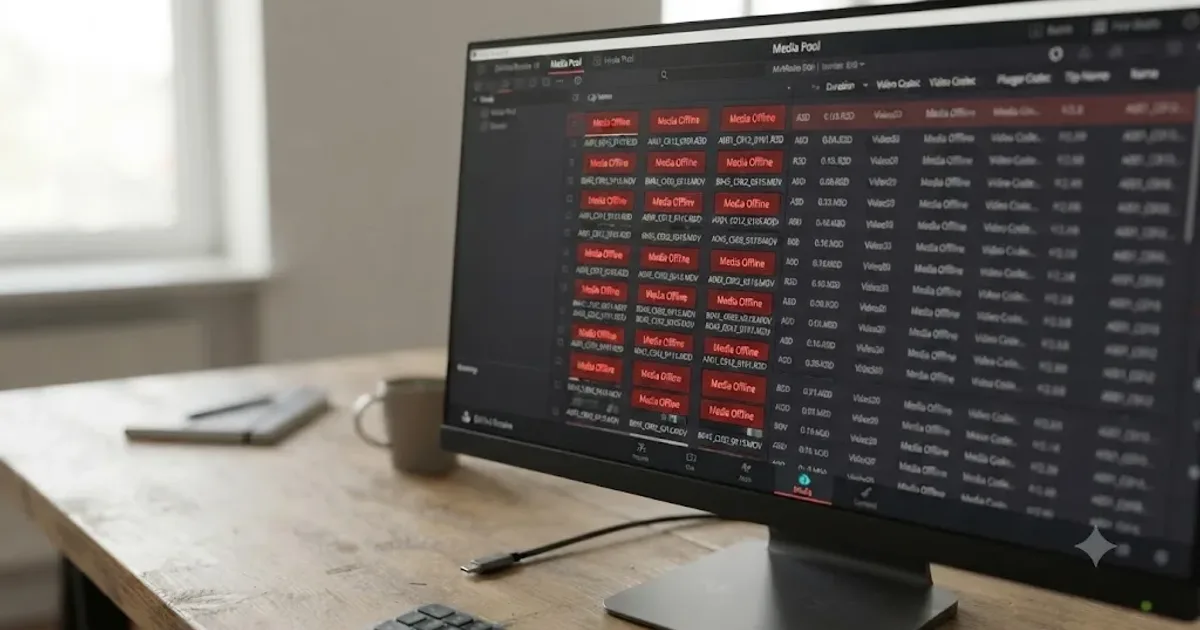
Guides · Jul 29, 2026 · 42 min
DaVinci Resolve: How to Relink Media When It Moves Drives
How to relink media in DaVinci Resolve when it moves drives: Change Source Folder vs Relink Selected Clips, drive letter fixes, and macOS volume renames.
Guides · Jul 25, 2026 · 40 min
How to Consolidate Media in DaVinci Resolve Before Archiving
How to consolidate media in DaVinci Resolve before archiving: Media Management steps, frame handles, unused clips, and where to store the finished archive.