Articles / Guidesupdated for DaVinci Resolve 21.0.2 (July 2026)
DaVinci Resolve: How to Relink Media When It Moves Drives
Quick answer
When footage moves to a new drive, right-click the clips in DaVinci Resolve's Media Pool and choose Change Source Folder if the folder structure stayed intact, or Relink Selected Clips if it didn't. Point Resolve at the new location. It matches by filename and duration, not the old path, so your edits and grades stay untouched.
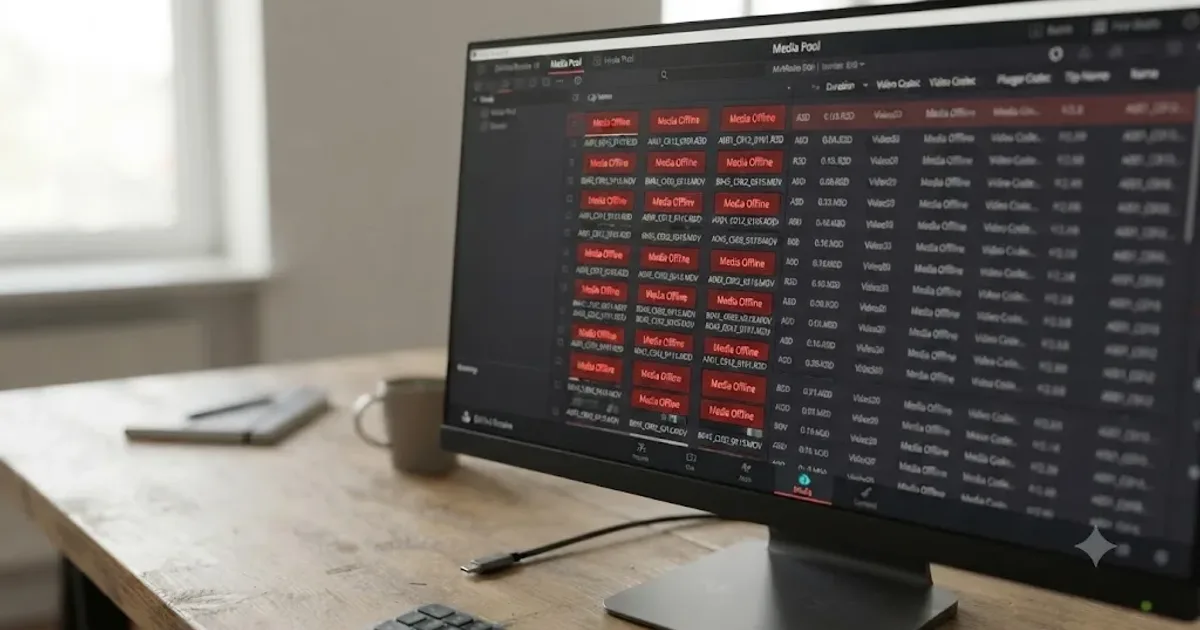
Your footage moved. Maybe you finally bought a bigger drive, maybe a client handed you their project on a RAID that isn't yours, maybe you're just switching from a laptop to a desktop for the heavy grading pass. Either way, you opened DaVinci Resolve and every clip in the Media Pool went red.
Nothing is gone. The file still exists exactly where you put it. DaVinci Resolve just doesn't know that yet, and telling it takes a specific set of clicks, not a reinstall or a re-import. Here's the whole process, including the parts that only show up once you've hit them: the Windows drive letter that quietly changed, the Mac volume that mounted with a "1" tacked onto its name, and the freelance handoff where the new drive doesn't match the old one at all.
After seven-plus years cutting commercial work in DaVinci Resolve, and running a video-editing community of more than 100,000 members, "my footage went offline the second I moved it to a new drive" is one of the most common messages that shows up in it. It's also one of the easiest problems on that list to actually solve, once you know which of two tools to reach for.
How do you relink media in DaVinci Resolve when it moves drives?
Right-click the offline clips in the Media Pool and choose either Change Source Folder or Relink Selected Clips, depending on whether the folder structure moved intact.
Here's the decision in practice, before we get into why each option works the way it does:
- Open the Media Pool on the Media or Edit page and look at what went offline. If it's the entire project, select everything (Ctrl/Cmd-A). If it's a handful of clips or one bin, select just those.
- Ask yourself one question: did the folder structure inside your footage drive stay the same, just at a new top-level location? If yes, right-click and choose Change Source Folder. If the files got reorganized, renamed, or scattered during the move, right-click and choose Relink Selected Clips instead.
- Browse to the new location when prompted. Change Source Folder wants the new equivalent of the old top-level folder. Relink Selected Clips wants a folder to search inside, and it will look recursively through every subfolder from there.
- Confirm the operation and let Resolve run it. A large drive with thousands of clips can take a few minutes on Relink Selected Clips, since it's comparing filenames and durations one at a time. Change Source Folder finishes almost instantly, because it isn't searching for anything, it's just swapping text.
- Check the Media Pool. Anything still red after this pass usually has a name or duration mismatch, covered later in this guide, and needs a one-off manual pair with Replace Selected Clip.
Relinking repairs where DaVinci Resolve looks for a file. It never touches a single cut, node, or keyframe you already built. That's true whether the drive moved across your desk or across the country to a different editor's machine, and it's the single most important thing to remember before you start clicking, especially if this is your first time seeing a project's worth of red clips at once.
Why does DaVinci Resolve lose track of media when a drive moves?
DaVinci Resolve stores a file path for every clip, not the file itself, so moving the drive that path pointed to breaks the link even though nothing about your footage actually changed.
Every clip in your Media Pool carries a saved location on disk: a drive identifier, a folder path, and a filename. When you play back a timeline, Resolve reads that saved path, goes and fetches the file, and decodes it. Move the drive to a new machine, a new port, or even just a folder one level up, and that saved path stops resolving to anything real. Resolve doesn't search your whole system looking for a match on its own. It shows you a red offline slate and waits for you to tell it where things went.
This is exactly the mechanism DaVinci editor and trainer Justin Robinson describes when he explains that "if source files are moved or become inaccessible, the link between the clips in your Media Pool and the files on your storage can break," a description that applies just as directly to a deliberate drive swap as it does to an accidental disconnect, per Robinson's guide at JayAreTV. The footage is fine. The address book is wrong.
That distinction matters because it tells you what kind of fix you're looking for. You're not recovering data, you're correcting an address, and DaVinci Resolve gives you three separate tools for correcting it depending on exactly what moved and how.
Change Source Folder or Relink Selected Clips: which tool matches your situation?
Change Source Folder is faster and works when the folder structure below the new location matches the old one exactly. Relink Selected Clips is slower but works even when files got reorganized, renamed within limits, or scattered across new folders.
Resolve's own reference manual draws this line clearly. Change Source Folder is described as a way to "quickly relink selected clips in the Media Pool to the new file path of the media on disk, using the original file paths as a guide," and the manual specifically recommends it "for projects on a SAN where you don't want to risk the excessively long search times" that a full recursive search can produce on a large shared volume, per DaVinci Resolve's reference manual. It doesn't search anything. It takes the old path, swaps the prefix for the new one you supply, and trusts that everything below that point is arranged the same way it was before.
Relink Selected Clips works differently, and the manual's own walkthrough of the feature confirms it searches "recursively, for files whose name and duration match each offline clip," which is a slower but more forgiving process, per the manual's page on using Change Source Folder to relink clips. It doesn't care what the old path was. It cares whether a file with the right name and the right duration exists somewhere inside the folder you point it at.
| Situation | Right tool | Why |
|---|---|---|
| Whole drive moved intact, same folders inside | Change Source Folder | Rewrites the path prefix in one pass, no searching needed |
| Footage reorganized into new folders during the move | Relink Selected Clips | Searches recursively by filename and duration, ignores the old path entirely |
| One drive letter changed on Windows, nothing else moved | Change Source Folder, or fix the letter in Disk Management | Either corrects the same broken prefix, covered in full below |
| A handful of files were renamed after the move | Neither, automatically | Use Replace Selected Clip to pair each one by hand |
| Project handed off to a different editor's machine entirely | Depends on drive naming, covered in the freelance section below | Identical drive names can make this need zero relinking at all |
Change Source Folder swaps a stored path prefix in one pass; Relink Selected Clips searches file by file for a name and a duration match. Picking the wrong one doesn't break anything, it just costs you time: Change Source Folder will simply fail to find matches if the structure changed, and Relink Selected Clips will work but take unnecessarily long on a drive where a plain prefix swap would have done the job instantly.
Step by step: relinking after moving footage to a genuinely new drive
Use Relink Selected Clips whenever the destination drive has a different name, a different folder layout, or both, since it's the tool built to find files without relying on the old path.
This is the most common version of the problem: you bought a new external drive, copied your footage over, and the folder you dropped it into isn't a byte-for-byte mirror of where it used to live. Work through it like this:
- Confirm the new drive is connected and mounted before touching Resolve. An unmounted drive looks identical to a missing folder from inside the relink dialog, and you'll waste time browsing to a location that isn't actually there yet.
- Open the Media Pool, and select the affected clips. If the whole project went offline, select everything with Ctrl-A (Cmd-A on a Mac). If only one bin's worth of footage moved, select just that bin.
- Right-click and choose Relink Selected Clips for individual clips, or Relink Clips for Selected Bins if you selected a whole bin and want Resolve to treat it as one unit.
- In the dialog, browse to the folder on the new drive where the footage now lives. You don't need to point at the exact subfolder each clip sits in. Point at a folder high enough up the tree to contain everything, and let Resolve search downward from there.
- Confirm, and give Resolve time to work through the search. It's matching every offline clip against every file it finds by name and duration, which scales with how much footage you're relinking.
- Review the result. Anything still red went unmatched, almost always because of a rename or a re-encode somewhere between the old drive and the new one.
One detail worth knowing before you start: Relink Selected Clips can occasionally get confused by a stale path already sitting in its input field from a previous attempt, showing the old and new path concatenated together instead of cleanly replaced. If the dialog looks wrong before you even browse, clear the field by hand and retype the path rather than trusting whatever's pre-filled, a quirk documented across more than one troubleshooting writeup of the feature.
Step by step: using Change Source Folder when an entire drive moved intact
Use Change Source Folder when you copied or moved your whole footage folder to a new drive without changing anything inside it, since it rewrites the saved path in one instant swap instead of searching for files.
This is the faster path, and it's worth reaching for whenever it applies:
- Confirm the folder structure genuinely didn't change. If your footage used to live at
D:\Footage\ClientName\and now sits atE:\Footage\ClientName\, with everything underneath identical, you're in Change Source Folder territory. If anything below that top level got reorganized, use Relink Selected Clips instead. - Select the affected clips in the Media Pool. You can select everything in the project at once for this operation, since it doesn't search and won't slow down proportionally with clip count the way Relink Selected Clips does.
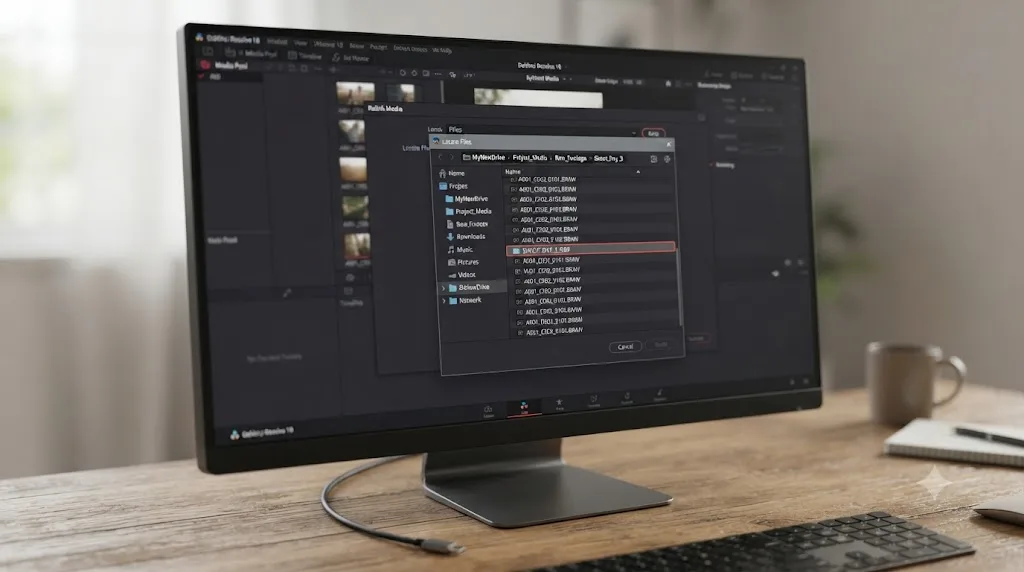
- Right-click and choose Change Source Folder.
- The dialog shows you the original saved path. Click the Browse button next to the "Change To" field and navigate to the new top-level location.
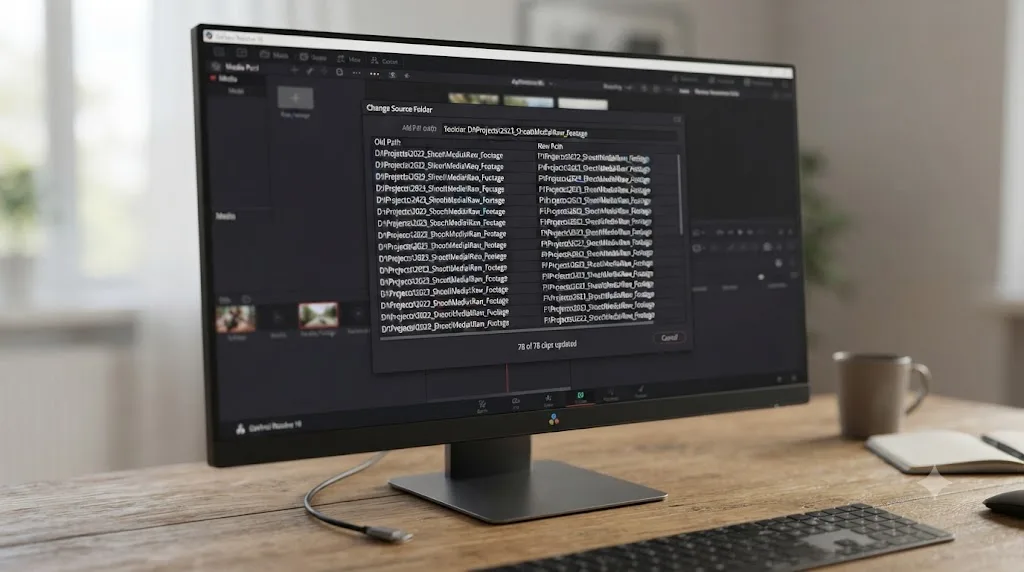
- Click Change to confirm, or Cancel to back out. Resolve rewrites the stored path prefix for every selected clip in one operation.
The manual's own walkthrough describes exactly this flow: select the clips, choose Change Source Folder from the context menu, and the Relink Media window displays the original file path before you browse to the replacement, per the manual's step-by-step page on the feature. What makes it fast is exactly what makes it strict: it isn't looking for matching filenames anywhere on the new drive, it's trusting that the relationship between the new top-level folder and everything inside it mirrors the old one precisely.
DaVinci Resolve matches a relinked clip by filename and duration, never by the folder path it used to live in, except with Change Source Folder, which trusts the structure and skips matching entirely. That's the whole tradeoff in one sentence: Relink Selected Clips is forgiving about structure and slow about search, Change Source Folder is fast and unforgiving about structure.
Why did my drive letter change after I moved my footage to a new computer?
Windows assigns drive letters based on the order it detects connected devices, so plugging your footage drive into a different port, or plugging in another drive first, can change its letter even though nothing about the drive itself moved.
This is the single most common cause of "I didn't move anything and it still broke" on Windows. Your project stored a path starting with D:\, and on the new machine, or even the same machine after a reboot with a different set of devices plugged in, that same physical drive shows up as E:\. Every clip's saved path is technically wrong now, even though the files sitting on the drive haven't moved a single byte.
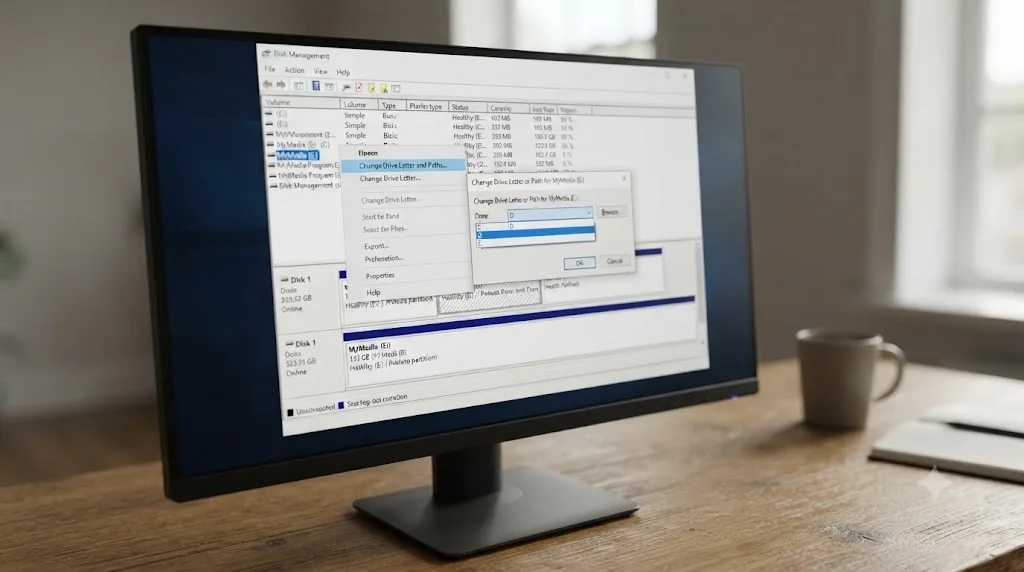
Microsoft's own documentation for Disk Management confirms this is standard, expected behavior, describing the tool as the way to "right-click the partition, logical drive, or volume that you want to change, and then click Change Drive Letter and Paths" whenever you need to reassign one, per Microsoft's Disk Management support page. That's your permanent fix: give the drive back the letter your project expects, and Resolve reconnects on the next load without a single relink click.
You've got two paths forward when this happens:
- Fix it outside Resolve, permanently. Open Disk Management (right-click the Start button, or press Windows+R and type
diskmgmt.msc), right-click the drive's partition, choose Change Drive Letter and Paths, and assign it back to the letter your project was built around. This is the better fix if you'll keep using this drive with this project, since it means every future relaunch works without touching Resolve at all. - Fix it inside Resolve, once. Run Change Source Folder, swapping the old letter prefix for the new one. This works fine for a one-time fix, but the same collision can happen again on your next reboot if you don't also address the root cause.
Prevention beats either fix. Assign your footage drives a letter from the far end of the alphabet, something like V: or W:, that Windows is unlikely to ever hand out to a newly connected device on its own. A drive letter Windows never wants for anything else is a drive letter that never gets stolen out from under your project.
Why does my external drive mount under a different name on macOS after a move?
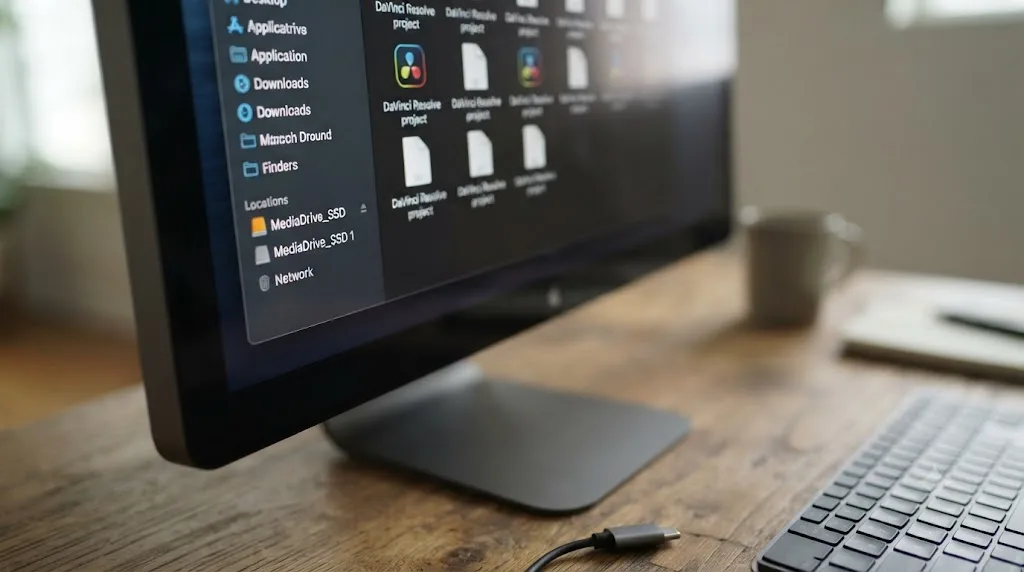
macOS can leave a stale, empty mount point behind under the drive's old name, so when the real drive reconnects, the operating system has to mount it under a slightly different name instead, usually with a "1" appended.
On a Mac, external drives mount under /Volumes by name rather than by letter, which mostly avoids the Windows drive-letter problem entirely, right up until a drive doesn't unmount cleanly. If your footage drive was still writing cache files when you unplugged it, or the Mac crashed or slept with the drive attached, macOS can leave a leftover folder sitting at /Volumes/YourDriveName even after the physical drive is gone. When you reconnect that same drive later, on the same machine or a new one, the operating system finds the name already taken and mounts the real drive as /Volumes/YourDriveName 1 instead.
This exact failure mode is documented in Backblaze's own support material on the issue, which explains that when a Mac "is restarted unexpectedly, the current mount point listed in /Volumes may not be deleted and a new (false) mount point with a '1' appended to the name may appear," leaving the genuinely connected drive with the altered name while a stale, empty folder sits under the original one, per Backblaze's help article on the issue. Every path your Resolve project saved pointed at /Volumes/YourDriveName, and the drive is now sitting one character off from that, which is enough to break every relink.
The fix has two parts:
- Clear the stale mount point. Open Finder's Go to Folder (Cmd-Shift-G), type
/Volumes, and look for an empty or unusually small folder using the drive's expected name that isn't actually the connected drive. Delete or move it aside, then eject and reconnect the real drive so it can claim its correct name back. - Relink in Resolve if the project already saved paths pointing at the "1" version. A quick Change Source Folder pass, swapping the "1" suffix out, corrects every clip in one operation once the naming is settled.
And the same prevention principle from the Windows section applies here too, in a different form: give every drive you own a genuinely unique name. Two drives both labeled "Untitled" or "Footage" guarantee this exact collision eventually, on your machine or on a collaborator's, and a unique name costs nothing to set once.
Can DaVinci Resolve remember a drive path across different machines?
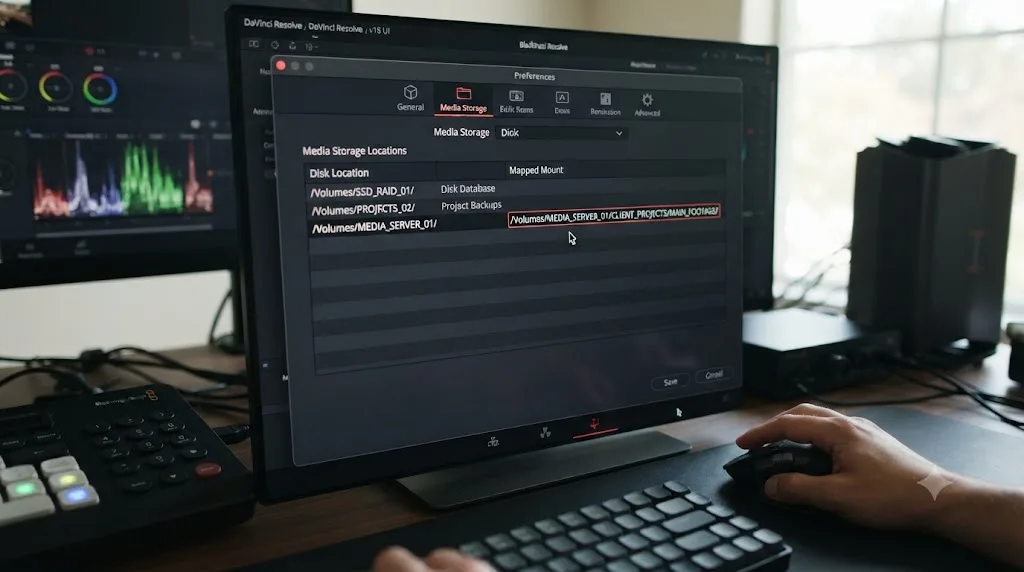
Partially, through a feature most editors never open: Preferences > Media Storage, which includes a Mapped Mount column built specifically to translate a volume's path between Mac, Linux, and Windows conventions.
This is the piece of the puzzle that solves the cross-platform version of drive moves, and it rarely comes up until a project genuinely needs to open correctly on more than one operating system. Per the reference manual, "this column allows you to specify translatable media path mapping between Mac, Linux, and Windows file system conventions," and the manual is direct about why that matters: "shared media path mapping support for Mac, Linux and Windows makes it easier for multi-system shops to share Resolve projects," per DaVinci Resolve's reference manual page on Media Storage.
Here's how to set it up:
- Open DaVinci Resolve > Preferences, and go to the Media Storage panel.
- If your footage volume isn't already listed, right-click in the background of the volumes list and choose Add New Location to add it.
- Double-click the Mapped Mount column next to the drive you want to configure.
- Enter the equivalent path each collaborating platform should use for that same physical or shared volume. A drive that's
D:\Footageon a Windows machine and/Volumes/Footageon a Mac can be told to resolve correctly on both, without anyone running a manual relink after switching machines.
This isn't a substitute for a genuinely broken link, and it won't help if the drive itself is disconnected or the folder structure inside it changed. What it solves is the specific, recurring case where the same shared or duplicated storage is reached through a different path convention depending on which operating system opened the project, which is common on mixed Mac and Windows teams and on shared network storage covered further down this guide.
Can a symbolic link or junction point stop the relink from happening at all?
Sometimes, yes. A symbolic link or a directory junction can make the operating system itself answer for a drive that changed location, so DaVinci Resolve never sees a broken path in the first place.
This is a power-user trick, not a beginner default, and it solves a narrower problem than everything covered so far. It doesn't fix media that's genuinely missing, and it doesn't replace naming your drives sensibly. What it does is let you keep a project pointed at a path it already trusts, even after the real files moved somewhere else.
On macOS, drives mount under /Volumes by name. If your project expects /Volumes/DOC_FOOTAGE and the actual data now lives at /Volumes/RAID_2, you can create a symbolic link at the expected location that points to the real one, using Terminal's ln -s command: ln -s /Volumes/RAID_2 /Volumes/DOC_FOOTAGE. Every path your project saved under the old name now resolves through the link to the new location, and Resolve never shows a single clip offline, per OSXDaily's guide to creating symbolic links from the command line. Since /Volumes is a system-managed folder, you may need to run the command with sudo the first time. Remove the link, or let the real drive claim its name back, once you don't need the alias anymore, since leaving stale symlinks under /Volumes is exactly the kind of clutter that causes the duplicate mount point problem covered earlier in this guide.
On Windows, the equivalent tool is a directory junction, created with mklink /J LinkFolder TargetFolder from an elevated Command Prompt. A junction can point across two different local volumes on the same machine, so a folder at, say, D:\Footage can silently redirect to wherever your footage actually sits on a newly added drive, without touching a single setting inside Resolve, per ss64's command reference for mklink. This works best when D:\Footage is available as a plain folder path rather than an entire missing drive letter, so it suits a reorganized internal layout better than a drive that vanished outright.
Where this earns its keep is a deadline, not a redesign. Say a client's project needs to open in the next ten minutes on a shared grading suite, and the drive that's actually connected has a different name than the one the project remembers, but you know exactly which folder holds the same footage. A one-line symlink gets you into color instantly, while a proper Change Source Folder pass, or a drive rename that sticks for good, waits until after the session.
Neither trick fixes broken media. Both just teach the operating system to lie convincingly about where a folder lives, so Resolve never has to find out. The link only holds as long as the real drive keeps the name or path you pointed it at. Rename the underlying drive again, or let something else claim that folder, and the alias breaks along with everything downstream of it, same as any other broken path. Use it when you need a project open on short notice and document it clearly for whoever opens the project next, since a symlink nobody wrote down is a trap for the next editor.
How do you set up drives so relinking never happens on a freelance handoff?
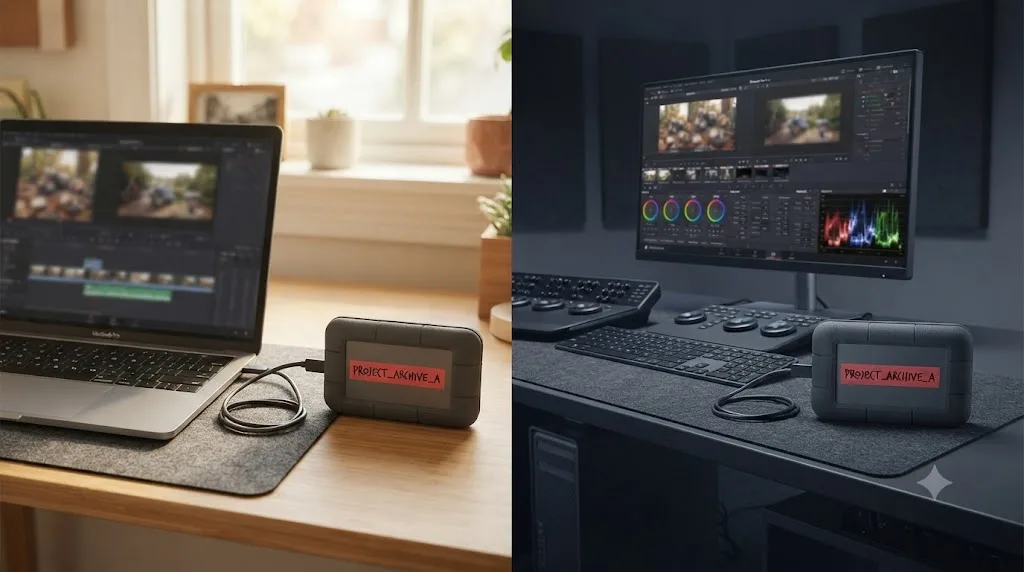
Name your media drives identically to whatever drive the project's original editor used, and keep the folder structure underneath that name the same, since matching names and paths let DaVinci Resolve resolve the same location on a completely different machine without a single relink.
This is the scenario the target problem here is built around: someone hands you a drive, or you're handing one to them, and the project needs to open clean on a machine that's never seen this footage before. Freelance editor and workflow writer Scott Simmons has built his entire remote collaboration setup around this exact idea, describing how he's "kept RAIDs at both my home and office called EDIT_RAID" specifically so a project never cares which physical location opened it, per Simmons's writeup at ProVideo Coalition. His conclusion is blunt and applies directly to Resolve projects moving between freelancers: "if you want to have zero-relinking for your remote editors then you need to set up your media drives with the exact same drive name," because "the same drive name coupled with the same file paths...means that whenever your NLE opens up a project on a different machine it will look for media at the exact same file path," per the same article.
Applied to a DaVinci Resolve handoff, that principle breaks down into a short checklist:
- Ask the sender what the drive was named before you copy anything, or rename the incoming drive to match if you're the one receiving footage.
- Preserve the folder structure below the drive name exactly, don't "clean up" someone else's organization on the way in, tempting as that is.
- Rename your own drive to match if you're sending the project out, rather than assuming the receiving editor will sort it out on their end.
- If names can't match, because two collaborators both already have drives with conflicting names in active use, run one Change Source Folder pass the moment the project opens on the new machine, and it's fixed for that session and every one after, as long as the drive keeps its name going forward.
Two drives with the same name on two different machines is the closest thing to a permanent fix for cross-machine relinking that exists. It costs nothing but a rename, and it turns a recurring five-minute relink into a problem you solve exactly once.
If the deadline is tight and you'd rather have something point at the exact menu instead of hunting for it mid-handoff, that's the specific gap TryUncle is built for. TryUncle is the on-screen assistant for DaVinci Resolve on macOS. Ask in plain words, and Uncle points at the exact control on your screen. It won't rename your drives for you, but it'll show you where Change Source Folder lives the moment you ask.
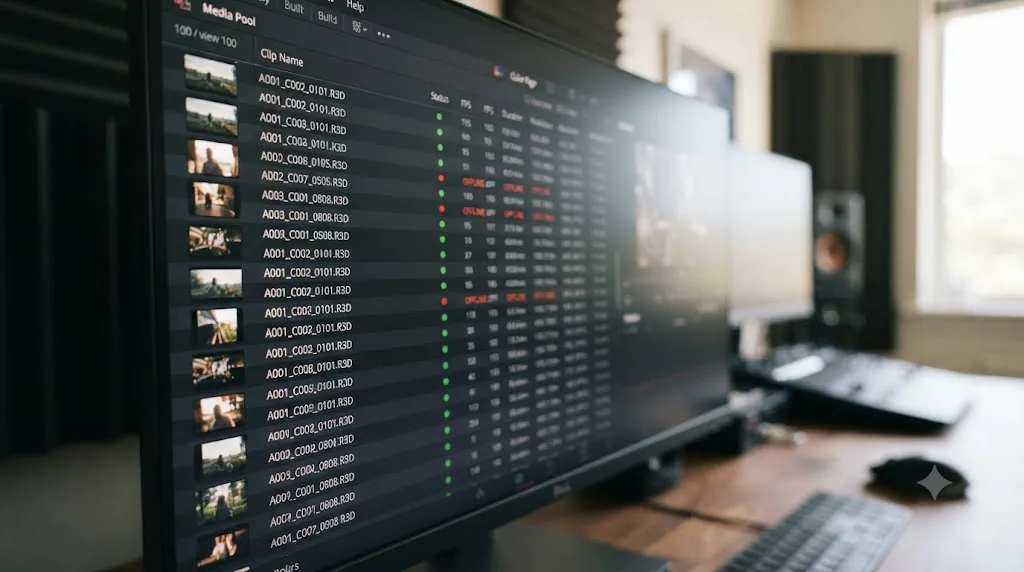
What if only some clips relink and others stay offline?
Stragglers that stay offline after a bulk relink almost always have a filename or duration mismatch, usually from a rename or a re-encode that happened somewhere between the old drive and the new one.
Both of Resolve's automatic relink tools depend on the file at the destination looking like the file the project remembers, either by matching the exact folder structure (Change Source Folder) or by matching filename and duration (Relink Selected Clips). A clip fails both when something about it changed along the way:
| Cause | What you'll notice | Fix |
|---|---|---|
| File renamed during the move | Everything else relinked, this one clip alone stayed red | Rename the file back to match, or use Replace Selected Clip |
| File re-encoded or resaved | Name matches, duration is off by a frame or more | Replace Selected Clip, pairing the new file by hand |
| Two files share the same name in the search folder | Wrong clip attaches, or neither relinks cleanly | Move one file temporarily, relink, then restore the folder |
| File genuinely didn't make the copy | Stays offline no matter what folder you point at | Go back to the source drive and copy the missing file over |
| Variable frame rate re-export changed the duration | Relink refuses even though the name is identical | Confirm frame rate mode matches the original before relinking |
For the common case, a small handful of renamed or re-encoded stragglers among an otherwise clean relink, the fix is Replace Selected Clip. Right-click the one offline clip, choose it, and manually pair it to the correct file on the new drive. Unlike the two bulk tools, it skips matching entirely, which means it will happily attach the wrong file if you point it at one, so use it only when you're certain which file belongs to which clip.
If an entire bin's worth of clips stays stubbornly red after a relink that otherwise succeeded, check whether that bin came from a different original drive than the rest of the project. It's common for audio, B-roll, or graphics to have been imported from a separate location originally, which means the bulk relink you just ran, pointed at your main footage drive, never had a chance to find them.
What if the drive is connected but Resolve still won't read the files?
A drive that's connected and even visible in Finder or Explorer can still be invisible to DaVinci Resolve specifically, usually because of a file system permission or format issue that has nothing to do with paths at all.
Everything earlier in this guide assumes the fix is telling Resolve where a file actually is. Sometimes Resolve already knows exactly where the file is and still can't open it, which looks identical to a broken relink from the Media Pool but needs a completely different fix.
Cross-platform format mismatches are the most common cause. Windows-formatted NTFS drives mount read-only on a Mac by default. macOS can read every file on an NTFS drive just fine, but it can't write to one without a third-party driver, since Apple has never licensed full NTFS write support, per MacPaw's explanation of the limitation. Resolve needs write access for cache files, render output, and sometimes for the relink operation itself, so a drive that shows every clip in Finder can still throw errors the moment Resolve tries to touch it. exFAT avoids this specific problem, since both Windows and macOS can read and write it natively, which is why it's the practical standard for drives that cross platforms.
macOS privacy permissions are the second most common cause, and they get more aggressive with every macOS release. If Resolve was never granted access to an external volume under System Settings > Privacy & Security > Files and Folders, or under Full Disk Access, the app can fail to read files on a drive that every other application opens without complaint. The fix is to open that panel, find DaVinci Resolve in the list, and enable access to the specific volume, or grant Full Disk Access outright, then relaunch Resolve so the new permission takes effect.
A short checklist for this specific symptom:
- Confirm the drive mounts and its contents are visible outside Resolve, in Finder or Windows Explorer, to rule out a hardware or cable problem first.
- Check the format. An NTFS drive on a Mac needs a write-enabling driver, or a reformat to exFAT, if Resolve needs to write to it and not just read from it.
- On macOS, check Privacy & Security permissions for Resolve under both Files and Folders and Full Disk Access, and grant access to the specific drive if it's missing.
- Rule out a drive still finishing its own housekeeping. A large external SSD that just reconnected can spend a minute or two being indexed by Spotlight on a Mac or Windows Search, which can make it feel sluggish or briefly unresponsive, separate from any genuine permission or format problem.
- If the drive uses a case-sensitive file system and the project was built on a case-insensitive one, or the reverse, a path that looks identical to your eyes can fail to match exactly, worth ruling out on a drive you reformatted specifically for this handoff.
None of this involves Change Source Folder or Relink Selected Clips at all. A drive can be connected, visible, and completely wrong for DaVinci Resolve to use, and no amount of relinking fixes a permission or format problem underneath it. Fix the permission or the format first, then come back to the relink tools covered earlier in this guide if clips are still showing offline afterward.
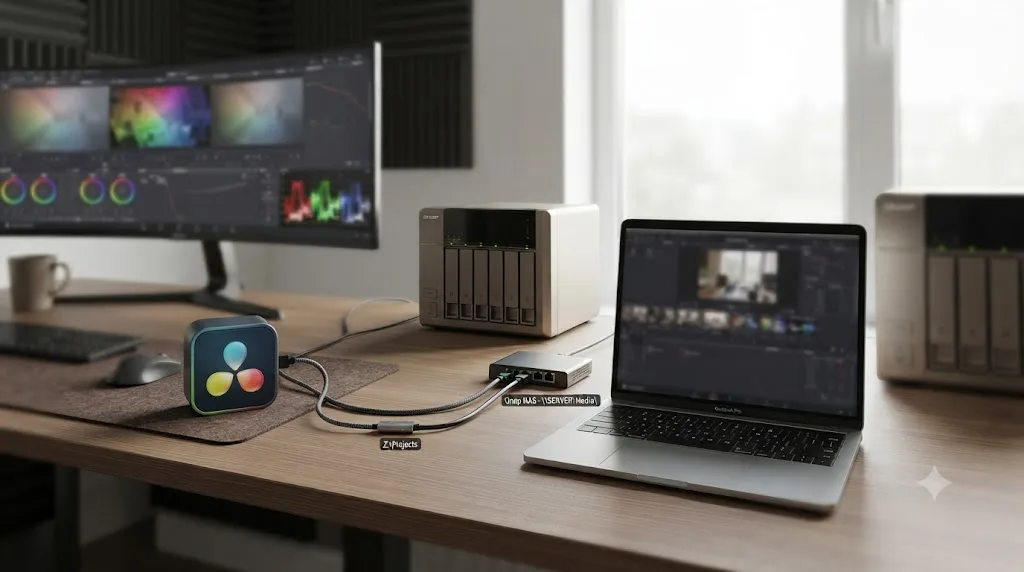
What if the drive moved to a NAS or a network share instead of a physical drive?
Network storage adds a second kind of path mismatch on top of everything above, because the same share can be reached by more than one address, and DaVinci Resolve only remembers the one you used first.
Moving footage onto shared storage, or reconnecting to a NAS after switching networks, breaks relinking in ways a plain external drive doesn't. On Windows, a network share has two valid addresses: a mapped drive letter like Z:\ and a UNC path like \\nas\footage. These aren't interchangeable as far as Resolve's saved path is concerned. If you originally imported through the mapped letter and later reconnect through the UNC path, or the other way around, the project shows offline media on a share that's completely reachable, just not at the address it remembers.
The practical fix is consistency, not cleverness: pick one form, the mapped letter or the UNC path, and use it every time you touch this project, on every machine that opens it. If your team already has a habit here, keep it. If you're setting this up fresh, a UNC path tends to travel better across machines that don't all map the same letter to the same share, since it doesn't depend on a per-user drive mapping being set up identically everywhere.
On macOS, an SMB or AFP share only exists under /Volumes while it's actively mounted, and it doesn't survive a reboot on its own. If a project opens with everything offline first thing in the morning, that's usually the whole story: the share simply hadn't remounted yet. Adding the share to your account's Login Items, so it connects automatically before Resolve launches, removes this as a recurring daily annoyance.
Whichever platform you're on, avoid working over Wi-Fi with network storage if you can help it. A dropped packet reads to Resolve exactly like a missing file, and clips can flicker offline mid-playback on a connection that's technically still working, just intermittently. A wired connection turns network storage boring, and boring is what you want from the drive holding your only copy of the footage.
What if you're moving a whole project archive, not loose footage?
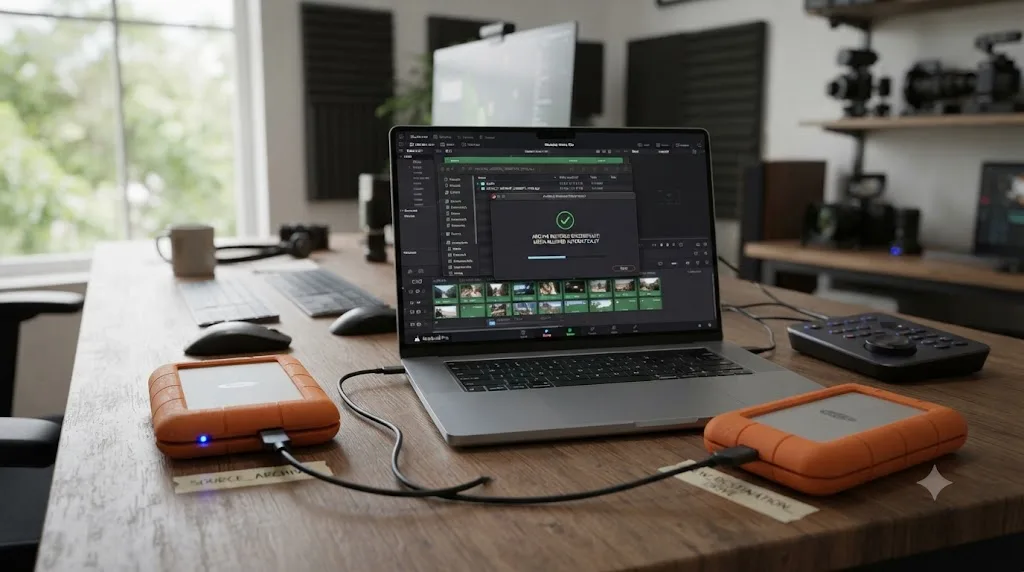
Restoring a proper DaVinci Resolve project archive relinks its own media automatically, because the project database and the footage traveled together in the same package, which sidesteps most of the manual relinking covered in this guide entirely.
Everything above this section assumes you moved footage on its own and now need to reconnect a project that already existed. There's a cleaner option if you're planning the move in advance: bundle the project and its media together before you go anywhere. Our guide to consolidating media before archiving covers the full Media Management and Export Project Archive workflow, but the short version relevant here is that a .dra archive knows exactly where its own media lives, since Resolve wrote the project and the footage into the same folder at the same time.
That changes the relink math completely. Instead of moving footage and then fixing a broken project, you export a project archive before the move, copy the whole .dra folder to the new drive, and restore it there. Resolve relinks its own consolidated media the moment the restore finishes, with no Change Source Folder or Relink Selected Clips step needed at all, because nothing about the path relationship between the project and its media ever broke in the first place.
This is the better plan whenever you know a move is coming, a project wrapping up, a handoff to another editor, a drive swap you're planning rather than one that already happened. It's overkill for a quick "I just need this footage on a bigger drive today" situation, where a direct Change Source Folder or Relink Selected Clips pass, covered earlier in this guide, gets you back to editing faster. Save the archive workflow for moves you can plan ahead of, and the manual relink tools for the ones that already happened.
What if audio and video live on separate drives that moved separately?
A synced clip in DaVinci Resolve can reference two files, camera video and a separate audio recording, so moving one drive without the other breaks only half the clip, and the symptom looks nothing like a typical offline slate.
Dual-system sound is common enough that it deserves its own callout here. If you recorded with a field recorder or a lav mic writing separate WAV files, then synced that audio to your camera footage inside Resolve, the resulting clip actually references two source files under the hood. Move the video drive and leave the audio drive behind, or the reverse, and you get a clip that plays picture with dead silence, or audio with no video, rather than the obvious red offline slate you'd expect from a fully broken link.
The repair uses the same relink tools from earlier in this guide, just aimed carefully. Switch the Media Pool to list view, sort by clip type so the audio-only entries are easy to find separately from video, and run Relink Selected Clips pointed specifically at wherever the audio drive landed after its move. Clips you synced inside Resolve keep their sync offset through a relink, since that pairing lives in the project itself, not in either individual file, so you won't need to re-sync anything once both halves reconnect.
The prevention habit here is the same one that solves half the problems in this guide: keep audio and video for a given project on the same drive whenever you can. If your workflow genuinely requires separating them, say a sound recordist handling audio independently of a videographer, agree on identical relative paths on both drives before the shoot, so a later move affects both halves the same way instead of only one.
What if the drive moved to a different operating system?
The same footage drive reaching a different operating system, Windows to Mac or the reverse, breaks every clip in the project at once, because the path convention itself changes, not just the specific address.
This is the cross-platform version of everything covered so far, and it's worth calling out separately because the fix is a single operation, not a clip-by-clip hunt. A drive that's E:\Footage on Windows becomes /Volumes/Footage the moment the identical physical drive, or a copy of it, gets plugged into a Mac. Every saved path in the project used the Windows convention, and none of it resolves on the new platform, so the whole Media Pool goes red simultaneously, which is actually a helpful diagnostic: a project that's fine on one machine and entirely offline on another, with the files verifiably present on both, points straight at a platform path mismatch rather than damaged or missing media.
The fix is one Change Source Folder pass, since the structure underneath the drive typically hasn't changed at all, just the syntax used to describe where the drive sits:
- Right-click and select all affected clips (usually the entire project) in the Media Pool.
- Choose Change Source Folder.
- Browse to the drive's new mount point using the new platform's convention,
/Volumes/Footageinstead ofE:\Footage, for example. - Confirm, and the whole project relinks in one operation.
If you expect to keep moving this same project back and forth between platforms regularly, rather than making a one-time jump, that's exactly the recurring case the Mapped Mount feature covered earlier in this guide exists to solve. Set it up once in Preferences > Media Storage, and future platform switches stop requiring a manual Change Source Folder pass at all.
How do proxies and render cache behave when the drive moves?
Proxies and render cache are separate files with their own independent links, so they can go offline while your camera originals stay perfectly connected, or the other way around, depending on which drive actually moved.
If you generate optimized media or proxies, remember that those are files sitting on a drive of their own, often a faster or smaller one than your camera originals, and that drive has its own path Resolve has to resolve separately. Move your footage drive but leave the proxy drive behind, and playback keeps working (Resolve falls back to originals, or stalls briefly depending on your Playback > Proxy Handling setting), but you lose the smooth-scrubbing benefit proxies exist to provide until you relink or regenerate them.
Once your source clips are confirmed back online after any of the relink methods in this guide, don't assume proxies and cache followed along automatically, since they usually don't:
- Check Playback > Proxy Handling and confirm it's set to a mode that matches your intent, Prefer Camera Originals if the proxy drive isn't with you, or Prefer Proxies if it is and you want the lighter files back in use.
- If proxies moved to the new drive along with everything else, right-click the affected clips and use Link Proxy Media to reattach them explicitly rather than assuming they matched automatically.
- If proxies didn't come along, or you're not sure they're still in sync with the relinked sources, regenerate them: select the clips and choose Generate Optimized Media again.
- Clear stale render cache through Playback > Delete Render Cache > All if any clip flickers offline during scrubbing even after everything else checks out clean. Our media offline guide covers this specific symptom, along with several other offline causes that aren't about a moved drive at all, in more depth.
A proxy is a second media file with its own link, so your proxies can go offline while the camera originals stay perfectly connected, and the other way around. Treat the two as independent whenever you're troubleshooting a drive move, rather than assuming a clean relink on one automatically means the other followed.
What about Fusion nodes, Gallery stills, and LUTs that live outside the Media Pool?
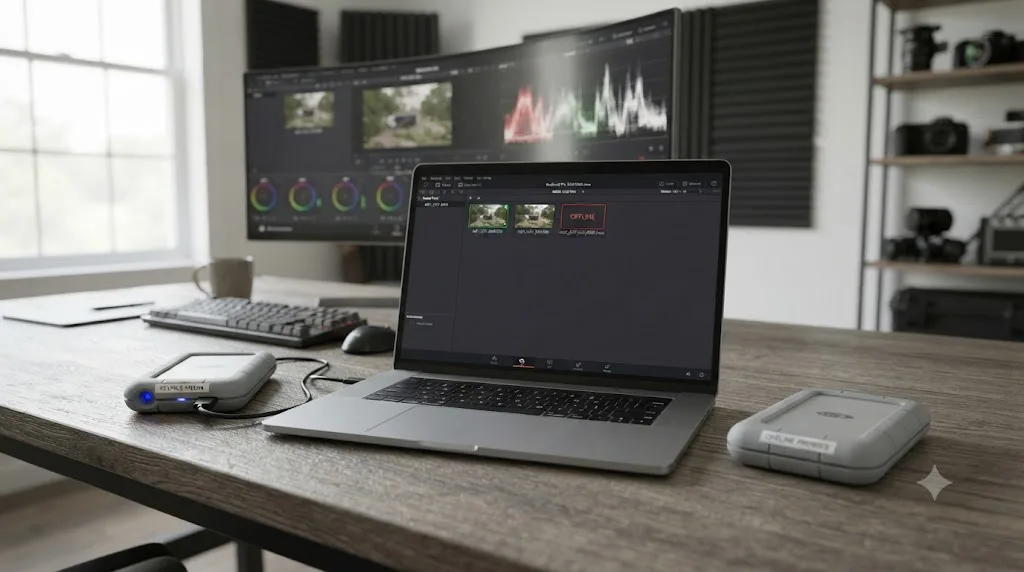
Not every file a DaVinci Resolve project depends on lives in the Media Pool, and a drive move can quietly break the ones that don't, in ways that look nothing like a normal offline clip.
Everything covered so far relinks clips through the Media Pool's own tools. Three categories of file sit outside that system entirely, each with its own path to follow after a drive moves.
Fusion Loader and Saver nodes reference a file directly by its own stored path, separate from whatever clip they're attached to on the timeline. Moving the drive that holds a Loader's source image, a PNG logo, an EXR sequence, a plate pulled in from outside the main camera footage, breaks that node specifically, and Change Source Folder or Relink Selected Clips won't touch it, since those tools operate on Media Pool clips, not on individual nodes inside a Fusion composition. To fix a broken Loader, open the Fusion page, select the node, and use its Filename field's Browse button to point at the file's new location directly, per the Fusion reference manual's description of the Loader node's file browser. A project with a handful of Fusion compositions might need this done clip by clip, which is worth budgeting time for separately from the bulk Media Pool relink.
Gallery stills and PowerGrades default to a hidden .gallery folder that lives on whichever drive sits first in your Media Storage list, not on your footage drive at all. Move, disconnect, or reorder that first volume, and every still turns solid black even though the grade information underneath it is untouched, a completely different failure mode from a red offline clip. We cover the full fix, including how to set a PowerGrade's directory independently so it survives future drive changes, in our guide to fixing black gallery stills.
LUTs live under Preferences > System > General > LUT Locations rather than inside any project at all, which actually makes them more resilient to a single project's drive move, but only if the LUT folder itself never moves. If your LUTs live on the same drive as your footage and that drive changes location, every grade using a custom LUT can show the LUT as missing even after your clips relink cleanly, since the LUT path is a preferences setting, not a Media Pool entry. Re-adding the new LUT folder path under LUT Locations, and refreshing the LUT list, fixes it in one pass across every project on that machine.
A relinked Media Pool doesn't mean a relinked project. Fusion nodes, gallery stills, and LUTs each keep their own separate reference to a file on disk, and none of the three follow along automatically when Change Source Folder or Relink Selected Clips fixes your camera footage. Budget a separate pass for each one you actually use, right after the main relink, rather than discovering the gap the next time you open a Fusion comp or reach for a saved look.
A worked example: moving a documentary project from a laptop drive to a studio RAID
Here's how the pieces from this guide chain together on a realistic move, since real drive changes rarely involve just one clean cause.
A solo documentary editor has been cutting on a single 4TB external SSD attached to a laptop, footage, audio, and proxies all on one drive named DOC_FOOTAGE. The project reaches a point where color and final mix need to happen at a studio with a proper Mac-based grading suite, so the editor copies the entire drive's contents onto the studio's RAID array and opens the project there for the first time.
The Media Pool comes up entirely red. Working through it in order:
- Platform check first. The laptop was Windows, the studio suite is a Mac, so every saved path used a
D:\DOC_FOOTAGE\convention that means nothing on macOS. One Change Source Folder pass, pointing at/Volumes/DOC_FOOTAGEon the RAID, since the folder structure underneath copied over identically, brings back the vast majority of the project immediately. - Stragglers next. A handful of B-roll clips stay red. It turns out the editor renamed a few files on the laptop mid-project to make them easier to find, after Resolve had already linked to their original names. Replace Selected Clip pairs each renamed file to its clip by hand.
- Audio check. The interview segments use dual-system sound, a lav recorder writing separate WAV files that were synced inside Resolve early on. Those went offline too, since they lived in a different top-level folder than the main footage. A second, targeted Relink Selected Clips pass, pointed at the audio subfolder, brings the synced audio back without disturbing the sync offsets already set.
- Proxies last. The editor had been cutting off proxies on the laptop to keep playback smooth on modest hardware. The studio machine is powerful enough not to need them, so rather than relinking proxies at all, Playback > Proxy Handling gets set to Prefer Camera Originals, and the project plays natively off the RAID's much faster storage instead.
Four separate causes, one move. Relinking repairs where DaVinci Resolve looks for a file. It never touches a single cut, node, or keyframe you already built, which is exactly why this entire sequence, platform swap, renamed stragglers, separated audio, and a proxy setting change, took the editor about fifteen minutes and didn't require touching a single grade or edit decision already locked into the timeline.
What are the most common mistakes when relinking media across drives?
Reaching for the slow tool when the fast one would work, renaming files after Resolve already linked to them, and skipping a unique name on every drive are the three mistakes that cause the most repeat trouble.
- Running Relink Selected Clips on a project where Change Source Folder would have worked instantly. It's not wrong, just slower than it needs to be on a large drive, since it searches every file instead of trusting an unchanged structure.
- Renaming files on the new drive "to keep things tidy" right after a move. This breaks the exact filename match both automatic relink tools depend on, turning a one-click fix into a manual Replace Selected Clip session for every renamed file.
- Reusing generic drive names like "Untitled" or "Footage." This is the single most preventable cause of both the Windows drive-letter collision and the macOS duplicate-mount-point problem covered earlier in this guide, and it costs nothing to avoid.
- Assuming a successful relink also fixed proxies and render cache. Both are independent files with their own links, covered in the proxy section above, and neither reconnects automatically just because your camera originals did.
- Moving a drive between operating systems without checking Preferences > Media Storage first, on a project that's going to keep moving between platforms regularly rather than making a one-time jump.
- Skipping a project backup before a big relink pass, especially one involving Replace Selected Clip, which pairs files without any matching safety net and will happily attach the wrong file if you're not careful.
- Not agreeing on a drive naming convention before a freelance handoff even starts. The single fix covered in the freelance handoff section above solves this preemptively, and it's far easier to set up before the drive ships than to fix after the project arrives broken.
- Assuming a clean Media Pool relink also fixed Fusion Loader nodes, gallery stills, or LUTs. Each keeps its own file reference, covered above, and a project can look fully relinked in the Media Pool while a Fusion comp or a saved look is still pointing at a drive that's gone.
- Troubleshooting a connected, visible drive as if it were a broken relink, when the real problem is an NTFS permission issue or a missing macOS Files and Folders permission, covered earlier in this guide. No amount of Change Source Folder fixes a drive Resolve isn't allowed to read.
A drive that moved is not media that's lost, it's a file pointer that needs to be told the truth. Every mistake on this list comes from skipping a small step that would have made telling Resolve that truth faster, not from anything actually going wrong with the footage itself.
Which fix matches your symptom?
Everything in this guide narrows down to one of these rows. Match what you're actually seeing to the right one before you start clicking anything.
| Symptom | Likely cause | Fix |
|---|---|---|
| Every clip in the project shows offline | Drive moved, letter changed, or platform changed | Change Source Folder, or fix the drive letter or mount name directly |
| Some clips offline, most relinked fine | Renamed or re-encoded stragglers | Replace Selected Clip, one file at a time |
| Clip plays picture with no sound, or the reverse | Audio and video synced from separate drives, only one moved | Relink Selected Clips pointed at the audio drive specifically |
| Gallery stills show solid black | First Media Storage volume moved, disconnected, or reordered | Reconnect that volume, or reset the Gallery Stills Location in Project Settings |
| A Fusion comp shows a missing image icon | Loader or Saver node points at an old path directly | Reselect the file in the node's Filename field on the Fusion page |
| Drive is visible in Finder or Explorer but Resolve still won't read it | Format or permission issue, not a broken path | Check NTFS write access on Mac, or Full Disk Access under macOS privacy settings |
| Whole project opens offline on a different OS than it was built on | Platform path convention changed, drive letter versus /Volumes | One Change Source Folder pass, or set up Mapped Mount for repeat crossings |
| Proxies or render cache look wrong after everything else relinks | Proxy or cache drive didn't move with the originals | Check Playback > Proxy Handling, relink or regenerate proxies separately |
How do you prevent this from happening every time you move a drive?
Build a folder structure and a naming convention before you ever import footage, and treat both as fixed once Resolve has linked to them, since reorganizing after the fact is what turns a routine drive move into a relinking session.
A few habits make every future drive move close to painless:
- Name every drive uniquely, across every machine you or your collaborators own. This single habit prevents both the Windows drive-letter collision and the macOS duplicate mount point problem covered in this guide.
- Match drive names across machines for anything you move between them regularly, following the same principle Scott Simmons uses for his home-and-office RAID setup, covered in the freelance handoff section above.
- Settle your folder structure before you import, not after. Frame.io's Jason Boone puts this plainly in his own guide to naming conventions, noting that "it's important to look at the project as a whole, including the names of folders, media drives, project files, bins, sequences, exports, and archival material," since a naming system that only covers files and ignores the folders and drives around them misses most of what actually breaks a relink, per Boone's article on file naming conventions. Our folder and bin naming guide covers building that structure for DaVinci Resolve specifically.
- Set the standard early and keep it consistent. Boone's other piece of advice applies directly here too: "the best method is to get your file naming standard set in place early. Then remain as consistent as possible from there," per the same article. A convention you invent halfway through a project only protects the footage you import after that point.
- Prefer Change Source Folder's speed by keeping structure intact. Every time you resist the urge to reorganize a footage drive after Resolve has already linked to it, you're keeping the fast relink tool available for next time instead of forcing a full recursive search.
- Set up Mapped Mount in advance for any project that regularly crosses platforms, rather than discovering the feature exists only after the first cross-platform move already broke everything.
- Keep symlinks and junctions as a deadline tool, not a habit. They're useful for getting into a session fast, covered earlier in this guide, but a project full of undocumented aliases is harder to hand off than one with a clean, matching drive name.
A drive letter is not a drive's identity, it's a seat assignment Windows hands out again every time the room fills up differently. The same is true of a Mac volume name after an unclean disconnect. Neither is something you control once a drive is already connected and a project already linked to it, which is exactly why the habits that matter happen before the move, not during the panic after.
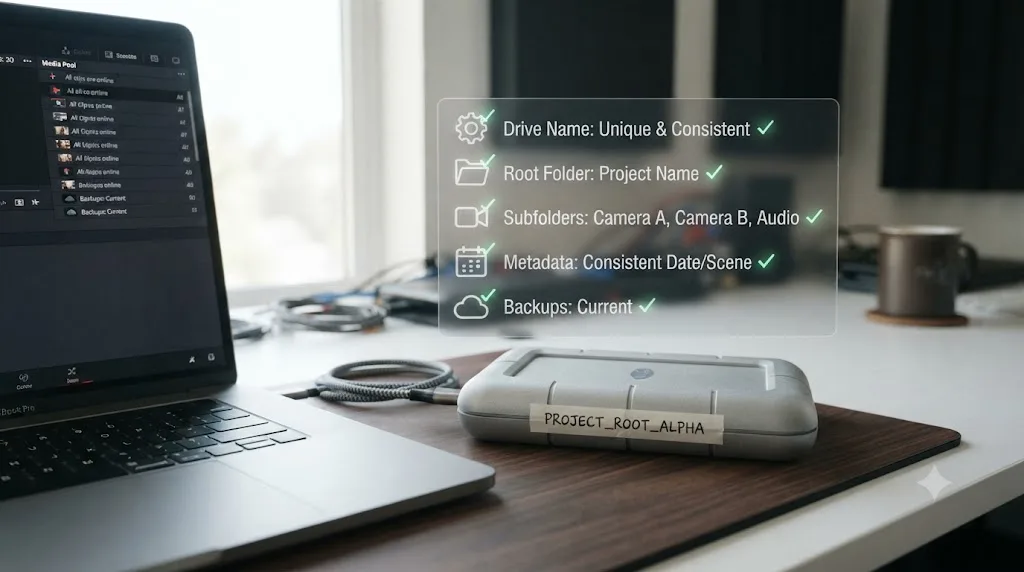
The verdict
A drive move is not a media emergency, it's an address book that needs updating. Match the tool to what actually changed: Change Source Folder when the structure moved intact, Relink Selected Clips when it didn't, and Replace Selected Clip for the odd straggler that got renamed along the way. Fix the platform-specific cause underneath, a stolen Windows drive letter or a stale macOS mount point, so the same break doesn't happen again on your next reboot, and name every drive you own something nobody else would ever pick, on your machine or a collaborator's.
Do that once, and future drive moves stop being a fifteen-minute detour from your actual work. The footage was never gone. It just needed you to tell DaVinci Resolve where it went.
Frequently asked questions
- How do I relink media in DaVinci Resolve after moving it to a new drive?
- Right-click the affected clips or bins in the Media Pool. Choose Change Source Folder if the folder structure below the new location matches the old one, since it swaps the stored path prefix in one pass. Choose Relink Selected Clips if names or structure changed, since it searches recursively for a filename and duration match. Either way, edits, nodes, and grades stay exactly as you left them.
- What's the difference between Change Source Folder and Relink Selected Clips?
- Change Source Folder rewrites the saved path prefix directly, without searching, which makes it fast but requires the directory structure under the new location to match the old one. Relink Selected Clips searches recursively through a folder you choose, matching each offline clip by filename and duration, which handles a reorganized folder tree but takes longer on a large drive.
- Why did my drive letter change after I moved my footage to a new computer?
- Windows assigns drive letters in the order it detects connected devices, so plugging a drive into a different port, or plugging in a second drive first, can bump your footage drive from D: to E: with nothing else changed. Fix it permanently in Disk Management by right-clicking the partition and choosing Change Drive Letter and Paths, or relink once with Change Source Folder.
- Why does my external drive mount under a different name on my Mac after a move?
- If a drive didn't unmount cleanly last time, macOS can leave a stale folder behind at /Volumes/YourDriveName. When the real drive reconnects, the operating system mounts it as 'YourDriveName 1' instead, since the original name is already taken by the leftover folder. Clearing the stale mount point and giving every drive a unique name prevents the collision.
- Will relinking media after a drive move affect my edits or color grade?
- No. Relinking only repairs where DaVinci Resolve looks for the source file on disk. Every cut, node, transition, and grade you built stays exactly as it was, because that information lives in the project database, not in the file path.
- How do I relink media for a freelance project handed off on a new drive?
- The fastest fix, before a problem ever starts, is naming your media drives identically to whatever drive the project was built on, since DaVinci Resolve and every other NLE looks for the same drive name and file path regardless of machine. If the incoming drive has a different name, one pass of Change Source Folder on the whole project fixes every clip at once.
- Can DaVinci Resolve remember a drive path across different machines?
- Partially, through Preferences > Media Storage. Its Mapped Mount column lets you set translatable path mapping between Mac, Linux, and Windows conventions for a given volume, so a shared project can resolve the same media location differently on each collaborator's machine without a manual relink every time.
- Can I use a symbolic link or junction to stop DaVinci Resolve from losing track of a drive at all?
- Yes, with limits. On macOS, a symlink inside /Volumes can give a renamed or relocated drive its old expected name back. On Windows, a directory junction, created with mklink /J, can point an old folder path at a new drive's location. Both let the original saved path resolve again without touching Resolve, but they're a workaround a collaborator won't expect, so document them clearly or just relink normally instead.
Sources
- Justin Robinson, JayAreTV: Relink Offline Media in DaVinci Resolve
- DaVinci Resolve Reference Manual: Change Source Folder (VFXPedia mirror)
- DaVinci Resolve Reference Manual: Using "Change Source Folder" to Relink Clips (VFXPedia mirror)
- DaVinci Resolve Reference Manual: Media Storage (VFXPedia mirror)
- DaVinci Resolve Reference Manual: What Is Media Management? (VFXPedia mirror)
- Scott Simmons, ProVideo Coalition: Easy Remote Editing and Collaboration with Identical Hard Drives
- Microsoft Support: Disk Management in Windows
- Backblaze Help: Duplicate Mount Point in /Volumes Error
- Jason Boone, Frame.io: Speed Up Your Workflow with Good File Naming Conventions
- Fusion Reference Manual: Loader Node [Ld] (VFXPedia mirror)
- ss64: MKLINK Command Reference
- OSXDaily: How to Create Symbolic Links at the Command Line on Mac OS X
- MacPaw: Why an External Drive Shows Up as Read-Only and How to Fix It
Put this guide to work with TryUncle.
Ask about the step you’re on. TryUncle sees your screen and points at the control you need, so you can keep learning in your own project.
Get TryUncle for Mac or WindowsKeep reading
Fixes · Jul 7, 2026 · 26 min
DaVinci Resolve Media Offline: Every Cause and the Fix
Every reason DaVinci Resolve marks a clip media offline, and the exact relink, cache, and codec fixes for each cause, in order of how often they happen.
Guides · Jul 25, 2026 · 40 min
How to Consolidate Media in DaVinci Resolve Before Archiving
How to consolidate media in DaVinci Resolve before archiving: Media Management steps, frame handles, unused clips, and where to store the finished archive.
Guides · Jul 16, 2026 · 36 min
Folder and Bin Naming Conventions for DaVinci Resolve Projects
A practical naming system for DaVinci Resolve folders and bins: project structure, camera bins, Power Bins, Smart Bins, and what breaks relinking.